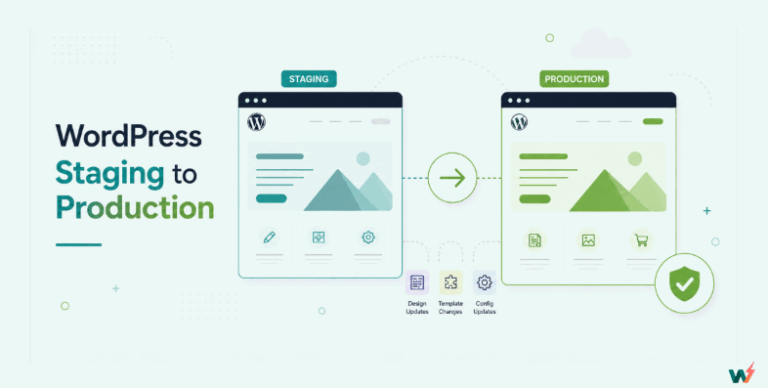
A client’s plugin needs updating, the update touches checkout, and you have twenty minutes before a call. Agencies do not skip staging because they doubt it works. They skip it because, until now, every copy cost a plan slot or a second billable site, and a routine update never feels worth one. On InstaWP’s managed WordPress hosting, that copy now comes with the site: every hosted site on the Pro, Turbo and Elite plans has a WordPress staging environment built in, on its own URL, already holding this week’s orders, and it costs nothing extra to use.
Two things to be clear about before you use it. This is not the staging site the InstaWP Connect plugin creates: that one is a separate site on its own paid plan, while this belongs to the production site and lives only in the InstaWP app. And a push replaces your live site with no automatic undo and no backup taken first, so take your own before you click it.
- Staging is built into Pro, Turbo and Elite: one per hosted site, ready in two to three minutes, with nothing to install.
- It never shows up on your invoice, even if you keep it for months.
- Pull before you start. A pull refreshes staging from production and only ever overwrites staging.
- Back up production before every push. A push replaces the live site, takes no backup first and has no automatic undo.
- On a live store, orders placed after your last pull are lost on a full push, so push in a maintenance window or sync selectively.
- Object cache stays on in staging, so cache-related plugin bugs show up there instead of on the live site.
What is an InstaWP staging environment?
An InstaWP staging environment is a second WordPress site, built from your production site’s own backup and permanently linked to it. It runs on the same hosting fleet as production, on its own InstaWP subdomain, with its own WordPress admin, its own credentials, and its own row nested under the production site in your Sites list. The public and search engines never reach it.
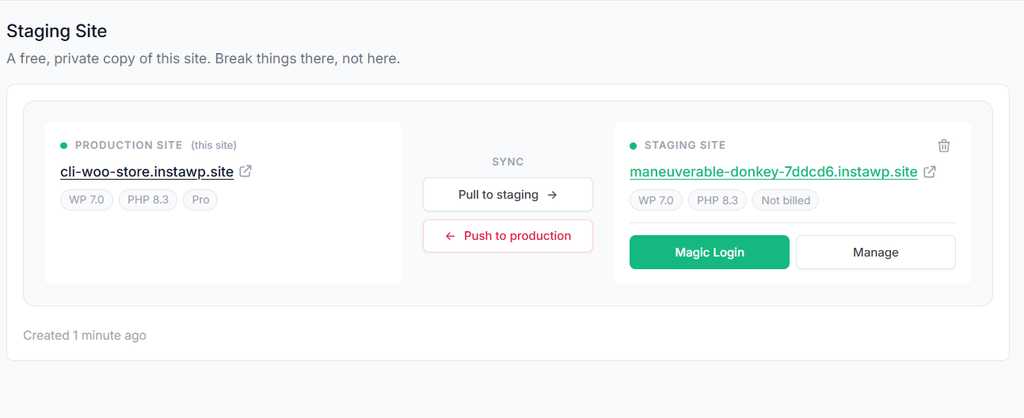
It is a complete, independent WordPress install, not a preview or a read-only clone. The only things that make it different from any other InstaWP site are that it belongs to one parent, that it is never billed, and that a small set of production-only features are switched off on it.
How is this different from InstaWP Connect staging?
If you have used InstaWP before, you have probably made a staging copy with the InstaWP Connect plugin. This is not that feature renamed. Connect builds a second, independent site that you choose a plan for and pay for. A hosted site’s staging environment belongs to the production site, is managed only in the InstaWP app, and is not charged.
Both are worth having. Connect staging is still the right route for a site hosted somewhere else, or for an InstaWP account on a plan below Pro, because it does not depend on the production site living on InstaWP at all.
How do you create a staging environment?
On InstaWP you open a hosted site, choose Staging, and click Create Staging Site.
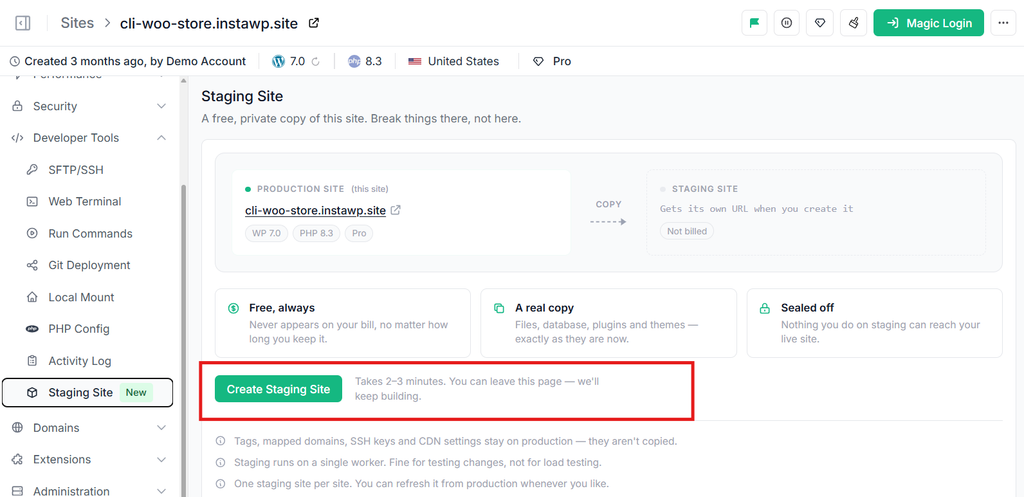
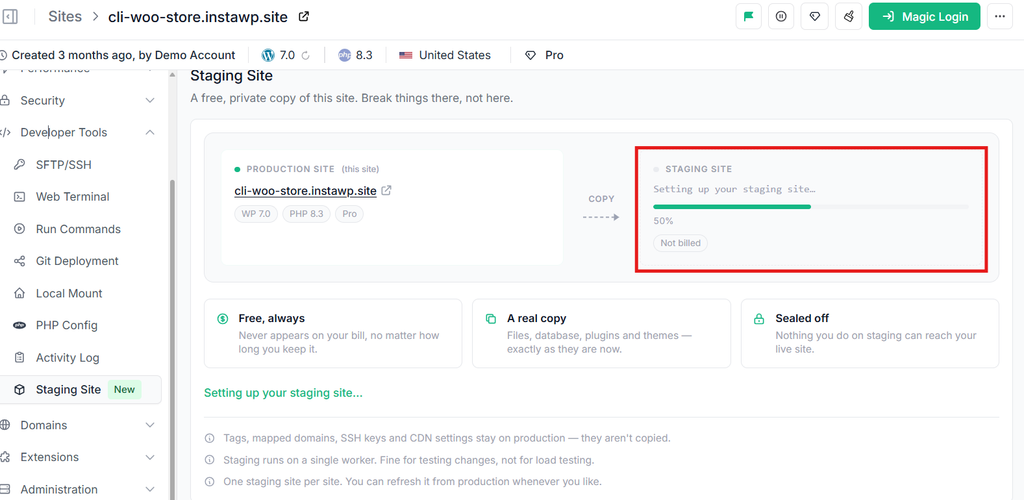
InstaWP backs up the production site and restores that backup as a new site, which takes about two to three minutes. You can leave the page while it runs and an email arrives when the staging site is ready.
What do you get on a staging site?
A staging site is a complete site in your account, not a cut-down preview. It comes with:
- Its own InstaWP subdomain, which is randomly generated rather than predictable from the production site’s name.
- Its own WordPress admin, reachable by magic login from the InstaWP dashboard without typing a password.
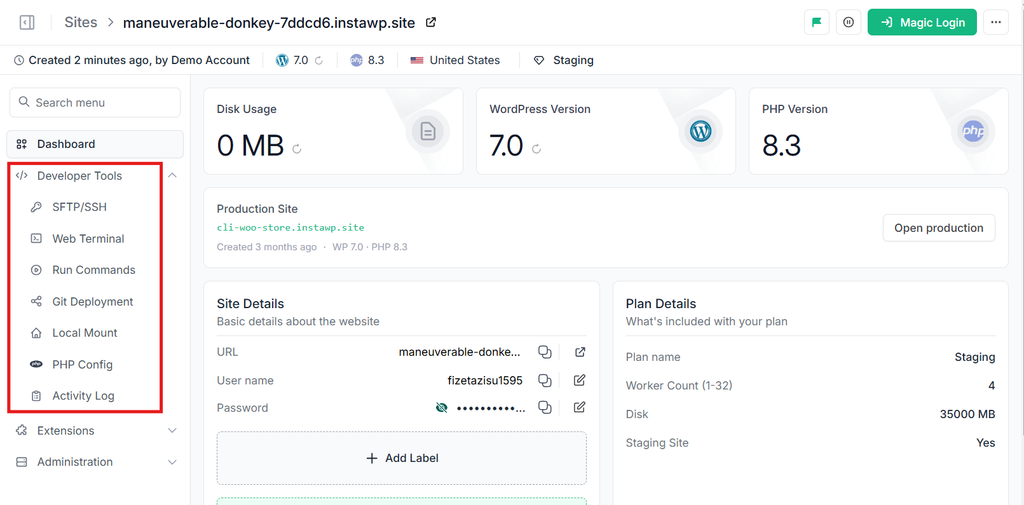
- The full developer toolset: SSH and SFTP, a web terminal, Run Commands, Git deployment, Local Mount and PHP configuration. You can run WP-CLI against it or mount it on your machine and edit it locally, exactly as you would on a production site.
- Its own MCP integration. The staging site is addressable by an AI client through InstaMCP in its own right, separately from the production site.
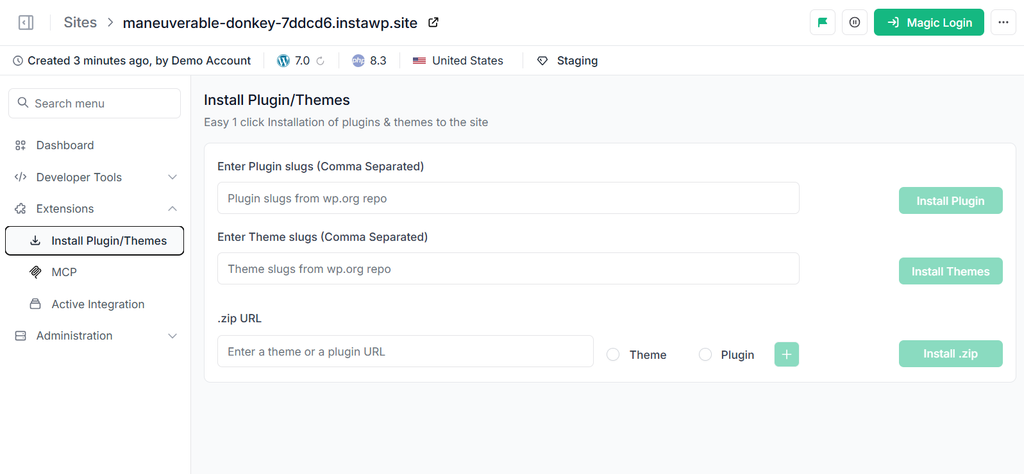
- Plugin and theme installation, an activity log and disk usage reporting, so it behaves like a normal site in the dashboard rather than a locked preview.
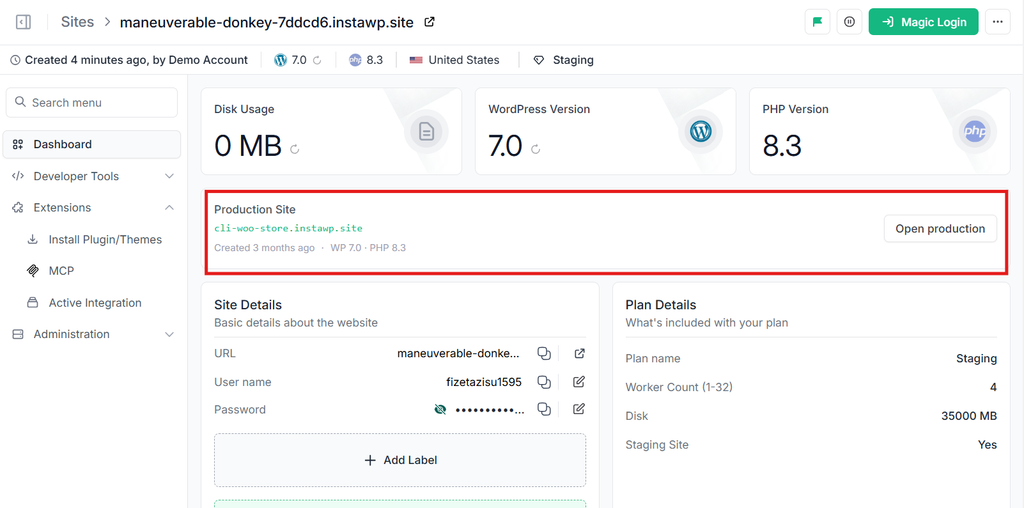
- A permanent link to its parent. The staging site appears nested underneath the production site in your Sites list, and carries a Production Site card that opens the live site in one click.
- Automatic reservation, so it never expires on its own. It stays until you delete it, the same way a permanent site behaves elsewhere on the platform.
That last point is the difference between a staging environment and a throwaway sandbox. A sandbox is for an experiment with no particular home. A staging environment belongs to one production site and is expected to still be there next month.
What gets copied to staging, and what stays on production?
A staging environment copies everything inside the WordPress installation and none of the configuration that sits around it. Files, the database, plugins, themes, uploads and content all come across. Your mapped domain, SSL certificate, CDN, tags and SSH keys do not.
That split confuses people until you know the reason, and the reason is simple: those things live on the site record at the hosting layer, not inside the site backup. A backup can only carry what is in the filesystem and the database. Domain mapping, certificates and CDN configuration are hosting settings attached to a particular site, so they stay with whichever site they were attached to.
The practical consequence is the useful one. Because the mapped domain is a property of the production site and not of the backup, a production site serving clientsite.com carries on serving clientsite.com after you push staging over it. InstaWP search-replaces the staging hostname out and the production hostname in as part of the push, so links and asset URLs land on the right domain.
How does two-way sync between staging and production work?
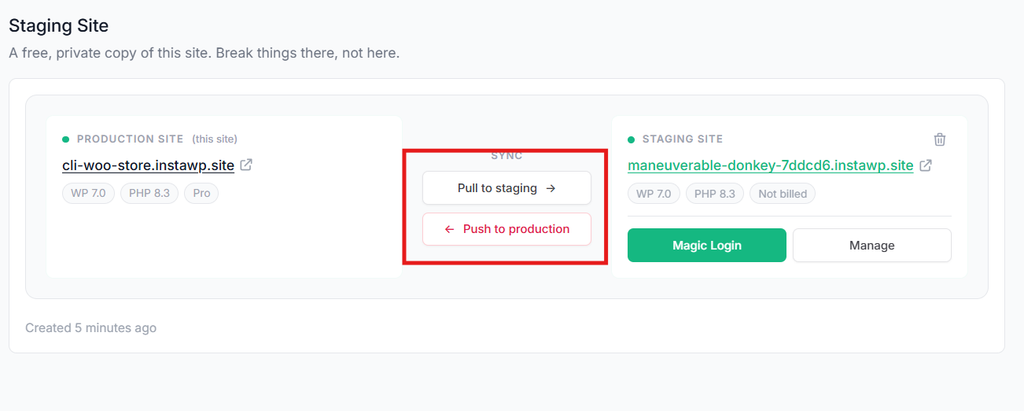
InstaWP syncs in both directions from the same staging card, and the two directions are not mirror images of each other in terms of risk. Pulling refreshes staging from production and only overwrites staging. Pushing replaces production with staging and overwrites your live site.
Most staging implementations make one of those two a support ticket, which is why people end up copying changes by hand and introducing the exact errors staging was supposed to prevent.
Pull: refresh staging from production
A pull backs up the production site and restores it over the staging site. Everything currently on staging is replaced, and everything on production is untouched. Use it whenever staging has drifted, which in practice is at the start of every piece of work.
The staging site keeps its identity through a pull. Its URL, its SSH credentials and its place in your Sites list all survive, because InstaWP restores the content in place rather than building a new site. That means a bookmark you gave a client last month still works after you refresh.
Push: replace production with staging
A push is the reverse: InstaWP backs up the staging site and restores it over production, search-replacing hostnames as it goes. It uses the same restore mechanism the Backups feature already uses against a live site, so it is a well-worn path rather than a bespoke one. The CDN is purged once the push finishes, not when it starts.
A push and a pull cannot run at the same time on the same pair of sites. InstaWP holds a lock across both directions and checks for unfinished work on either site before starting, which prevents the scenario where two restores each overwrite the other from snapshots taken moments apart with nothing reporting an error.
If you only want to move some of your changes, a full push is the wrong tool. Selective, order-safe syncing is a different workflow, and there is a separate guide on syncing staging to live without overwriting WooCommerce orders.
What happens to your live site when you push?
A push replaces your production site’s files and database with the staging copy, and there is no automatic undo. InstaWP does not take a snapshot of production before overwriting it. If production has changed since you last pulled, those changes are gone.
InstaWP says this in the confirmation dialog rather than burying it, and the wording is worth reading before you click:
There is no automatic undo, and no backup is taken first.
Two other things change on production at the moment of a push, and both surprise people:
- Password protection is switched off on production and is not re-applied. If you were shielding a site behind a password, turn it back on afterwards.
- Your mapped domain and SSL keep working. They were never part of the copy, so there is nothing to restore. The site simply continues serving the same domain with the new content.
Pushing is not dangerous so long as you treat it as a deliberate act, which is the right shape for an operation that replaces a live website. The teams that get burned are the ones who assumed a safety net was there.
What can you not do on a staging site?
A staging site on InstaWP has no CDN, no edge firewall and no automated backups. Several dashboard features are switched off on it entirely, because they either need a public domain or would generate a bill. Use it to find out whether a change works, not to find out how much traffic the site can take.
The features InstaWP turns off on a staging site are Monitor, Performance, Security, Object Cache settings, Insta-Optimize, Shield, Backups, CDN and domain mapping, plan changes, cache purging and site transfer. Transferring a production site moves its staging environment along with it, so the staging site has no transfer action of its own.
The one thing InstaWP deliberately left switched on
Object cache stays enabled on the staging site, and the staging site inherits the production site’s disk quota. Both are deliberate choices, and the object cache one is the most useful technical detail in this article.
A large share of the plugin conflicts that break WordPress sites only appear when an object cache is running. A plugin stores something uncacheable, or reads a stale value, or writes to a cache group it does not own, and the symptom is a page that is correct on the first load and wrong on the second. Test that on a staging site with caching disabled and it passes cleanly, then fails the moment you push.
Keeping object cache on costs InstaWP something and it is the reason a staging environment behaves like the real site rather than like a clean install. The inherited disk quota does the same job for size: a 40GB media library behaves like a 40GB media library, which matters when the thing you are testing is a migration, an image optimiser or a backup plugin.
What does a WordPress staging environment cost on InstaWP?
Nothing. A staging environment is excluded from usage billing and never appears on your invoice, for as long as you keep it. It is included on the Pro, Turbo and Elite managed hosting plans, at one staging environment per hosted site.
That is worth stating precisely, because “free” is a word hosts use loosely. It does not mean a discounted second site, and it does not mean free for a trial period. The staging site is excluded from the resource usage that InstaWP bills on, so a staging copy left running for six months adds nothing to the bill. There is no cleanup discipline to maintain and no reason to delete one.
Which plans and sites get a staging environment?
- Included: hosted sites on the Pro, Turbo and Elite plans.
- Not included: Sandbox, Starter and Plus. The Staging menu item is visible on those plans and shows an upgrade prompt rather than the feature.
- Not available at all: sites sold through WaaS, sites assigned to a client portal, and legacy accounts. Those are refused with their own message rather than an upgrade prompt.
If you are not on Pro or above, the practical alternative is the InstaWP Connect route, which creates a staging copy of any WordPress site regardless of where it is hosted. That is a different workflow with different mechanics, and there is a separate walkthrough of how to spin up a free WordPress staging site.
What happens if you downgrade below Pro?
Dropping a site below Pro starts a seven-day grace period. InstaWP documents both upgrading and downgrading a site plan if you want the exact steps. The dashboard warns that the staging site will be removed on a named date unless you upgrade, and upgrading again inside that window cancels the removal. Nothing disappears without notice, and the entitlement is re-checked at the moment of removal rather than at the moment of the downgrade.
Which agency workflows does a staging environment make routine?
The value of a staging environment shows up in recurring work rather than in one-off projects. Below are five workflows where having a permanent, free twin changes the shape of the job rather than just adding a safety step.
1. The monthly maintenance run
This is the strongest case, and it is a loop rather than a task. Pull production down to staging so the copy is current. Apply every plugin, theme and core update on staging. Click through the paths that matter for that client, which is usually the homepage, one landing page, the contact form and checkout if there is one. Then push, working from a staging to live checklist so the same steps happen every month.
If an update breaks something on staging, nothing has happened to the live site. Pull again to reset staging to a clean copy and either apply the updates one at a time to find the offender, or hold that one plugin back and tell the client why. Recovering from a bad update becomes a refresh rather than a rollback, which is a much cheaper operation to reason about.
2. The client approval cycle
Rebuild the section on staging, send the client the staging URL, and iterate there until they sign off. Because the staging site has its own WordPress admin and magic login, you can give a client or a contractor access to the copy without giving them anything on the live site.
The alternative most agencies live with is building the work twice: once on a copy to get approval, then again on production to ship it. A client who takes three weeks to approve copy no longer holds a live site in a half-finished state, and the work only gets built once.
3. The WooCommerce checkout test
Payment gateway changes, tax rules, shipping zones and checkout plugins are the changes with the highest cost of being wrong, because a broken checkout is invisible until revenue stops. Staging gives you a real copy of the catalogue, the real theme and the real plugin stack on a URL that is not the store.
One caution specific to stores. Orders placed on production after your last pull are replaced when you push, because the push replaces the whole database. For a live store, treat a full push as a deployment tool for a maintenance window, or use selective syncing instead.
4. The page-builder template change
Global styles, template parts and theme-builder templates in Elementor, Bricks or the WordPress site editor cascade across every page that uses them. Changing one is fast; finding out which twelve pages it quietly broke is not, and undoing it on a live site is worse.
On staging you make the change, walk the site, and only then decide. InstaWP keeps the staging site on the same hosting stack as production, so PHP version and server configuration match, which a laptop copy cannot promise.
5. The place you let an AI agent work
This is the workflow that did not exist two years ago and is now the reason a lot of people want staging at all. Developers and agencies are pointing Claude, Cursor and other AI clients at WordPress sites, and the honest objection is that nobody wants an agent making unsupervised changes to a client’s live site.
A staging environment answers that objection directly. It is a real site with real data and the real plugin stack, it has its own URL and its own SSH access, and it is sealed off from production. An agent can restructure content, rewrite templates or run bulk edits there, you review the result on a live preview, and the push to production stays a deliberate human click.
InstaWP supports this directly. A staging site gets its own MCP integration through InstaMCP, separate from the production site’s, so you point Claude, Cursor or any other Model Context Protocol client straight at the copy. The agent gets the real content and the real plugin stack to work against, and it never holds a connection to the live site.
When an agent gets something wrong, the web terminal and Run Commands let you undo it by hand on the same site, and Git deployment lets you put the reviewed result back through a branch rather than a file copy. The push to production stays a deliberate human click either way.
Can you create and sync a staging environment with the API?
Yes. The InstaWP API exposes four endpoints covering the full lifecycle, which is enough to build staging into a deploy script or a scheduled maintenance job. In every direction the site in the URL is the production site, and InstaWP resolves the staging child from it.
# Create the staging environment for a hosted site
POST   /api/v2/sites/{site}/staging

# Pull production down to staging (refresh the copy)
POST   /api/v2/sites/{site}/staging/reset

# Push staging up over production (no undo, no pre-push backup)
POST   /api/v2/sites/{site}/staging/push

# Remove the staging environment
DELETE /api/v2/sites/{site}/staging

# {site} is always the PRODUCTION site, in all four calls.
The create call returns three refusals worth handling in a script rather than retrying blindly: 403 when the site is not entitled to staging, 409 when provisioning is already in progress, and 422 when the site already has a staging environment. A sync requested while another sync is running is refused too, because both directions share one lock.
You will need an API token from your account settings first, which InstaWP covers in creating an API token, and the rest of the surface is in the API reference. If you would rather not write the HTTP calls yourself, InstaCLI drives the same platform from your terminal.
How does this compare to WP Engine, Kinsta, Cloudways and staging plugins?
Most managed WordPress hosts now include a staging environment at no extra charge, so “we include staging” is not a differentiator for anyone. The real differences are where the staging copy runs, whose resources it consumes, and what you are paying for underneath it. There is a longer survey of WordPress hosting with staging for agencies if you are choosing a host rather than using one.
The table below was compiled from each vendor’s own public documentation on 23 September 2026. Vendor terms change, so check the linked source before relying on any row.
Sources, all captured 23 September 2026: WP Engine sites and environments, Kinsta staging environments, Cloudways staging, WP Staging documentation and LocalWP. The Kinsta Premium staging price was rechecked on 5 October 2026 against Kinsta’s add-ons page ($20 a month per environment, prorated).
Read that table honestly and the cost row is closer than marketing copy usually admits. What actually separates the options is the row next to it. A staging copy that lives in a subfolder of the live site shares that site’s PHP workers, its disk and, in the default WP Staging setup, its database, which means a runaway process in staging is a production incident. A staging copy on the same Cloudways server shares that server’s RAM. A staging copy on a laptop is not reachable by a client or an AI agent and does not match the production stack.
InstaWP’s staging site is a separate site with its own resources, so nothing it does can starve production, and it sits on pay-per-use WordPress cloud hosting rather than a fixed plan, so the copy genuinely adds nothing to a bill that otherwise moves with what you run. Object cache staying enabled is the detail that distinguishes it from a clean test install, and both sync directions being one click apart is what keeps the workflow from decaying into manual copying.
InstaWP staging environments give a hosted site on Pro, Turbo or Elite a free, permanent twin: one per site, ready in two to three minutes, synced in both directions from the site dashboard, and excluded from your bill. It is not the InstaWP Connect staging flow, which creates a separate billable site. The one thing to carry into your first push: it replaces your live site, with no automatic undo and no backup taken first.