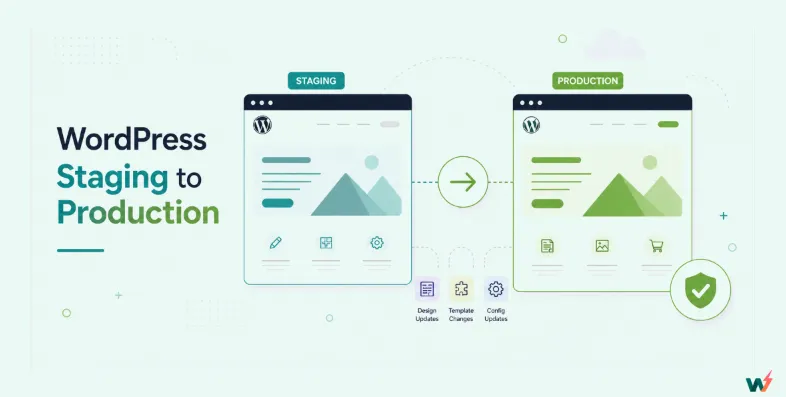
Moving WordPress from staging to production means copying work you tested on a private copy of a site onto the live one. There are two safe ways to do it: push the whole staging site over production when nothing has changed on live since you made the copy, or merge only the changes you recorded when live keeps taking orders, posts and sign-ups.
On InstaWP’s managed WordPress hosting, both routes are built in. Sites on Pro and above get a free staging environment with a one-click Push to production, and the free InstaWP Connect plugin brings staging plus selective 2-Way Sync to WordPress sites hosted anywhere else. This guide covers both, step by step, and the checks that keep client data safe.
- A push replaces production’s files and database with the staging copy. Use it only when live has not changed since you made the copy, and back up production first.
- A merge applies only the admin-side changes you recorded on staging, so WooCommerce orders and new posts on live stay where they are. On InstaWP this is 2-Way Sync, free since v3.28.
- Sites hosted on InstaWP’s Pro, Turbo or Elite plans get one staging environment free, with Pull to staging and Push to production. It never appears on the bill.
- For a site hosted elsewhere, the free InstaWP Connect plugin creates a staging copy on InstaWP and syncs selected changes back. That staging site is billed on the plan you pick, from $2 a month on Sandbox.
- InstaWP takes no automatic backup before a push and switches off password protection on production afterwards. Back up first and re-check site settings when it finishes.
Table of Contents
What is the difference between staging and production in WordPress?
A staging site is a private copy of your WordPress site where you test updates, redesigns and new plugins. Production is the live site your visitors and customers use. Staging to production is the step where tested work crosses from one to the other, and it is the only step in the workflow that can hurt real users.
If you are still choosing where to test, our comparison of WordPress staging vs sandbox sites explains when a throwaway sandbox is enough and when you need a true copy of live.
What “WordPress Staging to Production” Actually has to Handle
A WordPress site is not a static codebase. It is four interlocking systems, and any staging-to-production workflow has to handle each of them correctly.
Files. Themes, plugins, the uploads directory, custom code in wp-content, mu-plugins. These are the easy part. Almost any deployment tool can move files: Git, rsync, SFTP, even FileZilla. Files alone do not deploy a WordPress site.
Database schema. New tables added by a plugin, new ACF or Meta Box field groups, custom post types that introduce new meta keys, WooCommerce extensions that add columns to order tables. Schema changes are where weak deployment tools start to fail.
Database content. This is the dangerous one. Content includes published posts, WooCommerce orders, comments, user registrations, abandoned carts, form submissions and anything else the client’s live site keeps writing. It lives in wp_posts, wp_postmeta, wp_users, the WooCommerce order tables and dozens of related tables. Overwriting these is how a database push destroys client data.
Configuration. Plugin settings, Customizer values, menus, widgets, the whole wp_options table. Payment gateway keys, SMTP settings, licence keys and SEO settings live here. A blind config overwrite can break payments and email delivery in one click, which is why a WooCommerce store needs extra care.
Most staging-to-live workflows feel fine until they fail because they handle files and config well but treat content as the developer’s to overwrite, when it belongs to the client.
The Hidden Problem: One-way Push and Bi-directional Drift
Drift is what makes a push risky. The moment you copy live to staging, the two sites start moving apart. Your team changes templates on staging while customers place orders and editors publish posts on live. A push that replaces the live database takes production back to the moment you made the copy, so anything that arrived on live in between is gone.
A full push is still the right tool for specific jobs: a brochure site that changes once a month, a redesign during an agreed content freeze, or a change that is mostly code. Most hosts, InstaWP’s built-in staging included, push the whole site, and for those jobs it is the fastest and cleanest option.
Busy sites are different, because WooCommerce stores, membership sites and active blogs don’t freeze. Asking a client to stop trading for a day while you deploy is a workaround. For those sites you need a merge, which moves only your changes and leaves live data alone.
Push, Pull, and Merge: The Three Operations Every Agency dev Should Know
Once you can name the three operations a deployment tool performs, you can judge any tool in about thirty seconds. Phrases like “push changes from staging to live” and “push staging site to live” can mean very different operations, and most tools only do one of them.
- Push sends staging to live. It overwrites whatever is on live with what is on staging. Fast, and safe only when live has not changed since the last copy.
- Pull copies live to staging. It refreshes staging with current live data. It is safe because staging is disposable.
- Merge sends only the specific changes you made on staging to live and leaves everything else untouched. The new template moves over. Published posts stay. WooCommerce orders stay. The client’s plugin tweak from Tuesday stays.
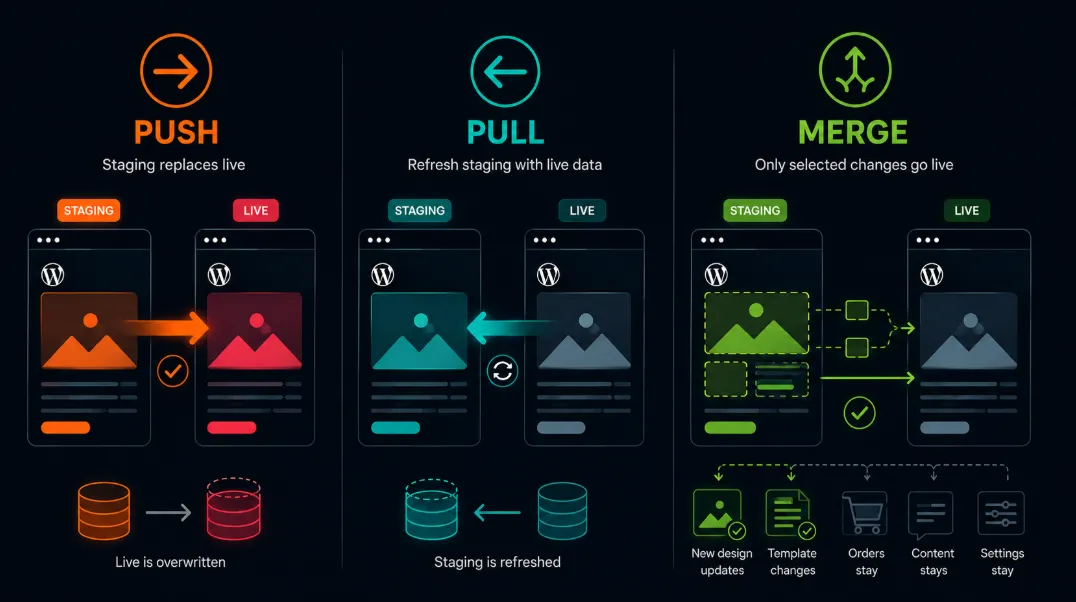
For a merge to work, the tool has to treat each change as its own unit. InstaWP’s 2-Way Sync does this by recording each admin action on your WP staging site as an event: a page published, a plugin activated, a Customizer setting changed. When you deploy, you review the list, select what to apply, and the events replay on live.
Records are matched by slug, not database ID, because IDs differ across sites. The post that is ID 47 on staging might be ID 312 on live, while the slug about-us is the same on both. If a page with the same slug exists on live it is updated; if not, a new one is created.
How do you move WordPress from staging to production on InstaWP?
The easiest way to move WordPress from staging to production is to do it on InstaWP. InstaWP’s managed WordPress hosting gives every site on Pro and above its own staging environment with a one-click Push to production, and the free InstaWP Connect plugin brings staging and selective 2-Way Sync to sites hosted with any other provider.
- Built-in staging: one free WordPress staging environment per site on Pro, Turbo and Elite, ready in 2 to 3 minutes
- Pull and push: Pull to staging and Push to production from one screen, or over the InstaWP API
- 2-Way Sync: record admin-side changes on staging and sync only the ones you pick, through the InstaWP Connect plugin
- Developer tools on staging: its own URL, Magic Login, SFTP/SSH, WP-CLI, Git deployment and its own MCP connection
- Sandbox to production: a site built on InstaWP goes live with a plan change, on the same URL
Method 1: Push to production with built-in staging (sites hosted on InstaWP)
Every site you host on InstaWP’s Pro, Turbo or Elite plan can have one staging environment at no extra cost. It arrived in InstaWP v3.29 (October 2026) and is managed entirely from the InstaWP dashboard, so it leaves no trace in the production site’s WP admin.
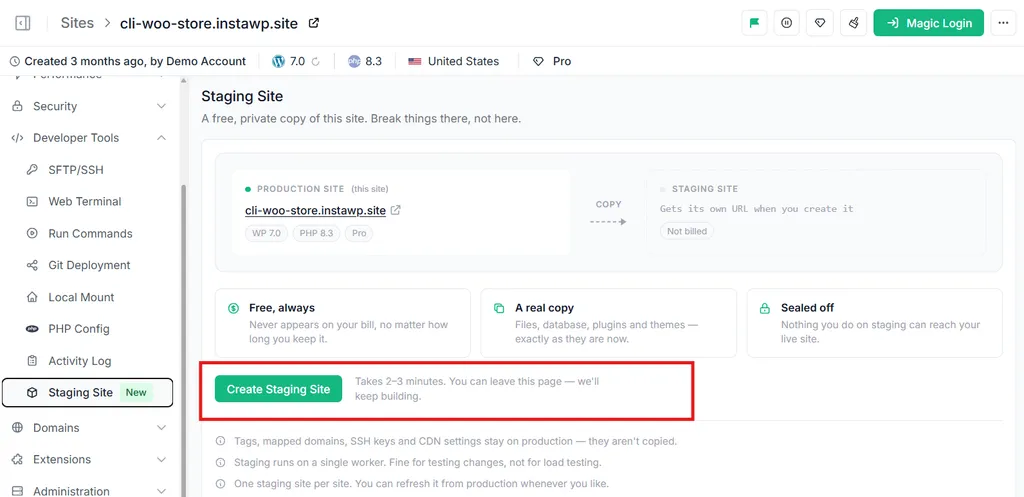
Step 1: Create the staging site. Open the site from the Sites page, select Developer Tools > Staging Site and click Create Staging Site. It takes 2 to 3 minutes. You can leave the page; InstaWP emails you when the copy is ready.
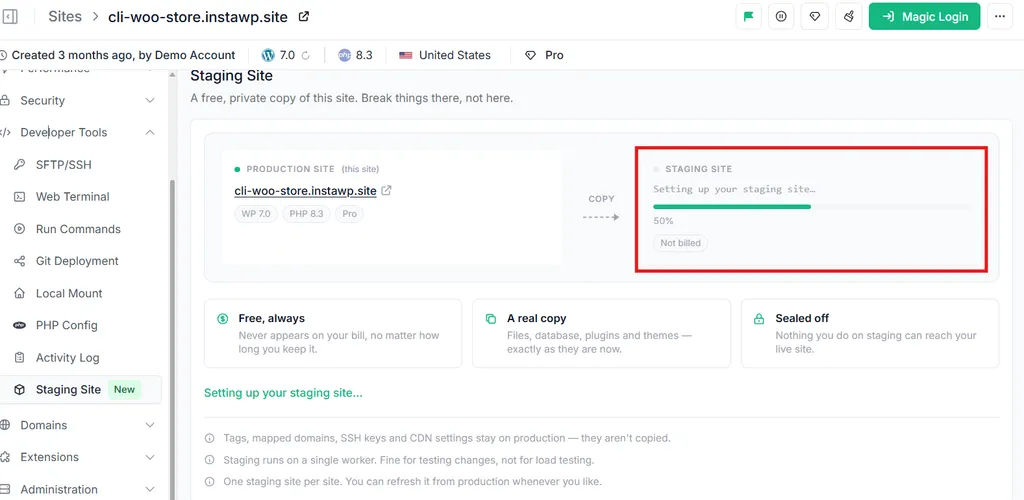
Step 2: Do the work on staging. The staging site has its own URL, its own WP admin with Magic Login, and the same developer tools as production: SFTP/SSH, Web Terminal, Run Commands, Git Deployment, Local Mount and PHP Config. Object cache stays on, which is where many caching-related plugin problems show up. CDN, Shield, backups and monitoring are switched off, and staging runs on a smaller resource allocation, so don’t use it for load testing.
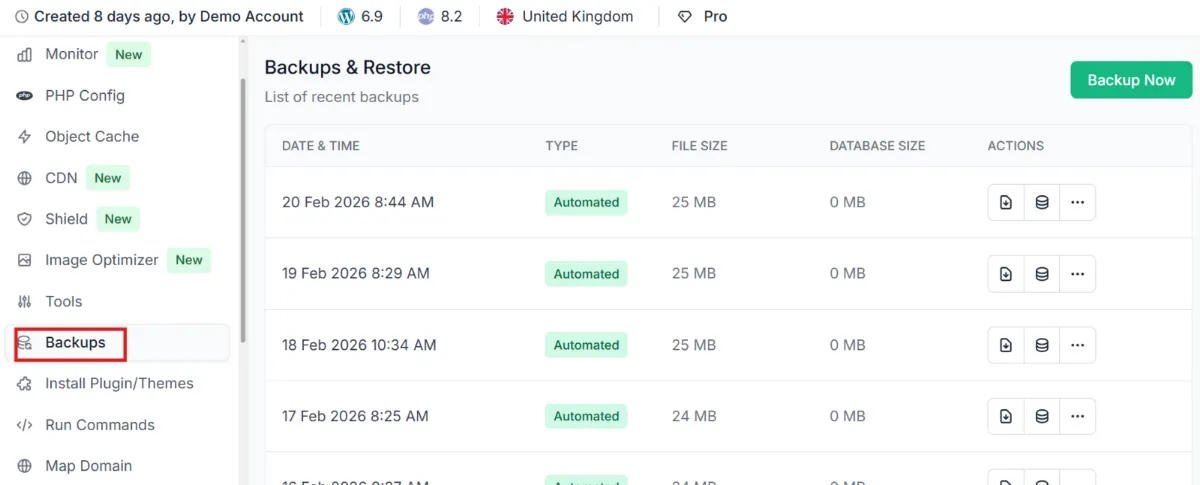
Step 3: Back up production. InstaWP does not take a backup before a push and there is no automatic undo. Create an on-demand backup of the production site first, so you have a restore point. See how backups work on InstaWP.
Step 4: Push to production. Go back to Developer Tools > Staging Site on the production site. In the Sync column, click Push to production, read the Replace production with staging? dialog and confirm. The push copies staging’s files and database over the live site and rewrites the staging URL to your production URL as it goes. It takes a few minutes, and the CDN cache is purged when it finishes.
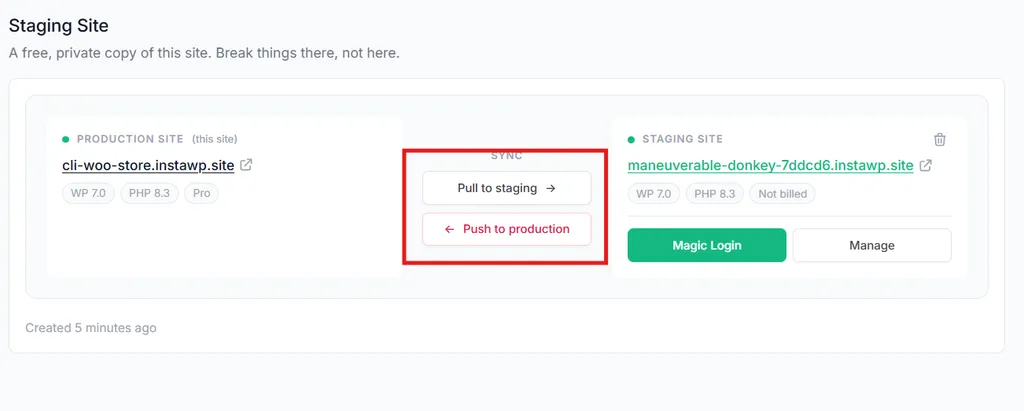
Step 5: Check the live site. Your mapped domain, SSL, CDN, plan, tags and SSH keys stay on production because they never travel with the copy. One setting does change: password protection is switched off after a push, so turn it back on if you still need it. The staging site is left exactly as it was, so you can keep working there.
Want the full walkthrough? Read the docs on the staging environment for hosted sites and how to pull and push your staging site.
Method 2: Merge changes with InstaWP Connect and 2-Way Sync (sites hosted anywhere)
If your live site is hosted with another provider, or it changes too often for a full push, use the InstaWP Connect plugin. It creates a staging copy of the live site on InstaWP, and its 2-Way Sync sends back only the changes you recorded on staging. The plugin is free on WordPress.org (version 0.1.4.1, updated 29 September 2026, tested up to WordPress 7.1.3), and 2-Way Sync has not been charged since InstaWP v3.28.
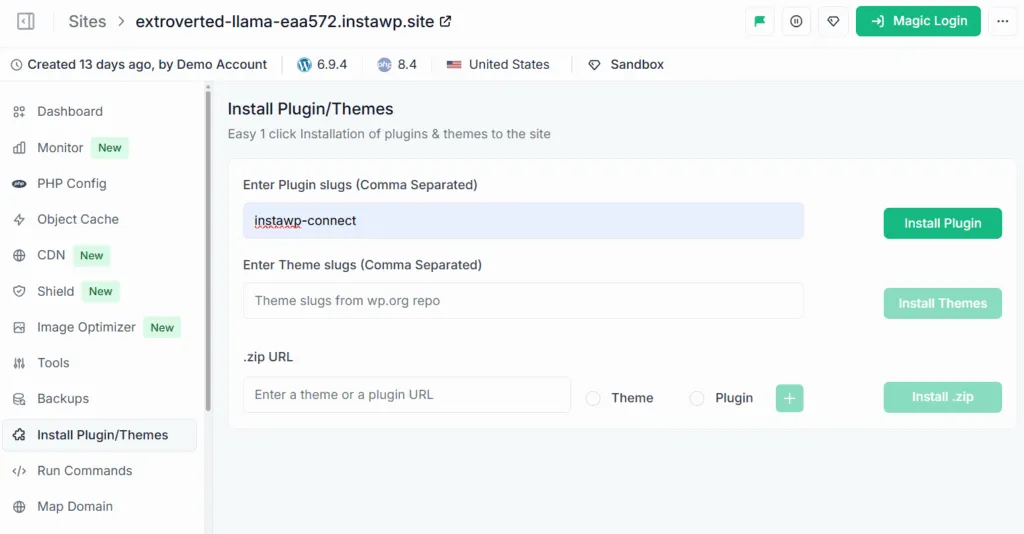
Step 1: Install and connect the plugin on the live site. In the live site’s WP admin, go to Plugins > Add New, search for InstaWP Connect, install and activate it. Then open Tools > InstaWP, click Connect with InstaWP and Approve the request.
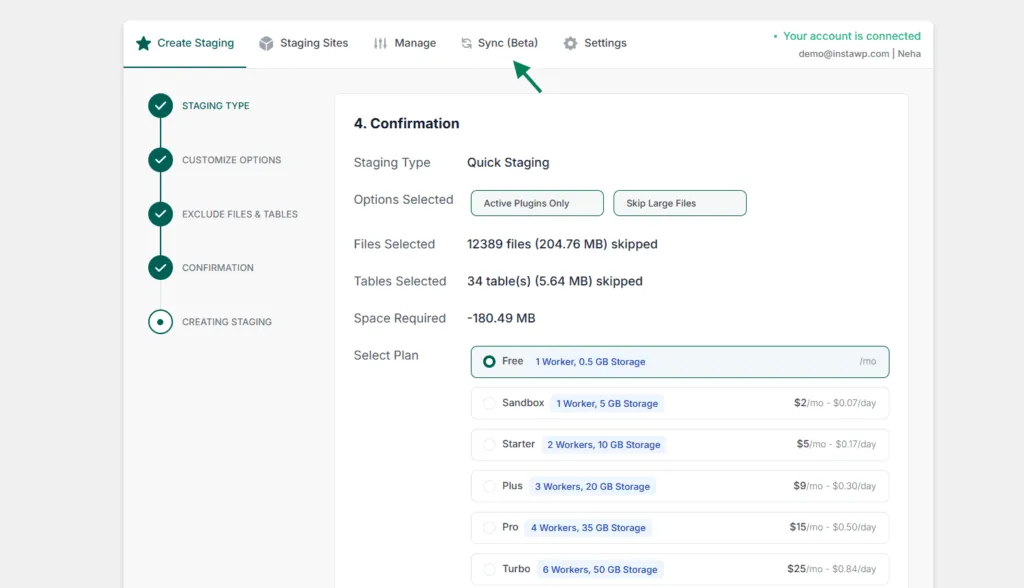
Step 2: Create the staging site. Click Create Staging Site and pick a type: Quick (skips the media folder), Full (an exact copy) or Custom. Exclude any files or tables you don’t need (the core WordPress tables and the wp-content folder can’t be excluded), confirm, and choose a plan for the staging site. Since plugin 0.1.4.0 the copy runs on InstaWP’s current migration engine and you can follow it from your InstaWP dashboard.
Step 3: Turn on change recording. Log in to the staging site (Magic Login from Tools > InstaWP > Staging Sites on live), open Tools > InstaWP > Sync (Beta) and switch the toggle on. A red blinking dot appears in the admin bar. Make sure it is there before you change anything: work done while recording is off can’t be synced.
Step 4: Work on staging while live keeps running. Build pages, update menus, activate plugins, change theme settings or edit ACF field groups through the WordPress admin. Meanwhile the live site carries on: the client keeps publishing, customers keep ordering, forms keep collecting entries.
Step 5: Review the recorded events. Go back to the Sync (Beta) tab, or click the red dot. Each change appears as its own event, with the user, the date and a status.
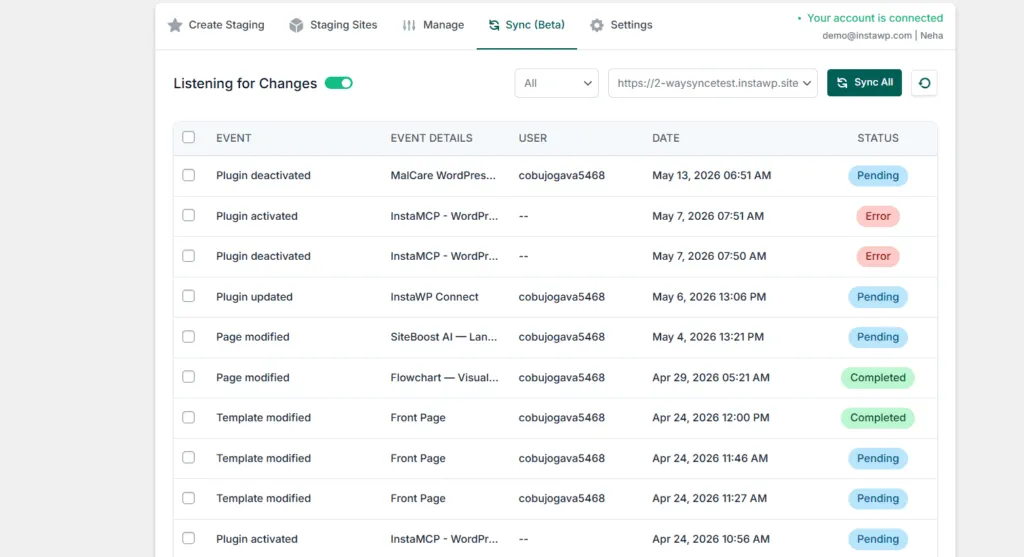
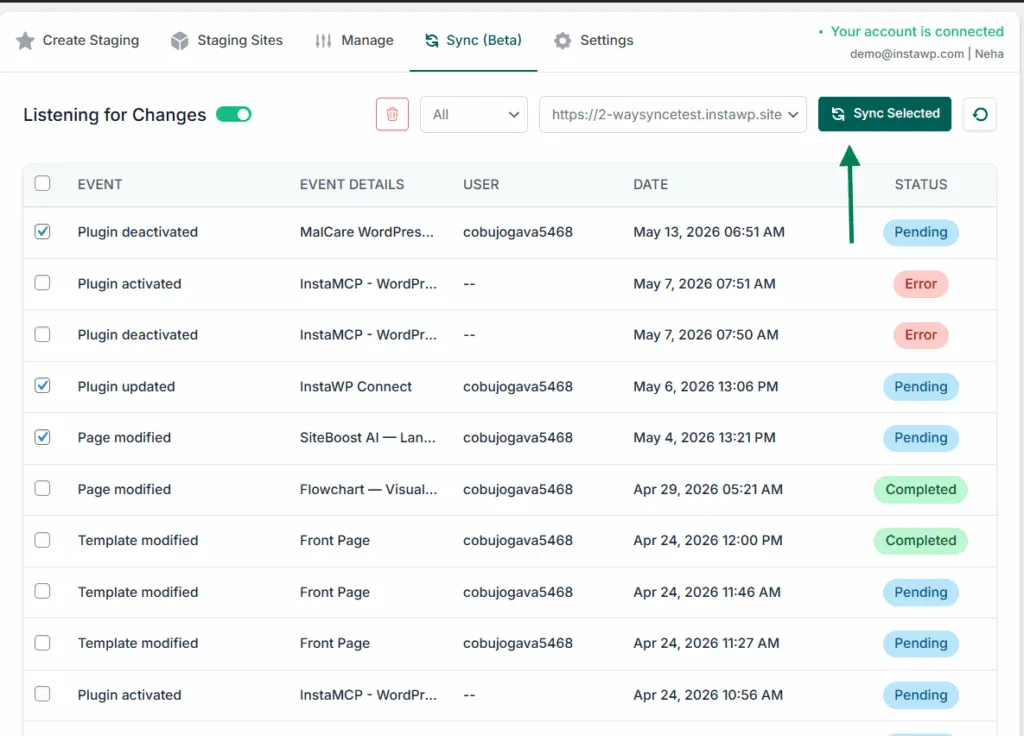
Step 6: Select the changes and sync them to live. Tick only the events that should go live and click Sync Selected, or Sync All for everything. Choose the live site as the destination and click Sync. Skip the test page, ship the final one, leave out the plugin you tried and abandoned. Each event shows Completed when it lands.
Already have a staging site at your host? You can sync that pair too. Install and connect InstaWP Connect on both sites, then link them: in InstaWP, open Manage, click the menu on the live site, choose Staging Sites > Link Staging Site and select the staging copy. Turn Sync on for both sites and sync events the same way. Full steps are in the docs on 2-Way Sync.
Method 3: Take an InstaWP sandbox to production
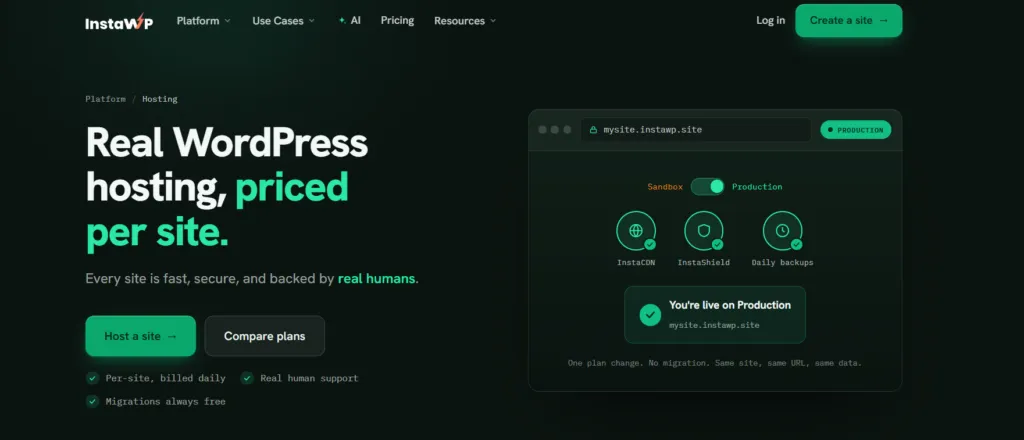
If you built the site on InstaWP in the first place, there is nothing to copy. Going live is a plan change: on the Sites page, click the Change Plan icon on the site, pick a production plan and click Change Plan. The site keeps the same URL, files and database, with no export, import or migration. Billing at the new daily rate starts straight away, and you can downgrade later.
Then connect your domain. Mapping a custom domain needs the Starter plan or higher, and InstaWP issues the SSL certificate once DNS points at the site.
Can an AI agent move WordPress staging to production?
Yes, as long as a person approves the push. On InstaWP every built-in staging site gets its own MCP connection, so you can point Claude, ChatGPT, Cursor or another MCP client at staging instead of your live site. Through InstaMCP, the agent gets 40+ structured WordPress tools behind a scoped, revocable token, with a Safe Mode that blocks delete operations.
When the work checks out, the push itself is one call to the InstaWP API, so a CI job or an agent workflow can run it after someone signs off. The staging API has four endpoints, all addressed to the production site’s ID:
How to Push WordPress Database from Staging to Live Without Losing Data
Don’t push the whole database while live is still taking writes. Either move only your changes with a merge, or make sure nothing on live needs keeping before a full push. A database push replaces production’s tables; it never combines them.
- Merge instead of push. On a busy site, record your work with 2-Way Sync and sync only those events. Orders and posts created on live have slugs and IDs your staging copy never touched, so they stay.
- Shorten the window. If you must push, pull a fresh copy to staging right before the work and push as soon as it is approved, so there is little or no new live data to lose.
- Freeze writes for the push. For a planned redesign, agree a short content freeze with the client and use WooCommerce’s or your theme’s maintenance mode while the push runs.
- Back up production first. On InstaWP, take an on-demand backup; the push takes none for you.
- Rewrite URLs if you push by hand. InstaWP rewrites the staging URL during a push. A manual export and import needs a serialization-safe search and replace, such as wp search-replace in WP-CLI.
WP Staging Push to Live: Free Options vs Paid Options
Free options exist, and on InstaWP the staging part is free. Built-in staging costs nothing on Pro and above, 2-Way Sync is free, and the InstaWP Connect plugin is free; you pay for the staging site Connect creates and, on built-in staging, for the production plan itself.
Migration plugins such as Duplicator and All-in-One WP Migration can stand in for a staging tool once, but they overwrite the destination every time. Our roundup of migration plugins covers where each one fits, and the WordPress migration tools on InstaWP handle moving a whole site between hosts.
Free tools handle file changes well and struggle with selective database changes. For a brochure site that updates once a month, that is acceptable. For a store with daily orders or a publisher with daily posts, the gap shows up the first time a push wipes something.
Tools for Moving WordPress from Staging to Production: A Comparison
Five approaches cover almost everything you will meet. Each has a legitimate use, and the right one depends on how much the live site changes while you work.
Manual SQL and file sync suits one-time moves. Used as a recurring deployment, it is how production tables get dropped by accident.
Migration plugins package a site and restore it elsewhere. They are not built for ongoing sync between two active environments.
Host push to live is quick and predictable. Some hosts let you push only files or chosen tables, which helps but still works at table level, not row level.
Git-based deployment moves code well but not content, ACF changes or Customizer settings. See how to deploy WordPress from GitHub for that side of the workflow.
Event-based merge is the only approach that moves individual content and settings changes while leaving the rest of live alone. On InstaWP you can combine it with Git for code.
What a Safe WordPress Staging-to-production Workflow Looks Like in 2026
A safe workflow is isolated, repeatable and reviewable: staging is a real copy on its own database, every push follows the same checklist, and you can see exactly what is about to change before it reaches live.
Production parity catches more than people expect: staging on PHP 8.3 while live runs 7.4 is a trap you will eventually fall into. Must Read: How to Safely Update Your WordPress Site to PHP 8.x
Prefer tools that state their limits. 2-Way Sync says plainly that SFTP edits and direct database writes won’t appear in its event log, and InstaWP’s push dialog says plainly that no backup is taken. For a printable version, use our WordPress staging to live checklist.
Common mistakes agencies make when migrating WordPress staging to production
No tool fixes everything. These are the mistakes experienced developers still watch for, whichever method they use.
Pushing without a backup
A push on InstaWP’s built-in staging takes no backup and has no undo. Make the on-demand backup a fixed step, not a judgement call.
Forgetting to enable change recording
If 2-Way Sync recording was off when work started, the event list is empty at deployment. Make turning it on the first item on every staging checklist.
Slug collisions
2-Way Sync matches records by slug. Renaming pricing to pricing-2026 on staging means the merge writes to whatever has pricing-2026 on live, including a page your client created independently. Use distinct slugs when you mean to create separate content.
Edits made outside the WordPress admin
Event tracking only sees changes made through the WordPress admin. Files edited over SFTP and queries run in phpMyAdmin are not recorded. Do merge-relevant work in the admin, and move code changes with Git or a push.
Plugins with non-standard data storage
Plugins that keep data as standard custom post types sync by default. Plugins with custom tables or external services need a test first. Add a quick plugin sync test to client onboarding.
Schema conflicts from auto-updates
If a plugin auto-updates on live to a different schema than the one you tested on staging, your changes can collide. Pause auto-updates on live for any plugin you are actively changing on staging.
Settings that don’t travel with a push
On InstaWP, password protection is switched off by a push, while domains, SSL, CDN and plan stay on production. Check the settings list after every push rather than assuming the site came back exactly as before.
Skipping the test sync
Before a big merge, sync one harmless change first and confirm it landed cleanly, then sync the rest.
Standardizing your agency’s staging-to-production workflow across clients
Single deployments are about technical correctness. Agency operations are about repeatability: every developer follows the same steps on every client site, because variation is where mistakes hide.
- Write one runbook. A one-page staging-to-production document any developer can follow on any client site, naming which method (push or merge) each client uses.
- Put the checklist in your project tool. Before every deploy the developer confirms: recording on or fresh pull done, change list reviewed, test sync passed, client notified, backup taken.
- Tell the client before every deploy. A two-line message (“Deploying the new pricing page at 3 PM, will confirm when done”) prevents the “we lost something” call. Clients accept a short deployment window far more readily than silent data loss.
- Standardize naming and access. Same staging naming, same plugin set, same access for your team and the client’s reviewer. If you manage multiple client sites from InstaWP, keep each client’s staging next to production in one dashboard.
- Record what happened. Keep the 2-Way Sync event list or a push note in the ticket, so the next developer can see what changed and when.
Aim for deployments nobody notices: dev work shipped on a Tuesday afternoon in under fifteen minutes, with the client noticing only the new feature.
Reframe your current workflow against the 2026 standard
Look at your last three deployments. How many needed the client to pause content updates? How many ended in a “we lost something” message the next morning? How many had someone running SQL on production at 11 PM?
Push the whole site when live has stood still, and merge only your changes when it hasn’t. On InstaWP, hosted sites on Pro and above push with free built-in staging, sites on any host merge with the free InstaWP Connect plugin and 2-Way Sync, and a sandbox goes live with a plan change. Whichever route you take, back up production first and check the live site when it finishes.
Frequently asked questions
How do I push WordPress staging to live without losing client content?
Use a merge, not a full database push. InstaWP 2-Way Sync records the changes you make on staging and syncs only the ones you select, so posts, WooCommerce orders and registrations that arrived on live stay untouched. A full push is fine only when nothing has changed on live since you created staging.
Is staging free on InstaWP?
Yes, for sites hosted on the Pro, Turbo and Elite plans: each gets one built-in staging environment that never appears on the bill. Staging created with the InstaWP Connect plugin is a separate site billed on the plan you choose, and 2-Way Sync itself is free.
Does InstaWP back up my site before Push to production?
No. A push replaces the live site’s files and database, takes no automatic backup and has no undo. Create an on-demand backup of the production site first. Your domain, SSL, CDN and plan stay on production, and password protection is switched off after the push.
Can I use InstaWP staging if my site is hosted somewhere else?
Yes. Install the free InstaWP Connect plugin on the live site, connect it to your InstaWP account and click Create Staging Site. When the work is ready, sync the recorded changes back to live with 2-Way Sync. You can also link a staging site your host created.
How do I push the WordPress database from staging to live without overwriting orders?
Don’t push the entire database. Sync only the recorded staging changes, which are matched by slug, so new orders and posts on live are left alone. If you must push the whole site, pull a fresh copy first, keep the window short and back up production.
How long does a WordPress staging-to-production deployment take?
On InstaWP, creating a built-in staging site takes 2 to 3 minutes and a push or pull takes a few minutes, depending on site size. With 2-Way Sync, most of the time goes on reviewing and selecting events; the sync itself is quick for a typical change set.
Can an AI agent push staging to production?
It can do the work and trigger the push, but a person should approve it. Each InstaWP staging site has its own MCP connection for AI clients, and the staging API includes a push endpoint for scripts and CI. Keep a human review and a production backup before every push.
Can I host my production WordPress site on InstaWP?
Yes. InstaWP is a managed WordPress hosting provider with plans from $5 a month per site, billed daily. Pro and above include free built-in staging, and a site built on an InstaWP sandbox goes live with a plan change on the same URL, with no migration.
What does “WordPress push changes from staging to live” mean technically?
It means transferring modifications made on a staging copy (files, database rows, settings) to the production version of the same site. Some tools mean a full overwrite, others a selective merge. For active client sites you almost always want the selective merge.