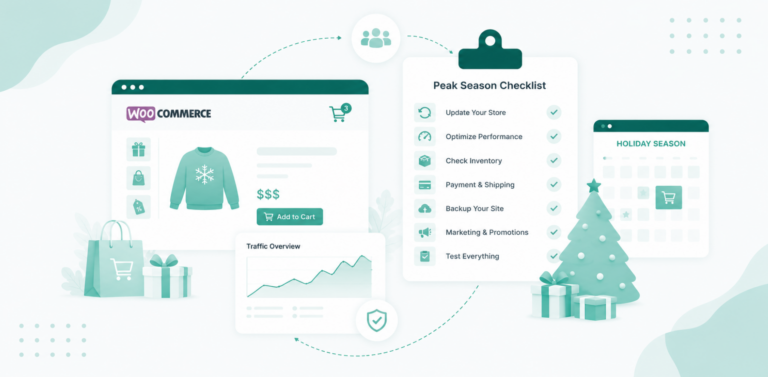
WooCommerce maintenance is the ongoing work that keeps an online store secure, fast and able to take orders. A maintenance plan covers core, plugin and theme updates tested before they ship, daily backups, vulnerability scanning, uptime monitoring, performance tuning, database cleanup, and a report that proves it all happened. Most stores buy it as a monthly retainer, usually between $49 and $300 a month depending on store size and response times.
This guide covers both sides of that transaction. First, what a plan should actually include and what it should cost, so you can judge one properly. Then, if you build or manage stores for a living, how to run maintenance across a whole client base and sell it under your own brand.
Key takeaways
- Checkout is the thing that breaks. A store is ten to twenty plugins that must agree with each other on every update, and the failure is silent.
- A real plan has nine parts. Updates, backups, vulnerability scanning, uptime, performance, database, store-specific checks, reporting and an SLA.
- Typical pricing runs $49 to $300 a month. The tier is set by response time and scope, not by hours worked.
- Manual maintenance stops scaling around five stores. Past that you need one dashboard, not five logins.
- You can sell all of it as your own product. Your domain, your logo, your prices, with the platform invisible to the client.
What Is a WooCommerce Maintenance Service?
A WooCommerce maintenance service is an ongoing service that keeps an online store secure, updated, fast, and able to take orders. Instead of waiting for something to break, WooCommerce maintenance combines scheduled updates, backups, security checks, uptime monitoring, performance reviews, and testing of business-critical store functions.
That proactive approach matters more for WooCommerce than for a typical WordPress site. If a brochure site goes offline for two hours, visitors may simply return later. If a WooCommerce store goes down during a campaign, the business can lose orders, ad spend, and customer trust immediately.
What does WooCommerce maintenance protect?
- Checkout: Make sure cart, checkout, and order placement continue working.
- Payments: Catch compatibility issues with payment gateways after updates.
- Store uptime: Detect outages before they turn into hours of missed orders.
- Customer data: Keep WordPress, WooCommerce, themes, and plugins patched.
- Store performance: Watch for slower pages, database bloat, and performance regressions.
- Recovery: Maintain reliable backups so the store can be restored when something goes wrong.
The challenge is that a WooCommerce store has far more moving parts than a standard website. WordPress core, WooCommerce, the active theme, payment gateways, shipping extensions, tax tools, inventory systems, and other plugins all need to continue working together after every change.
That is why simply clicking Update is not a complete WooCommerce maintenance plan. Important updates should be tested on a WordPress staging site before reaching production, while backups give you a recovery point if an update or deployment causes problems. You can learn more about that recovery workflow in our guide to WordPress backups.
A strong WooCommerce website maintenance workflow therefore has three jobs:
- Prevent problems with controlled updates, security checks, and backups.
- Detect problems early with uptime, vulnerability, and performance monitoring.
- Prove the work was done through activity tracking and client reporting.
For one store, you can handle much of this manually. Across multiple client stores, that quickly turns into repeated logins, separate monitoring tools, and maintenance checklists spread across different dashboards.
This is where centralized WordPress site management becomes useful. InstaWP lets agencies bring sites into one management workflow for tasks such as uptime monitoring, vulnerability checks, bulk updates, activity tracking, and faster wp-admin access, while keeping staging available for testing higher-risk WooCommerce changes before they reach customers.
What a WooCommerce Maintenance Plan Includes
Most professional retainers cover nine areas. Some providers bundle all nine into one price, others split them across tiers, but this is the standard scope to expect when someone says “maintenance.” Use it as a checklist when you are comparing plans, or as the spec sheet when you are writing your own.
The Standard Scope of a WooCommerce Maintenance Retainer
Nine areas clients expect to be covered, and what each one actually involves.
Core, Plugin and Theme Updates
WordPress and WooCommerce releases tested on a staging copy first, then pushed to production. Compatibility checked against payment, shipping and tax plugins before anything goes live.
Weekly or bi-weeklyBackups and Restore Testing
Automated backups of files and database, stored off-server. Critically, a periodic test restore, because a backup nobody has ever restored is a guess, not insurance.
Daily backupsVulnerability and Security Scanning
Scheduled checks of every installed plugin, theme and core version against known published vulnerabilities, so you patch in the window between disclosure and mass exploitation.
Weekly scanUptime and Availability Monitoring
The store is checked every few minutes from outside the server. If it stops responding, the agency is alerted first, not the client, and not the client’s customers.
24/7 checksPerformance Monitoring and Tuning
Load time, Core Web Vitals and server response tracked over time. Image optimisation, caching and slow-query fixes applied when the numbers start drifting the wrong way.
Monthly auditDatabase Maintenance
WooCommerce stores accumulate order metadata, sessions, transients and post revisions fast. Regular cleanup keeps queries quick and the database from quietly doubling in size.
MonthlyStore-Specific Health Checks
The part generic WordPress maintenance skips: a live test of add-to-cart, checkout, payment gateway response, tax and shipping calculation, and order confirmation emails.
Monthly test orderReporting and Activity Logs
A client-facing report showing uptime, security status, updates applied and performance trend, backed by an audit log of every change made to the site and by whom.
Monthly reportIncident Response and SLA
A defined promise: how fast you respond when something breaks, who to contact, and what counts as an emergency. This is usually what justifies the higher tiers.
1 to 24 hour SLAHow Agencies Can Start Selling WooCommerce Maintenance Plans
Selling a WooCommerce maintenance plan is usually easier than delivering one at scale. The problem starts when five clients say yes and suddenly you are managing five hosting dashboards, multiple WordPress logins, separate monitoring tools, update schedules, security checks, and monthly reports.
That operational overhead can quickly eat into the margin of a WooCommerce maintenance service.
This is where InstaWP Site Management fits naturally into the service. Install the free InstaWP Connect plugin on a client’s WooCommerce store, connect it to your InstaWP account, and manage it from the same dashboard as your other client sites. The store can remain on its existing host.
Turn site management features into maintenance plan deliverables
Instead of assembling a WooCommerce maintenance workflow from separate tools, agencies can use InstaWP to cover many recurring tasks from one place.
- Updates: Manage WordPress, WooCommerce, plugin, and theme updates across multiple client stores.
- Uptime monitoring: Track site availability and receive alerts when a store stops responding.
- Vulnerability scanning: Identify known vulnerabilities in WordPress core, plugins, and themes that require attention.
- Performance monitoring: Run scheduled performance checks and track changes over time.
- Alert rules: Define conditions that should trigger your attention instead of manually checking every store.
- Activity logs: Keep a record of site activity and changes for troubleshooting and accountability.
- Client reports: Generate PDF reports showing the maintenance activity and site health data behind your monthly service.
- Magic Login: Access client wp-admin dashboards without repeatedly managing separate credentials.
For higher-risk WooCommerce updates, you can also create a WordPress staging site, test the change away from production, and then move the approved changes back to the live store. That gives agencies a stronger deliverable than simply promising to “keep plugins updated.”
The result is a much more repeatable WooCommerce website maintenance workflow. Instead of selling hours of manual admin work, you can build plans around clear outcomes such as monitoring, vulnerability checks, controlled updates, performance tracking, reporting, and defined response times.
Start with one WooCommerce client you already manage. Connect the store, define what their plan includes, schedule the relevant checks, and use the first monthly report to show exactly what your service delivered. Once that workflow is repeatable, adding the next client does not mean rebuilding your maintenance stack from scratch.
How to Build WooCommerce Maintenance Plans With InstaWP
Once you know what your WooCommerce maintenance service will cover, the next job is building a repeatable delivery system behind it.

With InstaWP, you have two ways to bring client stores into the same workflow: migrate stores you want to host on InstaWP, or connect stores that need to remain with their existing host. From there, you can use site management features to turn updates, monitoring, security checks, staging, and reporting into clear maintenance-plan deliverables.
Step 1: Migrate Client WooCommerce Sites to InstaWP
If you are also taking over hosting as part of the maintenance contract, start by moving the client’s WooCommerce store to InstaWP.
Migration into InstaWP is free, and InstaWP currently describes incoming migrations as zero-downtime.
The free WordPress migration tool of InstaWP, InstaMigrate, is useful to transfer the site’s files, content, and database. You do not need SSH or server-level access; WordPress administrator access to the source and destination sites is enough.
The process looks like this:
From the InstaWP dashboard, open Migrations. Select the AI migration engine and click New Migration.

Enter the client’s existing WooCommerce store URL as the Source Site and connect it.

Log in to the source WordPress site and approve the connection.

Enter and connect the destination InstaWP site.

Review the source and destination before starting the migration.

Click Start Migration. InstaMigrate transfers the files, content, and database and shows the migration progress. Once complete, open the migrated store and verify the storefront, products, cart, checkout, payment gateway, customer accounts, and order flow before changing DNS or handing the site back to the client.

Important: the migration overwrites the destination site, so use a destination you are comfortable replacing.
Watch the video tutorial here:
Hosting the store on InstaWP also gives you access to platform-level features such as automatic backups according to the selected plan, along with hosting security and performance features available on that plan.
For WooCommerce stores in particular, choose resources based on actual traffic and transaction load rather than simply picking the cheapest production tier.
Step 2: Connect Client Stores That Stay on Another Host
Not every WooCommerce maintenance plan needs to include hosting. A client may want to keep their store on Kinsta, GoDaddy, Cloudways, a private VPS, or another WordPress host. In that case, you can connect the live site to InstaWP instead of migrating it.
Go to Manage → Connect Site in InstaWP. Then enter the client’s live WooCommerce URL. You can also choose whether to go for a Basic or Advanced Site Management.

Click Connect Site. approve the connection. InstaWP installs and initializes the Connect plugin on the site.
Alternatively, install InstaWP Connect manually from Plugins → Add New Plugin inside WordPress, activate it, and connect the site to your InstaWP account.

Once connected, the store appears inside your Manage dashboard alongside your other client sites. You can manage externally hosted WordPress sites from the same workflow without moving their hosting to InstaWP.
Two ways to onboard a WooCommerce maintenance client
- Maintenance + hosting: Migrate the WooCommerce store to InstaWP.
- Maintenance only: Keep the existing host and connect the store with InstaWP Connect.
Step 3: Enable Advanced Site Management
Once the client stores are inside your InstaWP workflow, enable Advanced Site Management for the sites covered by your maintenance plan.
InstaWP’s advanced site management layer adds monitoring, scheduled maintenance, scanning, reporting, and configuration capabilities on top of the basic connected-site workflow. Advanced Connected Sites include uptime monitoring, performance insights, vulnerability and performance scanning, and centralized configuration management.
This is where you can start turning platform features into actual items on your WooCommerce maintenance plan.
| InstaWP feature | How it fits into a WooCommerce maintenance plan |
|---|---|
| Scheduled Updates | Schedule WordPress, plugin, and theme maintenance instead of manually checking every client store. Scheduled Updates can also take a snapshot before updates, giving you a safer update workflow. |
| Plugin & Theme Management | See available updates, active or inactive status, and control auto-updates for individual plugins and themes. This is especially useful for WooCommerce payment, shipping, and checkout extensions that may need different update policies. |
| Bulk Actions | Update or remove plugins and themes across selected managed sites from one dashboard. This becomes increasingly useful as your WooCommerce maintenance client base grows. |
| Staging Sites | Create and manage staging copies so higher-risk WooCommerce updates can be tested before they touch the live checkout. |
| Uptime Monitoring | Monitor site availability and SSL information so downtime can be identified before the client discovers it through lost orders. |
| Vulnerability Scanner | Scan WordPress core, installed plugins, and themes for known vulnerabilities and make remediation part of the client’s security maintenance. |
| Performance Scanner | Run on-demand or automated performance scans and track whether the WooCommerce store is becoming slower over time. |
| Activity Logs | Track changes across the site and configure alerts for important activity. This gives you an audit trail when something changes unexpectedly. |
| Reports | Generate and schedule site reports so clients can see the maintenance work and site-health data behind their monthly retainer. |
| User Management & Magic Login | Manage WordPress users, create temporary access links, and use Magic Login so your team can reach wp-admin without juggling client passwords. |
| Config Manager |
Manage supported wp-config.php settings from the dashboard after enabling the feature through the Connect plugin.
|
The main advantage is not that every client needs every feature. It is that you can decide which features belong in each maintenance tier.
For example:
- Basic WooCommerce maintenance plan: updates, uptime monitoring, vulnerability scanning, and monthly reporting.
- Growth plan: add performance scanning, staged updates, activity monitoring, and faster response times.
- Premium plan: add tighter monitoring, priority incident response, regular checkout testing, staging before critical updates, and hands-on performance work.
That gives the client something much clearer than “we maintain your WordPress site.” Each tier has defined checks, defined outputs, and a visible maintenance history.
It also makes the service easier to scale. Instead of creating a different WooCommerce website maintenance process for every client, you can standardize the workflow in InstaWP and change only the level of service attached to each plan.
Let’s understand these functionalities a bit more.
Scheduled Updates: Put Routine Maintenance on a Schedule
Plugin, theme, and WordPress core updates are recurring work in every WooCommerce maintenance plan. Doing them manually across multiple stores means repeatedly checking dashboards and trying to remember which updates were intentionally held back.
InstaWP lets you create Scheduled Updates for managed sites and choose when updates should run. You can also take a snapshot before the scheduled update, giving you a recovery point before changes are applied. Scheduled Updates are part of Advanced Site Management.
For WooCommerce stores, schedule maintenance during lower-traffic periods rather than letting every extension update the moment a new version appears.
A simple policy could be:
- WordPress minor/security releases → automatic
- Low-risk plugins → automatic or scheduled
- WooCommerce core → scheduled
- Payment, checkout, tax, and shipping extensions → review and test first
- Major WordPress releases → test on staging before production
That gives you a repeatable update policy instead of treating every plugin the same.
Plugin & Theme Management: Control What Updates Automatically
WooCommerce stores often have very different risk levels across their plugin stack. An SEO plugin and a payment gateway should not necessarily follow the same update policy.
From the InstaWP Manage dashboard, you can see installed plugins and themes, available updates, active or inactive status, and control auto-updates individually.
This lets you divide extensions into two groups inside your WooCommerce maintenance service:
Low-risk plugins: Allow automatic updates where appropriate.
Business-critical plugins: Hold WooCommerce, payment gateways, shipping, tax, subscriptions, checkout customization, or other sensitive extensions for scheduled testing.
The result is more useful than simply promising clients “plugin updates.” You are defining how updates are handled based on the risk they carry.
Bulk Updates: Maintain the Fleet From One Dashboard
Once you manage ten or twenty WooCommerce stores, updating sites individually becomes unnecessary overhead. InstaWP Bulk Actions let you select multiple managed sites and update or remove plugins and themes from the same dashboard.

That means a maintenance task such as updating a trusted utility plugin across fifteen client stores can be handled as one fleet-level operation instead of fifteen separate wp-admin sessions.
Bulk management is especially useful for agencies maintaining a standardized stack across clients. If the same security, caching, SEO, or utility plugin is installed across your WooCommerce portfolio, you can manage it consistently from one place.
Staging Sites: Test Risky Updates Before They Ship
Bulk updates save time, but WooCommerce updates still need judgement. A plugin update can affect cart behavior, checkout fields, taxes, shipping calculations, payment callbacks, or order creation while leaving the rest of the storefront looking completely normal.
For higher-risk changes, create a staging site first. InstaWP Connect can create staging copies of connected sites so you can test changes without touching the live store.
A safer WooCommerce update workflow looks like this:
- Create or open the staging copy.
- Apply the WooCommerce, plugin, or theme update.
- Check product and category pages.
- Add a product to the cart.
- Test coupons, shipping, and tax calculations.
- Run a test checkout and confirm the order is created correctly.
- Check transactional emails and payment behavior.
- Push only the approved changes back to production where appropriate.
For supported WordPress-admin changes, 2-Way Sync lets you record changes on staging and selectively sync them to the live site. This is particularly useful for WooCommerce because the live store can continue receiving orders while work happens in staging. WooCommerce event syncing is currently marked Beta, so it should be tested carefully before becoming part of your production workflow.
Our staging-to-production guide covers the broader workflow.
Uptime Monitoring: Know the Store Is Down Before the Client Does
For an ecommerce store, uptime is not just a technical metric. Downtime directly affects the store’s ability to take orders.
InstaWP’s uptime monitoring gives you visibility into current uptime, response time, average response time, historical uptime, and SSL certificate expiry from the managed-site dashboard.

That makes uptime monitoring an easy deliverable to include in a WooCommerce maintenance plan:
- Monitor store availability
- Track response-time changes
- Watch SSL certificate status
- Investigate downtime before it becomes a prolonged sales issue
- Include uptime data in the client’s monthly report
Instead of waiting for the client to message you because checkout will not load, monitoring gives your team a chance to investigate first.
Vulnerability Scanner: Make Security Checks Part of Maintenance
WooCommerce stores tend to run a larger plugin stack than simple WordPress sites, which means more software needs to stay patched.
The InstaWP Vulnerability Scanner checks managed sites for security issues, including known risks associated with WordPress core, installed plugins, and themes. You can run new scans and review previous scan results.

In a maintenance plan, that gives you a recurring security workflow:
- Run vulnerability scans on a defined schedule.
- Review flagged plugins, themes, or WordPress versions.
- Determine whether a patch or update is available.
- Test sensitive updates on staging where necessary.
- Apply the remediation.
- Show the client the resulting security status in their report.
This turns “security maintenance” into something measurable rather than a vague promise.
Performance Scanner: Track Store Performance Over Time
WooCommerce performance problems often appear gradually. Plugins are added, the database grows, images accumulate, and checkout becomes slower without one obvious event causing it.
InstaWP’s Performance Scanner can run on demand or be automated for managed sites. Include recurring performance scans in your WooCommerce website maintenance service so you can spot degradation before the client reports that the store “feels slow.”

For example, your monthly workflow might include:
- Run a performance scan
- Compare results with previous scans
- Investigate meaningful regressions
- Review caching and images
- Check database growth
- Test key storefront and checkout pages
- Record improvements in the monthly report
The value is the trend. You are not giving clients a one-time performance score; you are showing whether the store is getting better or worse under your maintenance.
Activity Logs and Alert Rules: See What Changed
Not every WooCommerce problem comes from your maintenance work. A store owner may install a plugin, another administrator may change a setting, or a team member may delete something unexpectedly. When something breaks later, you need to know what changed.
Activity Logs record events such as user activity, content changes, and plugin installations so you have an audit trail for troubleshooting.

You can then add Alert Rules for events that deserve immediate attention. InstaWP supports alerts for activities including plugin and theme changes, content changes, media activity, user logins, failed login attempts, registrations, and other site events.
For a WooCommerce store, useful alerts might include:
- Plugin deleted
- Theme changed
- New administrator created
- Failed administrator login attempts
- Important site configuration changed
That gives your WooCommerce maintenance service a proactive monitoring layer instead of relying entirely on scheduled checks.
WooCommerce Maintenance Reports: Show Clients What Their Maintenance Fee Paid For
Maintenance work is easy for clients to forget precisely when it is working well. Nothing broke. The store stayed online. Updates happened quietly. Vulnerabilities were handled.
Without a report, that can look like “nothing happened.” InstaWP lets you generate PDF reports for one or multiple managed sites, choose a reporting period, select which data to include, and send the resulting report by email. Reports can include metrics such as uptime, performance, and vulnerabilities.

Use the report as the proof layer of your maintenance plan:
- Uptime
- Performance
- Vulnerability status
- Maintenance activity
- Updates and site health data

Send it monthly alongside the client’s invoice or maintenance summary. The client is no longer paying for invisible work. They can see what was monitored, what changed, and what their plan covered.
User Management and Magic Login: Stop Sharing WordPress Passwords
Managing dozens of client sites usually means accumulating dozens of administrator credentials. InstaWP lets you manage WordPress users from the managed-site dashboard, assign roles, create temporary login URLs, and designate an administrator as the Magic Login user. Temporary login URLs are currently valid for six hours.

For agencies, Magic Login removes much of the repetitive credential handling. Your team can access wp-admin through the managed-site workflow instead of searching a password manager every time a maintenance task needs manual intervention.
That becomes especially useful when a maintenance alert tells you something needs investigation. You can move from the alert to wp-admin quickly without maintaining a separate access workflow for every store.
Config Manager: Handle Common WordPress Configuration Centrally
Some maintenance jobs eventually require changes beyond the WordPress dashboard. With Config Manager, supported wp-config.php settings can be managed from the InstaWP dashboard after the capability has been enabled through InstaWP Connect.

This gives technical teams another layer of control when troubleshooting or maintaining client sites without immediately dropping into SSH or manually editing configuration files. It is not something every maintenance tier needs, but it fits well into advanced plans where the agency is responsible for deeper WordPress administration and troubleshooting.
Backups and Recovery: Give Every Update a Way Back
Backups are slightly different from the management features above because the backup arrangement depends on where the WooCommerce store is hosted.
Sites hosted on InstaWP include automatic backups, with frequency depending on the site plan, and on-demand backups can also be created. You can restore a backup to the original site, or create a completely new site from an existing backup. Creating a new site is particularly useful for maintenance because it lets you test whether a backup actually restores without touching production.

That creates a stronger recovery workflow:
- Take or confirm a recent backup.
- Perform the maintenance or update.
- If something fails, restore the known-good version.
- Periodically create a new site from a backup to verify that recovery actually works.
A backup that has never been restored is still an assumption. Testing recovery turns backups into something you can confidently include in the WooCommerce maintenance plan.
Sites connected through InstaWP but hosted elsewhere continue to depend on the backup system provided by that host or another backup solution. If you want the hosting and backup layer under the same maintenance workflow, that is one reason to migrate the WooCommerce site to InstaWP.
Put the Features Together as a Maintenance Workflow
The point is not to sell clients a list of InstaWP features. The client is buying outcomes.
Use the platform underneath the service and package those capabilities into a simple monthly workflow:
Monitor → Scan → Update → Test → Recover → Report
InstaWP Site Management handles much of the repeatable operational work behind that cycle, while your agency provides the WooCommerce-specific judgement: deciding which updates are safe, testing checkout, responding to issues, and communicating with the client.
Step 4: Sell WooCommerce Maintenance Plans Under Your Brand
Once the delivery workflow is in place, the next step is packaging your WooCommerce maintenance plans as your own service.
There are two different InstaWP tools to understand here:
Client Portal gives existing clients a branded place to access the WordPress sites you host for them. lients then log into your portal rather than InstaWP. Depending on the site and access available to them, the portal can provide a self-service area for common hosting tasks and direct wp-admin access. InstaWP’s Portal positioning includes site management, backups, domains, billing, and plan management for hosting customers.

From your side, Portal → Customers keeps hosted clients organized under your account. You can assign multiple sites to the same customer and impersonate a customer when you need to see exactly what they see for support or troubleshooting.
This gives a managed WooCommerce maintenance service a much stronger client experience:
- Your maintenance plan
- Your hosting
- Your domain
- Your client portal
- Your support
- Your monthly reporting
InstaWP remains the infrastructure underneath the service.
WaaS is for selling a complete Website as a Service, where a customer purchases a site/hosting plan and InstaWP provisions the WordPress site behind the scenes.
That distinction matters. If you are only maintaining a WooCommerce store that remains on the client’s existing host, you do not need WaaS. Use InstaWP Site Management behind the scenes and continue billing the client through your existing system.
WaaS becomes relevant when you turn WooCommerce maintenance + hosting + the website itself into one recurring managed service.
InstaWP WaaS goes one step further. Instead of waiting for a client to bring you an existing WooCommerce store, you create a repeatable website offering and sell access to it as a recurring service.
For example, an agency could build a WooCommerce store template for restaurants, subscription businesses, local retailers, or another niche and sell a package such as:
Managed WooCommerce Store — $149/month
- Ready-made WooCommerce website
- Managed WordPress hosting
- Daily backups
- Plugin and theme maintenance
- Uptime monitoring
- Vulnerability checks
- Performance monitoring
- Staged updates
- Monthly maintenance report
- Support SLA
The customer is no longer buying “website maintenance” separately. They are subscribing to a fully managed WooCommerce website, with maintenance built into the monthly price.
InstaWP’s native WaaS checkout acts as the public storefront where customers choose an offering and purchase their site. The Customer Portal then becomes the ongoing home for those customers after they have been onboarded. InstaWP’s own documentation describes WaaS as the self-serve checkout and the Portal as the ongoing client area.
If you go down the WooCommerce WaaS route, InstaWP currently supports three selling models:
- Native WaaS checkout: InstaWP provides the branded selling flow and takes a cut of each sale.
- Your own WooCommerce store: Sell the plans through your own WooCommerce checkout and payment gateway. InstaWP currently charges 0% platform transaction fee for this route.
- Custom/API checkout: Build your own purchasing experience and use InstaWP for provisioning. InstaWP currently lists a 0% platform transaction fee for this approach.
If you already use WooCommerce for your agency website, the second route can be particularly useful because your website can sell the managed plan while InstaWP handles the WordPress infrastructure behind it.
We cover that workflow separately in our guide to selling WordPress hosting with WooCommerce.
The important point is not to force every WooCommerce maintenance plan into WaaS. For an existing client store, Site Management is the maintenance engine.
Conclusion
A good WooCommerce maintenance plan is not just a checklist of updates. It is a repeatable system for keeping stores secure, available, fast, and ready to take orders without turning every client into another manual workflow.
With InstaWP, agencies can bring those recurring tasks into one place. You can connect or migrate client stores, manage updates, monitor uptime, scan for vulnerabilities, track performance, test risky changes on staging, and generate reports that show clients exactly what their WooCommerce maintenance service is delivering.
From there, you can package the same workflow in different ways: maintenance-only for externally hosted stores, managed hosting with a branded Client Portal, or a complete WooCommerce Website as a Service with hosting and maintenance built into the subscription.
The goal is simple: standardize the operational work behind WooCommerce website maintenance, then sell the outcome instead of selling your time.
Ready to build your first WooCommerce maintenance plan? Start with InstaWP Site Management and bring your client stores into one maintenance workflow.
Frequently Asked Questions
How much does WooCommerce maintenance cost?
Most plans fall between $49 and $300 a month. Entry tiers cover updates, backups, scanning and uptime. Mid tiers add staged updates, performance work and a faster SLA. Premium tiers are priced on response time and peak readiness rather than extra tasks.
Do I have to host with InstaWP to manage a site?
No. The Connect plugin works on any WordPress site on any host. Hosting and management are separate decisions. The one thing tied to hosting is daily automated backups, which are included on sites hosted with us.
Can I sell this under my own brand?
Yes. The client portal runs on your domain with your logo, name and colours, and your customers never see InstaWP in it. WaaS adds a branded checkout with your own plans and prices. Note that white-label branding on the PDF reports themselves is still on the way, so today the branded surface is the portal.
Does it scan for malware?
The scanner checks your installed plugins, themes and core against published vulnerability databases, which is what catches the majority of real WooCommerce compromises. It is not a malware signature scanner, so if a client needs post-infection cleanup, pair it with a dedicated security tool and price that separately.
What if the client already uses another backup plugin?
That is fine. Monitoring and management sit alongside whatever else is installed. You just get one place to see all of it.
Do I have to be on call at 2 AM?
Only if you sell an SLA that says so. Monitoring runs continuously and alerts you, but you set the promise. Most agencies find that catching an issue early matters far more to clients than answering it instantly, and price the 1-hour SLA as a premium tier for the few stores that genuinely need it.
How is this different from Jetpack or a backup plugin?
Those are good plugins, but they are per-site. You configure and maintain each one on each install. A management platform is configured once and applies across the fleet, adds staging and bulk updates on top, and gives you a branded way to sell the result. The gap widens with every store you add.