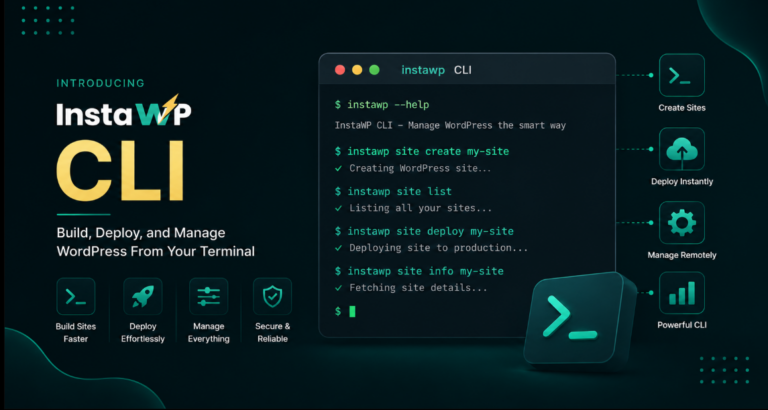
InstaWP CLI (@instawp/cli) is an open-source command-line tool that creates and manages WordPress sites directly from your terminal. It provisions cloud sites on InstaWP infrastructure and spins up local sites using WordPress Playground, with zero configuration files, no Docker, and no MySQL.
If you are a developer, agency owner, or AI agent looking for the fastest way to go from nothing to a running WordPress environment, this is the tool.
Source: github.com/InstaWP/cli | License: MIT | Requires: Node.js 18+
npm i -g @instawp/cliKey Takeaway

InstaWP CLI gives you cloud WordPress sites and local WordPress sites from a single tool, with one install and zero configuration files.
Local sites run on WordPress Playground (WASM PHP + SQLite). You do not need Docker, MySQL, or Apache installed on your machine.
Clone any InstaWP cloud site to your local machine with one command. The CLI handles database conversion, URL replacement, file sync, and auto-login automatically.
CI/CD-ready out of the box. Use INSTAWP_TOKEN in GitHub Actions to create ephemeral preview sites per pull request.
Why Another CLI When WP-CLI Exists?
WP-CLI is an essential tool. It manages an existing WordPress installation beautifully. But it does not create environments. It does not provision servers. It does not handle the gap between “I need a WordPress site” and “I have a WordPress site to manage.”

That gap is exactly where InstaWP CLI lives. Think of it this way: WP-CLI is what you use after your site exists. InstaWP CLI is what you use to make the site exist in the first place, both in the cloud and on your local machine, and then keep those two environments in sync.
The traditional WordPress developer workflow in 2026 still looks something like this for many teams: install Docker or Local by Flywheel, configure a local environment, build locally, manually export the database, push files over FTP or rsync, run search-replace, hope nothing breaks. InstaWP CLI compresses that entire sequence into a handful of commands.
Did You Know?
InstaWP CLI’s local development feature uses WordPress Playground under the hood, running PHP compiled to WebAssembly. This means your local WordPress site runs entirely inside Node.js with no system-level dependencies beyond Node itself.
Over 100,000 developers already trust InstaWP to streamline their WordPress workflows.
How to Get Started With InstaWP CLI
Getting InstaWP CLI running on your machine takes less than two minutes. You need Node.js 18 or higher installed, and that is the only prerequisite. No Docker. No MySQL. No server configuration. Here is how to go from zero to a running WordPress site in three steps.

Step 1: Install InstaWP CLI globally
Open your terminal and run the following command to install InstaWP CLI as a global npm package:
npm i -g @instawp/cli@beta
This installs the instawp binary on your system. Once the installation finishes, you can run instawp from any directory in your terminal. If you are using yarn, you can run yarn global add @instawp/cli@beta instead.
To confirm the installation worked, run:
instawp --help
You should see the full list of available commands.
Step 2: Authenticate with your InstaWP account
Next, connect the CLI to your InstaWP account:
instawp login
This opens your default browser and walks you through a quick OAuth flow. Once you authorize, the CLI stores your credentials locally and you are ready to go.
If you are setting this up inside a CI/CD pipeline, a Docker container, or any environment without a browser, use token-based authentication instead:
instawp login --token <your-api-token>You can generate API tokens from your InstaWP dashboard under Account > API Tokens. This is the recommended approach for GitHub Actions, GitLab CI, and automated scripts.

To verify your session is active, run:
instawp whoamiThis shows your current user, active team, and session status.

Step 3: Create your first WordPress site
Now create a cloud WordPress site with a single command:
instawp create --name my-site --php 8.4The CLI provisions a full WordPress environment on InstaWP’s cloud infrastructure and shows real-time progress as each step completes.
# Provisioning WordPress...
  Setting up server environment... (38%)
✓ PHP 8.4 configured
  Issuing SSL certificate... (66%)
✓ SSL certificate issued
  Installing WordPress... (79%)
✓ WordPress installed

Ready in 42.3s → https://my-site-abc123.instawp.link

  Username: developer
  Password: xK9#mP2$vL
  WP Admin: https://my-site-abc123.instawp.link/wp-admin
Magic Login: https://app.instawp.io/wordpress-auto-login?site=abc123Within about 40 seconds, you have a live WordPress site with SSL, admin credentials, and a magic login link. Click the WP Admin URL or the magic login link, and you are inside the WordPress dashboard.

That is it. Three commands, and you have a production-grade WordPress environment running in the cloud. If you want to create a local site instead (running entirely on your machine with no cloud dependency), skip step 2 and run:
instawp local create --name my-siteThis spins up a WordPress site locally using WordPress Playground. No internet connection required after the initial install.

It uses WordPress Playground under the hood — WASM-compiled PHP and SQLite for the database. The browser opens automatically. You are logged in as admin. Start editing. Run it in the background if you prefer:
instawp local create --name blog --backgroundYou can also stop the local blog site one command:
instawp local stop blog
Managing multiple local sites is straightforward:
instawp local listAs you run this command, you get the lis of all the local sites.

Compare this to the traditional WordPress local development setup. Local by Flywheel requires a separate desktop application download and has its own resource overhead. Docker-based setups (wp-env, custom docker-compose) require Docker Desktop, which consumes significant memory on macOS and has known volume-mounting performance issues.
MAMP and XAMPP involve manual server configuration and do not offer any built-in way to sync with a cloud environment.
InstaWP CLI sidesteps all of that. One npm install. One command. Running site.
Clone Cloud to Local: The Workflow That Saves Hours
This is where InstaWP CLI truly separates itself from every other local development tool. With one command, you can take a live InstaWP cloud site and replicate it on your local machine.
instawp local clone my-cloud-siteOne command. No manual database exports. No phpMyAdmin. No search-replace scripts. No broken URLs.
Here is everything the CLI handles for you automatically during a clone:
- Exports the MySQL database from the cloud site via SSH (
wp db export) - Converts the MySQL dump to SQLite using
mysql2sqlite - Renames the table prefix to
wp_and fixes meta keys - Runs search-replace on all tables (cloud URL to
http://127.0.0.1:<port>) - Pulls
wp-contentvia rsync (plugins, themes, uploads) - Pulls non-core root files (
.htaccess,wp-cli.yml, etc.) - Writes a blueprint with
WP_SQLITE_AST_DRIVER=truefor complex plugin compatibility - Installs an error-suppression mu-plugin (WASM PHP is sensitive to deprecation warnings)
- Starts Playground and opens the browser, logged in as the actual admin user
For agencies managing client sites, this means you can pull any client’s live WordPress staging site onto your laptop in under a minute, debug an issue locally without touching the production environment, fix it, and push the changes back.
Push Local to Cloud: Close the Loop
Editing locally is only half the story. The other half is getting your changes back to the cloud without a messy manual deployment process.
instawp local push blog my-cloud-siteOr omit the cloud site name to auto-create one
instawp local push blogOnly changed files are transferred via incremental rsync. No full re-uploads. No FTP. No waiting. You can preview what will be transferred before committing:
instawp local push blog my-cloud-site --dry-runAnd pulling works in the other direction too:
instawp local pull blog my-cloud-siteThis bidirectional sync between local and cloud is what makes InstaWP CLI more than a local dev tool. It is a complete development workflow. Build locally, push to cloud for client review, pull client feedback changes back, iterate, and eventually migrate to production hosting when the project is ready.
Remote Command Execution: Two Transports
InstaWP CLI supports running commands on any cloud site without manually setting up SSH keys. The CLI generates a key pair on first use, uploads it to InstaWP, enables SSH on the target site, and caches the connection for one hour. All of that happens transparently.
SSH (Default)
instawp exec my-site ls -la
instawp exec my-site php -v
instawp exec my-site cat wp-config.php

# WP-CLI shorthand (prepends `wp` automatically)
instawp wp my-site plugin list
instawp wp my-site option get siteurl
instawp wp my-site user listAPI Transport
For restricted networks or CI pipelines where SSH is not available:
instawp exec my-site ls -la --api
instawp wp my-site plugin list --apiNo SSH setup needed. Commands run through the InstaWP API.
Interactive SSH
instawp ssh my-siteOpens a full interactive shell session on the site. Useful for debugging, log inspection, or running complex WP-CLI operations that need real-time interaction.

Team Management
Agencies working across multiple client accounts will appreciate team switching. You can move between teams without logging out or affecting your web session. The team context is stored locally and injected into all API requests.
instawp teams listAnd you will have the complete list of the teams listed with your InstaWP account.

This is especially relevant for agencies that manage WordPress sites at scale across different client accounts and need clean separation between projects.
PHP Settings: View and Update in One Command
No more logging into a dashboard to change a PHP setting. View and update PHP version and ini settings for any cloud site directly from the terminal.
instawp sites php my-site
You can also update PHP version and settings in one command.
instawp sites php my-site --version 8.3 --memory-limit 512 --max-execution-time 120
CI/CD Integration: Ephemeral Preview Sites Per Pull Request
One of the most powerful use cases for InstaWP CLI is creating disposable preview sites for every pull request. Use INSTAWP_TOKEN to skip interactive login in automated environments.
GitHub Actions Example
name: WordPress Preview
on: pull_request

jobs:
  preview:
    runs-on: ubuntu-latest
    steps:
      - uses: actions/checkout@v4

      - uses: actions/setup-node@v4
        with:
          node-version: 20

      - run: npm i -g @instawp/cli@beta

      - name: Create preview site
        run: instawp create --name pr-${{ github.event.number }} --wp 6.8 --php 8.2 --json
        env:
          INSTAWP_TOKEN: ${{ secrets.INSTAWP_TOKEN }}

      - name: Run smoke test
        run: instawp wp pr-${{ github.event.number }} option get siteurl --api
        env:
          INSTAWP_TOKEN: ${{ secrets.INSTAWP_TOKEN }}

      - name: Cleanup
        if: always()
        run: instawp sites delete pr-${{ github.event.number }} --force
        env:
INSTAWP_TOKEN: ${{ secrets.INSTAWP_TOKEN }}Every pull request gets its own isolated WordPress environment. Reviewers can click a link and see the exact changes running on a real site. When the PR is merged or closed, the site is automatically cleaned up. No leftover staging environments. No manual provisioning.
This fits naturally into any team that already uses GitHub Actions, GitLab CI, or Bitbucket Pipelines for their deployment workflow.
| Variable | Description |
|---|---|
INSTAWP_TOKEN | API token. Skips instawp login. |
INSTAWP_API_URL | Custom API base URL (default: https://app.instawp.io). |
For AI Agents: Built for Automation
InstaWP CLI is designed to be used by AI coding assistants like Claude Code, Cursor, GitHub Copilot, and similar tools. Every command supports --json for machine-readable output, making it straightforward for AI agents to parse responses and chain commands together.
Did You Know?
InstaWP also offers MCP (Model Context Protocol) integration, which means AI assistants like Claude can directly create, edit, and manage content on your WordPress sites hosted on InstaWP, right from the chat interface.
Key Facts for Agents
- Package:
@instawp/clion npm. Install withnpm i -g @instawp/cli@beta. - Binary name:
instawp - Auth:
instawp loginfor interactive,INSTAWP_TOKENenv var for automation - JSON mode: Add
--jsonto any command. Output format:{ "success": true, "data": {...} }on success,{ "success": false, "error": "..." }on failure.
Site Resolution
The <site> argument in all commands accepts three formats. Numeric ID (instawp exec 4821 php -v), site name (instawp exec my-site php -v), or domain (instawp exec my-site-abc123.instawp.link php -v). Lookups are cached for 10 minutes.
Common Automation Patterns
- Create a site and capture its URL:
URL=$(instawp create --name test-site --json | jq -r '.data.url') - Run WP-CLI and get structured output:
instawp wp my-site plugin list --json | jq '.data' - Create a local site in background for testing:
instawp local create --name test --background --no-open - Clone, modify, push back: instawp local clone my-cloud-site –name local-copy
Full Command Reference
| Command | Description |
|---|---|
instawp login | Authenticate via browser OAuth or --token |
instawp whoami | Show current session, user, and team |
instawp create --name <n> | Create a cloud WordPress site (waits for provisioning) |
instawp sites list | List all sites (--status, --all, --page, --per-page) |
instawp sites delete <site> | Delete a site (--force to skip confirmation) |
instawp sites update <site> | Update label, description, or expiration |
instawp sites php <site> | View or update PHP version and settings |
instawp exec <site> <cmd> | Run any command on a site (SSH default, --api for API) |
instawp wp <site> <args> | WP-CLI shorthand (prepends wp to the command) |
instawp ssh <site> | Interactive SSH session |
instawp sync push <site> | Push local wp-content to cloud via rsync |
instawp sync pull <site> | Pull cloud wp-content to local via rsync |
instawp teams list | List all teams |
instawp teams switch [team] | Switch active team context (omit to reset) |
instawp teams members <team> | List team members |
instawp local create | Create a local WordPress site (WordPress Playground) |
instawp local clone <site> | Clone a cloud site to local (files + database) |
instawp local start [name] | Start an existing local site |
instawp local stop [name] | Stop a background local site |
instawp local push <local> [cloud] | Push local wp-content to cloud (auto-creates if no cloud site) |
instawp local pull <local> <cloud> | Pull cloud wp-content to local site |
instawp local list | List local sites with status |
instawp local delete <name> | Delete a local site and its data |
instawp changelog | Show latest changelog |
<site> can be a site ID, name, or domain. The CLI resolves it automatically. All commands support --json for machine-readable output.
Limitations Worth Knowing
No tool is perfect, and being transparent about limitations helps you plan your workflow better.
- Local sites use SQLite instead of MySQL. Most plugins work through the WordPress Playground AST SQLite driver, but plugins that rely on raw MySQL queries or MySQL-specific features may have edge cases that fail. WooCommerce and most popular plugins work without issues.
- The
local clonecommand requiresrsyncandsqlite3to be available on your machine. SSH commands requiresshandssh-keygen. These are standard on macOS and Linux. On Windows, you will need Git Bash or WSL for SSH and rsync features. - The
--apitransport forexecandwpcommands does not support interactive commands or real-time streaming. For those, use the default SSH transport.
Where InstaWP CLI Fits in Your Workflow
If you are already using InstaWP for managed WordPress cloud hosting, the CLI is the fastest way to interact with your sites from the terminal. Create WordPress sandbox sites for quick tests, clone production to local for debugging, push fixes back, and manage PHP settings without opening a browser.
If you are evaluating InstaWP for the first time, the CLI is the best way to experience the speed of the platform. Install it, create a local site, see how fast it starts, and then try provisioning a cloud site. The entire experience takes less than five minutes.
For agencies delivering client projects, the combination of CLI-driven local development, cloud staging, and one-click migration to production creates a repeatable workflow that scales from one project to a hundred.
Conclusion
InstaWP CLI is a single tool that handles both local and cloud WordPress development, with the sync workflows to keep them connected. No Docker dependencies. No manual database migrations. No fragmented toolchain.
Whether you are debugging a client site locally, spinning up preview environments in CI/CD, or letting an AI agent provision sites automatically, the CLI brings WordPress site management closer to how modern developers already work: in the terminal.
Get started with $25 in free credits and create your first site from the terminal today.
- GitHub: github.com/InstaWP/cli
- Issues: github.com/InstaWP/cli/issues
- npm: @instawp/cli
FAQs
u003cstrongu003eDoes InstaWP CLI replace WP-CLI?u003c/strongu003e
No. WP-CLI manages an existing WordPress installation (plugins, users, database operations). InstaWP CLI creates and provisions WordPress environments, both locally and in the cloud, and keeps them in sync. They are complementary. In fact, InstaWP CLI includes a u003ccodeu003ewpu003c/codeu003e shorthand that runs WP-CLI commands on any InstaWP site remotely.
u003cstrongu003eDo I need Docker installed to use InstaWP CLI for local development?u003c/strongu003e
No. Local sites run on WordPress Playground, which uses WebAssembly-compiled PHP and SQLite. The only system requirement is Node.js 18 or higher.
u003cstrongu003eWill my plugins work on the local SQLite-based WordPress site?u003c/strongu003e
Most plugins work without issues through the WordPress Playground AST SQLite driver. Plugins that use raw MySQL-specific queries or features may have edge cases. WooCommerce and the vast majority of popular plugins are compatible
u003cstrongu003eCan I use InstaWP CLI in GitHub Actions or other CI/CD pipelines?u003c/strongu003e
Yes. Set the u003ccodeu003eINSTAWP_TOKENu003c/codeu003e environment variable with your API token and every command works non-interactively. The GitHub Actions example in this post shows a complete workflow for creating ephemeral preview sites per pull request.
u003cstrongu003eIs InstaWP CLI free to use?u003c/strongu003e
The CLI itself is open source (MIT license) and free to install. Local development using WordPress Playground is completely free with no limits. Cloud site provisioning uses your InstaWP account, and new accounts get $25 in free credits to get started.
u003cstrongu003eHow does InstaWP CLI compare to WordPress Studio CLI?u003c/strongu003e
WordPress Studio CLI focuses on local WordPress development with WordPress.com sync. InstaWP CLI covers both local and cloud site management, adds bidirectional cloud-to-local sync with automatic database conversion, supports remote command execution over SSH, inclu