If there’s one thing agencies do frequently, it’s making changes and updating their customers’ sites. However, site changes and updates often go differently than planned, sometimes resulting in downtime issues and bugs.
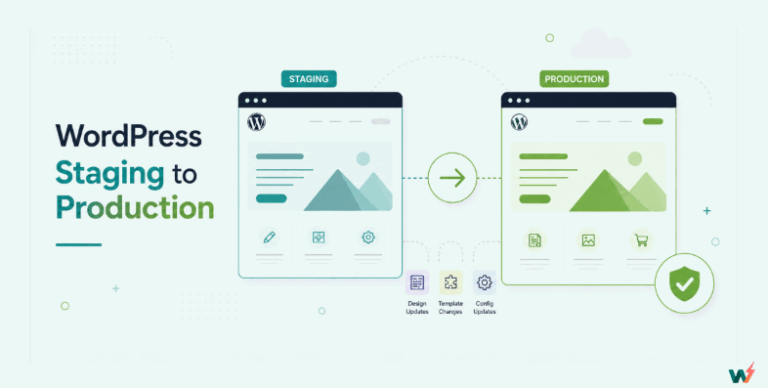
So, agencies need to utilize staging in WordPress to perform test changes and if any updates before going them to live.
This blog post will explore the advantages of using a WordPress staging plugin for agencies.
Table of Contents
Need for Frequent WordPress Staging for Agencies
What are the possible reasons or scenarios for agencies needing frequent WordPress staging for their customer sites? While there are many reasons, we will be looking at the following:
1. Testing Updates
Because WordPress is open-source software, it has to be actively maintained and updated by developers worldwide who find and fix bugs, add more features, improve code quality, enhance its security, extend site compatibility and flexibility, and improve overall functionality and performance. With each update, WordPress releases bug fixes, security patches, and better syntax.
Regularly updating WordPress sites enhances security by protecting against vulnerabilities and boosts site performance. The same applies to updating plugins, themes, and custom codes.
While updates are beneficial, they can sometimes contain human errors. Therefore, it’s best to test them in a staging environment first to ensure no issues before applying them to a live site with traffic and essential data.
You need a staging environment for testing the WordPress version, theme, plugins, and code updates to ensure they do not break the love site, and you need a WordPress staging plugin to make staging in WordPress possible.
2. Client Approval
Another need for frequent staging in WordPress is getting customers’ approval for changes. As a WordPress agency, customer satisfaction should always be your priority.
When working on projects, customers must preview changes before making them live. Remember that only some customers will agree with any change, so convey your intentions to them.
You can also expect some customers to prefer something slightly different from what you may have in mind. These changes may be unconventional.
Remove the phone input field from the checkout form.
Change the button text from Buy Now to Get This.
I don’t need the hero section on the homepage; an About Me section at the beginning is acceptable.
Some customers may think they need some changes when, in fact, they do not. Similarly, some customers may think they don’t need a change, whereas they do. For instance, you may want to add variation swatches to a customer’s e-commerce site, and the customer may think it’s unnecessary and that everything is fine with the traditional dropdown.
Sometimes, instead of arguing or trying to convince customers, it’s best to show them how the site would turn out if such changes were made. But you do not want to ruffle feathers by making those changes on the live site just to make a point.
Instead, to ensure customer satisfaction, you have to use a WordPress staging plugin to create a staging WordPress site, make the changes there, and provide your customers with a preview of those changes on the staging site alongside the live, unchanged site so they can compare, make the right decision, and grant their approval before you implement those changes on the live site.
3. Bug Fixing
When a bug occurs at your customer site, it’s best to attempt to fix it in a controlled environment.
Never attempt to solve bugs and errors on a live WordPress site. Resolving issues on the live site may create more problems and complications, increasing the time needed to fix all the issues if it doesn’t cause irreparable damage.
Staging with WordPress is an intelligent way to fix bugs and restore the site to normalcy. As long as the bug does not hinder you from accessing your WordPress staging plugin, you can use it to create a staging site, identify and resolve the issue, and then push the fix to the live site.
Whatever complication or permanent may arise, you can permanently delete the staging site and start again until you find the solution.
How to Create Staging in WordPress Really Fast?
The fastest way to create staging in WordPress is by using a WordPress staging plugin.
The traditional way of staging in WordPress usually involves manually downloading the live site files and database and reuploading them on a local host or a subdomain on the site hosting server. This process is time-consuming and inefficient, and you are limited to staging sites one at a time.
However, using an excellent WordPress staging plugin like InstaWP Connect can significantly speed up the process of creating staging sites by streamlining and automating the steps. This allows WordPress agencies to efficiently create multiple staging sites, test changes, and deploy them faster.
Things that a WordPress Staging Plugin can Help Manage
- Testing and debugging: It can help you manage testing changes and debugging errors.
- Content creation and editing: You can use it to upload more content and edit existing ones.
- Theme and plugin updates: Keep up with updating themes and plugins.
- Performance and security optimization: You can securely test performance enhancement and security updates.
- Site backups and restores: You can perform site backups from live to staging and restore from staging to live.
- Deployment of changes from staging to live: Staging plugins bridge the staging environment and the live site and help deploy changes.
- Streamline Workflows: It simplifies site management, enhances the development process, and promotes team collaboration, all working together to boost customer satisfaction.
Why is InstaWP Connect the Best Staging Plugin?
This WordPress staging plugin is a reliable and user-friendly tool that can be installed on your customer sites to create staging sites seamlessly for testing and development purposes.
It stands out as the best staging plugin because it creates staging sites within seconds without you putting in any effort, making it the fastest staging plugin in the game. Think of how much staging you could do in WordPress in a day.
Apart from speed, this WordPress staging plugin’s seamless integration with WordPress enables it to support all types and sizes of WordPress sites and ensures it never breaks a live site during the staging process.
The InstaWP Connect WordPress staging plugin is a companion tool for InstaWP, a cloud-based staging environment. It allows you to connect your customers’ existing WordPress sites anywhere on the Internet to your InstaWP dashboard and create staging sites away from the live site server.
It also offers a comprehensive solution and intuitive features and tools tailored for WordPress agencies, such as custom and multiple staging, auto-login, 2-way sync, change recording, remote management, and a WordPress migration tool, making it a valuable asset.
The InstaWP Connect WordPress staging plugin supports remote work, ensuring smooth business operations even in challenging circumstances.
How it works
Let’s see how you can use InstaWP to create staging sites in WordPress. It’s easy.
Staging a Live Site
Step 1: Create a Free InstaWP Account
You need an InstaWP account to use the InstaWP Connect staging plugin effectively. This is because staging sites are created and managed on the InstaWP cloud rather than your hosting server to ensure zero mess in your hosting account. Although InstaWP offers paid plans with better staging capabilities, you can start with a free InstaWP account.
Step 2: Install the InstaWP Connect staging plugin on the live site
Next, install and activate the InstaWP Connect staging plugin on the live site where you want to stage. To do this, log into the WordPress Admin panel of the live site and navigate to Plugin > Add New.
Search for InstaWP Connect in the WordPress plugin repository. After installing it, click the Install button and, consequently, the Activate button.

Step 3: Connect the live site to InstaWP Cloud
The next step is to connect the live site to InstaWP. To do this, navigate to Tools > InstaWP.
Click on the Create Staging tab, and then click the Connect button.

You’ll be redirected to InstaWP account to grant permission. Click Approve from the prompt, and your live site will connect successfully.

Step 4: Initiate the Staging Process
After connecting successfully, you will be automatically redirected to the live site. Now that the live site has been linked to your InstaWP dashboard, you can start the staging process.
To begin, click on the + Create Staging Site button.

Select the type of staging you want to perform, then click the Next button.

Continue the process by selecting the information you want to include in the staging site and the information you wish to exclude.

When you are done, click the Create Staging button. The InstaWP Connect plugin will replicate your site and provide you with the URL, login credentials, and auto-login button to your newly created staging site.

Congratulations! You now know how to create staging in WordPress using the InstaWP Connect WordPress staging plugin.
Enabling 2-Way Sync: Synchronizing Changes
InstaWP Connect comes with a 2-way sync feature that, when enabled, tracks and records change as you make. These changes can be synced between staging site and the live one.
This synchronization allows you to seamlessly push changes from the staging site to the live site and vice versa with just a click.
So before making any changes, you must enable 2-way sync on your live site. Follow the steps below to enable 2-way sync with the InstaWP Connect WordPress plugin:
Step 1: Sync your Live and Staging Site
Return to your live site, and you will now see your staging site under the Staging site tab. Select the Sync (Beta) tab and slide the slot to the right to turn on event tracking. This will allow the InstaWP Connect plugin on your live site to monitor and listen to the changing events on your staging site, which you can sync when you’re done.

Step 2: Test changes on the staging site
Log into your staging site’s WordPress Admin panel and make the changes you want to test. Test and preview changes to ensure there are no issues. The sync feature will keep records of all your changes.
Step 3: Push changes to the live site
When you are done, you can push the changes to your live site. You can also sync changes by selecting all or specific modifications from the Sync (Beta) tab and clicking the + Sync Changes button.

Site Migration
InstaWP has a tool for migrating your staging sites to InstaWP hosting managed WordPress Hosting or any other external hosting provider. The migration tool copies all your files and databases from the staging environment to the new server.
To migrate a staging site to live hosting, click on the Go Live icon in the Actions column of the staging site.

From the popup, select the type of migration and follow the prompts.

Remote Management
You can connect all sites managed by your agency to InstaWP remotely and easily manage them faster for staging in WordPress, scanning for security and performance issues, making bulk updates, etc, directly from your centralized InstaWP dashboard.
Once you connect a site to InstaWP with the InstaWP Connect WordPress staging plugin, we receive its heartbeats, which act as an uptime mechanism. We notify you whenever we stop getting a heartbeat.

FAQs
What is the use of a staging tool in WordPress?
A staging tool helps you to easily create a replica of your live site and make it accessible in a staging environment for testing changes and updates intended for the live site without affecting the live site.
Do I need WordPress staging?
Yes, you do. Most clueless WordPressers make updates and changes directly on live WordPress sites without consequences. Eventually, they ran out of luck and faced issues they could have prevented with WordPress staging. The rule of prevention is better than cure applies to making changes in WordPress sites.
What is the difference between staging and development in WordPress?
Staging involves copying a live site to a secluded environment for testing changes, while development is the site still under construction and yet to be made live.
How can you easily create a staging site for WordPress?
The easiest way to create a WordPress staging site is to use a WordPress staging plugin like InstaWP Connect.
How do I create a staging site for free on WordPress?
You can create a free staging site on WordPress using a free WordPress staging plugin or a free staging tool like InstaWP.
How to publish WordPress staging?
Go to Tools > Sync (Beta) from your live site and click the + Sync Changes button.