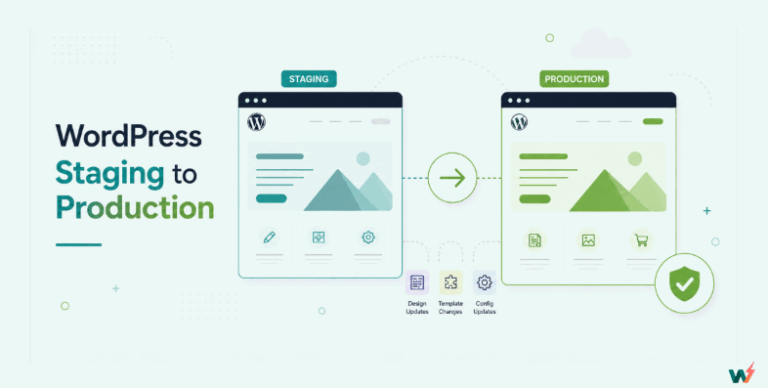
A WordPress staging site is the safest way to test updates, plugin changes, and design tweaks without risking your live website. Many website owners look at creating a GoDaddy staging site because GoDaddy offers staging environments on its Managed WordPress hosting plans. A staging site on GoDaddy allows you to clone your live website, experiment freely, and then push changes back to production.
In this guide, we will first show you how to create a staging site that WordPress GoDaddy users can set up step by step.
Table of Contents
What Is a GoDaddy Staging Site?
A GoDaddy staging site is a duplicate copy of your live WordPress website that you can use for safe testing. Instead of experimenting directly on your production site, GoDaddy gives you a private environment where you can test updates, change themes, try new plugins, or redesign layouts without affecting real visitors.
When you set up a GoDaddy WordPress staging site, the platform creates a separate instance of WordPress alongside your live installation. This copy contains your content, themes, plugins, and settings, so you can make changes in a realistic environment. Once you are satisfied with the results, you can push those changes back to your live site with a single action.
GoDaddy includes a staging site with all Managed Hosting for WordPress plans except the Basic plan. If you are on Basic, you must upgrade your account to get access to staging. The staging site uses a domain that GoDaddy automatically generates, and you cannot map a different domain or add custom URLs to it.
The staging environment is persistent, which means it does not reset each time you push or pull data. While this allows you to keep working on the same staging site, it can sometimes cause sync issues when your live and staging databases drift apart.
In short, the staging site WordPress GoDaddy provides is useful for beginners who want a straightforward way to test changes. However, as we will see later, the limitations make it less flexible for developers and agencies who need more advanced staging workflows.
How to Create a GoDaddy Staging Site
If you are using GoDaddy WordPress hosting with staging, the process to set up a staging site is fairly straightforward. All Managed WordPress Hosting plans (except Basic) include a staging environment for each live site.
This allows you to safely test changes and then push them back to production. A staging site on GoDaddy starts as a clean WordPress install, but you can pull your live content into it and work in a safe environment before making anything public.
Here is the step-by-step process to create a staging site on WordPress GoDaddy:
Step 1: Create the Staging Site
- Log in to your GoDaddy account and go to your product page.
- On the My Products page, next to Managed Hosting for WordPress, click Manage All.
- Find the website you want to create a staging site for and select Settings from the menu icon.
- Under the Staging Site section, click Create.
- Wait a few minutes while GoDaddy sets up the staging environment.

At this point, your GoDaddy WordPress staging site will be created. Next, you’ll need to pull content from your live site into staging so you can begin testing.
Step 2: Pull Your Production Site Into Staging
After creating your GoDaddy staging site, the next step is to copy your live content into the staging environment. This ensures that your staging site matches your production site, giving you a realistic testing ground.
- From your GoDaddy product page, go to Managed Hosting for WordPress and click Manage All.
- For the website you want to work on, select Settings.
- In the Staging Site section, click Actions, then choose Sync Sites.

- Select Pull production to staging to copy your live site into the staging environment.
- If this is your first sync, or if you want to overwrite the staging database entirely, check Overwrite content. If you leave it unchecked, only files will be pulled into staging, not the database.
- Click Sync and wait for the process to complete. Sync time depends on the size of your WordPress site.
Once the sync is done, your staging site WordPress GoDaddy setup will have all your themes, plugins, and content ready for testing.
Step 3: Access Your GoDaddy Staging Site
Once your production site has been pulled into staging, you can log in and begin testing safely. The GoDaddy WordPress staging site works just like your live site, but remains hidden from visitors.
- Go to your GoDaddy product page.
- On the My Products page, under Managed Hosting for WordPress, click Manage All.
- Select Settings for the site you’re working with.
- In the Staging Site section, click Actions.
- From the dropdown, select Edit Staging Site.

This will open the WordPress Admin dashboard of your staging site. From here, you can make theme changes, install or update plugins, test new layouts, or adjust configurations without impacting your production site.
Your staging site WordPress GoDaddy will always reflect the last time you synced it with your live site, so make sure to pull updates if you want to test against the latest version of your content.
Limitations of a GoDaddy Staging Site
While a GoDaddy WordPress staging site is useful for basic testing, it comes with several bottlenecks that can frustrate developers and agencies who need advanced workflows.
1. Limited Plan Access
Staging is not available on the Basic GoDaddy Managed WordPress plan. You must upgrade to higher tiers just to access a staging site. This creates an unnecessary paywall for a feature that many developers consider essential.
2. Auto-Generated Domains Only
With staging site WordPress GoDaddy, you cannot map custom domains to your staging environment. Instead, you’re restricted to an automatically generated URL, which makes client demos less professional and limits realistic testing for SSL or branded previews.
3. Persistent but Rigid Environment
GoDaddy staging sites are persistent, which means they don’t reset automatically after each sync. While this can save time, it often causes sync mismatches where staging and live databases drift apart. Developers then have to troubleshoot missing content or out-of-date configurations.
4. Risk of Overwriting Live Data
When pushing staging to production, there’s a high chance of overwriting live database changes, such as WooCommerce orders, blog comments, or user registrations. GoDaddy does not provide granular control to merge changes selectively, which puts dynamic websites at risk.
5. Limited Developer Tools
GoDaddy’s WordPress hosting with staging lacks advanced developer tools like Git integration, database editing inside the dashboard, or collaboration features. For agencies managing multiple clients, this slows down workflows and forces reliance on third-party plugins or manual processes.
6. No Usage-Based Pricing
Unlike more modern platforms, GoDaddy charges you for the entire plan regardless of how long you keep the staging environment active. This makes it less cost-efficient for developers who need disposable environments for short-term testing.
⚡ Takeaway: For beginners or hobbyists, GoDaddy staging is simple and accessible. But for agencies and professional developers, these limitations mean wasted time, higher risk, and less flexibility.
There is a pricing question sitting underneath this. GoDaddy includes staging on every Managed WordPress plan except Basic, so on Basic the first step of testing anything is an upgrade. Once you are past that, the staging environment is bundled into the plan, which means the cost of somewhere to test is the cost of a second production plan.
InstaWP prices the two halves separately. A staging sandbox is $2/mo per site, billed daily, with the same WordPress and the same SSH and WP-CLI access you get on production. If that sandbox turns out to be the site you actually ship, you convert it to managed WordPress hosting from $5/mo per site in one click: the site keeps its URL, nothing is migrated, and billing prorates from that day. You can also leave production on GoDaddy and use InstaWP for the staging half only.
InstaWP Staging Site: A Better GoDaddy Staging Site Alternative for Developers and Agencies
If you’ve ever struggled with the restrictions of a GoDaddy WordPress staging site, InstaWP offers a fresh, developer-first alternative. Unlike GoDaddy, InstaWP’s entire platform is built around WordPress staging and sandboxing, making it far more flexible, cost-efficient, and reliable for both testing and production workflows.
Here’s why InstaWP stands out as the better option:

Must Read: How to Create Staging Sites on InstaWP: A Complete Guide for Agencies and Developers
Staging Flexibility: GoDaddy vs InstaWP
On GoDaddy WordPress staging sites, your options are limited. Staging is only available on higher hosting plans and is tied directly to GoDaddy’s infrastructure. This means if you are on the Basic plan, you cannot even create a staging site without upgrading. For agencies managing multiple client sites, this creates unnecessary costs and limits.
By contrast, InstaWP offers WordPress staging flexibility for every type of user:
Sandbox plan for testing: Imagine you are testing a new WooCommerce plugin. With GoDaddy, you need to clone your live site and risk overwriting your database when pushing changes back.
With InstaWP, you can spin up a WordPress Sandbox site in seconds, pay only $0.07 for the day, test the plugin thoroughly, and delete the site when done. No commitments, no risk to your production site.
Managed hosting with built-in staging: If your site is hosted on InstaWP Plus or higher, the InstaWP Connect plugin is already installed. You simply go to Tools > InstaWP inside your WP Admin, click “Create Staging Site,” and you are ready.

For example, an agency managing a client’s content-heavy blog can create a staging environment to test a redesign without touching live traffic.
External hosting with plugin connection
Suppose your client’s WordPress site is hosted on SiteGround. Instead of migrating everything, you can install the WordPress staging plugin, InstaWP Connect plugin, link it to your InstaWP dashboard, and create a staging site instantly. This way, you still benefit from InstaWP’s advanced tools without switching hosts.
⚡ Takeaway: A GoDaddy staging site locks you into its hosting plans, while an InstaWP staging site gives you freedom. Developers and agencies can choose sandbox staging for temporary tests, managed hosting for integrated workflows, or plugin-based staging for external sites.
Syncing Changes: Avoiding Data Loss
One of the biggest risks with a GoDaddy WordPress staging site is what happens when you push staging changes to production. The system overwrites your live site with the staging version.
For a static blog, this might not matter, but for dynamic sites like WooCommerce stores, membership sites, or client portals, this can be catastrophic.
Imagine this scenario:
- Your staging site was created on Monday.
- You test a plugin, tweak a theme, and push changes to production on Friday.
- During that week, your live site has received 30 new WooCommerce orders, 10 new user registrations, and multiple form submissions.
- When you push from staging to live, GoDaddy overwrites the database, and you lose all of those transactions.
Agencies working with e-commerce clients cannot afford that kind of risk.
InstaWP solves this problem with 2-Way Sync and selective merge. Instead of overwriting, it records each change you make on your staging site. You can then review the changes as a list of events and choose what to push live.

For example:
- You edit the homepage layout in staging.
- You add a new WordPress landing page.
- A client publishes blog posts on the live site while you test.
When syncing back to live, InstaWP lets you push only the homepage changes and new landing page, while keeping the blog posts, user comments, and orders intact.
⚡ Takeaway: With a staging site GoDaddy setup, pushing staging to live can mean losing valuable live data. With an InstaWP staging site, you gain fine-grained control. Developers and agencies can safely deploy changes without overwriting customer activity or client work.
Domain Mapping and Professional Testing
With a GoDaddy WordPress staging site, you are locked into using an automatically generated domain. Something like xyz.temporarydomain.godaddywp.com becomes the URL of your staging site. This might be fine for internal testing, but it creates two major issues for developers and agencies:
- Client presentations feel unprofessional
Imagine you are redesigning a corporate client’s homepage. You want to show them the new version before launch. Sending them a link with a random subdomain from GoDaddy makes the project feel less polished. Clients often expect staging links like staging.clientdomain.com.
- SSL and branded workflows cannot be tested
When the staging site runs only on a GoDaddy subdomain, you cannot test SSL certificates, domain redirects, or branded URLs. This means you only see part of the picture, and hidden problems may appear when the site goes live.
InstaWP handles this much better with custom domain mapping for staging sites. From your InstaWP dashboard, you can map one or multiple domains to your staging environment:
- Primary domain: Set up staging.clientsite.com so the staging environment looks exactly like production.
- Alias domain: Use alternate domains like preview.clientsite.net that redirect to your primary staging site.

For example, an agency can map staging.brandwebsite.com to test SSL certificates, run SEO audits, and share a clean, branded link with the client. This mirrors real-world performance and avoids nasty surprises post-launch.
⚡ Takeaway: With a staging site WordPress GoDaddy, you cannot control the domain. With an InstaWP staging site, you can map any custom domain, test SSL, and deliver professional client previews.
Developer Tools and Workflow Efficiency
On a GoDaddy WordPress staging site, you get the basics: create, pull, push, and edit in WP Admin. That may work for a blogger testing a theme, but developers and agencies often need much more. There are no built-in options to edit code, query databases, or roll back changes quickly. Most teams end up installing third-party plugins or juggling external tools to fill the gap.
Now, picture an agency building a WooCommerce store. You want to test checkout changes, tweak PHP templates, and debug database queries. With GoDaddy, you need separate access to the hosting panel and extra software just to manage these tasks. That slows down development, especially when multiple client projects are running in parallel.
InstaWP makes this seamless by bundling developer-first site tools directly into staging sites:
- Code Editor: Edit PHP, CSS, or JavaScript right in the dashboard. No need to set up FTP or wait for file transfers.

- Database Editor: Run SQL queries, inspect tables, and clean up test data without external tools.

- Logs and Activity Tracking: Spot plugin conflicts or errors before they reach production.
- SFTP/SSH Access: For advanced debugging, you can connect instantly without reconfiguring credentials.
⚡ Takeaway: A GoDaddy WordPress staging site offers minimal workflows suited to basic users. An InstaWP staging site gives agencies and developers the professional tools they need for faster debugging, safer rollbacks, and collaborative testing.
Cost and Scalability
With GoDaddy WordPress staging sites, staging is bundled into Managed WordPress Hosting plans, but only from the Deluxe tier and above. The Basic plan does not include staging at all, which means users must upgrade even if they only want a simple staging environment.
This can quickly become expensive for agencies managing multiple client sites, since each site requires its own plan.
Let’s break it down with an example:
- An agency manages 10 client websites.
- Each site needs a staging environment for safe plugin updates and testing.
- On GoDaddy, that means paying for 10 Deluxe or higher hosting plans. The costs stack up, even for small projects that only need temporary testing.
In contrast, InstaWP uses pay-as-you-go WordPress plans that scale far more efficiently. Developers and agencies can:
- Use the Sandbox plan for quick tests at $2 per month or $0.07 per day. Perfect for plugin/theme checks or short-term staging.
- Upgrade only the sites that need more resources to Plus, Pro, Turbo, or Elite plans, depending on client requirements.
- Spin up unlimited staging sites and delete them when finished. Billing stops immediately, so you only pay for what you use.
For agencies managing dozens of projects, this flexibility translates into massive cost savings. You can allocate resources where they matter most, without being locked into fixed plans.
⚡ Takeaway: A staging site WordPress GoDaddy forces you into higher-tier hosting, increasing costs as projects scale. An InstaWP staging site offers flexible pricing, temporary environments, and scalable hosting plans that adapt to your workflow.
Collaboration and Team Workflows
A GoDaddy WordPress staging site is designed for individual site owners, not collaborative teams. You get a staging environment tied to a single hosting account, but there are no built-in features for inviting teammates, assigning roles, or tracking who made which changes.
For agencies and distributed dev teams, this creates bottlenecks. Developers often have to share login credentials or set up external tools like GitHub, which increases security risks and slows down workflows.
Imagine a scenario:
- A designer updates the homepage layout in staging.
- A developer tests a new WooCommerce extension.
- A QA specialist reviews the changes.
On GoDaddy, this workflow means passing around the same WordPress admin login, making it hard to track accountability.
With InstaWP staging sites, collaboration is baked in:
- Team invitations: Add developers, designers, or clients directly to your staging environment with role-based access.
- WordPress Git integration: Link repositories to your site and sync commits with staging for version control.
- Visual collaboration tools: Share staging previews with clients using mapped domains like staging.clientsite.com, making feedback loops professional and efficient.
- Activity logs: Track who made each change in real time for complete transparency.
For example, an agency running multiple projects can give each team member their own login. The designer works on layouts, the developer commits code via Git, and the client reviews changes on a branded staging domain. Everything stays organized and secure, without messy credential sharing.
⚡ Takeaway: A staging site WordPress GoDaddy is a one-person tool. An InstaWP staging site is built for teams, agencies, and collaborative workflows where multiple people need access, transparency, and control.
Pushing Changes Live and Data Safety
On a GoDaddy WordPress staging site, the process of moving changes from staging to production is fairly rigid. You pull your live site into staging, make updates, and then push the entire staging environment back to live.
The catch is that this can overwrite your live database. For content-heavy or e-commerce sites, that means new blog posts, WooCommerce orders, or user signups created while you were testing can be lost.
For example:
- You create a staging site on GoDaddy and test a new plugin for a week.
- During that week, your live site gets 10 new orders and 5 new blog comments.
- When you push staging back to production, those orders and comments disappear because the live database was overwritten.
This is a serious bottleneck for developers and agencies managing high-traffic websites.
InstaWP takes a more advanced approach with 2-Way Sync and selective syncing:
- Sync Recording: Every change you make in staging (adding a page, editing a post, updating settings) is logged.
- Selective Sync: Instead of pushing the entire staging database, you can choose specific updates like posts, pages, or files.
- Protect Live Data: WooCommerce orders, comments, and new signups remain untouched while your design and code changes are merged safely.
- APIs for automation: Agencies can integrate InstaWP sync into their CI/CD pipelines for structured deployments through the InstaWP APIs.
⚡ Takeaway: A staging site WordPress GoDaddy risks overwriting live content during deployment. An InstaWP staging site protects live data with selective syncing, event logging, and 2-Way Sync, making it the safer choice for production sites and ecommerce stores.
Conclusion
A GoDaddy WordPress staging site works fine for beginners or solo site owners, but it has clear limitations for developers and agencies. You cannot map custom domains, you risk overwriting live databases when pushing changes, and there are no built-in developer tools for collaboration or debugging.
An InstaWP staging site solves all of these bottlenecks. You can create Quick, Full, or Custom staging copies, map domains for client-friendly previews, sync changes without losing WooCommerce orders or live user data, and collaborate with your team through Git integration, checkpoints, and built-in code/database editors.
Ready to test updates without risking your live site?
? Create your InstaWP staging site today and experience fast, flexible, and developer-first WordPress staging.
FAQs
What is a WordPress staging site?
A staging site is a copy of your live WordPress website where you can safely test updates, plugins, themes, and custom code without affecting your visitors.
Does GoDaddy offer a staging site?
Yes, but only on Deluxe and higher Managed Hosting plans. The Basic plan does not support a staging site on WordPress GoDaddy.
Can I map a custom domain to a GoDaddy staging site?
No, GoDaddy staging sites use an auto-generated subdomain. In contrast, InstaWP allows you to map primary and alias domains for branded staging URLs.
Can I push changes from a GoDaddy staging site without overwriting live data?
No, GoDaddy pushes to overwrite the entire database. InstaWP’s 2-Way Sync lets you selectively sync design or content changes while protecting live orders, posts, and signups.
Is InstaWP staging free?
No, but it is cheap. A staging sandbox is $2 per month per site, billed daily at about $0.07 a day, so a short test costs a few cents and you stop paying the day you delete it.
Who should use InstaWP staging instead of GoDaddy staging?
Agencies, developers, and WooCommerce site owners who need safe workflows, granular control, collaboration features, and scalability will benefit most from InstaWP.