To connect Claude to WordPress, you expose your site’s functions as MCP (Model Context Protocol) tools, then give Claude the resulting endpoint URL. The fastest route is a managed MCP server: enable MCP on a site running on InstaWP’s managed WordPress hosting, copy the generated URL, and either paste it into Claude Desktop or run claude mcp add --transport http mymcp <mcp_url> in Claude Code. That takes about two minutes and needs no Node.js, no config file, and no Application Password.
There are five ways to do it, and they are not equivalent. Two are managed, two are self-hosted, and one (the official WordPress.com connector) only works for sites hosted on WordPress.com, where Claude asks you to confirm every change. This guide walks through all five, with the real limits of each.
If you manage WordPress sites and you are still logging into wp-admin by hand to run what should be repeatable operations, this is the shortest path out of that.
Table of Contents
- Two minutes, one URL. On InstaWP, switch on MCP, then paste the connection URL into Claude under Customize, Connectors, Add custom connector, or run
claude mcp add --transport http mymcp <mcp_url>in Claude Code. - Claude’s Free plan allows one custom connector. Pro and Max add as many as you like; on Team and Enterprise an owner adds it under Organization settings first.
- Your site must be reachable from the internet. Claude connects to custom connectors from Anthropic’s cloud, not from your laptop, so a localhost site will not work. Every InstaWP site already has a public URL.
- Out of the box, InstaMCP gives Claude 43 typed tools. The official MCP Adapter on a bare install exposes three read-only core abilities until you register more.
- WordPress.com’s connector now drafts and updates content, with every change confirmed by you, but only for WordPress.com and Jetpack-connected sites on paid plans.
- Credentials set the blast radius. InstaMCP scopes follow the WordPress role and keep PHP, SQL and file tools off until an admin enables them. An Application Password carries every capability of its user.
Test it on a throwaway site first
Every method below gives Claude write access to a real WordPress database. Spin up a free WordPress sandbox, point Claude at that instead of a client site, and confirm the workflow before you run it anywhere that matters.
What is MCP and Why Does It Matter for WordPress?
Model Context Protocol (MCP) is an open protocol developed by Anthropic that standardizes how AI clients communicate with external services. Think of it as a universal API layer between AI assistants and the tools they need to use.
In technical terms, MCP defines:
- Tool discovery: How Claude learns what actions are available
- Tool invocation: How Claude calls those actions with parameters
- Response handling: How results are returned in structured format
For WordPress, this means exposing REST API endpoints as “tools” that Claude can call. Instead of you manually executing POST /wp/v2/posts, Claude interprets your natural language command and makes that API call for you, with proper authentication, parameter formatting, and error handling.
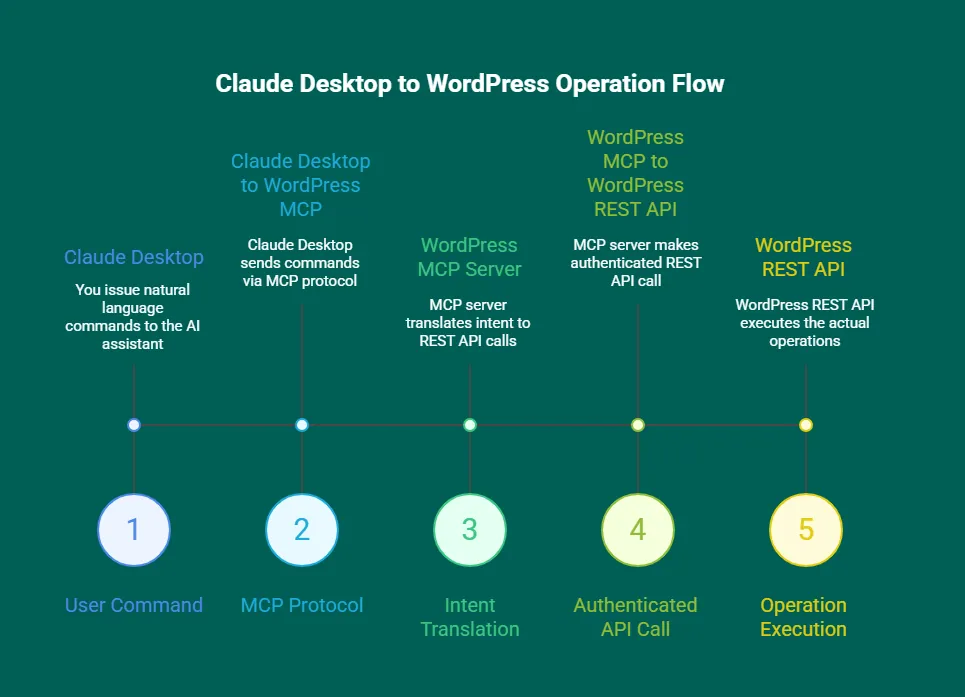
The WordPress MCP server is the critical middleware. It receives structured requests from Claude, maps them to WordPress REST endpoints, handles authentication (a scoped token on InstaWP’s built-in server, an Application Password on most self-hosted setups), and returns formatted responses.
Connect Claude with WordPress in 2026: An Overview
When people say “Claude can manage WordPress,” what they really mean is: Claude can call a set of tools that can read/write your site.

In a WordPress context, those tools map to real actions, list posts, update terms, activate/deactivate plugins, manage users, executed through authenticated WordPress REST API calls.
A Claude-connected WordPress stack is less about novelty and more about deleting repetitive ops work.
- Content ops without friction: “Create drafts for these 12 titles, assign categories/tags, and set featured images from these URLs.”
- Taxonomy cleanups at scale: “Merge tags A/B, update affected posts, and redirect old tag URLs.”
- Plugin hygiene: “List active plugins, flag anything suspicious/outdated, and propose a safe update plan.”
- Client-site ops: Standardize repeatable checklists across many installs, without building one-off scripts every time.
| Method | Best for | Setup time | Read or write | What it needs |
|---|---|---|---|---|
| InstaWP managed MCP | Agencies and developers who want it working now | Under 2 minutes | Read and write | An InstaWP site. No Node.js, no config file. |
| Claude Code + InstaWP MCP | Terminal-first developers | Under 2 minutes | Read and write | Claude Code CLI and one claude mcp add command |
| Official WordPress MCP Adapter | Self-hosted sites wanting a vendor-neutral path | 15 to 30 minutes | Read and write | WordPress 6.9 or later, the MCP Adapter plugin, application passwords |
| Manual MCP server | Custom or bespoke tooling | 15 to 30 minutes | Read and write | Node.js 18+, npm, a local config file |
| WordPress.com Claude Connector | WordPress.com sites on a paid plan | Under 5 minutes | Read and write, each change confirmed by you | A paid WordPress.com plan or a Jetpack AI or Complete-connected site, and OAuth sign-in |
What Are Claude Connectors, and Which One Connects WordPress?
Claude connectors are how Claude reaches outside tools and data. Each one is an MCP server that Claude calls on your behalf. For WordPress, the one you want is a custom connector: you paste a remote MCP server URL for your site into Claude, and Claude can then read and edit that site. InstaWP gives every site that URL with one toggle, so on InstaWP the custom connector takes about two minutes to set up.
Claude offers four ways to attach an MCP server, and they suit different WordPress setups:
Custom connectors are available on every Claude plan. The Free plan is limited to one, and on Team and Enterprise an owner adds the connector under Organization settings, Connectors before members can switch it on (Anthropic’s custom connector guide, checked October 2026). Method 1 below walks through the InstaMCP custom connector step by step.
How to Connect Claude With WordPress: 5 Methods in 2026
There are five ways to connect Claude to WordPress, and we cover all of them. But for most developers and agencies, InstaWP’s built-in MCP server is the right default because it collapses setup friction to nearly zero and pairs the AI connection with an environment designed for safe iteration.
When you enable MCP on an InstaWP site, the platform automatically installs the MCP plugin on your WordPress site, generates a secure authentication token, creates your unique connection URL, and activates streamable HTTP transport. You never touch a config file or create an Application Password manually. The entire authentication stack is managed for you.
More importantly, InstaWP’s MCP connection works on sandbox and staging, not just live production installs. This means you can connect Claude to a real WordPress environment, run real operations, verify the results, and know that nothing on a live client site is at risk.
Once the workflow is confirmed, you apply it to production. That’s the workflow loop that actually makes AI reliable in production settings.
| Factor | Recommended InstaWP Managed MCP |
Manual MCP Server | WordPress MCP Plugin |
|---|---|---|---|
| Setup Time | Under 2 minutes | 15-30 minutes | 10-15 minutes |
| Technical Skill Required | None (dashboard UI) | Intermediate (Node.js, npm, config files) | Basic (plugin installation) |
| Infrastructure | Fully managed by InstaWP | Self-hosted Node.js process | Runs inside WordPress |
| Installation | One-click enable | npm install + manual config | Upload & activate plugin |
| Configuration | Zero config needed | Edit .env and JSON files | Plugin settings page |
| Token Management | Visual dashboard UI | Manual file editing | Plugin admin interface |
| Multi-Site Support | Centralized dashboard | Separate config per site | Per-site plugin install |
| Staging/Testing | Built-in sandboxes | DIY setup required | Requires separate staging |
| Updates & Maintenance | Plugin installed and configured for you | Manual npm updates | Manual plugin updates |
| Server Requirements | None (cloud-hosted) | Node.js 18+, npm | Public WordPress URL, SSL |
| Works with Localhost | Yes (InstaWP sites) | Yes | No (needs public URL) |
| Extensibility | Standard WordPress tools | Full Node.js ecosystem | Limited to PHP |
| Performance Impact | Light plugin, no separate server process | Separate process | Adds load to WordPress |
| Cost | Included with InstaWP | Free (self-hosted) | Free (open-source) |
| Support | InstaWP support team | Community/GitHub | Community/GitHub |
| Best For | Agencies, teams, fast deployment | DevOps-savvy developers, custom needs | Simple setups, single sites |
Let’s discuss all these methods in detail.
One URL, every major AI client
This guide focuses on Claude, but the URL you generate is a standard MCP endpoint. The InstaWP MCP tab has a setup guide for 14 AI clients: Claude Desktop, Claude Code, Claude.ai, ChatGPT, Cursor, VS Code, VS Code Insiders, GitHub Copilot, Antigravity, Windsurf, Cline, Roo, Zed and Continue. The steps are nearly identical for each: enable MCP once, then paste the URL into your tool. See the dedicated guides for connecting ChatGPT to WordPress and connecting Claude Code, Cursor, and Gemini CLI.
Method 1: Connect Claude Desktop to WordPress via InstaWP MCP
Claude Desktop is the visual interface for Claude; the app you install on Mac or Windows. This method is the right choice if you want a conversational interface for WordPress management without writing terminal commands.
Prefer the terminal? You can spin up the same InstaWP site with instawp create from the InstaWP CLI instead of clicking through the dashboard, then enable MCP on it and point Claude at the endpoint.
What you need:
- Claude Desktop installed (download here)
- An InstaWP account (Sandbox plan or above)
Step 1: Create or open a site in InstaWP
Navigate to your Sites page in the InstaWP dashboard. Create a new site or open an existing one. InstaWP provisions WordPress sites in seconds, so if you want to start with a clean staging environment, that’s the fastest path.
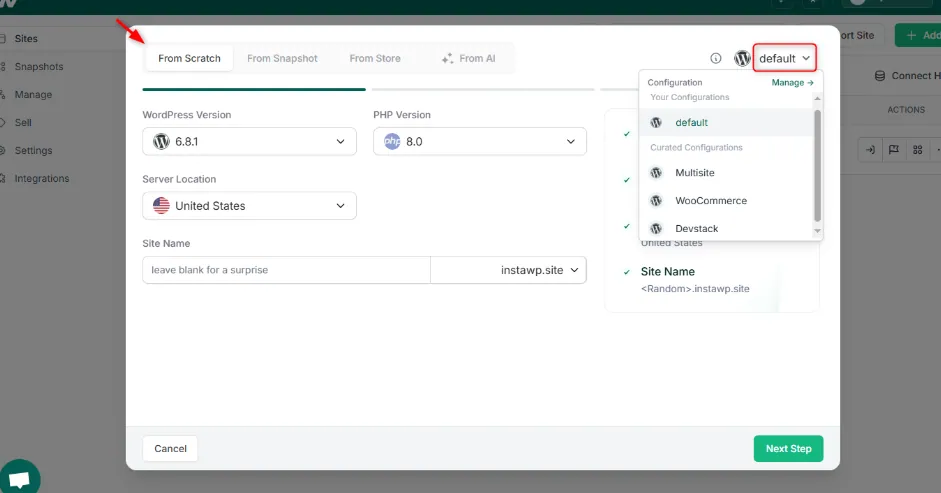
Step 2: Enable MCP
Click the site name to open the Site Details page, expand Extensions, and select MCP.
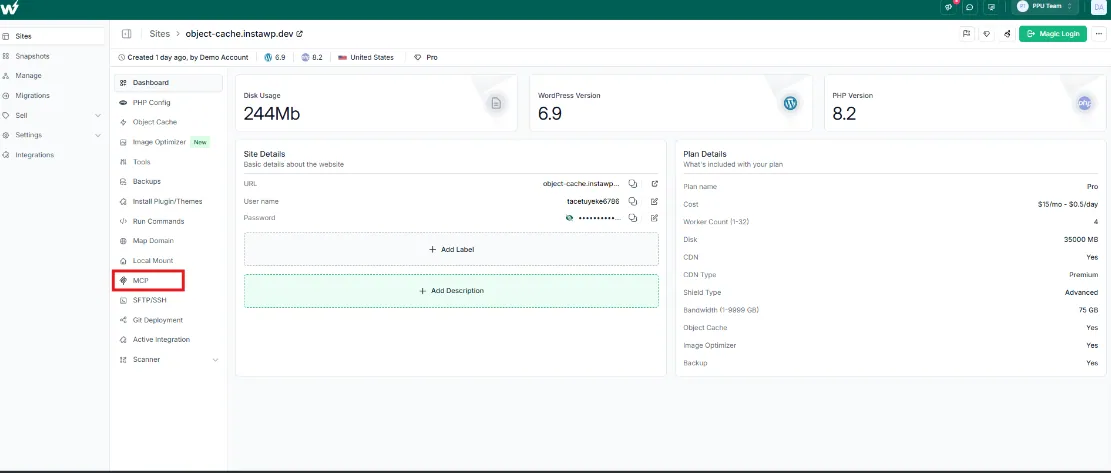
Toggle “Enable MCP” to ON.
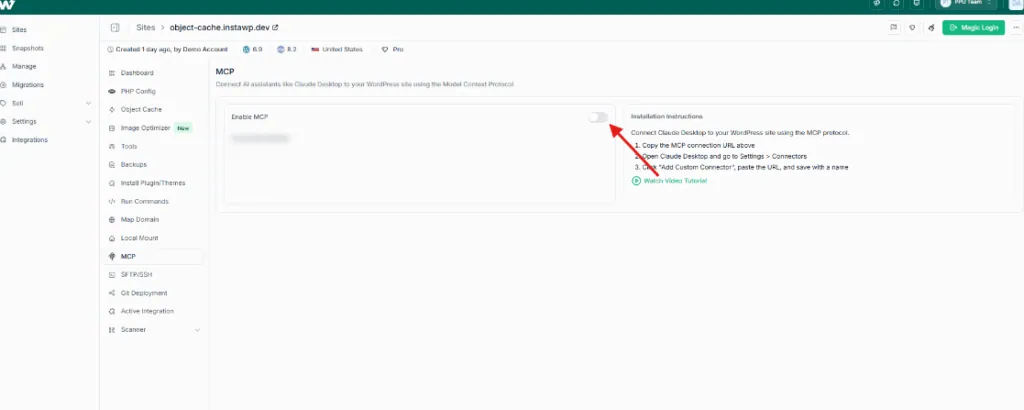
As you do so, you will get a unique WordPress MCP server URL as a dedicated WordPress MCP plugin is installed remotely, a secure authentication token is created, and streamable HTTP transport is activated. For sites hosted elsewhere, the best WordPress MCP plugins compares 21 plugins that do the same job.
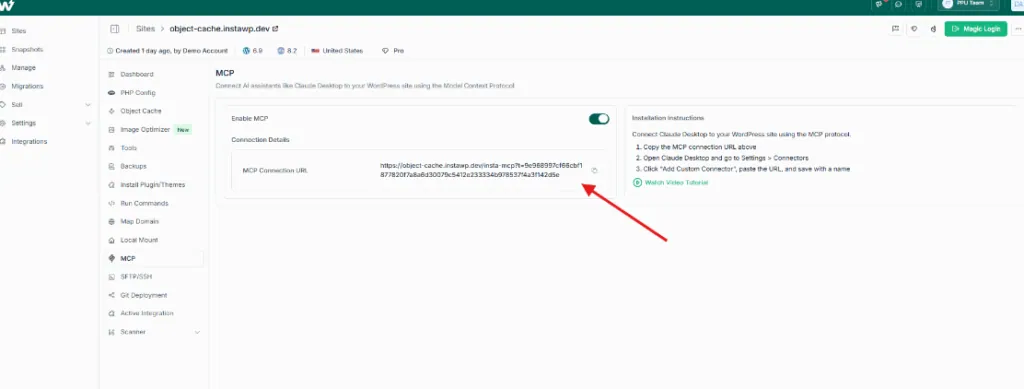
Step 3: Add the connector in Claude Desktop
Open Claude Desktop (or Claude.ai in the browser, which uses the same connectors) and go to Customize, then Connectors.
On Claude’s Free plan you can add one custom connector. Pro and Max have no such limit. On Team and Enterprise, an owner first adds the connector under Organization settings, Connectors, and each member then connects it from their own Connectors page.
Click + Add, then Add custom connector, give it a descriptive name like “Client Site, Acme Corp”, and paste your MCP URL. Click Add. Claude reaches custom connectors from Anthropic’s cloud rather than from your computer, so the site has to be reachable on the public internet. InstaWP sites are, which is why this works without a tunnel.
Your InstaMCP URL looks like https://your-site.instawp.site/insta-mcp?t=YOUR_TOKEN. Paste all of it, including the ?t= token. The token in the URL is what authenticates Claude, so leave the optional OAuth Client ID and Client Secret fields under Advanced settings empty. The token is tied to one WordPress user, so Claude can only do what that user’s role allows.
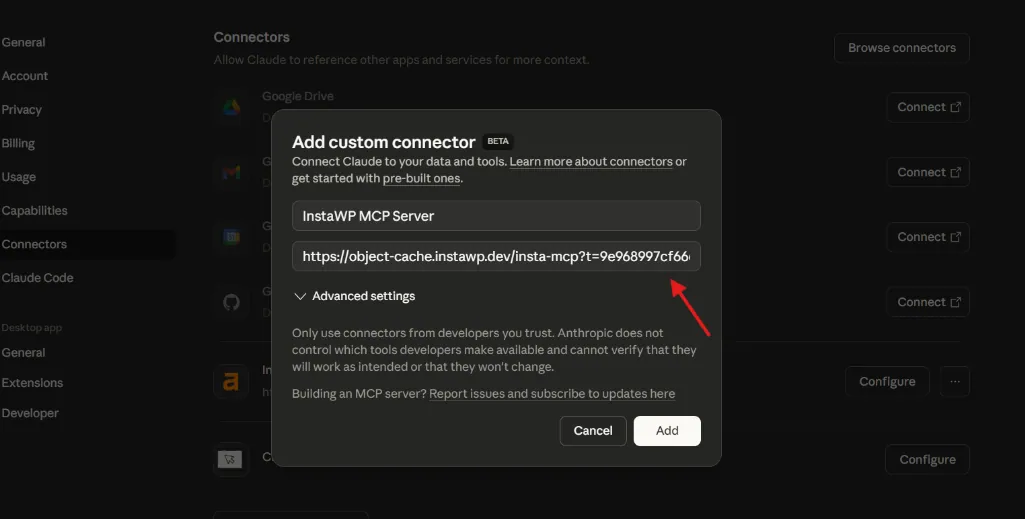
Step 4: Verify the connection
Start a new conversation in Claude Desktop and ask something like: “What posts are on my WordPress site?” Claude will call the MCP server’s list_content tool and return a formatted list. If that works, the connection is live. If Claude shows the connector but no tools, check that the URL was not cut off at the ?t= token.
You now have Claude with authenticated read and write access to your WordPress site, operating through natural language in a visual chat interface.
List all posts on my WordPress siteClaude will call the MCP server, query your posts via REST API, and return a formatted list. If this works, your MCP server WordPress integration is live.
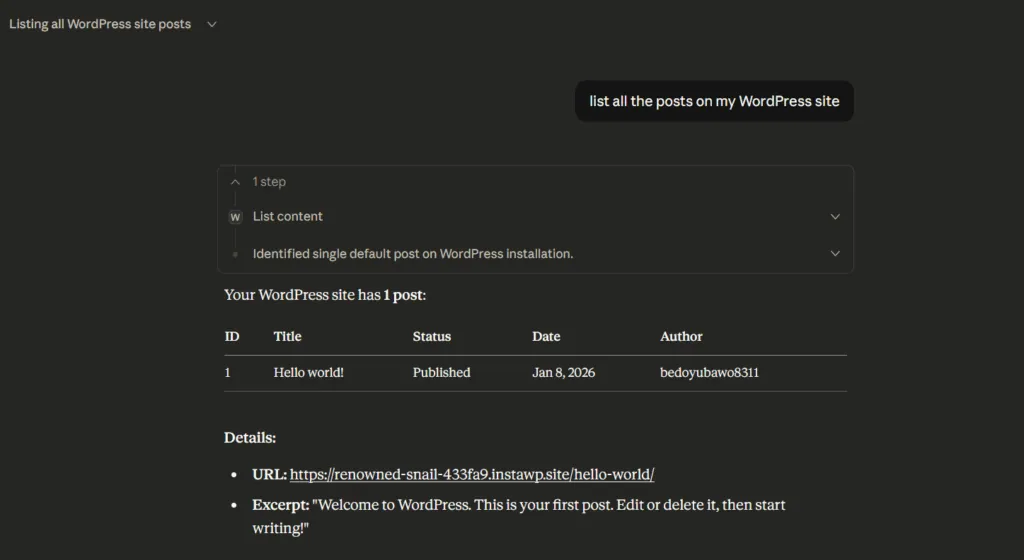
Now, Claude desktop is fully connected with WordPress, and you can do remote management of your site.
Connect Claude Code to WordPress with InstaMCP
If you prefer using Claude Code, a terminal-based tool for developers who prefer working in the command line, the steps are little different.
Using Claude Code for WordPress is particularly useful for agencies and developers who want to script, automate, or chain WordPress operations as part of a larger development workflow without leaving the terminal.
What you need:
- Claude Code CLI installed (see Claude Code docs)
- MCP enabled on your InstaWP site (same steps as Method 1, Steps 1 and 2)
- Your MCP connection URL copied from the InstaWP dashboard
Step 1: Run the connection command
Open your terminal and run:
claude mcp add --transport http mymcp <mcp_url>Replace <mcp_url> with the actual connection URL from your InstaWP dashboard. A real command looks like this:
claude mcp add --transport http mymcp https://your-site.instawp.site/insta-mcp?t=your-auth-token-hereThe label mymcp is just an identifier you choose. For agencies managing multiple client sites, use descriptive names like client-acme or staging-projectx.
Two flags are worth knowing. --scope user makes the WordPress server available in every project on your machine instead of only the current folder. And if you would rather not keep the token in the URL, InstaMCP also accepts it as a header:
claude mcp add --transport http client-acme https://your-site.instawp.site/insta-mcp \
  --header "Authorization: Bearer YOUR_TOKEN" --scope user
Step 2: Start a Claude session
Run claude to start an interactive session, then type /mcp to confirm the WordPress server shows as connected. Outside a session, claude mcp list shows the same status (Claude Code MCP docs).
You can now interact with your WordPress site directly from the terminal:
- “Show me the latest 10 posts from my WordPress site”
- “List all active plugins and flag any not updated in over a year”
- “What categories have fewer than 3 posts assigned to them?”
Go Further: Let Claude Code Drive the InstaWP CLI
The MCP connection lets Claude work inside a single WordPress site, things like posts, pages, media, plugins, and settings. Claude Code can go a step further and manage the sites themselves, because it runs in your terminal and can use the InstaWP CLI as a tool.
The setup is conversational. Open Claude Code in your terminal and ask it to install the CLI. Claude Code runs the install command for you:
npm install -g @instawp/cliFrom that point on, you never have to memorize CLI syntax. When you ask Claude Code to act on your sites, it calls the instawp CLI behind the scenes to carry it out. You stay in the same chat and describe the outcome you want.
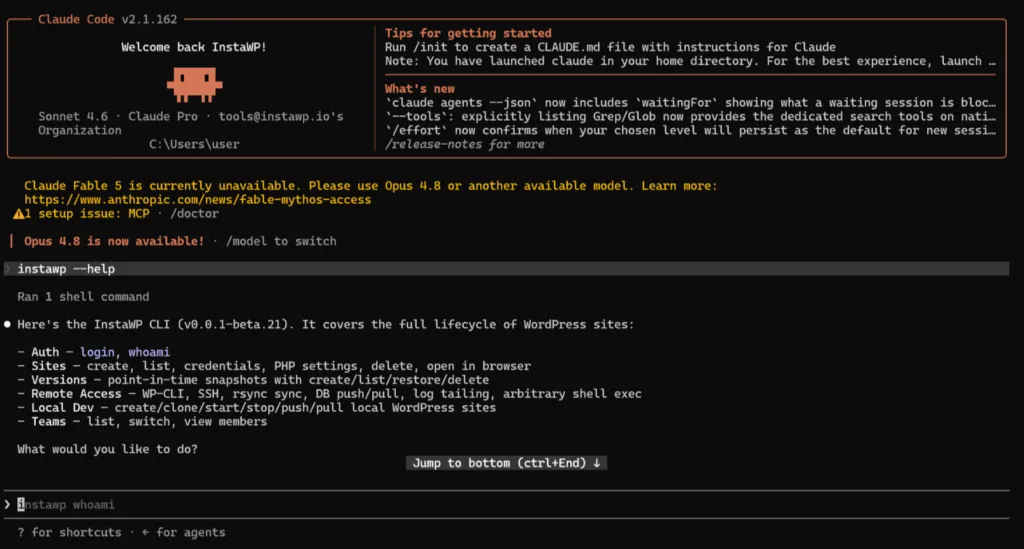
The InstaWP CLI (a beta, Node-based tool) covers the full site lifecycle, so a single prompt to Claude Code can:
- Create or clone sites, open them in the browser, and delete them when you are done
- Run WP-CLI commands, open an SSH session, or execute shell commands on a site
- Create, list, and restore point-in-time snapshots
- Push and pull the database, sync files over rsync, and tail PHP or server logs
- Switch between teams and view members
Here is what that looks like as a concrete sequence. Ask Claude Code to stand up a fresh environment and it runs the whole thing for you, without you leaving the terminal:
npm i -g @instawp/cli@beta
instawp login
instawp create --name claude-sandbox --php 8.4    # live cloud site in seconds
instawp wp claude-sandbox plugin list             # run WP-CLI remotely
Because every command takes --json, Claude reads the output back and chains the next step on its own. That is the difference between Claude talking to WordPress over MCP and Claude operating the InstaWP CLI and the infrastructure underneath it.
MCP and the CLI do two different jobs
The CLI handles infrastructure and the site lifecycle (creating sites, snapshots, databases, logs). MCP handles in-site operations (content, plugins, settings). Used together through Claude Code, they cover almost everything an AI agent needs to run WordPress end to end. Learn more about the InstaWP CLI for WordPress.
Method 2: Manual WordPress MCP Server Setup
For developers who need full control over the infrastructure or are working outside of InstaWP, you can run the MCP server manually using the open-source Node.js package maintained by InstaWP.
This approach gives you complete control over the server environment and lets you extend the toolset with custom Node.js logic. The tradeoff is that you’re responsible for setup, maintenance, credential management, and ensuring your WordPress site is publicly accessible.
Prerequisites:
- Node.js 18+ and npm or yarn
- A WordPress site with REST API enabled and a publicly accessible URL
- An Application Password generated for the WordPress user you want Claude to authenticate as
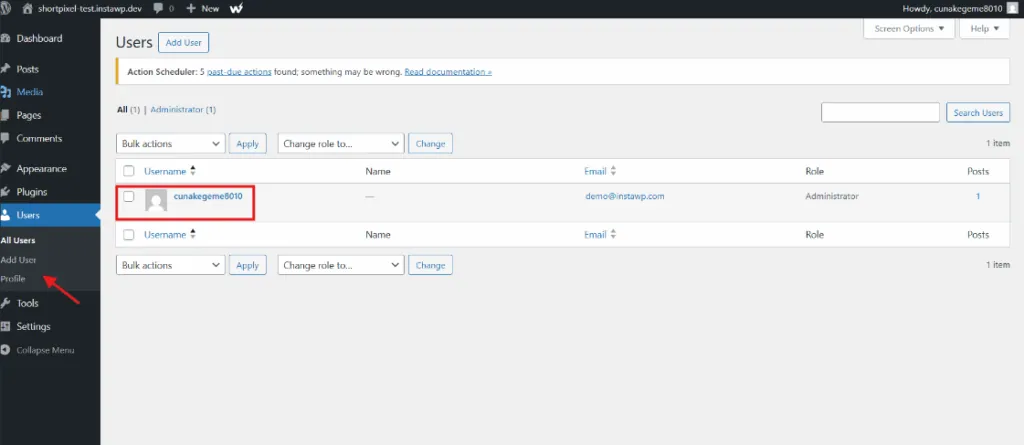
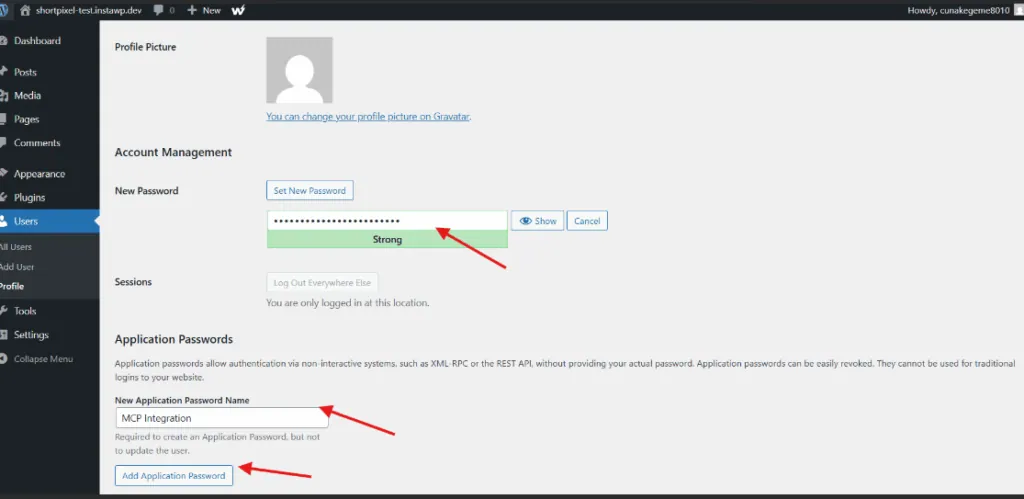
To generate an Application Password, go to Users > Profile in wp-admin, scroll to the Application Passwords section, enter a name (e.g., “MCP Integration”), click Add New, and copy the password including spaces.
Scroll to Application Passwords and enter a name: “MCP Integration“. Click Add New Application Password. Copy the generated password (spaces are normal)
Now, you need to install the WordPress MCP server. You’ve two options for this:
Option A: Run directly via npx (no installation)
For this, simply run this command.
npx -y @instawp/mcp-wpOption B: Clone and build from source:
git clone https://github.com/InstaWP/mcp-wp.git
cd mcp-wp
npm install
npm run buildNow, create a .env file in the project root:
WORDPRESS_API_URL=https://your-wordpress-site.com
WORDPRESS_USERNAME=your_username
WORDPRESS_PASSWORD=xxxx_xxxx_xxxx_xxxx_xxxx_xxxx⚠️ Security: Never commit .env files to version control. Add .env to your .gitignore.
Next step is to configure Claude desktop. For this, you need to edit your Claude Desktop configuration file:
macOS: ~/Library/Application Support/Claude/claude_desktop_config.json
Windows: %APPDATA%Claudeclaude_desktop_config.json
Add the MCP server configuration:
{
  "mcpServers": {
    "wordpress": {
      "command": "npx",
      "args": ["-y", "@instawp/mcp-wp"],
      "env": {
        "WORDPRESS_API_URL": "https://your-site.com",
        "WORDPRESS_USERNAME": "your_username",
        "WORDPRESS_PASSWORD": "xxxx_xxxx_xxxx_xxxx"
      }
    }
  }
}For local builds, use the absolute path:
{
  "mcpServers": {
    "wordpress": {
      "command": "node",
      "args": ["/absolute/path/to/mcp-wp/build/index.js"],
      "env": {
        "WORDPRESS_API_URL": "https://your-site.com",
        "WORDPRESS_USERNAME": "your_username",
        "WORDPRESS_PASSWORD": "xxxx_xxxx_xxxx_xxxx"
      }
    }
  }
}Close and reopen Claude Desktop. The MCP server starts automatically when Claude launches. Test with a simple query:
What tools do you have available for WordPress?Claude should list the available MCP tools, such as list_content, create_content, update_content, discover_taxonomies, assign_terms_to_content, and tools for media, users, comments, plugins, and themes.
Method 3: A Third-Party WordPress MCP Plugin
Some developers prefer a plugin that runs entirely inside WordPress and exposes its own MCP endpoint, with no external server process. There are plenty to choose from: 143 plugins in the WordPress.org directory mention MCP, and InstaWP engineering tested 21 of them on the same WordPress 7.1 site in September and October 2026.
One thing to clear up first. The plugin older tutorials point to, the Automattic WordPress MCP repository on GitHub, was archived on 19 January 2026 and is read only. Its own notice sends you to the official MCP Adapter (Method 4). Do not install it on a new site.
The install pattern is the same for all of them: install from Plugins, Add New, activate, turn the MCP server on in the plugin’s settings, and create the API key or Application Password it asks for. They also share the same requirements:
- Your WordPress site has to be publicly accessible, because Claude connects from the cloud
- Proper SSL configuration
- Application Password or OAuth setup, depending on the plugin
Our comparison of the best WordPress MCP servers covers these and others side by side.
Method 4: The Official WordPress MCP Adapter (Abilities API)
WordPress now has an official answer to this problem. The WordPress MCP Adapter turns Abilities, the standardized way core and plugins declare what they can do, into MCP tools that Claude can discover and call. The Abilities API ships with WordPress 6.9, which makes this the closest thing to a native, vendor-neutral path.
It is not one of the third-party plugins in Method 3. It is the WordPress project’s own mcp-adapter, published by WordPress.org, which any plugin can register abilities against. Version 0.7.0 shipped on 2 October 2026 and requires WordPress 6.9.
Step 1: Install the adapter
The adapter is now in the WordPress.org plugin directory, so search for “MCP Adapter” under Plugins, Add New, or run wp plugin install mcp-adapter --activate. If you need a specific version, the MCP Adapter releases page on GitHub still has every release ZIP.
Step 2: Expose only the abilities you want Claude to touch
Abilities are private by default. An ability only becomes reachable through the default MCP server once it carries the meta.mcp.public flag. That is a deliberate safety default: nothing reaches an AI client until you say so. On a bare install, Claude sees three gateway tools and three read-only core abilities (site info, user info and environment info), and nothing it can write with until you register more.
Step 3: Point Claude Desktop at it
For local development the adapter serves over STDIO through WP-CLI. In Claude Desktop, open Settings, go to the Developer tab, click “Edit config” under Local MCP servers, and add the server to claude_desktop_config.json:
{
  "mcpServers": {
    "wordpress-mcp-server": {
      "command": "wp",
      "args": [
        "--path=/path/to/wordpress",
        "mcp-adapter",
        "serve",
        "--server=mcp-adapter-default-server",
        "--user=admin"
      ]
    }
  }
}
Restart Claude Desktop and the tools appear.
When to use it, and when not to
- Use it if you run self-hosted WordPress, you want a vendor-neutral integration, and you are comfortable with WP-CLI or a Node proxy.
- Skip it if you want a remote connection without plumbing. STDIO transport needs WP-CLI on the same machine, and Claude Desktop reaches the HTTP endpoint through the Node-based
@automattic/mcp-wordpress-remoteproxy. - Know this: an MCP client acts as a logged-in WordPress user, so Claude can only do what that user’s capabilities allow. Self-hosted sites authenticate with application passwords. There is no native OAuth. By default the server admits any logged-in user, Subscribers included, so pass a transport permission callback or raise the default capability before you expose it. Our WordPress MCP Adapter review has the one-line fix.
Method 5: The WordPress.com Claude Connector (WordPress.com Sites)
If your site runs on WordPress.com rather than self-hosted WordPress, there is an official connector. The WordPress.com Claude Connector lets you ask questions like “show me my site’s traffic for the last 30 days” or “summarize recent comments across my site” and get real answers from your account instead of generic advice. It launched read only in February 2026. Anthropic’s WordPress.com connector page now describes drafting new posts and updating pages as well, with every change confirmed by you.
How to set it up
- Enable MCP on your WordPress.com account and choose which tools to expose.
- In Claude, open Customize, then Connectors, and browse the connector directory.
- Search for “WordPress.com” and click the plus button.
- Sign in through OAuth 2.1 to grant access.
The limits that decide whether this works for you
- Every change waits for you. Claude can read your content and analytics, and it can draft and update, but each write needs your confirmation. It does not manage plugins, themes or code, so if you want Claude to deactivate a plugin or fix a PHP error, this is not the method.
- MCP access needs a paid WordPress.com plan, or a site connected to Jetpack AI or Jetpack Complete. Free sites cannot enable it.
It also does not apply to self-hosted WordPress. If you run your own install, use Method 1, 2, 3, or 4.
WordPress MCP Tools: What Claude Can Actually Do
Once connected, Claude gains access to these WordPress operations:
Content Operations:
Create a draft post titled "10 WordPress Performance Tips" with an
introduction paragraph and 10 H2 subheadings as an outline.Bulk Taxonomy Work:
List all tags with zero posts, then delete them.Plugin Management:
Search for security plugins in the WordPress repository and show me
the top 5 by rating.Site Audit:
List all plugins, flag any that haven't been updated in over a year,
and check if any have known vulnerabilities.The examples above are a small slice. Through InstaMCP, Claude gets 43 typed tools on the same authenticated connection: content (9), taxonomies (9), blocks (2), meta (2), plugins (3), themes (3), media (3), diagnostics (1), skills (4), memory (4) and three capability tools for PHP, SQL and files that stay off until an admin enables them. Every InstaMCP tool is also registered as a WordPress ability, so it fits the same Abilities API that the official adapter reads.
Advanced: Let Claude Run PHP on Your Site
For tasks that go beyond the standard tools, InstaMCP exposes an execute_php tool. It lets Claude run PHP inside your WordPress environment, which is useful for one-off data fixes, bulk updates, or custom queries that no preset tool covers. Because that is powerful, it is locked down by default.
Powerful actions stay opt-in
The execute_php tool, along with db_query and site_files, is off by default. You enable it deliberately, so Claude never reaches for it on its own. When you do switch it on, execute_php sits behind four security layers:
- Admin opt-in: an administrator switches it on in the Capabilities settings
- An
mcp:admintoken scope - The WordPress
manage_optionscapability - A syntax check on every PHP file it writes, plus an automatic revert if a run breaks a file WordPress needs to boot
Is It Safe to Connect Claude to WordPress?
It is as safe as the credential you hand Claude. The protocol is not the risk: an agent with an administrator’s credential can do anything that administrator can, whichever method you pick. The methods differ in how much they let you narrow that.
- InstaMCP uses four token scopes (read, write, delete and admin) that follow the WordPress role, so an agent connected for a contributor is read only. Safe Mode blocks deletes, plugin and theme changes and code file edits, and the PHP, SQL and file tools ship switched off.
- The MCP Adapter and most plugins use an Application Password, which carries every capability of the user who created it. Create a dedicated user with the lowest role that works, and generate the password there, never on your own admin account.
- Content Claude reads can steer it. A comment or form submission can carry instructions. Keep write and delete tools away from agents that read untrusted content, and have Claude save drafts rather than publish.
- Test on a copy first. Point Claude at a sandbox or staging site, check what it did, then run the same workflow on production.
For agencies, the safest setup is the boring one: one connector per client site, named after the client, and revoked the day the engagement ends. On InstaWP, revoke that site’s MCP token when the engagement ends, and its connection URL stops working. For the risk-by-risk breakdown, read our guide to WordPress MCP security.
Conclusion: Choosing Your WordPress MCP Approach
For most developers and agencies, InstaWP’s managed WordPress MCP server offers the fastest path to productivity:
- Zero infrastructure setup
- Built-in staging for safe testing
- Visual token management
- Multi-site dashboard
- No separate server process to run
For teams with specific requirements, self-hosted infrastructure, custom tool development, or air-gapped environments, the manual MCP server setup provides full control at the cost of additional maintenance.
Either way, connecting Claude to WordPress via MCP eliminates the copy-paste workflow and transforms AI from a content generator into a genuine site management assistant.
Next: manage your whole account from Claude
Connecting Claude to a single site is the per-site InstaMCP. InstaWP also offers an account-level MCP, which connects Claude (or any MCP client) to your entire InstaWP account. From the same chat window you can create sites, take snapshots, run backups, and fix issues across every site you own, without opening the dashboard. Read more in the InstaWP Account MCP overview.
Ready to start?
Create an InstaWP account and enable MCP with one click.
Frequently Asked Questions
Can I connect Claude to a WordPress.com site?
Yes. WordPress.com has an official Claude connector. Enable MCP on your WordPress.com account, then add the connector in Claude under Customize, then Connectors. It launched read only, and Anthropic’s connector page now describes drafting and updating content with every change confirmed by you. It needs a paid WordPress.com plan or a Jetpack AI or Complete-connected site, and it does not manage plugins, themes or code. Self-hosted WordPress sites use the other methods in this guide.
Can my whole team use the same MCP connection?
Yes, but give each person or client site its own connector rather than passing one URL around, so you can revoke one without breaking the others. On InstaWP the connection URL carries a scoped token, so treat it like a password. With the MCP Adapter or a plugin, create a dedicated WordPress user and Application Password per person, with the lowest role that does the job. On Claude Team and Enterprise plans, an owner adds the connector for the organization first.
Can I use MCP with WordPress Multisite?
Yes, but each subsite in the network needs its own MCP configuration. Each subsite gets a unique MCP URL and independent token management. The main site and subsites are treated as separate WordPress installations from MCP’s perspective.
What WordPress version is required to connect Claude with WordPress?
It depends on the method. The official MCP Adapter needs WordPress 6.9 or later, because that is where the Abilities API lives. REST-API-based servers such as the open-source mcp-wp package work on much older versions, but use a current release for security. On InstaWP the WordPress and PHP versions are your choice when you create the site, and MCP is enabled from the dashboard either way.
Which AI tools can I connect to WordPress with InstaWP?
The InstaWP MCP tab has setup guides for 14 AI clients: Claude Desktop, Claude Code, Claude.ai, ChatGPT, Cursor, VS Code, VS Code Insiders, GitHub Copilot, Antigravity, Windsurf, Cline, Roo, Zed and Continue. Enable MCP once on your InstaWP site, then paste the same connection URL into whichever client you use.
Can Claude Code create and manage InstaWP sites, not just edit content?
Yes. Beyond the MCP connection, Claude Code can use the InstaWP CLI in your terminal. Ask Claude Code to install the CLI with npm install -g @instawp/cli, and from then on it uses the instawp command to create and clone sites, run WP-CLI, manage snapshots, push and pull databases, tail logs, and more, all from a natural-language prompt.
Can Claude run PHP on my WordPress site?
Yes, through the execute_php tool on InstaWP sites, but it is off by default. An administrator enables it in the Capabilities settings, and it also needs an mcp:admin token scope and the manage_options capability. InstaMCP syntax-checks every PHP file it writes and reverts a run that breaks a file WordPress needs to boot. There is no fixed time limit: each call reports the limit the host actually allows.
Can Claude build a WordPress website?
Claude can create posts, pages, and content through MCP, and with Claude Code plus the InstaWP CLI it can create the site itself. It will not replace a designer or a theme. Point it at a sandbox, review what it produced, and only then apply the workflow to production.
Does Claude Code work with WordPress?
Yes. Claude Code connects to any InstaWP site with a single command: claude mcp add –transport http mymcp <mcp_url>. From the terminal it can then read and write posts, manage plugins, and run WordPress operations as part of a larger development workflow.
Is there a Claude WordPress plugin?
Not from Anthropic, because Claude connects over MCP instead. Three things come close. InstaWP installs an MCP plugin for you when you toggle MCP on. The official WordPress MCP Adapter is now a plugin in the WordPress.org directory. And WordPress.com publishes a Build with WordPress plugin for Claude Code, which adds skills for building themes, plugins and blocks with WordPress Studio. The older Automattic wordpress-mcp plugin is archived and should not be used on new sites.
Can I connect Claude to WordPress for free?
Yes, within limits. Claude’s Free plan allows one custom connector, which is enough for one site. The MCP Adapter and most third-party MCP plugins are free on a self-hosted site you already pay for. InstaMCP is included on every InstaWP plan from Sandbox upwards, so the cost is the site, not the connection.
Can I connect Claude to a local WordPress site?
Not with a custom connector, because Claude reaches custom connectors from Anthropic’s cloud and cannot see localhost. For a local site, use Claude Desktop or Claude Code with a local MCP configuration, such as the MCP Adapter over STDIO through WP-CLI, or put the site somewhere public. An InstaWP sandbox gives you a public URL in seconds.
Can I host the WordPress site Claude manages on InstaWP?
Yes. InstaWP is a managed WordPress hosting provider, and every site on it, from a Sandbox upwards, can switch on MCP with one toggle. You get staging, snapshots and backups on the same platform, which is what makes it safe to let Claude change a client site.
What are Claude connectors?
Claude connectors are MCP servers that let Claude read and act in other tools. Some come from Anthropic’s directory, such as the WordPress.com connector. Others are custom connectors you add by pasting a remote MCP server URL. For a WordPress site on InstaWP, you enable MCP and paste the InstaMCP URL as a custom connector.
How do I add WordPress as a custom connector in Claude?
On InstaWP, open the site, go to Extensions, then MCP, and switch on Enable MCP. Copy the URL, which looks like https://your-site.instawp.site/insta-mcp?t=YOUR_TOKEN. In Claude, open Customize, then Connectors, click Add custom connector, name it, paste the URL and click Add. On Team and Enterprise plans an owner adds it under Organization settings first.
Why does my Claude custom connector show no WordPress tools?
The most common cause is a URL cut off before the ?t= token. Copy the full URL again. A second cause is a plugin that blocks logged-out visitors, such as a password-protection, membership or coming-soon plugin, which can intercept the request before it reaches the MCP endpoint. If only some tools appear, update the InstaMCP plugin to its latest version.