To sync staging to live without overwriting WooCommerce orders, you need a selective sync, a process that pushes only the specific changes you made on staging (products, pages, theme settings, plugin updates) while leaving the live order and customer tables completely untouched.
A traditional “push staging to live” replaces the entire live database, which permanently deletes every order placed since the staging copy was created. This guide shows you the safe way to do it with so you can update your store with zero lost orders and zero downtime.
Key Takeaway
Never push a full staging database to a live WooCommerce store. Orders live in the database (in wp_wc_orders tables under HPOS, or wp_posts under legacy storage), so a full overwrite erases every sale made after staging was created. Instead, use an event-based selective sync. InstaWP 2-Way Sync records each change you make on staging and lets you push only those changes to live, so orders, customers, and stock movements on the live store are never overwritten.
Table of Contents
Why a Normal Staging Push Wipes Out WooCommerce Orders
Here is the scenario that costs store owners real money. You create a staging site on Monday. You spend the week redesigning the checkout, testing a plugin update, and adding new products.
On Friday, you click “push staging to live” in your host’s panel. Over those five days, your live store took 80 orders. The moment the push completes, those 80 orders are gone, because the push replaced the entire live database with the Monday snapshot that never knew they existed.
This happens because WooCommerce stores everything in the same database that holds your design and content changes:
- Orders. Under High-Performance Order Storage (HPOS, the default since WooCommerce 8.2), orders live in dedicated tables:
wp_wc_orders,wp_wc_order_addresses,wp_wc_order_operational_data, andwp_wc_orders_meta. Under legacy storage, they are posts of typeshop_orderinsidewp_postsandwp_postmeta. - Customers. New customer accounts are rows in
wp_usersandwp_usermeta. - Stock levels. Every sale decrements stock in product meta and lookup tables like
wp_wc_product_meta_lookup. - Coupons, reviews, subscriptions, and session data. All database-resident, all overwritten in a full push.
A standard staging push is a full database overwrite. It cannot tell the difference between the page layout you changed on staging and the orders that arrived on live in the meantime. It simply replaces everything. That is the core problem this article solves.
Did you know? Deleted orders are not just lost revenue records. They break stock counts, customer purchase history, tax reports, and payment gateway reconciliation. The order still exists in Stripe or PayPal, but your store has no record of it, which means no fulfillment trigger and no receipt for the customer.
The Fix: Selective Sync Instead of a Full Database Overwrite
The safe approach flips the model. Instead of copying the whole staging database over live, a selective (event-based) sync records each individual change you make on the staging site as a discrete event: “product X created,” “page Y updated,” “plugin Z activated.” When you are ready to deploy, you review the list of recorded changes and push only those events to the live site.
Because the live database is never replaced wholesale, anything that happened on live after staging was created (orders, new customers, stock movements) is simply never touched. The two data streams stay separate by design, not by luck.
This is exactly how InstaWP 2-Way Sync works. The InstaWP Connect plugin listens for changes made through wp-admin on the staging site, matches content by slug rather than by raw database ID (so a page edited on staging updates the correct page on live even if IDs differ), and pushes changes in either direction.
Learn more about this feature:
Under the hood, the sync engine replays your recorded actions on the live site step by step, in order, rather than copying database rows, and every sync operation is logged so you have a full audit trail of what was pushed and when. It is tested with WooCommerce, ACF, Elementor, Bricks, and all major themes.
The official 2-Way Sync documentation covers every option, and we have a companion piece on WordPress staging and 2-way sync if you want the broader staging workflow. For the WooCommerce-specific path, let us walk through it step by step.
Method 1: Sync Staging to Live with InstaWP 2-Way Sync (Recommended)
InstaWP is a managed WordPress hosting platform with staging, sync, and site management built into the core product rather than bolted on. That matters here: the 2-Way Sync workflow below works whether your live store is hosted on InstaWP’s managed WordPress hosting or on any other host, because the Connect plugin handles the bridge. Here is the complete process.
The 6 steps at a glance
Step 1: Create an InstaWP Account
Go to the InstaWP website and sign up.
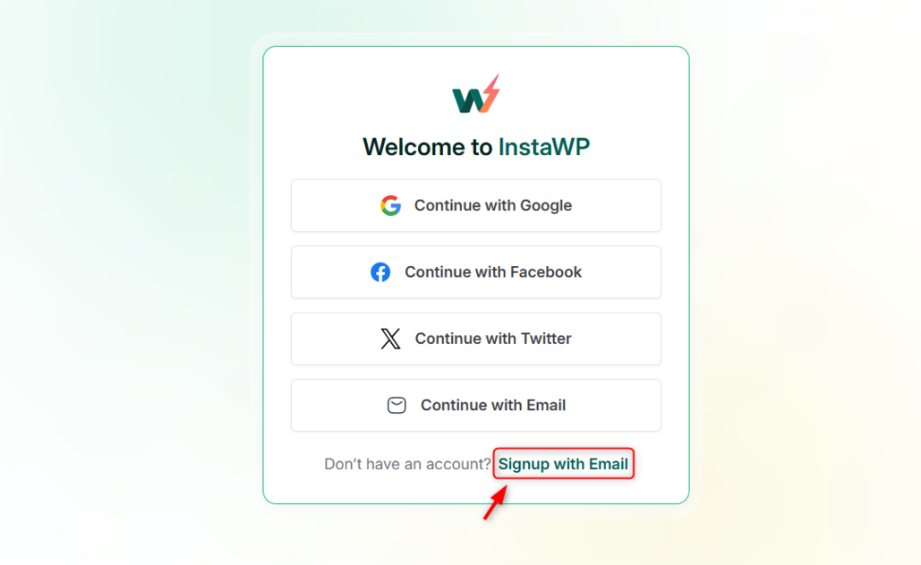
Your InstaWP dashboard becomes the central hub where staging sites are created, managed, and synced. Beyond sync, the same dashboard gives you instant site creation, a built-in code editor, database editor and logs viewer, magic login to wp-admin, Git deployments, templates, and the ability to manage WordPress sites hosted anywhere.
Step 2: Install the InstaWP Connect Plugin on Your Live Site
The free InstaWP Connect plugin is the bridge between your live store and the staging environment. It handles staging creation, change tracking, and the sync itself.

Log in to your live WooCommerce site and go to Plugins → Add New Plugin. Search for “InstaWP,” then install and activate InstaWP Connect.

After activation, click Create Staging to begin.

Click Connect and you will be redirected to InstaWP to approve the connection between your live store and the InstaWP dashboard. This authorization is what allows secure, encrypted communication between the two environments, regardless of who hosts the live site.
Step 3: Choose Your Staging Type
After clicking Create Staging, you choose between three staging types. Pick based on the size of your store and what you plan to test:
- Quick staging: copies your site without media files. Fastest option, ideal for testing plugin updates, code, and settings on large stores.
- Custom staging: you choose exactly which files and database tables to include. Useful when you want a lighter staging copy of a very large WooCommerce database.
- Full staging: a complete byte-for-byte copy, including media. Best when testing design changes that depend on the real product imagery.
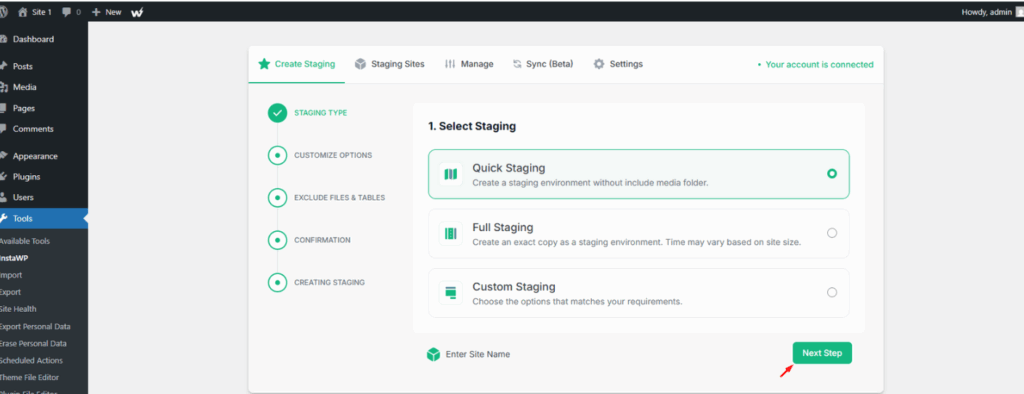
The staging site spins up in your InstaWP dashboard within minutes. It is a private, fully functional copy of your store where you can experiment freely without your customers seeing a thing. For deeper configuration options, see the create staging site documentation.
Create a free staging site for your WooCommerce store in under 2 minutes
No server setup, no SFTP, no SQL. Install the Connect plugin, click Create Staging, and start testing safely.
Try InstaWP FreeStep 4: Enable 2-Way Sync on the Staging Site
Now activate change tracking. Install the InstaWP Connect plugin on the staging site too (the same way you installed it on live), then open InstaWP Connect in the staging site’s WordPress dashboard.

Toggle Start Listening for Changes. From this moment, every change you make through wp-admin on the staging site is recorded as a sync event. You will review and push these events later, which is what keeps the process selective and your live orders safe.
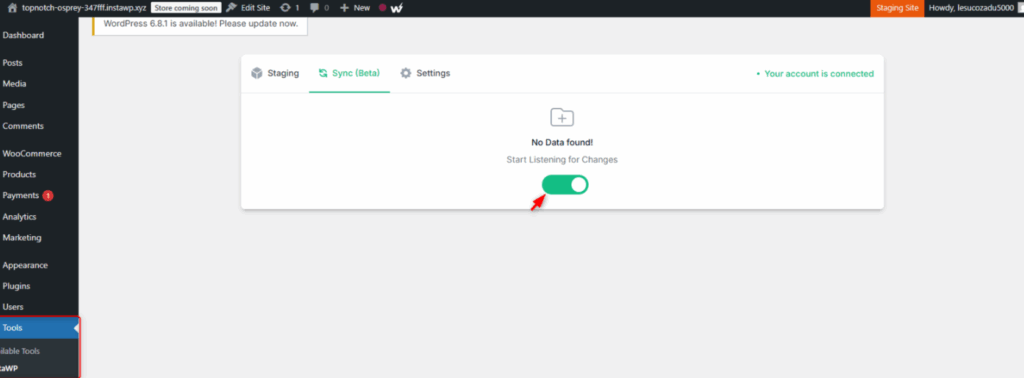
Important: sync matches by slug, not by ID. If a page with the same slug exists on the live site, it gets updated. If the slug does not exist, a new page is created. So if you want a staging page to remain separate from a live page, give it a distinct slug. This slug-based matching is also what makes the sync resilient when staging and live have different internal post IDs.
Step 5: Make Changes and Sync Them to Live
Work on your staging store as you normally would. For this example, create a new product with a category and price in WooCommerce. When you are happy with the changes, open InstaWP in the staging dashboard. You will see every recorded change listed, ready for review.

Select the changes and sync. Only those events are applied to the live store. Orders placed on live during your testing window remain exactly where they are, because the sync never rewrites the order tables. The same applies to new customer accounts and stock changes from live sales.
To pull live changes down into staging (for example, to refresh staging with the latest products before another round of testing), enable Sync with the listen-to-events option on the live site as well. That activates the full bidirectional workflow.
Step 6: Sync Posts, Pages, and Elementor Edits
Content and page builder changes follow the same flow:
- Create or edit a post or page on the staging site.
- Click the recording icon at the top of the dashboard to open the change panel.

- Click Sync All (or select individual changes).

- Confirm in the pop-up to push the selected changes to live.

Elementor edits work too. Install and activate Elementor on both the live and staging sites, make your visual edits on staging (layouts, dynamic pages, forms), and update. The edits appear in the sync panel alongside everything else.

What Gets Synced and What Stays Protected
2-Way Sync tracks changes made through wp-admin on the tracked site. In practice, that means:
Synced from staging (your choice)
- Products, categories, prices, attributes
- Posts, pages, menus
- Elementor and theme builder edits
- Plugin and theme installs, activations, settings changes made in wp-admin
- Media uploaded via wp-admin
Never overwritten on live
- Orders placed on the live store
- Customer accounts created on live
- Stock movements from live sales
- Live transaction and payment records
- Anything you choose not to sync
One honest limitation to know: because tracking is event-based through wp-admin, changes made outside wp-admin (direct database edits, code pushed via SFTP) are not captured as sync events. For code-level changes, pair 2-Way Sync with Git deployments (Method 5 below), which is the cleaner workflow anyway.
If you prefer an AI-driven workflow, every InstaWP site is also MCP-ready through InstaMCP. With one toggle, you can connect AI clients like Claude or Cursor to your staging site and have the AI make and test changes for you before you sync them to live. No separate server setup is needed.
Using 2-Way Sync When Your Host Built the Staging Site
A common situation: your hosting provider’s panel already created a staging site for you (SiteGround, Kinsta, and most managed hosts offer this), and that is the staging copy you have been working in. You do not need to abandon it. 2-Way Sync works between any two connected WordPress sites, even when neither staging nor live was created through InstaWP.
The setup differs only slightly:
- Install and activate the InstaWP Connect plugin on both the live site and the host-built staging site.
- Connect both sites to the same InstaWP account when prompted.
- On each site, go to Tools → InstaWP → Sync (Beta) and turn on the sync toggle. The two sites are now linked for bidirectional sync.
- Make changes on staging, open the Sync tab, review the recorded items, and click Sync All (or sync selected items). A pop-up asks you to confirm the destination site, then replays your changes there and marks each item Completed.
The order-safety guarantee is identical: only your recorded staging changes are replayed on live, so the orders sitting in your host’s production database are never overwritten. The full walkthrough for this scenario is in the 2-way sync for non-InstaWP staging users guide, and there is a recorded webinar on WordPress staging with 2-way sync that demonstrates it end to end.
Method 2: Exclude Order Tables with a Migration Plugin
If you are committed to a push-style migration, some WordPress migration plugins let you exclude specific database tables from the push. The idea: push everything except the tables that hold orders and customers.
The steps look like this:
- Install the migration plugin on both staging and live.
- Configure a push from staging to live.
- In the table selection screen, deselect the order and customer tables. Under HPOS that is
wp_wc_orders,wp_wc_order_addresses,wp_wc_order_operational_data,wp_wc_orders_meta, pluswp_users,wp_usermeta,wp_woocommerce_sessions, and thewp_wc_order_statsand related analytics lookup tables. - Run the push and verify orders on live afterward.
The catch is the legacy storage problem. If your store still uses legacy order storage, orders are rows inside wp_posts and wp_postmeta, the very same tables that hold your pages and products.
You cannot exclude those tables without also excluding the content changes you are trying to deploy. In that case this method effectively does not work, and an event-based sync (Method 1) or a row-level manual approach (Method 4) is required.
It also requires you to correctly identify every order-related table, including ones added by extensions (subscriptions, bookings, points and rewards). Miss one and you lose data. Get it right and it works, but the margin for error is slim.
Method 3: Freeze Orders with Maintenance Mode, Then Push Everything
The brute-force option: stop new orders from arriving while you do a full push.
- Put the live store into maintenance mode (or disable checkout) so no new orders can be placed.
- Create a fresh staging copy right now, so staging contains every order up to this moment.
- Apply your tested changes to this fresh copy (or re-apply them from your earlier staging work).
- Push the full database to live and take the store out of maintenance mode.
This is safe, but it has an obvious cost: your store is closed for the duration. For a small store deploying at 3 a.m., that may be acceptable. For a store doing steady international sales, every minute of maintenance mode is abandoned carts and lost revenue.
It also forces you to redo your changes on the fresh copy, which doubles the work and reintroduces human error. Treat this as a fallback, not a workflow.
Method 4: Manual Partial Sync with WP-CLI and SQL
Developers comfortable on the command line can hand-pick what moves between environments using WP-CLI:
- Export only specific content from staging, for example
wp export --post_type=productto get products as WXR, orwp db export --tables=wp_terms,wp_term_taxonomyfor specific tables. - Import on live with
wp importorwp db import. - Run
wp search-replace 'staging-url.com' 'live-url.com'on anything imported that contains URLs. - Copy changed files (themes, plugins) with rsync over SSH.
This gives total control and never touches order tables unless you explicitly include them. The downsides are equally clear: it demands SSH access and SQL literacy, serialized data in postmeta can break during careless search-replace operations, and there is no review screen or undo. One mistyped table name in an import can do exactly the damage you were trying to avoid.
Always take a backup first (on InstaWP hosting, backups run automatically and a manual snapshot is one click). If you like working from the terminal, the InstaWP CLI guide shows how to run WP-CLI against InstaWP sites and script these workflows.
Method 5: Deploy Code-Only Changes with Git
If your staging work is purely code (theme development, custom plugin changes, CSS), the database does not need to move at all. Deploy the files and leave both databases alone:
- Keep your theme or plugin in a GitHub, GitLab, or Bitbucket repository.
- Connect the repo to your site. InstaWP’s Deployments feature connects public or private repos to any site or template and supports GitHub Actions for full CI/CD.
- Test on staging, merge, and deploy the same commit to live.
Since no database is pushed, orders are never at risk. The limitation is scope: Git cannot deploy content, products, or settings stored in the database. Most real-world deployments combine Method 5 for code with Method 1 for content and configuration. That combination is the closest thing WordPress has to a professional release workflow.
Which Sync Method Should You Use?
| Method | Order safety | Downtime | Skill needed | Best for |
|---|---|---|---|---|
| InstaWP 2-Way Sync | Safe by design, orders never pushed over | None | Beginner | Stores of any size, agencies, regular updates |
| Migration plugin with table exclusion | Safe only if every order table is excluded correctly; fails on legacy storage | None | Intermediate | HPOS stores with simple setups |
| Maintenance mode + full push | Safe, orders frozen during push | High | Beginner | Rare, large one-off rebuilds in off-hours |
| WP-CLI / manual SQL | Safe if executed perfectly, no safety net | None | Advanced | Developers with SSH access and SQL skills |
| Git deployment | Completely safe, database untouched | None | Intermediate | Code-only changes; combine with sync for content |
For almost every store, the answer is event-based selective sync as the default workflow, with Git deployments layered on top if you ship custom code. The remaining methods are situational tools.
What About Syncing WooCommerce Orders Between Two Live Sites?
This is a related but different problem, and it is worth separating clearly. Everything above is about protecting live orders during a staging deployment.
Some store owners instead want to replicate orders across two or more live stores, for example a main store and a regional store, or a WooCommerce store that must mirror orders into an ERP like Sage or an accounting system. Selective staging sync is the wrong tool for that job. Here is what works:
- WooCommerce webhooks + REST API. WooCommerce can fire a webhook on
order.createdandorder.updated. A small middleware (or an automation platform like Zapier, Make, or n8n) receives the webhook and creates the matching order on the second site via the WooCommerce REST API. This is the most flexible approach and gives you full control over field mapping. - Multistore sync plugins. Dedicated plugins in the multistore category replicate orders, products, and stock between connected WooCommerce stores in near real time, with conflict handling built in. Evaluate them on how they handle refunds, partial updates, and HPOS compatibility.
- ERP and accounting connectors. If the real goal is getting orders into Sage, QuickBooks, Xero, or a warehouse system, use the official or established connector for that platform rather than a site-to-site sync. These handle bi-directional order status updates properly.
And if the two “sites” in your situation are actually a staging and production pair, then you are back in the territory this guide covers, and InstaWP 2-Way Sync is the purpose-built answer.
If what you really need is to move an entire store from one site or host to another rather than keep two stores in sync, see our complete guide on how to import a WordPress site, which covers seven migration methods.
Does This Work with HPOS (High-Performance Order Storage)?
Yes, and HPOS actually makes order protection easier to reason about. Since WooCommerce 8.2, new stores use High-Performance Order Storage by default, which moves orders out of wp_posts into four dedicated tables. That clean separation means a selective sync or a table-exclusion migration has an unambiguous boundary: order tables on one side, everything else on the other.
Two practical notes for stores in transition:
- If your store runs HPOS in compatibility mode, orders are written to both the new tables and the legacy
wp_postslocation. Any manual or table-exclusion method must account for both. Event-based sync is unaffected because it never pushes order data in the first place. - Keep the HPOS setting (WooCommerce → Settings → Advanced → Features) identical on staging and live. A mismatch between environments is a common source of confusing test results.
Troubleshooting Sync Problems and Your Rollback Plan
Even with a safe workflow, things occasionally do not behave as expected. These are the issues that come up most often, with their causes and fixes.
A change is missing from the sync panel
The most common cause: the change was made outside wp-admin. Edits made directly to files over SFTP, database rows changed in phpMyAdmin, or modifications written by a cron job are invisible to the event tracker and will never appear as sync items.
Re-do the change through wp-admin, or deploy it as code via Git (Method 5). The second most common cause is that change tracking was toggled on after the change was made; tracking only records events from the moment you enable it.
A synced page updated the wrong page, or created a duplicate
This is slug matching at work. If the staging page shares a slug with a different live page, the live page with that slug gets updated. If the staging slug does not exist on live, a new page is created. Audit your slugs before syncing, and rename the staging slug if you intend to create something new alongside an existing live page.
Sync items fail or hang
Check three things in order: the Connect plugin is active and up to date on both sites, both sites can reach the InstaWP API (security plugins or server firewalls sometimes block outbound requests), and the plugin or theme a change depends on exists on the destination site.
A product change that references an attribute created by a plugin missing on live will not apply cleanly. The sync log records each operation, so you can see exactly which item failed and retry just that one.
The rollback plan if a sync goes wrong
Because selective sync never touches order data, a “bad sync” usually means an unwanted content or settings change, which is far easier to recover from than lost orders. Your options, fastest first: sync the reverse change from live tracking, manually revert the specific item in wp-admin, or restore the live site from the backup you took before syncing.
On InstaWP hosting, the restore site feature rolls back to any automatic or manual backup in a few clicks, and daily backups on Plus plans and above keep a shadow copy in a separate region. This is the safety net that makes the whole workflow boring, in the best possible way.
Did you know? Every 2-Way Sync operation is logged with what was synced, when, and to where. For agencies, this audit trail doubles as client-facing proof of work: you can show exactly which changes were deployed to a client’s store and on what date.
Pre-Sync Checklist for WooCommerce Stores
Run through this before every sync to live
- Take a fresh backup of the live site (automatic daily backups are included on InstaWP Plus plans and above, and a manual snapshot takes one click).
- Confirm staging and live run the same WordPress, WooCommerce, PHP, and HPOS settings.
- Review the full list of recorded changes before syncing; deselect anything experimental.
- Put payment gateways in test/sandbox mode on staging so test orders never hit real processors.
- Sync during a low-traffic window even though there is no downtime, so you can verify calmly.
- After syncing, place a test order on live and check stock counts, emails, and checkout flow.
Why WooCommerce Stores Run Better on Managed Hosting with Staging Built In
The deeper lesson of the staging-sync problem is that staging, sync, backups, and hosting should not be four separate products held together with plugins. When your store runs on InstaWP’s managed WordPress hosting, the entire workflow in this article is native to the platform:
- One-click staging from any hosted site, with 2-Way Sync ready out of the box.
- Automatic daily backups (Plus plan and above) with a shadow copy synced to a separate region, so a bad deploy is always recoverable.
- Object Cache for WooCommerce: persistent caching that cuts database queries by 70 to 90 percent and delivers 2 to 5x faster page loads, which matters most on query-heavy stores like WooCommerce.
- InstaCDN with up to 119 global edge locations plus InstaShield WAF, DDoS protection, and auto-renewed SSL for checkout security.
- SFTP/SSH, WP-CLI, and Git deployments for the developer side of the workflow, and pay-as-you-go billing per active site.
Agencies running client stores get the same benefits multiplied: you can manage multiple client sites from one dashboard, spin up a staging copy of any client store in minutes, and sync changes without ever risking a client’s order history.
Host your WooCommerce store where staging and sync are built in
Managed WordPress hosting with one-click staging, 2-Way Sync, daily backups, object cache, CDN, and WAF. Get $25 in free credits when you add a card.
Start on InstaWP HostingConclusion
Losing orders during a deployment is not bad luck, it is the predictable result of using full database pushes on a transactional site. The fix is structural: use a selective, event-based sync so live order data is never in the blast radius.
InstaWP 2-Way Sync gives you that workflow with no command line and no downtime, it works with any host, and when your store runs on InstaWP managed hosting, staging, sync, backups, and recovery all live in one platform.
Create a staging copy of your store, make your changes safely, and push exactly what you tested, nothing more.
FAQs
Does pushing staging to live delete WooCommerce orders?
A traditional full push does, yes. It replaces the live database with the staging copy, so every order placed after the staging site was created disappears. A selective sync like InstaWP 2-Way Sync avoids this entirely by pushing only the specific changes you made on staging and never touching live order data.
How do I sync only products from staging to live?
With InstaWP 2-Way Sync, every change is recorded as an individual event, so you can select just the product-related changes in the sync panel and push only those. Alternatively, WP-CLI can export products as a WXR file with wp export --post_type=product and import them on live.
Can I sync WooCommerce orders between two live sites?
Yes, but that is a replication problem rather than a staging problem. Use WooCommerce webhooks with the REST API (optionally through an automation platform like Zapier or n8n), a dedicated multistore sync plugin, or an official ERP connector if the destination is a system like Sage, QuickBooks, or Xero.
Which database tables store WooCommerce orders?
Under High-Performance Order Storage (default since WooCommerce 8.2), orders live in wp_wc_orders, wp_wc_order_addresses, wp_wc_order_operational_data, and wp_wc_orders_meta. Under legacy storage, orders are shop_order entries in wp_posts with metadata in wp_postmeta. Order items additionally live in wp_woocommerce_order_items and wp_woocommerce_order_itemmeta.
Does 2-Way Sync work with Elementor, ACF, and page builders?
Yes. InstaWP 2-Way Sync is tested with WooCommerce, ACF, Elementor, Bricks, and all major themes. Page builder edits made on staging show up in the sync panel like any other change, ready to push to live.
Do I need to host my store on InstaWP to use 2-Way Sync?
No. The InstaWP Connect plugin works with stores hosted anywhere, including SiteGround, RunCloud, or any other provider. That said, hosting on InstaWP’s managed WordPress hosting makes the workflow tighter, with one-click staging, automatic backups, and WooCommerce-tuned performance features like object cache in the same platform.
Ready to update your WooCommerce store without risking a single order?
Get Started with InstaWP Free