To connect GitHub Copilot to WordPress, you add your WordPress site to VS Code as an MCP server. Copilot’s agent can then read and change the site from the same chat where it edits your code. On InstaWP’s managed WordPress hosting, every site already has an MCP server built in, so the setup is a switch, one Add to VS Code click and a quick check.
This guide is written for beginners. It explains each term the first time it appears, shows a screenshot for each step, and covers sites hosted anywhere else too. InstaWP tested the connection on 23 October 2026 against a sandbox running InstaMCP, the WordPress MCP server built into InstaWP sites, and the numbers below come from that test.
Table of Contents
- Fastest route: on an InstaWP site, open Extensions, then MCP, switch on Enable MCP and click Add to VS Code. VS Code asks you to approve the server before anything is added.
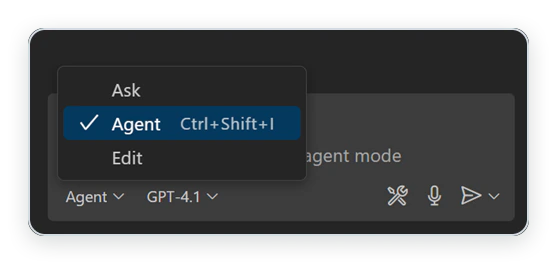
- Use agent mode: MCP tools only run when Copilot Chat works as an agent. Ask mode answers questions; agent mode can call tools.
- What Copilot gets: 43 WordPress tools for posts, pages, blocks, plugins, themes, media, SEO fields and error logs. The tool list took about 2.4 seconds to load in InstaWP’s test.
- Copilot Business or Enterprise? An admin must switch on the “MCP servers in Copilot” policy first. It is off by default. Free, Pro, Pro+ and Max users are not affected by it.
- Two safety switches: approve each tool call in VS Code, and turn on InstaMCP’s Safe Mode on any live site. Safe Mode is off until you turn it on.
- Site hosted somewhere else? The official WordPress MCP Adapter plugin works with Copilot too, but it needs more setup and gives fewer tools.
What are GitHub Copilot, VS Code and agent mode?
GitHub Copilot is an AI assistant from GitHub that lives inside your code editor. VS Code (Visual Studio Code) is Microsoft’s free code editor, and it is where most people use Copilot. Copilot Chat is the chat panel in VS Code where you type requests in plain English.
Copilot Chat can work in different modes. In agent mode, Copilot does not just answer: it plans the job, edits files and calls tools to finish the task, asking you before it runs anything risky. That is the mode you need, because connecting WordPress gives Copilot new tools to call.
The connection itself uses MCP, the Model Context Protocol. MCP is an open standard that lets an AI app plug into outside tools, the way a USB cable lets a laptop plug into a printer. VS Code is the MCP client. Your WordPress site runs the MCP server. Once they are connected, Copilot can ask the site to list posts, update a page or read an error log.
What can GitHub Copilot do once it is connected to WordPress?
Once connected, Copilot can work on the live WordPress site, not just the files on your computer. Over InstaMCP it can create and edit posts and pages, check Gutenberg blocks before saving, write SEO and custom fields, install and edit plugins and themes, upload media and read the site’s error logs. Here are the jobs beginners use most:
| Job | Example prompt | What to know |
|---|---|---|
| Content | “List my last 10 draft posts.” | Reading is safe to try first. Nothing changes. |
| Pages | “Fix the typo in the second paragraph of the About page.” | Copilot can change just one sentence instead of the whole page. |
| SEO fields | “Write meta descriptions for posts that have none.” | Writes Rank Math, Yoast and ACF fields directly. |
| Plugins and themes | “Show me which plugins are active and which have updates.” | File edits save a backup copy first. |
| Debugging | “Read the last 20 fatal errors from the site logs.” | Ask for this after every code change. |
| Power tools | “Run this SQL query.” (needs admin approval on the site) | Raw PHP, SQL and file tools stay off until a site admin turns them on. |
The full list of 43 tools is in the InstaWP site MCP documentation. Copilot can only do what the site allows. If a tool is switched off, Copilot gets a refusal back, not a broken site.
What do you need before you connect GitHub Copilot to WordPress?
You need four things, and most of them are free:
- VS Code, version 1.99 or later. GitHub’s Copilot MCP documentation lists 1.99 as the minimum.
- GitHub Copilot, signed in inside VS Code. Copilot Free works. If you use Copilot through a company (Business or Enterprise), ask your admin to switch on the “MCP servers in Copilot” policy. It is off by default.
- A WordPress site on InstaWP. Site MCP works on the Sandbox plan ($2 a month) and above. A WordPress staging environment copy of a live site is the safest place to practise.
- A few minutes. The one-click route takes about two minutes.
- Site hosted somewhere else? Skip to Method 2, which uses the official WordPress MCP Adapter plugin.
How do you set up GitHub Copilot MCP for a WordPress site?
There are three ways to connect GitHub Copilot to a WordPress site. Which one you need depends on where the site is hosted and how many sites you want Copilot to reach.
Method 1: How do you connect GitHub Copilot to a WordPress site on InstaWP?
The easiest way to connect Copilot to WordPress is to host the site with a managed WordPress host that has an MCP server built in. Then there is no plugin to install, no command to run and no password to create.
InstaWP is a managed WordPress hosting provider that builds a WordPress MCP server, InstaMCP, into every site. From the site’s MCP tab you get:
- 43 typed tools for content, Gutenberg blocks, plugins, themes, media, SEO fields and error logs.
- An Add to VS Code button that sets up the connection for you.
- Safe Mode, WordPress role-based access, and PHP, SQL and file power tools that stay off until an admin switches them on.
- Setup guides for 14 AI clients, so the same site also works in Cursor, Claude and ChatGPT.
Step 1: Switch on MCP for the site
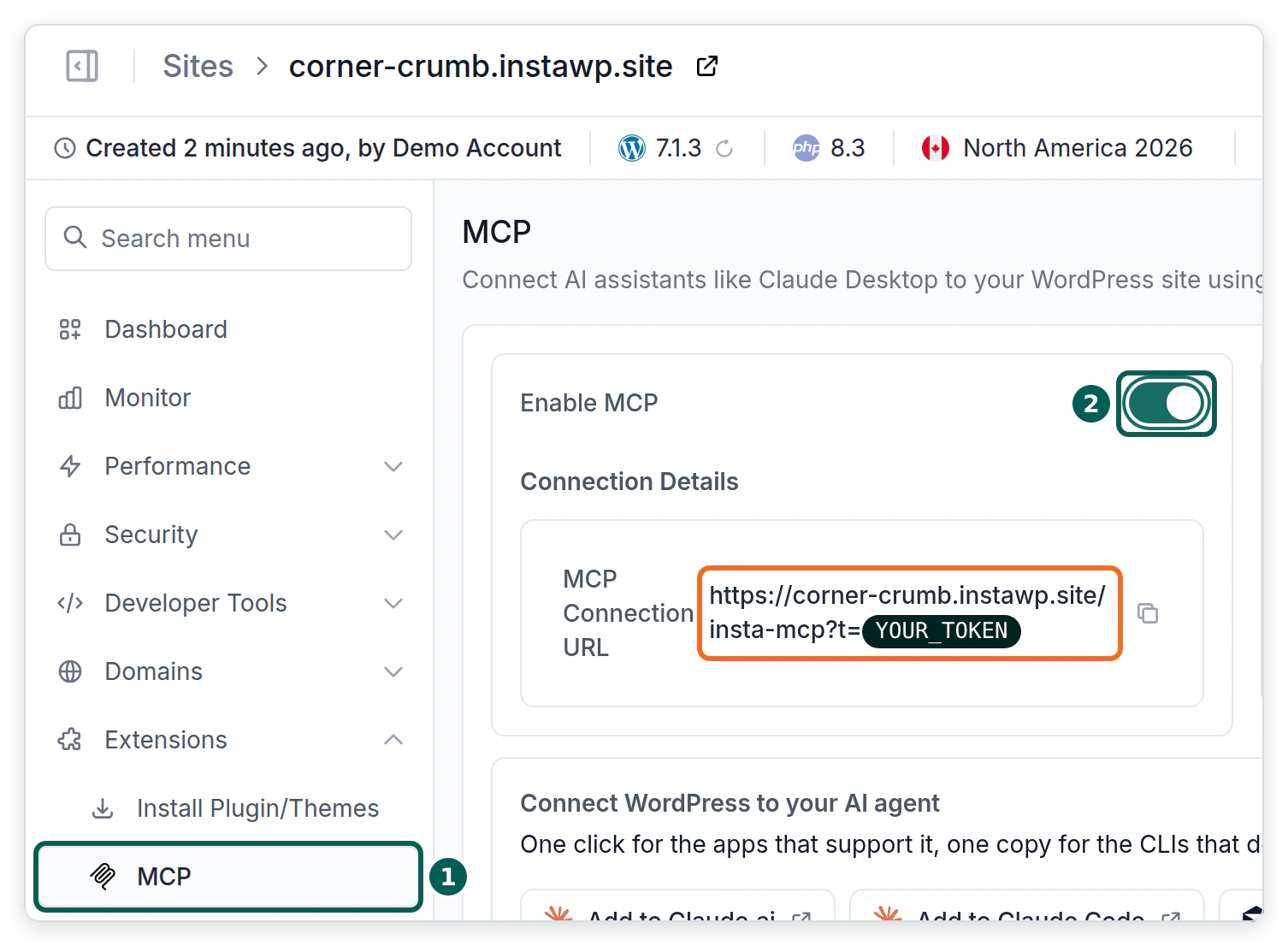
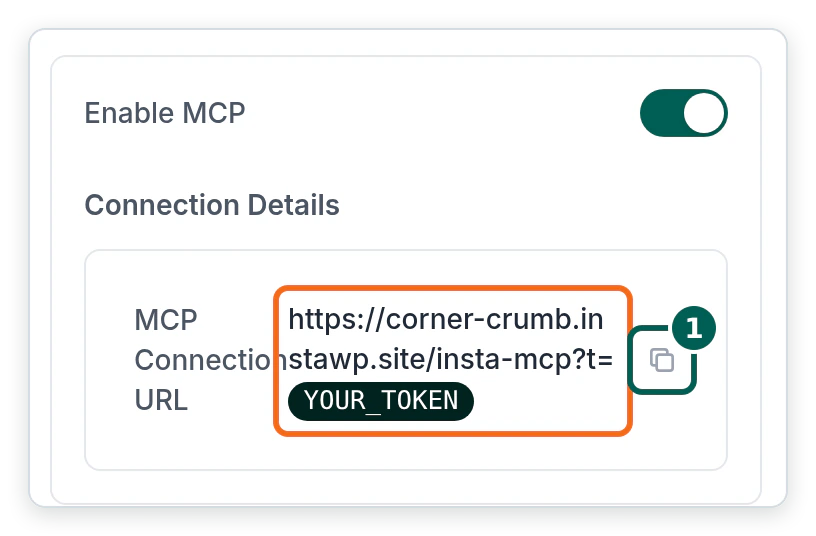
- Log in to the InstaWP dashboard and open your site. In the site menu, open Extensions, then MCP, and switch on Enable MCP. The connection URL appears straight away. It looks like https://your-site.instawp.site/insta-mcp?t=YOUR_TOKEN.
Step 2: Add the site to VS Code with one click
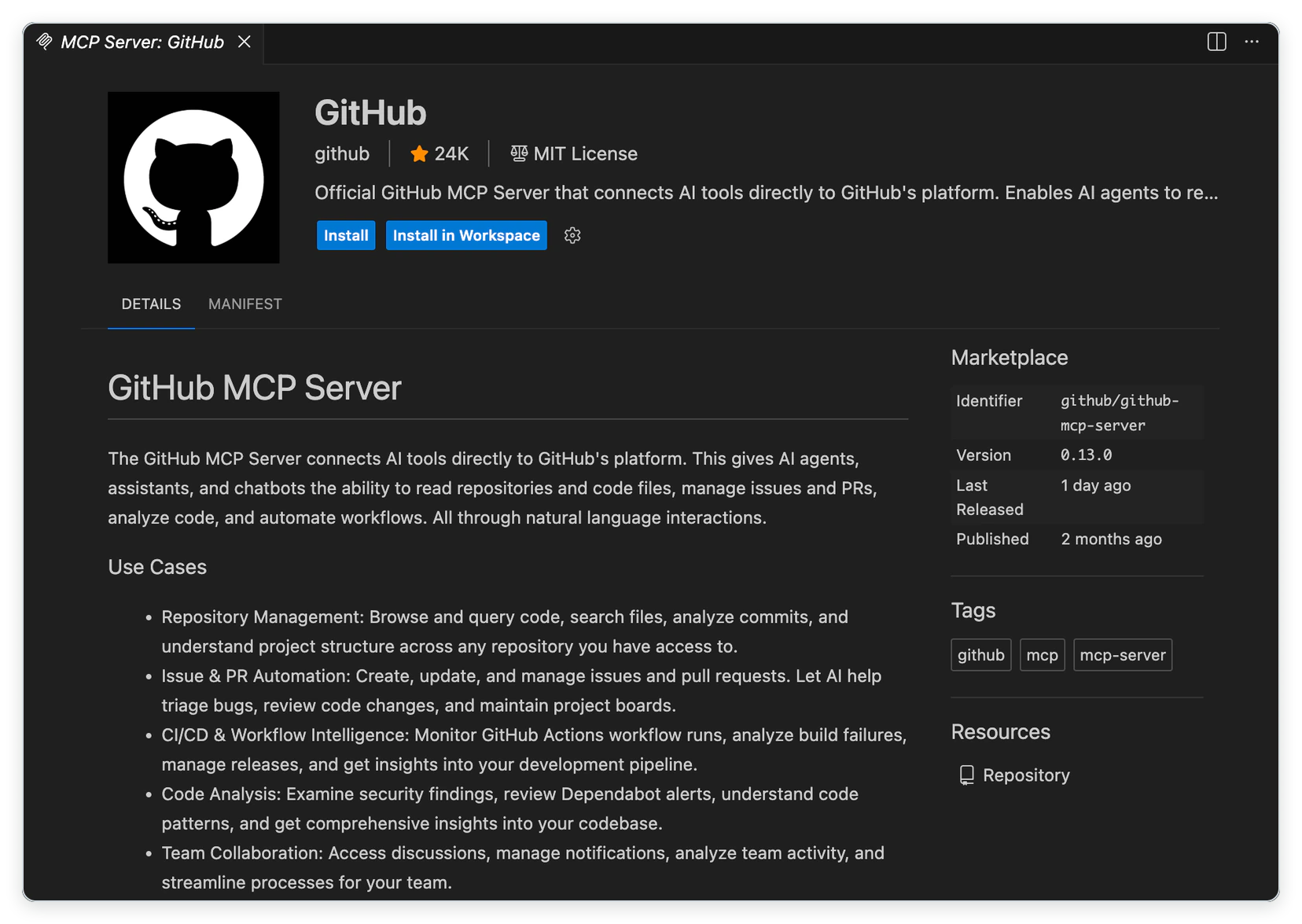
- On the same MCP tab, find the row of client buttons and click Add to VS Code. (VS Code Insiders has its own one-click button too. If you do not see it, open More clients.)
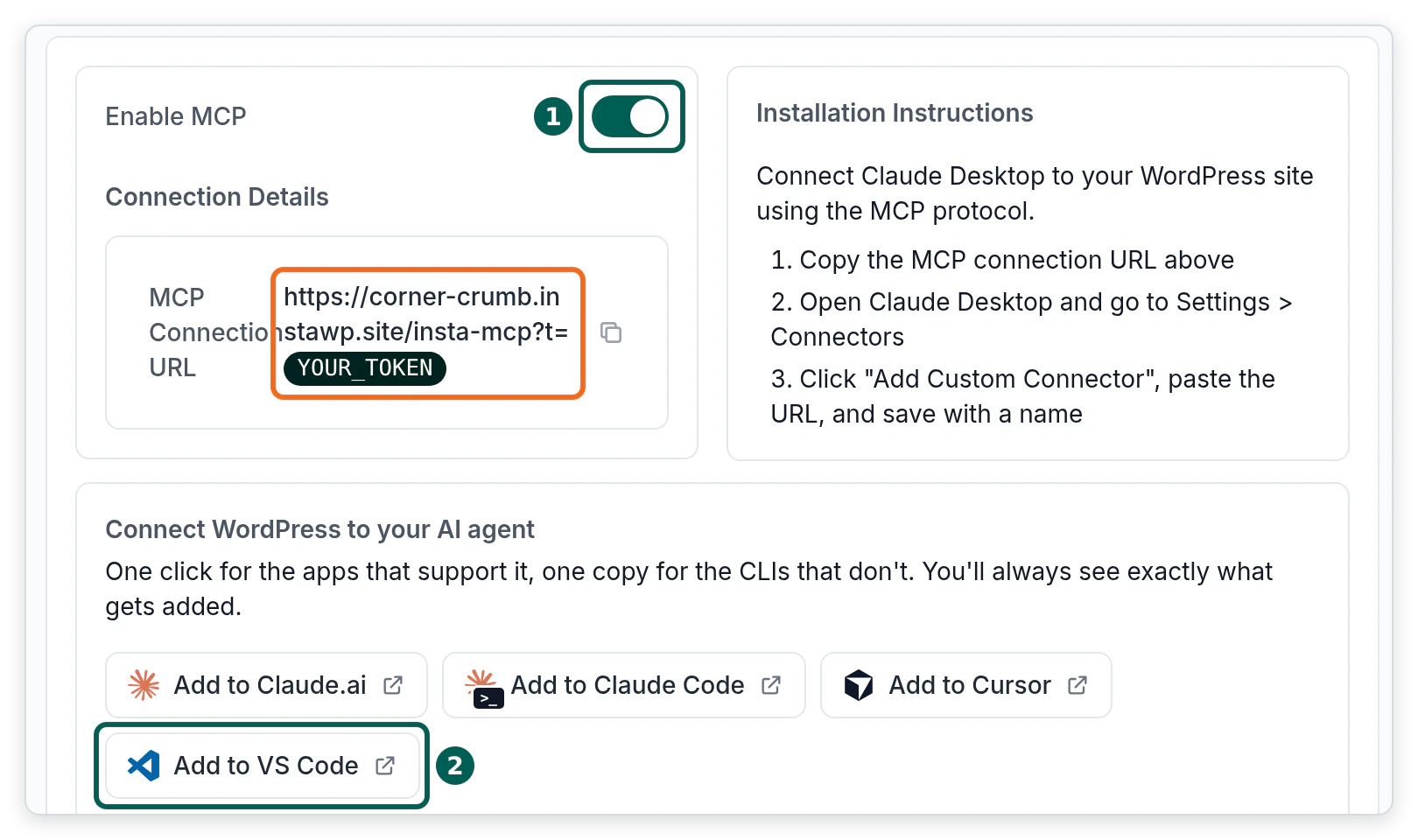
- Your browser asks whether to open Visual Studio Code. Allow it. VS Code opens and shows you the server it is about to add. Check that the name matches your site, then approve it. Nothing is added until you do.
- The first time Copilot wants to use the server, VS Code asks whether you trust it to start. Confirm only if it is your site.
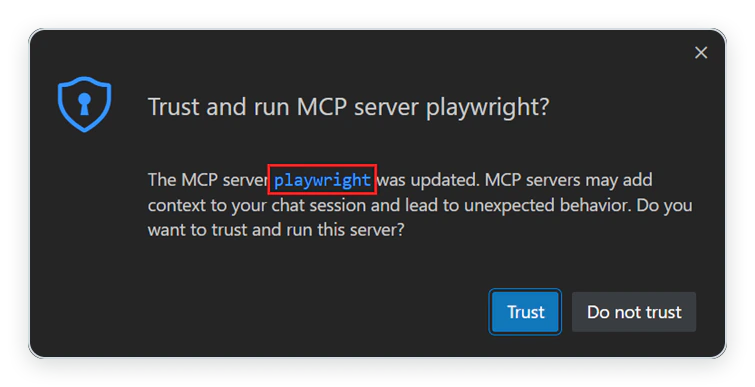
That is the whole setup. InstaWP’s MCP documentation describes this button as a deep link that triggers VS Code’s own consent dialog, so you always see what will be added first.
Step 2, the manual way: Add the site with MCP: Add Server
Use this if the button cannot open VS Code, for example on a work laptop that blocks app links. It takes about a minute longer.
- On the site’s MCP tab, click the copy icon next to the connection URL.
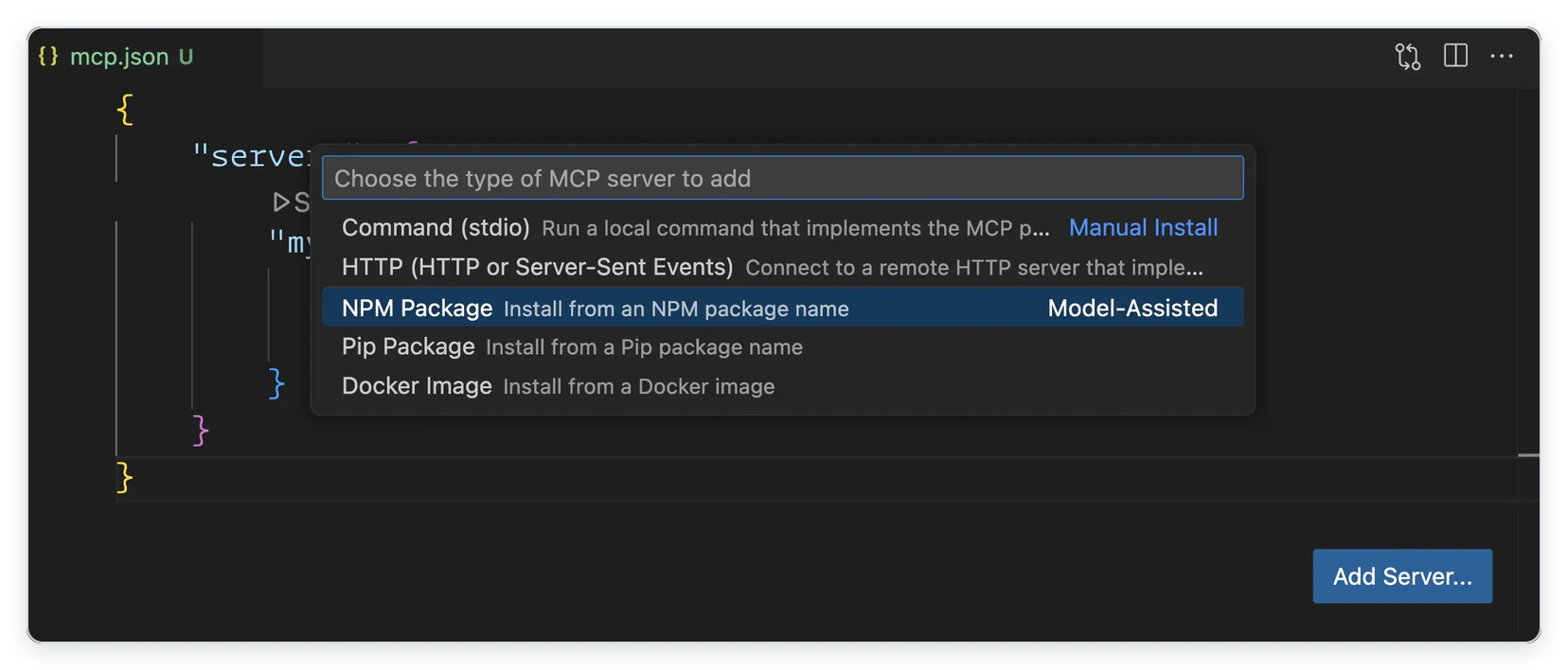
- In VS Code, open the Command Palette with Ctrl+Shift+P (Cmd+Shift+P on a Mac), run MCP: Add Server, and choose HTTP (HTTP or Server-Sent Events), because your WordPress site is a remote server with a URL. Paste the connection URL when VS Code asks for it.
- Give the server a short name, such as my-wordpress-site. Then choose where to save it: Global, then Copilot Global keeps it out of your project files, which is what you want for a URL that holds a token.
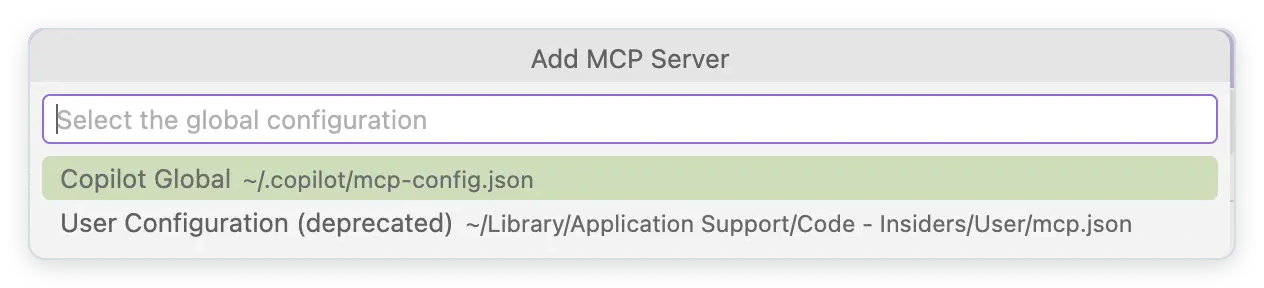
These menu names come from VS Code’s Add MCP servers guide, checked on 23 October 2026. VS Code changes this area often, so if a label differs, look for the closest match.
Step 3: Check that Copilot can use the WordPress tools
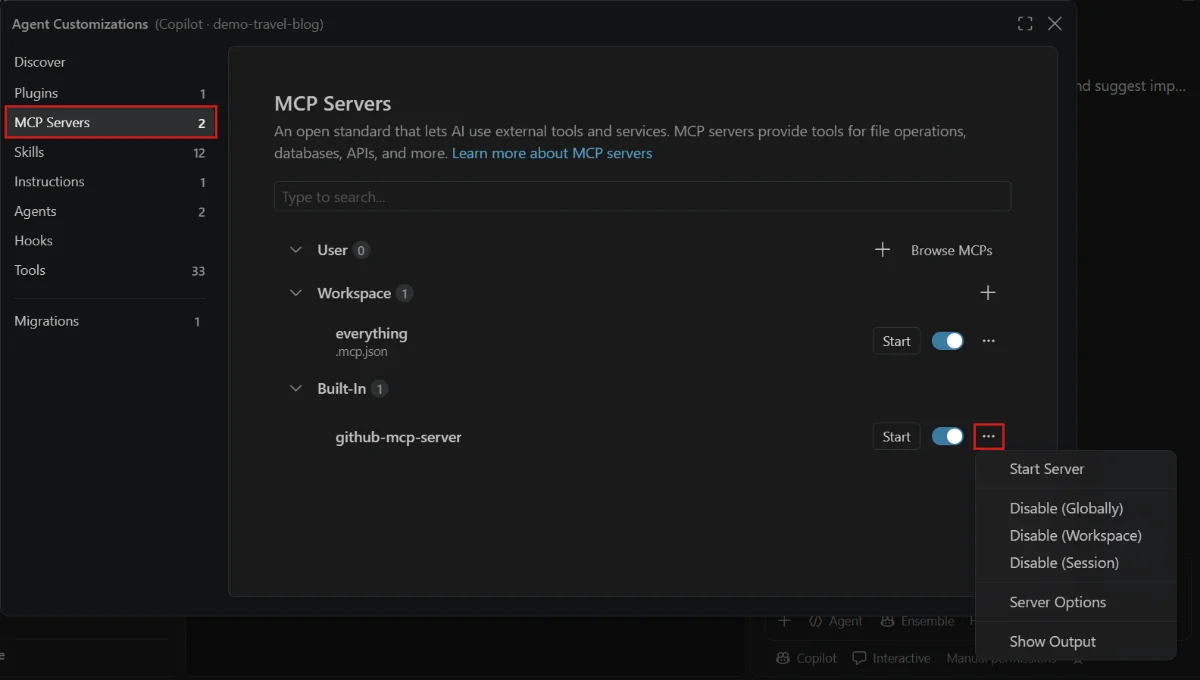
- Open the list of servers. In current VS Code, run Chat: Open Customizations from the Command Palette and select MCP Servers. Your site should appear with its switch turned on. (The MCP: List Servers command shows the same list.)
- Open Copilot Chat, make sure it is set to Agent, and ask a question that only your site can answer, using your server’s name: “Use my-wordpress-site to list the 5 most recent posts. Do not change anything.”
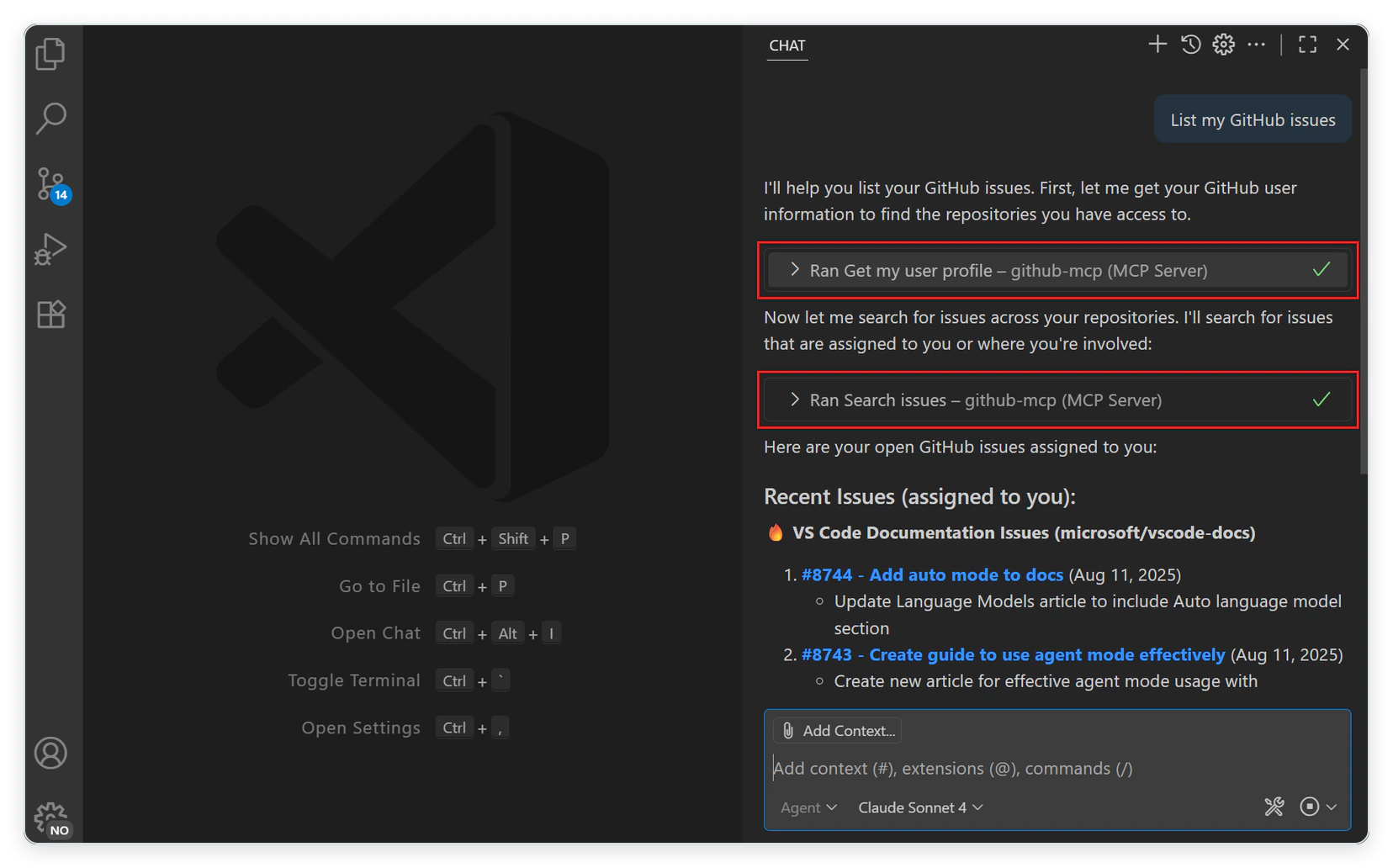
- When Copilot calls a tool, VS Code shows it in the chat. Expand the tool call and check that it came from your WordPress server, for example list_content. If Copilot answered without calling a tool, the connection is not proven yet, so ask again and name the server.
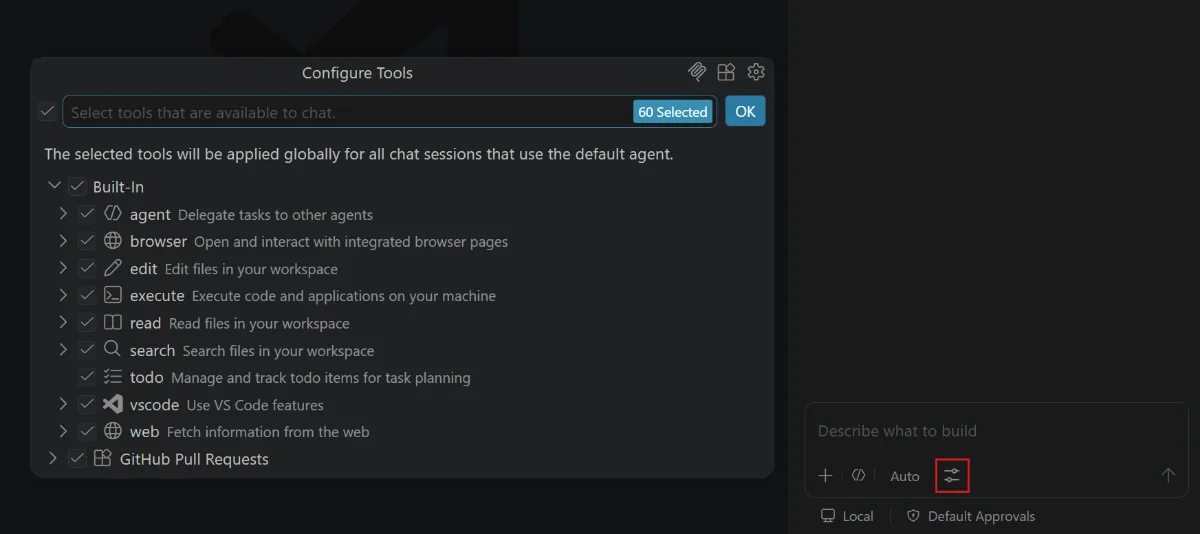
- Optional: switch off tools you will not use. Click the tools button in the chat input to open Configure Tools and untick what you do not need. Fewer tools means fewer wrong guesses.
How do you connect GitHub Copilot to your whole InstaWP account?
If you manage many sites, connect your InstaWP account instead of one site. InstaWP Account MCP signs in once in your browser, with no token to copy, and lets Copilot find sites, check plugin updates, list backups and create login links across your team. It works on the hosting around WordPress, while site MCP works inside one site. Account MCP vs Site MCP explains the difference.
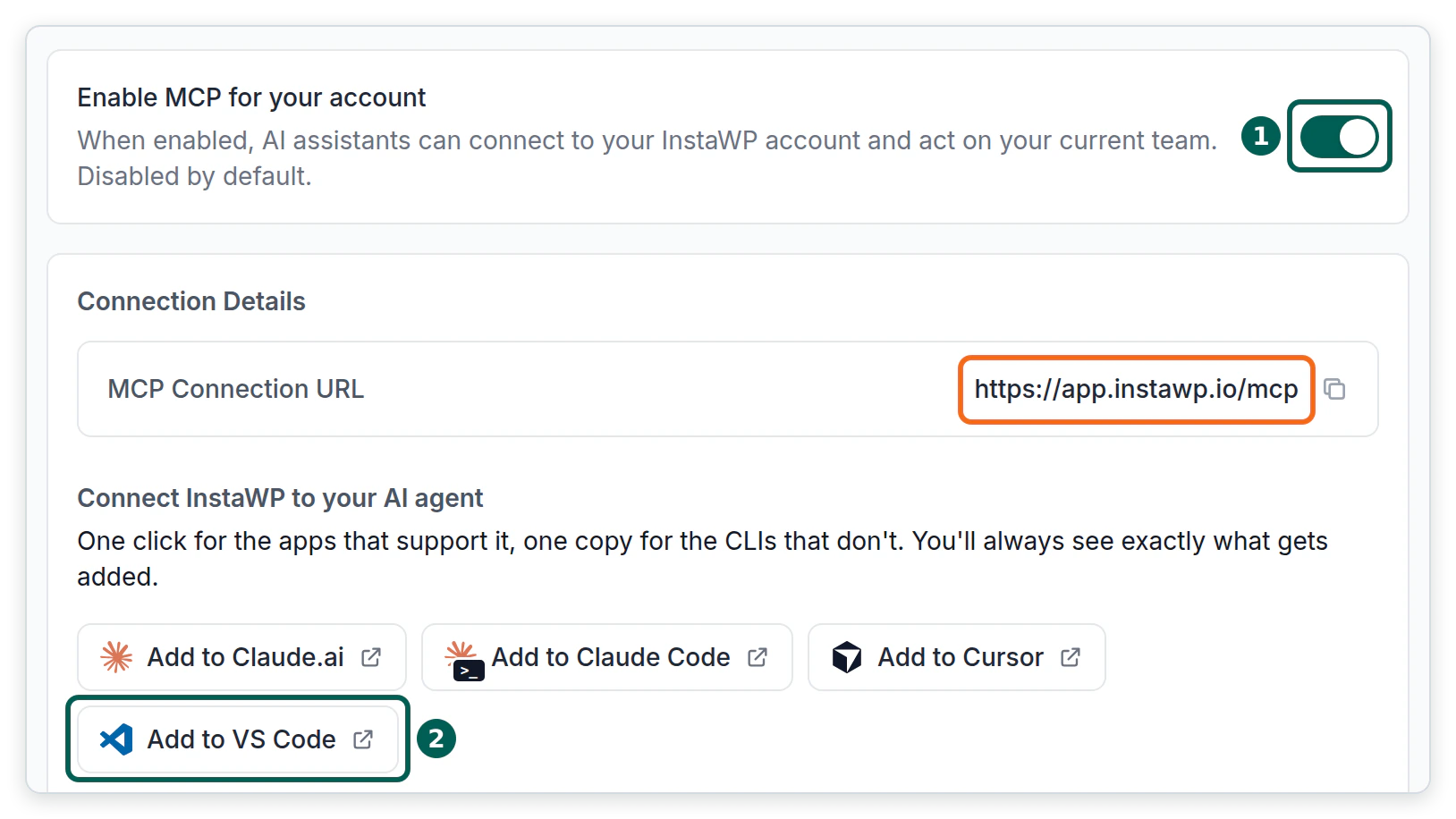
- In the InstaWP dashboard, open Profile, then MCP, and switch on Enable MCP for your account. It is off by default. Then click Add to VS Code and approve the server in VS Code, the same way as in Step 2 above.
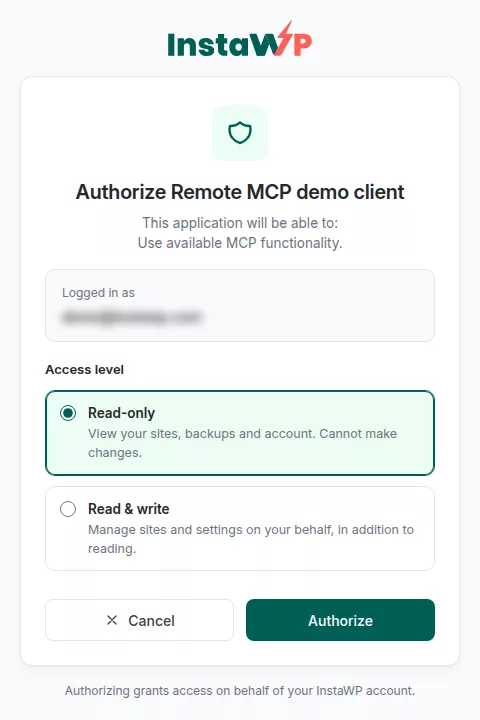
- The first time Copilot uses it, VS Code opens your browser at InstaWP’s authorize screen. Choose Read-only to start, then click Authorize. You can reconnect with Read & write later.
Every app you authorize appears under Connected apps on the same Profile, MCP page, where you can revoke it. The Account MCP documentation covers the tool switches on that page.
Method 2: How do you connect GitHub Copilot to a WordPress site hosted elsewhere?
Install the official WordPress MCP Adapter plugin, create an Application Password, and add a small bridge program to VS Code. It works on any host running WordPress 6.9 or later. Out of the box it gives Copilot far less than InstaMCP, because the Adapter only exposes abilities that plugins, or your own code, mark as public. On a bare install in InstaWP’s 6 October 2026 test, that was 3 read-only abilities.
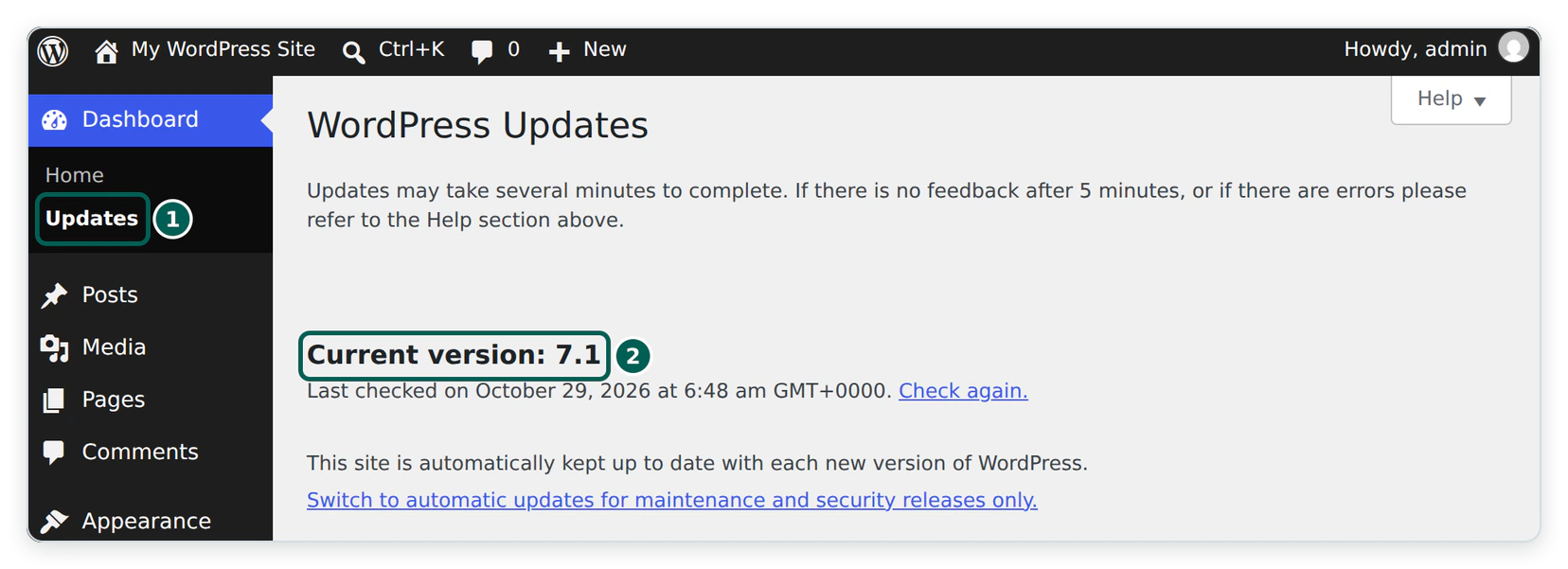
- Check that the site runs WordPress 6.9 or later over HTTPS (Dashboard, then Updates shows the version). Also install Node.js on your computer, because the bridge runs with npx.
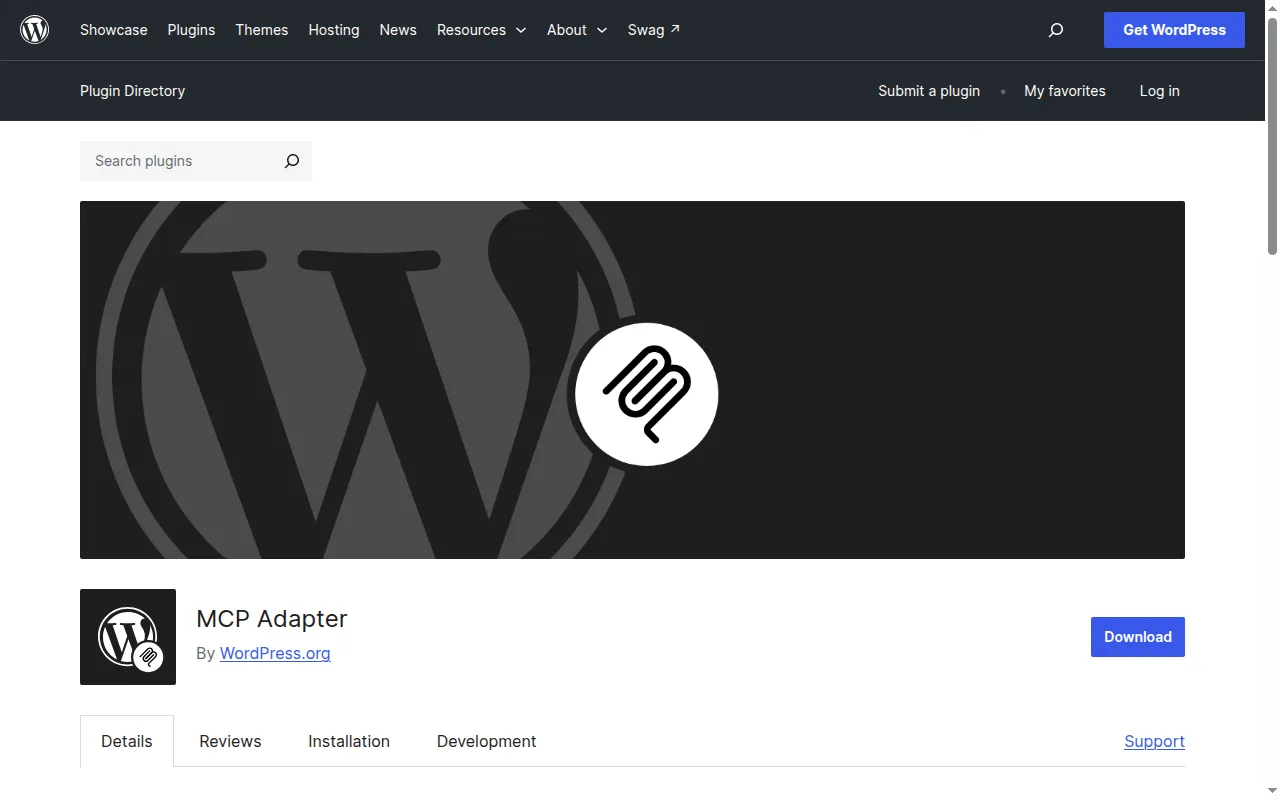
- Install the plugin. In WordPress, go to Plugins, then Add New, search for MCP Adapter (by WordPress.org), click Install Now, then Activate.
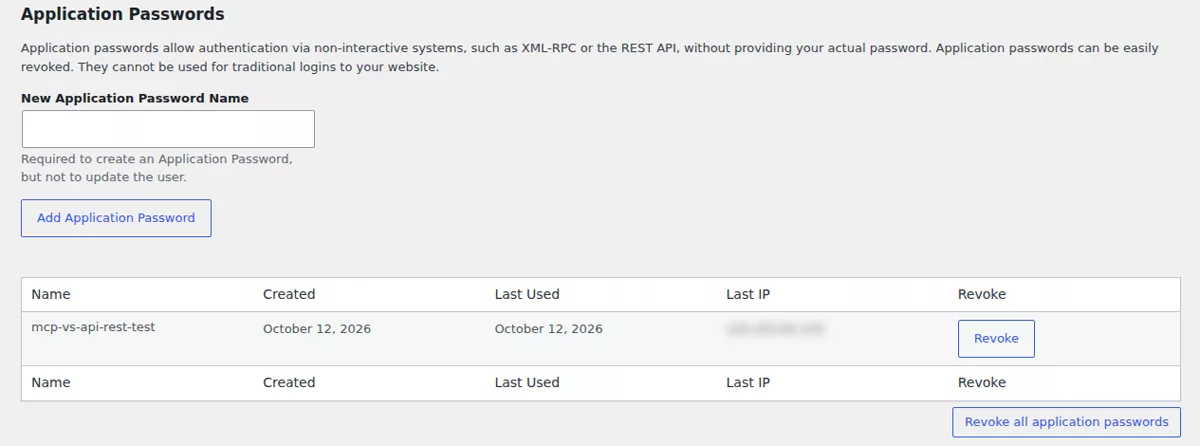
- Go to Users, then Profile, and scroll to Application Passwords. Type Copilot as the name and click Add Application Password. Copy the password, because WordPress shows it only once. Use the lowest-privileged user that can do the job.
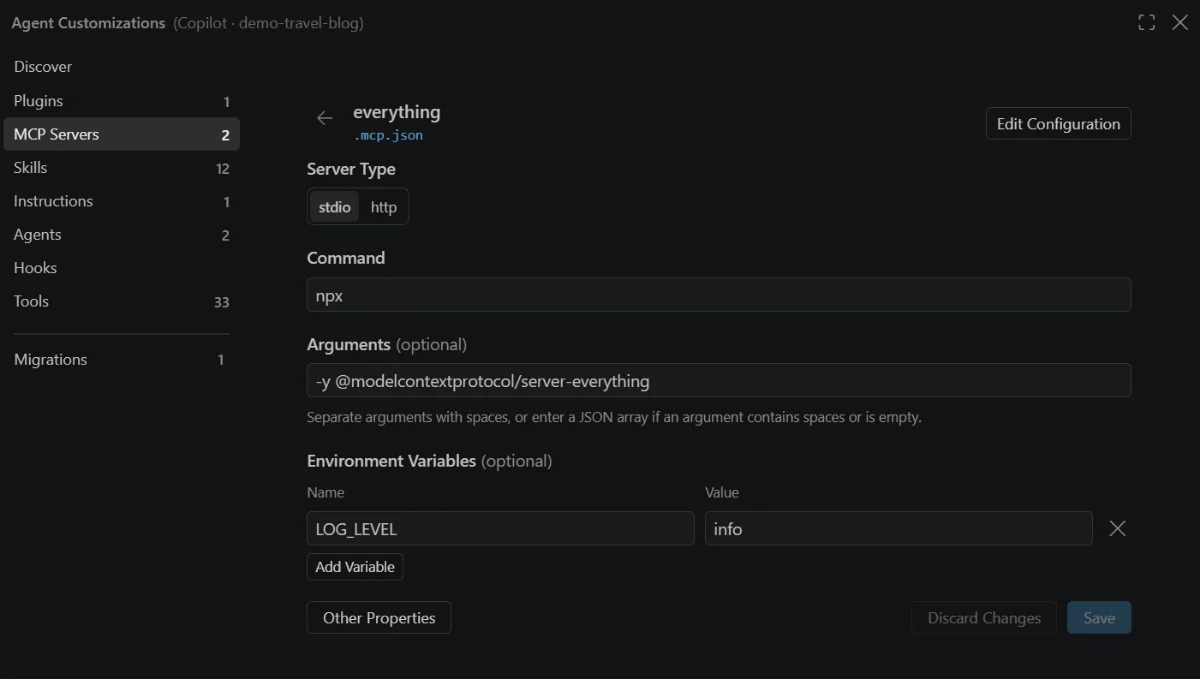
- In VS Code, run MCP: Add Server, choose Command (stdio), and enter npx -y @automattic/mcp-wordpress-remote@latest as the command. Name it, and save it to Global, then Copilot Global.
- Open Chat: Open Customizations, then MCP Servers, and select the new server. Under Environment Variables, add three: WP_API_URL set to https://your-site.com/wp-json/mcp/mcp-adapter-default-server, WP_API_USERNAME set to your WordPress username, and WP_API_PASSWORD set to the Application Password. Click Save.
- Ask Copilot in agent mode to list what the server can do, and check the tool call, as in Step 3 above.
The variable names and the endpoint come from the MCP Adapter CLI usage guide, and the password type is explained in WordPress’s Application Passwords guide. InstaWP compares this route in depth in its WordPress MCP Adapter review and its test of the best WordPress MCP plugins.
Want the full tool set on that site? InstaWP includes free migrations on every plan, so you can move it with the WordPress migration tool and then follow Method 1.
What should you ask GitHub Copilot first?
Start with requests that only read, so you can watch Copilot work before it changes anything. Name your server in the prompt, so Copilot picks the WordPress tools and not its own file tools.
| Goal | Prompt to paste into Copilot Chat | Changes the site? |
|---|---|---|
| See what is there | “Use my-wordpress-site to list the active plugins and the active theme.” | No |
| Find problems | “Use my-wordpress-site to read the last 20 fatal errors from the site logs and explain them simply.” | No |
| Content check | “List all draft posts older than 30 days, with their titles and dates.” | No |
| First small edit | “Change the title of the About page to About Us. Show me the change before you save it.” | Yes, after you approve |
| Code plus content | “Add a short notice to my plugin’s settings page, then update the help page that describes it.” | Yes, after you approve |
For bigger jobs, such as building a plugin, see InstaWP’s guide to deploying WordPress from GitHub with an AI agent. If you want Copilot to work on GitHub itself (issues, pull requests), that is a separate server, explained in what GitHub MCP is.
Why is GitHub Copilot not using my WordPress MCP server?
Usually because the server is off, the token is wrong, or Copilot is not in agent mode. VS Code can show the server’s own messages: in the MCP Servers list, open the server’s menu and choose Show Output. Then match what you see to this table.
| What you see | Likely cause | Fix |
|---|---|---|
| The server shows an error and the output mentions HTML | MCP is switched off on the site, so the URL returns a normal web page | Switch on Enable MCP on the site’s MCP tab. |
| “Invalid token” | The token in the URL is wrong or was reset | Copy the connection URL again from the MCP tab and update the server. |
| “Authentication required” | No token reached the site | Make sure the URL still ends with ?t= and the token, or that your header variable is set. |
| No WordPress tools in agent mode | Copilot is in Ask mode, or your company has MCP switched off | Switch the chat to Agent. On Copilot Business or Enterprise, ask an admin to enable “MCP servers in Copilot”. |
| Copilot answers but never calls a tool | It guessed from what it already knows | Name the server in the prompt, and check the tool is ticked in Configure Tools. |
| A server you added does not reach Copilot sessions | It asks for a value with ${input:…}, which Copilot sessions do not pass on | Use the connection URL, or an environment variable, instead of an input prompt. |
The two error messages above are the exact replies InstaWP got from its sandbox on 23 October 2026 when the token was missing or wrong. VS Code’s MCP troubleshooting guide covers the VS Code side.
Is it safe to let GitHub Copilot change a live WordPress site?
Yes, if you keep both sets of brakes on. VS Code decides what Copilot may try, and the WordPress site decides what it will accept. For a live site:
- Practise on a copy. Use a sandbox or a staging site first, then push to live after a person checks the result.
- Turn on Safe Mode. In WordPress, go to Settings, then InstaMCP, then General. Safe Mode blocks all deletes. It is off by default, so you have to switch it on.
- Keep tool approvals on in VS Code. Read each tool call before you approve it, especially anything that writes.
- Leave the power tools off. Raw PHP, SQL and file access stay disabled until an admin enables them. Most jobs never need them.
- Keep the token private. Never commit the connection URL. Switch MCP off on sites you are not using.
InstaWP goes deeper in is MCP WordPress integration safe and in its guide on how to connect AI agents to WordPress using MCP.
Should you use GitHub Copilot, Cursor or Claude for WordPress?
Use GitHub Copilot if you already work in VS Code and pay for, or use the free plan of, Copilot. The WordPress side is identical in every client: the same InstaWP site and connection URL work in all 14 clients that InstaWP has setup guides for.
- GitHub Copilot in VS Code suits developers who already live in VS Code and want WordPress one tool call away.
- Cursor is a separate AI code editor with its own agent. See how to connect Cursor to WordPress.
- Claude works well for content and site management. See how to connect Claude to WordPress.
- Google Antigravity is Google’s agent-first coding app. See how to use Google Antigravity for WordPress.
For a wider comparison, see the best AI coding tools for WordPress developers. For Git, SFTP and WP-CLI access next to MCP, see InstaWP’s developer tools.
On an InstaWP site, open Extensions, then MCP, switch on Enable MCP and click Add to VS Code. Approve the server in VS Code, switch Copilot Chat to Agent, and ask a read-only question that names your site. If you see a WordPress tool call in the chat, you are connected. For many sites, connect your InstaWP account and sign in read-only. For a site on another host, use the WordPress MCP Adapter with an Application Password. On a live site, turn on Safe Mode and keep tool approvals on.
Connecting GitHub Copilot to WordPress: FAQs
Can GitHub Copilot connect to WordPress?
Yes, over MCP. Add the WordPress site to VS Code as an MCP server, for example with the Add to VS Code button on an InstaWP site’s MCP tab, and Copilot’s agent mode can read and change the site. On InstaWP the site exposes 43 tools.
Does GitHub Copilot Free support MCP servers?
GitHub’s documentation says its MCP access policy applies only to Copilot Business and Copilot Enterprise seats, where an admin must switch it on, and that Copilot Free, Pro, Pro+ and Max are not governed by it. So on an individual plan you can add MCP servers yourself. You need VS Code 1.99 or later.
Do I need agent mode to use WordPress tools in Copilot?
Yes. MCP tools are called by Copilot’s agent. In Ask mode, Copilot answers from what it knows and does not call your WordPress server. Switch the chat to Agent before you ask.
Where does VS Code save my MCP server?
It depends on what you choose when you add it. Global, then Copilot Global saves it to your user folder outside the project. A workspace file such as .mcp.json is shared with anyone who opens the project, so never put a token there.
Why does Copilot not see my WordPress MCP server?
Check that MCP is switched on for the site, that the URL still has a valid token, that the chat is in Agent mode, and, on a company plan, that the MCP policy is enabled. Show Output in the MCP Servers list shows the server’s own error message.
Can I connect GitHub Copilot to a WordPress site not hosted on InstaWP?
Yes, with the official WordPress MCP Adapter plugin on WordPress 6.9 or later, an Application Password and the mcp-wordpress-remote bridge. It exposes only the abilities plugins mark as public, so expect far fewer tools than InstaMCP’s 43.
Is it safe to give GitHub Copilot access to a live WordPress site?
It is safe enough with both brakes on: approve tool calls in VS Code, and turn on InstaMCP’s Safe Mode, which blocks deletes and is off by default. Practise on a staging copy, keep power tools off and never commit the connection URL.
Can I use the same WordPress site with Copilot and Cursor at the same time?
Yes. The same InstaWP connection URL works in every MCP client, so you can add one site to VS Code, Cursor and Claude at once. Each client asks for its own approval.