Google Antigravity is Google’s agent-first coding platform. You describe what you want, and an AI agent plans the work, writes and runs the code, and shows you artifacts such as plans, diffs and browser recordings to approve. To use it on a WordPress site, connect the Antigravity App to the site over MCP. An InstaWP site’s MCP tab generates that connection for Antigravity, so the setup is copy and paste.
This guide explains what Antigravity is, how it works and where it fits in a WordPress workflow, then sets up the Antigravity App with InstaMCP step by step. On 21 October 2026, InstaWP built a small bakery website on a throwaway sandbox using the prompts in this guide: four pages, a menu custom post type and an order-ahead form plugin. The WordPress side of every step is real, including two writes InstaMCP refused and the fix. The Antigravity screens come from Google’s own documentation, linked at each step.
Table of Contents
| Question | Answer |
|---|---|
| What Google Antigravity is | An agent-first coding platform from Google, first released on 18 November 2025. You describe the outcome, and its agents plan the work, write and run the code, and show artifacts (a plan, diffs, screenshots, browser recordings) for you to approve. |
| Antigravity surfaces | Antigravity App 2.25.0 (desktop), Antigravity IDE (the original editor), Antigravity CLI (agy), editor extensions for VS Code, JetBrains IDEs, Visual Studio, Zed and Xcode, and a Python SDK. |
| Antigravity price | A free individual plan with a weekly quota. Google AI Pro and Google AI Ultra add quota that refreshes every five hours and more models. |
| Model on the free plan | Gemini 3.8 Flash. Claude Sonnet 4.6, Claude Opus 4.6 and GPT-OSS-120b are listed until 2 November 2026. |
| Does it work with WordPress? | Yes, over MCP. On its own Antigravity edits files in a project folder. An MCP server on the site, such as InstaMCP, lets it create pages, install plugins and read logs. |
| How you connect it | Add a serverUrl entry to ~/.gemini/config/mcp_config.json, then refresh Installed MCP Servers under Settings, Customizations in the App. InstaWP generates the entry for you. |
| What InstaMCP gives the agent | 43 tools and 15 built-in skills, including build-site-from-brief, gutenberg-pages and page-builder-pages for Elementor and Bricks. |
| What InstaWP costs | The account is free. A sandbox is $2 a month. Production plans are $5 to $45 a month per site, billed daily. |
| Safe defaults | A sandbox site, Planning mode, Request review, InstaMCP Safe Mode on, power tools off. |
| Do not use | Turbo mode, or an agent connected to a production site with an administrator token. |
Read the table top to bottom and it answers the two questions this guide is about: what Antigravity is, and what it takes to point it at WordPress. The rows that cause most problems are the surfaces row, because the App and the IDE add MCP servers in different places, and the safe-defaults row, because Antigravity will happily run with every brake released if you let it.
What is Google Antigravity?
Google Antigravity is an agent-first coding platform from Google. It gives a whole task to AI agents that plan it, write and run the code, test the result in a browser and report back with artifacts you can review. Google first released it as an IDE on 18 November 2025. Antigravity 2.0 launched at Google I/O on 19 May 2026 and moved the main experience into a standalone desktop App for starting, watching and coordinating agents across projects.

Is Google Antigravity still an IDE?
Yes, but it is no longer only an IDE. The original VS Code-based editor continues as a separate product called Antigravity IDE, alongside the App, a terminal client and extensions for other editors.
According to Wikipedia’s Antigravity entry, the Antigravity IDE’s most recent release was 2.5.5 on 13 August 2026 and, as of October 2026, it is not supported for enterprise customers, while the App and CLI keep getting frequent updates. That matters for a tutorial: the App is where Google is putting its effort, but plenty of people still search for, and use, the IDE.
| Surface | What it is | Where you add an MCP server | Pick it if |
|---|---|---|---|
| Antigravity App | Desktop “command center” for agents. Version 2.25.0 on the download page on 21 October 2026. | Settings, then Customizations, then Installed MCP Servers | You want to describe work, review plans and watch agents rather than edit files by hand. |
| Antigravity IDE | The original editor with an Agent Manager and an agent side panel. A separate download. | Agent side panel, “…” menu, MCP Servers, Manage MCP Servers, View raw config | You want the editor and the agent in one window, the way Antigravity 1.x worked. |
Antigravity CLI (agy) | Terminal client. | /mcp opens the MCP manager | You live in a terminal or want to script agents. |
| Editor extensions | Antigravity inside VS Code, JetBrains IDEs, Visual Studio, Zed or Xcode. | The same config files | You already have an editor you like. |
Read the third column carefully. It is the only place the surfaces differ when you connect WordPress. Everything else in this guide, the prompts, the plan review, the WordPress side, works the same whichever one you open. The setup steps below use the App, because it is the surface Google now puts first.
How does Google Antigravity work?
Google Antigravity works in a loop. You describe a task in a conversation, the agent researches it and writes an implementation plan, you comment on the plan and approve it, and the agent then edits files, runs terminal commands, calls connected tools and checks its own work in a browser. Each stage leaves an artifact behind, so you review evidence rather than trusting a summary.
| Part | What it does | Why it matters for WordPress |
|---|---|---|
| Projects and conversations | A project is a folder on your machine. Each conversation is one task for an agent, and the App lists conversations by project. | Keep one project per site, so the agent’s plugin code and notes stay with that site. |
| Planning mode and Fast mode | Planning mode researches first and writes an implementation plan before changing anything. Fast mode skips the plan for small jobs. | A site build is a multi-step job, so it belongs in Planning mode. |
| Artifacts | Plans, task lists, diffs, screenshots, verification reports and browser recordings. | You approve a page list or a plugin diff before it reaches WordPress. |
| Terminal | The agent runs commands, by default inside a terminal sandbox. | Where InstaCLI and WP-CLI commands run. |
| Browser agent | Drives a local Chrome in a separate profile, takes screenshots and records sessions. | Tests forms, menus and checkout flows the way a visitor would. |
| MCP servers | Connections to outside tools, configured in mcp_config.json. | The only way Antigravity reaches a site’s pages, plugins and settings. |
| Scheduled tasks | The App and the CLI can run an instruction later or on a recurring schedule. | Useful for a recurring check on a staging site, not for unattended changes to a live one. |
Read the right-hand column as the reason each part matters to a site builder. Two rows do most of the work in this guide: artifacts, because they are how you stay in control, and MCP servers, because without one Antigravity cannot touch WordPress at all. Google’s artifacts documentation and features guide cover the rest.
Can you use Google Antigravity for WordPress sites?
Yes, once Antigravity can reach a WordPress install. On its own, Antigravity works on files in a project folder, so it can write a theme or a plugin but cannot create a page, change a setting or see what is in the database. Connect it to the site through an MCP server and it can. The Model Context Protocol (MCP) is the open standard Antigravity uses to call outside tools, and InstaMCP is the MCP server that comes with InstaWP sites.
With InstaMCP 1.11.4 connected, the agent works through 43 WordPress tools and 15 built-in skills. It can create Gutenberg pages and validate their blocks, build Elementor and Bricks pages, install and activate a plugin from a zip, write post meta and read the site’s error logs. Power tools such as execute_php stay off until a site admin turns them on. The InstaMCP WordPress MCP server page lists the full tool set.
Where does Antigravity fit in a WordPress workflow?
Antigravity fits every stage of a WordPress build except the last one, going live, which is a hosting job. The table follows one site from an empty sandbox to a launched site and the next round of changes.
| Stage | What you ask Antigravity to do | What InstaWP provides |
|---|---|---|
| Start the project | Create a sandbox through InstaWP Account MCP, or run InstaCLI in its terminal. | A $2-a-month sandbox with InstaMCP, created from the dashboard, InstaCLI or Account MCP. |
| Build from a brief | Plan the pages from a written brief, then build them after you approve the plan. | Site MCP tools plus the build-site-from-brief and gutenberg-pages skills. |
| Refine | Describe each change and the check that proves it. | patch_content and validate_blocks, so edits stay valid blocks. |
| Add custom features | Write a plugin in the project folder, show the diff, then install it. | plugin_operations installs the zip, site_logs reports fatal errors. |
| Test before launch | Open the site in the browser agent, run the key flows and record them. | A real URL on a real server, plus the pre-launch-content-qa skill. |
| Go live | Nothing. This step is a plan change. | A one-click change from sandbox to a production plan, domain mapping, SSL and backups. |
| Keep changing it | Run the same loop on a copy of the live site. | WordPress staging on Pro and higher, with push and pull. |
Read the middle column as the agent’s job and the right-hand column as what InstaWP supplies for it. Antigravity does the planning, coding and testing in every row. The WordPress site, the tools the agent calls and the move from sandbox to live site come from InstaWP, because Antigravity cannot provide them on its own.
What do you need before you set up Google Antigravity for WordPress?
You need three things: a Google account signed in to Antigravity, an Antigravity plan with enough quota for a multi-step build, and a WordPress site the agent is allowed to change. For the WordPress site, use a sandbox you can throw away rather than a live site.
| Plan | Quota (Google docs, 21 October 2026) | Agent models available |
|---|---|---|
| Free and Google AI Plus | A quota that refreshes weekly, plus a weekly rate limit | Gemini 3.8 Flash. Claude Sonnet 4.6, Claude Opus 4.6 and GPT-OSS-120b until 2 November 2026. |
| Google AI Pro | A higher quota that refreshes every five hours, up to a weekly limit | Adds Gemini 4 Argon, Claude Sonnet 5.5 and Claude Opus 5.5 (not on free trials). |
| Google AI Ultra | The highest quota, refreshed every five hours | Everything above, with the highest limits. Google introduced a $100 a month Ultra plan at I/O 2026. |
Two details in that table are easy to miss. Gemini 4 Argon is not available in the Antigravity IDE, only in the App, the CLI and the extensions. And the Claude 4.6 models leave Antigravity on 2 November 2026, so a free-plan user who picked one of them will be moved to something else. Check Google’s plans page for current prices before you subscribe.
On the WordPress side, create an InstaWP account (free) and one sandbox site. A sandbox is $2 a month per site, uses the same WordPress, SSH and WP-CLI as production, and can be turned into a production site later. Site MCP is available on Sandbox plans and above.
How to Set- up Google Antigravity and Use It for WordPress
Here is how you can set-up Google Antigravity and use it for WordPress.
Step 1: How do you install the Google Antigravity App?
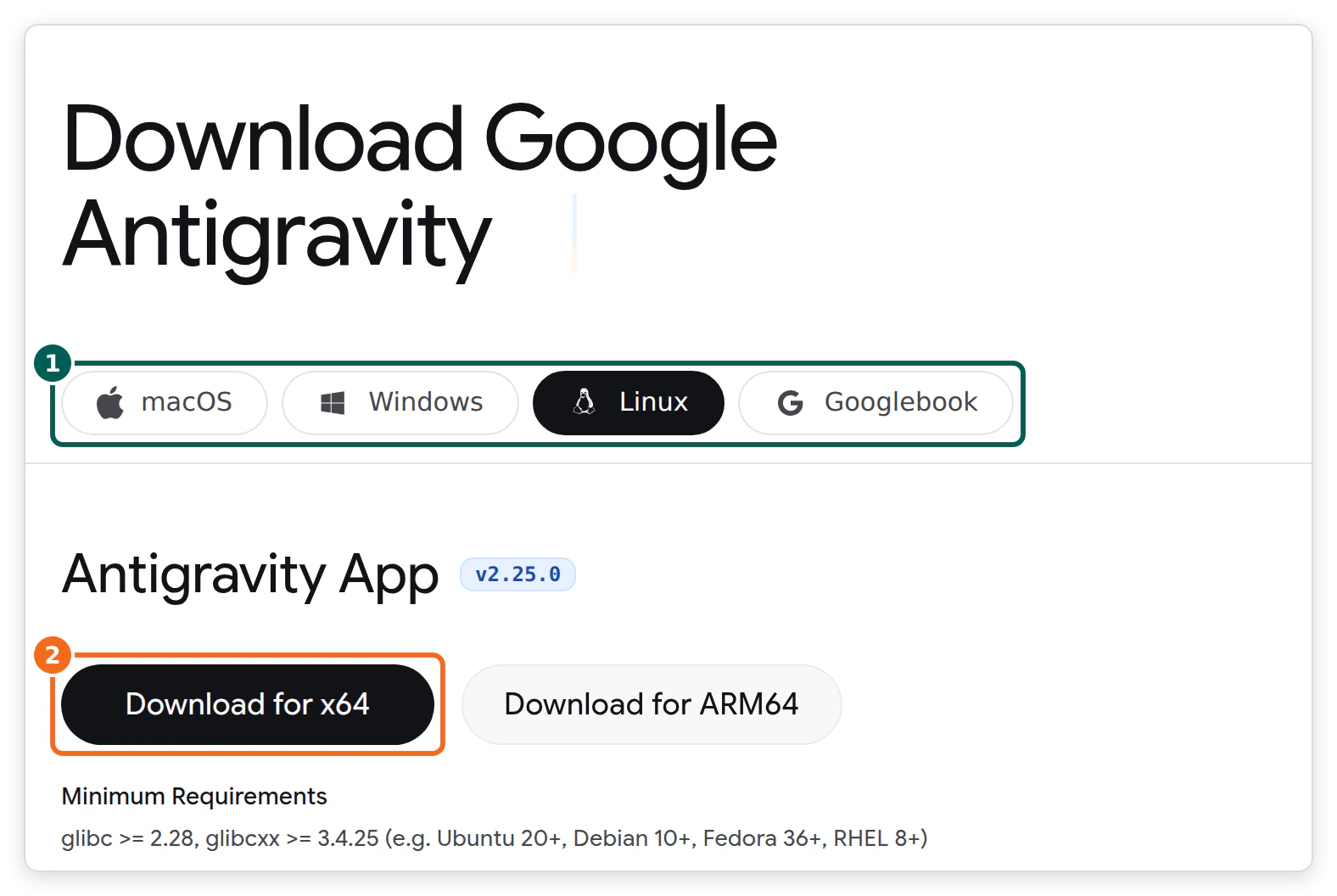
Download the Antigravity App from antigravity.google/download, sign in with “Continue with Google”, choose a theme and accept the terms. The App supports macOS 12 or later, Windows 10 and 11 (64-bit) and Linux with glibc 2.28 or newer. On Linux you extract Antigravity.tar.gz and run ./Antigravity. Google’s getting-started codelab walks through the same screens.
- Pick the Antigravity App build for your operating system. It is the surface Google updates most, and it has the review pane for plans, diffs and browser recordings that this guide relies on.
- If you would rather have an editor with the agent built in, the Antigravity IDE is a separate download on the same page. It imports settings, extensions and keybindings from Antigravity 1.x, and step 4 shows where its MCP setup differs.
- Create a project folder for this build, for example
corner-crumb. The agent will write the plugin code there, so keep it separate from other work.
Step 2: Which Antigravity App settings should you change first?
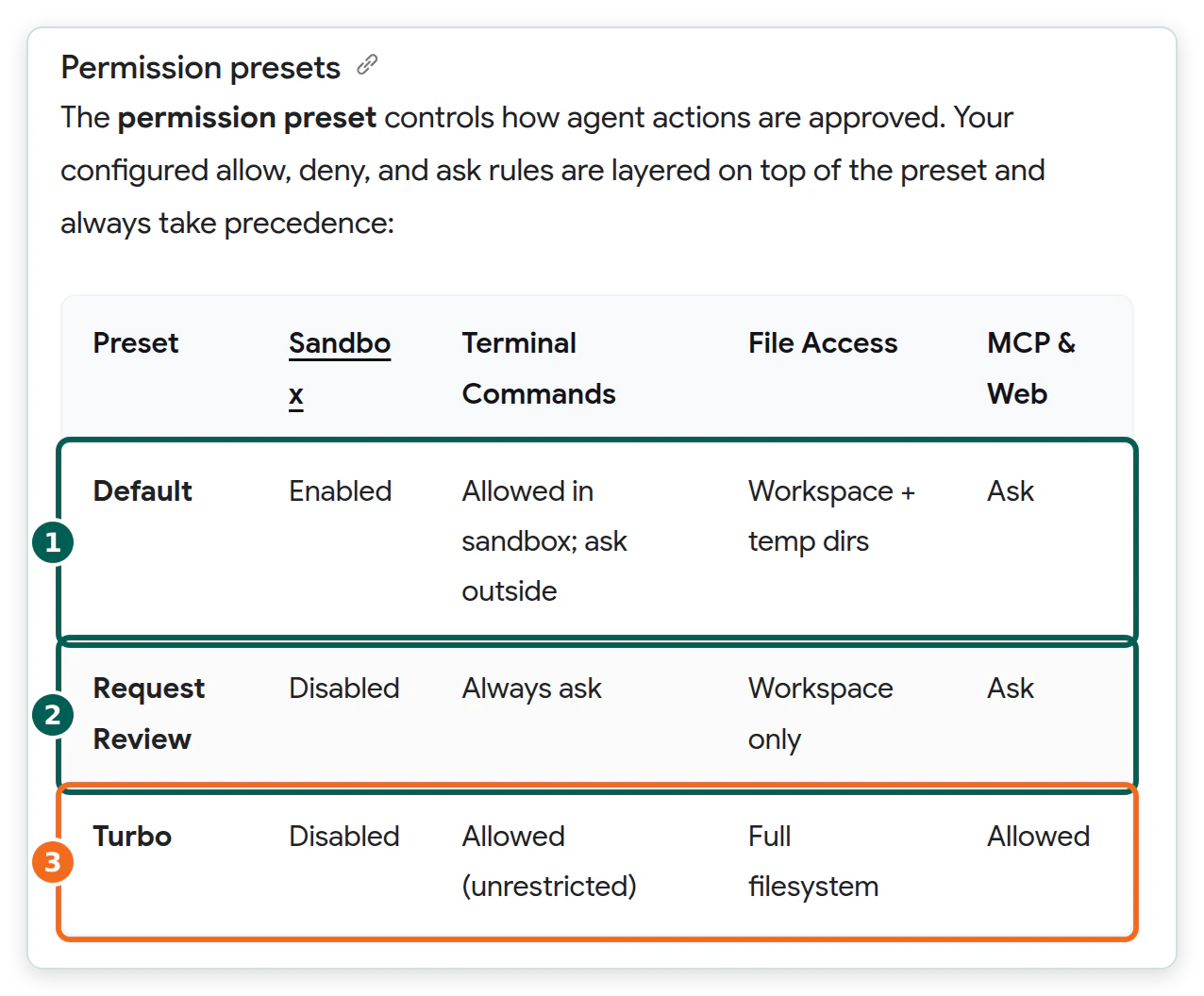
Use Planning mode, set the artifact review policy to Request review, and leave the permission preset on Default. That combination lets the agent work quickly inside a sandboxed terminal while it still stops for your approval before it changes code or calls a tool that touches the outside world.
Planning mode or Fast mode?
Planning mode makes the agent research first, write an implementation plan as an artifact and organise the work in task groups. Fast mode skips planning and is meant for small, local jobs such as renaming a variable. Building a website is not a small job, so start every new build in Planning mode and switch to Fast mode for later one-line tweaks.
Under Settings, then the Agent tab, set the review policy to Request review, which Google recommends. “Always proceed” skips the pause, which is the opposite of what you want while you are still learning what the agent will do.
Which permission preset?
| Preset | What the agent can do without asking | Use it for |
|---|---|---|
| Default | Run terminal commands inside the terminal sandbox, and read and write the workspace and temp folders. Anything else needs approval. | Most vibe-coding sessions, including this one. |
| Request Review | Nothing in the terminal. The sandbox is off and every command needs approval. | Your first sessions, or an unfamiliar codebase. |
| Turbo | Everything. No isolation, no restrictions and full read and write access to your filesystem. | Nothing you care about. A disposable virtual machine at most. |
You set the preset under Settings, then General, then Permission Settings, and can override it per project. On Windows the names differ (Request Review, Proceed in Sandbox, Always Proceed) but the idea is the same. Google’s agent settings page has the details.
Two MCP settings are worth knowing before you connect WordPress. By default every MCP tool runs in Ask mode, so Antigravity asks before each call. Once you trust a server you can allow its tools with a rule such as mcp(server/tool), and you can hide tools from the model completely with disabledTools in the server config. Both are described in Antigravity’s MCP guide.
Step 3: How do you create the WordPress site Antigravity will build on?
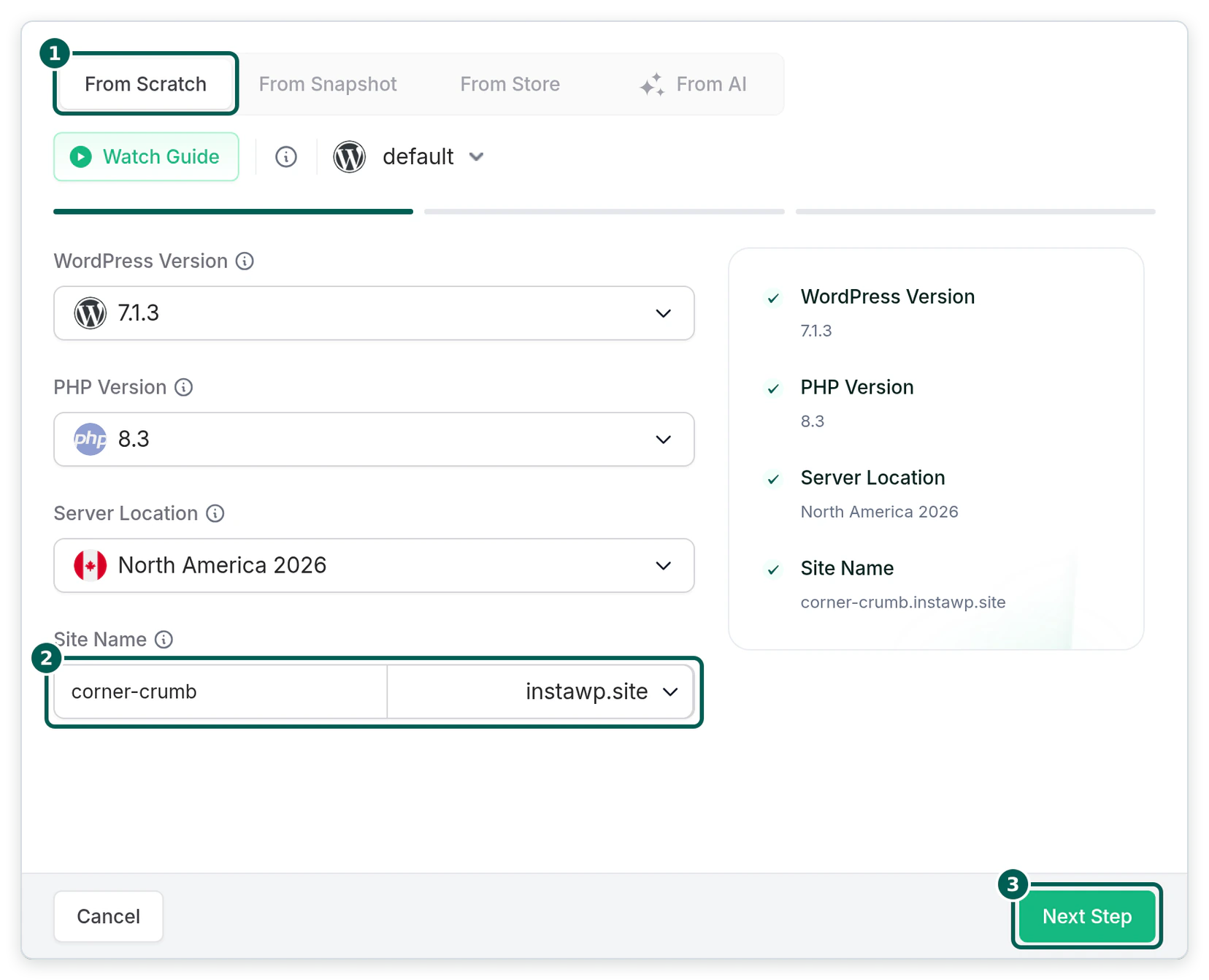
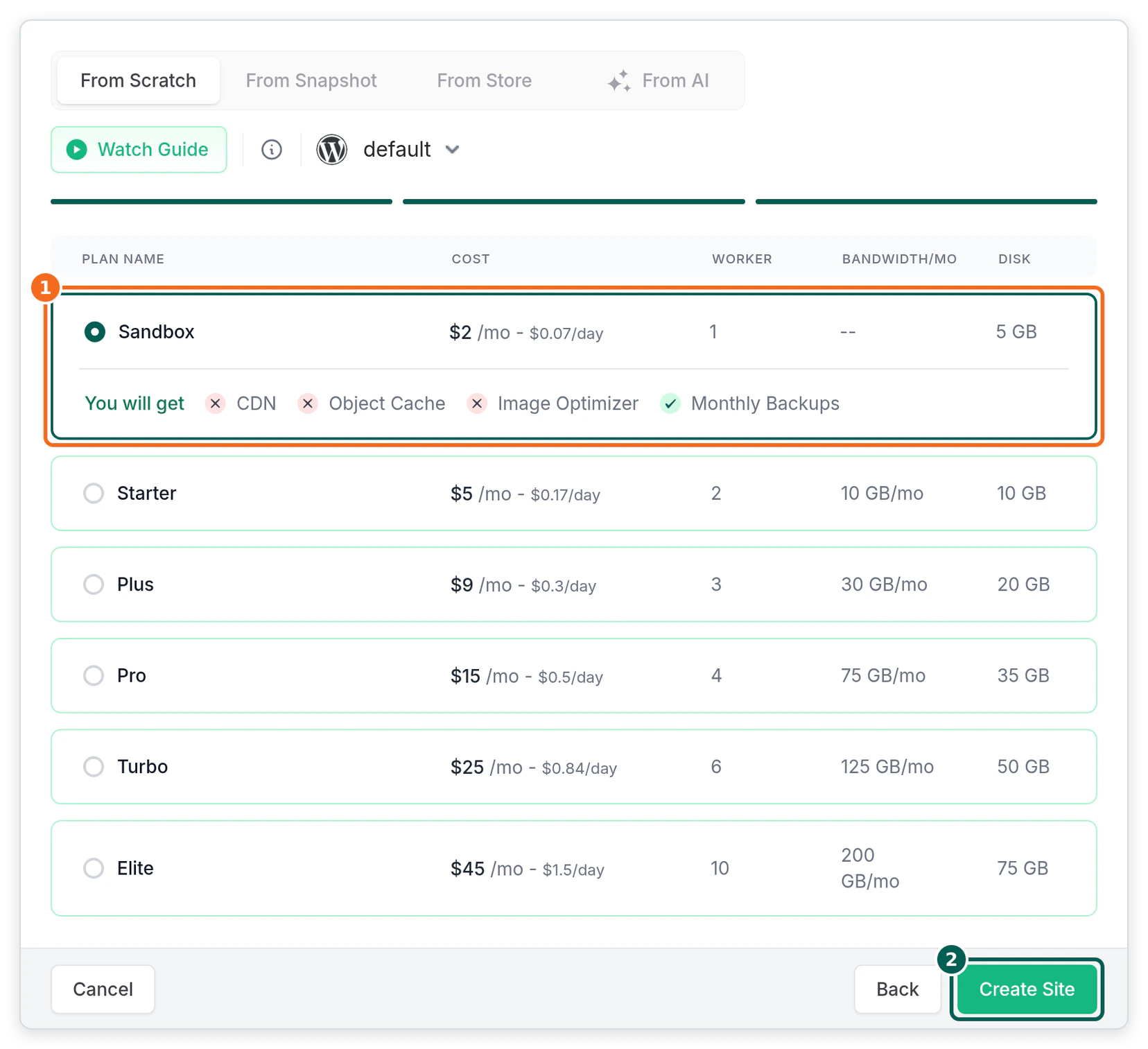
Create a new site in the InstaWP dashboard: Sites, then Add Site, then From Scratch.
Pick the WordPress version, a recent PHP version and a server location, leave the name blank or type one, and choose the Sandbox plan. If the MCP tab later asks you to upgrade PHP, change it under the site’s PHP settings first.
You can also create the sandbox without leaving the agent. Two ways:
- From Antigravity’s terminal, with InstaCLI. Install it with npm, export an API token and create a site. The CLI overview and the guide to the CLI in agent workflows cover login options.
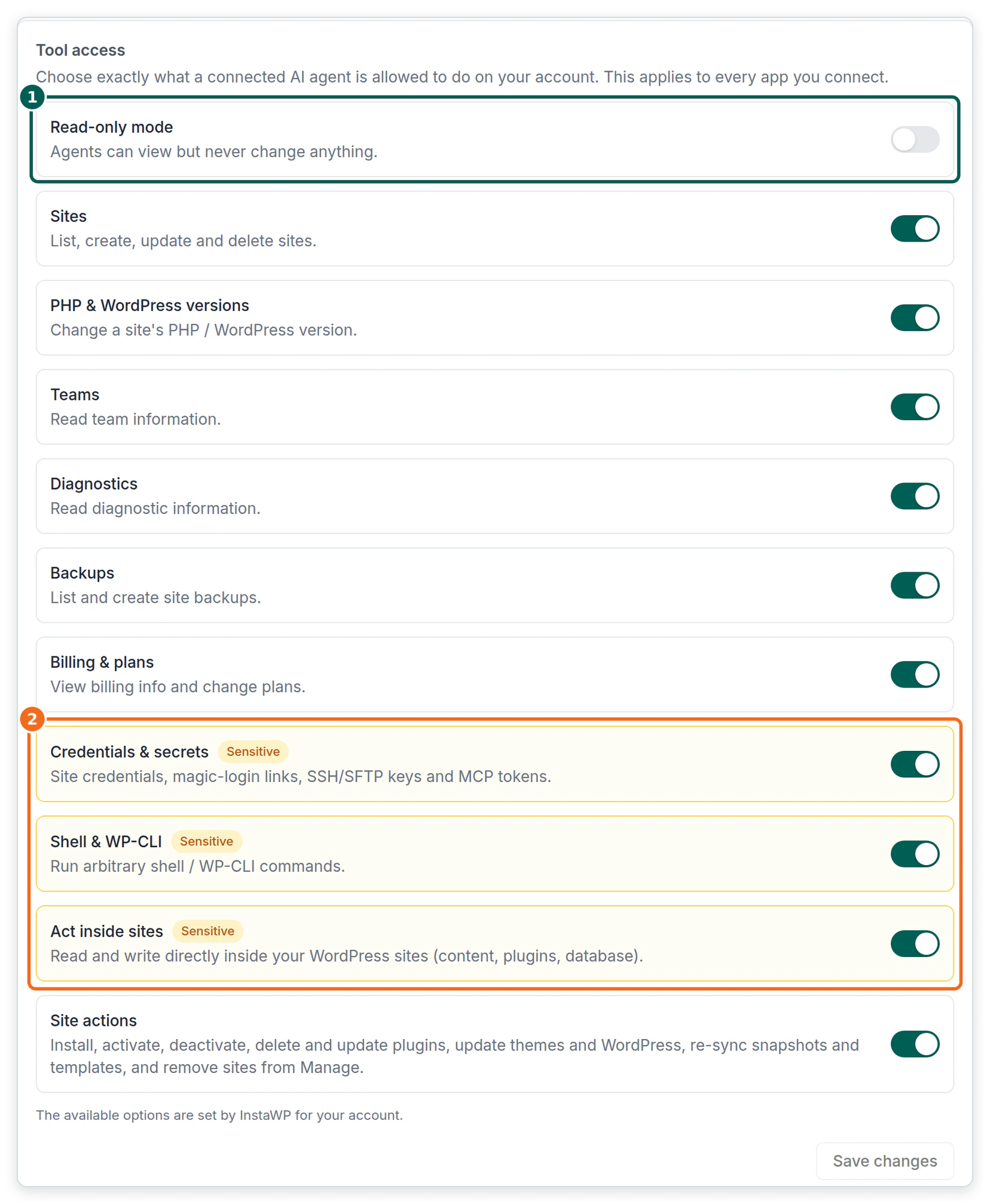
- From the conversation, with Account MCP. Connect InstaWP’s Account MCP to Antigravity once and ask the agent to “create a sandbox site called corner-crumb”. Account MCP signs in with OAuth, so there is no token in the URL, and its Tool access panel decides what the agent may do on your account.
# install InstaCLI and authenticate with an API token
$ npm install -g @instawp/cli@beta
$ export INSTAWP_TOKEN=your-api-token

# create a temporary sandbox for the build
$ instawp create --name corner-crumb --php 8.3 --temporary --json

# run WP-CLI against it whenever you need to check something
$ instawp wp corner-crumb plugin list
{
  "mcpServers": {
    "instawp": {
      "serverUrl": "https://app.instawp.io/mcp"
    }
  }
}
That second block is exactly what InstaWP’s Account MCP page offers for Antigravity. Antigravity handles OAuth automatically for servers that support dynamic client registration, and its MCP guide lists an Authenticate button under Settings, Customizations for servers that need it. The Account MCP docs explain the scopes.
Step 4: How do you connect the Antigravity App to WordPress with InstaMCP?
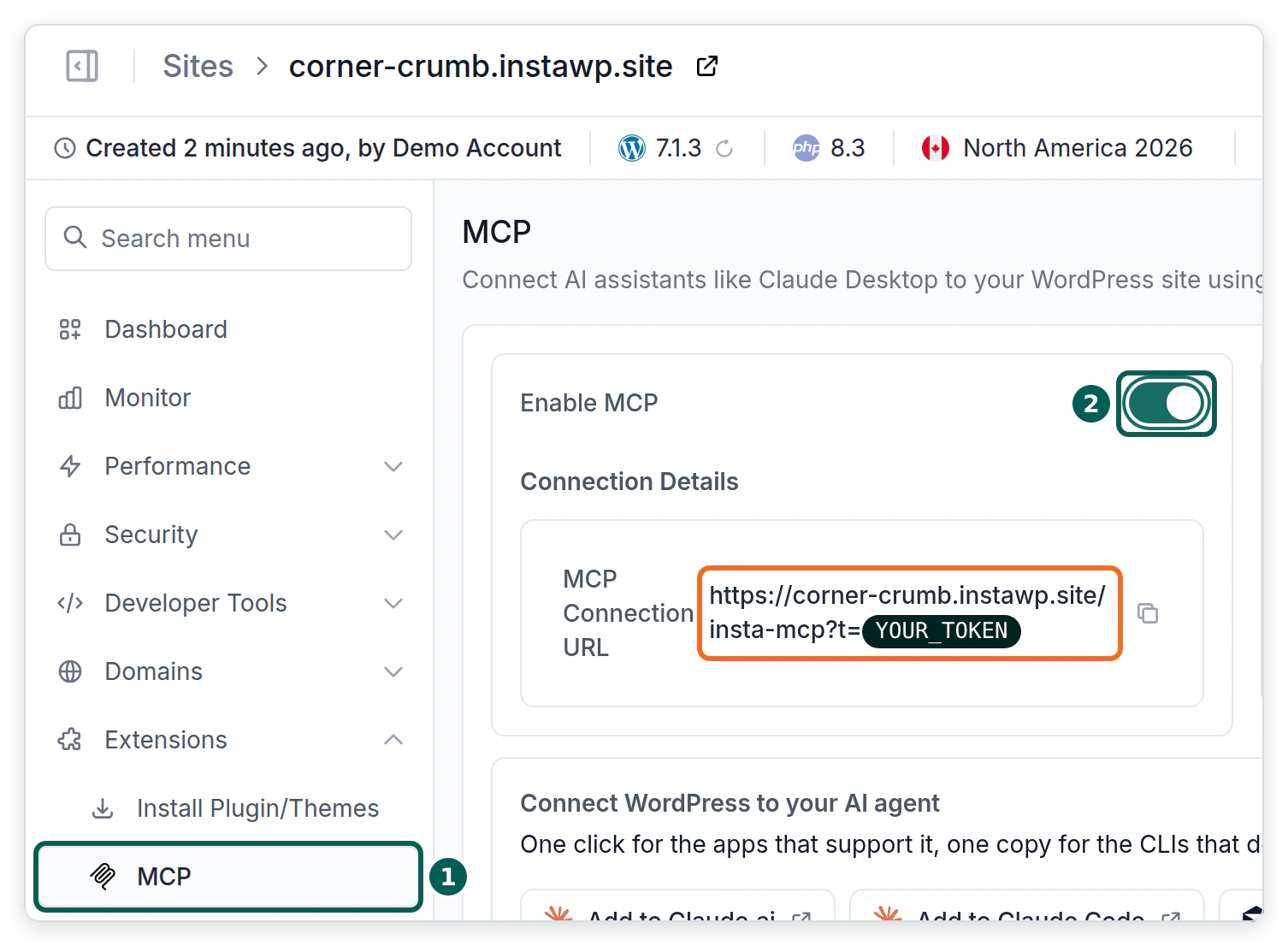
Enable MCP on the site, copy the Antigravity config InstaWP generates, paste it into the App’s mcp_config.json and refresh Installed MCP Servers. InstaWP lists Antigravity among its 14 supported AI clients and generates the block with the serverUrl key Antigravity requires, so there is nothing to hand-write.
In the InstaWP dashboard, open the sandbox, then Extensions, then MCP. Switch on Enable MCP. The MCP connection URL appears, in the form https://your-site.instawp.site/insta-mcp?t=YOUR_TOKEN.
Under Setup guides for AI clients, expand Antigravity and copy the JSON block.
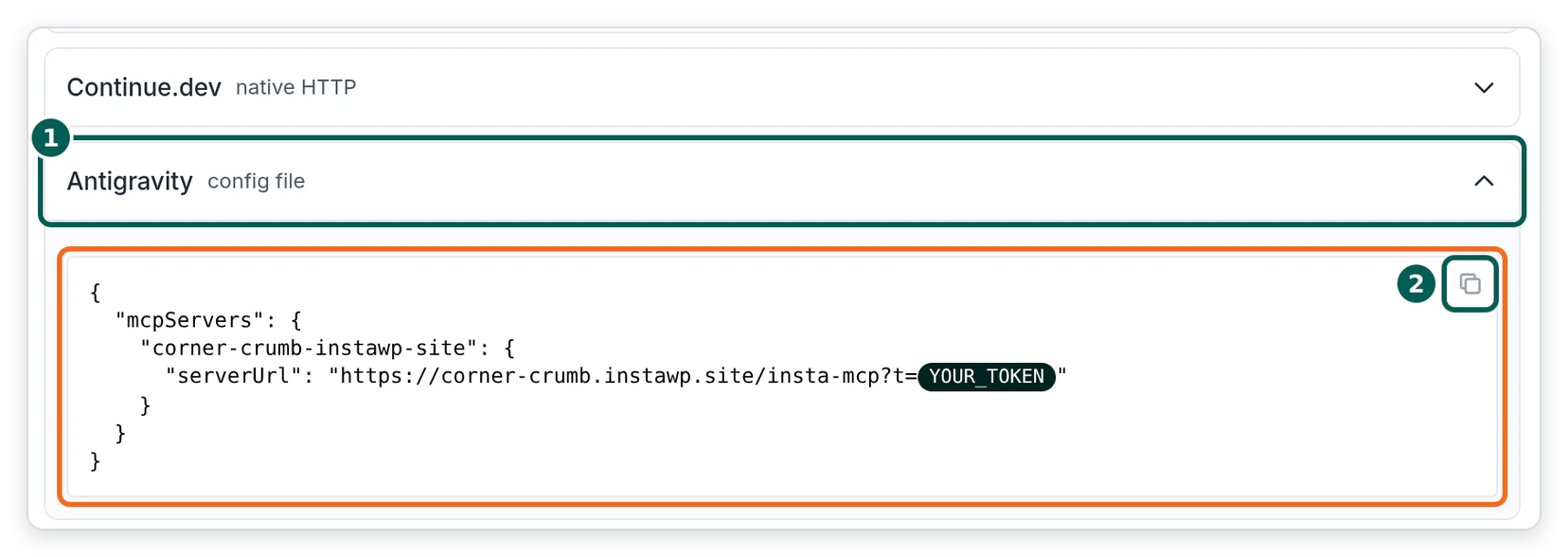
serverUrl key: Antigravity rejects url and httpUrl for remote servers. Token redacted. Captured 21 Oct 2026.In the Antigravity App, open the global MCP configuration file at ~/.gemini/config/mcp_config.json (create it if it does not exist yet). Add the InstaWP server entry inside the existing mcpServers object, keeping any other server entries, and save the file.
Then click Settings at the bottom left of the App, choose Customizations, and press the refresh button in the Installed MCP Servers section. The corner-crumb server should appear in the list with its toggle switched on. The same list is where you switch a server off or remove it later, as Antigravity’s MCP guide describes.
{
  "mcpServers": {
    "corner-crumb": {
      "serverUrl": "https://your-site.instawp.site/insta-mcp?t=YOUR_TOKEN"
    }
  }
}
Google’s docs give the global file at ~/.gemini/config/mcp_config.json and a per-project file at .agents/mcp_config.json. Use the global file to make the site available in every project, or the project file to keep a client’s site inside that client’s project. Older guides, and older Antigravity builds, used ~/.gemini/antigravity/mcp_config.json. That folder now holds Antigravity’s own app data, not the MCP config.
Using the Antigravity IDE or CLI instead of the App?
In the Antigravity IDE: open the agent side panel, click the “…” menu, choose MCP Servers, then Manage MCP Servers, then View raw config. Paste the block inside mcpServers and save.
In the Antigravity CLI, type /mcp in the prompt panel to open the MCP manager, which shows each server’s status and reloads the config. It reads the same two files.
| Surface | How to open it | File |
|---|---|---|
| Antigravity IDE | Agent side panel, “…”, MCP Servers, Manage MCP Servers, View raw config | ~/.gemini/config/mcp_config.json or .agents/mcp_config.json |
| Antigravity App | Settings, Customizations, Installed MCP Servers (refresh after editing) | The same global file |
| Antigravity CLI | Type /mcp in the prompt panel | The same two files |
mcp_config.json out of Git, and if you would rather not keep the token in the URL, Antigravity also accepts a headers object, so you can put the URL without ?t= in serverUrl and send the token as "Authorization": "Bearer YOUR_TOKEN".How do you check that Antigravity can reach the site?
Ask the agent: “List the tools on the corner-crumb server and call skill_list.” On InstaMCP 1.11.4 that returns 43 tools and 15 skills. If it returns no tools, the site MCP docs cover the two usual causes. For a deeper look at how WordPress MCP connections work across clients, read how to connect AI agents to WordPress using MCP.
Step 5: What should your first Antigravity prompt for a WordPress site say?
Your first prompt should name the business, list the pages and sections, give the palette, tell the agent which InstaMCP skills to read, and ask for a plan before any writes. A vague prompt (“make me a bakery website”) gets you a generic site. A specific brief gets you a plan worth reviewing, and the plan is where vibe coding saves you the most time.
Use the corner-crumb MCP server. First call skill_get for
build-site-from-brief and gutenberg-pages and follow them.

Business: Corner Crumb Bakery, 12 Maple Street.
Open Tuesday to Sunday, 7 am to 3 pm. Orders close at 6 pm
for next-morning pickup.

Pages:
  Home: hero ("Bread worth getting up for"), three reasons
        to visit, a "this week at the counter" section,
        buttons to Order ahead and the Menu
  Menu: menu items grouped by section, with prices
  Order ahead: an order form (we will add it in step 7)
  About: the story, address and opening hours

Palette: cream #FBF3E6, crust brown #7A3E1D, dark brown #5A2E14.
Native Gutenberg blocks only. Run validate_blocks before every
create_content. Create everything as drafts.

Before you write anything, produce an implementation plan
artifact listing each page, its sections and the tools you will
call, then wait for my review.
In Planning mode, Antigravity answers with an implementation plan artifact. Read it the way you would read a junior developer’s plan: are the pages right, does it say it will validate blocks, does it create drafts? Add inline comments where it is wrong, then approve it. Only after approval does the agent start calling InstaMCP.
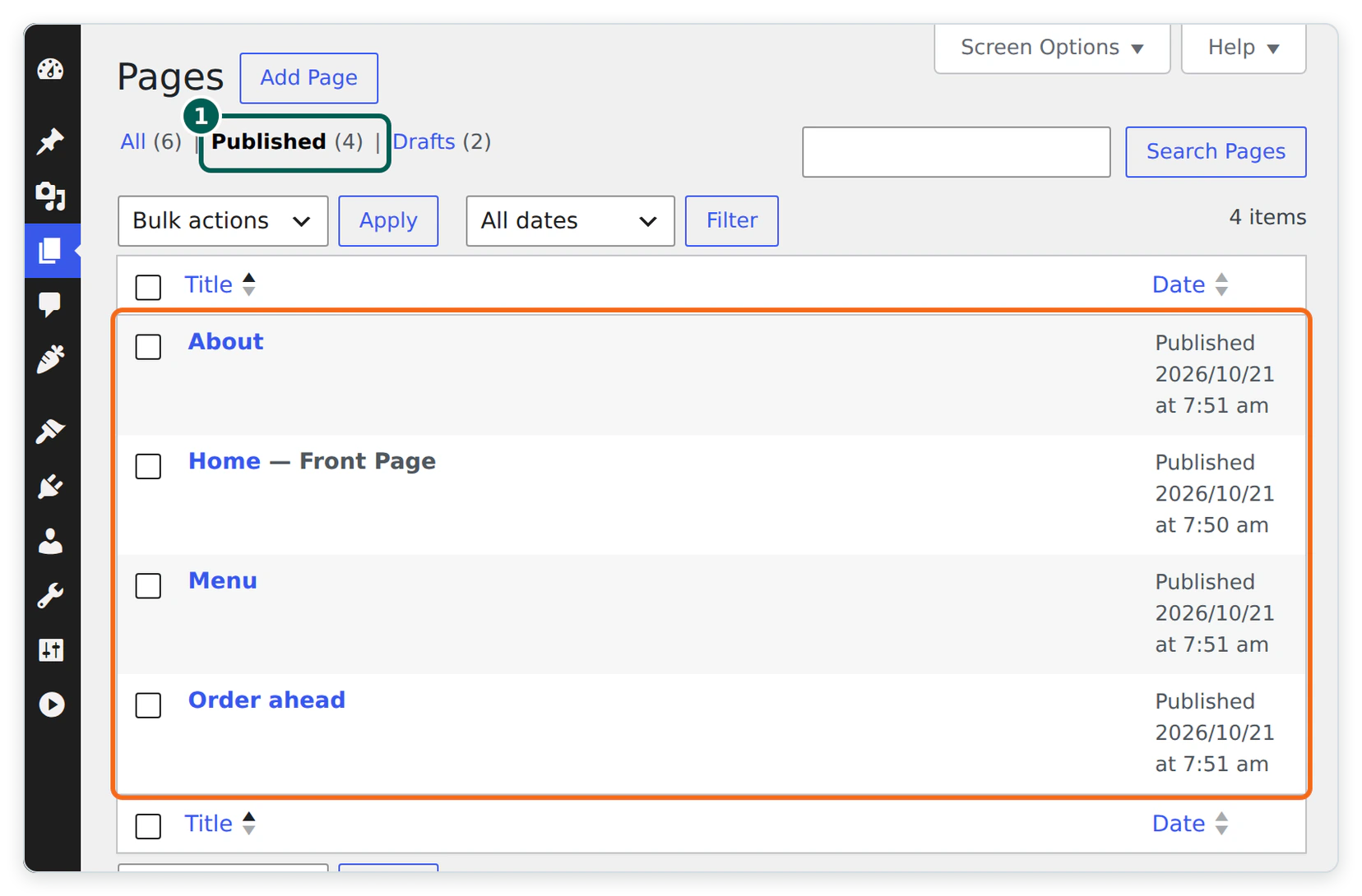
On the WordPress side, this step is four validate_blocks calls and four create_content calls. In InstaWP’s run every page validated with roundtrip: exact before it was created, which is what the InstaMCP WordPress MCP server‘s gutenberg-pages skill asks for. Review the drafts in wp-admin, then tell the agent to publish them and set Home as the front page.
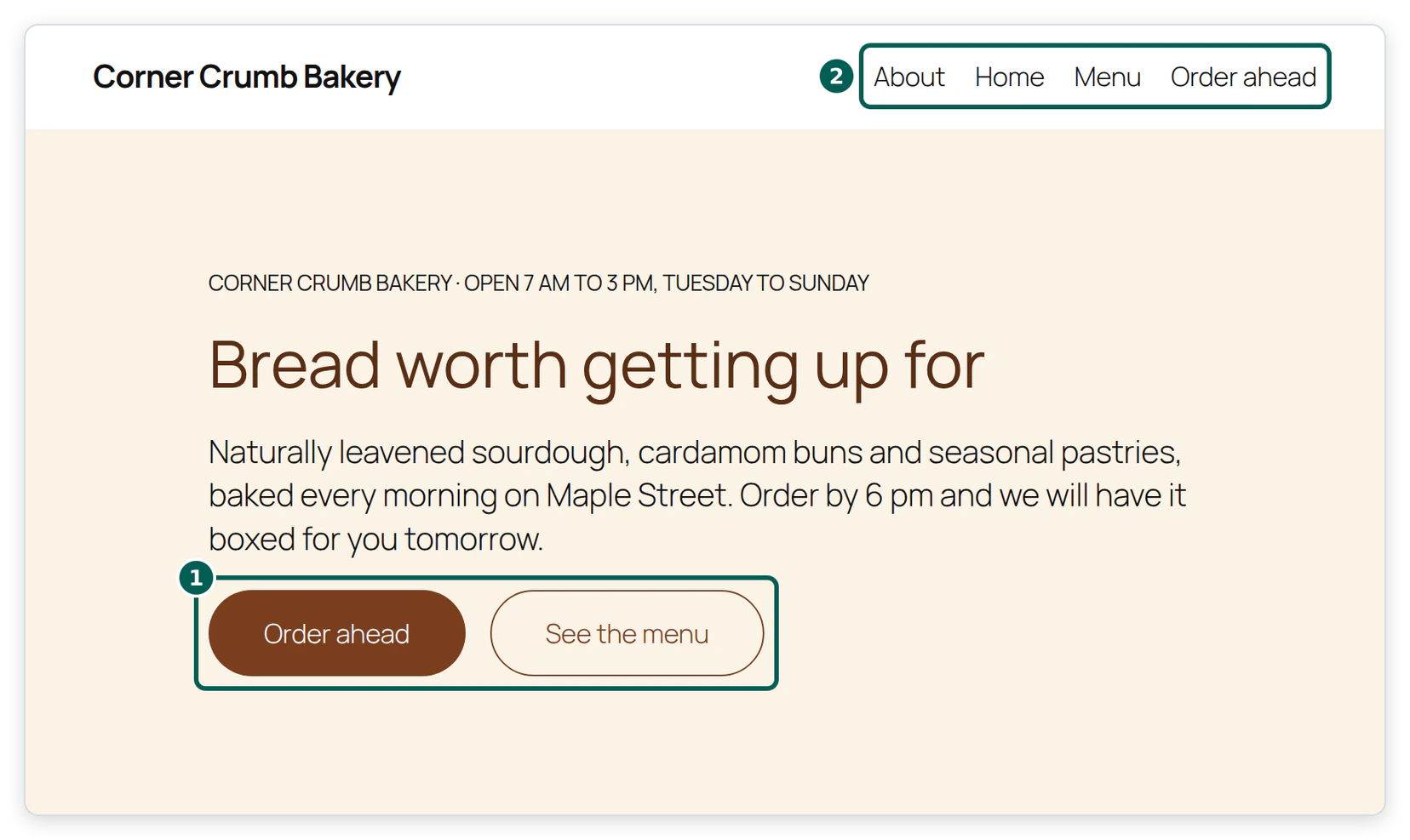
Step 6: How do you change the site by describing, not editing?
Describe the change you want and what “done” looks like, and let the agent find the blocks, meta or settings to change. Resist opening the block editor to fix things yourself, because the next prompt then starts from a state the agent did not create. The table pairs typical requests with the InstaMCP skill or tool that does the work and the check you should ask for.
| Say this | What the agent should use | Ask it to prove |
|---|---|---|
| “Make the reasons section three equal-height cards with a white background and 16px radius.” | The gutenberg-pages skill, then patch_content | validate_blocks returns exact, and the page renders |
| “Rebuild the About page in Elementor so the client can edit it there.” | The page-builder-pages skill, which writes Elementor’s own data and regenerates its CSS | The page opens in Elementor without “unexpected content” |
| “Add a Rank Math or Yoast title and description to every page, under 60 and 155 characters.” | The seo-meta-and-schema skill and set_meta | It reads the meta back and lists each value with its length |
| “Check the site before launch.” | The pre-launch-content-qa skill | A list of broken links, missing alt text and leftover drafts |
| “Remove Sample Page from the navigation.” | update_content to set it to draft (a delete is blocked while Safe Mode is on) | The front-end menu no longer shows it |
InstaWP ran the first row of that table on the corner-crumb sandbox. The prompt named the section, the look and the radius, and the agent changed three column blocks with one patch_content call. Nothing was edited by hand in the block editor.
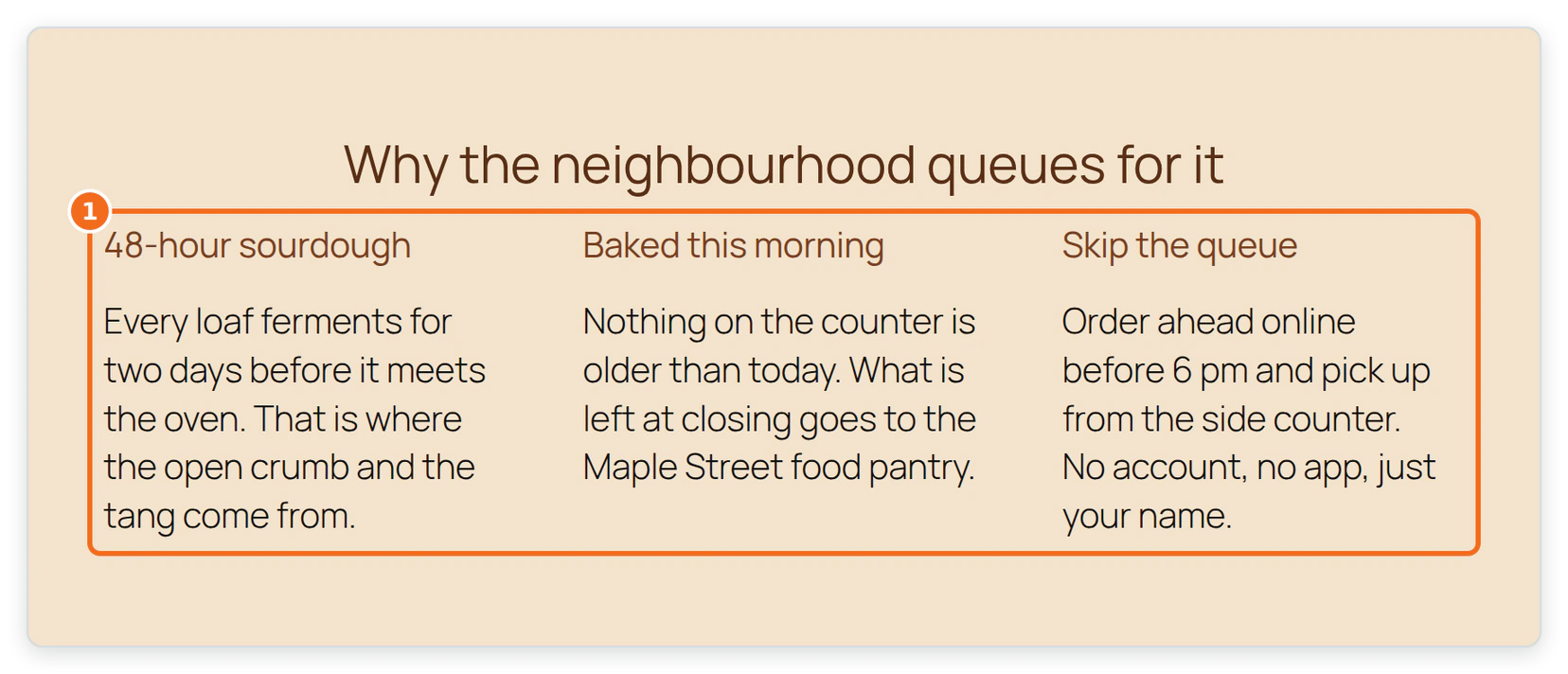
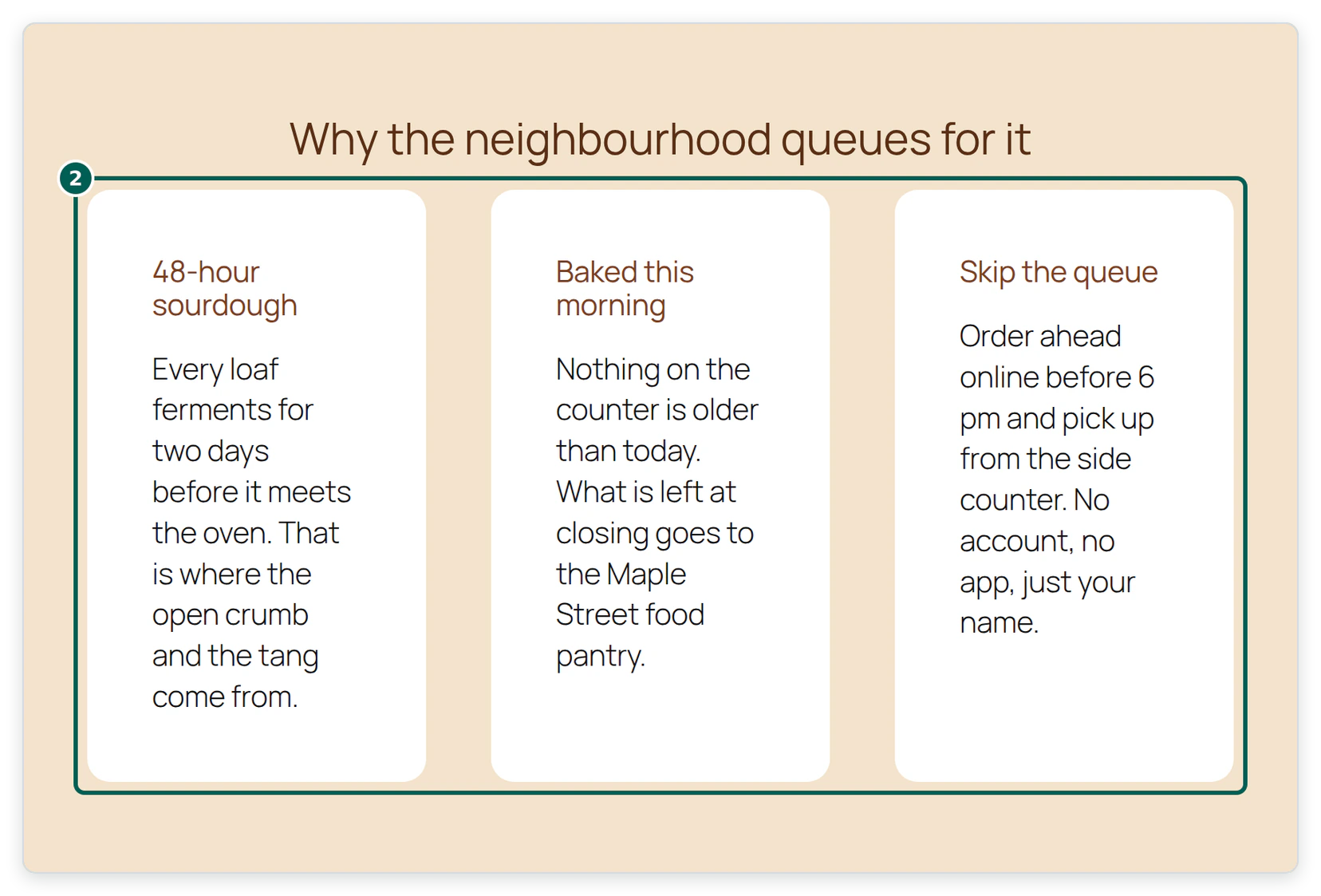
patch_content call that changed three column blocks. Captured 21 Oct 2026.If the site runs Elementor, the Elementor MCP guide shows what goes wrong when an MCP server writes Elementor data without the editor’s own meta, and why the skill exists. For the broader idea of a site an agent can work on safely, see how to make a WordPress site AI agent ready.
Step 7: How do you build a custom WordPress plugin with Antigravity?
Ask the agent to write the plugin in your Antigravity project folder, zip it, install it on the sandbox with InstaMCP’s plugin_operations tool, and then read site_logs for fatal errors. Writing locally first means the code sits in your workspace where you can review the diff, and the sandbox gets the finished zip.
In this project folder, write a WordPress plugin called
corner-crumb-tools:
  - register a bakery_item post type with price and section
    meta (show_in_rest)
  - a [bakery_menu] shortcode that lists items grouped by section
  - a [bakery_order_form] shortcode with a nonce, server-side
    validation, and a 6 pm cutoff for next-day pickup
Escape all output. Show me the diff, then zip it, install it on
corner-crumb with plugin_operations (source: zip, activate), read
site_logs for fatals, and add the shortcodes to the Menu and
Order ahead pages.
The plugin InstaWP built from this prompt is 162 lines of PHP. The part worth reading is the cutoff logic, because it is the business rule a customer will notice if it is wrong:
const CCT_CUTOFF_HOUR = 18; // Orders for tomorrow close at 6 pm, site time.

function cct_earliest_pickup() {
	$now  = current_datetime();
	$days = ( (int) $now->format( 'G' ) >= CCT_CUTOFF_HOUR ) ? 2 : 1;
	return $now->modify( '+' . $days . ' day' )->format( 'Y-m-d' );
}
What happened when the agent tried to install it?
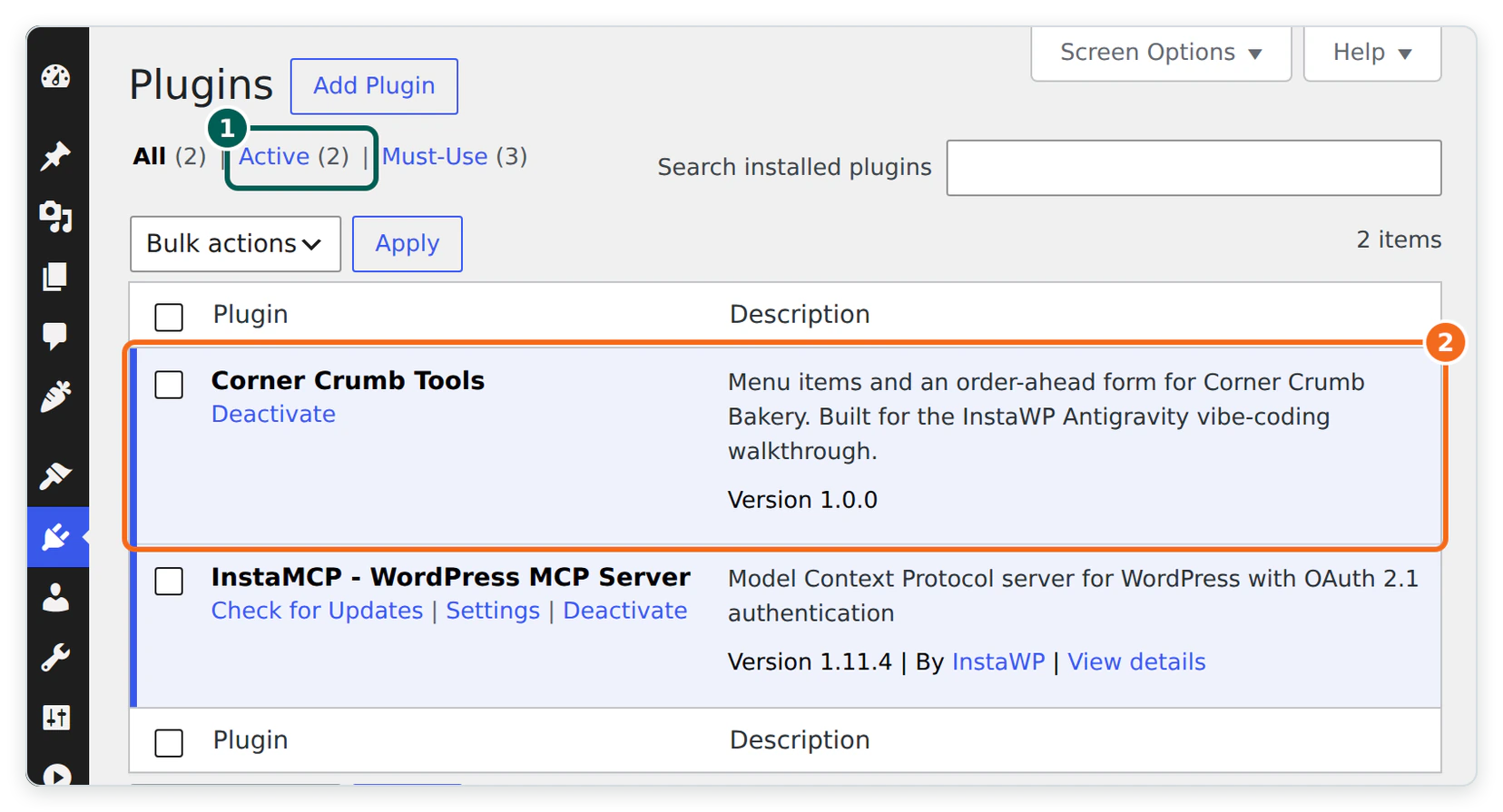
The first install was refused. InstaMCP answered Operation blocked: Safe mode is enabled. Plugin operations is not allowed. A later call to save each menu item’s price with set_meta was refused the same way. Creating pages and menu items worked throughout.
That is worth knowing, because the Safe Mode checkbox is labelled “prevents delete operations”. On InstaMCP 1.11.4 it also stopped a plugin install and a post-meta write, which are two of the riskier things an agent can do. So the workflow on a sandbox is: switch Safe Mode off in WordPress admin under Settings, InstaMCP, General, let the agent install the plugin and write its meta, then switch Safe Mode back on.
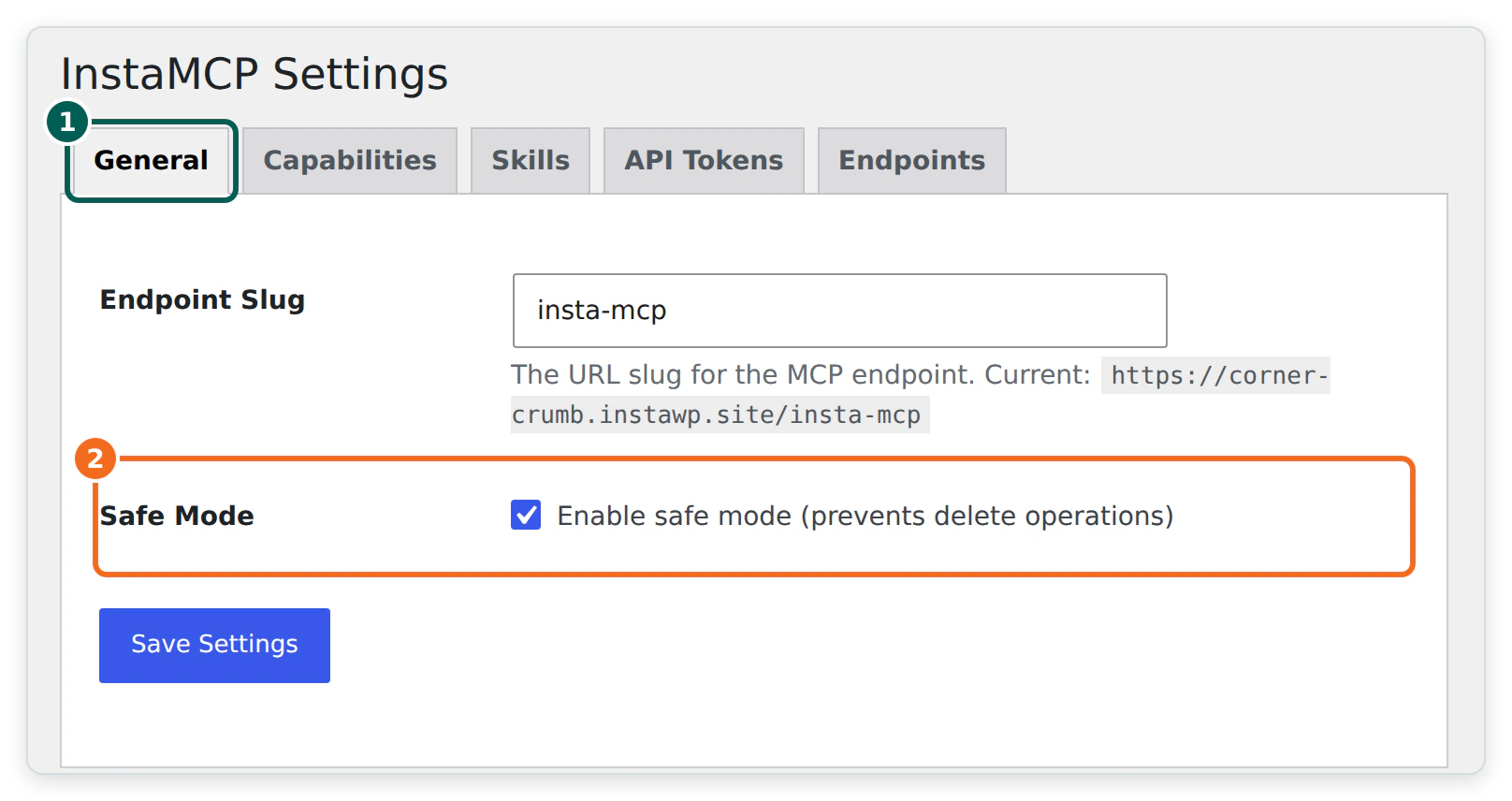
With Safe Mode off, one plugin_operations call installed and activated the zip, and site_logs filtered to fatal errors returned 0 lines. The WordPress Plugin Handbook and its security guidance are what to compare the agent’s code against: nonces, sanitising input, escaping output.
plugin_operations. Captured 21 Oct 2026.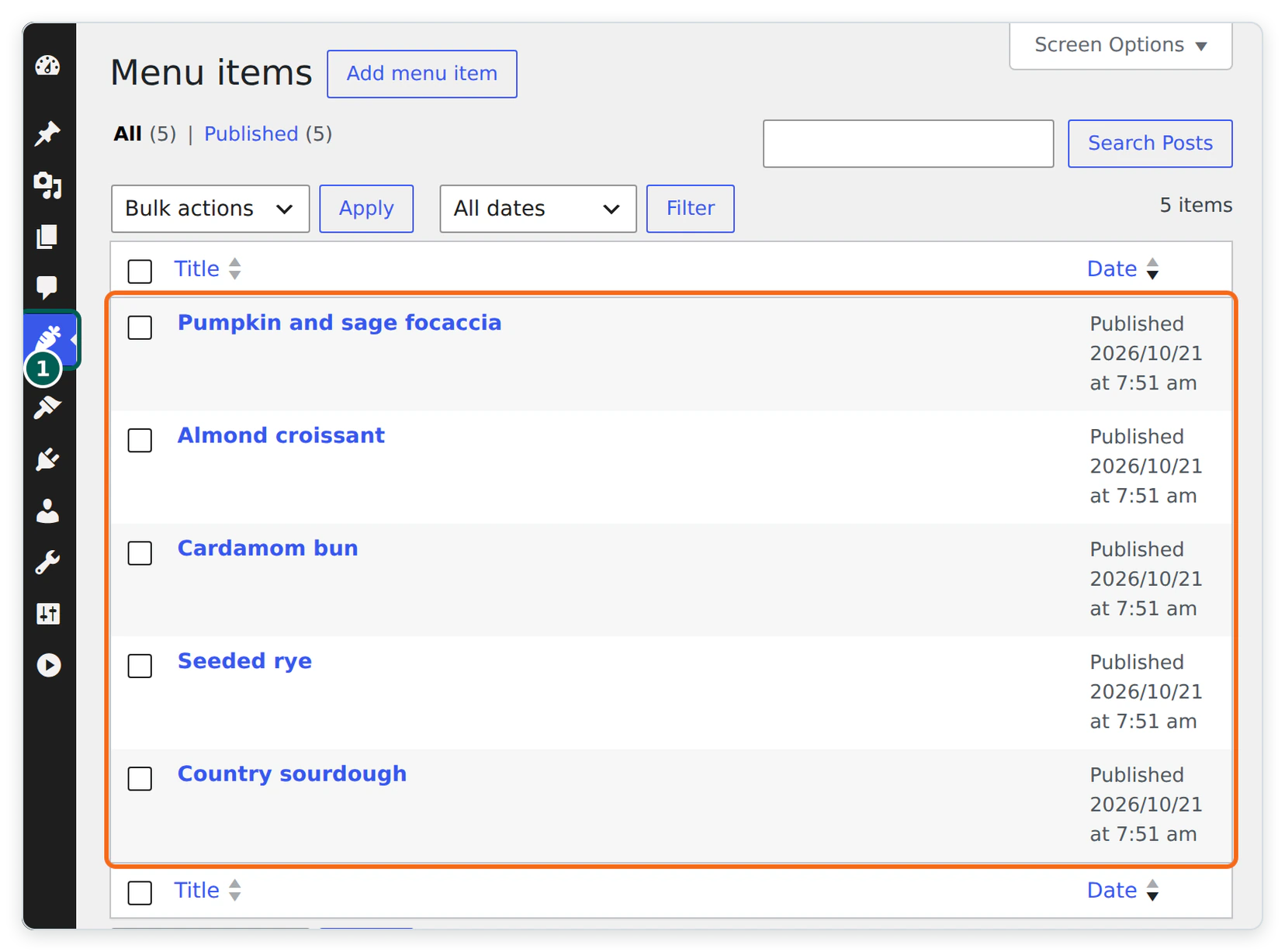
set_meta. Captured 21 Oct 2026.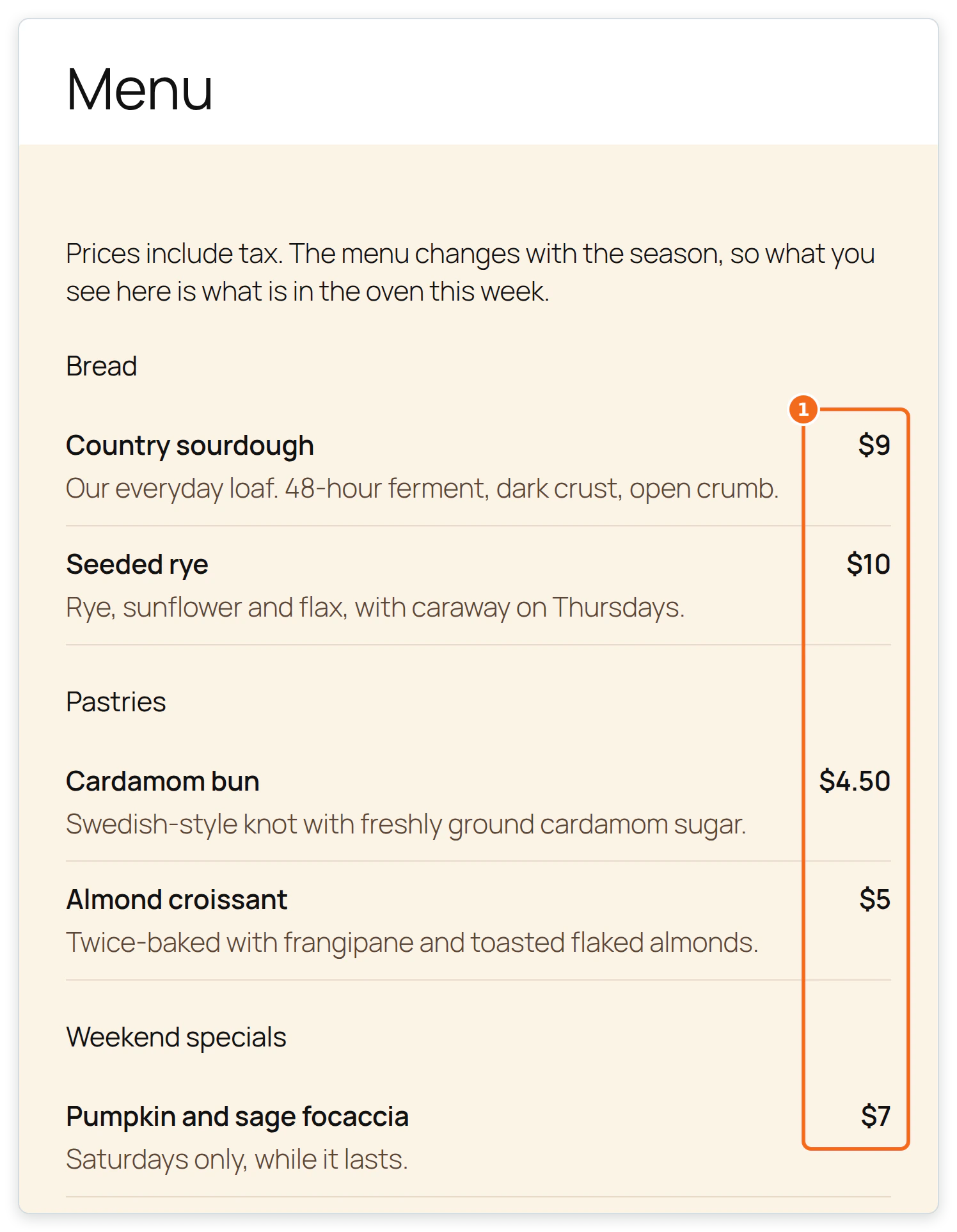
Step 8: How do you test the site with Antigravity’s browser agent?
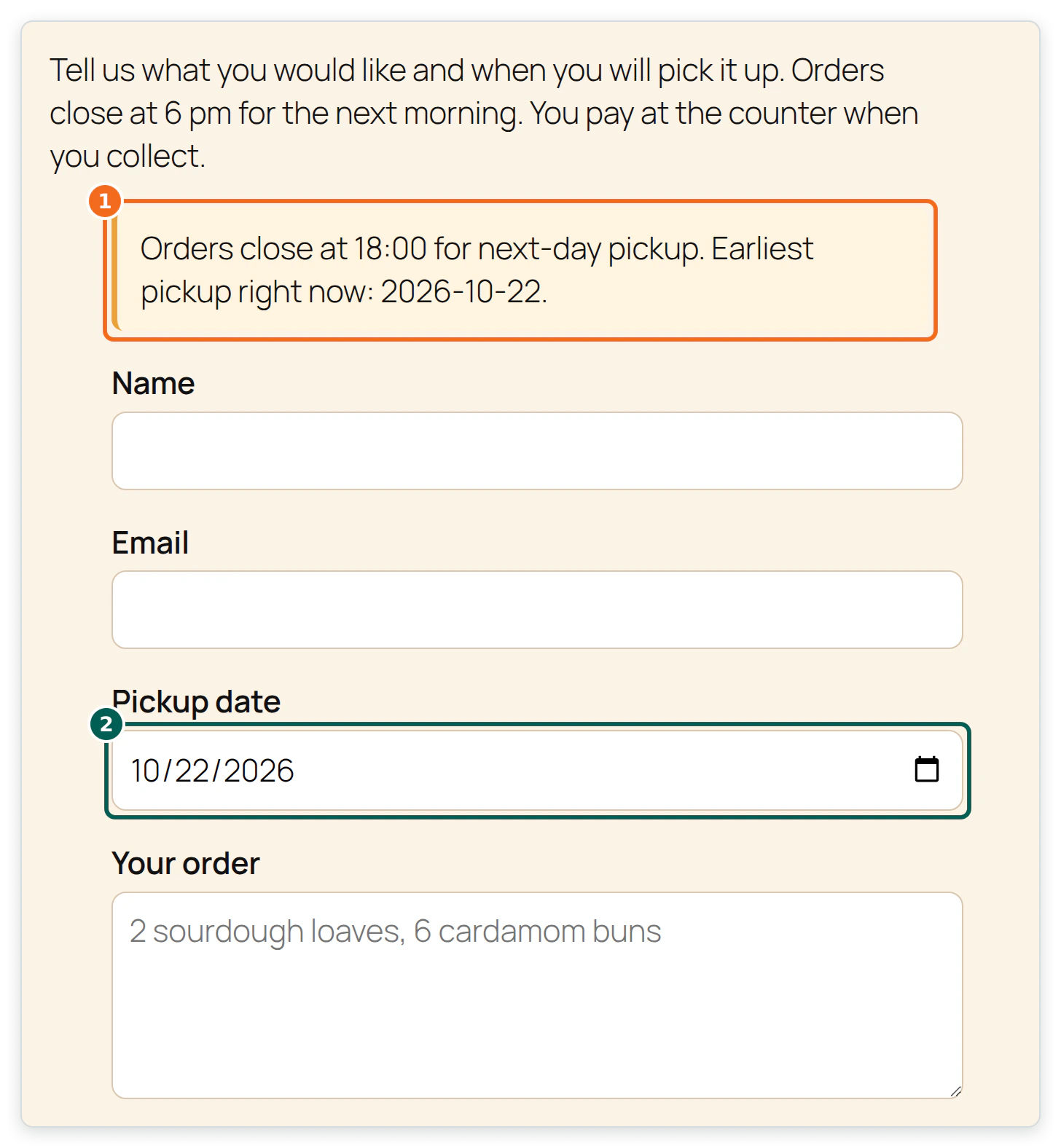
Ask Antigravity to open the site in its browser, try the flows a customer would use, and record what happened. Antigravity’s browser subagent drives a local Chrome in a separate profile, takes screenshots and saves recordings as artifacts, so you review evidence instead of a summary.
Open https://your-site.instawp.site/order-ahead/ in the browser.
1. Submit a test order for tomorrow and screenshot the result.
2. Submit again with today's date and screenshot the error.
3. Open the Menu page and confirm all five items show prices.
Then call site_logs for fatal errors and report what you found.
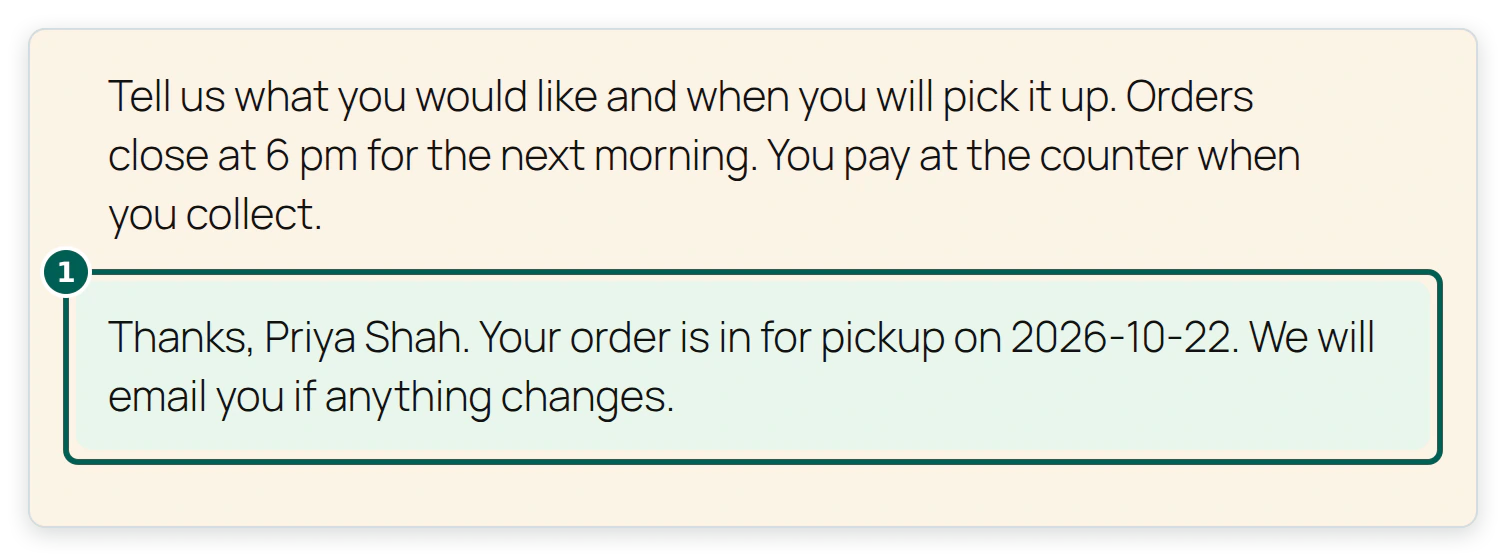
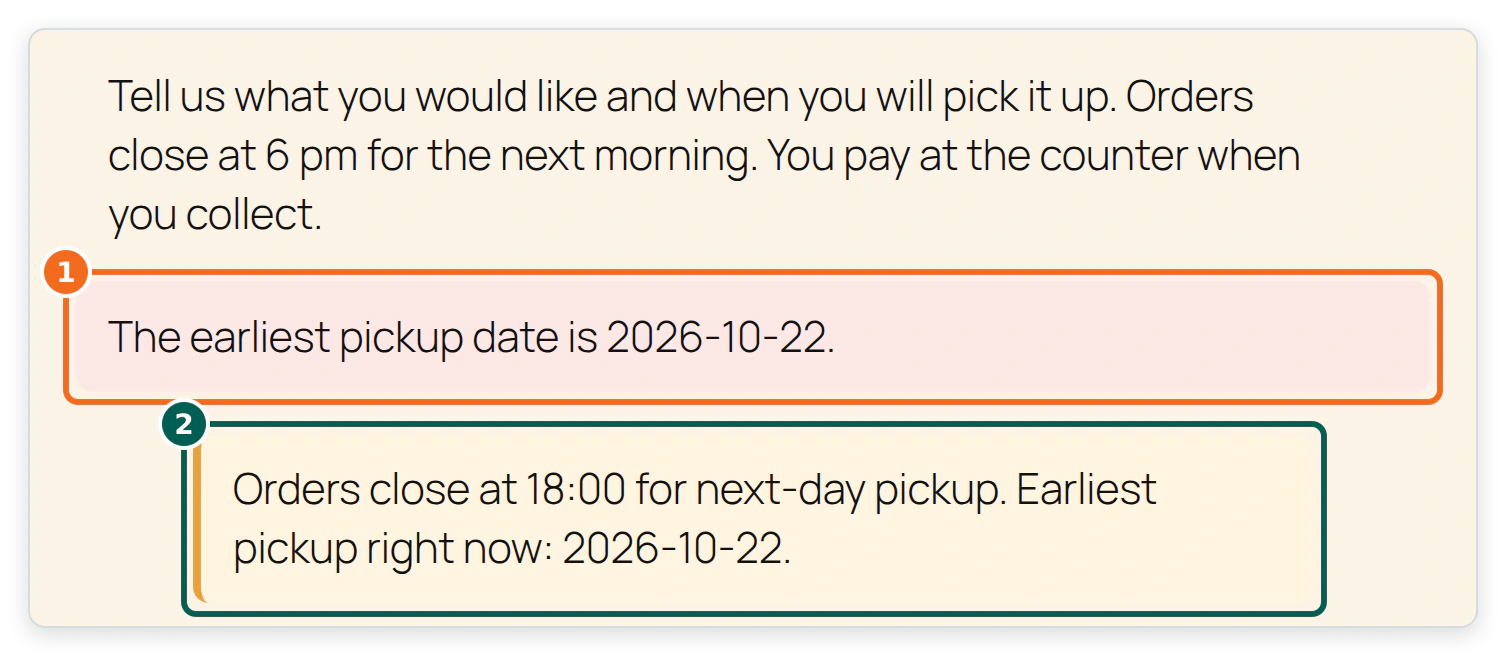
In InstaWP’s run the form accepted an order for 22 October 2026 and showed a confirmation. A second request for 21 October 2026, sent straight to the server so the browser’s date picker could not stop it, came back with “The earliest pickup date is 2026-10-22.” That second check matters more than the first: it proves the rule is enforced by the plugin, not only by the form field.
Step 9: How do you take the WordPress site Antigravity built live?
Upgrade the sandbox to a production plan, map your domain, and confirm backups are running. On InstaWP the sandbox Antigravity built is the site that goes live, so there is no export or migration step.
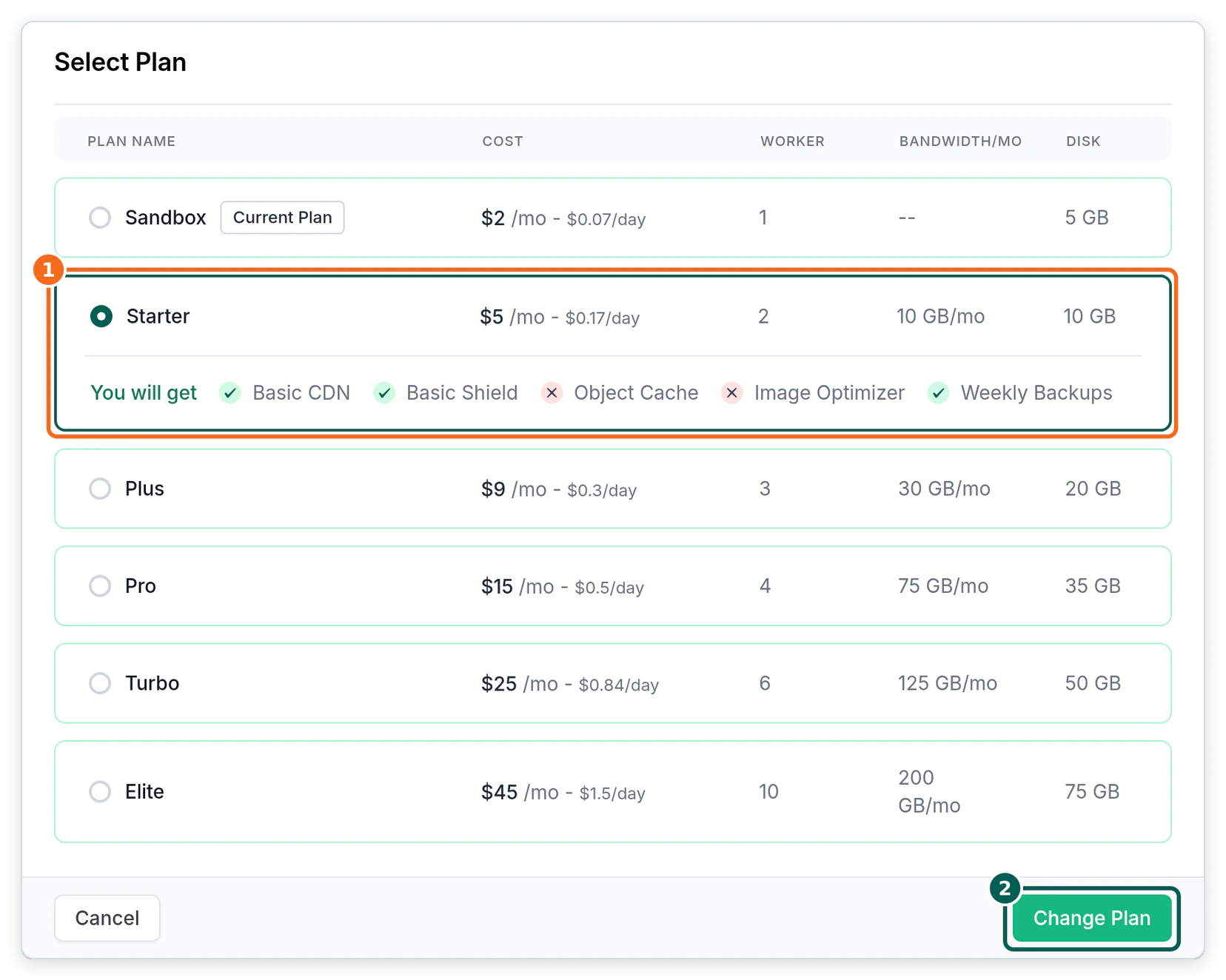
- Upgrade the plan. Upgrade the site plan from Sandbox to a production plan. Starter, at $5 a month billed daily, adds a basic CDN, Basic Shield and weekly backups. Plus ($9 a month) and higher move to a premium CDN, Advanced Shield and daily backups. See InstaWP managed WordPress hosting for what each plan includes.
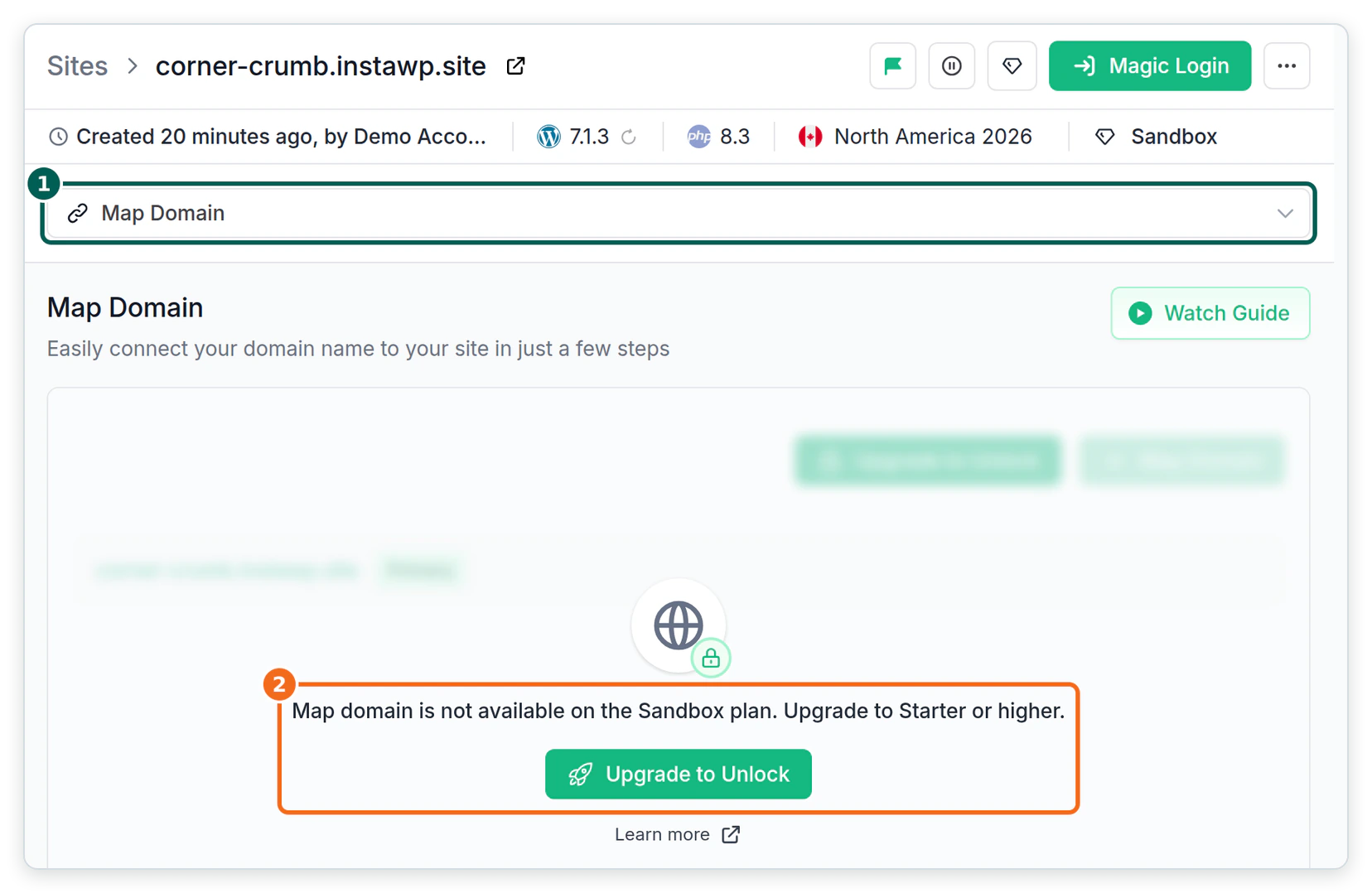
- Map the domain. Map a custom domain to the site. SSL is issued for it. The Map Domain screen stays locked until the site is on Starter or higher.
- Check backups. View and manage backups and take one before the first big change after launch.
- Keep a place to experiment. On Pro and higher plans, WordPress staging gives the live site a copy for the next round of vibe coding. The staging docs explain pull and push.
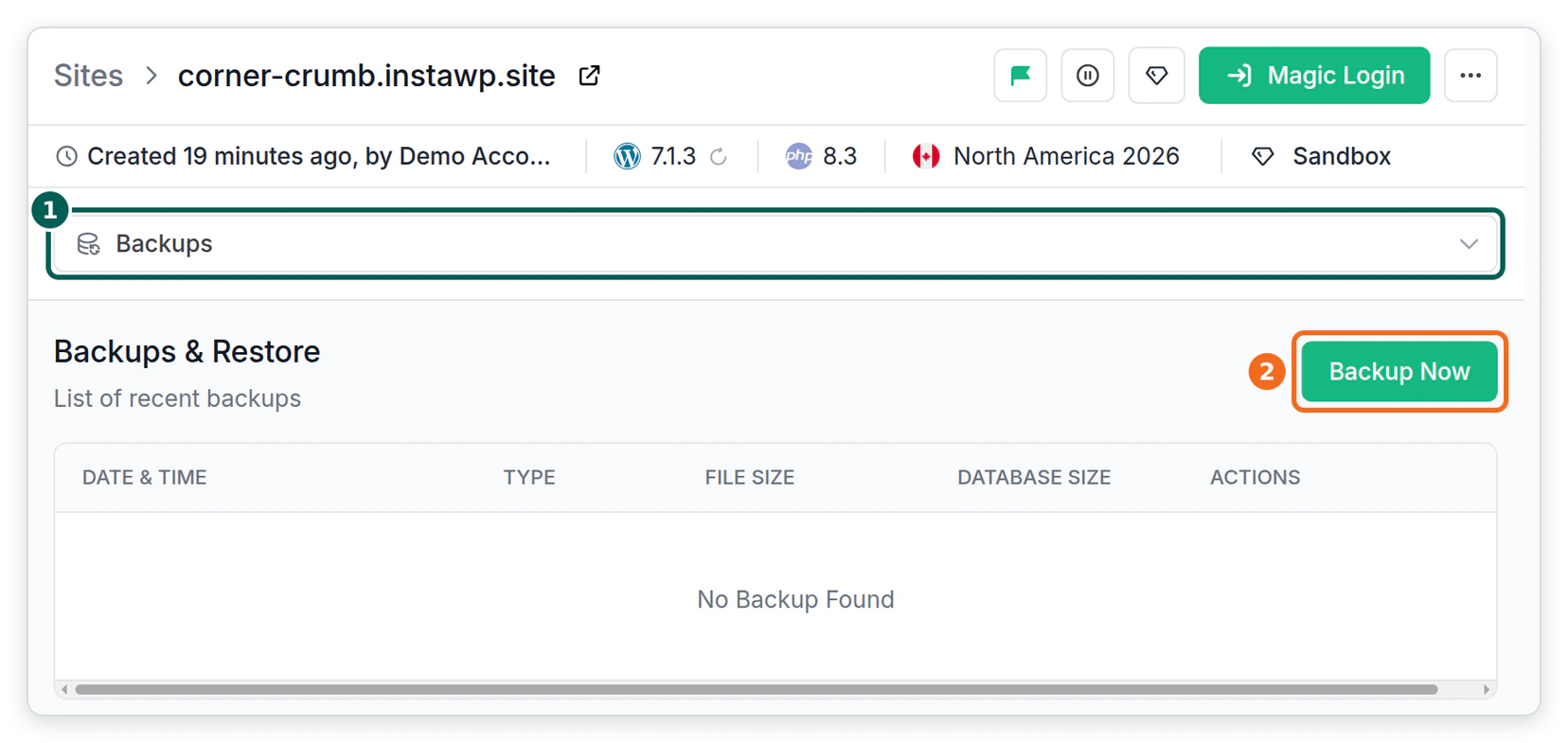
If you used Antigravity to build something that is not WordPress, such as a React or Next.js app, the hosting choices are different. How to deploy a vibe-coded app covers those.
What can go wrong when Antigravity works on WordPress, and how do you contain it?
The main risks are an agent running a destructive command, an agent following instructions hidden in content it reads, and an agent changing a live site before anyone has looked. Antigravity has public examples of the first two, so treat them as real rather than theoretical.
The Wikipedia entry for Google Antigravity records three: security researchers described indirect prompt-injection attacks that could exfiltrate data or run commands; Pillar Security disclosed a flaw in the file-search tool that allowed arbitrary code execution even in the most restrictive security mode, which Google fixed on 28 February 2026; and a user reported that Antigravity in Turbo mode erased an entire drive after being asked to clear a project cache.
| Risk | Antigravity control | InstaWP control |
|---|---|---|
| A destructive shell command | Default or Request Review preset, never Turbo | The work happens on a sandbox site, and production has backups to restore |
| Prompt injection from page content or a plugin readme | MCP tools in Ask mode, disabledTools for anything not needed | execute_php, db_query and site_files are off by default |
| An agent deletes or overwrites content | Request review on every plan | Safe Mode blocks deletes, plugin operations and meta writes |
| A leaked connection URL | Keep mcp_config.json out of Git, or send the token as a header | One token per site, revocable; Account MCP uses OAuth instead |
| Changes land on a live site unreviewed | Artifacts and browser recordings for review | Build on a sandbox, push from staging only after a person checks it |
Read the two right-hand columns together. Antigravity’s settings decide what the agent may try. InstaWP’s settings decide what WordPress will accept, even if the agent tries anyway. You want both, because the incidents above were cases where the agent-side controls were bypassed or switched off.
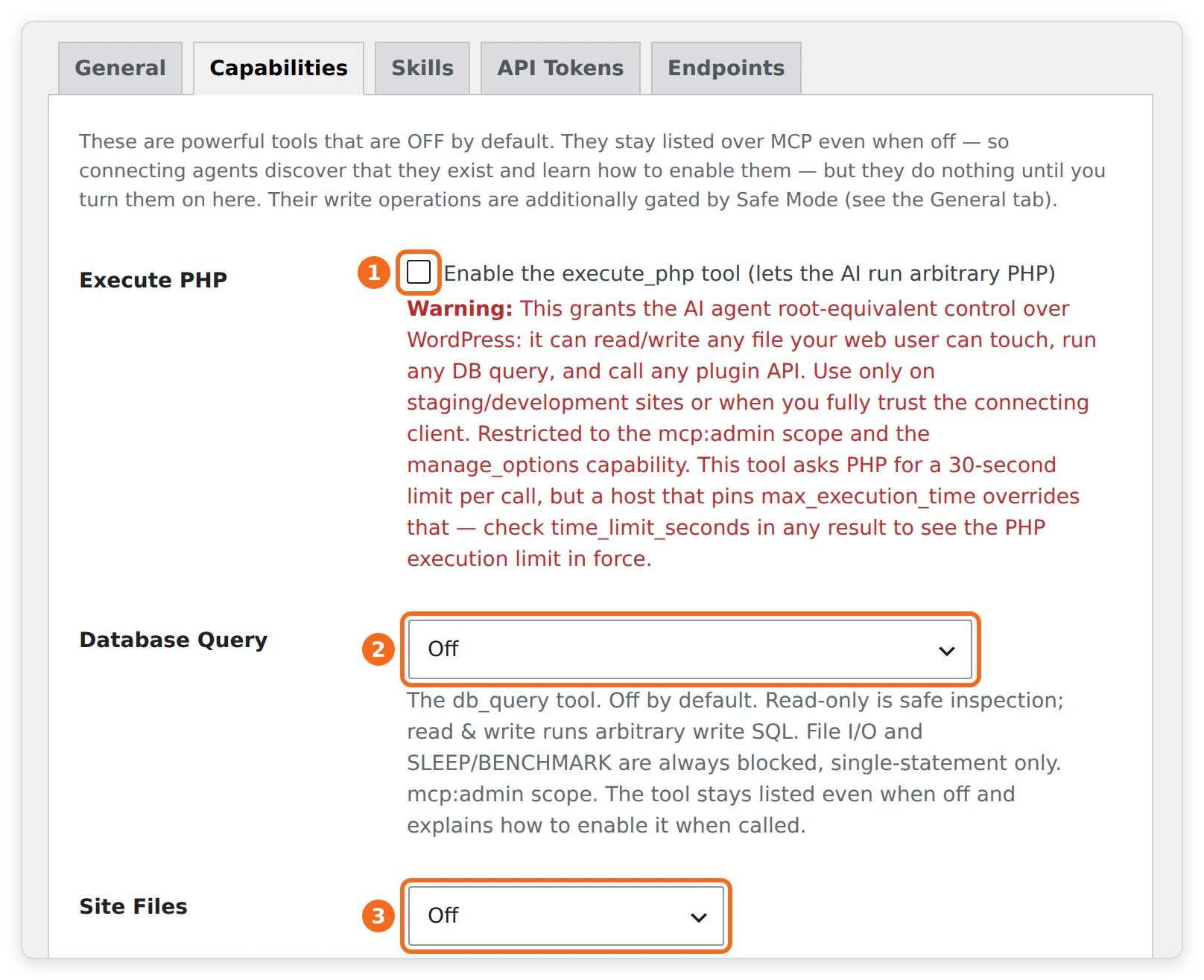
InstaWP’s guide to WordPress MCP explains the permission model in more depth, including how to issue a lower-role token for an agent.
Is Google Antigravity better than Cursor or Claude Code for WordPress?
For this workflow they are closer than the comparisons suggest, because the WordPress side is the same. The InstaWP dashboard gives every site one MCP connection URL that works in all three: Cursor and Claude Code get one-click “Add to” buttons, and Antigravity gets the copy-config block from step 4.
- Antigravity has plan artifacts, a browser subagent and a free plan built in, so it suits people who want to review and steer rather than edit.
- Cursor is editor-first and suits developers who want to read and change every file the agent touches.
- Claude Code is terminal-first with reusable skills. InstaWP’s guide to Claude Code skills for web development shows that style.
If you are weighing a hosted builder instead of an agent plus WordPress, WordPress vs Lovable compares the two approaches, and how to vibe code a website covers the method independent of tool.
Google Antigravity is Google’s agent-first coding platform, and the App is now its main surface. To use it on WordPress, install the App, work in Planning mode with Request review, and keep Turbo off. Create an InstaWP sandbox, copy its Antigravity config from the MCP tab into ~/.gemini/config/mcp_config.json and refresh Installed MCP Servers. Brief the agent like a contractor, approve its plan, let it build, and make it prove each change. Switch Safe Mode off only for plugin installs and meta writes, and back on after. When the site is right, convert the sandbox to a production plan and map the domain.
Google Antigravity for WordPress: FAQs
What is Google Antigravity?
Google Antigravity is an agent-first coding platform from Google. You describe a task, and its AI agents plan the work, write and run the code, test it in a browser and return artifacts such as plans, diffs and recordings for you to review. It runs as a desktop App, the Antigravity IDE, a CLI and editor extensions.
Is Google Antigravity the same as the Google Gravity trick?
No. Google Gravity is an old browser physics experiment, not a Google product, that makes the elements of the Google homepage fall down the screen. Google Antigravity is Google’s AI coding platform, downloaded from antigravity.google.
Is Antigravity no longer an IDE?
It is still an IDE, but no longer only one. Since Antigravity 2.0 launched on 19 May 2026, the standalone desktop App is the main product, and the original editor continues as a separate download called Antigravity IDE. There is also a CLI and extensions for VS Code, JetBrains IDEs, Visual Studio, Zed and Xcode.
What is the difference between the Antigravity App and the Antigravity IDE?
The App is a desktop command center for starting, reviewing and coordinating agents across projects. The IDE is the original editor with the agent in a side panel. Both use the same mcp_config.json format, but you manage MCP servers in different places: Settings, Customizations in the App, and the agent panel’s MCP Servers menu in the IDE. Gemini 4 Argon is available in the App but not in the IDE.
Is Google Antigravity free?
Yes, there is a free individual plan with a quota that refreshes weekly and access to Gemini 3.8 Flash, as of Google’s documentation on 21 October 2026. Google AI Pro and Google AI Ultra subscriptions add a larger quota that refreshes every five hours and models such as Gemini 4 Argon and Claude Opus 5.5.
Does Antigravity support MCP?
Yes. The App, the IDE and the CLI all support MCP servers, configured in mcp_config.json (globally at ~/.gemini/config/mcp_config.json or per project at .agents/mcp_config.json). Remote servers must use the serverUrl key; url and httpUrl are not supported.
Can Google Antigravity build a WordPress site?
Yes, if it can reach a WordPress install. Connect it to a site over MCP, for example an InstaWP sandbox with InstaMCP, and it can create pages, menu items and settings and install a plugin it wrote. InstaWP built a four-page bakery site with a custom plugin this way on 21 October 2026.
How do you connect Google Antigravity to WordPress?
Connect it over MCP. On InstaWP, open the site, then Extensions, then MCP, switch on Enable MCP and copy the block from the Antigravity setup guide. Add it to ~/.gemini/config/mcp_config.json, then refresh Installed MCP Servers under Settings, Customizations in the App.
Do you need to know how to code to use Antigravity for WordPress?
No, but it helps to read what the agent proposes. You describe pages and features in plain language and approve plans. For anything that becomes code, such as a custom plugin, ask the agent to show the diff and explain it before it installs anything, and keep the work on a sandbox.
How do you use Google Antigravity for vibe coding?
Open a project, choose Planning mode, and describe the outcome in a detailed prompt. Review and comment on the implementation plan the agent produces, approve it, then review the diffs, screenshots and browser recordings it creates as it works. Keep the review policy on Request review while you learn.
Is Google Antigravity worth it for WordPress work?
It is worth trying, because the free plan covers a small build and its plan review and browser recordings suit non-developers. The agent is only as safe as the site it is pointed at, so use a sandbox, keep power tools off and review plans before approving them.
Which model should I choose in Antigravity for vibe coding?
On the free plan, Gemini 3.8 Flash is the model that stays available after 2 November 2026, when the Claude 4.6 models and GPT-OSS-120b are removed. On Google AI Pro or Ultra you can also choose Gemini 4 Argon or Claude Opus 5.5, but Gemini 4 Argon is not available in the Antigravity IDE.
Can Antigravity edit Elementor pages?
Through InstaMCP it can. The page-builder-pages skill builds and edits Elementor and Bricks pages by writing the builder’s own data and regenerating its CSS, so the page still opens in the builder. Ask the agent to read the skill with skill_get before it starts.
Why did InstaMCP block my agent’s plugin install?
Because Safe Mode was on. On InstaMCP 1.11.4, Safe Mode refused plugin_operations and set_meta as well as deletes. Switch it off in WordPress admin under Settings, InstaMCP, General for the install, then switch it back on.