To connect Cursor to WordPress, add the site to Cursor as an MCP server. On an InstaWP site, switch on MCP and click Add to Cursor, or paste a url and an Authorization header into ~/.cursor/mcp.json. Cursor then gets 43 WordPress tools next to your code, so one agent can edit a plugin file, update the page that describes it and check the live result.
On 22 October 2026, InstaWP connected Cursor’s own command-line agent (Cursor CLI 2026.10.19) to a sandbox running InstaMCP, the WordPress MCP server built into InstaWP sites. InstaWP tested both ways in, a site token and an account-wide OAuth sign-in, broke the config five different ways to see what Cursor reports, and made one real code-and-content change on the live site. Every number below comes from that run.
Table of Contents
| Question | Answer |
|---|---|
| What connects them | The Model Context Protocol (MCP). Cursor is the MCP client; InstaMCP on the WordPress site is the MCP server. |
| Fastest setup | Site MCP tab, switch on Enable MCP, click Add to Cursor, approve the install in Cursor. |
| Manual setup | Add a url and headers entry to ~/.cursor/mcp.json (every project) or .cursor/mcp.json (one project). |
| Tools Cursor gets | 43 on a site connection. 18 on a read-only account connection. |
| How it authenticates | Site MCP: a 64-character token sent as Authorization: Bearer. Account MCP: OAuth with dynamic client registration and PKCE. |
| Connection speed | cursor-agent mcp list returned ready in 3.95 seconds. A single MCP request took 0.70 to 0.75 seconds over five runs. |
| What it costs | Site MCP works on Sandbox plans and above. A sandbox is $2 a month; production plans start at $5. |
| Off by default | Account MCP, site MCP, execute_php, db_query and site_files. Safe Mode on. |
| Most common failure | Error: Connection failed, for at least five different causes. |
| Do not | Commit a token to Git, or let Cursor run every tool without approval on a live site. |
Read the table as two decisions: which connection to make (rows 2 to 5) and which brakes to keep (rows 8 and 10). The rest of this guide takes them in that order.
What can Cursor do once it is connected to WordPress?
Once connected, Cursor can read and change the live WordPress site, not just the files in your editor. Over InstaMCP it creates and edits posts and pages, validates Gutenberg blocks, writes post meta, installs and edits plugins and themes, uploads media and reads the site’s error logs. The point for a Cursor user is that code and site live in one conversation: change a plugin, update the page that explains it, then check the page.
| Job | InstaMCP tools Cursor calls | What to know |
|---|---|---|
| Content | list_content, get_content, create_content, update_content, patch_content | patch_content changes one string and has a dry_run preview. Use it instead of resending a whole page. |
| Blocks | discover_blocks, validate_blocks | Ask Cursor to validate before every write, so the page opens in the editor without “unexpected content”. |
| Plugins and themes | plugin_info, plugin_operations, plugin_files, theme_info, theme_operations, theme_files | Plugin file writes saved a backup first. Safe Mode blocked plugin file writes and installs in InstaWP’s tests. |
| SEO and custom fields | get_meta, set_meta | Writes Rank Math, Yoast and ACF fields directly. Blocked while Safe Mode is on. |
| Media | media_upload, media_attach, media_metadata | Upload from a URL or base64, set alt text, attach to a post. |
| Diagnostics | site_logs | Filter by level. Ask for fatal errors after every code change. |
| Taxonomies | 9 tools for categories, tags and custom taxonomies | Create, assign and update terms. |
| Skills and memory | skill_list, skill_get, memory_save and more | Reusable instructions stored on the site, for example how to build pages in its theme. |
| Power tools | execute_php, db_query, site_files | Listed in Cursor, but refuse every call until a site admin switches them on. |
Read the right-hand column before you write your first prompt. Most surprises come from it: the power tools are visible in Cursor’s tool list but refuse to run, and Safe Mode blocks exactly the writes a coding agent wants to make. The site MCP documentation lists every tool.
Should you connect Cursor to one site or to your whole InstaWP account?
Connect one site when you are coding on that site; connect your account when you manage many. InstaWP offers both, and Cursor supports both. Site MCP reaches inside one WordPress install with a token. InstaWP Account MCP signs in once with OAuth and works across the sites in your current team, at the hosting level.
| Site MCP (InstaMCP) | Account MCP | |
|---|---|---|
| URL | https://your-site.instawp.site/insta-mcp | https://app.instawp.io/mcp |
| Sign-in | A token in an Authorization: Bearer header (or in the URL as ?t=) | OAuth in the browser. Cursor registers itself, no client ID needed |
| Reaches | One site: its content, plugins, themes, meta and logs | Every site in your current team: details, plugins, themes, users, backups, snapshots |
| Tools in Cursor | 43 | 18 on a read-only connection |
| Access level | The token’s WordPress role, plus Safe Mode | Read-only or Read and write, chosen on the consent screen for each connection |
| Turn it off | Switch off Enable MCP on the site | Switch off Enable MCP for your account |
| Use it for | Building or fixing one site | Finding a site, checking updates across sites, magic login links |
Read the “Reaches” row as the real difference. Site MCP works inside WordPress; Account MCP works on the hosting around it. Many agencies connect both: the account for the overview, and the one site they are coding on. InstaWP explains the split in more depth in Account MCP vs Site MCP.
What do you need before you connect Cursor to WordPress?
You need Cursor, a WordPress site hosted on InstaWP with MCP available, and a few minutes. Cursor’s desktop app and its CLI both support remote MCP servers with headers and OAuth, according to Cursor’s MCP documentation.
- Cursor, the desktop app or the Cursor CLI. This guide was tested on the CLI, version 2026.10.19.
- A WordPress site on InstaWP. Site MCP is available on the Sandbox plan and above. Create a site from scratch or from a template, or use an existing one. A WordPress staging copy of a live site is the safest target (staging is included on Pro and above).
- InstaMCP on the site. It comes with InstaWP sites; the MCP tab switches it on. InstaMCP runs on InstaWP-hosted sites only, so a site hosted elsewhere has to move to InstaWP managed WordPress hosting first.
- For Account MCP only: MCP switched on for your account under Profile, MCP. It is off by default.
Steps 1 to 4 connect one site with a token. The section after them connects your whole account with OAuth. Do whichever you need; they do not depend on each other.
Step 1: How do you switch on MCP for the WordPress site?
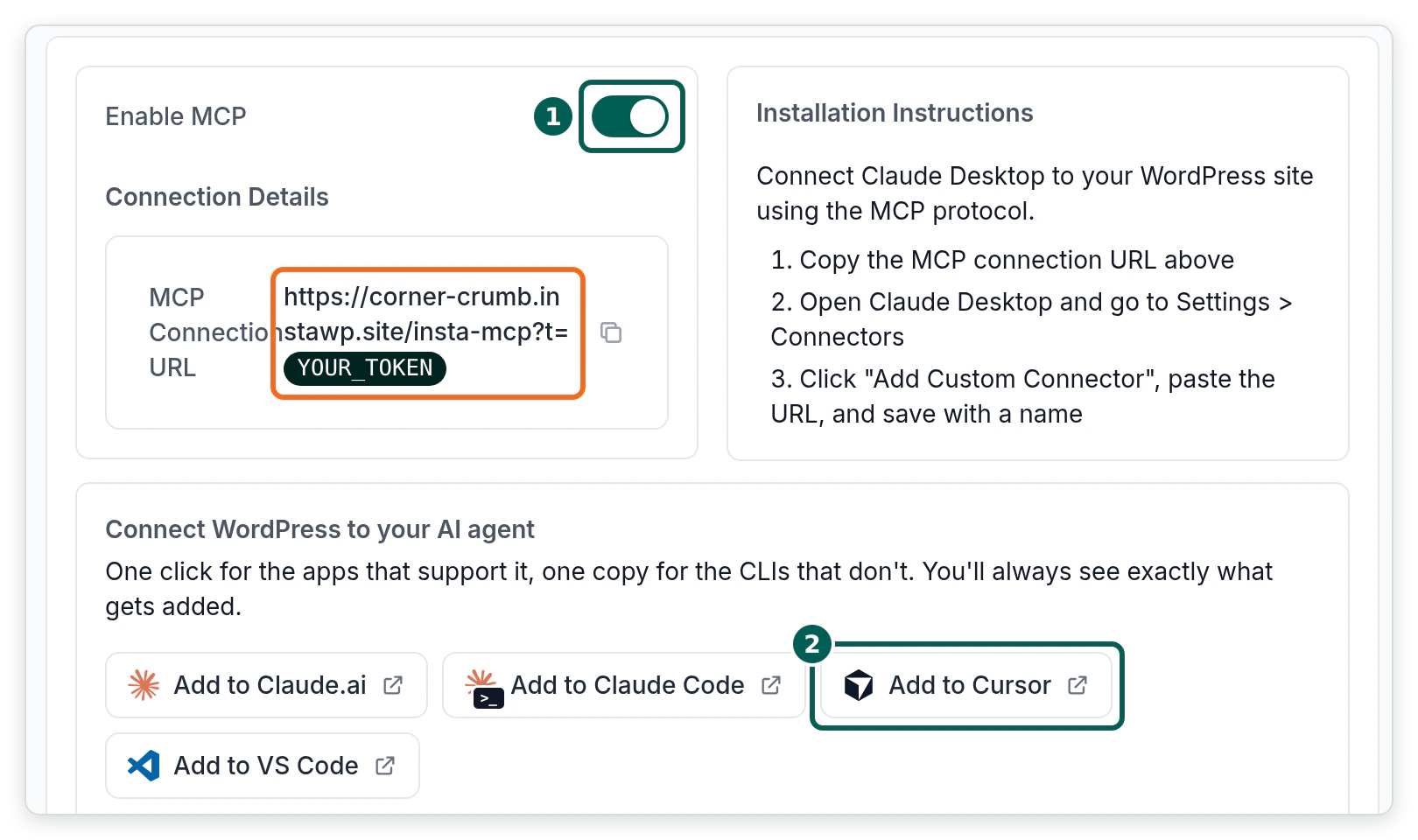
Open the site in the InstaWP dashboard, go to Extensions, then MCP, and switch on Enable MCP. The connection URL appears straight away, in the form https://your-site.instawp.site/insta-mcp?t=YOUR_TOKEN, and the client buttons below it are no longer blurred.
/insta-mcp, and Cursor reported Error: Connection failed.Step 2: How do you add the WordPress site to Cursor in one click?
Click Add to Cursor on the MCP tab. The button is a Cursor deep link: your browser hands it to the Cursor app, and Cursor shows its own install dialog for you to approve before anything is added. Nothing is installed by visiting the link alone.
InstaWP decoded the link its dashboard generated for the test site. It is 295 characters long and carries the server name and a base64 copy of the config. The server name is the site’s address turned into a slug, so each site gets its own entry in Cursor instead of overwriting the last one.
cursor://anysphere.cursor-deeplink/mcp/install
  ?name=corner-crumb-instawp-site
  &config=<base64 of the JSON below>

# decoded config
{
  "url": "https://corner-crumb.instawp.site/insta-mcp",
  "headers": { "Authorization": "Bearer YOUR_TOKEN" }
}
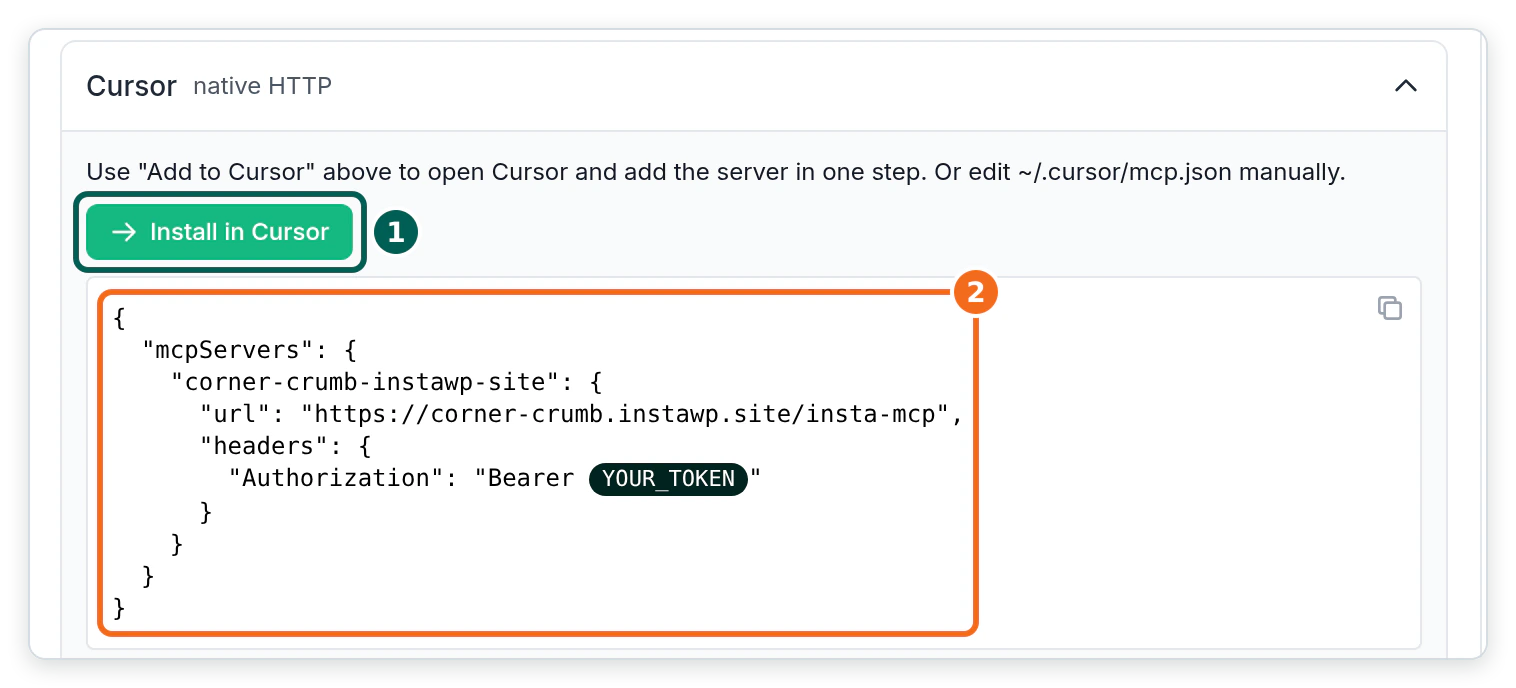
Notice two things in that config. The URL has no ?t= query, and the token travels in an Authorization header instead. That keeps the token out of server access logs and out of anything that records URLs. The same block sits under Setup guides for AI clients, then Cursor, with its own Install in Cursor button.
Step 3: How do you add InstaMCP to Cursor’s mcp.json by hand?
Copy the JSON from the Cursor setup guide into ~/.cursor/mcp.json to make the site available in every project, or into .cursor/mcp.json inside one project folder. Cursor merges the two files, and if both use the same server name, the project file wins. Save the file, then restart Cursor or toggle the server in Customize, then MCPs.
{
  "mcpServers": {
    "corner-crumb-instawp-site": {
      "url": "https://corner-crumb.instawp.site/insta-mcp",
      "headers": {
        "Authorization": "Bearer ${env:INSTAWP_SITE_TOKEN}"
      }
    }
  }
}
That version keeps the token out of the file. Cursor resolves ${env:NAME} in the url and headers fields from your environment, as Cursor documents for config interpolation. InstaWP tested it: with INSTAWP_SITE_TOKEN exported, Cursor showed the server as ready; with the variable unset, it showed Error: Connection failed. Export the variable in your shell profile and restart Cursor so the app can see it.
${env:...} form above, so each developer sets their own token and none of them lands in Git. The token-in-URL form (https://your-site.instawp.site/insta-mcp?t=YOUR_TOKEN with no headers) also connected in InstaWP’s test, but it puts the secret in the one string people copy around.Step 4: How do you check that Cursor can see the WordPress tools?
Open Customize, then MCPs in Cursor and confirm the server is switched on and lists its tools. In the Cursor CLI, cursor-agent mcp list shows each server’s status and cursor-agent mcp list-tools prints the tools. This is what InstaWP’s run printed:
$ cursor-agent mcp list
corner-crumb-instawp-site: ready
# 3.95 s from command to "ready"

$ cursor-agent mcp list-tools corner-crumb-instawp-site
Tools for corner-crumb-instawp-site (43):
- assign_terms_to_content (content_id, taxonomy, term_ids, append)
- create_content (content_type, title, content, status, ...)
- patch_content (content_id, operations, dry_run, create_backup)
- plugin_files (action, plugin, file_path, content, create_backup)
- site_logs (source, lines, level, search)
- validate_blocks (content, render)
# ...37 more
Then give Cursor a read-only first job, so you see it work before it changes anything: “Use the corner-crumb MCP server. List the active plugins and theme, and read the last 50 fatal errors from site_logs.” In InstaWP’s run, plugin_info answered in 0.72 seconds and theme_info in 0.78 seconds.
Cursor decides which tool calls need your approval. By default the agent asks before using an MCP tool. In Cursor 3.6 and later, the default Auto-review run mode lets allowlisted tools run straight away and sends the rest through a classifier, which Cursor’s run modes documentation says is not a security boundary. For a live site, keep Auto-review or Allowlist and do not use Run Everything.
How do you connect Cursor to your whole InstaWP account with OAuth?
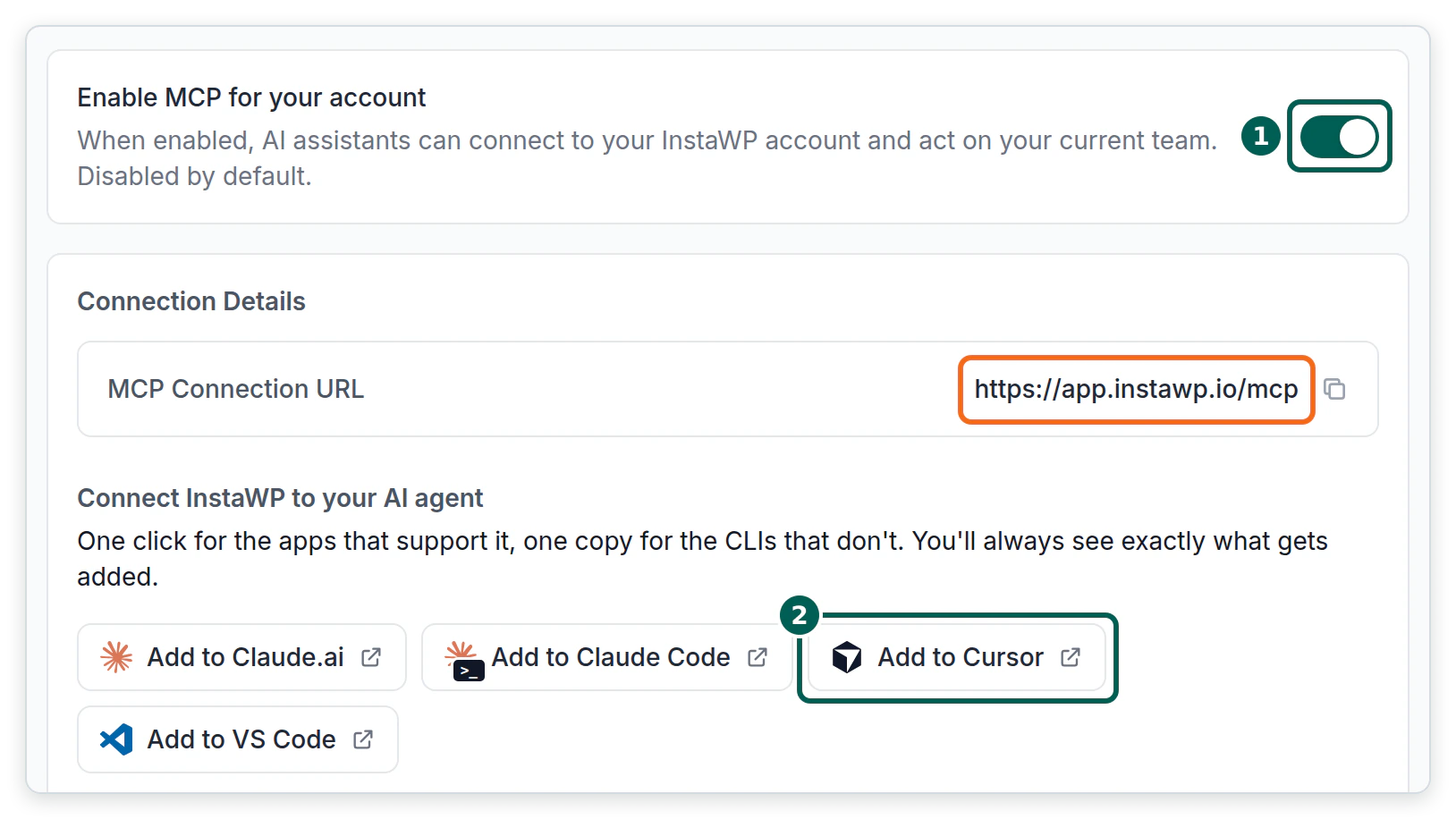
Switch on MCP for your account, add https://app.instawp.io/mcp to Cursor, and sign in when Cursor asks. There is no token to copy: Cursor registers itself with InstaWP’s OAuth server, opens the sign-in in your browser and stores the result. InstaWP’s Account MCP docs cover the same flow for other clients.
- In the InstaWP dashboard, open Profile, then MCP, and switch on Enable MCP for your account. It is disabled by default.
- Click Add to Cursor, or add
{"url": "https://app.instawp.io/mcp"}under a server name such asinstawpinmcp.json. No headers are needed. - Cursor shows the server as needing sign-in. In the CLI,
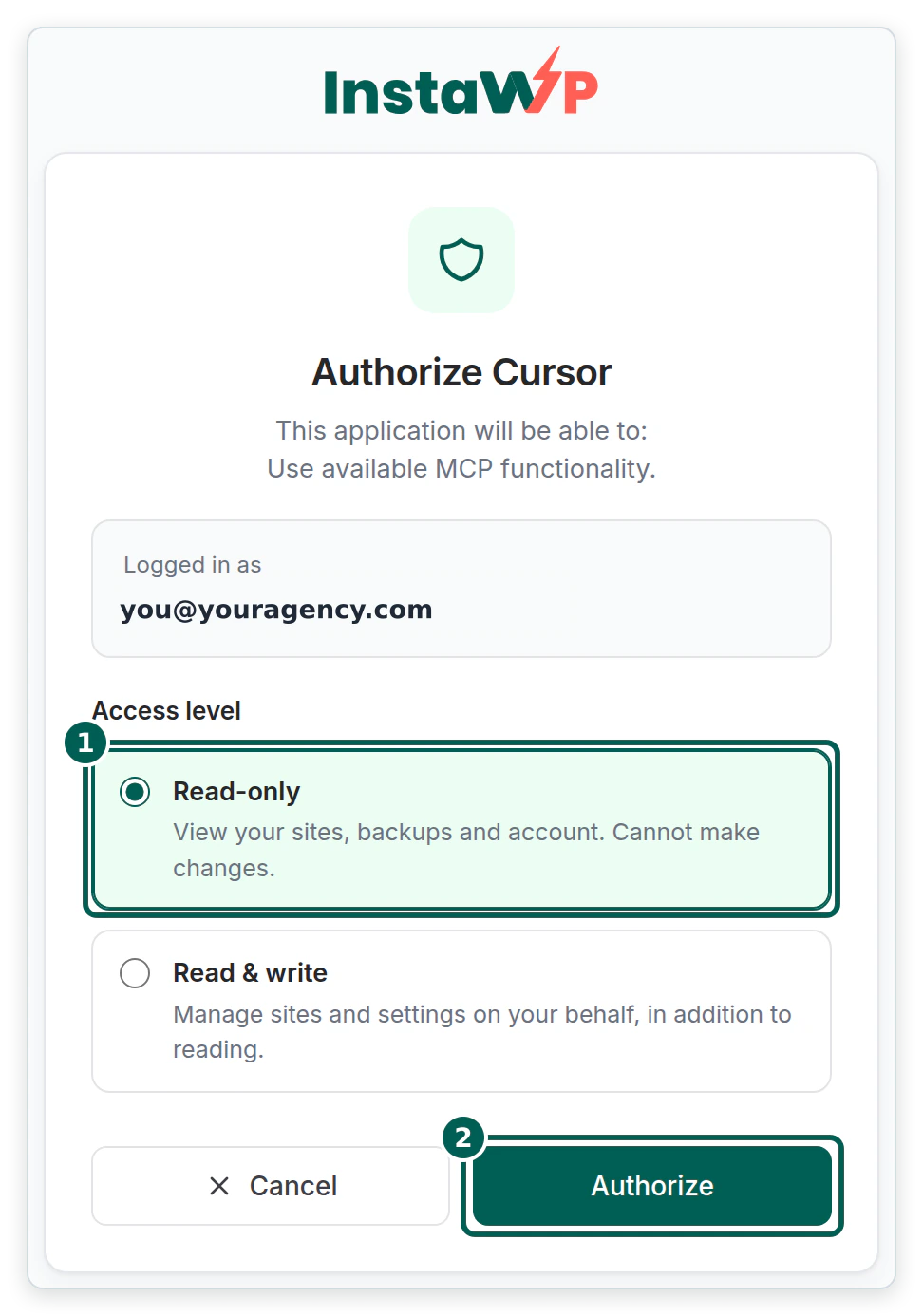
cursor-agent mcp listprintedinstawp: requires_authentication, andcursor-agent mcp login instawpopened the sign-in. - On the Authorize Cursor screen, choose Read-only or Read & write, then click Authorize. The browser shows “Authorization complete!” and hands control back to Cursor.
Under the hood this is standard MCP OAuth, and both sides advertise it. InstaWP’s server publishes its protected resource metadata, a registration endpoint and PKCE with S256.
Cursor’s CLI registered itself, sent a PKCE challenge and listened on http://localhost:8787/callback, which is the desktop callback Cursor documents. After sign-in, cursor-agent mcp list showed instawp: ready and listed 18 tools on the read-only connection, including list_sites, list_site_plugins with an updates-only filter, list_backups and get_magic_login.
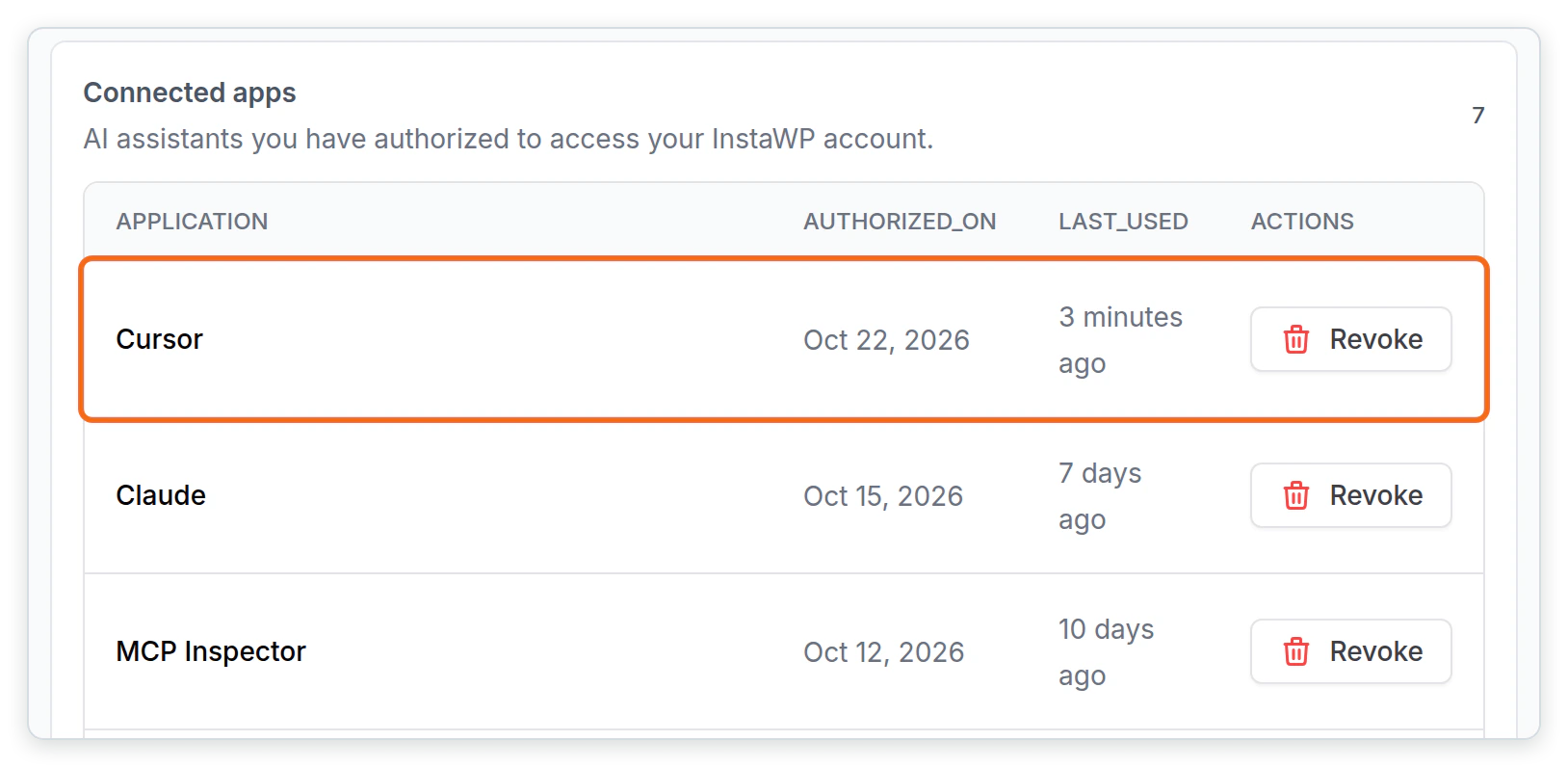
get_site_credentials, get_ssh_sftp, get_site_mcp_token) were switched on, so they appeared even on a read-only connection. The page notes that shell and credential tools are off by default.Every app that signs in is listed under Connected apps on the same page, with the date it was authorized and when it was last used, so you can see what has access. To shut every app out at once, switch off Enable MCP for your account: in InstaWP’s test, Cursor’s next request was refused with “MCP access is disabled for this account”.
What does a real Cursor and WordPress workflow look like?
A real workflow changes code and content together and then proves the result on the live page. InstaWP ran one on the test sandbox, a small bakery site with a custom order-ahead plugin. The request: orders now close at 4 pm instead of 6 pm, and the notice should say “4 pm”, not “16:00”. This is the prompt a Cursor user would type:
Use the corner-crumb MCP server.
In corner-crumb-tools/corner-crumb-tools.php, change the order cutoff from 6 pm to 4 pm,
and show the time in the notice as "4 pm" rather than "16:00". Show me the diff first.
Then write the file, read site_logs for fatal errors, update the "Orders close at 6 pm"
sentence on the Order ahead page with patch_content (dry run first), and fetch the page
to confirm both say 4 pm.
InstaWP then made each of those tool calls over the site’s MCP endpoint, the same JSON-RPC requests Cursor’s agent sends once the server is connected. (Running Cursor’s own chat agent needs a Cursor account sign-in, which this test did not use.) The table shows what happened, in order.
| Call | Result | Time |
|---|---|---|
plugin_files read | Returned the 162-line plugin file. | 0.93 s |
plugin_files write | Refused: “Operation blocked: Safe mode is enabled. Write plugin file is not allowed.” | 0.73 s |
| Safe Mode off | A person unticked Safe Mode in WordPress admin, Settings, InstaMCP, General. | manual |
plugin_files write | Saved, backup_created: true, with the old file kept under wp-content/insta-mcp-backups/. | 0.72 s |
site_logs (fatal) | 0 lines returned. | 0.71 s |
| Fetch the live page | Still showed “18:00” at first. Showed “Orders close at 4 pm” about 40 seconds after the write. | about 40 s |
patch_content dry run | One replacement previewed, page length unchanged at 703 characters. | 0.72 s |
patch_content | Applied. The page copy now says 4 pm. | 0.72 s |
| Safe Mode on | Ticked again straight afterwards. | manual |
Read the third row and the sixth row together. They are the two moments a Cursor user is likely to stop and assume something is broken. The refusal is Safe Mode doing its job, and the stale page is PHP’s OPcache serving compiled code until it checks the file again. Ask Cursor to re-fetch the page after a short wait before it starts “fixing” a change that already worked.
// before
const CCT_CUTOFF_HOUR = 18; // Orders for tomorrow close at 6 pm, site time.
__( 'Orders close at %1$d:00 for next-day pickup. ...' ), CCT_CUTOFF_HOUR,

// after
const CCT_CUTOFF_HOUR = 16; // Orders for tomorrow close at 4 pm, site time.
__( 'Orders close at %1$s for next-day pickup. ...' ),
    gmdate( 'g a', CCT_CUTOFF_HOUR * HOUR_IN_SECONDS ),
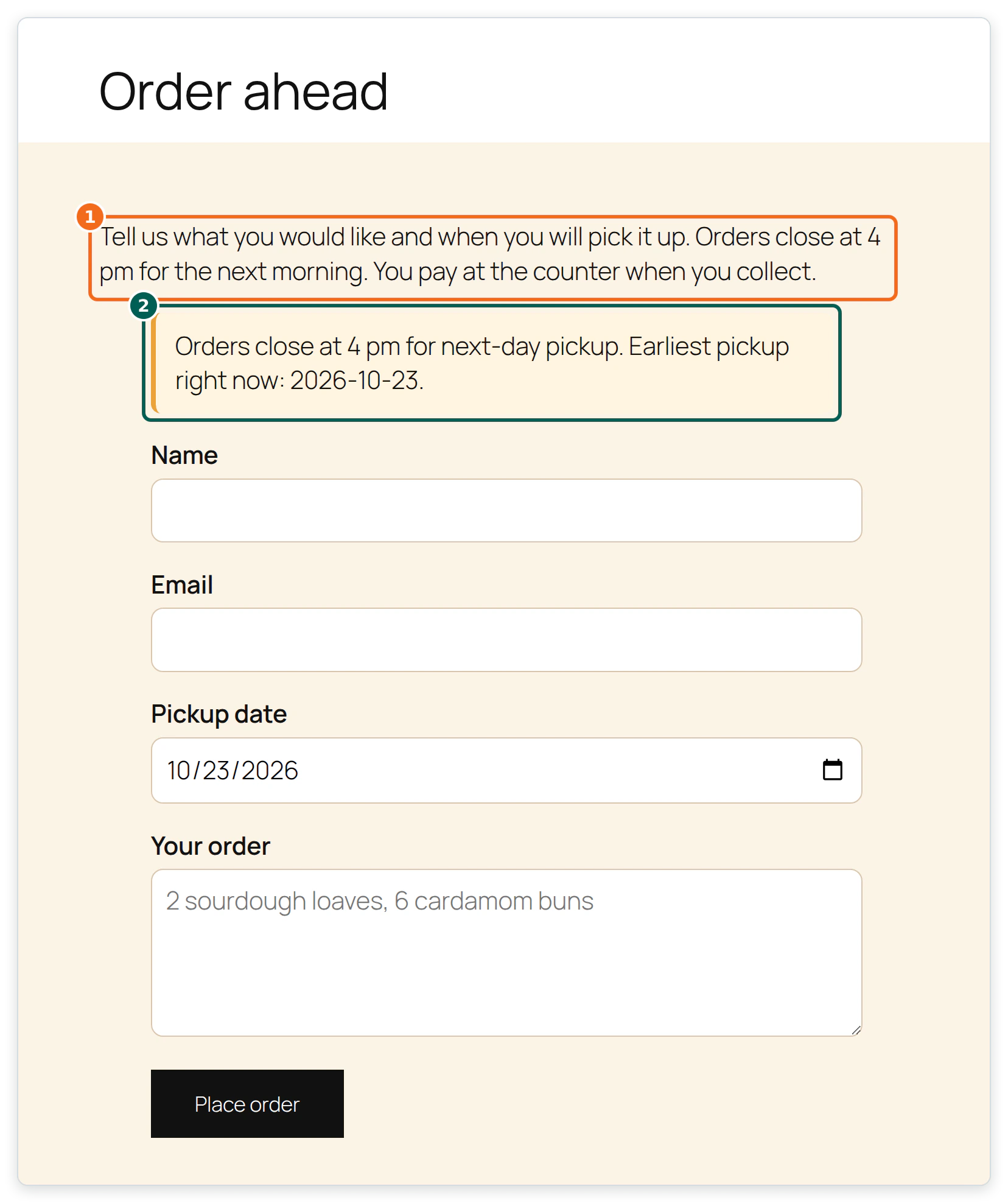
The same pattern works for theme files with theme_files, and for new plugins with plugin_operations from a zip. Compare the agent’s code with the WordPress Plugin Handbook before you approve it: nonces, sanitised input and escaped output.
Why does Cursor say “Connection failed” for a WordPress MCP server?
Because Cursor’s CLI uses one message for several different problems. InstaWP broke the config five ways, and Cursor’s CLI printed Error: Connection failed every time. The server’s own response tells them apart, so check that before you change anything.
| Cause | What the server returns | Fix |
|---|---|---|
| MCP is switched off on the site | HTTP 200 with an HTML page (the site’s home page) | Switch on Enable MCP on the site’s MCP tab. |
| Wrong token | HTTP 401, "message":"Invalid token" | Copy the config again from the MCP tab. |
| No token sent | HTTP 401, "message":"Authentication required" | Add the headers block, or check the ${env:...} variable is set. |
Wrong path, for example /insta-mcp-agents | HTTP 404 with an HTML page | The path is /insta-mcp. A trailing slash is fine. |
| Environment variable not set | HTTP 401, the header arrives empty | Export it in your shell profile, then restart Cursor. |
Read the middle column as the diagnosis. An HTML answer means you are not reaching InstaMCP at all; a JSON 401 means you are, and only the token is wrong. This command reproduces Cursor’s first request and prints the status code:
# expect 200 and application/json; anything else matches a row in the table
$ curl -s -o /dev/null -w "%{http_code} %{content_type}\n" -X POST \
  -H "Content-Type: application/json" -H "Accept: application/json, text/event-stream" \
  -H "Authorization: Bearer $INSTAWP_SITE_TOKEN" \
  -d '{"jsonrpc":"2.0","id":1,"method":"initialize","params":{"protocolVersion":"2025-06-18","capabilities":{},"clientInfo":{"name":"test","version":"1"}}}' \
  https://your-site.instawp.site/insta-mcp
Inside the Cursor app, the detail is in the Output panel (Cmd+Shift+U on a Mac, Ctrl+Shift+U on Windows and Linux) under MCP Logs, as Cursor’s MCP help page describes. For a PHP error on the WordPress side, InstaWP’s guide to finding site error logs shows where site_logs reads from.
How do you keep Cursor safe on a live WordPress site?
Point Cursor at a staging copy, keep approvals on in Cursor, and keep InstaMCP’s Safe Mode on except for the one step that needs it. Cursor’s settings decide what the agent may try. InstaMCP’s settings decide what WordPress will accept, even if the agent tries anyway. You want both.
| Risk | Cursor control | InstaWP control |
|---|---|---|
| The agent changes something you did not ask for | Approval before MCP tools, or Auto-review with a short allowlist. Not Run Everything. | Safe Mode blocked plugin file writes, plugin installs and meta writes in InstaWP’s tests, and blocks deletes. |
| Code that breaks the site | Review the diff in chat before you approve the write. | File writes keep a backup copy; site_logs shows fatal errors; site backups restore the rest. |
| A leaked token | Use ${env:...} in mcp.json; keep the file out of Git. | One token per site. Switching MCP off stops the endpoint answering at all. |
| Too much reach across sites | Connect only the sites you are working on. | Account MCP: Read-only at sign-in and the Tool access switches. Switching account MCP off refuses every app at once. |
| Raw PHP or SQL | Switch the tools off in the chat tools list. | execute_php, db_query and site_files are off until an admin enables them. |
| Changes reaching customers unreviewed | Plan the change in Cursor first. | Work on a staging environment and push to live after a person checks it. |
Read the rows as pairs. A user in a hurry can relax any Cursor control from the chat. The InstaWP controls hold whatever the agent decides, because only a site admin or the account owner can change them. InstaWP goes further into the risks in is MCP WordPress integration safe and how to use MCP for WordPress in production.
Is Cursor the best AI client for WordPress, or should you use Claude Code or ChatGPT?
Cursor is the best fit when the work is mostly code you can see, such as a plugin or a theme. The WordPress side is the same in every client: InstaWP lists 14 clients on the MCP tab, and the same site URL works in all of them.
- Cursor suits developers who want to read every file and diff, with the site one tool call away.
- Claude Code is terminal-first and works well with reusable skills. InstaWP shows that style in Claude Code skills for web development and in how to connect Claude to WordPress.
- ChatGPT suits content and site management without an editor. See how to connect ChatGPT to WordPress.
For the protocol itself and other clients, how to connect AI agents to WordPress using MCP and InstaWP’s WordPress MCP guide go deeper, and the WordPress MCP servers comparison covers servers other than InstaMCP. The Model Context Protocol site has the specification.
Switch on MCP on an InstaWP site and click Add to Cursor, or paste the url and Authorization header into ~/.cursor/mcp.json, using ${env:...} for the token. Check cursor-agent mcp list says ready and the 43 tools appear. For many sites, add https://app.instawp.io/mcp and sign in read-only. Keep approvals on in Cursor and Safe Mode on in WordPress, switching it off only for the write that needs it. If Cursor says Connection failed, curl the endpoint: HTML means MCP is off or the path is wrong, a JSON 401 means the token is.
Connecting Cursor to WordPress: FAQs
Can Cursor connect to WordPress?
Yes, over MCP. Add the site’s MCP server to Cursor, for example with the Add to Cursor button on an InstaWP site’s MCP tab, and Cursor gets tools to read and change the site. InstaWP tested this on 22 October 2026 with Cursor CLI 2026.10.19 and InstaMCP 1.11.4: 43 tools, ready in 3.95 seconds.
Where is Cursor’s mcp.json file?
The global file is ~/.cursor/mcp.json in your home folder and applies to every project. A project file at .cursor/mcp.json applies to one project. Cursor merges both, and the project file wins when both use the same server name.
Why does Cursor say Connection failed for my WordPress MCP server?
Cursor’s CLI showed the same message for several causes in InstaWP’s test: MCP switched off on the site, a wrong or missing token, a wrong path, or an unset environment variable. Send the initialize request with curl. An HTML response means you are not reaching the MCP server; a JSON 401 means the token is the problem.
Does Cursor need a local copy of the WordPress site?
No. InstaMCP talks to the live site over HTTPS. If you also have the theme or plugin in a local repo, Cursor can edit it there and then write the file and check the page over MCP.
Can Cursor edit WordPress plugin and theme files?
Yes. InstaMCP’s plugin_files and theme_files tools read and write files and save a backup before each write. Safe Mode blocks those writes until a site admin switches it off, so switch it off for the step that needs it and back on afterwards.
What is the difference between Site MCP and Account MCP in Cursor?
Site MCP connects one WordPress site with a token and gave Cursor 43 tools. Account MCP connects your InstaWP account with OAuth, works across every site in your team, and gave Cursor 18 tools on a read-only connection.
Is it safe to give Cursor access to a live WordPress site?
It is safe enough with both sets of brakes on: approvals or Auto-review in Cursor, and Safe Mode plus a staging copy on the WordPress side. Keep execute_php off, keep tokens out of Git, and switch MCP off on sites and accounts you are not using.
Does InstaMCP work on WordPress sites hosted elsewhere?
No. InstaMCP runs on sites hosted on InstaWP. To use it with a site hosted somewhere else, move the site to InstaWP first, or use a staging copy of it on InstaWP.