The account MCP in InstaWP, the AI-native WordPress cloud with managed hosting, lets Claude, Cursor, ChatGPT or any other MCP client manage every WordPress site in your InstaWP account from one connection. You sign in once with OAuth, choose read-only or read and write, and your AI can create sites, update plugins and WordPress core, take and restore backups, map domains, tune the CDN and Shield, and check plans across your whole team. It works on top of InstaWP’s managed WordPress hosting, so the sites it manages are the ones you already run there.
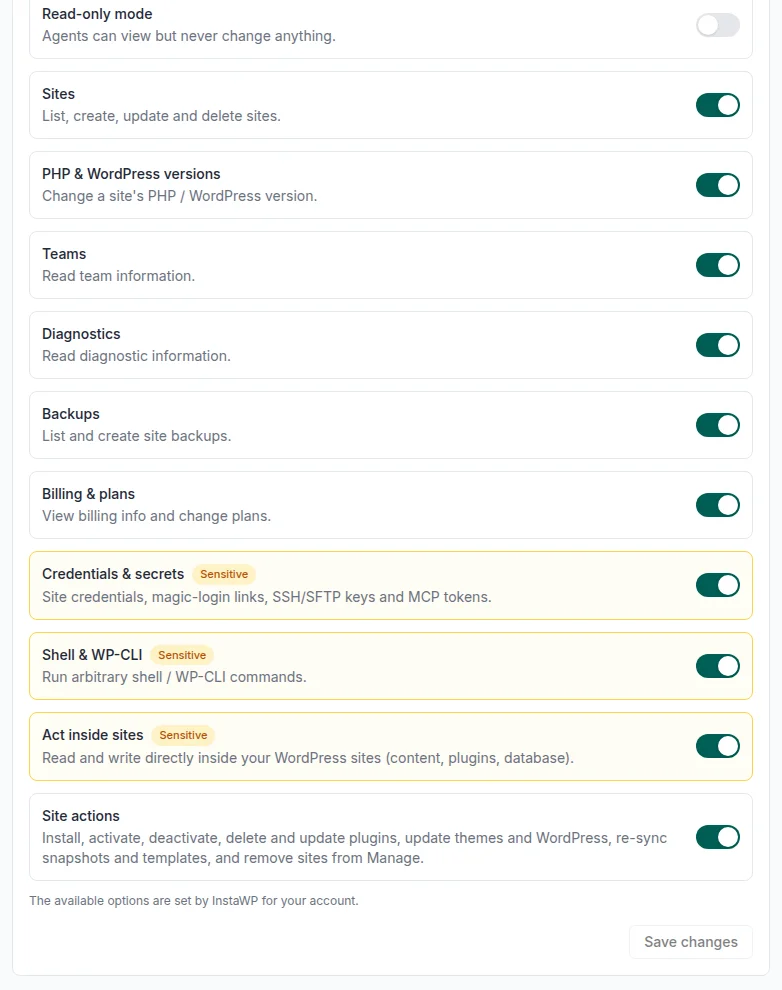
Its tools come in nine groups, each with its own switch in Profile, then MCP. Six start on. Site actions, Access & logs and Teams stay off until the account owner turns them on. This guide shows what each group does, how to connect it, which actions ask you first, and how the account MCP fits with InstaMCP, the MCP server inside each site.
- One connection, every site: add
https://app.instawp.io/mcpto your AI client once and it can act on every site in your current team. No per-site URLs to collect. - Nine tool groups: Sites, PHP & WordPress versions, Backups, Billing & plans, Diagnostics and Account start on. Site actions, Access & logs and Teams start off. A read-only sign-in exposes only the read tools.
- Bulk maintenance is the big win: it lists plugins with updates waiting and updates up to 5 per call, updates WordPress core and restores backups, once you turn on Site actions.
- Risky tools start off. Site actions, Access & logs and Teams are separate switches, and every destructive action asks for confirmation before it runs. No password ever passes through the AI.
- There is no undo. Take a backup first (3 manual backups per site), and the agent puts a change back itself, for example by installing the earlier plugin version.
- Site content is a different server: posts, pages and blocks live behind InstaMCP on each site. The account MCP shows each site’s MCP endpoint, and on accounts enabled for it, relays calls into that server.
What is the InstaWP account MCP?
The InstaWP account MCP is a remote MCP server at https://app.instawp.io/mcp that gives an AI assistant controlled access to your InstaWP account. It manages WordPress from the hosting side: the sites themselves, their PHP and WordPress versions, plugins, themes and WordPress users, backups and snapshots, domains, the CDN, Shield and Object Cache, plans and your team. It acts on your current team, so an agency with several teams connects to whichever one is active.
MCP, the Model Context Protocol, is the open standard that lets AI apps call tools in other software. Anthropic introduced it, and Claude, ChatGPT, Cursor, VS Code, Gemini CLI and Codex all speak it as clients. The account MCP is InstaWP’s server for that protocol, so the assistant you already use for code and writing can also run your WordPress hosting.
The server describes its own job in one sentence to every client that connects: it manages sites at the account level, and to edit content inside a specific site you use that site’s own MCP. The comparison below explains when you need each one.
What can you ask the account MCP to do?
You can ask it to do most routine hosting jobs: list and create sites, update plugins, themes and WordPress, change PHP settings, back up and restore, map domains, purge the CDN, check live server stats and billing, and manage your team. Each group of tools sits behind its own switch on the MCP settings page, and three groups start switched off. The table lists every group as of November 2026.
Some accounts also see three groups marked Sensitive: Credentials & secrets, Shell & WP-CLI and Act inside sites. InstaWP offers them only to accounts it enables for them, and they start off. If your settings page does not show them, they are not available on your account.
Here are prompts that map straight onto those tools. Each one reaches a feature you can also use by hand in the dashboard, such as site creation, snapshots, backups and restores, site maintenance tools and PHP configuration.
create_backup keeps up to 3 manual backups per site, and scheduled backups on InstaWP run alongside them.How does the account MCP change WordPress maintenance?
It turns multi-site maintenance into one conversation. Instead of opening each site, finding the plugins page and clicking update, you ask your AI which sites need attention and approve the changes it proposes. The dashboard stays where it is for deep work; the MCP is a faster lane for the jobs you repeat every week.
- Solo developers and freelancers: spin up a sandbox in the middle of a coding task without leaving your editor, and back it up before every experiment.
- Agencies: run the weekly round of plugin and core updates across every site you manage for clients, including external sites connected through InstaWP Connect, from one chat. See InstaWP’s site management tools for what the dashboard adds on top.
- Support teams: find the sites created for a customer from their email address, check their plan and PHP version, and answer without digging through the dashboard.
What happens when the AI changes a site?
Every write is checked before and after it runs. Destructive tools ask for confirmation, version changes are read from the site first, and the result is reported only once the site shows the new state. This is how it behaves on the live server:
- It asks first. Deleting a site, a backup, a plugin, a theme or a WordPress user, changing a plan, installing or switching a theme, updating WordPress core, restoring a backup, changing the primary domain, a Shield change that can block visitors, inviting or removing a team member, re-syncing a snapshot and resetting WordPress all need an explicit yes from you.
- It names the change before you approve it. For a core update or a plugin at a specific version, the account MCP reads the installed version first, so the question reads like “Upgrade WordPress on acme-shop from 6.6.2 to 6.7?” rather than a bare yes or no.
- It works in small batches. Plugin installs, updates and activations take up to 5 plugins per call, so a long list becomes a few confirmed steps.
- It never handles passwords. New WordPress users and password resets get a link from WordPress by email, and logs mask tokens, keys, passwords and cookies as
[redacted]. - It leaves a trail. Plugin, theme and WordPress core changes are added to the site’s activity log, marked as made over MCP with the name of the connected app.
- It has no undo button. The agent reverses a change itself, for example by reinstalling a plugin at its previous version or rolling WordPress back to a version offered for new sites. Take a backup before anything you might want to reverse.
How do you connect the InstaWP account MCP?
Switch the account MCP on, choose which tool groups an AI may use, add InstaWP to your AI client, then sign in and pick read-only or read and write. It takes about a minute, and nothing is exposed until you switch it on. The video walks through the whole flow.
Step 1: Switch on MCP for your account
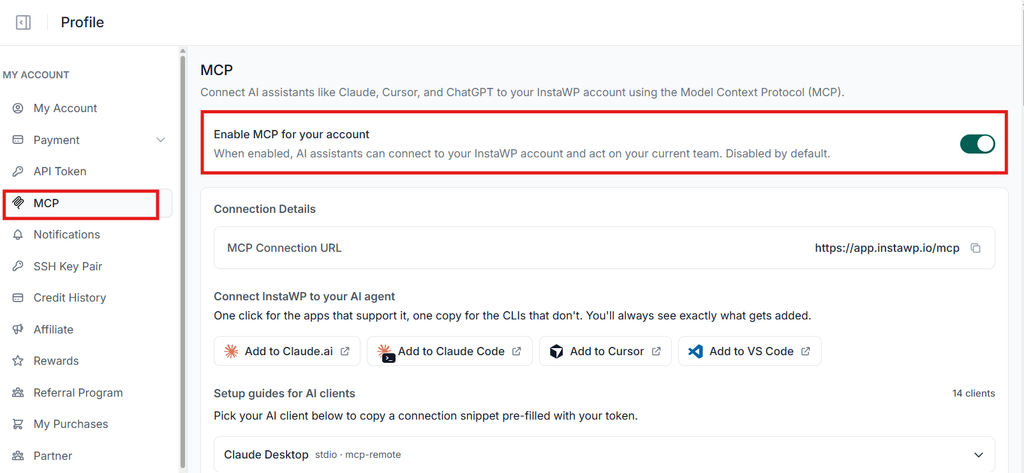
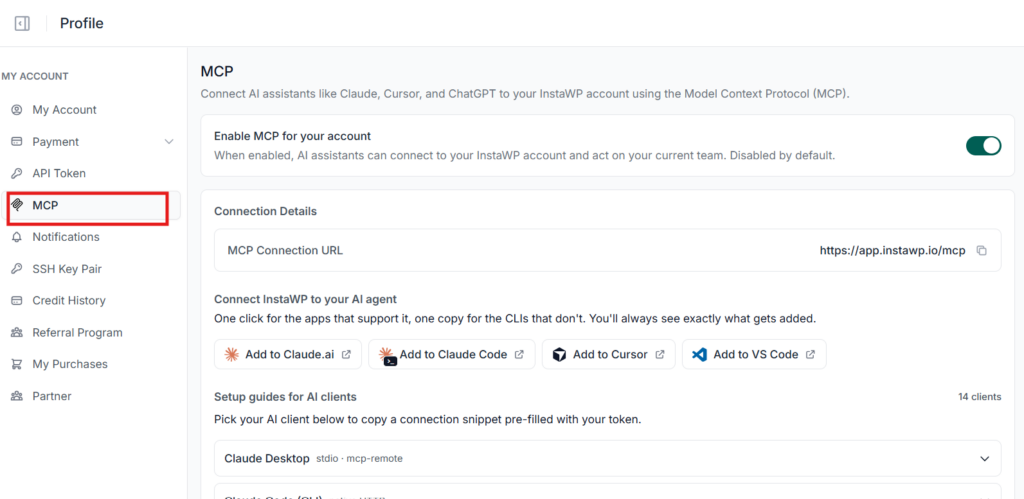
- In the InstaWP dashboard, open Profile, then MCP, and switch on Enable MCP for your account. It is off by default. The page shows the connection URL,
https://app.instawp.io/mcp.
Step 2: Choose what an AI may do
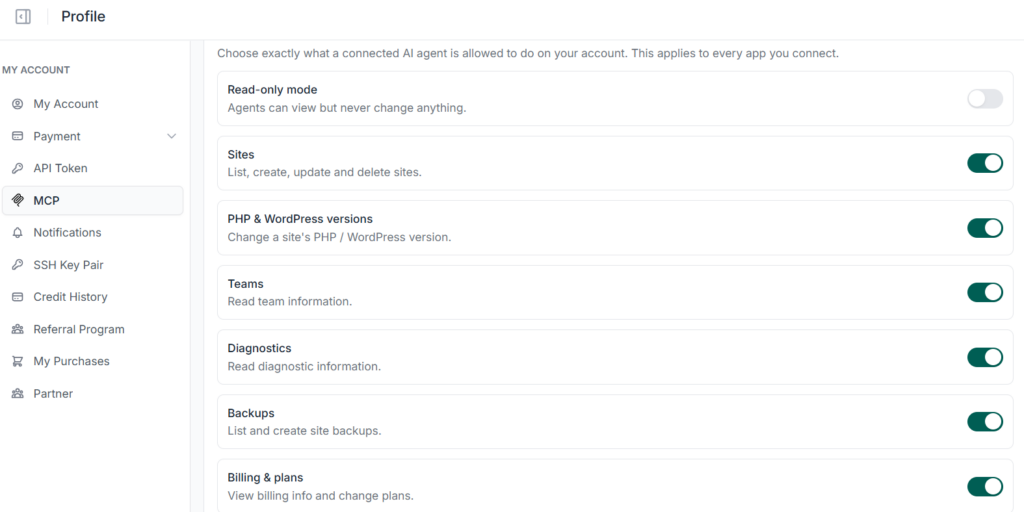
- Under Tool access, set each switch. Read-only mode at the top lets agents view everything and change nothing, which is the safest place to start. Turn on Site actions only when you want plugin, theme and core updates, domains or restores, Access & logs when an AI needs WordPress users or logs, and Teams for team changes. If your account shows groups marked Sensitive, leave them off unless a job needs them. Click Save changes: the choices apply to every app you connect.
Step 3: Add InstaWP to your AI client
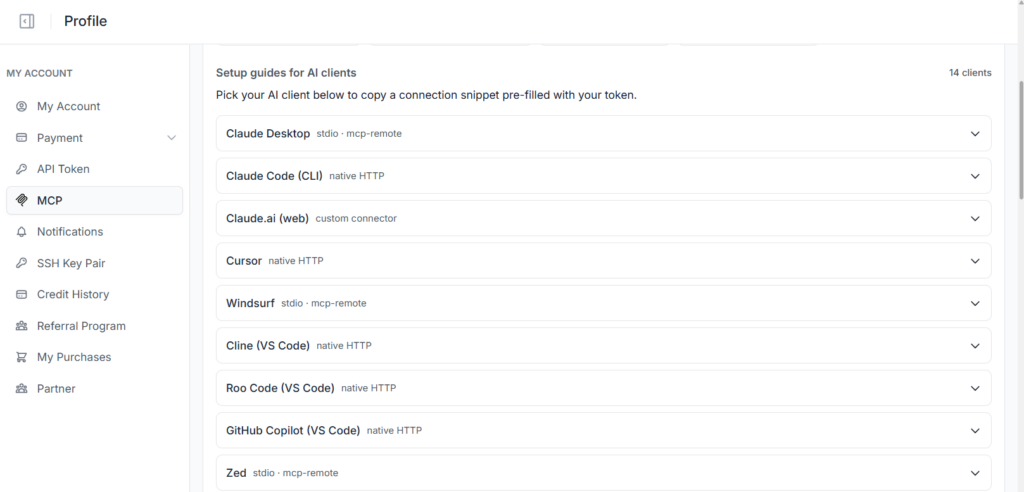
- In Claude you can skip the URL: InstaWP is listed in Claude’s connectors directory, so open Settings, then Connectors, search for InstaWP and select Connect to Claude. For other clients, the Add to agent panel on the MCP page does it in one step: a one-click install for Cursor, VS Code, GitHub Copilot and Claude Code, a prefilled connector dialog for Claude.ai, Claude Desktop and ChatGPT, a terminal command for the Claude Code, Codex and Gemini CLIs, and a config block for Antigravity, Claude Desktop, Windsurf, Cline, Roo, Zed and Continue.
Step 4: Sign in and pick an access level
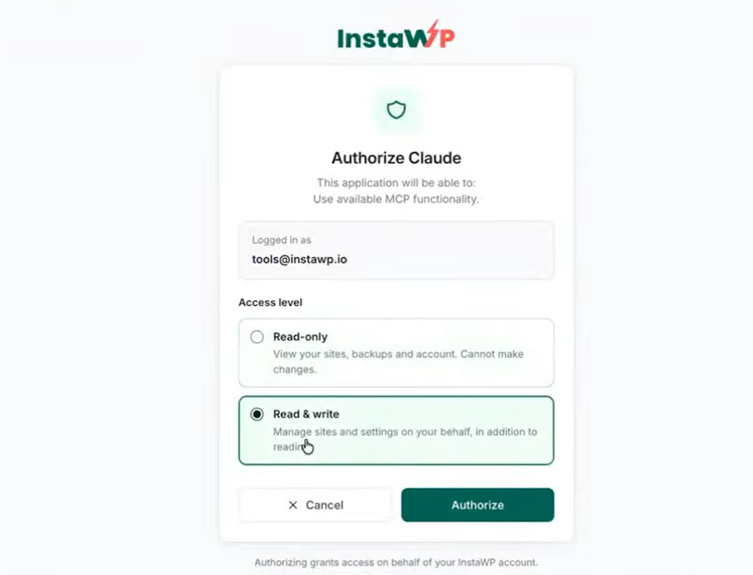
- Your client opens an InstaWP consent screen. Choose Read-only (“View your sites, backups and account. Cannot make changes.”) or Read & write, then Authorize. This is standard OAuth: the client registers itself and you never paste an API key.
Step 5: Turn the connector on in your client
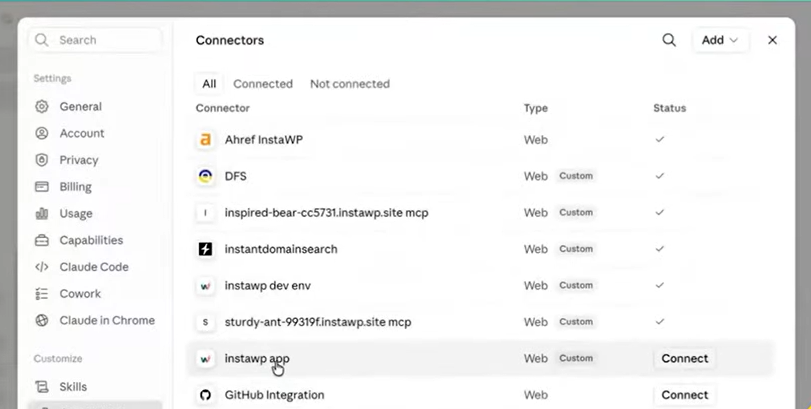
- Some clients add the connector switched off. In Claude, open Settings, then Connectors, find the InstaWP app and select Connect.
Step 6: Set per-tool permissions in your client
- Most clients also let you decide, tool by tool, which calls need your approval. In Claude, open the InstaWP connector and set Read-only tools and the write tools to Needs approval or Always allow. This works on top of the switches on InstaWP’s side: a tool you switched off in InstaWP never reaches the client at all.
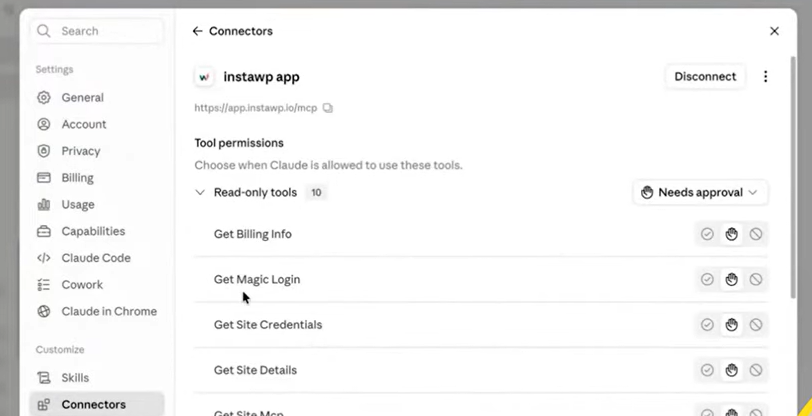
Step-by-step instructions for each client live in the account MCP documentation. InstaWP’s client guides also cover the site-level setup for Claude, Cursor, Codex and Gemini CLI.
Is the InstaWP account MCP safe to connect?
Yes, provided you set it up the way you would any admin integration: grant the least access the job needs and keep confirmations on. InstaWP gives you several layers of control, and none of them is a single all-or-nothing key.
InstaWP tested the revoke path on 27 October 2026: an app’s access token stopped working the moment it was revoked. Tokens otherwise last a year and refresh themselves, so revoke any app you no longer use rather than leaving it listed. For the wider picture, read InstaWP’s guide on whether WordPress MCP is safe, and the InstaWP hosting security documentation.
Account MCP vs site MCP: which one do you need?
Use the account MCP for hosting work across sites and the site MCP, InstaMCP, for work inside one WordPress site. Most teams end up with both: the account connection to provision and maintain sites, and a site connection when an agent needs to write posts or build pages.
InstaWP compares the two in depth, with a decision table, in account MCP vs site MCP.
How does the account MCP work with InstaMCP inside each site?
The account MCP can switch a site’s own MCP server on and relay calls into it, so one connection can reach inside any site when you allow it. On accounts that have the Act inside sites group, turn it on and the AI can run enable_site_mcp on a site, list its tools and call them, without you adding a second server to your client. Without it, the Sites group still shows a site’s MCP endpoint and whether it is on. InstaMCP is the MCP server built into every InstaWP site.
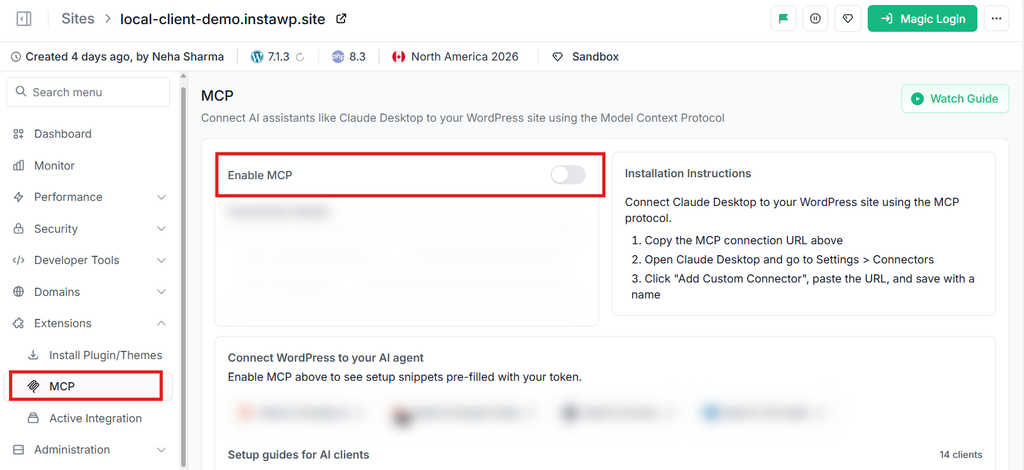
One switch makes a site MCP-ready, with no plugin to install by hand. Its main properties:
- 43 typed tools for content, taxonomies, blocks, meta, plugins, themes, media, skills and per-site memory.
- WordPress role scopes: the token is tied to a WordPress user, so an Editor token can write content but cannot install plugins.
- Power tools start off:
execute_php,db_queryandsite_filesstay inert until an admin enables them, and PHP writes are checked before they reach disk. - Native to WordPress: its tools are also registered as WordPress Abilities, the API that arrived in WordPress 6.9 and grew in WordPress 7.0.
Read the full setup in the guide to connect AI assistants to your WordPress site with InstaMCP, or the broader WordPress MCP guide.
What should you try first with the account MCP?
Start read-only and let the AI audit your account before it changes anything. These three prompts show the value in under five minutes:
- “List my sites with their PHP and WordPress versions, oldest first.”
- “For each site, how many plugins have updates waiting?”
- “Which of my sites are on a paid plan, and what does each cost?”
When the answers look right, switch the connection to read and write, turn on Site actions, and ask for the backups and updates. Follow the setup for your client in the account MCP documentation.
Your hosting, inside your AI
Switch on MCP in Profile, then MCP, add https://app.instawp.io/mcp to your AI client and sign in read-only. Your AI can then read every site in your team; switch to read and write and turn on Site actions when you want it to update plugins, themes and WordPress, back up first, and confirm each destructive step. Keep Access & logs, Teams and any Sensitive groups off until a job needs them, and use InstaMCP on each site for content.
InstaWP lets you build, host, manage and sell WordPress sites from one platform, and the account MCP puts all of it inside the AI assistant you already use. Create an account and connect your AI in a couple of minutes.
FAQs
What is the InstaWP account MCP?
It is a remote MCP server at app.instawp.io/mcp that lets an AI assistant manage your InstaWP account and every site in your current team. Your AI can list and create sites, update plugins, themes and WordPress core, take and restore backups, map domains, read error logs and check plans by prompt, instead of clicking through the dashboard.
How do I turn on the InstaWP account MCP?
Open Profile, then MCP, in the InstaWP dashboard and switch on Enable MCP for your account. It is off by default. Then choose your Tool access switches, add InstaWP from Claude’s connectors directory or the Add to agent panel, and approve the OAuth sign-in as read-only or read and write.
What is MCP?
MCP, the Model Context Protocol, is an open standard that lets AI assistants connect to real apps and take actions inside them. Anthropic introduced it, and many AI tools now support it. The account MCP uses MCP to manage your hosting account.
Which AI tools work with the InstaWP account MCP?
Any MCP client that supports remote servers with OAuth. InstaWP is listed in Claude’s connectors directory, and the Add to agent panel covers Cursor, VS Code, GitHub Copilot, Claude Code, Claude.ai, Claude Desktop, ChatGPT, Codex, Gemini CLI, Antigravity, Windsurf, Cline, Roo, Zed and Continue.
Can the account MCP update plugins and WordPress core?
Yes, once you turn on the Site actions switch. It lists plugins and themes with updates waiting, updates up to 5 plugins per call, and updates WordPress core to the latest release or a version you name. Core updates and other destructive changes ask for your confirmation first. There is no undo, so take a backup before you update.
Can the account MCP edit posts and pages?
Not by itself. Content inside WordPress is handled by InstaMCP, the MCP server on each site. On accounts that have the Act inside sites group switched on, the account MCP can switch on a site’s InstaMCP and relay calls to it, so one connection reaches content too. Otherwise, connect the site’s own MCP URL to your client.
How do I disconnect an AI app from my InstaWP account?
Open Profile, then MCP, and select Revoke next to the app under Connected apps. In InstaWP’s test on 27 October 2026, the app’s access stopped working straight away. To cut every app at once, switch off Enable MCP for your account.
Which account MCP tools are off by default?
Site actions, Access & logs and Teams. Only the account owner can turn them on, in Profile, then MCP. Sites, PHP & WordPress versions, Backups, Billing & plans, Diagnostics and Account start on, and a read-only connection can still only read.
Does the account MCP work with sites I host elsewhere?
Partly. It manages sites hosted on InstaWP, plus external WordPress sites connected through the InstaWP Connect plugin in the Manage section, which it can list and disconnect. Plugin, theme and core updates, backups and PHP changes are for sites hosted on InstaWP.