To deploy WordPress from GitHub with an AI agent, connect two MCP servers to one assistant: GitHub MCP for the repository side (read the pull request, merge it, find the release) and InstaWP’s MCP for the site side (create the site, take a backup, install the build, read the error log). The Git deployment in between is triggered by InstaWP Deployments, not by an MCP tool. This guide documents that loop in eight steps.
If you have never connected a repository to InstaWP, start with the WordPress GitHub integration guide, which covers adding a Deployment, connecting it to a site and the webhook step by step. This post assumes that part is done and shows the same pipeline driven by an agent.
InstaWP is managed WordPress hosting with Git deployments and MCP built into every site, and on 12 October 2026 InstaWP ran the site side of this loop on a throwaway sandbox. The results are in their own section below, including one call that failed.
Key takeaways
run_command
running git inside the site.
X-MCP-Toolsets: default,actions, which adds
actions_list and get_job_logs.
plugin_operations with
source: url installed and activated MCP Adapter 0.7.0
straight from its GitHub release asset. On a site still running 1.10.3
the same call failed, so update InstaMCP first.
create_backup takes a manual backup
(up to 3 per site). That backup, not the Git history, is what restores
the database if a deploy goes wrong.
Table of Contents
| Question | Answer (checked 12 October 2026) |
|---|---|
| What the agent does | Reviews and merges the pull request, backs up the site, lets the deployment pull the branch, then verifies the plugin version, the error log and the affected page |
| Repository side | GitHub MCP, the official github/github-mcp-server, remote URL https://api.githubcopilot.com/mcp/ |
| Hosting side | InstaWP Account MCP: sites, backups, versions and diagnostics, over OAuth (read-only or read-write) |
| Inside WordPress | InstaMCP, the site MCP on each InstaWP site: 43 typed tools, including plugin install by URL and error-log reading |
| What triggers the deploy | InstaWP Deployments: the webhook on push, Run deployment, the REST API, or run_command with git. Not an MCP tool |
| What the deploy does | Fetches the branch and hard-resets a destination folder such as wp-content/plugins/my-plugin to origin/<branch> |
| Folders it refuses | The web root, wp-content, wp-admin, wp-includes and the whole plugins, themes, uploads or mu-plugins folders |
| Rollback | Restore the backup the agent took before the merge, or revert the commit and redeploy |
| Off by default | GitHub Actions tools, Account MCP shell and credential tools, InstaMCP power tools (execute_php, db_query, site_files) |
| Who it suits | Plugin and theme developers, and agencies shipping one codebase to client sites on InstaWP |
What does deploying from GitHub with an AI agent actually involve?
It involves three layers that each do one job, plus a deploy trigger that sits between them. An assistant such as Claude Code or Cursor holds the conversation, and each layer is an MCP server it can call. MCP, the Model Context Protocol, is the open standard that lets an assistant call outside tools.
GitHub MCP is GitHub’s official MCP server for repositories, issues, pull requests and Actions runs, documented in the github-mcp-server README (read 12 October 2026), and InstaWP has a separate explainer on what GitHub MCP does and what it cannot do for a WordPress site.
It stops at the repository: it has no tool that installs a plugin, reads a WordPress error log or checks that a page loads. (A full explainer is in what WordPress MCP is and how it works.)
InstaWP covers the site side with two servers. The InstaWP Account MCP works at the hosting layer: create sites, take backups, read site details and, if you opt in, run shell and WP-CLI commands. InstaMCP works inside one WordPress site: install a plugin from a URL, read plugin files, tail the error log, read and edit content.
Neither of InstaWP’s servers talks to GitHub’s API, so the agent always needs both halves connected. The split between the two is explained in Account MCP vs Site MCP, and the setup steps are in the Account MCP docs and the site MCP docs.
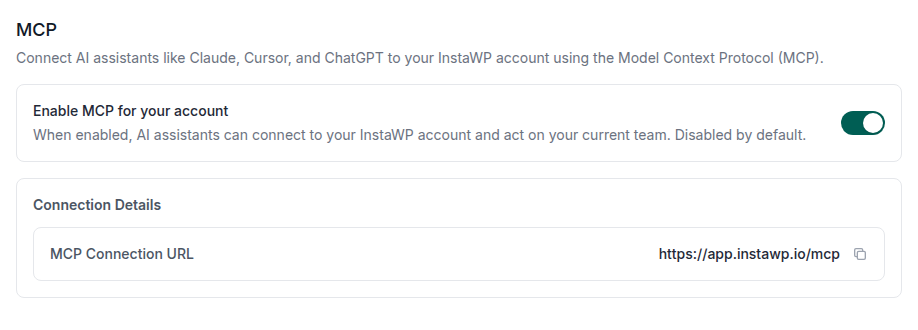
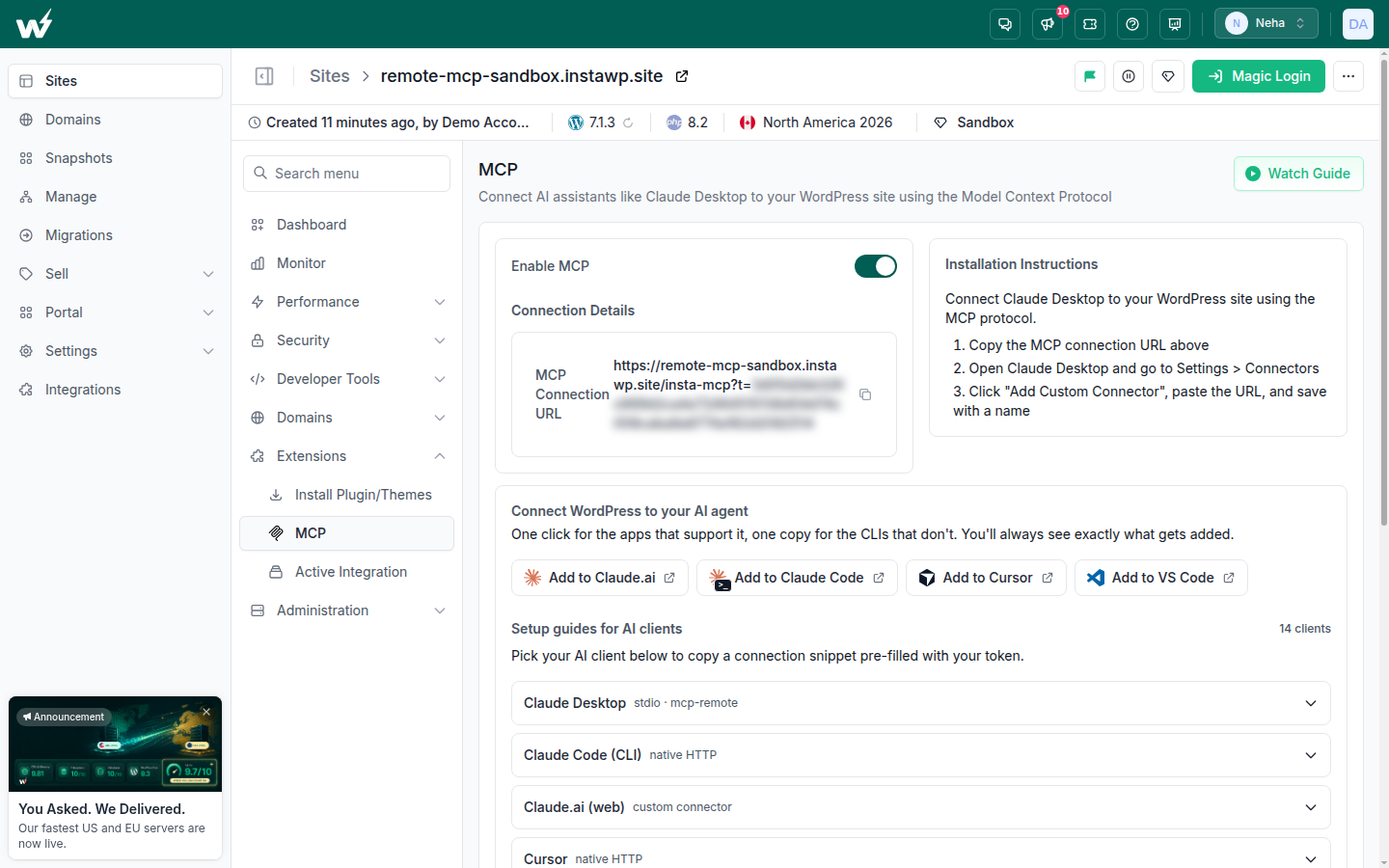
Both servers are switched on from the InstaWP dashboard. The Account MCP has one connection URL for the whole account, https://app.instawp.io/mcp, and every InstaWP site has its own MCP tab with a per-site InstaMCP URL.
What do you need before an agent can deploy?
You need a repository, an InstaWP site with a Deployment attached, and both MCP servers connected to the same assistant. You set up each of these once:
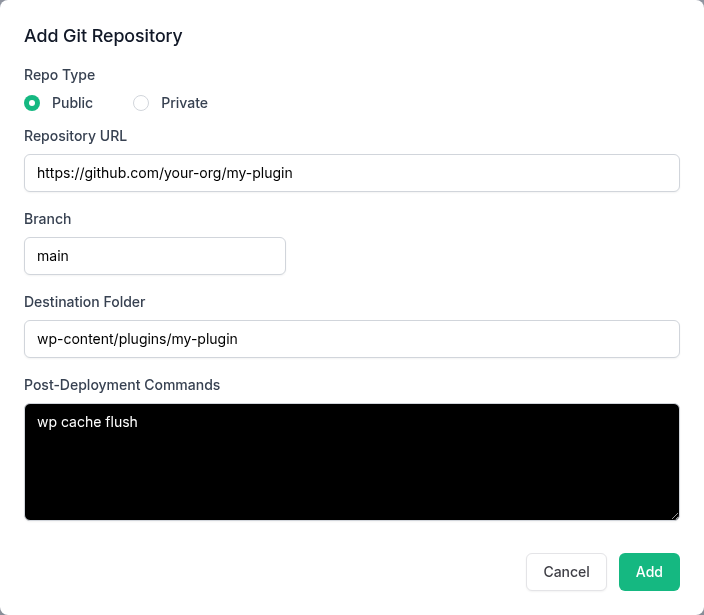
- A Deployment in InstaWP. In Settings, Deployments, you add the repository (a public HTTPS URL, or a private SSH URL with a deploy key InstaWP generates), the branch, a destination folder such as
wp-content/plugins/my-plugin, and optional post-deployment commands that run after each pull (wp cache flush, for example). Then you connect it to a site and paste that site’s webhook URL into the repository settings on GitHub. All of it is covered in Steps 2 to 4 of the GitHub integration guide and in the Add Deployment docs. - GitHub MCP with the Actions toolset. The remote server at
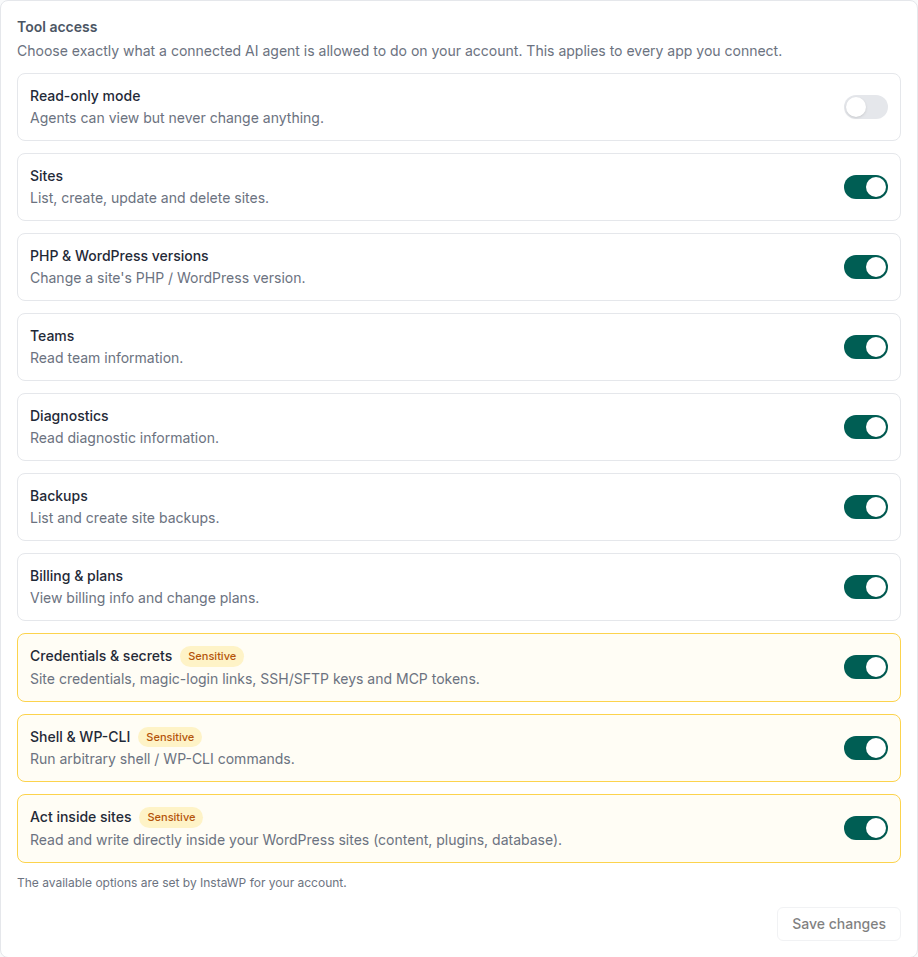
https://api.githubcopilot.com/mcp/, authenticated with OAuth or a fine-grained personal access token, plus the header that loads Actions tools (config below). - InstaWP Account MCP, read-write. Turn it on in Account, Settings, MCP, connect your assistant, and pick read-write on the consent screen. In the Tool access panel on the same page, leave Read-only mode off and keep Sites and Backups on. Turn on Shell and WP-CLI or Credentials and secrets only if you want
run_commandorget_magic_login. The Account MCP docs list which capabilities are on by default. - InstaMCP on the target site. Turn it on in the site’s MCP tab and copy the connection URL, which has the shape
https://your-site.instawp.site/insta-mcp?t=YOUR_TOKEN(site MCP docs). The site has to run PHP 8.2 or higher: on PHP 8.0 the MCP tab shows an Upgrade PHP Version prompt instead of the toggle. If your account has the “Act inside sites” capability, the Account MCP can call the site’s tools for you instead.
The config: both servers in one Claude Code project
This is a project-level .mcp.json for Claude Code. Cursor reads the same mcpServers shape from ~/.cursor/mcp.json. The GitHub entry follows the GitHub remote server docs (read 12 October 2026). The InstaWP entry has no token in it at all, because the Account MCP signs you in over OAuth the first time the assistant connects.
{
  "mcpServers": {
    "github": {
      "type": "http",
      "url": "https://api.githubcopilot.com/mcp/",
      "headers": {
        "Authorization": "Bearer ${GITHUB_PAT}",
        "X-MCP-Toolsets": "default,actions"
      }
    },
    "instawp": {
      "type": "http",
      "url": "https://app.instawp.io/mcp"
    }
  }
}
Two details in that file matter. ${GITHUB_PAT} is read from your shell environment, so the token never sits in a file you might commit. And X-MCP-Toolsets: default,actions keeps GitHub’s five default toolsets (context, repos, issues, pull requests, users) and adds Actions. Without it the agent cannot read a failing CI run. Copy the InstaWP connection URL from your own Settings, MCP page rather than from here; when InstaWP checked on 12 October 2026, https://app.instawp.io/mcp answered with the expected OAuth challenge.
How do you deploy WordPress from GitHub with an AI agent, step by step?
The agent runs eight steps, and the order matters most at step 4: the backup comes before the merge. Here is the loop, then one paragraph per step with the exact tool names.
- Create a sandbox site with Account MCP
create_site, or let the GitHub Actions integration create a preview site for the pull request. - Make sure the Deployment is connected to that site (a one-time human step).
- Review the pull request with GitHub MCP
pull_request_read, and read any failing CI job withget_job_logs. - Back up the target site with Account MCP
create_backup. - Merge with
merge_pull_request. The webhook deploys the branch, or the agent pulls it withrun_command. - Verify inside WordPress with InstaMCP:
plugin_info,site_logs,find_content_by_url. - Report back, with a magic login link from
get_magic_loginif that capability is on. - Promote to production through the same Deployment on the live site, backup first.
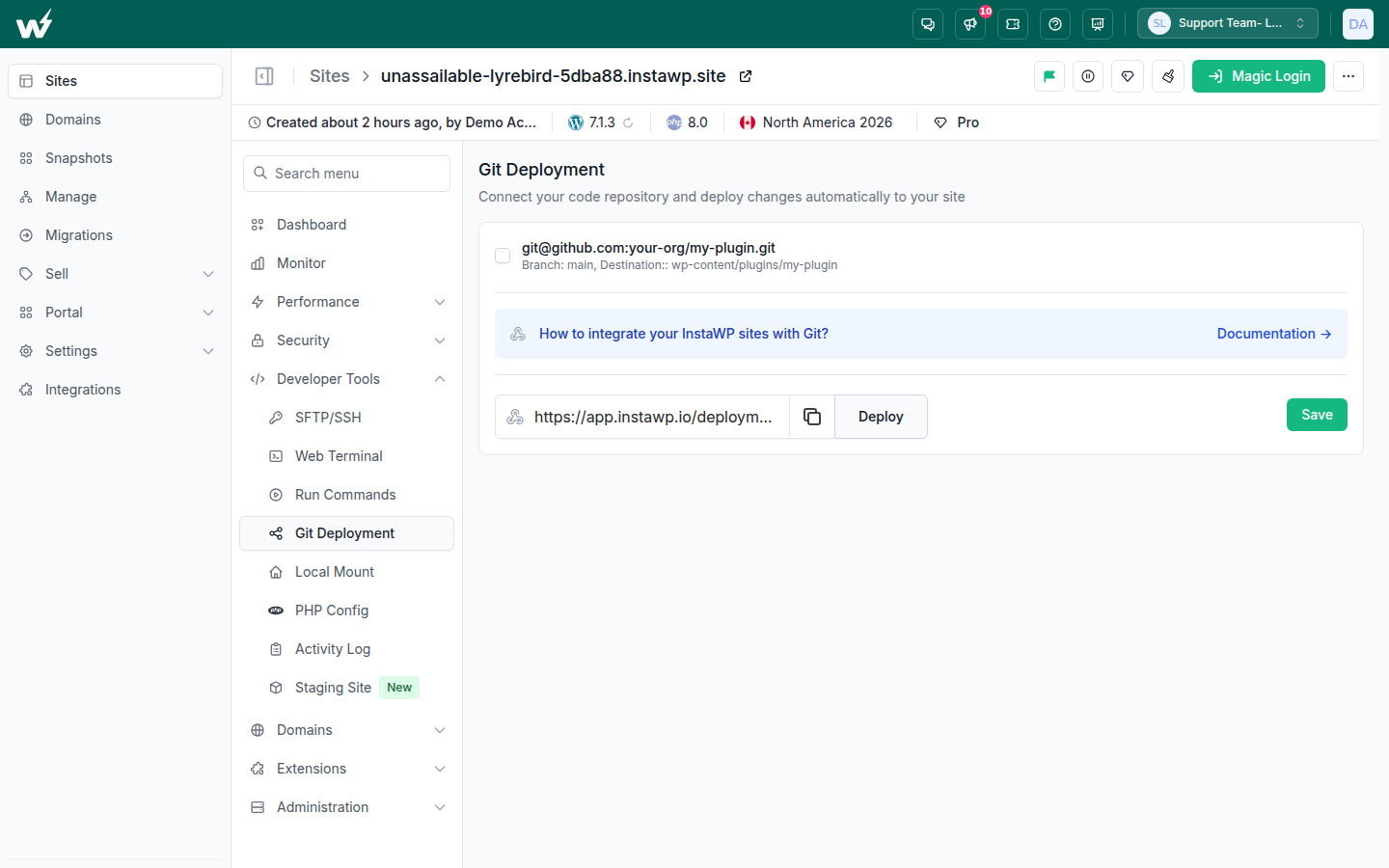
The whole loop turns on one screen in the InstaWP dashboard: the site’s Git Deployment tab. It holds the connected repository, the webhook URL GitHub calls on every push, and the Deploy button a human (or the REST API) can press instead.
Step 1: Create a sandbox site
The agent calls the Account MCP tool create_site, the same action as Add Site in the dashboard. It takes a site name, an optional plan and temporary: true for a site that expires on its own, which is the right choice for a test deploy. create_site starts from a fresh WordPress install and does not take a snapshot.
Must Read: Create Site docs
If you want every pull request to land on a site pre-loaded with your plugins and content, use the GitHub Actions integration instead: it creates a new site from a WordPress snapshot when a pull request opens, and can destroy it when the pull request closes. Pull request previews are covered in the integration guide.
Step 2: Connect the Deployment to that site
This step stays with a human, once per site. The Account MCP has no tool for creating or connecting Deployments, so you do it in the dashboard: open the site, choose Git Deployment, pick the repository and copy the webhook URL into GitHub’s webhook settings with content type JSON.
Must Read: Connect to Site docs
After that, every push to the branch updates the destination folder. If you skip it, the agent can still pull code with run_command in step 5, as long as the repository is public. The Deployments overview and Manage Deployment docs cover editing or removing a Deployment later.
Step 3: Review the pull request
The agent calls GitHub MCP pull_request_read with a method: get for the description, get_diff or get_files for the change, get_check_runs or get_status for CI. If a check failed, actions_list finds the run and get_job_logs with failed_only: true returns the failing job’s log, which only works if the Actions toolset is loaded.
The full GitHub MCP tool list, and what each toolset adds, is in InstaWP’s GitHub MCP guide. This is where you want the agent to stop and tell you, rather than merge a red build. Note the head commit SHA it reviewed, because step 5 uses it.
Step 4: Take a backup before anything changes
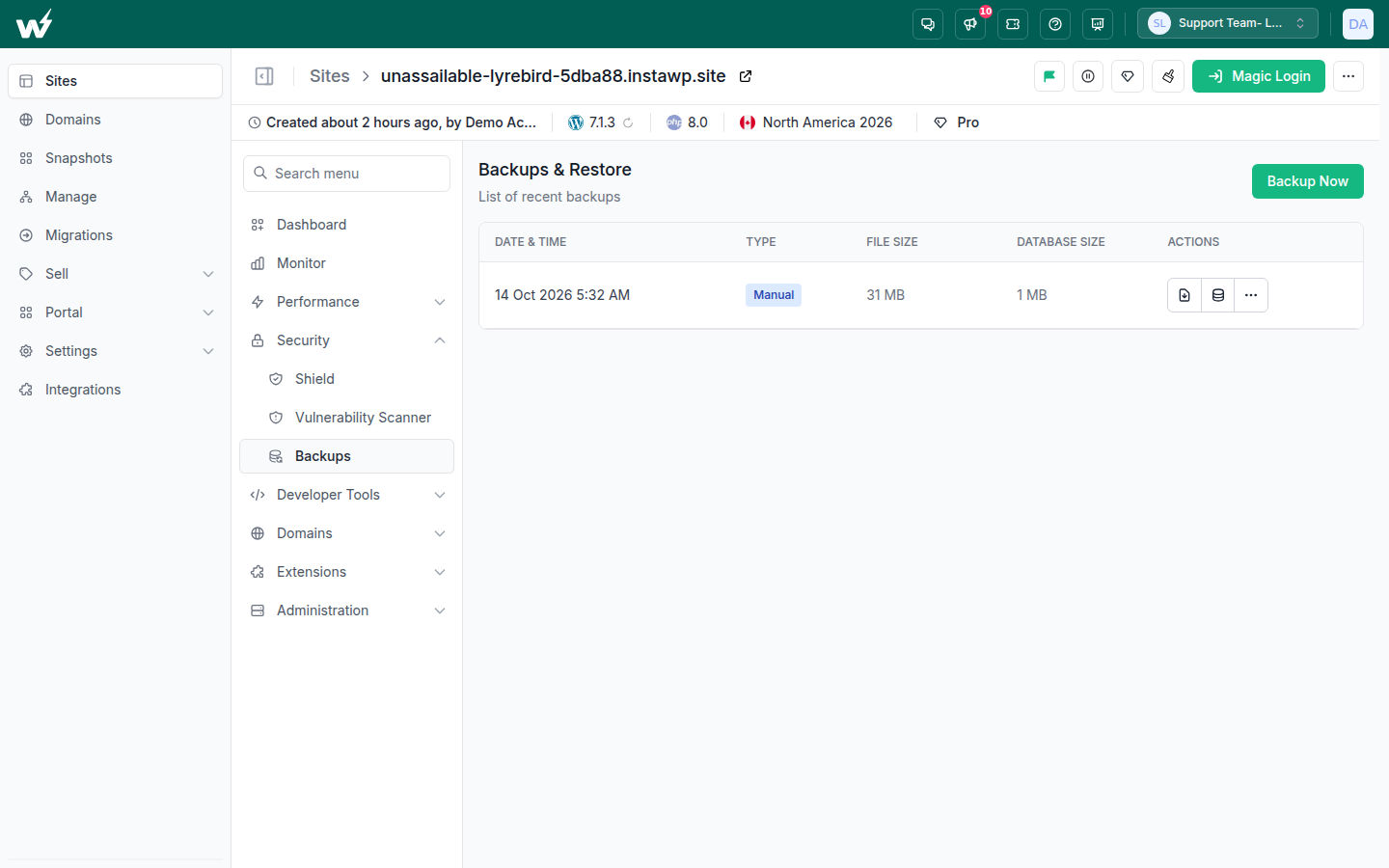
The agent calls Account MCP create_backup with the site ID. InstaWP allows up to 3 manual backups per site, and list_backups shows what already exists, so a careful agent checks first. This backup is the database half of your rollback: a Git revert puts the code back, but it cannot undo a migration a plugin ran on activation.
The two rollback routes are explained in the integration guide, and restoring is covered in the Restore Site docs. The same backup appears in the dashboard under Security, Backups (backup docs), and how backups work on InstaWP explains what each plan keeps.
Step 5: Merge, and let the deployment pull the branch
The agent calls merge_pull_request with the merge_method you prefer and, ideally, expectedHeadSha set to the SHA it reviewed in step 3. That parameter makes GitHub refuse the merge if someone pushed a new commit in the meantime, so the agent never merges code it has not read.
The merge pushes to the branch, GitHub fires the webhook, and InstaWP’s deploy script fetches the branch and runs a git reset --hard of the destination folder to origin/<branch>.
No webhook? If your account has the Shell and WP-CLI capability, the agent can run the same two commands itself with run_command, which executes as the site’s Linux user over SSH, never as root:
$ cd wp-content/plugins/my-plugin && git fetch origin && git reset --hard origin/main
# the same fetch + hard reset InstaWP Deployments runs; only safe in a folder you never edit on the site
Two limits apply to that route. run_command is a sensitive capability that is off by default and only offered to accounts enabled for it. And the deploy key InstaWP generates for a private repository is used by the Deployments script, not stored in the site user’s ~/.ssh, so a git fetch from run_command works for public repositories but not private ones. For private repositories, rely on the webhook or the Run Deployment button shown in the Git Deployment screenshot above. Shell commands from the dashboard are covered in the Run Commands docs.
Step 6: Verify inside WordPress
Now the agent switches to InstaMCP and checks three things. plugin_info with action: get returns the plugin’s name, version and status, so the agent can confirm the version it just merged is the one WordPress loaded. site_logs with level: fatal tails the WordPress debug.log and the PHP error log for fatal errors since the deploy (where those logs live).
And find_content_by_url on the page the change affects confirms the page still resolves to the content it should. Using MCP on a production WordPress site covers the guardrails for this kind of check.
If your repository ships a built ZIP as a GitHub release rather than runnable source, step 5 and step 6 merge into one call: GitHub MCP get_latest_release returns the asset URL, and InstaMCP plugin_operations with action: install, source: url and activate_after_install: true installs that ZIP directly.
InstaWP ran exactly this on 12 October 2026; the result is in the sandbox section below.
Step 7: Report back
A good agent finishes with a short report: the pull request it merged, the commit SHA, the backup ID it took, the plugin version now active, and the fatal count from the log (ideally zero). If your account has the Credentials and secrets capability, Account MCP get_magic_login adds a one-click wp-admin login link so you can look at the page yourself.
That capability is off by default because it returns a working login, so many teams leave it off and open the site from the InstaWP dashboard instead.
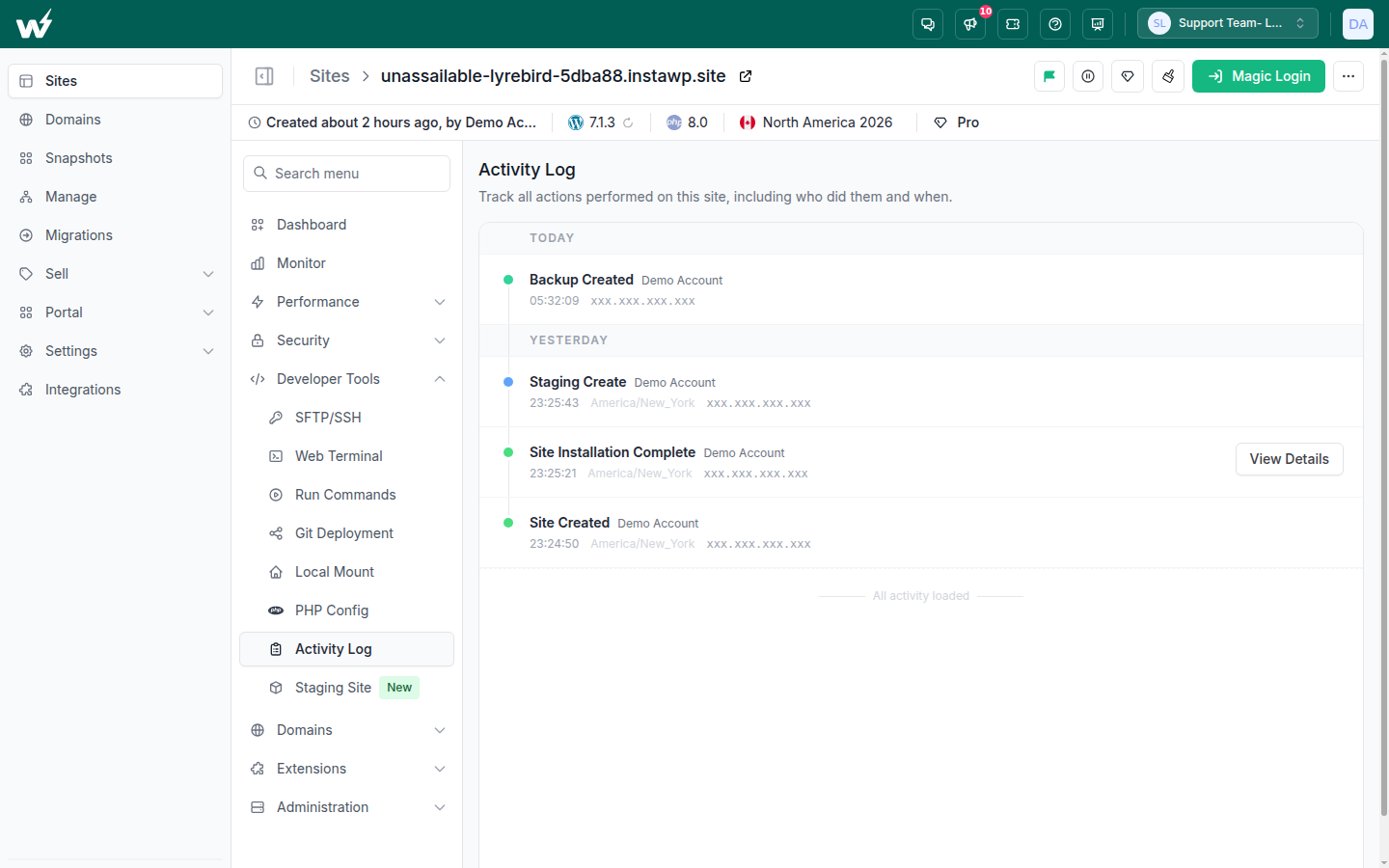
The dashboard also gives a human a second check that does not depend on the agent’s report. Each site’s Activity Log records events such as Backup Created, Staging Create and Site Created, with who did them and when (Activity Log docs).
Step 8: Promote to production
Promotion is the same loop pointed at the live site. Connect the same repository as a Deployment on the production site (or on a WordPress staging site first), have the agent call create_backup on that site, then merge or run the deployment. Keep a human approval between staging and production.
Branch-to-environment mapping, such as develop to staging and main to live, is explained in the WordPress Git workflow section of the integration guide, and moving WordPress from staging to production covers the database side.

Before you approve the production step, run through the WordPress staging to live checklist, and see the staging environment docs for how a staging copy is created and linked to its live site.
What happened when InstaWP ran the loop on a sandbox?
Most of it worked first time. One call failed on an older InstaMCP build, and one result is worth knowing before you copy this setup. On 12 October 2026 InstaWP created a temporary sandbox (WordPress 7.1.3, PHP 8.2) with InstaCLI, which reported it ready in 33.4 seconds, installed InstaMCP 1.11.4 on it, and drove each layer the way an agent would.
InstaWP did not merge a real pull request or fire a webhook for this test, and did not connect through the Account MCP’s OAuth flow; the shell step was run over the same SSH access that run_command uses.
| Call | What came back | What it tells you |
|---|---|---|
GitHub MCP tools/list, default URL | 42 tools; pull_request_read, merge_pull_request and get_latest_release present, actions_list and get_job_logs absent | Add the Actions toolset or the agent cannot read CI failures |
Same, with X-MCP-Toolsets: default,actions | 46 tools, including actions_list, actions_get, actions_run_trigger, get_job_logs | Adding the header loads the Actions tools |
get_latest_release on WordPress/mcp-adapter | v0.7.0, published 2 October 2026, one asset: mcp-adapter.zip, in 1.20 seconds | The agent gets a direct download URL for the build |
InstaMCP plugin_operations install, source: url | installed: true, activated: true, version 0.7.0, in 1.29 seconds | A GitHub release ZIP goes from repo to active plugin in one call |
site_logs, level: fatal | 0 fatal lines in either log | The install did not break the site |
Shell: git clone of WordPress/wordpress-importer, then wp plugin activate | Commit 3ca8839 (27 August 2026), version 0.9.6, active. Git 2.43.0 and WP-CLI 2.12.0 were available to the site user | The run_command route has the tools it needs |
Shell: git fetch origin then git reset --hard origin/master | HEAD is now at 3ca8839 | The redeploy is the same two commands InstaWP Deployments runs |
InstaMCP plugin_info, action: get | Name “WordPress Importer Git loader”, version 0.9.6, active | A source repo can load a different plugin header than the release (below) |
Read the last row carefully. The WordPress Importer repository’s root file is a development loader, so the plugin that Git deployed identified itself as “WordPress Importer Git loader”, not the name the wordpress.org release carries. It worked, but it is not byte-for-byte what a customer would install. If your repository needs a build step (Composer, npm, a release script), deploy the release ZIP with plugin_operations rather than the source with Git, or add the build as a post-deployment command, which InstaWP offers on paid site plans.
plugin_operations call with the same GitHub release URL failed on a site still running InstaMCP 1.10.3, returning Call to undefined function request_filesystem_credentials(). On 1.11.4 it succeeded. A site’s InstaMCP version is whatever was current when it was provisioned, so check the version in the plugin list and update it before handing this step to an agent.What prompt should you give the agent?
Give it the order of operations, the stop conditions and the report format, so it never has to guess when to stop. Copy this and change the names:
Deploy PR #42 from acme/client-plugin to the site staging-acme on InstaWP.

1. Read PR #42 with pull_request_read (get, get_files, get_check_runs).
   If any check failed, read the log with get_job_logs and STOP. Tell me why.
2. Note the head SHA you reviewed.
3. On staging-acme: list_backups, then create_backup. STOP if the backup fails.
4. Merge PR #42 with merge_method "squash" and expectedHeadSha set to that SHA.
5. Wait for the deployment, then use InstaMCP on staging-acme:
   - plugin_info (action: get, plugin: client-plugin): confirm the new version
   - site_logs (level: fatal): any fatal since the merge?
   - find_content_by_url on https://staging-acme.instawp.site/checkout/
6. If there is a fatal, do not try to fix it on the site. Tell me, and name
   the backup ID to restore.
7. Report: PR, SHA, backup ID, plugin version, fatal count.
Do not touch the production site.
The two STOP lines and step 6 matter most. An agent that is allowed to “fix” a fatal by editing files on the site will fight the next deployment, which hard-resets that folder and throws the edit away.
Which deploy trigger should the agent use?
Use the webhook for day-to-day work and keep the others for specific cases. All four end in the same server-side fetch and reset; they differ in who starts them and what they need.
| Trigger | Who starts it | Needs | Best for |
|---|---|---|---|
| Webhook on push | GitHub, when the agent merges | Webhook URL added in the repository settings (once) | Normal merges; nothing extra for the agent to do |
| Run deployment button | A human in the InstaWP dashboard | Nothing beyond the Deployment | Redeploying after you fix a deploy key or a setting |
| REST API | Your script or CI job | An InstaWP API token | Pipelines you already run in GitHub Actions |
run_command with git | The agent, over Account MCP | Shell and WP-CLI capability; a public repository | Sites with no webhook yet, or a one-off pull |
Read the “Needs” column first. The webhook needs nothing from the agent, which is why it is the default. run_command needs the most, because it is the one route where the agent itself runs a command on the server. For the API route, an InstaWP API token stored as a repository secret is the same setup the GitHub Actions integration uses, and the InstaWP API page lists what else it covers.
What can go wrong, and how do you fix it?
Most of these failures come from setup. These are the ones InstaWP sees most, with the fix for each.
| Symptom | Usual cause | Fix |
|---|---|---|
Deployments stop pulling, log shows Permission denied (publickey) | The private repository’s Deployment was recreated, which minted a new SSH key and invalidated the deploy key on GitHub | Re-add the current public key under the repository’s Deploy keys. Do not recreate the Deployment again |
| The merge succeeded but nothing changed on the site | The webhook was never added in GitHub, or the Deployment is not connected to that site | Add the webhook (content type JSON) from the site’s Git Deployment screen, or press Run deployment |
| Deploy refused with a “Refusing to deploy into” message | The destination folder is the web root, wp-content, wp-admin, wp-includes or a whole plugins, themes, uploads or mu-plugins folder | Point it at one plugin or theme folder, such as wp-content/plugins/my-plugin |
The agent says it has no run_command tool | Shell and WP-CLI is a sensitive capability, off by default and not offered on every account | Use the webhook or Run deployment instead |
| The agent cannot see why CI failed | GitHub MCP loaded without the Actions toolset | Add X-MCP-Toolsets: default,actions, or the /x/actions URL |
| A fix the agent made on the site vanished | The next deploy hard-reset the folder to the branch | Make fixes in the repository and redeploy; never edit a Git-deployed folder in place |
Install by URL fails with request_filesystem_credentials() | An older InstaMCP build (seen on 1.10.3) | Update InstaMCP on that site, then retry |
create_backup refuses | The site already has 3 manual backups | Have the agent run list_backups first and tell you, rather than deleting one |
Read that first row as the one to remember. Deploy-key churn is the most common reason InstaWP support sees for “my deployment stopped working”, and the instinct to fix it by recreating the Deployment makes it worse every time. The deployment troubleshooting section in the integration guide covers the log messages in more detail.
The destination-folder refusal in the third row is deliberate. A hard reset into the whole wp-content folder would replace every plugin, theme and upload on the site with whatever is in the repository, so InstaWP’s deploy script refuses those targets outright and only deploys into a single plugin or theme folder.
What permissions should each layer get?
Give each layer the least it needs for the task, because the three gates are independent and one loose layer is enough to do damage.
| Layer | Least-privilege setting | What it prevents |
|---|---|---|
| GitHub MCP | A fine-grained personal access token limited to the one repository, with pull request write only if the agent merges. The /readonly URL for review-only agents | An agent that reviews one plugin cannot push to every repository you own |
| InstaWP Account MCP | Read-only on the consent screen for reporting agents; read-write only for the deploying agent. Sensitive capabilities (Shell and WP-CLI, Credentials and secrets, Act inside sites) left off unless a step needs them | A read token cannot create, change or delete sites. Shell and login tools are not even listed until enabled |
| InstaMCP | A per-site token. Power tools (execute_php, db_query, site_files) stay off by default, and file writes through plugin_files or theme_files make a backup first | The verifying agent can read logs and plugin versions without running arbitrary PHP |
The Account MCP enforces its two gates separately: the token’s scope decides whether the session may write at all, and the capability toggles decide which powerful tools exist for it. A read-write token still does not expose run_command unless Shell and WP-CLI is enabled. On the GitHub side, the expectedHeadSha parameter from step 5 is a cheap extra lock. More detail is in the Account MCP security notes and in the InstaMCP overview.
When should you let an agent deploy, and when should you not?
Let an agent deploy where a wrong merge costs you a restore and nothing more, and keep a human in the loop where it would cost a customer.
wp-content folder in GitThe verdict
An AI agent can run a WordPress deploy from GitHub end to end today, as long as each layer does its own job. GitHub MCP reviews and merges. InstaWP Deployments moves the code, and it refuses to deploy over the parts of WordPress it should never overwrite. InstaWP’s Account MCP takes the backup first, and InstaMCP checks the version, the error log and the page afterwards. The pieces that are off by default (Actions tools, shell, login links, PHP execution) are the ones to turn on deliberately, one at a time, for the steps that need them.
For the manual version of every step above, keep the WordPress GitHub integration guide open alongside this one. If your theme is the thing you deploy, deploying WordPress theme changes from GitHub covers that case, and integrating WordPress with Git covers repositories hosted outside GitHub.
Deploying WordPress from GitHub with an AI agent: FAQs
Can an AI agent deploy a WordPress site from GitHub?
Yes, with two MCP servers connected to the same assistant. GitHub MCP reviews and merges the pull request, and InstaWP’s Account MCP and InstaMCP back up the site and verify it afterwards. The deploy itself runs through InstaWP Deployments, fired by the GitHub webhook on merge, the Run deployment button, the REST API, or a git command the agent runs with run_command.
Does InstaWP’s MCP have a tool that runs a Git deployment?
No. As of 12 October 2026 neither the InstaWP Account MCP nor InstaMCP has a typed deploy tool. An agent triggers a deployment indirectly: by merging so GitHub fires the Deployment webhook, or by running git fetch and git reset in the destination folder with the opt-in run_command tool. A human can also press Run deployment in the dashboard.
Do I still need GitHub MCP if I use InstaWP’s MCP?
Yes. InstaWP’s Account MCP and InstaMCP never call GitHub’s API, so reading pull requests, merging them, finding releases and reading Actions logs all stay with GitHub MCP. InstaWP’s servers cover the other half: creating sites, taking backups, installing a release ZIP and reading the site’s error logs.
How do I roll back if the agent deploys a broken change?
Restore the backup the agent took with create_backup before it merged. That restores files and database together. For a code-only problem you can also revert the commit on GitHub and let the deployment pull the reverted branch, but a revert does not undo database changes a plugin made on activation.
Why did my InstaWP Git deployment stop pulling changes?
The most common cause is a recreated Deployment on a private repository. Recreating it generates a new SSH key pair, so the deploy key already saved on GitHub stops working and pulls fail with Permission denied (publickey). Add the current public key to the repository’s Deploy keys instead of recreating the Deployment.
Can the agent deploy a private GitHub repository?
Yes, through the webhook or the Run deployment button, which use the deploy key InstaWP generated for that Deployment. The run_command route does not have that key, because it is not stored in the site user’s SSH folder, so git fetch from run_command only works for public repositories.
Which folders will InstaWP refuse to deploy into?
InstaWP’s deploy script refuses the web root, wp-content, wp-admin, wp-includes, and the whole plugins, themes, uploads and mu-plugins folders. Point a Deployment at a single plugin or theme folder, such as wp-content/plugins/my-plugin, so a hard reset can only replace that one folder.
Is it safe to let an AI agent merge pull requests?
It is reasonable on sandbox and staging sites with three safeguards: a backup before the merge, a fine-grained GitHub token limited to one repository, and expectedHeadSha set on merge_pull_request so GitHub rejects the merge if the pull request changed after the agent reviewed it. Keep a human approval before production.