To connect ChatGPT to WordPress, you add your site to ChatGPT as a custom MCP connector. On InstaWP’s managed WordPress hosting, every site already has an MCP server built in, called InstaMCP: switch it on, copy the connection URL, and paste it into ChatGPT as a custom MCP server. From then on ChatGPT can create posts, manage plugins and run 43 WordPress tools on the site, not just write text about it.
There is an important distinction most guides skip. Embedding a ChatGPT chatbot on your site gives your visitors an AI widget. Connecting ChatGPT to WordPress gives you an assistant that can actually manage the site. This guide covers four ways to do it, and they solve different problems.
Table of Contents
Connect ChatGPT to WordPress: An Overview
At its core, connecting ChatGPT to WordPress means establishing a communication bridge between OpenAI’s large language model and your WordPress installation. This connection allows the AI to either receive data from your site, send data to your site, or both, depending on your implementation approach.
From a technical standpoint, WordPress ChatGPT integration typically works through one of three architectural patterns:
1. Client-Side Embedding (Frontend): JavaScript-based chat widgets that call the OpenAI API directly from the browser. The WordPress site serves as the host, but the AI interaction happens client-side. This is what most “ChatGPT plugins” actually do.
2. Server-Side API Integration (Backend): PHP or Node.js code that makes authenticated requests to OpenAI’s /v1/chat/completions endpoint from your WordPress server. This allows you to process AI responses before displaying them and keeps your API keys secure.
3. Bidirectional Protocol Integration (MCP): A standardized protocol layer where ChatGPT (or Claude) can both read from AND write to your WordPress REST API. This transforms the AI from a content generator into a site management tool.
Why Connecting ChatGPT to WordPress Matters in 2026
The WordPress ecosystem is shifting from “AI-assisted” to “AI-native” development. Here’s why connecting ChatGPT to your WordPress stack is becoming essential:
Automation at Scale Manual content workflows don’t scale. When you connect ChatGPT to WordPress programmatically, you can automate content pipelines, from ideation to publication, with proper error handling and validation.
API-First Architecture WordPress 6.x has matured into a headless-capable CMS with a robust REST API. ChatGPT integration leverages this architecture, treating WordPress as a data layer that AI can interact with through standardized endpoints.
Reduced Context Switching Instead of copying content between ChatGPT’s interface and wp-admin, a proper integration lets you execute WordPress operations directly from your AI client, whether that’s creating posts, managing taxonomies, or debugging plugin conflicts.
Competitive Advantage Agencies and developers who implement AI-powered WordPress workflows are shipping faster. The tooling exists now; the question is whether you adopt it before or after your competitors.
| Method | What it actually does | Coding needed | Best for |
|---|---|---|---|
| InstaWP managed MCP | ChatGPT manages the site: posts, plugins, settings | None | Agencies and developers hosting on InstaWP |
| WordPress.com connector | ChatGPT manages a WordPress.com site (read and write) | None | WordPress.com sites only |
| ChatGPT plugin | Embeds a chatbot or AI writer for visitors | None | Front-end chat, content generation |
| OpenAI API | Custom AI features you build yourself | Yes, PHP | Bespoke functionality |
What are ChatGPT connectors, and how does ChatGPT MCP work?
ChatGPT connectors are integrations that let ChatGPT read from, or act in, another service. OpenAI first called them connectors, then apps, and in 2026 grouped them under Plugins. A custom one is simply an MCP server: ChatGPT reads the server’s tool list, then calls those tools when your request needs them.
MCP (the Model Context Protocol) is the open standard underneath. ChatGPT talks to a remote MCP server over HTTPS, so any WordPress site that exposes an MCP endpoint can become a ChatGPT connector. That is all “ChatGPT MCP” means: you don’t need an OpenAI API key or a custom GPT, only a URL ChatGPT can call.
Where the setting lives today. OpenAI has moved this menu several times, so check which layout your account shows. We checked OpenAI’s own documentation on 23 October 2026:
How to Connect ChatGPT to WordPress: 4 Methods Explained
When it comes to connecting ChatGPT to WordPress, developers and agencies have four options to choose from: InstaWP’s managed MCP server, the official WordPress.com connector, a ChatGPT plugin, and the OpenAI API.
Method 1: Add InstaMCP as a Custom MCP Connector in ChatGPT (Recommended)
If you want to connect ChatGPT to WordPress and use it for end-to-end website management, the best option is to use the WordPress MCP server.
The Model Context Protocol (MCP) is an open standard created by Anthropic that allows AI assistants to interact directly with external services, including WordPress. If you want the power of MCP integration without the complexity of setting up servers and configuration files, InstaWP offers the simplest path.
InstaWP is a managed cloud platform for WordPress that includes a built-in WordPress MCP server, InstaMCP. There is nothing to install, no configuration file and no command line. It’s designed specifically for agencies, developers, and teams who want AI-powered WordPress management from day one.
Learn more about InstaWP’s WordPress MCP Server.
Here is what it gives ChatGPT.
- One-Click Activation Enable MCP from your site dashboard. The InstaMCP plugin installs itself, and a 64-character token is generated for you.
- Instant AI Tool Compatibility Works with ChatGPT as a custom MCP connector, and with Claude, Cursor, VS Code and the other assistants covered by InstaWP’s setup guides for 14 AI clients.
- Pre-Built WordPress Tools 43 typed tools for posts, pages, custom post types, Gutenberg blocks, custom fields, taxonomies, media, plugins, themes and error logs, plus 15 built-in skills. No custom development needed.
- Token-Based Security Each token is bound to one WordPress user and inherits that user’s role. Add an expiry date, and revoke it at any time.
- Safe Staging Environments Test AI workflows on a disposable sandbox or WordPress staging environment before ChatGPT touches production. Clone, experiment, discard.
- Multi-Site Management Manage MCP connections for all your WordPress sites from a single dashboard.
Instead of clicking through wp-admin, you simply tell your AI assistant:
- “Create a new blog post about SEO trends in 2026”
- “List every draft post with its last-modified date”
- “Install and activate the Yoast SEO plugin”
- “Create a custom plugin that adds a shortcode for testimonials”
- “Update all plugins on my site”
ChatGPT turns each request into InstaMCP tool calls that run inside WordPress, so the action happens without you opening the dashboard.
Step-by-Step: Connect ChatGPT to WordPress with InstaWP
Here’s exactly how to set up the most powerful ChatGPT WordPress integration in under 5 minutes:
Step 1: Create Your WordPress Site on InstaWP
Go to instawp.com and create a free account. Once you’re inside the InstaWP Dashboard, click Create New Site.
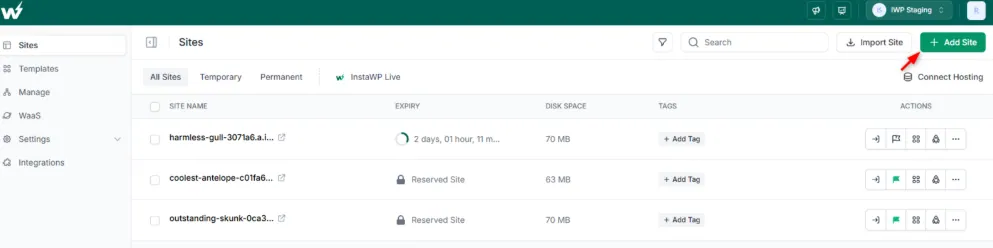
Choose your WordPress configuration and wait for your site to spin up (usually under 30 seconds). Check out our guide on ‘How to Create a Site on InstaWP‘ to learn the process in detail.
Step 2: Enable the Built-in MCP Server
Once you’ve successfully created the site on InstaWP, open your site’s detail page in the InstaWP dashboard, expand Extensions in the left sidebar and click MCP.
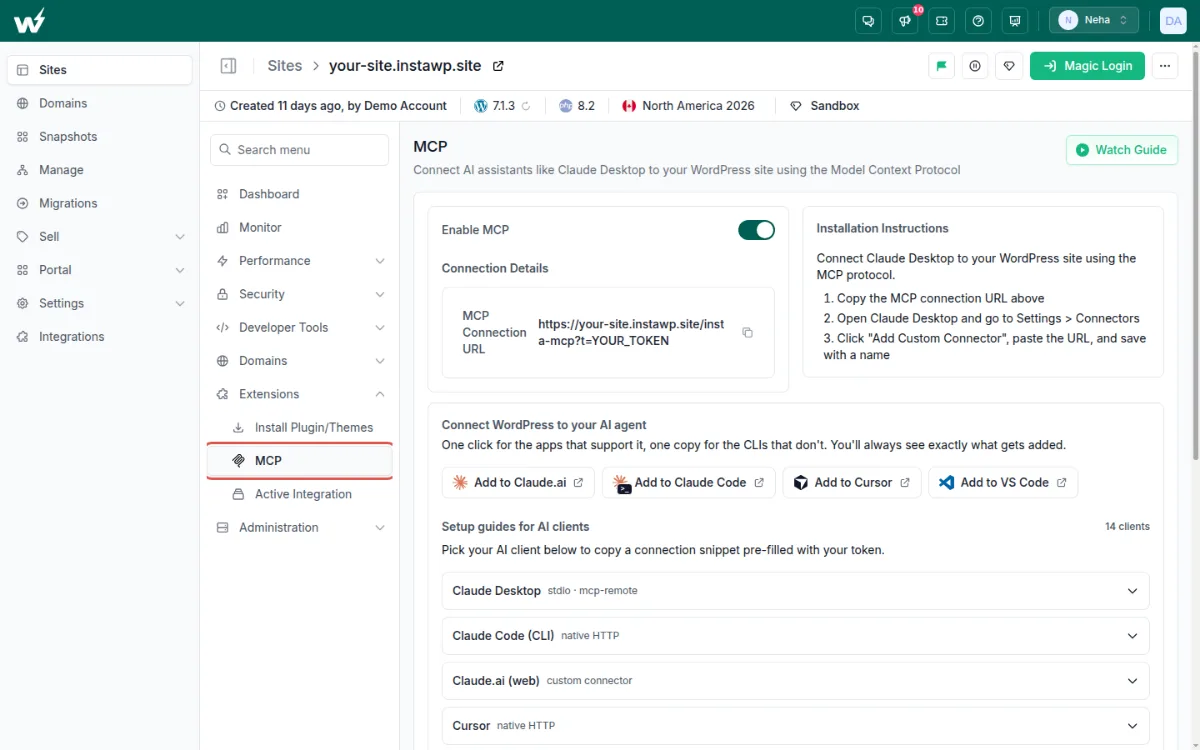
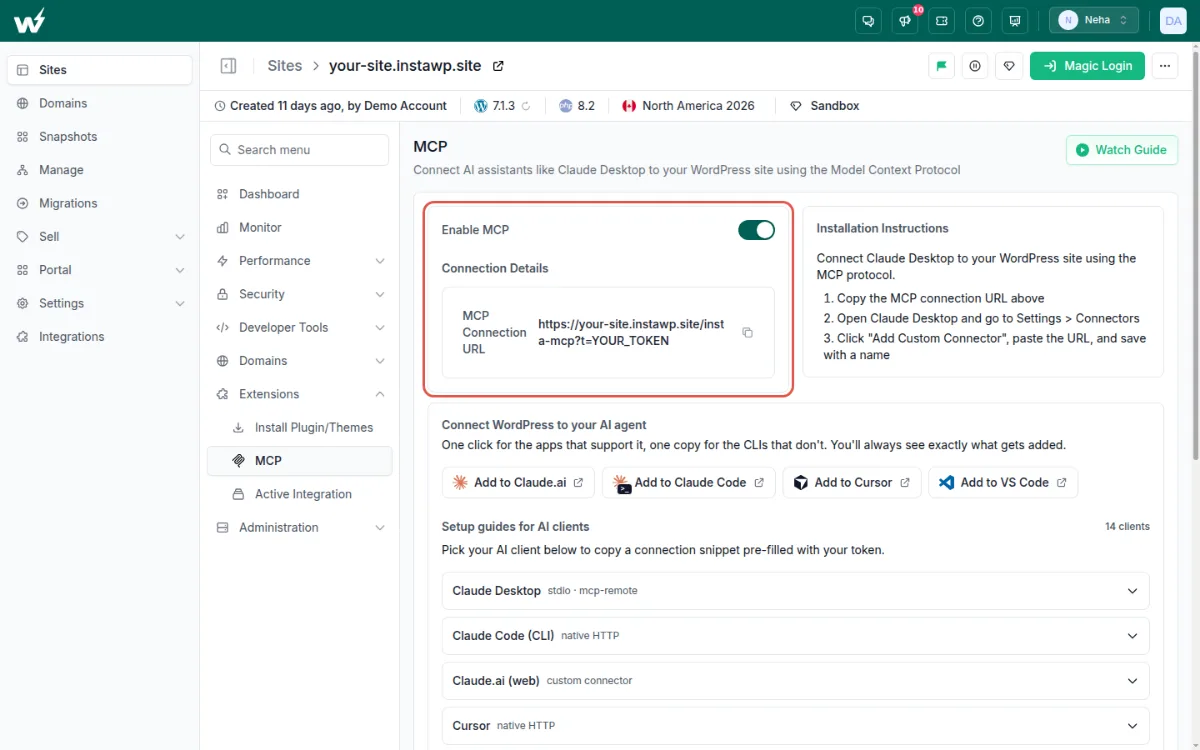
Toggle Enable MCP on. That’s it. InstaWP installs and activates the InstaMCP plugin, generates a secure token and builds your connection URL.
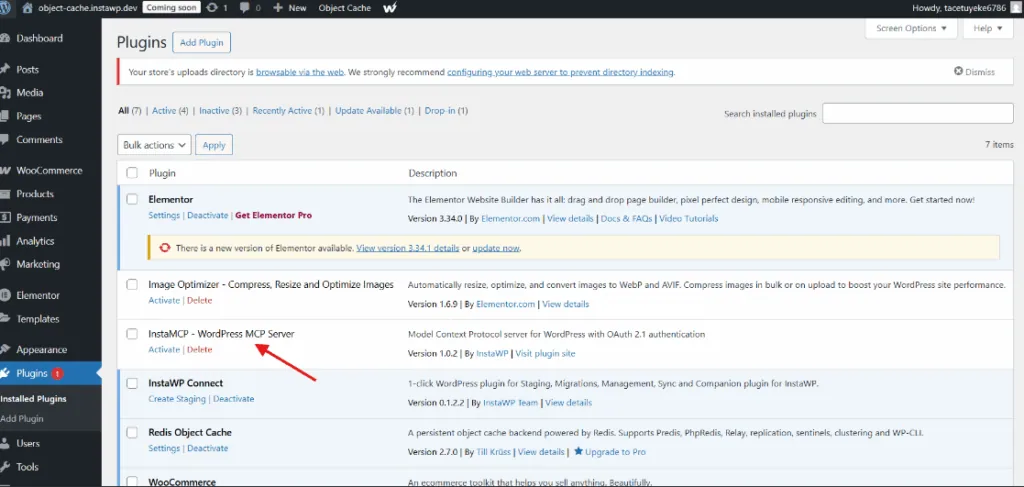
If you use the Magic Login from the InstaWP Dashboard and access the WP Admin > Plugin > Installed Plugin, you’ll find the InstaWP MCP plugin auto installed. This is the sign that your WordPress site is now ready to connect with ChatGPT.
Step 3: Copy Your MCP URL
Your MCP URL contains the authentication token. Click the copy button next to it in the dashboard. It looks like https://your-site.instawp.site/insta-mcp?t=YOUR_TOKEN.
Step 4: Connect ChatGPT to Your WordPress Site
ChatGPT now adds custom MCP servers as plugins. OpenAI has renamed this flow several times, so skip older guides that send you to Settings → Connectors or a New App dialog. These steps follow OpenAI’s Add custom MCP server guide and Help Center article as of 23 October 2026.
4.1 Open Plugins and add a custom MCP server. Open ChatGPT Plugins on the web (custom MCP servers can’t be added from the mobile app), select Add at the top right, then Add custom MCP server. You don’t need to switch on Developer Mode first: in the Plugins experience, ChatGPT asks you to accept a risk warning for each server instead.
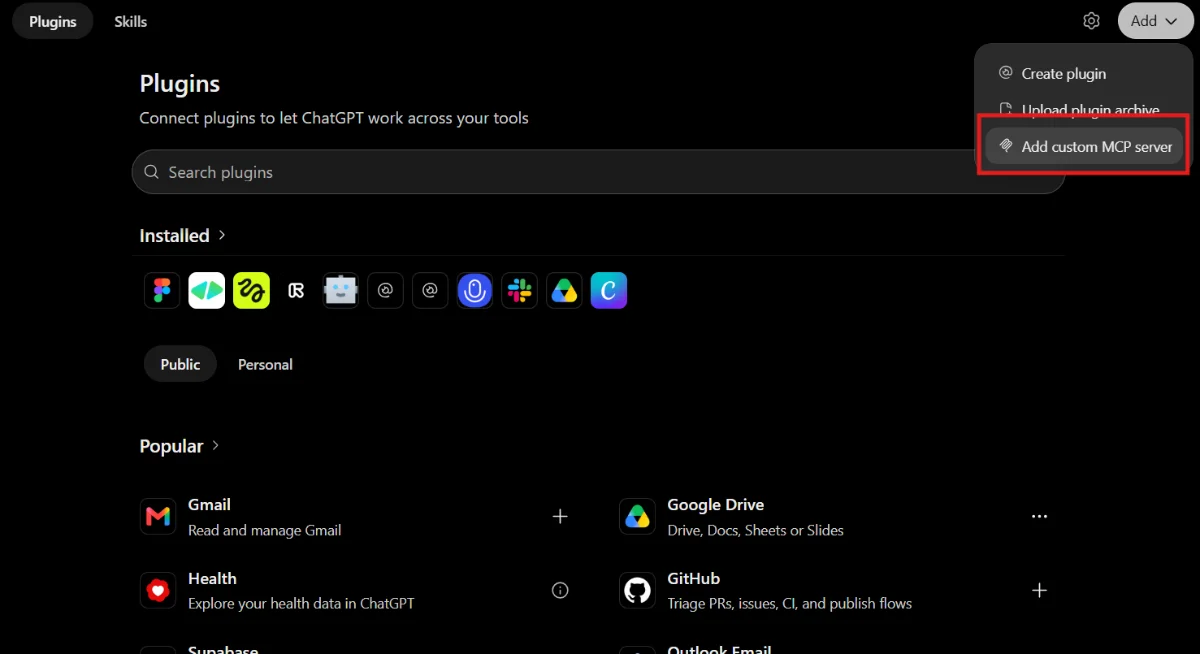
4.2 Name the connection. Enter a name such as “My WordPress Site” and, if you like, a one-line description. This is the name you will pick with @ in a chat.
4.3 Paste your InstaMCP URL. Under Connection, keep Server URL selected and paste your InstaMCP URL. Skip the Tunnel option: it is for private servers that aren’t reachable from the internet, and an InstaWP site already has a public HTTPS endpoint.
4.4 Choose No authentication. Set Authentication to No authentication. The token already travels inside the URL. (The other choices, OAuth and “OAuth or no authentication”, are for servers that sign you in.)
4.5 Accept the risk warning. Read the risk warning and tick I understand and want to continue.
Here is the finished form for an InstaWP site. The token in the URL is masked:
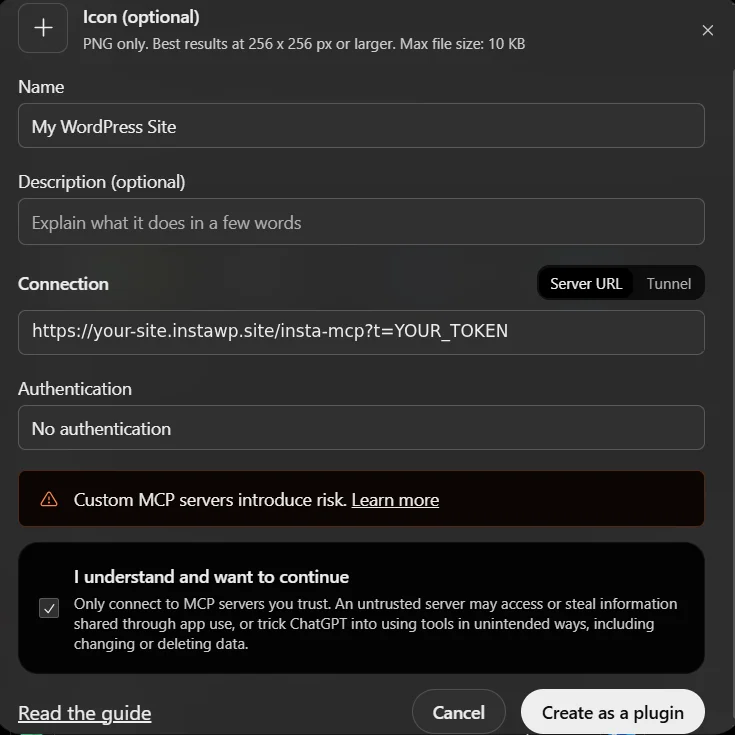
4.6 Create the plugin and check the tools. Select Create as a plugin. ChatGPT connects to your site and lists the tools it found. For an InstaWP site that is 43 tools, such as list_content, create_content and validate_blocks.
list_content in about 3 seconds, so the URL alone is all ChatGPT needs.4.7 Install the plugin. On the Plugins page, open the Personal tab (or go straight to your personal plugins), find the new plugin and select + to install it. A plugin you created stays out of your chats until you install it.
Don’t see Add custom MCP server? Your account or workspace may not allow it (see the plan note below), or it may still show the older Apps layout.
On that legacy layout you go to Settings → Apps → Create, paste the same URL with No authentication, run Scan Tools and select Create. The new app shows a Dev label.
Which ChatGPT plans can do this? OpenAI lists full MCP support, including write actions, for Business and Enterprise/Edu workspaces on ChatGPT web. On Business, only admins and owners can add a custom MCP server. On Enterprise/Edu, admins can give members the Create plugins with MCPs permission through role-based access.
Only admins and owners publish the plugin for everyone (Admin console → Plugins → Manage Legacy Apps → Drafts → Publish). Pro users can connect custom MCP servers with read and fetch access only, according to OpenAI’s guide to custom MCP servers. InstaMCP marks 20 of its 43 tools as read-only (listing and reading content, checking blocks), so on Pro expect ChatGPT to read your site but not change it.
You can also control the access by generating the API token. Go to WP Admin > Settings > InstaMCP.
Here, you can create a token that controls access. Under the API Tokens tab, pick the WordPress user the token should act as, give it a label and, if you like, an expiry date. The token inherits that user’s role, so an Editor’s token can’t install plugins and a Subscriber’s token can only read.
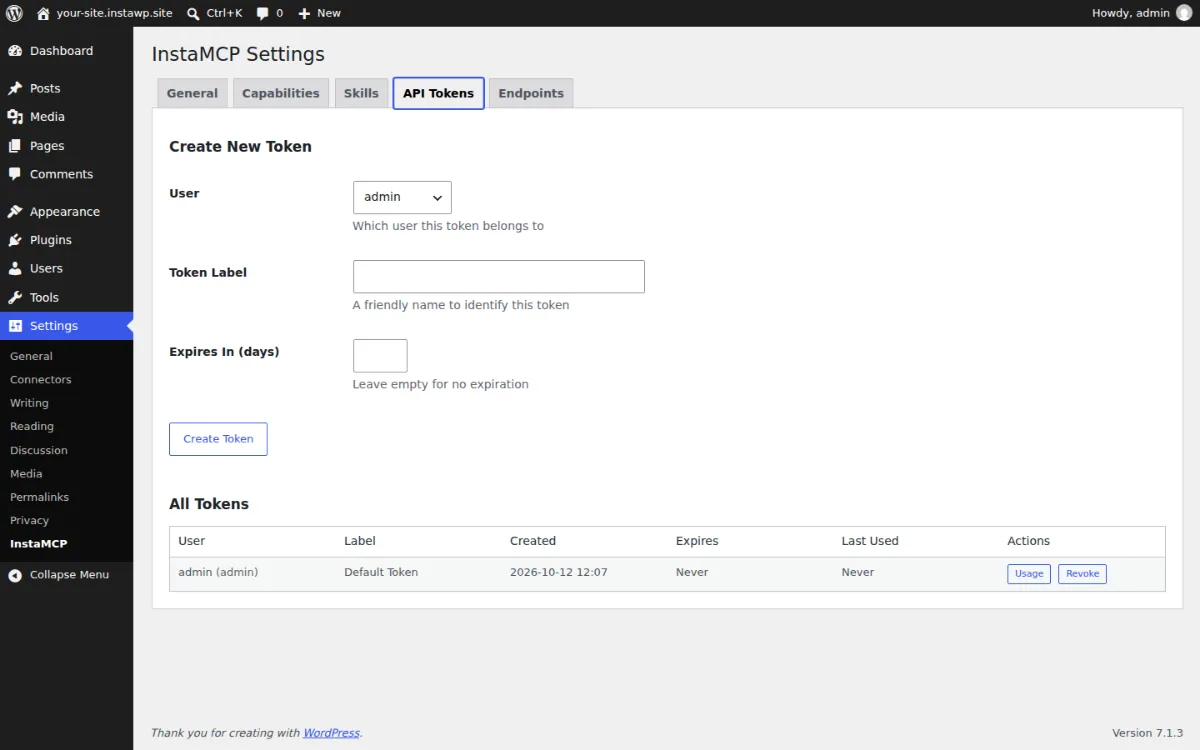
Copy this newly generated URL.
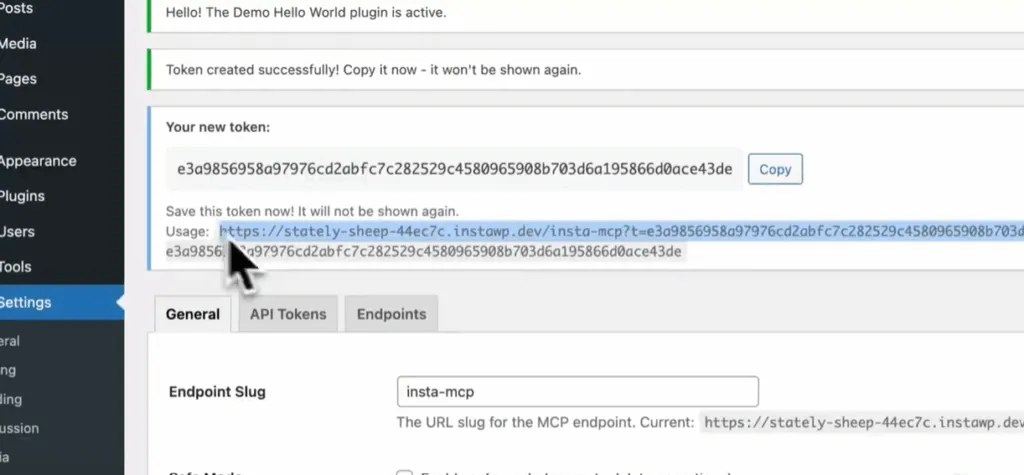
Paste this URL into ChatGPT’s custom MCP server dialog instead of the default one.
Step 5: Start Managing WordPress with Natural Language
Start a new chat and type @ in the prompt box to pick your WordPress plugin. You can also select + and type its name, and ChatGPT uses an installed plugin on its own when a request needs it. If your ChatGPT homepage shows a Chat and Work switch, OpenAI’s quickstart runs custom plugins from a Work chat. Then try these commands:
- “List all posts on my WordPress site”
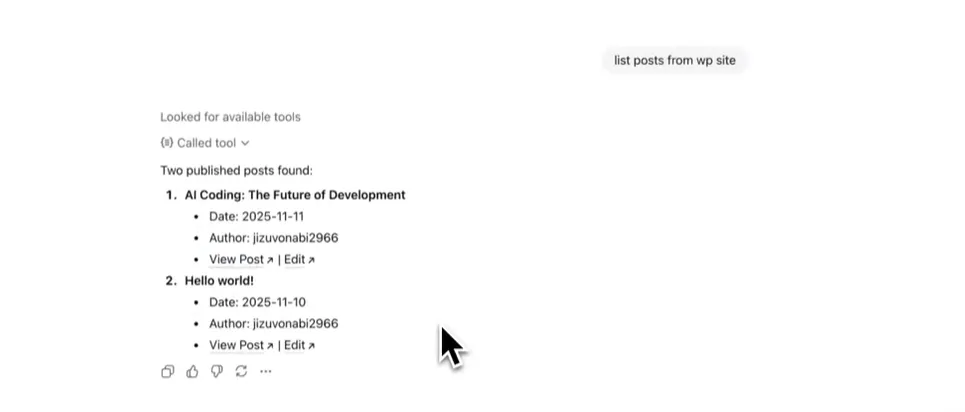
- “Create a draft post titled ‘Getting Started with AI'”
- “Show me plugins that need updates”
- “Create a simple testimonial plugin”
- “Add a new category called ‘AI Tutorials'”
ChatGPT will execute these commands directly on your WordPress site through the MCP connection.
The first time ChatGPT wants to change something, it shows an approval card. You decide how often it asks in Settings → Plugins: a Default permission applies to every plugin, and each plugin can have its own level, from always asking to allowing all of its tools (OpenAI’s permissions guide). On a live client site, keep your WordPress plugin on the strictest level you can work with.
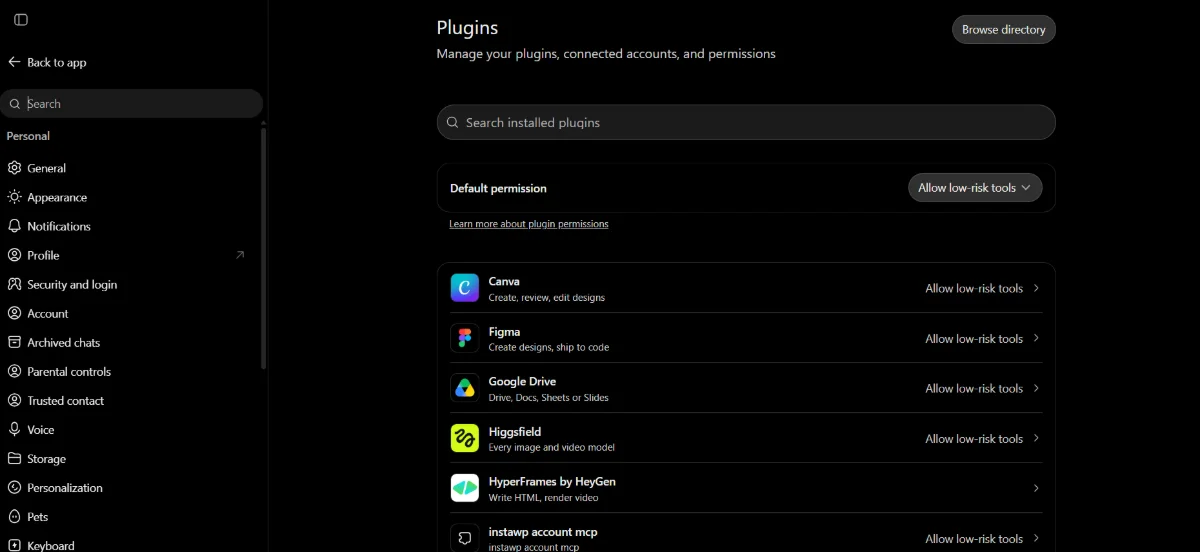
Write actions need your confirmation by default, and ChatGPT treats any tool that doesn’t declare itself read-only as a write. You can approve a tool for the rest of one conversation; a new chat asks again. Each plugin also has a details page where you can switch individual tools off (the delete tools on a client site, for example) and select Refresh after an InstaMCP update so ChatGPT pulls the new tool list.
Watch the full tutorial.
Method 2: Add a ChatGPT Chatbot With a WordPress Plugin
Not to be confused with ChatGPT’s own Plugins page: this method uses a WordPress plugin. The simplest way to add ChatGPT to WordPress is through a WordPress ChatGPT plugin. This approach embeds an AI-powered chatbot on your website that can answer visitor questions, provide support, and engage users.
Popular ChatGPT WordPress Plugins
- AI Engine by Jordy Meow: A versatile WordPress ChatGPT plugin that adds chatbot functionality and content generation. It connects to OpenAI’s API and offers customizable chat widgets, shortcodes, and content tools.
- AI Power: Supports multiple AI providers including OpenAI, Claude, and Gemini. Includes chat widgets, WooCommerce integration, and content generation features.
- ChatBot for WordPress: A premium plugin that integrates ChatGPT with customer support features, including Facebook Messenger and WhatsApp connectivity.
You can choose any of the WordPress ChatGPT plugin and use it to connect ChatGPT with WordPress. For the sake of this guide, we’re using AI Engine by Jordy Meow.
To install it, go to Plugins → Add New in your WordPress dashboard and search for your chosen plugin (e.g., “AI Engine”).
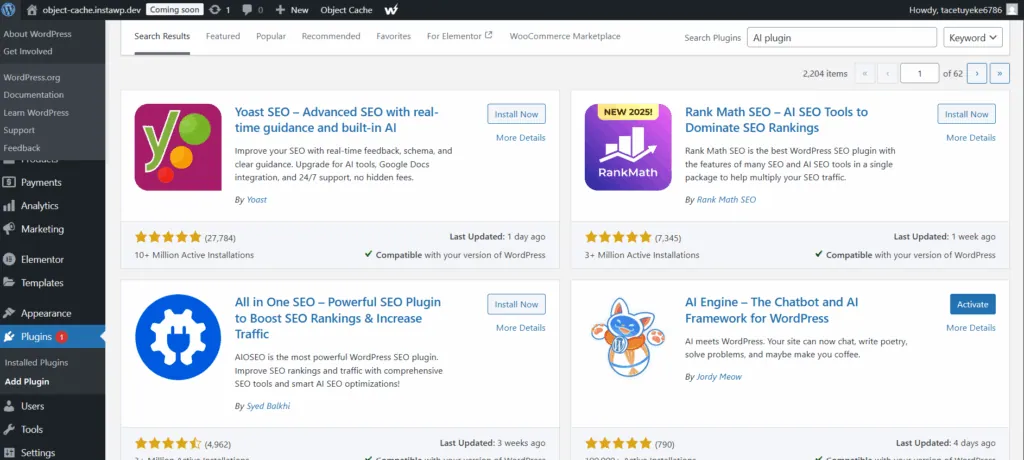
Click Install, then Activate. Once it’s activated, navigate to the plugin settings. Go to ‘AI’ tab. Enter your API key in the space. You can find your ChatGPT API key on the OpenAI API keys page.
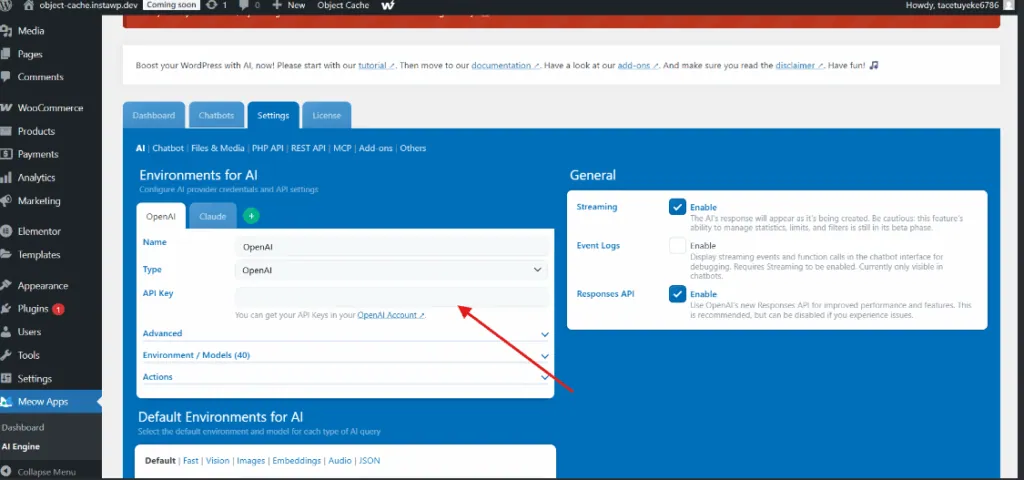
Configure the chatbot appearance and behavior. Add the shortcode or widget to your pages. While plugins are easy to set up, they have significant limitations:
- One-way interaction: The chatbot helps visitors, but doesn’t help you manage the site
- API costs: Every conversation consumes OpenAI API credits
- Limited functionality: Can’t create posts, manage plugins, or perform admin tasks
- Performance impact: Chat widgets add JavaScript that can slow your site
For basic customer support, plugins work fine. But if you want ChatGPT to actually help you manage your WordPress site, you need a different approach.
Method 3: Connect ChatGPT to WordPress via the OpenAI API
For developers, direct API integration offers more control over how ChatGPT interacts with your WordPress site. For this, you need to have below things ready.
Step 1: Get Your OpenAI API Key
Go to platform.openai.com and sign in (or create an account) and navigate to Settings → API Keys in the left sidebar. Click “Create new secret key”.
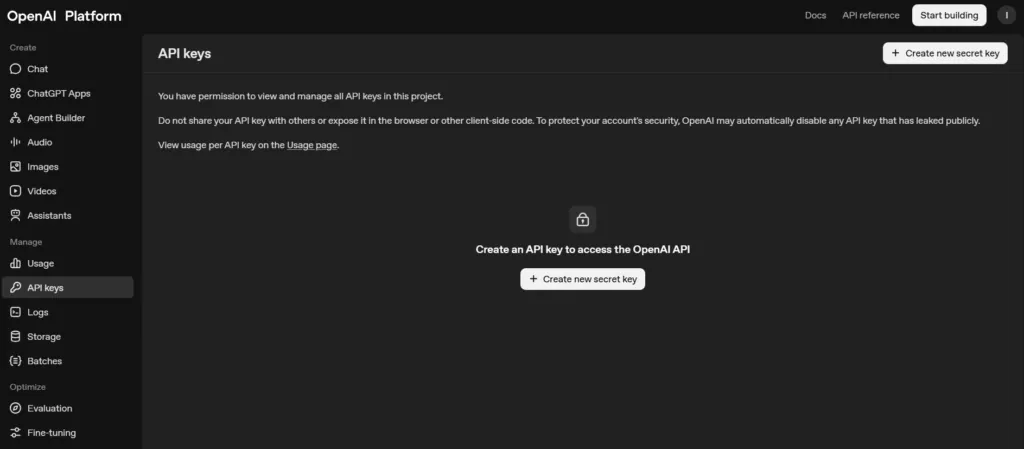
Give it a name like “WordPress Integration”. Copy the key immediately, you won’t be able to see it again.
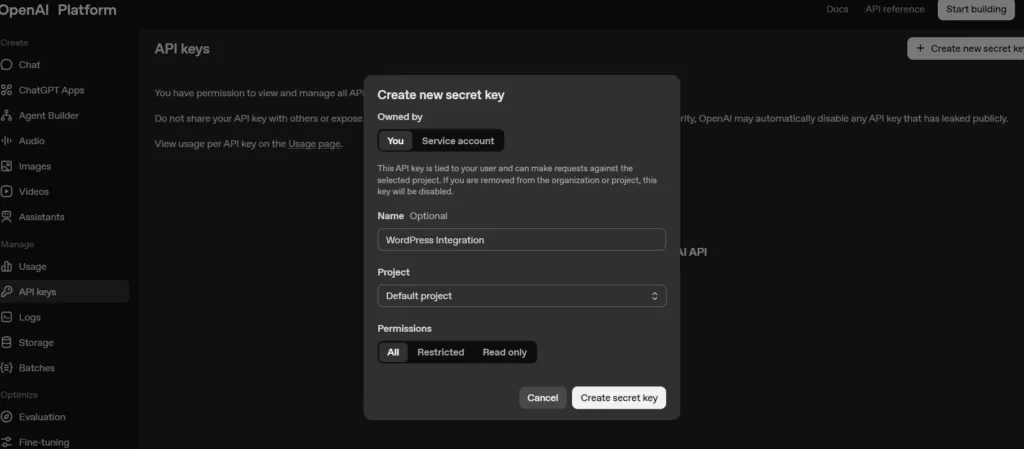
Go to Settings → Billing and add a payment method (required for API access)
⚠️ Security Note: Never hardcode your API key in theme files that might be committed to Git. Use
wp-config.phpconstants or environment variables instead.
Step 2: Store Your API Key Securely
Add this to your wp-config.php file (above the “That’s all, stop editing!” line):
// Add to wp-config.php, above the "stop editing" line.
define( 'OPENAI_API_KEY', 'sk-your-api-key-here' );
This keeps your key out of your theme files and version control.
Step 3: Create the API Integration Function
Add this code to your theme’s functions.php or use a code snippets plugin:
function generate_ai_content( $prompt, $model = 'gpt-4o-mini' ) {
    $response = wp_remote_post( 'https://api.openai.com/v1/chat/completions', array(
        'timeout' => 30,
        'headers' => array(
            'Authorization' => 'Bearer ' . OPENAI_API_KEY,
            'Content-Type'  => 'application/json',
        ),
        'body' => wp_json_encode( array(
            'model'    => $model,
            'messages' => array(
                array( 'role' => 'user', 'content' => $prompt ),
            ),
        ) ),
    ) );

    if ( is_wp_error( $response ) ) {
        return $response;
    }

    $body = json_decode( wp_remote_retrieve_body( $response ), true );

    if ( empty( $body['choices'][0]['message']['content'] ) ) {
        return new WP_Error( 'openai_empty', 'No content returned from the API.' );
    }

    return $body['choices'][0]['message']['content'];
}
Swap gpt-4o-mini for whichever model your OpenAI account has access to. Check OpenAI’s model list before you ship, because model names change.
Step 4: Test the Integration
Create a simple test by adding this temporary code:
// Temporary test. Remove it once the connection is confirmed.
add_action( 'wp_footer', function () {
    if ( ! current_user_can( 'administrator' ) ) {
        return;
    }

    $result = generate_ai_content( 'Write a one-sentence WordPress tip.' );

    if ( is_wp_error( $result ) ) {
        echo '<!-- AI Error: ' . esc_html( $result->get_error_message() ) . ' -->';
        return;
    }

    echo '<p>' . esc_html( $result ) . '</p>';
} );
Visit your site while logged in as admin, then view the page source to see the response in HTML comments. Remove this test code after confirming it works.
Step 5: Create a Practical Use Case
Here’s a real-world example, a shortcode that generates AI content:
add_shortcode( 'ai_text', function ( $atts ) {
    $atts = shortcode_atts( array( 'prompt' => '' ), $atts, 'ai_text' );

    if ( empty( $atts['prompt'] ) ) {
        return '';
    }

    $result = generate_ai_content( $atts['prompt'] );

    if ( is_wp_error( $result ) ) {
        return '';
    }

    return wp_kses_post( $result );
} );
While this method gives you control, it has significant constraints:
- One-way communication: You’re sending prompts and receiving text, so ChatGPT can’t “see” your WordPress data or perform actions on your site
- Manual implementation: Every feature (post creation, plugin management, etc.) requires custom code
- No natural language control: You can’t say “create a post”, you have to write the code that creates posts
- Maintenance burden: API changes, rate limits, and error handling are your responsibility
For bidirectional control where ChatGPT can actually manage your WordPress site through natural language, you’ll need MCP integration (covered in Method 1).
Before the WordPress.com option, here is how InstaWP’s built-in WordPress MCP server compares with the traditional routes.
Method 4: Connect ChatGPT to a WordPress.com Site
If your site is on WordPress.com rather than self-hosted, there is an official connector. Unlike the WordPress.com connector for Claude, which is read only, this one can write: ChatGPT can create, edit, delete, and publish content, and it asks you to confirm every write before it runs.
- Enable MCP on your WordPress.com account.
- In ChatGPT, add a custom MCP server: on the Plugins page select Add, then Add custom MCP server. On the legacy Apps layout, use Settings, then Apps, then Create.
- Name it WordPress.com and give it the URL
https://public-api.wordpress.com/wpcom/v2/mcp/v1. - Sign in to WordPress.com when ChatGPT asks, install the new plugin from your personal plugins, then type @ in a new chat and pick it.
What to watch out for
- Write actions need a Business, Enterprise or Edu ChatGPT workspace. OpenAI limits Pro accounts to read and fetch.
- Deletions are not all reversible. Posts and pages go to trash for 30 days, but deleted media, categories, and tags are gone permanently.
- It only works for WordPress.com sites. For self-hosted WordPress, use Method 1.
What can ChatGPT do on your WordPress site over InstaMCP?
Over InstaMCP, ChatGPT gets 43 typed WordPress tools. How many it can use depends on the WordPress user behind your token: an Administrator token reaches all 43, an Editor token 32, an Author token 30, and a Contributor or Subscriber token 19 read-only tools.
Prompts that work well once the connector is in place:
- “Find every published post without a meta description and list them with their URLs.”
- “Draft a pricing FAQ page in Gutenberg blocks, validate the blocks, and save it as a draft.”
- “Set the SEO title on post 42 and show me the value before and after.”
- “Check the error log for fatal errors since yesterday’s plugin update.”
- “Update Contact Form 7, then confirm the homepage still loads.”
If you build with Elementor or WooCommerce, see how the same tools handle an Elementor MCP workflow and a WooCommerce MCP store.
Two layers of control: ChatGPT approvals and WordPress roles
ChatGPT and InstaMCP control different parts of access. ChatGPT’s permission setting decides when it stops to ask you. The InstaMCP token decides what is possible in the first place, and approving a request in chat can’t widen it.
An approval in ChatGPT only adds a pause; the token’s role sets the actual limit. For a client site, connect an Editor or Author token and keep ChatGPT on Always ask. For the full risk picture, read our guide on is WordPress MCP safe.
ChatGPT developer mode: what to know before you connect WordPress
A custom MCP server is one OpenAI hasn’t reviewed. OpenAI used to gate these behind a setting called developer mode, and now adds them as plugins without that switch, but the trade-off is the same: ChatGPT can use the server’s tools, including tools that write. That is what makes a WordPress connection possible, and it is also why ChatGPT shows a risk warning when you add one. Before you rely on it, check these points:
- Your plan and workspace decide what you get. OpenAI’s guide to custom MCP servers lists full MCP support, including write actions, for Business and Enterprise/Edu workspaces on ChatGPT web, where admins and owners (or members they authorise on Enterprise/Edu) add the server. Pro users get read and fetch access only, and custom MCP servers can’t be added on mobile.
- Remote HTTPS only. ChatGPT connects to a public HTTPS endpoint (or OpenAI’s Secure MCP Tunnel). It can’t launch a local stdio server the way Claude Code or Cursor can, so WordPress MCP setups built on a local Node proxy don’t work here. InstaMCP is already a hosted HTTPS endpoint.
- No OAuth needed for a site. InstaMCP authenticates with the token in the URL, so pick No authentication. OAuth is used by InstaWP’s Account MCP, which manages your whole InstaWP account rather than one site (see account MCP vs site MCP).
- Tool lists don’t refresh themselves. After InstaMCP updates, open the plugin at chatgpt.com/plugins, select Refresh and start a new chat. On Business and Enterprise, an admin refreshes it from workspace app settings.
- Anyone with the URL has the token. Keep it out of shared chats and screenshots. If it leaks, create a new token and revoke the old one under API Tokens. Turning MCP off and on again keeps the same token.
- Test on a copy first. Point a new connector at a sandbox or staging copy, check what ChatGPT does with your prompts, then connect production.
How do you fix a ChatGPT MCP connection to WordPress?
Find the symptom you see in the first column, then work across the row. The causes range from a truncated URL to a plan setting or a tool InstaMCP keeps off by default.
The Smartest Way to Add ChatGPT to WordPress
There are four ways to connect ChatGPT to WordPress:
- Plugins: Easy but limited to visitor chatbots
- API Integration: Flexible but requires coding
- MCP Integration: Full WordPress management via AI
- WordPress.com Connector: Official and no-code, but only for WordPress.com sites
For agencies, developers, and anyone who wants to manage WordPress sites using natural language, MCP is the clear winner. And the fastest way to get started is InstaWP’s built-in WordPress MCP server: the site lives on managed WordPress hosting, MCP is one switch, and ChatGPT connects with one URL. The same URL also works when you connect Claude to WordPress or connect AI agents to WordPress such as Cursor and Codex.
Ready to transform how you manage WordPress?
Create an InstaWP account and start managing WordPress with your voice.
Additional Resources:
- What is WordPress MCP Server and How to Use It: Guide for Agencies
- Talk to Your WordPress Site with InstaWP’s MCP Server
- How to Use MCP for WordPress in Production
- 10 Best WordPress MCP Servers Compared
- Best WordPress Hosting With MCP
Frequently Asked Questions
Can I use ChatGPT to create WordPress posts automatically?
Yes. With MCP integration through InstaWP, you can tell ChatGPT to create, edit, or publish posts using natural language. For example: “Create a 500-word blog post about email marketing tips and publish it.”
Is connecting ChatGPT to WordPress secure?
When using proper authentication like InstaWP’s token-based MCP system, yes. Each token is stored only as a hash, is bound to one WordPress user and inherits that user’s role, can carry an expiry date, and can be revoked instantly. Never share your MCP URL publicly.
Do I need coding skills to connect ChatGPT to WordPress?
Not with InstaWP. The built-in MCP server requires zero coding, just click to enable and paste the URL into your AI client. For manual API integration, coding knowledge is required.
Which AI tools work with WordPress MCP?
Any MCP-compatible client can talk to a WordPress MCP server. That includes ChatGPT (as a custom MCP plugin), Claude Desktop, Claude Code, Cursor, and VS Code, along with other tools that support the Model Context Protocol.
Can I connect ChatGPT to multiple WordPress sites?
Yes. InstaWP lets you manage MCP connections for all your sites from a single dashboard. Each site gets its own MCP URL that you can connect to your AI client.
What’s the difference between a ChatGPT plugin and MCP integration?
Plugins embed a chatbot for your visitors. MCP connects AI to your WordPress admin, letting you manage the site using natural language. They serve completely different purposes.
Can ChatGPT build a WordPress website?
ChatGPT can create pages, posts, and content once it is connected over MCP, and it can configure plugins and settings. It will not design a theme for you. Point it at a staging site or sandbox, review what it built, and only then apply it to production.
How do I add ChatGPT to WordPress?
It depends what you want. To let ChatGPT manage your site, connect it over MCP (Method 1 or Method 4). To put a chat widget in front of your visitors, install a ChatGPT plugin (Method 2). To build a custom AI feature, call the OpenAI API directly (Method 3).
Is ChatGPT MCP free?
InstaMCP is included with every InstaWP site, from the Sandbox plan up. On the ChatGPT side, OpenAI lists full MCP, including write actions, for Business and Enterprise/Edu workspaces. Pro users can connect a custom MCP server with read and fetch access only.
What are ChatGPT connectors?
ChatGPT connectors are integrations that let ChatGPT read from or act in another service. OpenAI now groups them under Plugins. A custom connector is an MCP server URL you add yourself, which is how you connect a self-hosted WordPress site.
Does ChatGPT support MCP servers?
Yes. ChatGPT connects to a remote MCP server over HTTPS and adds it as a plugin: Plugins, then Add, then Add custom MCP server, then Create as a plugin. Install the plugin, then type @ in a new chat to use it. Full MCP with write actions is for Business and Enterprise/Edu workspaces; Pro accounts get read and fetch only.
Do I need ChatGPT developer mode to connect WordPress?
Not in the current Plugins experience. OpenAI says you add a custom MCP server straight from Plugins and accept a risk warning instead. Your workspace still decides who may add one: on Business only admins and owners, on Enterprise/Edu admins and the members they authorise. Accounts on the legacy Apps layout use Settings, then Apps, then Create.
Does the InstaWP site MCP use OAuth?
No. A site connection authenticates with the token inside the connection URL, so choose No authentication in ChatGPT. OAuth is used by InstaWP’s Account MCP, which manages your whole InstaWP account instead of one site.
Can I host my WordPress site on InstaWP and connect it to ChatGPT?
Yes. InstaMCP is built into sites on InstaWP’s managed WordPress hosting, so a production site and its sandboxes can each be added to ChatGPT with their own URL and token.