InstaWP now gives you two ways to hand WordPress over to an AI assistant, and they sound almost identical: the account MCP and the site MCP (InstaMCP). People connect one, ask it to do something it was never built for, and conclude the feature is broken. It is not. They are two different doors into two different layers of your stack.
Here is the whole thing in one line: the account MCP manages your hosting. The site MCP manages what is inside a site. One provisions, snapshots, and bills. The other writes posts, edits blocks, and installs plugins. This guide breaks down exactly what each one controls, what they share, when to use which, and why most agencies end up running both.
Key takeaways
- Account MCP works outside your sites. One OAuth connection covers every site in your team: list, create, snapshot, back up, change PHP, check plans and billing.
- Site MCP (InstaMCP) works inside one site. 43 tools for posts, pages, blocks, taxonomies, meta, media, plugins, themes and logs, connected per site with its own token.
- Neither can do the other’s job. The account MCP cannot write a blog post. The site MCP cannot create a site or read your invoice.
- Both are off by default, and both keep their riskiest tools behind a second, explicit opt-in.
- Run both and one conversation can provision a site, snapshot it, then build the homepage inside it.
The mental model: the building manager and the interior designer
Think of your InstaWP account as an apartment building and each WordPress site as a unit inside it.
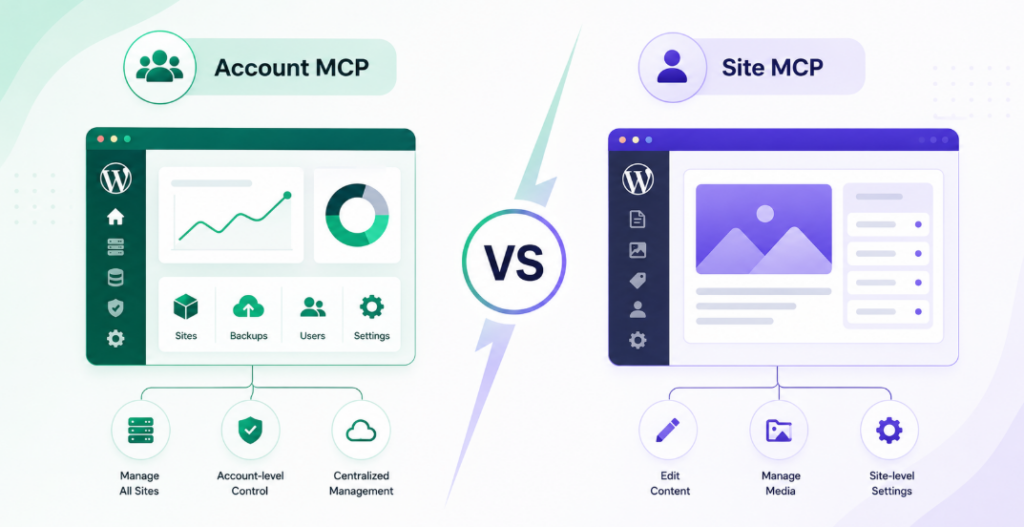
The account MCP is the building manager. They hold keys to the whole property. They can put up a new unit, take a snapshot of one before renovation, restore it if a job goes wrong, upgrade the plumbing (your PHP version), and tell you what the rent is. What they will not do is choose your sofa. They work on units, not in them.
The site MCP is the interior designer inside one unit. They know every room, every fitting, every wall. They can rewrite the content, rearrange the blocks, install a new appliance (a plugin), swap the whole look (a theme), and read the smoke alarm log when something smells wrong. What they cannot do is build you a second apartment. They only have keys to the one they are standing in.
Quick refresher: MCP, the Model Context Protocol, is an open standard that lets AI assistants securely connect to real applications and take real actions inside them. InstaWP implements it twice, deliberately: once at the account layer and once at the WordPress layer, because those two jobs need very different permissions.
What the account MCP actually does
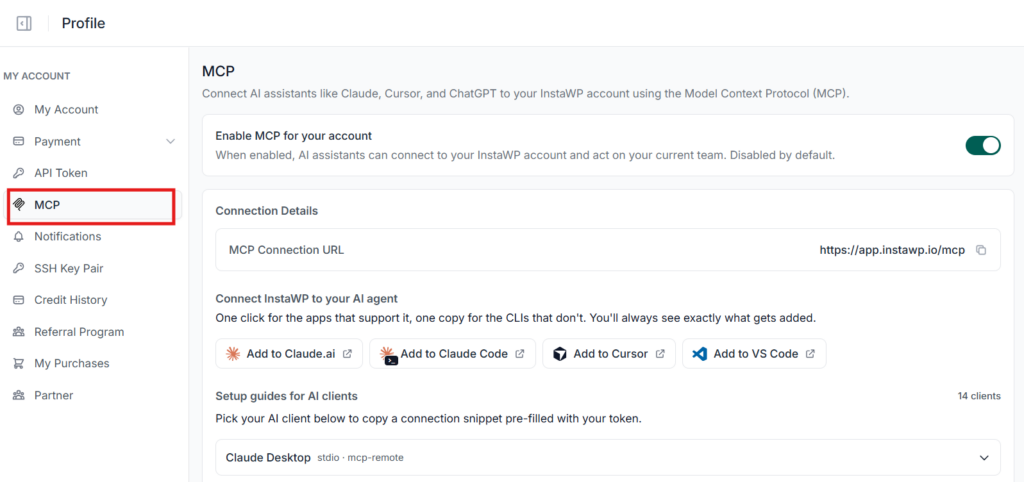
The account MCP is a single connection between your AI client and your InstaWP account. It is scoped to your current team, so everything that team can see, your AI can work with, from one endpoint. You switch it on from the MCP tab in your InstaWP account, where it sits disabled by default.
The capabilities it ships with
Sites
List, create, update, and delete sites across your InstaWP account.
PHP & WordPress Versions
Check and change the WordPress and PHP versions running on each site.
Backups & Snapshots
View existing restore points or create new backups and snapshots on demand.
Billing & Plans
See which plan each site uses and review account-level billing information.
Teams
Get read-only visibility into the members of your InstaWP team.
Diagnostics
Run account-level health and status checks across your environment.
Three more powerful groups are shipped but switched off by default, and you turn them on per capability: credentials and secrets (site logins, magic-login links, SFTP details), shell and WP-CLI (arbitrary command execution), and act inside sites (direct read and write access into the WordPress installs themselves). That last one matters for this comparison, and we come back to it below.
How you connect it
Connection is OAuth. You copy one connection URL into your AI client, approve the request on an InstaWP consent screen, and you are done. There is no API key to generate, paste, or rotate, and nothing secret ends up sitting in a config file. Because the grant is per client, you can connect Claude, Cursor and ChatGPT to the same account and revoke any one of them independently. The full walkthrough lives in the docs guide to connecting AI assistants to your account.
Watch the video tutorial.
What the site MCP (InstaMCP) actually does
The site MCP is InstaMCP, the per-site server that lives with the WordPress install itself. You enable it from Sites → your site → Site Details → MCP in the sidebar, and the docs cover the setup in detail in connect AI assistants to your WordPress site using MCP. Flip the switch and InstaWP generates a connection URL for that one site, with a 64-character authentication token embedded in it. Treat that URL like a password.
Where the account MCP has a handful of hosting capabilities, InstaMCP exposes 43 tools that map onto the guts of WordPress:
Two of those categories are easy to skim past and are quietly the most useful. Skills are Markdown playbooks stored on the site that teach the AI how your team does a job, so “build a landing page” produces your house layout rather than a generic one. Memory stores durable facts about that specific site, so the assistant remembers the client uses Bricks, or that the staging URL is not the live one.
The three power tools, and why they are off
execute_php runs arbitrary PHP inside WordPress with a 30-second ceiling and auto-rollback if it breaks a file. db_query has Off / Read-only / Read & write modes and blocks multi-statements and file I/O. site_files has the same three modes against a strict allowlist. You turn each on deliberately in WP Admin → Settings → InstaMCP → Capabilities. Enabling MCP on a site never switches these on for you.
Side by side: every difference that matters
mcp:read
mcp:write
mcp:delete
mcp:admin
execute_php
db_query
site_files
New sites appear automatically.
Or let Account MCP reach into individual sites.
The row worth staring at is number of connections. If you run five sites, wiring up five site MCPs is fine. If you run forty client sites, adding forty MCP servers to Claude or Cursor is unworkable, and most AI clients start to strain long before you get there. That is the structural reason the account MCP exists, and the reason agencies should start there.
Try both on a throwaway site first
Spin up a free InstaWP sandbox, connect your AI to it, and see the difference between hosting control and site control in about five minutes.
Start Building FreeWhat they have in common
The differences get the attention, but the shared design is what makes them safe to run together.
- Same protocol, same clients. Both speak MCP, so both work with Claude, Cursor, VS Code, Copilot, ChatGPT, Windsurf, Cline, Zed, Codex, Gemini and the rest. You are not learning two tools, just pointing at two endpoints.
- Both are off until you turn them on. Nothing is exposed to any AI by default, at either layer.
- Both use a two-gate model. Enabling the MCP is gate one. Enabling its dangerous tools is a separate gate two, which enabling the MCP never opens for you. That is deliberate defence in depth: even if something arms a site’s MCP, the site’s own power tools stay shut.
- Both are hosted for you. There is no MCP server to deploy, no Node process to babysit, no tunnel to keep alive. This is the main practical difference from rolling your own WordPress MCP server.
- Both are revocable. Turn the toggle off, or revoke the specific client or token, and access stops immediately.
Use cases: when you want the account MCP
Reach for the account MCP whenever the question is about sites as objects rather than what is inside them.
1. Provisioning without leaving your editor
A client calls mid-sprint and wants to see an idea. “Create a sandbox called acme-demo on PHP 8.3.” The site exists before the call ends. No dashboard, no tab-switch, no losing your place in the task you were already doing.
2. Snapshot discipline you will actually keep
Everyone agrees you should snapshot before a risky plugin update. Almost nobody does it every time, because it is four clicks in a dashboard you do not have open. When it is one sentence to the assistant you are already talking to, the habit sticks. This is the single highest-value use case for most teams, and it is the cheapest insurance in WordPress.
3. Fleet-wide answers in one question
“Which of my sites are still on PHP 8.1?” “List every site that has no snapshot from the last 30 days.” Answering that manually across a 40-site portfolio is an afternoon with a spreadsheet. Here it is one prompt, because the account MCP already sees the whole team.
4. Maintenance retainers that run themselves
Monthly maintenance is the most profitable and most tedious agency work. Snapshot, check versions, back up, report. The account MCP turns the checklist into a conversation, which means a junior can run the round and the output is consistent every month.
5. Cost and plan hygiene
“What plan is each client site on, and what is my current bill?” On pay-per-use hosting, knowing which forgotten demo site is still costing you money is real margin. Ask the question monthly instead of discovering it on an invoice.
6. Disaster response
A deploy goes wrong on a Friday evening. The account MCP is the layer that lists restore points and gets a site back, which is exactly the layer you want when the site itself is too broken to talk to.
Use cases: when you want the site MCP
Reach for InstaMCP whenever the work happens inside WordPress.
1. Building pages and content by prompt
Draft a post, build a services page out of native Gutenberg blocks, upload and attach the featured image, assign the right categories. The block discovery and validation tools matter here: the AI checks its markup against the blocks the site actually has before it saves, instead of producing a page full of block-recovery errors.
2. Bulk content operations after a migration
Find and replace an old brand name across 400 posts. Re-slug a content type. Reassign taxonomies after an import went sideways. This is the classic job that is too small to justify a script and too big to do by hand, and it is where the 9 content plus 9 taxonomy tools earn their place.
3. Debugging a broken site
“This page 500s, find out why.” The AI reads the error log, maps the active plugins and theme, and traces the fatal to its source. What used to be an SFTP session and a lot of squinting becomes a conversation with something that can read the logs and the plugin source in the same breath.
4. Plugin and theme QA before it hits production
Install a candidate plugin on a sandbox, activate it, check what broke, read the logs, roll it back. Doing this on a disposable InstaWP site rather than a client’s live install is the entire point of the sandbox-first workflow.
5. WooCommerce and custom field work
The meta tools reach ACF fields and WooCommerce product data, so bulk-editing product attributes or populating custom fields across a catalogue stops being a CSV round-trip.
6. Encoding how your agency builds
Skills are the sleeper feature. Write your page-build conventions once as a Skill on a template site, and every AI session on that site follows them. It is the difference between an assistant that guesses your house style and one that knows it, which is what makes AI output shippable to a client rather than a starting point you rewrite.
Use cases: when you want both
The interesting workflows cross the boundary. Connect both and a single conversation covers the full lifecycle.
The bridge between them
The two layers are not strangers. The account MCP can arm a site’s MCP for you, so you can ask it to enable MCP on a site rather than going to that site’s settings yourself. When you switch on the act inside sites capability, the account MCP can also reach through into your sites directly, which is how you avoid adding a separate connection per site across a large portfolio.
Two things stay true when it does. Arming a site’s MCP never enables that site’s power tools, which remain behind their own gate in the site’s own settings. And the reach-through capability is off until you turn it on. The layers stack, but each keeps its own lock.
Which one should you turn on first?
| If you are… | Start with | Because |
|---|---|---|
| An agency with 10+ client sites | Account MCP | One connection covers the fleet; per-site wiring does not scale |
| A freelancer building one site | Site MCP | All your work is inside that site; hosting ops barely come up |
| A content or SEO team | Site MCP | Posts, taxonomies, meta and media are the whole job |
| A developer debugging | Site MCP, then its power tools | Logs and file reads are where the answers are |
| Running maintenance retainers | Account MCP | The checklist is snapshots, versions and backups |
| Vibe-coding a site with AI | Both, on a sandbox | You need the AI to create the site and then build in it |
Security: two different permission models
This is where the two genuinely diverge, and it is worth understanding before you hand either one to an assistant.
Account MCP: capability toggles
You switch individual capabilities on or off, and those choices apply to every AI client you connect. A global read-only mode keeps everything visible but stops all writes — a sensible first week. Access is scoped to your current team, and you revoke any single client from the connected apps list.
Site MCP: WordPress roles
The token inherits the role of the WordPress user it is issued to, mapped to mcp:read, mcp:write, mcp:delete and mcp:admin scopes. Give an AI an Editor-level token and it simply cannot install plugins. Safe Mode blocks deletes outright, and you can mint multiple tokens with expiry dates for different people or tools.
The practical takeaway: at the account layer you restrict by capability, at the site layer you restrict by WordPress role. If you want a writer’s AI to touch content but never plugins, that is a site MCP token on an Editor account, not an account MCP setting. If you want a contractor to see your fleet but change nothing, that is account MCP read-only mode.
A note on the site connection URL: it carries a 64-character token inside it, so it is a credential. Do not paste it into a shared doc, a ticket, or a Slack channel. If it leaks, revoke the token from the site’s InstaMCP settings and generate a new one. The account MCP sidesteps this class of mistake entirely, since OAuth means there is no secret string to paste anywhere.
Five mistakes people make
- Asking the account MCP to write a blog post. It has no idea what a post is. Content lives at the site layer.
- Asking the site MCP to create a site. It is already inside one and cannot see your account. Provisioning is the account layer.
- Expecting power tools to work right after enabling MCP. They will not.
execute_phpreturns a clear “disabled” error until an admin enables it in the site’s own InstaMCP settings. That is the design, not a bug. - Wiring up one site MCP per client site. Fine at five sites, painful at forty. Lead with the account MCP and add per-site connections only where you do deep, repeated work.
- Handing an AI an admin-scoped site token by reflex. Match the scope to the job. Most content work needs mcp:write, not mcp:admin.
Two layers, one workflow
The account MCP and the site MCP are not competing options with a right answer. They are the hosting layer and the WordPress layer of the same idea: that you should be able to describe what you want and have it happen, without a dashboard in between.
If you only remember one thing, remember the boundary. Outside the site, use the account MCP. Inside the site, use InstaMCP. Turn on the account MCP first if you manage a portfolio, the site MCP first if you are building something. Then turn on the other one, because the workflows you actually want cross the line between them.
FAQs
What is the difference between account MCP and site MCP on InstaWP?
The account MCP connects your AI to your InstaWP hosting account, so it can list, create, snapshot, back up and configure sites across your whole team. The site MCP (InstaMCP) connects your AI to the inside of one WordPress site, giving it 43 tools for posts, pages, blocks, taxonomies, media, plugins, themes and logs. Account MCP works on sites; site MCP works in them.
Do I need both?
Not necessarily, but most agencies end up running both. Use the account MCP for provisioning, snapshots, backups and plan management, and the site MCP for content, debugging and building. With both connected, one conversation can create a site, snapshot it, and then build its homepage.
Can the account MCP edit content inside my WordPress sites?
Not with its default capabilities. It manages sites as objects rather than their contents. There is an optional act-inside-sites capability, off by default, that lets it reach into your sites directly, which is useful when you manage a large portfolio and do not want a separate connection per site.
How many connections do I need for 40 client sites?
One account MCP connection covers all 40, and new sites appear automatically. Per-site MCP needs one connection per site, which is practical for a handful of sites but unwieldy across a large portfolio. Most teams connect the account MCP for the fleet and add site MCP only on the sites they work in daily.
Are the risky tools enabled automatically?
No. Both layers use a two-gate model. Enabling MCP is the first gate; enabling its powerful tools is a separate, explicit second gate. On a site, execute_php, database queries and file access stay disabled until an admin enables them in WP Admin under Settings, InstaMCP, Capabilities. On the account, credentials, shell and WP-CLI, and act-inside-sites are all off by default.
Which AI tools work with them?
Both work with any MCP-capable client. One-click installs cover Cursor, VS Code, GitHub Copilot and Claude Code, with prefill flows for Claude.ai, Claude Desktop and ChatGPT, and config options for Codex, Gemini, Antigravity, Windsurf, Cline, Roo, Zed and Continue.
Is the site MCP connection URL safe to share?
No. It contains a 64-character authentication token, so treat it like a password and keep it out of shared docs, tickets and chat. If it leaks, revoke the token in the site’s InstaMCP settings and generate a new one. The account MCP uses OAuth instead, so there is no secret string to paste or leak.
Give your AI the keys, at the right layer
Create a WordPress site on InstaWP, switch on the MCP that fits the job, and manage your hosting and your content from the assistant you already use.
Create Your First Site