The best WordPress hosting with staging depends on how you move changes live. InstaWP, the AI-native WordPress cloud with managed hosting, suits agencies running many client sites, Kinsta has the most selective push with an automatic backup, and WP Engine gives every site separate development, staging and production environments. All ten hosts below include staging, so this guide compares the staging features themselves.
On InstaWP’s managed WordPress hosting, Pro, Turbo and Elite sites get a built-in staging copy that never appears on the bill, and a site on any plan can use a $2 sandbox as its test copy. Kinsta, WP Engine, Flywheel, Cloudways and DreamPress include staging on every plan, WordPress.com from Business, SiteGround from GrowBig and Hostinger from Business.
Every price, staging limit and push option below was checked on the provider’s own pricing and documentation pages on 5 November 2026.
- Staging is often missing from the cheapest plan. SiteGround starts it on GrowBig ($29.99 a month on renewal) and Hostinger on Business, and Bluehost’s plan table and WordPress hosting page disagree on Starter.
- Most hosts give one staging copy per site. Kinsta sells up to five extra Premium copies at $20 a month each. InstaWP gives Pro sites one built-in copy, and any site can add $2 sandboxes.
- A database push overwrites live data. Orders, comments and sign-ups made on the live site after you copied it are lost unless you push files only (Bluehost, Flywheel, Hostinger, WordPress.com) or pick tables (Kinsta, WP Engine, SiteGround, Cloudways).
- Developer tools differ on the staging copy. Kinsta, WP Engine, WordPress.com and InstaWP give staging its own SSH and WP-CLI access with Git-based deploys. Flywheel deploys from Git only through GitHub Actions or DeployHQ.
- Only four hosts back up the live site automatically before a push: Kinsta, WP Engine, SiteGround and DreamPress. Cloudways and Flywheel offer it as a box you tick. On the rest, including InstaWP, take a backup yourself first.
- For ten client sites, list prices range widely. Ten InstaWP Pro sites with built-in staging cost $150 a month. Kinsta’s Single plan with nine extra sites comes to $305.
Table of Contents
What is the best WordPress hosting with staging?
The best WordPress hosting with staging for most agencies is InstaWP, because each client site has its own plan and built-in staging from Pro, with $2 sandboxes on every plan. Kinsta and WP Engine are the strongest choices when a push must never overwrite live orders. Here is the short list, checked against each host’s documentation on 5 November 2026:
- InstaWP: best for agencies with many client sites. Built-in staging on Pro, $2 sandboxes on any plan, pull and push, and a separate MCP connection for AI agents on staging.
- Kinsta: best for selective pushes. Push chosen files, folders or database tables, with an automatic backup of live first.
- WP Engine: best for teams. Development, staging and production environments for every site, with automatic search and replace.
- SiteGround: best for reviewing a deploy. Custom Deploy lists every file and table that will be added, updated or deleted.
- Hostinger: best for low-cost staging. Business plans and above, with automatic SSL on the staging subdomain.
- Cloudways: best for many staging copies. Free staging apps on every plan, with Git deploys and two-way push and pull.
- DreamPress: best for a locked-down copy. Staging is always password-protected, and live is backed up before you publish.
- Bluehost: best for a budget single site. Deploy all changes, files only or database only.
- WordPress.com: best for sites already there. Business plan staging with SSH, WP-CLI and GitHub deployments.
- Flywheel: best for a fixed annual bill. Staging on every plan for up to 10 or 30 sites.
Which WordPress hosts include staging, and on which plan?
All ten hosts include staging in at least one plan price, and InstaWP also lets a site on any plan use a $2 sandbox as a test copy. The table shows the lowest plan that includes staging, its price, and how many staging copies each site gets. Prices are in US dollars per month, excluding tax, checked on 5 November 2026.
Two things are easy to miss in that table. The low prices at SiteGround, Hostinger, Bluehost and DreamPress are first-term promotions that need a 12 to 48 month prepayment, so the renewal figure is the one an agency budgets against. And “staging included” does not mean “staging on every plan”: the cheapest SiteGround, Hostinger and Bluehost plans either leave it out or do not list it.
InstaWP prices staging differently from the rest. Instead of buying a plan tier and fitting clients into it, each site has its own plan, billed by the day, with managed WordPress hosting with per-site staging built into Pro and above. On Starter ($5) and Plus ($9) you clone the site into a $2 sandbox and test there. For a brand-new build, a sandbox becomes the production site with one plan change, keeping the same URL and data, so there is no migration step at launch.
Which staging features does each WordPress host include?
Beyond “one-click staging”, five features decide how safe and fast a staging workflow is: refreshing staging from live, pushing only part of the site, a backup before the push, keeping staging out of search results, and developer access on the staging copy. This table compares them for all ten hosts, from each host’s own documentation on 5 November 2026.
Two patterns stand out. Selective push and an automatic backup usually come together on the premium hosts (Kinsta, WP Engine, SiteGround), while budget hosts push everything or nothing. And developer access on staging is now common: Kinsta, WP Engine, Cloudways, WordPress.com and InstaWP all let you deploy from Git and run WP-CLI against the staging copy, not only production.
What does WordPress hosting with staging mean for agencies?
For an agency, WordPress hosting with staging means every client site has a second, private copy on the same host where updates, redesigns and new plugins are tested before the client’s visitors see them. The host makes the copy, gives it its own URL and database, and moves the result back to production with its own tooling, so no migration plugin runs inside the live site.
Three terms get mixed up. A staging environment is a copy of an existing live site. A development environment or sandbox is a fresh WordPress install for building something new. Local development runs WordPress on your own computer. Agencies usually need all three, and the staging copy is the one that protects a live client site.
What does pushing staging to live actually overwrite?
A push copies the staging site’s files, its database, or both over the live site. A database push replaces everything in the live database, including orders, comments, form entries and new users added since the staging copy was made. That is why the push options and the backup behaviour matter more to an agency than the “one-click” label every host uses. Each row links to the host’s own documentation, checked on 5 November 2026.
InstaWP’s built-in push is deliberately all-or-nothing, so the safe routine is to take a backup of the production site, push, then check the live site. Pro sites have daily backups with 30-day retention, and you can make a manual one in seconds from the site’s WordPress backup tool. When you need to move only some changes, InstaWP’s 2-Way Sync merges selected admin-side changes instead of replacing the whole site.
What does staging cost for an agency with 10 client sites?
For ten client sites that each need a staging copy, list prices on 5 November 2026 range from about $70 to $305 a month, depending on whether the host bills per site, per plan or per server. The table uses each host’s published price after any first-term promotion ends, in US dollars, excluding tax.
The SiteGround figure is the lowest but not comparable: ten client sites share one shared-hosting account, while the per-site hosts give each site its own resources and its own bill. Cloudways and WP Engine are left out because their cost for ten sites depends on the server or plan size you pick, not a per-site list price.
What are the best WordPress hosts with staging for agencies?
The ten hosts below are ordered by how well their staging fits agency work: per-site control, a clear push-to-live workflow, and pricing that scales with the number of client sites. Each entry lists what was verified on the host’s own pages and where it falls short.
1. InstaWP: best for agencies with many client sites
The easiest way to give every client site a staging copy is to host it on InstaWP. InstaWP hosting is managed WordPress hosting for agencies and developers, where each site is billed by the day on its own plan and the staging copy, the sandbox and the production site all live in the same dashboard.
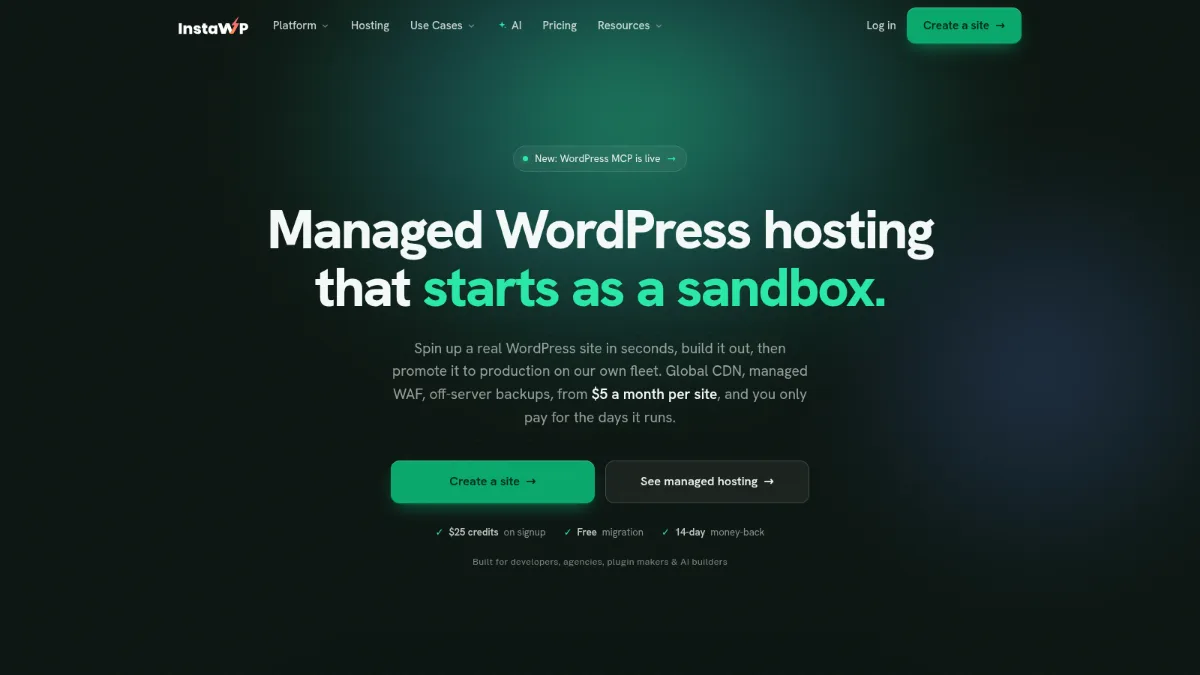
With InstaWP you can create staging sites for live client sites, test updates and redesigns there, and push the result back to production when the client signs off. Because every staging copy sits next to its live site, you can manage multiple staging sites with the same Manage tools you use for updates, uptime and vulnerability scans.
How staging works on InstaWP
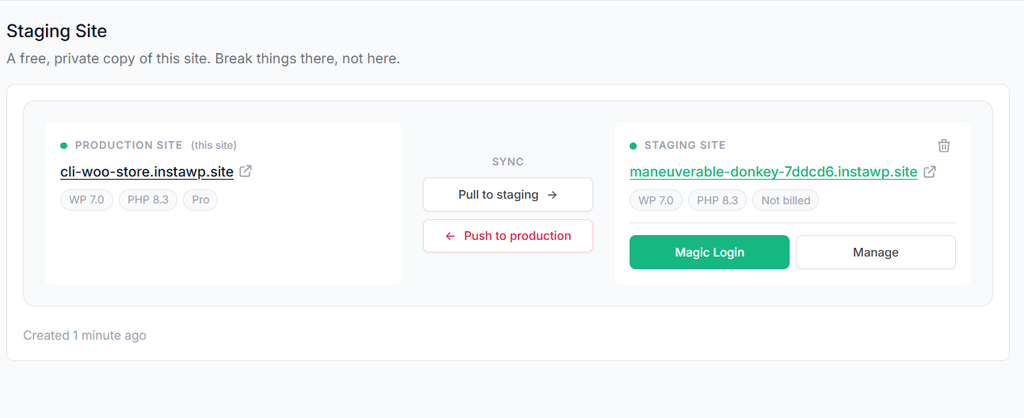
How to create a staging site on InstaWP
- Open the client’s site from the Sites page and select Developer Tools > Staging Site. The site must be on Pro, Turbo or Elite.
- Click Create Staging Site. The copy usually takes 2 to 3 minutes, and InstaWP emails you when it is ready.
- Open staging with Magic Login and make the change: update plugins, switch the theme, or try the redesign.
- When the client approves, back up production, then click Push to production. The live site keeps its domain, SSL, CDN and plan.
A few limits are worth knowing before you plan a client workflow. Staging is not offered on WaaS sites or sites assigned to a client portal, and the staging copy runs without CDN, Shield or automated backups on a smaller resource envelope, so it is not the place for load testing. Full details are in the InstaWP staging documentation. For sites hosted somewhere else, the InstaWP Connect plugin creates a separate staging site in your account and can move changes back with 2-Way Sync.
For agencies that want testing, client sign-off and launch on one platform, InstaWP keeps the development process for agencies in one place and bills each client site separately.
Best for: agencies with many client sites that want per-site billing, built-in staging on Pro, cheap sandboxes for everything else, and AI agents that work on staging rather than live.
Watch out for: the built-in push replaces the whole live site and takes no automatic backup, and built-in staging is not available below Pro or on WaaS and client-portal sites.
2. Kinsta: best for selective push with an automatic backup
Kinsta is managed WordPress hosting on Google Cloud, and every plan includes one free staging environment per site. Its push is the most granular in this list: you can send only chosen files, folders or database tables to live, and Kinsta backs up the live site first. Kinsta’s own steps are in our Kinsta staging site guide, and the same workflow on InstaWP is in our guide to create staging sites with ease.
How staging works on Kinsta
stg-sitename-environmentname.kinsta.cloud, and the address never changes.How to create a staging site on Kinsta
- In MyKinsta, open Sites, choose the site, click the environment menu (for example Live) and select Create new environment.
- Choose Standard (free) or Premium ($20 a month).
- Pick Clone an existing environment, name it and choose Live as the source, then click Continue.
Price: Single 20GB is $35 a month, or $30 billed annually, and each additional site is $30 a month. Selective push is how you send only finished work from staging to live sites without touching new orders.
Best for: high-value single sites and WooCommerce stores that need table-level control over what reaches production.
Watch out for: Standard staging sleeps after 24 hours idle and runs on 2 PHP threads, so load tests need a $20 Premium environment. Ten client sites cost $305 a month at list price. See our Kinsta alternatives for agencies.
3. WP Engine: best for separate development, staging and production
WP Engine gives every site on every plan up to three environments: Production, Staging and Development. You can copy between any two of them, from the current state or an earlier backup point, and the destination is backed up before and after each copy. URLs are search-replaced automatically.
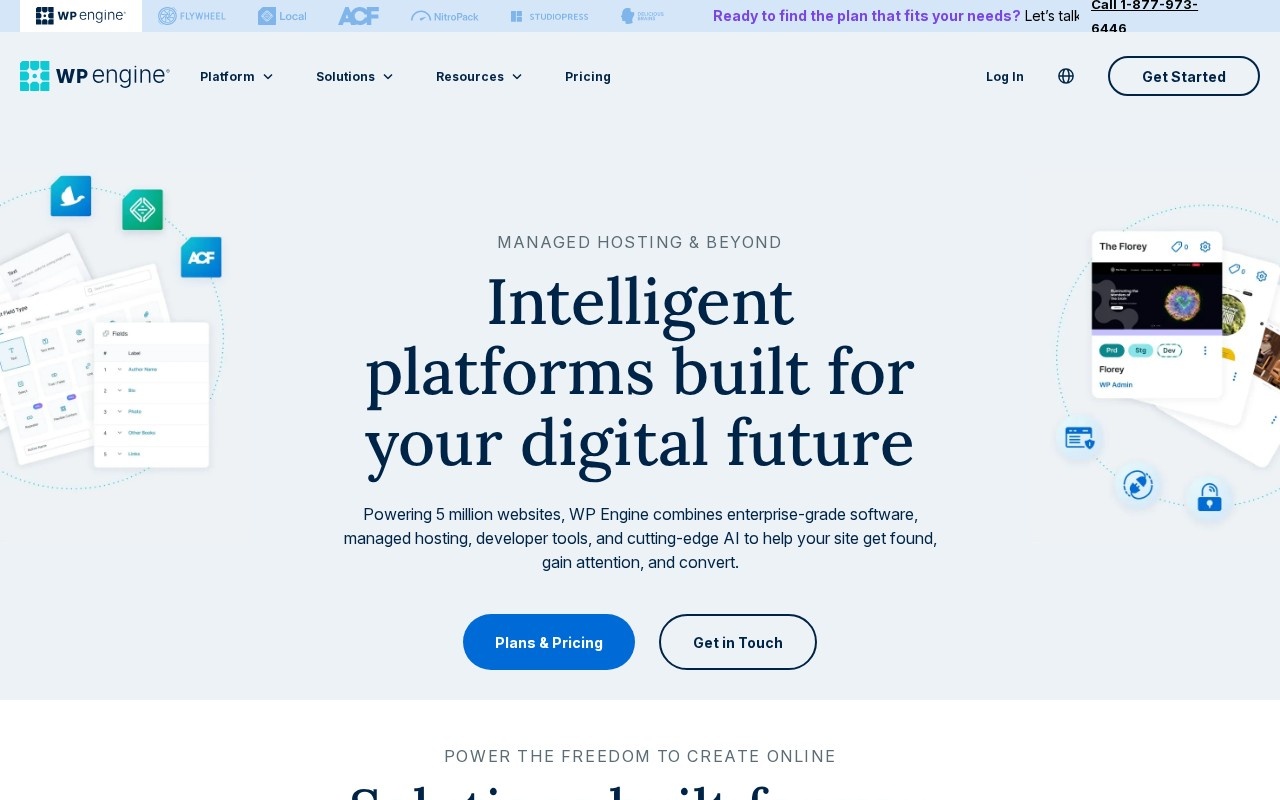
That three-environment setup is the classic staging environments workflow for teams: developers work on Development, the client reviews on Staging, and only approved work reaches Production. Our WP Engine staging site guide walks through the copy screen.
How staging works on WP Engine
environmentname.wpenginepowered.com. Names cannot be changed or reused.How to create a staging site on WP Engine
- Open the Sites page in the WP Engine User Portal and click the site.
- Click Add environment next to the environment name.
- Enter a name, choose Staging as the type, and copy production into it. WP Engine emails you when it is ready.
Price: Essential starts at $28 a month billed annually ($336), a first-year price for new customers.
Best for: agencies and development teams that want a fixed Development, Staging, Production pipeline with Git and automatic restore points.
Watch out for: plans are annual, the published price is a first-year offer, staging storage counts toward the plan, and redirect rules and SSL do not copy with the site. Compare options in our WP Engine alternatives and Kinsta vs WP Engine guides.
4. SiteGround: best for seeing exactly what a deploy will change
SiteGround includes WordPress staging on GrowBig and GoGeek. Its Custom Deploy compares staging with the live site and lists every file and database table as To be Added, To be Updated or To be Deleted, so you choose exactly what goes live. SiteGround also backs up the live site on every deploy.

How staging works on SiteGround
staging1.yourdomain.com.How to create a staging site on SiteGround
- In Site Tools, open WordPress > Staging.
- Choose the WordPress install, enter a staging name and click Create.
- When the work is ready, open the staging copy’s menu and choose Push to Live, then Full Deploy or Custom Deploy.
Price: GrowBig is $3.99 a month for the first 12 months (prepaid), then $29.99. GoGeek is $5.99, then $44.99, and adds Git and white-label access. StartUp ($1.99, then $17.99) has no staging.
Best for: small agencies that keep several sites on one shared account and want a file-by-file view of each deploy.
Watch out for: the renewal jump (GrowBig goes from $3.99 to $29.99), shared resources across all sites, and no way to refresh staging from live except creating a new copy. See our SiteGround staging guide.
5. Hostinger: best for low-cost staging with automatic SSL
Hostinger includes a WordPress staging tool in hPanel on its Business web hosting plan and above, and on cloud and Agency plans. Staging gets its own subdomain with an SSL certificate issued automatically, and Publish sends the staging copy to the live site.
How staging works on Hostinger
How to create a staging site on Hostinger
- In hPanel, go to Websites and click Manage on the site.
- Open WordPress > Staging and click Create staging.
- Enter a subdomain name and click Create. It can take up to 15 minutes. Publish from the staging menu when you are done.
Price: Premium is $1.99 a month on a 48-month term ($95.52 upfront), renewing at $10.99. Cloud Startup is $7.99, renewing at $25.99.
Best for: budget single sites where the client accepts a long prepaid term.
Watch out for: Hostinger’s current plan cards do not say which plans include staging, and its own docs disagree on whether you can publish files or the database alone. Our Hostinger staging guide shows the hPanel steps.
6. Cloudways: best for many staging copies on servers you size yourself
Cloudways is managed cloud hosting where you rent a server and put as many WordPress applications on it as it can carry. Staging is free on every plan, password-protected by default, and you can push or pull files and selected database tables in either direction.
How staging works on Cloudways
cloudwaysapps.com address, and staging can sit on a different server.How to create a staging site on Cloudways
- Open the server, then the WordPress application.
- Go to Staging Management and click Launch Staging Application.
- Pick the server, tick Create as Staging and continue. Push or pull later from Staging Management.
Price: DigitalOcean servers start at $11 a month on Flexible, billed hourly, with no contract.
Best for: technical teams packing many small sites onto servers they size themselves, with Git deploys to staging.
Watch out for: you manage server capacity, a busy client on the same server affects the others, and the backup before a push is a box you have to tick.
7. DreamPress: best for a protected staging site with a backup on publish
DreamPress is DreamHost’s managed WordPress tier, and every DreamPress plan includes one staging site per website. Staging is password-protected automatically, and DreamPress backs up the live site before it publishes staging over it. DreamHost’s regular shared WordPress hosting does not have 1-click staging.
How staging works on DreamPress
How to create a staging site on DreamPress
- In the DreamHost panel, open Manage Websites and click Manage on the site.
- Open the WordPress tab and click Create a Staging Site.
- When you are done, use Publish Staging to Live. DreamPress backs up the live site first.
Price: DreamPress 1 is $14.99 a month on a 12-month term, then $19.99. On a 36-month term it is $11.99, then $16.99.
Best for: single sites that want managed WordPress, a staging copy nobody can stumble on, and a PHP upgrade tested before it reaches live.
Watch out for: publishing is all or nothing (no files-only option), so do not edit the live site while staging is in progress. See our DreamHost alternatives.
8. Bluehost: best for a budget site with files-only deploys
Bluehost runs staging from its own WordPress plugin, and its WordPress hosting page says every Standard plan (Starter, Business and eCommerce Essentials) includes the one-click staging tool. When you deploy, you choose all changes, files only or database only, which is more control than most budget hosts give.

How staging works on Bluehost
How to create a staging site on Bluehost
- Log in to the Bluehost Portal, open Websites and click Manage Site.
- On the Overview tab click Staging, then Create staging site.
- Test on staging, then choose Deploy all changes, files only or database only.
Price: Starter is $3.99 a month on a 36-month term, renewing at $9.99. Business is $6.99, renewing at $13.99.
Best for: a single brochure site on a long prepaid term that still wants a files-only deploy.
Watch out for: Bluehost’s plan table lists the staging site only on Business and eCommerce Essentials while its WordPress hosting page says every Standard plan has it, so confirm on Starter. No backup before deploy is documented. Our Bluehost staging guide shows the steps.
9. WordPress.com: best for sites already on WordPress.com
WordPress.com includes one staging site per site on its Business and Commerce plans. It syncs in both directions: push to production or pull from production, choosing all or specific files and folders, with the database as an optional all-or-nothing step. Staging is always hidden from search engines.
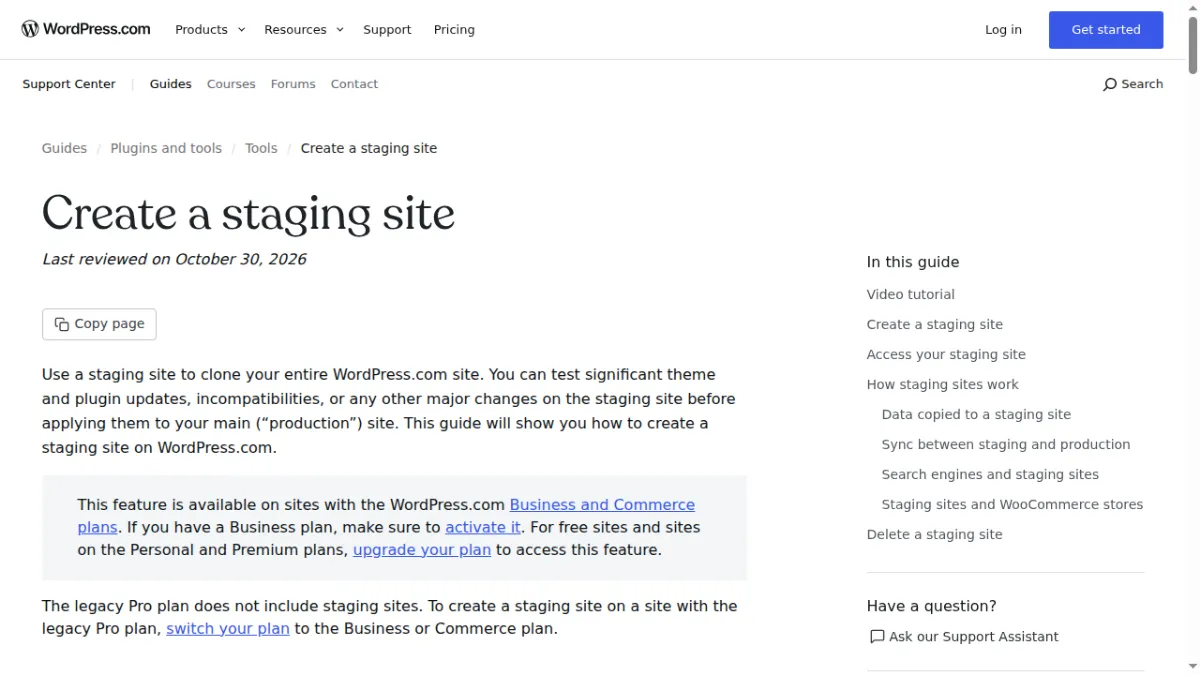
How staging works on WordPress.com
staging-xxxx added in front. No custom domain.How to create a staging site on WordPress.com
- Open the Hosting Dashboard and click the site.
- Click the Production drop-down under the site title and select + Add staging site.
- Use Sync to push to production or pull from production, and confirm by typing the site URL.
Price: Business is $25 a month billed annually, or $40 month to month.
Best for: sites already on WordPress.com that need a test copy with SSH, WP-CLI and GitHub deployments.
Watch out for: a database sync replaces users and all content at once, and staging takes half of the plan’s storage. If you are looking for WordPress.com staging alternatives, Kinsta, WP Engine and InstaWP are compared above.
10. Flywheel: best for a fixed annual bill for 10 or 30 sites
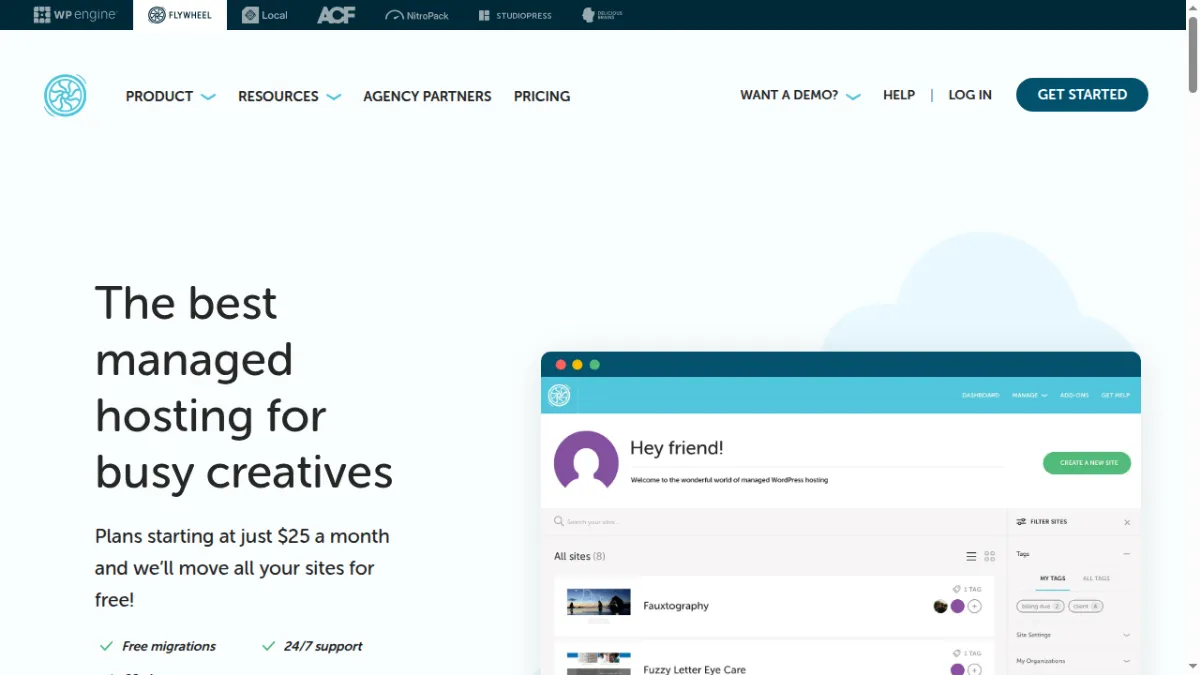
Flywheel, part of WP Engine, includes staging on every current plan. You switch it on per site, and the push moves files only or files plus the whole database. Staging is protected by Privacy Mode, and Reset Staging refreshes it from live whenever you need a clean copy.
How staging works on Flywheel
sitename.flywheelstaging.com on the Flywheel Cloud Platform. It cannot get an SSL certificate.How to create a staging site on Flywheel
- Open the site in the Flywheel dashboard and go to the Advanced tab.
- Switch the Staging toggle on. It can take a few minutes.
- Use the new Staging tab for the URL and credentials, then Move staging changes to live site when you are done.
Price: Starter is $25 a month for one site, billed annually at $300. Freelance covers up to 10 sites for $96 a month ($1,150 a year), and Agency up to 30 sites for $242 a month.
Best for: freelancers and small agencies that want a fixed annual bill for up to 10 or 30 sites and work locally in Local.
Watch out for: one staging copy per site, no database merge, no SSL on the staging address, and no staging on Multisite.
Not ranked this time: CloudPress
Why CloudPress dropped out of the ten
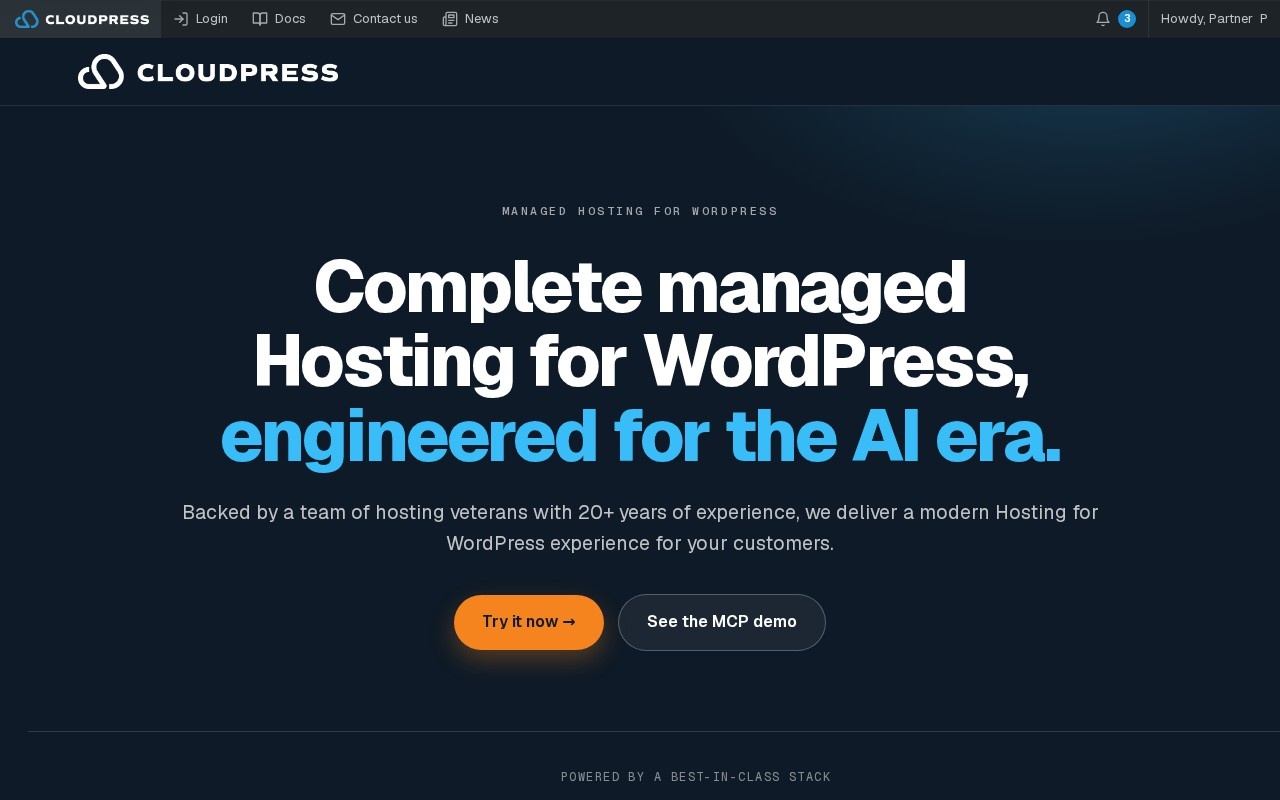
CloudPress markets managed WordPress hosting with an MCP server and a white-label portal for agencies and hosts. On 5 November 2026, neither its homepage nor its documentation described a staging environment or a push-to-live step, and no prices were published, so the staging claims in an earlier version of this list could not be verified. WordPress.com took its place.
Which WordPress host is best for each staging need?
The right host depends on the job the staging site has to do. These are the most common agency and developer needs, with the host that fits each one best.
Which managed WordPress hosting has staging with Git integration?
Kinsta, WP Engine, Cloudways and WordPress.com support Git-based deploys to a staging environment, and SiteGround adds its Git tool on GoGeek. InstaWP includes Git deployment, SSH and WP-CLI on every plan, so the staging copy on Pro gets the same tools as production. Flywheel has no git push and deploys through GitHub Actions or DeployHQ.
Which hosts give separate development, staging and production environments?
WP Engine gives every site up to three environments: Development, Staging and Production. Kinsta allows one free staging environment plus up to five Premium ones per site, so six in total. On InstaWP, a Pro site has one built-in staging copy, and $2 sandboxes act as extra development environments for any site.
Which affordable managed hosting includes staging?
InstaWP is the most affordable per-site managed option with built-in staging: Pro costs $15 a site a month, and any site can use a $2 sandbox as a test copy. Cloudways includes free staging on servers from $11 a month, and Flywheel Freelance covers staging on up to 10 sites for $96 a month. Shared hosts such as SiteGround and Hostinger are cheaper in the first term, but staging sits on higher tiers that renew at $29.99 and above. See InstaWP pricing for the per-site plans.
Which managed WordPress hosts include staging and automatic backups?
Kinsta, WP Engine, SiteGround and DreamPress back up the live site automatically before a push, and all four also run daily backups. Cloudways and Flywheel offer a backup checkbox in the push dialog. InstaWP takes daily backups with 30-day retention from the Plus plan, but its push takes no backup of its own, so make a manual backup first.
Which host is best for client staging and team review?
For agencies, the best client staging setup gives each client a private copy they can review before anything goes live. DreamPress and Cloudways password-protect staging by default, Flywheel uses Privacy Mode, and WordPress.com, Kinsta and WP Engine keep staging out of search results. InstaWP adds Magic Login, so a client or teammate opens the staging copy without sharing a password.
How does InstaWP staging compare with Kinsta staging?
InstaWP and Kinsta are the two per-site managed hosts in this list, and they make opposite trade-offs. Kinsta gives every plan a staging copy with selective push and an automatic backup. InstaWP bills each site by the day, includes built-in staging from Pro, and adds $2 sandboxes and an MCP connection on the staging copy. Facts below are from each host’s pricing and docs, checked 5 November 2026.
Which one for each job:
How does WordPress hosting with staging work?
Host-level staging works in four steps: the host copies the live site’s files and database to a private URL, you change and test the copy, you back up production, and the host pushes the tested copy back. Because the copy is made at the server level, nothing has to run inside the live WordPress install.
Why does staging matter for agencies?
- Updates are tested before they reach the client. Plugin, theme and PHP updates are tested on the copy, so a fatal error appears on staging, not on the client’s homepage.
- Clients approve real work. The client reviews the change on a private URL before it goes live, which cuts rework and “that is not what I meant” emails.
- Care plans depend on it. A tested update workflow is the core of a care plan, and staging is what lets you promise it.
- Rollbacks are planned. When a push goes wrong, the backup you took before it is the way back.
How do you choose WordPress hosting with staging for an agency?
Choose on the five questions that decide day-to-day work, not on the “one-click staging” badge every host shows. Ask each host:
- Which plan includes staging? If it is not the plan you would buy anyway, price the tier that has it, at renewal.
- How many staging copies does each site get? One is enough for updates; parallel feature work needs more.
- Can you push files only or pick tables? Essential for WooCommerce, membership and form-heavy sites.
- Is a backup taken before the push? If not, build the backup into your checklist.
- Do staging sites get SSH, WP-CLI, Git and an MCP connection? These decide whether your developers and AI agents can work on the copy.
If you are also comparing hosts on agency features beyond staging, see our guides to the best WordPress hosting for agencies and WordPress hosting models for agencies.
Can you host client sites with staging on InstaWP?
Yes. InstaWP is a managed WordPress hosting provider, and every production site runs on its own plan with InstaCDN, the InstaShield firewall, free SSL and automatic backups. Built-in staging comes with Pro, Turbo and Elite, and every plan includes SSH, SFTP, WP-CLI, Git, PHP 7.4 to 8.5, free migration in and human support.
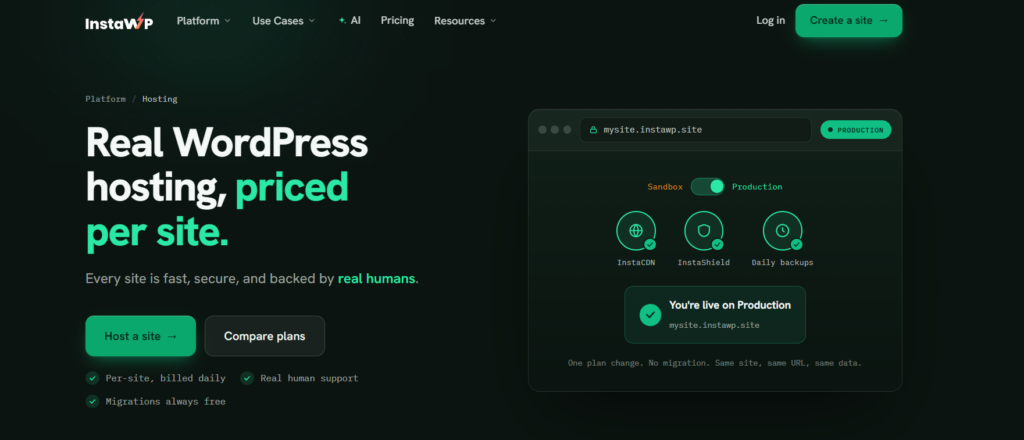
On WP Benchmark, a free plugin InstaWP did not write, InstaWP’s new-generation servers scored 9.8 out of 10 against 7.3 for its previous generation in August 2026. The method and raw numbers are in the WordPress hosting benchmark. Sites move in with free migration, and the developer tools are the same on staging and production.
WordPress Hosting With Staging: FAQs
Is staging free on WordPress hosting?
On most managed hosts, staging is included in the plan price, but not always on the cheapest plan. Kinsta, WP Engine, Flywheel and Cloudways include it on every plan, and WordPress.com from the Business plan. SiteGround starts it on GrowBig, Hostinger on Business, and Bluehost’s plan table lists it from Business while its WordPress hosting page says every Standard plan has it. On InstaWP, built-in staging on Pro and above is never billed, and any site can use a $2 a month sandbox as its test copy.
How many staging sites does a WordPress hosting plan include?
Usually one per site. Kinsta gives each site one free staging environment and sells up to five Premium environments at $20 a month each. WP Engine allows up to three environments per site (production, staging and development), SiteGround allows up to 10 staging copies per account, and Cloudways Flexible allows as many as the server’s disk can hold. Bluehost, DreamPress, WordPress.com and Flywheel give one staging copy per site. InstaWP gives Pro, Turbo and Elite sites one built-in staging copy, plus as many $2 sandboxes as a project needs.
What is the cheapest WordPress hosting with staging?
By first-term price, SiteGround GrowBig ($3.99 a month for 12 months, then $29.99) and Bluehost Starter ($3.99 for 36 months, then $9.99, which Bluehost’s WordPress hosting page says includes staging) are the cheapest plans with staging, as of 5 November 2026. Compare renewal prices, because those are what you pay from year two. Among per-site managed hosts, InstaWP Pro at $15 a site per month includes built-in staging, and a $2 sandbox gives any InstaWP site a test copy.
Can you push a staging site live in one click?
Yes, every host in this comparison has a push or publish button. The difference is control. Kinsta and WP Engine let you push chosen files and database tables, SiteGround has a Custom deploy, Cloudways lets you pick tables, and Bluehost, Flywheel and WordPress.com let you push files without the database. InstaWP’s built-in Push to production replaces the live site’s files and database while keeping its domain, SSL and plan.
Does pushing staging to live delete WooCommerce orders?
It can. A database push replaces the live database, so orders, customers and comments created on the live site after the staging copy was made are lost. Push files only, or exclude the WooCommerce order and customer tables where your host supports a table-level push (Kinsta, WP Engine, SiteGround Custom deploy, Cloudways). Kinsta, WP Engine, SiteGround and DreamPress back up live automatically; elsewhere, back up production before the push.
Does a staging site count against my plan’s website limit?
Generally no. On Kinsta, SiteGround, Bluehost, DreamPress, WordPress.com and Flywheel, the staging copy is attached to an existing site rather than using another site slot, and WP Engine includes staging and development environments with each site. On InstaWP, built-in staging on Pro and above is attached to the production site and not billed, while a sandbox is a separate $2 site.
What is the difference between a staging site and a development sandbox?
A staging site is a copy of an existing live site, used to test updates and changes before pushing them back to production. A sandbox is a fresh WordPress install used to build something new, test a plugin or demo an idea to a client. WP Engine separates staging from development environments, and InstaWP offers both: built-in staging for live sites on Pro and above, and $2 sandboxes on any plan.
Do you need managed hosting to get WordPress staging?
No. Plugins such as WP Staging can clone a site on ordinary shared hosting. Host-level staging is usually more reliable because the copy is made at the server level, gets its own URL and database, and is pushed back by the host’s own tooling rather than a plugin running inside WordPress. For client sites, that matters most when a push goes wrong and you need to roll back.
What are the alternatives to WordPress.com staging sites?
WordPress.com staging needs the Business plan ($25 a month billed annually) and gives one staging site per site, with the database synced as a whole. Alternatives with more control include Kinsta (selective push of files and tables, automatic backup), WP Engine (separate development, staging and production environments), Cloudways (several staging copies per server), and InstaWP (per-site billing, built-in staging on Pro, and $2 sandboxes for test builds).
Can I host my agency’s client sites with staging on InstaWP?
Yes. InstaWP is a managed WordPress hosting provider where each client site has its own plan from $5 a month, billed daily. Pro ($15), Turbo ($25) and Elite ($45) sites get a built-in staging copy that is not billed, Starter and Plus sites can use a $2 sandbox as a test copy, and migration onto InstaWP is free.
Which WordPress hosting has staging with Git integration?
Kinsta, WP Engine, Cloudways and WordPress.com support Git-based deploys to staging, and SiteGround adds Git on its GoGeek plan. InstaWP includes Git deployment, SSH and WP-CLI on every plan, including the built-in staging copy on Pro. Flywheel deploys from Git only through GitHub Actions or DeployHQ.
Which hosts back up the live site before a staging push?
Kinsta, WP Engine, SiteGround and DreamPress back up the live site automatically before a push, according to their documentation on 5 November 2026. Cloudways and Flywheel offer an optional backup checkbox in the push dialog. Hostinger, Bluehost, WordPress.com and InstaWP do not document an automatic pre-push backup, so take one yourself.
Can an AI agent work on a staging site instead of the live site?
On InstaWP, yes. A built-in staging site gets its own MCP connection, separate from the production site, so you can connect Claude, ChatGPT or Cursor to the staging copy, let the agent make its changes there, review them, and push to production only what you approve.
Which WordPress hosting with staging should your agency choose?
Pick the host whose staging matches how you bill and how you push. Kinsta and WP Engine have the finest push control and back up before every push. Flywheel suits a fixed annual bill for up to 10 or 30 sites. For agencies running many client sites, InstaWP bills each site by the day, includes built-in staging from Pro at $15, gives every plan $2 sandboxes, and lets AI agents work on staging through its own MCP connection.
Whichever host you choose, build the same routine into every client change: copy, test, back up production, push, check. If you want to try it on InstaWP, create a site from your InstaWP hosting dashboard and add staging the day the site moves to Pro.
Related reading: how InstaWP’s built-in WordPress staging environment works, and the WordPress staging to production guide for the push itself.