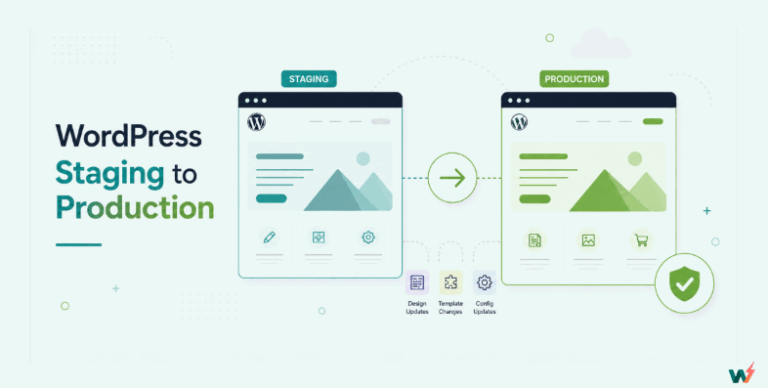
A WordPress staging site is a safe testing ground where you can experiment with design changes, update plugins, or apply new features without touching your live site. Think of it as a staging environment; a copy of your production website running on a staging server, completely isolated from your visitors.
SiteGround, a popular choice for WordPress hosting with staging, offers a built-in staging feature that allows you to create a staging site WordPress setup for your projects. On paper, this means you can clone your live site, test everything in a separate environment, and then push the changes live when ready.
In this guide, we’ll walk through how to create a SiteGround staging site, what requirements you’ll need, and the issues developers often face with this setup.
Table of Contents
Key Takeaway

SiteGround staging works only on GrowBig & GoGeek plans
Includes Full Deploy and Custom Deploy (table-level selective push)
Understanding SiteGround Staging Site Feature
The SiteGround staging site feature is enabled with the help of a dedicated Staging Site tool. It is designed to help WordPress users create a staging environment directly from their hosting dashboard.
This staging website WordPress setup acts as a private testing ground where you can safely try out theme changes, plugin updates, or custom code edits before deploying them to your live site.
When you create a SiteGround staging site, it works by cloning your existing site into a separate staging server space. You can then make changes, test compatibility, and push updates to production with a few clicks.
For a developer, here’s what you need to know:
- How it’s deployed: SiteGround creates your staging environment on a subdomain (e.g., staging1.yoursite.com). This setup keeps staging content out of public search results but still accessible via a browser once DNS is configured.
- Push/pull capabilities: You can pull changes from live to staging or push staging changes to live. SiteGround offers options for full site pushes or partial pushes (e.g., database only or files only).
- Server resources: The staging website shares the same hosting resources (PHP workers, memory limits, CPU allocation) as your live site. If you’re testing heavy operations, this can impact live site performance.
Eligibility and Hard Limits for SiteGround Staging Sites
Before you set up staging on SiteGround, it helps to confirm you’re eligible and within the platform’s operational limits. SiteGround’s staging tool has strict constraints that can block staging creation or deployments when you hit them.
Plan requirement: SiteGround’s staging tool is available on higher-tier WordPress plans (not the entry tier). (Check your plan in Site Tools → Services → Hosting.)
Hard Limits and Compatibility: SiteGround staging has the following limits:
- Database size must be under 2GB
- Database must have fewer than 500 tables
- Account must have more than 51% free disk space
- Account must have more than 20% free inodes
- Maximum 10 staging environments per account
- Maximum 15 staging operations per day
- Not compatible with WordPress Multisite
If you’re running WooCommerce, membership sites, or large editorial sites, these limits matter because databases grow fast (especially orders, logs, and transients). If staging won’t create or deploy, check DB size/table count and disk/inode usage first.
For small site owners, SiteGround’s staging site is handy. But for developers handling multiple WordPress staging environments daily, the DNS dependencies, lack of automation hooks, and no Git-based deployment can make the process slower and less scalable.
Must Read: How to Create a Staging Site for Your WordPress Website
How to Create a SiteGround Staging Site in 2026
If you want to create a WordPress staging site on SiteGround, you’ll need a GrowBig or GoGeek plan (the StartUp plan doesn’t support staging) that starts from a minimum $6.99/month.
Here’s how you can create a SiteGround staging site:
1. Go to your SiteGround account and access the Site Tools panel for the site you want to stage.

Developer note: All staging actions happen at the hosting level, not inside WordPress itself, meaning you need full SiteGround panel access.
2. From the left-hand menu, select WordPress > Staging. You’ll see a list of your domains that can be staged.
3. From the Staging section, select the WordPress install you want to work on. If it’s not listed, you can manually add it.
4. Click Create Staging Copy and enter a name for your staging site (this becomes your subdomain, e.g., staging1.yoursite.com) and select its components.

Developer note: SiteGround automatically duplicates all WordPress files and creates a cloned database. This is a direct file + DB copy, so any unused media, old backups, or bloated tables will also be duplicated; consider cleaning the live site first.
5. If your DNS is hosted outside SiteGround, you’ll need to manually create an A record pointing your staging subdomain to your SiteGround IP.
Developer note: This step can cause delays due to DNS propagation, which may take minutes to hours. During this time, the staging site won’t be accessible.
Once DNS is resolved, click the Access Staging link inside Site Tools. You’ll be taken to the WordPress Admin of your staging site. Look for the orange “Staging” label in the top admin bar to confirm you’re in the correct environment.
Install new plugins, update themes, change PHP versions; everything happens here without impacting your live site.
When ready, click Push to Live in the staging tool. You can choose:
- Full Deploy: Files + database.
- Partial Deploy: Files only or database only.
Developer note: No granular push options like pushing only specific tables (e.g., WooCommerce orders). This is a limitation for e-commerce or high-traffic sites.
Push Staging Changes to Live on SiteGround
When you’re ready to ship, SiteGround gives you two deployment options:
- Full Deploy (overwrite production): Full Deploy replaces the live site’s files and database with the staging copy. Use this only when you’re confident nothing important changed on the live site since you created staging (new orders, new users, new form submissions, new comments).
- Custom Deploy (selective push): Custom Deploy compares staging vs production and lets you selectively deploy:
- Files/folders
- Individual database tables
…and choose whether each item is Added, Updated, or Deleted during deployment. This is table-level selection (not row-level merges), but it’s still the safer option for most active sites.
Common Issues with SiteGround Staging Site
On paper, SiteGround’s staging environment looks solid. But when you dig deeper, especially from a developer’s perspective, you start noticing friction points that can turn a “one-click” process into a multi-step headache.
1. DNS Dependency for External Nameservers
If your domain’s DNS is managed outside of SiteGround, the WordPress staging setup isn’t instant. You’ll need to manually create A records for your staging subdomain, then wait for DNS propagation.
Why it’s a problem for developers: DNS changes are risky; a single typo can bring down the entire site or email service. On a busy day of client work, waiting for DNS propagation is wasted time you can’t bill for.
2. SSL Certificate Conflicts
SiteGround uses Let’s Encrypt for staging SSLs, but if your live site forces www and the certificate is issued for the non-www version, browsers will throw “Your connection is not private” errors.
Developer impact: You can still proceed, but you’ll have to reassure clients and testers that the site is safe, which doesn’t inspire confidence.
3. Lack of Multisite Support
If you’re working with WordPress Multisite, SiteGround staging simply doesn’t work. This limits developers who handle network installs for schools, franchises, or SaaS-style WordPress projects.
4. No Selective Deployment
When pushing staging changes live, you can’t choose specific database tables. For example, if you’re running WooCommerce, pushing the staging database could overwrite recent customer orders or form submissions.
Developer workaround: Manually export/import specific tables, which defeats the point of “managed” staging.
5. Shared Resource Impact
The staging site runs on the same PHP workers and server resources as your live site. Heavy testing or resource-hungry plugins can slow down both environments at the same time.
6. Extra Cleanup Steps
When you’re done with a staging site, you’ll need to manually remove staging A records from your DNS if you want a clean configuration. This adds another round of technical maintenance.
The pricing side is worth a look before you commit to a tier. SiteGround staging starts at GrowBig, so the StartUp plan cannot stage at all, and the tier you buy to unlock it still caps you at 10 environments and 15 staging operations a day. If staging is the only reason you moved up, you are paying for a plan to get a feature.
InstaWP prices the two halves separately. A staging sandbox is $2/mo per site, billed daily, with the same WordPress and the same SSH and WP-CLI access you get on production. If that sandbox turns out to be the site you actually ship, you convert it to managed WordPress hosting from $5/mo per site in one click: the site keeps its URL, nothing is migrated, and billing prorates from that day. You can also leave production on SiteGround and use InstaWP for the staging half only.
What is The Better Way to Create a Staging Site for WordPress: SiteGround Alternative
If you’re a developer who manages multiple WordPress sites, you don’t just want a staging environment; you want a fast, no-DNS, no-guesswork staging workflow that works every single time. That’s where InstaWP outperforms traditional staging setups like SiteGround’s.
InstaWP is an all-in-one WordPress cloud platform that provides everything you need to build, host, and manage a WordPress site. With its built-in staging site feature, you can create a WP staging environment without any hassle.
But, its staging site feature is not restricted and limited like SiteGround’s staging site feature. It’s more powerful, flexible, and result-driven. Here’s why:
1. Zero DNS Hassle
Unlike SiteGround, InstaWP staging environments don’t require you to touch DNS records. You get an instant, unique staging URL that works the second it’s created.
Your staging site WordPress environment goes live in under 10 seconds. No DNS changes. No waiting for propagation. No “call the client for DNS logins” drama. Just click, and your WordPress staging environment is ready.
Also, one-click staging site actually means one click with InstaWP, as there are no server configs and DNS entries to deal with. Just a ready-to-use staging server that mirrors your live site instantly.
2. Instant SSL with Zero Errors
Every InstaWP staging site comes with valid HTTPS out of the box, regardless of the www settings. No browser warnings, no Let’s Encrypt mismatches; just a secure environment you can hand to a client without an explanation.
3. Works Perfectly with Multisite
InstaWP staging supports WordPress Multisite environments, making it ideal for network-based projects like franchise sites, education portals, and multi-language content hubs.
4. Completely Isolated Resources
Each WordPress staging site on InstaWP runs in an isolated container, so heavy testing won’t affect your production site’s performance. You can install large plugins, test major updates, or run stress tests without impacting uptime.
5. No Manual Cleanup
When a staging site is no longer needed, you simply delete it in InstaWP. There’s nothing left in DNS, no subdomain records floating around; just a clean exit.
6. Cloud + Local Flexibility
Need to work offline? Use InstaWP’s Local Mount feature to edit your WP staging site locally, then sync changes back to the cloud in seconds. It’s the best of both worlds: a local WordPress development speed with cloud staging safety.

7. Pay Only for What You Use
Here’s a real hook for agencies: InstaWP runs on a pay-as-you-go WordPress modal where you get different site plans to choose from. Spin up a staging site for a client project, push changes live, then delete it. You’re only charged for the days you use it, saving costs across dozens of client projects.
Beyond staging, InstaWP offers PHP version switching, built-in WP-CLI, database editors, site snapshots, WordPress Git integration, and template cloning; all without touching your hosting control panel.
Bottom line: If SiteGround staging setup feels like a chore, InstaWP turns it into a 5-second, one-click process that scales with your workflow, from one site to hundreds. You’re not just getting a staging site; you’re getting a complete WordPress build-test-deploy system built for speed, safety, and developer sanity.
The table below will help you understand the key differences between InstaWP staging sites and SiteGround staging sites.

? Did you know?
A typical developer managing 10+ client sites could save hours every week just by skipping SiteGround’s DNS steps. With InstaWP, staging site is a “click and done” job; no propagation delays, no chasing client credentials, no SSL surprises.
Quick Guide: How to Create a Staging Site with InstaWP
We’re sure that by now you’re convinced by the fact that SiteGround staging sites are good but not perfect, and InstaWP excels on multiple fronts. So, we decided to give you a quick overview of how to create staging sites on InstaWP.
Whether you’re testing a new plugin, redesigning a theme, or prepping for a campaign, InstaWP gives you three fast and developer-approved ways to spin up a staging environment without DNS headaches or downtime.
Method 1: Create a Staging Site from Your Live WordPress Website
If you’ve a site hosted anywhere, you can use the best WordPress staging site plugin, InstaWP Connect, to create a quick WordPress staging environment in the blink of an eye. Here is the process.
- Go to your live site → Plugins → Add New → Search “InstaWP” → Install & Activate.
- In your WP Admin, click Create Staging → Connect to InstaWP.com (sign in or create an account).

- Grant permission to link your live site with your InstaWP dashboard.

- Select Quick, Full, or Custom Staging (Full copies everything; themes, plugins, files) and select the best site plan according to your needs.

- Double-check the included files → Click Create Staging. In seconds, your cloned site appears in InstaWP with a valid SSL.
For more details, check out: InstaWP Connect Plugin
Method 2: Create a Staging Site for WordPress For a New InstaWP Site
If your WordPress site is already built, hosted, and managed on InstaWP, creating a staging environment is basically a one-click clone. You get a separate staging URL + WP Admin access, so you can test updates and changes without touching production.
Open your InstaWP dashboard and go to Sites. As it’s a centralized dashboard, you will be able to view all the sites created and managed by you.
Select the site you want to stage (your “live”/main site) and go to Tools.

From here, select Install Plugin option and install InstaWP Connect plugin on the desired site. You can enter the slug or the file for this. This way, you can install the WordPress staging plugin without login to the WP Admin of your site.

If you want to create staging sites on multiple sites at once, just select all the sites for which you want to create WP staging sites, select Bulk Action, and choose the Run Command option from the dashbaord.

Learn how to add commands to your InstaWP sites.
Once you’ve installed the InstaWP Connect on your InstaWP site, follow the remaining steps of Method 1 to create a staging site.
You need to choose your staging options (name the staging site, and if available, pick what to clone—files + database is the typical choice).
Why InstaWP Wins the Staging Battle for Developers
If you’re running a small brochure site on SiteGround with DNS hosted in the same place, their built-in staging might work for quick, low-risk tweaks. But for developers and agencies handling multiple WordPress projects, the story changes.
Here’s the reality:
- Time is money; waiting 15–30 minutes for DNS changes or SSL setup is an avoidable bottleneck.
- Downtime is deadly; even a few minutes offline can kill conversions, SEO rankings, and client trust.
- Lock-in is limiting; tying your staging workflow to a specific host restricts flexibility and scalability.
InstaWP flips the script.
You get instant staging sites for WordPress in seconds, with valid SSL, zero DNS changes, and no hosting lock-in, whether you’re running WooCommerce, LMS, membership sites, or complex multisite networks.
For developers who care about speed, flexibility, and control, InstaWP isn’t just a better alternative to SiteGround’s staging; it’s a completely different league.
Don’t wait for downtime to force a workflow upgrade. Create your InstaWP account and launch a staging site in seconds today. Your future self (and your clients) will thank you.
FAQs
What is the main difference between InstaWP and SiteGround’s staging?
SiteGround’s staging works well only if you also host DNS and your site with them. InstaWP works anywhere, needs no DNS changes, and sets up staging instantly with valid SSL.
Can I use InstaWP staging with a site hosted elsewhere?
Yes. InstaWP is hosting-agnostic — you can create staging sites for any WordPress install, regardless of where your live site is hosted.
Does InstaWP staging support WooCommerce and multisite?
Absolutely. Unlike many host-based staging tools, InstaWP fully supports WooCommerce, LMS, membership sites, and multisite networks.
Will creating a staging site affect my live site’s performance?
No. Staging runs in an isolated environment on InstaWP’s servers, ensuring zero impact on your live site.
How secure are InstaWP staging sites?
All staging sites have valid SSL by default, are hosted on secure infrastructure, and can be restricted with password protection for private testing.
Can I push only certain changes from staging to live?
Yes. With InstaWP’s Custom SitePush, you can push selected files, plugins, or database changes without overwriting everything.
What’s the cost of creating a staging site with InstaWP?
A staging sandbox is $2/mo per site, billed daily at about $0.07 a day, so a short test costs a few cents. Production hosting starts at $5/mo per site, and you can convert a sandbox to it in one click.