When you want to update your WordPress site, whether it’s installing a new plugin, redesigning your theme, or testing a WooCommerce feature, the safest way is to use a WordPress staging site.
As we all know, a staging site is a private copy of your live website where you can experiment without risk. Once everything looks good, you can push the changes to production with confidence.
Kinsta makes this process simple by offering both Standard staging environments and Premium staging environments. Each WordPress staging environment is completely separate from your live site, giving you the freedom to test updates, troubleshoot code, or even build a project from scratch.
In this guide, we’ll walk through step by step how to create a staging site for WordPress using Kinsta hosting.
Table of Contents
TL;DR: Creating a WordPress Staging Site in Kinsta
What it is: A WordPress staging site is a safe testing copy of your live website.
How to set it up: In MyKinsta, you can create a Standard staging environment (for basic testing) or a Premium staging environment (for advanced development). Choose to clone your live site, install a new WordPress, or create an empty environment without WordPress.
A better alternative: Kinsta staging works well, but if you want more flexibility and faster workflows, InstaWP offers instant WordPress sandboxes you can use as staging sites. With its pay-as-you-go pricing, snapshots, and one-click SitePush, it’s often a simpler and more cost-efficient way to manage staging for WordPress.
How the WordPress Staging With Kinsta Hosting Looks
When you set up a WordPress staging environment in Kinsta hosting, you’re essentially creating a safe duplicate of your site that runs on the same infrastructure as your live hosting.
Each WordPress staging site comes with its own isolated resources, login credentials, and control panel inside MyKinsta, so you can manage it independently.
Here are the key features of a Kinsta staging site:
- Isolated environment: Staging is completely separate from your live production site, which means any changes you test will never interfere with your visitors or store customers.
- Standard vs Premium resources: Standard staging sites run with 2 PHP threads and no CDN, perfect for small changes. Premium staging environments mirror your live setup with full CPU, RAM, and edge caching support; ideal for resource-heavy testing.

- Multiple setup options: You can choose to clone your live site, install new WordPress, or create an empty environment without WordPress, depending on your project needs.
- Dedicated staging URL: Kinsta assigns each environment a unique subdomain, such as stg-sitename-environmentname.kinsta.cloud, making it easy to share with your team.
- Built-in SSL and backups: If your live site has SSL, it’s automatically copied to staging. Daily backups are also included, and a backup is created before every push.
- Selective Push: Instead of pushing everything to live, you can choose to move only files, only the database, or even specific tables and folders. This granular control is critical for WooCommerce or membership sites where live data changes constantly.
- SEO protection: By default, Kinsta staging environments are noindexed, so they don’t interfere with your live site’s rankings in Google.
- MyKinsta integration: You can access tools like phpMyAdmin, database management, CDN settings, and caching controls directly from the staging dashboard.
In short, Kinsta’s staging setup gives you a WordPress test environment that closely resembles your live hosting, allowing you to experiment safely and deploy updates with confidence.
How to Create a Staging Site on Kinsta Hosting
Let’s start understanding the process of creating a Kinsta staging site. But, before that, make sure you meet the following prerequisites:
- MyKinsta access with permissions to create environments
- Target site already added to WordPress Sites in MyKinsta
Once you have these prerequisites handy, follow these steps:
Step 1: Open your site in MyKinsta
- Log in to MyKinsta.
- Click WordPress Sites, then select the site you want to stage.
Step 2: Create a new environment
- In the environment switcher, click the current environment label, usually Live.
- Choose Create new environment.

Step 3: Choose Standard or Premium staging
You will be asked to choose one option:
- Standard staging environment: 2 PHP threads, 1 CPU, 8 GB RAM, no CDN, no Edge Caching
- Premium staging environment: Mirrors live resources, up to 12 CPU, CDN available, Edge Caching available
Step 4: Pick your setup option
Kinsta provides three ways to provision the staging environment.
Option 1: Clone an existing environment
It creates a complete copy of an existing environment, usually Live, including files and the database.
How to do it
- Select Clone an existing environment.
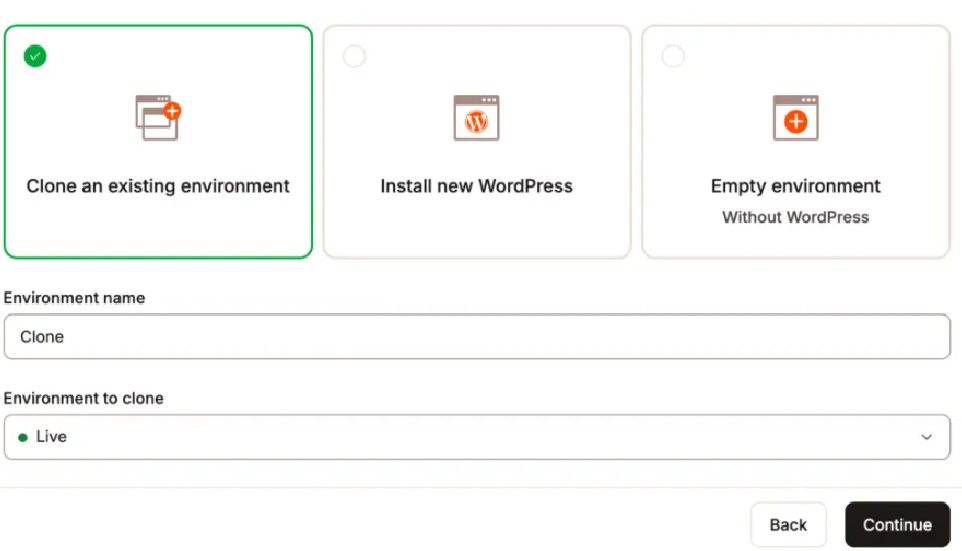
- Enter an Environment name, 3 to 12 characters.
- Pick the Environment to clone, for example, Live.
- Click Continue, then confirm.
Option 2: Install new WordPress
It creates a fresh WordPress install, clean and ready to build.
How to do it
- Select Install new WordPress.
- Fill in: Environment name, Site title, Admin username, Admin password, Admin email, Language.

- Optional toggles: Multisite, WooCommerce, Yoast SEO, Easy Digital Downloads.
- Click Continue.
Option 3: Empty environment, without WordPress
It provisions PHP, MySQL, and Nginx, without installing WordPress.
How to do it
- Select Empty environment.

- Enter an Environment name.
- Click Continue.
Step 5: Wait for provisioning
- Creation usually completes in a few minutes.
- You will see a color badge next to the environment name: green for Live, black for Standard staging, and orange for Premium staging.
How to Use the Kinsta API to Push Staging to Live
If you are working with Kinsta at a more advanced level, you might prefer to promote changes from staging to live programmatically instead of clicking the Push Staging to Live button in MyKinsta. That is where the Kinsta API push staging to live endpoint comes in.
Kinsta’s API lets you send a request against your site’s environments so you can move changes from a staging environment to the production environment (or even between different sites) from your own scripts or CI/CD pipeline.
In practice, you authenticate with your API token, call the environments endpoint for the relevant site_id, and specify which environment you want to use as the source and which as the target, along with flags that tell Kinsta whether to push files, the database, or both. For the exact endpoint path and payload fields, it is best to follow Kinsta’s official API documentation and examples.
Kinsta Hosting With Staging: Loopholes and Demerits to Watch
Those who are using Kinsta hosting with staging are already paying a way too high price. But that’s not the only thing that hurt. There are many loopholes in Kinsta staging enviornment that may not be surfaced at first.
- Resource caps on Standard staging: Standard runs with 2 PHP threads, 1 CPU, no CDN, and no Edge Caching. Heavy tests feel unlike production.
- Staging can sleep after inactivity: Standard Kinsta staging sites may go to sleep after 24 hours of inactivity.
- Caching is disabled by default: Full-page caching and OPcache are off by default on staging.
- Selective Push overwrites environment settings: Even when pushing “Files only” or “Database only,” environment settings get overwritten.
- WooCommerce data is delicate: Pushing databases from staging to live can wipe new orders or user data.
- Multisite complexity: Domain-mapped networks need manual setup or de-mapping for staging pushes.
- Email is on by default in staging: Transactional emails can fire from staging.
- Plugin licensing by domain: Some licensed plugins balk at the kinsta.cloud staging domain.
- Noindex is enforced on staging URLs: Great for SEO safety, but you cannot remove headers on the staging subdomain.
- Bedrock or Trellis friction: Non-standard setups can fail DB password updates unless you use a special constant.
- SSH fingerprint changes after push: Pushing environments can rotate fingerprints, causing known_hosts warnings locally.
- Premium staging is a paid add-on with limits: You get parity resources, but it costs extra and has per-site limits.
- Complicated API Push to Live: For WooCommerce or membership sites, a full database push can still overwrite new orders or user activity, even when triggered via the API.
All these drawbacks motivates users to find for Kinsta staging site alternatives.
The cost question sits underneath most of those. Standard staging comes with your Kinsta plan, but it runs on 1 CPU with no CDN and no edge caching, so a heavy test does not tell you much about how production will behave. Getting parity means paying for Premium staging on top of a plan you already pay for.
InstaWP prices the two halves separately. A staging sandbox is $2/mo per site, billed daily, with the same WordPress and the same SSH and WP-CLI access you get on production, and it does not sleep on you. If that sandbox turns out to be the site you actually ship, you convert it to managed WordPress hosting from $5/mo per site in one click: the site keeps its URL, nothing is migrated, and billing prorates from that day. You can also leave production on Kinsta and use InstaWP for the staging half only.
InstaWP: A Better Alternative to Kinsta Staging Sites
While Kinsta staging sites are useful for controlled testing, they come with strict limits that can slow down real-world workflows. This is where InstaWP staging environments, built on the concept of instant WordPress sandboxes, shine as a more flexible, developer-friendly, and cost-effective alternative.
InstaWP hosting with staging is a fully managed WordPress cloud hosting solution that gives you everything you expect from a premium host: speed, reliability, and security, without the rigid boundaries of traditional staging environments.

Let’s look at the differences in detail to understand why InstaWP is the best Kinsta alernative.
1. Instant WordPress Sandboxes vs Slow Provisioning
Kinsta staging enviornments can take several minutes to clone a site or provision a new environment. Standard environments even risk going to sleep after 24 hours.
InstaWP staging uses instant WordPress sandboxes, which spin up in seconds. Developers can create multiple environments side-by-side, experiment freely, and discard them when no longer needed.
2. Pricing Flexibility vs Paid Add-ons
Kinsta Premium staging costs extra and has per-site limits, meaning scaling development workflows can become expensive.
InstaWP staging comes at zero cost with every plan, where you pay only for what you use. Need five test sites today and none tomorrow? You only pay for the active usage.
3. Developer Ergonomics: Built-in Tools vs Workarounds
Kinsta staging sites lacks integrated development tools. You often need to connect externally to make file edits or sync codebases.
InstaWP staging environments come with a built-in Code Editor, Local Mount feature, and WordPress Git integration, letting developers edit code instantly and push changes without leaving the sandbox.
4. Safer WooCommerce Testing vs Risky Database Pushes
Kinsta staging enivorment poses risks when pushing from staging to live, especially with WooCommerce. Orders, subscriptions, and user data can get overwritten if the database is pushed.
InstaWP staging avoids this by using Snapshots and SitePush; you can push only design or code changes while preserving live order and customer data. This makes it ideal for e-commerce testing.
5. Client-Friendly Previews vs Technical Subdomains
Kinsta staging URLs follow a rigid kinsta.cloud structure and enforce noindex headers. Sharing previews with clients or non-technical stakeholders often requires extra steps like adding a custom domain.
InstaWP WordPress staging site generates shareable preview links with auto-expiry options. You can send a link to a client in seconds without worrying about cleanup or SEO conflicts.
6. Snapshots and Reusability vs One-off Environments
Kinsta staging environments are tied to specific sites and are not reusable templates. If you want to repeat the same setup, you must recreate it manually.
InstaWP staging supports Snapshots, letting you save a site configuration and redeploy it instantly for future projects.
7. Lightweight Experimentation vs Heavy Infrastructure
Kinsta staging mirrors production-level hosting (especially Premium), which is great for load testing but overkill for quick experiments.
InstaWP WordPress sandboxes are intentionally lightweight, designed for rapid prototyping, plugin trials, theme testing, and safe experimentation without high overhead.

For mission-critical production parity, Kinsta staging still has its place. But for 90% of developers who need plugin testing, WooCommerce updates, client demos, and prototyping, InstaWP staging environments are faster, safer, and far more flexible.
They don’t just mirror production; they let you experiment, fail fast, and push forward without the friction that comes with heavyweight staging systems.
How to Create a Staging Site on InstaWP
Unlike traditional hosting setups, InstaWP staging sites are designed to be instant. You don’t wait for server provisioning or clone processes; your WordPress sandbox is live in seconds. Here’s how you can set up a staging site with InstaWP:
Step 1: Sign up for an InstaWP Account
Head over to InstaWP and sign up for a free or sandbox plan. With the sandbox plan, you get disposable staging sites that you can extend or upgrade later, depending on your project needs.
Step 2: Launch a Fresh WordPress Sandbox
From your InstaWP dashboard, click Create New Site.

- Choose your WordPress version (handy if you want to test new releases).
- Select from available PHP versions.
- Optionally pick a starter template if you have a preferred setup.
Must Read: Create Site | InstaWP Docs
In seconds, InstaWP spins up a live WordPress environment with its unique URL. If you already have a live site and want to create its staging site, you have to install InstaWP’s staging plugin, InstaWP Connect, on your live site.
This plugin allows you to create a staging site for WordPress regardless of where it’s hosted. Also, you can choose the components of the live site that you want in the staging site. This isn’t available in Kinsta hosting with staging.
Must Read: Add Connect Plugin to Site | InstaWP Docs
Step 3: Use the Sandbox as a Staging Site
Once the site is ready, you can treat it as your WordPress staging environment:
- Test plugins and themes safely without affecting your live site.
- Experiment with new features or updates before pushing them to production.
- Share the staging URL with teammates or clients for quick reviews.
Step 4: Make Changes with Built-in Tools
InstaWP staging is more developer-friendly than most host-provided staging sites:
- Built-in Code Editor: Edit theme/plugin files directly in the browser.
- Local Mount: Connect the staging site to your local machine for advanced editing.
- Git Integration: Sync your staging environment with repositories for team workflows.
Step 5: Push Changes Live with SitePush
When you’re ready to move updates to production, InstaWP’ 2-Way sync lets you transfer only what you need:
- Push files only (themes, plugins, CSS changes).
- Push database only (content, settings).
- Or push both, with control over which tables or folders are included.
This selective approach makes InstaWP staging especially safe for WooCommerce and membership sites where live customer data should never be overwritten.
Step 6: Save Your Work with Snapshots
If you like the setup of your WP staging environment, turn it into a Snapshot. This lets you reuse the same environment later, creating multiple staging sites with identical configurations; perfect for agencies or recurring client projects.
? In short: With InstaWP, creating a WordPress staging site takes seconds, not minutes. You get more flexibility, built-in developer tools, and smarter deployment options compared to host-based staging environments like Kinsta.
In case you had a panache for Kinsta API endpoint to push staging to live feature, InstaWP staging site has a better alernative for this as well.
You can use 2-way sync and SitePush to send only file changes, design updates, or selected tables from your InstaWP staging site back to production, while leaving live orders and customers untouched. That way you get safe deploys with less API plumbing to maintain.

Conclusion
Creating a staging site in WordPress is essential for safe development, testing, and updates. Kinsta provides solid options with its Standard and Premium staging environments, but they often come with limits on resources, inactivity sleep, and higher costs if you need multiple environments.
On the other hand, InstaWP staging is built for flexibility and speed. You get instant sandboxes, built-in code editing, selective SitePush deployment, and reusable snapshots; all without the overhead of traditional hosting restrictions. For developers and agencies, it’s a smarter, faster, and often more cost-effective way to manage WordPress staging.
If you’re serious about WordPress development and staging workflows, InstaWP is the better alternative.
? Try InstaWP for Free: Launch your first staging site in seconds with InstaWP Sandbox.
? For Teams & Agencies: Speed up your workflows with reusable Snapshots, SitePush, and Git integration.
? Switch Smarter: If you’ve outgrown host-provided staging, InstaWP gives you the freedom to build, test, and launch on your terms.
Start your seamless WordPress staging site journey with InstaWP.
FAQs
u003cstrongu003e1. What is a WordPress staging site?u003c/strongu003e
A staging site is a copy of your live WordPress site used for testing changes safely before pushing them live.u003cbru003eu003cbru003eu003cstrongu003e2. Does Kinsta staging affect my live site?u003c/strongu003e u003cbru003eNo. Kinsta staging environments are isolated, meaning changes won’t touch your live site until you push them.u003cbru003eu003cbru003eu003cstrongu003e3. Why is InstaWP staging faster than Kinsta?u003c/strongu003e u003cbru003eu003cbru003eInstaWP creates instant sandboxes in seconds, while Kinsta requires environment provisioning that may take longer.u003cbru003eu003cbru003eu003cstrongu003e4. Can I use InstaWP staging for WooCommerce sites?u003c/strongu003e u003cbru003eu003cbru003eYes. InstaWP’s SitePush selective deployment ensures you can push design or file changes without overwriting live customer data.u003cbru003eu003cbru003eu003cstrongu003e5. Is a Premium staging environment worth it in Kinsta?u003cbru003eu003c/strongu003eIt can be, if you need more resources and CDN. But for most developers and agencies, InstaWP offers more flexibility at a lower cost.u003cbru003eu003cbru003eu003cstrongu003e6. Do staging sites hurt SEO?u003cbru003eu003c/strongu003e No. Both Kinsta and InstaWP disable indexing for staging environments by default, so search engines won’t index them.


