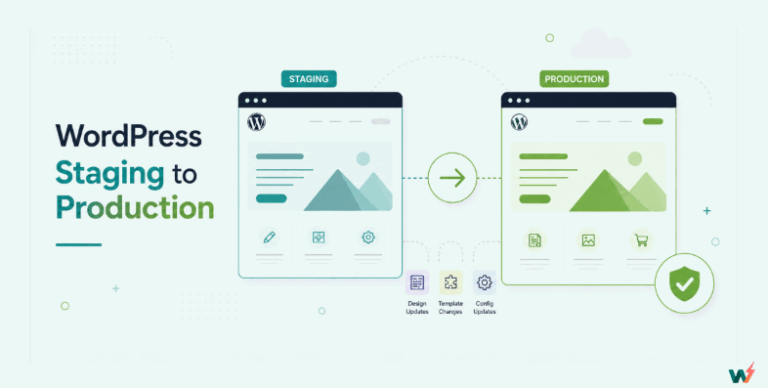
If you’ve ever updated a plugin directly on your live WordPress site and watched everything break, you already know why a WordPress staging site isn’t optional; it’s essential. A staging environment gives you a safe, private copy of your site where you can test changes, troubleshoot issues, and experiment freely before those changes ever touch production.
WP Engine staging sites are one of the most common solutions developers turn to. Since WP Engine groups every website into three environments: Production, Staging, and Development, it’s relatively straightforward to create a staging site for WordPress inside their User Portal. Agencies and freelancers alike use it to test updates or fix bugs without putting client sites at risk..
In this guide, you’ll learn exactly how to create a WP Engine staging site step by step.
Table of Contents
What is a WP Engine Staging Site?
A WP Engine staging site is a duplicate version of your WordPress website where you can safely test changes before pushing them live. Think of it as a private workshop, everything looks and feels like your real site, but nothing you do here affects the production version until you’re ready.
Inside the WP Engine User Portal, each “Site” is essentially a container that can hold up to three independent environments:
- Production (PRD) – the live site your visitors see.
- Staging (STG) – a copy of the production site used for testing updates, plugins, and minor changes.
- Development (DEV) – a separate environment for building out new features, redesigns, or major experiments.
Even though these environments are visually grouped under a single “Site” in the dashboard, they operate completely independently. That means you can break your staging environment, reset it, or rebuild it, without touching production.
For developers and agencies, this staging environment is valuable because it:
- Let’s you test plugin updates without risking downtime.
- Provides a safe space to troubleshoot errors if the live site crashes.
- Makes it easier to collaborate with teams on new features before launch.
In short, WP Engine staging sites give WordPress professionals a controlled, isolated environment to test and refine work. But as you’ll see later, the way WP Engine structures these staging sites comes with restrictions that can slow down workflows, especially when you’re juggling dozens of client projects.
How to Create a WP Engine Staging Site: Step-by-step Guide
Setting up a WP Engine staging site is one of the first things agencies and developers do when working on a new WordPress project. It lets you test safely before touching production. Below, I’ll walk you through the full process, whether you’re building a brand-new WordPress staging site, migrating one, or cloning an existing environment.
Step 1: Log in to the WP Engine User Portal
Your WP Engine dashboard (called the User Portal) is the control room for all WordPress staging sites and environments.
- Head to my.wpengine.com and sign in with your account.
- Once logged in, you’ll see the Sites tab in the left-hand navigation.

This is where every WordPress site on your plan lives. Remember, each “Site” in WP Engine is actually a container that can hold up to three environments: Production (PRD), Staging (STG), and Development (DEV).
Step 2: Add a New Site (Optional)
If you’re starting from scratch and want your staging site for WordPress to be part of a new project, you’ll need to create a new “Site” container.
Click Add Site.

WP Engine will ask what kind of site you want to add. Here are your choices:
- Build a new site – Fresh WordPress install. You can choose a clean install or a Genesis Pro starter site/eCommerce template.
- Migrate a site – Move a WordPress site hosted elsewhere into WP Engine. You’ll pick between:
- Standard (automated) migration using WP Engine’s plugin.
- Manual migration, where you upload the database and the wp-content folder yourself.
- Standard (automated) migration using WP Engine’s plugin.
- Copy or move an environment – Duplicate an existing environment from another WP Engine site (handy for cloning a production site into staging).
- Accept a transfer – If another account transfers an environment to you.
Most agencies will either choose “Build a new site” if starting a project fresh, or “Migrate a site” if they’re bringing in a client’s live site.
Step 3: Define Site Owner & Site Details
Once you choose how you’re creating the site, you’ll land on the Site Owner screen. Here you decide:
- I will own it – The site is billed to your account (most common).
- Someone else will own it – Useful if you’re transferring ownership later.

Then, you’ll add Site Details:
- Site Name – This doesn’t need to be unique. You can rename it anytime. Example: ClientProject2025.
- Environment Type – This is where you select STG (Staging) to create a WordPress staging site.
- Environment Name – This must be unique across WP Engine. For example: clientproject-stg. This value also generates the temporary domain: clientproject-stg.wpenginepowered.com.
Important: Once you pick an environment name, it can’t be reused. Even if you delete the staging environment later, that specific name is locked forever.
Step 4: Wait for Setup Confirmation
Click Add Site, and WP Engine will start provisioning your environment. Depending on the size and complexity of the install, setup usually takes a few minutes. You’ll get an email notification once your WP Engine staging environment is ready.
At this point, you technically have a staging site, but it’s usually empty unless you copied an existing environment. To make it useful, you’ll want to clone Production into Staging so you can test against the real site data.
Step 5: Add a Staging Environment to an Existing Site
Often, you won’t need a brand-new site container. You’ll just want to add a staging site for WordPress to an existing production project. WP Engine makes this possible by letting you attach up to three environments (PRD, STG, DEV) under one Site.
- In the User Portal, open your Site from the Sites page.
- At the top of the environment list, click Add environment.
- From the dropdown, select STG (Staging).
- Enter a unique Environment Name (e.g., clientbrand-stg). This will auto-generate the temporary CNAME like clientbrand-stg.wpenginepowered.com.
- Decide whether you want a blank staging environment or to copy an existing environment during creation.
Best practice: Copy from Production so your staging environment mirrors the live site. That way, you’re testing against the same database, plugins, and theme files.
Once confirmed, WP Engine will provision your new staging site. Expect a few minutes of setup, followed by an email confirmation.
Step 6: Copy Production to Staging (Most Common Workflow)
A WP Engine staging site is only useful if it accurately reflects your live site. That’s why agencies almost always clone production into staging before making changes. Here’s how:
- Go to your Production environment inside the User Portal.
- Select Copy Environment (sometimes labeled Push/Pull).
- Choose Copy Production → Staging.
- Confirm the direction and start the copy.
WP Engine will migrate your database and files over to the staging environment. This process can take several minutes, depending on site size.
What Doesn’t Copy Automatically
This is where some agencies get tripped up. WP Engine doesn’t carry over every configuration when copying environments. You’ll need to handle these manually:
- Redirect Rules – Contact WP Engine support to replicate.
- Custom Cache Exclusions – Must also be requested through support.
- SSL Certificates – Won’t copy. You’ll need to reconfigure SSL for staging.
- Nginx Rules – Must be duplicated via support.
- LargeFS Media – Files stored in Amazon S3 (via LargeFS) are not automatically copied. You’ll need to sync them separately or ask support for a fallback rule.
This means that while your WordPress staging environment looks like production, there may be gaps in functionality unless you manually line up these server-level settings.
Step 7: Post-Setup Checks for Staging
After the copy completes, don’t assume your staging site is ready for testing. Run through these essential checks:
- Search indexing – Confirm staging is set to “Discourage search engines” (Settings → Reading). You don’t want Google indexing your test site.
- Plugin licenses – Some premium plugins lock licenses to the production domain. Switch them to staging mode or request staging licenses.
- Payments & transactional emails – Set gateways to sandbox mode and disable live transactional emails (to avoid accidentally billing customers or spamming users).
- Caching & permalinks – Clear cache and visit Settings → Permalinks to flush rewrite rules.
- Smoke test critical flows – Forms, checkout, search, login, custom post types, and editor functionality should all be tested.
- Restrict access – If staging contains sensitive data, lock it down with password protection or user restrictions.
By running through these steps, you ensure your WP Engine staging site is safe, functional, and ready for development or testing.
Drawbacks of WP Engine Staging Site
At first glance, a WP Engine staging site seems like a solid option: you get a separate environment to test WordPress updates, troubleshoot plugin issues, and build new features before they go live.
But once you start relying on it for serious agency workflows, several limitations become clear. These drawbacks are important to understand before deciding whether WP Engine is the best place to manage your staging environment.
1. Strict Environment Limits
WP Engine groups every WordPress project into a maximum of three environments: Production, Staging, and Development. That’s it. If you want a second staging environment for more advanced testing, say, one for QA and another for client demos, you’re out of luck.
- For agencies juggling dozens of projects, this one-size-fits-all model can slow down workflows.
- If a staging environment is deleted, its name can’t be reused, even years later, which adds unnecessary friction.
2. Domain Restrictions on Shared Plans
On WP Engine’s shared hosting plans, staging and development environments cannot use custom domains. That means your WordPress staging site will always live on a generic subdomain like client-stg.wpenginepowered.com.
- This limitation breaks the staging environment’s job of being a “true clone” of production.
- Many premium plugins tie their license keys to a domain — meaning your staging site either stops working properly or forces you to buy extra licenses.
On Premium plans, WP Engine does allow custom domains for staging, but that upgrade comes with steep pricing.
3. Incomplete Copies of Production
When you copy production into staging, WP Engine does not move over everything. Developers often discover that the following must be reconfigured manually or through support:
- Redirect Rules
- Custom Cache Exclusions
- SSL Certificates
- Nginx Rules
- LargeFS Media stored in Amazon S3
This makes creating a staging environment far less “instant” than expected. Every time you copy production, you’re forced to double-check missing pieces.
4. Sandbox Site Limitations
WP Engine markets “Sandbox Sites,” but they are not true staging environments. Instead:
- They include only a single Development environment (no staging or production).
- They cannot add custom domains unless you’re on a Premium plan.
- They don’t support multisite.
For agencies, these sandboxes are too limited to be used as real client staging sites.
5. Manual Migration Friction
If you’re migrating a site into WP Engine, you’ll often face extra steps:
- Standard migrations rely on an automated plugin but can still break during large imports.
- Manual migrations require uploading databases, zipping wp-content, and waiting on support tickets.
This adds time and support overhead; exactly the opposite of what staging environments are meant to save.
6. Cost and Scalability Concerns
To unlock a truly flexible WordPress staging site setup on WP Engine, you’re pushed toward higher-tier Premium plans. For agencies, that means:
- Paying for fixed monthly plans rather than a usage-based model.
- Scaling costs quickly when you need multiple staging sites across dozens of client projects.
The result: staging becomes expensive overhead rather than a smooth, scalable workflow.
These are not minor inconveniences. They directly impact how fast you can spin up a staging environment, test safely, and ship projects. For agencies with multiple clients, the limitations of a WP Engine staging site can translate into real project delays and extra costs.
There is a cost question underneath all of this. WP Engine gives every project three environments, production, staging and development, and that is the ceiling. A second staging site for QA, or a separate one to show a client, means moving up a plan. Custom domains on staging need a Premium plan too, which is the same upgrade wearing a different label.
InstaWP prices the two halves separately. A staging sandbox is $2/mo per site, billed daily, with the same WordPress and the same SSH and WP-CLI access you get on production, and there is no cap on how many you run. If a sandbox turns out to be the site you actually ship, you convert it to managed WordPress hosting from $5/mo per site in one click: the site keeps its URL, nothing is migrated, and billing prorates from that day. You can also leave production on WP Engine and use InstaWP for the staging half only.
InstaWP Hosting with Staging: A Better Alternative
After seeing the limitations of a WP Engine staging site, it’s clear why many developers and agencies are looking for faster, more flexible solutions. This is where InstaWP staging environments come in; designed to cut down the friction and actually scale with modern WordPress workflows. If staging is only part of the reason you are rethinking your host, see our comparison of the best WP Engine alternatives on current pricing.

InstaWP is a cloud-based WordPress development and hosting platform that reimagines how agencies, freelancers, and developers work with WordPress staging sites. Unlike traditional hosting setups, where staging is often a rigid add-on, InstaWP is built around instant WordPress sandboxes and staging environments.
At its core, InstaWP lets you spin up disposable or permanent WordPress sites in seconds, directly in the browser. That means no waiting for servers to provision, no local setup, and no manual migration headaches. For developers and agencies, it acts like a control panel where you can:
- Create staging sites instantly
- Push or sync to production environments
- Save reusable templates
- Manage dozens (or hundreds) of client projects under one dashboard
Where WP Engine’s staging site for WordPress is bound to its hosting infrastructure, InstaWP gives you both hosting + staging with flexibility. You can use InstaWP’s own cloud hosting or connect it to external hosting providers; something WP Engine doesn’t allow.
What is InstaWP?
InstaWP is a cloud-based WordPress development and hosting platform that reimagines how agencies, freelancers, and developers work with WordPress staging sites. Unlike traditional hosting setups, where staging is often a rigid add-on, InstaWP is built around instant sandboxes and staging environments.

At its core, InstaWP lets you spin up disposable or permanent WordPress sites in seconds, directly in the browser. That means no waiting for servers to provision, no local setup, and no manual migration headaches. For developers and agencies, it acts like a control panel where you can:
- Create staging sites instantly
- Push or sync to production environments
- Save reusable templates
- Manage dozens (or hundreds) of client projects under one dashboard
Where WP Engine’s staging site for WordPress is bound to its hosting infrastructure, InstaWP gives you both hosting + staging with flexibility. You can use InstaWP’s own cloud hosting or connect it to external hosting providers; something WP Engine doesn’t allow.
InstaWP Staging Site: Key Features (and Where It Beats WP Engine Staging Sites)
Let’s break down InstaWP’s most important features, with a focus on how they outperform a WP Engine staging environment.
1. Instant Site Creation vs Slow Provisioning
WP Engine staging site takes several minutes to provision. Copying from production involves waiting for emails and partial migrations.
InstaWP staging site launches a fully working WordPress staging environment in seconds. Whether you need a sandbox to test a plugin or a full client-ready clone, setup is nearly instant. For agencies, those saved minutes compound across dozens of client projects.
2. Unlimited Sandboxes vs 3-Environment Limit
In WP Engine, each site is capped at three environments (PRD, STG, DEV). No exceptions. InstaWP offers unlimited sandboxes and staging sites. You can maintain separate environments for QA, demos, development, and staging without artificial limits. This is a major edge for agencies managing complex client workflows.
3. Flexible Domains vs Subdomain Restrictions
On shared plans of WP Engine, staging and development environments are forced to use wpenginepowered.com subdomains. Custom domains are Premium-only.
Whereas in the InstaWP staging site, every environment, even free sandboxes, supports custom domains. That means staging mirrors production exactly, without breaking plugin licenses or domain-dependent setups. This solves one of the most frustrating issues with WP Engine staging.
Must Read: How to Map Multiple Domains to Your Staging Site | InstaWP Docs
4. One-Click SitePush vs Manual Copies
In WP Engine, copying production to Staging doesn’t bring over redirects, SSL, cache exclusions, or media stored in LargeFS. Developers often need to open support tickets.
With SitePush, you move staging → production or production → staging in one click, with everything intact. No manual patchwork. Faster, more reliable deployment that doesn’t require support intervention.
5. Snapshots & Reusable Templates vs Manual Duplication
If you want to recreate a setup, you have to manually copy environments or rebuild them in the WP Engine staging site. No template system exists.
However, you can save any of your WordPress staging sites as a Snapshot and reuse it as a Template in InstaWP. That means you can build a “starter WooCommerce store” or “agency blog setup” once, then launch new staging sites from that template in seconds.

Must Read: Snapshots vs Templates: What’s New in InstaWP’s Template System
For agencies, this turns repetitive builds into a few clicks, something WP Engine simply doesn’t offer.
6. Two-Way Sync vs One-Way Copies
You can push Production to Staging or Staging to Production in the WP Engine staging site, but it’s a full overwrite. There’s no way to sync changes incrementally.
InstaWP features 2-way incremental sync, letting you merge only the changes you want (e.g., sync new blog posts from Production → Staging, or push code fixes from Staging → Production). This eliminates the “all or nothing” problem and makes staging environments far more usable for live projects.
7. Usage-Based Pricing vs Expensive Fixed Plans
With the WP Engine staging site. You pay for a fixed monthly plan, regardless of how much you actually use the staging site. To unlock features like staging domains or more sandboxes, you’re forced into Premium tiers.
InstaWP staging site offers usage-based pricing. You only pay for the sites and environments you actually need. That means you can run dozens of staging sites without a massive monthly bill. For freelancers and agencies, this keeps staging affordably as you scale.
To put it simply:
- WP Engine staging works, but it’s slow, rigid, and limited.
- InstaWP staging is fast, flexible, and scalable; built for agencies managing multiple WordPress projects.
The difference is workflow: WP Engine treats staging as an add-on to hosting, while InstaWP makes staging the center of its platform.

How to Create a Staging Site on InstaWP
Creating a staging site for WordPress on InstaWP is refreshingly simple. Instead of waiting on provisioning, juggling environment names, or filing support tickets, you can spin up a staging environment in seconds, right from your browser.
If you’re building and launching your site with InstaWP’s managed hosting with staging, you will be able to view your sites under the ‘ Managed’ tab on the dashboard.
Here’s how it works:
Step 1: Log in to InstaWP
Head over to instawp.com and sign in to your account. The dashboard is your control panel where all sandboxes, staging environments, and hosting sites are listed in one place.
Step 2: Create a New Site
Click the “Create New Site” button.

A configuration panel opens where you can set up the details of your new WordPress site.
Here’s what you can customize:
- WordPress version – Pick the version you want to test (perfect if you want to test compatibility before upgrading).
- PHP version – Choose the PHP runtime your production site uses.
- Pre-installed plugins or themes – You can load a fresh install or start with one of your saved snapshots/templates.

You have four ways to create a site: From Scratch, From Snapshots, From Store, and From AI. If you need detailed help with creating a site using a specific method, our document on ‘ Create Site ‘ is useful.
Step 3: Choose a Site Plan
Choose the site plan based on your requirements. Each plan offers great flexibility with pay-as-you-go WordPress. If this site is only for testing themes and plugins, then the WordPress sandbox plan is ideal for you.

With the Sandbox plan, you can:
- Spin up staging sites instantly without touching your live site
- Test plugins, themes, and code changes safely
- Use snapshots to save and re-use site setups as templates
- Work in a secure, isolated environment that auto-expires when you’re done
- Keep costs low since you only pay for what you use
This makes the Sandbox plan the perfect choice for agencies and developers who need quick, disposable staging environments before moving to a full production setup.
Step 3: Launch the Staging Environment
Once you’ve set your options, click ‘Create Site’. In just a few seconds, InstaWP provisions your new staging environment. No waiting for confirmation emails, no downtime, no naming restrictions.
At this point, you can log into the WordPress admin area with one click. InstaWP generates credentials automatically and even provides a Magic Login option, a direct, secure link into the wp-admin without typing passwords.
From your InstaWP dashboard, you can:
- Share the staging site with clients or teammates using a temporary link.
- Reset the site back to its fresh install state if you need a clean slate.
- Save it as a Snapshot to use as a reusable template in future projects.
Those who already have a live site, hosted on InstaWP or elsewhere, need to download the WordPress staging plugin, InstaWP Connect, to create the WordPress staging site.
That’s how you can use InstaWP’s Sandbox plan to create a temporary or permanent staging site. This plan costs you only $0.07/day. You can keep it active as long as you continue testing. Once testing themes or plugins is done, delete them and you will be charged only site’s active period.
That’s the beauty of InstaWP’s staging site over the WP Engine site.
In case you have a fully hosted site on InstaWP, you’ll get the site delivered to you with InstaWP’s staging site plugin, InstaWP Connect, auto-installed on it. If your site is hosted elsewhere, you have to manually install it.
Once you install and activate InstaWP Connect on your live site, go to Tools > InstaWP, and you will be able to see the staging site interface.

You need to choose your staging site type. Whether you need a single staging site for quick tests or multiple staging sites for trying different design/feature versions, InstaWP lets you pick the setup that works best.
From this screen, customize your entire WordPress staging site and decide which plugins/themes, databases, or files you want to migrate while creating a WordPress staging site.

Did You Know: InstaWP copies your website (files + database) into a staging environment hosted on its fast NVMe SSD infrastructure. This way, you get a replica of your live site without risking downtime.
You need to choose the site plan. Sandbox plan is best to create WordPress site as it’s cost-effective and offers enough resources that a staging site is suppose to have.

Once all the customization is done, InstaWP will calculate the space your WordPress staging site needs. Click on ‘ Create Staging‘ to move ahead.
Your staging copy is not just a duplicate; it’s fully manageable. You can:
- Run performance scans to identify slow plugins/themes
- Use the vulnerability scanner to catch security flaws before deploying
- Adjust PHP settings directly from the dashboard
- Track every change with activity logs

After testing updates, bug fixes, or new features, you can safely merge your staging site back into production with just a click. No FTP uploads, no database imports, no messy manual steps.
This approach works seamlessly whether your live site is already on InstaWP or hosted elsewhere, giving you the flexibility to keep your current hosting provider while still enjoying the power of InstaWP’s centralized staging and management system.
Must Read: Add Connect Plugin to Site
? Key takeaway: Unlike a WP Engine staging site, which is slow to set up and tied to strict plan limits, InstaWP staging environments are instant, flexible, and designed for real agency workflows.
Conclusion: Why InstaWP is the Smarter Way to Stage WordPress Sites
WP Engine’s staging environment does the job at a basic level, but the hidden friction adds up: rigid three-environment limits, domain restrictions, incomplete environment copies, and a reliance on support tickets. For small hobby sites, that might be fine. For agencies and developers managing multiple client projects, it becomes a bottleneck.
InstaWP staging sites, on the other hand, are built for speed, flexibility, and scale:
- Spin up environments instantly.
- Push and sync changes without downtime.
- Save reusable templates for repeatable workflows.
- Manage dozens of staging sites affordably under usage-based pricing.
Where WP Engine treats staging as an add-on, InstaWP makes it the core workflow. That shift changes everything for agencies that need to move fast and deliver reliably.
Ready to Try a Better Staging Workflow?
Skip the slow provisioning and rigid limits. With InstaWP, you can create your first staging site for WordPress in seconds.
? Launch your InstaWP staging site today and experience how effortless WordPress development can be.
FAQs
What is a WP Engine staging site?
A WP Engine staging site is a copy of your WordPress site that runs in a separate environment. It allows you to test updates, plugins, and design changes before applying them to the live production site. Each WP Engine account groups sites into up to three environments: Production, Staging, and Development.
Why do I need a WordPress staging site?
A WordPress staging site acts as a safety net. Without it, you risk breaking your live website when updating plugins, switching themes, or troubleshooting errors. By testing in a staging environment, you protect your production site from downtime or data loss.
Can I take a staging site live on InstaWP?
Yes. With InstaWP, you can convert any WordPress staging site into a production site with one click. You can also export it to another hosting provider, giving you full freedom with no lock-in.
Is InstaWP better for agencies than WP Engine?
For agencies, InstaWP staging sites are a better fit because they scale without limits. You can create unlimited staging environments, reuse templates, and pay only for what you use. WP Engine requires costly upgrades to Premium plans just to unlock similar flexibility.
Which staging environment should I choose for WordPress development?
If you’re a solo site owner, a WP Engine staging site may be enough. But if you’re an agency or developer handling multiple clients, InstaWP’s staging environment offers more speed, flexibility, and cost efficiency.