To update PHP in WordPress, change the PHP version in your hosting control panel, not in WordPress itself. Test the new version on a staging copy first, then switch the live site. As of November 2026, WordPress recommends PHP 8.3 or newer and will not run below PHP 7.4.
On InstaWP, the AI-native WordPress cloud with managed hosting, PHP is a per-site dropdown under Developer Tools, and you can try a new version on a $2 staging copy before you touch the live site. We timed it on a test site: each switch between PHP 7.4 and 8.5 took 11 to 15 seconds, and going back took the same. This guide covers which version to pick, how to check the one you run now, how to switch on InstaWP or in cPanel and Plesk, and what to test afterwards.
PHP is the language WordPress core, every plugin and every theme are written in, so the PHP version on your server decides how fast those run and whether they still get security fixes. If your WordPress sites still run PHP 7.4 or 8.0, they are on versions that have had no security patches for years.
- Pick PHP 8.4 for most sites today. It gets bug and security fixes through 2026 and security fixes until the end of 2028. PHP 8.3 is WordPress’s recommended minimum, and PHP 8.2 loses security fixes on 31 December 2026.
- PHP 7.4 is the floor. WordPress 7.0 and later need at least PHP 7.4, and Site Health flags it as a critical security issue.
- You change PHP at the server, not in wp-admin. Use your host’s panel (MultiPHP Manager in cPanel, PHP settings in Plesk, PHP Config on InstaWP) or ask your host.
- Test on staging first. Plugins and themes break on new PHP versions, not WordPress core. A staging copy shows you the fatal errors before visitors do.
- Rolling back is the same switch. On our InstaWP test site, moving back from PHP 8.5 to 8.2 took 13.9 seconds. Take a backup or restore point first anyway.
Table of Contents
Which PHP version should WordPress use?
Use PHP 8.4, or at least PHP 8.3, for a production WordPress site in late 2026. WordPress.org recommends PHP 8.3 or greater, and its compatibility table lists PHP 7.4 through 8.5 as supported for WordPress 7.0 and 7.1. PHP 8.5 is the newest branch; it is fully supported by WordPress core, but check that your plugins have caught up before you move to it.
The table below combines the PHP project’s own support dates with what WordPress 7.1.4’s Site Health told us when we ran each version on a test site on 5 November 2026.
Site Health ratings for PHP 7.4, 8.2 and 8.5 are what we saw on our test site. The ratings for 8.3 and 8.4 follow from the same check, which marks any version at or above the recommended 8.3 as good. Versions below 7.4 cannot run WordPress 7.0 or later at all.
WordPress 7.x and PHP. WordPress 7.0, released on 20 May 2026, raised the minimum PHP version to 7.4. If you are planning a core update at the same time, read our guides to WordPress 7.0 and WordPress 7.1 first, and update PHP before core, not both in one step.
Why should you update PHP in WordPress?
You should update PHP because unsupported versions no longer get security fixes, newer versions run WordPress faster, and current plugins increasingly require them. Those three reasons are why WordPress shows a PHP warning in Site Health and on the dashboard.
- Security. Once a PHP branch reaches end of life, newly found vulnerabilities in PHP itself stay unpatched on your server. Our explainers on PHP object injection and the PHP2Shell vulnerabilities show what that exposure looks like.
- Speed. Each PHP 8 release brought engine and JIT improvements, so the same website performance work goes further on a current version. Faster PHP also means each PHP worker finishes requests sooner, which matters on busy sites (see what PHP workers are).
- New language features. Plugin and theme authors adopt features from PHP 8.4 and PHP 8.5, and their next releases may stop supporting old PHP.
- Fewer plugin and theme issues. Running the version your plugins are tested on avoids deprecation notices and odd errors.
How do you check your current PHP version in WordPress?
The quickest way to check your PHP version is in wp-admin: go to Tools, then Site Health, then the Info tab, and open the Server section. You can also read it from a phpinfo() file, your hosting panel, or WP-CLI. All four show the version the server actually runs for that site.
Method 1: Using the WordPress dashboard (Site Health)
- Log in to your WordPress dashboard.
- Go to Tools > Site Health and open the Info tab.
- Expand Server and read the PHP version line.
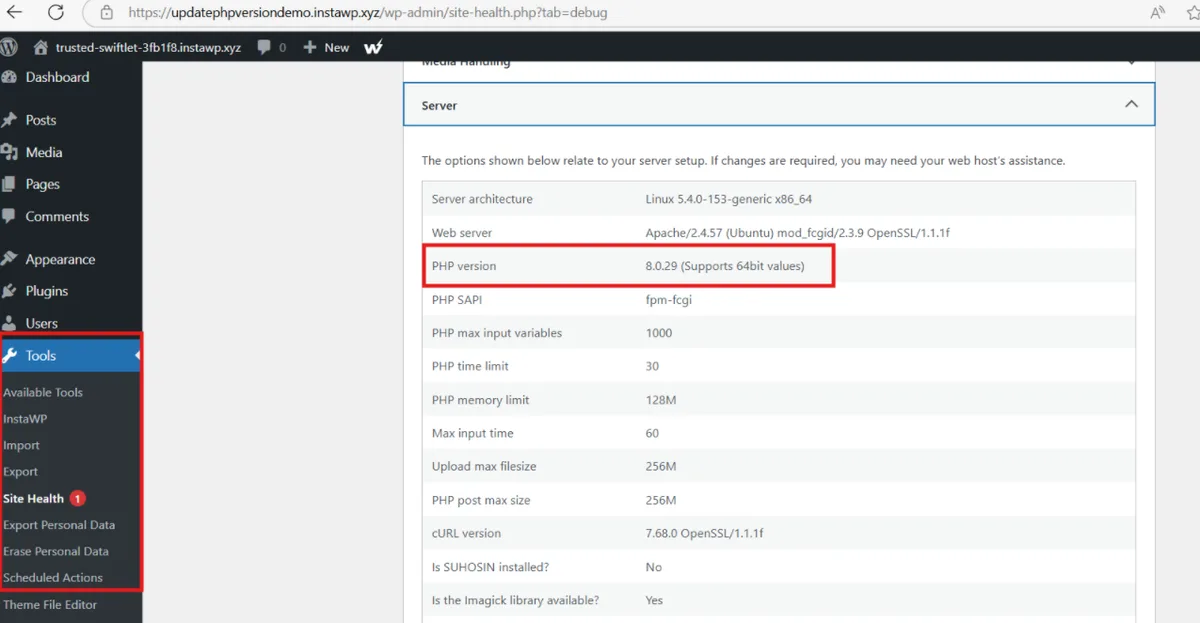
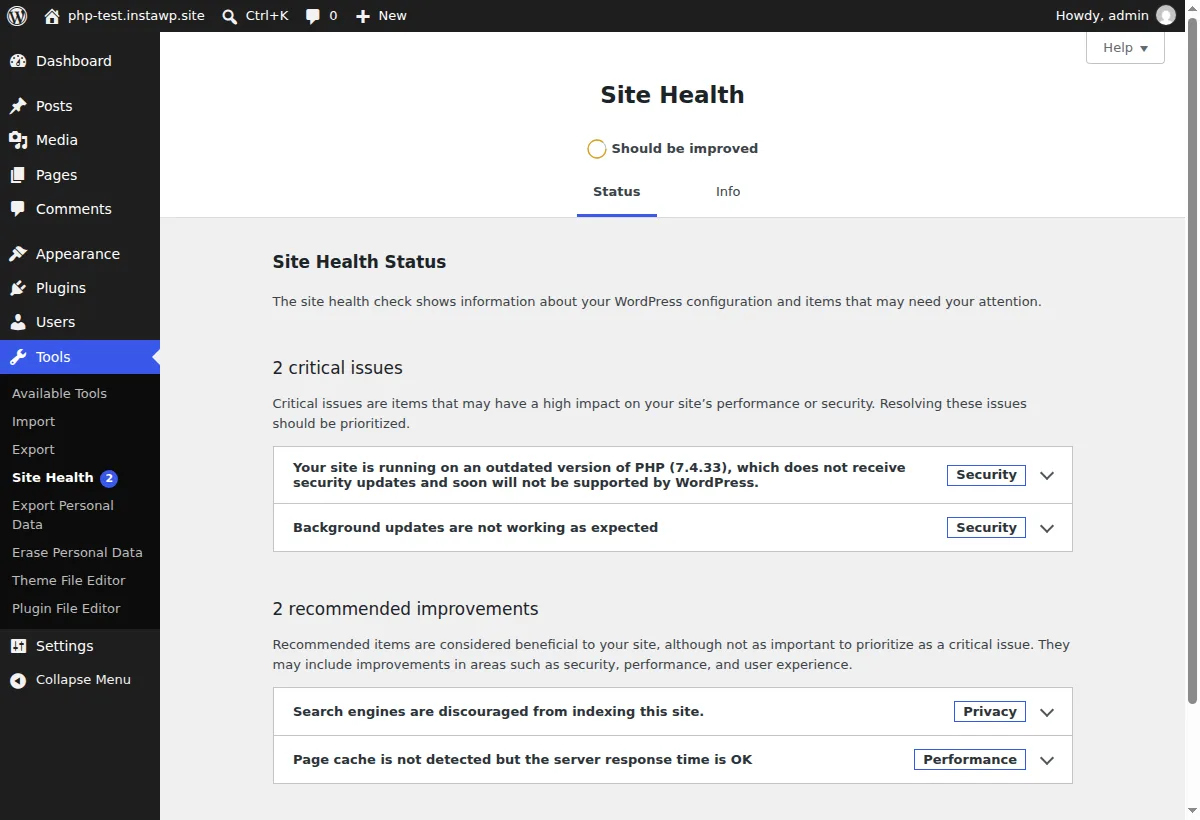
The Status tab tells you whether that version is a problem. On our test site running WordPress 7.1.4 and PHP 7.4.33, Site Health listed it as a critical security issue: “Your site is running on an outdated version of PHP (7.4.33), which does not receive security updates and soon will not be supported by WordPress.”
Method 2: Using the phpinfo() function
- Create a file named
phpinfo.phpin your WordPress root folder over SFTP or your host’s file manager. - Add the following code to it:
<?php
phpinfo();
?>- Open
https://yoursite.com/phpinfo.phpin your browser. The PHP version is at the top of the page, with every loaded extension and php.ini setting below it. - Delete the file as soon as you are done.
Do not leave phpinfo.php on a live site. It shows your server paths, loaded modules and configuration to anyone who finds it. Delete it straight after you read the version.
Method 3: Using your hosting panel
Most hosts show the PHP version on the site overview. In cPanel it is in MultiPHP Manager, and in Plesk under the domain’s PHP settings. On InstaWP, the site page shows the WordPress and PHP versions as badges at the top, and Developer Tools > PHP Config shows the exact version and settings read live from the server.
Method 4: Using WP-CLI or SSH
If you have SSH access, run either command. The first asks the PHP that runs WordPress, which is the one that matters; the CLI binary can differ from the web server’s PHP on some hosts.
wp eval 'echo PHP_VERSION;'
php -v
How do you update PHP in WordPress?
You update PHP by selecting a newer version for the site in your host’s control panel, ideally after testing it on a staging copy. The switch itself takes seconds. The work is in checking that your plugins and theme still run on the new version, and that is what a staging site is for.
There are two broad ways to do it: switch the live site directly in cPanel, Plesk or your host’s dashboard, or test on a staging site first and then switch live.
For any site that earns money, test first. This video shows how a staging site works:
Spinning up the staging copy used to be the slow part. With an InstaWP staging site it is not: our test site was ready in 34 seconds, and you can create one from scratch, from a saved snapshot, from the template store, or as a copy of an existing site.
Staging environments on InstaWP are:
- Isolated, so nothing you do on the copy reaches the live site
- Real servers with real PHP and MySQL, not a preview
- Set to any WordPress and PHP version up front, and changeable later
- Covered by the same vulnerability scanning and developer tools as live sites
Teams that standardise on fast staging also save real time on every release; we wrote about how fast WordPress staging improves team productivity.
Method 1: Switch PHP on InstaWP (staging first)
The easiest way to update PHP in WordPress is to do it on InstaWP, where the version is a per-site setting. Each InstaWP site runs in its own isolated PHP-FPM pool, so changing one site’s PHP never touches another site.
Step 1: Make a staging copy or a restore point. Clone the live site into a staging site, or create a restore point (a “version”) of the site you are about to change. On our test site, a restore point took 9.2 seconds.
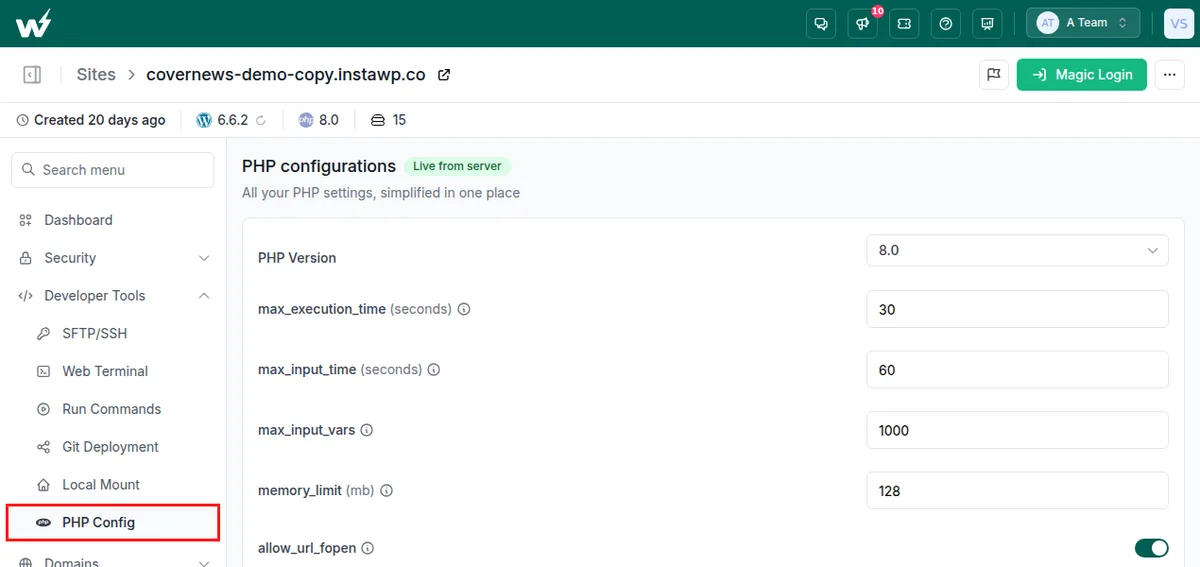
Step 2: Open PHP Config. On the Sites page, click the site, then expand Developer Tools in the left menu and click PHP Config.
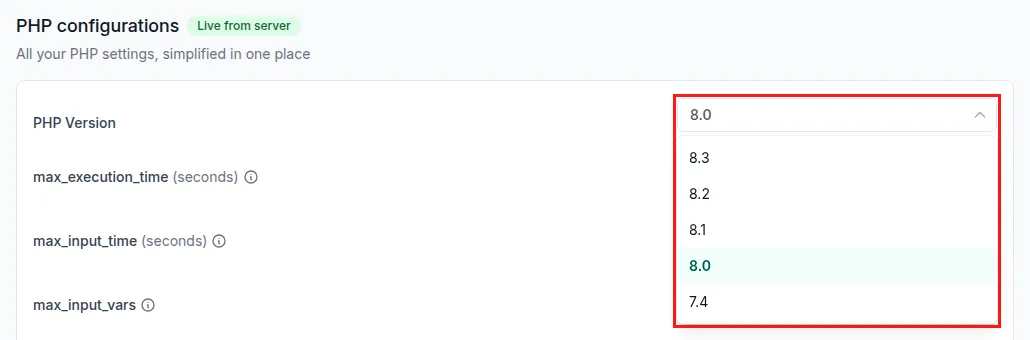
Step 3: Pick the new PHP version and save. Open the PHP Version dropdown, choose the version, and click Save. The list offers PHP 7.4 to 8.5, filtered to the versions that the site’s WordPress version supports.
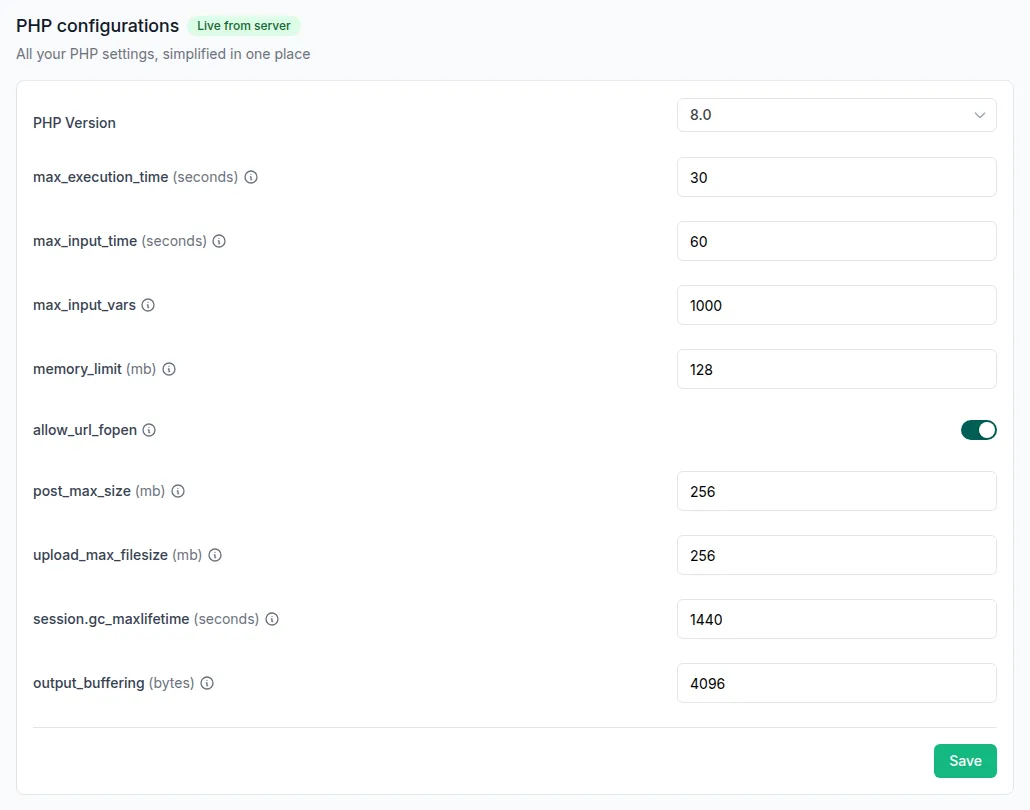
The same page lets you raise memory_limit, max_execution_time, upload_max_filesize and other php.ini values within set ranges, which helps if a plugin needs more room on the new version. See the Configure PHP docs for every setting and range.
Step 4: Test the staging copy. Run through the checklist in the what to check after updating PHP section below.
Step 5: Apply it to live, or roll back. If the copy is clean, repeat Step 3 on the live site. If something broke, switch the copy back or delete it. When you are ready, you can also push staging changes to production.
Prefer the terminal? The InstaWP CLI (beta) changes PHP in one command, which is how we timed the switches in the next section: instawp sites php <site> --version 8.4. Add --memory-limit 512 or other flags to change php.ini values at the same time.
To check a single plugin against a newer PHP version before you touch any site, you can also load it in WordPress Playground, which switches PHP versions in the browser.
Site hosted somewhere else? Make an InstaWP staging copy with InstaWP Connect
If your live site is on another host, the InstaWP Connect plugin creates a staging copy of it on InstaWP, where you can test the new PHP version without changing anything on the live server.
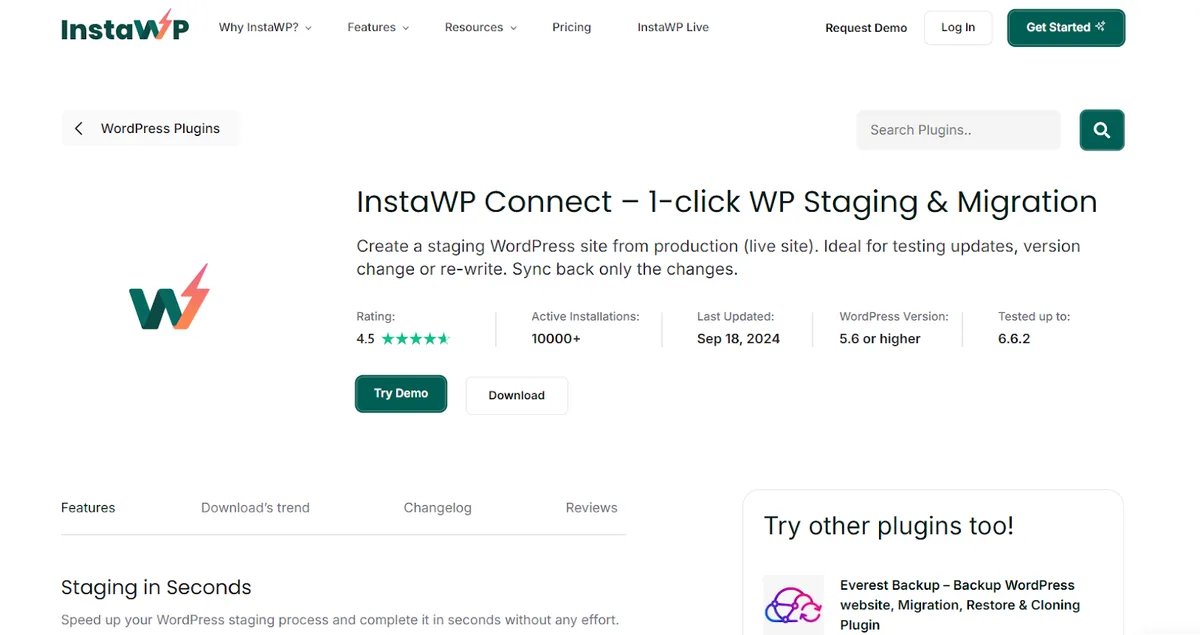
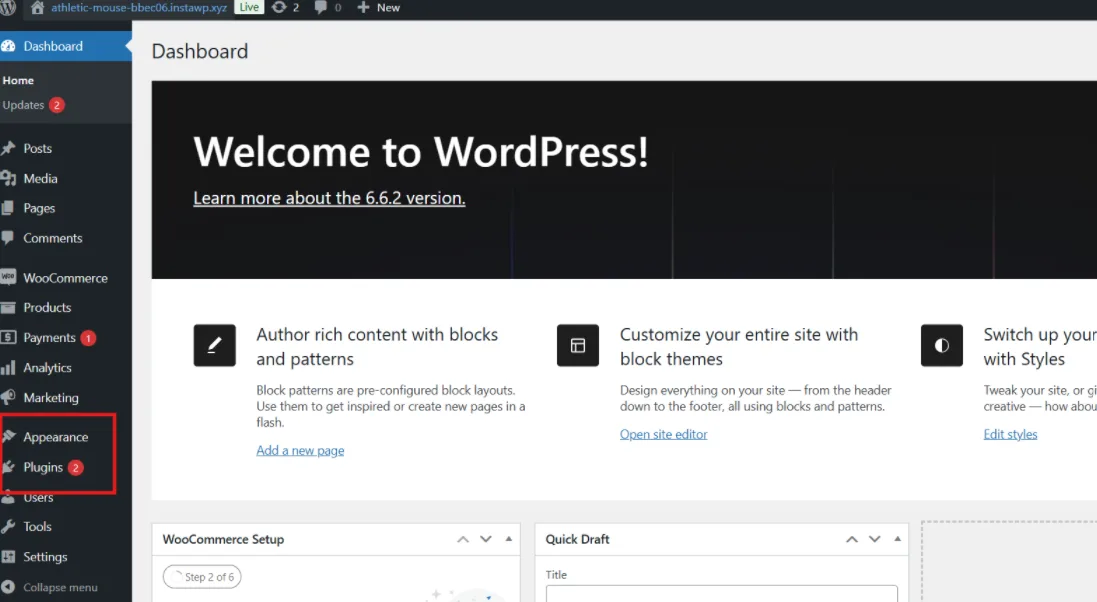
Step 1: Install InstaWP Connect. In your WordPress dashboard, go to Plugins > Add New.
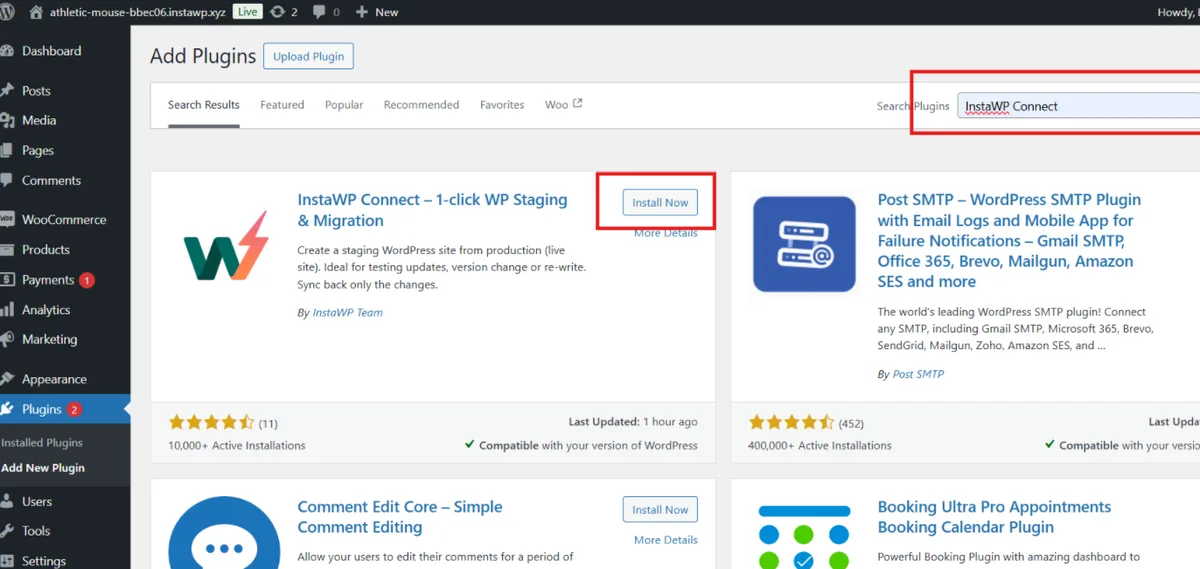
Search for “InstaWP Connect” and click Install Now.
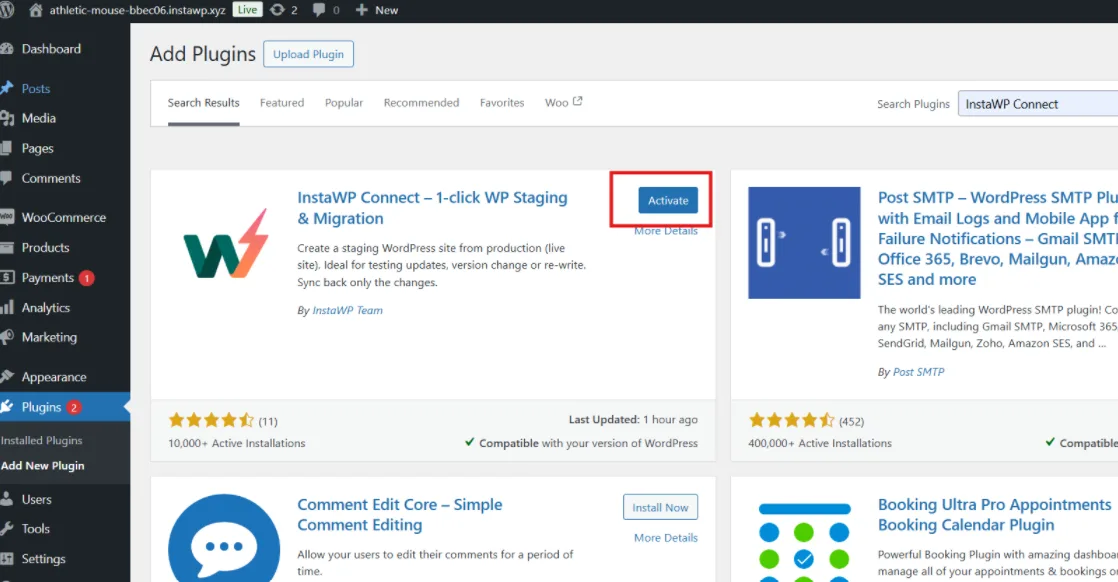
Then activate the plugin.
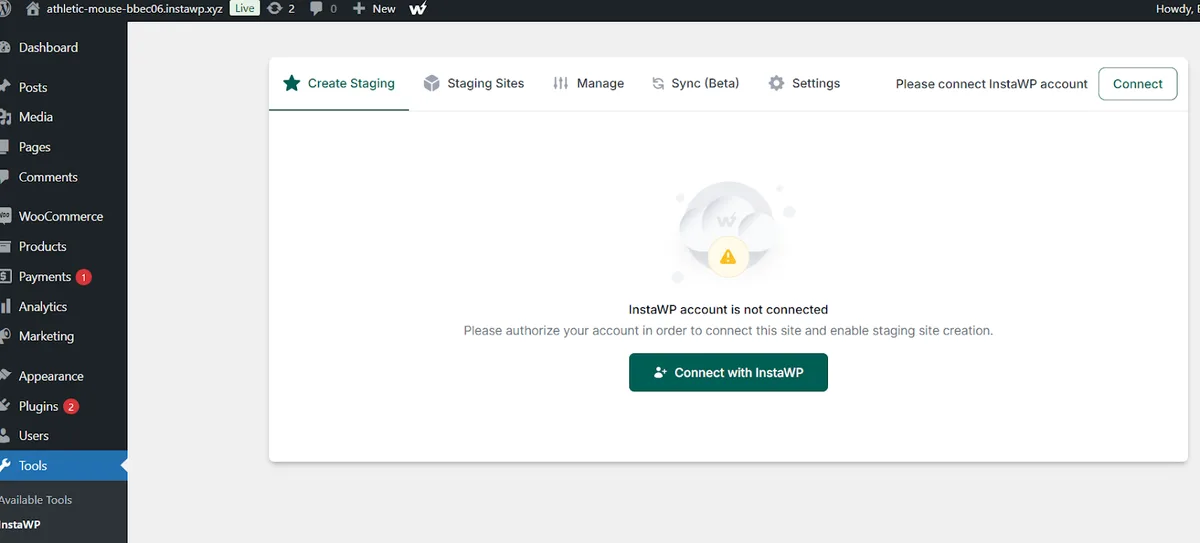
Step 2: Create the staging site. Start it from the plugin screen in your WordPress dashboard.
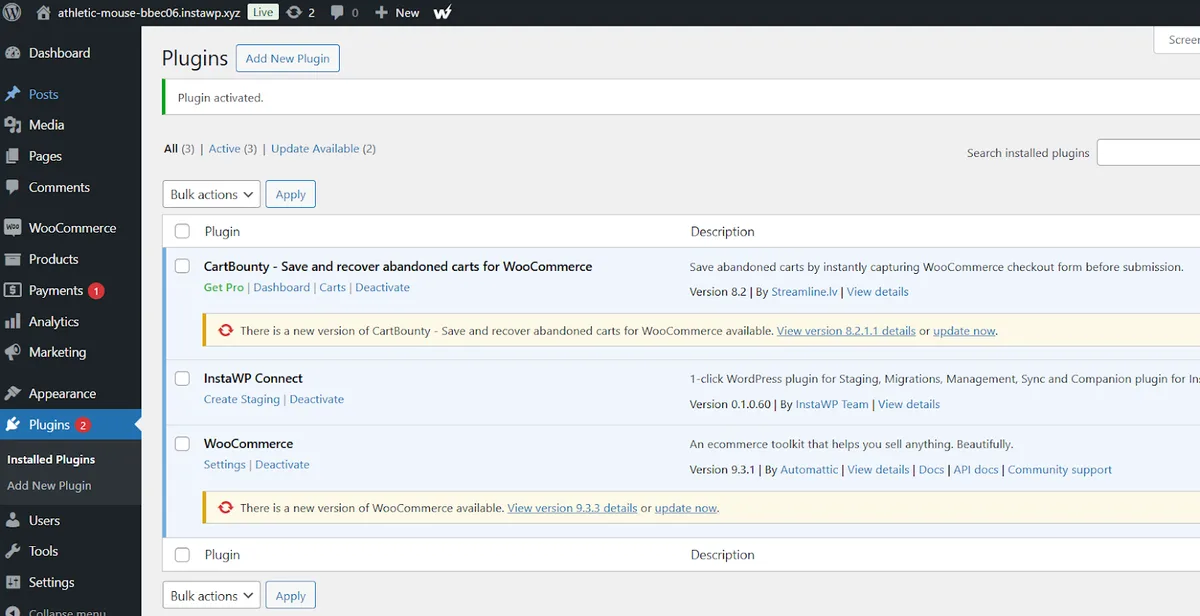
The plugin asks you to connect the site to your InstaWP account first.
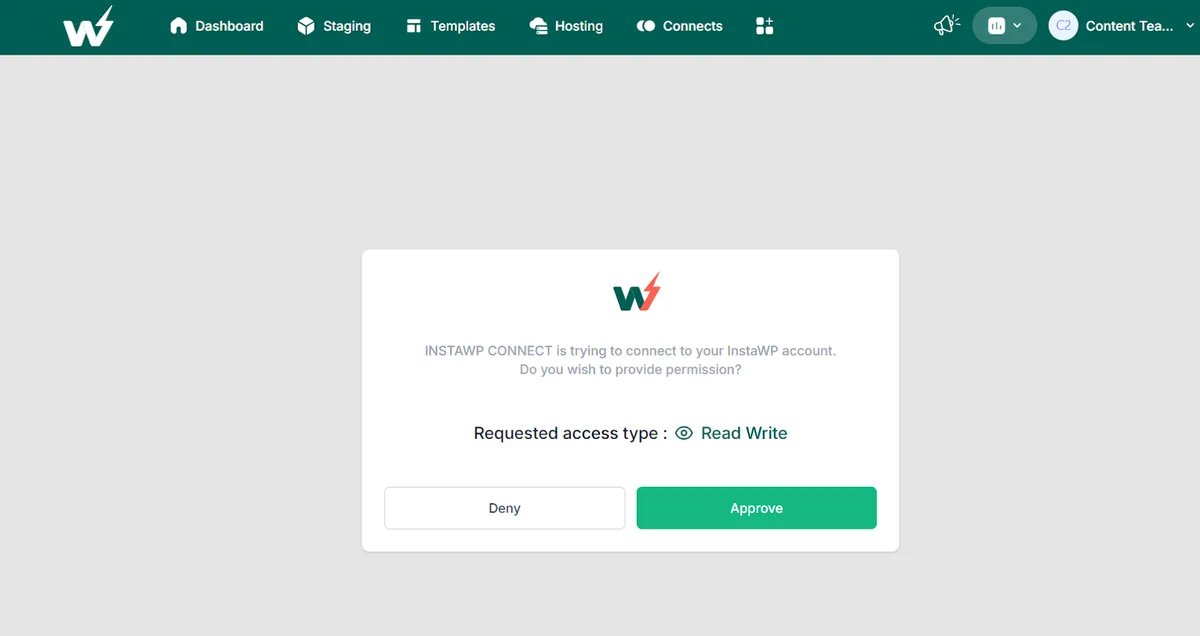
Clicking Connect opens the InstaWP dashboard, where you approve the request.
Once approved, the live site and its staging copy are linked.

Step 3: Change PHP on the staging copy. In the InstaWP dashboard, find the new staging site and open PHP Config as shown in Method 1. The three screenshots below show the same steps in the older dashboard layout, where PHP Config sat in the site’s actions menu.
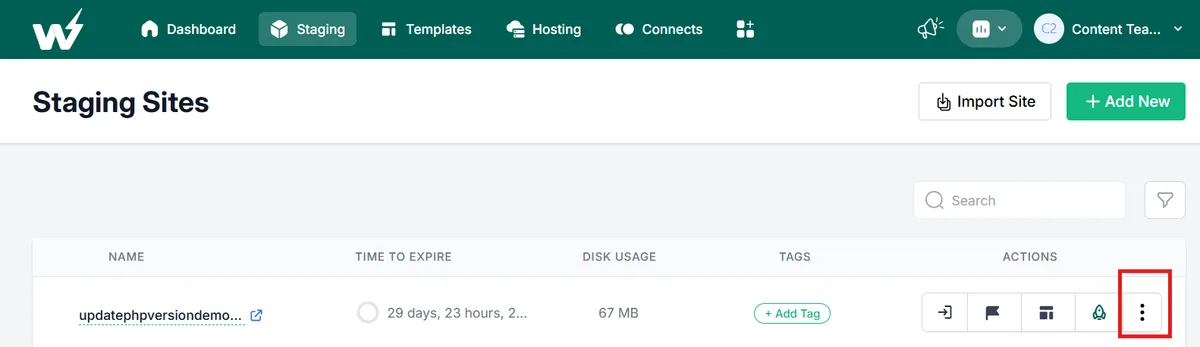
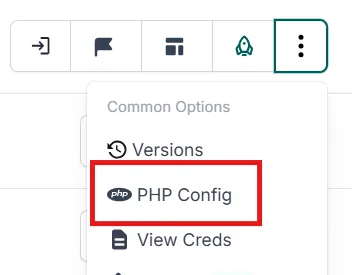
Pick the version, for example PHP 8.3, and save.
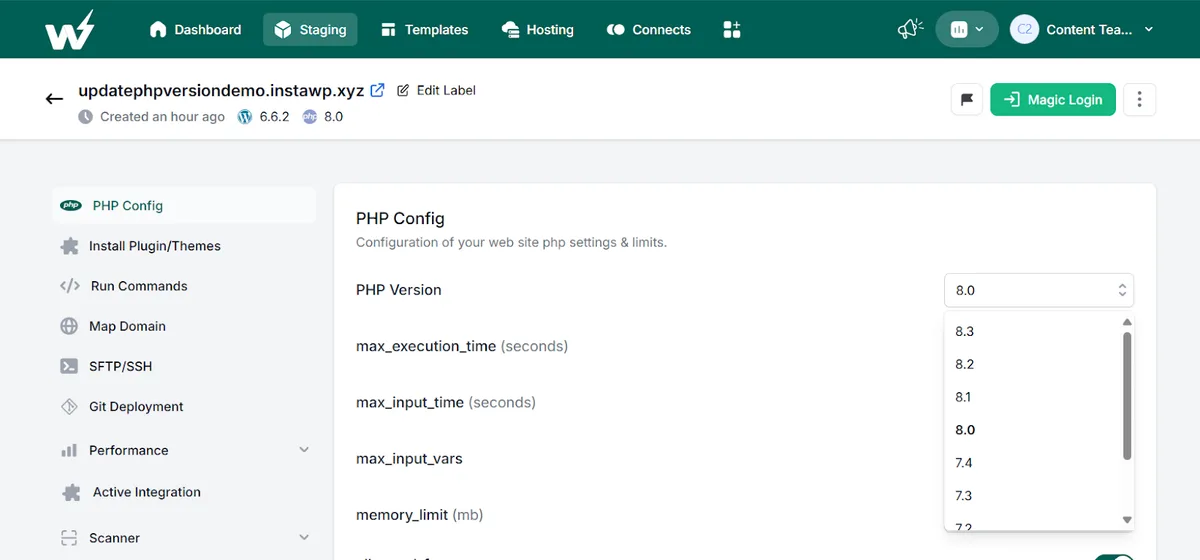
Test the copy, then change PHP on your live host using Method 2 below once you know the new version is safe. If you would rather move the site itself, InstaWP includes a free migration in on every plan.
Method 2: Update PHP through cPanel, Plesk or your host
The traditional way to update PHP in WordPress is through your hosting control panel. The menu names differ by panel:
- cPanel: open MultiPHP Manager under Software, tick the domain, pick the PHP version and click Apply. Hosts running CloudLinux may show Select PHP Version instead. cPanel documents it in its MultiPHP Manager guide.
- Plesk: open the domain in Websites & Domains, click PHP (or PHP Settings), choose the version and click OK.
- Host dashboards (Kinsta, WP Engine, SiteGround and others) have their own PHP setting per site, usually under Tools or Settings.
- No panel? Ask your host’s support to change it. If they cannot offer current PHP versions, that is a sign to move.
Doing it straight on production works, but it is the riskiest route. If a plugin is not compatible, the site shows a critical error to visitors until you switch back, and rolling back is harder without a recent backup. That is why managed hosting providers like InstaWP hosting put PHP control and staging side by side.
Because InstaWP hosting is part of the same platform as InstaWP‘s staging sites, testing a PHP update and then pushing it to live happens in one dashboard. You also get the developer tools that make PHP work faster:
- SSH and a browser terminal for direct server access
- SFTP for editing files such as wp-config.php and taking file copies
- WP-CLI commands to check the PHP version, update core, plugins and themes, and script the rest
After any method: confirm the new version
Whichever route you take, confirm the change with wp eval 'echo PHP_VERSION;' or the Site Health Info tab. Some hosts apply PHP changes per folder or per domain, so a subdomain or staging folder can keep its old version.
How long does a PHP update take? We timed it
On InstaWP, a PHP version switch took between 10.8 and 14.8 seconds from the request to the new version serving pages, and the homepage returned HTTP 200 after every switch. Rolling back took the same time as moving forward.
How we tested. On 5 November 2026 we created a temporary InstaWP site (WordPress 7.1.4, default theme, no extra plugins) in 34 seconds, placed a one-line PHP file on it that prints PHP_VERSION, and switched versions with the InstaWP CLI. A script polled that file every second and recorded when the new version answered, then fetched the homepage. Site Health ratings come from WordPress’s own PHP check run on the site after each switch. Times include the round trip from our test machine in Singapore to a US data center.
What this does not test: your plugins. A fresh site has nothing to break. On a real site the switch is just as fast, but a plugin written for old PHP can still throw a fatal error on the new one. That is why the staging copy matters more than the switch.
What should you check after updating PHP in WordPress?
After a PHP update, check that pages, forms and checkout still work, that Site Health shows no new critical issues, and that the PHP error log has no new fatal errors. Do this on the staging copy first, then again for a few minutes on live.
- Browse the key pages. Home, a post, a page, search, and anything built with a page builder. Check for missing content, broken links or images, and layout shifts. Run a quick speed test to compare with before.
- Test what makes money. Contact forms, WooCommerce cart and checkout, membership logins, and any booking or payment flow.
- Open Site Health. Tools > Site Health > Status should show the PHP item as good and no new critical issues. Our guide to a website health check covers the rest.
- Read the PHP error log. Look for new “Fatal error” or “Deprecated” lines naming a plugin or theme. On InstaWP,
instawp logs <site>tails the WordPress, PHP and nginx logs. EnablingWP_DEBUG_LOGin wp-config.php also writes PHP notices to wp-content/debug.log. - Check plugin and theme updates. In Dashboard > Updates, update anything flagged; many PHP problems are already fixed in the latest release. The PHP Compatibility Checker plugin can scan code ahead of time, though its results are a guide, not a guarantee.
- Watch memory errors. If you see “Allowed memory size exhausted”, raise
memory_limit(see how to fix PHP memory errors). - Check the database. Use phpMyAdmin or your host’s database tool to confirm tables are healthy, and save a test post.
What if a PHP update breaks your WordPress site?
If the site breaks after a PHP update, switch back to the previous PHP version first; that restores the site in seconds without touching content. Then find the plugin or theme causing the error and update or replace it before you try again.
- Switch PHP back. On InstaWP this took 13.9 seconds in our test. In cPanel or Plesk it is the same menu you used to update.
- Read the recovery email. Since WordPress 5.2, a fatal error triggers an email to the admin address with a recovery-mode link and the name of the plugin or theme that failed.
- Deactivate the culprit. Use recovery mode, WP-CLI (
wp plugin deactivate plugin-name), or rename its folder over SFTP. - Restore if needed. If data changed while the site was broken, restore your backup or restore point. See how backups work on InstaWP.
Do not update PHP and WordPress core in the same step. If something breaks, you will not know which change caused it. Update PHP, test, then update core.
Can you host your WordPress site on InstaWP and manage PHP yourself?
Yes. InstaWP is a managed WordPress hosting provider where every site gets its own PHP version, its own php.ini limits and its own PHP-FPM pool, and you can change them any time from the dashboard or the CLI. PHP 7.4 to 8.5, SSH, WP-CLI and SFTP come with every plan, so you are never waiting on a support ticket for a PHP change.
sites php --version
What changes by plan is the rest of the hosting stack. From the pricing page on 5 November 2026:
Turbo ($25) and Elite ($45) add more CPU, storage and CDN bandwidth. Plans are billed per site per day, with $25 in credits when you add a card and a 14-day money-back guarantee. On our current servers, the WP Benchmark plugin scored 9.8 out of 10 against 7.3 on the previous generation (full benchmark, August 2026).
Wrapping up
Update PHP at the server, not in WordPress. Move to PHP 8.4 (or at least 8.3) now, 8.5 once your plugins support it, and leave 7.4 and 8.0 behind. Test the new version on a staging copy, check pages, forms, Site Health and the error log, then switch the live site. On InstaWP’s managed WordPress hosting that switch is a dropdown, and in our test it took about 11 to 15 seconds each way.
FAQs
What is PHP, and why should I update it?
PHP (Hypertext Preprocessor) is the server-side language WordPress, its plugins and themes are written in. Updating it keeps your server on a version that still gets security fixes, makes WordPress run faster, and keeps you compatible with current plugins.
Which PHP version should I use for WordPress?
Use PHP 8.4, or at least 8.3, for most sites. WordPress recommends PHP 8.3 or newer; 8.4 still gets bug fixes, and 8.3 gets security fixes until the end of 2027. PHP 8.5 is supported by WordPress 7.x but check your plugins first. WordPress 7.0 and later need at least PHP 7.4.
How can I check my current PHP version?
In WordPress go to Tools > Site Health > Info and open the Server section. You can also read it in your hosting panel, run wp eval ‘echo PHP_VERSION;’ over SSH, or use a temporary phpinfo() file.
Can I update PHP from the WordPress dashboard?
No. WordPress can show your PHP version and warn you when it is outdated, but the version itself is set by your server. Change it in your hosting panel (cPanel, Plesk, or PHP Config on InstaWP) or ask your host.
Is it safe to update PHP on my WordPress site?
Yes, if you test first. WordPress core supports PHP 7.4 to 8.5, so problems almost always come from an old plugin or theme. Test on a staging copy, take a backup, and you can switch back in seconds if something breaks.
What should I do before updating the PHP version?
Take a backup or restore point, update WordPress core, plugins and themes, and test the new PHP version on a staging copy of the site. Then switch the live site and check pages, forms and the error log.
Will updating PHP delete my content?
No. Changing the PHP version does not touch your database or uploads. If a plugin fails on the new version the site can show an error, but switching PHP back brings it back as it was.
How do I update PHP in cPanel?
Open MultiPHP Manager under Software, tick your domain, choose the PHP version and click Apply. Some hosts show Select PHP Version instead. Check the site straight after, and keep the old version noted so you can switch back.
Can I host my WordPress site on InstaWP and change PHP myself?
Yes. InstaWP is a managed WordPress hosting provider, and every site has its own PHP version (7.4 to 8.5) and php.ini limits in Developer Tools > PHP Config, on every plan. You can also test the change on a $2 staging copy first.
How often should I update PHP?
Plan a PHP update about once a year, when a new PHP branch is released in late November and your plugins support it, and always before your current branch reaches end of life. Check php.net’s supported versions page for the dates.