Hey, WordPress pros! Whether you’re a seasoned agency juggling dozens of client sites or a freelance developer meticulously maintaining a smaller portfolio, we all know the drill. Client websites are like digital gardens – beautiful and productive, but only if you tend to them regularly.
Neglecting them? Well, weeds grow, performance suffers, and security risks bloom. In the ever-evolving digital landscape of 2026, proactive website health check procedures aren’t just good practice, they’re essential for client satisfaction and your own sanity. It’s critical to learn how to check website health regularly.
The good news is, you don’t have to be Ninza to check website health. In this guide, we’ll explore 5 easy and cost-effective website health check ways in 2026 that you can implement right now to ensure your client sites are thriving.
Table of Contents
Best Ways to Check WordPress Site Health
Here is our quick rundown of the best ways to check a WordPress site health.
Method 1: Site Management Service (The Smartest Way)
Imagine having a single, powerful dashboard that acts as your central command center for all client websites. A place where you can instantly see the health status of every site, run updates with a click, scan for vulnerabilities, and monitor performance – all without juggling multiple logins and disparate tools.
That’s the reality with a dedicated Site Management Service, and in 2026, it’s undoubtedly the smartest, most efficient way for WordPress agencies and freelancers to check website health.
Site Management with InstaWP goes beyond the regular process and stands out as a particularly robust and user-friendly solution, especially for WordPress agencies and developers.
Let’s see how it streamlines website health checks:
Bird’s Eye View of Core Website Health Vitals
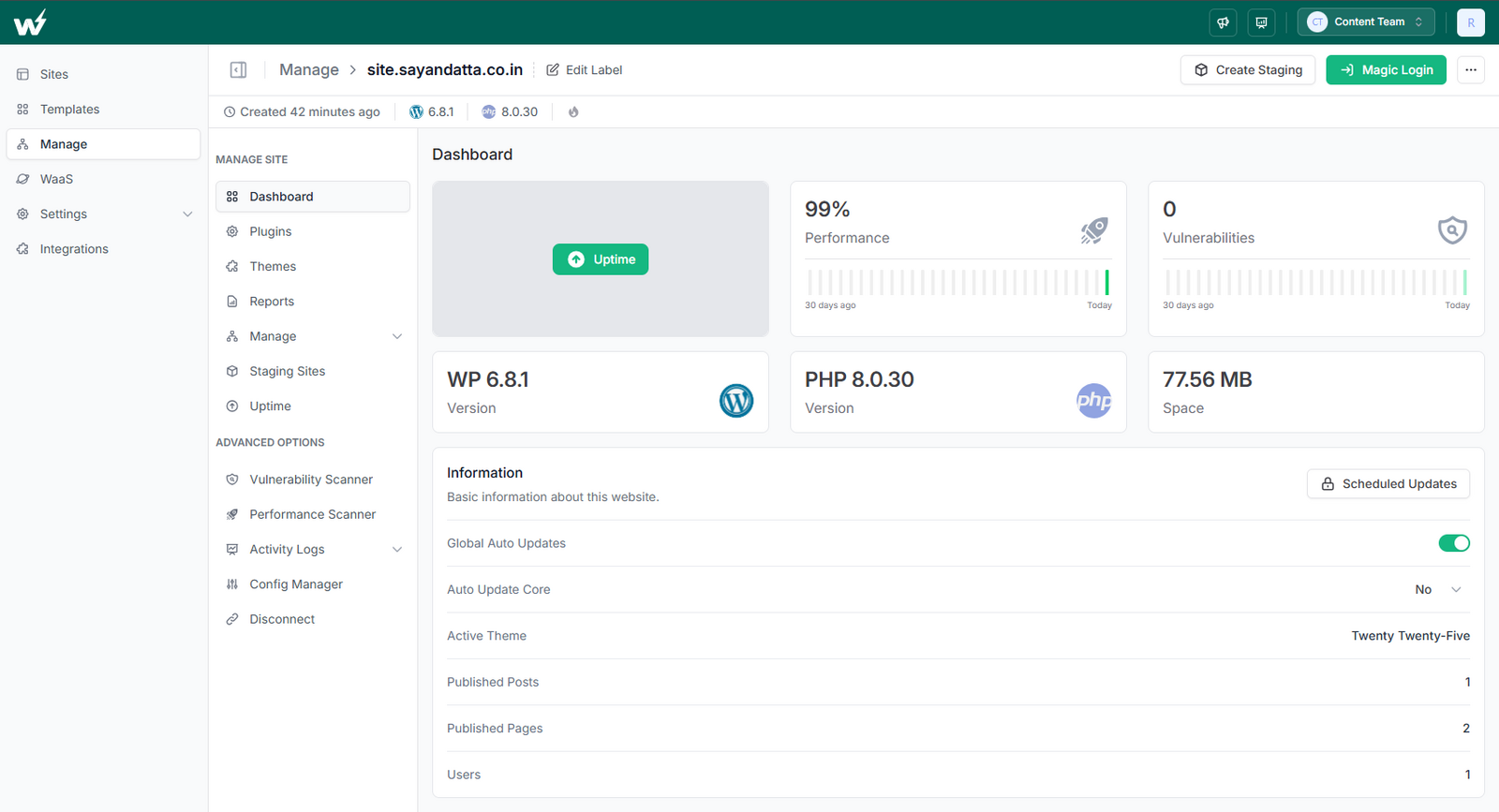
Agencies will have a single panel to view the health of WordPress websites.
They don’t have to dig through individual site data as InstaWP’s dashboard gives you an immediate “at-a-glance” view of crucial metrics like uptime, performance, security vulnerabilities, WordPress version, PHP version, and storage usage for all your connected sites. This is the heart of an efficient WordPress website health check.
Proactive WordPress Site Health Maintenance
To ensure proactive site health maintenance, InstaWP’s Auto-Updates & Scheduling feature. It handles auto-updates for WordPress Core, plugins, and themes so you can focus on the big picture. You can set up automatic updates, or schedule them for off-peak hours, ensuring sites remain secure and compatible, minimizing potential website health problems proactively.
“I absolutely love InstaWP! It has completely changed the way I develop and design WordPress sites. Before InstaWP, I would spend hours setting up local development environments for each new project. And if I needed to test a plugin update, I would have to manually update the plugin, test it on my local site, and then push the changes live. With InstaWP, I can create a new WordPress site in seconds, and test plugin updates with a few clicks. It’s an amazing tool that has saved me hours of time and headaches.” – Max Ziebell, WordPress Agency Owner
Scan Vulnerabilities
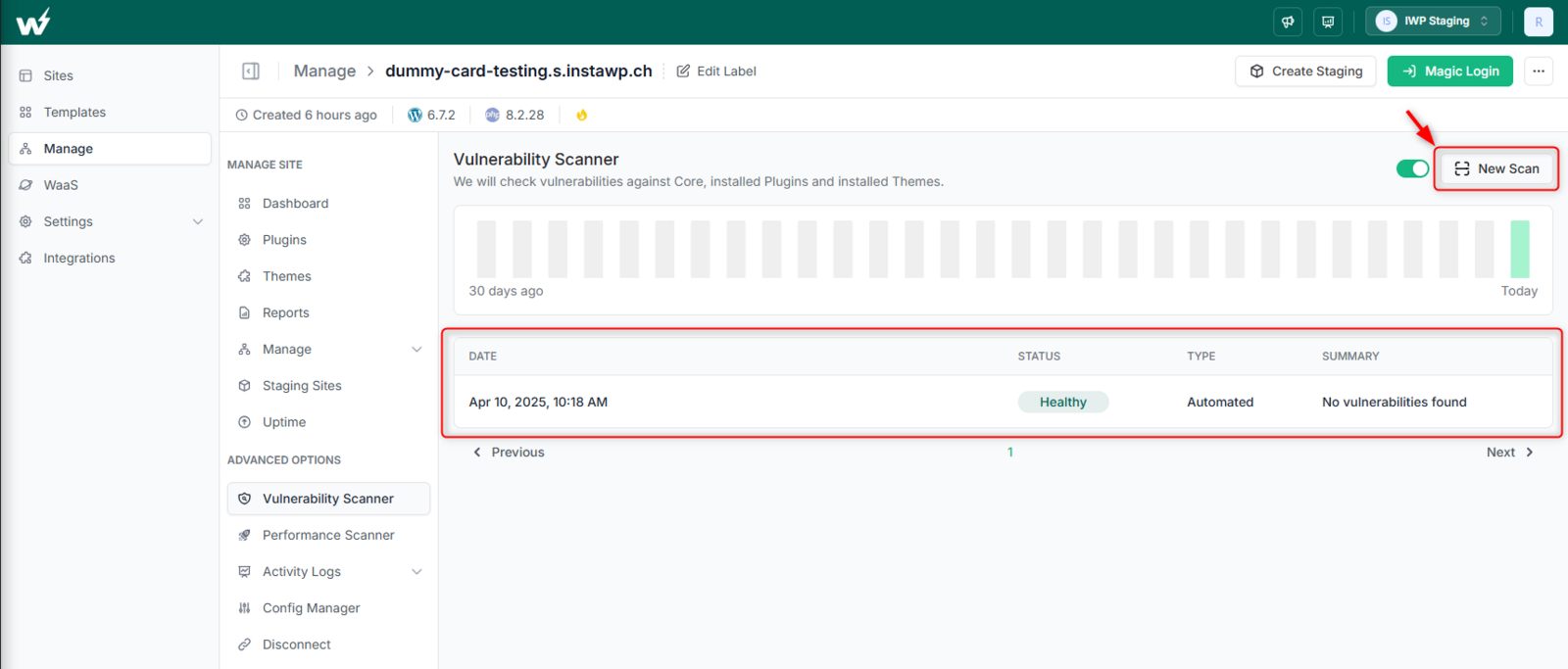
InstaWP’s Vulnerability Scanner is like having a dedicated security guard constantly monitoring your sites for known security vulnerabilities. Alerts are shown directly on the dashboard, giving you timely warnings to address security concerns and maintain website health.
Actionable Insights for Speed Optimization
Effective WordPress site health checks include performance monitoring and InstaWP’s Performance Scanner keeps a constant eye on your WordPress site’s speed and resource usage.
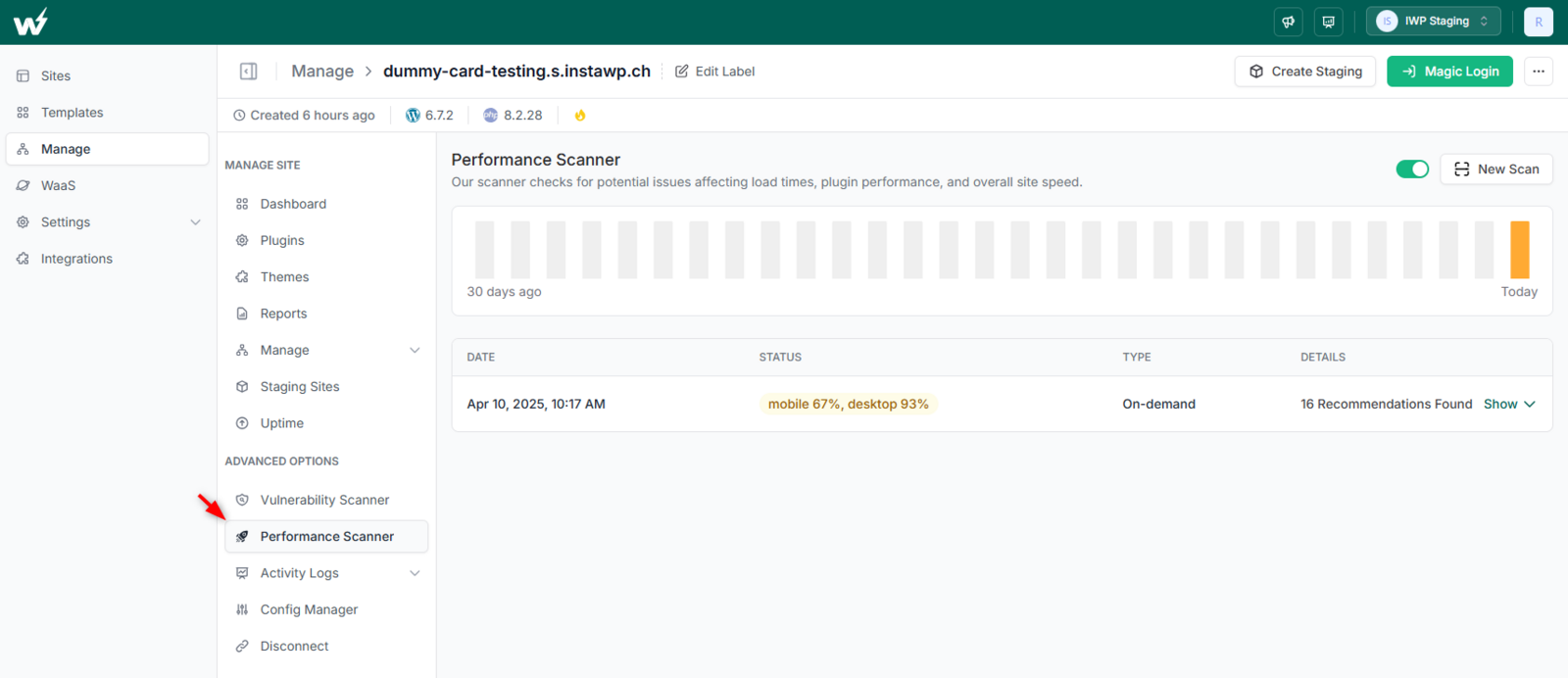
It provides actionable insights for optimization and maintaining high performance, enabling you to proactively address performance bottlenecks and maintain optimal website health for user experience and SEO. This performance scanning is an integral part of a comprehensive website health checkup.
Bulk Updates & Management
When you need to implement updates or changes across multiple sites to address a widespread health issue (like updating a vulnerable plugin), InstaWP’s Bulk Updates and management tools make the job a piece of cake.
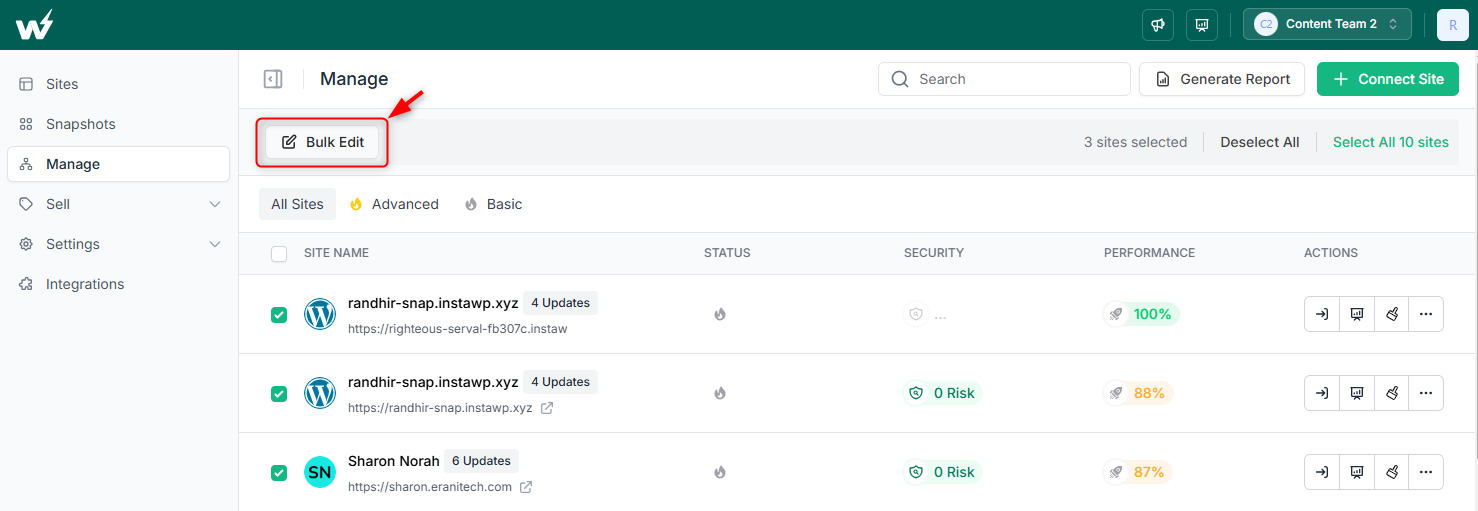
With InstaWP, you can bulk-edit everything for your multiple sites with just a couple of clicks. 1-click updates are possible for specific plugins or themes, too. This saves hours of manual work, especially when checking website health across a large portfolio. This bulk update feature is critical for agencies that manage WordPress sites.
In addition, you can also create multiple staging sites, manage the site configuration, manage user roles, and have hands-on activity logs without any hassle. By centralizing tools and automating key tasks that agencies need to perform to check WordPress site health, InstaWP:
- Saves time and effort on routine site health checks
- Proactively prevent issues
- Improves client retention
How to Use InstaWP Site Management for Website Health Checks
Now that you’re convinced that using the InstaWP site management service is the best way to check WordPress site health, let’s learn how to deploy it for the task.
Connect Your Client Sites
Start the process by installing the InstaWP Connect plugin on each client’s WordPress website and connecting them to your InstaWP account. This is the first step to check website health using InstaWP.
Note: If you’re using the managed WordPress hosting of InstaWP, you don’t have to take this route. You can check website health directly from the dashboard.
Review the Centralized Dashboard
Log into your InstaWP dashboard and get an immediate overview of the health status of all connected sites.
Pay attention to any sites flagged as needing attention (performance, vulnerabilities, updates). This dashboard simplifies how to check website health across multiple sites.
Utilize the Vulnerability and Performance Scanners
Generate a WordPress maintenance report and regularly review it to identify potential issues and optimization opportunities.
Set Up Auto-Updates
Configure auto-updates for WordPress core, plugins, and themes to ensure sites are always running the latest, most secure versions. Automation is key for WordPress website health check and maintenance.
Address Issues Directly
Use Magic Login to quickly access any site flagged with a health issue and utilize InstaWP’s tools or the WordPress admin to resolve problems. Quick access helps to check website health details and fix issues.
This makes a huge difference when agencies have the onus of maintaining pink health of Nth number of sites.
“As the Owner and CTO of a development agency, I am always seeking tools to enhance our efficiency and productivity. Recently, I had the opportunity to use InstaWP, and I was impressed by its capabilities.!” –Luca Piccinotti.
Method 2: Manual Front-End Checks
Manual front-end checks are a classic and still valuable way to check website health, focusing on the user experience as a real visitor would perceive it. Learning how to check website health also includes manual approaches.
This method is about putting yourself in the shoes of your client’s customers. You’re manually browsing the website, clicking through links, interacting with elements, and visually inspecting for any issues that might impact the user experience. This hands-on approach to website health check-ups provides unique insights.
How to Perform Manual Front-End Checks
If you’re ready to do the hard work, here is how you can perform manual front-end WordPRess health checks.
Navigation Testing: Click through every menu item, internal and external link, and call-to-action button. Ensure they lead to the correct pages, are working, and are intuitive to navigate.
Check website health navigation by manually testing links. Check for broken links – a common sign of neglect, which a website health checkup should identify.
Content Review: Visually scan key pages (homepage, landing pages, service pages, blog posts). Look for broken images, typos, grammatical errors, outdated information, and formatting inconsistencies. “Is the content clear, current, and error-free?” is the key question when you check website health content.
Form Testing: Test all forms (contact forms, registration forms, quote request forms, etc.). Submit test data to ensure forms are functioning correctly, emails are being sent and received, and data is being processed as expected. A broken form can be a huge conversion killer, so always check website health of forms.
Mobile Responsiveness Check: View the website on different devices: desktop, laptop, tablet, and smartphone (both Android and iOS if possible). Use browser developer tools to simulate various screen sizes.
Check website health mobile responsiveness for optimal UX. Check for responsive design issues: content overflow, overlapping elements, unreadable text, or broken layouts on different screen sizes.
Basic Speed Assessment: While browsing, pay attention to page load times. Are pages loading quickly and smoothly? Use browser developer tools (Network tab) for a rudimentary speed assessment, noting any pages that seem unusually slow during your website health check.
Functionality Testing: Interact with key website features: search functionality, product filters, image galleries, video players, interactive maps, etc. Ensure they are functioning as intended and provide a smooth, error-free user experience. Functionality testing is vital when you check health of website.
Method 3: WordPress Admin Dashboard Checks
For WordPress websites, the WordPress admin dashboard itself offers a valuable, built-in way to check website health. It’s readily accessible, free, and provides key WordPress-specific health indicators.
A WordPress website health check should always include reviewing the admin dashboard. This method for checking WordPress site health involves logging into the WordPress admin area of each client site and utilizing the built-in tools and dashboards to assess WordPress-specific aspects of website health.
How to Perform WordPress Admin Dashboard Checks
If you’re interested in using the WordPress admin dashboard to check website site health, here is how you can perform this process.
WordPress Updates Dashboard: Immediately upon logging in, check website health by reviewing the WordPress Updates dashboard (Dashboard > Updates).
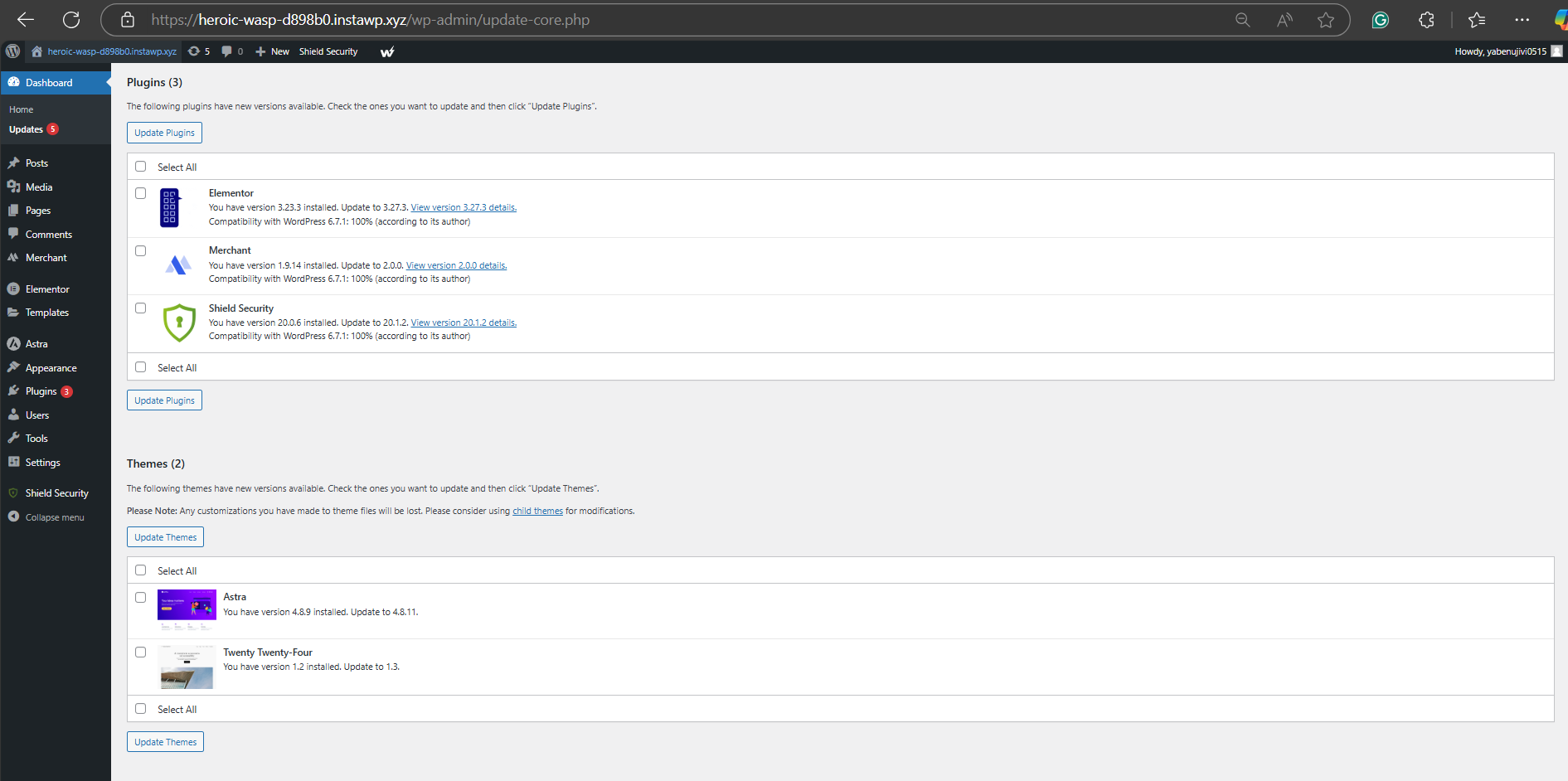
Are there updates available for WordPress core, themes, or plugins? Outdated software is a major red flag for security and compatibility. Prioritize applying updates during your WordPress website health check.
Site Health Tool: WordPress’s built-in Site Health tool provides a status report categorized into ‘Status’ and ‘Info’ tabs. This tool aids in a WordPress website health check.
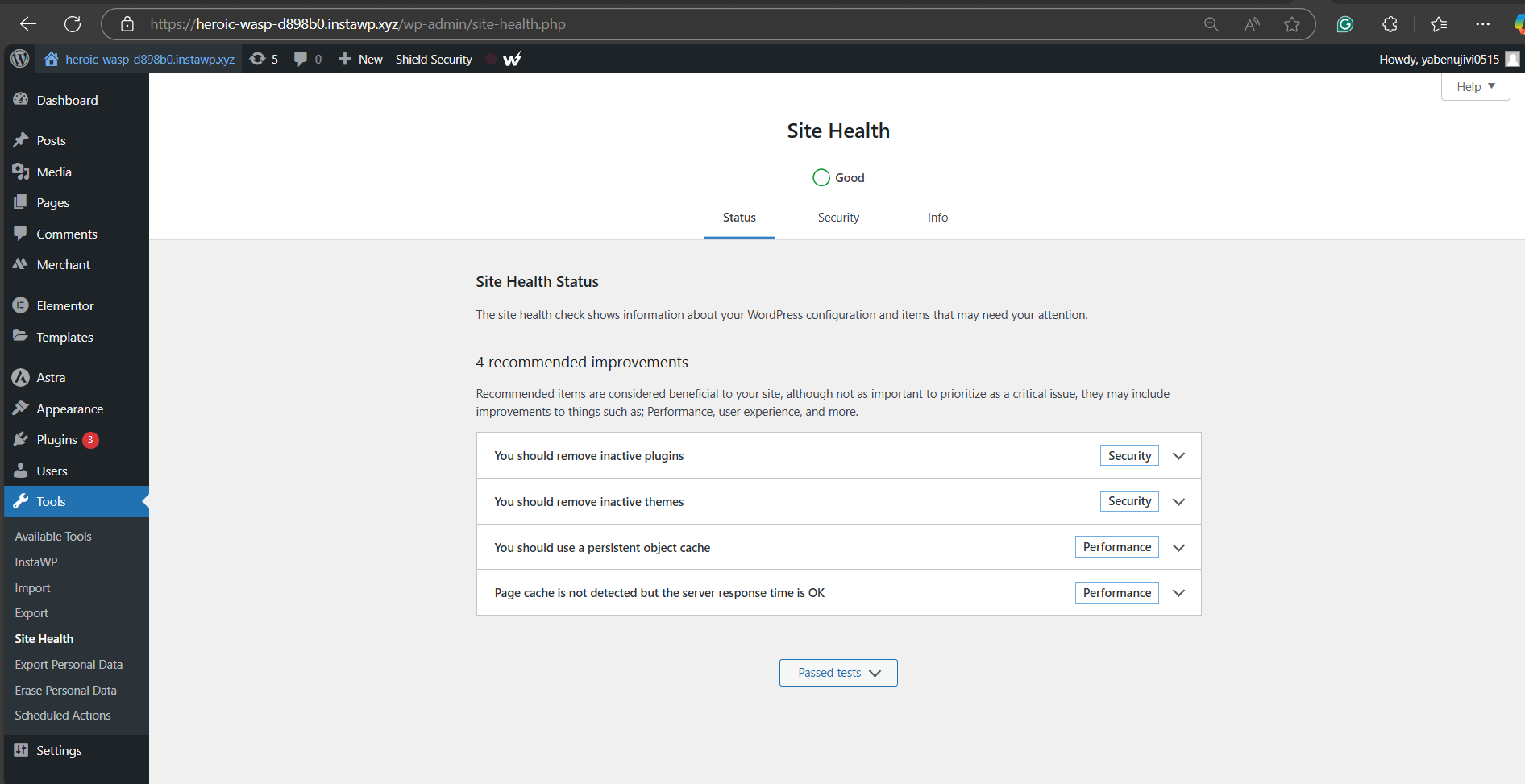
- Status Tab: Review the overall Site Health status (Good, Needs Improvement, Critical Issues). Examine the list of ‘passed tests’ and ‘recommendations’, paying close attention to warnings and critical issues related to plugins, themes, PHP versions, security, and performance during your check health of website process.
- Info Tab: Explore the ‘Info’ tab for detailed technical information about your WordPress installation, server configuration, database, plugins, themes, media handling, and security settings. This data is invaluable for troubleshooting and understanding your site’s environment, and can provide context for any warnings highlighted in the ‘Status’ tab of a WordPress website health check.
Plugins and Themes Pages (Plugins > Installed Plugins, Appearance > Themes): Review the lists of installed plugins and themes. Part of a WordPress website health check involves plugin and theme review.
- Check for Outdated Plugins/Themes: Look for plugins and themes marked as needing updates. Keeping software updated is key to check website health.
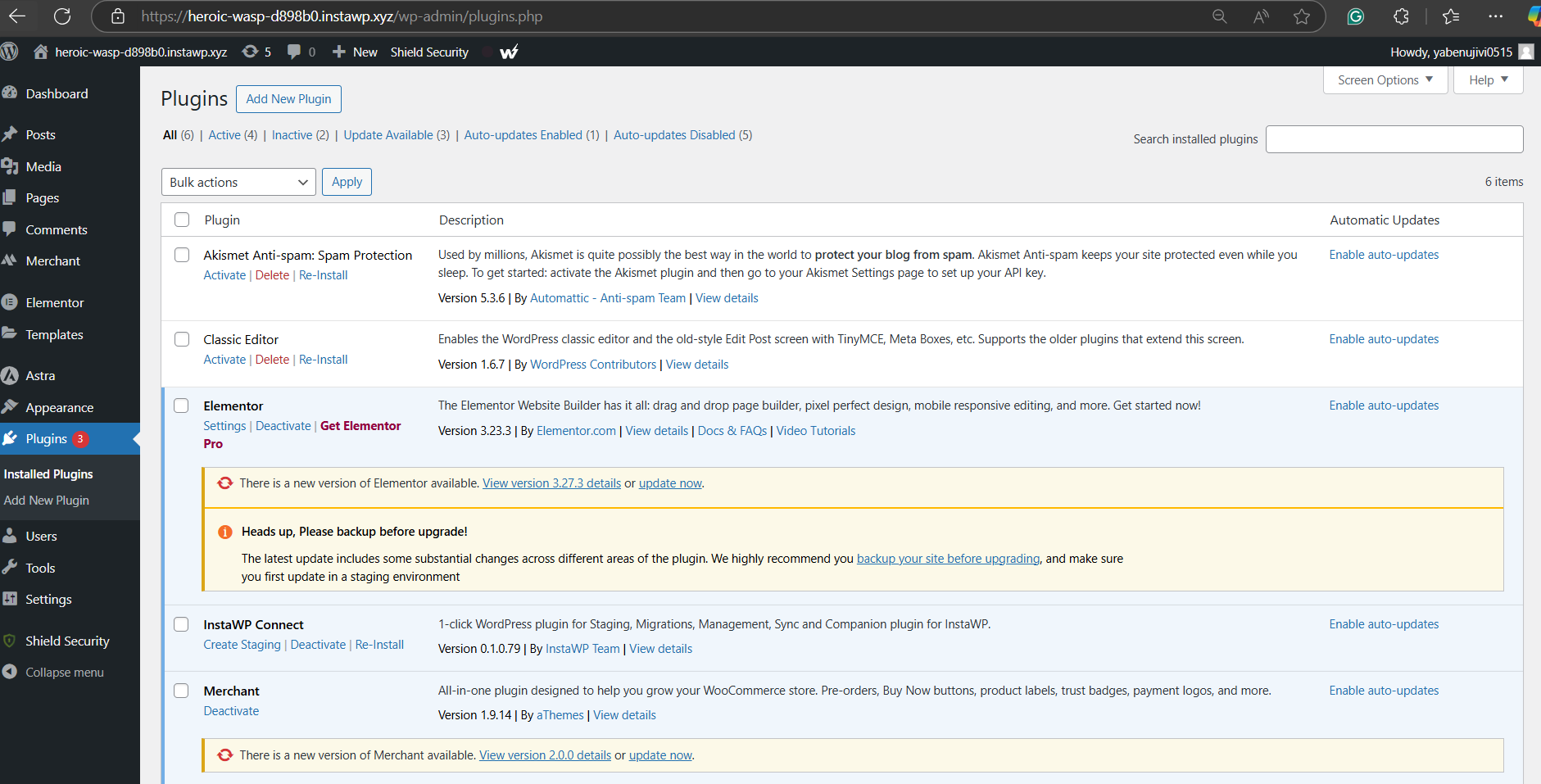
- Inactive Plugins/Themes: Identify and consider removing or updating inactive plugins and themes. Inactive software can still pose security risks, which must be addressed during a website health check up.
- Plugin/Theme Details: Investigate details of plugins/themes flagged in Site Health warnings or those that seem problematic (e.g., very old, poor reviews if easily accessible). Detailed plugin reviews can be part of a deeper WordPress website health check.
User Management (Users > All Users): Quickly review the user list for any unusual or unauthorized user accounts. User security is a crucial aspect of overall website health and should be part of your website health check.
Method 4: Online Performance Testing Tools
Online performance testing tools offer a quick, easy, and often free way to check website health from a performance perspective. For a quick website health check up regarding performance, online tools are excellent.
These online tools analyze your website’s loading speed, identify performance bottlenecks, and provide actionable recommendations for improvement. These tools help you understand how to check website health performance effectively.
How to Use Online Performance Testing Tools to Check WordPress Health
This is a step-by-step guide that you must follow while using online performance testing tools to check site health.
Step 1: Choose a Tool
You need to select the performance tool that addresses your requirements. Some popular free WordPress site health check tools are:
- Google PageSpeed Insights: A widely used tool from Google, providing both mobile and desktop performance scores and recommendations for website health check.
- GTmetrix: Offers detailed performance reports, waterfall charts, and various performance metrics as part of a website health check up.
- WebPageTest: A more advanced tool offering highly detailed analysis and testing from various locations and browsers for in-depth website health check.
Step 2: Enter Your Website URL
Once you’ve selected the tool, complete the login process, and input the URL of the website you want to test into the chosen tool.
Step 3: Run the Test
Initiate the performance test. The tool will analyze your website and generate a report.
Step 4: Analyze the Report
Review the performance scores (e.g., PageSpeed Insights score, GTmetrix Performance Score), key metrics (e.g., Page Load Time, First Contentful Paint, Largest Contentful Paint), and recommendations for improvement. Pay attention to:
- Page Load Time: How long it take for the page to fully load. Aim for under 3 seconds for optimal website health.
- Performance Scores: General scores indicating overall performance. Aim for high scores (ideally above 80 or 90, depending on the tool’s scale) to ensure good website health.
- Specific Recommendations: Tools often provide detailed suggestions for optimization, such as image optimization, leveraging browser caching, minimizing CSS/JavaScript, etc. These recommendations guide your WordPress website health check optimization efforts.
Step 5: Test Key Pages
Run tests on your website’s homepage, landing pages, service pages, product pages, and other important pages to get a comprehensive view of site performance, not just the homepage. A thorough website health check-up includes testing key pages.
Method 5: Basic Uptime Monitoring Services
Uptime monitoring is the most fundamental aspect of website health. If a website is down, it’s completely unhealthy. Basic uptime monitoring services provide a simple, easy, and often free way to ensure your client sites are consistently accessible, and essential part of a website health check up.
Note: Users of InstaWP don’t have to invest in third-party uptime monitoring tools/services as it has in-build uptime monitoring feature.
How to Use Basic Uptime Monitoring Services to Check Site Health
You need to start by choosing the best uptime monitoring services. After that, create an account with your chosen service and add the URLs of your client websites you want to monitor.
If options are available, you need to set the monitoring frequency (how often the site is checked – free plans often have less frequent checks, e.g., every 5 minutes) and alerting methods (email, SMS, etc.).
Ensure you have configured alerts to be sent to your email or preferred notification channel when a site goes down.
Keep an eye out for alerts from the uptime monitoring service. If you receive a downtime notification, immediately investigate the issue and check health of website.
Which is the Best Method to Check Website Health?
Now that you’re aware of the five ways to check website health, it’s time to decide which one is the best. This comparison table will help you do a head-to-head comparison of these methods.
| Method | Cost-Effectiveness | Ease of Use | Scope of Check | Scalability for Agencies | Key Benefits | Downsides |
| 1. InstaWP WordPress site management) | High (Time Saved) | High | Comprehensive (Performance, Security, Updates, etc.) | Excellent | All-in-one, Automated, Proactive, Centralized, Efficient WordPress website health check, Manage WordPress sites | Subscription Cost, Initial Setup |
| 2. Manual Front-End Checks | Very High (Free) | High | User Experience (Visual, Functional) | Very Poor | Catches visual/UX issues, Human perspective for website health check | Time-consuming, Subjective, Not Scalable, Limited Scope to check website health |
| 3. WordPress Admin Dashboard Checks | Very High (Free) | Medium | WordPress Specific Health | Poor | Free, WordPress-centric, Basic CMS health, easy WordPress website health check | Site-by-site login to check website health, Limited Scope, and Reactive |
| 4. Online Performance Testing Tools | High (Free/Freemium) | Medium | Website Performance (Speed Metrics) | Poor | Free/Freemium options to check website health, Actionable performance insights | Time-consuming for Many Sites, Fragmented Data when you check website health, Point-in-Time Analysis |
| 5. Basic Uptime Monitoring Services | Very High (Free) | High | Website Availability (Uptime) | Medium | Free Options, Easy Setup to check health of website, Critical Downtime Alerts | Limited Scope (Uptime Only), Basic Plans Limited, Fragmented Toolset for website health check |
As we can see, each method to check WordPress site health has its own set of pros and cons, there is no right or wrong method. It depends on the individual need of an agency or freelance and choosing the WordPress site health checkup methods accordingly.
For instance:
Choose InstaWP Site Management service when you’re a WordPress agency, a freelance developer with multiple clients, or a development team managing many WordPress sites. Its centralized, automated, comprehensive checks across multiple sites will help you save time and improve proactive maintenance, crucial for managing a large portfolio.
You can go with manual front-end site health checks if you’re a business owner (single website), marketing team (campaign-specific checks), or Content Editor, those prioritizing user experience. This method is easy, free, and provides a real user’s perspective, catching visual and UX issues that tools might miss.
WordPress Admin Dashboard Checks is the right method for WordPress Website Owners (Beginner-Intermediate), WordPress Content Managers, WordPress Beginners, and those wanting a free basic WordPress health overview.
Online Performance Testing Tools to check WordPress site health are ideal for website Owners focused on SEO & UX, Marketing Teams tracking performance, Technical Webmasters, and anyone optimizing website speed.
Basic Uptime Monitoring Services is perfect for WordPress site health checks for e-commerce Owners, Critical Service Websites, Businesses reliant on uptime, and Freelancers/Agencies offering basic monitoring.
Maintain the Website’s Pink Health With the Best Method
Checking website health in 2026 doesn’t require breaking the bank or dedicating countless hours. We’ve explored 5 easy and cost-effective website health check ways, ranging from completely manual to highly automated.
However, if you’re looking for the most efficient, comprehensive, and scalable solution in 2026, leveraging a Site Management Service like InstaWP WordPress site management is undoubtedly the smartest choice.
It consolidates these functionalities and adds powerful automation, creating a true website health command center that saves you time, enhances your proactive maintenance, and ultimately delivers better results for your clients.