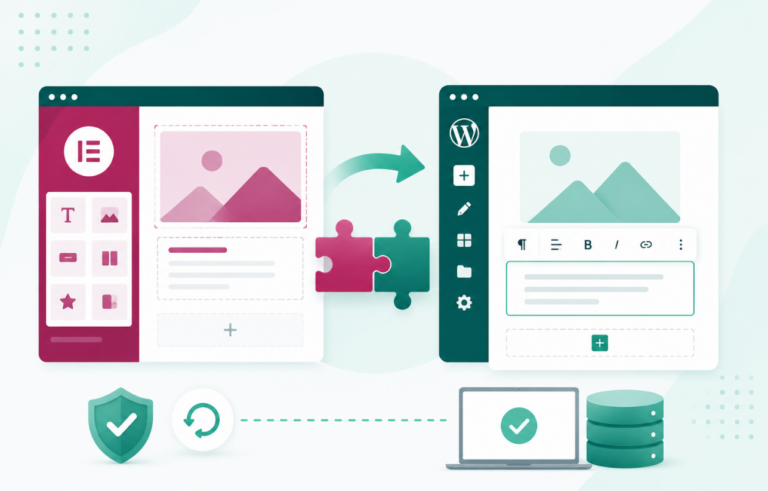
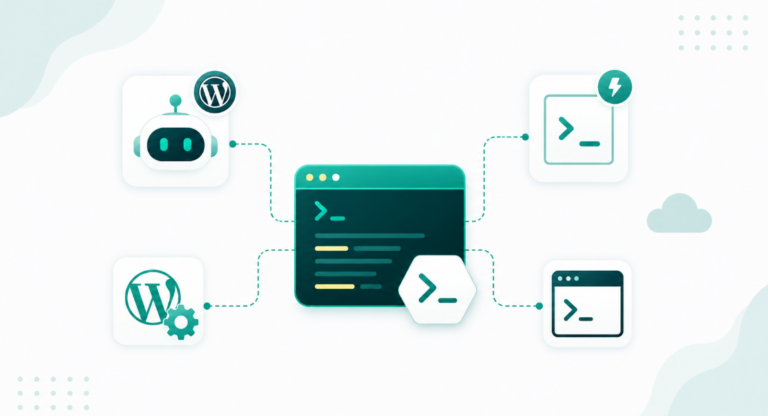
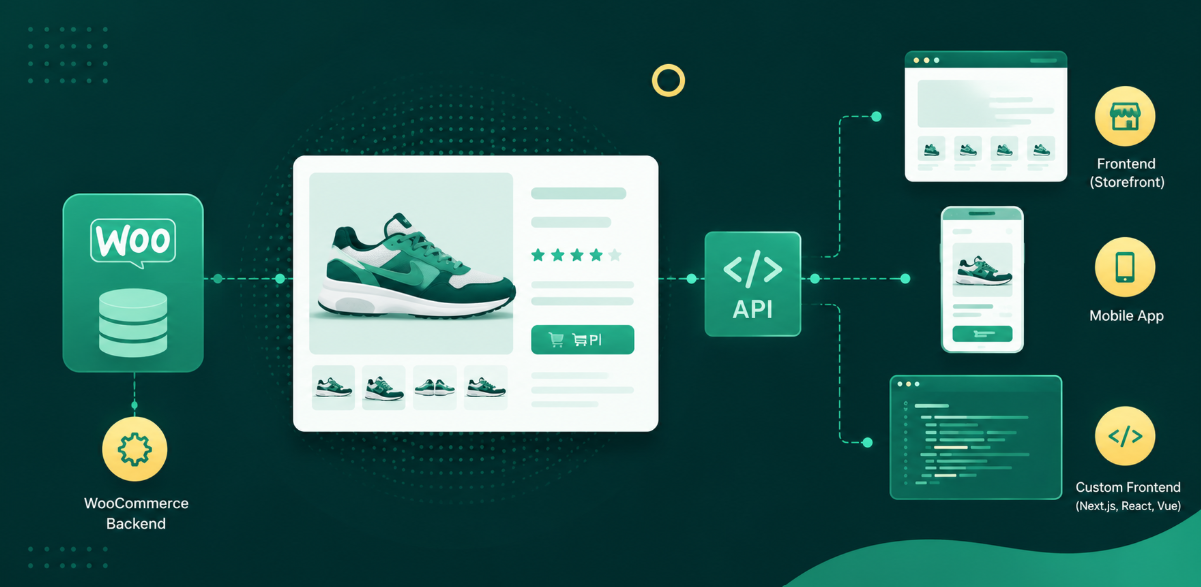
WordPress Playground is the free, official WordPress.org tool that runs a full WordPress site inside your browser at playground.wordpress.net, with no server, hosting account or install. Open the link and you are logged in to WP Admin. Your work is saved only on that device, and the site never gets a public URL, so nobody else can visit it.
?storage=temp site is gone when you refreshThis guide covers what WordPress Playground is, how it works, how to use it in the browser and from the command line, how saving really works in 2026, and when to move to a hosted WordPress sandbox and managed WordPress hosting on InstaWP.
Table of Contents
Key Takeaway

What it is: A free, official WordPress.org project that runs a full WordPress site on PHP compiled to WebAssembly with an SQLite database, in your browser, in Node.js or inside apps like VS Code and WordPress Studio.
Does it save? Yes, now. New Playgrounds autosave in your browser, and you can store one permanently in browser storage or in a local folder. Only temporary Playgrounds (opened with storage=temp) vanish on refresh. Saved sites still live in one browser on one device.
Best for: Testing plugins and themes across WordPress 6.3 to 7.1 and PHP 7.4 to 8.5, live demos and docs embeds, learning, and giving an AI coding agent a throwaway WordPress to work in.
When to move on: The moment a site needs a public URL, MySQL, SSH, a team or a client. The InstaWP CLI pushes a local Playground build to a hosted WordPress sandbox, which becomes a managed hosting site with one click.
What is WordPress Playground?
WordPress Playground is an official WordPress.org project that runs WordPress entirely on the visitor’s own machine. Open playground.wordpress.net and a fresh, logged-in WordPress site boots in a few seconds, without a hosting account, a local PHP install or a MySQL server. The same engine also runs in Node.js through the Playground CLI, inside the VS Code extension and inside desktop apps such as WordPress Studio.
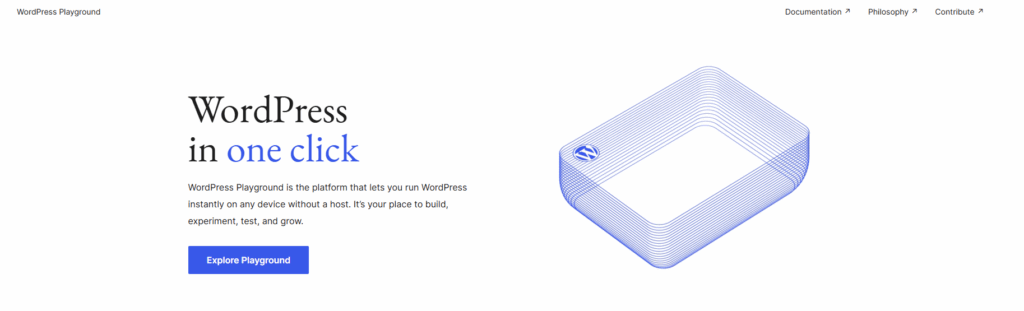
Adam Zieliński started the project in 2022, and Matt Mullenweg introduced it publicly at State of the Word 2022. It is free software under the GPL, and the WordPress Playground documentation lives on developer.wordpress.org.
How does WordPress Playground work?
Playground swaps each part of a normal WordPress server for something that can run on your own machine:
- PHP compiled to WebAssembly (WASM): the PHP interpreter itself runs inside the browser or Node.js, so WordPress code executes exactly as it would on a server.
- SQLite instead of MySQL: the official SQLite Database Integration plugin translates WordPress database queries so no database server is needed.
- A Service Worker as the web server: in the browser, a Service Worker intercepts page requests and hands them to the WASM PHP runtime.
- Storage you control: the site files and the SQLite database live in browser storage, a local folder you pick, or
~/.wordpress-playground/sites/when you use the CLI.
That design is why Playground starts in seconds and costs nothing. It is also why its limits look the way they do: nothing is on a public server, and the database is SQLite, not the MySQL or MariaDB your production host runs.
What can you use WordPress Playground for?
With WordPress Playground, setting up a temporary WordPress site is a one click job. You can use it to:
- Try new block themes, patterns and design ideas safely.
- Run WordPress locally with the Playground CLI or the Visual Studio Code extension for fast development experiments.
- Test plugins across different WordPress and PHP versions before you update a live site.
- Embed interactive WordPress examples in tutorials, docs or online courses.
- Show how your plugin or theme works without asking anyone to install it first.
- Reproduce bugs quickly before you file a support ticket or GitHub issue.
- Give an AI coding agent a disposable WordPress site to write and test code in.
Does WordPress Playground save your site?
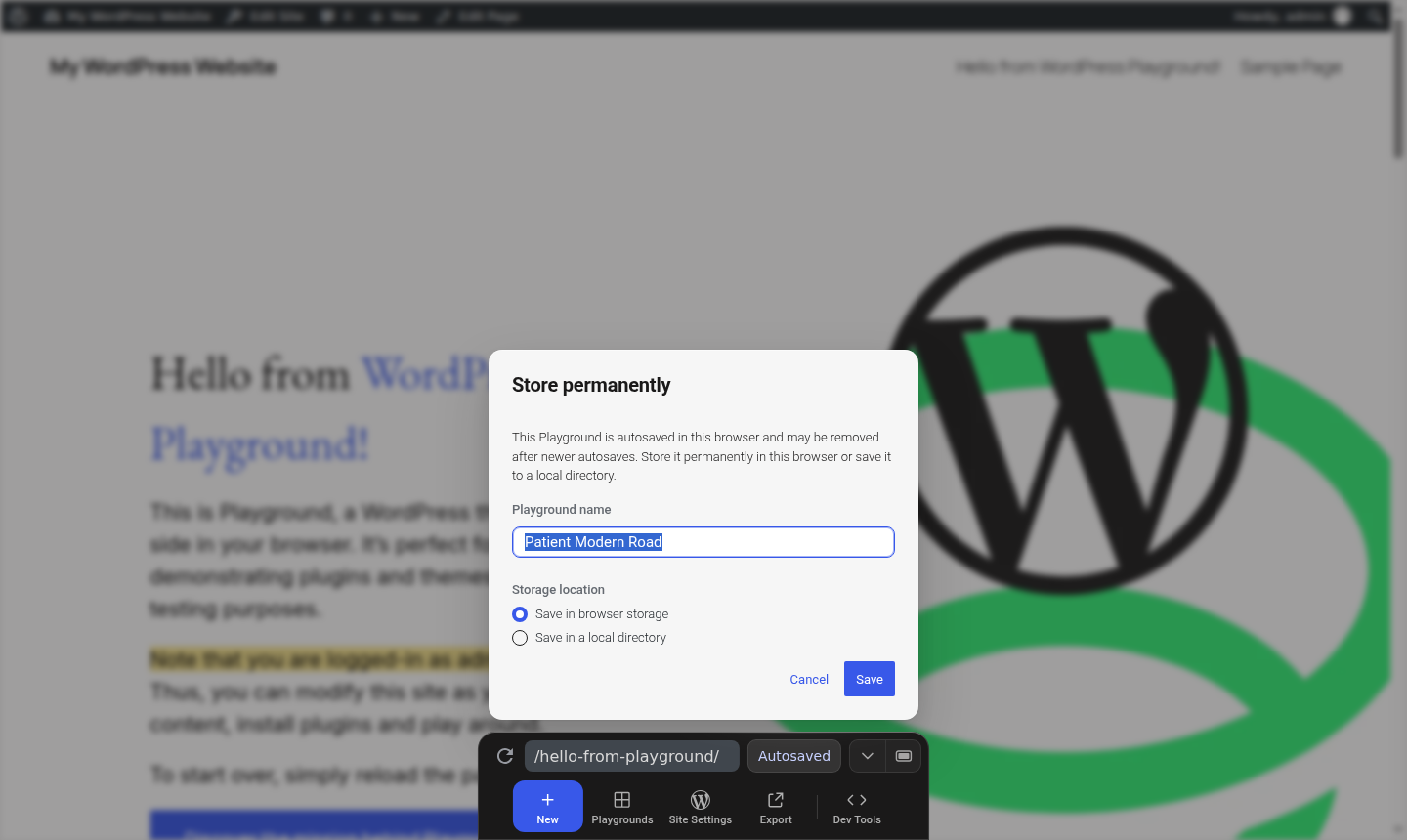
Yes. WordPress Playground saves your work by default. A new Playground is autosaved in the browser, and you can store it permanently in browser storage or in a folder on your computer. Only a Playground opened with ?storage=temp is thrown away when you refresh or close the tab.
The official limitations page describes three storage modes:
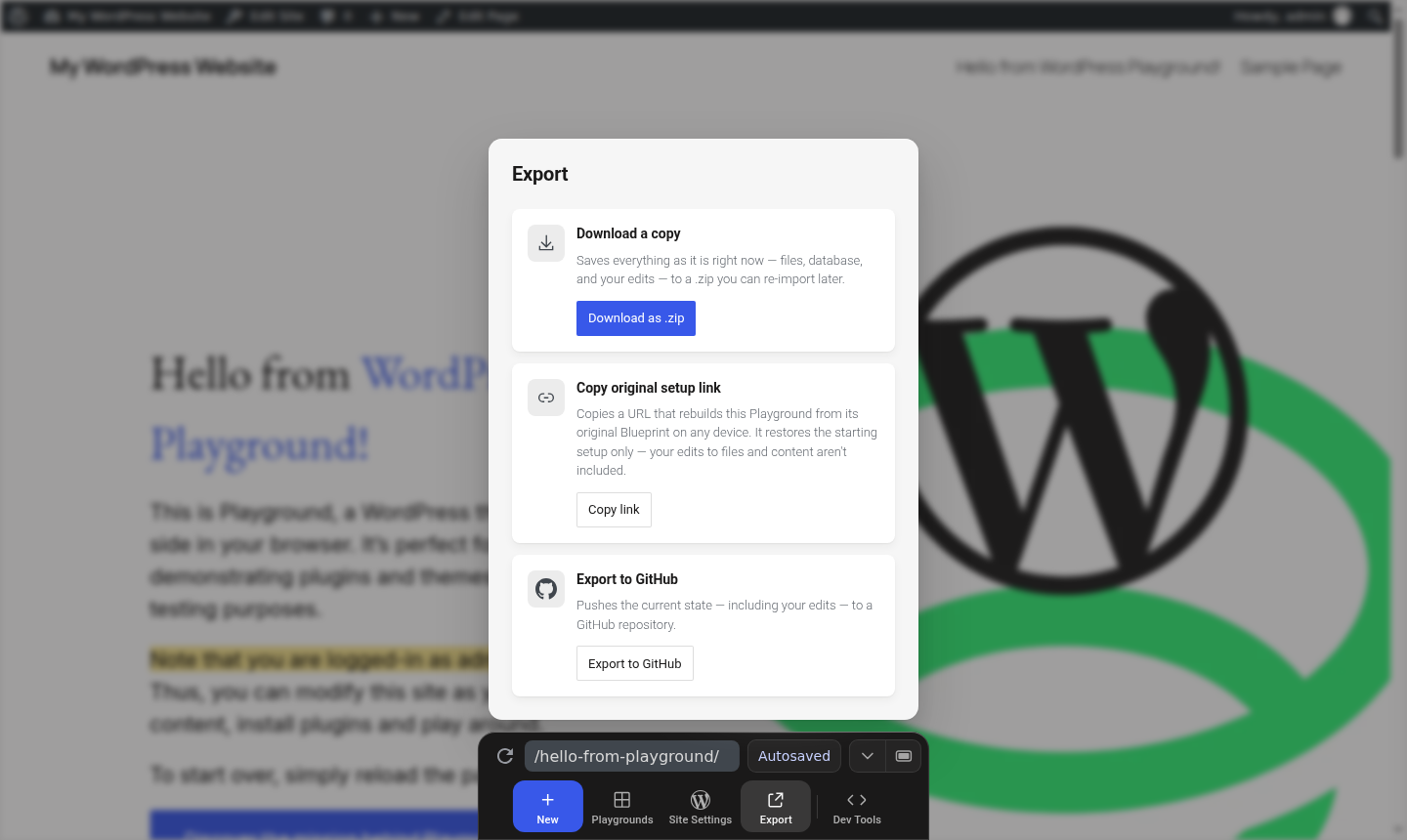
To get a site out of the browser, open Export in the dock. You can download everything (files, database and edits) as a .zip you can re-import later, copy a setup link that rebuilds only the starting Blueprint on another device, or push the current state to a GitHub repository.
What we measured: Playground CLI boot time and persistence
InstaWP ran the Playground CLI (version 3.1.55) on a 12-core Linux server with Node.js 22 on 25 September 2026. We booted a site with a Blueprint that created a marker post, stopped it, and started the same folder again twice.
The test shows two things. The CLI now keeps your database and files between sessions with no mount flags, which fixes the biggest complaint about the old wp-now tool. And a restart costs about five seconds, fast enough to treat a local Playground as a real, reusable development site on one machine.
Is WordPress Playground good enough for real projects?
WordPress Playground is good enough for anything that lives on one machine and can be rebuilt: testing, learning, demos and prototypes. It is not built to be a website other people visit, because there is no public URL, no MySQL, no server-level access and no team access. Beginners, educators and developers get the most from it when they treat it as a workbench.
WordPress Playground: Good vs. Shortcomings
| Feature | Good Idea | Falls Short |
|---|---|---|
| Testing | Disposable test site | Work not persistent |
| Teaching | Follow along in browser | Limited directory access |
| Documentation | Embedded live example | No server level access |
| Compatibility | Check different versions | Limited advanced workflows |
| Sharing | N/A | Cannot map custom domain |
These are the limits that matter in practice, taken from the official limitations page and our own testing:
InstaWP vs WordPress Playground: what does a hosted sandbox add?
Both give you a working WordPress site in about ten seconds. The difference is where the site lives. A Playground runs in your own browser or laptop and only you can open it. An InstaWP sandbox runs on a real server with its own URL, a MySQL-compatible database, SSH and WP-CLI, so a client, a teammate or an AI agent can work on the same site. Keep Playground for throwaway tests and use InstaWP for anything someone else needs to see.
1. Create a site with the same version choices as Playground
Click Add Site, then pick From Scratch, From Snapshot or From Store. You choose the WordPress version, the PHP version and the server location, the same controls Playground puts in Site Settings, plus a site name on an instawp.site subdomain.

Instead of writing a Blueprint, pick a configuration. InstaWP ships curated ones for Multisite, WooCommerce and a developer stack, and you can save your own set of plugins, themes and settings as a reusable configuration.

2. Pick a plan that is billed by the day
The next screen lists plans with a daily price. At the time of writing the Free plan costs nothing and expires after 48 hours, much like a Playground you forget about, while the Sandbox plan is $2 a month ($0.07 a day) with 5 GB of disk and keeps the site until you delete it. Production plans from $5 a month add the managed hosting layer (CDN, firewall, backups, object cache and monitoring), covered in detail below. See current InstaWP pricing.

3. Get a live URL, credentials and one-click login
When the site is ready, InstaWP shows its public URL, the WordPress username and password, and buttons for the DB Editor, Code Editor, View Logs, Copy Link and Magic Login. Magic Login signs you, or a client you share it with, straight into wp-admin without a password. Nothing in Playground can be opened by a second person.

4. Use the developer tools a browser tab cannot offer
Every site has its own dashboard with PHP Config, Tools, plugin and theme installs, WP-CLI commands, Map Domain, Local Mount, MCP, SFTP/SSH, Git Deployment and a scanner. Local Mount connects the site files to your computer so you can edit them in your own editor as if they were local, which is the closest a hosted site gets to Playground’s local-folder convenience.

The actions menu on each site covers what happens next: Clone it, change the PHP Config, Go Live, run Deployments, get SFTP/SSH details, or Map Domain. If the site belongs on another host, InstaWP handles the WordPress migration for free. Read more about the InstaWP developer tools.

5. Save a site as a snapshot instead of writing a Blueprint
When a sandbox is set up the way you like, save it as a snapshot (to spin up more sites) or a template (to share or sell). A snapshot captures files and the database, including content, which a Playground Blueprint does not. Make it Private for your team or Shared so anyone with the link gets their own live copy for a demo.

This is how plugin companies run live plugin demos: each visitor gets a real hosted copy that expires on a timer between 30 minutes and 48 hours. Learn more about WordPress snapshots and WordPress templates.
6. Give an AI agent a real site with InstaMCP
Open MCP in the site dashboard and switch on Enable MCP. InstaWP gives you a connection URL to paste into Claude Desktop or another AI client, and the agent can then create content, manage plugins and themes and edit blocks on a site other people can open. The Playground MCP server gives an agent a throwaway site on your machine; InstaMCP gives it a site you can hand to a client.

Setup guides: WordPress MCP server and connect AI agents to WordPress.
Which one should you use for each job?
Try WordPress online without installing anything
To try WordPress online without installing anything, open playground.wordpress.net. It boots a complete WordPress site with WP Admin in your browser tab, with no download, sign-up or hosting account, and you can install plugins and themes from the WordPress.org directories. If you searched for an “online WordPress compiler”, this is probably what you need: a place to run WordPress and PHP code and see the result straight away.
To run PHP rather than click around, add a runPHP step to a Blueprint, or use the Playground CLI’s php command on your own machine. Both run real PHP against a real WordPress install. The database is SQLite rather than MySQL, so code that writes raw SQL can still behave differently on a server.
Is there a WooCommerce playground?
Yes. For a quick WooCommerce playground, add ?plugin=woocommerce to a playground.wordpress.net link, or start from the Coffee Shop store in the Blueprint gallery. When you want the same test store every time, with a theme and a product ready, use a Blueprint like this one:
{
  "$schema": "https://playground.wordpress.net/blueprint-schema.json",
  "landingPage": "/wp-admin/edit.php?post_type=product",
  "preferredVersions": { "php": "8.3", "wp": "latest" },
  "features": { "networking": true },
  "steps": [
    { "step": "login", "username": "admin", "password": "password" },
    { "step": "installPlugin", "pluginData": { "resource": "wordpress.org/plugins", "slug": "woocommerce" }, "options": { "activate": true } },
    { "step": "installTheme", "themeData": { "resource": "wordpress.org/themes", "slug": "storefront" }, "options": { "activate": true } },
    { "step": "runPHP", "code": "<?php require '/wordpress/wp-load.php'; $p = new WC_Product_Simple(); $p->set_name('Test T-shirt'); $p->set_regular_price('19.00'); $p->save();" }
  ]
}
# start the store locally, logged in as admin
$ npx @wp-playground/cli@latest server --blueprint=woocommerce.blueprint.json
InstaWP ran this Blueprint with Playground CLI 3.1.61 on Node.js 22. It installed WooCommerce 11.2.1 and the Storefront theme on WordPress 7.1.3 and PHP 8.3, created the $19.00 test product, and finished in 31 to 32 seconds per run, most of it spent downloading WooCommerce. To open the same store in the browser, host the file and add ?blueprint-url= plus its address to a playground.wordpress.net link.
How do you use WordPress Playground in your browser?
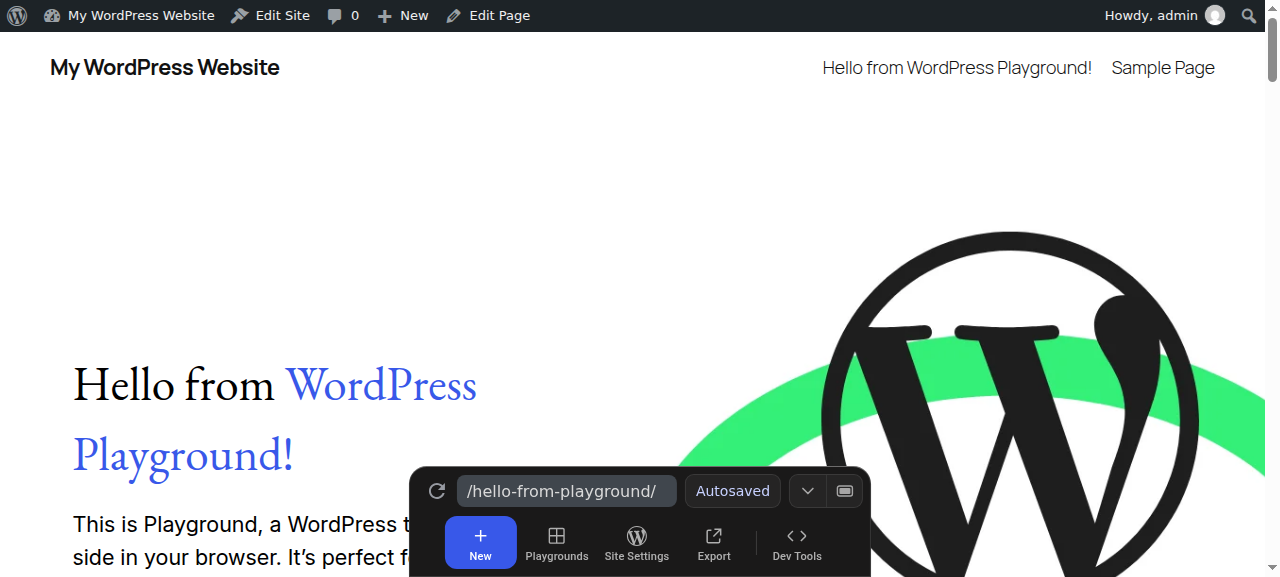
Go to playground.wordpress.net, wait a few seconds for WordPress to boot, and you are logged in as an administrator. Everything else, from versions to saving, lives in the dock at the bottom of the screen. The official Playground docs cover every option.
Step 1: Open the Playground
- Visit https://playground.wordpress.net in any modern browser.
- Wait a few seconds while WordPress boots inside your browser.
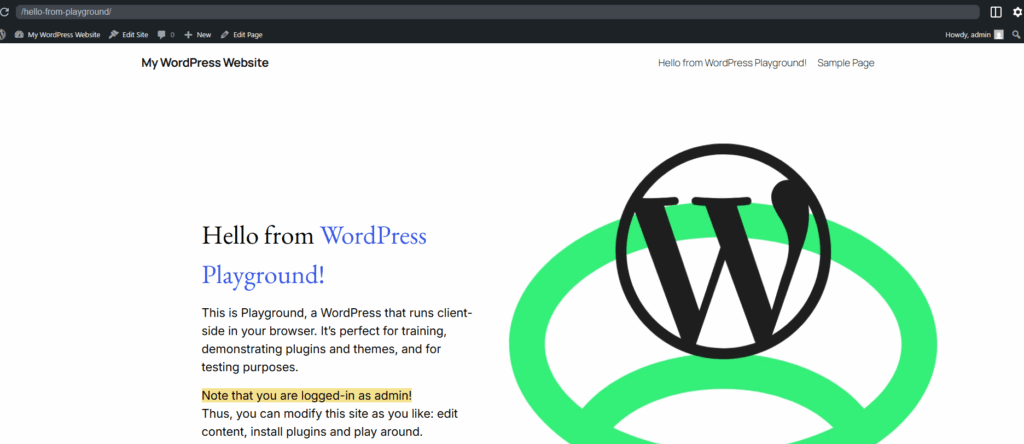
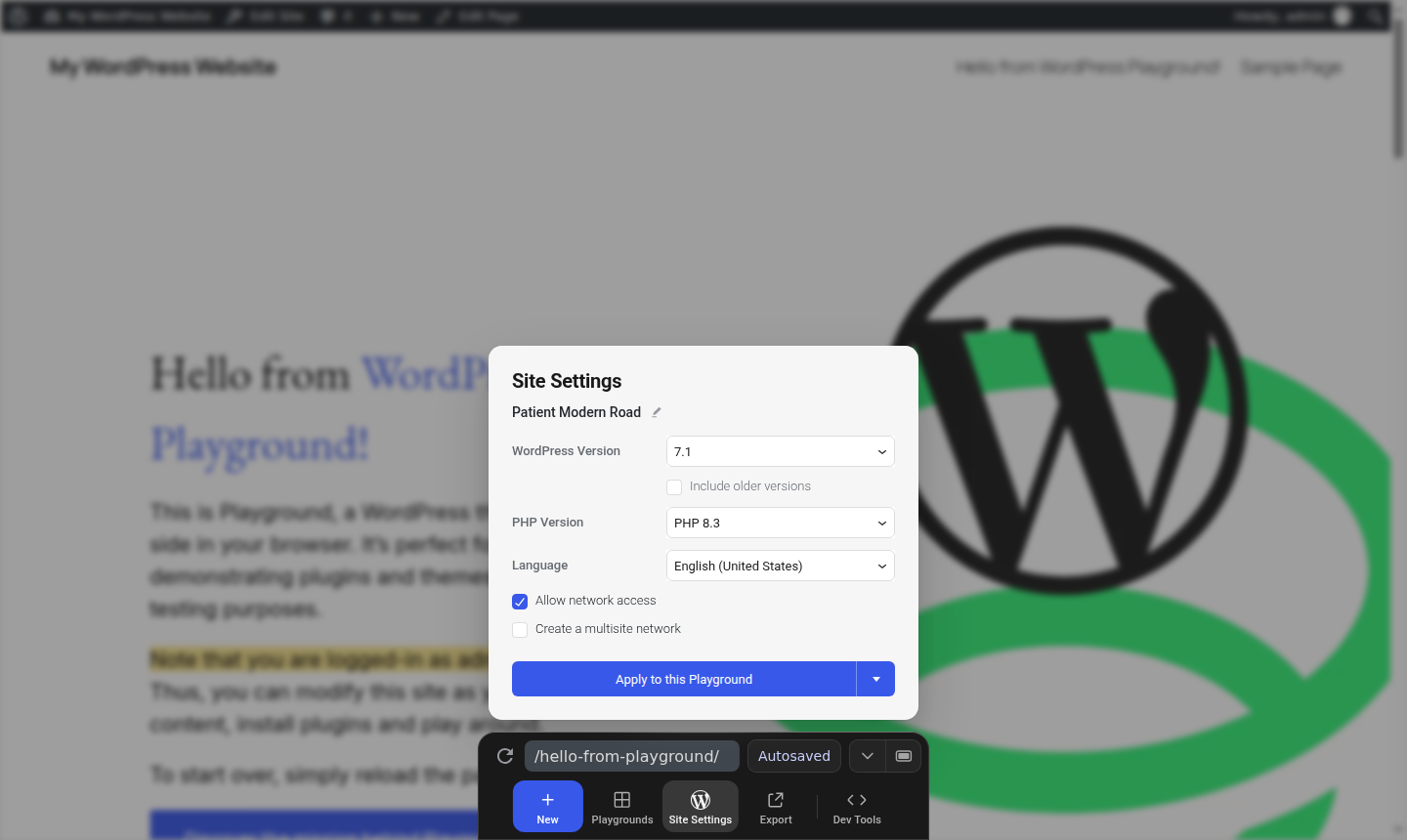
- You will see the front end of a default WordPress site. The 2026 interface puts its controls in a dock at the bottom: New, Playgrounds, Site Settings, Export and Dev Tools.
Step 2: Choose WordPress and PHP versions
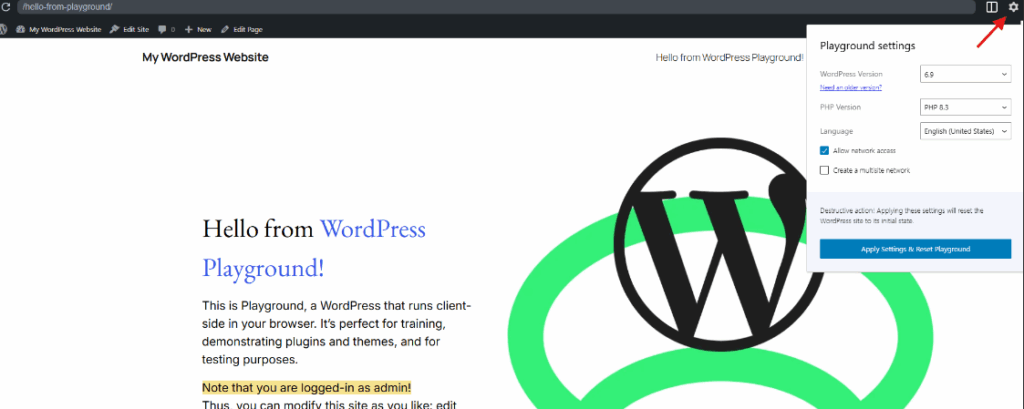
- Click Site Settings in the dock. In the late-2025 interface shown in the next screenshots, this was the gear icon at the top right.
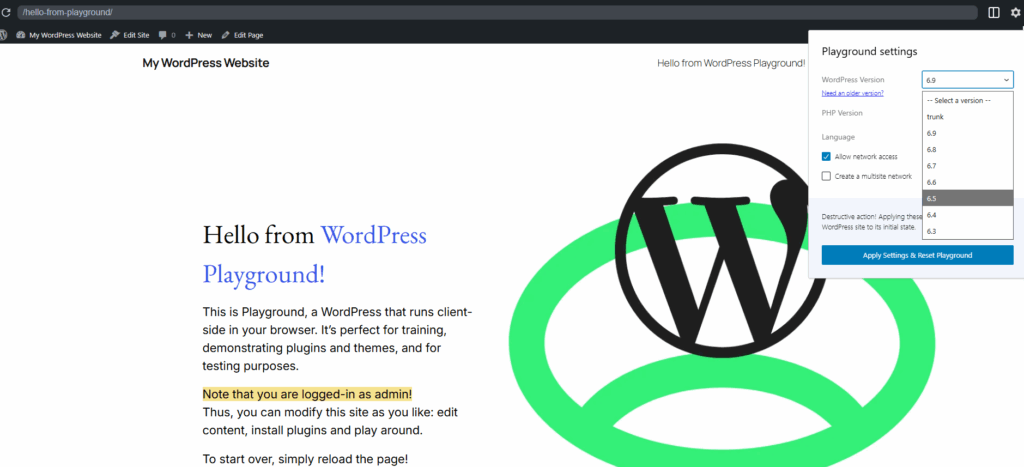
- Choose the WordPress version you want to test. In September 2026 the list offers latest, trunk and 7.1 back to 6.3, with a checkbox for older versions.
- Pick a PHP version from 7.4 to 8.5 (or PHP Next) that matches your hosting environment.
Step 3: Set network access, language and multisite
- In the same panel, select your admin language.
- Keep Allow network access ticked if you want to install themes and plugins straight from the WordPress.org directories. It is on by default.
- Tick Create a multisite network if you need to test a WordPress multisite setup.
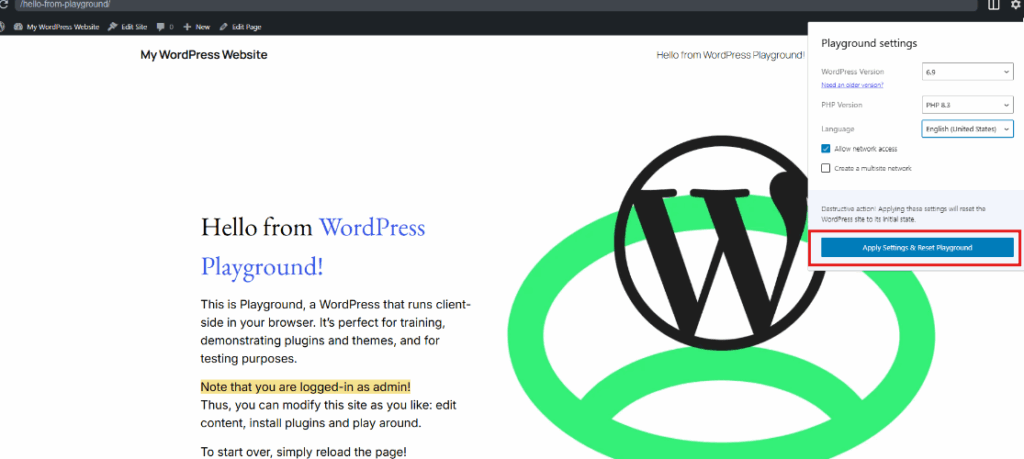
- Apply the changes. Playground reloads with your chosen configuration.

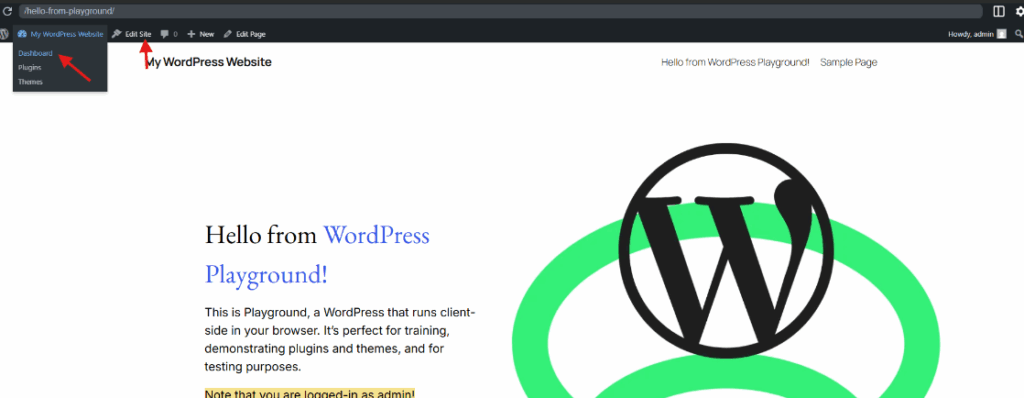
Step 4: Open the WordPress dashboard
- From the admin bar, hover the site title and choose Dashboard, or type
/wp-admin/into the dock’s address field. - You now have a WordPress admin that behaves like a normal site for testing.
Step 5: Save it
- Click Autosaved in the dock, name the Playground, and choose to save it in browser storage or in a local directory.
- Reopen it later from Playgrounds in the dock.
How do you embed WordPress Playground in a website?
Add an iframe that points at playground.wordpress.net. Visitors get a working WordPress site right on your page, running in their own browser, with no hosting, database setup or installation on your side. This is how plugin authors, educators and documentation teams give people something to click instead of a screenshot.
Here is the basic embed code:
<iframe src="https://playground.wordpress.net/"></iframe>This works well for:
- Interactive product demos: show how your theme or plugin works in real time.
- Online courses and tutorials: let students try a concept immediately.
- Documentation pages: put a hands-on example next to your written guide.
- Client presentations: embed a quick mockup or theme preview.
How does the WordPress Playground Query API work?
The Query API configures a Playground through URL parameters. Add ?plugin=, ?theme=, ?wp= or ?php= to a playground.wordpress.net link and the site boots with that setup, which is the quickest way to share a ready-to-test environment. It works in a normal link and inside an embed iframe.
For instance:
<iframe src="https://playground.wordpress.net/?plugin=jetpack&theme=twentytwentyfour&wp=latest&php=8.3"></iframe>This URL will launch a Playground site with:
- The Jetpack plugin installed
- The Twenty Twenty-Four theme activated
- The latest WordPress release running on PHP 8.3
Supported Query API parameters
These are the parameters you will use most, from the official Query API reference (checked 25 September 2026):
Real-world uses for the Query API
- Pre-configured tutorials: share one URL with students or customers that loads a specific plugin and theme setup.
- Plugin documentation: offer an instant “Try it now” button for your users.
- Support teams: generate quick test environments to reproduce a bug a user reported.
- Developers: test across PHP and WordPress versions by editing two numbers in a URL.
You can embed any of these URLs in an iframe on a web page or a learning platform.
What are WordPress Playground Blueprints, and how do you use them?
A Blueprint is a JSON file that describes a complete WordPress Playground environment. It sets the WordPress and PHP versions, installs and activates plugins and themes, runs setup steps such as logging in or adding content, and picks the page that opens first. Anyone who loads the Blueprint gets the same site, which makes demos and test setups repeatable.
A WordPress Playground Blueprint can:
- Set the WordPress and PHP versions
- Install and activate plugins and themes
- Decide which page or screen opens first
- Preload demo content, products or sample layouts
- Turn on multisite or run custom PHP during setup
To start from a ready-made one, click New in the dock. The Blueprint gallery tab lists environments such as an “Art Gallery” site and a “Coffee Shop” WooCommerce store; pick one and Playground builds it in a few seconds. The same pane lets you start from a URL, write a Blueprint, preview a WordPress or Gutenberg pull request, load from GitHub or import a .zip.
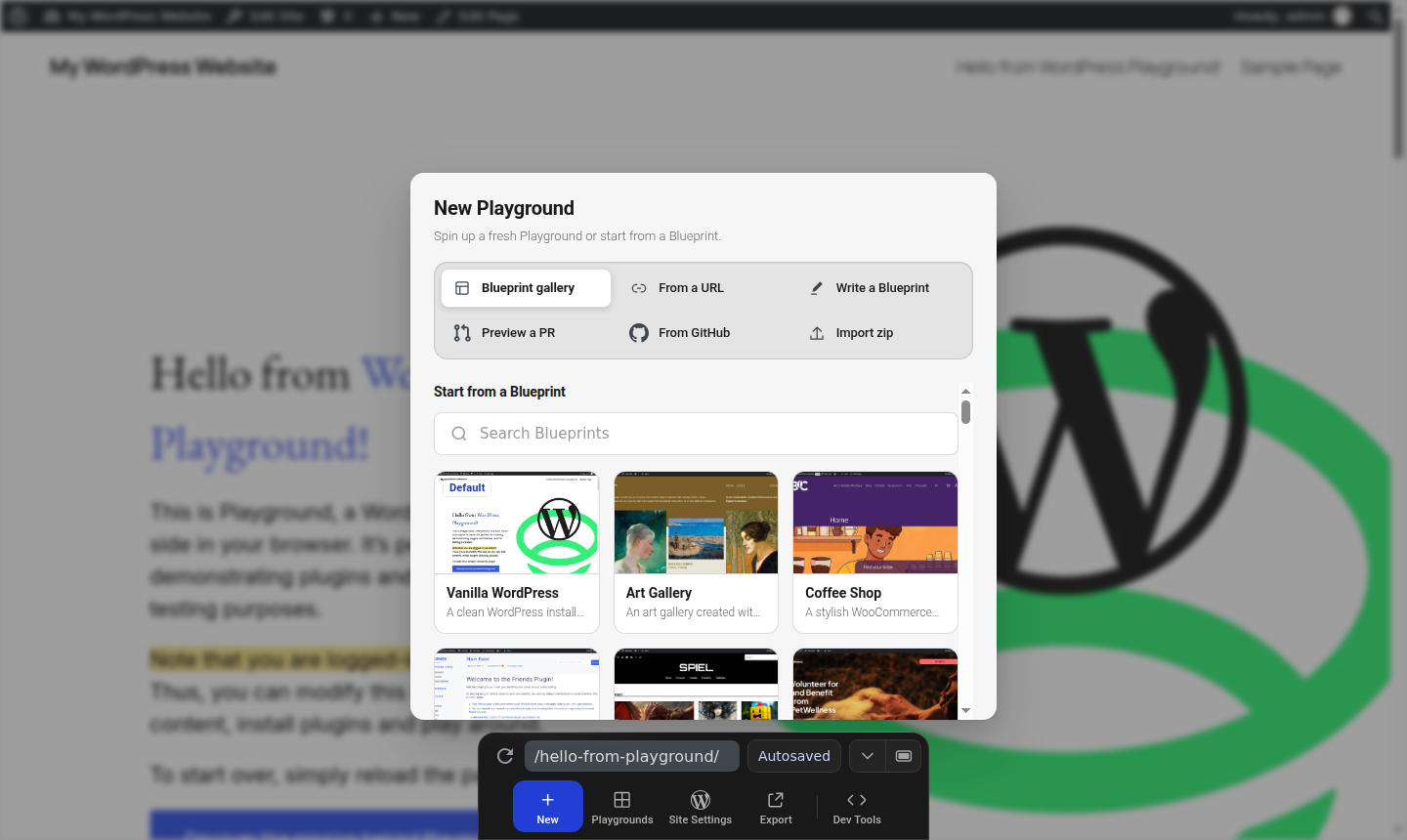

This is useful for tutorials, product demos and internal training sessions.
How do you create a Blueprint from your own Playground site?
You do not have to start from the gallery. Any Playground you configure yourself exposes its underlying Blueprint:
- Open the Playground you set up.
- Click Dev Tools in the dock and choose Current Blueprint. (In the late-2025 interface below, this was the Blueprint tab of the site panel.)
- Playground shows the
blueprint.jsonthat describes the environment. Copy it, save it, and reuse it whenever you need the same setup.
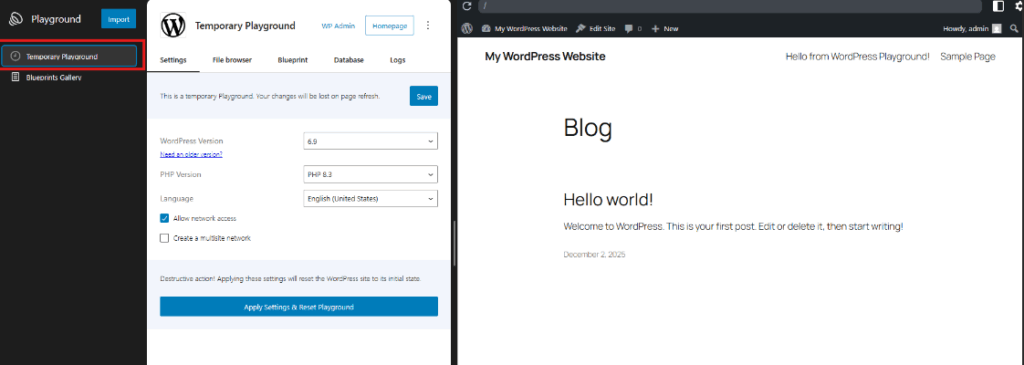
Dev Tools also holds a database viewer, a terminal, a file browser, logs and a catch-all for outgoing email, which covers most of what you need to debug a plugin without leaving the browser.
This makes it easy to share identical test setups with your team, give users a ready-made demo space for a plugin, and keep a library of standard environments for QA or training. Remember that a Blueprint rebuilds the starting setup only. The content and edits you made afterwards are not in it, so use Export for those.
How do you make a Blueprint without writing JSON by hand?
Writing Blueprint JSON by hand is a common complaint (one r/ProWordPress thread is titled “I got tired of writing WordPress Playground Blueprint JSON”). You rarely need to. In order of effort:
- Start from the gallery and edit the one closest to what you need.
- Configure a Playground by hand and copy its Blueprint tab, as described above.
- Use the Query API when all you need is a plugin, a theme and versions.
- Ask an AI coding agent. WordPress.org publishes a wp-playground agent skill that teaches agents like Claude Code the Blueprint format.
- Skip JSON entirely for hosted sites: an InstaWP snapshot captures a configured site (files and database) and relaunches it in seconds, with optional WP-CLI commands that run on every new copy.
If you do want JSON, here are two Blueprints we ran through the Playground CLI on 25 September 2026. The first came back with Query Monitor installed and Twenty Twenty-Five active on WordPress 7.1.2 and PHP 8.3.33.
{
  "$schema": "https://playground.wordpress.net/blueprint-schema.json",
  "landingPage": "/wp-admin/plugins.php",
  "preferredVersions": { "php": "8.3", "wp": "latest" },
  "features": { "networking": true },
  "steps": [
    { "step": "login", "username": "admin", "password": "password" },
    { "step": "installPlugin", "pluginData": { "resource": "wordpress.org/plugins", "slug": "query-monitor" } },
    { "step": "installTheme", "themeData": { "resource": "wordpress.org/themes", "slug": "twentytwentyfive" } },
    { "step": "setSiteOptions", "options": { "blogname": "Plugin test site" } }
  ]
}
The second turns on multisite. It works as-is on playground.wordpress.net, but in the CLI it failed at first with “WordPress multisites do not support custom ports”, because the CLI’s default site URL includes a port. Passing a portless --site-url fixed it.
{
  "$schema": "https://playground.wordpress.net/blueprint-schema.json",
  "landingPage": "/wp-admin/network/",
  "preferredVersions": { "php": "8.3", "wp": "latest" },
  "steps": [
    { "step": "enableMultisite" },
    { "step": "login", "username": "admin", "password": "password" }
  ]
}
# run a Blueprint without starting a server (the portless URL is what makes multisite work)
$ npx @wp-playground/cli@latest run-blueprint --blueprint=multisite.blueprint.json --site-url=http://playground.test
How do you run WordPress Playground locally with the Playground CLI?
Run npx @wp-playground/cli@latest start in a plugin, theme or wp-content folder. The Playground CLI detects what the folder is, mounts it into a fresh WordPress site, opens the browser logged in as admin, and saves the site between sessions. Node.js is the only requirement; you do not need Docker, MySQL or a PHP install.
# from inside your plugin or theme folder
$ npx @wp-playground/cli@latest start

# pin versions, skip the browser, or start clean
$ npx @wp-playground/cli@latest start --wp=7.0 --php=8.3 --skip-browser
$ npx @wp-playground/cli@latest start --reset
Ready! WordPress is running on http://127.0.0.1:9400
Useful facts about the CLI as of September 2026:
- It saves automatically.
startkeeps the site in~/.wordpress-playground/sites/, keyed to the folder you ran it from.--resetstarts from scratch. - It replaced wp-now. The older
@wp-now/wp-nowpackage is deprecated as of 8 June 2026 and gets no more updates. - It does more than serve a site.
run-blueprintruns a Blueprint headlessly,build-snapshotbuilds a .zip of a site from a Blueprint, andphpruns a single PHP script. - It supports debugging.
--xdebugturns on Xdebug, and--phpmyadmininstalls phpMyAdmin for poking at the database.
If you would rather stay in your editor, the WordPress Playground VS Code extension runs the same engine from the sidebar. For a comparison with container-based setups, see our guide to running WordPress on Docker.
instawp local create starts a Playground site on your laptop, and instawp local clone pulls a live InstaWP site down into one (it converts the MySQL database to SQLite for you). Read the InstaWP CLI guide or the walkthrough on how to run WordPress locally without Docker.Can AI agents use WordPress Playground?
Yes. WordPress Playground has its own MCP (Model Context Protocol) server, @wp-playground/mcp, released in March 2026, which lets coding agents such as Claude Code and OpenAI Codex drive a Playground site. The agent can run PHP, read and write files, navigate pages and save the site. That makes it a safe place for an agent to experiment, because nothing it breaks is on a server.
Connecting it takes one command (from the Playground team’s announcement):
# Claude Code
$ claude mcp add --transport stdio --scope user wordpress-playground -- npx -y @wp-playground/mcp

# OpenAI Codex
$ codex mcp add wordpress-playground -- npx -y @wp-playground/mcp
- Tools it exposes: site management (list, open, rename and save sites),
playground_execute_phpand HTTP requests, navigation, and file operations. - WebMCP: since 5 September 2026, Playground also exposes these tools through WebMCP, a proposed browser API, so ChatGPT’s desktop browser can use them as “Site tools”.
- Limits: the connection is local to your machine, and the database is SQLite, so MySQL-specific queries an agent writes may not behave as they would on production.
Every InstaWP site includes InstaMCP, a WordPress MCP server with 40+ structured tools for content, blocks, media, plugins and themes. It runs against a hosted site with a real URL, so what the agent builds is something a client can open. Access uses a scoped, revocable token, Safe Mode blocks destructive writes by default, and raw PHP and SQL tools stay off until an admin enables them. Learn how to connect AI agents to WordPress.
For a wider view of the options, see our comparison of the best WordPress MCP servers and our explainer on WordPress MCP.
How do you move a WordPress Playground site to a real host?
The fastest route is the InstaWP CLI: build locally on Playground with instawp local create, then run instawp local push to sync your plugins, themes and uploads (and, with --with-db, your content) to a hosted InstaWP sandbox, which is created for you if it does not exist. You keep Playground’s speed while you build and get a real URL, SSH and WP-CLI when someone else needs to see the work.
Method 1: InstaWP CLI (recommended)
# install once (Node.js 18+, MIT licensed, currently on the beta tag)
$ npm i -g @instawp/cli@beta
$ instawp login

# build locally on WordPress Playground
$ instawp local create --name client-site

# preview, then push wp-content to a cloud site (auto-created if you omit the name)
$ instawp local push client-site --dry-run
$ instawp local push client-site

# also push posts, pages and settings (backs up the cloud database first)
$ instawp local push client-site my-cloud-site --with-db

By default local push syncs wp-content (plugins, themes and uploads) with incremental rsync and leaves the cloud database alone. Add --with-db to move your posts, pages and settings too: the CLI converts Playground’s SQLite data into a MySQL import for the cloud site, backs up the cloud database first, then rewrites the site URLs. It overwrites the cloud database, so use it on a fresh site or one you have backed up. Going the other way, instawp local clone brings a live site down into Playground, database included.
Method 2: Export a .zip or push to GitHub
Use Export in the Playground dock to download a .zip or push to a GitHub repository. The .zip holds your files and an SQLite database file (wp-content/database/.ht.sqlite), so most hosts cannot import it as-is. Copy the wp-content folder to the new site and move content with the WordPress exporter, or rebuild from your Blueprint on the host.
Method 3: Start on a hosted sandbox instead
If you already know the site is headed for production, skip the handover and build on a hosted sandbox from day one. Instead of a temporary WordPress Playground, an InstaWP sandbox behaves like a real hosted site that stays online until you are done with it. That matters when you are an agency or freelancer juggling tens of sites at once.
For day-to-day work, InstaWP sandboxes solve problems that WordPress Playground cannot:
- Always-on environments: sandboxes keep your WordPress sites alive across sessions, devices and teams.
- One dashboard for every project: see all client sandboxes in one panel, organise them by project, and clean up old ones when a phase ends.
- Closer to real hosting: sandboxes run on real servers with a MySQL-compatible database, so what you see is much closer to production than a WASM and SQLite instance.
- Full developer toolset: SSH, SFTP, a web terminal, database access and WP-CLI on every site, plus the InstaWP developer tools such as Git deployments and a VS Code extension.
- Templates and repeatable setups: save your best sandbox as a template (a standard WooCommerce setup, a membership stack, a starter block theme kit) and reuse it across clients.
- Shareable preview links: every sandbox has a stable URL with SSL to send to stakeholders.
- An upgrade path to production: when the client signs off, move the site through a WordPress staging site and from staging to production, or migrate it to another host.
In practice, keep using WordPress Playground for quick experiments and small tutorials. Once a test turns into a real project, move it to an InstaWP sandbox. You keep fast, Playground-style testing and gain a stable URL, server access and one dashboard for every client site.
WordPress Playground vs WordPress Studio vs InstaWP: which should you use?
Use WordPress Playground in the browser for quick, throwaway tests. Use the Playground CLI or WordPress Studio for local development on one machine; Studio is Automattic’s desktop app built on Playground, with sync to WordPress.com. Use an InstaWP sandbox when the site must be reachable, shared or hosted.
For a deeper breakdown, read our guides to WordPress Playground alternatives, WordPress Playground vs staging sites and choosing an online WordPress development environment.
Move to a real host: can you host a Playground site on InstaWP?
Yes. When a Playground build needs to go live, you do not have to change platforms. InstaWP is a managed WordPress hosting provider as well as a sandbox tool: every site is isolated with its own Linux user, database, PHP-FPM pool and reserved vCPU, and a sandbox is promoted to a production plan with one click, keeping the same site, URL and data, with no migration. Playground has no equivalent step.
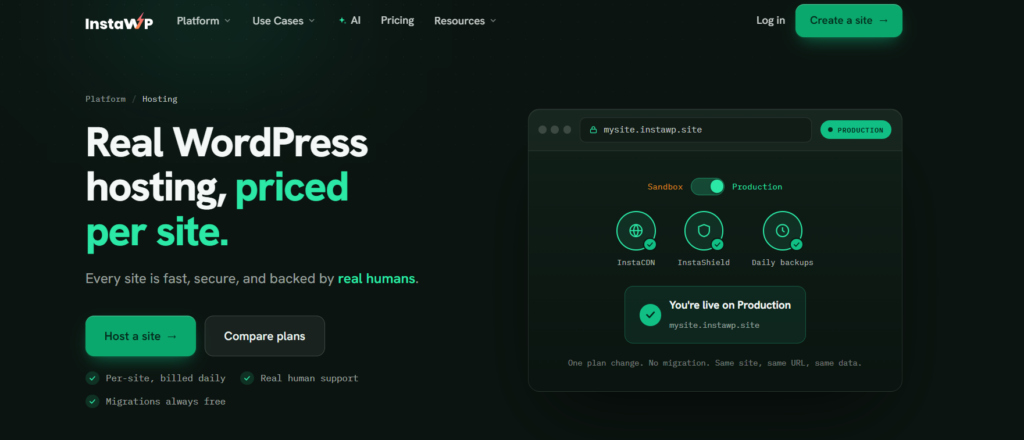
Each site is billed by the day on its own plan, with no annual contract, $25 in credits for new accounts and a 14-day money-back guarantee. What each plan adds, from the InstaWP pricing page:
Every plan includes SSH, WP-CLI, Git, SFTP, PHP 7.4 to 8.5, an in-site MCP server for AI agents, free migrations and human support. Backups, the WordPress staging environment and InstaWP Manage (uptime, scanners, activity logs and bulk updates) sit in the same dashboard you used for the sandbox.


In InstaWP’s August 2026 WordPress hosting benchmark, a site on the new-generation servers scored 9.8 out of 10 in WP Benchmark, a free WordPress.org plugin InstaWP did not write, against 7.3 on the previous generation. Sites run in five regions (the US, the UK, Germany, Singapore and Australia). Agencies can also resell hosting under their own brand; see InstaWP for agencies.
Conclusion: use WordPress Playground for ideas, InstaWP for real work
WordPress Playground is perfect when you want to try an idea fast, learn the Block Editor, test a plugin on a new PHP version or show a quick demo in the browser. It now saves your work, runs locally through the CLI and even gives AI agents a safe place to experiment. Its limits appear the moment a site needs to be seen by someone else: a public URL, a production-like database and a place for the team to work.
InstaWP covers that gap: instant sandboxes on real servers, an MCP server your AI tools can use, and managed WordPress hosting with CDN, firewall, backups and staging when the site goes live, all from one dashboard. If you are an agency or developer, use WordPress Playground for ideas and InstaWP sandboxes for real work.
The recap
WordPress Playground runs WordPress on WebAssembly PHP and SQLite in your browser or Node.js. It saves by default now, but only on one device.
The Playground CLI replaced wp-now and restarts a saved site in about
five seconds. Blueprints and the Query API make setups repeatable, and
@wp-playground/mcp
lets AI agents drive it.
Ready for a URL, a team or a client? Push your site to an InstaWP sandbox with:
instawp local pushReady to move beyond playgrounds? Launch your first InstaWP sandbox today and start building client-ready sites.
WordPress Playground FAQs
Is WordPress Playground free?
Yes. WordPress Playground is free, open source software released under the GPL (version 2 or later). The hosted version at playground.wordpress.net, the Playground CLI and the VS Code extension all cost nothing to use.
What is WordPress Playground?
WordPress Playground is an official WordPress.org project that runs a full WordPress site in your browser or in Node.js, using PHP compiled to WebAssembly and an SQLite database. Developers, designers and learners use it to test plugins and themes, try ideas and learn WordPress without a server.
Does WordPress Playground save my work?
Yes. New Playgrounds autosave in your browser, and you can store one permanently in browser storage or a local directory from the Autosaved button. Only Playgrounds opened with storage=temp are discarded on refresh. Saved sites stay in one browser on one device, so export a .zip if you need a backup.
Is playground.wordpress.net the official WordPress Playground?
Yes. playground.wordpress.net is the official web instance run by the WordPress.org Playground project, and its documentation lives at developer.wordpress.org/playground.
Does WordPress Playground support multisite?
Yes. Tick Create a multisite network in Site Settings, add multisite=yes to the URL, or use the enableMultisite Blueprint step. In the Playground CLI, pass a site URL without a port, because WordPress multisite does not support custom ports.
When was WordPress Playground first released?
Adam Zieliński started WordPress Playground in 2022, and Matt Mullenweg introduced it publicly at State of the Word in December 2022. It has been developed as an official WordPress.org project since.
Can I install custom themes and plugins in WordPress Playground?
Yes. With network access on, which is the default, you can install anything from the WordPress.org directories. You can also upload a plugin or theme .zip through wp-admin, or preload one with the plugin and theme URL parameters or a Blueprint.
Is wp-now still supported?
No. wp-now was deprecated on 8 June 2026 and receives no further updates. Use the Playground CLI instead: run npx @wp-playground/cli@latest start in your project folder.
Can AI agents like Claude control WordPress Playground?
Yes. The @wp-playground/mcp package connects coding agents such as Claude Code and OpenAI Codex to a Playground site so they can run PHP, edit files and navigate pages. For agent work on a hosted site with a real URL, InstaWP includes InstaMCP on every site.
Is WordPress Playground the same as WordPress Studio?
No. WordPress Studio is a desktop app from Automattic that is built on WordPress Playground and adds local site management and sync to WordPress.com. Playground is the underlying engine you can also use in the browser, the CLI and VS Code.
What are the disadvantages of WordPress Playground?
Saved sites live in one browser on one device, there is no public URL, the database is SQLite rather than MySQL, some WP-CLI commands are unsupported, heavy plugins can take 5 to 60 seconds to load, and there is no server-level access such as SSH or real cron.
Is InstaWP better than WordPress Playground?
They do different jobs. WordPress Playground is better for free, instant, throwaway tests in your own browser. InstaWP is better when the site has to live somewhere: it runs on a real server with its own URL, a MySQL-compatible database, SSH, WP-CLI, snapshots and an MCP server, so clients, teammates and AI agents can work on it. The InstaWP CLI connects the two by pushing a local Playground site to InstaWP.
Can I host my WordPress Playground site on InstaWP?
Yes. Push the Playground site to an InstaWP sandbox with the InstaWP CLI, then promote the sandbox to a managed hosting plan with one click. Plans start at $5 a month per site, billed daily, and include a CDN, a managed firewall, free SSL and automatic backups, with daily backups, object cache and monitoring from the Plus plan.
Is there a WordPress Playground alternative?
Yes. InstaWP is the closest alternative when you need a hosted site: a sandbox is ready in about 10 seconds with a real URL, SSH, SFTP, WP-CLI, staging, 2-way sync, migrations and an MCP server. For local-only work, WordPress Studio, LocalWP and Docker are the other common options.