WordPress 7.1, code-named “Mary Lou” after the pioneering jazz pianist, arranger and composer Mary Lou Williams, landed on August 19, 2026, the second major release of the year. Where 7.0 laid foundations for AI, collaboration and a modern editor architecture, 7.1 spends its budget on the things you touch every day: styling, media, blocks and the APIs that let outside software drive your site.
The short version: responsive styles are now native, buttons get hover and focus states without CSS, images are processed in the browser instead of PHP, Tabs and Playlist are Core blocks, and the Abilities API became the most important thing in the release for anyone building AI workflows. Here is the full picture, and the parts worth testing before you upgrade a client site.
Key takeaways
- Responsive styling is in Core. Blocks get Mobile and Tablet overrides on top of a base style, and themes can move the breakpoints.
- Hover, focus and active states are style controls now. Button and Navigation Link lead the way, no stylesheet required.
- Images are resized in the browser. A WebAssembly build of libvips does the work before upload, so big files stop hitting PHP memory limits.
- Tabs and Playlist are Core blocks. Two more reasons to skip a plugin.
- The Abilities API is the sleeper hit. It gives AI clients and MCP tools a structured map of what your site can do.
- The post editor is always iframed. This is the change most likely to break an older editor plugin, so test it first.
WordPress 7.1 by the Numbers
This is not a quiet point release. The Field Guide counts more than 310 Core Trac tickets, and the bundled Gutenberg work adds well over a thousand changes on top of that.
Those changes are spread across block styling, media processing, editor architecture, accessibility, automation APIs, plugin extensibility, admin navigation and the REST API. Some are visible the moment you open the editor. Others only matter if you ship themes or plugins.
Here is the quick triage: find your role, read those sections first.
| If you are a | Read this first | Because |
|---|---|---|
| Site builder | Responsive styles, Tabs, Playlist, Notes | Four things you used to install a plugin for |
| Theme developer | Responsive styles, interaction states, new supports | theme.json absorbs work that used to live in CSS |
| Block developer | The always-iframed editor | Your DOM queries may be looking at the wrong document |
| Plugin developer | Icon API, DataViews, list-table markup, jQuery UI | New Core primitives, plus a few small breaking changes |
| AI or automation builder | The Abilities API | It is how external clients discover what your site can do |
| Host or agency | Client-side media processing | Less PHP memory pressure on every upload |
Responsive Styling Finally Ships in Core
This is the gap everyone noticed. You could preview a page at three widths, but changing how a block looked at those widths meant custom CSS, a theme.json workaround, or a third-party block library with its own responsive controls.
WordPress 7.1 pulls responsive design into the block styling system itself. A block now has a base style plus optional Tablet and Mobile overrides, set in Global Styles or on a single block.
Theme Developers Can Define Their Own Responsive Breakpoints
The responsive system is not locked to WordPress’s default screen widths. WordPress 7.1 also lets theme developers define custom Mobile and Tablet breakpoints through theme.json.
WordPress provides defaults, but a theme can define its own values under the new viewport settings.
Conceptually:
{
  "settings": {
    "viewport": {
      "mobile": "30rem",
      "tablet": "48rem"
    }
  }
}
This is important because a breakpoint is not universal. A content-heavy publication, SaaS landing page, ecommerce store, and documentation site may all need different responsive behavior.
WordPress 7.1 gives themes a Core-supported way to define that behavior instead of hardcoding media queries throughout their CSS.
There is another useful detail from the final release: responsive styling and block visibility follow those configured breakpoint values automatically.
So once the theme defines what “Mobile” and “Tablet” mean, different WordPress responsive systems can operate from the same definition. That starts to make responsive behavior a platform-level concept rather than something each theme implements independently.
Core ships sensible defaults and then gets out of the way. Themes can redefine the Mobile and Tablet breakpoints through the new settings.viewport configuration in theme.json, and both responsive styling and block visibility follow your values automatically.
| Viewport | Default range | theme.json key | Configurable |
|---|---|---|---|
| Mobile | Up to 480px | @mobile | Yes |
| Tablet | 481px to 782px | @tablet | Yes |
| Desktop | Everything above | Base style | Base only |
The shift here is bigger than the feature list suggests. Responsive design used to be a theme convention that every theme invented for itself. Now WordPress understands, at the data layer, that one style can hold different values at different viewport states. For block theme authors that removes a pile of routine custom CSS.
Style Hover, Focus and Active States Without CSS
Responsive styles answer how a block should look at a given width. WordPress 7.1 also answers how it should look while somebody is interacting with it.
Global Styles now supports pseudo and custom style states, including :hover, :focus, :focus-visible and :active. In the editor UI it shows up most clearly on Button and Navigation Link, where you can set a different background, typography or border for each state directly in the style controls.
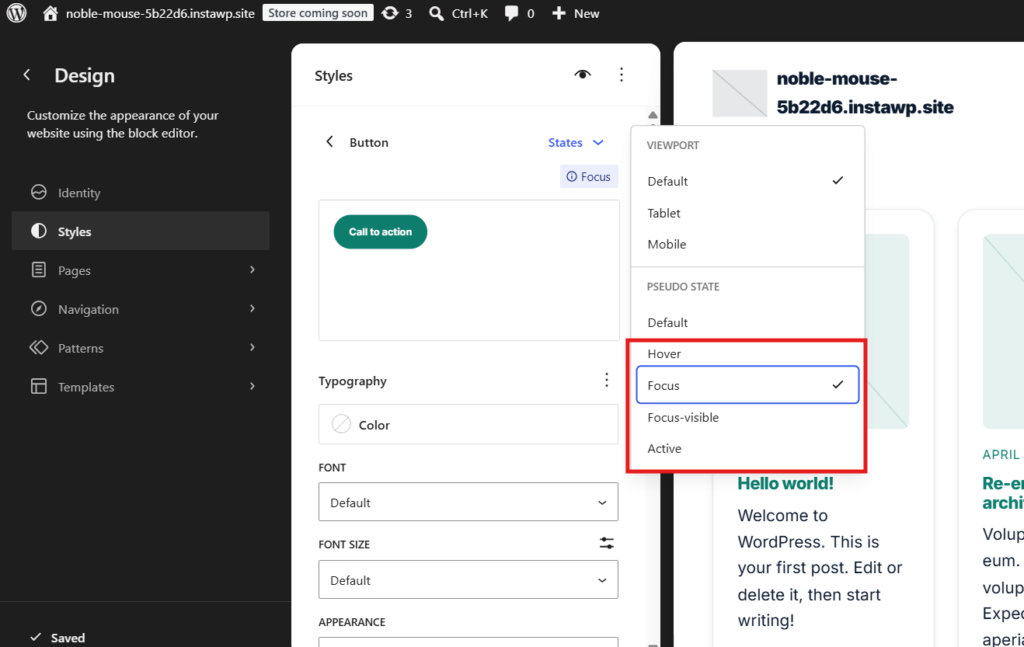
The interesting part is that the two systems compose. A button can carry one hover treatment on desktop and a different one on mobile, because states nest inside viewport states:
{
  "core/button": {
    ":hover": {
      "color": { "background": "var:preset|color|contrast" }
    },
    "@mobile": {
      ":hover": {
        "color": { "background": "var:preset|color|accent" }
      }
    }
  }
}
That is the real story of 7.1 for theme developers. WordPress did not just add more controls. It made the styling system meaningfully more expressive.
Block and Style Improvements in WordPress 7.1
Responsive styling takes the headlines. These three fill gaps that have annoyed theme authors for years.
Text shadow in theme.json
A new textShadow property lets the style engine generate the CSS instead of you shipping a separate stylesheet. Developer facing for now, not a universal control on every block.
Minimum width support
Blocks can opt into a minWidth control, mirroring the existing minimum height model. Core handles the UI, the serialization and the output, so nobody has to hand-roll another control.
Gradients that keep your image
The old gradient support used the background shorthand, which also reset the background image. The new background.gradient support uses background-image, so a gradient and a photo can finally coexist.
Core opts several blocks into the new gradient support out of the box, including Group, Accordion, Pullquote, Post Content and Quote. For everyone else it is one line in block.json.
Beyond styling, 7.1 tidies up a long list of small block behaviours that used to need a workaround:
- Mark an image as decorative. The Image block gets a toggle that tells screen readers to skip it, which is the correct treatment for a purely visual flourish and previously meant hand-editing an empty
alt. - Columns and Gallery transform into Grid. Convert an existing layout to a Grid and keep the content, instead of rebuilding it block by block.
- Embed shortcodes become Embed blocks. Paste or convert an old embed shortcode and WordPress now produces a proper Embed block.
- Block Bindings reach List Item. Individual list items can be wired to a dynamic data source, which was previously limited to a smaller set of blocks.
- Nested blocks inside Custom HTML stay editable. Covered in its own section below.
Smarter Media Handling: Image Processing Moves Into the Browser
The biggest architectural change in WordPress 7.1 happens before an image ever reaches your server.
Historically, you handed WordPress the original file and PHP did everything: compression, resizing, format conversion, rotation and every registered thumbnail size, using GD or Imagick. On a shared host with a modest memory limit, one 12MP phone photo could take the whole upload down.
WordPress 7.1 introduces client-side media processing. Supported operations now run in the browser, through a WebAssembly build of libvips, before anything is uploaded.
Before 7.1
Browser uploads the full original file PHP loads it into memory GD or Imagick compresses, resizes, converts Every registered size is generated server side One large upload can exhaust the memory limit or time out.WordPress 7.1
Browser compresses and resizes with libvips in WebAssembly Thumbnails and format conversion happen on the device Smaller processed files are uploaded PHP does far less, or falls back if the browser cannot help Frees server CPU and memory, and produces smaller files for visitors.The new pipeline also brings native support for AVIF, HEIC and HDR gain maps, which matters if your clients upload straight from an iPhone.
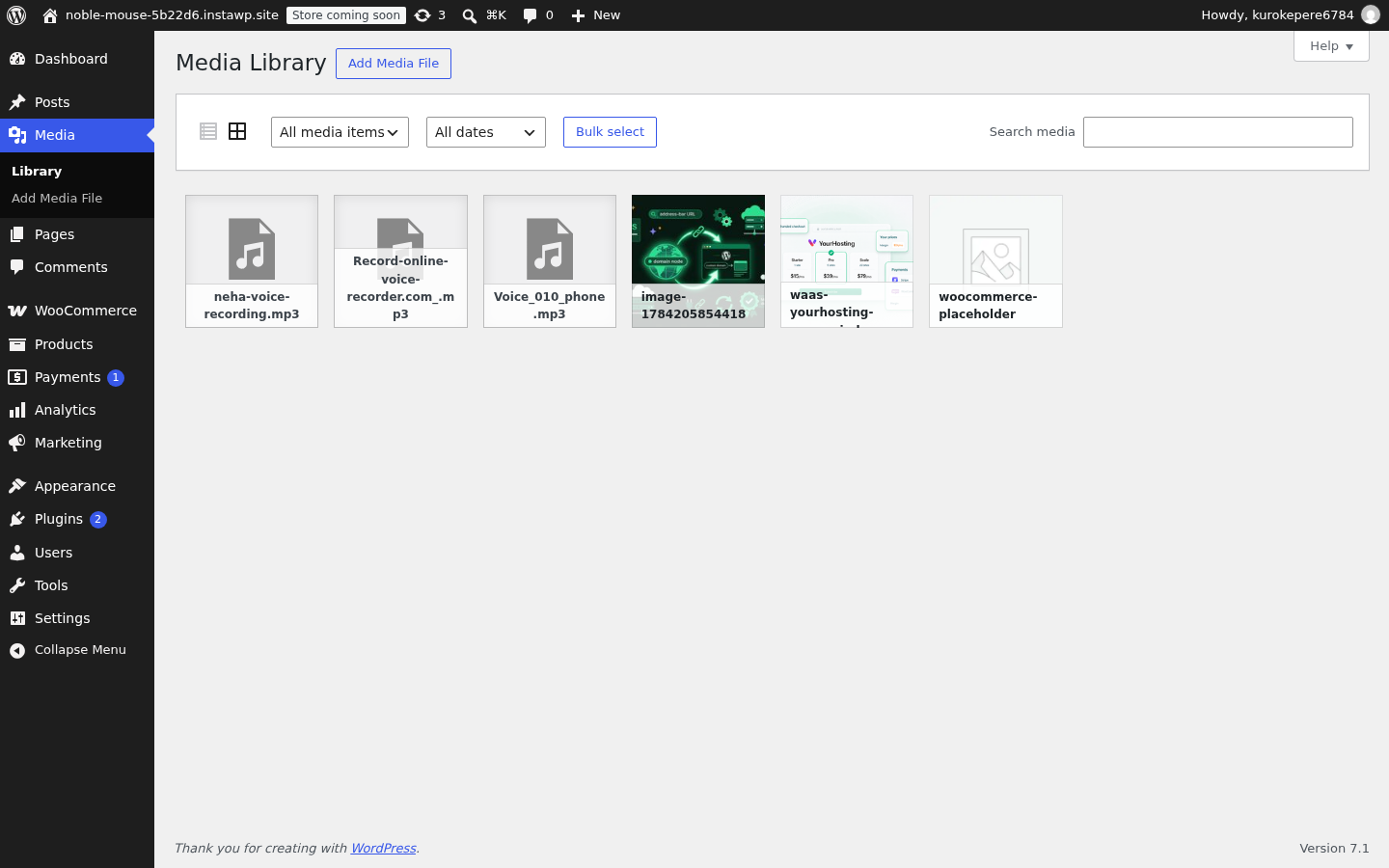
The Server Side Fallback Is Still There
This is a progressive enhancement, not a hard switch. If the browser or environment does not meet the requirements, WordPress runs the traditional server-side workflow exactly as before. Nobody loses the ability to upload an image because of their browser.
Three smaller media changes ride along with it, and one of them is worth acting on straight away:
- Optional GIF to video conversion. WordPress can now convert an uploaded GIF into a video file, which is dramatically smaller. If you have ever dropped a screen recording onto a page as an animated GIF and watched the page weight climb into the tens of megabytes, this is the fix. It is opt-in, so nothing converts behind your back.
- Upload progress indicators and automatic retries. Uploads now report progress properly and retry themselves when a request drops, which matters most on the flaky connections where an upload used to just fail silently.
- Speculative loading is configurable through environment variables and constants instead of being fixed by Core.
A New Image Editor in WordPress 7.1
Cropping an image in the Block Editor used to happen through a relatively limited inline workflow. WordPress 7.1 replaces that with a dedicated Media Editor modal. The familiar Crop button remains, but now it opens a separate editing workspace.
The Media Editor brings together:
- freeform cropping;
- fixed aspect-ratio cropping;
- image flipping;
- precise rotation;
- metadata editing.
Instead of manipulating an image through a small set of inline block controls, users now get a focused editing interface before publishing it.
This is a workflow change more than just another setting. Image adjustment has traditionally been fragmented between the Block Editor and Media Library. The dedicated modal gives WordPress a better foundation for media editing without trying to cram every image operation into the block toolbar.
The Media Library grid also switches to infinite scrolling by default, loading more items as you scroll instead of paging. There is a per-user setting to turn it back off, which matters: the accessibility team flags infinite scroll as a known concern, so the escape hatch is deliberate. That pattern, modernise the default and keep an opt-out, runs through the whole release.
AVIF, HEIC, and HDR Media Handling Gets Much Better
One detail from the final WordPress 7.1 release deserves more attention than it usually gets: modern image format handling is part of the new browser-processing pipeline.
WordPress specifically highlights support for:
- AVIF;
- HEIC;
- HDR gain maps.
HEIC images
HEIC is common on iPhones. WordPress 7.1 can decode supported HEIC images in the browser and convert them to a web-friendly format as part of the upload workflow, while retaining the source file where appropriate.
That makes HEIC handling less dependent on whether a specific host has the right image libraries configured.
AVIF
AVIF can also be decoded client-side. That means an AVIF upload can work even when the host’s PHP image editor does not provide the equivalent AVIF support.
HDR gain maps
This is the particularly interesting addition. Modern HDR images can include a gain map alongside a normal SDR version of the image. The gain map tells compatible displays how to reconstruct the higher dynamic range while still allowing the image to work on normal displays.
WordPress 7.1 detects gain-map HDR images and preserves that data across generated image sizes rather than silently destroying the HDR information during processing.
For photographers, visual publishers, and image-heavy sites, this makes WordPress’s media pipeline much more capable of dealing with modern image formats.
Animated GIF Handling Gets Smarter Too
Client-side media processing also opens the door to better animated GIF handling. For supported opaque GIFs, WordPress can create a companion MP4/WebM representation in the browser.
Why?
Because a video can often reproduce the same looping animation using dramatically fewer bytes than a large animated GIF. The original attachment remains a GIF in the Media Library.
The optimized video acts as a companion representation and can be used through the editor’s GIF-style video workflow. It is a fairly technical enhancement, but it shows that WordPress 7.1’s media improvements go beyond simply compressing JPEGs.
Two New Core Blocks: Tabs and Playlist
Two UI patterns that almost every site outsources to a plugin are now built in.
The new Tabs block gives WordPress a native way to organize related content into tabbed panels. Each tab connects to its own panel, and every panel works like a normal block container, so you can place headings, images, buttons, lists, or other blocks inside it.
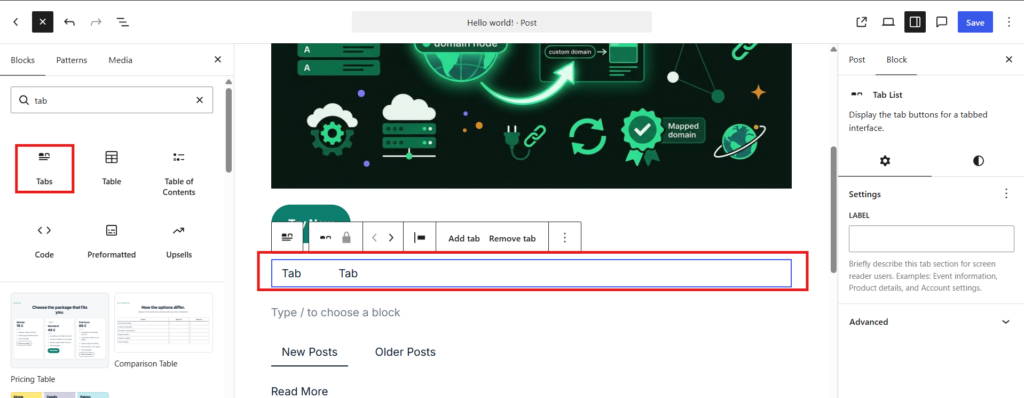
That makes Tabs useful for feature comparisons, pricing details, documentation, FAQs, product specifications, and account-style interfaces. Because the block is part of Core, you can build these layouts without relying on a separate tabs plugin.
The new Playlist block is more than a group of stacked Audio blocks. It combines multiple audio tracks into a single component with one consistent playback interface.
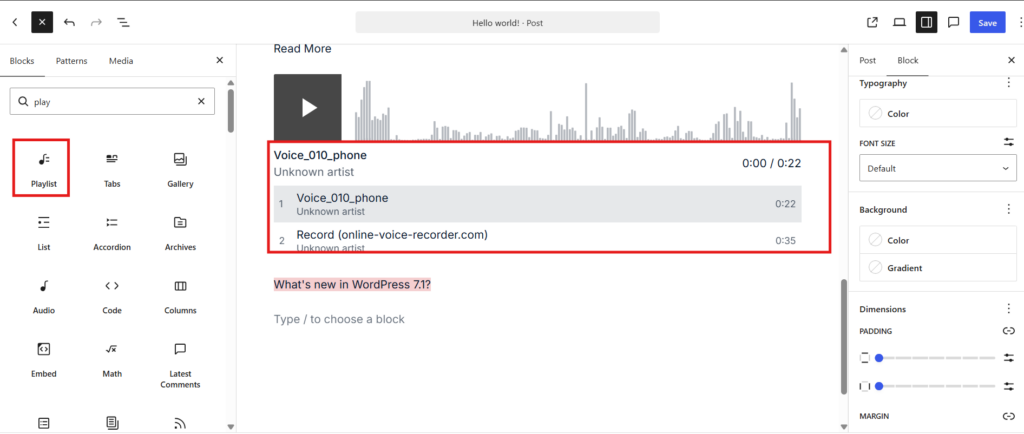
You can also enable an optional waveform view that visually represents each track as it plays. This makes the block useful for podcasts, music collections, audio courses, interviews, and recorded sessions where several audio files belong together.
Collaborate Better With the Upgraded Notes
Notes are contextual conversations attached to content inside the editor. Instead of a message that says change the second sentence in the third paragraph, the feedback sits on the sentence.
WordPress 7.1 makes them genuinely usable:
- Rich text: bold, italic, code and links, so feedback reads clearly.
- @mentions: type @ to pull up collaborators, with email notifications when someone tags you.
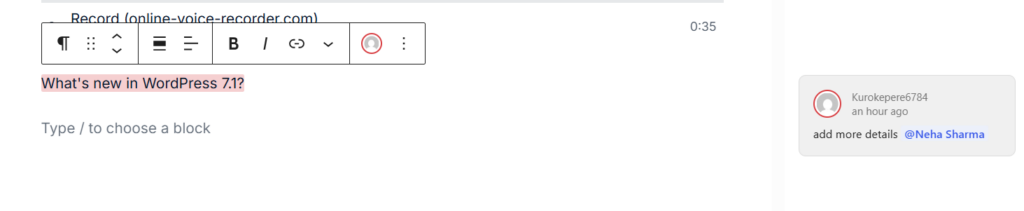
- Inline notes: attach a note to a text selection instead of a whole block.
- Multiple threads per block: two conversations on the same paragraph no longer collide.
- Collapsible threads: long discussions stop swamping the margin.
For editorial teams this is one of the most practical wins in the release. It pulls review activity back into WordPress instead of scattering it across documents, chat and a project tracker.
WordPress spent a lot of the 7.1 cycle testing simultaneous multi-user editing. It is not enabled in the final release. Notes improve asynchronous review, but 7.1 is not a Google Docs style editor yet. Treat any article that promised otherwise as out of date.
No. Notes are stored as a special comment type and are excluded from public comment feeds in 7.1, so an internal remark about a paragraph never appears under the published post. This is the first thing most editorial teams ask, and it is worth knowing before you invite a client into the editor.
Share a Link to Any Revision
Revisions used to be a private screen. You could scroll back through your own history, but you could not point anyone at a specific version without a screenshot or a copy and paste.
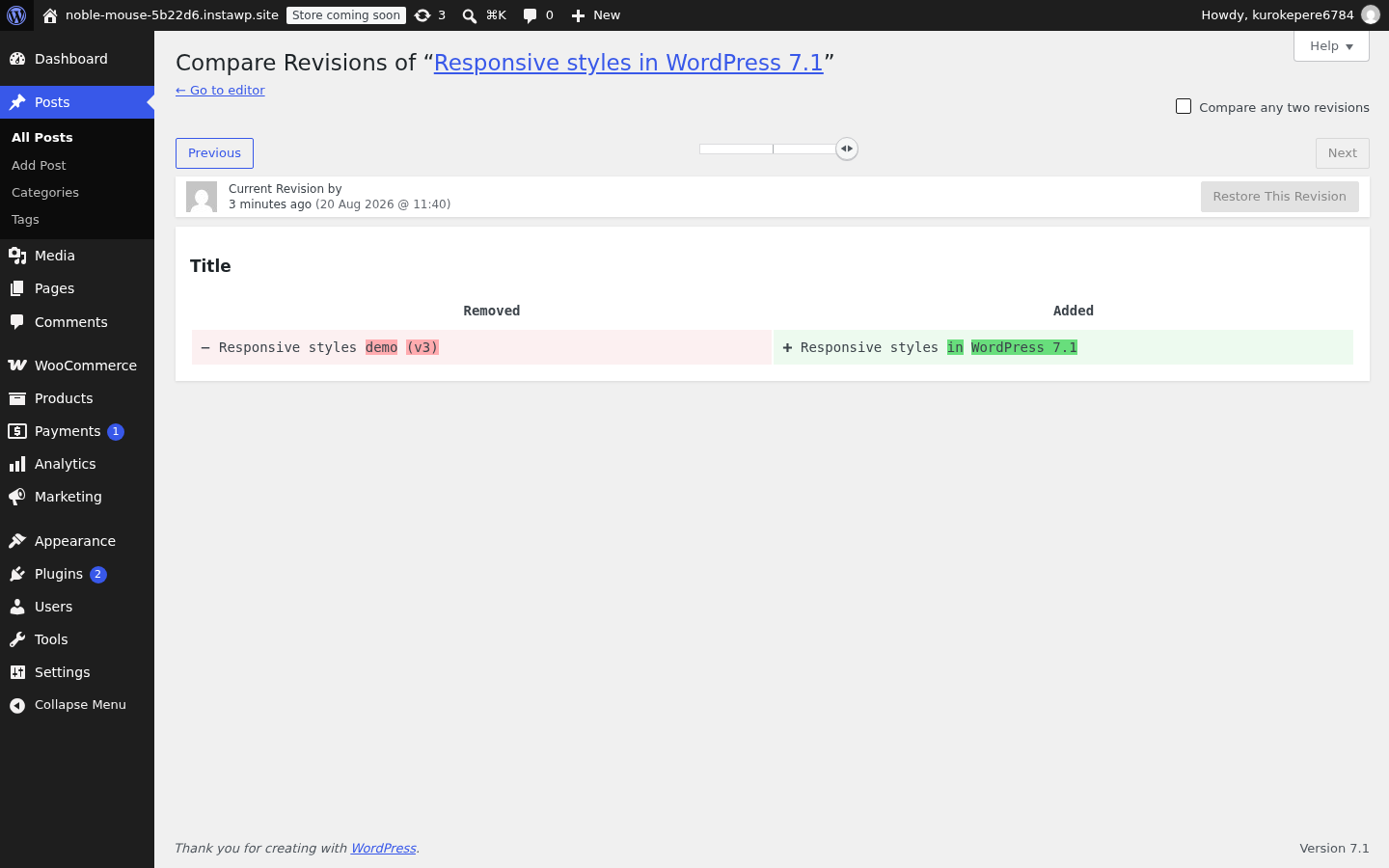
WordPress 7.1 makes revisions addressable. Open the revisions screen, select the version you want, and the URL in the browser bar now points at that exact revision. Send it to a colleague and they land on the same comparison you were looking at, with the changes highlighted in the colour-coded diff introduced in 7.0.
The revision picker itself also got a cleaner layout, which matters more than it sounds on a post with fifty saves behind it.
Paired with the Notes improvements above, this closes a real gap in editorial review. A reviewer can now say exactly which version they are objecting to, in a link, instead of describing it.
The Icon Block and Icon Picker Get Real Upgrades
WordPress 7.0 introduced the beginnings of a Core icon system. WordPress 7.1 turns that foundation into a proper public API.
Plugin and theme developers can now register their own SVG icons and icon collections, and those icons can appear in the WordPress editor alongside Core’s own icon library.
For example, a plugin could define its own collection:
my-pluginand register icons such as:
my-plugin/star
my-plugin/rocket
my-plugin/settings
That namespace prevents those icons from conflicting with WordPress Core or another plugin’s icon with the same name.
The main APIs include functions for registering collections and icons and for rendering registered icons from PHP.
Previously, a plugin that needed its own reusable icon library often had to build:
- its own registry;
- its own icon picker;
- its own rendering conventions;
- its own SVG handling.
WordPress now provides shared infrastructure for that. An agency could even use the same system to expose a controlled set of branded icons to content editors.
The Abilities API Is the One to Watch
If you only read one developer section, read this one. The Abilities API is the most strategically important change in WordPress 7.1, and it is almost invisible in the editor.
An ability is a machine-readable action. Rather than an integration knowing that some plugin exposes some PHP function or REST route, WordPress can describe the action itself: what it does, what inputs it takes, what it returns, who is allowed to run it, and whether it should be visible outside the site at all.
WordPress 7.1 expands the API in five directions:
- Filtering for
wp_get_abilities(), so clients can ask narrower questions. - Execution lifecycle hooks, so you can wrap an ability with logging, validation or permissions.
- A unified public exposure flag, so one setting decides what leaves the site.
- Client-compatible JSON Schema preparation, so definitions are consumable as-is.
- General refinements across discovery and execution.
Why This Matters for AI Workflows
An AI agent should never have to guess how your site works. It should be able to ask one question, what actions are available here, and get back structured definitions it can act on.
That is exactly the contract the Abilities API provides, and it is why it lines up so neatly with MCP. The WordPress MCP Adapter can expose abilities as MCP tools, so any compatible AI client discovers and invokes real WordPress functionality through a standard interface instead of a bespoke integration.
WordPress 7.0 poured the foundation, including most of the AI features of WordPress 7.0. WordPress 7.1 makes discovery and execution practical enough to build on. If you are already running agent-driven workflows, our guide to connecting AI agents to WordPress and the walkthrough of the WordPress MCP server are the natural next reads.
WordPress Now Has a Public SVG Icon API
WordPress 7.0 introduced the Core Icon block and an internal icon registry. WordPress 7.1 opens that registry to plugin and theme authors with a proper public API.
// Register a collection, then icons inside it
wp_register_icon_collection( 'my-plugin', array( /* ... */ ) );
wp_register_icon( 'my-plugin/star', $svg_markup );

// Render it anywhere in PHP
echo wp_get_icon( 'my-plugin/star' );
Icons are namespaced by collection, which is what makes this safe at scale. Your my-plugin/star and Core’s core/star coexist because the collection is part of the icon identity. For a plugin company or an agency shipping a house icon set, that removes the need to build yet another picker and storage layer.
One caveat worth planning for: registered SVGs pass through a restricted sanitizer, and the first implementation deliberately allows only a conservative subset of elements and attributes. Do not assume an SVG exported from a design tool will register unchanged. Simplify it first, and test the rendered output.
The Post Editor Is Always Iframed Now
This is the change most likely to break an older editor extension, so put it at the top of your test plan.
The post editor now runs inside an iframe consistently, no matter the theme type, the Block API versions in the content, which blocks are registered, or whether legacy meta boxes are present. The upside is a predictable editing environment: admin CSS stops leaking into the canvas, and responsive units resolve against the canvas rather than the browser window.
For most users there is nothing to configure. For plugin developers, the document boundary is the whole story.
document.querySelector('.some-editor-element');
That assumes the element lives in the same document as your script. With an iframed canvas it often does not. The canvas has its own document and window.
Audit anything that manipulates editor DOM directly, injects CSS into the canvas, or binds listeners to the global document. Use the proper editor APIs, or resolve the canvas document explicitly before you touch it.
Custom HTML Can Hold Editable Blocks
The Custom HTML block gets more flexible. Supported blocks embedded inside custom markup stay editable in the preview, which creates a useful middle ground between fully static HTML and a fully block-based layout.
A developer can lock down the surrounding structure and leave specific regions editable by the site owner. It is also a quiet win for AI-assisted building, since language models tend to produce HTML structures directly. Keeping the generated shell while exposing selected inner blocks makes that output far more practical inside WordPress.
Global Styles Gets Several Smaller Developer Improvements
Responsive and interactive states are the headline Global Styles changes, but they are not the only ones.
WordPress 7.1 also adds:
Text shadow support: Themes can define text shadows through Global Styles and theme.json, bringing another visual property under WordPress’s style engine.
Minimum width block support: Blocks can opt into a standard minimum-width control rather than implementing their own UI and CSS serialization.
Better background gradients: The new background-gradient support makes it possible for supported blocks to combine gradient and image backgrounds without one unintentionally replacing the other.
Taken individually, these are small changes. Collectively, they show WordPress continuing to move common visual behavior into a standardized block-support system rather than leaving every theme and plugin to solve the same problem differently.
Under the Hood: Admin UI, DataViews and Accessibility
Not every important change shows up on a post-editing screen. Four threads run through the admin side of 7.1.
DataViews and DataForm
New View Config capabilities let developers control which views and layouts are available in supported Site Editor contexts. Fewer hand-built admin tables, more shared primitives.
A real design system
Foundational theming support for the WordPress Design System: shared tokens for colour, background, foreground, borders, sizing and radii across admin and editor interfaces.
Persistent admin bar
The admin bar now follows you across the front end, wp-admin, the Site Editor and the Block Editor, with a small visual refresh. If you extend it, make sure your items survive client-side navigation.
Site identity and command palette
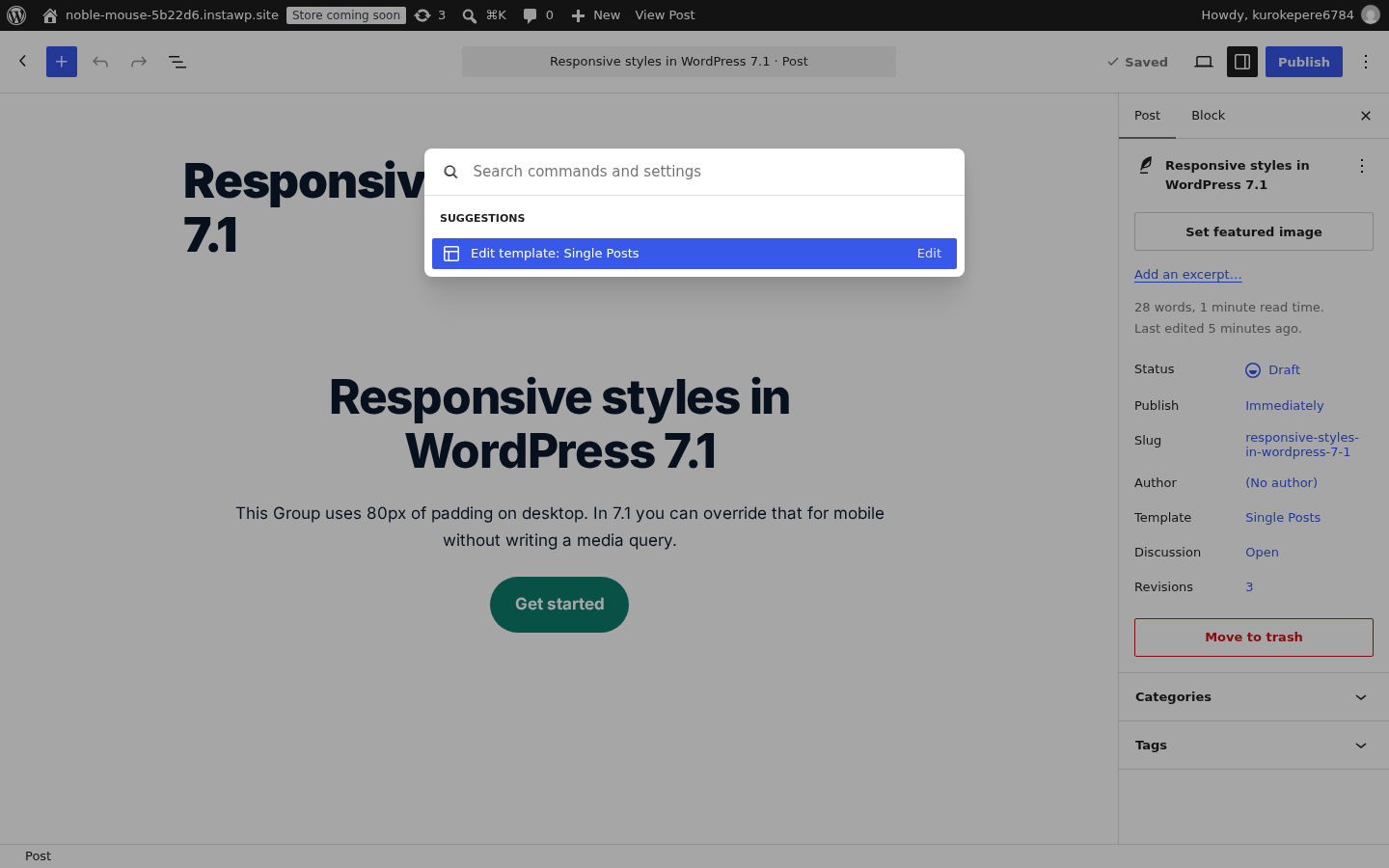
Title, tagline, logo and icon are grouped into one Identity area in the Site Editor, and the command palette gains clearer groups for recent, matching and suggested commands.
Accessibility is not one feature in 7.1, it runs across the release: admin screens, list tables, install flows, widgets, editor interfaces, focus behaviour, keyboard and pointer interaction, contrast and semantic markup. Two items deserve a specific callout.
- Accessible tooltips have a Core mechanism. There is now a shared way to build informational and name tooltips, so nobody needs to fall back on a
titleattribute or a mouse-only interaction. - Post list-table row-header semantics changed. Visually almost nothing moves, but if your plugin customises or restyles admin list-table columns, check it. This is the kind of change that only surfaces after release.
Performance and Developer Plumbing
- The editor preloads its REST requests (Trac #65636), so the block editor starts faster instead of waterfalling its first few calls.
- Speculative loading is configurable by hosts. New environment variables and constants let a host or a developer set the speculation policy, rather than accepting whatever Core defaults to. If you run WordPress at any scale, this is the one to read the dev note on.
- The design system grew up. The
wordpress/themepackage introduces real design tokens and a stable ReactThemeProvider, which is what makes consistent admin UI achievable for plugin authors rather than aspirational. - Accessible tooltips have a shared mechanism. Two new functions,
wp_get_tooltip()andwp_get_toggletip(), replacetitleattributes across admin screens. Screen reader support in post list tables improved alongside them, and the new Tabs and Playlist blocks each got their own accessibility pass. - A
notify_post_authorfilter now has the final say on whether a post author gets notified, which makes author notifications properly controllable.
Admin Quality of Life
- The Site Editor respects your admin colour scheme instead of forcing a dark sidebar on everyone.
- The Posts list shows excerpts, so twelve drafts called “Untitled” are finally distinguishable.
- Shift and click selects a range in Site Editor list views, for bulk actions without twenty individual clicks.
- The Edit Comment screen has an editable “In reply to” control, so a reply threaded under the wrong comment can be moved instead of deleted and retyped.
Changes to Look Out For Before You Update
| Change | What it means | Who should check |
|---|---|---|
| jQuery UI 1.14.2 | The bundled version moved up | Anything leaning on jQuery UI behaviour or styling |
| Query Loop exclusion | The block can now exclude the current post | Themes carrying custom query logic to do this |
| Template performance | WP_Theme::get_post_templates() is faster | Themes with a large number of templates |
| Multisite SSL fix | Signup and activation no longer emit HTTP URLs when SSL is on | Multisite network operators |
| List-table markup | Row-header semantics changed | Plugins restyling admin columns |
None of these earn a headline. All of them are reasons a major release needs a compatibility pass rather than a quick visual walkthrough.
Two more that will not show up in a visual walkthrough and can still catch you out:
- The iframed canvas expects Block API version 3. Blocks registered against an older API version may not render correctly inside it. If a custom block looks wrong after the update, check its
apiVersionbefore you start debugging your CSS. - Multisite now enforces space quotas on sideloaded media. Importing an image from a URL used to bypass the per-site storage limit. In 7.1 it counts, so a network that relied on that gap will start refusing uploads it previously allowed.
What Did Not Make WordPress 7.1
The roadmap was ambitious and not all of it shipped. Several early preview articles are now wrong, so check the final Field Guide rather than anything published mid-cycle.
Your WordPress 7.1 Compatibility Checklist
Before 7.1 reaches a client site, run through this in order.
- Open every custom block in the editor. The iframed canvas is the number one source of breakage. Watch the browser console, not just the screen.
- Test any plugin that injects editor CSS or JS. Sidebar panels, custom formats, editor toolbars, meta box scripts.
- Upload a large image. Confirm the browser pipeline runs, then confirm the server fallback still works in an older browser.
- Check anything using jQuery UI. Date pickers, sortables, dialogs, accordions.
- Load your admin list tables. Especially if a plugin restyles or adds columns.
- Validate your theme.json. New keys are additive, but this is the moment to see whether responsive overrides can replace your custom media queries.
- Exercise your Abilities API integrations. Discovery, filtering and exposure all changed.
Conclusion: WordPress 7.1 Makes Core Noticeably More Capable
WordPress 7.1 is a much more practical release than a simple list of editor refinements suggests.
Responsive design is becoming native to the block system rather than something themes have to bolt on. Interaction states move another class of CSS into Global Styles. Browser-side media processing reduces WordPress’s dependence on PHP for expensive image work while bringing better AVIF, HEIC, and HDR handling. Tabs and Playlist remove two more common plugin dependencies.
At the same time, the SVG Icon API, Abilities API, iframed editor, DataViews, and Design System continue modernizing WordPress underneath the visible UI.
Try WordPress 7.1 without risking a client site
Launch a fresh sandbox in seconds, or clone your live site and run the compatibility checklist against a real copy. Test, break things, share a preview, delete it.
Create a free WordPress sandboxFrequently Asked Questions
u003cstrongu003eWhat is new in WordPress 7.1?u003c/strongu003e
Native responsive block styles, configurable viewport breakpoints, hover and focus style states, browser-based media processing, a dedicated media editor, native Tabs and Playlist blocks, a public SVG Icon API, Abilities API improvements, an always-iframed post editor, a persistent admin bar, richer Notes with @mentions, and a broad set of accessibility and developer API updates.
u003cstrongu003eWhen was WordPress 7.1 released?u003c/strongu003e
August 19, 2026. It is the second major WordPress release of the year, following WordPress 7.0.
u003cstrongu003eDoes WordPress 7.1 support responsive styling?u003c/strongu003e
Yes. Blocks can carry separate Mobile and Tablet overrides on top of a base style, which serves as the desktop value. There is no u003ccodeu003e@desktopu003c/codeu003e key by design. Themes can also redefine the Mobile and Tablet breakpoints in theme.json through u003ccodeu003esettings.viewportu003c/codeu003e.
u003cstrongu003eDoes WordPress 7.1 include a native Tabs block?u003c/strongu003e
Yes. Tabs is a Core block with a tab list connected to matching panels, and each panel accepts normal blocks. Its accessibility behaviour was specifically reviewed during the release cycle, so it is a reasonable replacement for most simple third-party tabs plugins.
u003cstrongu003eDoes WordPress 7.1 include real-time collaboration?u003c/strongu003e
No. Simultaneous multi-user editing was tested heavily during the cycle but is not enabled in the final release. Notes received significant improvements for asynchronous review, including rich text, @mentions and inline notes, but that is a different thing.
u003cstrongu003eDoes WordPress 7.1 use React 19?u003c/strongu003e
No. The React 19 upgrade was deferred because more compatibility work is needed. WordPress 7.1 continues on React 18.3.
u003cstrongu003eWhat should plugin developers check before updating?u003c/strongu003e
Start with the always-iframed editor, since any code that reaches into the editor DOM may now be querying the wrong document. Then check jQuery UI dependencies, admin list-table markup, editor components, accessibility markup and any Abilities API integration.
u003cstrongu003eWhy does the Abilities API matter?u003c/strongu003e
It gives WordPress a standard way to describe actions that external software can discover and execute, including what an action does, what it accepts, what it returns and who may run it. WordPress 7.1 improves discovery, execution hooks, public exposure and JSON Schema compatibility, which makes it far more useful for REST clients, automation platforms, AI agents and MCP integrations.
u003cstrongu003eWill client-side media processing break uploads on older browsers?u003c/strongu003e
u003cbru003eNo. It is a progressive enhancement. If the browser cannot run the WebAssembly pipeline, WordPress falls back to the traditional server-side workflow using GD or Imagick, exactly as it did before.