A headless WooCommerce product demo is a fast, modern storefront that pulls products from a WordPress site through an API, instead of being rendered by a WordPress theme.
The quickest way to build one is to spin up a WooCommerce backend on InstaWP (a managed WordPress host), fill it with sample products, connect a lightweight frontend to the built-in Store API, and deploy that frontend as a static site. Total time: about 10 minutes, and you do not need to be a developer to follow along.
This guide is written for complete beginners. We will explain every term, every step, and every command, and by the end you will have a live demo store you can send to a client, plus a reusable snapshot so you never have to build it again.
Key Takeaways
- Headless means two layers: WordPress + WooCommerce hold your products in the back, and a separate fast frontend shows them to visitors.
- No paid plugins needed: WooCommerce already ships with a public Store API that any frontend can read.
- InstaWP is the backend: create a WooCommerce site with sample products in under a minute on managed WordPress hosting.
- InstaPods is the frontend: deploy your storefront as static files with one command.
- Snapshots make it repeatable: save the whole demo as a Snapshot (or a Shared Snapshot) and launch a fresh copy for every prospect in seconds.
Table of Contents
What “Headless WooCommerce” Actually Means
Think of a normal WooCommerce store as one big machine. WordPress stores your products, and the same WordPress installation also builds every page a visitor sees, using a theme, plugins, and PHP code that runs on every single page view. It works, but it carries weight.

Headless splits that machine into two clean layers:
- The backend (the “body”): WordPress + WooCommerce. This is where you add products, write descriptions, upload photos, and set prices. Nobody except you and your team ever logs in here.
- The frontend (the “head”): a separate, lightweight website that asks WordPress for the product data and displays it. Because it is just plain HTML, CSS, and a little JavaScript, it loads almost instantly.
The two layers talk to each other through an API (Application Programming Interface). An API is simply a URL that returns data instead of a web page. WooCommerce ships with one built in, called the Store API, and it requires zero setup. We will use it in Step 3.
If you want the deeper theory behind this architecture, our guide on how to make WordPress headless with Astro covers the blog version of the same idea. This article applies it to WooCommerce and, specifically, to product demos that help agencies win clients.
Why Agencies Build Headless Product Demos
A product demo is often the moment a prospect decides whether to hire you. Sending a live, clickable store beats sending a PDF or screenshots every single time, and we have covered the sales psychology of that in our guide on closing website clients faster with a live demo link.
A headless demo takes that one step further, for three practical reasons:
- It is fast, and speed sells. The prospect opens the link and the storefront appears instantly, because it is static files served from a CDN-style host, not PHP rendering pages on demand. First impressions are made in seconds.
- It shows you are ahead of the curve. “Agent-ready” and headless architecture are exactly what the WordPress ecosystem is moving toward in 2026. Demonstrating it positions your agency as modern without saying a word.
- It is safely repeatable. The prospect can click anything on the frontend. Your WordPress backend stays untouched, and with InstaWP templates you can reset or relaunch the whole thing in seconds.
Did you know? Yourhosting, the largest hosting provider in the Netherlands, nearly doubled its conversions after switching to a build-first demo flow where prospects interact with a real site before paying. Letting people touch the product is one of the oldest tricks in sales, and it still works.
What You Need Before You Start
Here is the complete shopping list. It is short on purpose:
- A free InstaWP account. InstaWP is a managed WordPress hosting provider, which means the servers, SSL certificates, PHP versions, security, and backups are handled for you. You only think about the site itself. Sign up at instawp.com and add a card to get $25 in credits.
- A text editor. Anything works: VS Code, Notepad, TextEdit. We will write one small HTML file.
- A terminal (only for the final deploy step). That is the Terminal app on Mac and Linux, or PowerShell on Windows. You will copy and paste exactly two commands, and we explain what each one does.
That is it. No local server, no Docker, no database setup, no SSL configuration. The managed hosting layer absorbs all of that, which is exactly why this takes 10 minutes instead of an afternoon.
How to Build a Headless WooCommerce Product Demo
Here is how you can build a headless WooCommerce product demo with least possible hassles.
Step 1: Create the WooCommerce Backend
First, we need a live WordPress site with WooCommerce installed. This will serve as the backend where your products, orders, and store data are managed.
For this setup, we’ll use InstaWP. As a managed WordPress hosting provider, InstaWP lets you launch WordPress with WooCommerce and the basic store structure already in place, without dealing with manual installation, server configuration, or hosting setup.
Create the site (under 60 seconds)
Log in to your InstaWP dashboard and click Add Site (or follow the create site documentation if you want screenshots of every click).

Choose From Scratch, give the site a name like demo-store, and pick the latest WordPress and PHP versions (the defaults are already correct).

Choose the ideal managed hosting plan for your site and click Create Site.

In about 30 seconds you get a live site at an address like demo-store.instawp.site, with SSL already active and a Magic Login button that takes you straight into wp-admin. No passwords to write down, no hosting control panel to fight with.

Install WooCommerce
Click Magic Login to open WP Admin. Then go to Plugins → Add New, search for WooCommerce, and click Install Now → Activate. You can skip the setup wizard for now, since this demo only requires products, not payment or shipping configuration.

Alternatively, you can install WooCommerce or any other plugin directly from the InstaWP dashboard. Open your site, select Install Plugins & Themes, paste the plugin URL, and install it. InstaWP handles the installation automatically, so you do not need to enter WP Admin or complete the steps manually.

Pro shortcut for next time: InstaWP has a feature called Configurations that lets you predefine a site recipe: WordPress version, PHP version, and plugins to pre-install (including WooCommerce). Create a configuration once, and every future site is born with WooCommerce already active. We will make this even more powerful with templates in Step 6.
Create your first WordPress site in 30 seconds
$25 in credits when you add a card, SSL included.
Get $25 in CreditsStep 2: Fill the Store with Sample Products
An empty demo store convinces nobody. You need products with names, photos, and prices, and you need them fast. Two beginner-friendly ways:
Method A: Generate products instantly with InstaWP’s WC Generator (recommended)
The fastest way is built right into InstaWP. Every site includes Faker, a dummy-data tool with two parts: Core Faker for posts and pages, and the WC Generator for WooCommerce. Open your site in the InstaWP dashboard, choose the WC Generator, enter how many products, orders, and customers you want, and it fills the store in seconds. No CSV files, no manual entry.

This is the option agencies reach for once they build demos regularly. The WC Generator runs on any existing InstaWP site at any time. You can also preset it inside a Configuration so a brand-new site is born already stocked, but a configuration is optional, not required.
Method B: Import WooCommerce’s built-in sample CSV
Prefer the standard WooCommerce route, or working outside InstaWP for a moment? WooCommerce ships with a hidden gift: a CSV file full of ready-made demo products (hoodies, t-shirts, accessories, complete with images). To import it:
In wp-admin, go to Tools > Import and choose WooCommerce products (CSV), then click Run Importer.

For the file path, point it at the sample file that ships inside the plugin: wp-content/plugins/woocommerce/sample-data/sample_products.csv. (On a fresh store, WooCommerce often offers an “import sample products” link on the empty Products screen, which does the same thing in one click.)
Click Continue, then Run the importer. About 30 seconds later you have a couple of dozen realistic products.
Either way, open Products > All Products and confirm you can see products with images and prices. That is your inventory.
Step 3: Check the Store API (Your Products as Data)
Here is the moment headless stops being abstract. Open a new browser tab and visit this URL, replacing the domain with your own site’s address:
https://demo-store.instawp.site/wp-json/wc/store/v1/productsYou will see a wall of structured text. That is JSON, the data format APIs speak, and inside it are your products: names, prices, descriptions, and image URLs.

This is the WooCommerce Store API, and three things about it matter for beginners:
- It is already on. Every WooCommerce store has it. You installed nothing extra.
- It is public and read-only for product data. No API keys, no passwords. It only exposes what a shopper could see anyway, which makes it perfect (and safe) for a demo frontend. The separate WooCommerce REST API (the
wc/v3one) is for admin tasks and does require keys; we do not need it today. - It is the bridge. Whatever frontend we build next will simply fetch this URL and turn the JSON into a pretty page.
If you see JSON, you are done with this step. If you see an error, jump to the troubleshooting section.
Step 4: Build a Simple Storefront Frontend
You need one folder to keep the project in. Put it somewhere easy to find, like your Desktop.
On Windows: go to your Desktop, right-click on any empty space, hover over New, then click Folder. A new folder appears with its name highlighted. Type kids-store-frontend and press Enter.
On a Mac: go to your Desktop, right-click (or two-finger click) on any empty space, click New Folder. Type kids-store-frontend and press Enter.
Now you will make one file inside your kids-store-frontend folder and paste the storefront code into it. Open a plain text editor. This is a program for writing code, and your computer already has one.
- On Windows: click the Start button, type
Notepad, and open it. - On a Mac: open
TextEdit(find it in Applications, or press Cmd+Space and type TextEdit). Then, this part matters, click Format in the top menu and choose Make Plain Text. This stops it from saving as a rich document instead of code.
Copy the entire block of code below. Click anywhere in it, select all of it from the very first line to the very last, and copy it. Then click into your empty editor window and paste it in.
<!DOCTYPE html>
<html lang="en">
<head>
  <meta charset="utf-8" />
  <meta name="viewport" content="width=device-width, initial-scale=1" />
  <title>Kids Store Demo</title>
  <style>
    :root { --teal:#005E54; --green:#11BF85; --mint:#EBF9F5; --ink:#00231F; }
    * { box-sizing: border-box; }
    body { font-family: 'Inter', system-ui, -apple-system, sans-serif; margin:0; background:#fafafa; color:var(--ink); }
    header { background:var(--mint); padding:48px 24px; text-align:center; }
    header h1 { margin:0 0 6px; font-size:30px; color:var(--teal); }
    header p { margin:0; color:#5a6b68; }
    .status { text-align:center; padding:48px 24px; color:#777; }
    .grid { display:grid; grid-template-columns:repeat(auto-fill, minmax(220px,1fr)); gap:24px; padding:32px 24px 64px; max-width:1100px; margin:0 auto; }
    .card { background:#fff; border-radius:14px; overflow:hidden; box-shadow:0 1px 6px rgba(0,0,0,.08); }
    .thumb { width:100%; height:200px; object-fit:cover; display:block; }
    .thumb--placeholder { display:flex; align-items:center; justify-content:center; background:var(--mint); color:var(--green); font-size:46px; font-weight:700; }
    .info { padding:14px 16px 18px; }
    .info h3 { margin:0 0 6px; font-size:16px; line-height:1.3; }
    .price { font-weight:700; color:var(--teal); }
  </style>
</head>
<body>
  <header>
    <h1>Kids Store</h1>
    <p>A headless WooCommerce storefront, powered by InstaWP</p>
  </header>
  <div class="status" id="status">Loading products...</div>
  <div class="grid" id="grid"></div>
  <script>
    /* ===================================================================
       THE ONLY LINE YOU MIGHT EVER CHANGE:
       This points at YOUR WooCommerce store's built-in Store API.
       It is already set to your Kids store.
       =================================================================== */
    const API = 'https://client-site-a.instawp.site/wp-json/wc/store/v1/products?per_page=24';
    const statusEl = document.getElementById('status');
    const gridEl = document.getElementById('grid');
    fetch(API)
      .then(function (res) {
        if (!res.ok) throw new Error('the server replied with status ' + res.status);
        return res.json();
      })
      .then(function (products) {
        if (!products.length) {
          statusEl.textContent = 'No products found. Add some in WooCommerce, then refresh this page.';
          return;
        }
        statusEl.style.display = 'none';
        gridEl.innerHTML = products.map(function (p) {
          // IMAGE: use the product's first image, or a colored tile with its first letter
          var thumb = (p.images && p.images.length)
            ? '<img class="thumb" src="' + p.images[0].src + '" alt="' + p.name + '">'
            : '<div class="thumb thumb--placeholder">' + p.name.charAt(0) + '</div>';
          // PRICE: the Store API sends prices in minor units (cents),
          // so 1900 means 19.00. We only show a price if one is actually set.
          var rawPrice = Number(p.prices.price);
          var minorUnit = p.prices.currency_minor_unit;
          var priceHtml = (rawPrice > 0)
            ? '<div class="price">' + p.prices.currency_symbol + (rawPrice / Math.pow(10, minorUnit)).toFixed(2) + '</div>'
            : '<div class="price" style="color:#aaa;font-weight:500;">No price set</div>';
          return '<div class="card">' + thumb +
                   '<div class="info"><h3>' + p.name + '</h3>' + priceHtml + '</div>' +
                 '</div>';
        }).join('');
      })
      .catch(function (err) {
        statusEl.textContent = 'Could not load products: ' + err.message;
      });
  </script>
</body>
</html>ow save it into your folder with the right name. Click File, then Save As.
- In the save window, browse to and open your
kids-store-frontendfolder so the file lands inside it. - On Windows: find the Save as type dropdown near the bottom and change it to All Files. Then in the File name box type
index.htmlexactly. Click Save. (Choosing All Files is what stops Notepad from secretly saving it asindex.html.txt.) - On a Mac: in the Save As box type
index.html. If TextEdit asks whether to add.txtor keep.html, choose to keep .html. Click Save.
Check your work. Open your kids-store-frontend folder. You should see one file inside, named exactly index.html. If it shows any other name or a .txt ending, rename it to index.html.

Windows tip: if you cannot see the “.html” part of the name, open the folder, click the View menu at the top, and tick File name extensions so you can see and fix it.
Did you know? You never wrote a theme, touched PHP, or configured a server in this entire tutorial. The WordPress backend runs on InstaWP’s managed WordPress hosting, so updates, SSL, security, and backups are handled for you, and your frontend is just one HTML file.
Step 5: Deploy the Frontend
A file on your laptop is not a demo link. To share your storefront, you need to put it online, and because your frontend is just static files (HTML, CSS, and JavaScript), it does not need a heavy server.
InstaPods is a hosting service built for exactly this: it serves plain files over HTTPS and gets them live with a single command. You get $10 in credit when you add a card, and the $3 per month Launch plan is more than enough for a static storefront.
Before you deploy, create a free account at app.instapods.com. You can sign up with Google, GitHub, or email. Then follow the steps below.
Command 1: install the InstaPods CLI (a small command line tool, installed once).
On Mac or Linux, open your Terminal and run:
curl -fsSL https://instapods.com/install.sh | sh
Command 2: log in. This links the tool to your account. It opens your browser once to confirm, then remembers you:
instapods login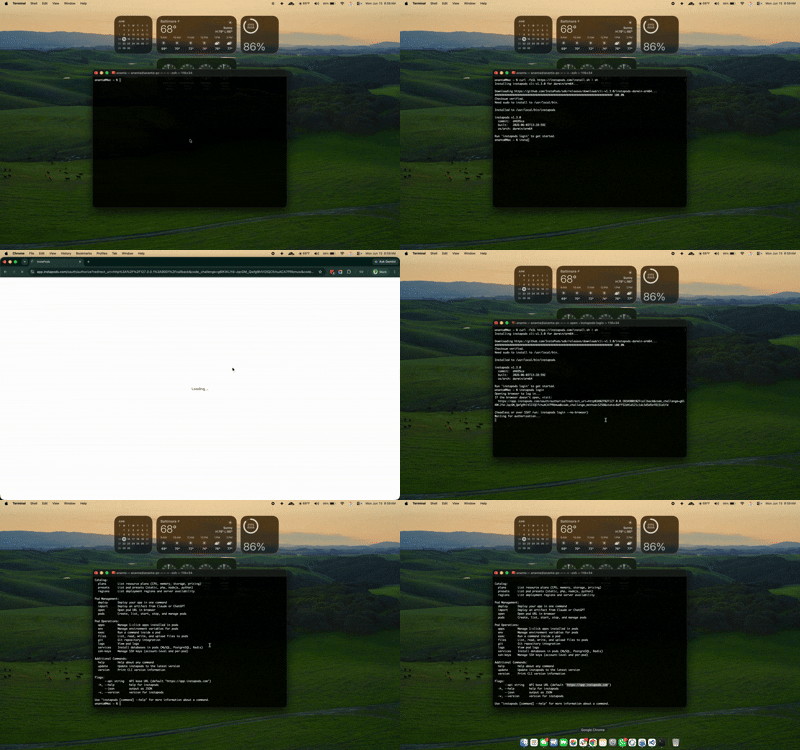
Command 3: deploy your folder
Move into the folder you created in Step 4, then deploy it. Here cd means “change directory,” and --preset static tells InstaPods these are plain files with nothing to build (it can also detect that on its own from your index.html):
cd demo-frontend
instapods deploy aurora-demo --preset staticWithin a few seconds you get back a live HTTPS link, something like:
Deployed in 3.4s
-> https://aurora-demo.nbg1-1.instapods.appOpen it. That is your headless WooCommerce demo, live on the internet: products managed in WordPress on InstaWP, storefront served as static files on InstaPods. You can point a custom domain at it later with a simple CNAME record, and SSL is handled automatically.
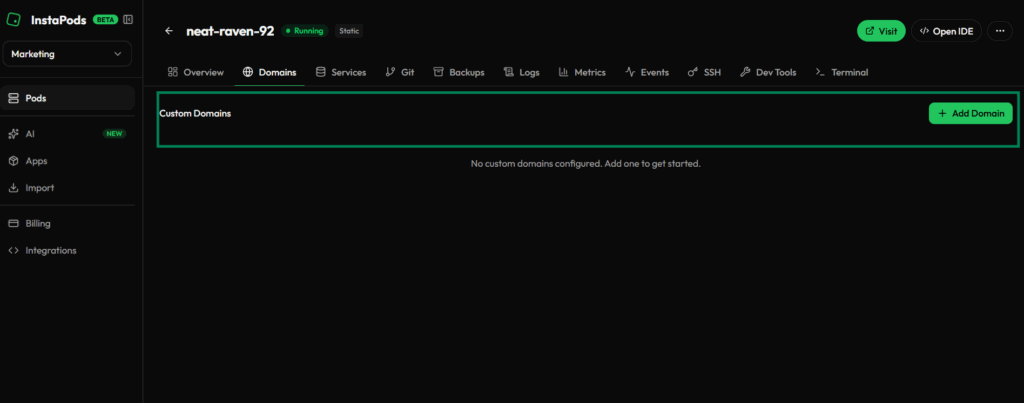
Prefer not to touch a terminal? You can do the exact same thing from the InstaPods dashboard. Click Create Pod, give it a name, choose the Static preset and the Launch plan, and click Create. Then open the new pod and upload your index.html into its file area. Your storefront goes live at the pod’s address either way.
This is what I’d recommend for you Windows users.
In the dashboard, click the Custom Code tab (it’s next to “1-Click Apps”). That is the path for deploying your own files. Select the Static Site.

From there it should let you create a static site and upload your index.html. For this, go inside the pod and click on OpenIDE.
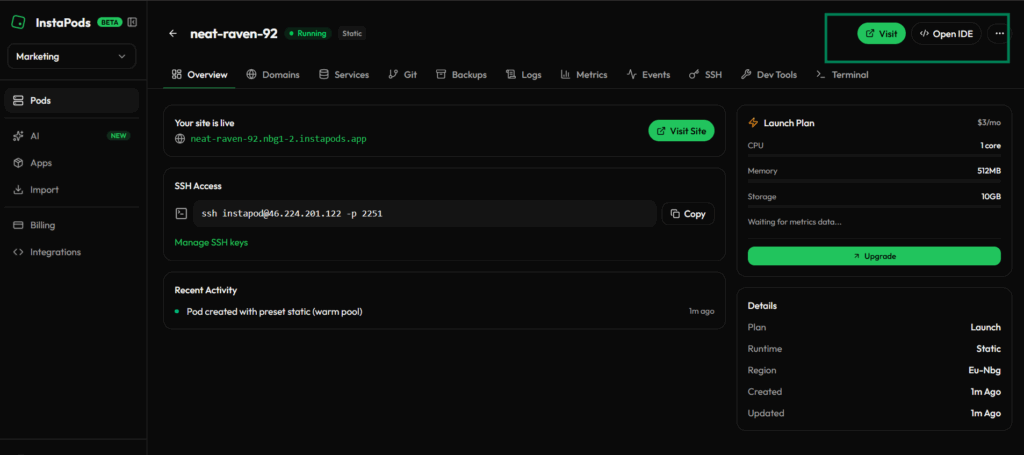
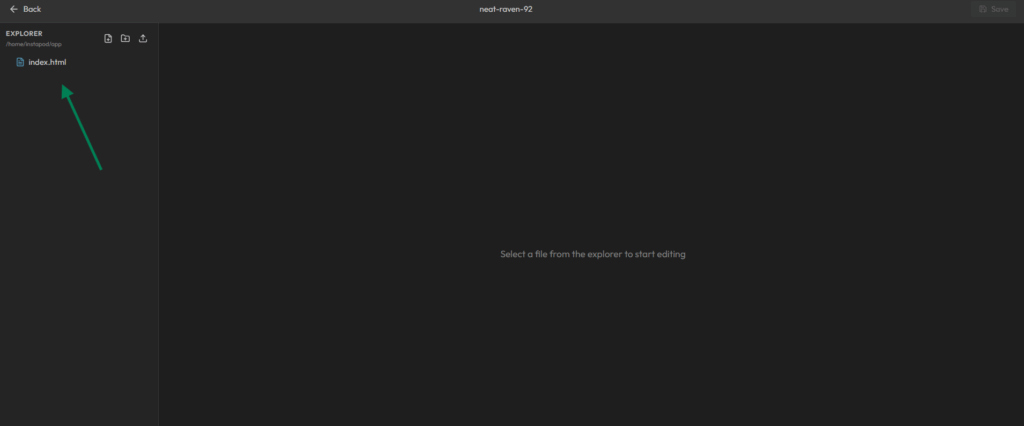
Click on the index.file and paste the code here. Click on Save.
Open it. That is your headless WooCommerce demo, live on the internet: products managed in WordPress on InstaWP, storefront served as static files on InstaPods.
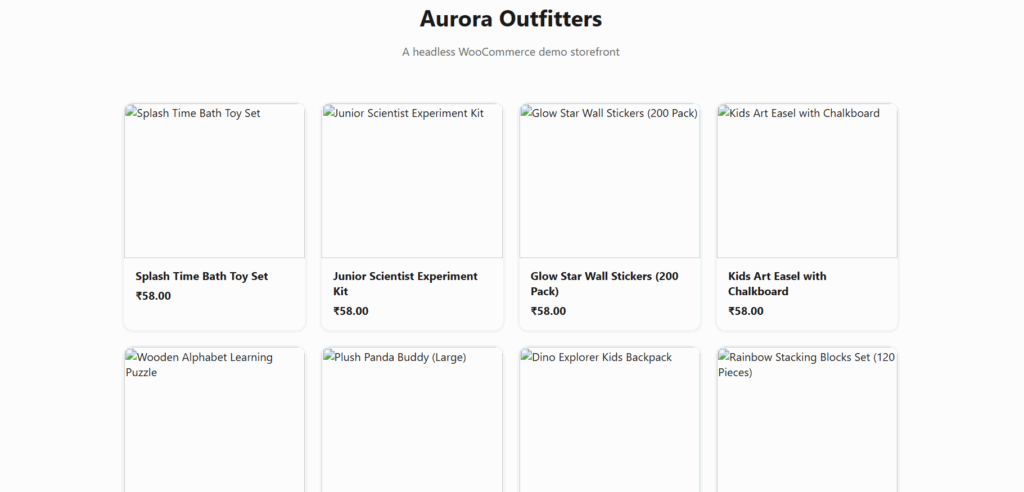
You can point a custom domain at it later with a simple CNAME record, and SSL is handled automatically.
Step 6: Save Everything as a Reusable Snapshot
Here is the part that turns a one-off tutorial into an agency asset. You just spent 10 minutes building this. Save it once, and you never spend those 10 minutes again.
In InstaWP, the thing you save is a Snapshot: a saved blueprint of an entire WordPress site (WooCommerce, your sample products, images, and settings) frozen at this moment.
There are two related features here and it is easy to mix them up, so here is the plain-English difference:
| Snapshot | Template |
|---|---|
| A reusable blueprint for your own use. Keep it private, or make it a Shared Snapshot so prospects can launch their own demo from a public link. | A blueprint built to be sold or listed. You monetize a Template and distribute it, which is what powers WaaS and hosting reselling. |
| Best for: sales demos, agency reuse, standardizing your stack. | Best for: selling pre-built sites and running a hosting business. |
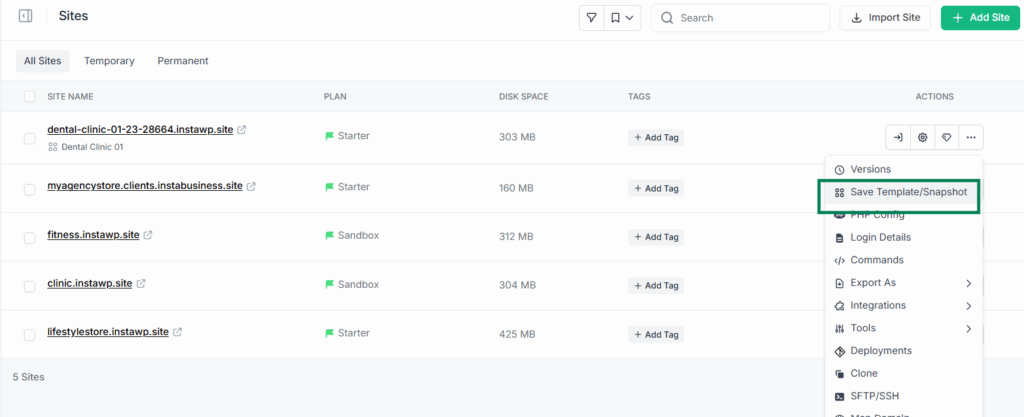
For a sales demo, you want a Snapshot. From your InstaWP dashboard:
- Find your
demo-storesite and open its actions menu. - Choose Save as Snapshot and name it something like
woo-headless-demo-base. - Turn on Instant Snapshot. This adds your snapshot to InstaWP’s warm-up pool so new copies launch in under three seconds, which matters when a prospect is on the phone. (Instant is a small add-on, around $2 per month, billed daily.)
Watch this video tutorial to learn how to create a snapshot on InstaWP.
Want prospects to launch the demo themselves? Make it a Shared Snapshot. That gives you a public link with its own branded landing page where anyone can spin up their own copy of the store. You add your logo and colors, set how long each demo lives before it auto-resets, and collect an email address first, which quietly turns the demo into a lead capture machine.
We compared this approach against staging plugins and manual cloning in our breakdown of the best way to create a WordPress demo site, and snapshots win on speed every time.
Step 7: Spin Up a Fresh Demo for Every Prospect
Now the repeatable agency workflow, the actual payoff of everything above. When a new prospect appears:
1. Launch from your snapshot
Create a new site from woo-headless-demo-base. Seconds later you have a fresh, isolated backend for this prospect.
2. Personalize (optional)
Swap in the prospect’s logo, rename a few products to match their niche. Five minutes that massively increases the wow factor.
3. Point the frontend
Change the one API line in index.html to the new site’s URL and run the deploy command again with a new name.
4. Send the link
The prospect gets a blazing-fast branded storefront link. You get a sales conversation that starts with “wow”.
Put it on autopilot with InstaDemos
The manual loop above is fine when you are actively pitching one prospect. When you want every visitor to get their own demo without you lifting a finger, that is what InstaDemos does. You build one polished master demo, save it as a Shared Snapshot, and InstaDemos uses that blueprint to spin up a fresh, isolated site for each visitor automatically.
It drops people straight into the WordPress admin with Magic Login, controls how long each demo lives, keeps everything on your brand, captures leads, and can push usage data into your CRM. One InstaWP host used this exact self-serve flow to nearly double conversions.
One honest note for a headless build: InstaDemos automates the self-serve WordPress and WooCommerce experience, where the visitor lands in a real admin or themed store. Your headless storefront is the polished public showcase you hand to a specific prospect.
Many agencies run both, the headless demo to impress, and an InstaDemos funnel to let the curious try the product themselves. For a deeper walkthrough, see how agencies create hosting demo sites that convert.
Two upgrades when you are ready to scale this:
- White-label the backend domain. With a whitelabel suffix domain, demos live at
clientname.demos.youragency.cominstead of an instawp.site address, so the whole experience carries your brand. This is the same machinery behind white-label WordPress for agencies. - Turn demos into recurring revenue. Once a prospect says yes, the demo backend can graduate to a real hosted site on InstaWP’s managed WordPress hosting, and the same Template system powers full hosting reselling through WaaS if you want to sell sites, not just build them.
Demos that close clients are step one. The Agency Program is step two.
2x leads and up to 50% hosting cost savings for WordPress agencies, plus white-label everything.
Join the InstaWP Agency ProgramOptional: Let an AI Agent Do the Busywork (InstaMCP)
Everything above is point-and-click friendly, but if you already use an AI assistant, you can hand it most of this workflow. Every InstaWP site is MCP-ready with a single toggle through InstaMCP, no server setup required, and InstaMCP has setup guides for 14 AI clients, including Claude Desktop, Claude Code, Cursor, VS Code, ChatGPT and GitHub Copilot.
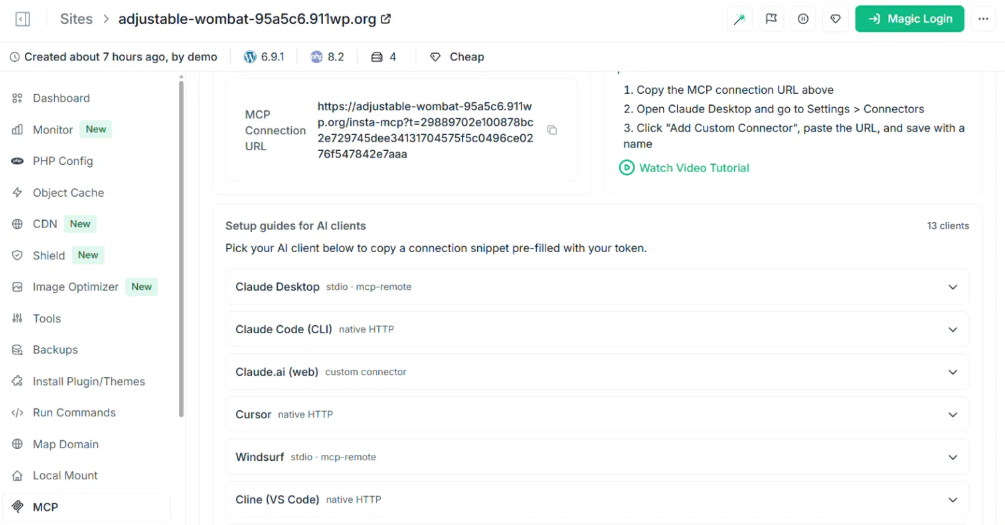
In practice, that means you can tell your AI assistant things like:
- “Create 20 WooCommerce products for an outdoor gear store with realistic names, descriptions, and prices.”
- “Rename the products in this demo to match a skincare brand and update the store name.”
- “Build me a storefront page that fetches from this Store API URL and matches this color palette.”
The AI personalization step (Step 7, card 2) shrinks from five minutes to one sentence. With WordPress 6.9’s Abilities API, InstaMCP tools are registered natively, so this is the standards-based way the whole WordPress ecosystem is heading, not a proprietary bolt-on.
Common Beginner Mistakes and How to Fix Them
| Symptom | Likely cause | Fix |
|---|---|---|
| Store API URL shows a 404 page | WooCommerce not active, or permalinks not refreshed | Activate WooCommerce, then go to Settings > Permalinks and click Save once |
API returns [] (an empty list) |
No published products yet | Finish Step 2, and check products are Published, not Draft |
| Frontend says “Could not load products” | Typo in the API URL, or missing https:// |
Paste the exact URL from Step 3 into the API constant and redeploy |
| Images are broken on the frontend | Products imported without images, or image URLs blocked | Re-run the sample CSV import (it includes images), and confirm images open in the WordPress media library |
| Demo site disappeared after 2 days | The site had an expiry time set, and was removed when it ran out | Reserve the site (make it permanent) or relaunch it from your template in seconds |
Headless Demo vs Traditional Demo: Which Should You Send?
Honest answer: not every prospect needs headless, and a good agency picks the demo that matches the pitch.
| Situation | Send this | Why |
|---|---|---|
| Prospect cares about speed, scale, or “modern stack” | Headless demo (this guide) | The instant load time makes your pitch for you |
| Prospect will manage the site themselves | Traditional themed demo from a template | They need to see the editing experience they will live in |
| You are selling ongoing care plans | Either, plus a PDF care report | The demo opens the door; the management story closes it |
The good news is that both demo styles run from the same InstaWP template system, so building one does not lock you out of the other. And whichever frontend you choose, keeping client backends on one platform makes it dramatically easier to manage multiple client sites from a single dashboard, with uptime monitoring, vulnerability scanning, and client-ready PDF reports built in.
What This Whole Setup Costs
$0
Trying everything in this guide on a free sandbox
$2/mo
Keeping the demo backend permanently (Sandbox plan, billed daily)
$3/mo
Hosting the static frontend on InstaPods, flat
$25
Free credits when you add a card, enough to run demos for months
InstaWP billing is pay-as-you-go and billed daily per active site (the daily rate is the monthly price divided by 30), so a demo backend that lives for a week costs you cents, not a monthly hosting bill. Delete it when the deal closes or keep it as the seed of the real project.
Conclusion: One Afternoon, Infinite Demos
Let’s recap what you actually built. A WooCommerce backend on InstaWP’s managed hosting holding your products. A one-file storefront that reads the free, built-in Store API. A static deployment on InstaPods serving it worldwide over HTTPS. And, most importantly, a saved snapshot that lets you relaunch the entire thing for any prospect in seconds, white-labeled under your own brand if you want.
Headless WooCommerce sounds like an advanced developer topic, but as you have just seen, the hard parts (servers, SSL, APIs, databases) were already handled by the platform. What is left is exactly the part agencies are good at: presenting a product so well the client says yes.
FAQs
Do I need to know how to code to build a headless WooCommerce demo?
Barely. The only “code” in this tutorial is one HTML file you copy and paste, changing a single line (the API URL). Everything on the backend, creating the site, installing WooCommerce, importing products, and saving templates, is done by clicking through the InstaWP dashboard.
Is the WooCommerce Store API safe to expose publicly?
Yes, for what we used it for. The Store API only exposes shopper-facing data (published products, prices, images) that any visitor to a normal store could see. Admin operations like creating products or reading orders live in the separate WooCommerce REST API, which requires authentication keys and is not touched in this workflow.
Can prospects add products to a cart and check out on the headless demo?
The Store API does support cart and checkout endpoints, so a full headless checkout is possible, but it is a real development project rather than a 10-minute demo. For sales demos, a browsable product catalog is usually all you need. If the prospect wants to feel the buying flow, send them a traditional themed demo from the same template alongside it.
What is the difference between the Store API and WPGraphQL?
Both let a frontend read WordPress data. The Store API is built into WooCommerce, needs no extra plugin, and is purpose-built for storefront data. WPGraphQL (with its WooCommerce extension) is a plugin that offers more flexible querying, which bigger headless projects sometimes prefer. For a demo, the built-in Store API wins on simplicity.
Can I use a framework like Next.js or Astro instead of a plain HTML file?
Absolutely, and for production client work you should. The architecture stays identical: the framework fetches the same Store API and renders the same data, just with routing, components, and build-time rendering on top. Our headless WordPress with Astro guide walks through that exact setup, and our headless WordPress hosting comparison for agencies covers where to run it all.
Build your first headless demo today
Free WordPress sandbox, sample products, Store API, and reusable snapshots, all on one platform. Agencies get 2x leads and up to 50% hosting savings in the Agency Program.
Explore the Agency Program Start Free