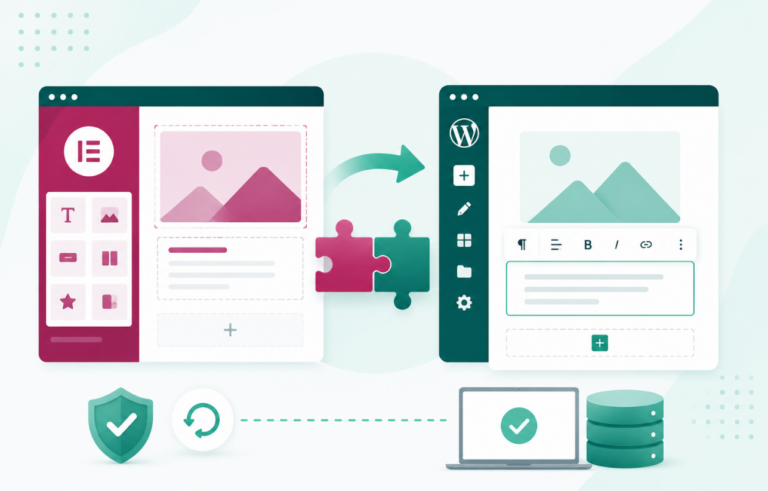
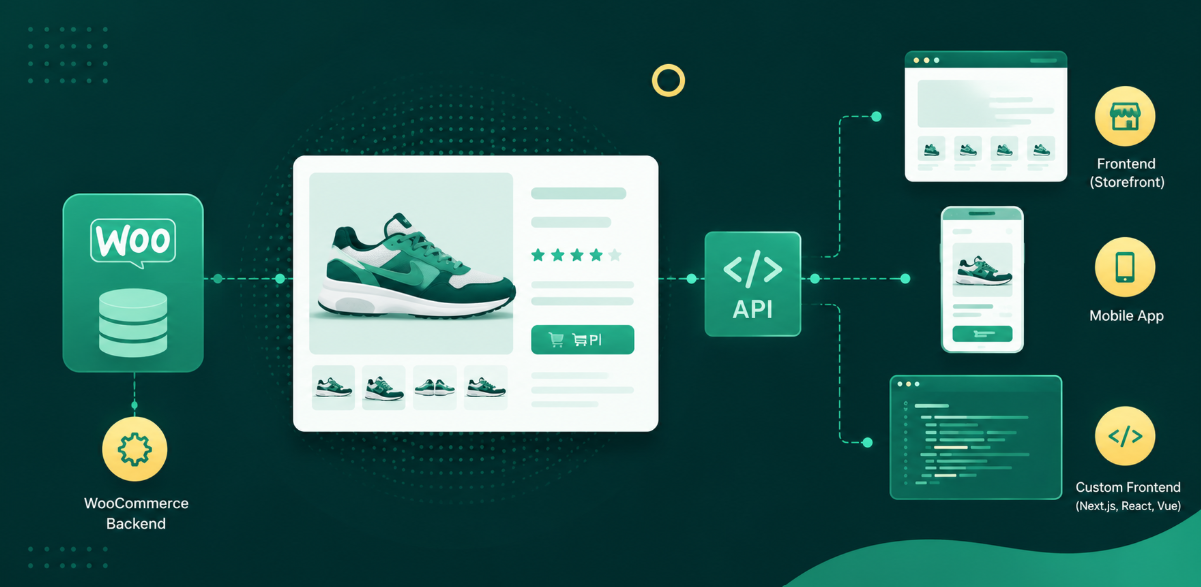
To import a WordPress site, you copy its database and its wp-content folder (themes, plugins and uploads) into a new WordPress install, then point that copy at its new address. The quickest way is an AI migration that does every step for you. On InstaWP’s managed WordPress hosting, you paste the old site’s URL, approve a secure connection, and an AI agent copies, repairs and verifies the site while the original keeps running.
This guide covers seven ways to import a WordPress site, whether you start from a live URL, a backup or .wpress file, a database dump, a local install or the built-in WordPress Importer.
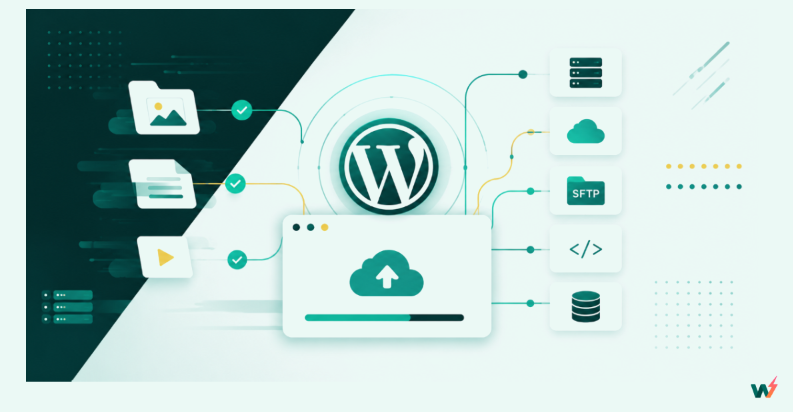
- The built-in WordPress Importer (Tools > Import) moves content only. In our 13 October 2026 test it left behind the theme, the plugins, the site title, the permalink setting and user roles, and an Author came back as a Subscriber.
- For a full copy of a live site, InstaWP’s AI migration (Migrations > New Migration) connects both sites with WordPress Application Passwords, handles sites up to 50 GB and checks the copy with database checks and a before-and-after screenshot comparison.
- A backup you already have can go straight into InstaWP’s Import Site screen if it is 1 GB or smaller and was made by InstaWP, WP Playground, UpdraftPlus, Duplicator, WordPress Studio or LocalWP.
- Sites on LocalWP, XAMPP, MAMP or WAMP move to the cloud with a single InstaCLI command run from the site folder. It needs mysqldump and a paid plan, and the new site starts on the Sandbox plan, so switch plans before it takes traffic.
- Your host’s upload limit decides which method works. Plugin and phpMyAdmin imports stop at that limit; WP-CLI, rsync and server-to-server migrations never pass through a browser upload.
- Delete the InstaMigrate helper plugin from the source site once the move is finished. Its own readme says it exposes full database and file access while it is active.
Table of Contents
What does it mean to import a WordPress site?
Importing a WordPress site means rebuilding a working copy of it somewhere else: on a new host, a new domain, a staging server or your own computer. Every WordPress site is three parts, and a clean import accounts for all of them. Miss one and you get a shell with no content, or content with no design.
wp-admin and wp-includes folders WordPress is built from.Move it? No. A good importer installs them fresh, because they are identical on every site.Manual imports feel hard because you handle each part separately: download files over FTP, export the database in phpMyAdmin, upload both, edit wp-config.php, then rewrite the URLs. Automated importers do all of it in one pass, which is why this guide starts with them. WordPress.org documents the manual route in Moving WordPress.
Which WordPress import method should you use?
Pick the method that matches what you are starting from. A live site with a URL suits an AI migration, an existing backup suits a backup importer, a local install suits a terminal push, and a content-only move suits the WordPress Importer. The table compares all seven methods covered below.
How do you import a WordPress site with InstaWP?
The easiest way to import a WordPress site is to let the destination platform pull it in for you, and on InstaWP that takes a URL and two approvals. InstaWP is a managed WordPress hosting provider whose dashboard brings sites in four ways, so you can import a WordPress site whichever way matches what you have:
- AI migration (Migrations > New Migration): connects a source and a destination on any host and copies everything, up to 50 GB. See the AI WordPress migration feature.
- Import Site from a live website: creates a brand-new InstaWP site from a live URL in one wizard.
- Import Site from a backup: uploads a backup of 1 GB or less from six supported tools.
- InstaCLI: pushes a local LocalWP, XAMPP, MAMP or WAMP site from the terminal.
Every route lands the site in one dashboard where you can host it, create WP staging copies, manage the WordPress site remotely, and later migrate it back out to any other host. Migrations into InstaWP are free, and InstaWP’s team will move a site for you at no charge if you would rather hand the job off.
Option A: How does InstaWP’s AI migration import a live site?
InstaWP’s AI migration, called InstaMigrate, imports a live WordPress site by connecting to both the source and the destination through WordPress Application Passwords, then copying files, database and media in eight automated steps.
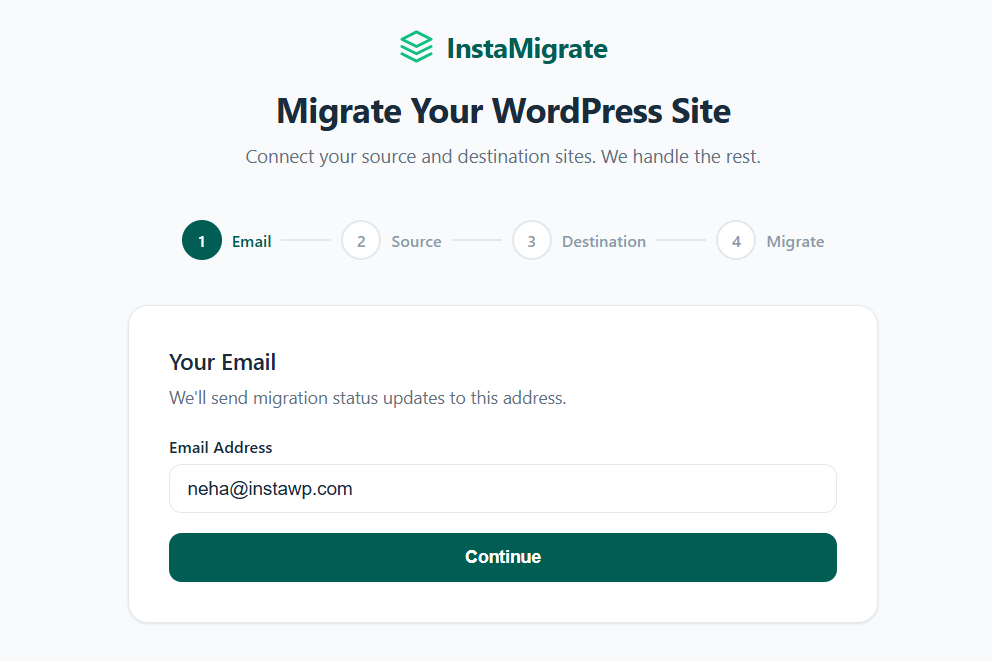
An AI agent watches the run, repairs common breakages such as serialized data and page-builder URLs as it goes, and verifies the result with database checks and a before-and-after screenshot comparison. No SSH or server access is needed, only a WordPress admin login on each site.
Use it when either end is not InstaWP, when you are moving into an InstaWP site that already exists, or when the site is too big for a backup upload. Here are the steps from InstaWP’s Migrate Site guide.
Step 1: Open Migrations. In the InstaWP dashboard sidebar, click Migrations. The engine selector at the top right is set to AI by default. Click New Migration.
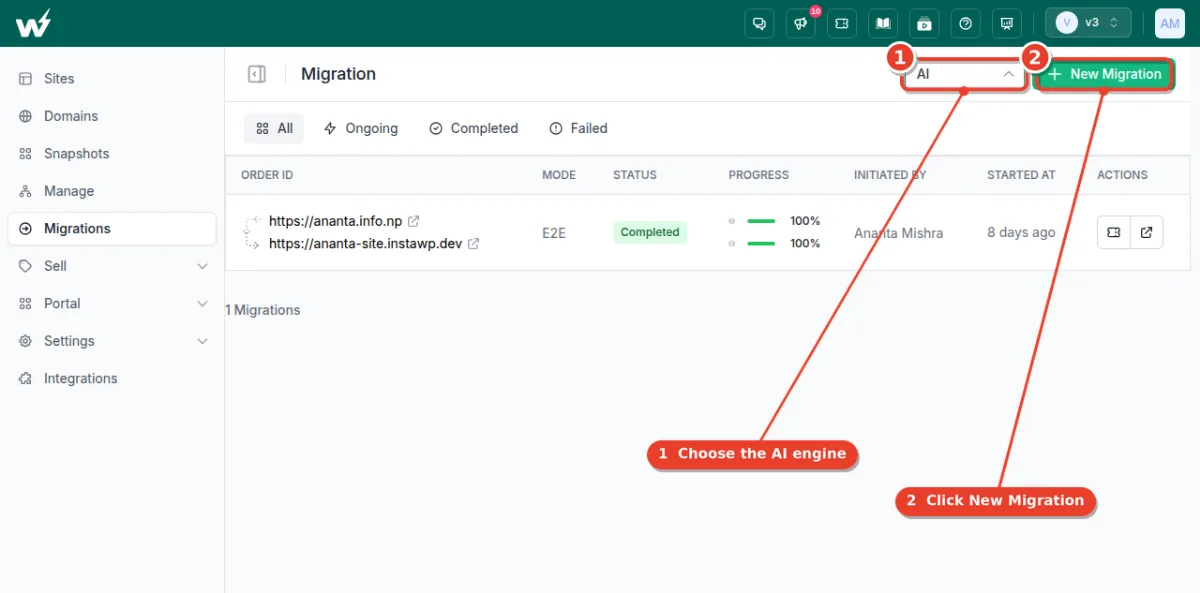
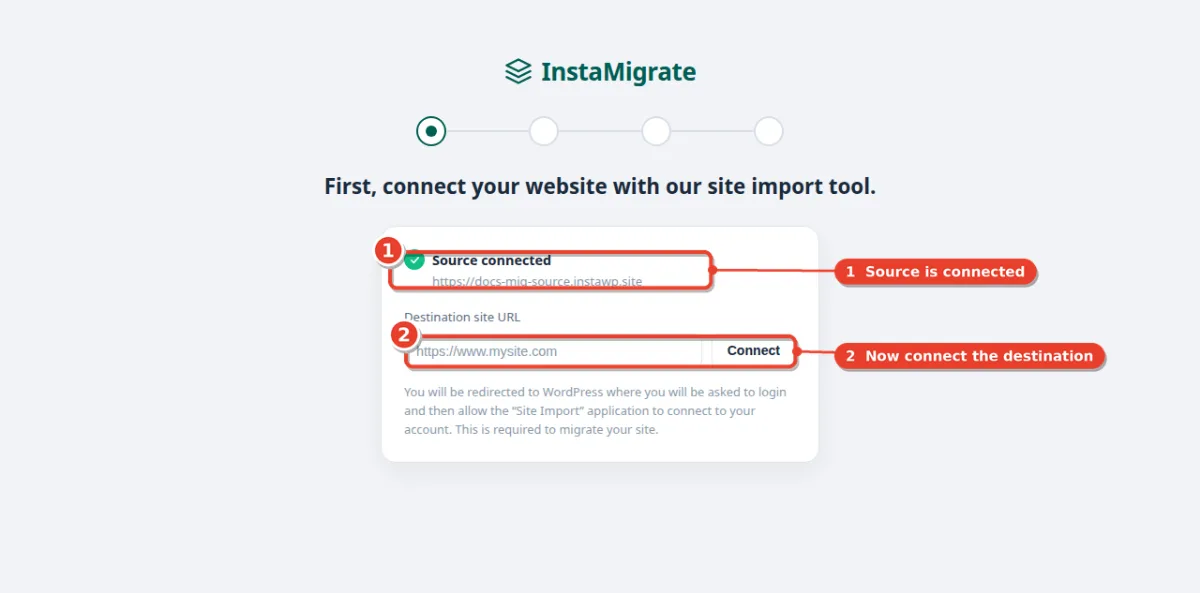
Step 2: Connect the source site. Enter the URL of the site you are copying from and click Connect. You are sent to that site’s WordPress login.
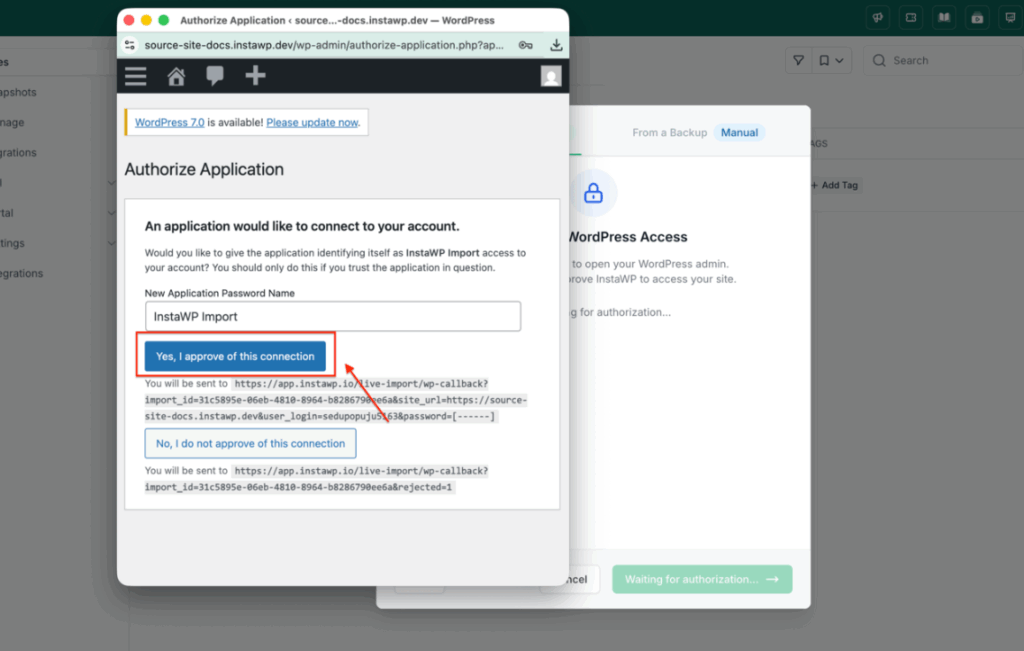
Step 3: Approve the connection. Log in as an administrator and click Yes, I approve of this connection on the Authorize Application screen. This creates an Application Password you can revoke later, so InstaWP never stores your real password.
Step 4: Connect the destination site. Back on the Connect step, enter the destination URL and approve it the same way. The destination can be an InstaWP site or a site on another host.
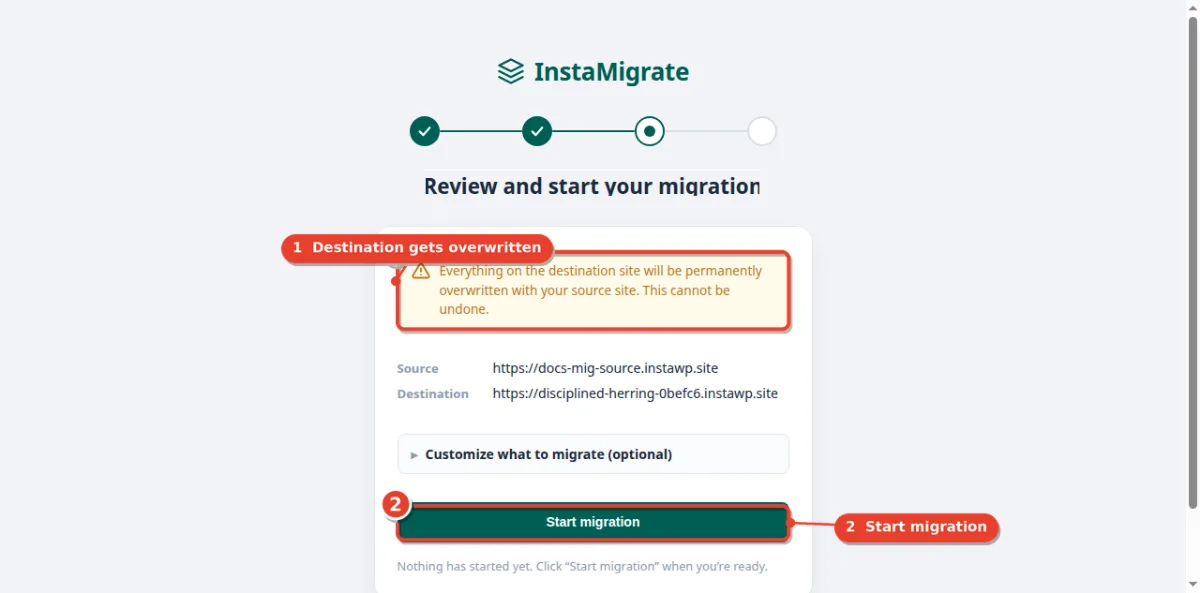
Step 5: Review and start. Check the source and destination, read the overwrite warning, and click Start migration. Expand Customize what to migrate if you want to leave something out.
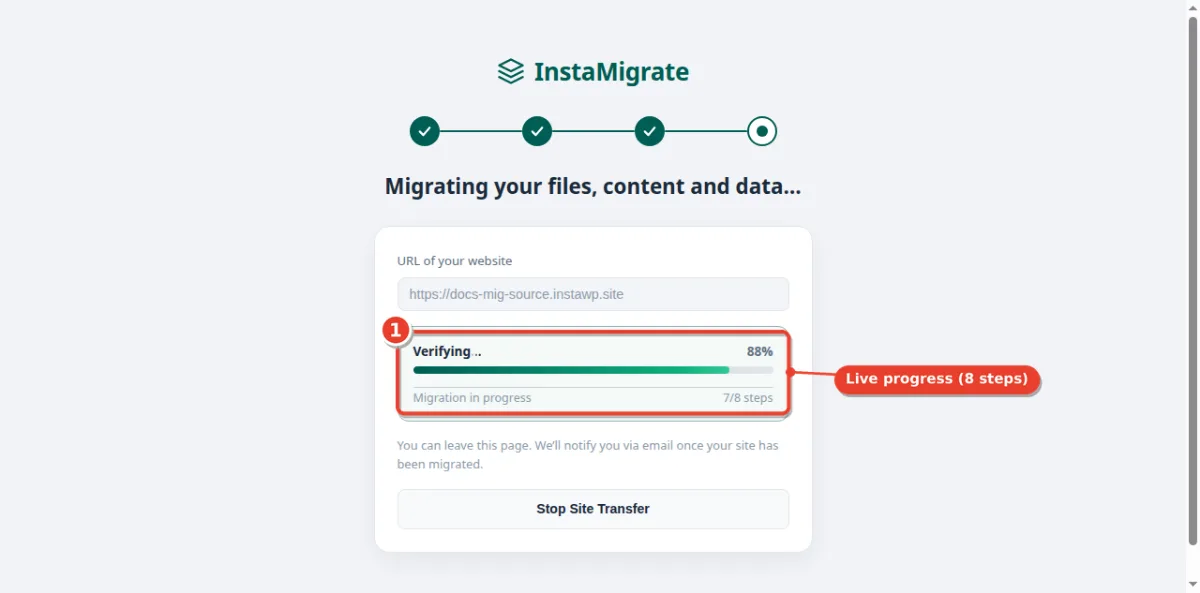
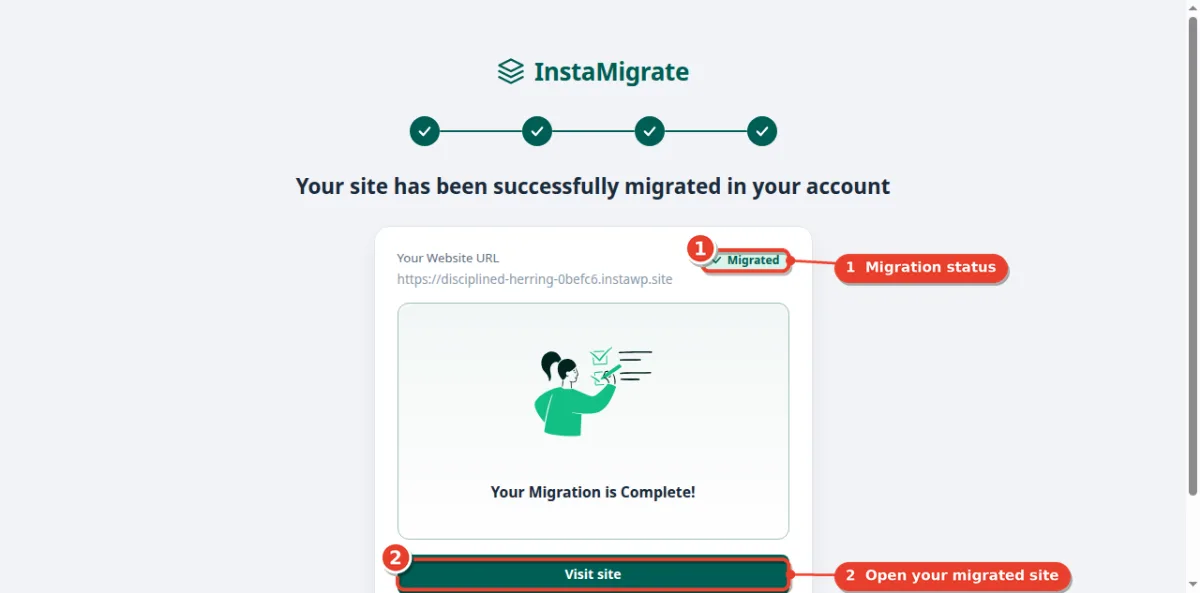
Step 6: Watch it run, then visit the site. Progress is shown live across eight steps, and you can close the page because InstaWP emails you when it finishes. When it reads Your Migration is Complete!, click Visit site.
Option B: How do you import a live WordPress site into a new InstaWP site?
InstaWP’s Import Site wizard imports a live WordPress site into a brand-new InstaWP site: you enter the URL, install a small helper plugin, approve access, then pick the new site’s plan, location and PHP version in the same screen. It suits the common case of “copy my live site onto InstaWP so I can test or host it”. The source site needs WordPress 5.0+ and PHP 7.4+.
The steps below follow InstaWP’s guide to importing a WordPress site from a live URL with the one-click importer.
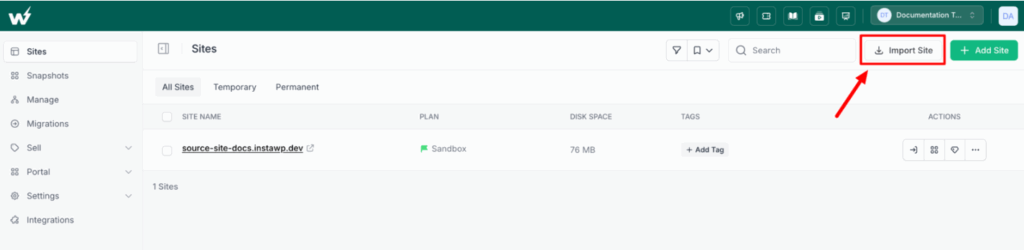
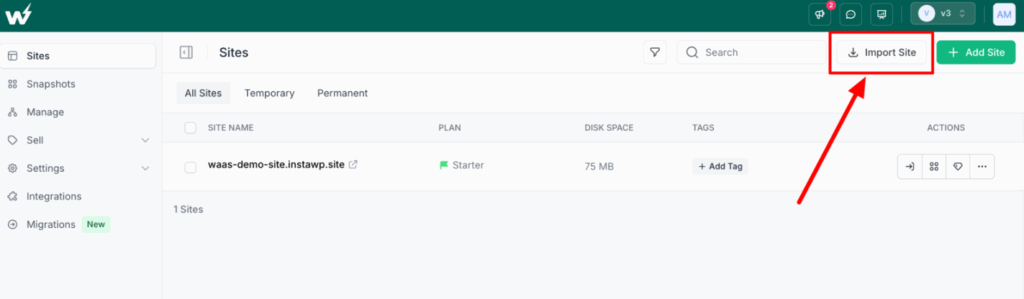
Step 1: Start the import. In your InstaWP dashboard, go to Sites and click Import Site at the top right.
Step 2: Choose the method. The window has two tabs, From a Live website and From a Backup. Click From a Live website.
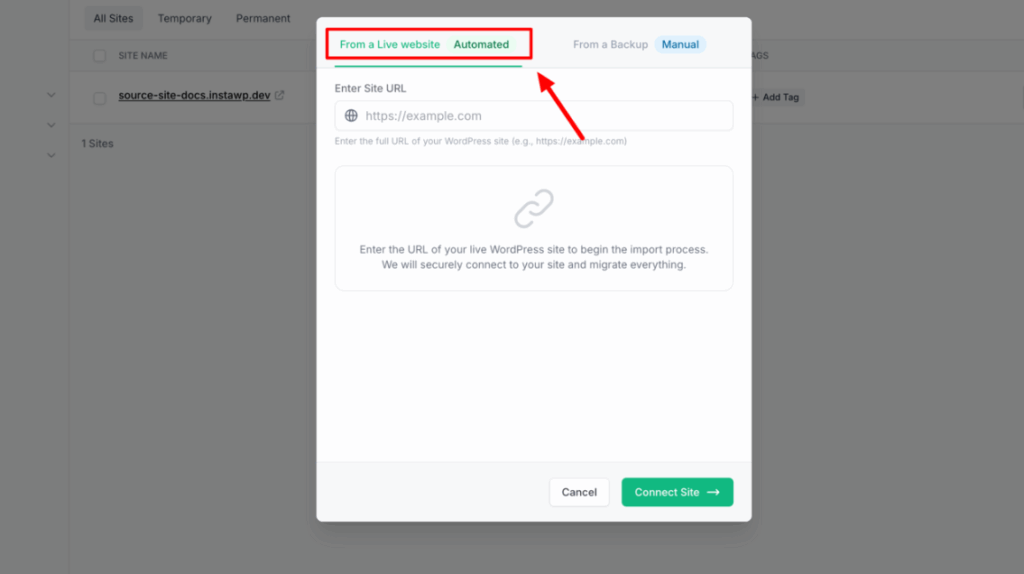
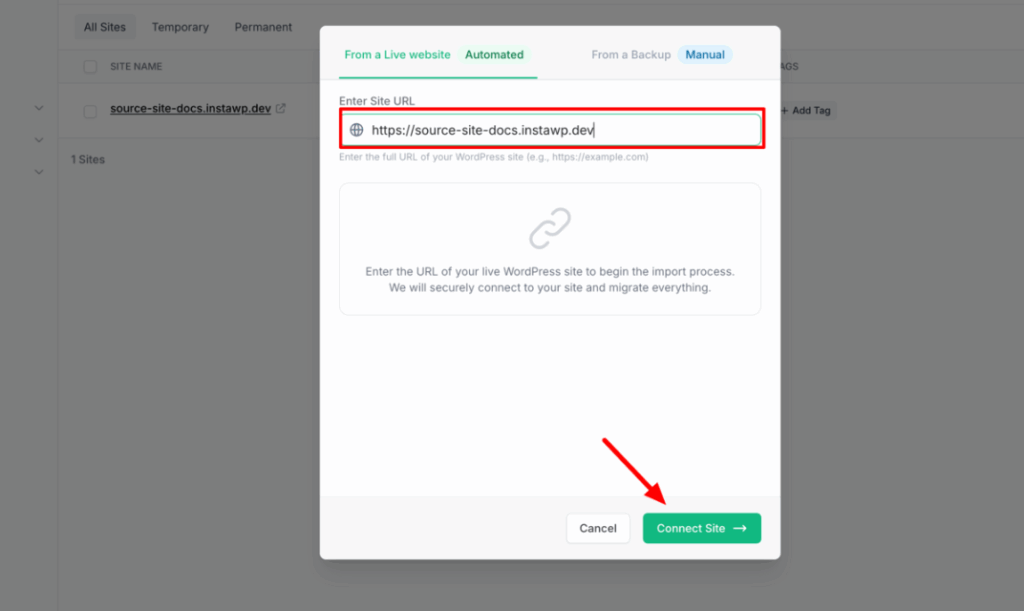
Step 3: Enter your live site URL. Type the full address into Enter Site URL, including https:// (so https://example.com, not example.com), then click Connect Site.
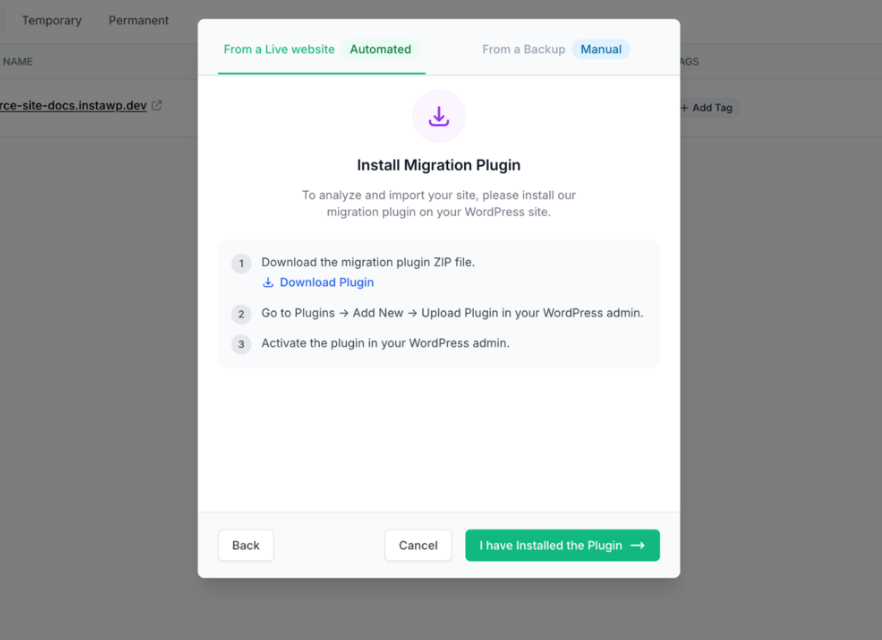
Step 4: Install the InstaMigrate helper plugin. Click Download Plugin to save instamigrate.zip. In your live site’s dashboard go to Plugins > Add New > Upload Plugin, install the zip and activate it. Back in InstaWP, click I have Installed the Plugin.
Step 5: Authorize access. Click Open WordPress Authorization, log in with an administrator account and click Yes, I approve of this connection. A non-admin account will not work.
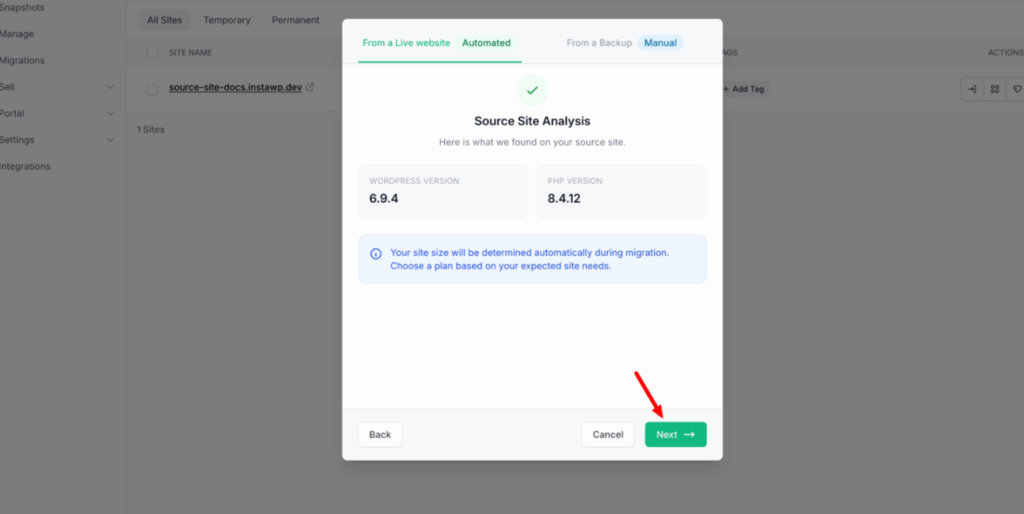
Step 6: Review the site analysis. InstaWP scans the site and shows its WordPress and PHP versions. Site size is detected during the migration. Click Next.
Step 7: Set up the destination. Pick a managed hosting plan (Sandbox at $2 a month for testing, Starter or above for a production site), a server location and a PHP version, then click Start Migration.
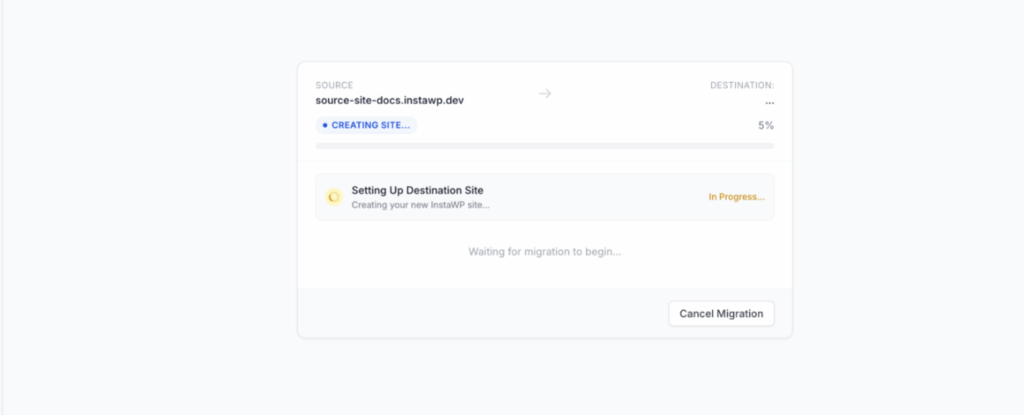
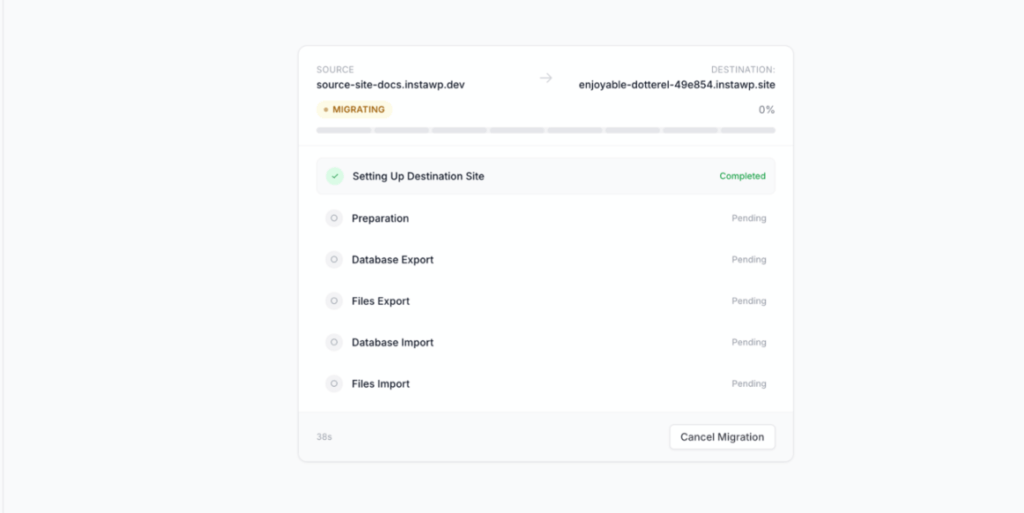
Step 8: Watch it run. A progress view shows each stage (set up, prep, export database, export files, import) getting a green check, with a Cancel Migration button if you need it. Time depends on the size of the site.
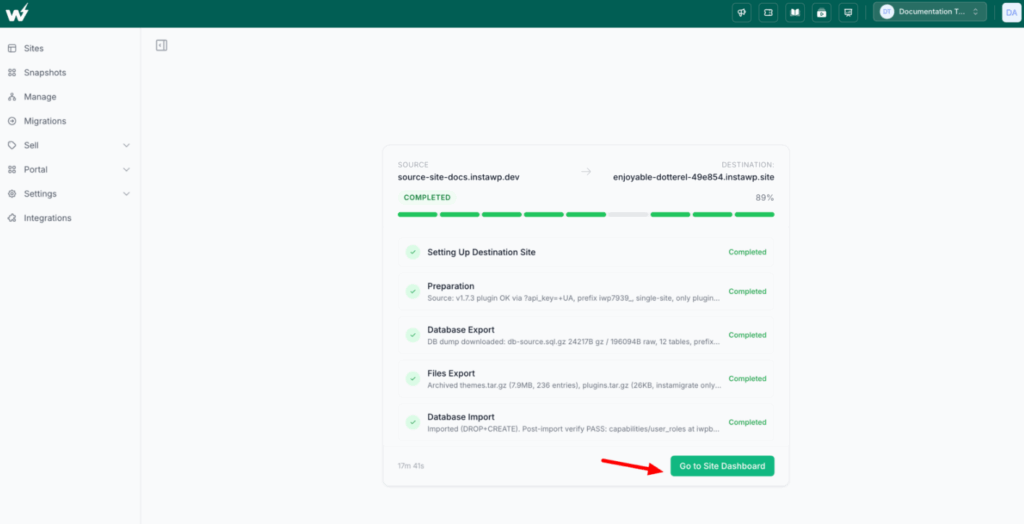
When the status reads Completed, click Go to Site Dashboard. The live site is untouched; you now have a working copy to test, redesign or host.
How do you import a WordPress site from a backup?
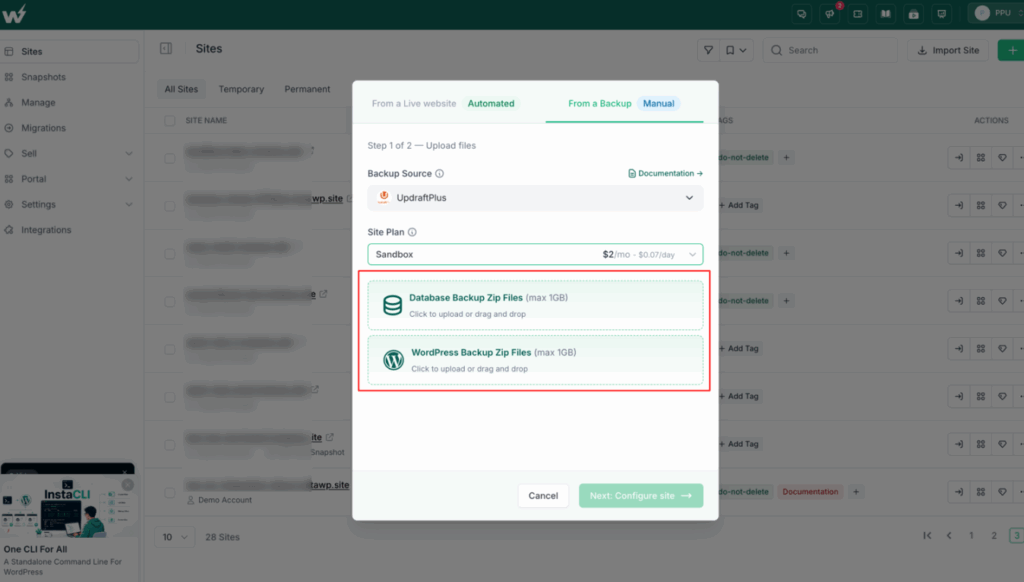
To import a WordPress site from a backup, upload the backup file to a platform or plugin that can read it, then let it rebuild the site. In InstaWP, open Import Site > From a Backup, choose the tool that made the backup, upload the file (up to 1 GB) and configure the new site. Supported sources are InstaWP, WP Playground, UpdraftPlus, Duplicator, WordPress Studio and LocalWP.
Use this route when the original site is already offline, or when you prefer to work from a file. Watch the backup import walkthrough:
Importing from an InstaWP backup
An InstaWP backup comes as two files, and both are required: a Database Backup (.zip or .sql) and a WordPress Backup (.zip or .tgz). See backups on InstaWP for how to download them.
Step 1: Click Import Site, then open the From a Backup tab.
Step 2: Select InstaWP from the Backup Source dropdown.
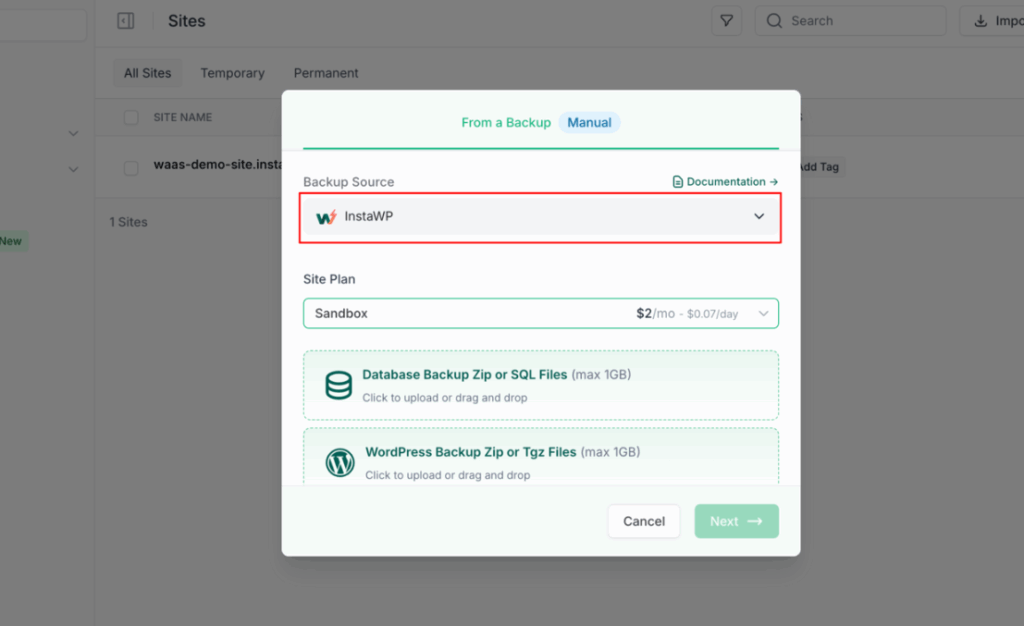
Step 3: Upload your two files into the Database Backup and WordPress Backup boxes.
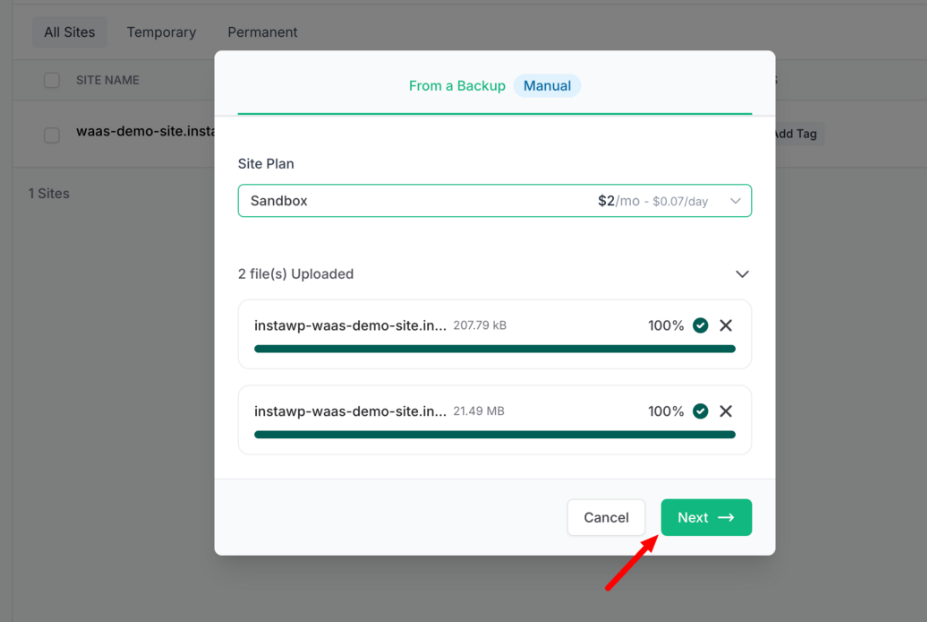
Step 4: Click Next: Configure site. Name the site (or leave it blank for a random name), choose the site plan, server location, WordPress version and PHP version.
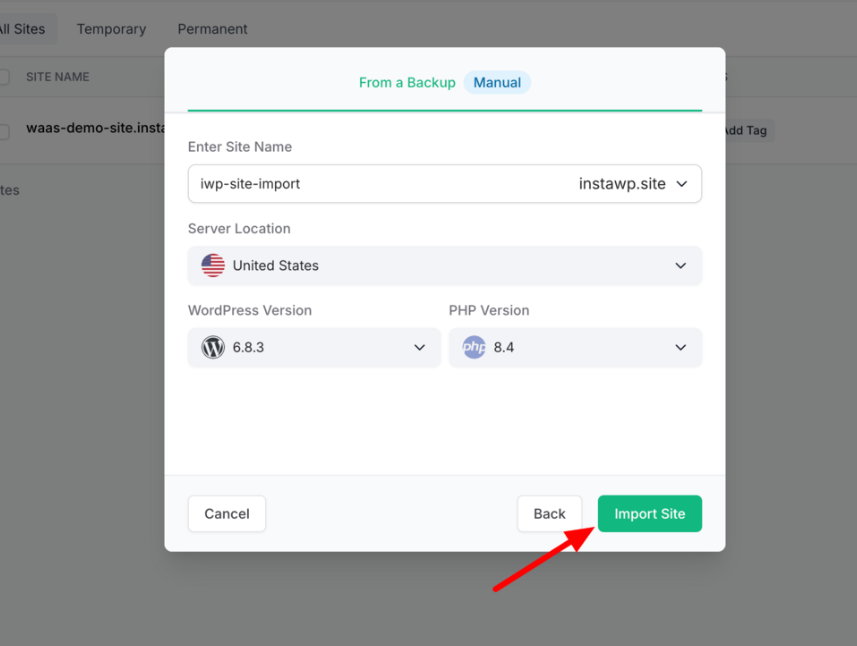
Step 5: Click Import Site. InstaWP installs everything and the new site appears under Sites.
Importing from WP Playground
In WordPress Playground, open the site menu (the three dots next to the scanner icon) and choose Download as .zip.
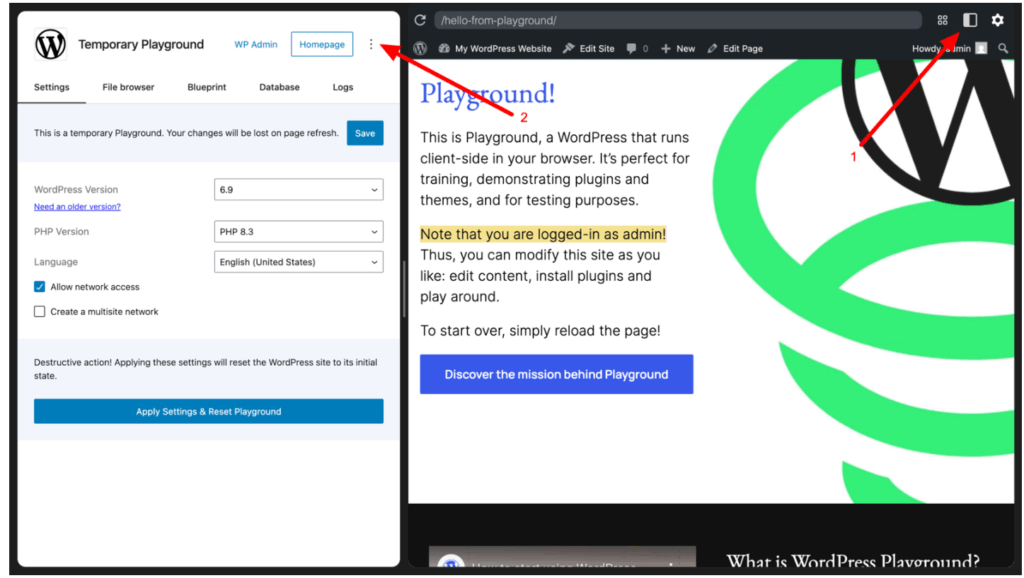
In InstaWP, choose WP Playground as the Backup Source, upload the zip, click Next: Configure site and import. The site appears under Sites.
Importing from UpdraftPlus or Duplicator
Generate a backup with UpdraftPlus or Duplicator on the source site first. UpdraftPlus produces separate archives for the database, plugins, themes, uploads and other files; Duplicator produces a package.
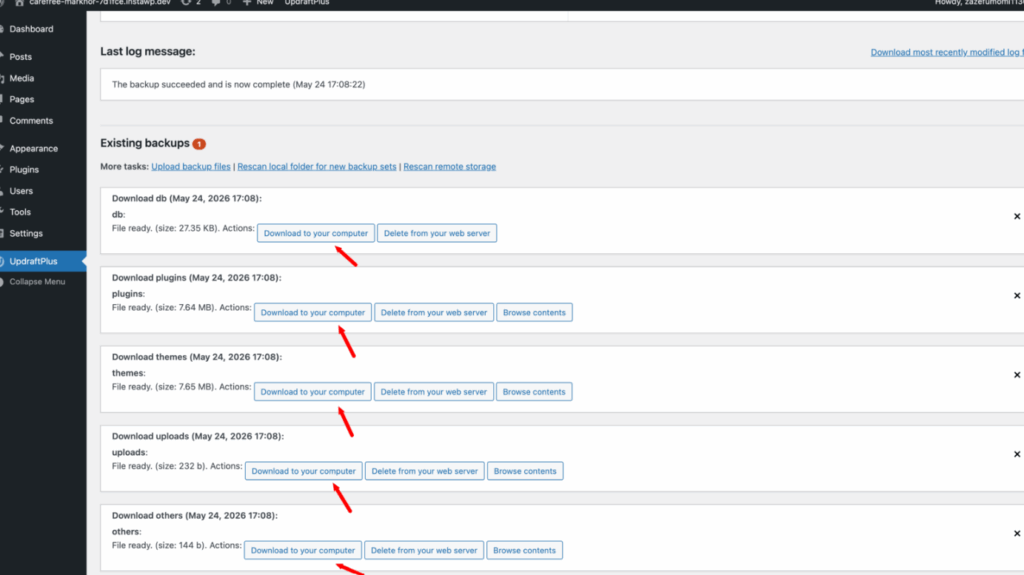
In InstaWP, choose UpdraftPlus or Duplicator as the source, upload the backup files and configure the site as above.
Importing from WordPress Studio or LocalWP
Export the site from WordPress Studio or LocalWP to a file on your machine, then upload it in Import Site with the matching Backup Source. Whichever source you pick, the site lands in InstaWP ready to host, copy to WP staging or manage the WordPress site remotely. Full details are in the Import Site guide.
How do you import a local WordPress site to the cloud?
To import a local WordPress site from LocalWP, XAMPP, MAMP or WAMP, open a terminal in the site’s root folder and run instawp migrate push from the InstaWP CLI. It exports the local database with mysqldump, uploads files and database to a new InstaWP site, and rewrites the local URLs. It connects outbound, so it works from localhost with no tunnel.
You need Node.js 18 or higher, npm, mysqldump on your PATH and a paid InstaWP plan. MAMP and XAMPP ship their own mysqldump but do not add it to your PATH, which is the most common first error. The full walkthrough is InstaWP’s guide to pushing a local WordPress site to InstaWP.
# install and sign in
$ npm install -g @instawp/cli@beta
$ instawp login
$ instawp whoami

# preview the plan, then run it for real
$ instawp migrate push . --name my-site \
    --source-url http://mysite.local/ --dry-run
$ instawp migrate push . --name my-site \
    --source-url http://mysite.local/

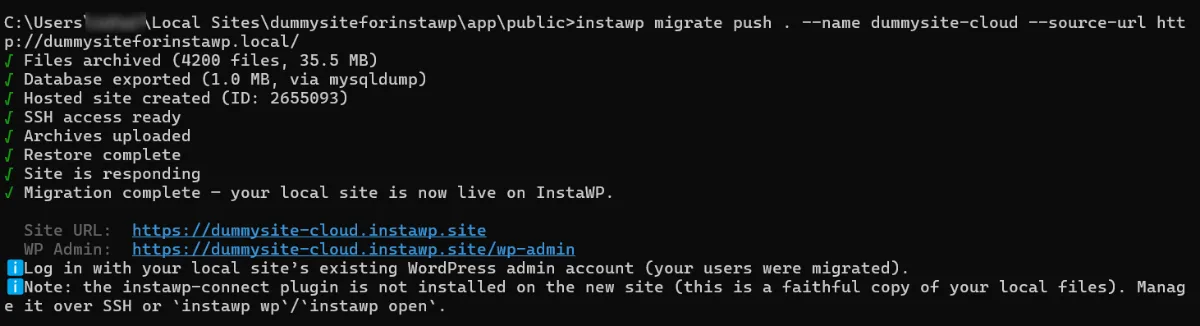
If you built the site with the CLI itself (a free, no-Docker WordPress Playground site made with instawp local create), use local push instead. By default it syncs wp-content; add --with-db to push the database too, and the CLI backs up the cloud database first and rewrites the URLs.
$ instawp local create --name app
$ instawp local push app --with-db
Neither command pulls a site from a third-party server. For that, use the AI migration or a backup import. More local-to-live options are in how to move WordPress from a local server to live and migrating sites from LocalWP to any host. Once the site is hosted you can also edit its files from your own machine with Local Mount. Every command is in the CLI command reference.
How do you import a WordPress site with a migration plugin?
A migration plugin imports a WordPress site by packing files and database into one archive on the old site and unpacking it on the new one. You install the same plugin on both ends, export on the source and import on the destination. It is the classic no-code route between two self-hosted installs, and a WordPress backup plugin you already use may do the job.
How do you import a .wpress file in WordPress?
A .wpress file is an export from All-in-One WP Migration, and you import it with the same plugin. On the source site, choose Export > Export to File and download the archive.
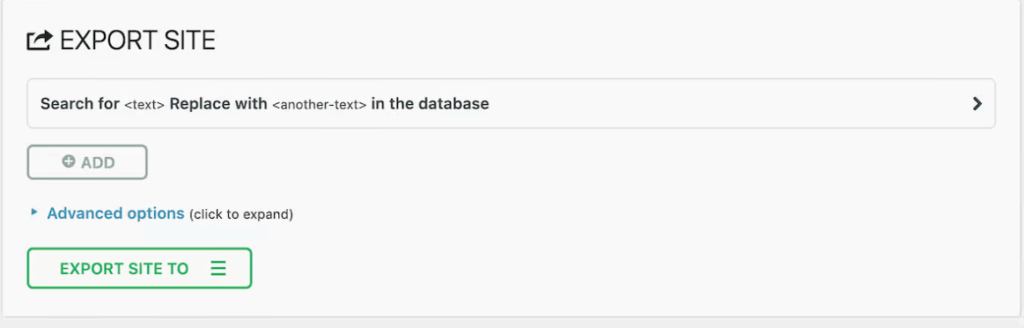
On the destination, install All-in-One WP Migration, open All-in-One WP Migration > Import and upload the .wpress file. The plugin rebuilds the site and rewrites the URLs.
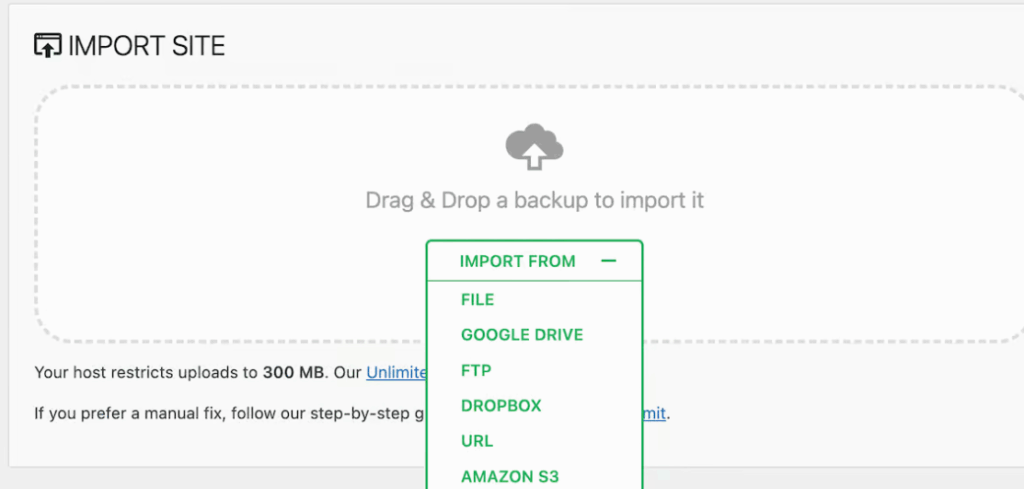
The size limit comes from your host, not the plugin: the Import screen shows your upload limit, and the plugin’s own FAQ (version 7.112, checked 13 October 2026) says the paid Unlimited Extension is how you get around it. Several recent reviews report hitting that wall at a few hundred megabytes. If your archive is bigger than the limit, raise upload_max_filesize with your host, or skip the upload with a server-side method.
Other plugins do the same job. Migrate Guru runs the transfer on its own servers, while Duplicator, UpdraftPlus, WPvivid and Solid Backups create packages you can restore elsewhere. Duplicator and UpdraftPlus backups also work with InstaWP’s backup importer. For a roundup, see these WordPress import and export plugins, and for the other half of the job, how to export a WordPress site.
How do you import a WordPress site with WP-CLI or SSH?
With SSH on both servers, you import a WordPress site by exporting the database with WP-CLI or mysqldump, copying it and wp-content across with rsync, importing the database on the new server and rewriting the URLs. Nothing passes through a browser upload, so file size stops being a problem. It is the most reliable route for multi-gigabyte sites.
InstaWP supports this workflow too. Every site has SFTP and SSH access, and you can run WP-CLI and shell commands from the dashboard, so these commands work against an InstaWP-hosted site once it exists. See WP-CLI and the other developer tools, or accessing SFTP and SSH on InstaWP.
How do you import a WordPress database with WP-CLI?
Export with wp db export on the old server, import with wp db import on the new one, then run wp search-replace with --dry-run first. The search-replace command is serialization-safe, so URLs stored inside theme and plugin settings survive.
# 1. on the source: export the database
$ wp db export backup.sql

# 2. copy the database and wp-content to the destination
$ rsync -avz backup.sql wp-content/ user@new-host:/var/www/site/

# 3. on the destination: import and rewrite the URLs
$ wp db import backup.sql
$ wp search-replace 'https://old.com' 'https://new.com' \
    --all-tables --skip-columns=guid --dry-run
$ wp search-replace 'https://old.com' 'https://new.com' \
    --all-tables --skip-columns=guid
How do you import a WordPress site without WP-CLI?
Without WP-CLI, use mysqldump and mysql for the database and rsync for the files. rsync resumes a dropped transfer, which matters on big sites. Then edit wp-config.php on the new server with the new database name, user and password, and run a serialization-safe search-replace for the domain. Changing domains at the same time? Follow how to change a WordPress domain name safely. New to the command line? Start with how to use WP-CLI.
$ mysqldump -u dbuser -p dbname > backup.sql
$ rsync -avz --partial wp-content/ user@new-host:/var/www/site/wp-content/
$ mysql -u newuser -p newdb < backup.sql
wp-config.php or a skipped URL rewrite breaks the site. Keep the source untouched until the new copy is confirmed working.Can you clone a WordPress site with cPanel or Softaculous?
Yes, if you only need a copy on the same host. Softaculous can create a staging copy of a WordPress install in a subfolder, and some hosts add a one-click clone button in cPanel. The copy stays on the same server, so it is not a true cross-host import.
For a portable copy you can create on any InstaWP site, use InstaWP’s WP staging and clone tools. Hosted sites on Pro and above also get built-in staging with Pull to staging and Push to production; see WordPress staging environments.
How do you import a WordPress site manually with FTP and phpMyAdmin?
A manual import moves wp-content over FTP and the database through phpMyAdmin, then reconnects them in wp-config.php. It is slow and easy to get wrong, but it works on any host and teaches you what every importer does behind the scenes. Use it when no plugin or automated tool is available.
- Download your site files. Connect to the old server with an FTP app such as FileZilla and download
wp-content. Leavewp-adminandwp-includesbehind; the fresh install already has them.
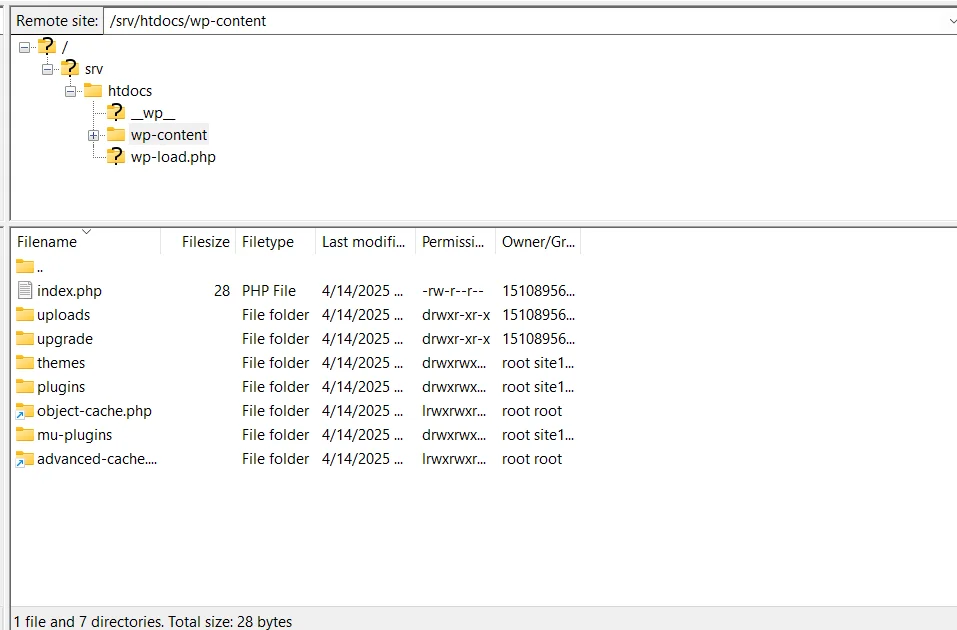
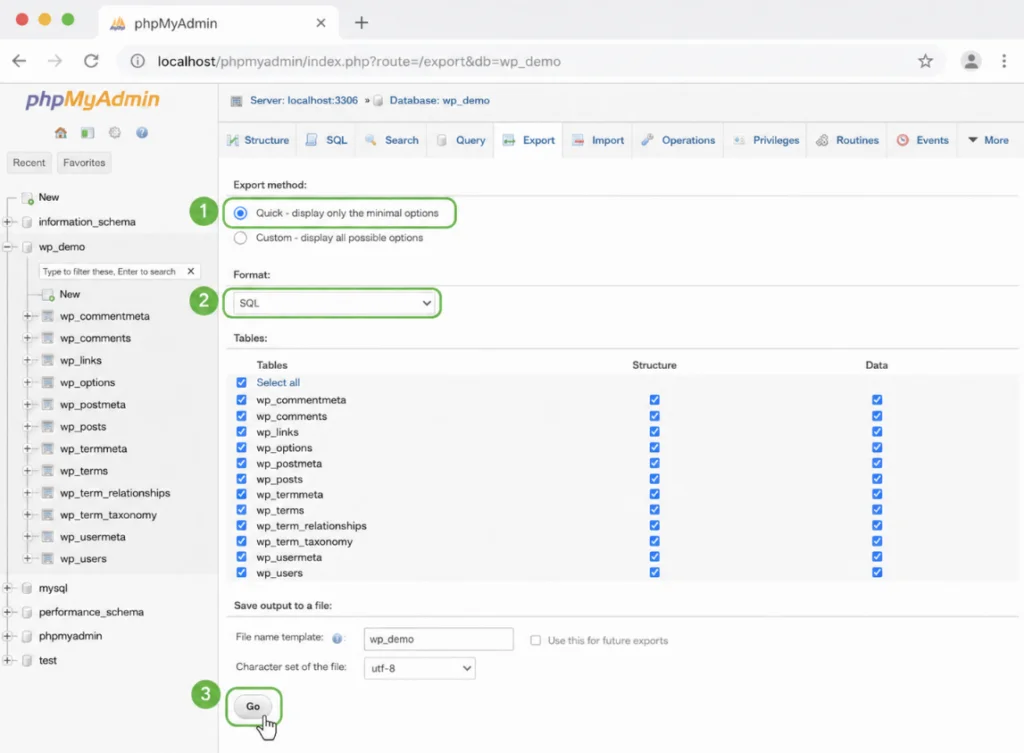
wp-content folder holds the themes, plugins and uploads you need to download.- Export the database. In phpMyAdmin on the old host, select the site database and use Export to download a .sql file.
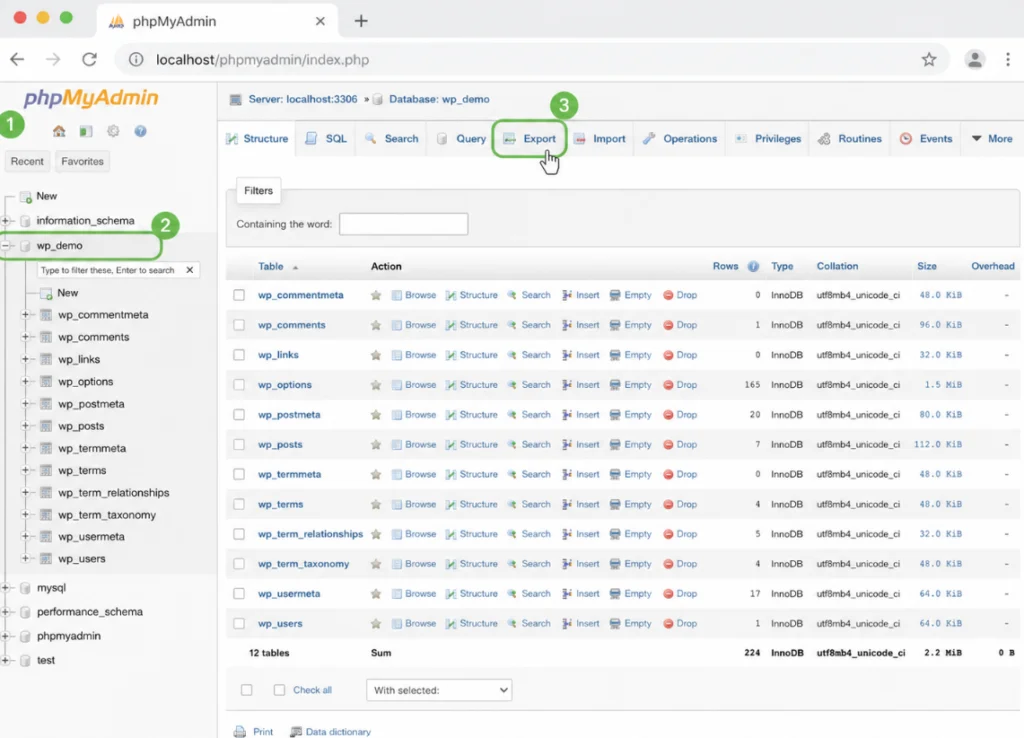
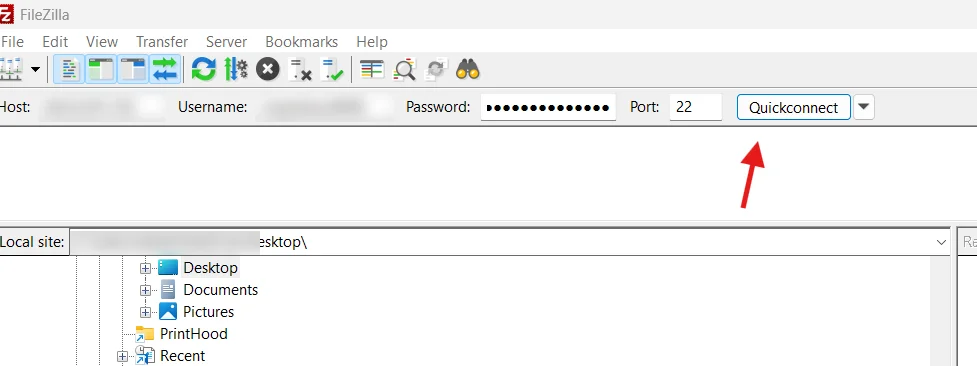
- Upload your site files. Connect to the new server and upload
wp-contentinto a fresh WordPress install.
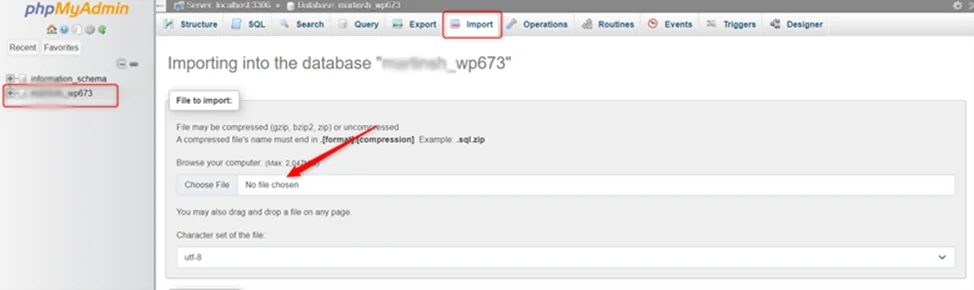
wp-content.- Import the database. In phpMyAdmin on the new host, select the target database and use Import to load the .sql file.
- Reconnect and rewrite. Edit
wp-config.phpin a plain text editor (never a word processor; WordPress explains why in Editing Files) with the new database name, user and password. If the domain changed, run a serialization-safe search-replace.
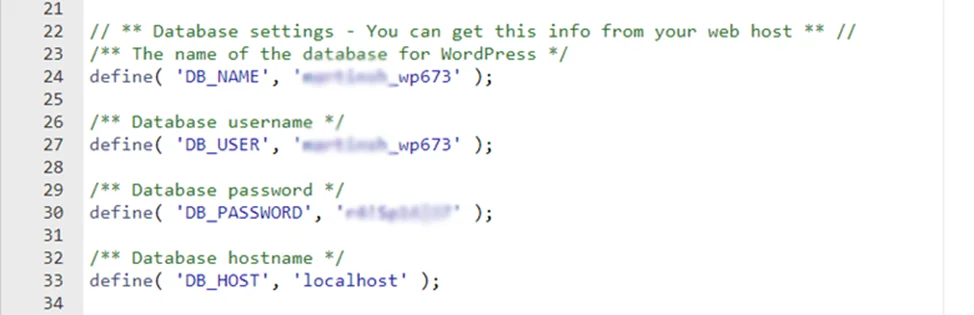
wp-config.php. Replace DB_NAME, DB_USER and DB_PASSWORD (and DB_HOST if your host gives one) with the new database’s details.How do you import a WordPress database in phpMyAdmin?
Open phpMyAdmin, click the empty target database in the left column, open the Import tab, choose your .sql (or .sql.gz) file and click Import. phpMyAdmin’s import documentation covers the options. The maximum file size shown on that tab is your PHP upload limit; for a larger dump, use wp db import or mysql over SSH. If the table prefix in the dump differs from $table_prefix in wp-config.php, change one to match, or WordPress will try to install itself again.
What does the WordPress Importer import, and what does it leave behind?
The WordPress Importer (Tools > Import) imports content from a WXR (XML) export: posts, pages, comments, categories, tags, menus, custom fields and authors, plus media if the old site is still online. It does not import the theme, plugins, settings or user roles. Use it to move content, not to clone a site. WordPress.org describes the screen in Tools Import Screen.
On the source site, go to Tools > Export and download the export file.
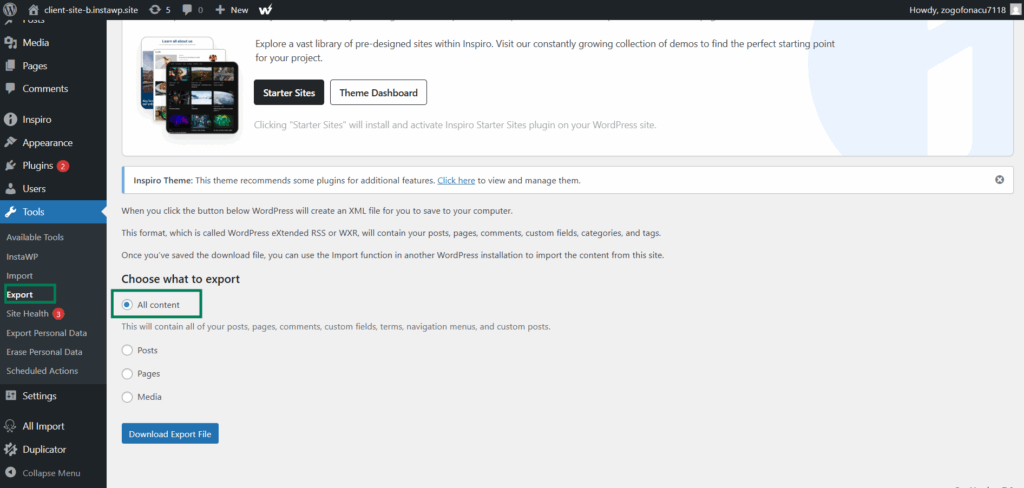
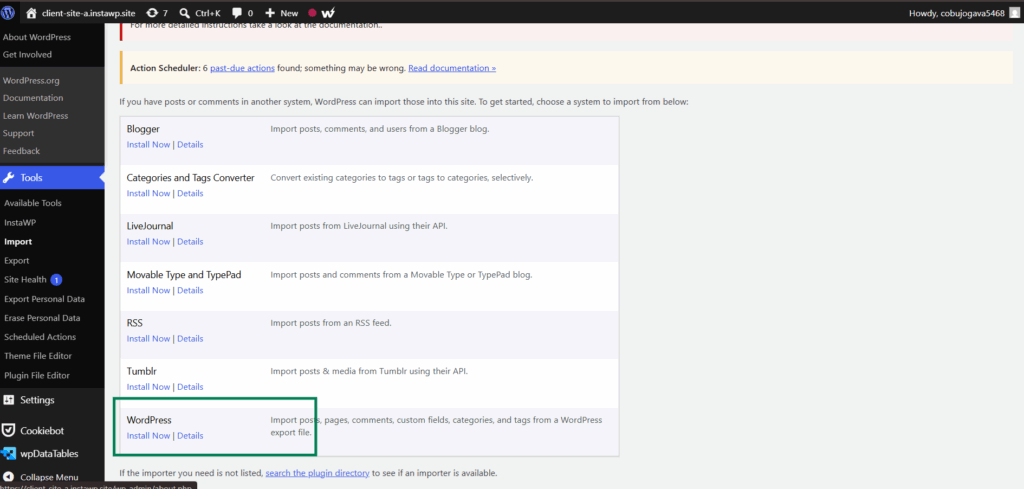
On the destination, go to Tools > Import, click Install Now under WordPress, then Run Importer. Upload the file, map or create authors, tick Download and import file attachments, and click Submit. From the terminal, wp import does the same.
What did the WordPress Importer move in our test?
To see what survives, InstaWP ran the importer on 13 October 2026. The source site had the Astra theme, Contact Form 7, a custom site title, a /%postname%/ permalink setting, an Author user, a category, tags, a menu, a comment, Additional CSS and a featured image. We exported it with wp export and imported it into a fresh site with wp import --authors=create. Setup: WordPress 7.1.3, WordPress Importer 0.9.6, PHP 8.3 on WordPress Playground CLI 3.1.58. The 31 KB export of 10 items imported in 2.4 seconds.
Moving from another platform rather than another WordPress site? The same “what moves” logic applies; see migrating from Wix to WordPress and Joomla to WordPress migration.
Can you import a WordPress site with Git?
Git imports the code of a WordPress site (your theme and custom plugins), not the whole site. You keep that code in GitHub, GitLab or Bitbucket and the host pulls the latest commit on each deploy, while the database and uploads move separately with one of the methods above.
InstaWP supports Git deployments and CI/CD, so you can connect a repository to a site or template and ship updates automatically. See how to integrate WordPress with Git.
Can you host your imported WordPress site on InstaWP?
Yes. A site imported into InstaWP can go live on the same platform without a second migration: change the site’s plan from Sandbox to a production plan and it keeps its URL, files and database. InstaWP is a managed WordPress hosting provider where each site runs isolated with its own Linux user, database and PHP-FPM pool, billed per site per day.
On new-generation servers, an InstaWP site scored 9.8 out of 10 in the WP Benchmark plugin against 7.3 on older hardware (August 2026); the method and results are in the WordPress hosting benchmark. Before going live, many teams copy the imported site to staging first; see WordPress staging to production.
Which WordPress import method is best for your situation?
The best WordPress import method is the one that moves all three parts of the site with the fewest manual steps for what you start from. For most people that is InstaWP’s AI migration or Import Site, because neither needs FTP, phpMyAdmin or an upload you have to babysit.
What are the most common WordPress import errors?
Most failed WordPress imports come down to four things: wrong database details, URLs that still point at the old domain, an upload larger than the host allows, and the content-only importer being used for a full site. The table lists the exact messages and their fixes.
What is the fastest way to import a WordPress site?
The fastest way to import a WordPress site is an automated, full-site method: InstaWP’s AI migration for a live site, Import Site for a backup, and instawp migrate push for a local install. Manual FTP and command-line routes still work when you want full control. Whichever you choose, move all three parts (core, wp-content and the database) and rewrite the URLs, so the copy behaves like the original.
Live site: AI migration (Migrations > New Migration). Backup of 1 GB or less: Import Site. Local site: instawp migrate push. Content only: the WordPress Importer, knowing it leaves the theme, plugins, settings and roles behind. Then host the result on InstaWP with one plan change.
Frequently asked questions
How do I import a WordPress site without losing data?
Use a full-site method that moves the database and the files together, such as InstaWP’s AI migration, Import Site or a migration plugin. These carry content, settings, theme and plugins as one unit. The content-only WordPress Importer is the usual cause of “lost” data, because it never moves the design, settings or user roles.
How do I import a WordPress site from a backup?
In InstaWP, open Import Site, switch to From a Backup, pick the tool that made the backup (InstaWP, WP Playground, UpdraftPlus, Duplicator, WordPress Studio or LocalWP), upload the files (up to 1 GB) and configure the new site. With a plugin backup, you can also restore it with the same plugin on the new host.
How do I import a .wpress file in WordPress?
Install All-in-One WP Migration on the destination site, open All-in-One WP Migration, then Import, and upload the .wpress file. The plugin rebuilds the site and rewrites URLs. The upload limit is set by your host; the paid Unlimited Extension gets around it.
How do I import a WordPress database?
In phpMyAdmin, select the empty database, open the Import tab, choose the .sql file and click Import. Over SSH, run wp db import backup.sql, then wp search-replace to change the old domain. Make sure the table prefix in wp-config.php matches the dump.
What does the WordPress Importer not import?
It does not import the theme, plugins, site title, tagline, permalink and Reading settings, or user roles. In InstaWP’s 13 October 2026 test, an Author came back as a Subscriber, and media only downloaded while the old site was online.
Does importing a WordPress site take the original site offline?
No. A proper import reads from the source site, which keeps serving visitors. With InstaWP’s AI migration, you point your domain at the new site only when you are ready.
How long does it take to import a WordPress site?
It depends on size and method. Automated full-site migrations of typical sites finish in minutes; a 10-item WordPress Importer test took 2.4 seconds; manual FTP and phpMyAdmin moves take longest because every step is done by hand.
Can I import a WordPress site to a new domain?
Yes. Automated importers rewrite the URLs for you. After a manual import, run a serialization-safe search-replace with WP-CLI to change every reference to the old domain.
Can I host my imported WordPress site on InstaWP?
Yes. InstaWP is a managed WordPress hosting provider, so an imported site goes live by changing its plan from Sandbox to Starter or above. It keeps the same URL and data, with no second migration.
Is importing a site into InstaWP free?
Migrations into InstaWP are free, and InstaWP’s team can move a site for you. The site itself needs a plan, from $2 a month for a Sandbox or $5 for production. Adding a card unlocks $25 in credits.