WP-CLI is the official command-line tool for WordPress. You use it by opening a terminal in a WordPress folder and typing wp commands, such as wp plugin update --all or wp search-replace, so jobs that take dozens of clicks in wp-admin finish in one line. This guide shows how to install WP-CLI on Linux, macOS and Windows, the commands worth learning first, and how to run WP-CLI on managed WordPress hosting like InstaWP, where it comes pre-installed on every site and also runs from the browser.
InstaWP ran every command in this guide on 28 October 2026, on a fresh InstaWP site (WordPress 7.1.3, PHP 8.3, WP-CLI 2.12.0) and on a Linux laptop. Where a command that still circulates in older tutorials does not exist, or behaves differently on a jailed host shell, this guide says so.
- Requirements: WP-CLI 2.12.0 (the current release since May 2025) needs PHP 7.2.24 or later and WordPress 4.9 or later, plus shell access to the server.
- Learn three commands first:
wp help,wp plugin listandwp core version --extra. Almost everything else follows the same pattern. - Always dry-run a search-replace.
wp search-replace old new --dry-runreports the count first; on the test site it was 9 replacements before anything changed. - Some commands in old guides do not exist.
wp core status,wp site statusandwp site infoall return “not a registered subcommand” in WP-CLI 2.12. - On InstaWP you can skip the install. WP-CLI is ready on every paid plan, from the $2 Sandbox up, through the Web Terminal, SSH, saved Run Commands, Bulk Actions and the InstaWP CLI.
Table of Contents
What is WP-CLI and what can you do with it?
WP-CLI (WordPress Command Line Interface) is a free, open-source tool that manages a WordPress site from a terminal instead of the dashboard. It loads WordPress itself, so a command such as wp plugin install does exactly what the Plugins screen does, without a browser. Developers and agencies use it to update sites in bulk, script repeatable setups, recover sites when wp-admin is broken, and move sites between domains. For the background and the agency case, see what WP-CLI is and why agencies use it.
| Job | In wp-admin | With WP-CLI |
|---|---|---|
| Update every plugin | Plugins screen, select all, Update | wp plugin update --all |
| Change the site URL in the database | Not possible without a plugin | wp search-replace 'old' 'new' --dry-run |
| Reset an admin password | Lost-password email | wp user update admin --user_pass=... |
| Back up the database | A backup plugin | wp db export backup.sql |
| Fix a site that white-screens | Not possible: wp-admin is down | wp plugin deactivate --all |
| Do it on 20 sites | 20 logins | One loop, or InstaWP Bulk Actions |
How do you install WP-CLI?
To install WP-CLI, download the wp-cli.phar file, check it runs with php wp-cli.phar --info, make it executable, and move it into your PATH as wp. That takes about a minute on Linux or macOS. Windows needs a small wrapper file, and Homebrew, Composer and Docker are alternatives. If your host already provides WP-CLI, as InstaWP does, you can skip the install and go straight to using WP-CLI.
WP-CLI system requirements
- Operating system: a UNIX-like environment (Linux, macOS, FreeBSD or Cygwin). Windows works with a wrapper file or through WSL, with some limits.
- PHP: 7.2.24 or later. Use a supported PHP 8.x release in practice; the test machine ran PHP 8.3.
- WordPress: 4.9 or later. Older versions than the latest release may lose some features, so keep WordPress current.
- Database tools: the
wp dbcommands call the MySQL or MariaDB client programs, so those need to be installed where WP-CLI runs. - Access: SSH or a terminal on the server that hosts the WordPress files.
These figures come from the WP-CLI installation handbook and the WP-CLI project README. The current stable release is WP-CLI 2.12.0, published on 7 May 2025.
Install WP-CLI on Linux or macOS
The phar method below works on any Linux distribution and on macOS. It is the method the WP-CLI team recommends, and the one the screenshots below were taken with.
Step 1: Download WP-CLI
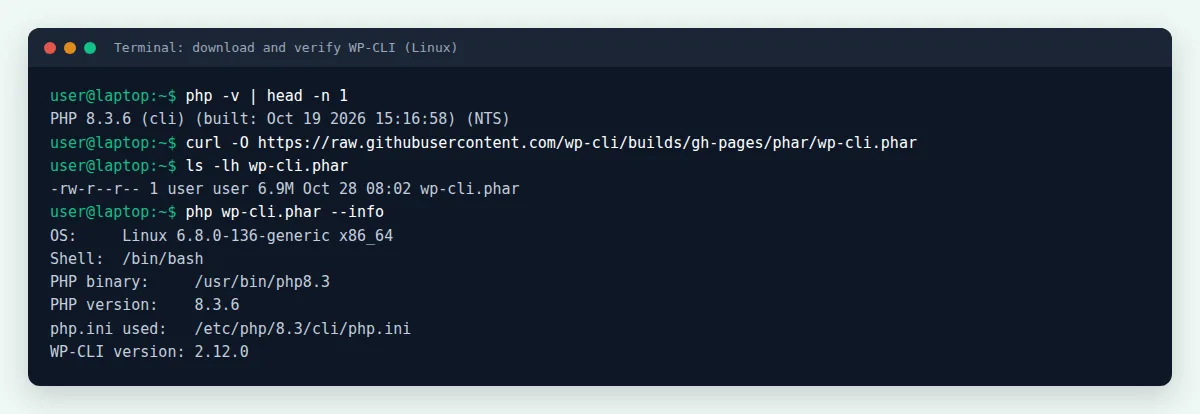
Open a terminal and download the phar file (a single PHP archive that contains all of WP-CLI):
$ curl -O https://raw.githubusercontent.com/wp-cli/builds/gh-pages/phar/wp-cli.phar
Step 2: Check that the file works
Run the file through PHP. If it prints the OS, PHP version and “WP-CLI version”, the download is complete and PHP can run it:
$ php wp-cli.phar --info

Step 3: Make it executable
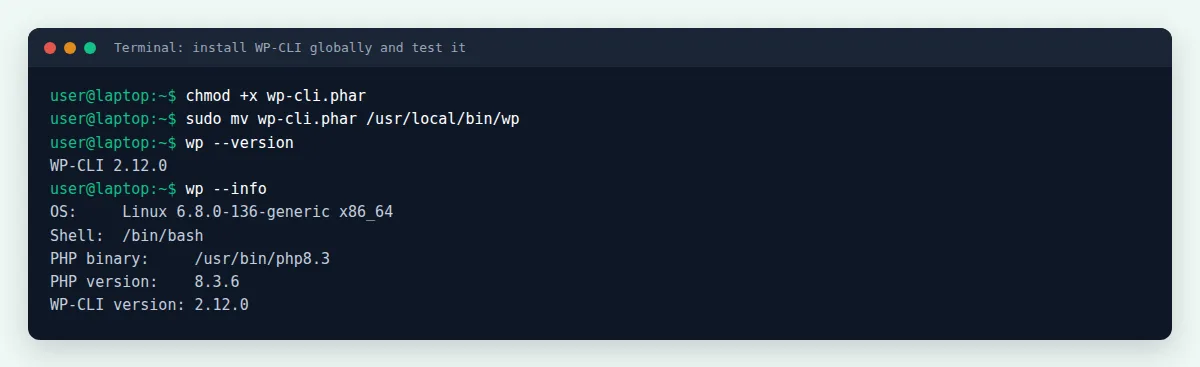
$ chmod +x wp-cli.phar
Step 4: Move it into your PATH as wp
Moving the file to /usr/local/bin/wp lets you type wp from any folder instead of php wp-cli.phar. It needs sudo because that folder belongs to the system:
$ sudo mv wp-cli.phar /usr/local/bin/wp
Step 5: Test the installation
$ wp --info
$ wp --version
WP-CLI 2.12.0

To update WP-CLI later, run wp cli update (with sudo if you installed it to a system folder).
Other ways to install: Homebrew, Composer and Docker
- Homebrew (macOS or Linux):
brew install wp-cliinstalls and updates WP-CLI with the rest of your Homebrew tools. - Composer:
composer global require wp-cli/wp-cli-bundleinstalls it as a global PHP tool, if Composer’s global bin folder is in your PATH. - Docker: the official
wordpress:cliimage runs WP-CLI in a container next to a WordPress container.
Install WP-CLI on Windows
WP-CLI has limited Windows support, but it runs from Command Prompt with a small batch file. If you already use WSL (Windows Subsystem for Linux), install it inside WSL with the Linux steps above instead, which avoids the Windows quirks.
Step 1: Install PHP for Windows
- Download the current stable PHP release from PHP for Windows.
- Extract it to a folder such as C:\php.
- Open System, then Advanced system settings, then Environment Variables. Under System variables, edit Path, click New, add C:\php and save.
- Open a new Command Prompt and run
php -v. You should see the PHP version.

Step 2: Download WP-CLI and create wp.bat
Download wp-cli.phar and save it in C:\wp-cli. In the same folder, create a file named wp.bat with these two lines:
@ECHO OFF
php "c:/wp-cli/wp-cli.phar" %*
Step 3: Add C:\wp-cli to your PATH and test
> setx path "%path%;c:\wp-cli"
> wp --info
Open a new Command Prompt before you test, because setx only affects new windows. The wp.bat wrapper does not work in Git Bash; the WP-CLI handbook has a separate wrapper for Git Bash users.
How do you use WP-CLI?
To use WP-CLI, open a terminal in the folder that holds your WordPress files (the one with wp-config.php) and type wp followed by a command, a subcommand and any options. Every command follows the pattern wp <command> <subcommand> [arguments] [--flags], for example wp plugin install query-monitor --activate. Run wp help to list every available command, and wp help <command> to see how any one of them works.
# where am I, and which WordPress is this?
$ cd /var/www/example.com/public_html
$ wp core version --extra

# list commands, then read the help for one
$ wp help
$ wp help plugin install

# same command, machine-readable output
$ wp plugin list --format=json
These global flags work with almost every command:
| Flag | What it does | Example |
|---|---|---|
--path=<path> | Points WP-CLI at a WordPress folder, so you can run it from anywhere | wp core version --path=/var/www/site |
--url=<url> | Picks one site in a Multisite network | wp option get blogname --url=shop.example.com |
--user=<id|login> | Runs the command as a specific WordPress user | wp post list --user=admin |
--skip-plugins | Loads WordPress without plugins, which helps when a plugin breaks the site | wp plugin list --skip-plugins |
--skip-themes | Loads WordPress without the active theme | wp option get home --skip-themes |
--ssh=<host> | Runs the command on a remote server over SSH | wp plugin list --ssh=user@host/path |
--format=<fmt> | Changes output to table, json, csv, yaml, count or ids | wp user list --format=csv |
--quiet | Hides informational messages, useful in scripts | wp cache flush --quiet |
wp db reset and wp search-replace change data immediately. Try them first on a WordPress staging environment or a staging site on InstaWP, then run the same command on production.How do you run WP-CLI on InstaWP?
On InstaWP you do not need to install anything: WP-CLI 2.12.0 is already on every site. InstaWP is a managed WordPress hosting platform, and from the same dashboard you can run WP-CLI six ways, depending on whether you want one quick command, a reusable script, or the same job on many sites:
| Way | Best for | Where to find it | Good to know |
|---|---|---|---|
| Web Terminal | One-off commands from the browser | Site, Developer Tools, Web Terminal | Starts in public_html; up to 60 s per command |
| SSH | Long sessions from your own terminal | Site, Developer Tools, SFTP/SSH | Password or SSH key; no root or sudo |
| Run Commands | Saved, reusable commands with variables | Settings, Commands, then the site’s Run Commands | Up to 300 s per run |
| Bulk Actions | The same command on many sites | Sites list, Bulk Actions, Run Commands | Runs one site after another |
| Post-Creation Commands | Every new site built from a snapshot | Snapshot, Setup | Up to 2,500 characters |
| InstaWP CLI | Scripts, CI and AI coding agents on your laptop | npm install -g @instawp/cli | Beta; needs Node.js 22 or later |
All of these work on every paid plan, from the $2 Sandbox plan up. Each is shown below with the screen you will see.
1. Web Terminal: WP-CLI in your browser
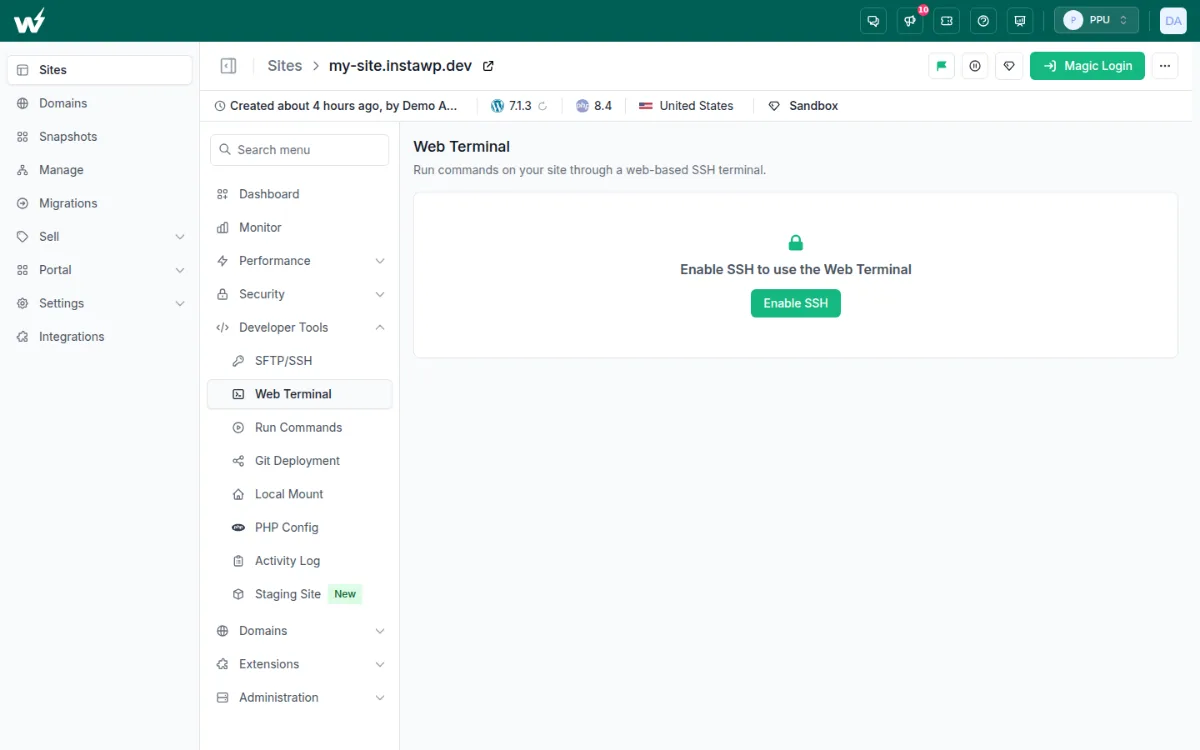
The Web Terminal opens a shell for the site inside the dashboard, in the site’s public_html folder, so you can type wp commands straight away, without --path or an SSH key.
- Open your site in the InstaWP dashboard and go to Developer Tools, then Web Terminal.
- If SSH is off for the site, click Enable SSH. The terminal appears a few seconds later.
- Type a command and press Enter, for example
wp --versionorwp core version --extra. Tab completion and the up and down arrows work as in a normal shell.
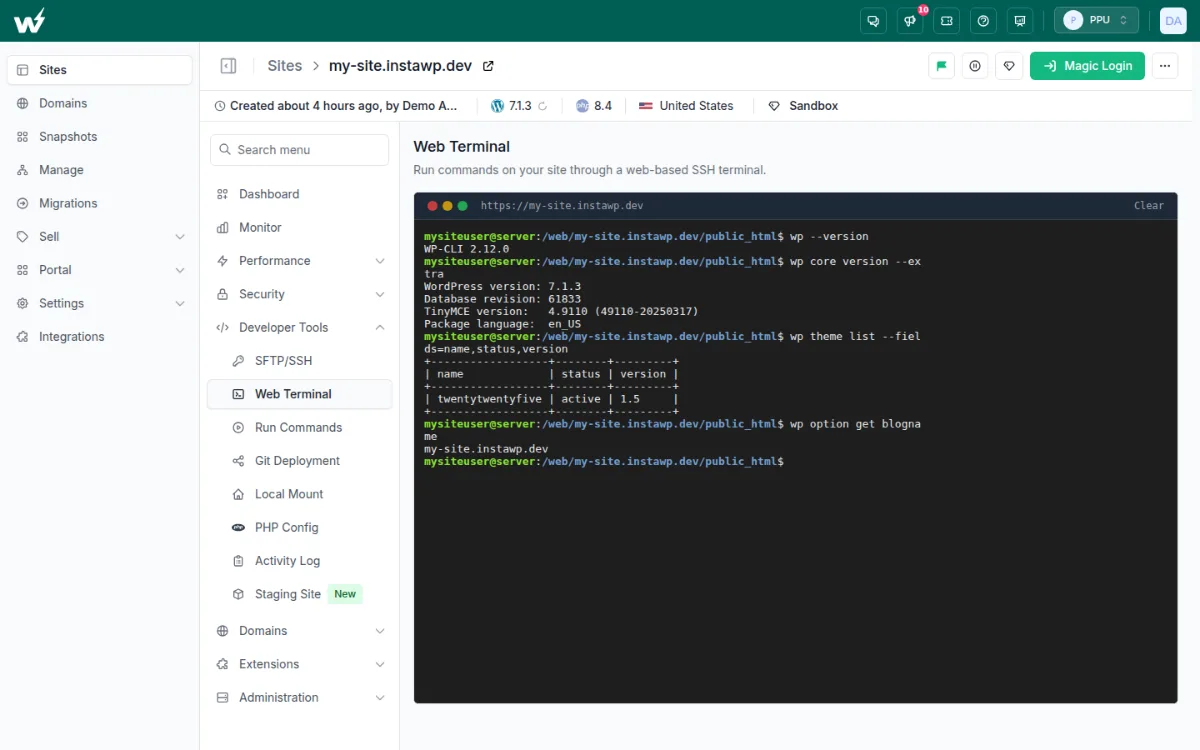
Each command can run for up to 60 seconds, and the shell has no root or sudo. For longer jobs, use SSH or Run Commands.
2. SSH: connect from your own terminal
- Open the site and go to Developer Tools, then SFTP/SSH.
- Switch on Enable SSH/SFTP. The host name, user name, password and port appear under Connection Details, and SSH Command copies a ready-made command.
- Paste that command into your terminal, enter the password (or add an SSH key under Manage Keys), and run
wpcommands from the site folder.
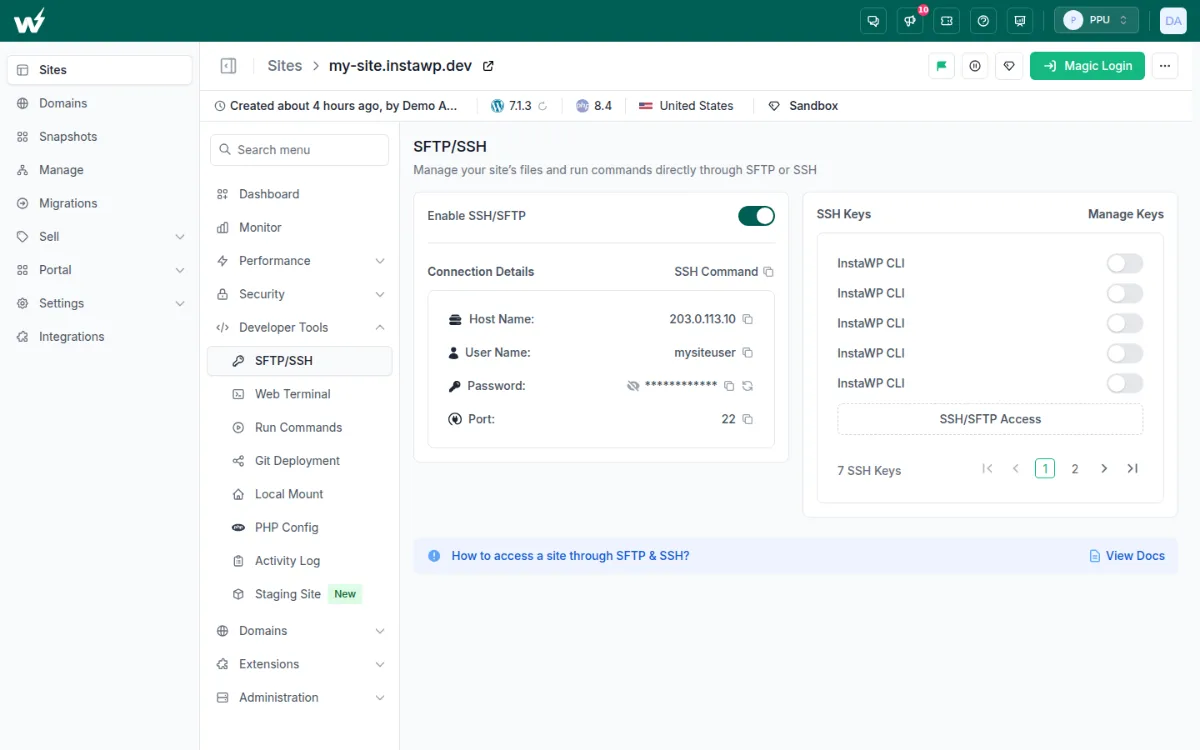
The same switch turns on SFTP, so you can upload files with FileZilla or Cyberduck. SSH and SFTP access on InstaWP covers keys and clients in detail.
wp db export, wp db check and wp db query failed in the Web Terminal and over SSH, because those commands call the MySQL client programs, which could not reach the database from the restricted shell. The same commands worked from Run Commands and from instawp wp <site> --api. All other commands in this guide worked in every route.3. Saved commands and Run Commands: reusable WP-CLI from the dashboard
Saved commands are WP-CLI (or shell) commands you store once in your account and run on any site with two clicks. They can hold several lines and use {{variables}} that InstaWP asks you to fill in each time.
- In the left menu, open Settings, then Commands, and click Add Command.
- Give the command a name and click Add.
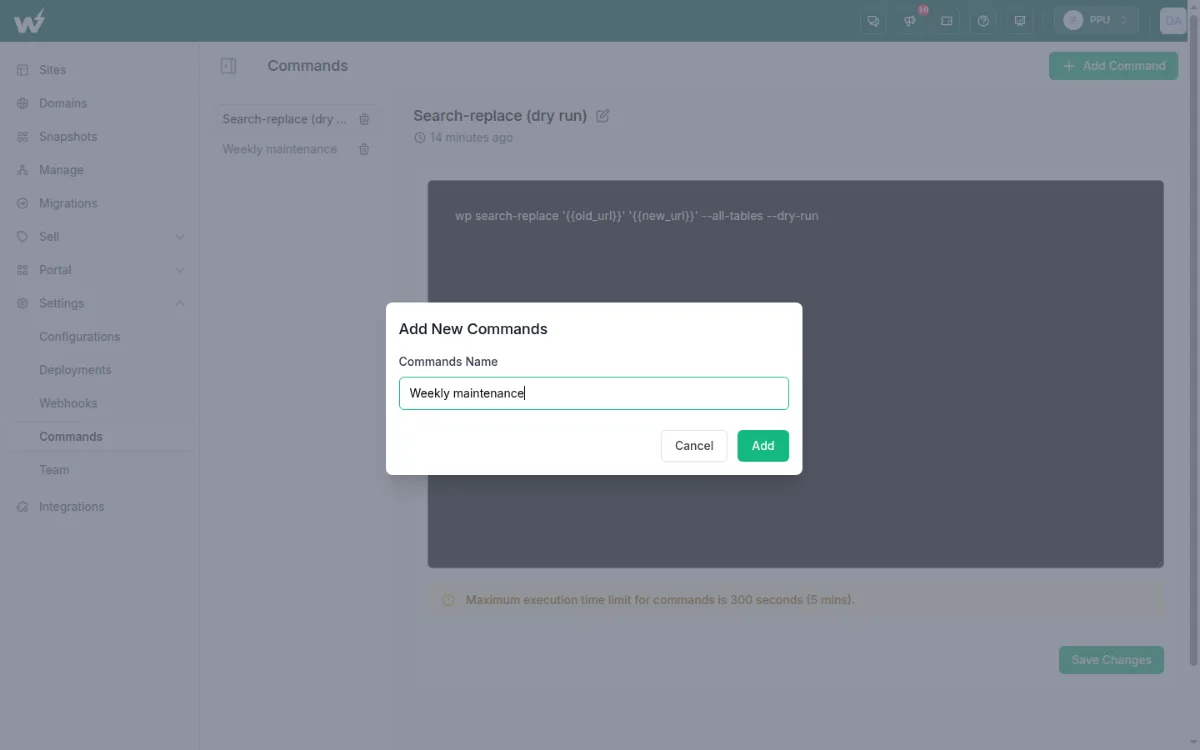
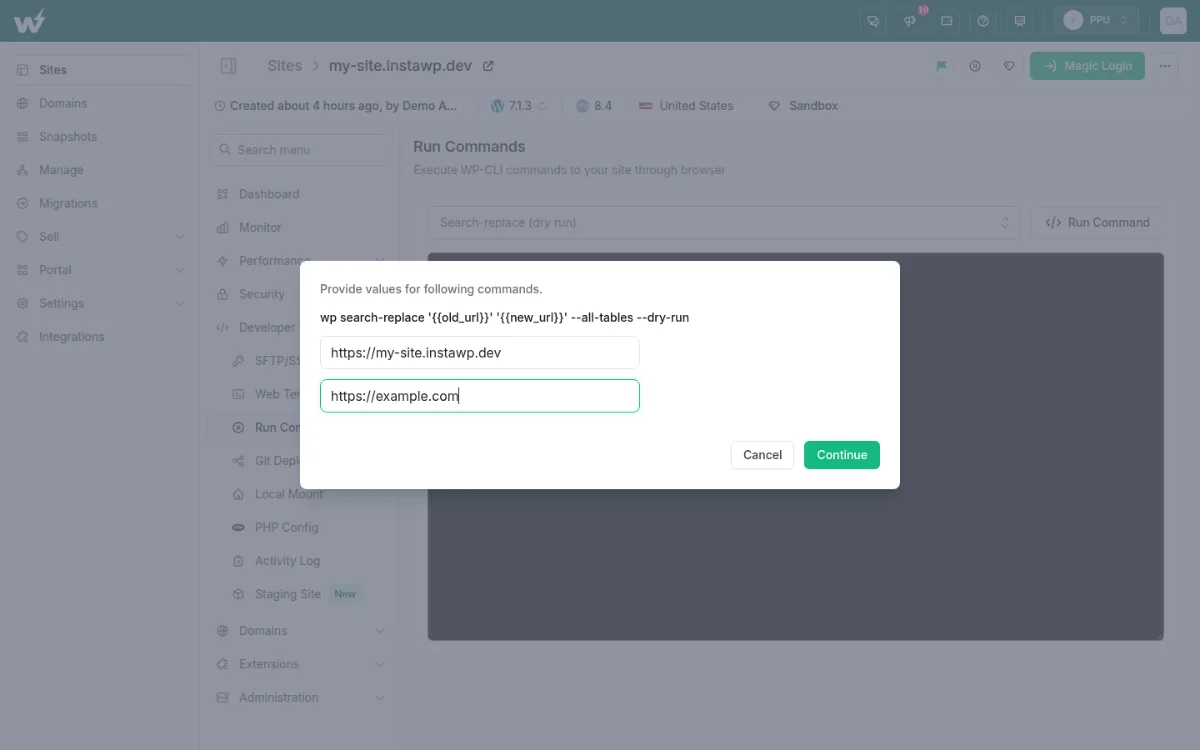
- Type the commands, one per line, and click Save Changes. Wrap anything that changes between runs in double braces, such as
wp search-replace '{{old_url}}' '{{new_url}}' --all-tables --dry-run.
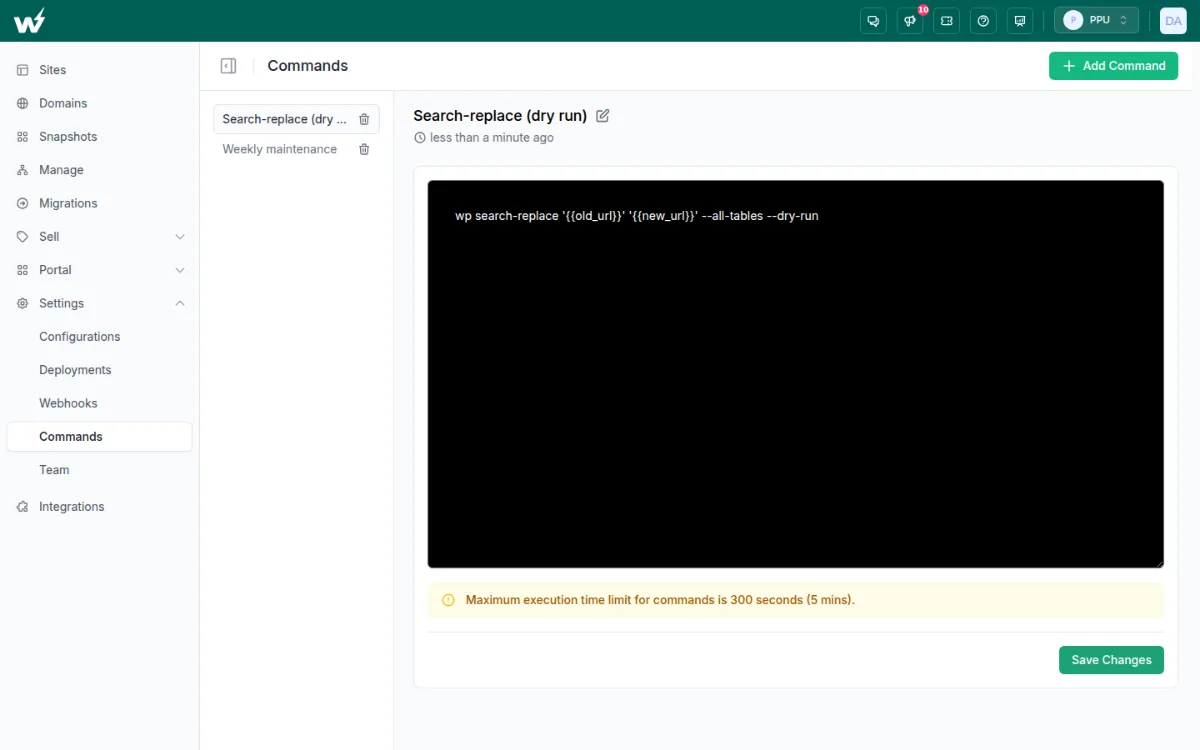
- Open a site, go to Developer Tools, then Run Commands, and choose the command from the drop-down.
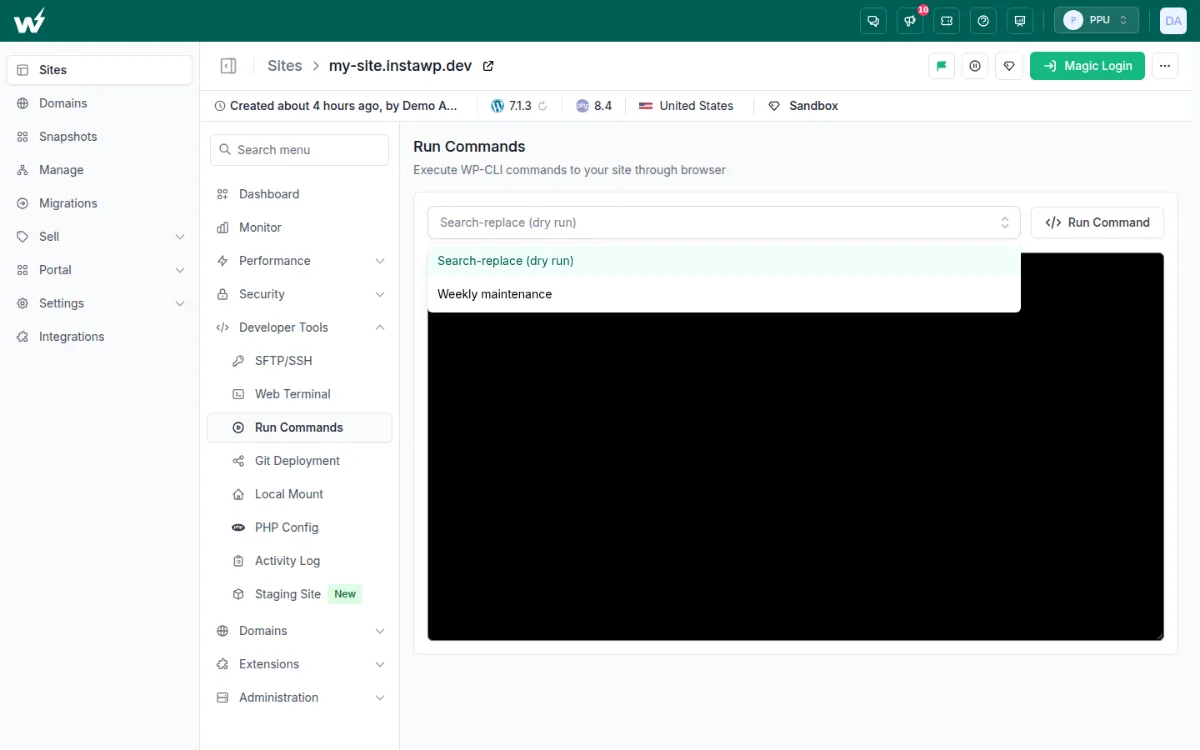
- Click Run Command. If the command has variables, fill them in and click Continue.
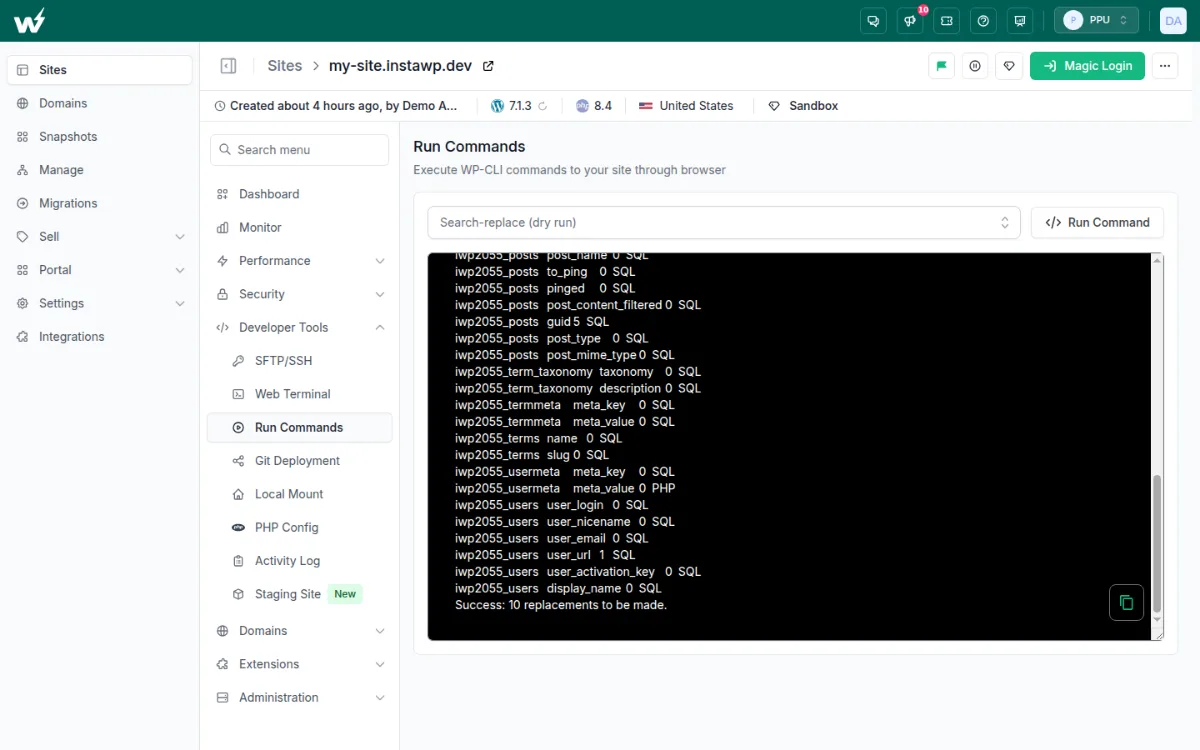
- Read the output in the box below. The copy button copies it.
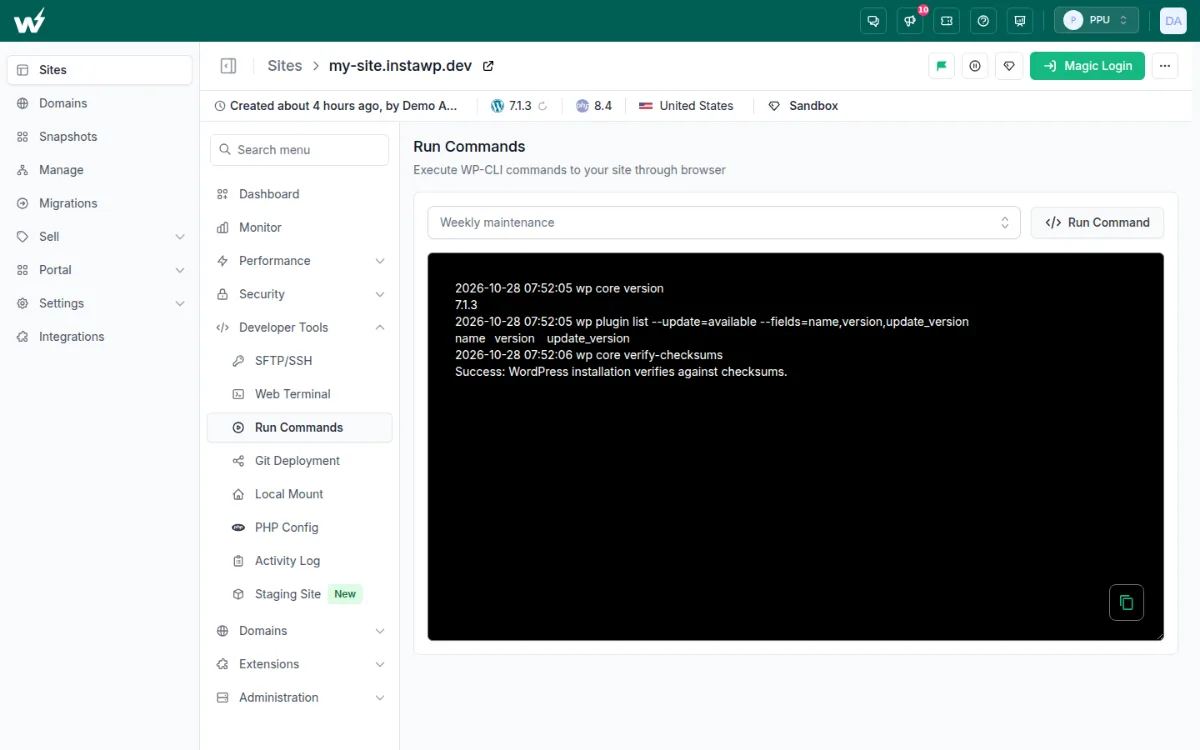
A multi-line command runs each line in turn and stamps it with the time, which makes a quick health check easy to read:
4. Bulk Actions: run one command on many sites
To run the same saved command on several sites, select them in the Sites list. InstaWP runs the command on each site in turn and shows each site’s output under its name.
- On the Sites page, tick the sites you want.
- Open Bulk Actions and choose Run Commands.
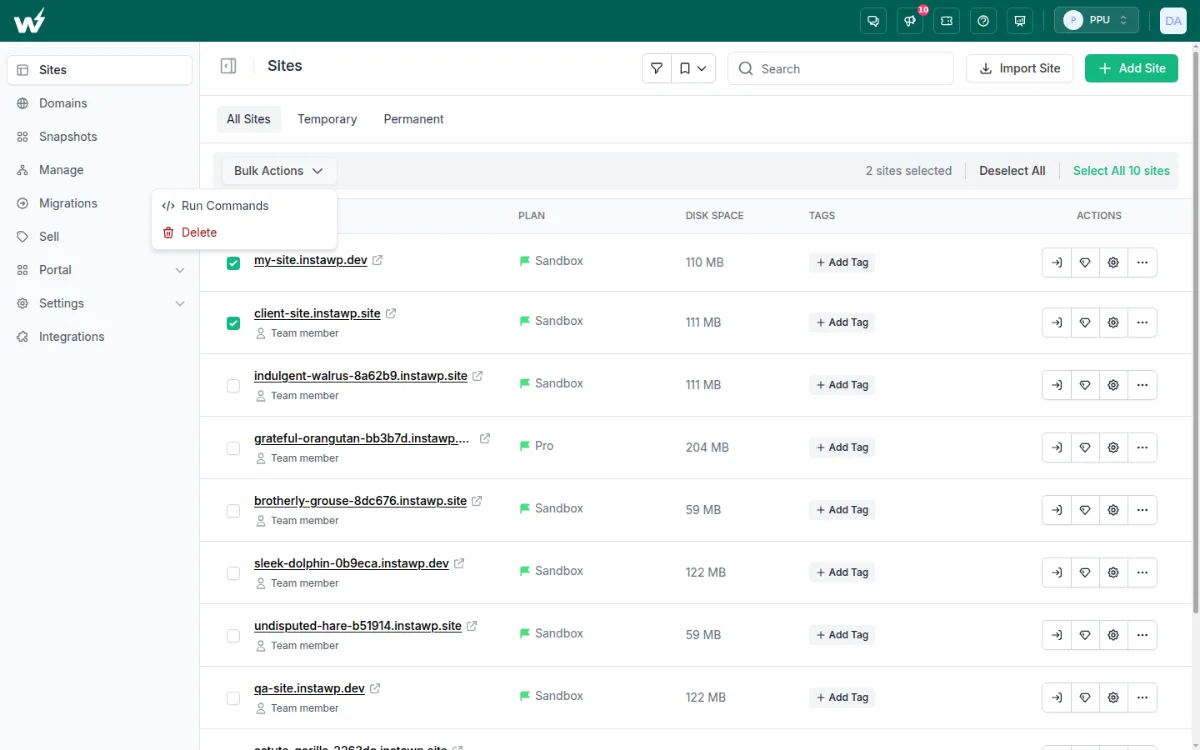
- Pick a saved command under Choose Command and click Run Command.
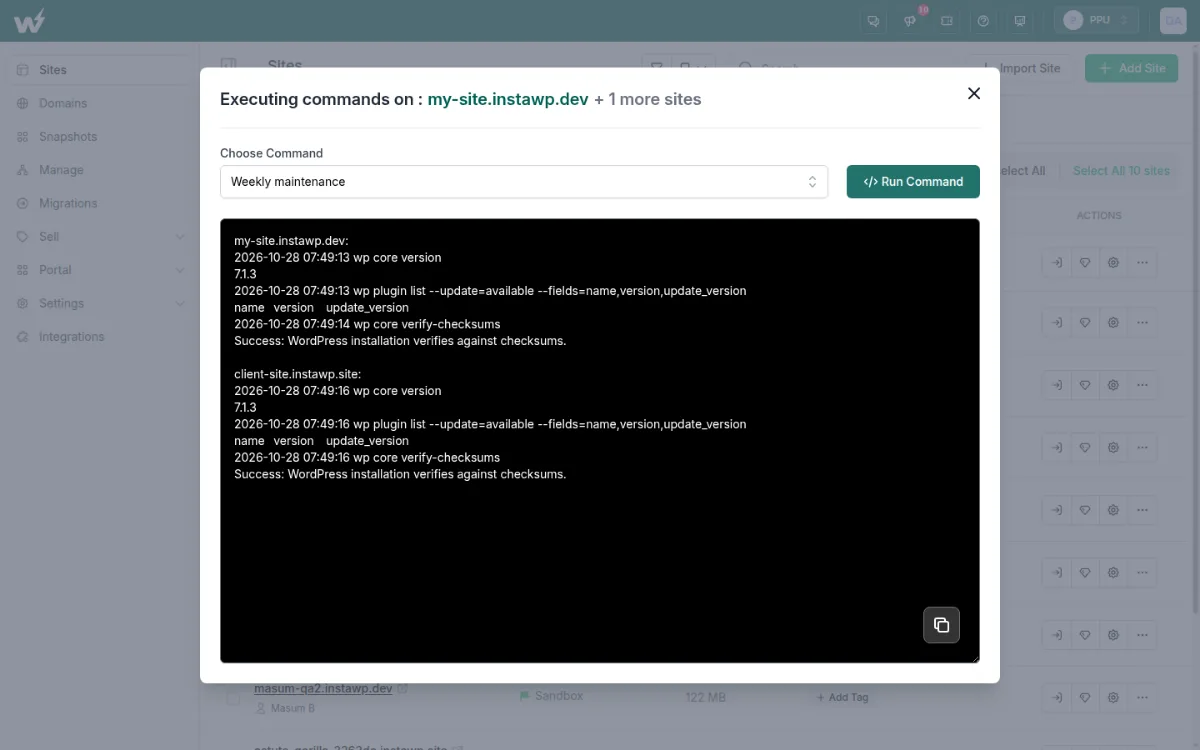
Every selected site needs a paid plan; if one does not have one, the run stops with a message. This is the quickest way to manage multiple WordPress sites without a script. For the same job across sites that live on other hosts, see InstaWP Manage.
5. Post-Creation Commands: WP-CLI on every new site from a snapshot
A snapshot is a saved site you can launch again and again. Its Post-Creation Commands run automatically on every new site created from it, so each copy starts with your permalinks, timezone and plugins already set.
- Open Snapshots, choose a snapshot and go to Setup.
- Enter your commands in Post-Creation Commands, one per line (up to 2,500 characters), and click Save.
- Create a site from the snapshot. The commands run on the new site as it is created.
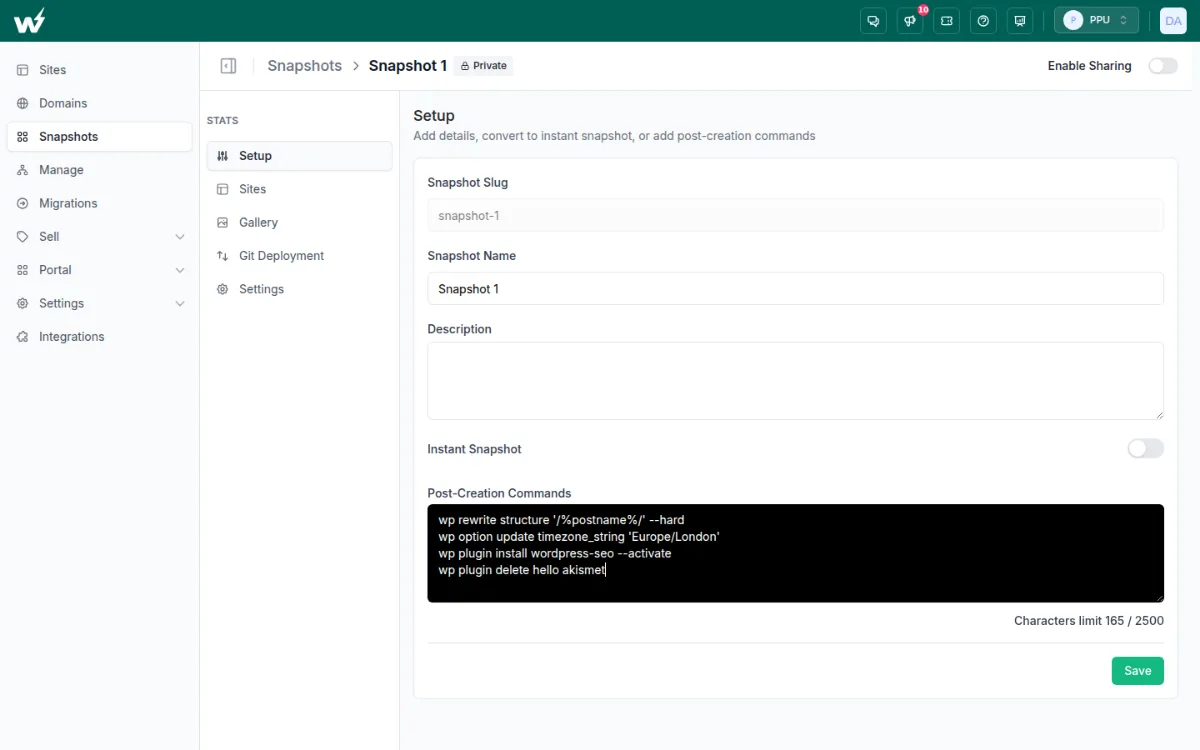
These commands are typed into the snapshot itself; they are separate from your saved commands. Snapshots that you sell through InstaWP’s Website as a Service run them too. See WordPress snapshots for how snapshots work.
6. InstaWP CLI: run WP-CLI on cloud sites from your laptop
The InstaWP CLI (@instawp/cli, in beta) runs WP-CLI on any of your InstaWP sites from your own terminal, without copying SSH details. The first call sets up SSH access and a key for you; in InstaWP’s test it took 16 seconds, and later calls took about 5 seconds each.
$ npm install -g @instawp/cli
$ instawp login
$ instawp wp my-site -- plugin list
$ instawp wp my-site -- plugin install query-monitor --activate

# database commands: use the API route
$ instawp wp my-site --api -- db export backup.sql
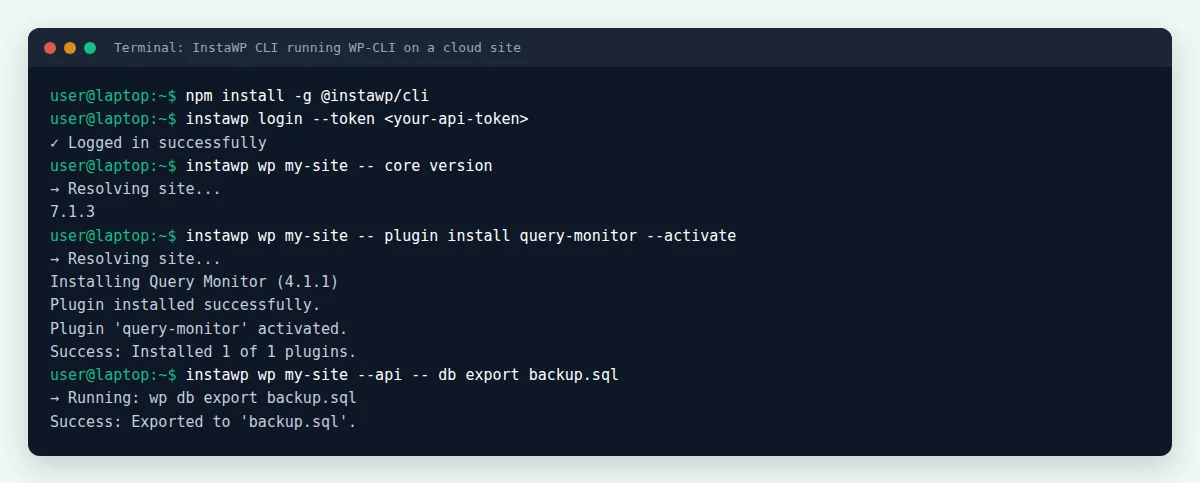
It needs Node.js 22 or later. Everything after -- is passed to WP-CLI unchanged, and instawp exec runs any other shell command. Five WordPress tasks to run from the InstaWP CLI has worked examples.
instawp wp for you and read the output. To give an AI assistant structured access to a site’s content, plugins and settings instead of a shell, use InstaWP’s WordPress MCP server.What are the most useful WP-CLI commands?
The most useful WP-CLI commands manage core, plugins, themes, content, users and the database. Every command below ran on InstaWP’s test site; output is shortened. For a longer reference, see the WP-CLI commands list and the official WP-CLI command reference.
Core: check, update and verify WordPress
$ wp core version --extra          # WordPress, database and TinyMCE versions
$ wp core check-update             # is a newer WordPress out?
Success: WordPress is at the latest version.
$ wp core update                   # update WordPress core
$ wp core update-db                # run the database upgrade after an update
$ wp core verify-checksums         # compare core files with WordPress.org
Success: WordPress installation verifies against checksums.
$ wp core download --version=6.8 --path=old-site   # fetch a specific version
Plugins and themes
$ wp plugin list --fields=name,status,version
$ wp plugin install query-monitor --activate
$ wp plugin update --all
$ wp plugin auto-updates enable --all
$ wp plugin deactivate query-monitor
$ wp plugin delete query-monitor

$ wp theme list
$ wp theme install twentytwentyfour --activate
$ wp theme activate twentytwentyfive
$ wp theme update --all
$ wp theme delete twentytwentyfour
To see which plugins have updates waiting before you run them, use wp plugin list --update=available. InstaWP has a full guide on how to check if WordPress plugins are up to date with WP-CLI.
Posts, pages and users
$ wp post create --post_type=post --post_title="My New Post" --post_status=publish --porcelain
5
$ wp post update 5 --post_title="Updated Title"
$ wp post list --post_type=page --fields=ID,post_title,post_status
$ wp post delete 5 --force
$ wp post generate --count=10      # dummy posts for testing a theme

$ wp user create jane [email protected] --role=editor
$ wp user list --fields=ID,user_login,roles
$ wp user update jane --user_pass="N3w-Str0ng-Pass!" --skip-email
$ wp user set-role jane subscriber
$ wp user remove-role jane       # leaves the account with no role
$ wp user delete jane --reassign=1
--porcelain prints only the new ID, which is handy in scripts. To lock a user out, use wp user remove-role; in the test, wp user update jane --role=none printed “Role doesn’t exist: none”.
Import and export content
$ wp export --dir=.                       # WXR file of posts, pages and media references
$ wp plugin install wordpress-importer --activate
$ wp import example.wordpress.2026-10-28.000.xml --authors=create

$ wp db export backup.sql
$ wp db import backup.sql
wp import needs the WordPress Importer plugin first. For moving a whole site rather than its content, a full WordPress site import is faster.
How do you run a search-replace with WP-CLI?
Use wp search-replace 'old' 'new' --dry-run to count the matches, then run it again without --dry-run to make the change. WP-CLI updates every matching string in the database, and it rewrites serialized PHP data safely, which a plain SQL REPLACE would corrupt. It is the standard way to change a site’s domain after a migration or a move from staging to production.
$ wp search-replace 'https://old.example.com' 'https://new.example.com' --dry-run
Success: 9 replacements to be made.
$ wp search-replace 'https://old.example.com' 'https://new.example.com' --skip-columns=guid

# every table with the WordPress prefix, plus plugin tables
$ wp search-replace 'old' 'new' --all-tables --precise --dry-run

# write the changed database to a file instead of the live database
$ wp search-replace 'old' 'new' --export=changed.sql
--dry-runshows the count per table without changing anything.--skip-columns=guidleaves post GUIDs alone, which WordPress treats as permanent IDs.--all-tablesincludes tables that do not use the WordPress prefix, such as some plugin tables.--preciseuses PHP for every row; it is slower, but catches values the faster SQL route misses.--export=file.sqlwrites the result to a file and leaves the live database untouched.
Back up the database first (wp db export). On InstaWP, the saved-command example in the Run Commands section wraps this in variables so you only type the two URLs.
How do you back up and secure WordPress with WP-CLI?
WP-CLI backs up the database with wp db export, restores it with wp db import, and checks for tampering with wp core verify-checksums. Add a few maintenance commands and the whole routine fits in one script you can run on every site.
Back up and restore the database
$ wp db export backup-$(date +%F).sql     # e.g. backup-2026-10-28.sql
$ wp db export - | gzip > backup.sql.gz   # compressed
$ wp db import backup-2026-10-28.sql
$ wp db size --human-readable
$ wp db reset --yes                       # empties every table: test sites only
A database dump is not a full backup: it misses uploads, themes and plugins, which is why most WordPress management routines pair WP-CLI with scheduled backups. On InstaWP, scheduled WordPress backups cover files and database together, from monthly on Sandbox to daily from the Plus plan.
Security and maintenance commands
$ wp core verify-checksums                # core files match WordPress.org?
$ wp plugin verify-checksums --all        # plugins from WordPress.org
$ wp user list --role=administrator       # who has admin?
$ wp user update admin --user_pass="a-long-new-password"

$ wp maintenance-mode activate
$ wp maintenance-mode status
Maintenance mode is active.
$ wp maintenance-mode deactivate

$ wp db check
$ wp db optimize
$ wp cache flush
$ wp transient delete --all
$ wp rewrite flush
If a site uses an object cache, wp cache flush clears it too. On InstaWP’s Plus plan and above, that is the built-in Valkey object cache; the guide to clearing cache in WordPress covers the other layers.
How do you manage a WordPress Multisite network with WP-CLI?
In a Multisite network, add --url= to point a command at one site, or --network to apply it to the whole network. wp site creates, lists, empties and deletes the sites themselves.
Commands for managing sites in a network
$ wp site list --fields=blog_id,url
$ wp site create --slug=newsite --title="New Site" [email protected]
$ wp plugin activate woocommerce --url=shop.example.com
$ wp plugin activate akismet --network
$ wp theme enable twentytwentyfive --network
$ wp site empty --url=test.example.com --yes   # deletes its content
$ wp site delete 3 --yes
Updates and settings across the network
$ wp core update && wp core update-db --network
$ wp plugin update --all

# run any command on every site in the network
$ wp site list --field=url | xargs -I % wp option get blogname --url=%
$ wp super-admin list
Plugins and themes are installed once for the whole network, so wp plugin update --all covers every site. To set up a network to practise on, see how to host a WordPress Multisite network.
How do you troubleshoot WordPress with WP-CLI?
WP-CLI can reach a site even when wp-admin shows a white screen or a critical error, which makes it the fastest way to find and switch off what broke. Start with the health checks, then load WordPress without plugins or the theme to isolate the cause.
Health checks and logs
$ wp --info                              # PHP and WP-CLI versions
$ wp core version --extra
$ wp plugin list --status=active
$ wp option get siteurl && wp option get home
$ wp cron event list --fields=hook,next_run_relative
$ wp cron event run --due-now
$ tail -n 50 wp-content/debug.log           # latest PHP errors
Debugging a broken site
# switch on logging to wp-content/debug.log
$ wp config set WP_DEBUG true --raw
$ wp config set WP_DEBUG_LOG true --raw

# does WordPress load without plugins or the theme?
$ wp plugin list --skip-plugins --skip-themes
$ wp plugin deactivate broken-plugin --skip-plugins
$ wp theme activate twentytwentyfive --skip-themes

# switch logging off again when you are done
$ wp config set WP_DEBUG false --raw
$ wp config set WP_DEBUG_LOG false --raw
The wp doctor checks come from a separate package, wp-cli/doctor-command. In InstaWP’s test, installing it with wp package install failed on WP-CLI 2.12.0, because the package’s main branch already requires WP-CLI 3. For more ways to diagnose a site, see the WP-CLI troubleshooting cheatsheet.
Which WP-CLI commands from older tutorials do not work?
Several commands that appear in WP-CLI tutorials, including an earlier version of this one, do not exist in WP-CLI 2.12.0. These are the results from InstaWP’s test site on 28 October 2026, with what to run instead:
| Command in old guides | What WP-CLI 2.12.0 does | Run this instead |
|---|---|---|
wp core status | “‘status’ is not a registered subcommand of ‘core'” | wp core version --extra or wp core check-update |
wp site status | “‘status’ is not a registered subcommand of ‘site'” | wp core verify-checksums, or the Site Health screen |
wp site info --url=... | “‘info’ is not a registered subcommand of ‘site'” | wp option get blogname --url=... |
wp shell -- eval "..." | “Too many positional arguments” | wp eval '...' (wp shell is interactive) |
wp user update 3 --role=none | Warning “Role doesn’t exist: none” | wp user remove-role 3 |
Flags typed with an en dash, such as –activate | The flag is not recognised | Type two hyphens: --activate |
wp db export on a restricted SSH shell | Fails if the MySQL client cannot reach the database | On InstaWP, run it from Run Commands |
The en dash problem is common: many blogs and word processors turn -- into a single dash, and the copied command fails. Copy from a code block, or retype the two hyphens.
How do you automate WP-CLI?
Because every WP-CLI command is plain text, you can put several in a shell script, schedule the script with cron, or run it from a CI pipeline. Three patterns cover most needs:
#!/bin/bash
# weekly-maintenance.sh: update and check every site in a folder
for site in /var/www/*/public_html; do
  wp --path="$site" plugin update --all --quiet
  wp --path="$site" core verify-checksums
done
# wp-cli.yml: name your servers once, then run "wp @staging plugin list"
@staging:
  ssh: [email protected]/var/www/html
@production:
  ssh: [email protected]/var/www/html
# crontab -e: run the script every Monday at 03:00
0 3 * * 1 /home/user/weekly-maintenance.sh >> /home/user/wp-maintenance.log 2>&1
On InstaWP, the same jobs need no server of your own: a saved command run through Bulk Actions covers the “every site” loop, Post-Creation Commands cover setup, and the InstaWP CLI runs instawp wp from a GitHub Actions job or an AI agent. Agencies that want updates handled for them can use managed updates and site management instead of a script.
Can you run WP-CLI on InstaWP’s managed WordPress hosting?
Yes. WP-CLI 2.12.0, SSH, SFTP and Git come with every InstaWP plan, from the $2 Sandbox up, along with the Web Terminal, Run Commands and Bulk Actions shown above. Sites run on isolated resources and are billed per site, per day, with no annual contract. In InstaWP’s WordPress hosting benchmark (August 2026), sites on the current servers scored 9.8 out of 10 on WP Benchmark, against 7.3 on the previous generation.
| Plan | Price | WP-CLI, SSH, SFTP, Git | Backups | Built-in staging |
|---|---|---|---|---|
| Sandbox | $2/month | Yes | Monthly | No |
| Starter | $5/month | Yes | Weekly | No |
| Plus | $9/month | Yes | Daily (30 days) | No |
| Pro | $15/month | Yes | Daily (30 days) | Yes |
| Turbo | $25/month | Yes | Daily (30 days) | Yes |
| Elite | $45/month | Yes | Daily (30 days) | Yes |

Prices are from the InstaWP pricing page on 28 October 2026. Adding a card gives you $25 in credits, and there is a 14-day money-back guarantee. You can move an existing site in with free migration, and a sandbox becomes a production site in one click on the same URL.
Conclusion
To install WP-CLI, download wp-cli.phar, check it with php wp-cli.phar --info and move it to /usr/local/bin/wp, or use Homebrew, Composer or a wp.bat wrapper on Windows. Then run wp help, learn the core, plugin, user and database commands, and dry-run every search-replace before you make the change.
Skip the commands older guides invent, such as wp core status and wp site info, and type every flag with two hyphens. On InstaWP, WP-CLI is already installed: use the Web Terminal for a single command, Run Commands for reusable ones, Bulk Actions for many sites, Post-Creation Commands for new sites, and the InstaWP CLI for scripts and AI agents.
WP-CLI FAQs
What is WP-CLI used for?
WP-CLI manages WordPress from a terminal. Developers use it to install and update plugins, themes and core, manage users and content, back up and restore the database, change a site’s domain with search-replace, and fix sites when wp-admin is broken. Because commands are text, they can be scripted across many sites.
Is WP-CLI a WordPress plugin?
No. WP-CLI is a separate command-line program that you install on the server or your computer. It loads WordPress to run each command, but nothing is added to the Plugins screen. Some plugins, such as WooCommerce, add their own WP-CLI commands once WP-CLI is installed.
What are the WP-CLI system requirements?
WP-CLI 2.12.0 needs PHP 7.2.24 or later, WordPress 4.9 or later, and a UNIX-like environment such as Linux or macOS. Windows works with a wp.bat wrapper or through WSL. The database commands also need the MySQL or MariaDB client programs.
How do I check which version of WP-CLI I have?
Run wp cli version or wp --version. On 28 October 2026 the current release was WP-CLI 2.12.0, and wp cli update upgrades an older phar install to it.
Can I use WP-CLI without SSH access?
Yes, if your host offers another route. On InstaWP you can run WP-CLI from the browser with the Web Terminal, run saved commands from the Run Commands page, or use the InstaWP CLI from your laptop. Hosts with no shell access at all cannot run WP-CLI.
Is it safe to use WP-CLI on a live site?
Yes, with care. Read-only commands such as wp plugin list are harmless. Commands that change data, like wp search-replace or wp db reset, act immediately with no undo, so back up the database first, use the dry-run option where there is one, and test on a staging copy.
How do I update all plugins with WP-CLI?
Run wp plugin update --all. To see what will change first, run wp plugin list --update=available. On InstaWP you can save that command once and run it on many sites at the same time with Bulk Actions.
Can I manage a WordPress Multisite network with WP-CLI?
Yes. Add --url= to target one site, or --network to activate a plugin or theme across the network. wp site list, wp site create and wp site delete manage the sites themselves, and wp core update-db --network upgrades every site’s database after a core update.
Can AI agents run WP-CLI commands?
Yes. A coding agent such as Claude Code or Codex can run WP-CLI in a terminal you give it, or call the InstaWP CLI (instawp wp) to run WP-CLI on your InstaWP sites and read the output. For structured access to content and settings rather than a shell, InstaWP sites also have a built-in WordPress MCP server.
Can I host my WordPress site on InstaWP and use WP-CLI there?
Yes. InstaWP is a managed WordPress hosting platform, and WP-CLI 2.12.0, SSH, SFTP and Git are included on every plan from the $2 Sandbox, with production plans from $5 a month per site. You also get a browser terminal, saved commands and bulk runs across sites.