Error establishing a database connection means WordPress could not log in to its MySQL or MariaDB database, so it cannot build a single page. The fastest fix is to open wp-config.php and check that DB_NAME, DB_USER, DB_PASSWORD and DB_HOST exactly match the database details in your hosting panel. Wrong credentials are the most common cause.
The hard part is that every cause prints the same sentence. In our lab, a wrong password, a stopped MySQL server, a crashed table and a full connection limit all showed the identical page. This guide shows you how to read the real MySQL error in about a minute, then gives the four fixes in the order they are most likely to work. If you would rather never chase this yourself, InstaWP’s managed WordPress hosting sets up the database, watches uptime and keeps backups for you; the last section covers how.
- The message never tells you the cause. With WP_DEBUG off, all 12 failures we caused in the lab showed the same screen and returned HTTP 500.
- Turn on WP_DEBUG_LOG to see the real MySQL error without showing it to visitors. 1045 means wrong credentials, “Connection refused” means MySQL is down, 1040 means too many connections.
- Check wp-config.php first. Wrong DB_NAME, DB_USER, DB_PASSWORD or DB_HOST is the most common cause, especially right after a migration or a password reset.
- If only wp-admin explains itself, a table has crashed. It says “One or more database tables are unavailable”. WP_ALLOW_REPAIR fixed a crashed table in our test; remove the line afterwards.
- Raising the PHP memory limit does not fix this error. A low memory limit gives an “Allowed memory size exhausted” fatal error instead.
- On InstaWP’s managed hosting, the database is provisioned with the site, human support is on every plan, and Plus and above add daily backups and uptime monitoring.
Table of Contents
What does “Error establishing a database connection” mean?
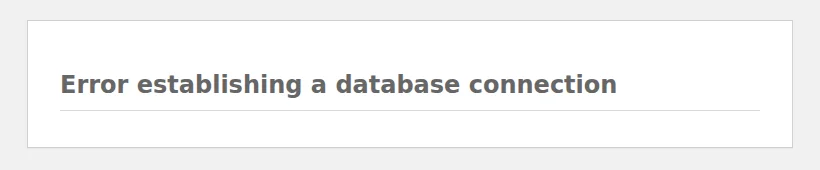
It means PHP reached the point where WordPress loads its settings, tried to open a connection to the database server, and was refused or got no answer. WordPress keeps every post, page, user and setting in that database, so without the connection it stops and prints this message instead of your site.
WordPress relies on two main components:
- PHP files that handle the website structure and logic.
- Database that stores all the content, including posts, pages, user data, and settings.
When a visitor opens a page, PHP reads the four connection details in wp-config.php and asks MySQL for the content. If that login fails, WordPress shows the error. The page is served as an HTTP 500 error, so uptime monitors and search engines treat the whole site as down.
Why fix it fast?
Every page on the site is down while the error shows, including checkout, login and contact forms. For agencies managing multiple WordPress websites, one shared database server that stops can take several client sites offline at once, so the cause is worth finding rather than guessing at.
What causes “Error establishing a database connection” in WordPress?
Four things cause most cases: wrong database details in wp-config.php, a database server that is down, crashed tables, and hosting connection limits. WordPress hides which one you have, but MySQL does not. With debugging on, each cause prints its own error, and this table maps them.
We broke a fresh WordPress 7.1.3 site in each of these ways on 12 October 2026 (MySQL 8.0.46 in Docker, PHP 8.3) and recorded what appeared:
One thing is not on the list: a low PHP memory limit. When we set it to 4 MB, WordPress failed with an Allowed memory size exhausted fatal error, never with the database message.
How do you see the real MySQL error?
Log it, so visitors keep seeing the plain message while you read the detail. Add these three lines to wp-config.php above the line that says That’s all, stop editing (see how to edit wp-config.php safely):
define( 'WP_DEBUG', true );
define( 'WP_DEBUG_LOG', true );
define( 'WP_DEBUG_DISPLAY', false );
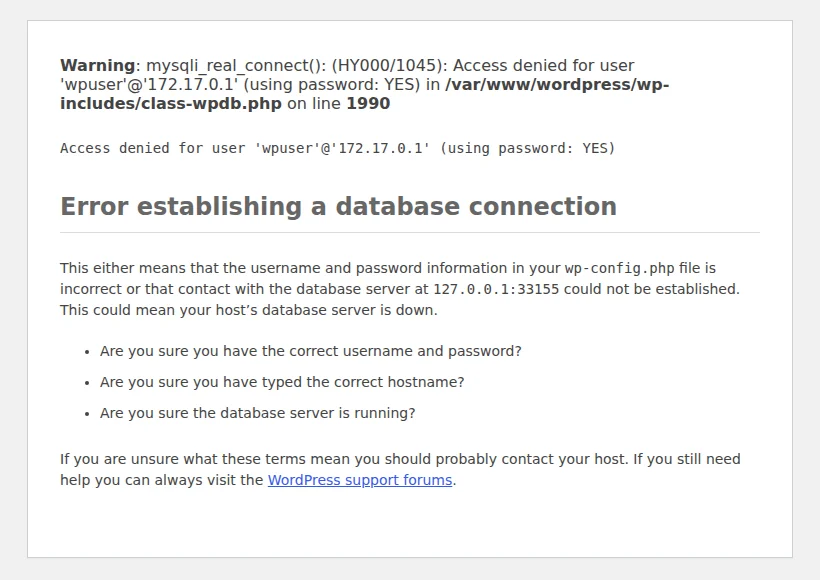
Reload the site once, then open wp-content/debug.log. With a wrong password, our log held exactly this line:
PHP Warning: mysqli_real_connect(): (HY000/1045): Access denied for user 'wpuser'@'172.17.0.1' (using password: YES) in /var/www/wordpress/wp-includes/class-wpdb.php on line 1990If the site is already down and nobody else is looking, set WP_DEBUG_DISPLAY to true instead and the reason appears on the page itself. Leaving WP_DEBUG_DISPLAY at false hides it on screen, which caught us out in testing. Turn all three back off when you are done. More on WP_DEBUG mode and the WordPress error log in our guides, and in the official Debugging in WordPress handbook.
dbtest.php, fill in your four values, open it in a browser, then delete it. It prints the MySQL error number directly.<?php
// dbtest.php: upload next to wp-config.php, open it in a browser, then delete it.
$host = 'localhost'; // DB_HOST from wp-config.php
$user = 'your_db_user'; // DB_USER
$pass = 'your_db_password'; // DB_PASSWORD
$name = 'your_db_name'; // DB_NAME
mysqli_report( MYSQLI_REPORT_OFF );
$db = @mysqli_connect( $host, $user, $pass, $name );
if ( $db ) {
echo 'Connected. MySQL server ' . mysqli_get_server_info( $db );
} else {
echo 'Failed: (' . mysqli_connect_errno() . ') ' . mysqli_connect_error();
}In our lab it returned Connected. MySQL server 8.0.46 with good details, Failed: (1045) Access denied for a wrong password, Failed: (1044) for a wrong database name and Failed: (2002) Connection refused for a stopped server. If it connects but WordPress still fails, skip straight to Fix 3.
How do you fix “Error establishing a database connection”?
Work through the four fixes in order, which runs roughly from the most common cause to the least common. If you already know the MySQL error, jump to the fix the table points to. Each fix starts with the signs that it is yours.
Fix 1: Check the database details in wp-config.php
How to tell this is your cause: the log or page shows 1045 Access denied, 1044 or Cannot select database, No such file or directory, or getaddrinfo failed. It usually starts right after a migration, a restore to a new server, or a database password reset in your hosting panel.
Incorrect database credentials are the most common cause of this error. Here’s how to check them:
- Open
wp-config.phpin the site’s root folder with your host’s file manager or over SFTP. - Find the four connection lines (below).
- In your hosting panel, open the MySQL databases page and compare the database name, user and host character for character. Many panels prefix both with your account name, for example
acct_wpdb. - If you are unsure of the password, reset the database user’s password in the panel and paste the new one into wp-config.php rather than guessing.
- Save the file and reload the site.
define( 'DB_NAME', 'your_database_name' );
define( 'DB_USER', 'your_username' );
define( 'DB_PASSWORD', 'your_password' );
define( 'DB_HOST', 'localhost' );
Watch for stray spaces inside the quotes and for a password containing a single quote, which breaks the line. The WordPress wp-config.php documentation lists every accepted DB_HOST format.
Is DB_HOST right?
In most cases the database host is localhost. However, some hosting providers use a different hostname, a port, or a socket path. With localhost, PHP connects through a local Unix socket; if MySQL only listens on TCP or runs on another server, you get (2002) No such file or directory. We saw exactly that when we pointed a TCP-only server at localhost. Use the value your host gives you:
define( 'DB_HOST', '127.0.0.1:3306' );                          // TCP with an explicit port
define( 'DB_HOST', 'mysql.example-host.com' );                  // a separate database server
define( 'DB_HOST', 'localhost:/var/run/mysqld/mysqld.sock' );   // a specific socket
Does the database user have privileges?
If the page says Cannot select database and the password is right, the user exists but is not allowed into that database, or the database name is wrong. Removing a user’s privileges in our lab produced the same message as a mistyped DB_NAME. In cPanel, open MySQL Databases, add the user to the database and tick All Privileges. With SSH or phpMyAdmin (see how to edit a WordPress database in phpMyAdmin):
GRANT ALL PRIVILEGES ON your_database_name.* TO 'your_username'@'localhost';
FLUSH PRIVILEGES;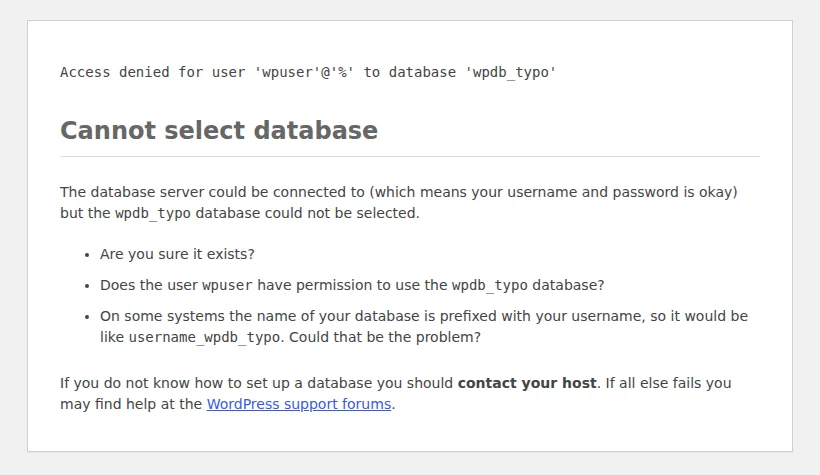
Fix 2: Check whether the database server is down
How to tell this is your cause: Connection refused means nothing is answering on the database port, so MySQL is stopped or crashed. A page that hangs for about 60 seconds before failing with Connection timed out means the database host cannot be reached at all. Every site on the same server failing at once points here too.
In our lab, stopping MySQL gave Connection refused instantly. Pointing DB_HOST at an address that never answers made every request wait 60.1 seconds, which is PHP’s default socket timeout, before the error appeared. If you have SSH:
sudo systemctl status mysql       # or: mariadb
sudo systemctl restart mysql
mysqladmin -u root -p ping        # prints: mysqld is alive
sudo tail -n 50 /var/log/mysql/error.log
If MySQL keeps stopping, check the server’s memory. On a small VPS the operating system can kill MySQL when RAM runs out, which brings this error back every time traffic rises. On shared or managed hosting you cannot restart MySQL yourself, so contact your hosting provider and send them the exact MySQL error from your log.
Use tools like Pingdom or a WordPress uptime monitor to get an alert the moment the database stops answering, rather than hearing it from a client.
Fix 3: Repair crashed or corrupted database tables
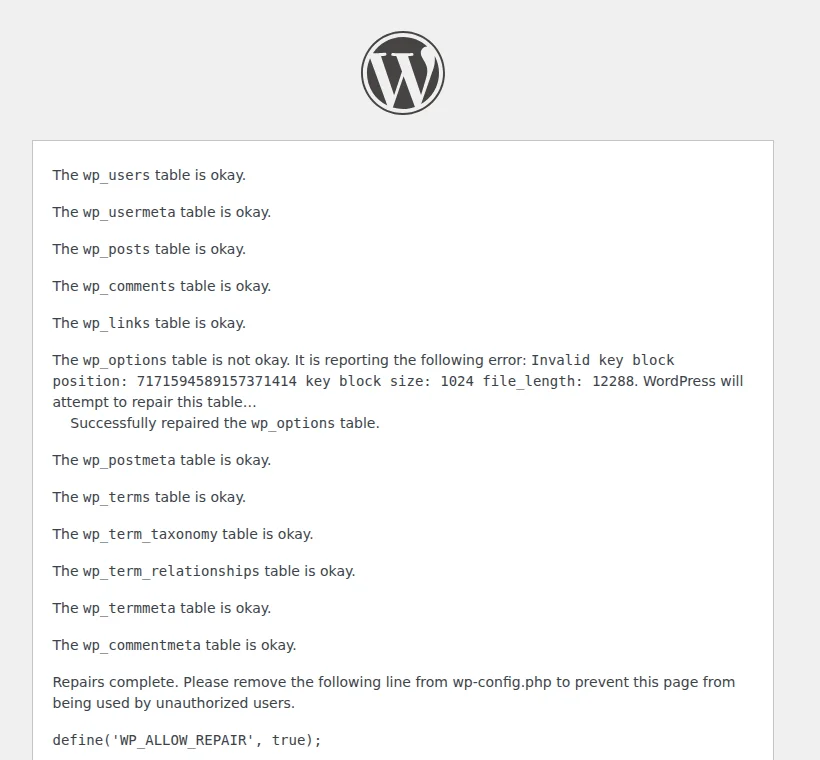
How to tell this is your cause: the details are right and dbtest.php connects, but the homepage still shows the error. Open /wp-admin/: if it says One or more database tables are unavailable. The database may need to be repaired, a table has crashed.
This is the one cause that WP_DEBUG does not explain on the front end. When we crashed the wp_options table, the homepage showed only the plain error with debugging on, and only wp-admin named the problem.

Add this line to wp-config.php, above That’s all, stop editing:
define( 'WP_ALLOW_REPAIR', true );- Open
/wp-admin/maint/repair.phpon your site, for exampleyour-site.com/wp-admin/maint/repair.php. - Click Repair Database. Repair and Optimize Database also works but locks tables for longer.
- Remove the line from wp-config.php when it finishes.
With SSH you can run the same check with WP-CLI: wp db check and then wp db repair. Two limits are worth knowing. MySQL’s repair command works on MyISAM tables; InnoDB, the default engine today, does not support it, so a damaged InnoDB table needs a restore from backup. And repair cannot recreate a table that is missing: when we removed wp_options, wp-admin showed the same message, and a table that is gone can only come back from a backup. Here is a detailed guide to repair WordPress databases for you.
Fix 4: Check your hosting limits
How to tell this is your cause: the error comes and goes, often during a traffic spike, a bot crawl or a busy cron run, and the log shows (HY000/1040): Too many connections. Your host may also have emailed you about resource limits.
MySQL refuses new connections once max_connections is reached; it was 151 on our MySQL 8.0 install, and the MySQL reference manual explains the limit. Shared hosts often set a lower cap per database user. When we held the only allowed connection open, the next WordPress request failed with error 1040. To see where you stand, run:
SHOW VARIABLES LIKE 'max_connections';
SHOW STATUS LIKE 'Threads_connected';
SHOW FULL PROCESSLIST;- Kill or fix long-running queries in the process list; a slow plugin query holds its connection the whole time.
- Block abusive bots and put page caching in front of WordPress, so fewer requests reach PHP and MySQL.
- Use a persistent object cache, such as Valkey or a Redis-compatible store, to cut repeat queries.
- Ask your host what the limit is. If you hit it at normal traffic, you have outgrown the plan.
Does increasing the PHP memory limit fix it?
No. In many older guides, an error in establishing a database connection is blamed on insufficient memory. We tested it: with PHP’s limit at 4 MB the site died with an Allowed memory size exhausted fatal error, and at 6 MB it loaded normally, because WordPress raises its own limit to at least 40 MB (64 MB on multisite) when the server allows it. Memory only matters here when the whole server runs out of RAM and MySQL is killed, which is Fix 2. You may still want more PHP memory for heavy plugins; this is how to increase the WordPress memory limit:
Access your wp-config.php file and add this line, then save the file and refresh your site:
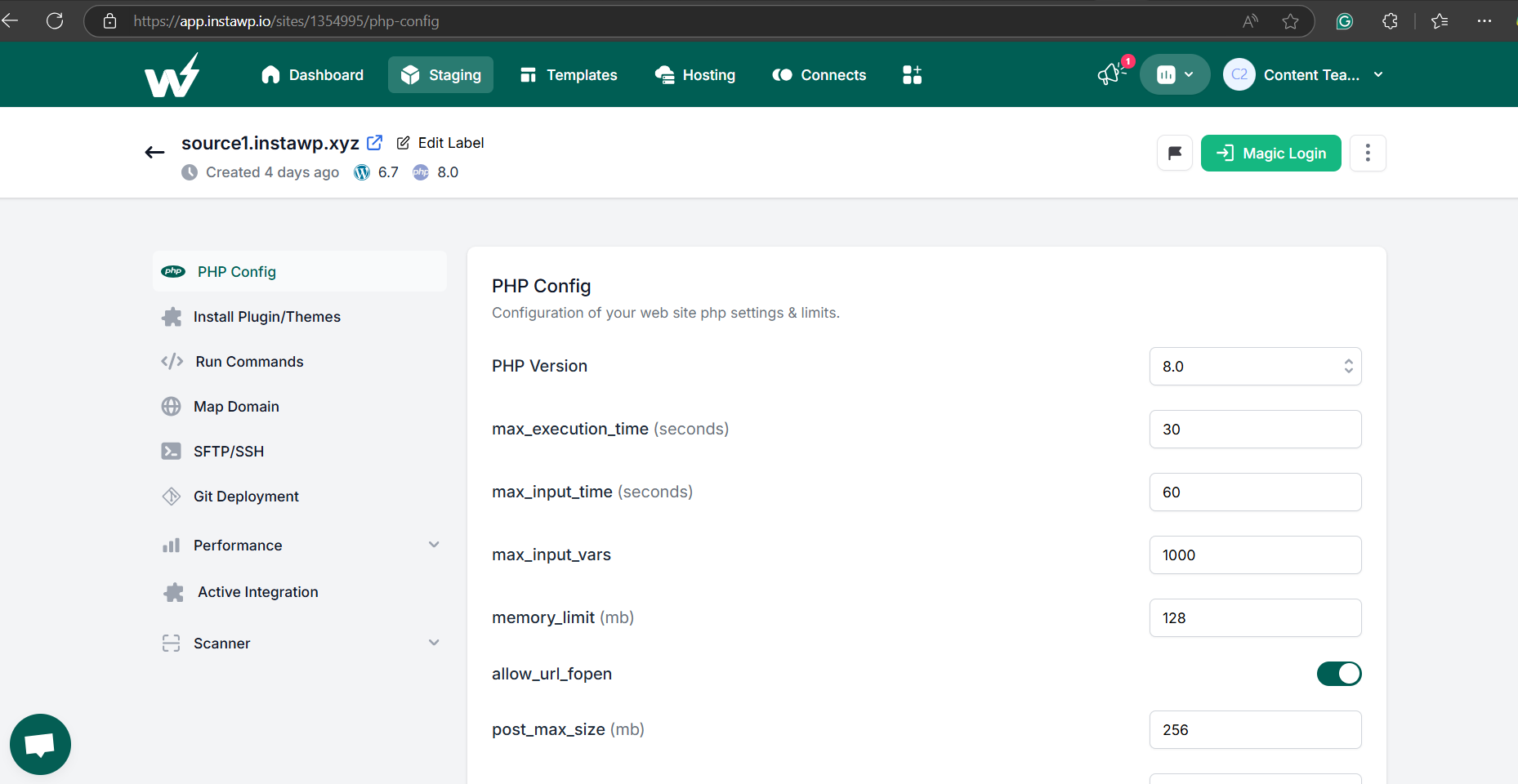
define( 'WP_MEMORY_LIMIT', '256M' );If you’ve launched your site through InstaWP, you can change PHP settings from the dashboard instead of editing files:
- Go to InstaWP and log into your account.
- Select the WordPress site you want to modify.
- Open PHP Config in the site’s menu.
- Set
memory_limitto the value you need and save. - Reload the site and check the change took effect.
What else can cause it?
A few rarer situations produce the same message. Each one usually has an obvious trigger, so start with what changed just before the site went down.
Restore core files
Damaged WordPress core files, usually from an interrupted update or a hacked site, can break the database layer itself. Replace them with a clean copy without touching your content:
- Download the latest WordPress version from wordpress.org.
- Replace the
wp-adminandwp-includesfolders over SFTP. - Keep
wp-contentandwp-config.phpas they are; they hold your theme, plugins, uploads and database details.
If wp-config.php was changed without you, or tables vanished, check the signs your WordPress site is hacked before you restore anything.
Use a backup to restore your site
If a table is missing or an InnoDB table is damaged, restoring a working backup is the fix. Take a copy of the current database first, even a broken one, then restore the latest good backup from your host or a backup plugin like UpdraftPlus. On InstaWP, see how InstaWP backups work and how to restore one.
On localhost, XAMPP or after a migration
On a local install the usual cause is that MySQL is not started in the XAMPP or MAMP control panel, which gives Connection refused. Default local logins are often root with an empty password. See how to run WordPress with XAMPP. If PHP itself has no MySQL driver you get a different message, the one about PHP missing the MySQL extension. After moving a site to a new host, the new database has a new name, user, password and often host, so start with Fix 1; our WordPress migration troubleshooting guide covers the other moves that break. For other messages, see our list of common WordPress errors.
Can managed WordPress hosting stop you debugging this yourself?
Yes, for most of the causes above. On InstaWP’s managed WordPress hosting, the database is created with the site and its details are written into wp-config.php for you, so the most common cause, a credential mismatch, is not something you set up by hand. Monitoring, backups and support cover most of the rest, so a database problem reaches someone whose job is to fix it.
If your hosting provider consistently fails to manage resources or offers poor support, it may be time to switch to a more reliable managed hosting solution tailored for WordPress. A managed WordPress hosting provider should take these jobs off your list:
- Updates: WordPress core, plugin and theme updates are handled for you on InstaWP Plus and above.
- Monitoring: uptime monitoring alerts you when the site goes down, also from Plus.
- Backups: weekly on Starter and daily from Plus, so a crashed or missing table is a restore, not a rebuild.
- Support: Priority support teams with real people are included on every InstaWP plan.
- Isolation: each site runs with its own Linux user, database, PHP-FPM pool and reserved vCPU, with SSH, WP-CLI and PHP config on every plan when you do want to look yourself.

Plans and features from the InstaWP pricing page on 12 October 2026; every plan is billed daily per site and comes with $25 in credits to start. On our newer servers, a WordPress benchmark scored 9.8 out of 10 against 7.3 on the previous generation; our hosting benchmark has the method.
Did You Know: InstaWP bills hosting per site per day, so you can move one site first and add the rest later. Follow InstaWP on X for hosting updates. Moving hosts can feel risky, but many managed WordPress hosts offer smooth migration; on InstaWP, migrations are free on every plan.
What is the fastest way to fix “Error establishing a database connection”?
Turn on WP_DEBUG_LOG and read the MySQL error. 1045, Cannot select database or No such file means fix wp-config.php. Connection refused or a 60-second hang means the database server is down. A homepage error with “tables are unavailable” in wp-admin means repair the tables. Too many connections means you are hitting hosting limits. Raising PHP memory will not help. If you would rather not do this at all, put the site on managed WordPress hosting with backups, monitoring and support included.
Frequently asked questions
What does Error establishing a database connection mean?
It means WordPress could not log in to its MySQL or MariaDB database, so it cannot load any page. The cause is almost always wrong details in wp-config.php, a database server that is down, a crashed table, or a hosting connection limit.
Can this error cause data loss?
The error itself does not delete anything; it only stops WordPress reading the database. A crashed or missing table can lose data, though, so export a copy of the database before you run a repair or restore a backup.
Why does my homepage show the error but wp-admin shows a different message?
That pattern means a table has crashed or is missing. The front end only shows the plain error, while wp-admin says One or more database tables are unavailable. Add WP_ALLOW_REPAIR to wp-config.php, run /wp-admin/maint/repair.php, then remove the line.
Why does the error come and go?
An error that appears under load and clears by itself usually means the database hit its connection limit (MySQL error 1040, Too many connections) or the server ran short of memory. Check the error log, find slow queries, add caching, and ask your host about the limits.
Does increasing the PHP memory limit fix this error?
No. In our tests a 4 MB PHP memory limit produced an Allowed memory size exhausted fatal error, not this message. Memory only matters when the whole server runs out of RAM and MySQL is stopped.
How do I fix it on localhost or XAMPP?
Start MySQL in the XAMPP or MAMP control panel first; a stopped MySQL gives Connection refused. Then check that wp-config.php uses the local database name and user, often root with an empty password on a default install.
Why did the error appear after I migrated my site?
The new host gave the database a new name, user, password or host, and wp-config.php still has the old ones. Copy the new details from the hosting panel into wp-config.php, including DB_HOST.
Is this error caused by malware?
Rarely, but it happens: malware can change the password in wp-config.php or damage tables. If the details changed without you or tables are missing, scan the site and check for other signs of a hack before restoring.
Should I contact my hosting provider?
Yes when the log shows Connection refused, Connection timed out or Too many connections, because those are server problems you usually cannot fix on shared or managed hosting. Send them the exact MySQL error so they can act on it.
Can I host my WordPress site on InstaWP so I do not have to debug this?
Yes. InstaWP is managed WordPress hosting from $5 a month per site. The database is set up with the site, every plan includes human support and free migrations, and Plus and above add daily backups, uptime monitoring and managed updates.