What if you could launch a fully functional WordPress site in your browser, without installing anything, configuring a host, or even signing up for an account?
That’s exactly what WordPress Playground offers. WordPress Playground is a browser-based version of WordPress that runs without hosting, PHP, or MySQL. You open a link, get a fresh WordPress site in seconds, and start testing themes, plugins, or block patterns without touching your live projects. In this guide, you will learn what WordPress Playground is, how it works in your browser, its real-world use cases, and when you should switch to a persistent sandbox like InstaWP for serious client work.
Table of Contents
Key Takeaway

What it is: A free, browser-based WordPress playground that runs without a traditional server, PHP installation, or MySQL database.
Best for: Quickly testing themes, plugins, block patterns, and new features without risking a client or production site.
What you can do: Spin up a temporary WordPress site, install custom themes or plugins, try different WordPress and PHP versions, and even embed Playground in tutorials or product demos.
When to switch: Use WordPress Playground to explore. Use a persistent sandbox like InstaWP when you need staging, sharing links, real domains, SFTP, SSH, migration, and long-running projects.
WordPress Playground at a Glance
WordPress Playground is an experimental, online version of WordPress that runs directly in your browser. It uses WebAssembly for PHP, SQLite instead of MySQL, and a Service Worker as a tiny web server so you can load a fresh WordPress site without configuring hosting or installing anything on your machine.
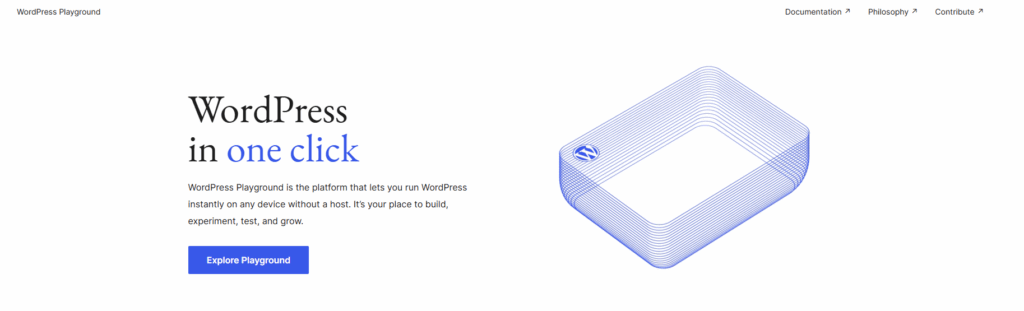
It is like WordPress in browser without the usual things it typically needs.
Do not use WordPress Playground to build an actual site that you want to retain for demo purposes or some similar reason. The site will be gone on page refresh, and your effort will be wasted. For such use cases, it is better to go ahead with WordPress sandboxing tools like InstaWP.
Playground leverages modern web technologies to run WordPress entirely in-browser:
- WebAssembly (PHP) – Runs PHP code in the browser
- SQLite (via wp-sqlite-db plugin) – Replaces MySQL to store temporary data
- ServiceWorker – Acts as a local web server using JavaScript
This architecture eliminates the need for any hosting environment while allowing developers to test almost anything.
What can you use the WordPress Playground for?
With WordPress Playground, setting up a temporary WordPress site is a one click job. You can use it to:Try new block themes, patterns, and design ideas safely.
- Run WordPress in local tools like the Visual Studio Code extension or the
wp-nowCLI for fast dev experiments. - Test plugins across different WordPress and PHP versions.
- Embed interactive WordPress examples into tutorials or online courses.
- Showcase how your plugin or theme works, without asking users to install it first.
- Reproduce bugs quickly before you send a ticket or GitHub issue.
Is WordPress Playground Good Enough?
WordPress Playground is a fantastic innovation for beginners, educators, and developers who want to explore WordPress in the browser without setup headaches. It removes the need for hosting, databases, and file transfers, so it is often the fastest way to try WordPress instantly.
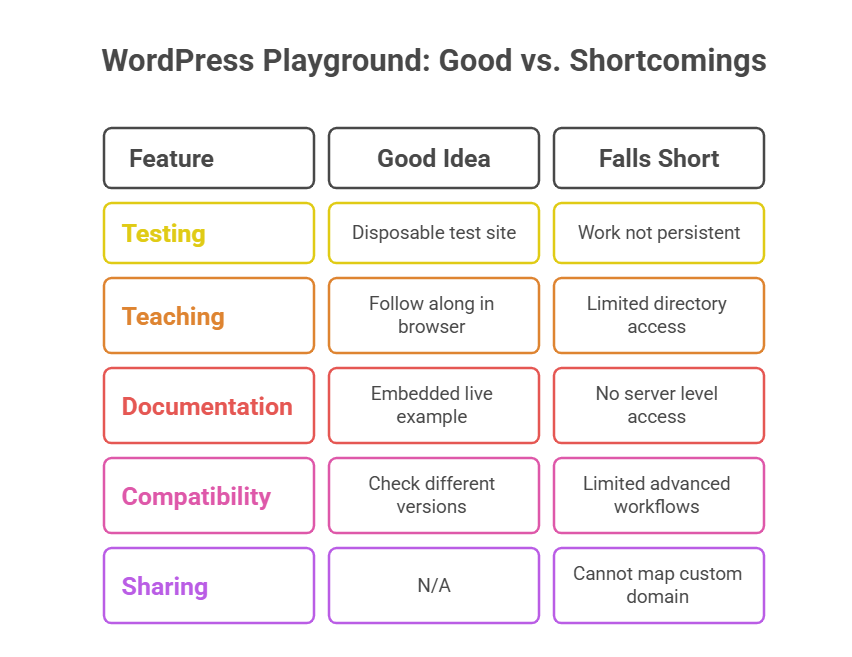
When you hit any of these limits, you should move from WordPress Playground to a full sandbox platform like InstaWP.
InstaWP goes beyond the concept of WordPress in the browser and delivers a production-grade WordPress sandbox that’s fast, shareable, and persistent. It supports everything from plugin/theme testing to WordPress migration workflows, collaborative previews, and even site selling.
Key Benefits of InstaWP Over WordPress Playground:
Here is why InstaWP is a better choice over WordPress Playground:
- Sites don’t disappear on refresh — they persist until you delete them
- One-click WordPress setups with any version or configuration
- Access to the full plugin & theme directories
- Built-in tools like SFTP, SSH, DB editor, code editor, and WP-CLI
- Custom domain support for client previews or team testing
- Support for staging, blueprints, 2-way sync, and migrations
The crux is: If you’re just dipping your toes into WordPress or showcasing a concept during a workshop, WordPress Playground does the job beautifully.
But if you’re a serious WordPress user, whether you’re testing compatibility, building for clients, or shipping real projects, InstaWP gives you everything WordPress Playground can’t.
How to set up WordPress Playground in Your Browser?
You can visit https://developer.wordpress.org/playground/ to launch a new WordPress playground inside your browser.
Step 1: Open the Playground
- Visit
https://playground.wordpress.netin any modern browser. - Wait a few seconds while WordPress boots inside your browser.
- You will see a front end view of a default WordPress site with a toolbar on top.
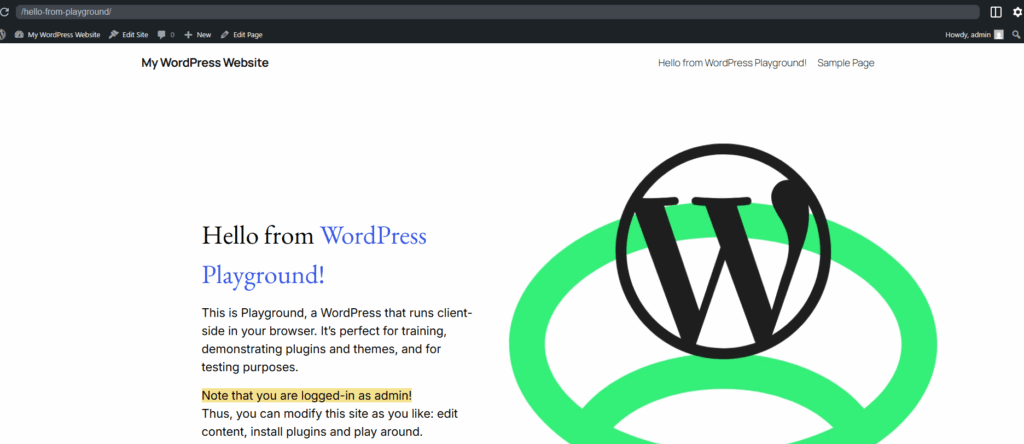
Step 2: Configure WordPress and PHP versions
- In the simulated browser toolbar at the top, click the settings or gear icon.
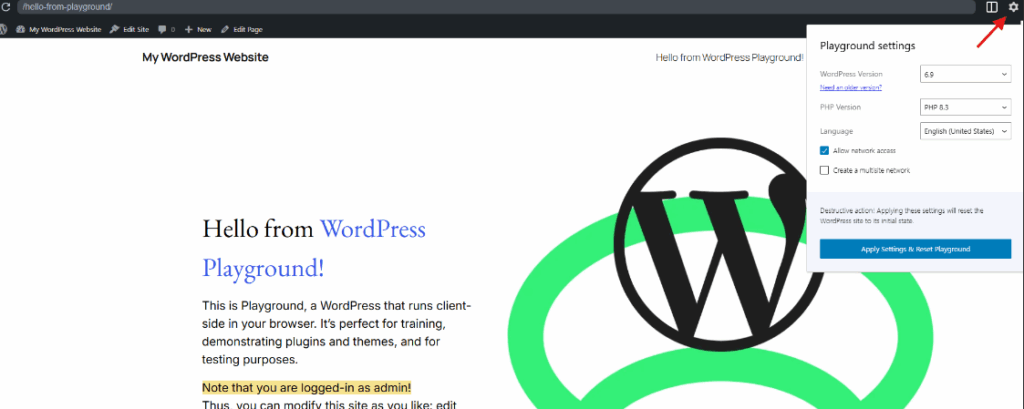
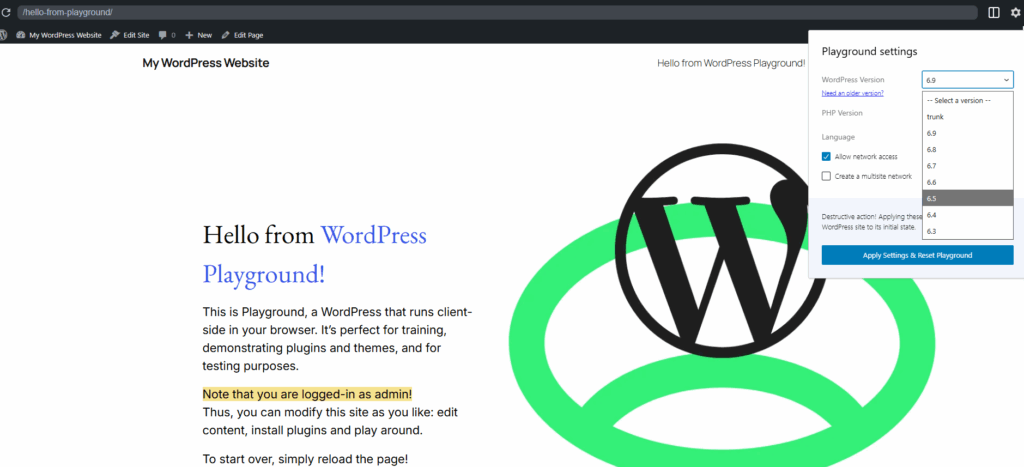
- Choose the WordPress version you want to test, for example the version that runs on your live site or the upcoming Nightly build.
- Pick a PHP version that matches your hosting environment.
Step 3: Enable network access and language
- In the same settings panel, select your admin language.

- Enable network access if you want to install themes and plugins directly inside Playground.
- Apply the changes so the Playground reloads with your chosen configuration.
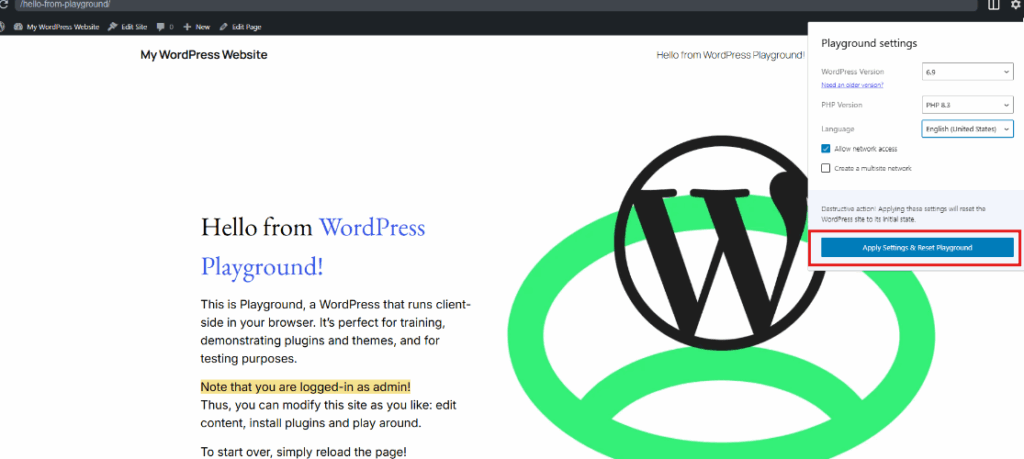
Step 4: Open the WordPress dashboard
- From the top admin bar, click the site title and choose “Dashboard”.
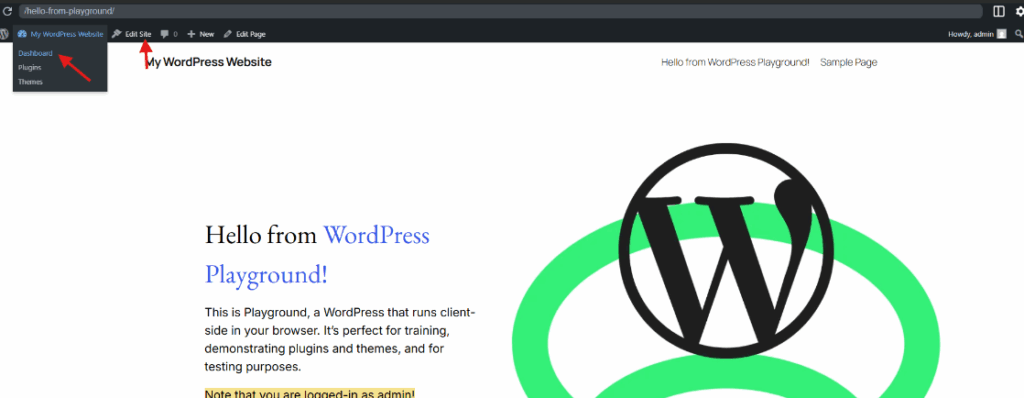
- You now have a temporary WordPress admin that behaves like a normal site for testing.
Remember, this is still a browser based instance. Unless you save or export it, a refresh will reset your changes.
How to Embed WordPress Playground into Your Website
If you want to showcase a live, interactive WordPress environment on your site — for tutorials, plugin demos, or training — you can easily embed WordPress Playground using an HTML iframe tag.
Here’s the basic embed code:
<iframe src="https://playground.wordpress.net/"></iframe>
This feature is especially useful for:
- Interactive product demos – Show how your theme or plugin works in real time
- Online courses and tutorials – Let students test concepts immediately
- Documentation pages – Provide hands-on examples next to your written guides
- Client presentations – Embed quick mockups or theme previews
? Keep in mind: the embedded WordPress Playground session is temporary and resets on refresh unless exported.
How to Use the WordPRess Playground Query API
The Playground Query API lets you customize your embedded WordPress instance by passing specific configuration parameters directly into the URL. This allows you to pre-load themes, plugins, or even specific WordPress and PHP versions.
For instance:
<iframe src="https://playground.wordpress.net/?plugin=jetpack&theme=twentytwentyfour&wp=6.2&php=7.4"></iframe>This URL will launch a Playground site with:
- The Jetpack plugin is installed
- The Twenty-Twenty-Four theme is activated
- WordPress 6.2 and PHP 7.4 are configured
Supported Query Parameters
WordPress Playground gives you great freedom when it comes to using the query parameters. You can mix and match the following:
| Parameter | Purpose |
|---|---|
plugin= | Loads a specific plugin (e.g., plugin=jetpack) |
theme= | Sets a specific theme (e.g., theme=astra) |
wp= | Defines the WordPress version (e.g., wp=6.3) |
php= | Defines the PHP version (e.g., php=8.1) |
mode=seamless | Opens directly into the Site Editor (no frontend) |
Real-World Use Cases:
- Pre-configured tutorials: Share a unique URL with students or customers that loads with a specific plugin/theme setup
- Plugin documentation: Offer an instant “Try it Now” experience for your users
- Support teams: Generate quick testing environments for reproducing bugs or helping users troubleshoot
- Developers: Test across different PHP or WordPress versions instantly
✅ You can also embed these customized URLs using an <iframe> on any web page or learning platform.
How to use WordPress Playground blueprints
In WordPress Playground, a blueprint is a small JSON file that describes a complete WordPress environment. A WordPress Playground blueprint can:
- Set the WordPress and PHP versions
- Install and activate plugins and themes
- Decide which page or screen should open first
- Preload demo content, products, or sample layouts
If you regularly spin up test environments or want repeatable demos, blueprints turn that into a one click workflow instead of a long checklist. Here is how use it.
Open your Playground site in the browser and click the small four-square icon in the top left of the Playground toolbar.

Switch to the Blueprints Gallery tab. Here, you can browse the available blueprints, such as:
- A “Create Block Theme” environment to experiment with block theme building
- A “Stylish Press” WooCommerce demo store with products and a custom theme
Click Preview on any blueprint to load it as a live WordPress Playground site. Within a few seconds you get a fully configured environment that matches the blueprint, without installing anything by hand. This is very useful for tutorials, product demos, and internal training session
Creating a blueprint from your own Playground site
You do not have to start from the gallery. Any Playground instance that you configure yourself can be turned into a reusable blueprint. Make sure you are on the Temporary Playground tab.
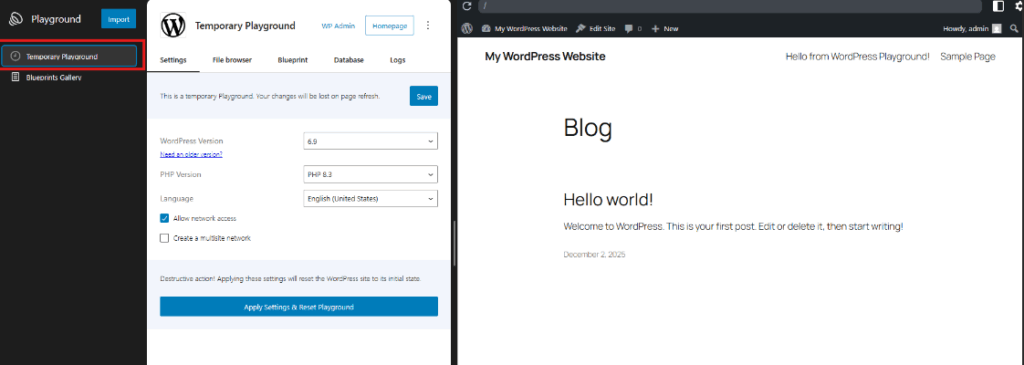
Playground will show you the underlying blueprint.json for that environment. This file contains all the important configuration that describes your test site.
Once the blueprint is visible, you can save and reuse it whenever you want. Playground will automatically recreate the same WordPress environment based on the blueprint configuration. This makes it very easy to:
- Share identical test setups with your team
- Give users a ready made demo space for your plugin or theme
- Keep a library of “standard” environments for QA, training, or content creation
Once you have a few solid WordPress Playground blueprints, spinning up consistent test sites stops being a chore and becomes a quick, repeatable step in your workflow.
Replace WordPress Playground with InstaWP sandboxes
WordPress Playground is perfect when you want a quick scratchpad in the browser. The moment you are handling multiple client projects or long running experiments, InstaWP sandboxes are the safer and more scalable choice.
Instead of a temporary WordPress Playground that resets on refresh, an InstaWP sandbox behaves like a real, hosted site that stays online until you are done with it. That difference matters a lot when you are an agency or freelance developer juggling tens of sites at once.
For day to day work, InstaWP sandboxes solve problems that WordPress Playground cannot:
- Always on environments: Sandboxes keep your WordPress sites alive across sessions, devices, and teams. You do not lose progress when a browser tab is closed.
- One dashboard for every project: You can see all client sandboxes in a single panel, organise them by project, and clean up old ones when a phase is over. This is almost impossible to manage with separate WordPress Playground links.
- Closer to real hosting: Sandboxes run on real servers with PHP, MariaDB, object cache, and a production like stack. The behaviour you see in a sandbox is much closer to what you will see in production than a pure browser based WordPress Playground instance.
- Full developer toolset: Each sandbox can expose SFTP, SSH, database editor, code editor, and WP CLI. That gives you the same control you expect from a staging server, not just a browser only demo.
- Templates and repeatable setups: Instead of crafting blueprints by hand, you can create InstaWP templates from your best sandboxes and reuse them across clients. For example, a standard WooCommerce setup, a membership stack, or a starter block theme kit.
- Shareable preview links for clients: Every sandbox has a stable URL with SSL, so you can send links to stakeholders without worrying about browser storage or playground resets.
- Upgrade path to production: When the client signs off, an InstaWP sandbox can be migrated to the final host or moved to InstaWP cloud hosting. With WordPress Playground, the story usually stops at the demo.
In practice, you can still use WordPress Playground for quick experiments or small tutorials. Once a test turns into a real project, move it into an InstaWP sandbox. You keep the speed of instant WordPress Playground style testing, but with the reliability, control, and visibility that serious WordPress agencies and developers need when they run multiple sites at the same time.
Conclusion: Use WordPress Playground For Ideas, InstaWP For Real Work
WordPress Playground is perfect when you want to try an idea fast, learn the Block Editor, or show a quick demo in the browser. Its limits appear as soon as you need persistence, real hosting behaviour, and multi site workflows for clients.
That is where InstaWP sandboxes fit in. You get instant spin ups, real servers, staging, migrations, and one dashboard for every project.
If you are an agency or developer, start using WordPress Playground for ideas and InstaWP sandboxes for real work. Spin up your first sandbox today and see how much build time you actually save.
Ready to move beyond playgrounds? Launch your first InstaWP sandbox today and start building client ready sites the smart way.
FAQs
Is WordPress Playground Free?
Yes, it is free software released under the General Public License 2 (or any later) version.
What is WordPress Playground?
WP Playground is particularly useful for developers and designers to test new ideas, debug issues, or learn WordPress functionalities. It’s similar to other programming playgrounds or sandboxes, offering an isolated space to try out and refine code or designs before implementing them on actual websites.
Is WordPress Playground useful for beginners?
Absolutely, it offers a beginner-friendly space to learn and practice using WordPress without worrying about messing up a live site. It makes an excellent tool for managing and customizing test websites.
Does the WP Playground Allow the installation of Custom Themes and Plugins?
Yes. You can upload the respective .zip files to the staging environment if you want to add a custom plugin or theme to WordPress Playground.
What are the disadvantages of WordPress Playground?
WordPress Playground, while powerful, is still in experimental development and has limitations: it doesn’t support direct access to WordPress plugins or themes directory, you lose database changes on page refresh, and there are challenges with iFrame and certain PHP functionalities like pthreads and XDebug.
Is there a WordPress Playground Alternative I can use?
InstaWP is the best WordPress Playground Alternative available at present. The tool has all the testing features like this WordPress project. In fact, it also has advanced features like SFTP/SSH, code editor, DB editor, domain mapping, 2-way sync, migration, and so on. That’s what makes it a better choice over the Playground, which is still in the experimental stage.
Does WordPress Playground allow migrating my work to a Live Site?
Not exactly, but you can export your work to a .zip file and import it to your hosting account as you wish. Remember, when using in-browser WordPress with SQLite, you may need to convert the database to MySQL or MariaDB for proper functioning on a web server.
Can I move my WordPress Playground work to a live site?
Not directly, but you can export your Playground site as files or a zip archive, then import it into a hosting account. You may need to convert the SQLite database to MySQL or MariaDB when you deploy it on a standard server.