Figma to WordPress conversion turns a Figma design into a working WordPress page that someone can still edit, and the fastest way to get a first version is now to let an AI agent build it. Figma’s MCP server hands the live design to Claude Code or Cursor, and InstaMCP writes it to a draft page as Gutenberg blocks or as a native Elementor or Bricks layout. There are five ways to convert Figma to WordPress in total, and the right one depends on who has to edit the page afterwards.
This guide walks through both AI routes on InstaWP’s managed WordPress hosting, where every site has an MCP server built in: Claude Design working from an exported file, and the Figma MCP server reading the file directly. Either way, the page lands on a staging draft you approve before it reaches production.
Table of Contents
Key Takeaway

Figma to WordPress conversion works best when you export designs as images, SVGs, or HTML/CSS instead of relying on native .fig files.
Figma’s MCP server gives Claude Code or Cursor the live design, and InstaMCP writes it as Gutenberg blocks or a native Elementor or Bricks page. Expect a reviewable draft, not a perfect one-click conversion.
InstaWP MCP lets Claude interact with a WordPress site through natural language and perform actions like creating or updating content.
Always use a sandbox or staging site first, then move approved changes to production with 2-way sync.
What is Figma to WordPress conversion?
Figma to WordPress conversion is the process of turning a static or interactive Figma design into a working WordPress website, page, template, or theme. InstaWP treats it as three jobs rather than one: get the design out of Figma in a usable form, turn that into WordPress markup, and apply the markup somewhere safe enough to throw away.
Traditionally, this meant one of four things:
- Rebuilding the design manually in Elementor, Bricks, Divi, Spectra, Kadence, or Gutenberg.
- Converting the design into HTML, CSS, and JavaScript, then integrating it into a WordPress theme, which is what the Block Editor Handbook documents the modern shape of.
- Using a Figma to WordPress plugin that maps Figma layers into WordPress blocks or builder widgets.
- Hiring a developer or agency to handle the complete Figma to WordPress development process.
All of these methods still work. But AI has added a new path.
Instead of manually recreating every section, you can export the Figma design, give Claude Design the visual and structural context, ask it to generate WordPress-ready markup, and then use InstaWP MCP to push that design directly into a WordPress staging site. That is the workflow we will cover here.
What are the 5 ways to convert Figma to WordPress?
There are five routes from a Figma file to a working WordPress page: an AI workflow that generates the markup for you, a Figma to builder converter plugin, a hand-build from Figma Dev Mode, a design-token mapping into a block theme, or hiring a developer. They differ far less in output quality than in who can edit the page afterwards, which is the question worth deciding first.
InstaWP recommends method 1 for Gutenberg, Elementor and Bricks sites and method 2 when the stack is Divi, Avada or WPBakery. The rest of this guide walks through method 1 end to end, first with Claude Design and then with the Figma MCP server. The honest caveat applies to all five: none of them is a one-click conversion of a native .fig file, and anyone promising that is describing a demo rather than a client project.
Which Figma to WordPress workflow should you use in 2026?
The biggest problem with Figma to WordPress development is not only design conversion. It is environment setup. Before you even start building, you need a WordPress install, PHP, database access, theme setup, plugins, staging, backups, login access, and a way to move changes live.
That is too much setup for a workflow that is supposed to be fast. InstaWP, the best all-in-one cloud for WordPress gives developers and agencies a better starting point: launch a WordPress site quickly, test the Figma to WordPress conversion in a sandbox, and move forward only when the output is approved.
InstaWP positions its hosting around instant sandbox creation, going live anytime, and pay-as-you-go hosting without long monthly commitments.
For this workflow, there are two ideal paths, and both run through the same loop.
Everything before that final push is disposable, which is what makes the workflow usable on a site somebody is paying for. Regenerate as often as you like.
Path 1: New Site or New Landing Page
Use this when you are building a fresh WordPress site or a new campaign page. Start with an InstaWP sandbox. Use it as the testing environment for your Figma design to WordPress conversion. Once the layout is approved, upgrade the plan based on the type of site you are building.
This works well for:
- Landing pages
- SaaS websites
- Agency websites
- Product pages
- Portfolio websites
- Event pages
- Lead generation pages
- Client design approvals
The benefit is simple: you do not waste time setting up WordPress locally or buying hosting before the design is ready. If you are unsure which you actually want, we have broken down WordPress staging versus sandbox sites.
Path 2: Existing WordPress Site
Use this when the client already has a live WordPress site hosted elsewhere. Install InstaWP Connect on the live site, create a staging site, enable 2-way sync, and run the entire AI-assisted Figma to WordPress conversion on staging.
This is the safer path for client work because Claude never has to touch the live page first. You test everything on staging, then push approved changes once the page looks good, which is the same discipline described in our guide to moving WordPress staging to production.
What do you need before you convert Figma to WordPress?
Before you convert Figma to WordPress using this workflow, prepare the following:
- A Figma design or page frame
- An InstaWP account
- A sandbox or staging WordPress site
- MCP enabled on the InstaWP site
- Claude Desktop or Claude Code (for the Figma MCP route: Claude Code or Cursor, plus a Figma Dev or Full seat)
- Exported design assets
- A target WordPress page
- A decision on output format
For most users, Gutenberg block markup is the best starting point. It keeps the layout closer to WordPress core and makes the page easier to edit later, for the reasons set out in the block editor key concepts.
Raw HTML can work for quick prototypes, but it is less friendly for non-technical clients. It may end up inside a Custom HTML block, which is fine for testing but not ideal for long-term maintenance.
Watch this video to understand this workflow better.
Which Figma export format works best for WordPress?
Different Figma export formats produce different outcomes, and none of them carries everything. Figma’s own export documentation covers the mechanics; what matters here is which parts of a design survive the trip into WordPress and which have to be rebuilt.
Read that split before you quote a timeline. InstaWP would rather set the expectation early than explain a missing hover state on a review call.
How do you convert a Figma design to WordPress, step by step?
Here is the Claude Design route, from an empty sandbox to a draft page. If you would rather have the agent read the live Figma file, the Figma MCP server route follows it.
Step 1: Create an InstaWP Sandbox Site
Start by creating a new WordPress site in InstaWP. This is the fastest path if you are building a new site or testing a landing page concept. You get a real WordPress environment without local setup. You can test themes, plugins, page structure, blocks, responsiveness, and AI-generated layout safely before deciding whether the site should go live.
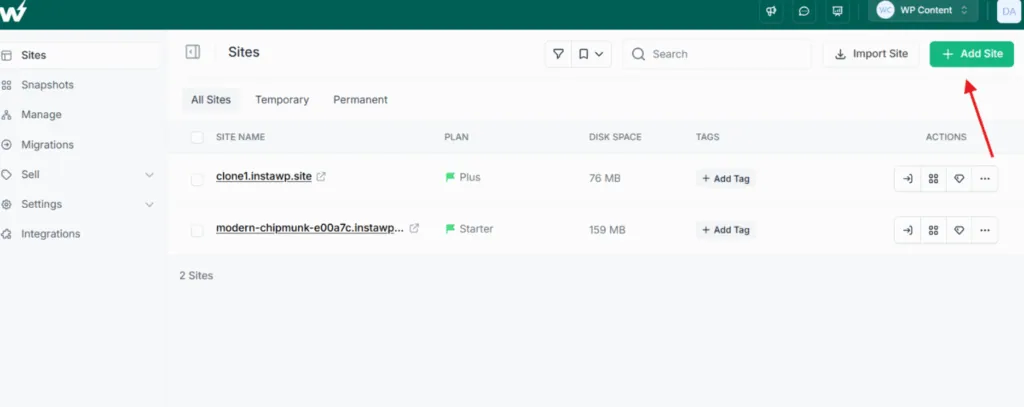
Start with the Sandbox plan and if the design works, upgrade the site plan based on the project needs. InstaWP’s pay-as-you-go WordPress model is built around flexible tiers and usage-based hosting.
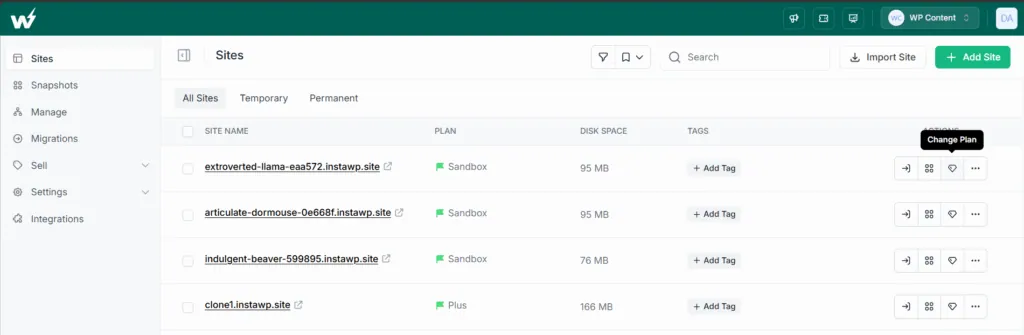
This is useful for agencies because not every Figma to WordPress conversion needs the same hosting plan. A small campaign page does not need the same resources as a WooCommerce store or membership site.
Step 2: Create Staging if You Already Have a Live Site
If the client already has a WordPress site, do not create the AI-generated page directly on production. Install InstaWP Connect plugin on the live site and create a staging copy.
Must Read: Create Staging Site | InstaWP Docs
Then enable 2-way sync. This gives you a safe environment for the Figma to WordPress conversion. You can let Claude create a new draft page, update an existing landing page, or generate a new page layout without risking the live site. Once approved, use sync to move the changes from staging to live.
Step 3: Enable MCP on the InstaWP Site
Next, enable MCP on your InstaWP site or staging site.
MCP, or Model Context Protocol, lets Claude communicate with your WordPress site through a managed connection. Instead of manually copying markup into wp-admin, Claude can use available tools to create or update content.
InstaWP’s WordPress MCP content describes MCP as a way to connect large language models like Claude directly to WordPress, turning natural language requests into actions such as publishing content, updating plugins, or listing pending comments.
For Figma to WordPress development, MCP is the bridge between generated design code and the WordPress page. If MCP itself is new to you, start with our explainer on WordPress MCP.
Step 4: Connect Claude to WordPress
Open Claude Desktop and connect it to your InstaWP site in minutes. Every site built with InstaWP comes with a WordPress MCP server built in, so you do not need any complex setup. Just enable MCP with one simple toggle, copy your MCP URL, and connect it with Claude Desktop.
What’s worth noting is that MCP is not limited to Claude. You can connect your InstaWP site to any of the 14 AI clients InstaMCP has setup guides for, including ChatGPT, Claude, Cursor, VS Code, GitHub Copilot, Gemini CLI and Codex CLI.
Here’s how to do it:
Go to Sites inside your InstaWP dashboard. Select the site you want to connect. Open the MCP section. Enable MCP using the toggle.
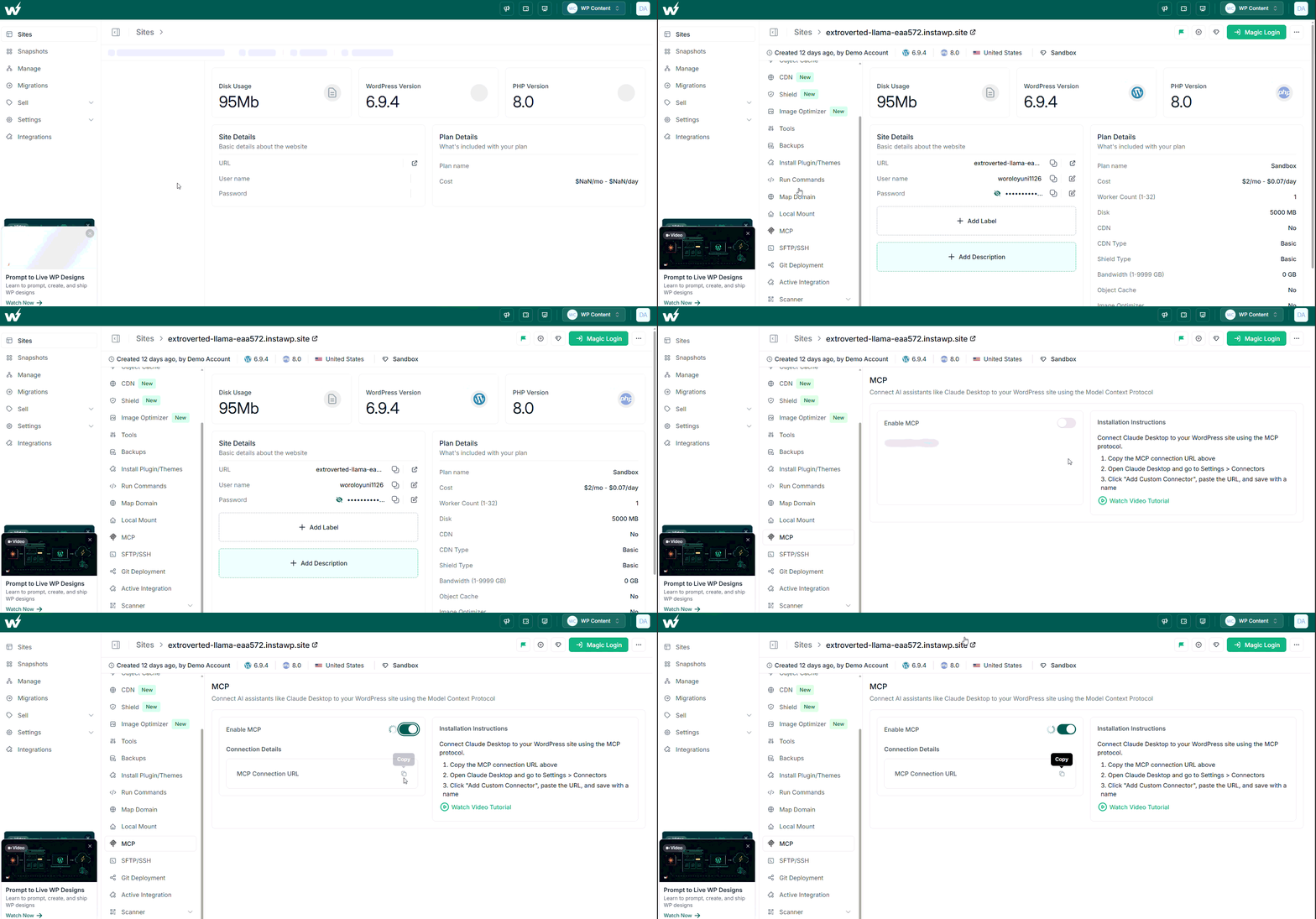
Copy the MCP URL generated for your site. Now, open Claude Desktop, go to Settings → Connectors, and lick Add Custom Connector.
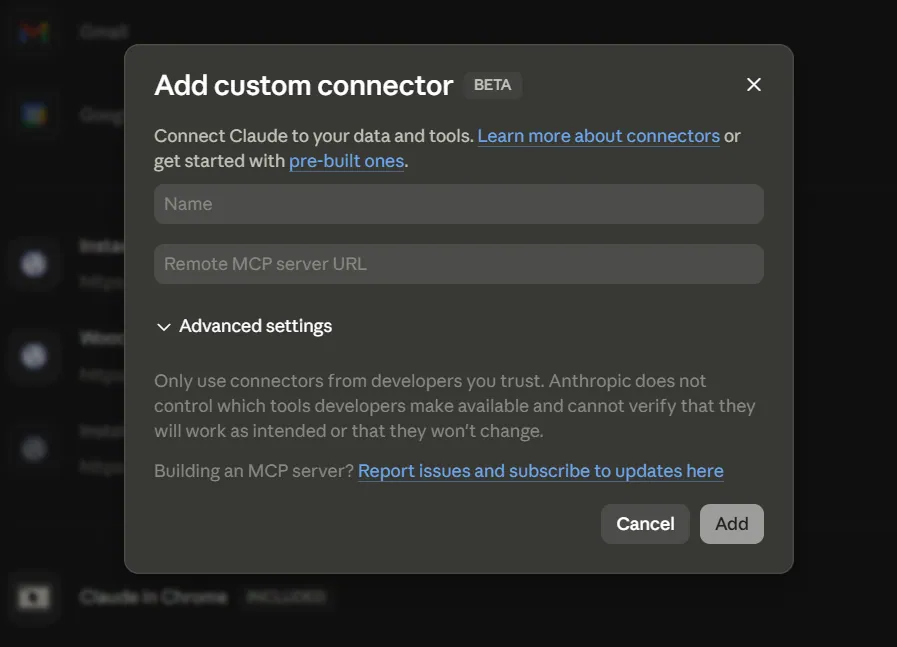
Paste your InstaWP MCP URL.
Save it, and your WordPress site is now connected to Claude Desktop. The longer walkthrough lives in our guide to connecting Claude with WordPress, and Claude’s own MCP documentation covers the client side. You can also watch this video tutorial to see the full setup process step by step.
A simple test prompt:
“List all pages on this WordPress site and show their current status.” If Claude returns the correct page list, the connection is working.
Step 5: Export Your Figma Design
The next step to convert your Figma design to WordPress is to export the design and hand it over to an AI tool like Claude.
To do this, open the Figma design you want to turn into a WordPress page. Make sure the frame is clean, complete, and includes all the sections you want to recreate, such as the hero section, feature blocks, testimonials, pricing, FAQs, or CTA. If you want the measurements and tokens rather than a flat picture, open the frame in Figma Dev Mode first and keep it open beside Claude.
Go to your Figma file, select the file, and click on Save Local Copy. You will get a .fig file of your designs.
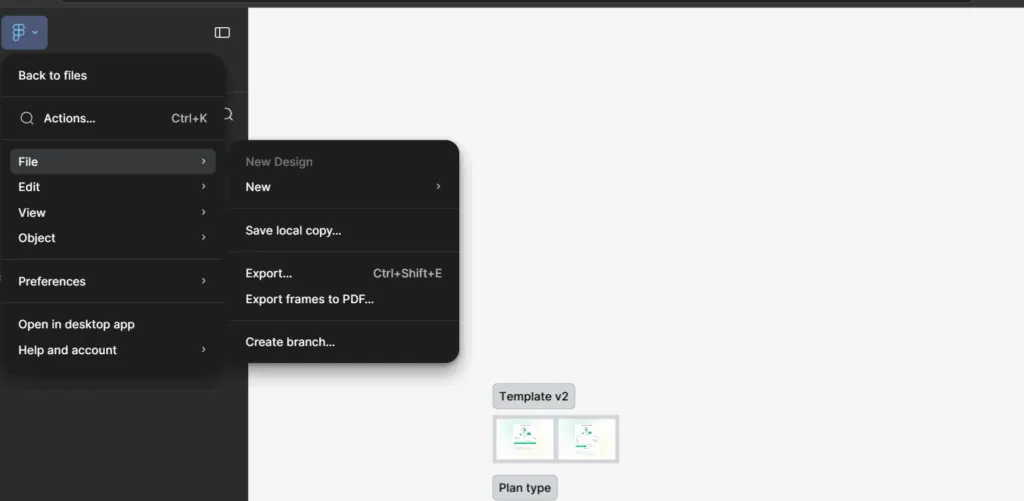
Step 6: Upload the Figma Export to Claude Design
Next, go to Claude Design through web or through your desktop app and set-up your design system. Now create a new design system in Claude Design.
Go to Design Systems and click Create Design System. In the comments section, describe your company name and add a short brand blurb so Claude understands the context of the design.
From the available options, choose Upload .fig file and upload the Figma file you just downloaded.
Also add your brand fonts, logo, color details, and any other important notes that will help Claude match the design with your brand identity.
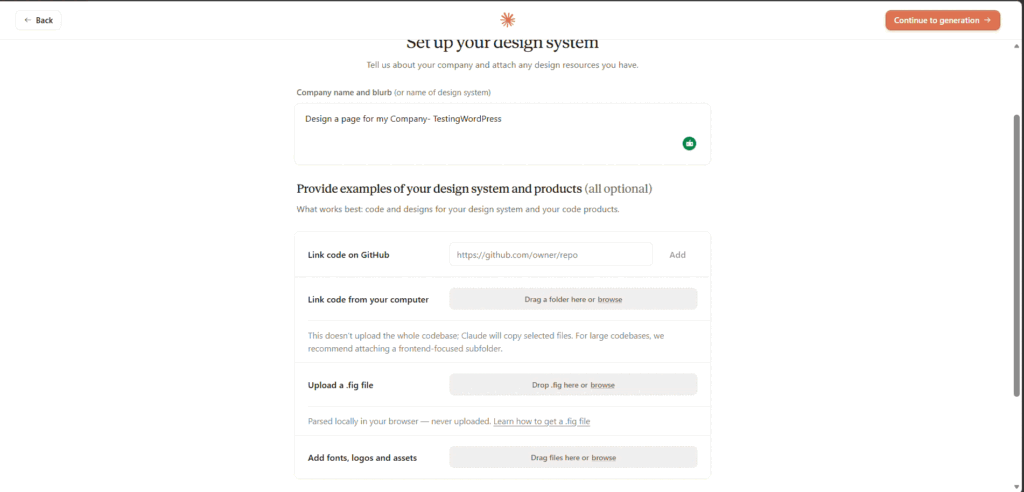
Once all related assets have been uploaded, click Continue Generation to finish generating the design system.
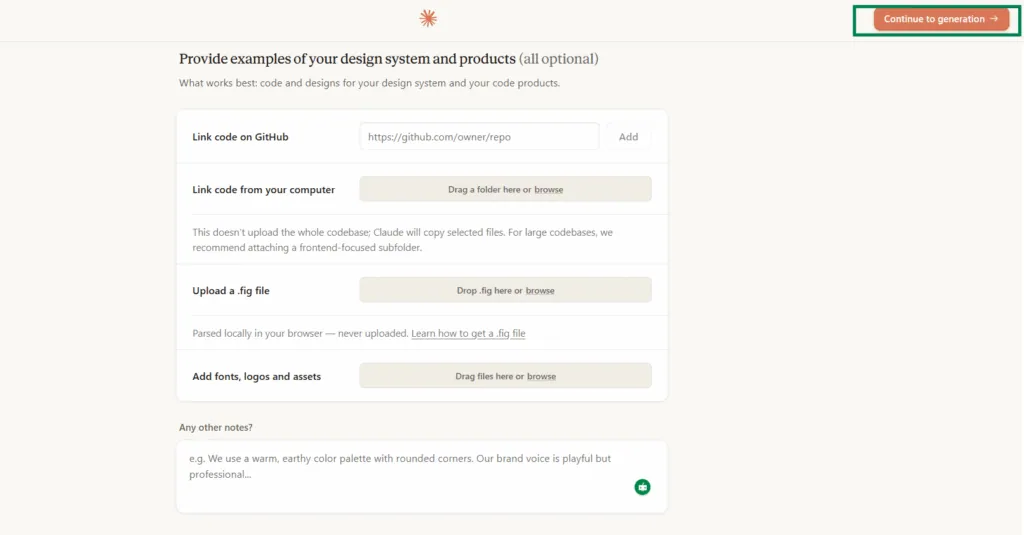
Step 7: Ask Claude Design to Generate the First Draft
Once Claude has the design reference, ask it to generate the page.
Go to Others, name your product something like Figma to WordPress Design, and select the design system you just created. Then start the generation process.
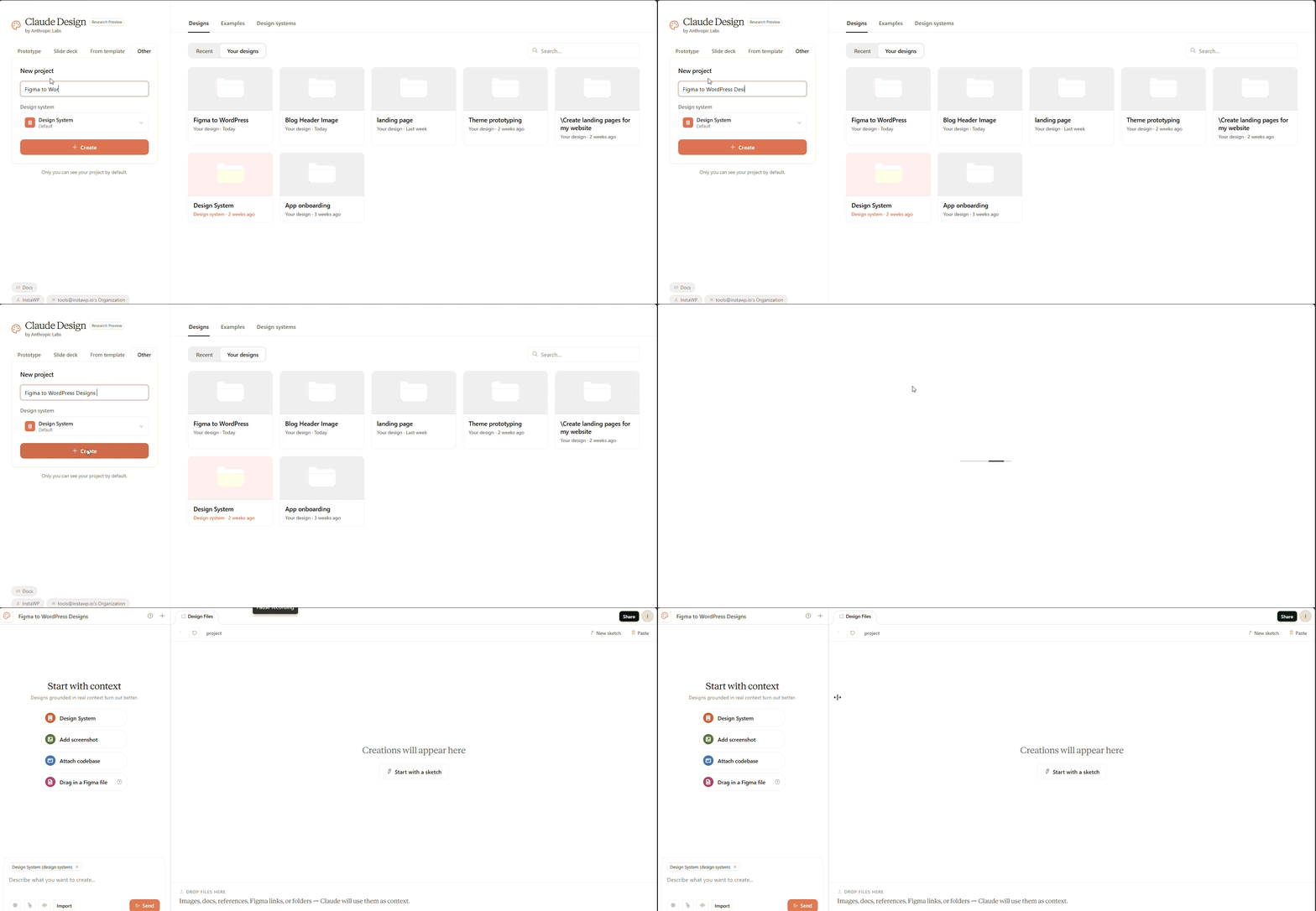
In the prompt window, add a clear instruction describing the page you want Claude to create, including the layout, sections, style, and any specific WordPress requirements.
Use this prompt:
“Analyze this Figma design and recreate it as a WordPress page using Gutenberg block markup. Keep the page editable in the WordPress block editor. Use semantic HTML where needed, but prefer native Gutenberg blocks. Match the visual hierarchy, section order, typography, spacing, buttons, cards, and responsive behavior. Do not create a full theme. Create content for one landing page only.”
At this point, Claude should produce a first-pass page structure. Do not expect perfection.
Check:
- Section order
- Heading hierarchy
- Button placement
- Card layout
- Image positioning
- Responsive stacking
- Spacing consistency
- CTA visibility
- Accessibility basics
- Whether the page is editable
Step 8: Push the Design to a Specific WordPress Page
Once the markup looks ready, tell Claude exactly where to push it through a command.
“Update the existing page titled ‘Homepage Draft’ with this Gutenberg block markup. Do not publish it. Save it as draft.”
The target page matters. For agency workflows, use drafts first. Then preview. Then publish only after review.
Step 9: Preview the Page on Staging
Open the page preview in WordPress. Now compare it against the Figma design. Instead of spending hours rebuilding the first version manually, you now spend time refining the AI-generated page. Check layout shift while you are there, because a generated hero with an unsized image is a classic cumulative layout shift source.
How do you convert Figma to WordPress with the Figma MCP server?
Connect two MCP servers to one coding agent. Figma’s MCP server gives Claude Code, Cursor, VS Code or Codex the selected frame’s layout, variables, components and a screenshot. InstaMCP, the WordPress MCP server built into every InstaWP site, lets the same agent write that design to a draft WordPress page as native Gutenberg blocks or as an Elementor or Bricks page. You do not export or upload anything by hand.
It is still method 1, with a different front end. Claude Design works from a .fig file you upload. The Figma MCP server reads the live file, so the agent gets exact spacing, colour variables and component names instead of estimating them from a picture.
What does the Figma MCP server give your AI agent?
Figma’s tool reference lists more than 30 tools, including ones that write to the Figma canvas. Five of them do the work in a WordPress build:
Which Figma plan do you need for the Figma MCP server?
No Figma plan is locked out, but View and Collab seats are capped at 20 tool calls a month, which one real page can use up. A Dev or Full seat is what makes this route practical. Figma’s published limits on 12 October 2026:
Source: Figma’s rate limits and access page. Figma says it may change these limits, and only clients in its MCP catalog can connect. Its remote server setup guide covers VS Code, Cursor, Claude Code, Codex and Xcode, which is why this route runs in Claude Code or Cursor rather than Claude Desktop.
Step 1: Add the Figma MCP server to Claude Code or Cursor
In Claude Code, Figma’s preferred install is its plugin:
claude plugin install figma@claude-plugins-officialOr add the remote server by hand so it is available in every project:
claude mcp add --scope user --transport http figma https://mcp.figma.com/mcpRun /mcp, pick figma, choose Authenticate and allow access in the browser. In Cursor, type /add-plugin figma in the agent chat, or use the install link on Figma’s setup page.
Step 2: Connect your InstaWP site’s MCP endpoint
Turn on MCP for the sandbox or staging site as in step 3 above (Sites, open the site, MCP, then the Enable MCP toggle), copy the connection URL, and add it as a second server:
claude mcp add --transport http instawp-site "https://your-site.instawp.site/insta-mcp?t=YOUR_TOKEN"In Cursor, add the same URL in its MCP settings. The token is bound to one WordPress user and inherits that user’s role, so an Editor’s token can build pages but cannot install plugins. Our guides to connecting Claude Code to WordPress and to connecting Cursor and other AI agents to WordPress cover each client. Before you point an agent at a client site, read is WordPress MCP safe for what a token can and cannot reach.
Step 3: Prompt the agent to build the page in Gutenberg
Paste the frame link and say exactly what WordPress should receive. get_design_context returns React and Tailwind unless you ask for something else, so name the target:
“Use the Figma MCP server to read this frame: [frame link]. Get its design context, variables and a screenshot. Then, on my InstaWP site, follow the gutenberg-pages skill and build it as a new draft page called ‘Homepage Draft’ from native Gutenberg blocks. Map the Figma colours, fonts and spacing to the active theme’s theme.json presets instead of hard-coding values. Upload the images to the media library, run validate_blocks before saving, and do not publish.”
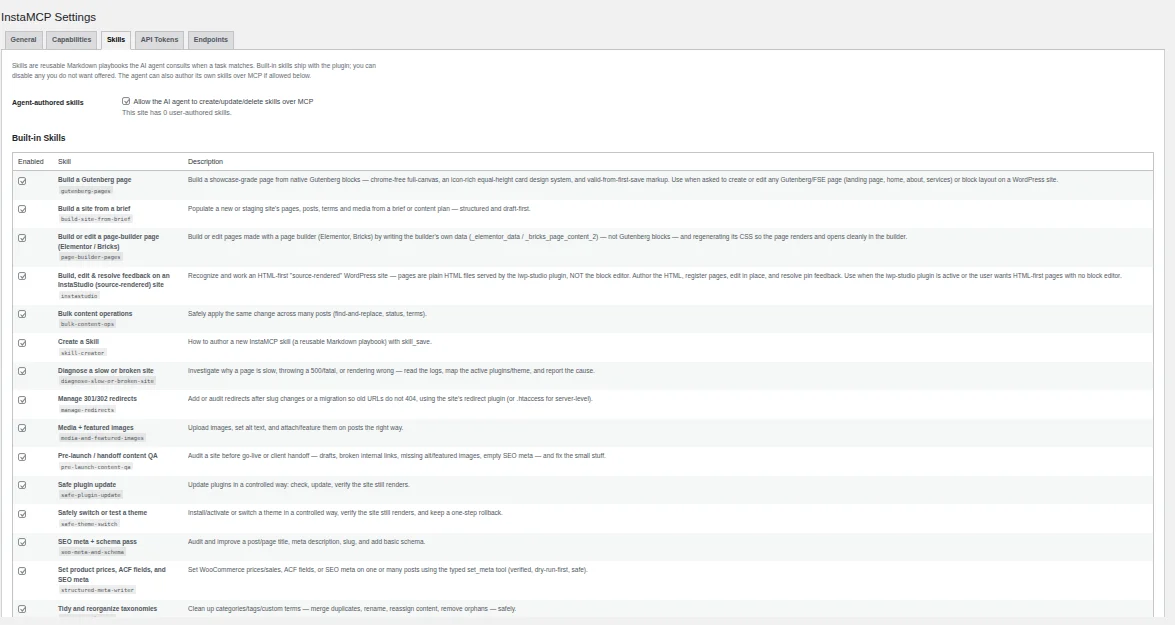
InstaMCP ships 15 built-in skills, and gutenberg-pages is the playbook for this job. It reads the active theme’s real presets before it writes anything and checks the markup with validate_blocks before the page is saved. On Kadence, Astra or GeneratePress this is the route to use, because those themes are built for the block editor and already own the palette and type scale.
Step 4: Build it in Elementor or Bricks instead
If the client site runs Elementor or Bricks, ask for the page-builder-pages skill instead. It writes the builder’s own page data rather than blocks and then regenerates the builder’s CSS, so the page renders on the front end and opens in the Elementor or Bricks editor as normal, editable sections.
execute_php tool, which is off by default. An administrator enables it in the site’s InstaMCP settings under Capabilities. Do it on the staging copy and switch it off again when the build is done. Bricks is a premium theme, so install it from your licensed ZIP before the agent builds with it.For how other Elementor MCP servers handle the same write, see our hands-on Elementor MCP test.
Step 5: Compare the draft with the Figma frame
Open the draft preview next to the screenshot the agent pulled from Figma. Check it at desktop width and at about 390px, because a Figma frame is usually drawn at one breakpoint and the agent has to infer the rest. Ask the agent to fix named sections, then push the approved page live with 2-way sync, or take the sandbox to production on the same WordPress staging environment without migrating it.
.fig file. Both end in the same place: a draft page on an InstaWP staging site, written over InstaMCP.Should you output raw HTML, Gutenberg blocks, or a custom theme?
Choosing the right output format is the difference between a quick demo and a maintainable WordPress page. Gutenberg block markup is the default InstaWP recommends, because it is the only option on this list that stays editable for a non-technical client without locking the site into one builder. If you want to go further than blocks, PHP-only blocks in WordPress 7.0 and CSS grid layout are where a Figma layout maps most cleanly.
How do you convert Figma to Gutenberg, Elementor, Kadence, Divi or Beaver Builder?
The target decides the route. Gutenberg and block-friendly themes such as Kadence, Astra and GeneratePress take the AI workflow in this guide as block markup. Elementor and Bricks take it too: InstaMCP’s page-builder-pages skill writes their own page data, so the agent builds a native, draggable layout. Divi, Avada, WPBakery, Beaver Builder and SeedProd store layouts in formats no InstaMCP skill writes, so those stay converter-plugin territory or a hand-build. The table below is what changes per target.
One rule cuts across every row. Whatever the target, InstaWP would generate the page on a staging site and compare it against the design before it touches production, because the failure mode here is quiet. A generated page usually renders perfectly well, and the thing missing from it is a section the client spots on the review call.
When does this Figma to WordPress workflow work best?
This Figma to WordPress workflow is best for:
- Landing page prototypes
- Marketing pages
- SaaS homepage drafts
- Agency website sections
- Product launch pages
- Lead generation pages
- Event pages
- Portfolio pages
- Internal design approvals
- Client concept validation
It is especially useful when you need to show progress fast. For example, an agency receives a Figma design from a client. Instead of manually rebuilding the entire layout before the next review call, the team can spin up an InstaWP sandbox, connect Claude through MCP, generate a first WordPress version, and send a staging preview.
That does not replace development. It compresses the first build cycle. The same pattern applies beyond design work: see building a landing page with AI in WordPress and making a portfolio website with WordPress. Once it is a habit rather than an experiment, our notes on using MCP for WordPress in production and on account MCP versus site MCP cover running it across a portfolio.
How do you keep a converted Figma page SEO-ready?
When converting Figma design to WordPress, do not only check visual accuracy. Check SEO too. Use this checklist before publishing:
- One clear H1
- Proper H2 and H3 structure
- Optimized title tag
- Meta description
- Compressed images
- Descriptive alt text
- Internal links
- Clean URL slug
- Mobile responsiveness
- Fast loading layout
- No hidden text from design exports
- No unnecessary wrapper divs
- Schema markup where relevant
- Clear CTA above the fold
- Accessible color contrast
Figma designs often look beautiful but do not always include SEO structure. WordPress pages need both, and Google’s guidance on creating helpful content is the standard the finished page is judged against rather than the design file. When prompting Claude, include SEO instructions from the beginning:
“Keep the page SEO-friendly. Use one H1, logical H2 sections, descriptive button text, optimized image alt text, and clean semantic structure.”
Conclusion
Figma to WordPress conversion is no longer limited to manual rebuilding, rigid plugins, or expensive development cycles. With Claude, the Figma MCP server and InstaMCP, you can move from a Figma design to a WordPress draft in Gutenberg, Elementor or Bricks much faster, while keeping the workflow safe through sandboxing, staging, and 2-way sync.
The key is to set the right expectation. Do not promise instant, pixel-perfect conversion from a native Figma file. Promise a faster, safer, AI-assisted workflow that helps developers and agencies create a working WordPress page in minutes, refine it on staging, and push it live only when it is ready.
Start with an InstaWP sandbox, connect Claude through MCP, and test your next Figma to WordPress workflow without setting up WordPress manually. If you would rather drive the whole thing from a terminal, the InstaWP CLI creates the sandbox and enables the endpoint in a single command, and our roundup of AI coding tools for WordPress developers covers what else fits alongside Claude.
Try InstaWP free and build your first AI-assisted Figma to WordPress page in a sandbox before moving it live.
FAQs
Can I convert Figma to WordPress directly?
You can convert Figma to WordPress, but usually not through a perfect direct export. The practical workflow is to export your Figma design as images, SVGs, assets, or HTML/CSS, then convert that into WordPress blocks, page builder sections, or custom code.
How do I convert Figma design to WordPress with Claude?
Export your Figma design, upload the export to Claude, ask Claude to generate WordPress-ready Gutenberg block markup, then use InstaWP MCP to push the output to a WordPress staging page. Review and refine before publishing.
What is the Figma MCP server?
It is Figma’s official MCP server, at https://mcp.figma.com/mcp. It gives AI coding agents such as Claude Code, Cursor, VS Code and Codex structured access to a Figma file: design context, variables, components, screenshots and assets. For a WordPress build, pair it with a WordPress MCP server such as InstaMCP so the same agent can write the page.
How do I connect Claude Code to Figma?
Install Figma’s plugin with claude plugin install figma@claude-plugins-official, or add the remote server with claude mcp add –scope user –transport http figma https://mcp.figma.com/mcp. Then run /mcp, select figma, choose Authenticate and allow access. Claude Code can then read any frame you link to.
Do I need a paid Figma plan for the Figma MCP server?
No plan is excluded, but View and Collab seats get only 20 tool calls a month. Dev and Full seats get up to 200 calls a day on Starter and Professional and up to 600 a day on Organization and Enterprise, according to Figma’s rate-limit page in October 2026. A real page build needs a Dev or Full seat.
Can AI convert Figma to Elementor?
Yes. With the Figma MCP server and InstaMCP connected to the same agent, InstaMCP’s page-builder-pages skill builds the design as a native Elementor page by writing Elementor’s own data and regenerating its CSS. Run it on a staging site with Execute PHP enabled for the build, and review the result in the Elementor editor before it goes live.
Can Claude read a Figma file?
Yes, in two ways. Claude Code can read a live Figma file through Figma’s MCP server, which returns the frame’s layout, variables and a screenshot. Claude Design accepts an uploaded .fig file. Claude Desktop on its own works best with exports such as PNG, SVG or HTML/CSS plus layout notes.
What is the best format for Figma to WordPress conversion?
For most websites, Gutenberg block markup is the best format because it keeps the page editable inside WordPress. Raw HTML is fine for quick prototypes, while custom theme development is better for advanced production builds.
How do I export Figma to WordPress?
You do not usually export Figma to WordPress directly. Export the Figma design as PNG, SVG, assets, or HTML/CSS. Then use Claude, a Figma to WordPress plugin, a page builder, or custom development to recreate the design inside WordPress.
Is Figma to WordPress conversion instant?
No. The MCP push can happen quickly, but the full workflow includes exporting, generating markup, previewing, refining, and testing. A realistic promise is Figma to WordPress in minutes for a first draft, not instant final production output.
Can I convert Figma to Gutenberg blocks?
Yes, and it is the output format InstaWP recommends. Ask the AI explicitly for native Gutenberg block markup rather than HTML. Without that instruction you usually get one large Custom HTML block, which renders correctly and is close to uneditable for a client. Native blocks keep the page changeable in the WordPress block editor by someone who has never seen the Figma file.
Does Figma to WordPress work with Elementor, Bricks or Divi?
Yes. For Elementor and Bricks, InstaMCP’s page-builder-pages skill lets an AI agent build the page in the builder’s own format, so it opens in the builder as editable sections. An administrator has to enable Execute PHP first for the CSS step. Divi, Avada and WPBakery store layouts in formats no InstaMCP skill writes, so a converter plugin such as UiChemy or FigWP, or a hand-build, is the practical route there.
How accurate is an AI Figma to WordPress conversion?
Accurate on structure, text, spacing, colour and images. Unreliable on anything that is a rule rather than a picture: auto layout behaviour, component variants, prototype interactions, hover states and real responsive breakpoints all have to be rebuilt in WordPress. Treat the first generation as a reviewable draft on staging, not as a finished page.
Do I need Figma Dev Mode to convert a design to WordPress?
No, but it makes the output noticeably better. Dev Mode exposes exact measurements, spacing and design tokens, and handing those to the AI alongside the visual export removes most of the guesswork about padding and type scale. Without it you are asking a model to infer numbers from a picture, and it will approximate them.