With a focused theme and a clear structure, you can have a professional portfolio online in an afternoon, even if you have never built a website before.
This guide walks you through the entire process step by step, from setting up WordPress and choosing the right theme to adding your projects and going live under your own domain. It is written for freelancers, designers, developers, and anyone who wants a portfolio they fully own and control.
Key Takeaways
- WordPress is a strong choice for a portfolio because you own the site, get thousands of design options, and can scale it later. Around 42% of all websites run on WordPress (W3Techs, 2026).
- The fastest way to build one is on a managed WordPress platform. InstaWP launches a live, hosted WordPress site in seconds, with no local setup or server configuration.
- A clean portfolio needs five core pages: Home, About, a Portfolio or Work page, a single project template, and Contact.
- Lightweight themes such as Astra, Kadence, Blocksy, and Neve ship with importable portfolio demos you can customize without code.
- You can build the portfolio section four ways: a portfolio theme, a portfolio plugin, a page builder, or the native block editor. AI builders can draft the whole site in minutes.
- A custom domain plus free SSL turns a demo into a professional identity. InstaWP provisions SSL automatically on every mapped domain.
Table of Contents
Is WordPress Good for Portfolios?
Yes. WordPress is one of the best platforms for a portfolio website because you own the site outright, you get thousands of themes and plugins to shape it, and you can grow it from a simple showcase into a full business site later. It powers around 42% of all websites (W3Techs, 2026), which means a huge ecosystem of portfolio themes, tutorials, and support sits behind whatever you build.
Hosted builders like Wix and Squarespace get you online quickly, and community profiles on Behance or Dribbble give you exposure, but they all keep you inside someone else’s walls.
Your work lives under their domain and plays by their rules. WordPress flips that. You control the design, the domain, and the data, and nothing stops you from adding a blog, case studies, or even a checkout for your services down the line.
Here is why creatives and developers keep choosing it for portfolio work:
- Full ownership and control: your domain, your hosting, your files. No platform can throttle or delete your showcase.
- Design freedom: thousands of free and premium themes, so your portfolio does not look like every other template site.
- Room to scale: start with five pages today, add a blog, a store, or a client area whenever you are ready.
The one tradeoff people worry about is setup: buying hosting, installing WordPress, and keeping it updated. That is exactly the friction a managed platform removes, which is where the next section comes in.
What You Need to Build a WordPress Portfolio Website
You need three things to put a portfolio online: a WordPress site, a portfolio theme, and a domain name. On a traditional host, the first one is the slow part, since you are buying a server, running an installer, and configuring SSL by hand. On a managed WordPress platform, that step takes seconds and the hosting, security, and CDN are already wired in.
A portfolio site is usually light. It shows projects, loads fast, and rarely handles thousands of concurrent visitors, so you do not need enterprise hosting. What you do need is a fast, reliable home for it that you can manage without becoming a sysadmin. With that in mind, here is the full build, with the InstaWP method first because it is the quickest path from idea to live URL.
How to Make a Portfolio Website in WordPress (Step by Step)
Most tutorials open with “buy hosting and install WordPress,” which is the part beginners get stuck on. We will skip that bottleneck by spinning up a live WordPress site on InstaWP first, then move through the steps that apply on any host: picking a theme, building your pages, customizing the design, adding your work, and going live. Here is the whole journey at a glance before we dig in.
Your 7-step portfolio roadmap
Step 1: Launch Your WordPress Site in Seconds
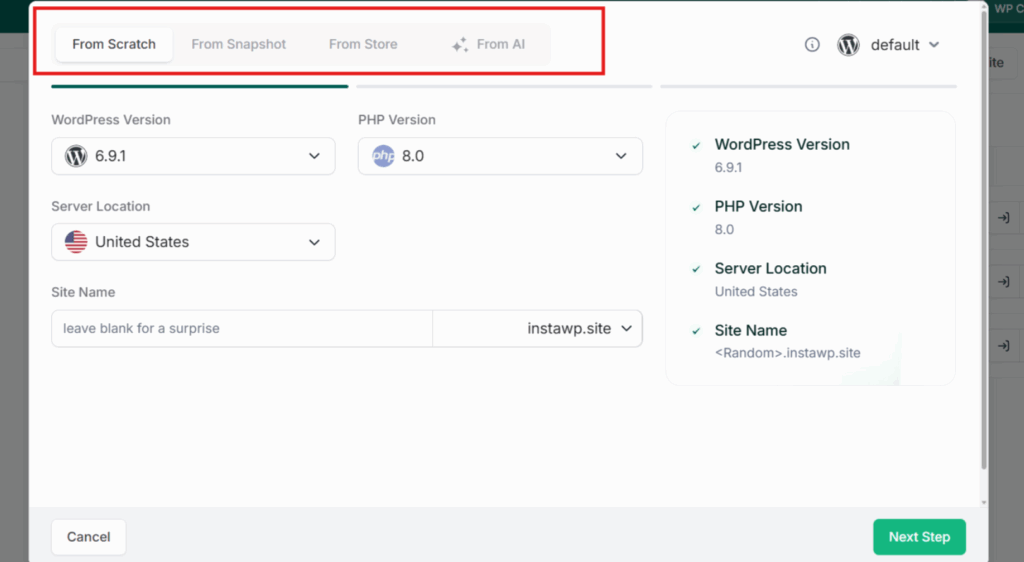
The very first step in building a portfolio website is to have a blank WordPress instance to develop on. This is the part that usually slows beginners down, so it helps to use a platform that makes it instant. InstaWP is the best option here, because this managed WordPress hosting provider gives you several ways to spin up a WordPress site.
From the dashboard you can build from scratch, generate a full site with AI, or launch from a saved snapshot or template from stores so you start from a baseline you have used before.
? Watch: How to Create a Site on InstaWP
Prefer the terminal? The InstaWP CLI lets you create a WordPress site, locally or in the cloud, and push it live with a single command, no Docker or MySQL required.
Head to InstaWP, create your free account, and open your dashboard. Then click + New Site to begin.

On the setup screen, pick the latest WordPress version and PHP 8.x. These are the current, well-supported versions, so your site is fast and secure from day one. You do not need to understand the details here; the defaults are the right choice for a portfolio.

Give your site a name (if you skip this, InstaWP picks one for you), then add a few starter plugins so they are ready when you log in. For a portfolio, a contact form plugin like WPForms or Contact Form 7 and an SEO plugin like Rank Math or Yoast are a good starting set.

Now choose your plan. You can test the waters on a $2-a-month Sandbox site, paid from the $25 in credits you get when you add a card. When you are ready to keep your portfolio online for good, the Starter plan is the right fit. It is built for light, focused sites like personal portfolios and freelancer showcases, so you are not paying for power you will not touch.

The Starter plan runs on pay-as-you-go pricing, billed by the day, so you stay in control of cost while you build. When you click Create Site, you get a fully functional, hosted WordPress site in a few seconds.
Click Magic Login to drop straight into the WordPress admin without typing a password, and you are ready to build. If you would rather not pick a theme by hand at all, you can let AI build the first draft for you.
Did you know?
You can generate a complete WordPress portfolio with AI on InstaWP. The built-in ZipWP and Kadence AI builders let you describe the site you want and hand you a styled, content-filled starting point in minutes, which you then refine in the editor. Every InstaWP site is also MCP-ready with one toggle, so you can connect an AI assistant like Claude and edit your site just by chatting with it.
Step 2: Choose and Install a Portfolio Theme
Your theme controls the look and structure of your portfolio, so pick one built for showcasing work. The right WordPress portfolio theme is lightweight, loads fast, ships with importable demo layouts, and lets you change colors, fonts, and sections without writing code. Heavy, feature-stuffed themes slow your site down and hurt both SEO and the first impression you are trying to make.
You have two simple ways to install a theme on InstaWP. The first is from inside WordPress: use Magic Login to enter your site, then go to Appearance > Themes > Add New, search for your theme by name, and click Install and then Activate.

The second way is from your InstaWP dashboard: open your portfolio site and use Install Theme/Plugin to add themes and plugins in bulk, with no manual uploads. This is handy when you want to set up several tools at once.

If you build portfolios for several clients, the bulk Build/Edit feature lets you install, update, or remove themes and plugins across every site at once. That removes repetitive setup work and keeps your projects consistent.

With your theme active, you have a visual foundation to build on. Next, set up the pages every portfolio needs.
Step 3: Build Your Core Pages
A portfolio does not need many pages, it needs the right ones. The fastest way to create them in 2026 is to skip the manual, page-by-page work and let an AI assistant build them for you, directly inside your site.
InstaWP makes this possible with InstaWP MCP, its built-in MCP (Model Context Protocol) server, which turns your WordPress site into something an AI client like Claude or ChatGPT can edit on command.
Start by enabling MCP on your site. It is a single toggle in your InstaWP dashboard. When you flip it, InstaWP installs the MCP plugin, generates your secure connection URL, and creates a 64-character access token, with no Node.js setup, no config files, and no application passwords to wire up by hand.
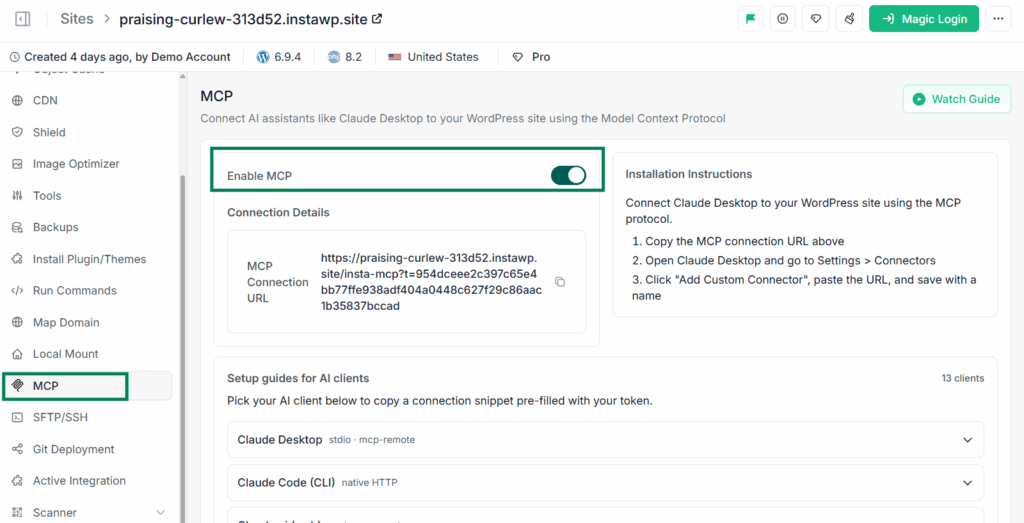
Copy that one URL into your AI client and your site is ready to take instructions. (The full walkthrough lives in InstaWP’s guide to connecting AI assistants to WordPress with MCP.)
InstaWP MCP is one of the most powerful and easiest-to-use WordPress MCP servers available, and a few strengths set it apart:
- 14 AI clients from one URL. Enable MCP once and connect Claude Desktop, Claude Code, Claude.ai, ChatGPT, Cursor, VS Code, GitHub Copilot, Windsurf, Cline, Roo Code, Zed, Continue, Gemini CLI, or Codex CLI. Switch tools whenever you like; your site does not care.
- Native to WordPress. On InstaWP, every tool is registered through the WordPress 6.9 Abilities API, so your AI calls first-class WordPress abilities instead of a bolted-on integration layer.
- Real reach across your site. Through one authenticated connection it can create and edit pages, posts, media, menus, plugins, and themes.
- Deep control when you want it. An optional
execute_phptool lets your AI run PHP inside WordPress. It is off by default and sits behind four security layers: admin opt-in, anmcp:admintoken scope, themanage_optionscapability, and a 30-second limit.
With MCP connected, you build your pages by describing them. Open your AI client, ask it to create the pages a portfolio needs, and it will create each page and a starting structure inside your real WordPress site. A prompt this simple gets you moving:
“On my WordPress site, create five pages: Home, About, Portfolio, a single Project template, and Contact. On the Home page, add a hero section with my name, my role, and a button linking to the Portfolio page.”
Here are the five pages to ask for, and what each one should hold:
- Home: a clear hero with your name, role, and a one-line value proposition, plus a button to your work or contact form.
- About: a short story of who you are, your skills, and how you help clients or employers, with a real photo or illustration.
- Portfolio or Work: the heart of the site, where your projects live as a grid or gallery.
- Project template: a single layout you reuse for each project, covering the challenge, what you built, and the result.
- Contact: a simple form plus links to LinkedIn, GitHub, or your socials, easy to find from anywhere on the site.
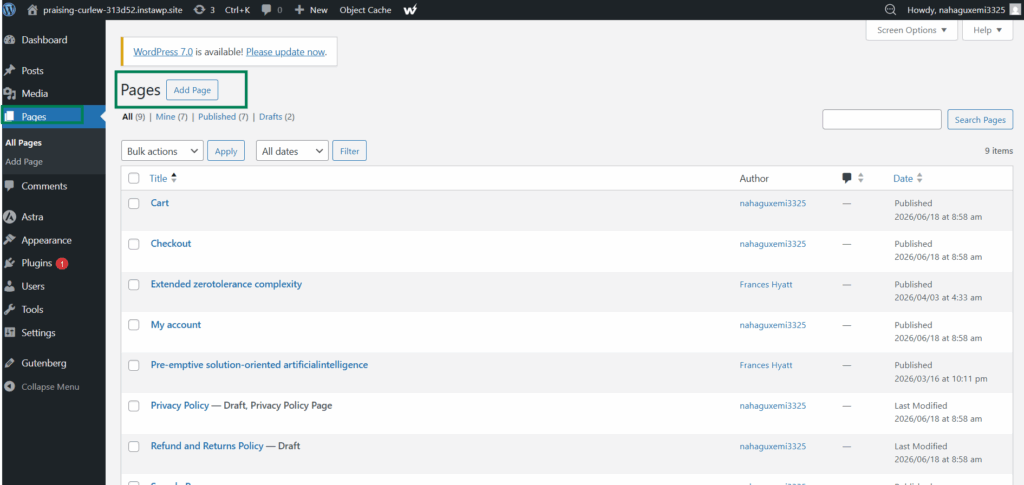
Prefer to build them by hand, or want to fine-tune what the AI drafts? You can still add pages the classic way under Pages > Add New, give each a title, and publish. Either way, once these five pages exist you have the skeleton of a portfolio. Now you get to make it look like yours.
Step 4: Customize the Design
This is where your portfolio starts to feel like yours. Use Magic Login to jump into the WordPress Customizer (under Appearance > Customize) or the block editor, then set a consistent visual identity before you fine-tune individual sections. The goal is a site that looks intentional and professional, not busy.
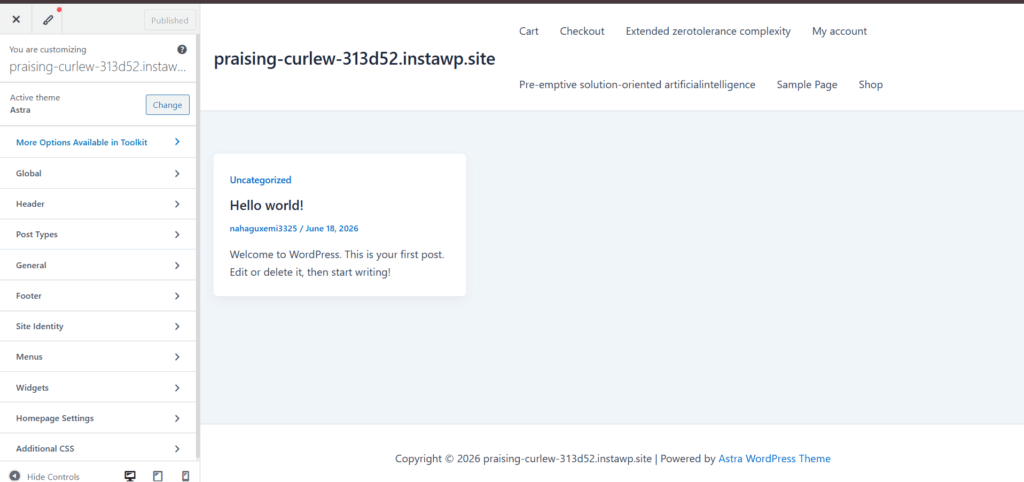
Start with your global style: choose two or three brand colors, pick clean and readable fonts, and set heading and body sizes so every page feels related. Then shape the key sections one by one.
Write a hero headline that says what you do in a single line, such as “Frontend developer building fast, modern websites,” and add a clear button like View My Work. Fill in your About section, lay out your project grid with three to five pieces, and place your contact form where visitors can reach it without endless scrolling.
Here is where a managed platform quietly saves you. Before you try a bold redesign, save your current layout as a Snapshot so you can roll back instantly if it does not work out. Want to test two directions side by side? Clone the site in seconds and compare them without touching your main version. You get to be brave with the design knowing a safety net is one click away.
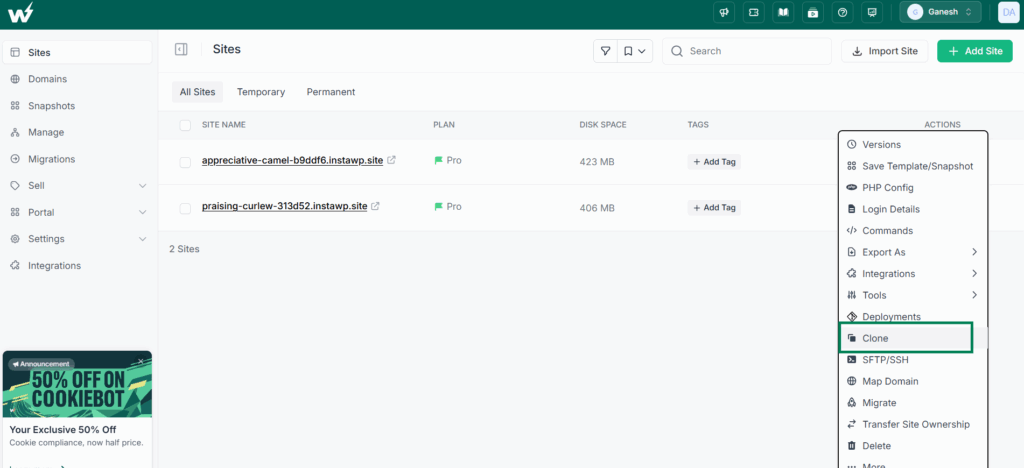
Step 5: Add and Optimize Your Projects
Design sets the stage, but your projects are what convince someone to reach out. Quality beats quantity here, so feature three to five of your strongest pieces rather than ten average ones. Busy clients and recruiters will not dig through a wall of samples, and a tight, confident selection sticks in the memory.
For each project, write a short, specific description: what the challenge was, what you built, and the outcome. Pair every image with a sentence or two of context, since search engines cannot read your visuals and visitors appreciate the framing. If you have built live demos, link to them; sites you created in InstaWP WordPress sandbox environments can stay active as working showcases.
Media is usually what slows a portfolio down, so optimize as you go. Convert images to WebP or AVIF and compress them before upload, lean on the built-in CDN to deliver files fast worldwide, and run InstaWP’s Performance Scanner to see exactly what is dragging your load time. A portfolio that loads instantly looks more professional and ranks better too.
Step 6: Map Your Domain and Go Live
A portfolio only works once people can find it at your own address. Mapping a custom domain is what turns “just another demo” into a professional identity, and on InstaWP it does not involve wrestling with server settings.
First, buy a domain that matches your name or profession, such as janedoe.com or janedoe.design, from a registrar like Namecheap or GoDaddy. A .com reads as the most credible, though .design or .studio can work for creative fields. Then connect it: from your InstaWP dashboard, open your portfolio site, go to Map Domain under Site Settings, and add your domain.
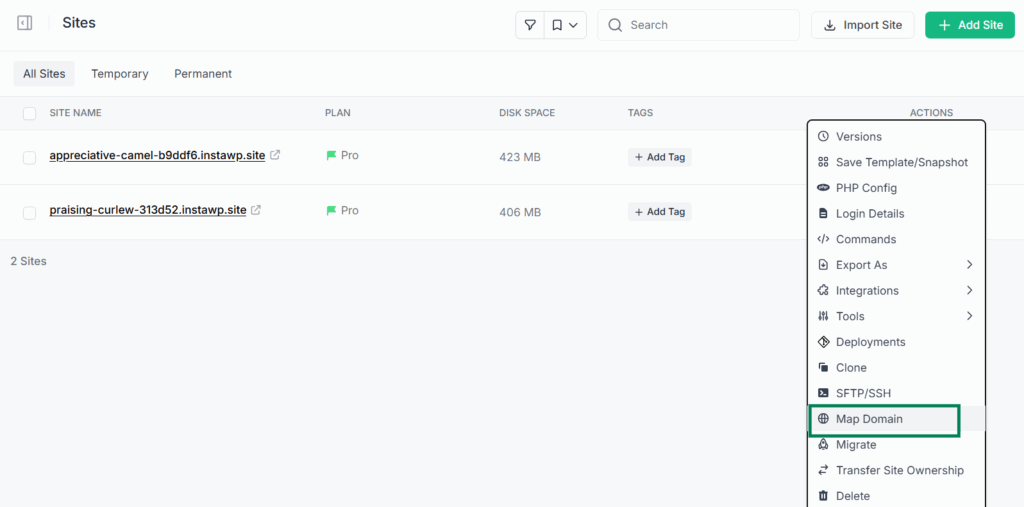
Next, update your DNS records (the A or CNAME records) at your registrar, following the instructions InstaWP shows you. In plain terms, these records tell the internet where your site lives, so visitors who type your domain land on your InstaWP site.
Once DNS updates, which usually takes a little while to take effect, InstaWP provisions a free SSL certificate automatically, so your site loads over secure HTTPS. That matters for both SEO and visitor trust.
Watch the video tutorial to learn how to map domain on InstaWP.
Before you announce it, run a quick pre-launch check: test the site on desktop, tablet, and mobile, confirm your contact form sends, and click through every project link. You have just gone from a local idea to a live portfolio anyone can reach.
Step 7: Optimize for Search, Speed, and Security
Publishing is the start, not the finish. A few enhancements turn a simple showcase into a discoverable, dependable site that keeps working for you while you focus on actual projects.
On the SEO side, use Rank Math or Yoast to set titles, meta descriptions, and a sitemap that Google understands. Give each project page a descriptive title and write alt text for every image, which helps you appear in image search and improves accessibility.
For speed, keep the site lightweight, enable caching, and serve modern image formats so it stays fast as your project library grows. To stay safe, the Starter plan’s Basic Shield blocks brute-force attempts, and weekly WordPress backups mean you can restore in minutes if something breaks.

Finally, connect Google Analytics or Search Console so you can see how many people visit, which projects they click, and what brings them in. Those signals tell you what to refine next, and for agencies, they make client reporting concrete. Pair that with automatic plugin and theme updates from InstaWP’s site management dashboard, and ongoing maintenance stops being a chore.
4 Ways to Build the Portfolio Section in WordPress
WordPress gives you several ways to build the actual project showcase, and the right one depends on how much control you want versus how fast you want to finish. The fastest option is to let AI draft the whole thing, then refine it. Here is how the main methods compare so you can pick without second-guessing.
If you are unsure, start with a portfolio theme and its demo import, since it gives you the most polish for the least effort. WordPress also has a native Portfolio feature: block themes let you create a dedicated post category for projects, while classic themes can enable a Portfolio custom post type, so you can build a clean project archive without any extra plugin at all.
Best WordPress Portfolio Themes
The best portfolio themes are fast, flexible, and come with ready-made layouts you can adapt in an afternoon. The four below are popular for good reason: they are lightweight, work with the block editor and major page builders, and each ships a free version you can start with today. For a deeper look at design options, see our roundup of the best WordPress portfolio themes.
All four are available from the WordPress.org theme directory, so you can install any of them straight from your dashboard and import a demo to start fast.
Building Portfolio Websites at Scale (Agencies and Freelancers)
If you build portfolios for clients rather than just yourself, the workflow changes from “make one site” to “make the same quality repeatedly without burning hours.” This is where a managed WordPress platform earns its keep, because the build, the reuse, and the ongoing care all live in one place.
Once you land on a portfolio structure that works, save the finished build as a snapshot or template and deploy an identical site for the next client in one click. Snapshots also generate a shareable link, so teammates can review the base stack before you hand it off.
From there, you can manage every site from a single dashboard: push updates, install plugins, and refresh themes across all of them at once instead of logging into each one.
Did you know?
InstaWP bills per active site, by the day, with the daily rate set to your plan price divided by 30. A portfolio on the Starter plan works out to about $0.17 a day, and you get $25 in free credits when you add a card. For agencies, that pay-per-site model means you only pay for the client sites that are actually live.
Ready to turn portfolio builds into recurring revenue? With a Website-as-a-Service setup, you can package, brand, and sell portfolio sites under your own name, set your own pricing, and keep the margin. Agencies running this model can go further with the InstaWP Agency Program, built around managing many client sites profitably.
Conclusion
Learning how to make a portfolio website is one thing; doing it without getting stuck on hosting and setup is another.
WordPress gives you the ownership, design freedom, and room to grow that hosted builders cannot, and a managed platform removes the friction that usually stops beginners at step one. You spin up a live site in seconds, import a portfolio theme, add your best work, map your domain, and you are online.
For freelancers and job seekers, that means getting online fast and pitching your skills sooner. For agencies, it means scaling client portfolios with snapshots, templates, and one-dashboard management that saves hours every week. Your portfolio is your brand and your proof of work, so build it somewhere it stays fast, secure, and easy to grow.
Launch your portfolio in minutes
Spin up a live WordPress site, add your work, and go live under your own domain. Add a card and get $25 in free credits to start.
Get Started FreeFAQs
Is WordPress good for portfolios?
Yes. WordPress is one of the best choices for a portfolio because you fully own the site, get thousands of themes and plugins to design it your way, and can scale it into a blog or store later. It powers around 42% of all websites (W3Techs, 2026), so a large ecosystem of tools and support stands behind it.
How do I create a portfolio in WordPress?
Launch a WordPress site, install a portfolio theme, and create five core pages: Home, About, Portfolio, a project template, and Contact. Add three to five of your best projects with images and short descriptions, map a custom domain, and publish. On InstaWP, the site launches in seconds with hosting and SSL already handled.
How much does it cost to build a WordPress portfolio website?
You can build and test one for free. To keep it live with hosting, backups, and SSL, the InstaWP Starter plan covers a portfolio comfortably and is billed by the day under pay-as-you-go pricing, which works out to roughly 0.17 dollars a day. You also get 25 dollars in free credits when you add a card.
Can I build a free portfolio website with WordPress?
Yes. Add a card to get $25 in credits, then spin up a $2-a-month Sandbox site on InstaWP to design and test your portfolio. For a professional result that stays online, map your own domain and move to a paid plan with security and backups when you are ready to launch.
Do I need coding skills to make a portfolio website in WordPress?
No. Most portfolio themes use drag-and-drop customization and importable demo layouts, so you can build a polished site without code. InstaWP simplifies it further with Magic Login, one-click theme installs, and AI builders that can generate a complete draft portfolio for you to refine.
What are the best WordPress portfolio themes?
Astra, Kadence, Blocksy, Neve, and OceanWP are among the most popular. They are lightweight, responsive, and ship with importable portfolio demo sites, so you can start from a finished-looking layout and customize it. Each has a free version available from the WordPress.org theme directory.
How do I add a portfolio section to my WordPress site?
You have four options: import a portfolio theme demo, add a portfolio plugin like WP Portfolio, build a custom grid with a page builder, or use the native block editor. WordPress also has a built-in Portfolio feature, using a project post category on block themes or a Portfolio post type on classic themes.
How can agencies build and manage multiple portfolio websites?
Save a finished portfolio as a template and deploy identical client sites in one click, then manage them all from one dashboard. With InstaWP, you can bulk-install plugins, push updates across every site at once, and use a Website-as-a-Service setup to brand and sell portfolio sites under your own name.


