To connect Manus AI to WordPress, add your WordPress site to Manus as a custom MCP server. Manus then gets a set of WordPress tools it can call during a task, so it can read posts, write drafts, update pages and check the site for errors. On InstaWP’s managed WordPress hosting, every site already has an MCP server built in, so the whole setup is a switch in InstaWP and one form in Manus.
This guide explains what Manus is, gives Manus a safe practice site, and walks through every click with a screenshot. On 23 October 2026, InstaWP checked the connection the same way Manus makes it: a request to a sandbox’s WordPress MCP server with the token in an Authorization header returned all 43 tools in under a second. The Manus screens below come from Manus’s own pages and from Ahrefs’ public Manus guide, credited under each picture.
Table of Contents
- The short version: switch on MCP for your InstaWP site, then add it in Manus under Settings, Connectors, Custom MCP. Paste the server URL and add your token as an Authorization header.
- Give Manus a practice site first. A $2 a month InstaWP sandbox is a real WordPress site with a public URL, so Manus can reach it from its own cloud computer. A site on your laptop (localhost) is out of its reach.
- No WordPress password needed. Manus gets a site token that you can switch off at any time, not your admin login.
- One connection, 43 tools: posts, pages, blocks, media, plugins, themes, SEO fields and error logs.
- If it will not connect, the token is usually missing the word Bearer, copied wrong, or MCP is switched off on the site.
- Turn on Safe Mode in WordPress before Manus works on a site that matters. It blocks deletes, and it is off until you switch it on.
What is Manus AI?
Manus AI is an autonomous AI agent. You describe a job in plain words, and Manus plans it, does the work and hands you the result. Manus describes itself as “a virtual colleague with its own computer”: every task runs in a cloud sandbox with internet access, a file system and the ability to install software, according to Manus’s welcome guide.
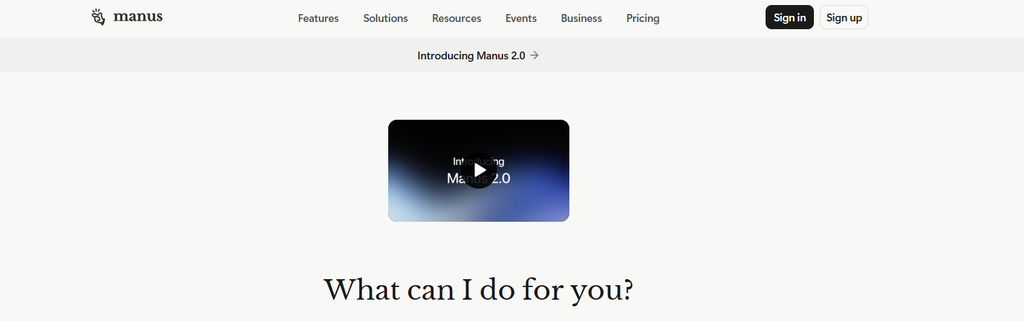
That is what makes Manus different from a chat assistant. A chatbot answers a question. Manus can research a topic, write an article, build a page and check its own work in one task. Manus runs on credits, with a Free plan, a Pro plan and a Team plan, as listed on its plans page.
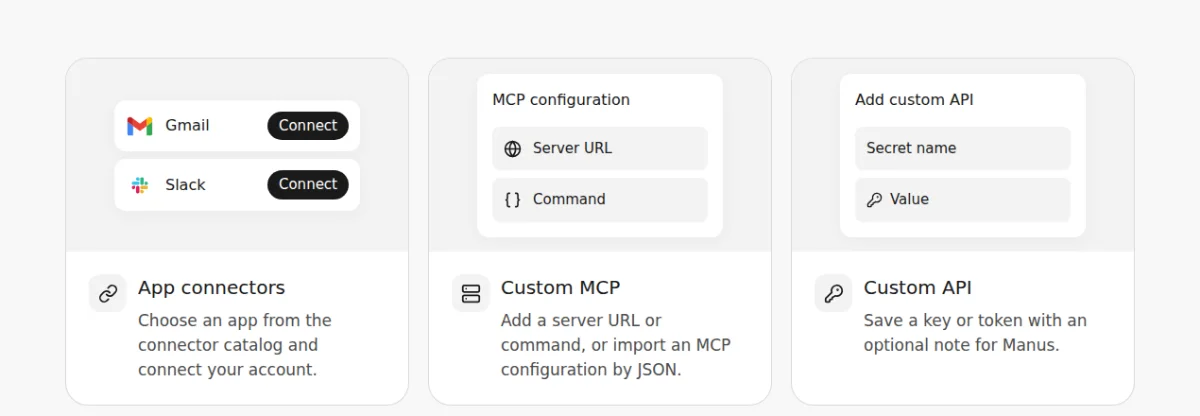
The connection uses the Model Context Protocol (MCP), an open standard that lets AI agents use outside tools. Manus calls these links “connectors”. Some connectors, like Gmail or Notion, are built in. Anything else, including a WordPress site, is added as a custom MCP server, as the Manus custom MCP docs explain.
What can Manus do once it is connected to WordPress?
Once connected, Manus can work on your WordPress site the way an assistant with an editor account would. On an InstaWP site, the MCP server (InstaMCP) gives it 43 tools. These are the jobs beginners use most:
- Write and publish content: draft a blog post, add headings and images, and save it as a draft for you to review.
- Update pages in bulk: change a phone number, a price or an opening time on every page that mentions it.
- Fix SEO fields: fill in missing meta titles and descriptions in Rank Math, Yoast or ACF fields.
- Handle media: upload images from a link and add alt text.
- Check the site’s health: list the plugins and theme, and read the error log after a change.
- Test before it touches a real site: try a whole workflow on a sandbox copy first.
The full tool list is in InstaWP’s site MCP documentation. If you want the bigger picture of agents on WordPress, InstaWP’s guide on how to build a WordPress AI agent covers planning and testing an agent workflow.
Where can Manus practice? Getting a test WordPress site for Manus AI agents
Use a sandbox site with a public URL. Manus works on its own cloud computer, so it can reach any site on the internet, but it cannot open a WordPress site that only runs on your laptop at localhost. A sandbox also means a mistake costs nothing: you can delete the site and make a new one.
An InstaWP WordPress sandbox is a real WordPress site on the internet, with the MCP server Manus needs already installed. You can also start from one of InstaWP’s WordPress templates so Manus has pages and posts to practice on.
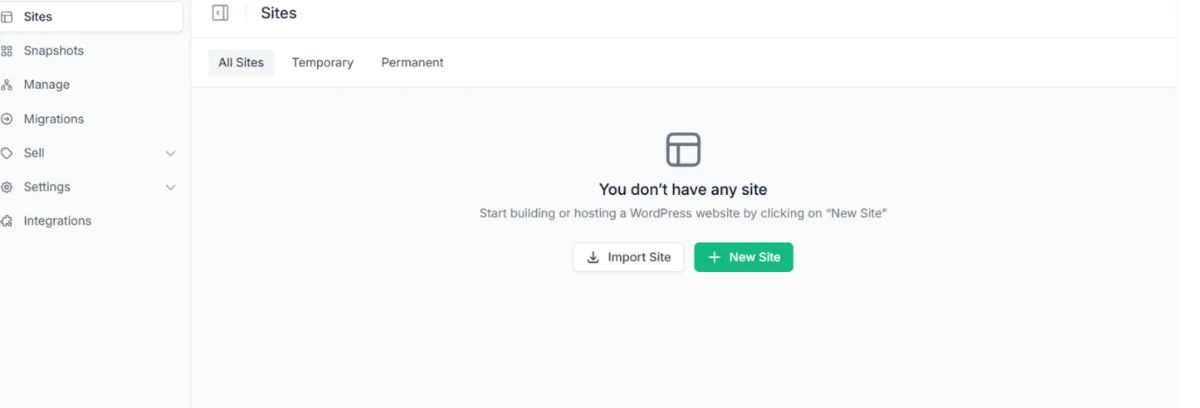
- Log in to InstaWP and click Add Site on the Sites page.
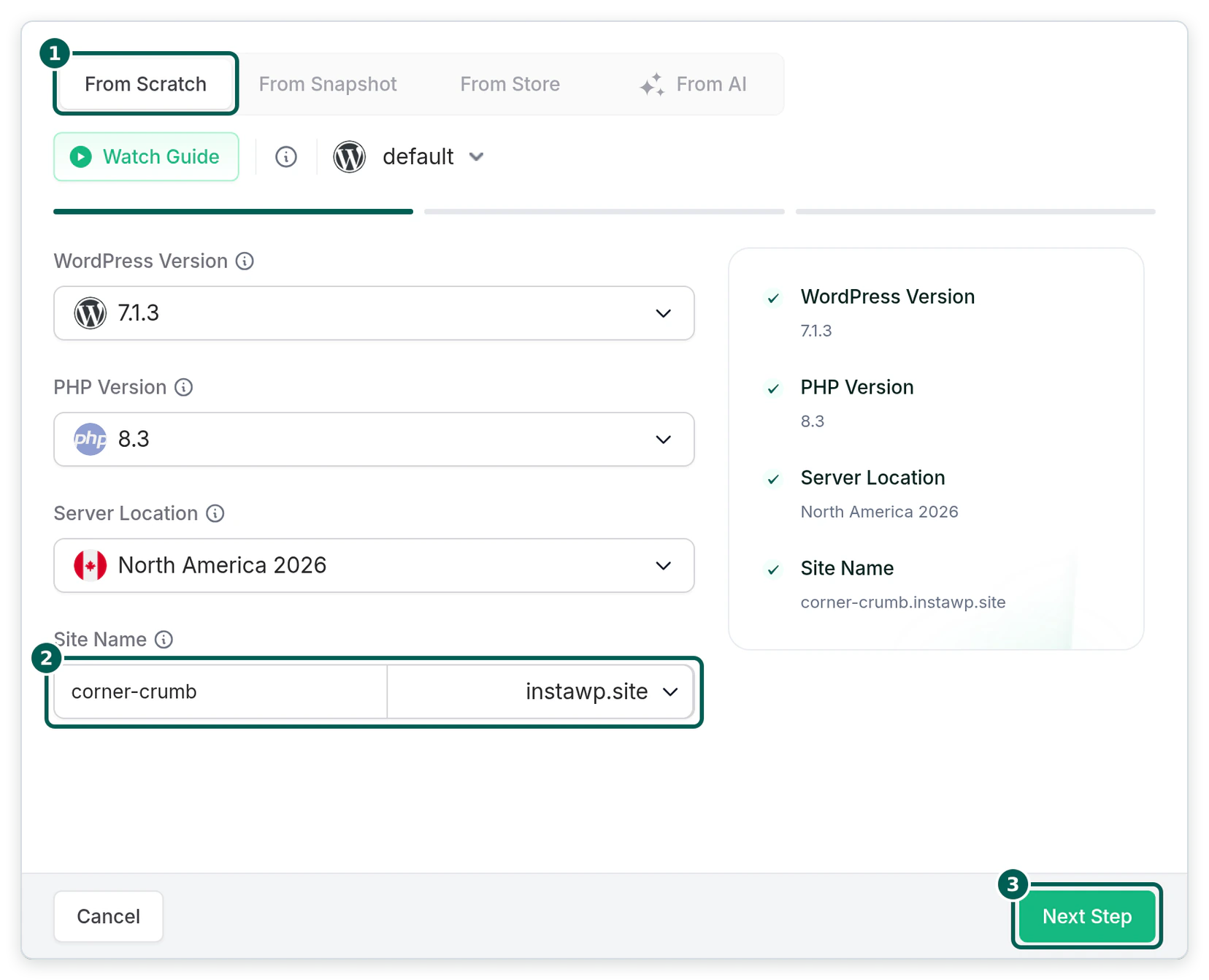
- Stay on From Scratch, keep the default WordPress and PHP versions, type a site name and click Next Step.
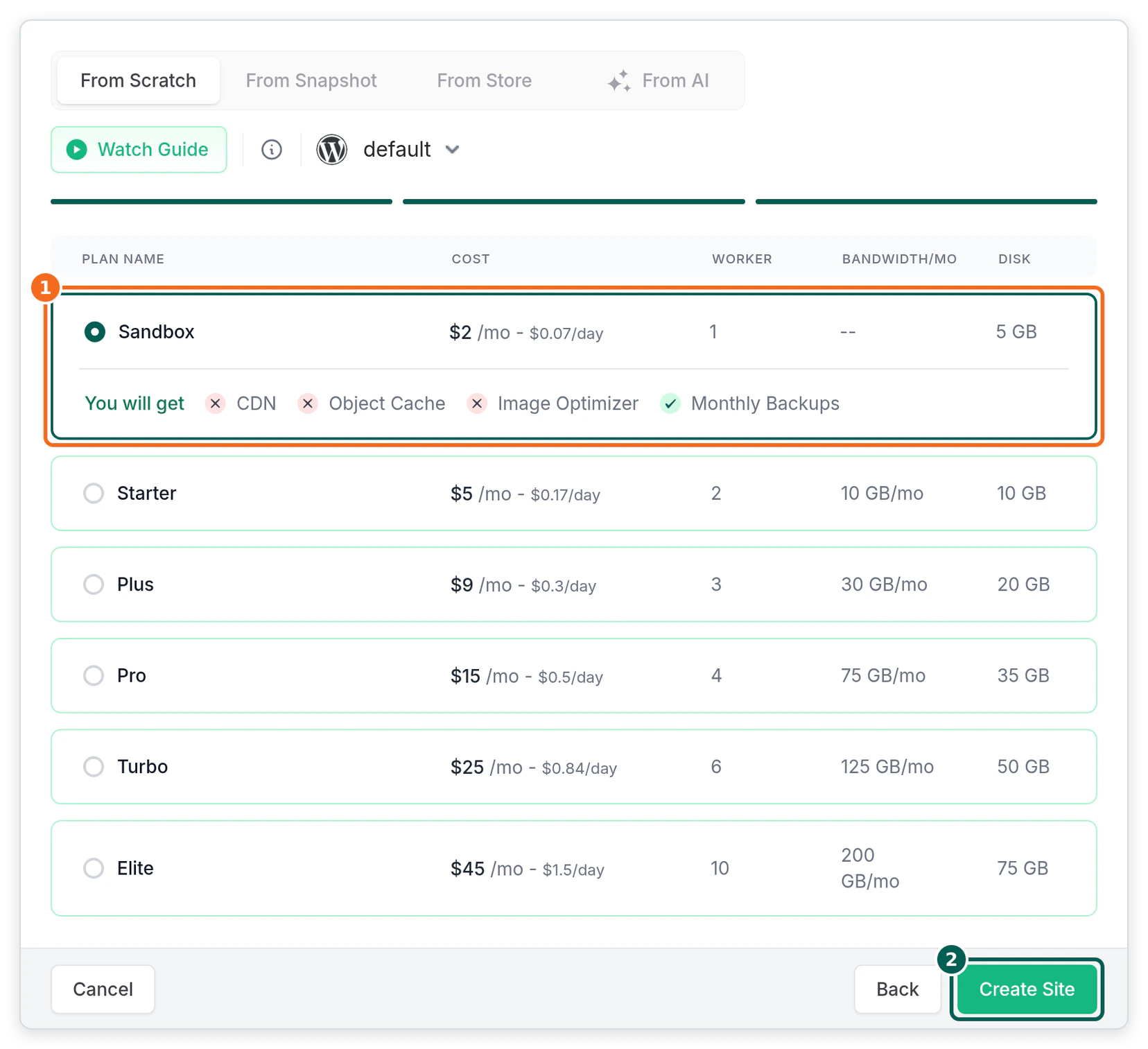
- Choose the Sandbox plan ($2 a month) and click Create Site. You can move the same site to a bigger plan later without moving it anywhere.
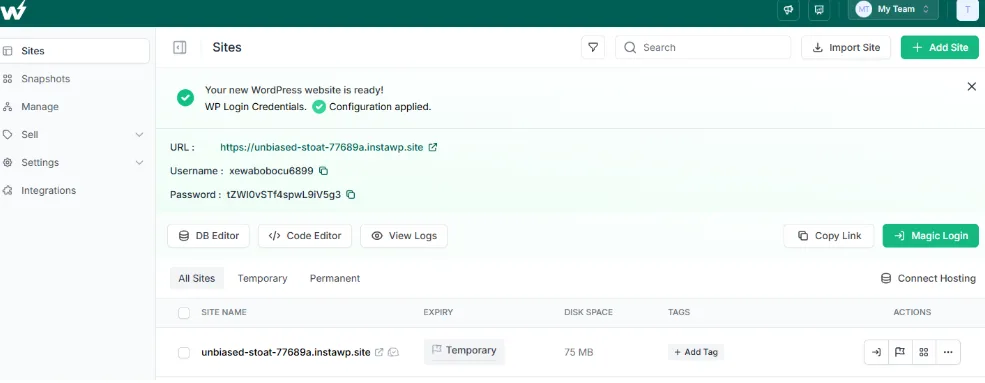
- When the site is ready, InstaWP shows its URL and login. Click Magic Login if you want to look around WordPress yourself first.
What do you need before you connect Manus to WordPress?
You need three things, and none of them takes long:
- A Manus account. Sign in at manus.im. Custom MCP servers are added from the Connectors settings. Check that your plan shows them, because Manus does not list which plans include custom MCP.
- A WordPress site on InstaWP. Site MCP is available on the Sandbox plan and above. Use the test site from the section above, or a WordPress staging environment of a live site.
- About five minutes. There is nothing to install on your computer.
- Site hosted somewhere else? Skip to Method 2.
How to connect Manus to a WordPress site
There are two ways to connect Manus to a WordPress site, and this guide covers both. Which one you need depends on where the site is hosted.
Method 1 connects a site hosted on InstaWP, where the MCP server is already built in. Method 2 covers sites hosted anywhere else, where you add an MCP plugin first. Pick the one that matches your site.
Method 1: How do you connect Manus to a WordPress site on InstaWP?
The easiest way to connect Manus to WordPress is to host the site with a managed WordPress host that has an MCP server built in. Then there is no plugin to install and no server to run: you switch MCP on and tell Manus where it is.
InstaWP is a managed WordPress hosting provider that builds an MCP server, InstaMCP, into every site. From the site’s MCP tab you get:
- 43 typed tools for content, Gutenberg blocks, plugins, themes, media, SEO meta and error logs.
- A connection URL with its own token, so Manus never needs your WordPress username or password.
- Safe Mode, WordPress role-based access, and PHP, SQL and file power tools that stay off until an admin switches them on.
- One switch to cut Manus off: turn MCP off and the connection stops working straight away.
InstaMCP works with any AI client that supports remote MCP servers over HTTP, and Manus does. Connecting takes four steps.
Step 1: Switch on MCP for the site
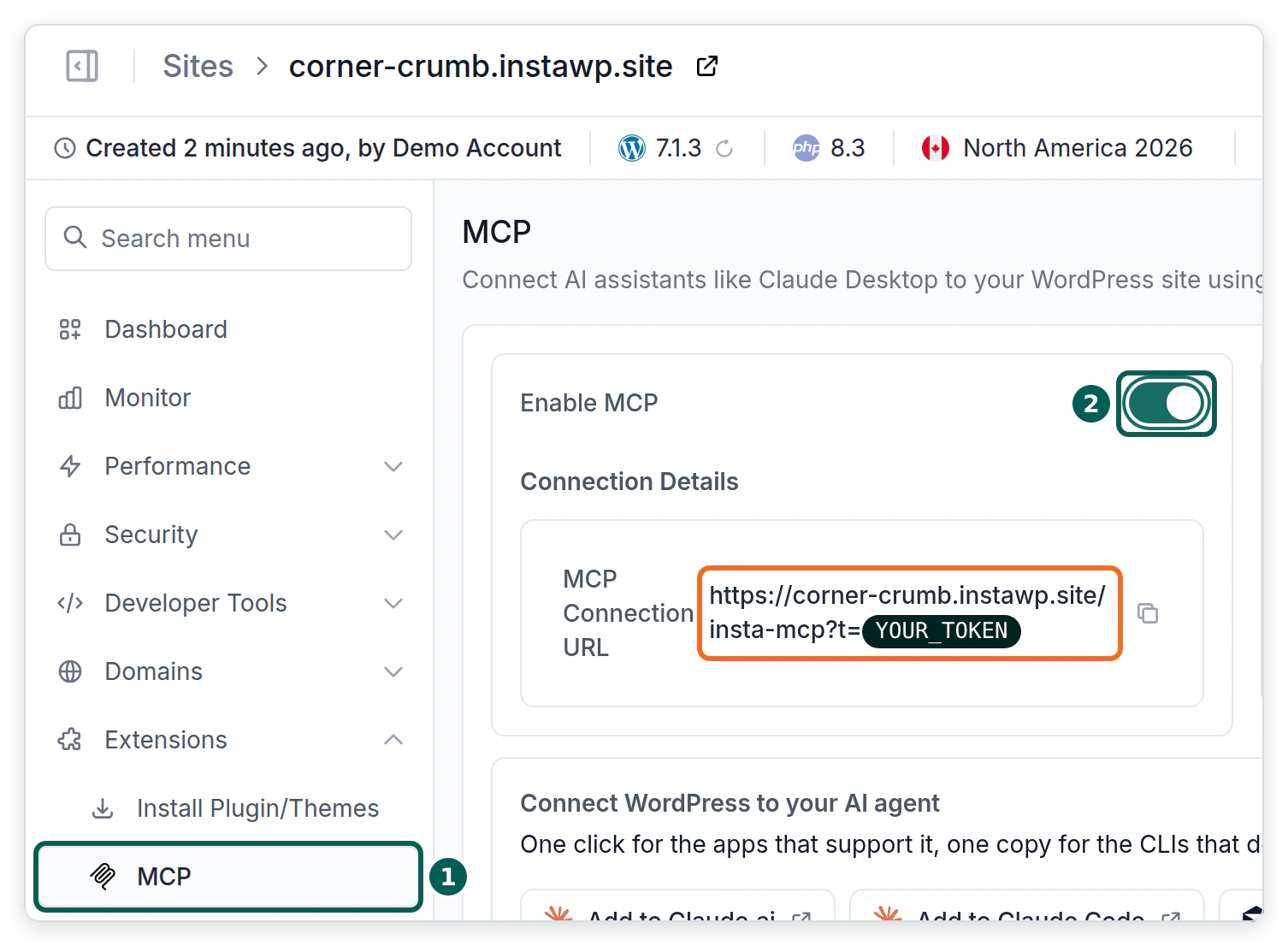
- Open the site in the InstaWP dashboard. In the site menu, open Extensions, then MCP, and switch on Enable MCP. The connection URL appears straight away, in the form https://your-site.instawp.site/insta-mcp?t=YOUR_TOKEN. Click the copy icon next to it.
Step 2: Split the connection URL into a server URL and a token
Manus asks for the server URL and the token in separate fields, so split the URL you copied at ?t=. Everything before it is the server URL. Everything after it is your token.
Why split it? Manus’s own docs say credentials should not go in URLs, because URLs end up in logs and browser history. A header keeps the token out of sight.
Step 3: Add the site to Manus as a custom MCP server
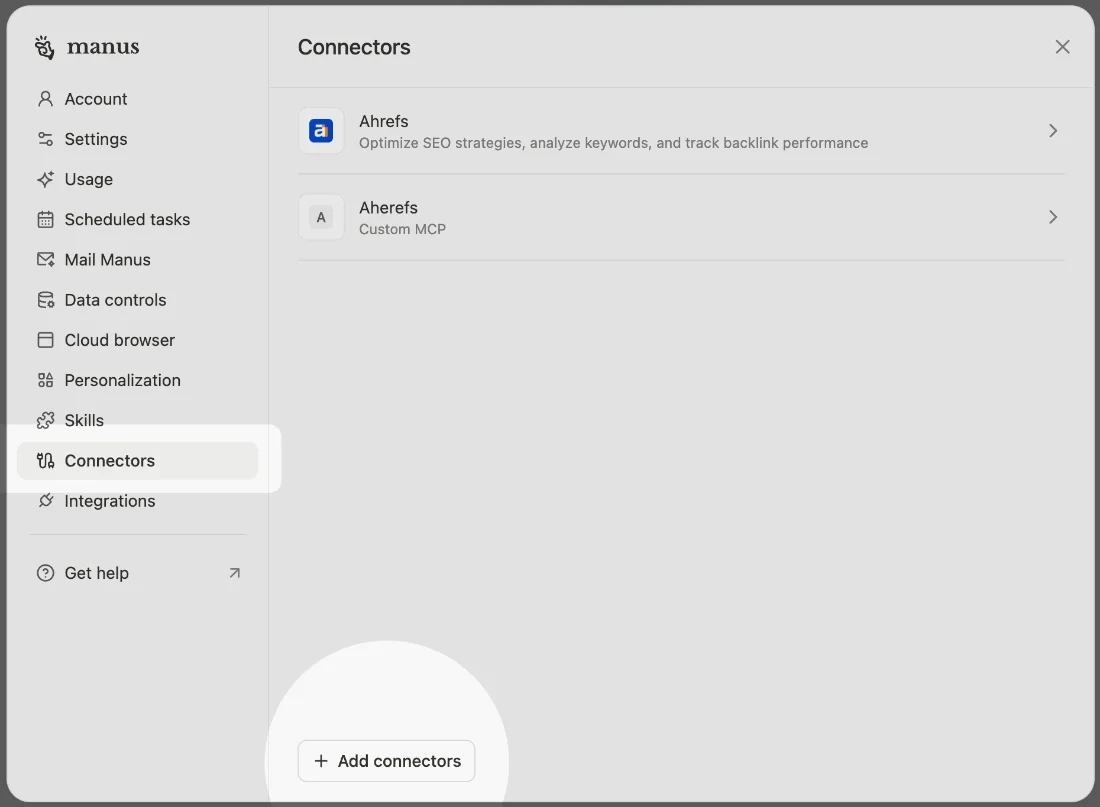
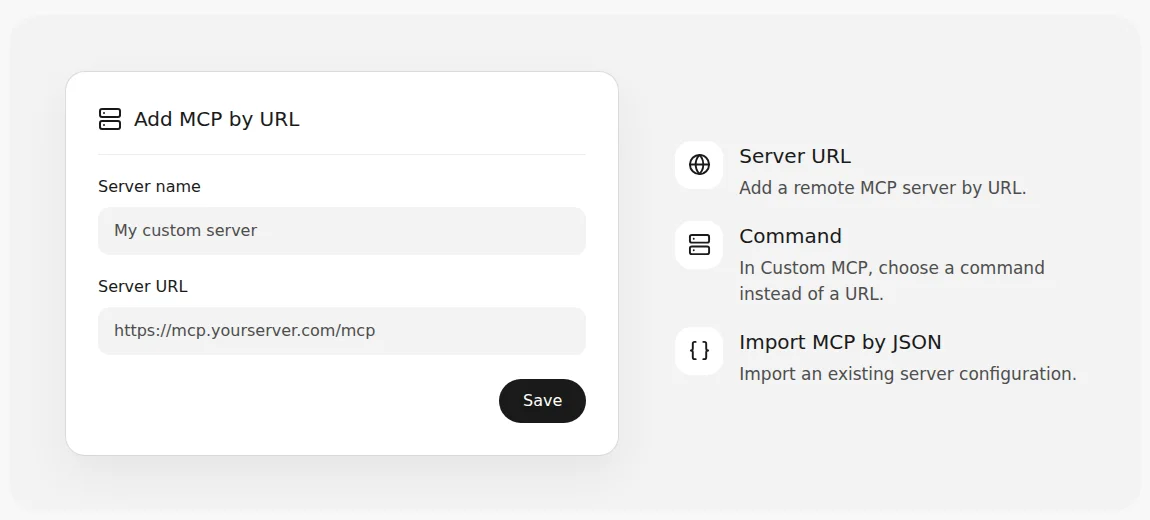
- In Manus, open Settings and choose Connectors in the sidebar. Then click Add connectors at the bottom of the list.
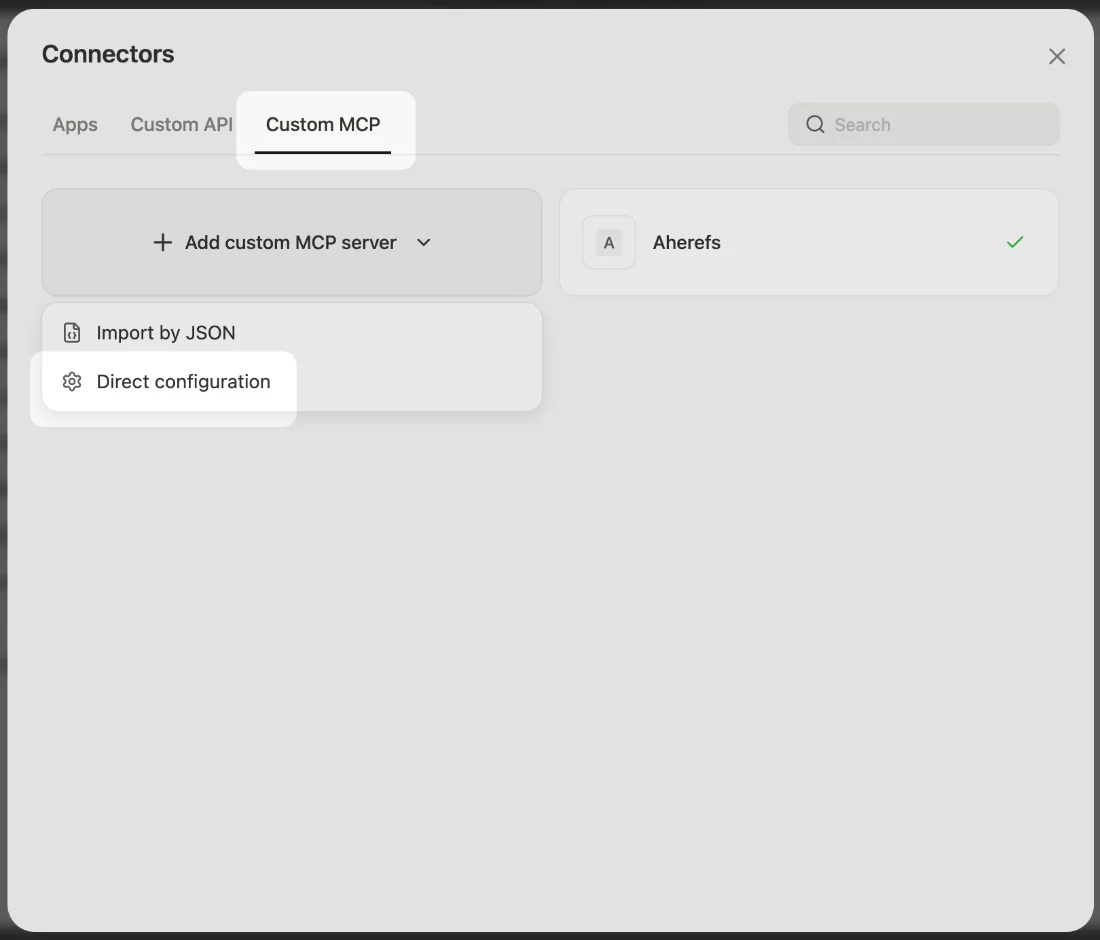
- Open the Custom MCP tab, click Add custom MCP server and choose Direct configuration.
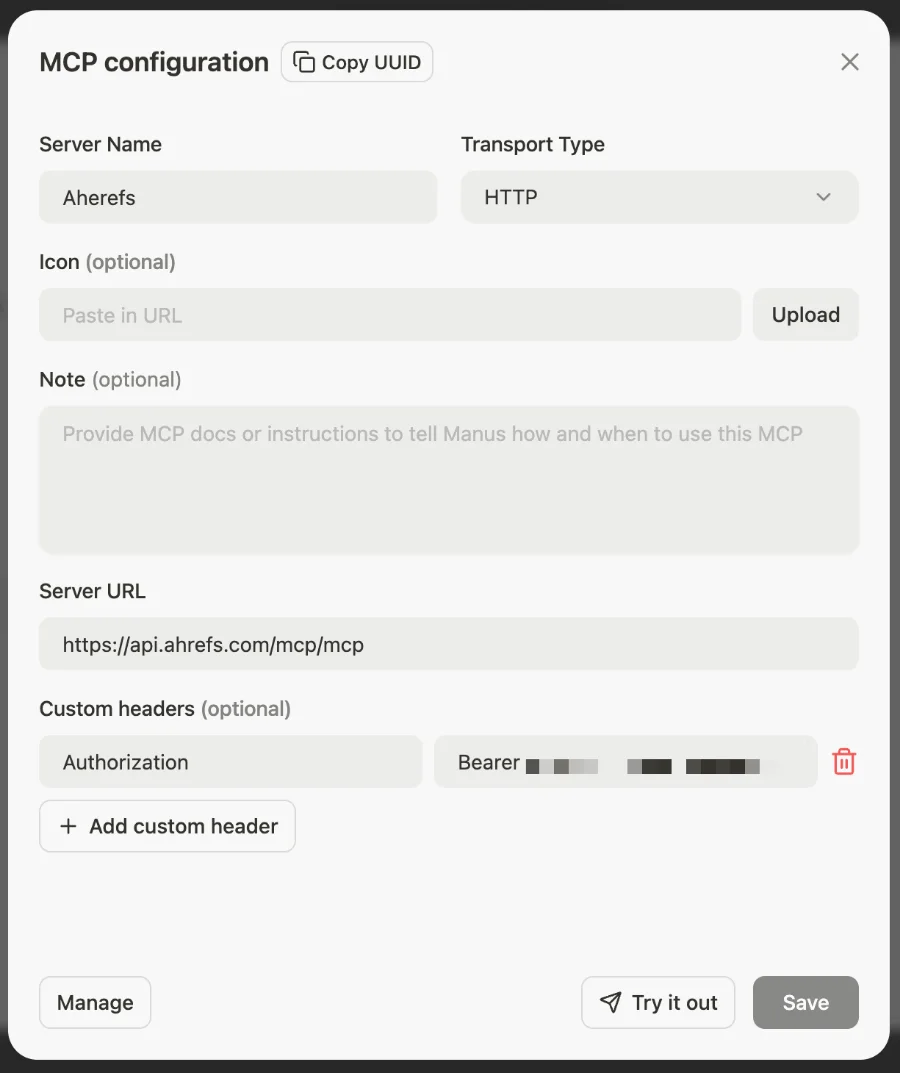
- Fill in the MCP configuration form with the values in the table below, then click Add custom header to add the token.
| Manus field | What to type | Example |
|---|---|---|
| Server Name | Your site’s name, so you can tell connectors apart | My WordPress test site |
| Transport Type | HTTP | HTTP |
| Server URL | The part of the connection URL before ?t= | https://your-site.instawp.site/insta-mcp |
| Note (optional) | A plain sentence telling Manus when to use this site | Use this for my WordPress test site. Save new posts as drafts. |
| Custom header name | Authorization | Authorization |
| Custom header value | The word Bearer, a space, then the token | Bearer YOUR_TOKEN |
Step 4: Test the connection and save it
- Click Try it out. Manus checks that it can reach your server and reads its list of tools, then opens a new chat with the connector ready.
- Click Save. The site now appears in your Connectors list, labelled Custom MCP.
- Give Manus a first job that only reads, so you can see it work before it changes anything. For example: “Use my WordPress test site. List the five latest posts and the active plugins.”
When InstaWP sent the same kind of request Manus sends, with the token in an Authorization header, the sandbox answered in 0.72 seconds and listed 43 tools in 0.89 seconds. A request with no token got a clear “Authentication required” reply instead, which is the reply behind a failed connection in Manus.
Can you connect Manus to your whole InstaWP account?
Not with this setup. InstaWP’s Account MCP covers every site in your team, but it signs in with OAuth in the browser. Manus custom MCP servers use a server URL and a token header instead, as the Easy MCP AI guide for Manus also notes (“Manus connects with an API token and does not use OAuth”). So connect each site to Manus with its own site MCP. To understand the difference, read Account MCP vs Site MCP.
Method 2: How do you connect Manus to a WordPress site hosted elsewhere?
InstaMCP only runs on sites hosted on InstaWP. For a site on another host, install a WordPress plugin that adds a remote MCP server, then use the same Manus form from Step 3.
- Pick an MCP plugin that serves a remote HTTP endpoint and uses a token. One example is Easy MCP AI by Themeisle (version 2.2.2, 20,000+ active installs on 23 October 2026), which has its own Manus setup guide. InstaWP compared 21 plugins in its guide to the best WordPress MCP plugins.
- In the plugin, create an API token and copy the plugin’s MCP endpoint URL.
- In Manus, follow Step 3 above: the plugin’s endpoint goes in Server URL, and Bearer plus the plugin’s token goes in the Authorization header.
Manus also has a Custom API option that saves a secret name and value, for example a WordPress Application Password, so Manus can call the WordPress REST API directly. That is closer to coding than connecting: Manus has to work out every API call itself, and an Application Password carries that user’s full REST API access. For a beginner, an MCP plugin or a move to InstaWP is simpler. InstaWP includes free migrations on every plan through its WordPress migration tool.
What should you ask Manus to do first on WordPress?
Start small and read-only, then move to drafts, and only then to changes on live pages. These four prompts work well on a fresh test site. Copy them into a new Manus task:
- Look around: “Use my WordPress test site. List every page and post with its status, and tell me which plugins are active.”
- Write a draft: “Write a 600 word blog post about choosing a bakery cake for a birthday. Save it on my WordPress test site as a draft, with two headings and a short meta description.”
- Fix something across the site: “Find every page on my WordPress test site that mentions our old phone number and show me the changes before you make them.”
- Check health: “Read the last 50 errors from the site log on my WordPress test site and explain them in plain English.”
For ideas on getting the site itself ready for agents, see how to make your WordPress site AI agent ready.
Why can’t Manus connect to your WordPress MCP server?
Almost every failed connection is one of five small mistakes. InstaWP reproduced the first four on a sandbox on 23 October 2026, and the server’s reply tells you which one you hit:
| What went wrong | What the server says | How to fix it |
|---|---|---|
| The header value has no word Bearer | 401, “Authentication required” | Type Bearer, a space, then the token. |
| The token is wrong or old | 401, “Invalid token” | Copy the URL again from the MCP tab and split it again. |
| No header at all | 401, “Authentication required” | Add the Authorization custom header in the Manus form. |
| The server URL is mistyped | 404 with a web page, not a reply from MCP | The path must end in /insta-mcp. A trailing slash is fine. |
| MCP is switched off on the site | The site’s normal home page | Switch Enable MCP back on in InstaWP. |
| The URL is a localhost address | Nothing, Manus cannot reach it | Use a site with a public URL, such as a sandbox. |
If the steps look right and it still fails, open the site’s MCP tab in InstaWP and check that Enable MCP is on and that the token in the URL matches the one you pasted. InstaWP’s guide to connecting Cursor to WordPress has a curl command that tests the endpoint without Manus.
How do you keep Manus safe on a WordPress site?
Give Manus a sandbox or a staging copy first, turn on Safe Mode, and keep the power tools off. Manus works on its own, which is the point, so let the site set the limits rather than relying on every prompt.
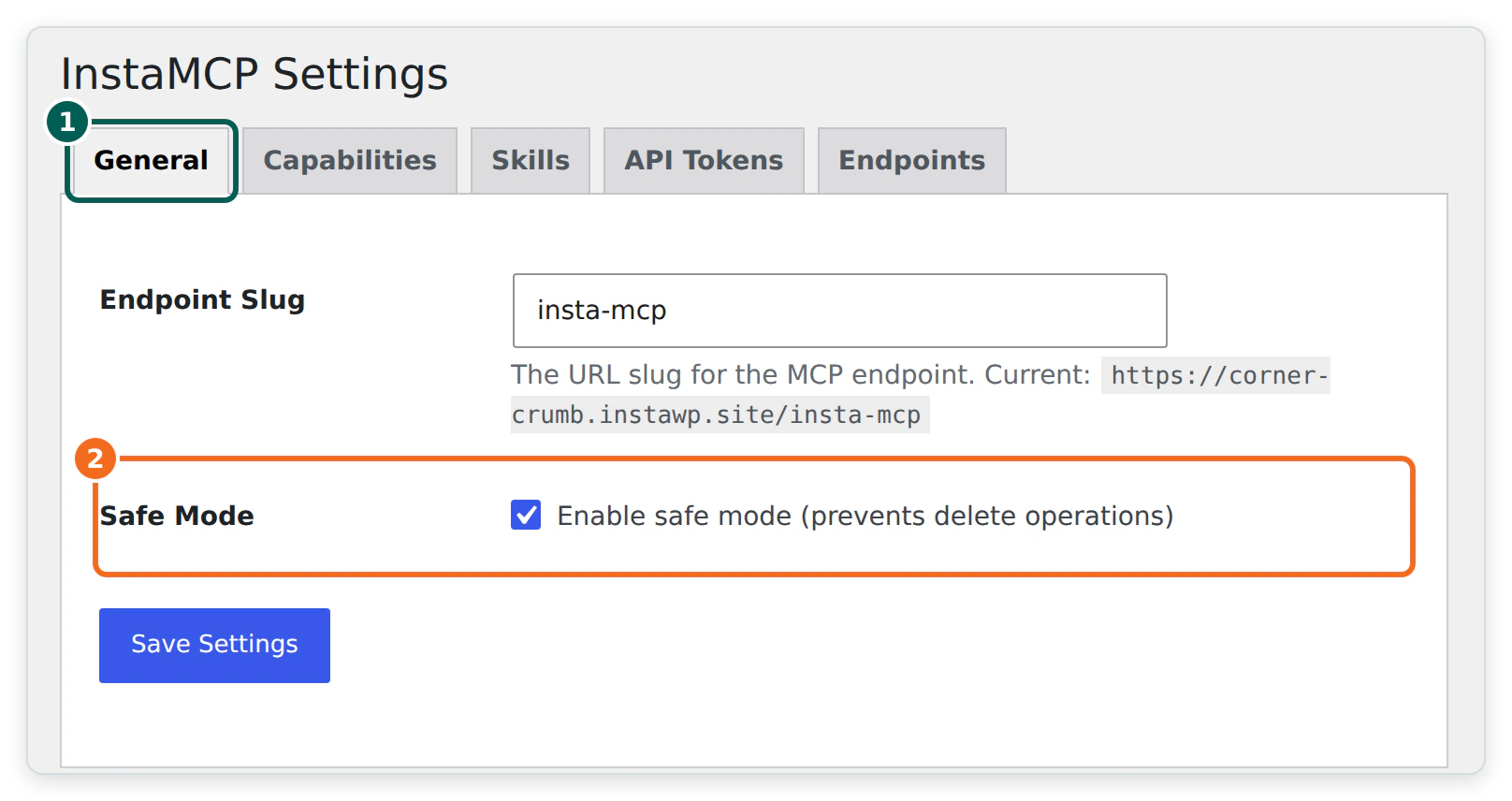
- Turn on Safe Mode. In WordPress admin, go to Settings, then InstaMCP, and on the General tab tick Enable safe mode. It blocks every delete. It is off until you switch it on.
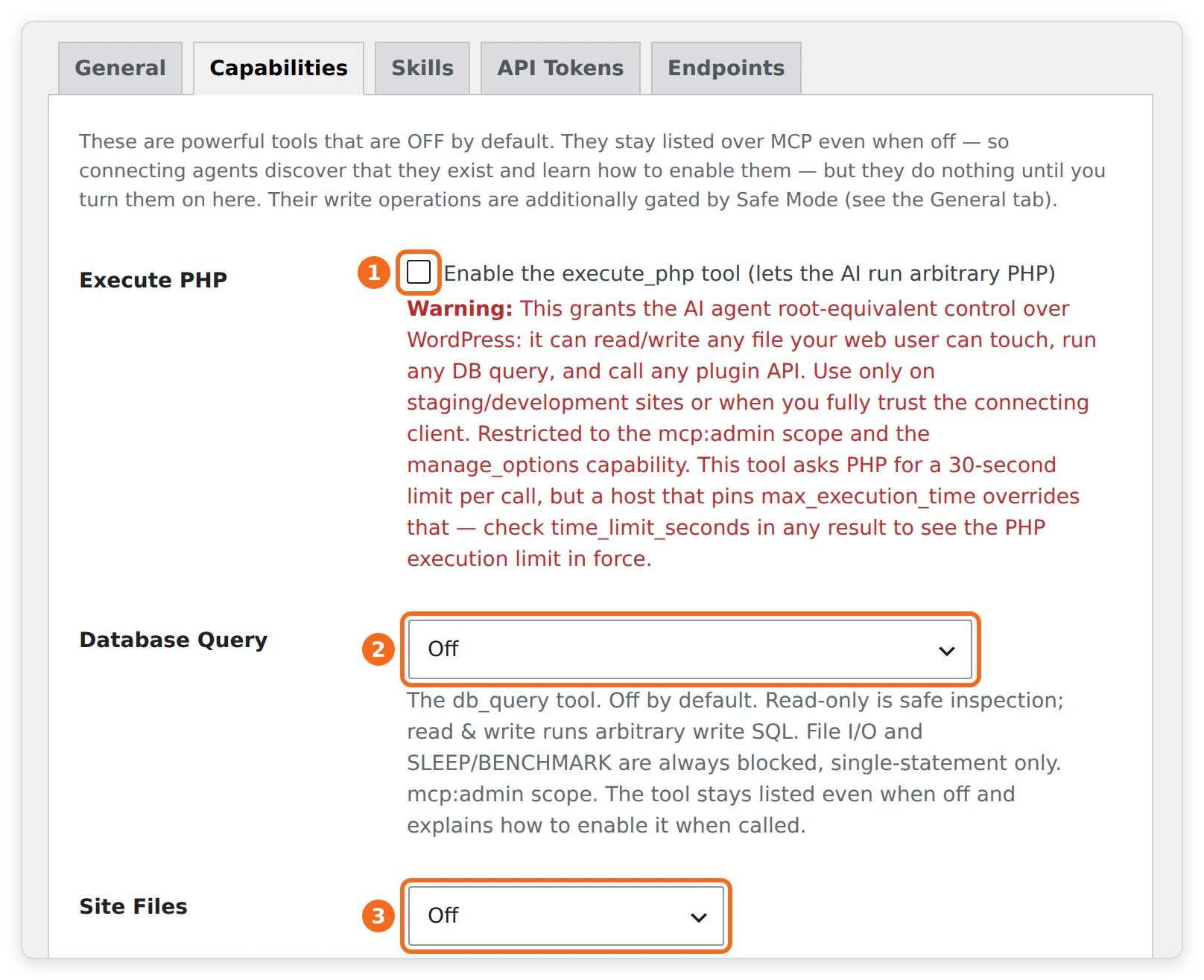
- Leave the power tools off. On the Capabilities tab, Execute PHP, Database Query and Site Files stay off unless an admin turns them on. Manus does not need them for content work.
- Ask for drafts, not live changes. Put it in the connector’s Note field, and review drafts in WordPress before you publish.
- Cut access when you are done. Switch off Enable MCP on the site’s MCP tab, or remove the connector in Manus.
InstaWP explains what each safety control does in is WordPress MCP safe and how to use MCP for WordPress in production.
Should you use Manus, Claude, ChatGPT or Cursor with WordPress?
Use Manus when you want to hand over a whole job and come back to the result. The WordPress side is the same for every client: the same InstaWP site and the same 43 tools. What changes is how you work with the AI.
- Manus suits long, hands-off jobs: research a topic, write five drafts and set their SEO fields while you do something else.
- Claude suits careful back-and-forth work and Claude Code suits developers. See how to connect Claude to WordPress.
- ChatGPT suits quick content and site questions in a chat you already use. See how to connect ChatGPT to WordPress.
- Cursor suits plugin and theme code. See how to connect Cursor to WordPress.
For a client-by-client overview, read how to connect AI agents to WordPress using MCP.
Give Manus a public WordPress test site, such as an InstaWP sandbox. Switch on MCP for the site and copy the connection URL. In Manus, open Settings, Connectors, Custom MCP and choose Direct configuration. Put the part before ?t= in Server URL, set Transport Type to HTTP, and add an Authorization header with Bearer and your token. Click Try it out, then Save. Start with read-only jobs, ask for drafts, and turn on Safe Mode before Manus works on a site that matters.
Connecting Manus to WordPress: FAQs
Can Manus connect to WordPress?
Yes. Add your WordPress site to Manus as a custom MCP server under Settings, Connectors, Custom MCP. On an InstaWP site, switch on MCP and use the connection URL. Manus then gets 43 tools to read and change the site.
How do I add a custom MCP server to Manus?
Open Settings, then Connectors, click Add connectors, open the Custom MCP tab and choose Add custom MCP server, then Direct configuration. Enter a server name, set Transport Type to HTTP, paste the server URL and add any header the server needs. Some accounts show Create, then Add MCP by URL instead.
What is a good test WordPress site for Manus AI agents?
A site with a public URL that you can throw away, such as an InstaWP sandbox from $2 a month. It comes with an MCP server built in. Manus works on its own cloud computer, so it cannot reach a WordPress site that only runs on your laptop.
How do I give Manus my WordPress credentials safely?
You do not need to give Manus your WordPress username or password. Use the site’s MCP token in an Authorization header instead. You can switch it off at any time by turning MCP off on the site.
Why does Manus say it cannot connect to my WordPress MCP server?
Usually the header value is missing the word Bearer, the token was copied wrong, or MCP is switched off on the site. A 401 “Authentication required” reply means no valid header arrived, and “Invalid token” means the token is wrong.
Does Manus work with WordPress sites that are not on InstaWP?
Yes, through a WordPress plugin that adds a remote MCP server, such as Easy MCP AI. Install it, create a token, and add its endpoint in Manus the same way. InstaMCP itself only runs on sites hosted on InstaWP.
Is it safe to let Manus edit my WordPress site?
It is safe enough if you start on a sandbox or staging copy, turn on InstaMCP’s Safe Mode, keep the PHP, SQL and file tools off, and ask Manus to save changes as drafts. Switch MCP off when you are not using it.
Does Manus cost money to use with WordPress?
Manus runs on credits and has a Free plan, a Pro plan and a Team plan. Each task uses credits based on how complex it is. The WordPress side needs an InstaWP site, and the Sandbox plan costs $2 a month.