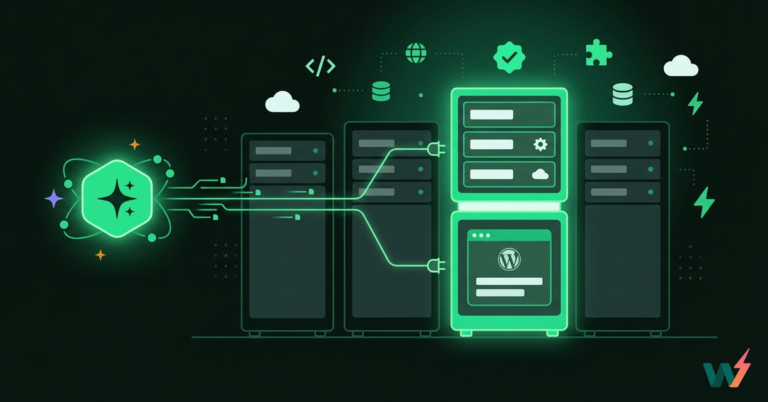
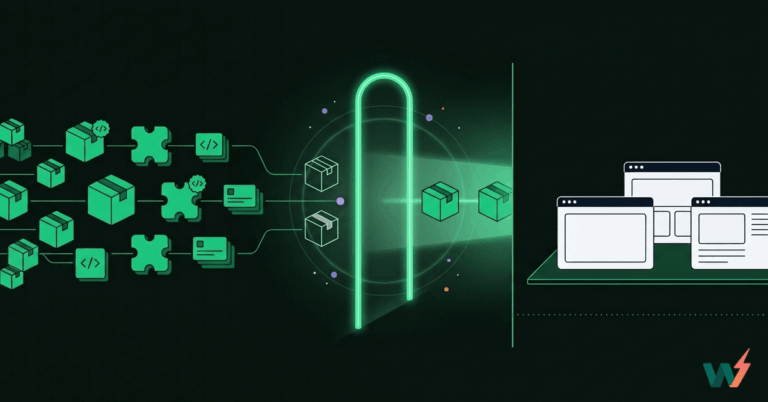
Managing multiple WordPress sites separately can quickly become overwhelming, especially for agencies handling several client projects at once. The manual updates, scattered dashboards, and repetitive plugin installations are more than just time-consuming; they’re a workflow nightmare.
That’s where WordPress multisite hosting comes in.
If you’ve ever wished you could control dozens of WordPress sites from a single dashboard—streamline updates, centralize plugin management, and reduce hosting overhead, then this guide is for you. Whether you’re running multiple eCommerce stores, managing blogs for a franchise, or overseeing a network of educational portals, a multisite setup can save you time, money, and effort.
Table of Contents
What is WordPress Multisite Network?
A WordPress Multisite network is a powerful feature built into WordPress that allows you to run and manage multiple websites from a single WordPress installation. Instead of juggling separate logins, plugin sets, and hosting accounts for each site, you manage everything from one centralized dashboard.
This setup is ideal for agencies, schools, SaaS platforms, franchise owners, and organizations that need to manage multiple related sites under one umbrella. For example, a marketing agency can use a single WordPress Multisite network to manage all client sites, keeping themes, plugins, and core settings consistent, while still offering individual logins and content for each site.
Each site in the network can have:
- Its own domain, subdomain, or subdirectory
- Separate content and users
- Shared plugins, themes, and configurations
What makes this even more effective is the ability to streamline updates, backups, and security measures across the entire network. That’s why so many agencies now prefer multisite WordPress hosting over managing separate installs.
But here’s the key: multisite isn’t just a WordPress feature; it requires the right multisite hosting infrastructure to run reliably at scale. Without it, performance issues and management complexity can spiral quickly.
With the right WordPress multisite hosting, you get full control over multiple sites, without the chaos of managing them separately.
Understand more about WordPress multisite.
Who Should Set Up a WordPress Multisite Network?
Not every use case needs a WordPress Multisite setup, but for the right users, it can be a total game-changer. If you’re running or managing multiple sites that share the same core functionality but serve different audiences or purposes, then a WordPress Multisite network is exactly what you need.
Here are the types of users and organizations who benefit most from setting up a multisite:
Agencies and Freelancers
If you’re building and maintaining sites for multiple clients, a WordPress Multisite setup lets you manage everything from one dashboard. You can push plugin or theme updates across all sites at once, drastically reducing time spent on maintenance.
Educational Institutions
Universities and schools with multiple departments or campuses often need separate websites with similar branding. A WordPress Multisite network lets you create and control each subsite with its own user base and content, while still enforcing global design and security policies.
Franchises and Multi-location Businesses
A chain of restaurants or fitness centers can use WordPress Multisite development to give each location its own website, while keeping the brand experience consistent across all of them.
SaaS and Membership Platforms
If your SaaS product needs to spin up websites for each user or team, a WordPress Multisite setup is the most efficient and scalable approach.
Internal Teams and Enterprises
For companies that want internal microsites—whether for departments, products, or events- a WordPress multisite network centralizes control without creating management overhead.
If you’re juggling multiple WordPress sites and want to streamline updates, reduce costs, and scale smarter, it’s time to consider a multisite approach.
Pros and Cons of WordPress Multisite
A WordPress Multisite network offers powerful capabilities, especially for agencies, organizations, and developers managing multiple sites. But like any advanced feature, it comes with both advantages and limitations. Before you decide to move forward with a WordPress multisite setup, it’s important to understand both sides.
Here is a list of benefits you will experience once you decide to build a WordPress multisite network.

Before you plan to build a WordPress multisite network, it’s crucial to learn the cons of it.

Challenges of Setting Up WordPress Multisite the Traditional Way
Setting up a WordPress Multisite network using traditional methods can be time-consuming, error-prone, and technically overwhelming, especially for agencies trying to move fast.
Whether you’re a developer or project manager, you’ve likely faced the frustrations of manual WordPress Multisite setup. And if you’re planning to scale, the challenges only multiply.
Here are the most common problems with the traditional approach to setting up WordPress Multisite:
1. Manual Configuration
You have to edit core files like wp-config.php and .htaccess just to enable multisite functionality. One wrong character and your site could break.
2. Domain Mapping Complexity
Want to run subsites on custom domains? Be ready to configure DNS, SSL, and server settings manually.
3. Hosting Limitations
Most shared hosts aren’t built for WordPress multisite hosting. You’ll face resource constraints, poor performance, and limited support.
4. Lack of Workflow Tools
Traditional setups don’t include staging, versioning, or automated backups—essential tools for agencies working on live client projects.
5. Troubleshooting is Harder
Plugin conflicts or database issues in one subsite can affect the entire network, and debugging across multiple sites is complex without the right tools.
So, if you wish to have a seamless WordPress multisite network set-up experience, you should choose a smart and modern development approach.
This is when InstaWP shows up as a solution. This WordPress cloud development platform eliminates all the above hurdles. Instead of wrestling with server settings or spinning up dev environments manually, you get an all-in-one solution designed for WordPress multisite development from day one.
With InstaWP, you can:
- Launch a fully configured WordPress Multisite setup in seconds
- Enable multisite from the UI, no file editing needed
- Use 1-click staging, site cloning, and rollback for every subsite
- Manage performance, backups, and security centrally
- Enjoy optimized managed WordPress multisite hosting with auto-scaling, CDN, and developer tools
This isn’t just another host; it’s multisite hosting tailored for speed, simplicity, and real agency workflows.
Why struggle with a patchwork setup when InstaWP gives you everything you need in one dashboard?
How to Set Up a WordPress Multisite Network?
Setting up a WordPress multisite doesn’t need to be a technical nightmare. With InstaWP, you can launch a fully functional multisite network in minutes; no code edits, no server headaches.
Let’s walk through the process, starting with your staging environment.
Step 1: Create a Site as a Multisite
Here’s how to do it using InstaWP:
- Log in to your InstaWP dashboard
- Navigate to Sites > New Site. This is where your WordPress multisite setup begins.
- Under “Configuration,” select Multisite from the options available.

By choosing this, you’re telling InstaWP to provision the environment specifically for WordPress multisite development, which includes optimized database structure, subsite support, and network-level controls.
? Pro Tip: You can create your multisite site from scratch, with AI assistance, using ready-made templates, or directly from the InstaWP Store. Every option is code-free and built to save time.
- Click Next Step to proceed
And that’s it, your multisite site is now live.
You can:
- Access the site directly via the auto-generated URL
- Use the Magic Login button to jump into the admin dashboard instantly (no passwords needed)
With just a few clicks, you’ve completed the first step of your WordPress multisite setup on a platform designed to make staging, testing, and launching faster than ever.
If you already have a live site and want to move it to InstaWP, this can be done in a few steps as well. Install the InstaWP Connect plugin on your live site.
Step 2: Add Sites and Configure Your WordPress Multisite Network
Once your multisite staging environment is live on InstaWP, it’s time to add subsites and configure the key settings of your WordPress multisite network.
Here’s how to move forward with your WordPress multisite setup:
1. Access the Network Admin
From your multisite dashboard, click the “My Sites” dropdown (top-left) and select Network Admin > Dashboard.
This is the central control panel for your entire network.

2. Add New Sites to the Network
Inside the Network Admin area:
- Go to Sites > Add New

- Enter a site name, admin email, and path or subdomain
- Click Add Site

Repeat this process to spin up as many subsites as you need, whether you’re building internal portals, client pages, or product-specific microsites.
Each site gets its own dashboard, user roles, and content, but all share the same plugin and theme stack. The main alternative is worth knowing: companies standardized on Microsoft 365 usually build their internal portals in SharePoint, where a tool like ShortPoint lets non-developers design and brand those pages without touching code.
3. Configure Network Settings
Still inside Network Admin, head to Settings > Network Settings.

Here, you can:
- Set global email options
- Define default themes for new sites
- Limit upload sizes
- Choose how user registrations are handled
- Enable or disable themes across the network
These settings help enforce consistency across your WordPress multisite development environment, especially valuable when launching multisite WaaS (Website as a Service) offerings.
4. Install and Activate Network-Wide Plugins and Themes
As the super admin, you control what themes and plugins are available to subsites. From Network Admin > Plugins, you can:
- Install new plugins
- Network activate them (so they appear on all subsites)
- Or allow subsites to activate their own from your approved list

This is one of the major benefits of setting up WordPress multisite: no need to install the same plugin 10 times across 10 sites.
You also go back to the InstaWP dashboard and run the WP CLI command to install themes and plugins in bulk on all your WordPress multisite networks.
At this point, your WordPress multisite network is fully functional and ready to scale.
In just a few clicks, you’ve completed the core of your WordPress multisite setup using InstaWP, without editing code, configuring servers, or juggling logins.
Step 3: Sell Your WordPress Multisite as a WaaS
Once your WordPress multisite network is up and running, you’re not limited to managing internal sites—you can turn your setup into a revenue-generating engine by offering WaaS (Website as a Service).
This approach lets agencies and developers sell pre-built WordPress sites on demand, all powered by a single WordPress multisite setup. Think of it as launching your own Squarespace or Wix-like platform, but with full WordPress flexibility and control
InstaWP makes this easy with its built-in tools that remove the friction traditionally tied to WordPress multisite development:
- Create multisite templates with pre-installed themes, plugins, and demo content
- Set expiry timers or subscription access for demo sites or paid versions
- Auto-provision subsites for each new customer or client—zero manual setup required
- Assign custom domains to each subsite as your users scale
- Enable billing workflows with third-party integrations (via Zapier, Make, or APIs)
Must Read: How to Sell WordPress Multisites
This model is ideal for:
- Agencies offering niche starter sites (e.g., for restaurants, coaches, local businesses)
- SaaS entrepreneurs creating templated site solutions
- Creators looking to sell digital products through demo-enabled websites
- Developers launching product-specific site generators
With InstaWP’s fully managed infrastructure and streamlined UI, turning your WordPress multisite into a WaaS business is no longer a development-heavy project. It’s a plug-and-play model, ready to scale.
How Hosting a Single Site is Different From Hosting WordPress Multisite Network
At first glance, hosting a WordPress multisite network might seem similar to hosting a single site. After all, both run on WordPress, right? But under the hood, there are major differences in setup, resource allocation, and long-term scalability.
When you host a single WordPress site, your hosting environment is tailored to serve one domain, one admin area, and one content database. You’re managing updates, backups, and themes for just that one site. It’s simple, but it doesn’t scale well when you start managing multiple websites for clients or departments.
Now compare that to hosting WordPress multisite. Here, you’re running multiple sites from one WordPress installation. All the sites share the same themes, plugins, and core files but have separate content, user roles, and sometimes unique domains or subdomains.
This architecture has very specific hosting needs:
- More PHP workers to handle multiple sites simultaneously
- Optimized database performance to support multiple tables and queries
- Isolated site-level caching and resource control
- Centralized site management without compromising speed or security
If you try to run a multisite setup on standard hosting, you’ll likely run into performance bottlenecks, permission issues, and limited support.
That’s why agencies need to choose multisite WordPress hosting that’s purpose-built for this kind of setup. Whether you’re managing 3 sites or 300, the infrastructure must be designed to handle complex multisite demands, securely and efficiently.
The bottom line: Regular hosting is fine for single sites. But for networks, you need specialized WordPress multisite hosting to keep performance stable and management stress-free.
How to Choose the Best Hosting for WordPress Multisite
Not all hosting is created equal, especially when it comes to running a WordPress multisite network. Hosting a single site is straightforward, but multisite architecture demands more from your server, support, and scalability plan. Choosing the best hosting for WordPress multisite is essential if you want your network to run smoothly without constant troubleshooting.
Here are the most important factors to evaluate before selecting a provider:
1. Choosing the Right Hosting for Your WordPress Multisite
Not all hosts are created equal, especially when you’re dealing with a multisite WordPress network. For the best performance, you’ll want to choose a hosting provider that supports WordPress Multisite. The hosting environment is critical to the speed, security, and scalability of your network.
Managed WordPress Hosting for Multisite
If you’re looking for an all-in-one solution that takes the hosting burden off your shoulders, managed WordPress hosting is your best bet. Providers like InstaWP offer managed hosting tailored to WordPress and support Multisite.
Managed hosts handle the technical stuff, like server optimizations, caching, and security, leaving you more time to focus on building sites.
VPS Hosting for Multisite
If you’re feeling a bit more hands-on, a Virtual Private Server (VPS) might be more your style. VPS hosting gives you more control over your server settings and is typically more affordable than dedicated hosting.
Dedicated Hosting for Multisite
If you’re managing a massive network of high-traffic websites, a dedicated server might be the way to go. With a dedicated server, you get an entire physical machine to yourself, giving you the highest level of performance and control. This is an option to consider for large agencies or businesses with multiple high-traffic sites.
2. Check Multisite Compatibility
Not every host supports WordPress Multisite out of the box. You need to confirm that the provider explicitly allows and supports multisite WordPress hosting, with the proper configurations for subdomain or subdirectory structures.
3. Pay Attention to Scalable Resources
Multisite networks handle multiple sites under one installation, which means higher demand on PHP workers, memory, and database access. The best web hosting for WordPress multisite should offer scalable plans that can grow with your network.
4. Caching and CDN Integration
To maintain performance across all sites, look for hosting that includes built-in caching and global CDN support. This ensures your network loads fast, even under pressure.
5. Security and Isolation
A security breach in one subsite can impact the entire network. Choose managed WordPress multisite hosting that includes firewalls, daily malware scanning, and automated backups. Bonus points if it supports container-based site isolation.
6. Multisite-Aware Support Team
Generic support teams won’t understand multisite-specific issues. Make sure your host has WordPress experts who know how to troubleshoot shared themes, network-wide plugins, and domain mapping issues.
Considering all the essential factors, multisite compatibility, performance, scalability, security, and expert support, InstaWP’s managed WordPress multisite hosting stands out as one of the most reliable platforms to build and host your multisite network.
Whether you’re launching a multisite setup for clients, a franchise, or your own internal projects, InstaWP offers everything you need in one place. No separate tools. No manual setup. Just streamlined, efficient WordPress multisite hosting built for agencies that want speed and control.
Here’s what makes InstaWP the best hosting for WordPress multisite:
- 1-click multisite creation without editing code or config files
- Isolated environments for each site to ensure network-wide stability
- Auto-scaling resources that adjust to your actual usage (so you’re not overpaying or underperforming)
- Built-in global CDN and caching to boost performance across every subsite
- Automatic backups and versioning to keep your data safe and recoverable
- Developer-first site tools like SFTP, DB Editor, and rollback for easy management
- Multisite-aware support that actually understands how your setup works
In short, InstaWP gives you the flexibility of multisite with the simplicity of a fully managed hosting experience. It’s not just the best WordPress multisite hosting for developers and agencies; it’s also the most efficient way to launch and manage networks at scale.
If you’ve been searching for the best web hosting for WordPress multisite, this is where your search ends.
Build Smarter with WordPress Multisite
Managing multiple websites doesn’t have to mean managing multiple headaches. With the right setup, you can centralize your workflows, streamline updates, and launch new sites at scale—all from a single dashboard.
A WordPress multisite network gives you that power. Whether you’re an agency, developer, educator, or entrepreneur, setting up WordPress multisite can completely transform the way you build and deliver websites.
But the key to success lies in the infrastructure you choose. Traditional hosting options often fall short when it comes to scalability, speed, and ease of use.
That’s where InstaWP comes in.
With InstaWP’s managed WordPress multisite hosting, you can:
- Create and deploy multisite networks in minutes
- Manage plugins, themes, and users across dozens of sites
- Launch WaaS offerings without writing custom code
- Handle everything from development to staging to production—under one roof
If you’re ready to simplify your workflow and scale your web projects faster, InstaWP offers the best starting point for your WordPress multisite setup.
Get started today and take full control of how you build, manage, and monetize your multisite network.
Frequently Asked Questions (FAQs)
1. What is a WordPress Multisite?
A WordPress Multisite is a feature that allows you to run and manage multiple websites from a single WordPress installation. Each site can have its own content and users but shares core files, themes, and plugins.
2. Who should use a WordPress multisite network?
Agencies, SaaS founders, franchises, schools, and developers running multiple related websites benefit most from a WordPress multisite setup.
3. Can I host WordPress Multisite on any hosting provider?
Technically, yes, but not all hosting providers are optimized for multisite architecture. You’ll need scalable, performance-ready infrastructure. Managed WordPress multisite hosting is the recommended route.
4. What’s the difference between building a single site and building a multisite?
A single site is isolated, while a WordPress multisite runs multiple sites from one dashboard, sharing plugins and themes. It’s more scalable and efficient, especially for high-volume workflows.
5. Can I turn my multisite into a WaaS platform?
Yes. With InstaWP, you can use templates, site provisioning, and access controls to turn your WordPress multisite development setup into a full WaaS business model.
6. Is InstaWP a good option for hosting a WordPress multisite network?
Absolutely. InstaWP offers one-click multisite creation, staging environments, site templates, and built-in tools to simplify every part of your WordPress multisite hosting journey.