To connect Claude to WordPress, you expose your site’s functions as MCP (Model Context Protocol) tools, then give Claude the resulting endpoint URL. The fastest route is a managed MCP server: enable MCP on an InstaWP site, copy the generated URL, and either paste it into Claude Desktop or run claude mcp add --transport http mymcp <mcp_url> in Claude Code. That takes about two minutes and needs no Node.js, no config file, and no Application Password.
There are five ways to do it, and they are not equivalent. Two are managed, two are self-hosted, and one (the official WordPress.com connector) is read only, so Claude can look at your site but cannot change anything. This guide walks through all five, with the real limits of each.
If you manage WordPress sites and you are still logging into wp-admin by hand to run what should be repeatable operations, this is the shortest path out of that.
Table of Contents
Test it on a throwaway site first
Every method below gives Claude write access to a real WordPress database. Spin up a free WordPress sandbox, point Claude at that instead of a client site, and confirm the workflow before you run it anywhere that matters.
What is MCP and Why Does It Matter for WordPress?
Model Context Protocol (MCP) is an open protocol developed by Anthropic that standardizes how AI clients communicate with external services. Think of it as a universal API layer between AI assistants and the tools they need to use.
In technical terms, MCP defines:
- Tool discovery: How Claude learns what actions are available
- Tool invocation: How Claude calls those actions with parameters
- Response handling: How results are returned in structured format
For WordPress, this means exposing REST API endpoints as “tools” that Claude can call. Instead of you manually executing POST /wp/v2/posts, Claude interprets your natural language command and makes that API call for you, with proper authentication, parameter formatting, and error handling.

The WordPress MCP server is the critical middleware. It receives structured requests from Claude, maps them to WordPress REST endpoints, handles authentication via Application Passwords, and returns formatted responses.
Connect Claude with WordPress in 2026: An Overview
When people say “Claude can manage WordPress,” what they really mean is: Claude can call a set of tools that can read/write your site.

In a WordPress context, those tools map to real actions, list posts, update terms, activate/deactivate plugins, manage users, executed through authenticated WordPress REST API calls.
A Claude-connected WordPress stack is less about novelty and more about deleting repetitive ops work.
- Content ops without friction: “Create drafts for these 12 titles, assign categories/tags, and set featured images from these URLs.”
- Taxonomy cleanups at scale: “Merge tags A/B, update affected posts, and redirect old tag URLs.”
- Plugin hygiene: “List active plugins, flag anything suspicious/outdated, and propose a safe update plan.”
- Client-site ops: Standardize repeatable checklists across many installs, without building one-off scripts every time.
| Method | Best for | Setup time | Read or write | What it needs |
|---|---|---|---|---|
| InstaWP managed MCP | Agencies and developers who want it working now | Under 2 minutes | Read and write | An InstaWP site. No Node.js, no config file. |
| Claude Code + InstaWP MCP | Terminal-first developers | Under 2 minutes | Read and write | Claude Code CLI and one claude mcp add command |
| Official WordPress MCP Adapter | Self-hosted sites wanting a vendor-neutral path | 15 to 30 minutes | Read and write | WordPress 6.9 or later, the MCP Adapter plugin, application passwords |
| Manual MCP server | Custom or bespoke tooling | 15 to 30 minutes | Read and write | Node.js 18+, npm, a local config file |
| WordPress.com Claude Connector | WordPress.com sites on a paid plan | Under 5 minutes | Read only | A paid WordPress.com plan and OAuth sign-in |
How to Connect Claude With WordPress: 5 Methods in 2026
There are five ways to connect Claude to WordPress, and we cover all of them. But for most developers and agencies, InstaWP’s built-in MCP server is the right default because it collapses setup friction to nearly zero and pairs the AI connection with an environment designed for safe iteration.
When you enable MCP on an InstaWP site, the platform automatically installs the MCP plugin on your WordPress site, generates a secure authentication token, creates your unique connection URL, and activates streamable HTTP transport. You never touch a config file or create an Application Password manually. The entire authentication stack is managed for you.
More importantly, InstaWP’s MCP connection works on sandbox and staging, not just live production installs. This means you can connect Claude to a real WordPress environment, run real operations, verify the results, and know that nothing on a live client site is at risk.
Once the workflow is confirmed, you apply it to production. That’s the workflow loop that actually makes AI reliable in production settings.
| Factor | Recommended InstaWP Managed MCP |
Manual MCP Server | WordPress MCP Plugin |
|---|---|---|---|
| Setup Time | Under 2 minutes | 15-30 minutes | 10-15 minutes |
| Technical Skill Required | None (dashboard UI) | Intermediate (Node.js, npm, config files) | Basic (plugin installation) |
| Infrastructure | Fully managed by InstaWP | Self-hosted Node.js process | Runs inside WordPress |
| Installation | One-click enable | npm install + manual config | Upload & activate plugin |
| Configuration | Zero config needed | Edit .env and JSON files | Plugin settings page |
| Token Management | Visual dashboard UI | Manual file editing | Plugin admin interface |
| Multi-Site Support | Centralized dashboard | Separate config per site | Per-site plugin install |
| Staging/Testing | Built-in sandboxes | DIY setup required | Requires separate staging |
| Updates & Maintenance | Automatic | Manual npm updates | Manual plugin updates |
| Server Requirements | None (cloud-hosted) | Node.js 18+, npm | Public WordPress URL, SSL |
| Works with Localhost | Yes (InstaWP sites) | Yes | No (needs public URL) |
| Extensibility | Standard WordPress tools | Full Node.js ecosystem | Limited to PHP |
| Performance Impact | None on WordPress | Separate process | Adds load to WordPress |
| Cost | Included with InstaWP | Free (self-hosted) | Free (open-source) |
| Support | InstaWP support team | Community/GitHub | Community/GitHub |
| Best For | Agencies, teams, fast deployment | DevOps-savvy developers, custom needs | Simple setups, single sites |
Let’s discuss all these methods in detail.
One URL, every major AI client
This guide focuses on Claude, but the URL you generate is a standard MCP endpoint. InstaMCP 1.1 connects the same site to 13 AI clients, including Claude Desktop, Claude Code, Claude.ai, ChatGPT, Cursor, Windsurf, Cline, Roo Code, GitHub Copilot, Zed, Gemini CLI, OpenAI Codex CLI, and Continue.dev. The steps are nearly identical for each: enable MCP once, then paste the URL into your tool. See the dedicated guides for connecting ChatGPT to WordPress and connecting Claude Code, Cursor, and Gemini CLI.
Method 1: Connect Claude Desktop to WordPress via InstaWP MCP
Claude Desktop is the visual interface for Claude; the app you install on Mac or Windows. This method is the right choice if you want a conversational interface for WordPress management without writing terminal commands.
Prefer the terminal? You can spin up the same InstaWP site with instawp create from the InstaWP CLI instead of clicking through the dashboard, then enable MCP on it and point Claude at the endpoint.
What you need:
- Claude Desktop installed (download here)
- An InstaWP account (Sandbox plan or above)
Step 1: Create or open a site in InstaWP
Navigate to your Sites page in the InstaWP dashboard. Create a new site or open an existing one. InstaWP provisions WordPress sites in seconds, so if you want to start with a clean staging environment, that’s the fastest path.

Step 2: Enable MCP
Click the site name to open the Site Details page. In the left sidebar, click the MCP option.

Toggle “Enable MCP” to ON.

As you do so, you will get a unique WordPress MCP server URL as a dedicated WordPress MCP plugin is installed remotely, a secure authentication token is created, and streamable HTTP transport is activated.

Step 3: Add the connector in Claude Desktop
Open Claude Desktop and go to Settings.
On Mac, that’s Cmd+,; on Windows, Ctrl+,.
Navigate to the Connectors section (sometimes labeled Integrations depending on your version). Click “Add Custom Connector”, give it a descriptive name like “Client Site – Acme Corp,” and paste your MCP URL. Click Add.

Step 4: Verify the connection
Start a new conversation in Claude Desktop and ask something like: “What posts are on my WordPress site?” Claude will call the MCP server, query your posts via the REST API, and return a formatted list. If that works, the connection is live.
You now have Claude with authenticated read and write access to your WordPress site, operating through natural language in a visual chat interface.
List all posts on my WordPress siteClaude will call the MCP server, query your posts via REST API, and return a formatted list. If this works, your MCP server WordPress integration is live.

Now, Claude desktop is fully connected with WordPress, and you can do remote management of your site.
If you prefer using Claude Code, a terminal-based tool for developers who prefer working in the command line, the steps are little different.
Using Claude Code for WordPress is particularly useful for agencies and developers who want to script, automate, or chain WordPress operations as part of a larger development workflow without leaving the terminal.
What you need:
- Claude Code CLI installed (see Claude Code docs)
- MCP enabled on your InstaWP site (same steps as Method 1, Steps 1 and 2)
- Your MCP connection URL copied from the InstaWP dashboard
Step 1: Run the connection command
Open your terminal and run:
claude mcp add --transport http mymcp <mcp_url>Replace <mcp_url> with the actual connection URL from your InstaWP dashboard. A real command looks like this:
claude mcp add --transport http mymcp https://your-site.instawp.site/insta-mcp?t=your-auth-token-hereThe label mymcp is just an identifier you choose. For agencies managing multiple client sites, use descriptive names like client-acme or staging-projectx.
Step 2: Start a Claude session
Run claude to start an interactive session.
You can now interact with your WordPress site directly from the terminal:
- “Show me the latest 10 posts from my WordPress site”
- “List all active plugins and flag any not updated in over a year”
- “What categories have fewer than 3 posts assigned to them?”
Go Further: Let Claude Code Drive the InstaWP CLI
The MCP connection lets Claude work inside a single WordPress site, things like posts, pages, media, plugins, and settings. Claude Code can go a step further and manage the sites themselves, because it runs in your terminal and can use the InstaWP CLI as a tool.
The setup is conversational. Open Claude Code in your terminal and ask it to install the CLI. Claude Code runs the install command for you:
npm install -g @instawp/cliFrom that point on, you never have to memorize CLI syntax. When you ask Claude Code to act on your sites, it calls the instawp CLI behind the scenes to carry it out. You stay in the same chat and describe the outcome you want.
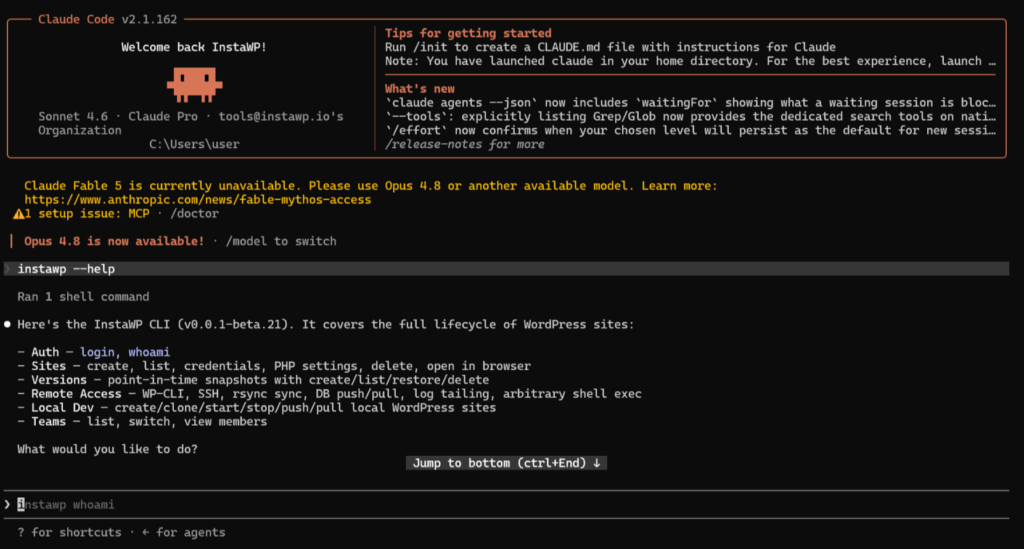
The InstaWP CLI (a beta, Node-based tool) covers the full site lifecycle, so a single prompt to Claude Code can:
- Create or clone sites, open them in the browser, and delete them when you are done
- Run WP-CLI commands, open an SSH session, or execute shell commands on a site
- Create, list, and restore point-in-time snapshots
- Push and pull the database, sync files over rsync, and tail PHP or server logs
- Switch between teams and view members
Here is what that looks like as a concrete sequence. Ask Claude Code to stand up a fresh environment and it runs the whole thing for you, without you leaving the terminal:
npm i -g @instawp/cli@beta
instawp login
instawp create --name claude-sandbox --php 8.4    # live cloud site in seconds
instawp wp claude-sandbox plugin list             # run WP-CLI remotely
Because every command takes --json, Claude reads the output back and chains the next step on its own. That is the difference between Claude talking to WordPress over MCP and Claude operating the InstaWP CLI and the infrastructure underneath it.
MCP and the CLI do two different jobs
The CLI handles infrastructure and the site lifecycle (creating sites, snapshots, databases, logs). MCP handles in-site operations (content, plugins, settings). Used together through Claude Code, they cover almost everything an AI agent needs to run WordPress end to end. Learn more about the InstaWP CLI for WordPress.
Method 2: Manual WordPress MCP Server Setup
For developers who need full control over the infrastructure or are working outside of InstaWP, you can run the MCP server manually using the open-source Node.js package maintained by InstaWP.
This approach gives you complete control over the server environment and lets you extend the toolset with custom Node.js logic. The tradeoff is that you’re responsible for setup, maintenance, credential management, and ensuring your WordPress site is publicly accessible.
Prerequisites:
- Node.js 18+ and npm or yarn
- A WordPress site with REST API enabled and a publicly accessible URL
- An Application Password generated for the WordPress user you want Claude to authenticate as
To generate an Application Password, go to Users > Profile in wp-admin, scroll to the Application Passwords section, enter a name (e.g., “MCP Integration”), click Add New, and copy the password including spaces.

Scroll to Application Passwords and enter a name: “MCP Integration“. Click Add New Application Password. Copy the generated password (spaces are normal)

Now, you need to install the WordPress MCP server. You’ve two options for this:
Option A: Run directly via npx (no installation)
For this, simply run this command.
npx -y @instawp/mcp-wpOption B: Clone and build from source:
git clone https://github.com/InstaWP/mcp-wp.git
cd mcp-wp
npm install
npm run buildNow, create a .env file in the project root:
WORDPRESS_API_URL=https://your-wordpress-site.com
WORDPRESS_USERNAME=your_username
WORDPRESS_PASSWORD=xxxx_xxxx_xxxx_xxxx_xxxx_xxxx⚠️ Security: Never commit .env files to version control. Add .env to your .gitignore.
Next step is to configure Claude desktop. For this, you need to edit your Claude Desktop configuration file:
macOS: ~/Library/Application Support/Claude/claude_desktop_config.json
Windows: %APPDATA%Claudeclaude_desktop_config.json
Add the MCP server configuration:
{
  "mcpServers": {
    "wordpress": {
      "command": "npx",
      "args": ["-y", "@instawp/mcp-wp"],
      "env": {
        "WORDPRESS_API_URL": "https://your-site.com",
        "WORDPRESS_USERNAME": "your_username",
        "WORDPRESS_PASSWORD": "xxxx_xxxx_xxxx_xxxx"
      }
    }
  }
}For local builds, use the absolute path:
{
  "mcpServers": {
    "wordpress": {
      "command": "node",
      "args": ["/absolute/path/to/mcp-wp/build/index.js"],
      "env": {
        "WORDPRESS_API_URL": "https://your-site.com",
        "WORDPRESS_USERNAME": "your_username",
        "WORDPRESS_PASSWORD": "xxxx_xxxx_xxxx_xxxx"
      }
    }
  }
}Close and reopen Claude Desktop. The MCP server starts automatically when Claude launches. Test with a simple query:
What tools do you have available for WordPress?Claude should list the available MCP tools, such as list_content, create_content, update_content, discover_taxonomies, assign_terms_to_content, and tools for media, users, comments, plugins, and themes.
Method 3: WordPress MCP Plugin Approach
Some developers prefer a plugin-based approach where the MCP WordPress plugin runs entirely within WordPress, exposing an MCP endpoint without external server processes.
The WordPress AI team maintains an MCP Adapter that implements the protocol as a WordPress plugin:
- Download it from the Automattic WordPress MCP repository on GitHub
- Install via Plugins → Add New → Upload Plugin
- Activate the plugin
- Configure authentication in Settings → MCP
This approach keeps everything within WordPress but requires:
- Your WordPress site to be publicly accessible
- Proper SSL configuration
- Application Password or OAuth setup
Method 4: The Official WordPress MCP Adapter (Abilities API)
WordPress now has an official answer to this problem. The WordPress MCP Adapter turns Abilities, the standardized way core and plugins declare what they can do, into MCP tools that Claude can discover and call. The Abilities API ships with WordPress 6.9, which makes this the closest thing to a native, vendor-neutral path.
This is not the same as Method 3. Method 3 uses Automattic’s wordpress-mcp plugin. Method 4 uses the WordPress project’s own mcp-adapter, which any plugin can register abilities against.
Step 1: Install the adapter
Download the plugin from the MCP Adapter releases page on GitHub, then install and activate it like any other WordPress plugin.
Step 2: Expose only the abilities you want Claude to touch
Abilities are private by default. An ability only becomes reachable through the default MCP server once it carries the meta.mcp.public flag. That is a deliberate safety default: nothing reaches an AI client until you say so.
Step 3: Point Claude Desktop at it
For local development the adapter serves over STDIO through WP-CLI. In Claude Desktop, open Settings, go to the Developer tab, click “Edit config” under Local MCP servers, and add the server to claude_desktop_config.json:
{
  "mcpServers": {
    "wordpress-mcp-server": {
      "command": "wp",
      "args": [
        "--path=/path/to/wordpress",
        "mcp-adapter",
        "serve",
        "--server=mcp-adapter-default-server",
        "--user=admin"
      ]
    }
  }
}
Restart Claude Desktop and the tools appear.
When to use it, and when not to
- Use it if you run self-hosted WordPress, you want a vendor-neutral integration, and you are comfortable with WP-CLI or a Node proxy.
- Skip it if you want a remote connection without plumbing. STDIO transport needs WP-CLI on the same machine, and HTTP transport needs Node.js and a remote proxy in front of it.
- Know this: an MCP client acts as a logged-in WordPress user, so Claude can only do what that user’s capabilities allow. Self-hosted sites authenticate with application passwords. There is no native OAuth.
Method 5: The WordPress.com Claude Connector (Read Only)
If your site runs on WordPress.com rather than self-hosted WordPress, there is an official connector. The WordPress.com Claude Connector lets you ask questions like “show me my site’s traffic for the last 30 days” or “summarize recent comments across my site” and get real answers from your account instead of generic advice.
How to set it up
- Enable MCP on your WordPress.com account and choose which tools to expose.
- In Claude, open Settings, then Connectors, then Browse connectors.
- Search for “WordPress.com” and click the plus button.
- Sign in through OAuth 2.1 to grant access.
The two limits that decide whether this works for you
- It is read only. Claude can read your content and analytics. It cannot create, update, or delete anything. If you want Claude to publish a post or deactivate a plugin, this is not the method.
- MCP access needs a paid WordPress.com plan. Free sites cannot enable it.
It also does not apply to self-hosted WordPress. If you run your own install, use Method 1, 2, 3, or 4.
WordPress MCP Tools: What Claude Can Actually Do
Once connected, Claude gains access to these WordPress operations:
Content Operations:
Create a draft post titled "10 WordPress Performance Tips" with an
introduction paragraph and 10 H2 subheadings as an outline.Bulk Taxonomy Work:
List all tags with zero posts, then delete them.Plugin Management:
Search for security plugins in the WordPress repository and show me
the top 5 by rating.Site Audit:
List all plugins, flag any that haven't been updated in over a year,
and check if any have known vulnerabilities.The examples above are a small slice. Through InstaMCP, Claude can work with posts, pages, media, users, comments, categories and tags, plugins, and themes, all through the same authenticated connection. On InstaWP sites these tools are registered natively using the WordPress 6.9 Abilities API, so Claude calls first-class WordPress abilities rather than relying on a bolted-on integration layer.
Advanced: Let Claude Run PHP on Your Site
For tasks that go beyond the standard tools, InstaMCP exposes an execute_php tool. It lets Claude run PHP inside your WordPress environment, which is useful for one-off data fixes, bulk updates, or custom queries that no preset tool covers. Because that is powerful, it is locked down by default.
Powerful actions stay opt-in
The execute_php tool, along with other high-impact actions like running WP-CLI or shell commands and fetching credentials, is off by default. You enable it deliberately, so Claude never reaches for it on its own. When you do switch it on, execute_php sits behind four security layers:
- Admin opt-in, you turn it on under Settings, InstaMCP, Execute PHP
- An
mcp:admintoken scope - The WordPress
manage_optionscapability - A hard 30-second execution limit
Conclusion: Choosing Your WordPress MCP Approach
For most developers and agencies, InstaWP’s managed WordPress MCP server offers the fastest path to productivity:
- Zero infrastructure setup
- Built-in staging for safe testing
- Visual token management
- Multi-site dashboard
- Automatic updates
For teams with specific requirements, self-hosted infrastructure, custom tool development, or air-gapped environments, the manual MCP server setup provides full control at the cost of additional maintenance.
Either way, connecting Claude to WordPress via MCP eliminates the copy-paste workflow and transforms AI from a content generator into a genuine site management assistant.
Next: manage your whole account from Claude
Connecting Claude to a single site is the per-site InstaMCP. InstaWP is now rolling out an account-level MCP to every account, which connects Claude (or any MCP client) to your entire InstaWP account. From the same chat window you can create sites, take snapshots, run backups, and fix issues across every site you own, without opening the dashboard. Read more in the InstaWP Account MCP overview.
Ready to start?
Create an InstaWP account and enable MCP with one click.
Frequently Asked Questions
u003cstrongu003eCan I connect Claude to a WordPress.com site?u003c/strongu003e
WordPress.com now has an official Claude Connector. You enable MCP on your WordPress.com account, then add the connector in Claude under Settings, then Connectors. Two limits decide whether it works for you: it is read only, so Claude can read your content and analytics but cannot create, update, or delete anything, and MCP access requires a paid WordPress.com plan. Self-hosted WordPress (WordPress.org) sites use a different authentication flow, so for those use the methods in this guide.
u003cstrongu003eCan my whole team use the same MCP connection?u003c/strongu003e
Each team member needs Claude Desktop installed on their machine. You can share the same MCP URL (same permissions for everyone), generate individual tokens per team member (trackable, revocable), and create role-specific tokens (developers get Admin, content team gets Editor). Individual tokens are recommended for accountability and security.
u003cstrongu003eCan I use MCP with WordPress Multisite?u003c/strongu003e
Yes, but each subsite in the network needs its own MCP configuration. Each subsite gets a unique MCP URL and independent token management. The main site and subsites are treated as separate WordPress installations from MCP’s perspective.
u003cstrongu003eWhat WordPress version is required to connect Claude with WordPress?u003c/strongu003e
WordPress 4.7+ is required (when REST API was introduced). For best compatibility and security, use WordPress 6.0 or later. The MCP server uses standard REST API endpoints that have been stable for years.
u003cstrongu003eWhich AI tools can I connect to WordPress with InstaWP?u003c/strongu003e
InstaMCP 1.1 supports 13 AI clients through one connection URL: Claude Desktop, Claude Code, Claude.ai, ChatGPT, Cursor, Windsurf, Cline, Roo Code, GitHub Copilot, Zed, Gemini CLI, OpenAI Codex CLI, and Continue.dev. Enable MCP once on your InstaWP site, then paste the same URL into whichever client you use.
u003cstrongu003eCan Claude Code create and manage InstaWP sites, not just edit content?u003c/strongu003e
Yes. Beyond the MCP connection, Claude Code can use the InstaWP CLI in your terminal. Ask Claude Code to install the CLI with npm install -g @instawp/cli, and from then on it uses the instawp command to create and clone sites, run WP-CLI, manage snapshots, push and pull databases, tail logs, and more, all from a natural-language prompt.
u003cstrongu003eCan Claude run PHP on my WordPress site?u003c/strongu003e
Yes, through the execute_php tool on InstaWP sites, but it is off by default. You enable it in Settings, InstaMCP, Execute PHP, and it is protected by an mcp:admin token scope, the manage_options capability, and a 30-second execution limit. This lets Claude handle custom data fixes and queries the standard tools do not cover, while keeping the capability under your control.
u003cstrongu003eCan Claude build a WordPress website?u003c/strongu003e
Claude can create posts, pages, and content through MCP, and with Claude Code plus the InstaWP CLI it can create the site itself. It will not replace a designer or a theme. Point it at a sandbox, review what it produced, and only then apply the workflow to production.
u003cstrongu003eDoes Claude Code work with WordPress?u003c/strongu003e
Yes. Claude Code connects to any InstaWP site with a single command: claude mcp add u002du002dtransport http mymcp u0026lt;mcp_urlu0026gt;. From the terminal it can then read and write posts, manage plugins, and run WordPress operations as part of a larger development workflow.
u003cstrongu003eIs there a Claude WordPress plugin?u003c/strongu003e
There is no official Anthropic plugin. Claude connects over MCP instead. InstaWP installs an MCP plugin for you when you toggle MCP on, and the self-hosted alternatives are Automattic’s wordpress-mcp plugin and the official WordPress MCP Adapter.