To edit a WordPress database safely, open it in a SQL tool such as Adminer or phpMyAdmin (or use WP-CLI), back up the database first, change the specific rows you need in tables like wp_options, wp_posts, or wp_users, and test on a staging site before touching production.
The fastest and safest way to do this is on InstaWP, a managed WordPress hosting platform with a built-in DB Editor, one-click backups, staging, and AI database access through InstaMCP, so a bad edit is never one click away from breaking your live site.
This guide covers the whole picture: what the WordPress database is, how to access it, how to edit it safely with four methods, the exact SQL and WP-CLI for the most common edits, how to update the database after a core update, how to change your database connection settings in wp-config.php, and how to create custom database tables the right way.
Key takeaway
- The WordPress database (MySQL or MariaDB) stores all your dynamic data in tables like wp_posts, wp_options, and wp_users.
- Always back up before editing, and make changes on a staging site first. A single wrong row can take a site down.
- You can edit it four ways: InstaWP DB Editor (Adminer), phpMyAdmin, WP-CLI, or AI through InstaMCP. InstaWP needs no cPanel or extra plugin.
- For URL changes after a migration, use WP-CLI search-replace, never a raw SQL find and replace, because WordPress stores serialized data.
- On InstaWP managed hosting, the database server, backups, and security are handled for you, so database work is safe by default.
Table of contents
- What is the WordPress database?
- Why you might need to edit it
- How to access the WordPress database
- How to edit the WordPress database: 4 methods
- Common database edits (SQL and WP-CLI)
- How to update the WordPress database
- How to change WordPress database settings
- How to create custom database tables
- Database maintenance best practices
- Your database runs on managed hosting
- FAQs
What is the WordPress database?
The WordPress database is the system that stores and manages all the dynamic data on your site. Every time you publish a post, add a user, change a setting, or install a plugin, that action is saved in the database. It is built on MySQL or MariaDB and organized into tables, each with a specific job. Without it, your site would just be static files with nowhere to save or fetch information.
A standard WordPress install ships with a dozen core tables. Here is what the most important ones hold.
| Table | What it stores |
|---|---|
| wp_posts | Posts, pages, custom post types, menu items, and revisions. |
| wp_postmeta | Metadata for each post, such as custom fields and WooCommerce product data. |
| wp_options | Sitewide settings: site URL, active theme and plugins, and plugin configurations. |
| wp_users | User accounts, including logins and hashed passwords. |
| wp_usermeta | Per-user data such as roles, capabilities, and preferences. |
| wp_terms, wp_term_relationships | Categories and tags, and how they connect to posts. |
| wp_comments, wp_commentmeta | Comments and their metadata. |
For developers and agencies, knowing this layout is the foundation for fast troubleshooting and safe editing. It lets you fix things the admin dashboard cannot reach, such as broken site URLs, plugin conflicts, or corrupted entries.

Once you can see how the tables connect, you know where to find or fix specific data, how to write efficient SQL, and how to avoid data loss when cleaning or optimizing.
Why you might need to edit the WordPress database
Most of the time you manage WordPress through the dashboard. But some fixes only happen at the database level, especially on complex, high-traffic, or client-critical sites. These are the situations where editing the database becomes essential.
Reset a lost admin password
When the reset email fails, update the password field in wp_users directly.
Fix URLs after a migration
Update hardcoded URLs left in the database to stop redirect loops and broken links.
Clean orphaned data
Remove leftover postmeta, expired transients, and old revisions to speed up the site.
Bulk-edit WooCommerce data
Update hundreds of SKUs or custom fields far faster than clicking through the admin UI.
Fix broken plugin settings
Correct invalid values a misconfigured plugin saved in wp_options to bring the site back.
Diagnose data corruption
Inspect raw values to pinpoint malformed entries or broken relationships between tables.
For agencies managing many sites, controlled database access means faster resolutions, less downtime, and more confidence on complex tickets. The catch is that it only helps if it is done carefully, which is what the rest of this guide is about.
How to access the WordPress database
Before you can edit anything, you need to open the database. There are several ways to do it, and they vary a lot in speed and risk. Here are the traditional options, followed by the managed-hosting approach that removes most of the friction.
FTP or SFTP
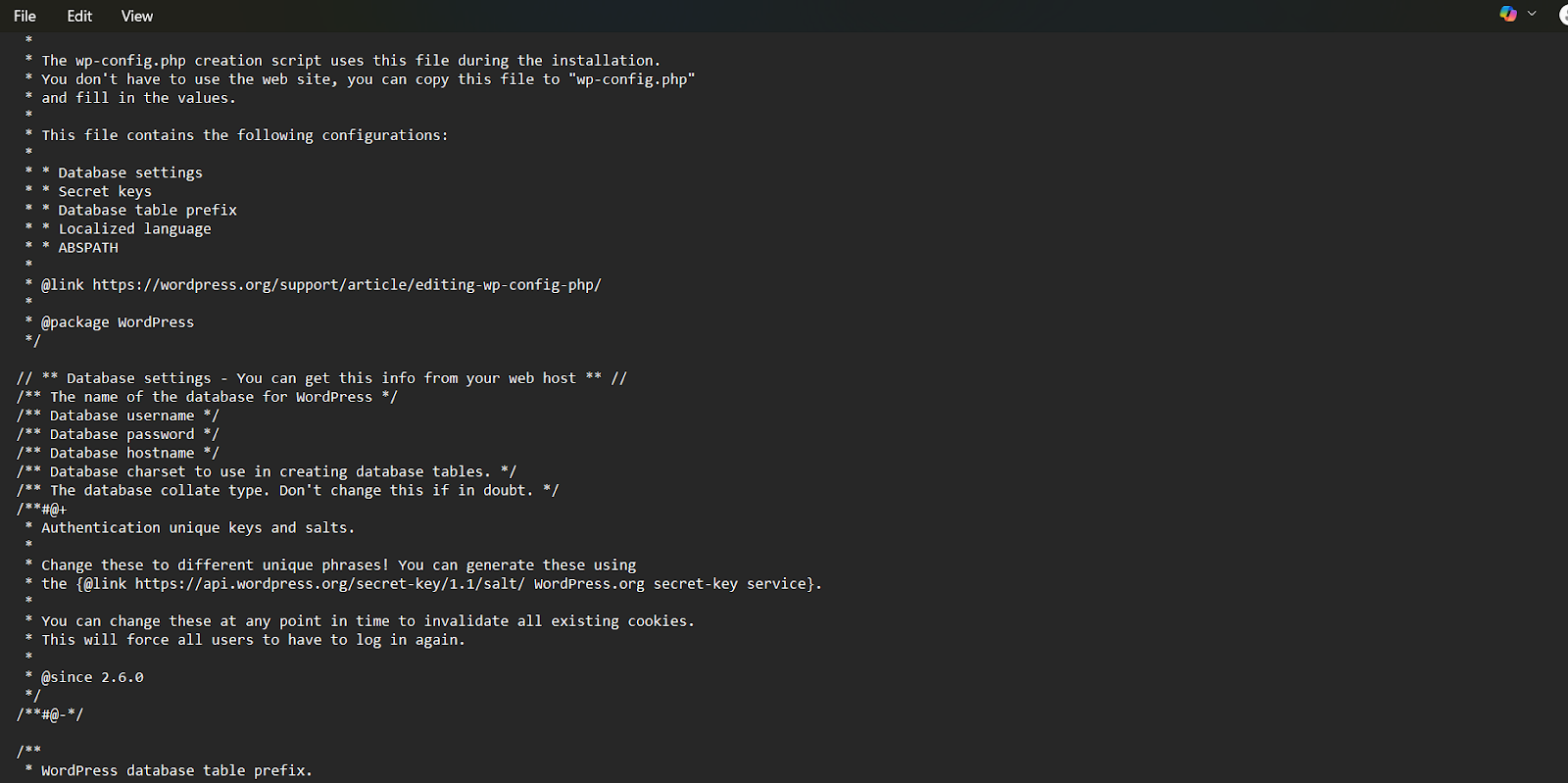
Log in with a client like FileZilla, open wp-config.php, and read your database name and credentials. This only gets you the connection details, not a way to browse data, and the workflow is slow and easy to break without backups.
A database plugin
Tools like WP Data Access or an Adminer plugin let you browse the database from the WordPress admin. The downside is plugin bloat, and installing an untested plugin straight onto a live site is a real security risk.
cPanel and phpMyAdmin
On a traditional host, log in to cPanel, open the Databases section, and launch phpMyAdmin. Match the database to the DB_NAME value in wp-config.php. It works, but it means juggling host logins and a dated interface.
Skip cPanel entirely
On InstaWP managed hosting, a full SQL editor is built into your dashboard. Spin up a site free and open your database in seconds.
Create a Free SiteAll of those are manual. But if you’re using a managed WordPress host that gives you the direct access to your site’s database with no cPanel and no extra plugin.
Open the site, click the three-dot menu, choose Tools, then DB Editor, and Adminer opens in a secure browser tab.
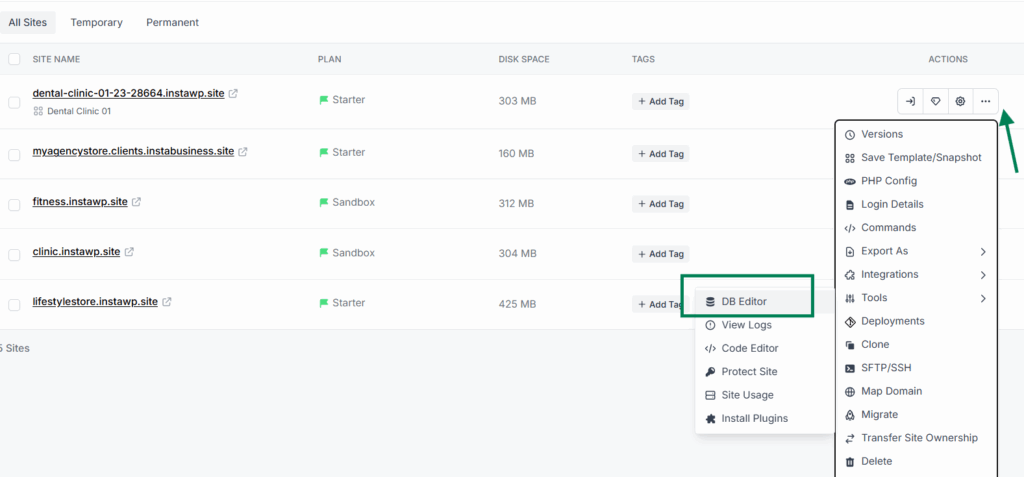

No FTP, no cPanel, no extra plugin, just clean, instant access to your database in a secure cloud panel. If you want to manage an external site this way, connect it first with the InstaWP Connect plugin, then open the DB Editor from Manage Sites.
How to edit the WordPress database: 4 methods
There are four practical ways to edit a WordPress database. They suit different comfort levels, from a visual SQL editor to a single line on the command line to plain-English instructions handed to an AI assistant. Method 1 uses InstaWP and is the safest starting point because backups and staging are one click away.
| Method | Best for | Risk |
|---|---|---|
| 1. InstaWP DB Editor (Adminer) | Most edits, with backups and staging built in | Low |
| 2. phpMyAdmin | Traditional hosts that bundle it | Medium |
| 3. WP-CLI | Bulk updates and safe URL search-replace | Low to medium |
| 4. AI with InstaMCP | Plain-English edits and quick lookups | Low |
Before you edit anything: back up
Export a full SQL dump or take a snapshot before every change, and make the edit on a staging copy first. In InstaWP, you can clone the site or create a snapshot in one click, so if an edit goes wrong you roll back instantly instead of restoring from a host backup.
Method 1: Edit the WordPress database with InstaWP DB Editor
InstaWP makes database editing safe, fast, and beginner-friendly with a built-in DB Editor powered by Adminer, a lightweight, secure SQL tool. You edit directly in the browser with a clean interface and a full SQL manager ready to go.
Editing safely is far easier when the platform underneath has your back. The reason InstaWP can offer one-click database access, instant rollback, and AI editing is that it is a full managed WordPress hosting platform, not just a tool. The database server is provisioned, secured, and maintained for you.
Built-in DB access
The DB Editor (Adminer), a Code Editor, SSH, and WP-CLI are all in your dashboard, with no cPanel.
Backups and rollback
Snapshots and automatic backups mean a bad edit is undone in one click, not restored overnight.
Staging on demand
Clone any site to test database changes safely, then push to production when you are sure.
AI ready
Every site is MCP-ready, so you can query and edit the database from Claude or ChatGPT with InstaMCP.
You build, host, edit, and manage from one place, with a global CDN, WAF, SSL, and automatic backups included, which is what turns risky database work into a routine task.
Once Adminer is open you can click a table name, browse or search rows, edit, insert, or delete entries, and run SQL for advanced operations.
As an example, say you want to inspect the wp_actionscheduler_actions table, created by the Action Scheduler library that WooCommerce and other plugins use to run scheduled tasks. Click Select Data on that table to view its rows.

Click the row you want to change, edit the values in the panel that appears, and click Save.

The DB Editor does much more than view and edit. You can create new tables, alter existing ones, add rows, and import or export the entire database, all without cPanel, phpMyAdmin, or extra plugins. That makes customizing the database, building workflows, and running maintenance faster and safer for agencies and developers.
Method 2: Edit the WordPress database with phpMyAdmin
If you are not on a platform like InstaWP, phpMyAdmin is the traditional route, offered by most cPanel hosts. The flow is straightforward, but back up first because it is unforgiving.
- Select the correct database. Open phpMyAdmin and find the database tied to your site. If unsure, check DB_NAME in wp-config.php.
- Browse the tables. Click the database to expand its tables, such as wp_posts, wp_users, and wp_options.
- Locate the table to edit. Click the table (for example wp_options to change the site URL, or wp_users to reset a password), then click Browse to see the rows.
- Edit a row. Find the row, click Edit, and change the field values.
- Save changes. Click Go to run the query and update the database.
phpMyAdmin is powerful but risky if used carelessly on a live site. Here is how it compares to the InstaWP DB Editor.
| Feature | phpMyAdmin | InstaWP DB Editor |
|---|---|---|
| Requires host login or setup | Yes | No |
| Staging-safe with one-click rollback | No | Yes |
| Direct SQL access | Yes | Yes |
| Risk of breaking production | High | Low |
| Centralized access across many sites | No | Yes |
Method 3: Edit the WordPress database with WP-CLI
WP-CLI is the fastest way to make safe, repeatable database changes, and it is the only correct way to do a site-wide URL change, because it handles WordPress serialized data that a raw SQL find and replace would corrupt.
On InstaWP you do not need your own terminal: open the site, use Run Commands to execute WP-CLI, and read the output in the Command Log under View Logs. You can also connect over SSH.
# Run any SQL query
wp db query "SELECT option_value FROM wp_options WHERE option_name='siteurl';"

# Safely replace a domain everywhere (serialization-aware)
wp search-replace 'old-domain.com' 'new-domain.com' --all-tables

# Update a single option
wp option update home 'https://new-domain.com'

# Export a backup before you start
wp db export backup-before-edit.sqlBecause each command is explicit and scriptable, WP-CLI is ideal for bulk updates, migrations, and anything you want to repeat across multiple sites.
Method 4: Edit the WordPress database with AI using InstaMCP
You can also edit your database in plain English. With InstaMCP, InstaWP’s Model Context Protocol integration, you connect an AI assistant like Claude or ChatGPT to your site and ask it to query or change data.
The assistant runs scoped WP-CLI and PHP under the hood, so you can say “find every draft post older than a year” or “update the admin email to this address” and it executes the change for you.
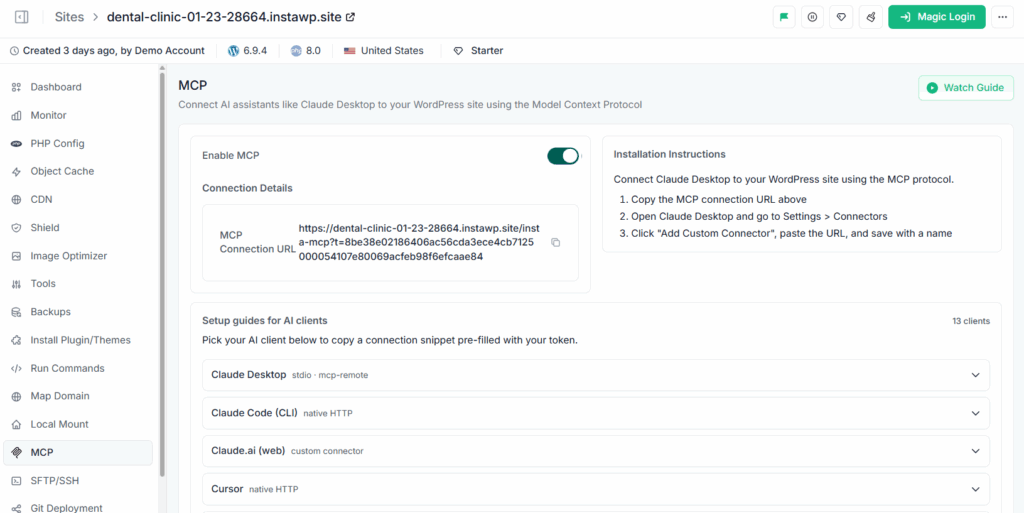
Access is built for safety: the connection uses a token that is scoped and revocable, and the ability to run PHP is opt-in, so you stay in control of exactly what an assistant can touch. It is the quickest way to handle one-off edits and lookups without writing SQL yourself, and it pairs naturally with InstaWP’s backups and staging.
Edit your database with AI
Connect Claude or ChatGPT to your WordPress site with InstaMCP and manage the database in plain English, safely and on managed hosting.
Try InstaWP FreeCommon WordPress database edits (SQL and WP-CLI)
These are the edits people reach for the database to do. Each row shows the SQL you would run in Adminer or phpMyAdmin and the WP-CLI equivalent, which is usually faster and safer. Replace the example values with your own, and back up first.
| Task | SQL | WP-CLI |
|---|---|---|
| Change site URL | UPDATE wp_options SET option_value=’https://new.com’ WHERE option_name IN (‘siteurl’,’home’); | wp option update home ‘https://new.com’ |
| Replace URLs after a migration | Use WP-CLI instead. A raw find and replace breaks serialized data. | wp search-replace ‘old.com’ ‘new.com’ –all-tables |
| Reset admin password | UPDATE wp_users SET user_pass=MD5(‘NewPass’) WHERE user_login=’admin’; | wp user update admin –user_pass=’NewPass’ |
| Change admin email | UPDATE wp_options SET option_value=’[email protected]’ WHERE option_name=’admin_email’; | wp option update admin_email ‘[email protected]’ |
| Deactivate all plugins (locked out) | UPDATE wp_options SET option_value=’a:0:{}’ WHERE option_name=’active_plugins’; | wp plugin deactivate –all |
One rule worth repeating: to change URLs across a site, always use wp search-replace (or a serialization-aware tool). WordPress stores plugin and theme settings as serialized arrays, and a plain SQL find and replace changes the text without fixing the length prefixes, which silently corrupts that data.
How to update the WordPress database
“Update the WordPress database” means one of two things. Either WordPress is asking you to run its database update routine after a core update, or you want to update the data inside the database. Here is how to handle both.
Updating the database after a WordPress core update
After a major WordPress update you may see a “Database Update Required” screen. This is normal: the new version needs to adjust the database schema or data to match. Click Update WordPress Database and it usually finishes in seconds. You can also trigger it manually by visiting wp-admin/upgrade.php, or run it with WP-CLI.
wp core update-dbOn large sites, back up first, because the routine touches the database. On InstaWP managed hosting, core updates and this routine run with automatic backups in place, so if anything looks off you restore the previous state in one click.
Updating data, URLs, and records
To update the actual content of the database, such as changing a domain, bulk-editing options, or correcting records, use the methods above: wp search-replace for URLs, wp option update for single settings, or the DB Editor for visual edits. These are the safest ways to update WordPress database values without breaking serialized data.
How to change WordPress database settings
Your database connection settings live in wp-config.php, not in the database itself. These tell WordPress which database to connect to and how. You change them when you move to a new database, rotate credentials, switch hosts, or change the table prefix.
define( 'DB_NAME', 'your_database_name' );
define( 'DB_USER', 'your_database_user' );
define( 'DB_PASSWORD', 'your_password' );
define( 'DB_HOST', 'localhost' );

$table_prefix = 'wp_';- DB_NAME, DB_USER, DB_PASSWORD, DB_HOST are the connection credentials. Update them to point a site at a different database or new login details.
- $table_prefix is the prefix on every table name (wp_ by default). Changing it is not just a wp-config edit: you also have to rename every table and update a couple of references in wp_options and wp_usermeta, so use a tool or careful SQL.
To edit wp-config.php, open it over SFTP or SSH, or use the built-in Code Editor in InstaWP Site Tools, which opens VS Code or a web editor right in your browser. On managed InstaWP hosting the database server is provisioned and maintained for you, so you rarely touch these settings, and when you do, the Code Editor makes it a two-minute job with no FTP client.
How to create custom database tables in WordPress (best practices)
If you are building a plugin that stores its own data, create a custom table rather than overloading wp_options or wp_postmeta. The right way is to use the $wpdb object and the dbDelta() function inside an activation hook, so the table is created (and safely upgraded) when your plugin activates.
<?php
register_activation_hook( __FILE__, 'myplugin_create_table' );

function myplugin_create_table() {
    global $wpdb;
    $table           = $wpdb->prefix . 'myplugin_events';
    $charset_collate = $wpdb->get_charset_collate();

    $sql = "CREATE TABLE $table (
        id bigint(20) unsigned NOT NULL AUTO_INCREMENT,
        created_at datetime NOT NULL DEFAULT CURRENT_TIMESTAMP,
        user_id bigint(20) unsigned NOT NULL,
        payload longtext NOT NULL,
        PRIMARY KEY  (id),
        KEY user_id (user_id)
    ) $charset_collate;";

    require_once ABSPATH . 'wp-admin/includes/upgrade.php';
    dbDelta( $sql );
}Follow these best practices so the table is fast, safe, and upgrade-friendly:
- Always prefix with $wpdb->prefix. It keeps you compatible with custom prefixes and multisite.
- Respect dbDelta formatting. Put each field on its own line, use two spaces before PRIMARY KEY, and write KEY rather than INDEX, or dbDelta will misread the schema.
- Use get_charset_collate(). This matches the rest of the database and avoids encoding bugs.
- Version your schema. Store a schema version in wp_options and re-run dbDelta when it changes, so upgrades are seamless.
- Always use $wpdb->prepare() for queries with variables, to prevent SQL injection.
- Clean up on uninstall. Drop the table in an uninstall hook if the data should not outlive the plugin.
On InstaWP you can run this code instantly through the Code Editor, with WP-CLI via wp eval-file, or by asking an AI assistant through InstaMCP to create the table for you, which is a fast way to prototype a schema on a disposable staging site.
WordPress database maintenance best practices
Even when you are not actively editing it, the database needs regular care to stay fast, lean, and secure. These are the habits that keep client sites healthy.
- Clean the clutter. Use the DB Editor or WP-CLI to remove unused postmeta, expired transients, old revisions, and spam comments. Faster queries mean faster pages.
- Back up before every edit. Always clone the site or export the database first, so a mistake is a quick rollback rather than a crisis.
- Keep a changelog. Record every SQL edit, especially in teams, so changes are traceable.
- Audit wp_options bloat. Every month or two, check autoloaded options and large plugin tables, which are a common cause of slow sites.
- Edit on staging, then push live. Make changes on a WordPress staging site and promote only after testing.
Edit your WordPress database with confidence
Editing the WordPress database is powerful, and with the right safeguards it is low-risk. Back up first, work on staging, use WP-CLI search-replace for URLs, and reach for a clean SQL editor for everything else. The whole job gets easier on a platform that builds backups, staging, and database access into one dashboard.
That is exactly what InstaWP gives you: one-click access through the DB Editor, instant rollback, WP-CLI, and AI editing with InstaMCP, all on managed WordPress hosting. Spin up a free site and try it on a disposable copy before you touch anything important.
FAQs
Can you edit the WordPress database manually?
Yes. You can use phpMyAdmin, Adminer, the MySQL CLI, or WP-CLI to edit tables such as wp_options, wp_posts, and wp_users. Always back up first and prefer editing on a staging site. InstaWP’s DB Editor gives you Adminer in a secure browser session with staging and one-click rollback.
How do I back up the WordPress database before editing?
Export a full SQL dump before any change, using phpMyAdmin’s Export tab, Adminer’s Export, the mysqldump command, or wp db export. In InstaWP you can also clone the site or take a snapshot in one click and roll back instantly if needed.
How do I change WordPress database settings?
The connection settings (DB_NAME, DB_USER, DB_PASSWORD, DB_HOST) and the table prefix live in wp-config.php. Edit that file over SFTP or SSH, or with the Code Editor in InstaWP Site Tools. Changing the table prefix also requires renaming the tables and updating a few references.
How do I change the WordPress site URL in the database?
Update the siteurl and home values in wp_options, or run wp option update home and wp option update siteurl. To change the domain everywhere after a migration, use wp search-replace so serialized data stays intact.
How do I reset the admin password from the database?
In wp_users, edit the user_pass field for your account and store an MD5 hash of the new password, or more simply run wp user update your-login –user_pass=’NewPassword’. WordPress will re-hash it securely on next login.
How do I create a custom database table in WordPress?
Use the wpdb object and dbDelta() inside register_activation_hook, prefix the table name with the site table prefix, and follow dbDelta formatting rules. Store a schema version so you can re-run dbDelta on upgrades, and run the code via the InstaWP Code Editor, WP-CLI, or InstaMCP.
What is the best tool for editing the WordPress database?
For most people, a visual SQL editor like Adminer or phpMyAdmin is easiest, while WP-CLI is best for bulk and migration tasks. InstaWP’s DB Editor wraps Adminer with staging, backups, and one-click access, which removes most of the risk of breaking a live site.
Edit your WordPress database the safe way
Get a built-in SQL editor, one-click backups, staging, and AI access on managed WordPress hosting. No card required.
Start Free on InstaWP