Every WordPress site leaks manual work. A form comes in and someone copies it into a spreadsheet. An order lands and someone pastes the details into Slack. A post goes live and someone opens four tabs to share it. None of it is hard. It is just endless.
When you connect n8n to WordPress, most of that manual work disappears, and unlike Zapier it does not bill you per task. n8n is an open-source automation tool with a visual workflow editor and a native WordPress node, so you can wire your site to 500+ other services without writing a plugin.
This guide covers the full n8n WordPress integration end to end: the two connection methods most tutorials skip, five workflows worth building first, where to run n8n so a busy site does not blow past an execution cap, and how n8n MCP lets an AI Agent work on your site directly. If the site runs on InstaWP’s managed WordPress hosting, that last part is a toggle rather than a build, because the InstaMCP server is already on every site.
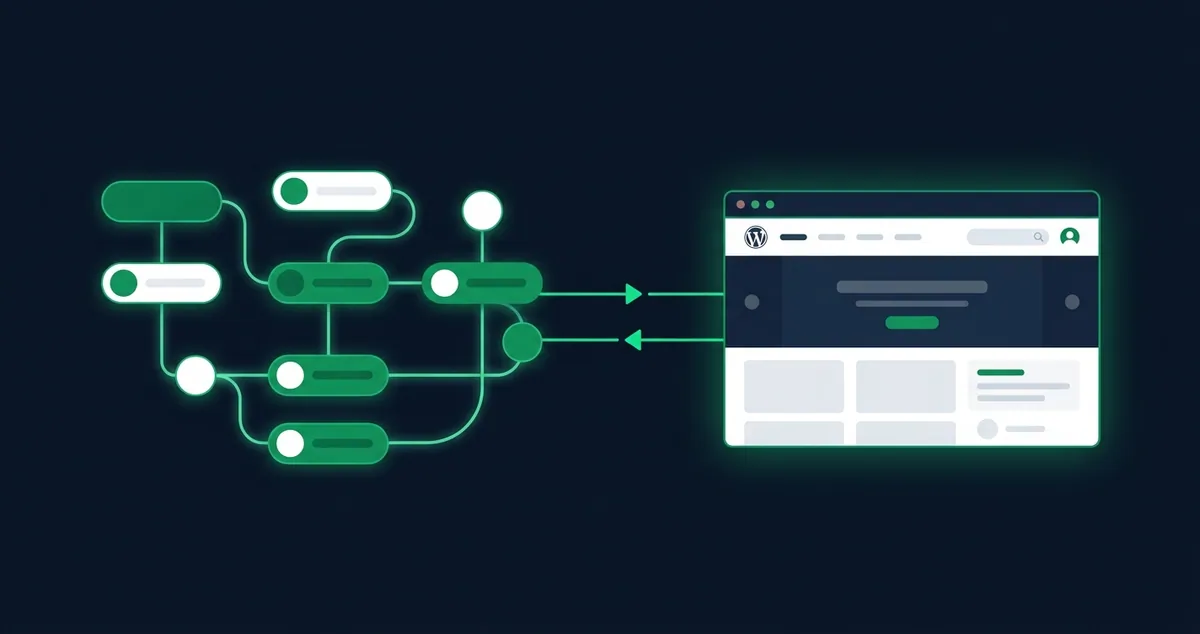
Table of Contents
- How the n8n WordPress integration actually works
- Step 1: Connect n8n to WordPress with an application password
- Step 2: Let WordPress trigger n8n with webhooks
- n8n MCP: connect an n8n AI Agent to WordPress
- 5 n8n WordPress workflows worth building first
- Where n8n stops
- Where to host n8n: deploy the pre-built instance on InstaPods
- Fix 401, 403 and 404 errors
- Where to go next
- Frequently asked questions
How the n8n WordPress Integration Actually Works
Here is the thing most guides get wrong. n8n’s WordPress node is action-only. It can create posts, update posts, and manage users. It cannot listen for anything.
That trips people up constantly. They add the WordPress node, look for a “new post” trigger, and give up. The fix is knowing which of the three connection methods you need, because only two of them are triggers.
Get that direction straight in your head and the rest is plumbing. Writing to WordPress goes through the REST API. Getting WordPress to talk back goes through a webhook. WooCommerce is a special case that handles its own webhooks for you.
How to Connect n8n to WordPress: Different Methods Covered
There is no single way to connect n8n to WordPress. There are six, they do different jobs, and picking the wrong one is why most people stall on their first workflow. The native node cannot listen for events. Webhooks cannot write to your site. The REST API can do anything but asks more of you.
This page compares all six, tells you which one your use case needs, and points you to the build guide once you have chosen. Two minutes here saves an afternoon of hunting for a trigger that does not exist.
| Method | Direction | Best for | Flexibility | Skill |
|---|---|---|---|---|
| 1. WordPress node (self-hosted) | n8n → WP | Posts, pages, users. The default choice. | ★★☆☆☆ | Low |
| 2. Webhooks | WP → n8n | Form submissions, new posts, comments | ★★★☆☆ | Low to mid |
| 3. WooCommerce Trigger | WP → n8n | Orders, refunds, customers | ★★☆☆☆ | Low |
| 4. HTTP Request to REST API | n8n → WP | Custom post types, plugin endpoints, taxonomies | ★★★★★ | High |
| 5. WP-CLI over SSH | n8n → WP | Bulk operations, maintenance, database work | ★★★★★ | High |
| 6. MCP | AI ↔ WP | Letting Claude, ChatGPT or an n8n AI Agent act on your site (n8n MCP) | ★★★★☆ | Low to mid |
First, work out the direction
Before comparing features, answer one question: is n8n doing something to WordPress, or is WordPress telling n8n that something happened? Almost every stalled n8n project traces back to skipping this.
If n8n acts on your site (creating a post, updating a user, changing a price), you need methods 1, 4 or 5. If your site starts the workflow (a form is submitted, an order lands, a post goes live), you need methods 2 or 3. Most real workflows use one of each, chained together.
1. WordPress node on a self-hosted instance
This is the default method and covers most of what people actually want. It pairs the native WordPress node with a self-hosted n8n instance, which matters more than it sounds, because this is the method your highest-volume workflows will run on.
The other methods fire occasionally. A webhook runs when someone submits a form. An MCP call runs when you ask for it. The WordPress node is different: it is the workhorse you point at scheduled publishing, bulk updates and per-order user creation, so it is the method most exposed to execution billing. There are three reasons to run it on your own instance.
n8n counts one execution per workflow run. Cloud’s entry tier caps you at 2,500 a month (n8n’s published pricing, checked July 2026). A WooCommerce store at 100 orders a day burns 3,000 from a single workflow. Self-hosted Community Edition has no cap at all.
Security plugins like Wordfence and iThemes commonly restrict REST API access, which is the single most frequent cause of 401 and 403 errors on this method. Allowlisting is the fix, and allowlisting needs an address that does not move. Your own pod has one. Shared cloud infrastructure generally does not.
This method authenticates with an application password that has full admin write access to the site. If you run automation for clients, where that credential is stored is a question you will eventually be asked. Self-hosting gives you a straight answer.
The catch has always been setup. On a raw VPS you provision the server, install Node, configure nginx as a reverse proxy, get SSL working, open the right firewall ports, set up a process manager so n8n survives a reboot, and point a domain at it. That is a real afternoon, and you own it forever after.
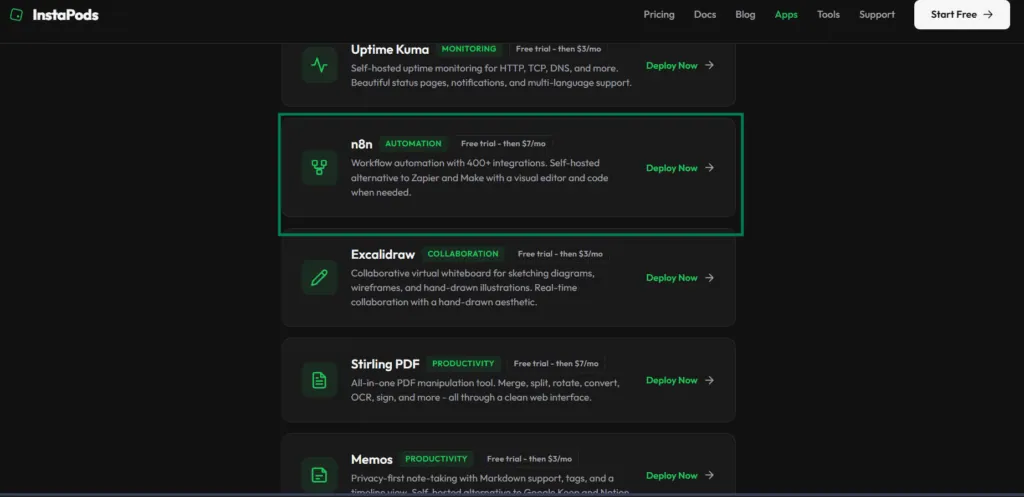
A managed host collapses all of that. InstaPods runs n8n as a pre-built one-click app. You pick n8n from the marketplace, choose a plan, and InstaPods provisions a real Linux server, installs n8n, configures networking and issues HTTPS. About sixty seconds later you have a live instance with a custom domain and SSH access. The Build plan at $7 a month gives you 2 vCPU and 2 GB RAM, which matches n8n’s own documented minimum and comfortably handles a few dozen active workflows.
Flat pricing is the point. You are not counting runs, so you can put the WordPress node on a schedule without doing arithmetic first. Full walkthrough in our step-by-step deployment guide.
Deploy n8n in about 60 seconds
Unlimited executions on a flat monthly price, with HTTPS, custom domains and SSH handled for you. New accounts get $10 in credit.
Deploy n8n on InstaPodsStep 1: Open the n8n app page and click Deploy
Go to the InstaPods n8n app page and sign up with email or a social login. If you already have an account, you land straight on the plan selector. Nothing is provisioned yet at this point, so you can back out without leaving anything running.
Click Deploy n8n. That is the entire starting point. There is no Docker image to pull, no server to rent first, and no repository to connect.
Step 3: Pick your plan
Pick your plan. The Build plan at $7 a month flat is the sweet spot for a WordPress site: unlimited executions, HTTPS and a custom domain included, and SSH access if you ever want to get under the hood.
There is a smaller Launch plan from $3 a month for light workloads, and InstaPods gives you $10 in credit when you add a card, which covers months of hosting before you spend a cent of your own.
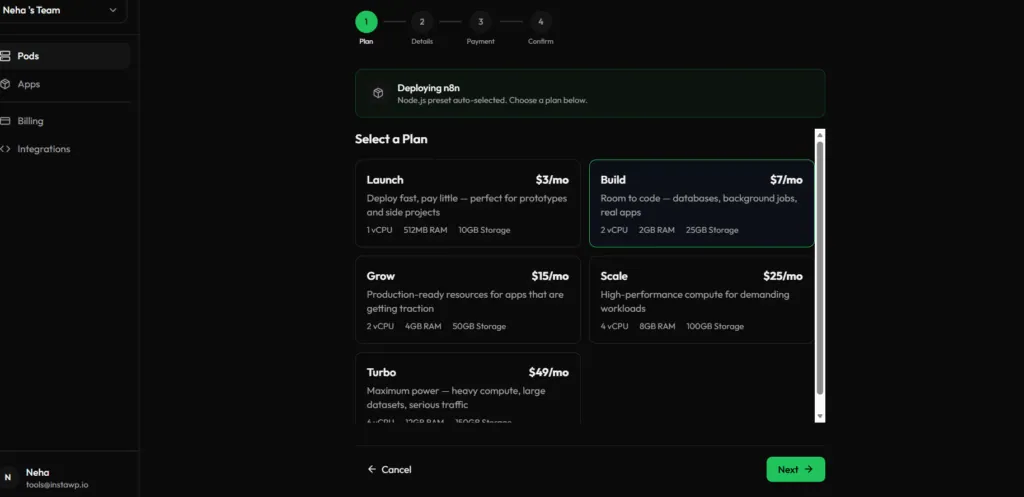
Wait about a minute. InstaPods finishes provisioning and hands you a live n8n instance on its own HTTPS URL, ready to log into and start building. No nginx config, no SSL certificates, no reboot scripts.
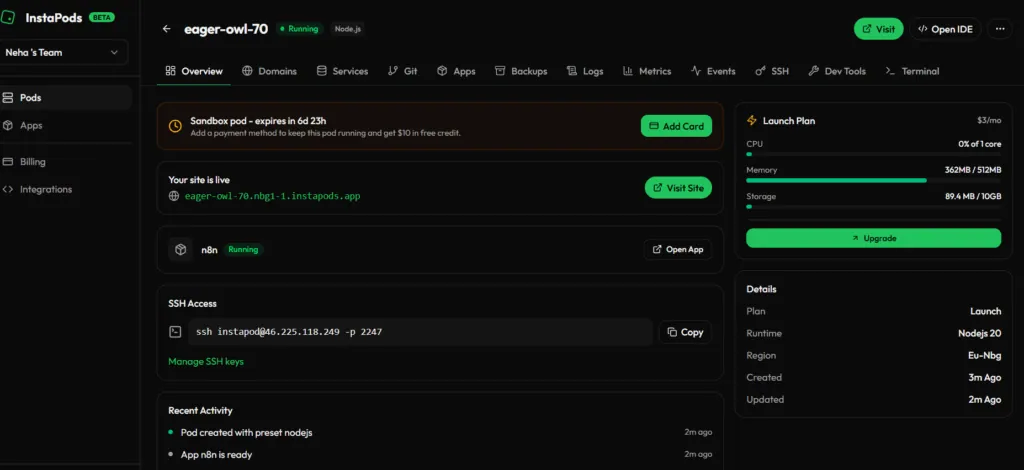
Because the same instance ships with native AI nodes for OpenAI, Anthropic and local models, it doubles as your AI automation box too. If that is where you are heading, see our full guide to building AI automation workflows with n8n, or the deeper n8n pricing breakdown for the per-execution math on every plan.
Step 4: Connect n8n to WordPress With an Application Password
WordPress has shipped application passwords since version 5.6, so you do not need a plugin to connect n8n to WordPress. An application password is a dedicated 24-character key that authenticates the REST API without exposing your real login.
Open your WordPress dashboard and go to Users → Profile.
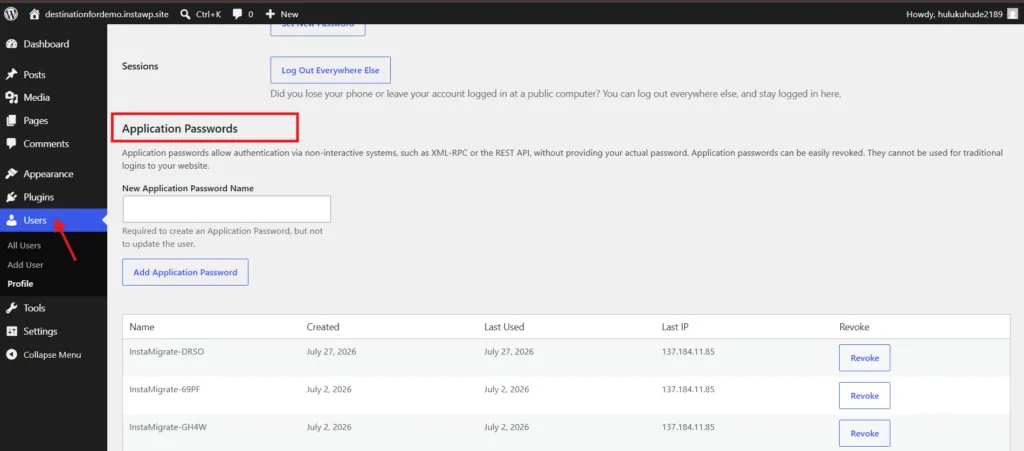
Scroll down to the Application Passwords section, enter a name you will recognise later, such as “n8n,” and click Add New Application Password.
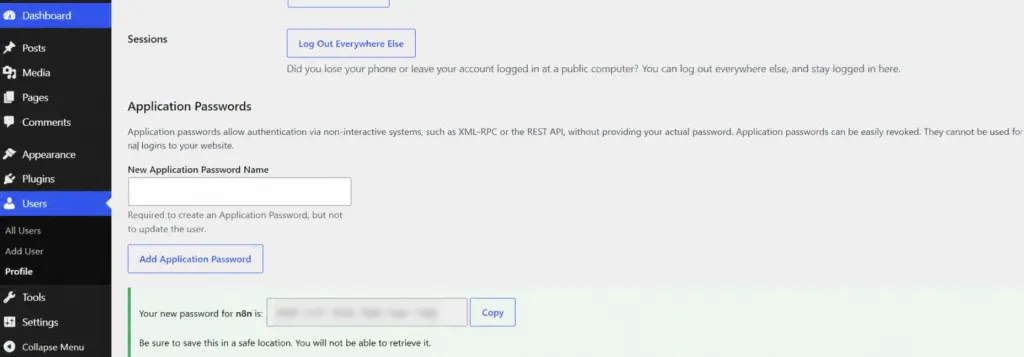
WordPress will display a 24-character password only once, so copy it immediately.
Step 5: Create your WordPress workflow
Next, open n8n app you have created on InstaPods and click into Credentials, then click Add Credential (top right).
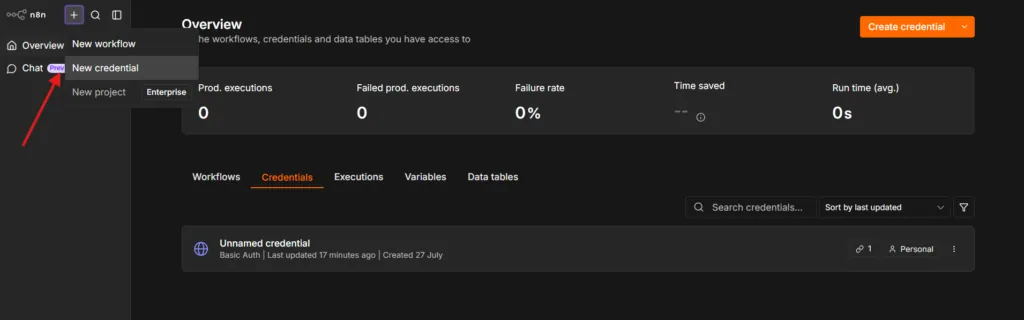
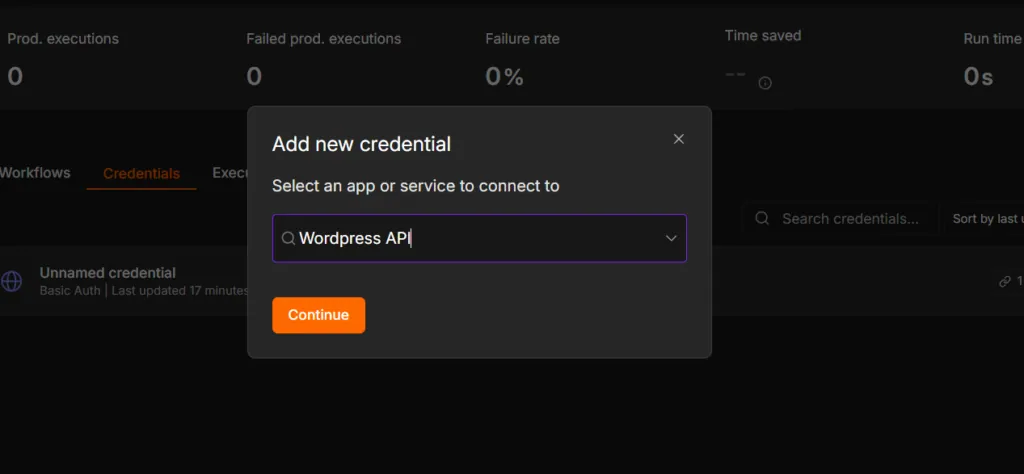
A search box appears. Type wordpress. Pick WordPress API from the results. There’s only one WordPress option, so you can’t pick the wrong one.
Now enter the asked details such as username, password, and WordPress URL.
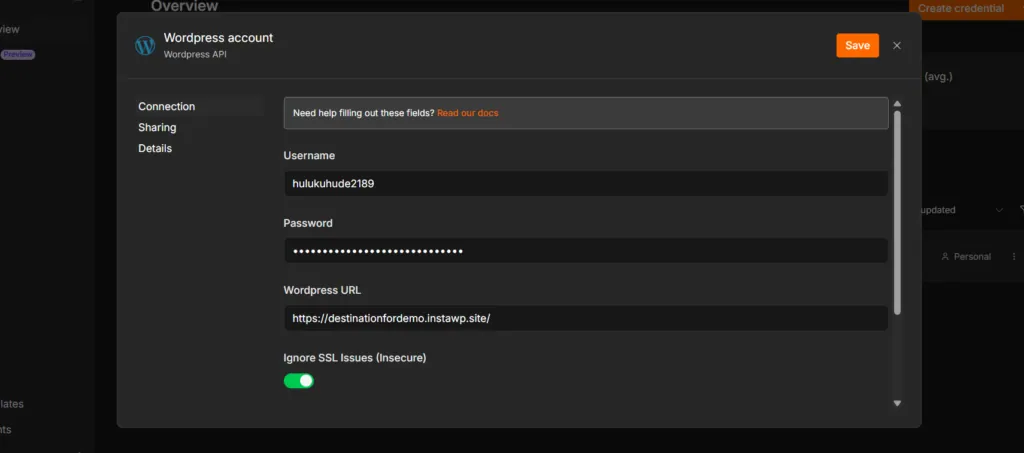
If details are correct, the connection will be successful.
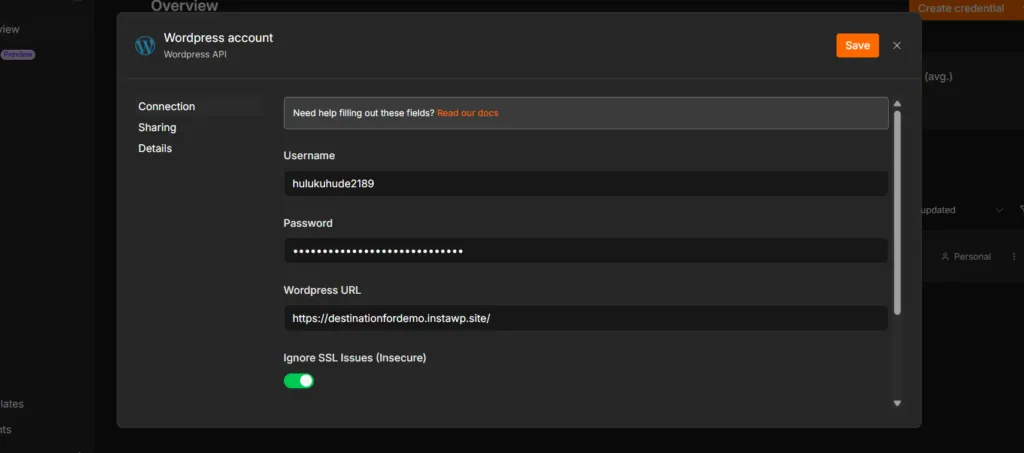
Then click Save, and click Test (or the connection tests automatically on save, depending on version). A green tick means you’re done. Leave the credential named something obvious like “yoursite.com WordPress” and close the panel.
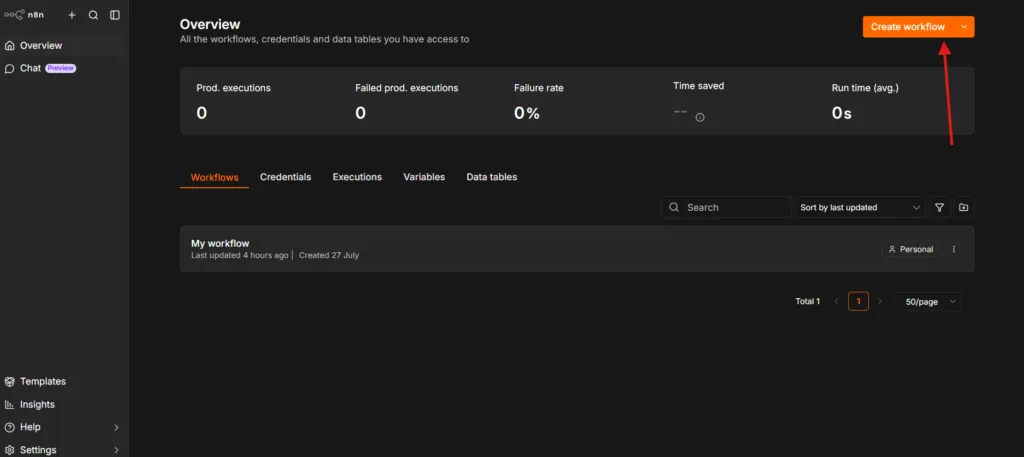
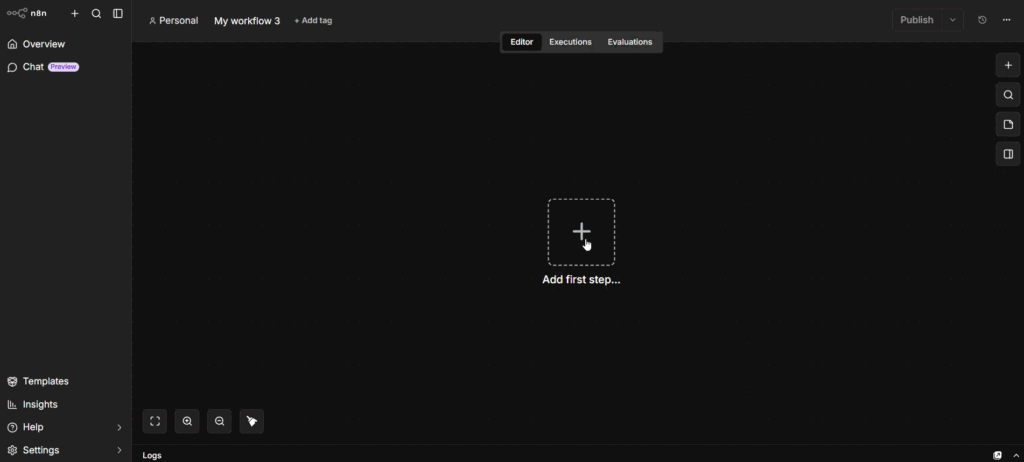
Go back to the workflows list and click Create Workflow. You get an empty canvas with a single “Add first step” button.
Click it and choose your trigger.
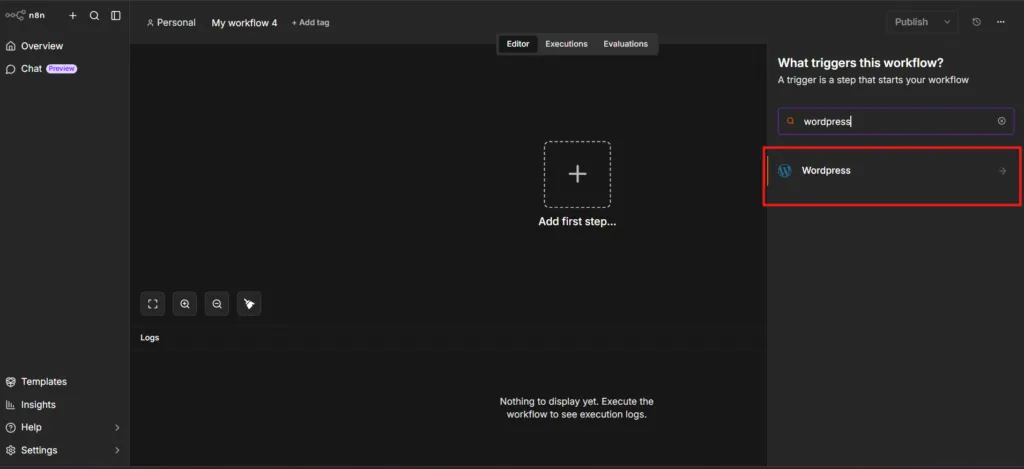
On the right edge of that trigger node is a small + symbol. Click it. A node search panel opens. Type wordpress and select the WordPress node.
Wrong username (people enter their email), or the application password was regenerated. Create a fresh one and try again.
A security plugin is blocking REST access. Wordfence and iThemes both do this. Allowlist your pod’s IP address.
Almost always the URL. Check for a trailing slash or a stray
/wp-admin. Confirm the API responds by opening yoursite.com/wp-json in a browser.
The feature requires HTTPS and disappears on plain HTTP, which catches people on local and staging sites. A plugin or an
wp_is_application_passwords_available filter can also disable it.
Step 6: Let WordPress Trigger n8n With Webhooks
Now, you have to define your trigger. You have two choices: Schedule and Webhook. These are generic n8n triggers being suggested as partners for the WordPress actions.
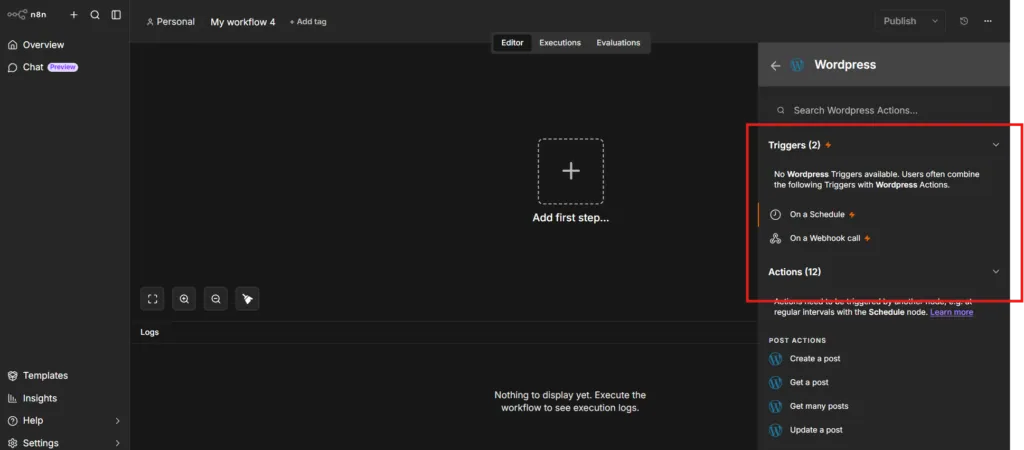
The application password lets n8n push changes into WordPress. To go the other way, so that something happening on your site starts a workflow, you use a webhook. Add a Webhook node in n8n, copy its URL, then fire at that URL from WordPress.
For a first run, leave the method as GET. That lets you fire the webhook by pasting a URL into a browser tab, which is far easier than setting up WordPress to send anything. You can switch it to POST later once you know the plumbing works.
You can also replace that random path string with something readable like wp-new-post. Optional, but it makes the URL easier to recognise later.
If you want zero code, the WP Webhooks plugin exposes most core actions through a settings screen. If you would rather not add another plugin, this snippet in your theme’s functions.php or a small mu-plugin covers new posts:
add_action( 'publish_post', function ( $post_id ) {
    if ( wp_is_post_revision( $post_id ) ) {
        return;
    }
    wp_remote_post( 'https://your-n8n-url/webhook/wp-new-post', [
        'headers'  => [ 'Content-Type' => 'application/json' ],
        'body'     => wp_json_encode( [
            'id'    => $post_id,
            'title' => get_the_title( $post_id ),
            'url'   => get_permalink( $post_id ),
        ] ),
        'blocking' => false,
    ] );
}, 10, 1 );
The 'blocking' => false line matters. Without it, WordPress waits for n8n to respond before it finishes saving the post, and your editor feels sluggish every time you publish.
WooCommerce is easier. It ships its own webhooks under WooCommerce, then Settings, then Advanced, then Webhooks, and n8n has a matching WooCommerce Trigger node that handles the handshake for you. The WooCommerce webhooks documentation lists every event you can hook into, from new orders to refunds.
The plugin surfaces WordPress events as triggers you pick from a dropdown: posts (created, updated, deleted), users (created, updated, deleted, login, logout), comments, and taxonomy terms. It can also run actions sent from n8n, like creating a post or a user. The common post, user and comment triggers are in the free plugin. The deeper catalog, including login and logout events, plugin lifecycle hooks, and meta or file actions, sits in WP Webhooks Pro, so check the current feature list before you build on a specific event.
Other Ways to Automate WordPress with n8n
Here are some other ways to automate WordPress with n8n.
WooCommerce Trigger node
Use it for anything involving orders, refunds or customers. This is the easiest connection of the six because both sides already speak the protocol. WooCommerce ships its own webhooks under WooCommerce, then Settings, then Advanced, then Webhooks, and n8n has a dedicated WooCommerce Trigger node that handles the registration handshake for you.
No code, no extra plugin, no manual URL copying. Select the event (order.created, order.updated, customer.created and so on) and n8n sets it up. The WooCommerce webhooks documentation lists every available topic.
HTTP Request node to the WordPress REST API
Use it when the native node does not go far enough. The HTTP Request node talks directly to the WordPress REST API, so anything the API supports is available: custom post types, taxonomies, media uploads, comments, and endpoints registered by plugins like Yoast, ACF or WooCommerce Subscriptions.
Authentication uses the same application password. Set the node to Basic Auth with your username and key, then point it at an endpoint:
POST https://yoursite.com/wp-json/wp/v2/your-custom-post-type

{
  "title": "{{ $json.title }}",
  "content": "{{ $json.body }}",
  "status": "draft",
  "meta": { "your_custom_field": "{{ $json.value }}" }
}
The trade-off is that you are now reading API documentation instead of picking from a dropdown. Worth it the moment your site has custom post types, which for most agency builds is immediately. Check what is available by visiting yoursite.com/wp-json in a browser.
A useful hybrid: use the native node for the 80% it covers and drop in an HTTP Request node only for the calls it cannot make. Mixing both in one workflow is normal and keeps the readable parts readable.
WP-CLI over SSH
Use it for bulk operations the REST API handles badly. Regenerating thumbnails, search-and-replace across a database, bulk plugin updates, flushing caches, exporting tables. These are one-line WP-CLI commands and painful API sequences.
n8n’s Execute Command node runs shell commands on the machine n8n itself is running on, so this route needs SSH access from that machine to your WordPress server. It is the most powerful method and the one with the sharpest edges: a mistyped wp db command does not ask twice. Test on staging, always.
This is also a reason to care where n8n lives. Managed n8n hosts often lock down shell access. InstaPods gives you SSH on every plan, so this method stays open to you.
MCP for AI assistants
Use it when you want an AI assistant acting on your site, not a fixed workflow. Model Context Protocol is a standard that lets tools like Claude and ChatGPT call your WordPress site directly. Instead of building a workflow for every task, you describe the task in plain language and the assistant makes the calls.
The two approaches are complementary rather than competing. n8n is right for anything scheduled, repeated or triggered by an event. MCP is right for one-off and exploratory work: auditing content, bulk-editing based on judgement, answering questions about your own site. n8n can also expose its workflows as MCP tools, so an assistant can call a workflow you already built. And the two meet in the middle: an n8n AI Agent can use MCP itself, which is the next section.
InstaWP sites ship with native WordPress MCP support, so this is a configuration step rather than a build. See connecting AI assistants to your WordPress site using MCP.
n8n MCP: Connect an n8n AI Agent to WordPress
n8n MCP means wiring n8n to a Model Context Protocol server. To let an n8n AI Agent work on a WordPress site, attach n8n’s MCP Client Tool node to the agent and point it at the site’s MCP endpoint. On InstaWP that endpoint is InstaMCP, the built-in WordPress MCP server, so the agent gets 43 typed WordPress tools for posts, pages, terms, media, custom fields, plugins and themes without you building a node for each one.
The WordPress node gives n8n a fixed menu of actions. MCP gives an agent the whole toolbox and lets it pick the tool per request. The table further down maps common jobs to the right route.
The three MCP nodes in n8n (and which one you need)
For WordPress you will mostly use the first two. The MCP Server Trigger runs the other way: it turns n8n into a server, which is handy when you connect Claude to WordPress and want it to run your “publish and distribute” workflow by name.
How to connect an n8n AI Agent to WordPress with InstaMCP
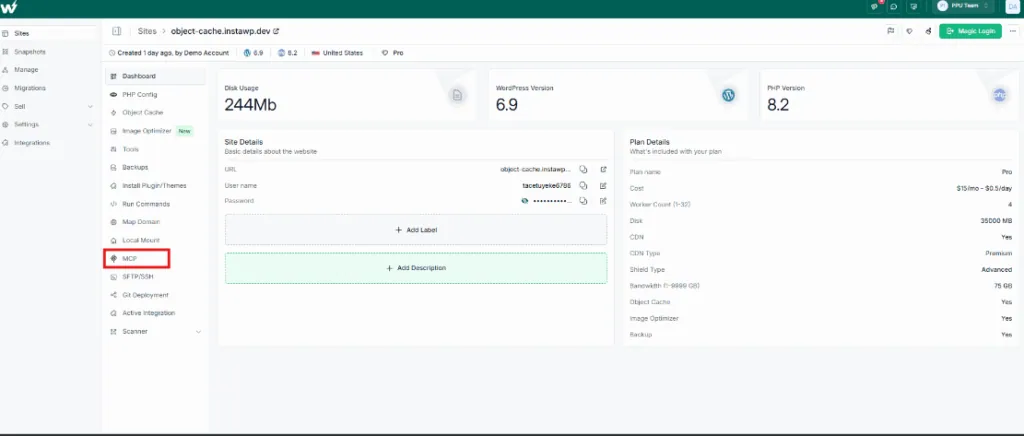
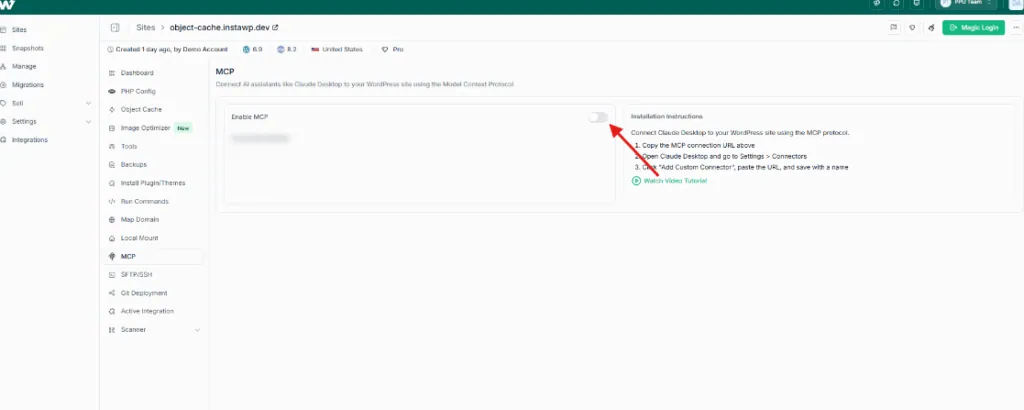
Step 1: Turn on MCP for the site. In the InstaWP dashboard, open the site and select MCP in the site sidebar.
Switch on Enable MCP and copy the connection URL. It has this shape: https://your-site.instawp.site/insta-mcp?t=YOUR_TOKEN. The token is a long random key tied to one WordPress user, it can be revoked at any time, and the server stores only a hash of it. Treat it like a password.
Step 2: Build the agent. In n8n, add a trigger (a Chat Trigger to talk to it, or a Schedule Trigger for unattended jobs), then an AI Agent node with a chat model attached. Any model n8n supports works: OpenAI, Anthropic, Gemini or a local model.
Step 3: Attach the MCP Client Tool. On the AI Agent’s Tool connector, add MCP Client Tool and fill it in like this:
Endpoint:          https://your-site.instawp.site/insta-mcp
Server Transport:  HTTP Streamable
Authentication:    Bearer Auth  (credential value = YOUR_TOKEN)
Tools to Include:  Selected  ->  list_content, get_content,
                   create_content, update_content, validate_blocks
Options > Timeout: 60000 ms (default)
Bearer Auth keeps the token in n8n’s encrypted credential store instead of in the workflow JSON, which matters the day someone exports or shares the workflow. Pasting the full URL with ?t= and Authentication set to None also works. InstaMCP accepts the token either way.
Step 4: Limit what the agent can reach. Set Tools to Include to Selected and tick only the tools the job needs. A content agent needs the content tools, not plugin_operations. On the WordPress side, the token runs as the user it belongs to, and that user’s role sets the ceiling: an Administrator token can reach all 43 tools, an Editor 32, an Author 30, and a Contributor or Subscriber only the 19 read tools.
Step 5: Test it. Open the chat and ask something read-only first, such as “List my five most recent drafts and their word counts.” The agent should call list_content and answer from the result. Once that works, give it a write task on a WordPress staging copy of the site.
We tested the connection. On 12 October 2026, a self-hosted n8n 2.42.7 (Node.js 24.21) connected to the InstaMCP endpoint of a throwaway InstaWP sandbox over HTTP Streamable. We called two InstaMCP tools from the standalone MCP Client node: list_content with the token in the URL, and validate_blocks with a bare endpoint and the token stored as a Bearer Auth credential. Both runs returned structured JSON in about 2.4 seconds, connection handshake included. One gotcha for self-hosters: this n8n release refused to start on Node.js 22 and asked for Node 24 or later.
What InstaMCP keeps off by default
- Raw code and SQL are off.
execute_php,db_queryandsite_filesare listed but refuse to run until a site admin switches them on. - Safe Mode blocks deletes, plugin and theme installs or updates, code file edits,
set_metaand media uploads. It does not block creating or editing posts, so pair it with a draft-only prompt for content agents. - Checked writes.
validate_blockschecks Gutenberg markup before a save, andset_metareads every field back after writing it.
For the full permission model, read is WordPress MCP safe.
When n8n MCP beats the WordPress node (and when it doesn’t)
Use the WordPress node when the job is the same every run. Use MCP when the job needs judgement or reaches parts of WordPress the node and the REST API do not cover. The two also combine well: a fixed trigger hands the open-ended part of the job to an agent.
If you want a fixed step to use an MCP tool, for example “validate this block markup before saving”, use the standalone MCP Client node instead of an agent. It calls one named tool with the parameters you set, so it behaves like any other deterministic node.
5 n8n WordPress Workflows Worth Building First
The theory is done. Here are five n8n WordPress workflows that pay for themselves in the first week. Start with one, let it run for a few days, then build the next.
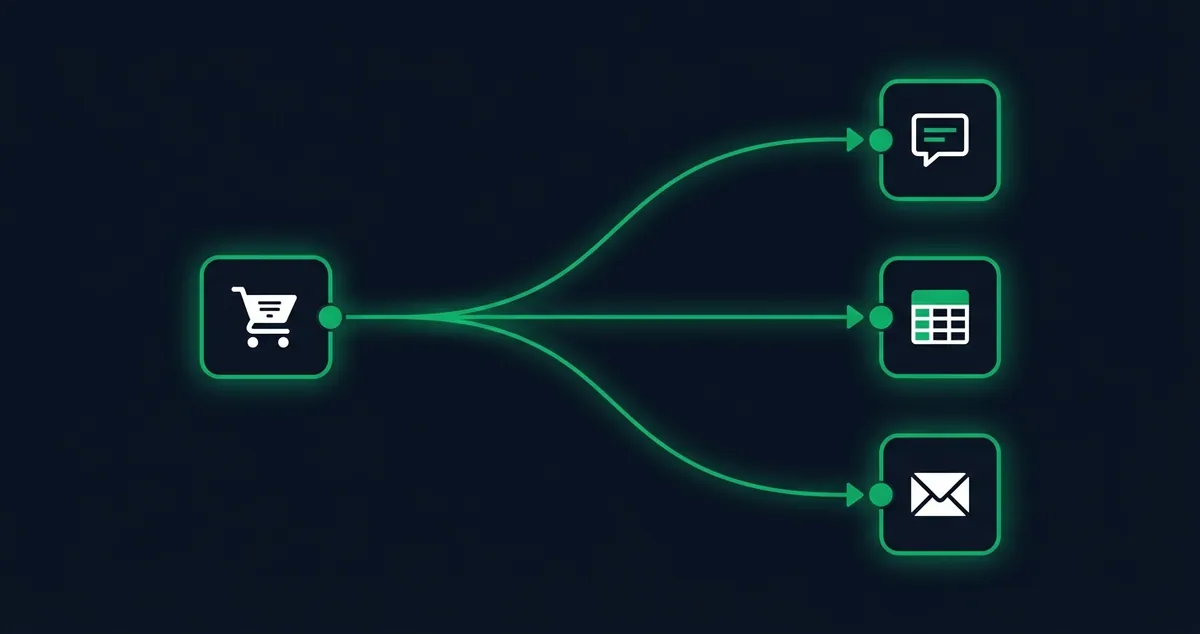
1. WooCommerce order to Slack and Sheets
Fire the WooCommerce Trigger on order.created, then a Slack node and a Google Sheets node in parallel. Your team sees orders where they already work, and finance gets a running log nobody has to maintain.
Add an IF node on order total if you only want a ping above a threshold. Notification fatigue kills these workflows faster than any technical problem.
2. Form submission to CRM
Gravity Forms, WPForms and Formidable can all POST to a URL on submit. Point that at an n8n Webhook node, then branch: leads with a company email go to your CRM, everything else goes to a newsletter list.
Gravity Forms’ official Webhooks add-on needs an Elite license. If you are not on Elite, the free gform_after_submission hook does the same thing with the snippet pattern above. This is the workflow I would build first. It replaces the twice-a-day inbox check that quietly loses leads, and it pairs well if you are building a CRM inside WordPress rather than paying for a separate one.
3. Publish once, distribute everywhere
Fire the publish_post webhook from Step 2, then fan out: post to your socials, queue a newsletter draft, ping the team channel, and submit the URL for indexing.
The trick is a Wait node or a scheduled queue rather than blasting every channel the instant you publish. Staggering over a few hours reads as a human posting instead of a bot dumping.
4. Abandoned cart recovery without another plugin
WooCommerce Trigger on cart events, a Wait node for an hour, then an IF node checking whether the order completed. If it did not, send an email with the cart contents.
Dedicated cart recovery plugins are mostly annual subscriptions. This is an afternoon of work and then it is yours, with the recovery email copy fully under your control. Worth having in place well before you hit a busy sales season.
5. Scheduled site health checks
A Schedule Trigger plus HTTP Request nodes hitting your key pages. A non-200 response, or one slower than your threshold, sends an alert before your visitors notice.
Add a weekly job that pulls the WordPress REST API for posts not updated in 12 months and drops them into a sheet. Instant content refresh queue, no SEO tool subscription required.
Where n8n Stops
n8n is built for workflows: something happens, steps run, a result lands. Three jobs sit outside that, and knowing them upfront saves a rebuild.
- Customer-facing support chat. A DIY n8n bot has no built-in conversational memory and no clean human handoff. A support bot people actually trust needs a vector store, persistent memory and escalation rules you assemble and maintain yourself.
- Uptime becomes yours. Self-hosting trades the execution cap for ownership. You own the updates, the backups and the restart when a workflow wedges. A managed host covers the server, but the workflows are still your call.
- That application password is admin access. It can write anything on the site. Give it a dedicated WordPress user rather than your own login, and rotate it if it ever leaves your infrastructure.
Where to Go Next
Start with one workflow. Pick the manual task you did most times last week, wire it up, and let it run for a few days before you build another. The failure mode with n8n is building twelve clever workflows in a weekend and having no idea which one broke on Wednesday.
Once the basic plumbing works, the same setup runs AI workflows on top of your WordPress data, which is where this gets genuinely interesting. And if you want n8n reacting to your own infrastructure events too, InstaWP’s webhooks plug into the same Webhook node.
Frequently Asked Questions
Does n8n have an official WordPress plugin?
No. n8n connects through the WordPress REST API using an application password, so there is nothing to install on the WordPress side. You only add a plugin like WP Webhooks if you want to expose more trigger events without writing code.
Can n8n trigger on a new WordPress post?
Not with the WordPress node by itself, which is action-only. Use n8n’s Webhook node and fire at it from the publish_post hook, or use a webhook plugin like WP Webhooks to expose the event without code.
Is self-hosted n8n free?
The Community Edition is free software with unlimited executions. You pay only for the server it runs on, which is about $3 to $5 a month on a raw VPS or $7 a month flat on a managed platform like InstaPods. Some enterprise features such as SSO sit behind a paid license.
Will this work with WooCommerce?
Yes, and it is the easiest integration of the lot. WooCommerce has built-in webhooks and n8n has a dedicated WooCommerce Trigger node, so orders, refunds and customer events need no code at all.
How many executions will a typical WordPress site use?
One per workflow run. A contact form doing 10 submissions a day is about 300 a month. A WooCommerce store at 100 orders a day is 3,000 a month from that single workflow, which is already past n8n Cloud’s 2,500 Starter limit, so self-hosting pays off quickly.
How do I deploy n8n without managing a server?
Use a managed one-click host. On InstaPods you pick n8n from the marketplace, choose a plan, and get a running instance with HTTPS and a custom domain in about 60 seconds. There is no Docker, nginx or SSL to configure, and you still get SSH access if you want it.
What is n8n MCP?
n8n MCP is n8n’s support for the Model Context Protocol. The MCP Client Tool node lets an n8n AI Agent use the tools of any MCP server, the MCP Client node calls one MCP tool as a normal workflow step, and the MCP Server Trigger exposes your n8n workflows as MCP tools for assistants like Claude.
Can n8n connect to a WordPress MCP server?
Yes. Add the MCP Client Tool to an AI Agent node, set the endpoint to your site’s MCP URL, choose HTTP Streamable as the transport and add the token as a Bearer credential. On InstaWP sites the MCP server is InstaMCP, which you switch on from the site’s MCP panel.
Should I use the WordPress node or MCP in n8n?
Use the WordPress node for repeatable jobs with fixed fields, such as publishing from a spreadsheet. Use MCP when the task needs judgement, or touches things the node cannot reach, such as SEO fields, page-builder pages, plugins and error logs.
Do I need a plugin to use n8n MCP with WordPress?
On InstaWP, no. InstaMCP is built into every site. On another host you would install an MCP server plugin such as the official WordPress MCP Adapter, which on a bare install exposes only a few read-only abilities until you register more.
Run n8n Without an Execution Cap
Skip the sysadmin work. Deploy the pre-built n8n instance on InstaPods in about 60 seconds, get unlimited executions on a flat monthly price with HTTPS and a custom domain handled for you, and wire it into WordPress the same afternoon. New accounts get $10 in credit when they add a card.