To connect Codex to WordPress, you add your WordPress site to Codex as an MCP server. Then OpenAI’s coding agent can read and change the live site, not just the files on your computer. On InstaWP’s managed WordPress hosting, every site already runs an MCP server, so the whole setup is one switch in the dashboard and one command in your terminal. This guide walks through it slowly, with a screenshot for every step.
InstaWP tested every step on 23 October 2026 with Codex CLI 0.164.0 and a sandbox running InstaMCP, the WordPress MCP server built into InstaWP sites. Codex found all 43 WordPress tools in 2.48 seconds, with no bridge or extra software in between. The terminal screenshots below are the real output from that run, with the site address and token hidden.
Table of Contents
- One command does it: after you switch on MCP for an InstaWP site,
codex mcp addwith the site address and a token connects it. No mcp-remote bridge and no Node.js are needed for an InstaWP site. - Your token stays out of files: Codex reads it from an environment variable, and its config file only stores the variable’s name.
- One setup covers every Codex app: the Codex CLI, the Codex IDE extension and the ChatGPT desktop app share the same Codex settings file.
- Make Codex ask before it changes anything: set the
writesapproval mode in Codex, and turn on InstaMCP’s Safe Mode in WordPress, which is off by default. - Two errors explain most failures: “Environment variable … is not set” means the token variable is missing, and “Auth required” means the token is wrong.
- Site hosted somewhere else? The official WordPress MCP Adapter works with Codex too, but with more setup and far fewer tools out of the box.
What is OpenAI Codex?
OpenAI Codex is OpenAI’s AI coding agent. You describe a change in plain English, and Codex reads your files, writes the code and runs commands to check its work. Its GitHub page calls the command-line version a “lightweight coding agent that runs in your terminal”.
Codex comes in a few forms, and they share the same settings. You can use it as:
- The Codex CLI, which runs in your terminal. This is the one this guide uses.
- The Codex IDE extension for VS Code, Cursor and Windsurf.
- Codex in the ChatGPT desktop app.
- Codex cloud at chatgpt.com/codex, which runs tasks on OpenAI’s servers.
You sign in with a ChatGPT account on a Plus, Pro, Business, Edu or Enterprise plan, or with an OpenAI API key. Install steps and plans are on the official Codex repository on GitHub.
On its own, Codex only sees the files in the folder you open. A WordPress site keeps most of what matters somewhere else: posts, pages, settings and installed plugins live in the site’s database on a server. Connecting Codex to WordPress over MCP lets it reach that live site from the same chat, through tools with fixed inputs and permissions.
What can Codex do once it is connected to WordPress?
Once connected, Codex can read and change the live WordPress site through InstaMCP’s 43 tools. In simple terms, it can:
- Write and edit content: create posts and pages, change one sentence without resending the whole page, and check Gutenberg blocks before saving.
- Work on code: read and edit plugin and theme files, with PHP checked before it is saved and a backup kept.
- Manage the site: list, install and update plugins and themes, upload media and set alt text.
- Handle SEO fields: read and write post meta such as Rank Math or Yoast titles and descriptions.
- Debug: read the site’s error logs after a change, so it can spot a fatal error straight away.
The InstaWP site MCP documentation lists every tool and what it does, so you can see which ones only read the site and which ones change it.
What do you need before you connect Codex to WordPress?
- Codex, plus a ChatGPT plan that includes it or an OpenAI API key. Step 2 below installs it.
- A WordPress site on InstaWP. Site MCP is available on the Sandbox plan ($2 a month) and above. A WordPress staging environment is the safest place to start (built-in staging is included on Pro and above).
- About ten minutes and a terminal window.
- Site hosted somewhere else? Skip to Method 2, which uses the official WordPress MCP Adapter and needs Node.js.
How to connect Codex to a WordPress site
There are three ways to connect Codex to a WordPress site, and this guide covers each one. Which one you need depends on where the site is hosted and how many sites you want Codex to reach.
codex mcp list, with its tools available to Codex in the CLI, the IDE extension and the ChatGPT desktop app.Method 1: How do you connect Codex to a WordPress site on InstaWP?
The easiest way to connect Codex to WordPress is to host the site with a managed WordPress host that has an MCP server built in. When the server already runs on the site, there is no plugin to install, no proxy to run and no Application Password to manage.
InstaWP is a managed WordPress hosting provider that builds a WordPress MCP server, InstaMCP, into every site. From the site’s MCP tab you get:
- 43 typed tools for content, Gutenberg blocks, plugins, themes, media, SEO meta and error logs.
- A connection URL and token that Codex can use directly over HTTP, with nothing to install on your computer.
- Safe Mode, WordPress role-based access, and PHP, SQL and file power tools that stay off until an admin switches them on.
- Setup guides for 14 AI clients, with a ready-to-copy command for Codex.
With that in place, connecting Codex takes four steps.
Step 1: Switch on MCP for the site
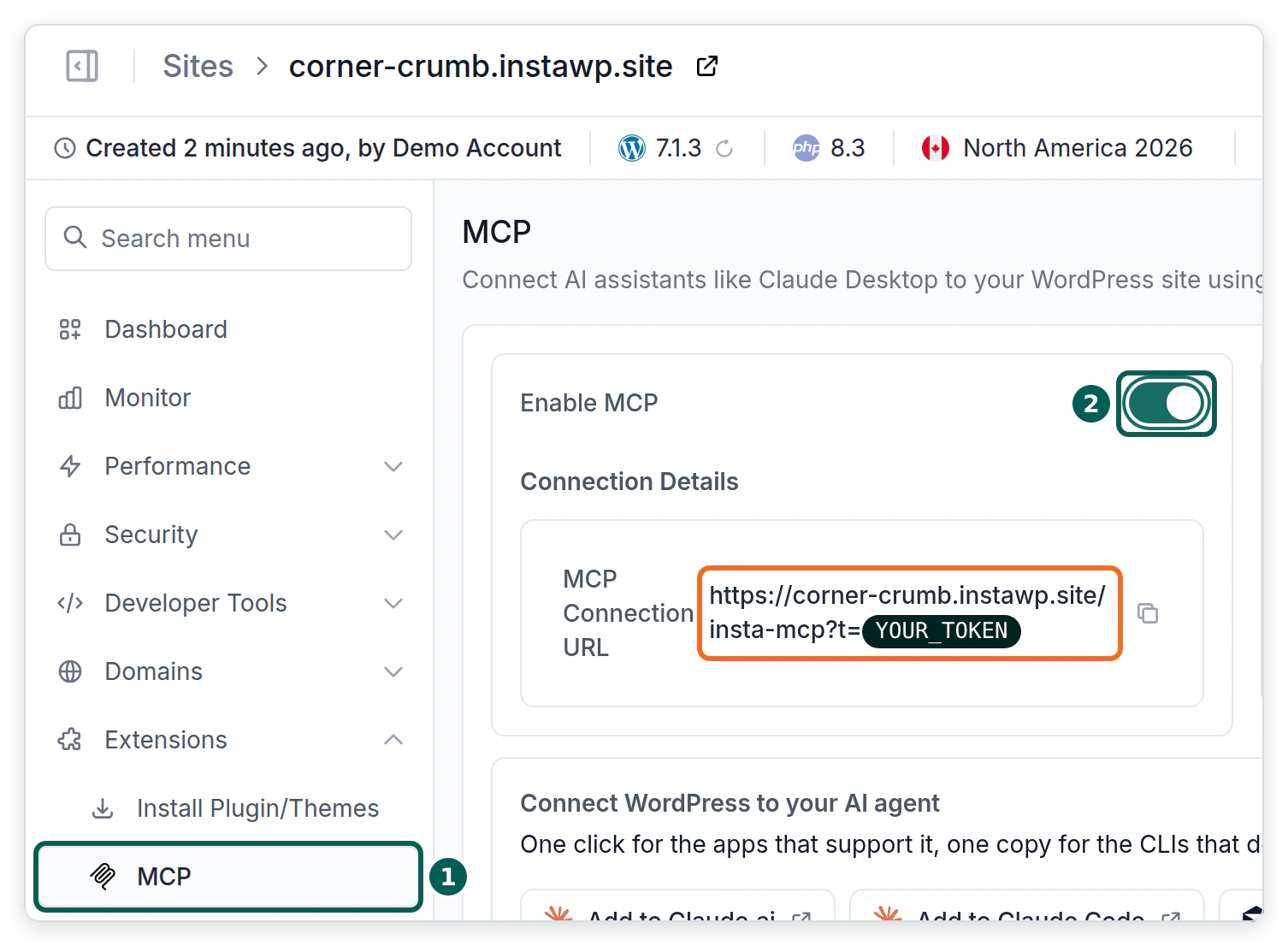
- Open the site in the InstaWP dashboard. In the site menu, open Extensions, then MCP, and switch on Enable MCP. The connection URL appears straight away, in the form https://your-site.instawp.site/insta-mcp?t=YOUR_TOKEN.
Step 2: Install Codex and sign in
- Open your terminal and install the Codex CLI with npm, the package manager that comes with Node.js. Then check the version to confirm it worked:
npm install -g @openai/codex
codex --version
No Node.js on your computer? On a Mac or Linux you can use OpenAI’s install script, curl -fsSL https://chatgpt.com/codex/install.sh | sh, or Homebrew with brew install --cask codex.

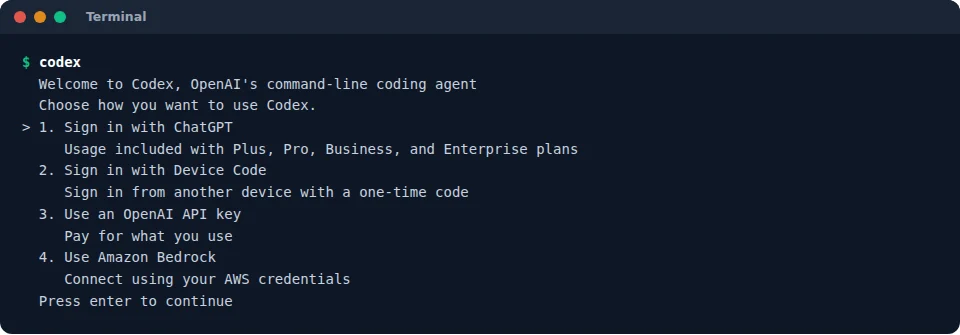
- Type
codexand press Enter. The first time, Codex asks how you want to sign in. Choose Sign in with ChatGPT and finish the sign-in in your browser, or pick an API key if you pay per use.
Step 3: Add your WordPress site to Codex
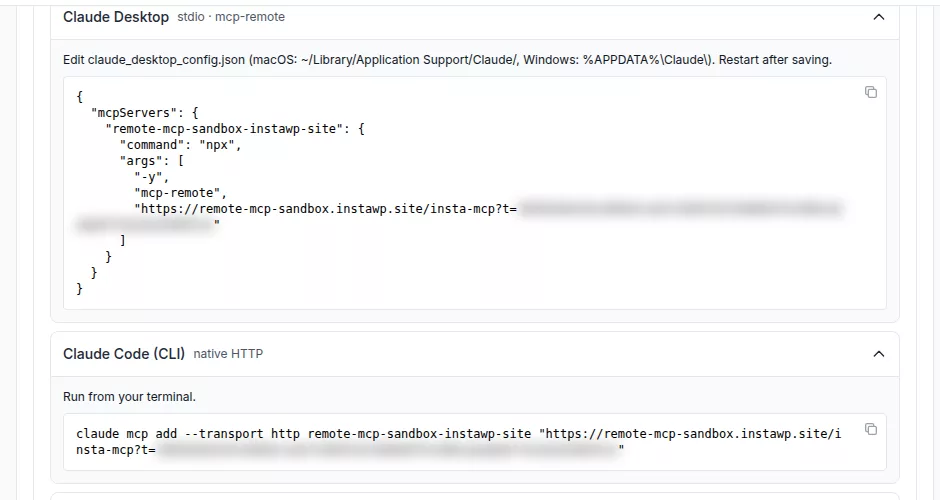
- Copy your token. In the MCP tab, the token is everything after ?t= in the connection URL. The Setup guides for AI clients panel on the same tab also has a Codex entry with a copy button for a ready-made command.
- Save the token as an environment variable, so it never has to sit in a file. On a Mac or Linux, type the line below with your own token. On Windows PowerShell, use
$env:INSTAWP_SITE_TOKEN="your-token"instead.
export INSTAWP_SITE_TOKEN=your-token
This only lasts until you close the terminal. To keep it, add the same line to your shell profile file (~/.zshrc on a Mac, ~/.bashrc on most Linux systems).
- Add the site to Codex with one command. Use your own site address, ending in /insta-mcp and without the ?t= part:
codex mcp add my-wordpress-site --url https://your-site.instawp.site/insta-mcp --bearer-token-env-var INSTAWP_SITE_TOKEN
- my-wordpress-site is a name you choose. Codex shows it in lists and in chat.
- –url is your site’s MCP address.
- –bearer-token-env-var tells Codex which variable holds the token. Codex sends it to the site in an Authorization header on every request.

Step 4: Check that Codex can see your WordPress site
- Run
codex mcp list. Your site should show as enabled with Bearer token in the Auth column.

- Start Codex with
codexand type/mcp. Codex lists the MCP servers it has connected and their tools. If the site is missing or shows an error, jump to the troubleshooting table.
InstaWP checked the connection with Codex’s own MCP client: it reached the site, read the server name (InstaMCP) and listed all 43 tools in 2.48 seconds. Codex stores only the site URL and the variable name, never the token itself. The settings screenshot in the safety section shows the file.
Give Codex a read-only first job, so you can see it work before it changes anything. Try: “Use the my-wordpress-site MCP server. List my three latest posts and the active plugins.” InstaWP made those same two tool calls through Codex’s MCP client: list_content returned the site’s posts in 2.60 seconds (the first call also opens the connection) and plugin_info returned the plugin list in 0.37 seconds.
~/.codex/config.toml. Make sure the token variable is set where that app can see it, then restart it.Can you connect Codex to your whole InstaWP account?
Yes. InstaWP Account MCP works across every site in your team at the hosting level: finding sites, checking plugin updates, backups and magic login links. Instead of a token, it signs in with OAuth in your browser, and Codex supports that. Account MCP vs Site MCP explains which one to use when.
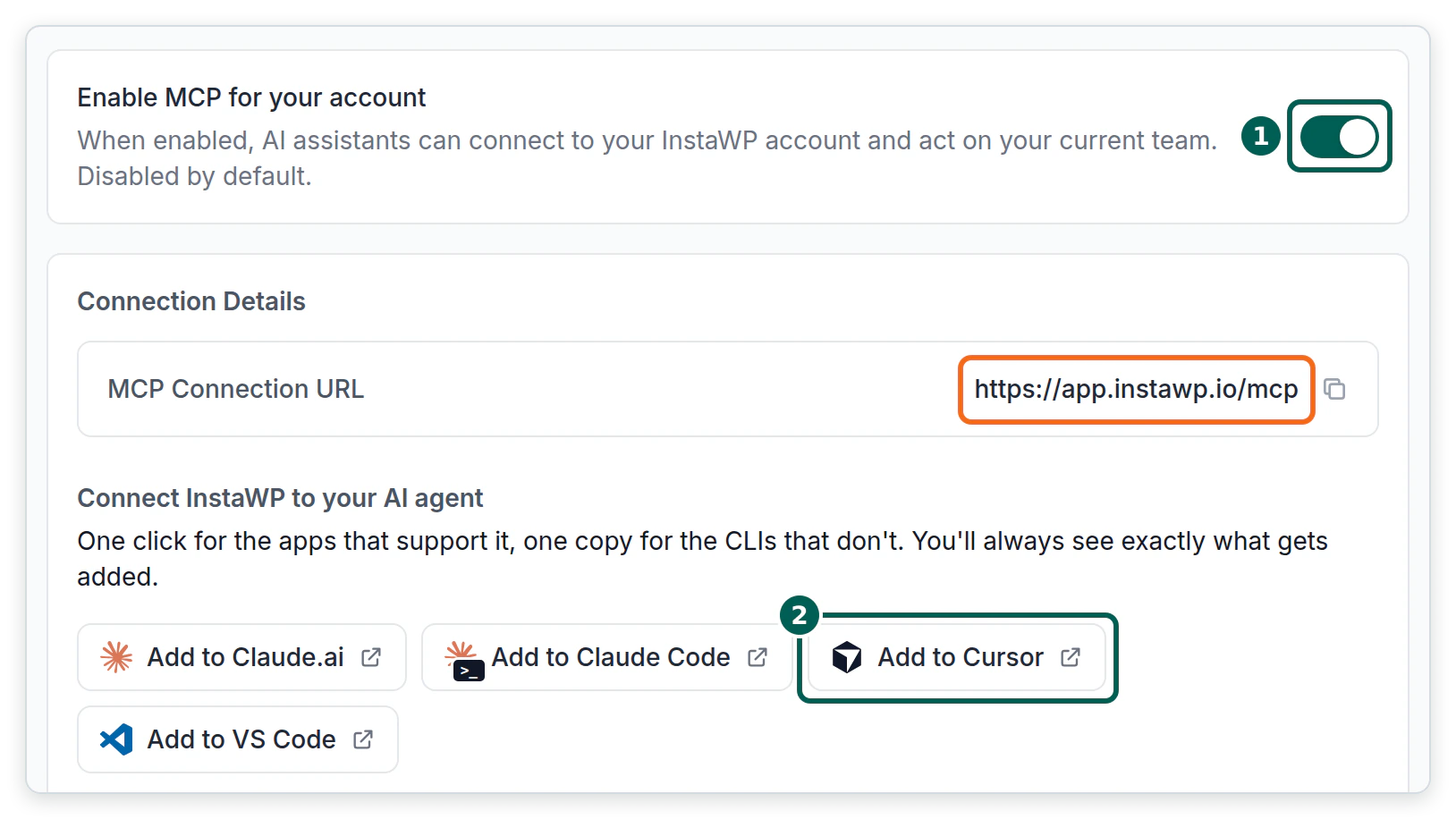
- In the InstaWP dashboard, open Profile, then MCP, and switch on Enable MCP for your account. It is off by default. The connection URL is https://app.instawp.io/mcp.
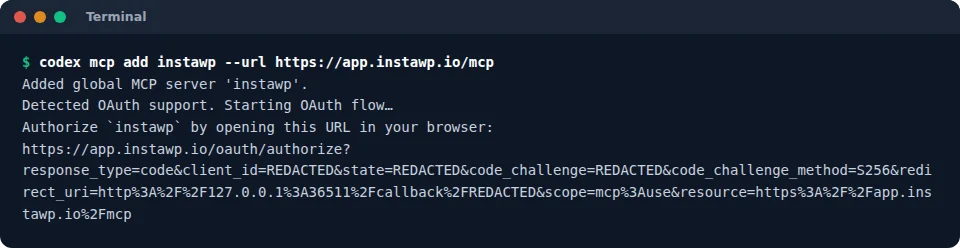
- Run the command below. Codex spots that the server uses OAuth, registers itself with InstaWP and opens the sign-in page in your browser. If the browser does not open, copy the link it prints.
codex mcp add instawp --url https://app.instawp.io/mcp
- On the InstaWP authorize screen, choose Read-only or Read & write, then click Authorize. Read-only is the safer start. If you ever need to sign in again, run
codex mcp login instawp.
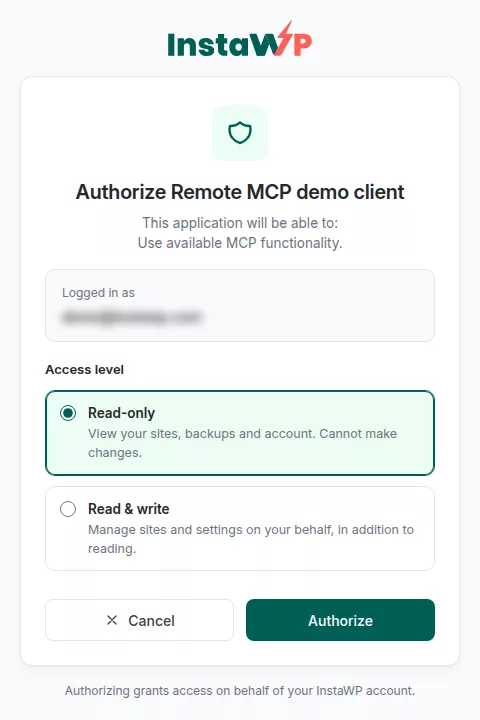
In InstaWP’s test, Codex registered itself and produced the sign-in link; the final sign-in needs your own InstaWP login, so it was not completed in the test. InstaWP’s Account MCP docs cover the same flow.
Method 2: How do you connect Codex to a WordPress site hosted elsewhere?
Install the official WordPress MCP Adapter plugin, create an Application Password, and add Automattic’s mcp-wordpress-remote proxy to Codex. It works on any host running WordPress 6.9 or later. Out of the box it gives Codex much less than InstaMCP does, because it only exposes abilities that plugins, or your own code, mark as public.
- Check that the site runs WordPress 6.9 or later over HTTPS (Dashboard, then Updates shows the version), and that Node.js is installed on your computer, because the proxy runs with npx.
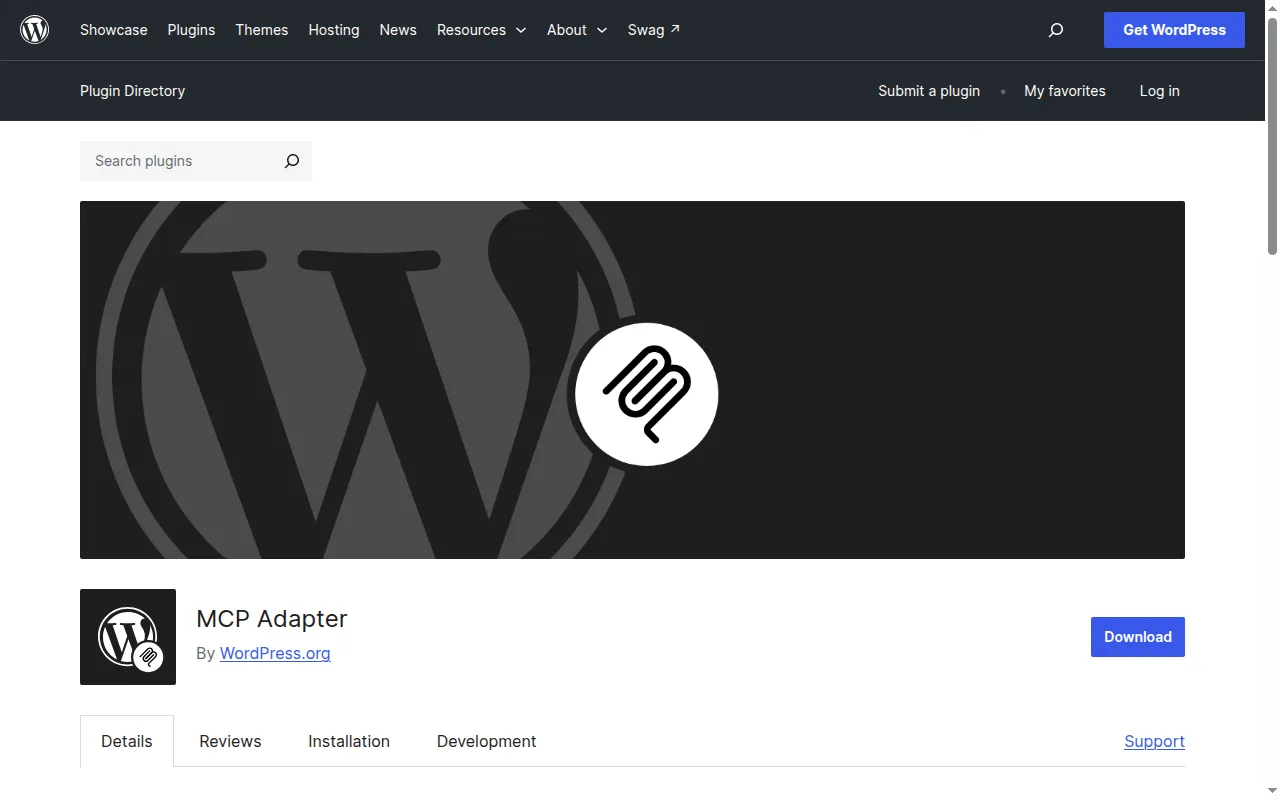
- Install the official plugin. Go to Plugins, then Add New, search for MCP Adapter (by WordPress.org), then click Install Now and Activate. The MCP Adapter plugin page showed version 0.7.1 with 50,000+ active installs on 23 October 2026.
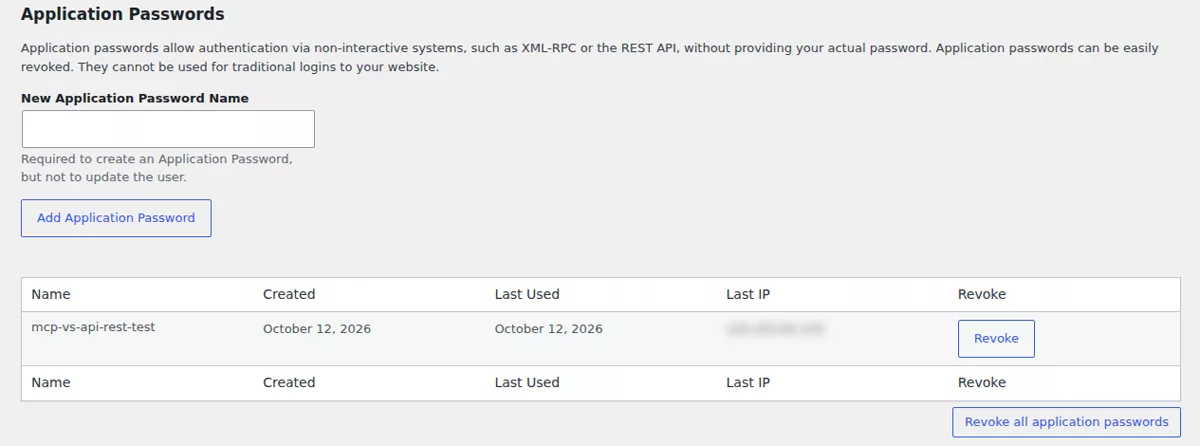
- Go to Users, then Profile, and scroll to Application Passwords. Type Codex as the name, click Add Application Password and copy the password WordPress shows. It is shown only once. Application Passwords let a tool sign in without your real password, and you can revoke them at any time.
- Add the proxy to Codex. Replace the address, username and password with your own:
codex mcp add wordpress --env WP_API_URL=https://your-site.com/wp-json/mcp/mcp-adapter-default-server --env WP_API_USERNAME=your-username --env WP_API_PASSWORD=your-application-password -- npx -y @automattic/mcp-wordpress-remote@latest
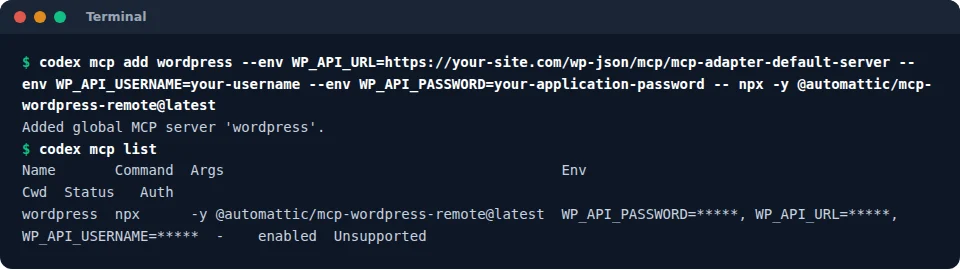
Everything after -- is the command Codex runs to start the proxy. The endpoint path and variable names come from the MCP Adapter CLI usage guide. One catch: this stores the Application Password in ~/.codex/config.toml as plain text. To keep it out of the file, remove the WP_API_PASSWORD line from the server’s env section and add env_vars = ["WP_API_PASSWORD"] instead, so Codex passes it through from your terminal.
- Restart Codex and type
/mcpto check the server and its tools.
What Codex gets is the main difference. The Adapter exposes abilities registered through the WordPress Abilities API, and those stay private until a plugin marks them public. On a bare install in InstaWP’s 6 October 2026 test, that meant 3 read-only core abilities. InstaWP covers the Adapter in its WordPress MCP Adapter review and compares plugins that add tools in best WordPress MCP plugins.
If you would rather have the full tool set on that site, InstaWP includes free migrations on every plan, so you can move it with the WordPress migration tool and then follow Method 1.
Why does Codex say “MCP startup failed” for a WordPress site?
Because something between Codex and the site is missing or wrong. Codex prints the reason after “MCP startup failed”, and InstaWP triggered each of these on purpose to record the exact message. Match yours to a row:
| What Codex says | What it means | Fix |
|---|---|---|
| Environment variable INSTAWP_SITE_TOKEN for MCP server ‘my-wordpress-site’ is not set | Codex cannot find the token variable in this terminal. | Run the export line again (or add it to your shell profile), then restart Codex. |
| … error: Auth required, when send initialize request | Codex reached InstaMCP, but the token is wrong or old. | Copy the token again from the site’s MCP tab and export it. |
| A long block of web page code ending in “when send initialize request” | The address is not an MCP endpoint, so the site sent back an ordinary page. The path is wrong or MCP is switched off. | Check the URL ends in /insta-mcp and that Enable MCP is on. |
| Not logged in (Auth column of codex mcp list) | An OAuth server such as Account MCP has not been signed in to yet. | Run codex mcp login instawp and finish the sign-in. |
| A tool call stops after 60 seconds | Codex waits 60 seconds per tool call by default. | Add tool_timeout_sec = 120 under the server in config.toml for slow jobs. |
Still stuck? OpenAI’s MCP guide for Codex lists every server option, and InstaWP’s guide on how to connect AI agents to WordPress using MCP covers the same errors in other clients.
How do you keep Codex safe on a live WordPress site?
Use a staging copy, let Codex ask before it changes anything, and turn on InstaMCP’s Safe Mode on sites that matter. Codex’s settings decide what the agent may try. InstaMCP’s settings decide what WordPress will accept, even if the agent tries anyway. You want both.
- Make Codex ask before changes. Open
~/.codex/config.tomland adddefault_tools_approval_mode = "writes"under your site. Codex then asks you before it runs a tool that can change something on the site, so you approve each change.

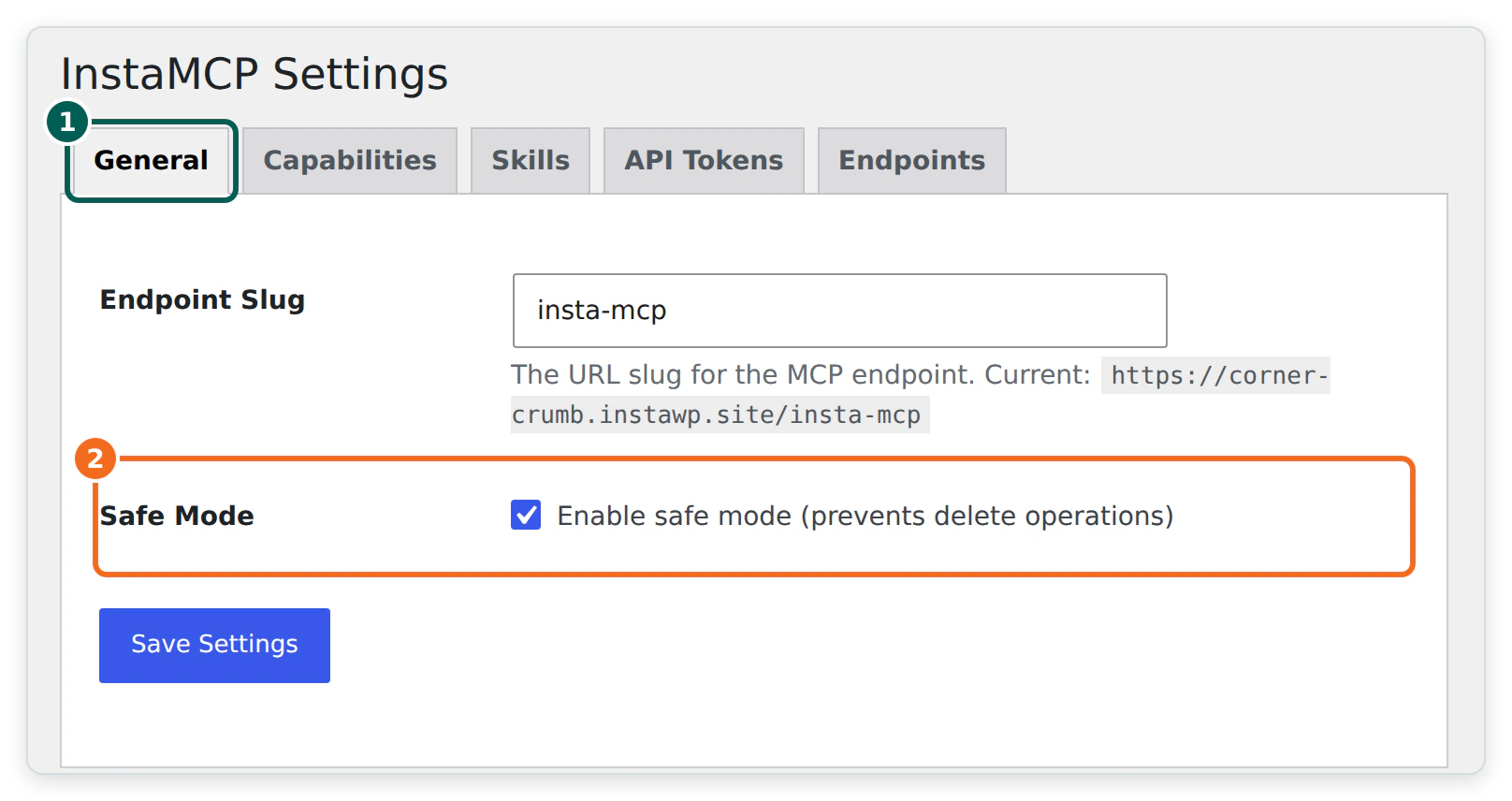
- Turn on Safe Mode in WordPress. In WP Admin, go to Settings, then InstaMCP, open the General tab and tick Safe Mode. It is off by default, and when it is on it blocks every delete operation and the write side of the power tools.
- Keep the power tools off.
execute_php,db_queryandsite_filesrefuse to run until an admin switches them on, and Codex still lists them so it can tell you why.
- Work on a copy first. Build on a WordPress staging environment, check the result, then push it live, and keep recent backups on InstaWP before any big change.
On the Codex side, you can also switch a chat to read-only with the /permissions command when you only want to plan, as OpenAI’s Codex approvals and security guide explains. InstaWP goes deeper into the risks in is MCP WordPress integration safe and how to use MCP for WordPress in production.
Should you use Codex, Claude Code or Cursor with WordPress?
Use whichever coding agent you already pay for. The WordPress side is the same in every client: the same InstaMCP URL and token work in all of them. Codex fits well if you already have ChatGPT, because Codex usage comes with Plus and higher plans.
- Prefer an editor where you see every diff? See how to connect Cursor to WordPress.
- Prefer Claude? See how to connect Claude to WordPress, which covers Claude Code too.
- Want content and site management without a terminal? See how to connect ChatGPT to WordPress.
- Trying Google’s agent-first editor? See how to use Google Antigravity for WordPress.
For a wider shortlist, see the best AI coding tools for WordPress developers, and InstaWP’s WordPress MCP guide for how MCP works under the hood.
Switch on MCP for an InstaWP site, install the Codex CLI and sign in, save the site token as INSTAWP_SITE_TOKEN, then run codex mcp add my-wordpress-site --url https://your-site.instawp.site/insta-mcp --bearer-token-env-var INSTAWP_SITE_TOKEN. Check it with codex mcp list and /mcp. For many sites, add https://app.instawp.io/mcp and sign in read-only. For a site on another host, use the WordPress MCP Adapter with an Application Password. Set the writes approval mode in Codex and turn on Safe Mode in WordPress before you let it change a live site.
Connecting Codex to WordPress: FAQs
Can OpenAI Codex connect to WordPress?
Yes, over MCP. Add the site’s MCP server to Codex with codex mcp add, and Codex gets tools to read and change the site. InstaWP tested this on 23 October 2026 with Codex CLI 0.164.0: Codex listed all 43 InstaMCP tools in 2.48 seconds.
How do I add an MCP server to Codex?
Run codex mcp add with a name and the server address, for example codex mcp add my-wordpress-site –url https://your-site.instawp.site/insta-mcp –bearer-token-env-var INSTAWP_SITE_TOKEN. Codex saves it in ~/.codex/config.toml. Check it with codex mcp list.
Where is the Codex MCP config file?
In ~/.codex/config.toml, under a [mcp_servers.] section. A project can also have its own .codex/config.toml. The Codex CLI, the IDE extension and the ChatGPT desktop app all read the same file.
Do I need mcp-remote or Node.js to connect Codex to an InstaWP site?
No. Codex connects to InstaMCP directly over streamable HTTP and sends the token in an Authorization header. You only need Node.js for Method 2, where the WordPress MCP Adapter runs through the mcp-wordpress-remote proxy.
Why does Codex say Auth required for my WordPress MCP server?
Codex reached the site, but the token was wrong or out of date. Copy the token again from the site’s MCP tab in InstaWP, export it as INSTAWP_SITE_TOKEN and restart Codex.
Can Codex connect to my whole InstaWP account?
Yes. Switch on MCP under Profile, MCP in InstaWP, then run codex mcp add instawp –url https://app.instawp.io/mcp. Codex detects OAuth, opens InstaWP’s sign-in, and you choose Read-only or Read and write.
Is it safe to let Codex edit a live WordPress site?
It is safer with both sets of brakes on: the writes approval mode in Codex, and Safe Mode plus a staging copy on the WordPress side. Safe Mode is off by default, so turn it on under Settings, InstaMCP in WP Admin. Keep execute_php off and keep tokens out of Git.
Does Codex cloud work with my WordPress MCP server?
This guide covers the Codex CLI, the IDE extension and the ChatGPT desktop app, which share local MCP settings. OpenAI notes that local MCP servers and transports may not be available in Codex cloud, so check connectivity and authentication there separately.