Most WordPress security plugins only get a say once an attack has already reached your server: the login request is running in PHP, the bot is already loading checkout. The more reliable way to secure a WordPress site is to stop that traffic before it gets there, at the edge. That is how security works on InstaWP’s managed WordPress hosting: a firewall, DDoS protection and bot checks sit in front of every live site, on by default, with no security plugin to install.
After years of helping developers and agencies launch WordPress sites, one question keeps coming back to me in different words: is my site actually safe?
It almost always arrives after something has already gone wrong. A login page being hammered by a brute force script. A checkout crawling because bots outnumber customers. A plugin vulnerability in the news, and no clear way to tell whether it matters for you.
What struck me is that most of those people were already paying for security. Paid firewall plugins, scanners, stacked rules, the lot. The tools were there. What was missing was protection at the right layer, switched on by default.
So when we built InstaWP’s hosting, security went into the platform instead of onto a shopping list. We call it Shield (the pricing page says InstaShield), and this guide covers how it filters traffic, what each tier blocks, which tier a site needs, and how to tune it without locking out real visitors.
- Let Learning Mode run before you block anything. For the first seven days every firewall match is logged, never blocked; exit early only when the log looks clean.
- Any site with logins, forms, a cart or checkout belongs on Advanced Shield, because bot detection and custom WAF rules start at the Plus plan ($9 a month per site).
- Starter’s Basic Shield still covers the essentials: the managed WAF, DDoS mitigation and automatic SSL. Sandbox sites have no Shield at all.
- Add your uptime monitor, security scanner or office IP to Trusted IPs before you switch a layer to Block, so your own tools are not challenged.
- Turn Shield off before you move a site down to Sandbox, or the downgrade will not go through.
- Keep a security plugin for file scanning, login auditing and two-factor login. Shield replaces the plugin firewall, not those jobs.
Table of Contents
What Is InstaWP Shield, and Why Is Edge Security Better Than a Plugin?
Shield is InstaWP’s built-in security layer for hosted WordPress sites. It runs on InstaWP’s edge network, and the important part is where it sits: at the CDN edge, in front of your site, not inside it. That idea, edge security for WordPress, is the whole design.
That single architectural choice is what separates it from a security plugin. A plugin lives inside WordPress, so a request has to reach your server, boot PHP, and hit the database before anything can decide whether it was hostile. You have already paid for the attack in CPU, memory, and queries by the time you block it. Under a real flood, that is exactly why a well secured site still falls over.
Shield makes that decision earlier. Requests are inspected in milliseconds, at the edge, and the bad ones are stopped before your origin ever hears about them. Your PHP workers spend their time on customers instead of on scanners. It is the same reason we handle backups at the platform level: some things belong in the hosting, not in your plugin list.
Every paid plan from Starter upward also gets automatic SSL, issued and renewed for you. It is a small thing until the day a certificate quietly expires on a client site, which is one of the common SSL issues Shield takes off your list.
What Are the Three Layers of InstaWP Shield?
Shield is not one switch. It is three protection layers that each handle a different kind of threat, plus a warm-up mode that stops you from breaking your own site while you tune them.
Managed WAF
A web application firewall that inspects every request for SQL injection, XSS, and the wider OWASP threat set. Run it in Log mode to watch, or Block mode to enforce. Counters show what was triggered, blocked, and logged.
DDoS mitigation
Absorbs volumetric and Layer 7 floods at the edge, so a traffic attack never becomes an origin outage. The Valid Challenge Window controls how long a visitor stays trusted once they have passed a challenge.
Bot detection
Scores traffic on request integrity, IP reputation, and browser fingerprinting, then logs or challenges what looks automated. No CAPTCHA, so real visitors never have to prove anything.
All of it lives in one place in your dashboard, under Site, then Configuration, then Shield.

The managed WAF
The firewall is fully managed, which means we maintain the rule set and you do not buy, configure, or update anything. Every request is checked against known exploit patterns before it reaches WordPress, and none of that inspection costs your site a single PHP worker.
You choose how it behaves. Log records matches without touching traffic. Block enforces them. The counters next to it tell you how many rules were triggered, how many requests were blocked, and how many were merely logged, so you are never guessing.

DDoS mitigation
Layer 7 attacks are the nasty ones for WordPress. They look like ordinary traffic and aim straight at the expensive pages: search, cart, checkout, login. They are the reason a secure WooCommerce store needs more than a login plugin. Shield absorbs them at the edge and challenges what it cannot immediately trust.
The one control worth knowing is the Valid Challenge Window, which sets how long a visitor stays trusted after passing a challenge. A longer window is friendlier for browsing sessions. A shorter one is stricter under active attack.

Bot detection, without a CAPTCHA
Modern bots forge headers and impersonate real browsers, so a simple block list does very little. Shield scores each request instead, across three signals you can tune independently: request integrity, IP address reputation, and browser fingerprint, with a separate fingerprint aggression setting from Low to High.
Like the WAF, it runs in Log or Challenge mode. And because the scoring is invisible, genuine visitors never meet a puzzle, which matters if you care about conversions and bounce rate. There is also a service allowlist for the tools you actually want crawling your site, such as ManageWP and ShortPixel, so your own stack never gets challenged.

Learning Mode, your safe first week
This is the part I would not ship a firewall without. For the first seven days after Shield is enabled, every WAF match is logged and nothing is blocked. You get a full picture of what the rules would have caught on your real traffic, which is exactly when false positives show up: a form builder, a webhook, an API integration, a plugin doing something unusual but legitimate.
Log first, block second
Learning Mode ends on its own after seven days, or you can click Exit Learning Mode as soon as the logs look clean. The same habit applies to every layer you touch afterwards: set it to Log, review the events, then switch it to Block or Challenge.
Download Logs gives you the raw WAF, DDoS, and bot events per site, so the review takes minutes rather than guesswork.
What Is the Difference Between Basic and Advanced Shield?
Shield comes in two tiers, and this is the bit worth being precise about, because it decides how much protection a given site gets.
Basic Shield covers the fundamentals every live site needs: automatic SSL, the managed WAF, and standard DDoS mitigation. Advanced Shield adds the parts that stop the smarter traffic: edge bot detection with browser fingerprinting and invisible scoring, advanced DDoS mitigation, and custom WAF rules of your own.
Basic Shield vs Advanced Shield
What each tier includes, and where the difference actually shows up.
| Capability | Basic Shield | Advanced Shield |
|---|---|---|
| Automatic SSL | Included | ✓ Included |
| Managed WAF, Log or Block | Included | ✓ Included |
| DDoS mitigation | Standard | ✓ Advanced |
| Edge bot detection and fingerprinting, no CAPTCHA | Not included | ✓ Included |
| Custom WAF rules | Not included | ✓ Included |
| Learning Mode and downloadable logs | Included | ✓ Included |
Which plan gets which tier
Two practical notes. Sandbox is our entry tier for work in progress rather than live traffic, so it has no Shield. And because of that, a site needs Shield disabled before it can be downgraded to Sandbox. The docs cover which plans include Shield and how to downgrade a site plan when you need to.
If you are weighing tiers, the site plans guide and the pricing page put everything else side by side too.
Which Shield Tier Does Your Site Need?
Choose Basic Shield for sites with little interaction, and Advanced Shield for anything with logins, forms, carts or checkout. Bots aim at those dynamic pages, and the two features that only Advanced has, edge bot detection and custom WAF rules, are what keep them out.
If you are building and launching client sites or launching a WooCommerce store, plan for Advanced from launch day. The price difference between Starter and Plus is $4 a month, and Plus also brings daily backups and an object cache.
How Do You Check Which Shield Tier a Site Has?
The Shield tier follows the site’s plan, so check the plan. Open the site in the InstaWP dashboard and look at the plan badge and the Plan Details panel on its dashboard.
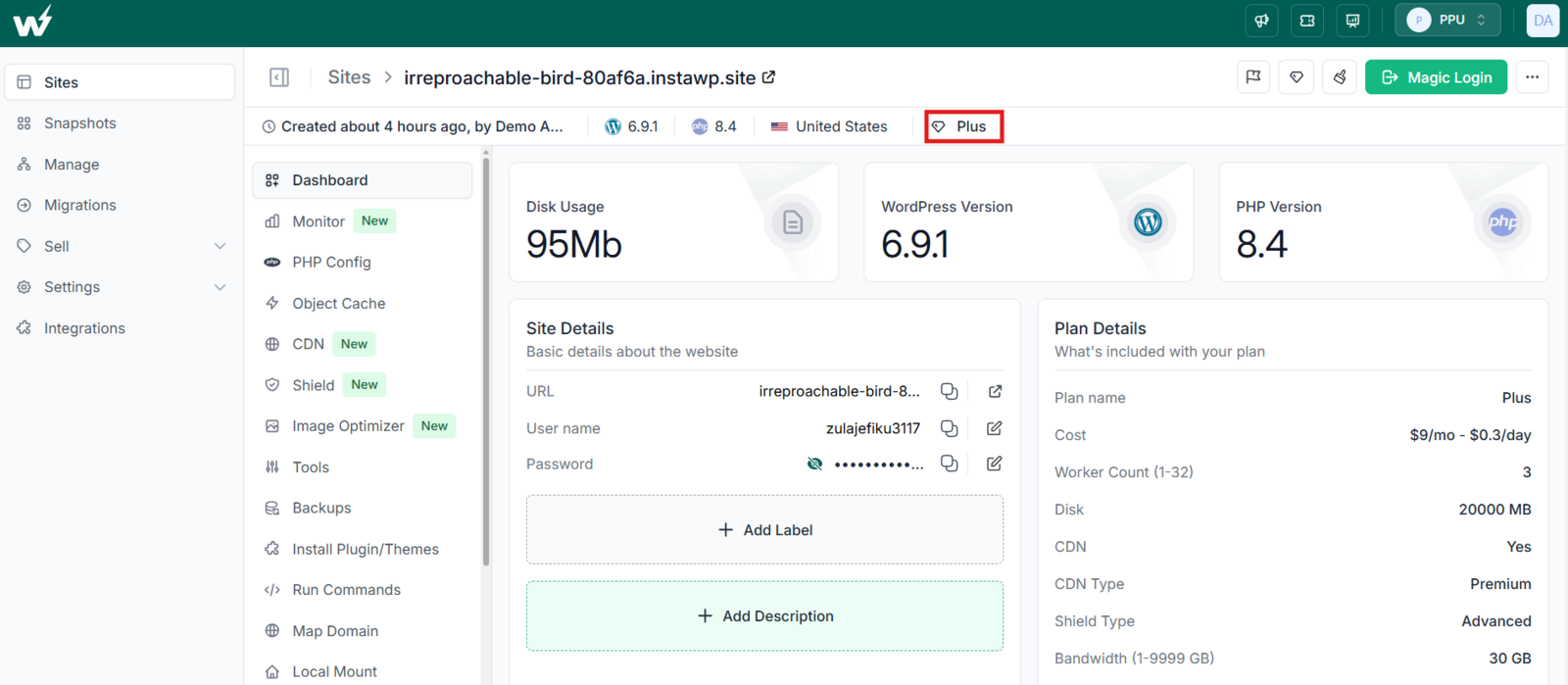
- Starter means the site runs Basic Shield.
- Plus, Pro, Turbo or Elite means the site runs Advanced Shield.
- Sandbox means the site has no Shield.
Each site has its own plan, so one account can mix both tiers. A $5 brochure site can run Basic while a $25 store in the same dashboard runs Advanced. The InstaWP site plans guide lists what else changes between tiers, such as daily backups and the vulnerability scanner in InstaManage from Plus up.
How Do You Upgrade a Site to Advanced Shield?
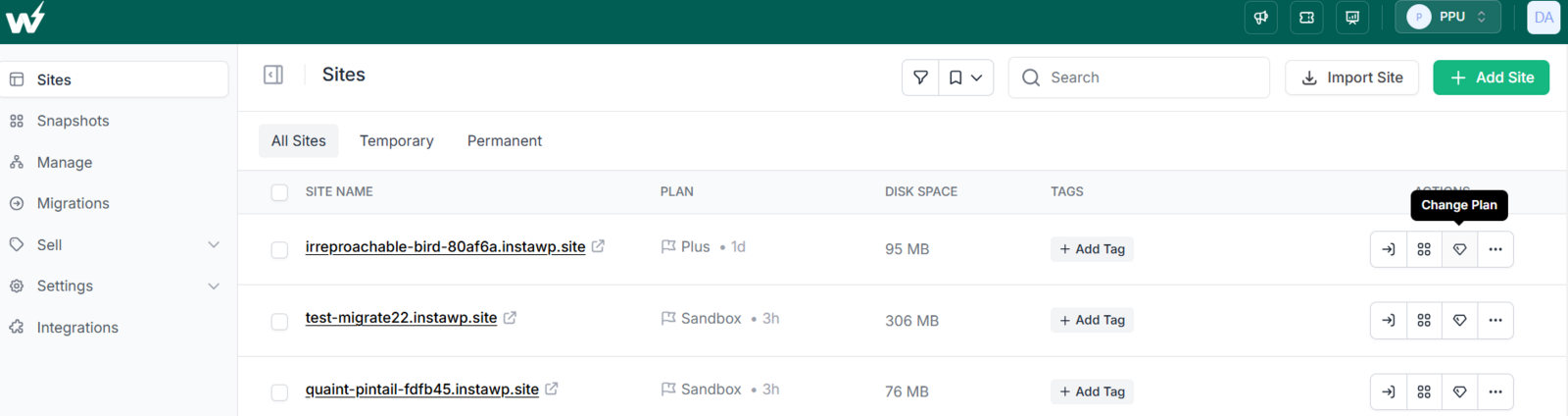
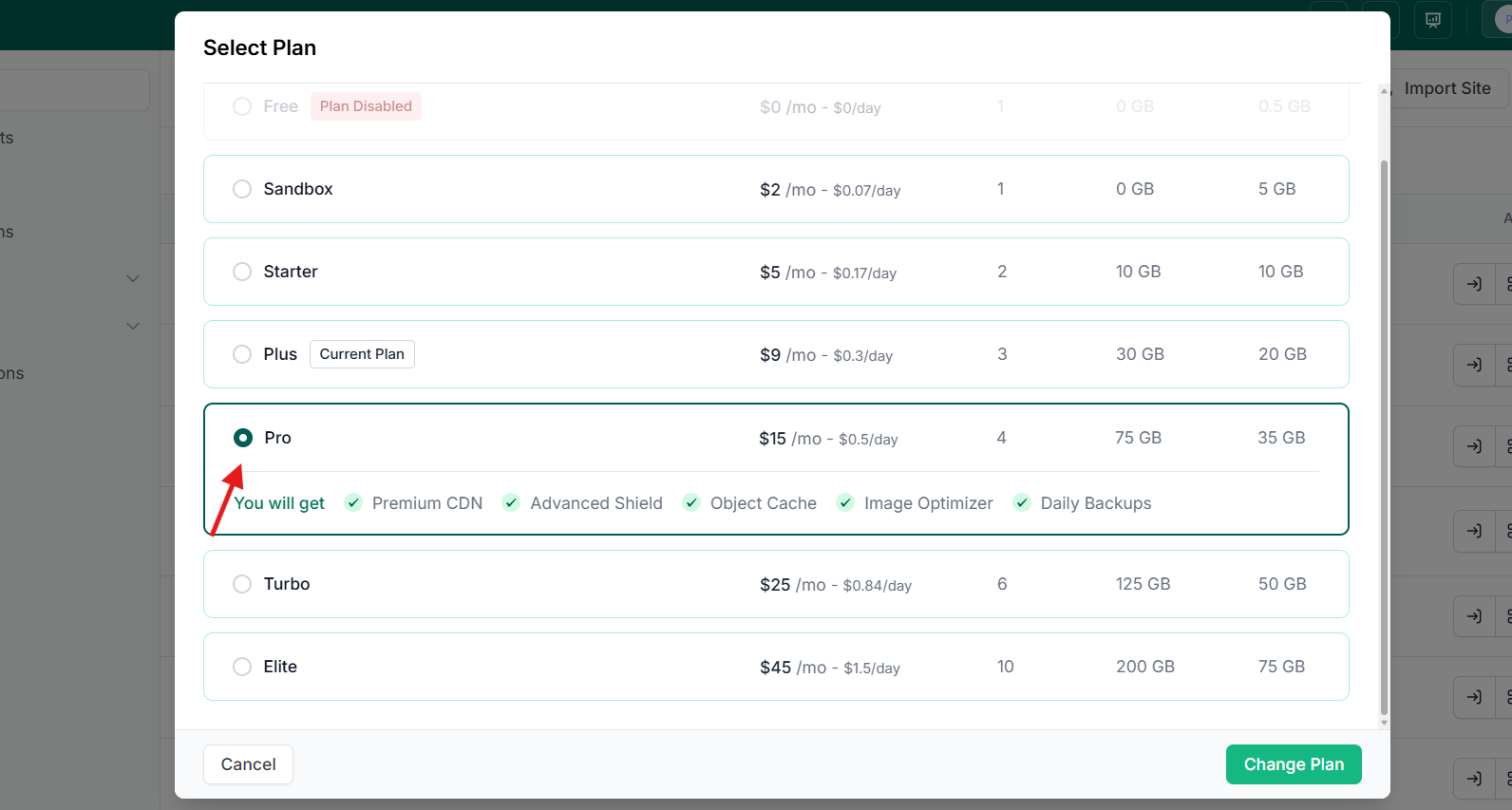
To move a site to Advanced Shield, change its plan to Plus or higher. Open the Sites list, click the Change Plan icon next to the site, pick Plus, Pro, Turbo or Elite, and click Change Plan. The site keeps its URL and content, and the new tier applies as part of the plan change.
How Does InstaWP Shield Work, Step by Step?
Follow a single request through the stack and the whole model makes sense.
Step 1: Every request lands at the edge first
Nothing goes straight to your server. Visitor or bot, the request arrives at Shield, which sits on the edge network right behind InstaCDN and ahead of your origin.
Step 2: Shield scores it in milliseconds
Three questions get answered at once: does the request match a known exploit signature, does the source have a bad reputation, and does the client actually look like the browser it claims to be. Request integrity, IP reputation, and browser fingerprinting all feed that score, and it happens in milliseconds, at the edge.
Step 3: It passes, gets challenged, or gets dropped
- A clean request continues to your site with no delay and no CAPTCHA.
- A suspicious one is logged or challenged, depending on the mode you set.
- An attack, whether an exploit attempt or a flood aimed at login and search, is stopped at the edge.
Step 4: Only verified traffic reaches WordPress
By the time a request touches PHP, it has already been filtered. Brute force attempts on wp-login, credential stuffing, spam bots, exploit probes against plugin and theme vulnerabilities, and Layer 7 floods on dynamic pages never consume your resources. Your site does not slow down defending itself, because it never has to.
That is the whole idea. Shield does not run on your site. It runs in front of it.
How Do You Turn On and Configure Shield?
Shield is on by default on every plan that includes it, so for most people there is nothing to do on day one. When you do want to tune it, everything lives in one panel.
- Open your site in the InstaWP dashboard and go to Configuration, then Shield.
- Check the Learning Mode banner. During the first seven days, WAF matches are logged and never blocked.
- Use Download Logs to review the real WAF, DDoS, and bot events from your own traffic.
- Add anything legitimate that got flagged to the service allowlist, then move the layer from Log to Block or Challenge.
- Tune bot sensitivity if you need to. Request integrity, IP address, and browser fingerprint are separate controls, and fingerprint aggression runs from Low to High.
The safe rollout order for any layer is always the same: Log, review, then Block. If you want the click by click version, the docs walk through configuring Shield in full.
How do you stop Shield blocking a legitimate request?
Use the exclusion lists rather than turning a layer off. Shield has three, and each one skips only the check it names, so the rest of the protection stays on.
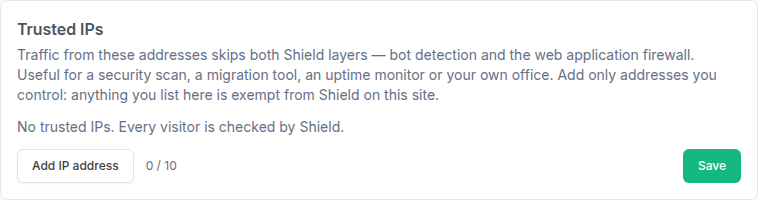
Trusted IPs let up to 10 addresses you control skip both bot detection and the firewall. It is the right place for an uptime monitor, a security scanner, a migration tool or your office.
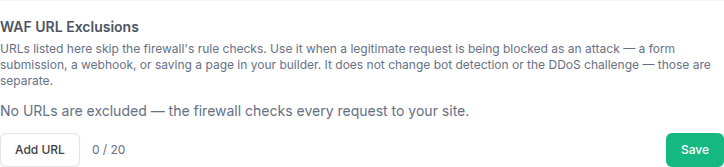
WAF URL exclusions let up to 20 URLs skip the firewall rule checks. Use them when a legitimate request is being blocked as an attack, such as a form submission, a webhook or saving a page in your page builder. Bot URL exclusions do the same for bot detection, which suits API endpoints, webhooks and uptime checks.
Can You Secure WordPress Without Plugins? Shield vs Wordfence and Sucuri
I have used most of them over the years. Wordfence, iThemes Security, Sucuri, and plenty of others. They are good at what they do, and they share one structural limit: they work inside WordPress. The request has to arrive, PHP has to run, and the database has to answer before the plugin can judge it.
Shield moves that decision one layer out. Here is how the day to day difference tends to look.
A Security Plugin vs InstaWP Shield
Where protection happens, and what that costs your site.
| What Matters | A Security Plugin | InstaWP Shield |
|---|---|---|
| Where it runs | Inside WordPress, after the request has arrived. | ✓ At the CDN edge, in front of your site. |
| Cost of blocking an attack | Spends PHP workers, memory, and database queries on traffic you reject. | ✓ Costs your origin nothing, because it never gets there. |
| Behaviour under a flood | Can go down with the site it is defending. | ✓ Absorbs volumetric and Layer 7 attacks upstream. |
| Visitor experience | Often leans on CAPTCHA and challenge pages. | ✓ Invisible scoring, so real visitors prove nothing. |
| Setup and upkeep | Install, license, configure, and keep updated on every site. | ✓ On by default and fully managed, per site. |
| Rolling it out safely | Usually enforce first, discover the false positives later. | ✓ Seven day Learning Mode, then Log to Block on your terms. |
| Certificates | Handled separately from the plugin. | ✓ Automatic SSL issued and renewed for you. |
To be clear, Shield does not make plugins pointless. Local file scanning, login auditing, and two factor authentication are all still worth having, and a security plugin is a reasonable complement. What changes is that you are no longer relying on one to be your firewall. If you suspect a site is already compromised, start with the signs your WordPress site is hacked before tuning anything.
InstaWP Shield: Frequently Asked Questions
What is InstaShield?
InstaShield is the name the InstaWP pricing page uses for Shield, the edge security layer built into InstaWP managed hosting. It filters bad traffic before it reaches WordPress, with a managed WAF and DDoS mitigation on every production plan and bot detection plus custom rules from Plus up.
Is InstaWP Shield a WordPress plugin?
No. Shield is part of the hosting layer and runs at the edge, in front of your site. There is nothing to install or update inside WordPress, and it does not use your PHP workers or database.
How do I secure my WordPress site without plugins?
Host it somewhere that puts security in the hosting layer. On InstaWP, Shield filters exploits, floods, and malicious bots at the CDN edge before a request reaches WordPress, so there is no firewall plugin to install, license, or update. Automatic SSL is included too.
Which InstaWP plans include Shield?
Starter includes Basic Shield, which covers automatic SSL, the managed WAF, and DDoS mitigation. Plus, Pro, Turbo, and Elite include Advanced Shield, which adds edge bot detection with browser fingerprinting, advanced DDoS mitigation, and custom WAF rules. Sandbox has no Shield, because it is built for work in progress rather than live sites.
Can I turn Shield off or customise it?
Yes. Shield is on by default, and it is fully configurable at Site, then Configuration, then Shield. You can switch the WAF between Log and Block, set bot detection to Log or Challenge, tune request integrity, IP address, and browser fingerprint sensitivity, adjust the Valid Challenge Window, allowlist trusted services, and download the raw event log.
What is Learning Mode?
For the first seven days after Shield is enabled, every WAF match is logged and nothing is blocked. It lets you spot false positives on your real traffic before enforcement starts. You can click Exit Learning Mode to enforce early once the logs look clean.
Does Shield slow my site down?
No, it usually helps. Filtering happens at the edge in milliseconds, so your origin processes far less junk traffic and your PHP workers stay free for real visitors.
Will visitors see a CAPTCHA?
No. Bot detection uses invisible scoring based on request integrity, IP reputation, and browser fingerprinting, so genuine visitors are never asked to prove they are human. That matters for conversions and for search performance.
Does Shield work with WooCommerce and other dynamic sites?
Yes. It is designed for dynamic, high traffic WordPress, including stores, membership sites, and client projects. It filters threats without caching or breaking sensitive areas such as carts, checkouts, and dashboards.
What happens to Shield if I downgrade my site plan?
Sandbox does not include Shield, so a site needs Shield disabled before it can be downgraded to Sandbox. Moving between Starter and the higher tiers simply changes which Shield tier applies.
Do I still need a security plugin?
For firewall, DDoS, and bot protection, no. Shield covers that at the edge. Plugins are still useful for local file scanning, login auditing, and two factor authentication, so treat them as a complement rather than your main line of defence.
Managed WordPress Security That Is Already On
When we started InstaWP, the goal was to take the friction out of building WordPress sites. Fast spin ups, easy testing, clean handoffs. Moving into managed hosting meant taking on the part nobody enjoys owning, which is security.
You should not need to read five articles to work out how to keep WordPress safe, or stack four plugins to stop bots, or refresh the news every time a vulnerability lands. Shield is our answer: on by default, running at the edge, tunable when you want it, and out of your way when you do not.
Pick a plan, launch a site, and it is already protecting you. New accounts get 25 dollars in signup credits, which is plenty to put the whole thing through its paces first.