Keeping a few client sites updated, monitored and reported on usually means a login per site, a spreadsheet of plugin versions and a Monday morning spent finding out what broke over the weekend. InstaManage is how InstaWP handles that WordPress site management from one place, the Manage section of your dashboard, whether the site runs on InstaWP’s managed WordPress hosting or on another host.
Every site runs on one of two tiers, Basic or Advanced. This guide covers what each tier does, which sites get Advanced at no extra cost, and what site management does not cover, so you can set client expectations from day one.
- Basic is free on every site, hosted with InstaWP or not: magic login, bulk updates, users, staging and the database editor.
- Plus hosting ($9 a month per site) is the cheapest way to get Advanced, because it is included there with nothing extra to buy.
- For a site on another host, Advanced is $2 a month per site, so you pay only for the sites you monitor and report on.
- Advanced is the part that runs while you are busy: uptime and SSL checks, vulnerability and performance scans, activity-log alerts and scheduled updates.
- On a connected site, enable the database editor and config manager first in wp-admin under Tools → InstaWP → Manage.
- Backups come with hosting, not with InstaManage. A connected site keeps its backups at its current host.
Table of Contents
What Is InstaManage?
Every site you manage shows up in one list (the core of managing multiple WordPress sites from one dashboard), with its status, uptime, security risk and performance score on a single row. You can tell at a glance which site needs you this morning and which ones are fine.

Sites get into that list two ways. Sites you host with InstaWP managed hosting are there already. Sites on any other host join through the free InstaWP Connect plugin: install it once, connect the site, and manage it from the same dashboard as everything else.
Which InstaManage Tier Does Your Site Get?
The rule follows your hosting plan. Hosted sites on Plus ($9/mo) and above run on Advanced automatically, with no add-on and no separate invoice. Sandbox and Starter sites run on Basic.
A site hosted somewhere else starts on Basic for free. You can move it to Advanced for $2 a month, one site at a time, so you only pay for the sites where you need monitoring and reports. Move a hosted site from Starter to Plus and its tier switches to Advanced as part of the same plan change.
What Does InstaManage Basic Include?
Basic covers the jobs you do by hand, many times a week. It removes the password hunting and the tab switching, and leaves the judgement to you.
- Magic login: one click into wp-admin. You pick which WordPress user the button signs in as.
- Plugins and themes: install by slug or .zip URL, activate, deactivate and update, and set auto-updates for each plugin or theme.
- Bulk updates: tick sites in the Manage list and update or install plugins and themes across all of them in one pass, with per-site progress as it runs. More on this in our guide to managing multiple WordPress sites for free.
- Users: add WordPress users without logging in, or copy a temporary login link that expires after 6 hours. Handy for a contractor who needs access for one afternoon.
- Staging and 2-way sync: pull a staging copy of a connected site into InstaWP, test the change there, then push back only what you choose with 2-way sync. If the copy turns into a project of its own, Unlink from parent in the live site’s Staging Sites list makes it an independent connected site without deleting it.
- Database editor and cache purge: browse tables, run SQL, export data and clear the cache from the dashboard.
Basic is enough when you are the monitoring system: you look at your sites yourself, you know which ones matter, and what you mostly need is a fast way into them.
What Does InstaManage Advanced Add?
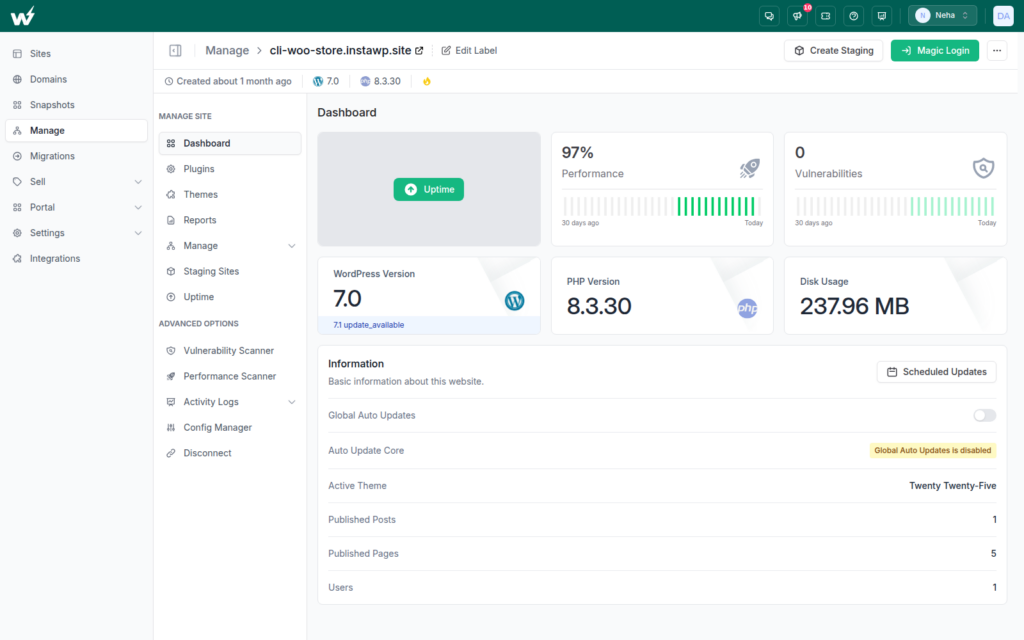
Advanced keeps everything in Basic and adds the parts that run while you are working on something else. Most of it lives under Advanced Options in the site menu, and the site dashboard gains 30-day trend graphs for performance and vulnerabilities.
Uptime and SSL monitoring
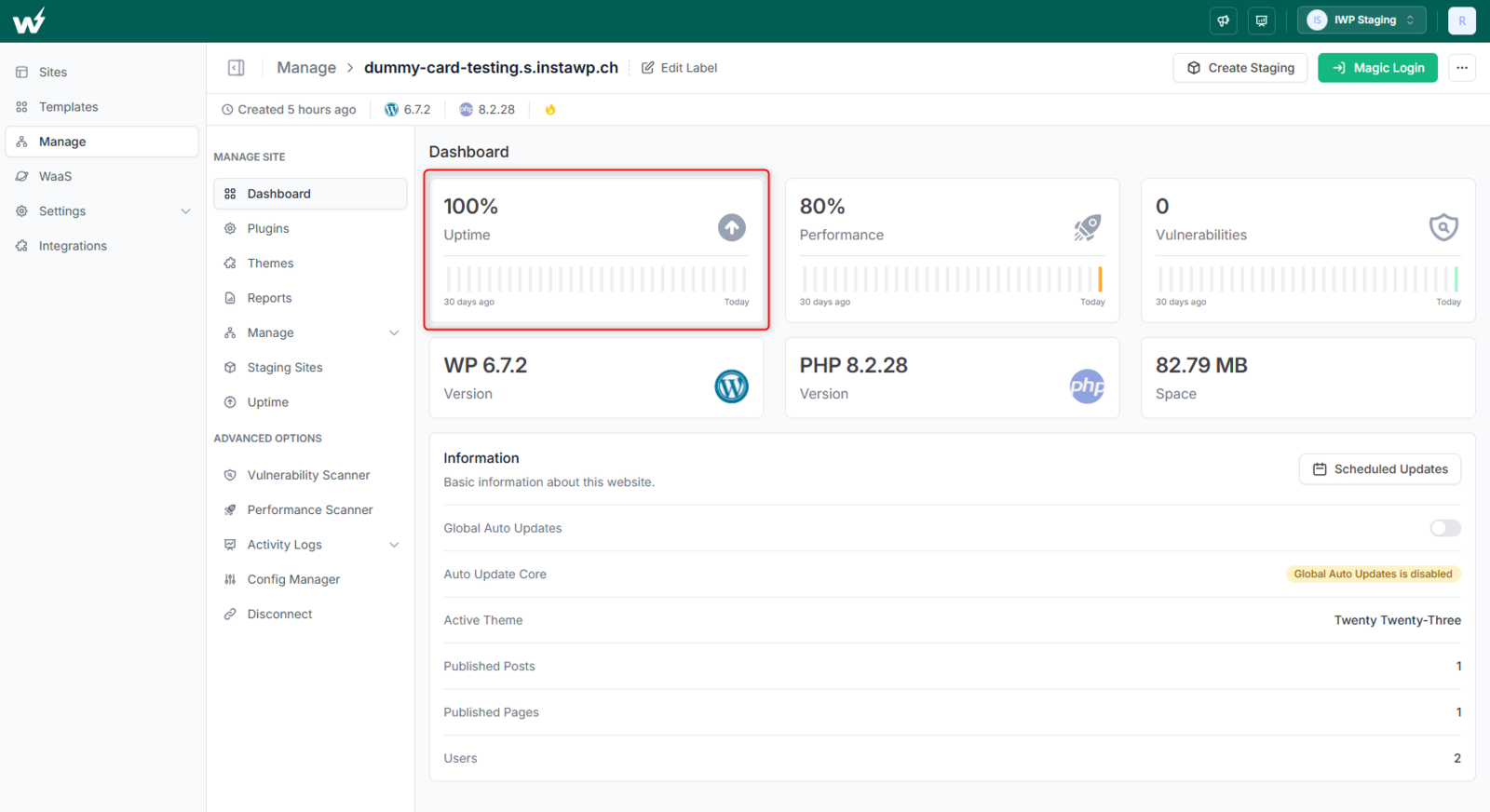
Checks run from several regions and keep a response-time history, plus a countdown to the SSL certificate expiry date. When a site goes down you get an email, and a Slack message too if you add a webhook. You hear again when it is back up. Setup steps are in the uptime monitoring docs, and our uptime monitoring guide for agencies covers what to watch.
Vulnerability and performance scanners
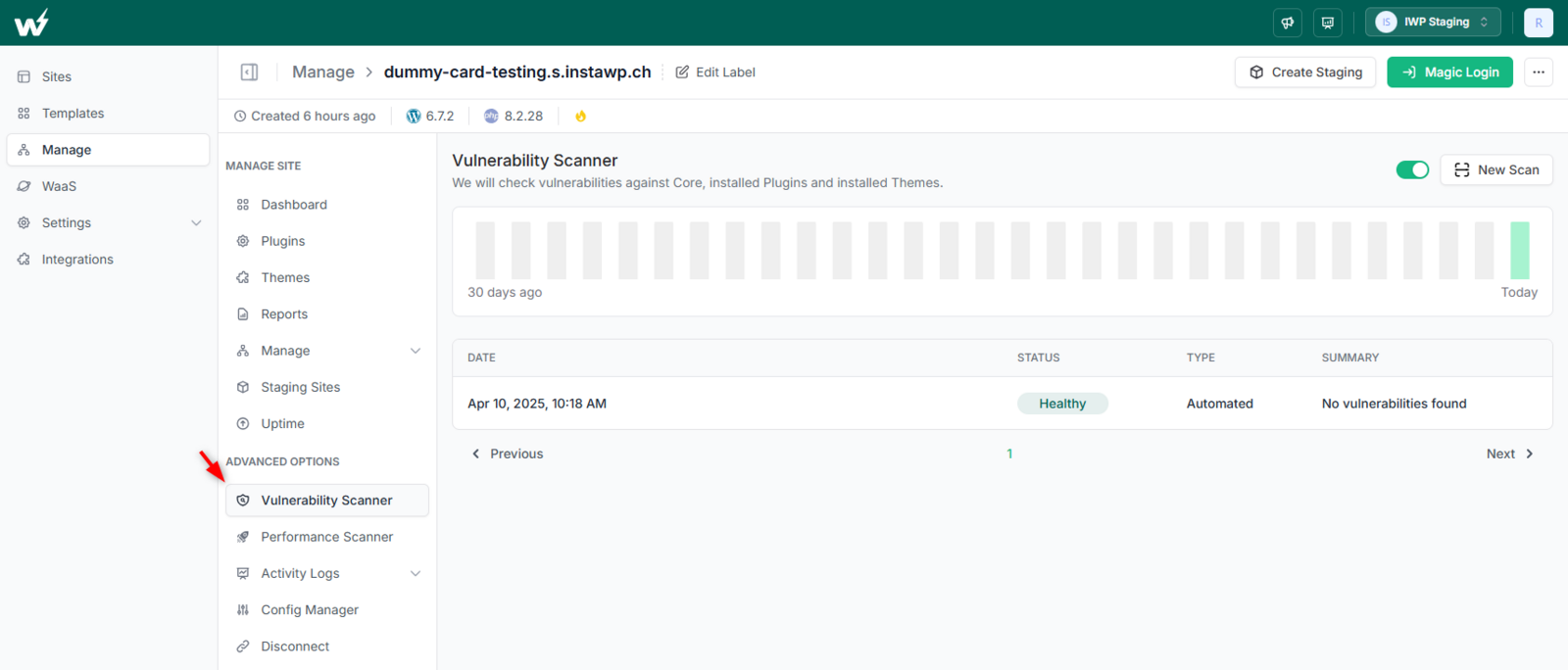
The vulnerability scanner checks WordPress core and every installed plugin and theme against known vulnerabilities, automatically or when you click New Scan. Here is how to read a WordPress vulnerability scan. The performance scanner scores the site on mobile and desktop and lists what to fix, things like unused JavaScript or a slow server response, the same signals behind Core Web Vitals. Automated scans run on their own, and you can trigger a manual performance scan once every 24 hours.
Activity logs and alert rules
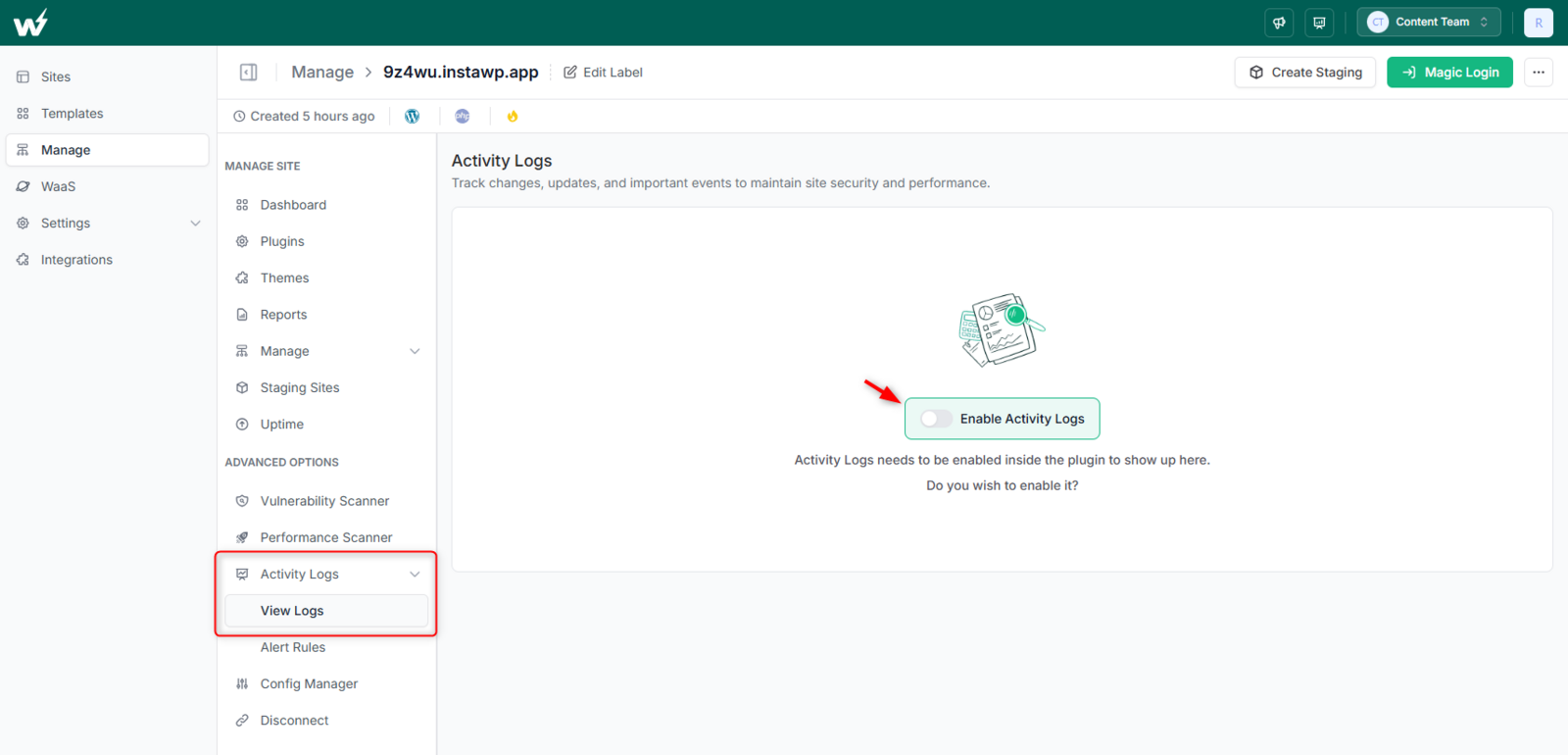
Every change to posts, plugins, themes, users, logins and settings is recorded in the activity log, with who made it and when, and you can filter by severity or action type. When a client says the site broke on its own, this is where you find out what actually moved. Alert rules turn any activity you care about, such as a plugin being deleted or a failed login, into an email notification.
Scheduled updates and the config manager
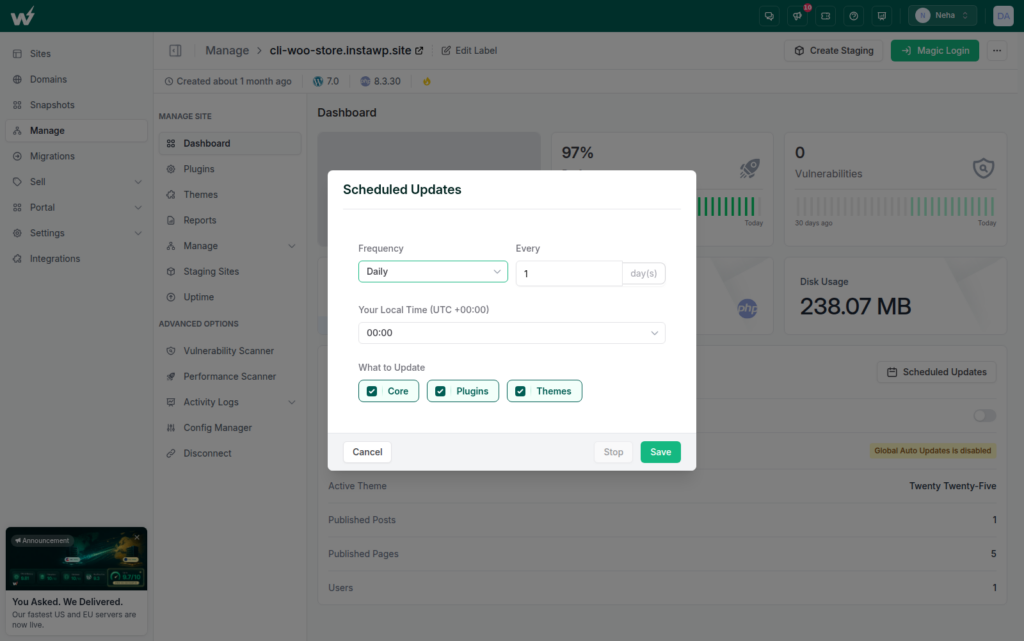
Pick a frequency and a time in your own timezone, then tick core, plugins, themes or all three. Updates go out on schedule, even in a week when nobody remembers them. (For how WordPress handles updates on its own, see the WordPress.org upgrade guide.) The config manager lets you change wp-config.php constants (documented in the wp-config.php reference) such as WP_DEBUG from the dashboard, without opening a file over SFTP.
Client reports
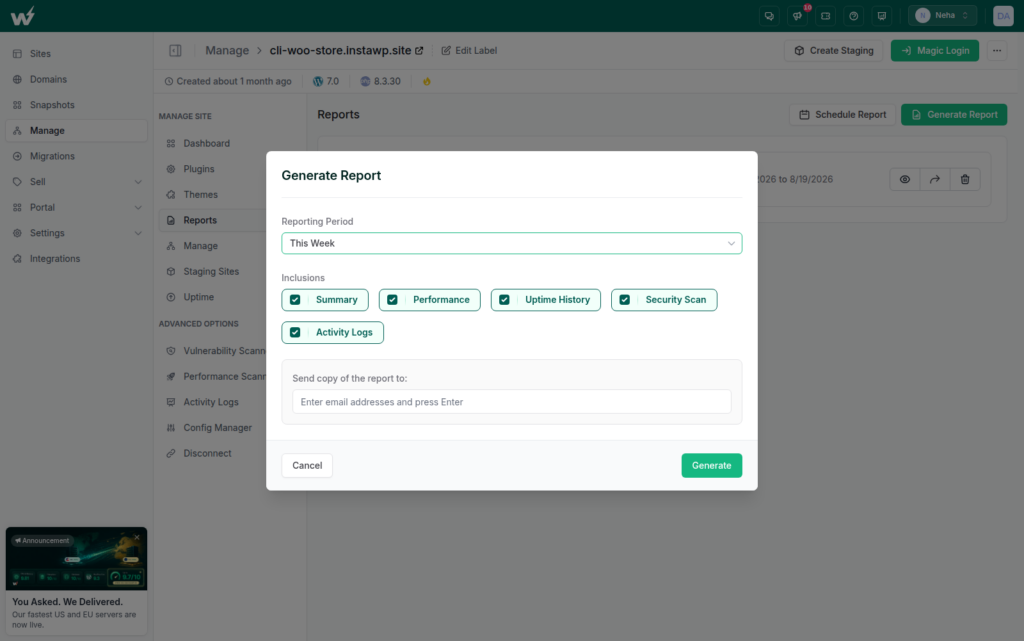
Generate a PDF report for any period from this week to last year, and choose its sections: Summary, Performance, Uptime History, Security Scan and Activity Logs (see what to include in a maintenance report). Send it to the client right away, or schedule it to go out on repeat. If you sell website care plans, the report is the thing the client sees every month, and it shows the work you did. See how to generate PDF reports.
How Do InstaManage Basic and Advanced Compare?
Here is the full list, feature by feature.
What Does Advanced Do in a Normal Week?
Each Advanced feature is useful on its own. Together they take six recurring jobs off your to-do list.
What Does InstaManage Not Cover?
Two things people expect from InstaManage actually belong to other parts of InstaWP. Knowing this up front saves a surprised client later.
Backups come with hosting. Every site hosted with InstaWP gets automatic off-site backups with one-click restore, weekly on Starter and daily on Plus and up. Connected sites keep their backups at their current host for now. Backups for connected sites are on the roadmap.
White-label reports are on the way. Reports cannot carry your own branding yet. If you want clients to see your brand today, that is the job of Portal, a client panel on your own domain with your logo and colors.
Which InstaManage Tier Do You Need?
- You host with us on Plus or above: nothing to decide. Advanced is already on. Open Manage, switch on the monitors and schedules you want, and set up the first client report.
- You host with us on Starter: you have Basic. If a site needs monitoring and reports, moving it to Plus also brings daily backups and the Premium CDN.
- Your client sites live on other hosts: connect them all free on Basic, then pay $2 a month only for the sites you monitor and report on. Or move them over with a free migration to InstaWP.
- You sell care plans: put every site you bill for on Advanced (our care plan guide covers packaging and pricing). Scheduled updates, scans and a monthly report cover most of what a care plan promises.
InstaManage: Frequently Asked Questions
Is InstaManage free?
Basic is free on every site, hosted with us or not. Advanced is included on Plus, Pro, Turbo and Elite hosting, and costs $2 a month per site for sites hosted elsewhere.
Can I manage WordPress sites that are not hosted on InstaWP?
Yes. Install the free InstaWP Connect plugin on the site and connect it to your account. It appears in the same Manage list as your hosted sites and starts on Basic.
Does Advanced include backups?
No. Backups are part of hosting: weekly on Starter and daily on Plus and up, with one-click restore. Connected sites keep backups at their current host for now.
Can different sites be on different tiers?
Yes. The tier is set per site, so you can keep low-maintenance sites on Basic and put only the ones you report on onto Advanced.
What happens to the tier if I change a hosted site’s plan?
It follows the plan. Moving a site to Plus or above switches it to Advanced, and moving it down to Starter or Sandbox puts it back on Basic.
Can I put my own branding on client reports?
Not yet. White-label reports are on the way. For a branded client experience today, use Portal, which runs on your own domain with your logo.
Is InstaManage the same as InstaMonitor?
No. InstaMonitor shows a hosted site’s live CPU, RAM, PHP worker and MySQL usage while you watch. InstaManage Advanced checks uptime and SSL from outside the site on a schedule and alerts you by email or Slack when it goes down.
Do I need InstaManage Advanced if my site is hosted on Plus or above?
You already have it. Hosted sites on Plus, Pro, Turbo and Elite run on Advanced automatically, with no add-on and no separate invoice.
Basic gives every site free, fast controls: magic login, updates in bulk, users, staging and the database editor. Advanced adds monitoring, security and performance scans, activity logs, scheduled updates and client reports. It is included on Plus and above, and $2 a month per site for sites hosted elsewhere. Backups stay with your hosting plan, and branded client experiences live in Portal.