Securing WordPress sites is more important than ever in today’s digital landscape. As one of the most popular Content Management Systems (CMS), WordPress is a frequent target for cyberattacks, making it crucial for website owners and administrators to check for vulnerabilities regularly.
A WordPress vulnerability scan helps identify security flaws, misconfigurations, and outdated plugins or themes that attackers could exploit.
Table of Contents
Fortunately, a few tools can assist in this process. These tools offer features for detecting known vulnerabilities, malware, and weak passwords. In fact, WordPress site management tools like InstaWP lets you automate vulnerability scans for your website.
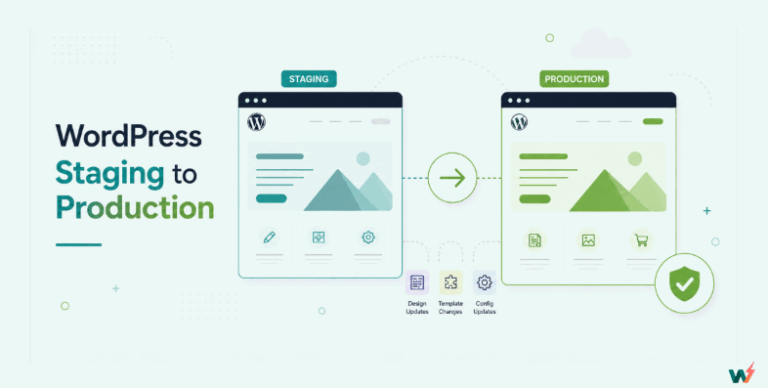
InstaWP also adds a unique advantage by allowing you to create temporary staging sites for testing purposes. This means you can clone your live site, run vulnerability scans, and test updates or security fixes without affecting your production environment.
Using InstaWP to test changes in a safe, isolated environment reduces the risk of introducing new issues and addresses vulnerabilities more effectively. In this guide, we will explore the steps to perform a vulnerability scan, using these tools, and fix any problems, ensuring your site remains secure and resilient against potential threats.
Vulnerabilities in WordPress Websites
WordPress vulnerabilities are weaknesses or flaws in a website’s code, configuration, or infrastructure that cyber attacks can exploit to compromise the site’s security.
These vulnerabilities can lead to unauthorized access, data breaches, malware infections, defacement, or even complete site takeover. These vulnerabilities include outdated WordPress core, outdated themes and plugins, and SQL injection.
What Does a WordPress Vulnerability Scan Do?
A WordPress Vulnerability Scan is a process that systematically examines a WordPress website to identify potential security issues and weaknesses that could be exploited by attackers.
The scan analyzes various aspects of the site, including WordPress core software, plugins, themes, and configuration settings, to detect known vulnerabilities, outdated software, malware, and misconfigurations. It checks for issues like insecure file permissions, weak passwords, exposed sensitive information, and the presence of malicious code or backdoors.
The main purpose of a WordPress vulnerability scan is to provide a detailed report on the website’s security status, highlighting any risks that need to be addressed. By detecting vulnerabilities early, website administrators can take corrective actions to update, secure, or remove vulnerabilities, reduce the attack surface, and prevent potential security breaches.
Regular vulnerability scanning is an essential part of maintaining a secure WordPress site and helps ensure that any security issues are promptly identified and resolved. And guess what? You can automate this process with ease.
How to Enable Automated Vulnerability Scanning in WordPress
As we have seen, InstaWP helps us create copies of our websites quickly and easily. To create a Staging site on InstaWP for Secure testing, we shall use the InstaConnect plugin.
Step 1: Install the InstaWP Connect plugin.
Sign in to the WordPress dashboard of your website.
Go to the Plugins – Add New Plugin and search for InstaWP Connect in the plugin repository.
Click on Install Now to install the plugin.

Once the plugin is installed, activate it.
Step 2: Create a Staging Site.
Now let’s create a staging copy of your website.
Go to the InstaWP Connect plugin and click on Create Staging.

Connect to your InstaWP Account. Before creating the staging site, you must be connected to your InstaWP account. So click on Connect with InstaWP to connect to your account.

You will see a notification asking you to authorize InstaWP. Click Approve to continue.

Your account will be connected in just a few seconds. Once your connection is successful, you’ll see a notification saying your website is connected.
You can click on Create Staging Site to proceed to the next step.

Select your Staging type. Choose the type of Staging you would love to do, whether Quick Staging, Full Staging, or Custom Staging. We recommend Full Staging so that you can create the exact copy of your website. Click on Next Step to continue.

Customize Options. The next step is to customize your options. We recommend not skipping any files so that they can all be scanned. Click on Next Step to continue.

Exclude files and tables. The next step is to exclude some files and tables. Click on Expand to view the available files and tables. We recommend not excluding any for scanning purposes.

Confirmation. Now double-check the options you have selected. Ensure you have not skipped any important files or tables. Click Create Staging to start the process.

InstaWP will take just a few seconds to create your staging site.
Click on Track Migration to check the progress. Click on Abort if you need to stop and make any significant edits.

Congratulations! Your site is now connected to InstaWP for WordPress website management.
Step 3: Run Manual or Automated Vulnerability Scans
Go to your InstaWP dashboard, navigate to Connects, and click on this site’s name to open Connect Dashboard.
Open Vulnerability scanner. Run a scan, and you’ll have access to your site’s vulnerability report in no time.

One can also view the vulnerability scanner history of the past several weeks for their website in InstaWP (for the plans with the feature “automated vulnerability scans”).
Other WordPress Vulnerability Scanning Plugins
Wordfence

Wordfence is one of the most popular security plugins for WordPress, offering a comprehensive suite of features to protect your website. Its core functionality includes a Web Application Firewall (WAF) which blocks malicious traffic and a security scanner that detects malware, outdated plugins or themes, and known vulnerabilities in the site.
The scanner regularly checks your site files for suspicious changes and reports any security risks, while the firewall helps prevent attacks such as brute force login attempts and SQL injections.
Wordfence also provides real-time threat intelligence alerting you to the latest threats and automatically updating its firewall rules to protect against newly discovered vulnerabilities. It includes a login security module with features like two-factor authentication and CAPTCHA to help secure your login page.
Sucuri

Sucuri is well-known for its range of protection and monitoring services for WordPress. The Sucuri Security plugin provides features like malware scanning, backlist monitoring, and security hardening. Sucuri’s scanner detects malicious code, vulnerabilities, and out-of-date- software that could compromise your site.
Additionally, it offers a Web Application Firewall(WAF) which prevents attacks by filtering and blocking malicious traffic before it reaches your website. Sucuri’s WAF also protects against Distributed Denial of Service( DDoS) attacks, mitigating threats to website availability.
The platform is known for its post-hack clean-up services, helping site owners recover from attacks by removing malware and restoring website functionality.
Malcare

Malcare is a specialized WordPress solution that focuses on automated malware detection and removal. It uses a cloud-based scanning approach to avoid slowing down your website while performing in-depth scans to detect hidden malware, vulnerabilities, and security risks.
One of Malcare’s key features is its one-click malware removal, allowing you to clean your site without needing technical expertise.
Besides scanning, Malcare provides a firewall to block malicious traffic, logic protection to guard against brute-force attacks, and regular backups to ensure that your data can be quickly restored if an issue occurs. It also includes a security hardening feature to help implement recommended security measures on your site.
These tools provide robust protection by offering both proactive defenses like firewalls and login security and reactive measures such as malware removal and post-hack cleanup, helping ensure your WordPress site stays secure.
How InstaWP Helps with Secure Staging
InstaWP provides an isolated temporary staging environment where you can safely test changes, updates, and security measures on a cloned version of your WordPress website. This ensures that any modifications made during staging do not affect the live site, minimizing the risk of downtime, data loss, or broken functionality.
By creating a staging site that mirrors your production environment, you can identify and resolve security issues, such as vulnerabilities in plugins, themes, or configurations before they reach the live site.
InstaWP also allows you to quickly spin staging sites for frequent testing and troubleshooting, making it easier to implement best practices for website security. You can use InstaWP to test updates to the WordPress core, themes, and plugins to ensure compatibility and avoid introducing new vulnerabilities.
Furthermore, it provides a controlled space to try out new security configurations, such as firewalls or login protection measures, and verify their effectiveness.
This dynamic approach to secure staging helps maintain a vigorous defense against potential threats while keeping your site live and operational.
What to do after you Run a WordPress Vulnerability Scan: A Step-by-Step Guide
Step 1: Analyze Results
Once you have the scanning tool installed and configured, it’s time to run the vulnerability scan. This process will help you identify potential security risks on your WordPress website.
Monitor the Scan Progress. While the scan runs, you will see the progress and list of any issues that are being found. Depending on the size of your website, and the configuration, the scan may take a few minutes to complete. It will look for vulnerabilities like outdated software, insecure file permissions, and suspicious code.
Analyze Results. After the scan finishes, analyze the results. The tool will provide a detailed report of any detected vulnerabilities, categorized by severity (high, medium, or low risk). The report may include;
- Outdated plugins and themes.
- Modified or suspicious files.
- Weak passwords.
- Signs of malicious code.
Step 2: Identify High-Risk Vulnerabilities
After analyzing the scan results, the next step is to prioritize the detected vulnerabilities by identifying which ones are of the highest risk to your WordPress site. High-risk vulnerabilities are critical security issues that could lead to serious consequences, such as site compromise, data breaches, or loss of control over your website.
Focus on Critical vulnerabilities. Review the report and locate vulnerabilities marked as high-risk. These could include;
- Outdated plugins, themes or WordPress core with known security exploits.
- Detected malware or backdoors in the site’s files.
- SQL injection or Cross-Site Scripting(XSS).
- Weak passwords or compromised user accounts.
Step 3: Fixing Issues with Updates and Security Patches
The final step is to address the high-risk vulnerabilities identified in the scan by applying updates, security patches, and configuration changes. This will help secure your WordPress site and reduce the likelihood of future security incidents.
Update the WordPress core, plugins, and themes. Start by updating all outdated components including the WordPress core, plugins, and temes. Developers often release updates to address known vulnerabilities, so keeping everything up-to-date ensures your site has the latest security patches.
Apply Security Patches or Replace Vulnerable Tools. If any themes or plugins are still vulnerable after updating, check if the developers have released a specific security patch. If no patch is available consider replacing the theme or plugin with a more secure alternative.
Modify Site Configurations. Fix any site configuration issues, flagged during the scan, such as weak passwords, improper file permissions, or exposed sensitive data. Enable two-factor authentication, change Login URLs, and limit Login attempts to harden your site’s defenses.
Re-Scan the Site. Once you have made the updates and security adjustments, run another scan to verify that all the vulnerabilities have been resolved. This final scan ensures that no issues were missed and confirms that your site is secure.
Key WordPress Vulnerabilities to Watch For
Understanding the common types of vulnerabilities in WordPress websites is essential for taking measures to secure the site. Here are some of the key WordPress vulnerabilities to look out for.
Outdated Core, Themes, and Plugins
WordPress frequently releases updates to address security issues, fix bugs, and improve performance. If you’re running an outdated version of WordPress, themes, and plugins, your site may have known vulnerabilities that attackers can exploit. It’s important to keep all components of your sites up to date.
Third-party plugins and themes can introduce security risks especially if they need to be better coded, updated, or abandoned by the developer. Attackers often target popular plugins with known vulnerabilities to gain access to websites.
It’s crucial to use reputable, well-maintained themes and plugins that are always tested with WordPress’s latest version and promptly apply security patches.
Brute Force Attacks
Brute force attacks rely on automated tools that can generate thousands or even millions of login attempts in a short period. The attacker may use lists of common usernames and passwords, dictionaries of words, or random combinations of characters.
The goal is to eventually guess the correct login credentials and gain access to the WordPress dashboard, where they can make authorized changes, inject malicious code, or steal sensitive data.
WordPress is an attractive target for brute force attacks because of its popularity. Since it powers over 40% of the sites on the web, attackers can apply the same methods across many websites. Additionally, the default login page URL /wp-login.php or /wp-admin is the same across all WordPress installations, making it easy for attackers to locate the login page.
SQL Injections
An SQL injection vulnerability occurs when attackers can manipulate database queries made by the website. This can enable them to access sensitive information, modify or delete database content, or even gain administrative access.
Testing for Vulnerabilities in Staging with InstaWP
Testing for vulnerabilities using InstaWP is crucial because it provides a safe isolated space to identify and address security issues without impacting the live websites.
By creating an exact copy of the live website on InstaWP, you can conduct thorough vulnerability scans, test updates, and apply security configurations to ensure that any issues are resolved before they reach the production environment.
This strategy minimizes the risk of introducing new problems that could lead to site downtime, broken functionality, or data loss when making changes directly on the live site.
InstaWP’s Staging and its Role in WordPress Security Testing
You can also use a staging environment to run vulnerability scans.
InstaWP allows you to perform security checks more frequently and efficiently. Regular vulnerability testing in a staging environment helps you stay ahead of potential threats by keeping plugins, themes, and WordPress core updated and verifying that security measures are functioning as intended.
It also enables you to experiment with different security configurations, such as enabling two-factor authentication or adding login protection measures to see how they affect the site’s performance and security without disrupting user experience.
This proactive approach to security helps maintain a robust defense against evolving cyber threats.
Using InstaWP for Pre-Launch Security Checks
InstaWP enables you to quickly do pre-launch checks and ensures your site is secure and fully functional before it goes live. By creating an isolated environment that mirrors your live site, you can safely run vulnerability scans and perform updates without risking downtime or breaking the site functionality.
This allows you to identify and address any security issues, such as outdated plugins, themes, and malicious code, ensuring that your site is fully secured.
InstaWP’s isolated setup ensures that any changes can be tested for compatibility and effectiveness, preventing potential conflicts on the live site.
After making the necessary fixes and optimizations, you can verify site functionality and conduct a final security scan to confirm all issues have been resolved.
Once the prelaunch checks are complete, replicate the changes on the live site with confidence. Regular monitoring and scanning post-launch will help maintain your site’s security and address any vulnerabilities as they arrive.
Conclusion
To sum up, running a WordPress vulnerability scan is a crucial step in securing your website and protecting it from potential threats.
Regularly scanning for vulnerabilities ensures that you stay ahead of emerging threats, keep your site up-to-date, and maintain a secure online presence.
Utilizing tools like InstaWP for staging and pre-launch security checks further enhances the safety of your site. By incorporating these practices into your website maintenance routine, you create a proactive security strategy that keeps your site protected and running smoothly.
FAQs
- What is a WordPress vulnerable scan?
A WordPress vulnerability scan is a process that examines a WordPress website to detect potential security issues, weaknesses, or vulnerabilities that could be exploited by attackers. The scan checks for outdated software, insecure configurations, malware, and other security risks, helping the site owners and administrators identify and resolve issues before they cause harm.
- What tools can I use to run a WordPress vulnerability scan?
Popular tools like InstaWP come with a built-in vulnerability scanner to help you with site management. There are also plugins like Wordfence, Sucuri, Malcare, and so on. They can help detect outdated security software, misconfigurations, and weak passwords.
- How does InstaWP help with security vulnerability scanning?
InstaWP allows you to create a staging environment that mirrors your site, where you can safely run vulnerable scans and security measures. This ensures that any changes made won’t disrupt your site’s functionality or introduce new issues.
- What are some of the common high-risk vulnerabilities found on WordPress sites?
High-risk vulnerabilities include outdated plugins and themes, SQL injections and cross-site scripting, compromised passwords, and unpatched WordPress core files. These can be used by attackers to gain unauthorized access to the site.
- What should I do if a Vulnerability is detected?
If a Vulnerability is detected, prioritize the high-risk issues first. This may involve updating plugins and themes, WordPress core, configuring security settings, enabling two-factor authentication, or changing file permissions.
- How often should I do a Vulnerability scan on my WordPress website?
It’s recommended to run a vulnerability scan or test at least once a month and more frequently if you regularly update plugins, themes, and WordPress core. Additionally, perform scans after making major changes to the site or when new security patches are released.