If you’re managing leads in Pipedrive but running your site on WordPress, you’re likely wasting time on manual tasks and missing opportunities. A smart Pipedrive WordPress integration turns your website into an automated sales assistant—capturing leads, syncing data, and triggering personalized follow-ups in real time.
Whether you’re a non-techie, a WordPress agency, or a hardcore developer, this WordPress Pipedrive integration guide covers everything you need to integrate Pipedrive with WordPress, step by step.
Table of Contents
What is Pipedrive?

Pipedrive is a sales-focused CRM (Customer Relationship Management) platform designed to help teams manage leads, close deals, and automate repetitive sales tasks. It’s known for its intuitive visual pipeline interface, allowing businesses to move prospects through different stages of the sales process with drag-and-drop ease.
Whether you’re a solopreneur, small agency, or growing enterprise, Pipedrive offers a centralized dashboard where you can:
- Track calls, emails, and meetings
- Automate follow-ups and task reminders
- Monitor sales performance with built-in reports
- Create custom pipelines for different services or products
- Integrate with over 300 tools like Google Workspace, Mailchimp, Trello, and of course, WordPress
What makes Pipedrive CRM especially attractive for WordPress users is its flexibility. You can capture form submissions, route them into Pipedrive, assign leads to team members, and even trigger email sequences—all from your website.
With features like lead segmentation, activity reminders, custom fields, and visual reports, Pipedrive helps sales teams focus less on admin and more on closing deals. And thanks to its robust API and third-party tools like Zapier and CRM Perks, integrating Pipedrive with WordPress is easier than ever.
Why You Should Opt for Pipedrive WordPress Integration
A seamless WordPress Pipedrive integration unlocks massive efficiency gains by connecting your website’s front-end user interactions directly with your back-end sales engine. Here’s exactly why it’s worth setting up:
Automate Lead Capture from Forms into Pipedrive
Instead of manually exporting form submissions and re-entering them into your CRM, Pipedrive can automatically pull data from your WordPress forms.
Whether it’s a contact form, quote request, or booking form, those details are instantly synced as new leads or contacts in your Pipedrive dashboard. This automation reduces errors, speeds up response time, and ensures no potential deal slips through the cracks.
Trigger Follow-Ups or Sales Emails Instantly
With the integration in place, you can set up workflows to automatically send follow-up emails, assign tasks to sales reps, or even schedule a call the moment a lead comes in.
For example, when a user submits a contact form on your website, Pipedrive can trigger an action that sends them a personalized welcome email or notifies your sales team. It’s like having a sales assistant running 24/7 in the background.
Track Visitor Activity and Pre-Fill CRM Records
Using tracking scripts or plugins, you can monitor how visitors interact with your site—what pages they view, how long they stay, and what content they engage with. This behavioral data can be pushed to Pipedrive to pre-fill or enrich CRM records, helping your team approach leads with context and relevance. It leads to more informed conversations and faster deal closures.
Keep Customer Data Consistent Across Platforms
A proper Pipedrive WordPress integration ensures real-time data synchronization. This means changes made in one system reflect in the other, keeping your customer database accurate and up to date. No more fragmented data spread across multiple tools—everything stays consistent, improving team collaboration and reporting accuracy.
Focus More on Relationship-Building, Not Admin
At the end of the day, sales is about human connection. When your system automates the repetitive tasks—data entry, deal creation, follow-ups—your team can focus on building stronger relationships, customizing pitches, and actually selling. It takes the grunt work out of CRM and frees up more time for impactful work.
Here is what Pipedrive WordPress integration means for agencies and developers.

A well-executed Pipedrive WordPress setup is more than just a connection—it’s a business accelerator. And with testing environments like InstaWP, you can set up and validate these workflows without touching your live site.
What are the Different Pipedrive WordPress Integration Methods
There are 3 main ways to connect WordPress to Pipedrive:

Let’s explore each method with real tools and beginner-friendly steps.
Method 1: Plugin-Based Pipedrive WordPress Integration (No Code Needed)
The easiest way to connect Pipedrive with WordPress is via a plugin that syncs your WordPress forms with your Pipedrive CRM.
Use Case: Perfect for lead capture, newsletters, inquiry forms, and basic deal creation.
Steps to Set It Up
Here is how you can bring Pipedrive WordPress integration to life using a plugin.
- Install & Activate a CRM Plugin
Go to Plugins > Add New in your WordPress dashboard.
Search for “Pipedrive WordPress Plugin” and install the option you prefer the most.
- Connect to Pipedrive
Get your API Key from Pipedrive > Settings > Personal Preferences > API.
- Paste this into the plugin settings under “API Key.”

- Map Your Form Fields
- Choose a form (like Contact Form 7, WPForms, or Gravity Forms).
- Match each field (Name, Email, Phone) with the appropriate field in Pipedrive.
- Choose a form (like Contact Form 7, WPForms, or Gravity Forms).
- Set Rules and Triggers
- You can auto-create deals, assign them to reps, or tag contacts.
- Save your settings and test.
- You can auto-create deals, assign them to reps, or tag contacts.
- Test and Troubleshoot
- Submit a test form and check if the data appears in Pipedrive.
- Adjust field mappings if data is missing.
- Submit a test form and check if the data appears in Pipedrive.
? Bonus Tip:
Use conditional logic to assign different sales reps based on form selections (great for agencies!).
Method 2: Automate Pipedrive Integration Using Zapier (No Plugin Required)
Zapier connects your WordPress forms with Pipedrive actions like “Create Contact” or “Create Deal.”
Use Case: Ideal for agencies that want multi-step automation, like:
- Adding a contact to Pipedrive
- Sending a Slack alert
- Emailing the lead using Mailchimp
Steps to Set Up
- Sign Up at Zapier.com
- Create a free or paid Zapier account.
- Create a free or paid Zapier account.
- Create a New Zap
- Choose WordPress (or your form plugin) as the trigger app.
- Choose an event like “New Form Submission.”
- Choose WordPress (or your form plugin) as the trigger app.
- Connect Your Pipedrive Account
- Add Pipedrive as the action app.
- Select “Create Person,” “Add Deal,” or “Add Activity.”
- Add Pipedrive as the action app.
- Map Your Data
- Match each WordPress form field with the Pipedrive contact fields.
- Match each WordPress form field with the Pipedrive contact fields.
- Test & Enable
- Run a test to make sure Zapier sends the correct data.
- Turn on your Zap and go live.
- Run a test to make sure Zapier sends the correct data.
? Bonus Tip:
You can chain Zaps to send welcome emails, assign leads to teams, or even notify you via WhatsApp.
Method 3: Advanced WordPress Pipedrive Integration via API
For developers who need full control over how data flows between WordPress and Pipedrive, using the Pipedrive REST API offers a powerful, fully customizable solution. This approach is ideal when building tailored CRM workflows, internal dashboards, or complex automations that can’t be achieved with plugins or third-party tools.
Use Case: Best for developers building tailored CRM dashboards or custom workflows inside WordPress.
Steps to Set Up
Here is how you can set up WordPress Pipedrive integration using the API.
Step 1: Retrieve Your Pipedrive API Key
- Log in to your Pipedrive account.
- Navigate to Settings > Personal Preferences > API.
- Copy your API token; you’ll use this for authentication in your custom code.
Step 2: Write Custom Integration Code in WordPress
You can either build a small plugin or place your code inside the functions.php file of your theme. Those who are setting up Pipedrive WordPress integration using InstaWP will have an ultra-smooth way to do it.
With InstaWP’s Local Mount feature, you can download your cloud-based staging site and work on it as if it’s running locally, right from your own machine. This means you can write, edit, and debug your integration code using your favorite code editor, then sync changes back without manually migrating anything.
This workflow is ideal for developers who want to:
- Build and test integrations in a clean, version-controlled environment
- Avoid breaking changes on live client sites
- Rapidly push updates between local and hosted instances
- Preview API behavior and logs in isolation before deployment
Whether you’re editing code in functions.php or crafting a lightweight plugin for reuse, InstaWP helps streamline the dev → test → launch cycle for any advanced WordPress to Pipedrive integration.
If you love online code editing, you also get a built-in Code Editor tool. Both resources help you edit the functions.php file without any hassle.
They can:
Download their site as a local site on their device using the Local Mount feature.
Here’s an example of sending form data to Pipedrive when a WPForms submission occurs:
add_action('wpforms_process_complete', 'send_to_pipedrive', 10, 4);

function send_to_pipedrive($fields, $entry, $form_data, $entry_id) {
    $api_key = 'your_api_key_here';

    $person_data = array(
        'name' => $fields[1]['value'],  // Adjust field index as needed
        'email' => $fields[2]['value']
    );

    $response = wp_remote_post("https://api.pipedrive.com/v1/persons?api_token=$api_key", array(
        'method' => 'POST',
        'headers' => array('Content-Type' => 'application/json'),
        'body' => json_encode($person_data)
    ));
}
Tip: Adjust the $fields indexes based on your specific form field setup.
Step 3: Secure and Sanitize Your Code
- Validate nonces if triggered via frontend forms.
- Sanitize all user input using WordPress functions like
sanitize_text_field(). - Enable logging to monitor for errors using
error_log()or WP debug tools.
Step 4: (Optional) Handle Webhooks from Pipedrive
If you want two-way sync (e.g., updating WordPress when a deal is closed in Pipedrive), set up webhooks inside your Pipedrive dashboard under Tools and Apps > Webhooks.
Create an endpoint in WordPress to receive and process these webhook events.
? Bonus Tip: Test in a Sandbox First
Before deploying any custom integration to your live site, test it in a staging environment like InstaWP. You can spin up a sandbox site with its Sandbox plan in seconds, install your forms and custom code, and validate your workflow, without risking live data or breaking production.
Real-World Use Cases for Pipedrive WordPress Integration
Here are some of the command scenarios where using Pipedrive WordPress integration will deliver great results.
Looking for practical ways to use your Pipedrive WordPress integration? Whether you’re running a marketing site, an eCommerce store, or a service-based business, connecting Pipedrive to your WordPress site unlocks automation that saves time, improves follow-ups, and drives more conversions.
Here are some of the most effective, real-world scenarios where Pipedrive + WordPress integration delivers measurable results:
1. Lead Capture Through Gated Content
Businesses often offer downloadable content such as eBooks, guides, webinars, or toolkits in exchange for contact information. With Pipedrive WordPress integration, every form submission tied to gated content can be automatically sent to your Pipedrive CRM.
This allows you to:
- Create new contacts and assign them to the right pipeline
- Tag leads based on content type (e.g., “Downloaded Pricing Guide”)
- Trigger automated follow-up emails or task reminders for your sales team
By doing this, you turn passive content consumers into actionable leads, without any manual data entry.
2. Syncing WooCommerce Checkout Data to Pipedrive
For online stores selling high-ticket items or services, WooCommerce checkouts are often missed opportunities for deeper engagement. Using a plugin or Zapier automation, you can push WooCommerce customer details—like name, email, cart total, and product type—directly into Pipedrive.
This enables your team to:
- Automatically create a deal or activity upon checkout
- Segment customers based on purchase value
- Follow up with upsell offers, onboarding calls, or product support
This is especially useful for agencies, software companies, or coaches selling premium services.
3. Automating CRM Entries from Booking Systems
Many service-based businesses use booking tools to schedule demos, consultations, or meetings. With Pipedrive WordPress integration, booking form submissions can instantly create a contact or deal within your CRM.
For example:
- A scheduled consultation via WP Amelia or Calendly embedded on WordPress triggers a new deal in Pipedrive
- The booking date is saved as an activity
- Sales reps are notified in real-time to prepare for the meeting
This reduces no-shows and keeps your pipeline organized and time-sensitive.
4. Newsletter and Email Opt-In Workflows
While most businesses use tools like Mailchimp or MailPoet for newsletters, syncing those subscribers into Pipedrive gives your sales team better visibility into email engagement.
Here’s how this helps:
- Newsletter signups on your WordPress site create a new person record in Pipedrive
- Contacts are tagged by signup source or interest category
- Sales teams can filter and reach out to warm leads based on email interaction data
This creates a tighter alignment between marketing and sales without doubling your data entry workload.
5. Lead Qualification and Scoring via Custom Fields
Forms on WordPress sites can collect more than just contact details—they can capture intent. When you map fields like budget range, project urgency, or company size to custom fields in Pipedrive, you can automatically score and segment leads.
This approach allows you to:
- Prioritize high-value opportunities in real-time
- Auto-assign leads to different reps based on geography or industry
- Feed intelligent lead scoring models within Pipedrive workflows
Ultimately, this gives your team a more strategic way to work leads, based on actual readiness, not just a name and email.
These use cases illustrate how Pipedrive WordPress integration can go beyond simple contact syncing. By strategically linking form activity, purchase behavior, and user engagement, you can create an automated, scalable sales process that works even when your team is offline.
Troubleshooting Tips for Pipedrive WordPress Integration
Even with the best setup, things can sometimes go sideways. Whether you’re using a plugin, Zapier, or custom API integration, errors can sneak in due to configuration issues, version conflicts, or connectivity limits. Here’s how to troubleshoot the most common problems:
| Issue | What It Means | Fix |
| API key invalid | Your site is trying to connect to Pipedrive but can’t authenticate. | Go to Pipedrive > Settings > API and copy the correct API key again. |
| Form not syncing | Data isn’t reaching Pipedrive after a user submits a form on your site. | Re-check your field mapping, and ensure Zapier triggers are active. |
| Plugin conflict | Another plugin might be blocking or interfering with your Pipedrive integration. | Temporarily disable other plugins, and test your form integration again. |
| Data missing in CRM | Some fields (like email or phone) aren’t showing up inside Pipedrive. | Make sure your form fields are correctly mapped and formatted. |
| Delay in Zapier | Leads are showing up late or not triggering instantly. | Upgrade to Zapier’s premium plan for real-time triggers or reduce the complexity of your zap. |
? Pro Tip: Use a staging environment to replicate these issues safely before trying fixes on a live site. It’s a risk-free way to debug and validate changes.
See how Andrea, a design agency owner, succeeded in reducing the development stress by 50% by simply using staging sites.
Best Practices for Secure and Smooth WordPress Pipedrive Integration
Once your WordPress Pipedrive integration is working, the next step is maintaining its performance and security. Whether you’re setting this up for your own business or a client, here are some essential best practices to follow:
Use SSL and HTTPS to Protect User Data
Every form on your WordPress site captures sensitive lead data—names, emails, phone numbers, and more. Without SSL (i.e., no HTTPS), this data can be intercepted or manipulated.
Always use HTTPS to encrypt data in transit. Most secure WordPress hosts offer free SSL certificates out of the box, so there’s no excuse not to activate it.
Do you know when you spin up a staging site in InstaWP to test your WordPress Pipedrive integration, SSL is auto-enabled? So you’re testing under real-world secure conditions from the get-go.
Keep All Plugins Updated to Avoid API Errors
Don’t let an outdated plugin be the reason your Pipedrive WordPress integration breaks—or worse, your leads vanish into the void. Keeping your WordPress core, themes, and CRM plugins (like CRM Perks or Zapier add-ons) updated is non-negotiable for a stable, secure connection.
But let’s be real: if you’re managing multiple sites, logging into each one just to hit “Update” is a productivity killer.
If you’re managing multiple client sites or projects, manually updating each one can be a time-consuming chore. This is where a smart site management platform comes in handy.
You get a centralized dashboard where you can manage plugin and theme updates across all your connected WordPress instances—without logging into each site individually. Its built-in update automation and version control capabilities make managing CRM integrations (and everything else) fast, safe, and scalable.
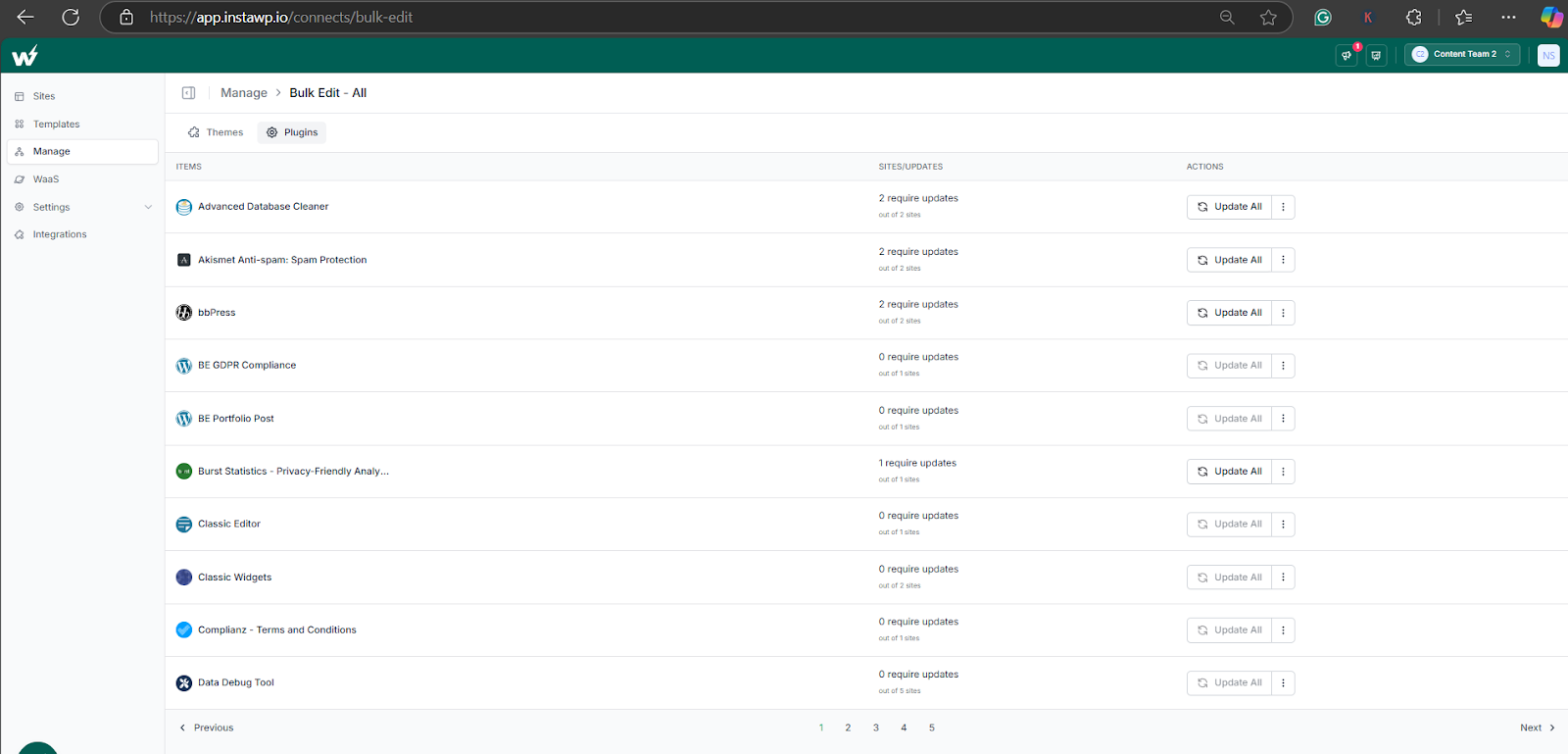
One dashboard. Zero manual effort. Fully synced.
Choose High-Performance Hosting for Faster API Calls
Every time your site talks to Pipedrive—whether it’s submitting a deal, updating a contact, or syncing forms—it makes an API request.
Slow hosting = slow CRM = frustrated users.
Hosting matters more than most think. Choose managed WordPress hosting providers that are optimized for WordPress performance and API responsiveness.
Take InstaWP as an example here. It runs on lightweight containers with blazing-fast infrastructure, ideal for testing Pipedrive’s API integrations in real-time. You can monitor latency, tweak API calls, and even simulate traffic to see how your integration performs under pressure.
Regularly Back Up Your Site (Especially for API Integrations)
When you’re using API-based workflows, automation, or custom code, things can go wrong, especially during updates or major changes. One small misstep could break your CRM sync or even corrupt user data.
Backups = Your safety net.
This is why you need to master the WordPress backups. Before installing a new plugin or editing API scripts, just take a backup. If things go sideways, roll back in one click—no stress, no downtime.
This is especially useful when:
- Testing custom PHP scripts
- Deploying new Zapier workflows
- Updating form field mappings
- Migrating CRM plugins between sites
Must Read: How to Master WordPress Site Backups and Restorations with These Hacks
Following these tips ensures your Pipedrive WordPress setup is not only functional, but also stable, secure, and scalable for future growth. Want to test updates without fear? Just fire up an InstaWP sandbox, tweak your setup, and push changes live once you’re confident.
Why InstaWP is a Game-Changer for Pipedrive WordPress Integration
Testing Pipedrive WordPress integration on a live site? That’s risky.
With InstaWP, you can:
- Spin up WordPress sandboxes in 2 seconds
- Install plugins or APIs safely in a staging environment
- Share a preview link with your team or client
- Save your configured setup as a reusable blueprint
It’s the perfect testing ground for agencies and freelancers working on CRM integrations. Try your next Pipedrive WordPress integration in a safe, instant dev environment.
Final Thoughts
The right WordPress Pipedrive integration can take your sales process from clunky to streamlined. Whether you’re building for yourself or clients, choosing the right method—plugin, automation, or API—depends on your goals and skill level.
With tools like InstaWP, you don’t need to be a tech wizard to make the most of CRM automation. Just start small, test frequently, and build smart.
FAQs
1. Can I integrate Pipedrive with WordPress without using any code?
Yes, absolutely! If you’re not a developer, you can still achieve a seamless Pipedrive WordPress integration using no-code tools. Popular WordPress plugins like CRM Perks or WPForms with Zapier integration allow you to map form submissions directly to your Pipedrive CRM account. These tools come with intuitive interfaces that handle the API connection in the background, making it easy for anyone to set up automated lead flows without writing a single line of code.
2. What is the best plugin for Pipedrive WordPress integration?
There are a few plugins available, but CRM Perks’ WP Pipedrive plugin is among the most reliable. It supports advanced field mapping, conditional logic, and works with popular form builders like Contact Form 7 and WPForms. If you’re already using WPForms, you can also integrate with Zapier to connect your forms with Pipedrive actions like creating deals, contacts, or custom workflows. Both are excellent for beginners and agencies alike.
3. Is Zapier better than using a plugin?
Zapier and plugins both serve different use cases. Zapier shines when you want to automate multi-step workflows, like capturing a form submission, adding it to Pipedrive, and then triggering a Slack message or an email campaign. It’s a powerful automation tool with endless possibilities.
Plugins, on the other hand, are more straightforward and better suited for direct, single-action integrations. If you’re focused purely on syncing leads, plugins are simpler. For more complex automation, Zapier is better.
4. Can I use the Pipedrive API to integrate it with WordPress?
Yes, developers can fully customize the WordPress Pipedrive integration by leveraging the Pipedrive REST API. This method gives you complete control over how data flows between your WordPress site and CRM. You can create contacts, deals, and activities programmatically based on form submissions or user actions. It’s best suited for advanced use cases like building internal dashboards, syncing WooCommerce checkout data, or managing custom CRM workflows.
5. Will this integration slow down my WordPress website?
No—if done correctly. The performance of your integration heavily depends on your hosting provider and how optimized your plugins or API calls are. Using a high-performance WordPress host like InstaWP, combined with caching plugins and optimized forms, will ensure your site remains fast and efficient.
Be cautious of using too many heavy third-party plugins at once, and always test on staging before going live.
6. Can I test my Pipedrive WordPress integration before deploying it live?
Absolutely! You should always test integrations before rolling them out. Using tools like InstaWP, you can create a temporary sandbox WordPress site in seconds, install your plugins or custom code, and validate your integration in a safe environment. This prevents breaking your live website and gives you the freedom to troubleshoot or tweak workflows before final deployment.
7. Is integrating WordPress with Pipedrive secure?
Yes, it is secure—provided you follow best practices. Make sure your WordPress site uses an SSL certificate, sanitize form inputs to prevent injection attacks, and avoid exposing API keys publicly. Always keep your plugins and WordPress core updated, and use security plugins to monitor for unauthorized access.
If you’re handling sensitive customer data, these steps are crucial for GDPR and data protection compliance.
8. Can I create deals automatically from WordPress form submissions?
Yes, both Zapier and most Pipedrive WordPress plugins support automatic deal creation. For example, when a visitor submits a contact form, a new deal can be created in your Pipedrive sales pipeline, complete with their details, assigned sales reps, tags, and notes. This reduces manual work and ensures your pipeline is always up to date with real-time leads.
9. Can I sync WooCommerce checkout data to Pipedrive?
Yes, but this typically requires either a custom API setup or an advanced Zapier integration. You can trigger a new Pipedrive deal, activity, or contact whenever someone completes a WooCommerce checkout. This is especially useful for high-ticket sales or B2B transactions, where you want to follow up directly with buyers. With the right mapping, you can even pass order data, cart contents, or customer preferences into your CRM.
10. Is Pipedrive free to use for WordPress integration?
Pipedrive offers a free trial, but to continue using it for CRM purposes, you’ll need a paid plan. Integration features via Zapier or plugins may also have premium tiers. For example, Zapier has a limited free plan but charges for multi-step automations or higher task volume. Plugins like CRM Perks may offer basic functionality for free, with premium features unlocked in the pro version.