Have an InstaWP coupon code and not sure where it goes, or wondering why your first invoice came to $0? Both come down to InstaWP Credits: a prepaid balance that pays every charge before your card does. Coupon codes are entered in the Add Credits dialog when you top up, while credit codes from a partner or campaign only work through their sign-up link.
On InstaWP’s managed WordPress hosting, where each site is billed by the day, a credit balance works like a prepaid wallet for that daily bill: site plans, add-ons, templates and upgrades all draw on it first. This guide covers how credits are applied, how to add them with or without a coupon, the ways to earn more, and which ones expire.
- Have a coupon code? Enter it in the Add Credits dialog before you pay. A credit code from a partner only works through its sign-up link.
- Spend expiring credits first. The $25 sign-up credit lasts about two months, and referral credits last 90 days for the person who shared the link and 30 days for the person who signed up. Purchased and promotional credits never expire.
- Keep a small balance on client accounts. Credits pay each bill before your card, so an expired card does not take sites offline.
- Top up during a bonus promotion. Purchased credit never expires, so the bonus is locked in for future bills.
- Partial cover is automatic. A $99 charge against $40 of credit sends only $59 to your card.
- Referrals pay $25 in credits to you and $25 to your friend; the Affiliate Program pays cash through Stripe.
Table of Contents
What Are InstaWP Credits?
InstaWP Credits are your prepaid account balance: think of them as an InstaWP wallet. Whenever a charge is due, whether a site’s daily plan cost, a template purchase or Advanced site management for an external site, InstaWP checks your credit balance first and uses it before charging your card.
If your credits do not cover the full amount, only the remaining balance is charged to your payment method. You never have to choose “pay with credits” at checkout.
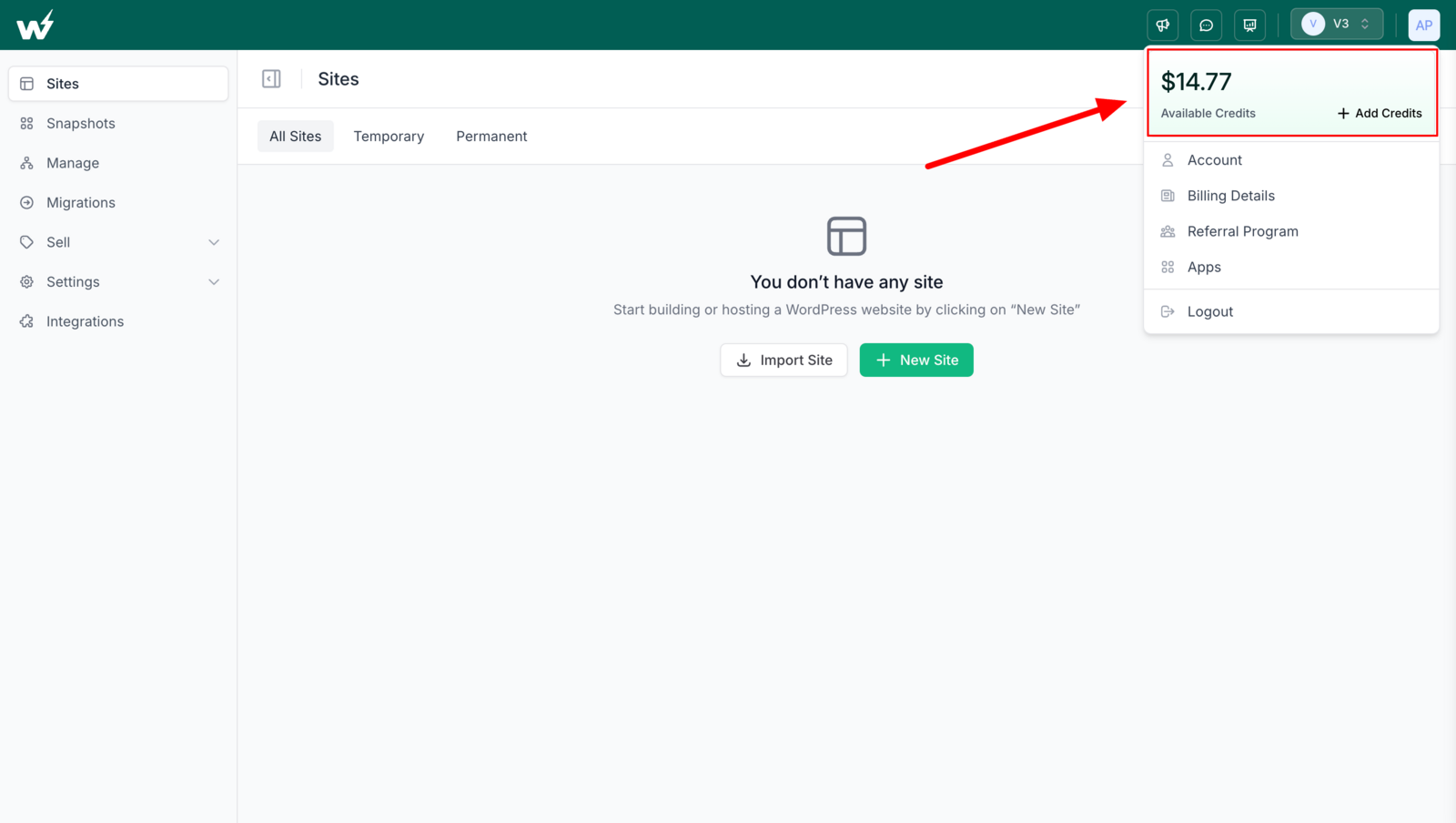
Your available balance is shown in the account menu at the top right of the dashboard, next to an Add Credits button.

This short video shows where credits live and how they are applied:
Why Should You Add InstaWP Credits?
Adding credits protects your sites from failed card payments, lets you lock in promotional bonuses, and gives agencies one balance to manage instead of many card charges. Credits are optional, but each of these is a real reason to keep a balance on the account.
1. Keep sites online when a card payment fails
With a credit balance in place, each billing cycle is covered from that balance first, with no card transaction to fail. Without credits, every payment depends on your card, and card payments fail for ordinary reasons:
- The card expired or was blocked
- A spending limit was reached
- The bank flagged the charge as suspicious
- The payment gateway had a processing problem
When a payment does not go through, the account can be suspended. For developers and agencies running client sites, that means sites going offline, missed deadlines and an awkward call with the client. A funded balance removes that risk.
2. Get more value from seasonal promotions
InstaWP sometimes runs promotions that add bonus credits to a top-up. During Black Friday 2025, for example, the code INSTA41 added 41% extra credits to top-ups of $100 or more, so a $100 purchase gave $141 of credit.
Because purchased and promotional credits never expire, a promotion locks in the bonus for all your future spending. Buy while the offer is live and use the balance weeks or months later.
3. Simplify billing for teams and agencies
If you manage many client sites, one credit balance is easier to run than a stream of card charges:
- Top up once and the balance covers every site and add-on.
- Nobody has to approve individual card charges.
- Spending is easier to follow in one Credit History than across many invoices.
- Team members can launch sites without needing your card details.
Who Can Buy and Use InstaWP Credits?
Every InstaWP account can buy and use credits. Since the InstaWP v3 platform release in 2025, accounts fall into two groups, and credits work for both.
Legacy users
Legacy users joined before v3 and stay on fixed plans with a set monthly or yearly price. When they add credits, the subscription cost is deducted from the credit balance.
Pay-as-you-go users
Pay-as-you-go users joined after v3 and are billed per site, per day, under pay-as-you-go WordPress hosting. When they add credits, those daily charges are deducted from the balance. See how InstaWP billing works for the daily maths.
Credits work the same for both
In both cases credits are prepaid funds that cover InstaWP charges before anything reaches the card.
How Do You Add InstaWP Credits?
To add credits, open the account menu, click Add Credits, pick an amount, optionally apply a coupon code, and confirm. It takes under a minute, and the credits are available straight away.
Step 1: Open the account menu. Click your avatar at the top right. Your available credits are shown at the top of the menu.

Step 2: Choose an amount. Click Add Credits. Pick a preset amount, or choose Custom and type your own.

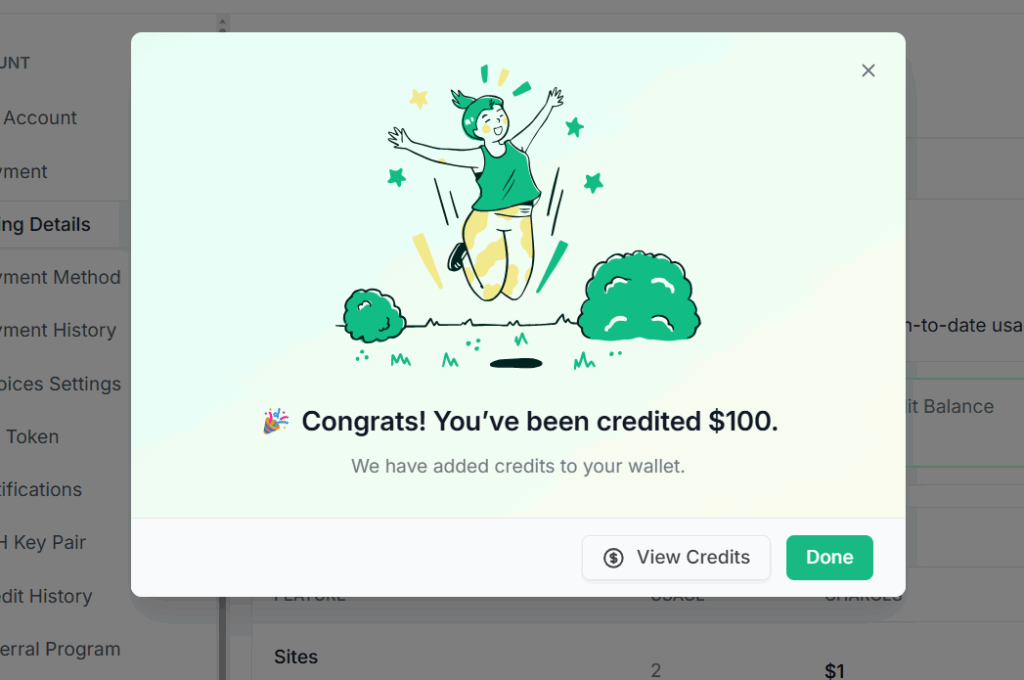
Step 3: Confirm. Click Add Credits to pay. When the payment goes through you see a confirmation; click Done and the credits are in your account.
How do you use a coupon code on InstaWP?
Enter the coupon code in the Enter Coupon Code field of the Add Credits dialog and click Apply before you pay. The summary updates to show the total credits you will receive, including any bonus. Some coupons need a minimum top-up: the Black Friday 2025 code, for example, applied only to $100 or more.

app.instawp.io/register?cr_ref=CODE), opened before you create the account. Entering a credit code in a coupon field is rejected as invalid.Step 4: Check Credit History. Every grant and purchase is listed there with its status, its expiry (or No Expiry) and the date it was credited, alongside your available and total earned credits.

How Are InstaWP Credits Applied to a Bill?
Credits are applied automatically. When any payment is due, whether a subscription renewal, a template purchase or daily site charges, InstaWP:
- Checks your credit balance.
- Applies available credits to the amount due.
- Charges your card only for the remainder, if there is one.
Which credits are used first?
If you have credits from several sources (the sign-up credit, purchases, promotions), InstaWP uses them in the order they were added, oldest first. That way a credit with an expiry date, such as the sign-up credit, is used before your permanent credits.
What happens when credits do not cover the whole charge?
InstaWP uses whatever credit you have, then charges the rest to your saved card. You do not need to top up first or split the payment yourself. Say you have $40 in credits and a $99 charge comes due. InstaWP applies all $40 and charges the remaining $59 to your card:
$99 total charge − $40 credits applied = $59 charged to the card
How Can You Earn InstaWP Credits?
You can earn InstaWP credits in three ways besides buying them: the sign-up credit on a new account, referral rewards, and promotions or giveaways. Each path has its own rules, below.

Sign-up credit
Every new InstaWP account receives $25 in credits once a payment method is added and verified. Adding the card verifies your payment method, and the credit is applied to your usage automatically. It is meant for trying InstaWP on real sites: launching a sandbox, creating a staging copy or running a first build. If you signed up through a partner’s credit link, that code’s amount replaces the default $25.
Referral rewards
Invite clients, colleagues or your community with your referral link. The person who signs up gets $25 in credits straight away, valid for 30 days. You get $25 in credits once they have used up theirs, valid for 90 days from the day it is added. Find your link under Referral Program in the account menu, and see the InstaWP referral program for how it works.
Affiliate Program (cash, not credits)
The InstaWP Affiliate Program is separate from referrals. It pays cash commission through Stripe rather than credits, so it suits creators, agencies (see the InstaWP Agency Program) and plugin or theme developers who recommend tools publicly. The Affiliate Program docs explain how to join.
Promotions and giveaways
InstaWP runs seasonal promotions, community events, webinars and occasional giveaways that award bonus credits, such as the agency offer with $1K in credits. They are time-bound, so the benefit is the extra value during the promotion window, such as bonus credit on a top-up.
Do InstaWP Credits Expire?
Purchased and promotional credits never expire. The free sign-up credit and referral credits do. The sign-up credit expires about two months after it is granted. A referral credit is valid for 90 days for the person who shared the link and 30 days for the person who signed up. The exact expiry date of every credit is shown against it in Credit History.
If you signed up recently, spend the $25 on something real before it lapses:
- Your first production hosting plan (see which InstaWP site plan to pick)
- A premium template
- A plan upgrade for an existing site
Check your balance and each credit’s expiry: Dashboard → Subscription → Credits.
Do You Need to Buy Credits to Use InstaWP?
No. Buying credits is optional, and InstaWP works without them. Legacy users can keep paying their fixed subscription by card, and pay-as-you-go users can keep paying daily site and add-on charges by card as they occur.
Credits are a cushion: a way to prepay and avoid failed transactions or account interruptions. It is like a prepaid balance on a toll pass. You do not need one, but every trip is smoother when it is there.
How do you check your credit balance?
- Sign in to your InstaWP dashboard.
- Open the account menu at the top right to see your available credits.
- Open Credit History for every credit, its source and its expiry date.
How Do You Get the Most Out of InstaWP Credits?
1. Top up during promotions
Bonus-credit promotions run around events such as Black Friday. Because purchased credits never expire, topping up during one of those windows is the cheapest way to prepay hosting you will use anyway.
2. Use your sign-up credit early
The $25 sign-up credit has a deadline, so spend it early. A Starter production site costs about 17 cents a day on the InstaWP pricing plans, so the credit covers a live site for weeks. Point it at a hosting plan for a side project, a premium template, or an upgrade on a site that needs more.
3. Refer the people you already recommend InstaWP to
If you recommend InstaWP to clients, colleagues or your audience, share your referral link so those sign-ups turn into credits. If you would rather earn cash, join the Affiliate Program instead.
Are InstaWP Credits Worth Using?
Credits keep your sites online when a card fails, apply automatically to every charge, and let you bank promotional bonuses that never expire. Spend the $25 sign-up credit early, top up during promotions, and use referrals if you already recommend InstaWP.
Need help with credits? Use live chat in your dashboard (bottom-right corner), email [email protected], or read the InstaWP Credits Help Article.
InstaWP Credits: Frequently Asked Questions
Can I transfer credits to another account?
No. Credits belong to the account where they were earned or bought and cannot be moved to a different user or workspace.
What happens to my credits if I downgrade my plan?
They stay in your account. You can use them on future charges whatever plan a site is on.
Do credits cover taxes?
Yes. Credits apply to your total bill, including any applicable taxes and fees.
Can I get a refund for purchased credits?
Purchased credits are non-refundable. Because they never expire, you can use them at any time. For a specific concern, contact [email protected].
I have credits but was still charged on my card. Why?
Your credits were applied first. If the charge was larger than your balance, the remainder went to your card. Your invoice shows the split.
Is there an InstaWP coupon code?
InstaWP publishes coupon codes during promotions, such as the Black Friday 2025 code that added 41% extra credits to top-ups of $100 or more. Enter a coupon in the Add Credits dialog. A partner credit code only works through its sign-up link.
Do the $25 sign-up credits expire?
Yes. The sign-up credit expires about two months after it is granted, and its exact expiry date is shown in Credit History. Referral credits also expire: 90 days for the person who shared the link and 30 days for the person who signed up. Purchased and promotional credits never expire.
How do I earn more credits?
Share your referral link: the person who signs up gets $25 in credits, and you get $25 once they have used theirs. Promotions, webinars and community events also award credits. The Affiliate Program pays cash, not credits.