WordPress does not ship with a built-in CRM, so you create one by installing a CRM plugin on a WordPress site.
The fastest, most reliable way to do this is to launch a managed WordPress site on a platform like InstaWP, install a CRM plugin such as FluentCRM, Jetpack CRM, or Groundhogg, and then configure your contacts, forms, and email automations from the WordPress dashboard. You do not need to be a developer. If you can install a plugin, you can build a working CRM in under an hour.
This guide walks through every step. We cover what a WordPress CRM actually is, why people build one inside WordPress instead of paying for a separate SaaS tool, how to spin up the WordPress site (from scratch, from a snapshot, from a template, or with AI), and how to install and configure the CRM either manually or by connecting your site to an AI assistant like Claude.
The InstaWP method comes first because it removes the two hardest parts of the job, setting up reliable hosting and keeping the site fast as your contact list grows.
Table of Contents
Key Takeaway
To create a CRM in WordPress, install a CRM plugin (FluentCRM, Jetpack CRM, Groundhogg, HubSpot, or WP-CRM System) on a WordPress site, then configure contacts, forms, and email automations. CRM plugins query the database heavily, so they run best on managed hosting rather than shared hosting. On InstaWP you can launch a fully managed, performance-tuned WordPress site in seconds, install the CRM plugin from the dashboard or through an AI assistant using InstaMCP, and have a live CRM the same day.
What is a WordPress CRM?
A CRM (Customer Relationship Management system) is software that stores your contacts, tracks every interaction you have with them, and helps you follow up at the right time. It is the single place where leads, customers, deal stages, email history, and notes all live together so nothing slips through the cracks.
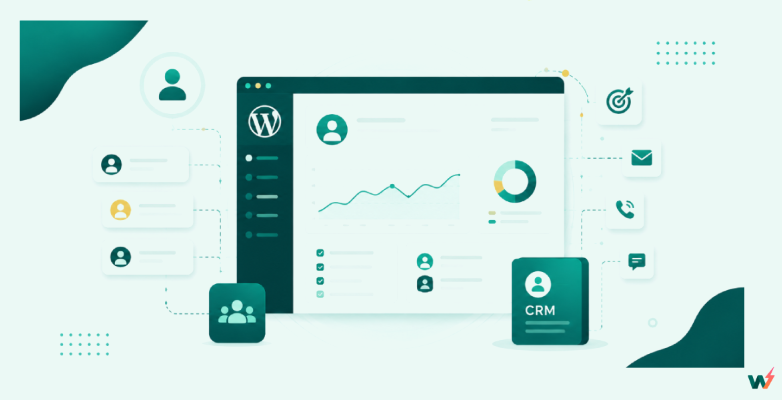
A WordPress CRM is simply a CRM that runs inside your WordPress site as a plugin, rather than as a separate cloud service you log into elsewhere.
Because it lives in your own WordPress database, the contact data is yours, it sits next to the website that is already generating those leads, and it can react to things happening on your site (a form submission, a WooCommerce order, a course enrollment) without any middleware in between.
WordPress core has no CRM feature on its own. The CRM capability comes entirely from a plugin you install. That is the core concept that confuses most people: you are not “turning on” a CRM in WordPress, you are adding one with a plugin, the same way you add a contact form or an SEO tool.
Did you know?
Most WordPress CRM plugins are self-hosted, which means your customer data never leaves your own server. That gives you tighter control over privacy and compliance than a cloud CRM where your list lives on someone else’s infrastructure.
Why build a CRM inside WordPress instead of a SaaS tool
SaaS CRMs like Salesforce or the cloud version of HubSpot are powerful, but they charge per contact or per seat, and your data lives outside your site. For a large number of WordPress businesses, freelancers, and agencies, a WordPress-based CRM is a better fit for a few clear reasons.
- You own the data. Contacts sit in your WordPress database, not on a third-party platform.
- Predictable cost. Most WordPress CRMs offer unlimited contacts on a flat annual license instead of billing per contact, so your costs do not balloon as your list grows.
- Native to your site. Form entries, WooCommerce orders, and membership signups feed the CRM directly, with no connector to maintain.
- One login. You manage your website and your customer relationships from the same dashboard.
The one trade-off is performance. A CRM plugin runs frequent database queries to store contacts, track activity, and fire automations. On cheap shared hosting that load shows up as slow page loads, especially once your contact list and activity log grow.
This is the single biggest reason a CRM project on WordPress fails, and it is exactly why the hosting layer matters as much as the plugin you pick.
Practical insight: CRM plugins behave like WooCommerce or membership sites. They are database-heavy and benefit hugely from persistent object caching and managed hosting. Reviewers consistently find that the same CRM plugin stays responsive on managed hosting but bogs down on shared hosting with larger lists. Start on a managed WordPress host and you avoid the problem entirely.
What you need before you start
Building a CRM in WordPress comes down to three ingredients:
- A WordPress site (ideally on managed hosting so the CRM stays fast).
- A CRM plugin that matches what you actually need to do.
- A way to send email reliably (an SMTP service or email provider) so your CRM emails reach the inbox.
That is it. If you already have a WordPress site, you can skip ahead to choosing a plugin. If you do not, the next step gets you a clean, managed install in seconds.
How to Create a CRM in WordPress : Step-by-step Guide
Let’s start learning how to create a CRM in WordPress.
Step 1: Create your WordPress site
Before you can install a CRM, you need WordPress running somewhere. InstaWP gives you a fully managed, performance-boosted WordPress installation without any server setup.
You get the WordPress install, caching, security, SSL, and backups handled for you, so you can spend your time on the CRM rather than on infrastructure. You can create a WordPress site in four different ways, depending on how you like to work.
The four ways to create your site
1. From Scratch
Spin up a clean WordPress install in seconds. Pick your WordPress version, PHP version, and server location, then start from a blank slate.
2. From a Snapshot
Restore a saved point-in-time copy of a site. Great if you already configured a CRM setup once and want to reuse it exactly.
3. From a Template
Launch from a pre-built blueprint with plugins and settings baked in. Save your finished CRM site as a template and deploy it again instantly.
4. With AI
Use an AI builder (ZipWP or Kadence AI) to generate a full site, then layer your CRM on top.
For a first CRM build, starting From Scratch is the simplest path. Here is exactly what to do:
- Log in to your InstaWP dashboard and click Create Site.
- Choose From Scratch.
- Open Configurations and set your WordPress version, PHP version (8.2 is a solid default), and server location closest to your customers.
- Click create. Your WordPress site is live in a few seconds, with the admin login ready.
You can begin on a free sandbox site to test your CRM setup risk-free (free sites expire in 48 hours), then promote it to a paid plan when you are ready to go live. Because the install is managed, you are not patching servers or tuning PHP by hand. The platform keeps the site fast, which is exactly what a database-heavy CRM plugin needs.
Step 2: Choose the right WordPress CRM plugin
The next step to build a CRM in WordPress is to choose the right CRM plugin. With the help of a WordPress CRM plugin, you can collect customer information, manage leads, track interactions, organize contacts, automate follow ups, and monitor your sales pipeline directly from your WordPress dashboard.
There is no single best CRM plugin, only the best one for what you do. The table below compares the most popular options in 2026 so you can match a plugin to your use case before you install anything.
| CRM Plugin | Best for | Free version | Paid from |
|---|---|---|---|
| FluentCRM | Email automation and unlimited contacts, the best all-round pick | Yes | ~$129/yr |
| Jetpack CRM | Freelancers needing simple contacts, quotes, and invoices | Yes | ~$17/mo |
| Groundhogg | Visual sales funnels and agencies (white-label plans) | Yes | ~$240/yr |
| HubSpot for WordPress | Free all-in-one with forms and live chat, links to HubSpot cloud | Yes (generous) | Free core |
| WP-CRM System | Lightweight contact management for small businesses | Yes | ~$99/yr |
| WP ERP | CRM plus HR and accounting modules in one | Yes | ~$9/user/mo |
For most WordPress users, FluentCRM is the strongest starting point. It is self-hosted, supports unlimited contacts at a flat cost, and is built around email marketing automation that rivals dedicated tools.
It also integrates natively with Fluent Forms, WooCommerce, and LMS plugins like LearnDash, so triggers fire on form submissions, purchases, and course activity without extra middleware. We will use it as the example for the rest of this guide, but the same workflow applies to any plugin in the table.
Tip: If you run a WooCommerce store, Groundhogg and Jetpack CRM both read order data natively, so you can trigger follow-up emails based on purchase history. Pick the plugin around your real workflow, not its feature count.
Step 3: Install the CRM plugin
There are two ways to get the CRM plugin onto your site. The AI method is faster and is worth setting up if you plan to manage the site over time. The manual method works for everyone and needs no setup at all.
Option A: Install and configure with AI (InstaMCP)
Every InstaWP site is MCP-ready with a single toggle, no server setup required. InstaMCP connects your live WordPress site to AI clients like Claude Desktop, Claude Code, Claude.ai, Cursor, ChatGPT, and others. Once connected, you can do the development by simply telling the AI what you want.
Open your site in the InstaWP dashboard and toggle on MCP.

Connect it to your AI client (for example, Claude) by following the connection prompt. Ask the AI in plain language: “Install FluentCRM on this site and activate it.” The assistant installs and activates the plugin for you.
Keep going in the same conversation: “Create three contact tags called Leads, Customers, and Newsletter, and set up a welcome email sequence.” The AI configures the CRM directly inside WordPress.
This is the genuinely easy part. Even if you have never built a CRM and do not know WordPress at a deep level, you can describe what you want in normal sentences and let the AI handle the plugin installation and configuration.
For advanced setups, InstaMCP also exposes an execute_php capability (off by default, protected by multiple security layers) that lets the AI run custom logic inside WordPress when you explicitly enable it.
Option B: Install manually from the dashboard
If you would rather not use AI, you can install the CRM plugin yourself in a couple of minutes:
Open your site and click through to WP Admin (one click from the InstaWP dashboard, no separate login). In the WordPress admin sidebar, go to Plugins > Add New.
Search for your chosen CRM, for example “FluentCRM”.

Click Install Now, then Activate.
That is the whole installation. The plugin now appears in your sidebar and is ready to configure. You can also pre-install a CRM plugin automatically on every new site using InstaWP Configurations, which is handy if you build CRM sites regularly.
Step 4: Configure the CRM
With the plugin active, run its setup wizard. Using FluentCRM as the example, here is what to set up first:
Business details. Enter your sender name, reply-to email, and business address (the address is legally required in marketing emails).

Lists and tags. Create the segments you will actually use, for example a Leads list, a Customers list, and tags like “Newsletter” or “Trial”. Tags are how you group and target contacts later.
Contact statuses. Confirm your subscribed, unsubscribed, and pending states so your sending stays compliant.
Double opt-in (optional). Turn this on if you want new subscribers to confirm their email before joining a list.
Take a snapshot at this point. Once your CRM is configured the way you like it, save the site as snapshot or template so you can roll back or clone this exact setup later.

Step 5: Connect forms, email, and automations
A CRM is only useful when contacts flow into it automatically and emails actually get delivered. This step turns your install from a static contact list into a working system.
Set up reliable email (SMTP)
WordPress default mail is unreliable and often lands in spam. Install an SMTP plugin (FluentSMTP is free and pairs naturally with FluentCRM) and connect a sending service such as Amazon SES, Brevo, Postmark, or your transactional provider of choice.
Send a test email to confirm delivery before you send anything to real contacts. For larger lists, route bulk email through a dedicated provider so your deliverability stays healthy.
Capture leads from forms
Connect a form plugin (Fluent Forms, Contact Form 7, or Gravity Forms) and map each submission to your CRM. With FluentCRM and Fluent Forms, you add a CRM action to the form so every submission creates or updates a contact and applies the right tag automatically. Now every inquiry from your site lands in the CRM with no manual data entry.
Build your first automation
Automations are where a CRM earns its keep. Start simple with a welcome sequence:
- Create a new automation and set the trigger to “contact added to Leads list”.
- Add a “send email” step with a welcome message.
- Add a wait step of two days, then send a follow-up email with a useful resource.
- Add a condition: if the contact clicked a link, apply a “Warm Lead” tag for your sales follow-up.
From here you can expand into purchase-based automations (for WooCommerce), course sequences (for LMS sites), and re-engagement campaigns for dormant contacts. Build one automation, confirm it works end to end, then layer on more.
Step 6: Go live and keep it fast
If you built on a sandbox, promote the site to a paid plan to make it permanent with SSL, automated backups, and the CDN. Then make sure the CRM stays quick as your list grows. This is where managed hosting pays off.
- Object cache. Enable persistent object caching (available on Plus plans and up). It cuts database queries by 70 to 90 percent, which is exactly the bottleneck a busy CRM creates.

- Backups. Your CRM now holds real customer data, so confirm automated backups are running (daily on Plus and above) with a synced copy stored in another region.
- Security. InstaShield provides WAF, DDoS protection, and auto-renewing SSL out of the box, protecting the contact data your CRM stores.

- PHP and updates. Keep PHP current and use scheduled or automatic updates so the CRM plugin and WordPress stay patched.
Ready to build a CRM that stays fast as it grows?
Explore managed WordPress hostingBuilding CRMs for Clients (agencies and resellers)
If you build sites for clients, a CRM is a high-value add-on you can deliver repeatedly. The workflow scales cleanly on InstaWP:
- Build once, deploy many. Configure your ideal CRM setup, save it as a template, and deploy a ready-to-go CRM for each new client in seconds.
- Manage everything from one place. Use InstaWP to manage multiple client sites, run updates, monitor uptime, and generate client-ready PDF reports.
- Test safely with staging. Use WP staging to trial CRM changes before pushing them live with 2-way sync.
- Turn it into recurring revenue. With WaaS you can package hosting plus a pre-built CRM and resell it under your own brand, setting your own margins through website reselling.
Building WordPress sites for clients?
Join the InstaWP Agency Program: a dedicated account manager, migration cashback, free bulk migration help, and a premium directory listing, all free to join.
Join the Agency Program →Conclusion
Creating a CRM in WordPress is straightforward once you see it for what it is: a WordPress site plus a CRM plugin plus reliable email. The plugin gives you the CRM features, and the hosting decides whether it stays fast.
Start by launching a managed WordPress site on InstaWP (from scratch, a snapshot, a template, or with AI), install a plugin like FluentCRM either manually or through an AI assistant using InstaMCP, then configure your contacts, forms, and automations. You can have a working CRM live the same day, with the performance, backups, and security to keep your customer data safe as you grow.
Frequently asked questions
Does WordPress have a built-in CRM?
No. WordPress core has no CRM feature. You add CRM functionality by installing a CRM plugin such as FluentCRM, Jetpack CRM, Groundhogg, or HubSpot for WordPress, then configuring it from your dashboard.
What is the best free CRM plugin for WordPress?
HubSpot for WordPress has the most generous free tier, including unlimited contacts, forms, and live chat. FluentCRM, Jetpack CRM, WP-CRM System, and WP ERP also offer capable free versions. FluentCRM is the best free starting point if email automation matters to you.
Can I build a CRM in WordPress without coding?
Yes. You install a CRM plugin and configure it through a visual interface, no code needed. On InstaWP you can go a step further and have an AI assistant install and configure the CRM for you through InstaMCP, just by describing what you want.
Do WordPress CRM plugins slow down your site?
They can, because they run frequent database queries. The fix is managed hosting with persistent object caching. On a managed host like InstaWP, the CRM stays responsive even with large contact lists, whereas the same plugin often slows down on shared hosting.
Can I send marketing emails from a WordPress CRM?
Yes. Plugins like FluentCRM and Groundhogg run email campaigns and automations directly in WordPress. You will need to connect an SMTP service or dedicated email provider for reliable delivery, especially as your list grows.
How much does a WordPress CRM cost?
It ranges from free to a few hundred dollars per year. Many plugins are free for core use. Paid tiers commonly start around $99 to $240 per year for unlimited contacts, which is usually far cheaper than per-contact SaaS pricing as your list scales. Your other cost is hosting, which starts low on a pay-as-you-go managed platform.