Fixing a WordPress bug used to mean digging through error logs, disabling plugins one by one, and posting on Stack Overflow hoping for a miracle. AI changes that workflow completely.
This guide is for WordPress developers and agencies who want to fix bugs faster, safer, and more systematically using AI tools like Claude Code, Claude Desktop, and ChatGPT, connected directly to their WordPress sites via MCP (Model Context Protocol). No fluff, just a real workflow you can use today.
Key Takeaways

AI tools like Claude Code and ChatGPT can diagnose and fix WordPress bugs when given the right context: error messages, WordPress version, active plugins, and relevant code.
MCP (Model Context Protocol) lets AI agents connect directly to your WordPress site, so they can read plugin data, check site health, and take real actions instead of just generating suggestions.
InstaWP sites come with a built-in MCP server, which means no Node.js setup, no manual Application Password creation, and no config file juggling to get started.
Always test bug fixes on a WordPress sandbox or staging site before touching production. AI can confidently produce wrong answers, and you need a safe place to validate.
Why AI Is Now a Practical Tool for WordPress Debugging
For years, debugging WordPress bugs meant a specific kind of misery: enable WP_DEBUG, stare at a wall of PHP notices, Google the error message, find a five-year-old forum post with three conflicting answers, and repeat until something worked.
AI has shifted this. Not because it has magic access to your site, but because modern language models have been trained on enormous amounts of PHP, WordPress core code, plugin patterns, and developer documentation. When you give Claude or ChatGPT the right context, they can look at an error message and trace it to a root cause faster than most developers can scan through their own logs.
The real unlock in 2025 and 2026 is not just AI-assisted code generation. It is AI with direct access to your WordPress site through MCP. That means the AI is not guessing what your plugins are or what your site looks like. It can query your actual site, check active plugins, read site health data, and then suggest or even execute fixes in a controlled environment.
Did you know?
InstaWP’s built-in MCP server automatically installs the MCP plugin on your WordPress site, generates a secure 64-character authentication token, and creates your unique connection URL in one toggle. There is no manual setup, no Application Password creation, and no config file to edit.
Understanding the WordPress Bug Debugging Stack
Before jumping into examples, it helps to understand what is actually happening when you connect AI to your WordPress site.

The traditional debugging loop looks like this: you notice something broken, you enable debug logging, you read the log, you search for the error, you try a fix, you check if it worked. Every step is manual, and every handoff costs time.
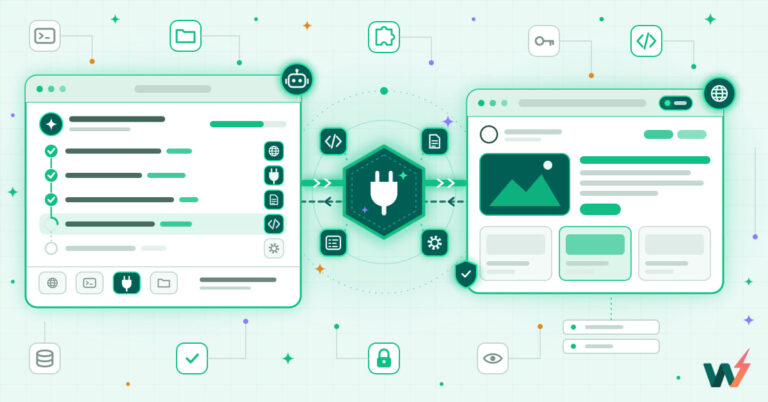
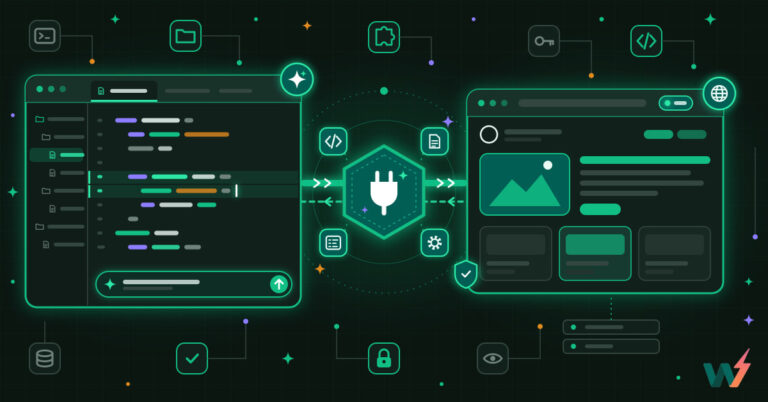
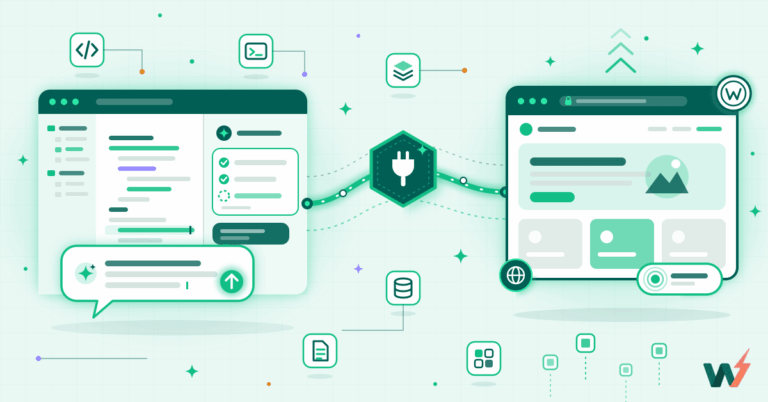
The AI-assisted loop with MCP looks different. Your AI tool has a live connection to your WordPress site. It can call real WordPress tools: list active plugins, check site health status, read debug logs, even deactivate a plugin or run a WP-CLI command on your behalf. You describe what is broken in plain English, and the agent investigates with real site data instead of generic assumptions.
The connection layer making this possible is MCP, the Model Context Protocol. It is an open standard developed by Anthropic that lets AI clients communicate with external services through structured tool calls. For WordPress, this means the AI can execute actions against your site’s REST API in a secure, authenticated way.
Must Read: What is WordPress MCP Server and How to Use it: Guide for Agencies – InstaWP
Here is the key distinction between the two main approaches:
| Approach | What AI Knows | What AI Can Do | Setup Required |
|---|---|---|---|
| Plain AI (no MCP) | Whatever you paste in | Suggest fixes, write code | None |
| AI + MCP (Claude Code, Claude Desktop) | Real site data, live plugin list, health status | Investigate, deactivate plugins, run commands, edit files | MCP server setup |
| AI + InstaWP MCP | Same as above, plus sandbox environment | Same, but safely isolated from production | One toggle in dashboard |
For quick one-off bugs where you have the error message handy, plain AI works fine. For systematic debugging across multiple client sites, or for catching bugs before they hit production, the MCP-connected workflow is meaningfully better.
Setting Up Your AI Debugging Environment with InstaWP
If you are building or maintaining client sites, you want your AI debugging environment to mirror production without being production. This is where InstaWP’s sandbox and staging setup becomes the right foundation.
The workflow is straightforward:
Step 1: Create your WordPress site on InstaWP
Sign in to your InstaWP account and go to the Sites page.
Click the Add Sites button, then select + New Site.

A window appears with four options: From Scratch, From Snapshot, From Store, or From AI.

For a debugging environment, you have two good paths:
From Scratch if you want a clean WordPress install to reproduce the bug in isolation. You can configure the WordPress version, PHP version, and server location, and even pre-select plugins from categories like Security, eCommerce, or Page Builder before the site provisions. This is useful when you want to test whether a bug appears on a specific WordPress or PHP version combination.

From Snapshot if you have already saved a copy of your client’s site or your standard plugin stack as a snapshot. Select the snapshot, configure the PHP version if needed, choose a plan, and click Create Site. The site will be a real clone of your saved configuration, ready to test against immediately.

Once you click Create Site, InstaWP provisions the environment in seconds. You will see a success banner showing your site URL, admin credentials, and a Magic Login button that drops you straight into wp-admin without entering a password.

InstaWP uses pay-per-use pricing, so you are only charged the daily rate for the days your site is active. Spin it up to debug, delete it when you are done.
Must Read: Create Site | InstaWP Docs
Step 2: Enable MCP on your new site
Navigate to your site in the InstaWP dashboard and click the MCP option in the left sidebar.

Toggle “Enable MCP” to ON. InstaWP automatically installs the MCP plugin on your site, generates a secure 64-character authentication token, and creates your unique connection URL. You never touch a config file.
Step 3: Connect your AI tool
Copy the generated MCP server URL and add it to your AI client:
- Claude Desktop: Go to Settings → Connectors → Add Custom Connector, give it a name, and paste your MCP URL.
- Claude Code: Run one terminal command:
claude mcp add --transport http mymcp <your-instawp-mcp-url> - ChatGPT: Add it as a custom connector using the same MCP URL.
We’ve dedicated blogs to help you understand how to connect these AI tools with WordPress. Here are they:
Connect ChatGPT to WordPress: 3 Methods Compared
Connect ChatGPT to WordPress: 3 Methods Compared
From that point, your AI agent has authenticated read and write access to that WordPress environment and can start investigating real site data.
Did you know?
InstaWP’s MCP integration supports both Claude Desktop for visual, conversational workflows and Claude Code for terminal-first developers. The same MCP URL works with both clients. You can also connect the same site to ChatGPT using the same URL, which means your whole team can debug through whichever AI tool they prefer.
Real-World Bug Fixing Examples
Here are four realistic debugging scenarios that developers and agencies run into constantly, shown with the AI approach that works best for each.
Bug 1: The White Screen of Death After a Plugin Update
This is one of the most common and most stressful WordPress bugs. The site is blank. There is no error message. You have no idea which plugin caused it.
Without AI connected to your site, you are disabling plugins manually through FTP or phpMyAdmin because you cannot access the admin panel. With Claude Code connected to your InstaWP staging site via MCP, you can ask:
“My WordPress site is showing a blank white screen. List all plugins that were recently updated and deactivate them one by one to find the conflict.”
Claude will list the plugins, deactivate the most recently updated one, and tell you whether the site recovered. If it did not, it moves to the next. If it did, it tells you which plugin caused the problem and can then look at that plugin’s code to explain why.

This is a task that would take 15 to 30 minutes manually. With MCP-connected AI on a staging copy of your site, it takes under two minutes.
What makes this safe is that you are doing this on an InstaWP staging site cloned from your production site, not on production itself. Once you have identified the culprit, you know exactly what to tell the plugin developer or how to patch the conflict before the fix goes live.
Bug 2: Fatal PHP Error from a Custom Plugin or Theme
Scenario: you or your client updated a theme’s functions.php and now the site throws a fatal error. The error log shows something like:
Fatal error: Uncaught TypeError: Argument 1 passed to custom_function()
must be of type int, string given in /wp-content/themes/custom-theme/functions.php on line 47Paste this error into Claude with the relevant code block and ask: “This PHP fatal error appeared after a theme update. Here is the code around line 47. What is causing it and what is the correct fix?”

Claude will explain that the function is receiving a string where it expects an integer, identify where in the code the data type is being passed incorrectly, and give you the corrected version. It will also flag whether the issue is in how the function is defined or in how it is being called, which saves you from fixing the wrong side of the problem.
For more complex plugin code, you can paste entire files or classes into Claude and ask it to review for type errors, undefined variable references, or deprecated WordPress function calls that break on newer PHP versions.
Bug 3: Plugin Conflict Causing Checkout Failures (WooCommerce)
WooCommerce checkout bugs are particularly expensive. A broken checkout means lost revenue, and they are notoriously hard to trace because the stack involves WooCommerce core, payment gateways, other plugins, and sometimes theme JavaScript.
With Claude Code connected to your staging site via MCP, you can give a structured prompt like:
“My WooCommerce checkout is failing at the payment step. Customers see a generic error but the order is not being created. List all active plugins, identify any known WooCommerce compatibility issues, and check the PHP error log for anything that appeared at the checkout endpoint.”

Claude will pull the active plugin list, cross-reference known conflict patterns from its training data, and inspect the logs. It will usually narrow the problem down to two or three candidates. You can then ask it to deactivate those plugins in sequence on the staging site and test the checkout.
This workflow is especially useful for agencies managing multiple WooCommerce stores because the diagnosis is repeatable and documented. You can save the conversation as a record of what was found and what was fixed.
Bug 4: REST API Returning 401 Errors
This one hits developers building custom integrations or headless WordPress setups. Your REST API endpoints start throwing 401 unauthorized errors when they should not.
A well-structured prompt for this bug:
“My WordPress REST API is returning 401 errors on endpoints that were working last week. WordPress version is 6.7, PHP 8.2. These are public read endpoints that do not require authentication. The site uses WooCommerce, Yoast SEO, and a custom plugin for API modifications. What should I check first?”
Claude will walk you through the most likely causes in priority order: a security plugin that recently tightened REST API permissions, a misconfigured .htaccess rule, a plugin hooking into rest_authentication_errors, or a change in how application passwords are handled. It will give you the specific filter hooks and file locations to check for each one.
If your AI client is connected to the site via MCP, you can go further and ask Claude to inspect the site’s active plugins for any that register rest_authentication_errors hooks, which narrows the search immediately.
How to Write Better Prompts for WordPress Bug Fixing
The quality of AI debugging output is directly tied to the quality of context you provide. A vague prompt like “my site is broken” produces a vague response. A well-structured prompt produces something you can act on.
Here is a prompt template that works consistently:
My WordPress site is experiencing: [describe the symptom]
Environment: WordPress [version], PHP [version], hosted on [host]
Active plugins: [list or paste from debug info]
When it started: [after update / after change / randomly]
Error message (exact): [paste from logs or browser console]
Relevant code: [paste the specific function, hook, or template file]

What is causing this, and what is the correct fix?A few specific habits that make AI debugging faster:
Always include the exact error message, not a paraphrase of it. The specific wording matters because Claude matches it to known patterns. Include your PHP version because many bugs are version-specific.
When dealing with conflicts, list active plugins rather than just saying “I have many plugins.” When the bug involves JavaScript, open the browser console and paste that output too, not just the PHP error log.
One rule worth following: tackle bugs one at a time. Even if your site has multiple issues, AI debugging becomes unreliable when you mix problems. Fix one, verify it, then move to the next.
Safe Debugging Practice: Always Use Staging First
This point is worth stating directly rather than burying in a footnote. AI can be confidently wrong. It will occasionally suggest a fix that looks correct, compiles fine, and still breaks something else. This is not a reason to avoid using AI for debugging. It is a reason to always validate fixes on a staging or sandbox site before applying them to production.
The InstaWP workflow that works well for agencies is:
- Clone the client’s live site to an InstaWP staging environment using the two-way sync feature.
- Connect Claude to the site via MCP.
- Reproduce the bug on staging.
- Let Claude investigate and apply the fix on staging.
- Verify the fix works and nothing else broke.
- Push the fix to production.
This loop gives you real debugging speed without production risk. The WP sandbox is disposable. If AI makes a mess, you delete the staging site and start over. The client site stays untouched.
For agencies running multiple client projects, this is also how you turn debugging into a repeatable service. You can build InstaWP templates with your standard plugin stack pre-installed, clone them for each client debugging session, and keep a consistent environment across every engageme
Where AI Debugging Has Real Limits
AI is genuinely useful for WordPress bug fixing, but it is not omniscient. These are the cases where it works less well and where you should apply extra judgment:
- Performance issues tied to server configuration (CPU throttling, PHP worker limits, CDN caching behavior) are hard for AI to diagnose without direct server access. AI can suggest what to look for, but you will need to look yourself.
- Bugs that only appear under specific user conditions, like a logged-in WooCommerce customer with a particular cart state, are difficult to reproduce programmatically. Describe the exact reproduction steps in your prompt rather than just the symptom.
- Security vulnerabilities require human review of AI suggestions before applying them. AI will suggest fixes, but a plugin with a SQL injection vulnerability or a broken permission check needs a developer’s eye on the final solution, not just the AI’s.
- Database corruption, particularly in wp_options table bloat or broken serialized data, usually needs direct database access and manual validation. AI can write the SQL queries for you, but you should read and understand them before running them on any site.
Conclusion
Fixing WordPress bugs with AI is not about replacing developer judgment. It is about compressing the time between “something is broken” and “I know what it is and how to fix it.” The combination of a structured prompt, real site context through MCP, and a safe staging environment on InstaWP closes that gap faster than any previous debugging approach.
If you want to try this workflow today, get started with InstaWP for free and get $25 in free credits when you sign up. Spin up a WordPress sandbox in seconds, enable MCP in one click, and connect it to Claude Code or Claude Desktop. Run your first AI-assisted debugging session on a real WordPress environment without touching a client site
FAQs
Do I need coding experience to fix WordPress bugs with AI?
You need enough familiarity with WordPress to describe what is broken and to evaluate whether an AI’s suggested fix makes sense. You do not need to be a PHP expert. For many common bugs like plugin conflicts, permalink issues, or REST API problems, AI can walk non-developers through the fix step by step.
Is it safe to connect Claude or ChatGPT to a live production WordPress site via MCP?
For production sites, it is safer to test everything on a staging environment first, then apply validated fixes. AI agents with MCP access can create, modify, and delete content and settings. The risk is not that Claude will act maliciously, it is that any automated action can have unintended side effects. Use a staging site first.
What is MCP and why does it matter for WordPress debugging?
MCP (Model Context Protocol) is an open standard that lets AI tools connect to external services and take real actions. For WordPress, it means your AI agent can read your actual plugin list, check site health, query logs, and execute tasks rather than just generating suggestions based on what you paste in. It turns AI from an advisor into an active debugging partner.
Can AI fix WordPress bugs it cannot see the code for?
For closed-source or obfuscated plugins, AI can still help by analyzing error messages, tracing which WordPress hooks or filters are involved, and identifying where the conflict is occurring. It may not be able to fix the third-party plugin’s code directly, but it can often identify a workaround, such as a custom function that dequeues a conflicting script or overrides a problematic filter.
What is the best AI tool for fixing WordPress bugs?
Claude Code and Claude Desktop (connected via MCP) are particularly strong for WordPress debugging because Claude has solid knowledge of PHP patterns and the WordPress codebase. ChatGPT is a reliable alternative. For either, the quality of output depends much more on how well you provide context than which model you use.
How do I reproduce a WordPress bug safely for AI debugging?
Clone your production site to a staging environment, then trigger the bug on staging. Use InstaWP’s two-way sync to create an accurate staging copy of a client site in seconds. This gives you a real environment that matches production without any risk to live data.
Does InstaWP’s MCP server work with ChatGPT, not just Claude?
Yes. InstaWP’s MCP server generates a standard MCP URL that is compatible with any MCP-supporting AI client. Claude Desktop, Claude Code, and ChatGPT can all connect to the same InstaWP site using that URL.