If you host WordPress sites for clients, the hosting is the easy part. The mess is everything around it.
Your clients have no real place to go. They email you for invoices, email you to check on backups, email you to point a domain. Every routine task becomes a support ticket on your desk, and the only “dashboard” they have ever seen is a forwarded screenshot or a shared login to a platform that clearly is not yours.
That costs you twice: your time, as the manual middle layer for billing, domains, and backups, and your brand, because the service never feels like a product. It feels like a favour, which makes recurring revenue hard to grow.
This is exactly the problem the new Branded WaaS Portal solves.
Table of Contents
Key Takeaways
- The Branded WaaS Portal is a white-label, customer-facing dashboard on top of InstaWP managed hosting.
- Set your own custom domain, logo, favicon, portal name, and brand colours so clients never see InstaWP.
- Add customers, assign their sites, and let them self-serve: view sites, manage payment, map domains, and access backups.
- You can log in as any customer to see exactly what they see, then return to admin in one click.
- It is built into the InstaWP Sell workflow, so there is no separate billing tool, no custom portal to build, and no developer required.
- You set the pricing and keep the margin while InstaWP runs the hosting (global CDN, WAF security, automated backups) in the background.
What Is the Branded WaaS Portal?
The Branded WaaS Portal is a white-label, end-user portal that your hosting and website customers log into directly. It sits on top of InstaWP, the managed WordPress hosting platform that runs the sites, and presents everything under your brand: your domain, your logo, your colours.
If you run a website reselling or hosting business, your clients now have a real home. They sign in to a portal at your own URL, see the sites you manage for them, and handle the day-to-day items they care about, billing, domains, backups, on their own. Behind the scenes, InstaWP keeps those sites fast and secure on managed cloud hosting with a global CDN, WAF security, and automated backups.
Did you know?
WaaS stands for Website as a Service: you package hosting, maintenance, and a managed WordPress site into a recurring subscription, and the Branded WaaS Portal is where your customers experience that service.
Why We Built It
Agencies and resellers told us the same thing repeatedly: they could host beautifully on InstaWP, but they had nowhere polished to hand the client. Clients ended up emailing for invoices, asking where their backups were, or wanting to point a new domain at their site, and every one of those requests landed back on the agency.
The Branded WaaS Portal closes that gap. It gives your customers a self-service front end while keeping you firmly in control as the hosting provider. Less support load for you, a more professional experience for them.
Before
Shared logins, manual invoices, support tickets for every domain and backup request.
After
A branded self-service portal where clients see their sites, billing, domains, and backups on their own.
The portal is the customer-facing layer that makes that model feel complete. You build and host sites on InstaWP, you decide on plans and pricing, and the Branded WaaS Portal is where your customers log in to see and pay for what they are getting. It connects the infrastructure you already trust to a front end your clients can actually use.
Turn InstaWP into your own hosting brand.
Explore the Agency ProgramStep 1: Make It Yours with White-Label Settings
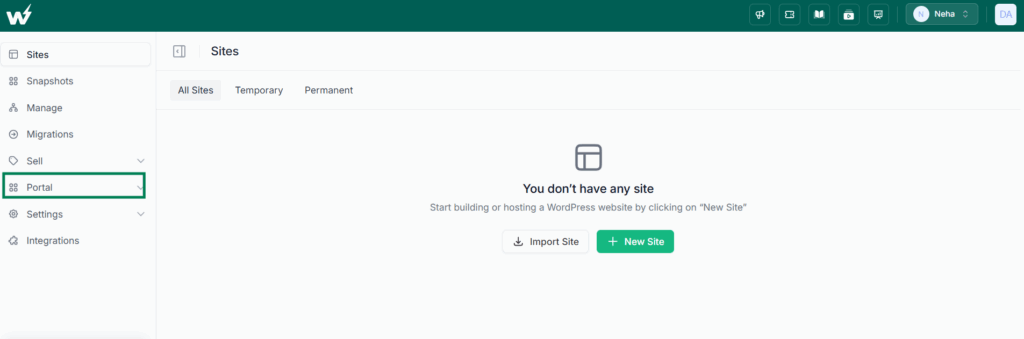
Everything a customer sees can carry your brand. Open the Portal section in your InstaWP dashboard and go to Settings. This is where you configure the full white-label experience, field by field.
Portal Custom Domain
Connect your own domain so the portal lives at an address you own, for example users.yourbrand.com. Once connected, your clients never see an InstaWP URL.
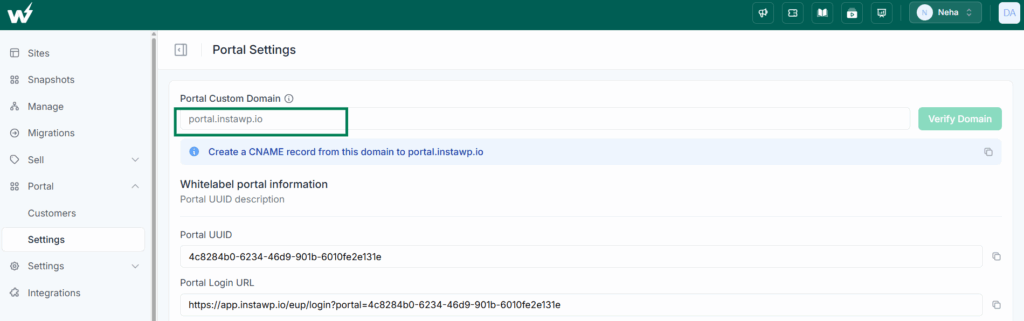
Make sure that you’ve added the CNAME records for this domain. Here is how you can do it.
Go to your domain provider, such as Cloudflare, GoDaddy, Namecheap, Hostinger, etc and create this record:
Do not add https:// or http:// and click on Create. Usually it takes a few minutes, but sometimes it can take up to a few hours.
Portal UUID and Login URL. Each portal gets a unique ID and a ready-to-share login URL. This is the link you send clients to sign in.

Portal Name. Set the display name of your portal, such as “YourBrand Websites,” so the branding reads the way you want.
Logo. Upload your logo (60×60, PNG or JPG) to appear across the portal interface.
Favicon. Upload your favicon (32×32, PNG or JPG) so even the browser tab carries your brand.
Brand Colours. Set a primary and a secondary (accent) colour so the portal UI matches your visual identity.
Click Save Changes and the portal instantly reflects your branding.
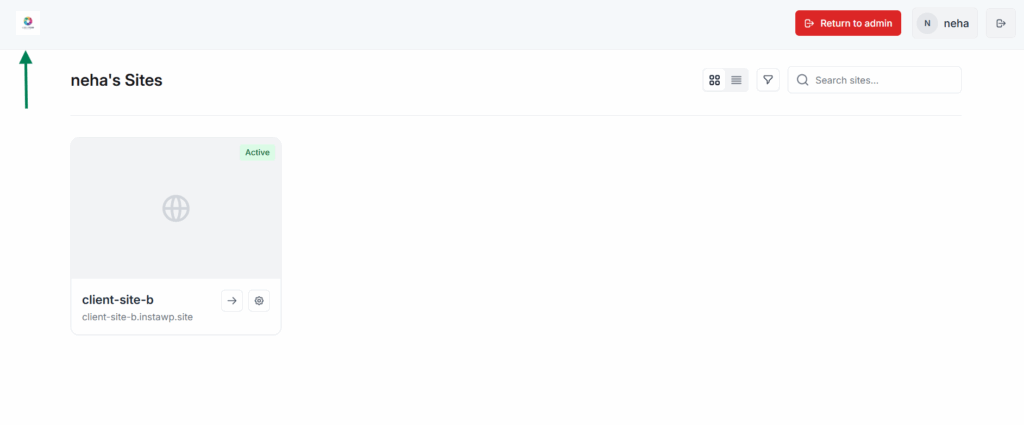
To your customers, it is your platform, with InstaWP providing the managed WordPress hosting underneath.
Step 2: Add Customers and Assign Sites
Adding a customer takes seconds. From Portal > Customers, click Add Customer and complete a short form:
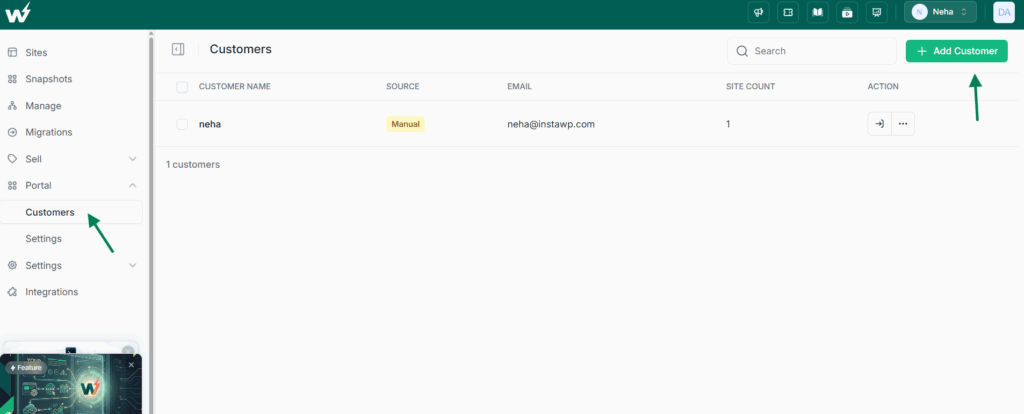
Enter the customer’s Name and Email (both required).
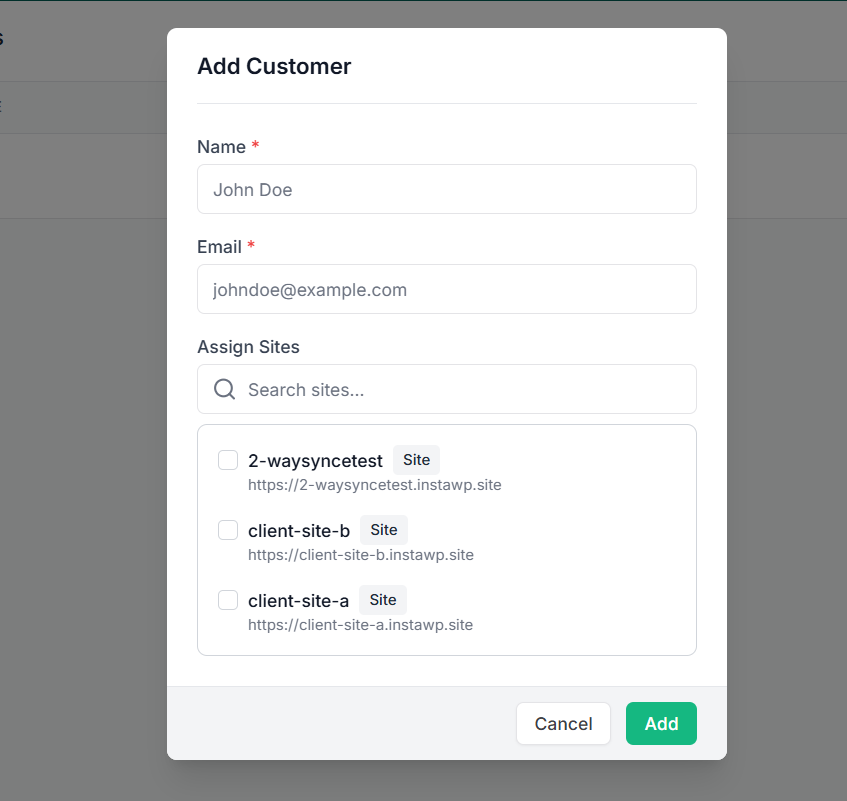
Under Assign Sites, search your sites and select the one (or several) that belong to this customer.
Click Add. The customer appears in your list showing their source (for example, Manual), email, and site count.
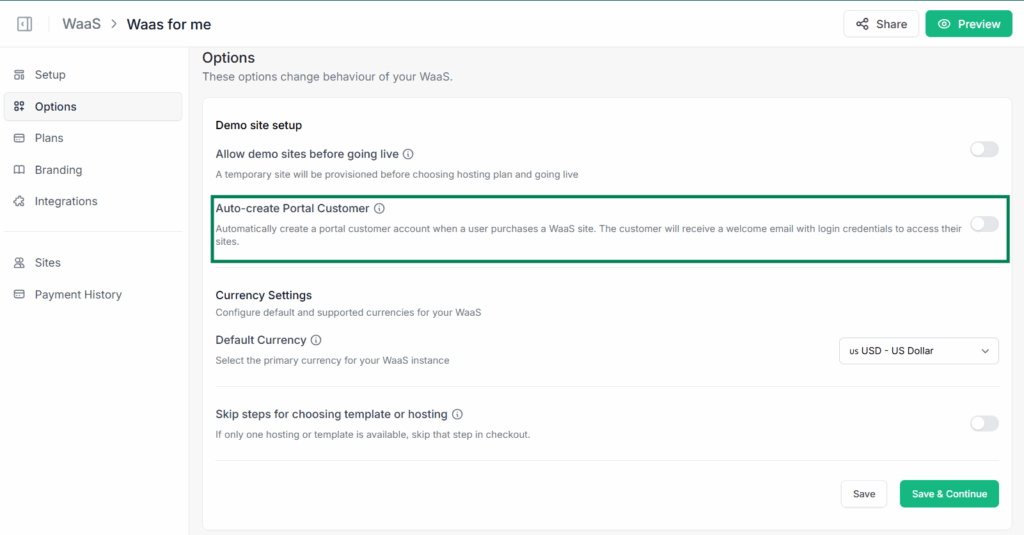
Each customer only ever sees the sites you assign to them, nothing else. You can also enable the auto portal generation while you’re creating WaaS.
Your full fleet of managed WordPress sites stays private to you as the admin. From the customer row you also get quick actions to view the customer and manage their record.
Tip: Assign a site to a customer before you send the login link, so their dashboard is populated the moment they first sign in. First impressions matter on a branded product.
Step 3: What Your Customers Can Do
Once a customer logs in, they land on their own branded “Sites” page showing every site you have given them, with live status (for example, Active) and a quick search. They can switch between a grid and a list view. Opening a site reveals a focused, self-service menu built around what clients actually ask about:
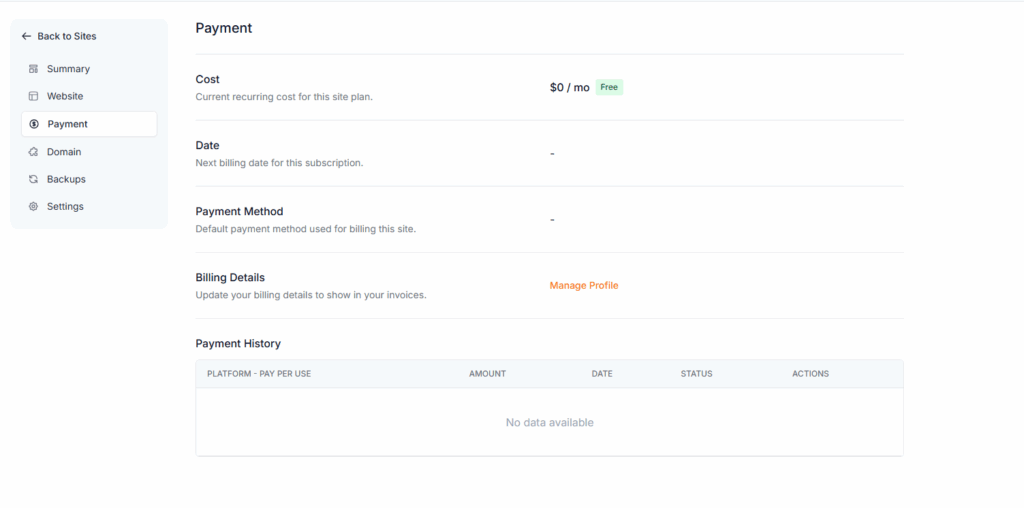
Billing is built in, so the Payment section is genuinely useful: it shows the recurring cost, the next billing date, the payment method on file, and a clear payment history. Your customers manage their own subscriptions while you set the pricing and keep your margin.
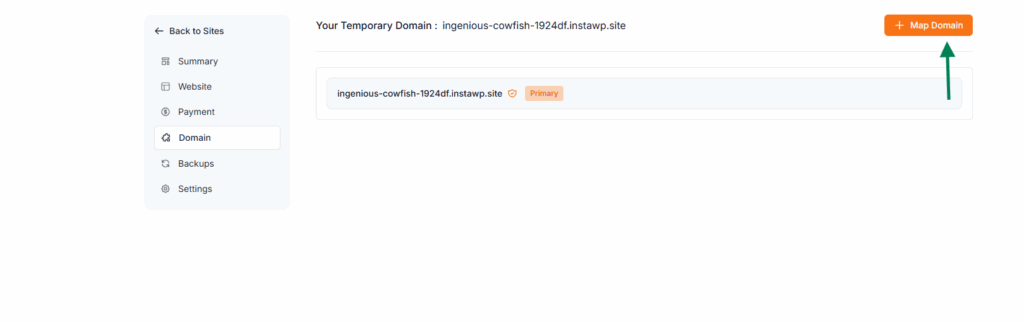
The Domain section lets a client see their current address and map a custom domain when they are ready, and Backups gives them the reassurance of knowing restore points exist without needing to ask you.
Step 4: View the Portal as Your Customer
Support gets a lot easier when you can see exactly what your client sees. From the customer list, choose View Customer and you enter their portal in a “viewing as a customer” mode, marked by a banner at the top and a one-click Return to admin button.
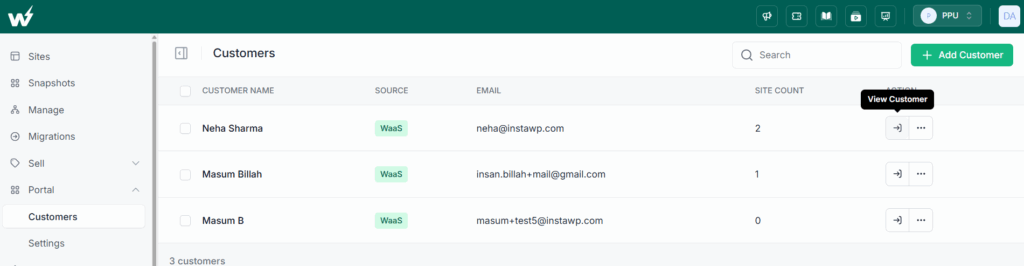
Walk through their sites, billing, and domains exactly as they would, then jump straight back to your admin view. There is no separate login and no impersonation hack, it is built in.
Practical tip: Use “view as customer” to record onboarding walkthroughs or to reproduce a client’s question before you answer it. No more guessing what is on their screen.
A Real-World Example: Onboarding a Client
Imagine you are an agency that just finished a website for a local client. Here is how the Branded WaaS Portal turns that one-off project into a recurring hosting relationship:
- You host the finished site on InstaWP, where it runs on managed cloud hosting with CDN, security, and backups already handled.
- In Portal > Settings, your custom domain, logo, and brand colours are already configured, so the portal is unmistakably yours.
- You add the client as a customer and assign their site. It takes under a minute.
- You send them the portal login URL. They sign in and immediately see their site, live and active, under your brand.
- They add a payment method, see their recurring cost and next billing date, and map their custom domain when they are ready, all without emailing you.
- When they have a question, you use “view as customer” to see their exact screen and answer in seconds.
The project becomes a subscription. The client gets a professional experience. You get recurring revenue with almost no added overhead.
Launch your branded hosting business today
Managed WordPress hosting, your brand, your pricing, your portal.
Join the InstaWP Agency ProgramBuild Your Own Portal vs. Use the Branded WaaS Portal
Plenty of agencies have considered stitching together their own client portal: a billing tool here, a custom dashboard there, a hosting account behind it. It is doable, but it is a lot of moving parts to build and maintain. Here is the honest comparison:
The Branded WaaS Portal gives you the white-label result of a custom build without the build. You focus on selling and serving clients, InstaWP handles the hosting and the plumbing.
Managing the Sites Behind the Portal
While your customers handle the front end, you keep full control of the sites behind it from your InstaWP admin. The same platform that powers the portal also lets you build sites in seconds, run WP staging copies, and manage multiple client sites from one place with updates, monitoring, and backups.
InstaWP is also AI-ready. With InstaMCP, every site can be connected to AI assistants like Claude with a single toggle and no server setup, so you can manage WordPress, run tasks, and troubleshoot client sites through natural language. As your portfolio of portal customers grows, that AI-assisted management keeps the workload flat even as the revenue scales.
Who This Is For
- WordPress agencies that host client sites and want a professional, branded client experience.
- Freelancers bundling hosting and care plans who need clients to self-serve billing and domains.
- Resellers launching a resell hosting business who want their own brand front and centre.
- Anyone selling WaaS who wants recurring revenue without building a portal from scratch.
Conclusion
The Branded WaaS Portal turns InstaWP from the hosting you use into the hosting brand your clients see. Set it up once with your domain, logo, and colours, add your customers, assign their sites, and hand them a polished self-service experience for billing, domains, and backups. You keep the managed hosting power of InstaWP, your clients get a portal that feels entirely yours.
Frequently Asked Questions
Ready to put your brand on managed WordPress hosting?
Get Started with InstaWP

