Rich snippets are one of the fastest ways to make your WordPress site stand out in Google search results. Instead of a plain blue link, your listing can show star ratings, FAQ dropdowns, recipe details, product prices, and more, all before a user even clicks.
This guide covers three methods to add rich snippets in WordPress, including one that uses AI to do the entire job for you in minutes. Whether you are a solo developer or an agency managing dozens of client sites, there is a method here that fits your workflow.
Table of Contents
Key Takeaway

Rich snippets are powered by schema markup, a standardized code that tells search engines what your content means, not just what it says.
Google does not guarantee rich snippets will show, but valid schema markup significantly improves your chances.
The fastest and most powerful method in 2026 is connecting Claude AI to your WordPress site via InstaWP’s MCP integration, no SEO plugin required.
What Are Rich Snippets and Why Do They Matter?
Before getting into the methods, it is worth understanding what rich snippets actually are and why they are worth your time.
A rich snippet is the extra information Google displays alongside your search result. You have seen them thousands of times: a recipe result showing cooking time and star ratings, a product listing showing price and availability, an FAQ result with expandable answers directly on the results page.
That extra information comes from structured data you add to your site, which search engines read and use to build a richer presentation of your content.
The SEO benefit is real.
- Rich snippets do not directly improve your ranking position, but they increase the visual footprint of your result on the page and give users more context before clicking.
- A result with star ratings and a review count gets more attention than a plain text link sitting right next to it.
- Higher click-through rates send positive engagement signals, and over time, that compounds.
For WordPress developers and agencies, this matters at scale. If you are managing ten client sites and none of them have schema markup, that is ten missed opportunities every single day.
Understanding Schema Markup: The Engine Behind Rich Snippets
Schema markup is the behind-the-scenes code that makes rich snippets possible. It is written in a structured format that search engines understand, and it describes the meaning of your content rather than just the content itself.
The most common format is JSON-LD, which Google recommends. JSON-LD sits inside a script tag in your page’s HTML and does not interfere with your visible content. You describe what type of content you have (Article, Product, FAQ, Recipe, Review, Person, Organization, etc.) and fill in the relevant properties.
Here is what a simple Article schema looks like in JSON-LD:
{
  "@context": "https://schema.org",
  "@type": "Article",
  "headline": "How to Add Rich Snippets in WordPress",
  "author": {
    "@type": "Person",
    "name": "Vikas Singhal"
  },
  "datePublished": "2025-03-01"
}This tells Google: this page is an Article, written by Vikas Singhal, published on this date. Google can then use that information to display a richer result.
The most commonly used schema types for WordPress sites are:
| Schema Type | Best For | What It Can Show in Search |
|---|---|---|
| Article / BlogPosting | Blog posts, news | Author, publish date, thumbnail |
| FAQPage | FAQ content | Expandable Q&A directly in SERP |
| Product | WooCommerce stores | Price, availability, reviews |
| Review / AggregateRating | Review sites | Star ratings, reviewer count |
| Recipe | Food blogs | Cook time, calories, ratings |
| BreadcrumbList | All pages | Breadcrumb navigation path |
| WebSite | Homepage | Sitelinks search box |
| Person / Organization | About pages | Knowledge panel data |
Now, on to the three methods to actually add this to your WordPress site.
How to Add Rich Snippets in WordPress: 3 Methods Explained
There is no single way to add rich snippets in WordPress. The method that works best depends on how you build sites, how technical you are, and how many sites you manage. The three methods covered here are different in approach but serve the same purpose: getting structured data onto your WordPress pages so Google can display richer, more informative search results.

Here is a quick look at how each method compares before we go deeper into each one:
| Method | Technical Level | Time to Implement | Best For | InstaWP Advantage |
|---|---|---|---|---|
| AI via Claude + InstaWP MCP | Low (AI does the work) | 5 to 10 minutes | Developers and agencies who want full automation | Connect Claude directly to any site via MCP, no admin login needed |
| WordPress Plugin | Low to Medium | 15 to 30 minutes | Anyone who wants a UI-based no-code setup | Install plugins across sites from the InstaWP dashboard without logging into each WP admin |
| Manual JSON-LD Code | Medium to High | 30 to 60 minutes | Developers who want clean output with no plugin overhead | Use InstaWP’s built-in code editor to add and edit code directly in the browser |
Each method gets you to the same destination. The AI method is the fastest and most thorough. The plugin method is the most beginner-friendly. The manual method gives you the most control. Your workflow and comfort level will determine which one fits best.
Now let’s learn how each method helps you add Google rich snippets in WordPress.
Method 1: Using AI with Claude and InstaWP MCP (Recommended)
This is the method that is going to feel like the future, because it essentially is. If you are a WordPress developer or agency owner, this changes how you think about schema implementation entirely.
InstaWP supports WordPress MCP (Model Context Protocol) integration, which lets you connect an AI assistant like Claude directly to your WordPress site.
Instead of manually choosing schema types, writing JSON-LD, or configuring a plugin, you give Claude access to your site and it handles schema intelligently, checking what already exists, identifying what is missing, and implementing the right solution.
Here is what happened when this was tested on a real WordPress site using InstaWP’s MCP connection with Claude Desktop:
Step 1: Connect Claude Desktop to your WordPress site via InstaWP MCP
In your InstaWP dashboard, create a new site if you want to first test this workflow. If you already have a live site elsewhere and want to connect it with InstaWP, use our WordPress staging plugin to first crete a staging site of your live site and then clone that staging site on InstaWP.
This is the basic set-up to enjoy the WordPress MCP functionalities of InstaWP. You need to know that only the sites built on InstaWP have the native and built-in MCP integration.
Once you have site built on InstaWP, navigate to the MCP integration settings. For this, just go inside the site details and find the MCP in the left panel.
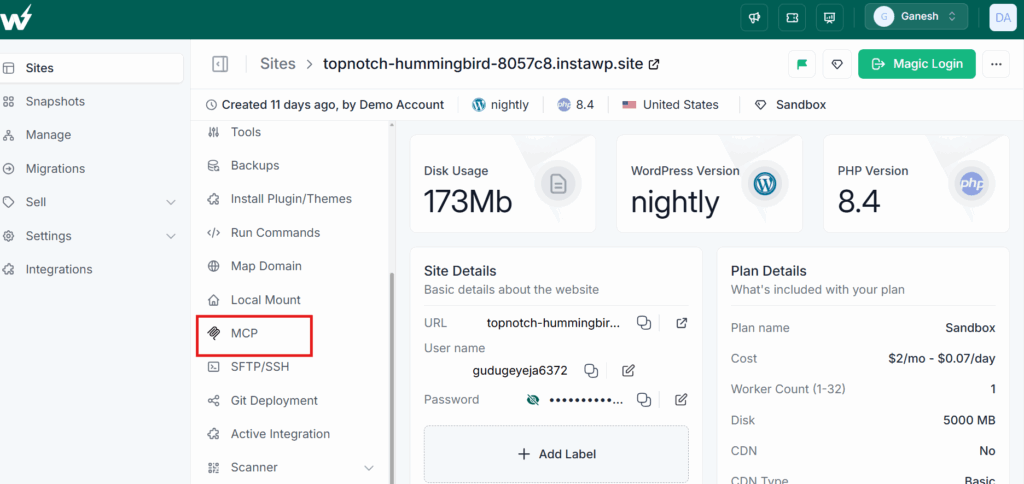
Enable MCP on your site.
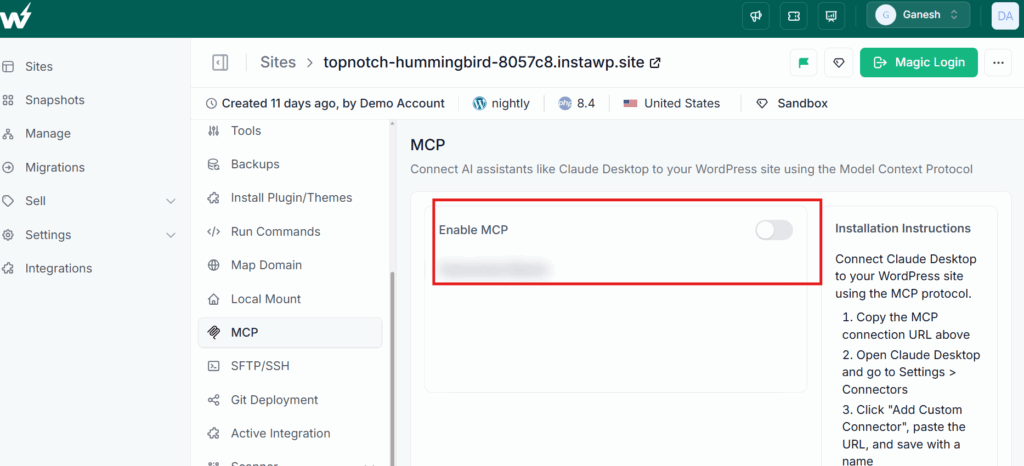
InstaWP provides a direct MCP server URL for each site. You copy that URL into Claude MCP. Once connected, Claude has secure, scoped access to interact with your WordPress site.
We have a dedicated blog explaining how to connect Claude Code and Desktop with WordPress. You can also watch the video tutorial for a detailed understanding.
Step 2: Ask Claude to audit and implement rich snippets
Once connected, the instruction was simple: “Check if this site has rich snippets set up and implement schema markup where it is missing.”
Claude’s process was methodical:
- It first checked whether rich snippets or schema markup were already present on the site.
- It then scanned for any installed SEO plugin that might handle schema (Yoast, Rank Math, AIOSEO, etc.).
- The site had no SEO plugin installed. Rather than stopping there or asking for manual steps, Claude created a custom WordPress plugin from scratch to inject the correct schema markup.
Here is how we’ve done it.

Step 3: Review the output
The result, visible directly in the WordPress dashboard, showed schema types injected per page context:
| Page Type | Schema Injected |
|---|---|
| Every page | WebSite + Sitelinks Searchbox |
| Homepage | Person + ProfilePage |
| Blog post | BlogPosting (with image if thumbnail set) |
| Inner pages | WebPage |
| Blog archive | Blog |
| All non-home pages | BreadcrumbList |
All schemas used @id anchors so Google can cross-reference the Person entity across pages. The entire implementation was done without touching the WordPress admin, without installing a third-party SEO plugin, and without writing a single line of code manually.
If you are managing 20 or 50 client sites, the traditional approach means logging into each admin, installing a plugin, configuring schema for each content type, and validating it. With InstaWP’s MCP integration, you connect Claude to a site and let it audit and implement in one session. That is a fundamentally different time investment.
This is not a niche developer trick. As AI-assisted WordPress workflows become standard, agencies that adopt MCP-based automation now will have a significant advantage in how fast they can deliver and maintain technical SEO for clients.
Did You Know?
InstaWP supports WordPress MCP integration with both Claude and ChatGPT, making it one of the only WordPress cloud platforms where AI assistants can directly interact with your site environment to build, audit, and modify WordPress functionality.
To get started with this method, you can explore the InstaWP MCP integration documentation.
Method 2: Adding Rich Snippets Using a WordPress Plugin
If you prefer a no-code approach with a graphical interface, using a WordPress SEO plugin is the most straightforward path to adding rich snippets. Plugins like Rank Math, Yoast SEO, and AIOSEO all handle schema markup automatically for common content types and let you customize schema on individual posts and pages.
The three most reliable options are:
| Plugin | Free Schema Support | Best For |
|---|---|---|
| Rank Math | Yes, including FAQ, HowTo, Article, Product | Developers and advanced users |
| Yoast SEO | Basic (Article, WebPage); advanced in Pro | Bloggers and content publishers |
| AIOSEO | Basic in free; full Schema Catalog in Pro | Beginners and site owners |
Rank Math is the strongest free option for schema markup and is the one most developers and agencies reach for.
Step 1: Install the plugin
If you are managing a client’s site through InstaWP, you do not need to log into that site’s WordPress admin at all. From your InstaWP dashboard, open the site, go to the Installl Plugin/Themes and enter the slug of the plugin or upload the .zip file.
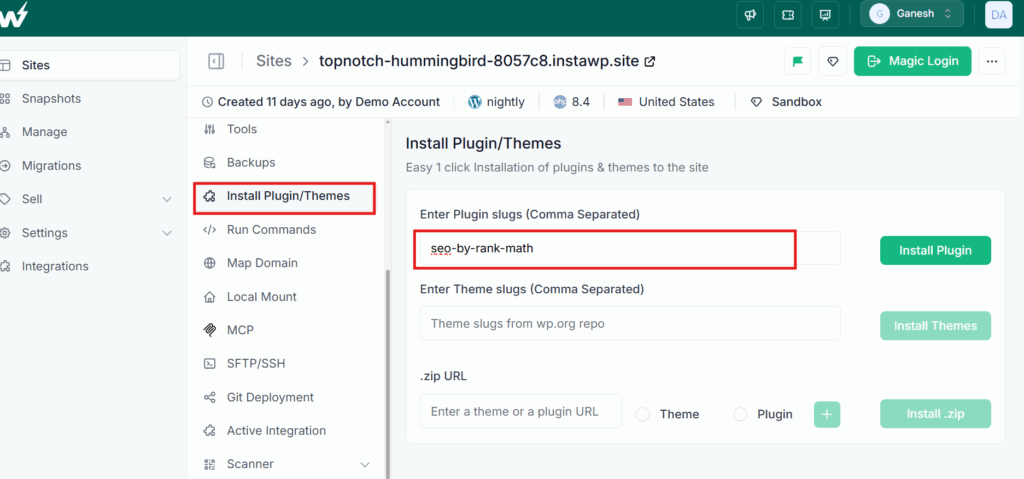
As you click on Install plugin, the This is a significant time saver for agencies managing multiple sites because the entire plugin management workflow happens from one central dashboard, without juggling multiple admin logins.
For a standard WordPress installation, go to Plugins > Add New in the WordPress admin, search for Rank Math SEO, install, and activate.
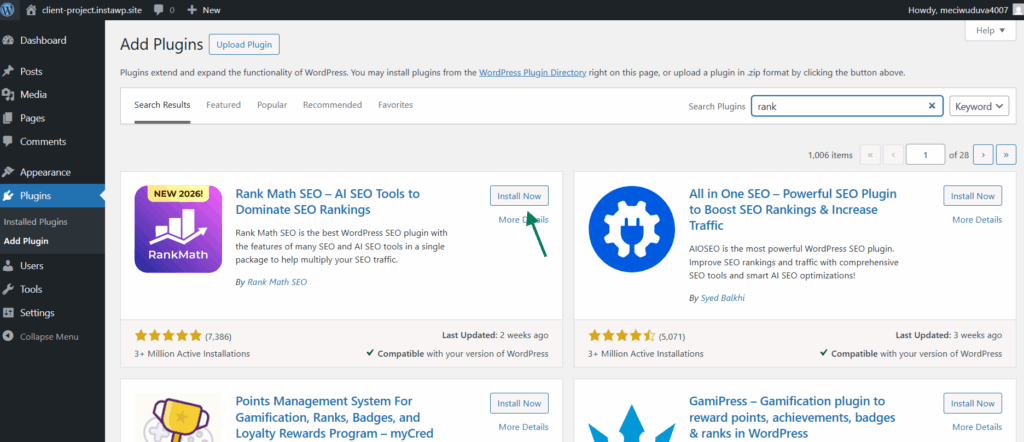
Step 2: Run the Rank Math setup wizard
On activation, Rank Math walks you through a setup wizard. Choose your site type (blog, eCommerce, local business, etc.) as this determines the default schema applied globally.
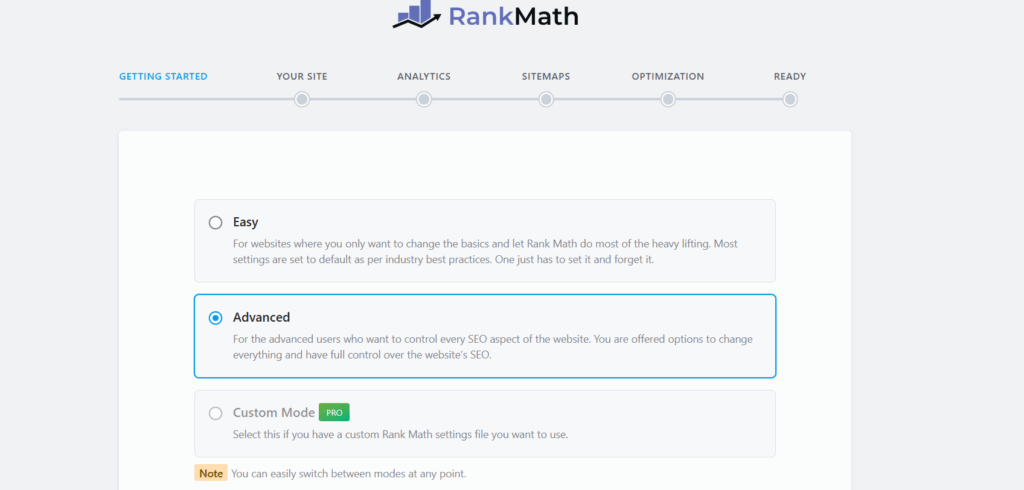
Step 3: Enable schema for content types globally
Go to Rank Math > Titles & Meta > Posts. Scroll down to the Schema Markup section. Select Article or BlogPosting for standard posts.
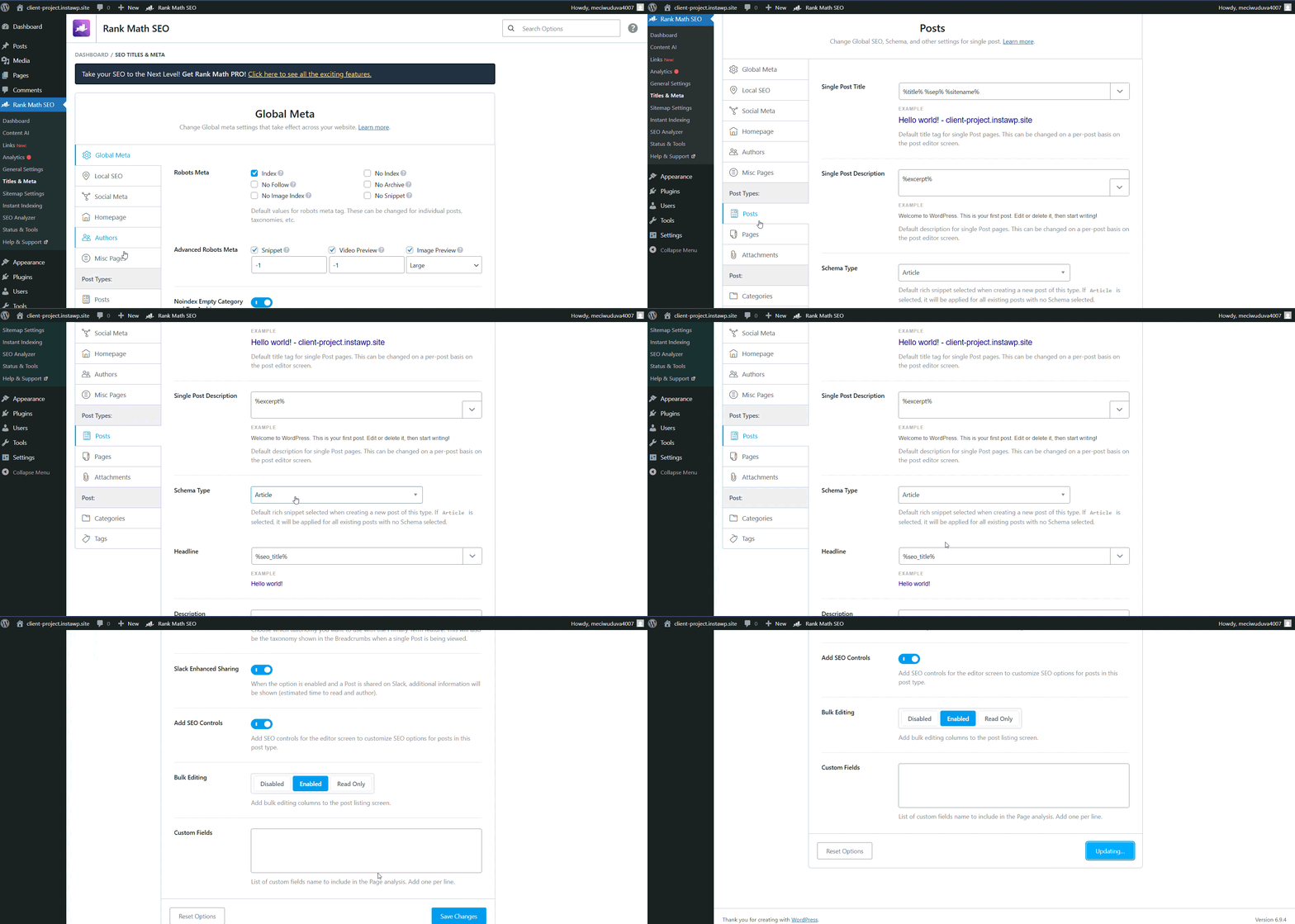
For WooCommerce sites, go to the Products section and enable Product schema, which unlocks price, availability, and review rating display in search results.
Step 4: Customize schema per post or page
Open any post or page in the WordPress editor. In the Rank Math meta box in the right sidebar, click the Schema tab. You can set or change the schema type for that specific piece of content. For an FAQ page, select FAQPage. For a review article, select Review.
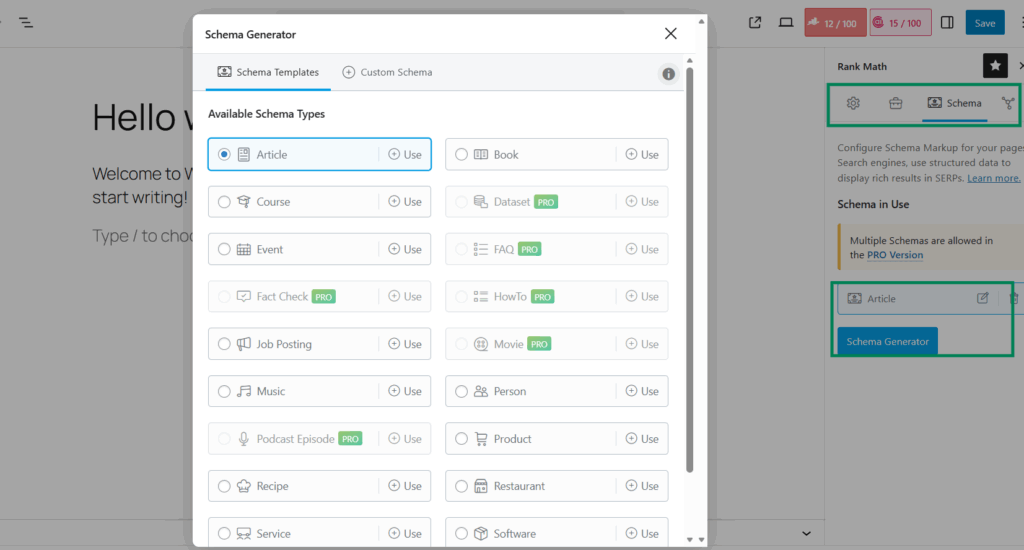
Step 5: Add FAQ schema to content
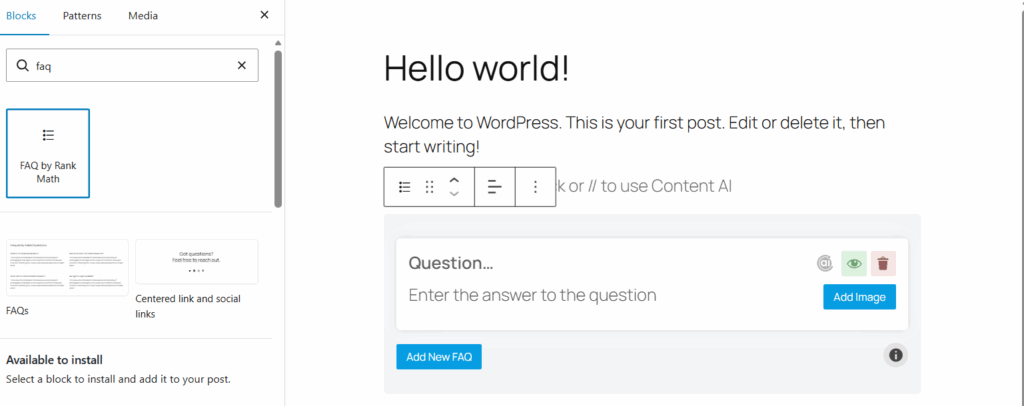
To get the FAQ rich snippet (expandable Q&A in the SERP), you need both the FAQ schema type selected and the questions added to the Rank Math FAQ block within your content. Add the FAQ block, write your questions and answers, and Rank Math automatically generates the correct JSON-LD.
A note on WooCommerce and product schema
If you run a WooCommerce store, rich snippets for products are one of the highest-ROI implementations you can make. Product schema enables Google to show price, stock availability, and aggregate review ratings directly in search results.
In Rank Math, this is handled through the WooCommerce module under Rank Math > Dashboard > Modules. Enable the WooCommerce SEO module, and product schema is applied automatically across your catalog.
For more on setting up Rank Math specifically, the InstaWP guide on configuring Rank Math for WordPress SEO covers the full configuration in detail.
Method 3: Adding Rich Snippets by Adding JSON-LD Code to WordPress
If you want complete control over your schema markup without relying on a plugin, adding JSON-LD code directly is the cleanest approach. This method is popular with developers who want precise schema output without the overhead of a full SEO plugin.
The standard approach is to add JSON-LD to your theme’s functions.php file or use a code snippet plugin. But there is a faster path if you are working inside InstaWP.
When you are building or managing a WordPress site on InstaWP, the platform includes a built-in code editor inside the dashboard.
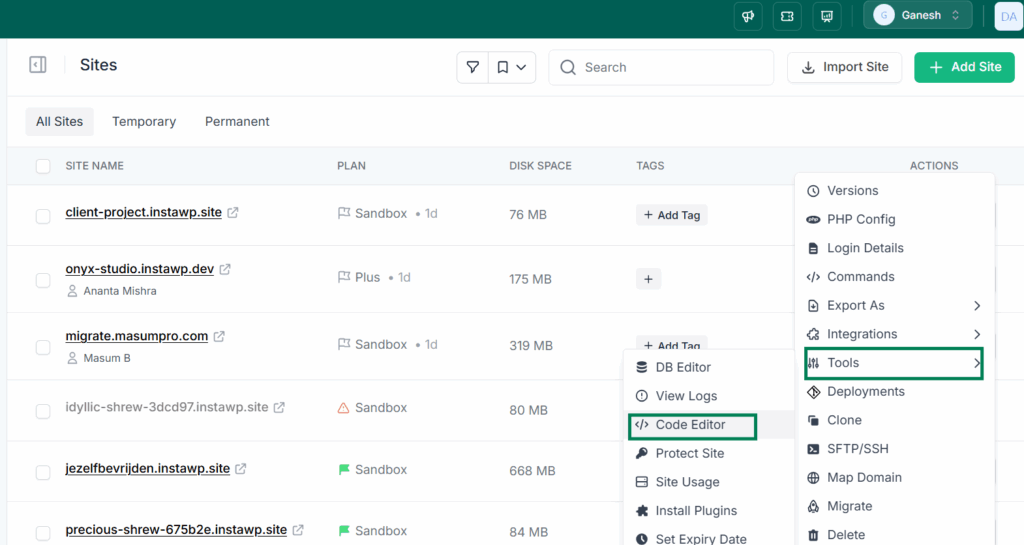
You do not need FTP, a separate code editor, or any third-party tool. You navigate to the site in your InstaWP dashboard, open the code editor, and edit your theme files or create a custom snippet directly in the browser.
This is particularly useful when you are adding a global JSON-LD snippet for Organization or WebSite schema that needs to sit in the site header across all pages.
Step 1: Prepare your JSON-LD markup
Start with the schema type that matches your content. For a typical WordPress blog or business site, begin with Organization and WebSite schema on the homepage. Here is an example:
<script type="application/ld+json">
{
  "@context": "https://schema.org",
  "@type": "Organization",
  "name": "Your Business Name",
  "url": "https://yourdomain.com",
  "logo": "https://yourdomain.com/logo.png",
  "sameAs": [
    "https://twitter.com/yourhandle",
    "https://linkedin.com/company/yourcompany"
  ]
}
</script>Step 2: Add it to WordPress using functions.php
Open the InstaWP code editor, you’ll have two options to choose from.
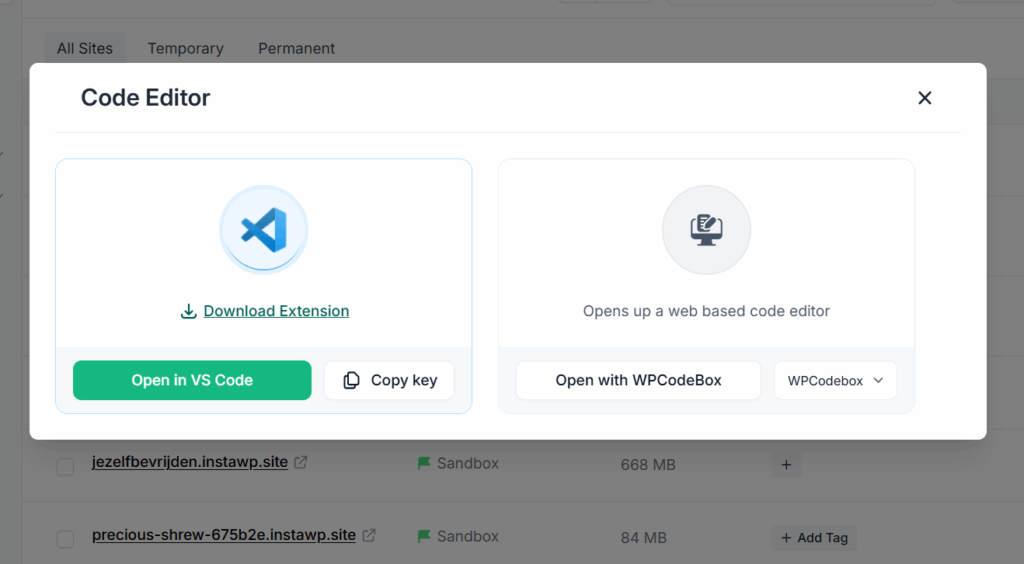
Both works great. We’re choosing the WPCodeBox and navigating to the active theme’s functions.php file.
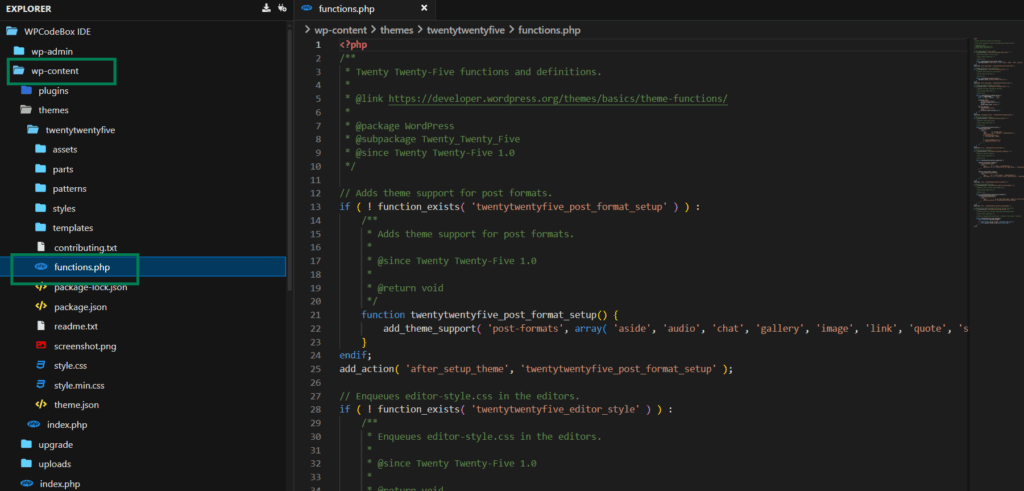
Next, add the following code:
function add_homepage_schema() {
    if ( is_front_page() ) {
        echo '<script type="application/ld+json">
        {
          "@context": "https://schema.org",
          "@type": "Organization",
          "name": "Your Business Name",
          "url": "https://yourdomain.com"
        }
        </script>';
    }
}
add_action( 'wp_head', 'add_homepage_schema' );Step 3: Add FAQ schema to individual pages
For FAQ schema on a specific page, you can either add it inline via functions.php with a conditional check for that page’s ID, or add it directly inside the page content using a Custom HTML block in the WordPress block editor.
The Custom HTML block approach is simpler for one-off implementations:
- Open the page in the WordPress editor.
- Add a Custom HTML block anywhere on the page (it will not be visible to users).
- Paste your JSON-LD script tag with the FAQPage markup.
- Publish.
Step 4: Test the schema using InstaWP’s staging environment
Before pushing any code changes to a live site, use InstaWP’s WordPress staging sites to test your implementation first. Spin up a staging copy of the site, apply your JSON-LD changes, validate them with Google’s Rich Results Test, and only then sync the changes to production. This protects your live site from schema errors that could disrupt your existing search appearance.
This is also where InstaWP’s WordPress sandbox environments are valuable for developers who want to prototype schema implementations across different site configurations before committing to a specific approach.
How to Test Your Rich Snippets
After implementing schema through any of the methods above, testing is not optional. Google needs to be able to read and validate your markup before it can show a rich snippet.
Google Rich Results Test
Go to search.google.com/test/rich-results, enter your page URL, and run the test. The tool shows you which schema types it detected, whether they are valid, and any errors or warnings you need to fix.
Google Search Console
Once your schema is live and indexed, Google Search Console shows rich result performance under the Enhancements section. You can see how many pages have valid schema, any issues flagged, and whether your rich snippets are appearing in search results.
Schema Markup Validator
The Schema.org Markup Validator at validator.schema.org checks your markup against the official schema.org specification. Use this to catch property-level errors that the Rich Results Test might not flag.
Common issues to watch for:
- Missing required properties for a schema type (Product schema requires name, image, and either offers or aggregateRating to be eligible for rich results)
- Incorrect nesting of schema objects
- Markup that does not match the visible content on the page (Google’s guidelines require schema to reflect what users actually see)
- Multiple conflicting SEO plugins both outputting schema for the same page
Choosing the Right Method for Your Workflow
Not every method suits every situation. Here is how to think about which one to use:
| Situation | Recommended Method |
|---|---|
| You want the most complete, automated implementation | Method 1: Claude + InstaWP MCP |
| You manage multiple client sites and need consistency | Method 1 or Method 2 via InstaWP dashboard |
| You want a no-code solution with a UI | Method 2: Plugin (Rank Math or Yoast) |
| You want full control and minimal plugin overhead | Method 3: Manual JSON-LD |
| You run a WooCommerce store with product schema needs | Method 2: Rank Math WooCommerce module |
| You are testing schema before pushing to production | Any method, tested on InstaWP staging first |
Conclusion
Rich snippets give your WordPress site a visible edge in the search results, and the barrier to implementing them has never been lower.
Whether you use AI to do the heavy lifting via InstaWP’s MCP integration with Claude, install a plugin like Rank Math and configure it in minutes, or write clean JSON-LD directly into your site using InstaWP’s built-in code editor, you have a practical path forward today.
For developers and agencies, the MCP method is worth exploring seriously. The ability to connect an AI assistant directly to a WordPress site environment and have it audit, build, and deploy schema markup without manual configuration is a genuine workflow shift, not just a novelty.
The best time to add schema markup to your WordPress sites was six months ago. The second best time is today.
Get started with InstaWP free and get $25 in credits. Spin up a WordPress sandbox, test your rich snippet implementation safely, and push to production when you are confident. No risk to your live site. Create your first site free on InstaWP.
FAQs
What are rich snippets in WordPress?
Rich snippets are enhanced search result listings that show additional information such as star ratings, FAQs, product prices, recipe details, and more. They are generated when you add schema markup (structured data) to your WordPress site, which tells search engines how to interpret and display your content.
Do rich snippets directly improve WordPress SEO rankings?
Rich snippets are not a direct ranking factor, but they improve click-through rates by making your search listing more visually prominent and informative. Higher CTR over time sends positive engagement signals that can influence rankings indirectly.
What is the best plugin to add rich snippets in WordPress?
Rank Math is the strongest free option because it supports a wide range of schema types out of the box, including FAQPage, HowTo, Article, and Product, without requiring a premium upgrade. Yoast SEO and AIOSEO are also reliable choices depending on your existing setup.
Can I add rich snippets without a plugin?
Yes. You can add JSON-LD schema markup directly to your WordPress theme via functions.php or as a Custom HTML block in the editor. If you are working on InstaWP, the built-in code editor means you do not need FTP or any external tool to do this.
How do I know if my rich snippets are working?
Use Google’s Rich Results Test tool to validate your markup immediately after implementation. Once Google has indexed your pages with the new schema, you can monitor rich result performance in Google Search Console under the Enhancements section.
What is the InstaWP MCP integration and how does it help with rich snippets?
InstaWP’s MCP (Model Context Protocol) integration lets you connect AI assistants like Claude directly to your WordPress site. When connected, Claude can audit your site for existing schema, check for SEO plugins, and create a custom plugin to implement the correct rich snippets automatically, without you writing any code.
Can I test rich snippet changes before they go live?
Yes, and you should. InstaWP lets you create an instant staging copy of any WordPress site where you can implement and test schema changes safely. Once validated using Google’s Rich Results Test, you can sync the changes to your production site with confidence.