If you’re a WordPress developer, you know the value of a staging site: it’s a safe space to experiment, refine, and even break a site without real-world consequences. It’s an important part of the development process, giving you the freedom to come up with an efficient and fast WordPress site.
Now, testing might be fun, but the real magic happens when you’re ready to take those meticulously tested changes live. That’s where things can get tricky. How do you go from staging to live without encountering any major problems?
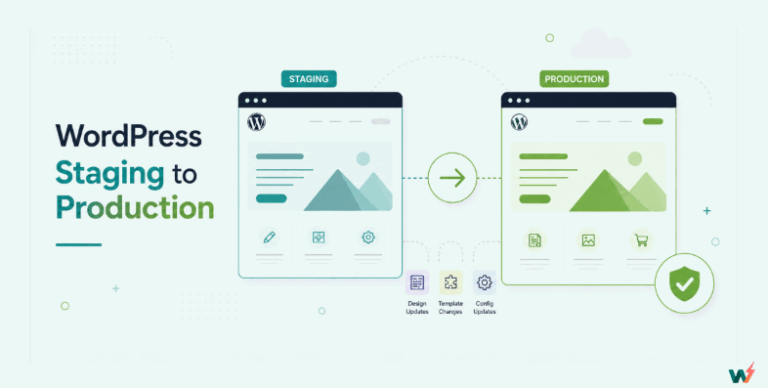
Don’t worry, we’ve got you covered. In this guide, we’ll walk you through a streamlined process for seamlessly transitioning your WordPress staging site to your live environment, ensuring a smooth and successful launch.
Let’s get started!
Pre-Launch Checklist
Now, let’s admit it: it’s super tempting to hit the “go live” button, especially if it means you’re almost done, or your client is telling you to launch. But before you do that, it is important to go through a final checklist to ensure a seamless transition. Think of this as your last quality control check before unveiling your WordPress site to the world.
What’s in the checklist? Let’s call them must-do essential steps. They will help you avoid common website launching pitfalls and guarantee a smooth, successful launch.
Testing Functionality
Before you go live, rigorously test every aspect of your staging site to ensure it works without any errors whatsoever. This may include:
- Links and Navigation: Click on every link, menu item, and button to ensure they lead to the correct destination and work as intended.
- Forms: Fill out all forms possible: contact forms, comment forms, and any other interactive elements to ensure they are submitted correctly and send notifications.
- Plugins and Widgets: Test all installed plugins and widgets to confirm they’re functioning as expected and don’t cause conflicts.
- eCommerce Functionality: If your site has an online store, test the entire purchase process, from adding items to the cart to completing checkout.
- Mobile Responsiveness: View your staging site on various devices (phones, tablets, desktops) to ensure it adapts well to different screen sizes.
Thorough testing at this stage will save you from headaches down the line. And of course, identifying and fixing any issues now will help you avoid disruptions and provide a seamless experience for your visitors once you go live.
Want to know more about how WordPress staging can help with testing? Check out our article here.
Checking for Broken Links
Broken links can frustrate users and negatively impact your site’s SEO. Thoroughly scan your staging site for broken links using these methods:
- Use Link Checking Plugin: Install and activate a reliable plugin that can scan your site for broken links and notify you of any issues. Check out some options here.
- Online Link Checkers: Use a web-based tool to analyze your staging site for broken links.
- Manual Review: If your site is small, manually click through every link to ensure they are working correctly.
Once you identify broken links, fix them by either updating the URL or removing the link entirely. A clean site with working links is essential for a positive user experience.
Ensuring Security Measures
Security should be a top priority, even on your staging site. After all, you are going to take all these live, right? Take these precautions to safeguard your site:
- Update Everything: Ensure your WordPress core, themes, and plugins are updated to the latest versions. This helps patch any known vulnerabilities. Additionally, this way, you’ll know if the WordPress version you’re using is already stable.
- Strong Passwords: Use strong, unique passwords for your WordPress admin, FTP, and hosting accounts. Consider using a password manager to generate and store complex passwords.
- Security Plugins: Install and configure a reputable security plugin to protect your site from malware, brute-force attacks, and other threats. Read here for some you can try.
- SSL Certificate: If you haven’t already, install an SSL certificate on your staging site. This encrypts data transmitted between your site and its visitors, enhancing security.
Optimizing SEO
Broken links aren’t the only thing that can negatively impact your site’s SEO. Take these steps to ensure your site is search engine-friendly from day one:
- Check Visibility Settings: In your WordPress dashboard, go to Settings > Reading and make sure the “Discourage search engines from indexing this site” box is unchecked.
- Meta Titles and Descriptions: Craft attractive and convincing meta titles and descriptions for each page and post. These snippets appear in search results and can greatly impact click-through rates.
- XML Sitemap: Generate and submit your XML sitemap to search engines. This helps them discover and index your content more efficiently.
- SEO Plugin: Install and configure a reputable SEO plugin. These tools provide valuable insights and recommendations for optimizing your content.
- Internal Linking: Strategically link to relevant pages within your content. This helps search engines understand your site’s structure and improves user navigation.
- Image Optimization: Compress images to reduce file size and improve page load speed. Use descriptive alt text for images to enhance accessibility and SEO.
Backing Up Your Staging Site
One last thing: create a full backup of your staging site. This backup will serve as your safety net, allowing you to restore your site to its current state if anything goes wrong during the migration process.
Here’s how you can create a backup:
- Plugin: Utilize a reliable backup plugin. These plugins simplify the process and allow you to schedule automatic backups for added peace of mind. Here are some backup plugins to consider.
- Manual Backup: If you prefer a hands-on approach, manually back up your WordPress database and files through your hosting control panel or FTP client.
How to Transfer Your Staging Site to Live
Now that your staging site is polished and ready, it’s time for the main event: moving it to your live domain. There are a few different methods you can use, each with its own advantages. Let’s check them out.
Method 1 – Using a Plugin
Using a plugin is the easiest and most streamlined way to move your staging site live. There are plenty of popular plugins that offer user-friendly interfaces and automated processes, making the migration hassle-free, even for beginners.
With a plugin, you typically just need to select your staging site, choose the destination (your live domain), and initiate the transfer. The plugin will handle the heavy lifting, copying your database, files, and settings to the live environment. It’s a reliable and efficient option, especially if you’re not comfortable with manual migrations.
Method 2 – Manual Transfer via FTP
On the other hand, if you’re more comfortable working with files and databases, you can manually transfer your staging site to live using FTP or File Transfer Protocol. This method gives you more control over the process.
However, it can also take plenty of time if you’re doing this for the first time, and it also requires a deep understanding of WordPress file structures and database management.
Method 3 – Migrating with a Hosting For WordPress Service
Some hosting for WordPress providers offer migration services, which can be a convenient option if you’re switching hosts or moving your site from a staging environment to a live domain on the same server. Managed WordPress hosting providers, in particular, often have streamlined migration tools and expert support to assist you.
Contact your hosting provider to inquire about their migration services. They may offer automated migration tools, manual migration assistance, or even handle the entire process for you. This can be a great option if you want a hands-off approach or need additional guidance during the migration.
Migrating your staging site to live using InstaWP
One more option for migration is via InstaWP Migrate.

Here’s an overview of how this works:
- Create a Fresh Instance: Begin by setting up a new WordPress instance on your destination server. This can be done with just a few clicks.
- Sign Up with InstaWP: If you haven’t already, sign up for an account with InstaWP. This gives you access to the tool.
- Access the Migration Tool: Log in to your InstaWP account and navigate to the migration tool.
- Enter Source URL and Destination URL: Provide the URL of your staging site and live site. This is where InstaWP will pull your data from and where InstaWP will migrate your data to.

- Authorize Import Tool: InstaWP will require authorization to access and transfer your data. This step ensures the security of your information during the migration process.
- Initiate Migration: Start the automated migration process with a few clicks. InstaWP handles the heavy lifting, ensuring your site is transferred smoothly.
- Monitor Progress: Use InstaWP’s tracking feature to monitor the progress of your migration. This transparent process lets you see what’s been migrated and what’s pending.
- Completion: Once the migration is complete, your site will go live with minimal downtime. InstaWP’s high success rate (99.9%) ensures that your migration will be successful.
Features and Benefits
Using InstaWP Migrate gives you the following advantages:
- Minimal Downtime: Keep your site online while migrating, minimizing any disruption to your visitors.
- High Success Rate: InstaWP boasts a 99.9% success rate, ensuring reliable migrations.
- Compatibility: Works seamlessly with major hosting providers, including GoDaddy, Siteground, Ionos, Bluehost, WPEngine, and Digital Ocean.
- User-Friendly: The process is straightforward and doesn’t require technical expertise.
- Security: Your data is secure during the migration process, with InstaWP’s robust security measures.
- Support: If you encounter any issues, InstaWP offers migration support to help you resolve them quickly.
Read here for more details about InstaWP Migrate!
Create staging with InstaWP
InstaWP also has you covered with a staging site solution! Here’s how to create a staging site and seamlessly integrate it into your migration process:
- Set Up a Fresh Instance: Begin by creating a new WordPress instance on InstaWP.
- Install InstaWP Connect Plugin: Navigate to the Plugins section in your WordPress admin panel and install the InstaWP Connect plugin.

- Create Staging Site: Choose from Quick Staging, Full Staging, or Custom Staging:
- Quick Staging: Excludes media folder for faster setup.
- Full Staging: Creates an exact copy, including all media files.
- Custom Staging: Allows selection of specific plugins, themes, and files to include or exclude.

- Customization Options: Select active plugins, themes, and specify any files or tables to exclude from the staging site.

- Confirmation and Creation: Confirm your setup, and InstaWP will create your staging site, providing a URL and login credentials.

- 2-Way Sync Feature: Use the 2-way sync feature to keep your staging and live sites synchronized, ensuring seamless updates and testing before going live.

If you have any other questions about staging and using InstaWP, read our very comprehensive guide here!
Post-Launch Tasks
Congratulations, you have now taken your site live! However, that doesn’t mean your work is done. Here are a few essential post-launch tasks to ensure your new live site performs optimally and continues to provide a great user experience.
Testing the Live Site
Just as you meticulously tested your staging site, you must also do the same for your live site. Give it a thorough run-through after the migration.
- Functionality: Retest all links, forms, plugins, and interactive elements to ensure they’re working correctly on the live domain.
- Site Speed: Evaluate your site’s loading speed using any tool you’re comfortable with. Address any performance issues promptly to ensure a fast WordPress site.
- User Experience: Navigate through your site as a visitor would. Ensure the flow is intuitive, the design is visually appealing, and all content is easy to find and consume.
- Mobile Compatibility: Double-check your site’s responsiveness on various mobile devices and screen sizes. Remember, there are a lot more mobile users nowadays!
- Error Monitoring: Set up error monitoring tools or services to track any unexpected issues that might arise after launch.
Remember, your live site is your digital storefront. Ensuring it functions seamlessly and provides a positive experience for your visitors is essential for long-term success.
Monitoring for Issues
Vigilance in continuous monitoring is the key to maintaining a smooth-running website. Here’s what you should do:
- Error Logs: Regularly review your website’s error logs for any PHP errors, warnings, or notices. This can help you catch and fix issues early on.
- Uptime Monitoring: Monitor your site’s uptime. Set up a tool to get an alert if your site goes down, allowing you to act quickly.
- Security Monitoring: Keep an eye on your security plugin’s activity log for any suspicious activity or potential threats.
- Performance Monitoring: Use more tools to track your site’s performance over time. Look for spikes in loading times or other performance issues.
Optimizing Performance
A fast WordPress website is good for user satisfaction and search engine rankings. After going live, do these to optimize your site’s performance:
- Caching: Implement browser caching and server-side caching to store static versions of your pages, reducing the load on your server and speeding up subsequent page views.
- Image Optimization: Double-check that all images are properly compressed and optimized for web use. Consider using a content delivery network (CDN) to serve images from servers closer to your users.
- Minify CSS and JavaScript: Remove unnecessary characters from your CSS and JavaScript files to reduce size and improve load times.
- Lazy Loading: Implement lazy loading for images and videos so they only load when they come into view, speeding up the initial page load.
- Database Optimization: Clean up your WordPress database by deleting revisions, spam comments, and unused tables.
Troubleshooting and Maintenance
Let’s face it: there will be no such thing as a perfect WordPress site, no matter what tools you have or what managed WordPress hosting you use. You’ll always have to be on guard for hiccups after launching your site. Here’s how to troubleshoot these issues:
- Caching Issues: If you see outdated content or styles, clear your browser cache and your website’s cache, if you’re using a caching plugin.
- Plugin Conflicts: If new issues come up after launch, deactivate plugins one by one to see if any are causing conflicts.
- Database Errors: Check your error logs for database connection errors. If you encounter any, contact your hosting provider for assistance.
- 404 Errors: If you find broken links or pages returning 404 errors, redirect them to the correct URLs or update your navigation.
- Performance Issues: If your site seems slow, revisit the performance optimization tips mentioned earlier. Consider using a performance monitoring tool to identify possible causes.
- Regular Backups: Continue to back up your live site regularly. This will allow you to restore your site quickly in case of data loss or other unforeseen issues.
- Security Updates: Always keep your WordPress core, themes, and plugins updated to the latest versions to protect your site from vulnerabilities.
Conclusion
Congratulations! You’ve successfully navigated the process of transitioning your WordPress staging site to a live environment. By following this comprehensive guide, you’ve learned essential pre-launch tasks, various migration methods (including the more convenient InstaWP option), and crucial post-launch steps to ensure a smooth and successful website launch.
Don’t forget, a live site is an ongoing project. Continue to monitor, optimize, and maintain your website to provide the best possible experience for your visitors. With the knowledge and tools you’ve gained, you’re well-equipped to manage your WordPress site effectively and achieve your online goals.
Ready to simplify your WordPress migrations? Give InstaWP a try and experience hassle-free staging and migration. Click here to sign up!