To connect Gemini CLI to WordPress, you add your WordPress site to Gemini CLI as an MCP server with one command, gemini mcp add. On InstaWP’s managed WordPress hosting, every site already runs that server, so the whole job is: switch on MCP, copy your site’s address and token, paste one command into your terminal, and tell Gemini CLI to trust your project folder. After that, you can ask Gemini in plain English to write a draft post, check your plugins or read your error log, and it does the work on your real site.
InstaWP ran every command in this guide on 23 October 2026 with Gemini CLI 0.65.0, against a sandbox site running InstaMCP, the WordPress MCP server built into InstaWP. The terminal screenshots show that real output, with the site address and token replaced. If you have never used a terminal before, that is fine: every command is explained in plain words.
Table of Contents
- One command connects them:
gemini mcp add --transport http --scope user, followed by a name for your site, its MCP address and your token in an Authorization header. - Add
--scope user. Without it, Gemini CLI saves the server for the current folder only, and it disappears when you open Gemini somewhere else. - Trust the folder, or nothing loads. In our test, Gemini CLI showed the WordPress server as Disabled until the project folder was trusted.
- Check your access first: since 18 June 2026, free and Google AI Pro or Ultra accounts use Antigravity CLI instead. Gemini CLI still runs with a Code Assist Standard or Enterprise licence, or a paid Gemini API key.
- Keep the brakes on: let Gemini CLI ask before every tool call, and switch on InstaMCP’s Safe Mode on any site you care about. It is off by default.
- Site hosted elsewhere? The official WordPress MCP Adapter plugin works too, through a small proxy, but it gives Gemini far fewer tools out of the box.
What is Gemini CLI?
Gemini CLI is Google’s AI assistant for the terminal. You open it by typing gemini, then you ask for things the way you would ask a colleague: explain this code, fix this bug, write this file. It reads the files in your folder, runs commands with your permission and writes code. The program itself is open source under the Apache 2.0 licence, and it needs Node.js 20 or newer on your computer, according to its installation guide.
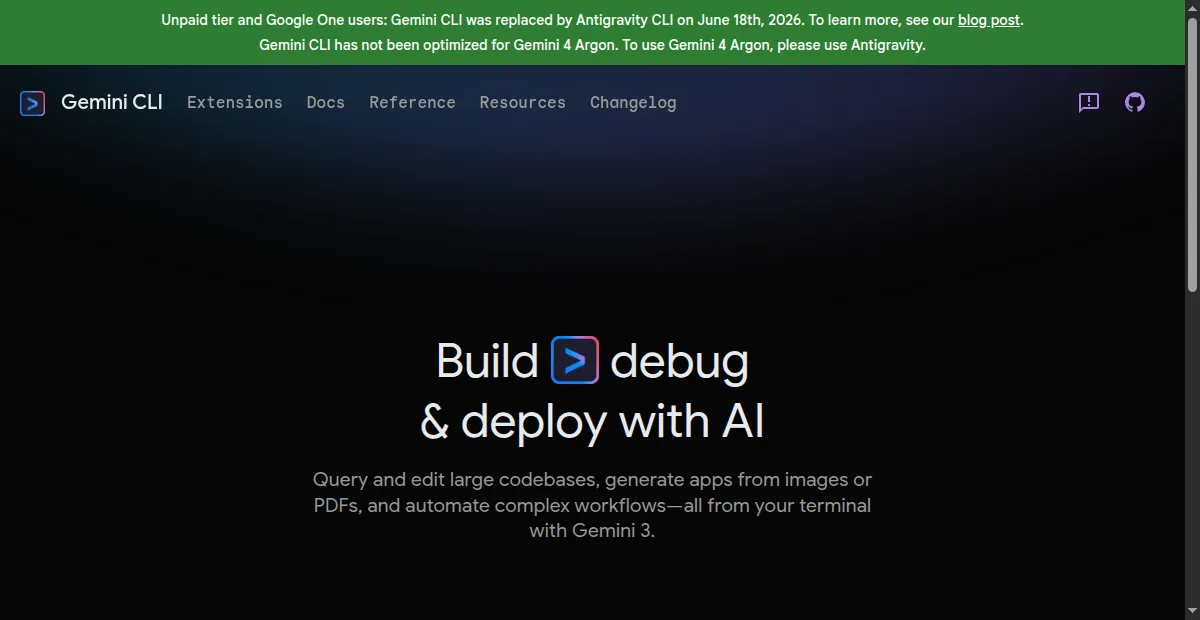
On its own, Gemini CLI only sees the files on your computer. Your WordPress posts, pages, plugins and settings live on a server, so it cannot reach them. The bridge is the Model Context Protocol (MCP), an open standard for plugging AI tools into other software. Gemini CLI is an MCP client. Once you add your WordPress site as an MCP server, Gemini can call the site’s tools in the same chat. On InstaWP, that server comes built into every site as InstaMCP, one of the AI features built into InstaWP.
What can Gemini CLI do once it is connected to WordPress?
Once connected, Gemini CLI can read and change your live WordPress site, not just files on your computer. Over InstaMCP it gets 43 tools. Here is what that looks like in practice:
| You ask Gemini CLI to | What happens on your site | Good to know |
|---|---|---|
| Write a blog post | Creates a draft post with proper WordPress blocks | Ask for a draft, so you review it before it goes live. |
| Update a page | Changes one sentence or a whole section on a page | It can preview a change first and save a backup. |
| Check your plugins | Lists plugins, versions and available updates | A safe first job: it only reads. |
| Fix SEO fields | Sets Rank Math or Yoast titles and descriptions | Blocked while Safe Mode is on. |
| Find an error | Reads the PHP error log and the WordPress debug log | Useful right after a plugin update breaks something. |
| Edit a theme or plugin file | Reads and writes the file, checking PHP before it saves | Best done on a staging copy, not your live site. |
The InstaWP MCP documentation lists all 43 tools. Three of them, which run raw PHP, SQL queries and file access, stay off until an admin switches them on.
What do you need before you connect Gemini CLI to WordPress?
You need four things, and the whole setup takes about ten minutes the first time:
- Node.js 20 or newer. Gemini CLI runs on it. Download the installer from nodejs.org if you do not have it.
- Access to Gemini CLI. A Gemini Code Assist Standard or Enterprise licence, or a paid Gemini API key. Google’s authentication guide shows each sign-in option.
- A WordPress site on InstaWP for Method 1. Site MCP is available on the Sandbox plan ($2 a month) and above. A staging copy of a live site is the safest place to start.
- A site somewhere else? Use Method 2, which needs WordPress 6.9 or later and the official MCP Adapter plugin.
How to connect Gemini CLI to a WordPress site
There are two ways to connect Gemini CLI to a WordPress site, and this guide covers both in detail. Which one you need depends on where your site is hosted.
Method 1: How do you connect Gemini CLI to a WordPress site on InstaWP?
The easiest way to connect Gemini CLI to WordPress is to host the site with a managed WordPress host that has an MCP server built in. When the server already runs on the site, there is no plugin to install, no proxy to run and no Application Password to manage.
InstaWP is a managed WordPress hosting provider that builds a WordPress MCP server, InstaMCP, into every site. From the site’s MCP tab you get:
- 43 typed tools for content, Gutenberg blocks, plugins, themes, media, SEO fields and error logs.
- A ready-made Gemini command under Setup guides for AI clients, with your token already filled in.
- Safe Mode, WordPress role-based access, and PHP, SQL and file power tools that stay off until an admin switches them on.
- Setup guides for 14 AI clients, so the same site also works in Claude, ChatGPT and Cursor.
With that in place, connecting Gemini CLI takes five steps.
Step 1: Install Gemini CLI and sign in
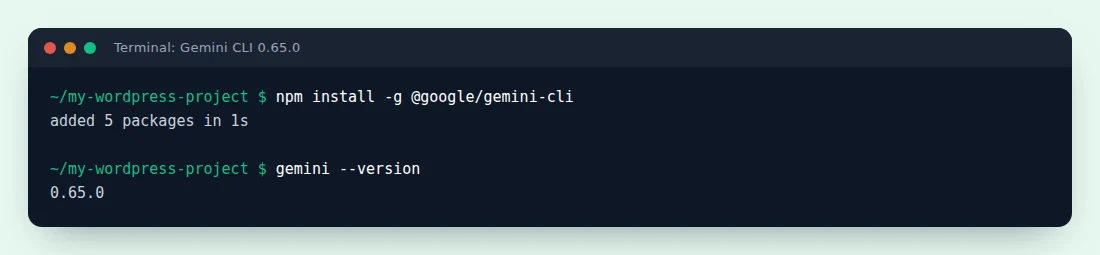
- Open your terminal and install Gemini CLI with npm, the installer that comes with Node.js. Then check it worked by asking for the version number:
npm install -g @google/gemini-cli
gemini --version
The first line downloads Gemini CLI and makes the gemini command available everywhere on your computer. The second prints the version you installed.
- Type
geminiand press Enter to start it once. Choose how to sign in (with your Google account if your organisation has a Code Assist licence, or with your Gemini API key) and follow the prompts. You only do this once.
Step 2: Switch on MCP for your WordPress site
- Open your site in the InstaWP dashboard. In the site menu, open Extensions, then MCP, and switch on Enable MCP. Your site’s connection address appears straight away, in the form https://your-site.instawp.site/insta-mcp?t=YOUR_TOKEN.
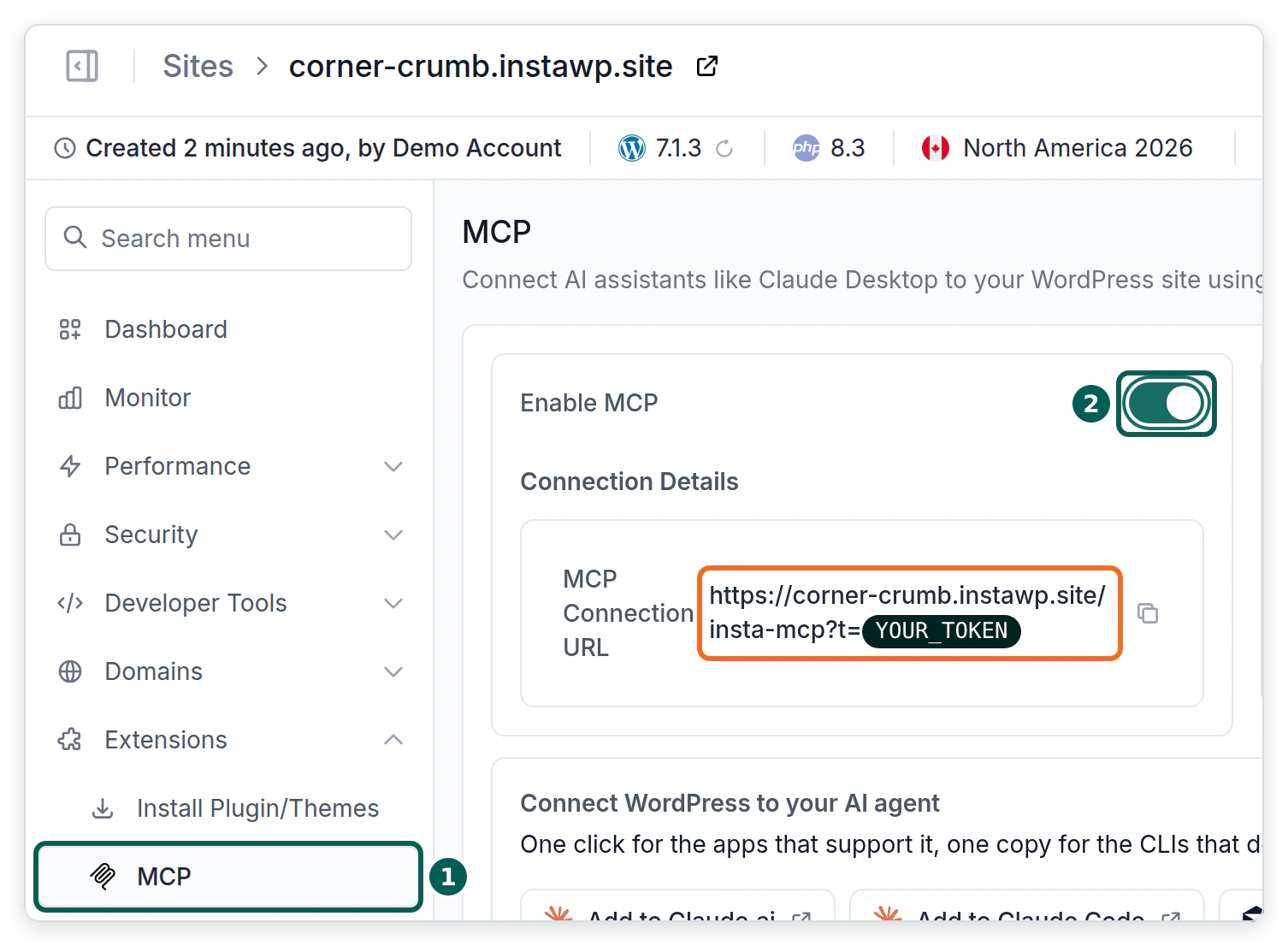
- Scroll down to Setup guides for AI clients and open Gemini. It shows the exact command for your site with your token filled in. Click the copy button.
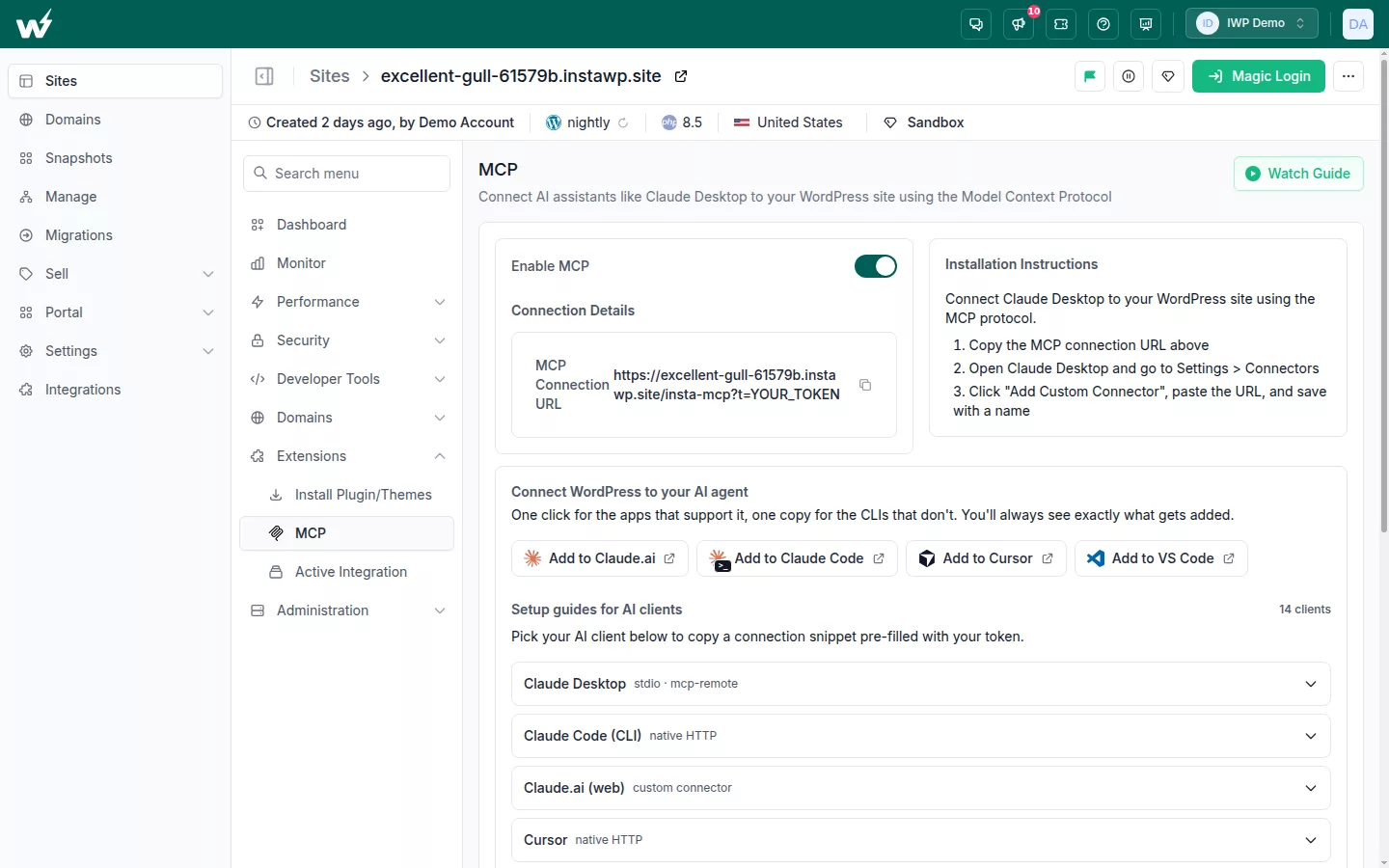
Step 3: Add your WordPress site to Gemini CLI
- Paste the command into your terminal and press Enter. It looks like this, with your own site address and token:
gemini mcp add --transport http --scope user --header "Authorization: Bearer YOUR_TOKEN" my-wordpress-site https://your-site.instawp.site/insta-mcp
Here is what each part does, in plain words:
gemini mcp addtells Gemini CLI to remember a new MCP server.--transport httpsays the server lives on the internet, not on your computer.--scope usersaves it for every folder. Leave it out and Gemini saves it for the current folder only.--header "Authorization: Bearer YOUR_TOKEN"sends your token with each request, so your site knows the request is from you.my-wordpress-siteis the name Gemini shows for this server. Use any short name you like.- The last part is your site’s MCP address, without the
?t=token on the end.

- Optional: see what Gemini saved. Gemini CLI writes the server into a settings file called settings.json in the .gemini folder in your home folder. You can open it in any text editor, or print it in the terminal:
cat ~/.gemini/settings.json
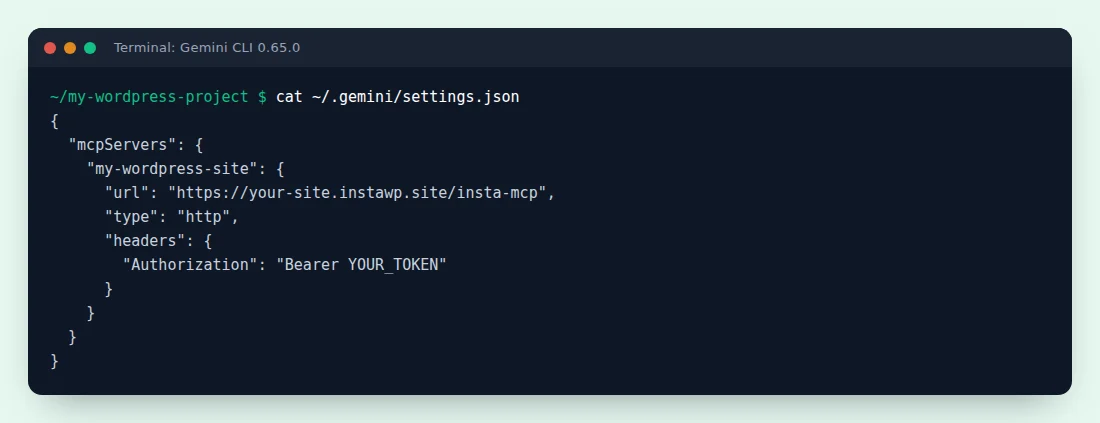
$INSTAWP_SITE_TOKEN, then add export INSTAWP_SITE_TOKEN=your-token to your shell profile. The file is then safe to share or back up.Step 4: Trust your project folder
This is the step most people miss. Gemini CLI refuses to load MCP servers in a folder you have not trusted yet. In InstaWP’s test, the server stayed Disabled until the folder was trusted:
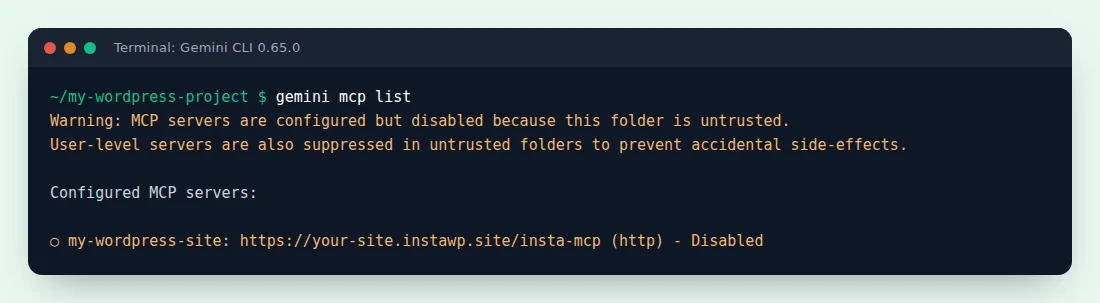
- Open your terminal in the folder you work in, type
geminiand press Enter. The first time, Gemini CLI asks whether you trust this folder.
- Choose Trust folder. Gemini saves your answer, so it only asks once per folder. To change it later, type
/permissionsinside Gemini CLI, as the trusted folders guide explains.
Step 5: Check that Gemini CLI can see your WordPress tools
- Inside Gemini CLI, type
/mcpand press Enter. You should see my-wordpress-site marked CONNECTED, with its tools listed underneath, such as list_content, create_content, plugin_info and site_logs.
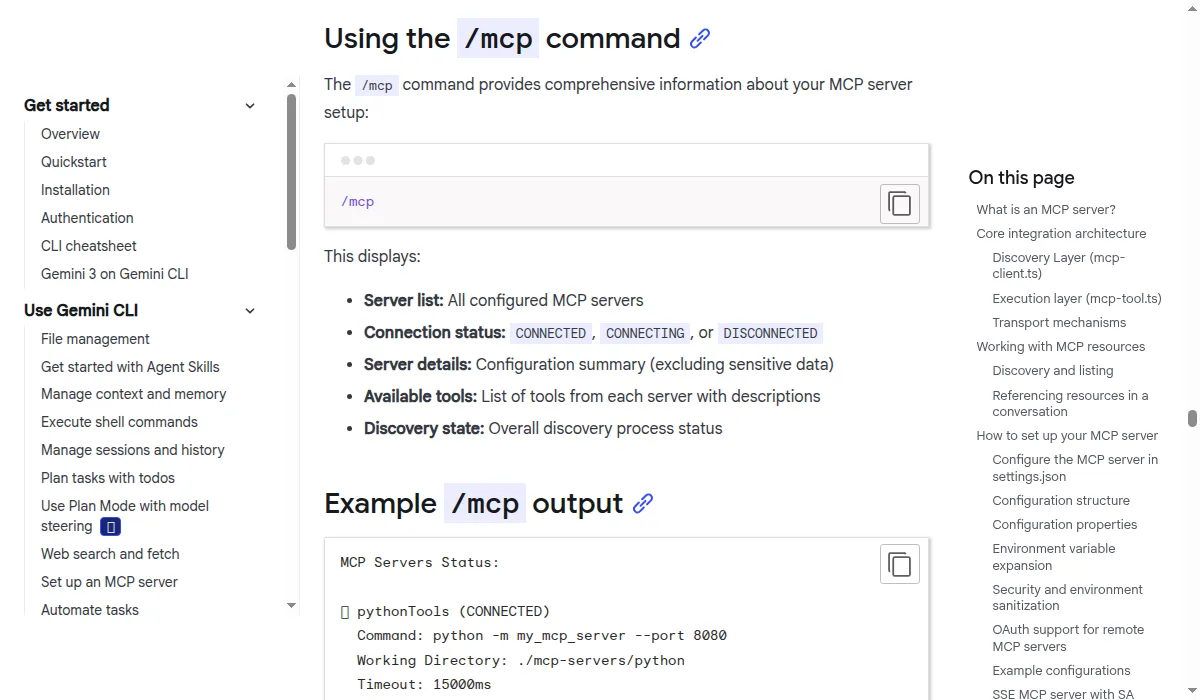
- Prefer to check from outside Gemini? Run
gemini mcp listin your terminal. Each server shows Connected, Disconnected or Disabled.
Method 2: How do you connect Gemini CLI to a WordPress site hosted elsewhere?
Install the official WordPress MCP Adapter plugin, create an Application Password, and add Automattic’s mcp-wordpress-remote proxy to Gemini CLI. It works on any host running WordPress 6.9 or later. Out of the box it gives Gemini much less than InstaMCP does, because it only exposes abilities that plugins, or your own code, mark as public.
- Check that your site runs WordPress 6.9 or later over HTTPS (Dashboard, then Updates shows the version).
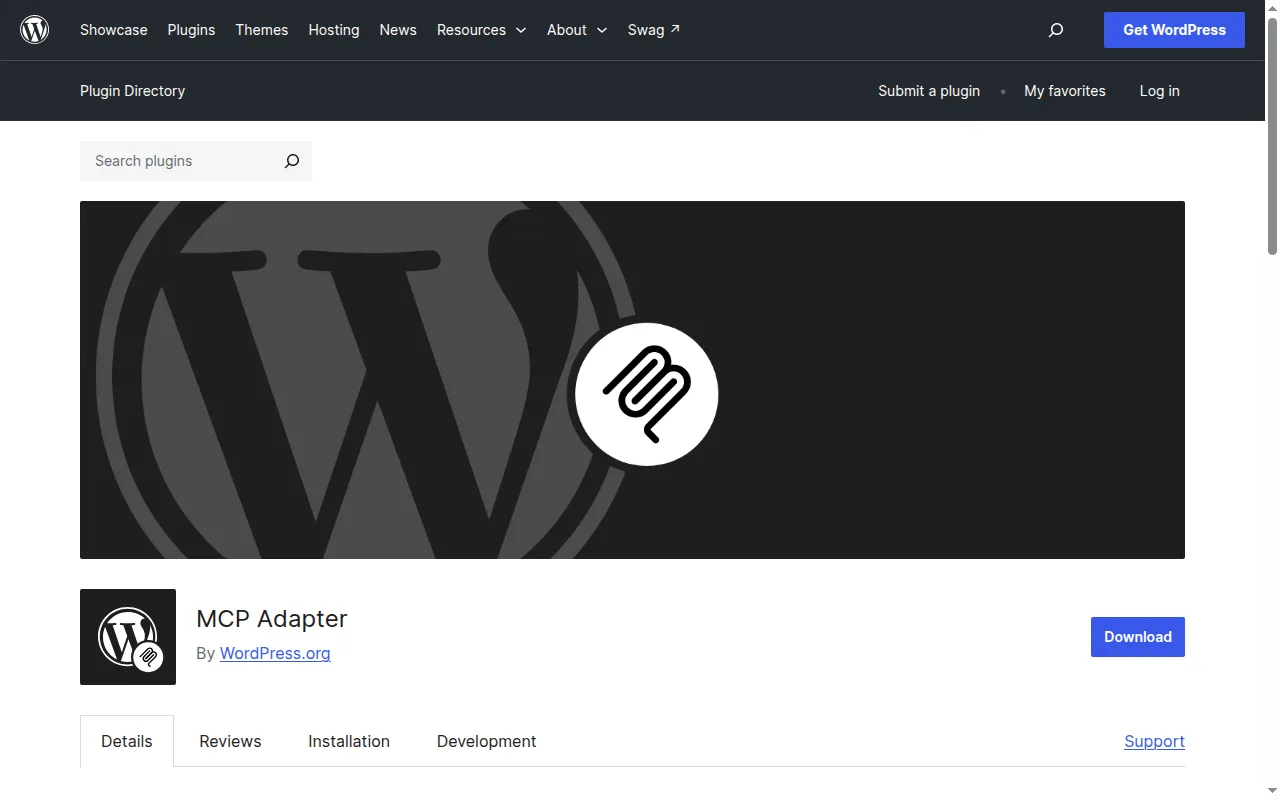
- Install the official plugin. Go to Plugins, then Add New, search for MCP Adapter (by WordPress.org), then click Install Now and Activate. Its WordPress.org page showed version 0.7.1 and 50,000+ active installs on 23 October 2026.
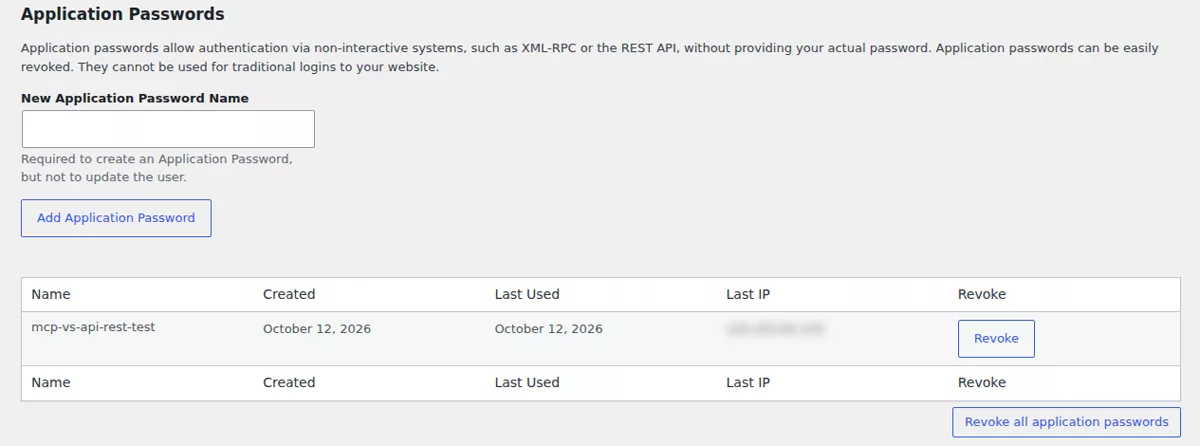
- Go to Users, then Profile, and scroll to Application Passwords. Type Gemini CLI as the name, click Add Application Password and copy the password WordPress shows. It is shown only once. WordPress explains these passwords in its Application Passwords guide.
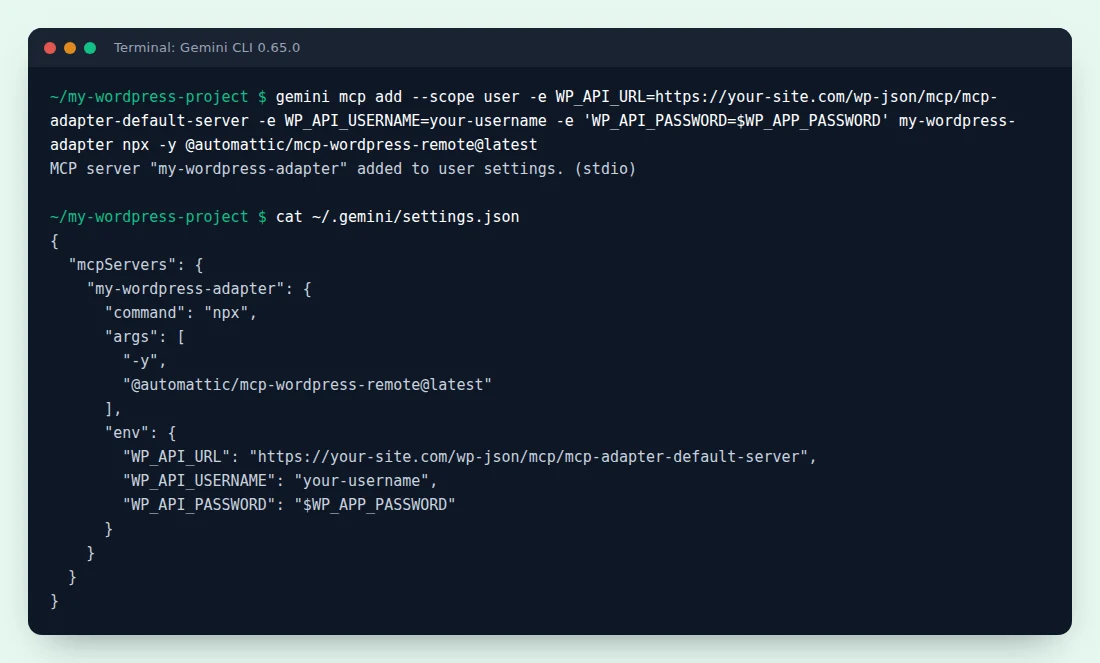
- Add the proxy to Gemini CLI with one command. Replace the site address and username with your own, and keep the password in an environment variable called WP_APP_PASSWORD:
gemini mcp add --scope user -e WP_API_URL=https://your-site.com/wp-json/mcp/mcp-adapter-default-server -e WP_API_USERNAME=your-username -e 'WP_API_PASSWORD=$WP_APP_PASSWORD' my-wordpress-adapter npx -y @automattic/mcp-wordpress-remote@latest
The -e parts hand three settings to the proxy: your site’s MCP Adapter address, your username and your Application Password. The address path comes from the MCP Adapter usage guide.
- Trust your folder and type
/mcp, exactly as in Steps 4 and 5 of Method 1. The proxy runs with npx, so the first start can take a few seconds while it downloads.
What Gemini gets is the catch. The Adapter exposes abilities registered through the WordPress Abilities API, and abilities are private until a plugin marks them public. On a bare install in InstaWP’s 6 October 2026 test, that meant 3 read-only core abilities. Writing posts or editing files needs a plugin that adds those abilities, or your own code. InstaWP covers the Adapter in more depth in its WordPress MCP Adapter review, and compares the plugins that add tools in best WordPress MCP plugins.
If you would rather have the full tool set on that site, InstaWP includes free migrations on every plan, so you can move it with the WordPress migration tool and then follow Method 1.
What should you ask Gemini CLI first?
Start with jobs that only read, so you can see how Gemini works with your site before it changes anything. Type these inside Gemini CLI, one at a time:
- “Use my-wordpress-site. List the active plugins and the theme, and tell me which ones have updates.”
- “Use my-wordpress-site. Read the last 50 lines of the PHP error log and explain any fatal errors in plain English.”
- “Use my-wordpress-site. List my 10 most recent posts with their status and date.”
- Then a small write: “Use my-wordpress-site. Create a draft post called Hello from Gemini CLI with two short paragraphs. Do not publish it.”
Before each tool call, Gemini CLI asks for your approval and shows what it is about to do. You can choose Proceed once, Always allow this tool, Always allow this server or Cancel, as its MCP documentation lists. Choose Proceed once while you are learning.
Why does Gemini CLI show my WordPress server as Disabled or Disconnected?
Gemini CLI uses a few short words for very different problems. This table tells them apart, starting with the two InstaWP hit in testing:
| What you see | What it means | How to fix it |
|---|---|---|
| Disabled, with a warning that the folder is untrusted | You have not trusted this folder yet. | Start gemini in the folder and choose Trust folder, or type /permissions. |
| Your site is missing from the list | It was added without --scope user, so it belongs to another folder. | Run the add command again with --scope user. |
| Disconnected | Gemini cannot reach the server, or the server said no. | Check MCP is switched on for the site, then copy the command from the MCP tab again. |
| Disconnected after editing settings.json | A typo in the file, or an environment variable that is not set. | Run cat ~/.gemini/settings.json and check the address, the quotes and the token. |
| Method 2 is Disconnected | Wrong Application Password, username or address. | Make a new Application Password and check the address ends in /wp-json/mcp/mcp-adapter-default-server. |
Still stuck? This command asks your InstaWP site directly whether the token works. It prints a status code: 200 means the site and token are fine, 401 means the token is wrong, and anything else means MCP is off or the address is wrong.
curl -s -o /dev/null -w "%{http_code}\n" -X POST \
  -H "Content-Type: application/json" -H "Accept: application/json, text/event-stream" \
  -H "Authorization: Bearer YOUR_TOKEN" \
  -d '{"jsonrpc":"2.0","id":1,"method":"initialize","params":{"protocolVersion":"2025-06-18","capabilities":{},"clientInfo":{"name":"test","version":"1"}}}' \
  https://your-site.instawp.site/insta-mcp
How do you keep your WordPress site safe with Gemini CLI?
Use two sets of brakes: the ones in Gemini CLI, which decide what the AI may try, and the ones in WordPress, which decide what your site will accept.
- Keep approvals on in Gemini CLI. Do not add
--trustto the add command or"trust": trueto settings.json. Both skip every confirmation. - Give Gemini only the tools it needs. Gemini CLI can include or exclude tools per server with
--include-toolsand--exclude-tools. - Turn on Safe Mode. It is off by default. Switch it on in WP Admin, then Settings, then InstaMCP, General tab, and it blocks every delete.
- Leave the power tools off. Raw PHP, SQL and file access stay off until an admin enables them under Capabilities.
- Practise on a copy. Use a sandbox or a WordPress staging environment (built in from the Pro plan), and keep backups on InstaWP switched on.
InstaWP goes deeper in is MCP WordPress integration safe and how to use MCP for WordPress in production.
Should you use Gemini CLI, Antigravity, Claude Code or Cursor for WordPress?
Use the tool you already pay for. The WordPress side is the same in every one of them: the same InstaMCP address works in all 14 clients InstaWP has setup guides for.
- Gemini CLI suits teams with a Code Assist licence or a paid Gemini API key who like working in the terminal.
- Antigravity is Google’s newer agent tool, and where free Google accounts now go. See how to use Google Antigravity for WordPress.
- Claude Code is terminal-first too. See how to connect Claude to WordPress.
- Cursor suits people who want an editor with the site one tool call away. See how to connect Cursor to WordPress.
- ChatGPT suits content and site management without any code. See how to connect ChatGPT to WordPress.
For the bigger picture, read how to connect AI agents to WordPress using MCP, or compare the best AI coding tools for WordPress developers.
Install Gemini CLI with npm and sign in. On your InstaWP site, open Extensions, then MCP, switch on Enable MCP and copy the Gemini command from the setup guides. Paste it into your terminal, keeping --scope user. Start gemini in your project folder and choose Trust folder, then type /mcp to see your site and its tools. Keep approvals on in Gemini CLI and Safe Mode on in WordPress. For a site on another host, use the WordPress MCP Adapter with an Application Password, and expect fewer tools.
Connecting Gemini CLI to WordPress: FAQs
Can Gemini CLI connect to WordPress?
Yes, over MCP. Add the site’s MCP server with gemini mcp add. On an InstaWP site the MCP tab gives you the exact command; on another host, install the official WordPress MCP Adapter plugin and connect through the mcp-wordpress-remote proxy.
How do I add an MCP server to Gemini CLI?
Run gemini mcp add –transport http –scope user, then a name, then the server address, adding the token with –header “Authorization: Bearer YOUR_TOKEN”. Gemini CLI saves it in ~/.gemini/settings.json. Type /mcp inside Gemini CLI to check it.
Why does Gemini CLI say my MCP server is Disabled?
Your current folder is not trusted. Gemini CLI does not load MCP servers in untrusted folders. Start gemini in the folder and choose Trust folder, or type /permissions to change it.
Where is the Gemini CLI MCP settings file?
Servers added with –scope user go in ~/.gemini/settings.json in your home folder. Servers added without it go in .gemini/settings.json inside the current project folder.
Is Gemini CLI still free?
Not for everyone. Since 18 June 2026, Google moved free users and Google AI Pro and Ultra subscribers to Antigravity CLI. Gemini CLI still works with a Gemini Code Assist Standard or Enterprise licence and with paid Gemini API keys.
Can Gemini CLI edit my WordPress plugins and theme?
Yes, on an InstaWP site. InstaMCP’s plugin and theme file tools read and write files, check PHP before saving and keep a backup. Try it on a staging copy first, and keep Gemini CLI’s approvals on.
Does InstaMCP work with WordPress sites hosted elsewhere?
No. InstaMCP runs on sites hosted on InstaWP. For another host, use the WordPress MCP Adapter plugin, or move the site to InstaWP with a free migration.