WordPress user roles control who can do what on your site. WordPress ships with six default roles, Administrator, Editor, Author, Contributor, Subscriber, and Super Admin, and each one bundles a set of permissions called capabilities. Pick the right role and your team moves fast without breaking anything. Pick the wrong one and you hand a contractor the keys to your entire site.
This guide covers what every default role can and cannot do, a full role by capability chart, how to build custom roles with code or a plugin, and how to manage roles safely across client sites.

WordPress has six default user roles. Five apply to every site, while Super Admin exists only on a WordPress Multisite network.
A role is a bundle of capabilities. Capabilities are the individual permissions that control what a user can do, such as publish_posts or install_plugins.
Follow the principle of least privilege. Give each person the lowest role that still lets them do their job, and keep Administrator accounts to a minimum.
Editor usually works for content-only clients. If the Editor role still grants more access than they need, create a custom role instead.
Custom roles can be created with PHP or a plugin. Use add_role() or a visual role editor, then test permissions on a staging site before applying them to production.
What Are WordPress User Roles?
A WordPress user role is a label assigned to a user account that determines what that person is allowed to do on the site. Every role comes bundled with a set of capabilities, which are granular permissions such as publish_posts, edit_pages, install_plugins, and manage_options.
Think of it this way: a role is a job title, and capabilities are the tasks that come with it. WordPress groups capabilities into roles so you do not have to configure permissions for each user individually. You assign a role, and WordPress handles the rest.
When you first install WordPress you get six roles out of the box. Over time, plugins such as WooCommerce, LearnDash, or membership tools add their own. Understanding the defaults first makes everything else easier to manage. The official WordPress Roles and Capabilities documentation is the canonical reference if you want to check a specific permission.
Roles vs Capabilities: The Difference That Matters
This distinction trips up most people, so it is worth being precise.
- A capability is a single yes-or-no permission.
upload_filesis a capability. Either you have it or you do not. - A role is a named collection of capabilities. The Author role is simply a bundle that includes
read,edit_posts,publish_posts,upload_files, and a few more. - Users are assigned roles, not individual capabilities, although you can grant a capability to one specific user if you need to.
This matters because when you want to change what someone can do, you have two options. You can move them to a different role, or you can modify the capabilities inside their existing role. The second option changes access for everyone holding that role, which is exactly the kind of mistake worth catching on a staging site rather than in production.
Where WordPress Stores Roles and Capabilities
Roles are not hard-coded into WordPress core. They live in your database, in the wp_options table, under an option named wp_user_roles (the prefix matches your table prefix). WordPress loads them into the WP_Roles class on every request.
Two practical consequences follow from this. First, when you call add_role(), you are writing a row to the database, not registering something in memory, which is why the function only needs to run once. Second, a role you created survives theme switches and plugin deactivations, because it lives in the database rather than in the code that created it. Removing the plugin does not remove the role.
Each user’s role assignment is stored separately, in the wp_usermeta table under a wp_capabilities key.
Primitive vs Meta Capabilities
WordPress has two kinds of capability, and knowing the difference explains a lot of otherwise confusing behaviour.
- Primitive capabilities are the ones stored on the role itself, like
edit_posts,publish_posts, ormanage_options. These are what you see as checkboxes in a role editor plugin. - Meta capabilities are evaluated at runtime against a specific object.
edit_post(singular) is a meta capability: WordPress maps it to a primitive capability depending on which post you are trying to edit and whether you own it.
This is why an Author can edit their own published post but not someone else’s. Both actions request the meta capability edit_post, and WordPress resolves it to edit_published_posts for their own post and edit_others_posts for a colleague’s. The Author role has the first and not the second. The WordPress developer handbook documents the full mapping.
The rule of thumb: if a capability name is plural, it is almost always primitive and safe to toggle in a role editor. If it is singular, it is a meta capability and toggling it directly will not do what you expect.
The 6 Default WordPress User Roles
Every WordPress installation ships with these six roles. Five apply to any single site. Super Admin only exists once you enable a Multisite network.
Default WordPress User Roles
Access decreases as you move from Super Admin to Subscriber.
Super Admin
Controls the entire Multisite network.
Administrator
Full control over one WordPress site.
Editor
Manages and publishes all site content.
Contributor
Writes drafts but cannot publish them.
Subscriber
Manages only their own profile.
Administrator
The Administrator has complete control over a single WordPress site. They can install plugins and themes, change any setting, manage all content, add or remove users, and change user roles. This is the most powerful role and should be treated accordingly.
Reserve it for site owners, lead developers, or senior agency staff who genuinely need full access. A good rule of thumb: if someone needs to log in just to update blog posts, they do not need to be an Administrator.
One important exception. On a Multisite network, site Administrators lose several capabilities to the Super Admin, including install_plugins, switch_themes, update_core, edit_users, and unfiltered_html. An Administrator on Multisite is meaningfully less powerful than one on a standalone site.
Editor
Editors manage content across the entire site. They can publish, edit, and delete posts and pages written by any user, moderate comments, manage WordPress categories and tags, and upload media. What they cannot do is touch plugins, themes, settings, or users.
This role is ideal for content managers in multi-author blogs, agency team leads who oversee content quality, or any trusted person who needs editorial control without site administration access. For most client handoffs, Editor is the default starting point.
Author
Authors can write, edit, publish, and delete their own posts. They can also upload media files. Everything else is off-limits. They cannot touch other users’ content, access settings, or make any structural changes to the site.
This role works well for regular blog contributors, freelance writers who publish independently, or any team member focused purely on content production. Note that Authors cannot create or edit pages, only posts.
Contributor
Contributors can write and edit their own draft posts, but they cannot publish them. Every post they create sits in draft until someone with a higher role, an Editor or Administrator, reviews and publishes it. Contributors also cannot upload images or files.
Use this role for guest writers, new team members on probation, or clients submitting content for review before it goes live.
The media limitation catches people out. Because Contributors lack upload_files, they cannot add a featured image or insert a screenshot. If your guest authors need that, either grant them upload_files specifically or move them to Author with publishing removed.
Subscriber
Subscribers can log in, read content, and manage their own profile. That is all. They have exactly one capability, read.
This role is the foundation for membership sites, gated content, comment systems that require registration, and newsletter signups. It is also the safest default for any user account whose purpose you are not certain about.
Super Admin
Super Admin is exclusive to WordPress Multisite networks. In a Multisite setup, a Super Admin can manage all sites in the network, install plugins and themes network-wide, create and delete sites, and manage every user across every site.
On a standard single-site WordPress install, this role does not exist at all. If you are running a network of client sites, our WordPress Multisite management guide for agencies covers how role delegation works in practice across a network.
WordPress User Roles Compared at a Glance
If you only read one part of this guide, make it this table.
| Role | What they control | Access level | Best for | Typical use case |
|---|---|---|---|---|
| Super Admin | Every site in a Multisite network, plus network plugins, themes and users. | Network-wide | Network owners | Running a Multisite network of client or franchise sites. |
| Administrator | Everything on a single site: settings, plugins, themes, users and all content. | Full site | Site owners, lead developers | Installing plugins, changing settings and creating user accounts. |
| Editor | All content by any author, comments, categories and tags. No access to settings, plugins or user management. | Content-wide | Content managers, most clients | Reviewing and publishing content on a multi-author site. |
| Author | Their own posts, including publishing and media uploads. | Own content | Staff writers, freelancers | Writing and publishing posts without editing anyone else’s work. |
| Contributor | Their own drafts only. Cannot publish posts or upload media. | Drafts only | Guest writers, new hires | Submitting a draft for editorial review. |
| Subscriber | Their own profile, with no content-management permissions. | Basic access | Members, registered readers | Accessing gated, private or members-only content. |
WordPress Roles and Capabilities Chart
Role descriptions are useful, but sooner or later you need to know whether a specific role holds a specific capability. This chart covers the capabilities that come up most often in real projects.
| Capability | What it allows | Super Admin | Admin | Editor | Author | Contributor | Subscriber |
|---|---|---|---|---|---|---|---|
read |
Log in and read content | ✓ | ✓ | ✓ | ✓ | ✓ | ✓ |
edit_posts |
Write and edit their own posts | ✓ | ✓ | ✓ | ✓ | ✓ | × |
delete_posts |
Delete their own unpublished posts | ✓ | ✓ | ✓ | ✓ | ✓ | × |
upload_files |
Upload images and media | ✓ | ✓ | ✓ | ✓ | × | × |
publish_posts |
Publish their own posts | ✓ | ✓ | ✓ | ✓ | × | × |
edit_published_posts |
Edit their own posts after publishing | ✓ | ✓ | ✓ | ✓ | × | × |
delete_published_posts |
Delete their own published posts | ✓ | ✓ | ✓ | ✓ | × | × |
edit_others_posts |
Edit posts written by anyone | ✓ | ✓ | ✓ | × | × | × |
delete_others_posts |
Delete posts written by anyone | ✓ | ✓ | ✓ | × | × | × |
read_private_posts |
View private posts and pages | ✓ | ✓ | ✓ | × | × | × |
edit_pages |
Create and edit pages | ✓ | ✓ | ✓ | × | × | × |
publish_pages |
Publish pages | ✓ | ✓ | ✓ | × | × | × |
moderate_comments |
Approve, edit and delete comments | ✓ | ✓ | ✓ | × | × | × |
manage_categories |
Create and edit categories and tags | ✓ | ✓ | ✓ | × | × | × |
manage_links |
Manage the Links section | ✓ | ✓ | ✓ | × | × | × |
unfiltered_html |
Post unfiltered HTML and scripts | ✓ | ✓* | ✓* | × | × | × |
manage_options |
Change site settings | ✓ | ✓ | × | × | × | × |
edit_theme_options |
Manage menus, widgets and theme options | ✓ | ✓ | × | × | × | × |
activate_plugins |
Activate and deactivate plugins | ✓ | ✓ | × | × | × | × |
install_plugins |
Install new plugins | ✓ | ✓* | × | × | × | × |
switch_themes |
Change the active theme | ✓ | ✓* | × | × | × | × |
update_core |
Update WordPress core | ✓ | ✓* | × | × | × | × |
list_users |
View the list of user accounts | ✓ | ✓ | × | × | × | × |
create_users |
Create new user accounts | ✓ | ✓* | × | × | × | × |
promote_users |
Change another user’s role | ✓ | ✓ | × | × | × | × |
delete_users |
Delete user accounts | ✓ | ✓* | × | × | × | × |
export |
Export site content | ✓ | ✓ | × | × | × | × |
import |
Import site content | ✓ | ✓ | × | × | × | × |
manage_network |
Manage the entire Multisite network | ✓ | × | × | × | × | × |
* Multisite exception. On a WordPress Multisite network these capabilities are removed from site Administrators and reserved for the Super Admin. On a standalone single-site install, Administrators hold all of them. This is the single most common source of “why can’t my admin install a plugin” confusion.
This chart covers the capabilities you will actually reach for. WordPress registers several dozen more, and plugins add their own. For the complete list, check the official capability reference.
WordPress Access Levels: Which Role Should You Give?
WordPress access levels run from read-only at the bottom to full network control at the top. In order, from least to most access: Subscriber, Contributor, Author, Editor, Administrator, Super Admin. Pick the lowest one on that list that still lets the person finish their work.
Here is the decision in plain terms:
- They only need to log in and read something. Give them Subscriber.
- They write, but someone should approve it first. Give them Contributor.
- They write and publish their own work, nobody else’s. Give them Author.
- They manage the whole content operation, including other people’s posts and pages. Give them Editor.
- They install plugins, change settings, or manage accounts. Give them Administrator, and think twice first.
If none of those fit, that is your signal to build a custom role rather than over-granting an existing one.
WordPress Administrator vs Editor
This is the most consequential decision on the list, because it is the line between “can change content” and “can change the site”.
| Task | Administrator | Editor |
|---|---|---|
| Publish and edit anyone’s posts and pages | ✓ | ✓ |
| Moderate comments, manage categories and tags | ✓ | ✓ |
| Upload media | ✓ | ✓ |
| Install, activate or delete plugins | ✓ | × |
| Switch or edit the theme | ✓ | × |
| Change site settings | ✓ | × |
| Create, delete or promote users | ✓ | × |
| Update WordPress core | ✓ | × |
| Export or import site content | ✓ | × |
The short version: an Editor can do anything to your content and nothing to your site. That is exactly what you want for a client who publishes blog posts, and exactly what you want to avoid for the person who also needs to install a plugin.
WordPress Author vs Contributor
Both roles are limited to their own posts. Two differences separate them.
Contributor is an editorial-review role. Author is a trusted-publisher role. If you want a review step before anything goes live, Contributor gives it to you for free without any plugin.
What Is the Default WordPress User Role?
The default role assigned to any newly registered user is Subscriber. You will find the setting under Settings > General > New User Default Role in your dashboard.
Leave it on Subscriber. Raising this default is one of the more common ways a site ends up with dozens of accounts holding more access than anyone intended, particularly on sites where registration is open. If a specific person needs more, promote that account deliberately.
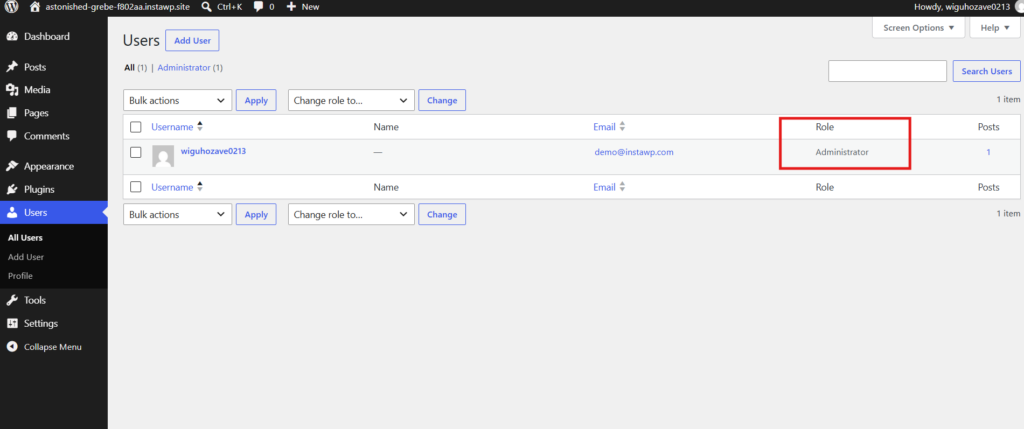
Separately, the first account created during installation is an Administrator. That is the account worth protecting hardest, because it is the one attackers assume exists.
WordPress User Roles for Developers and Client Handoffs
One of the most common real-world needs that default WordPress roles do not quite solve is the client handoff. You have built a site, handed it over, and you need the client to be able to edit content, but you do not want them accidentally deleting a plugin, changing the theme, or breaking something you spent hours setting up.
The Editor role gets you close, but clients often need slightly different access depending on the project. This is where a custom user role makes all the difference.
A “Client Editor” role, for example, might include full access to posts and pages, the ability to upload media, and permission to manage some WooCommerce products, but with plugin management, theme access, and user management completely removed.
If you hand off sites regularly, it is worth standardising this once. Our WordPress maintenance guide for service providers covers how agencies structure ongoing client access after launch.
Did You Know?
InstaWP’s managed hosting lets you spin up a WordPress sandbox in seconds and test any custom role configuration before it touches your live site. You can add the role, assign it to a test user, log in with that user, and verify exactly what they see, all without putting any real site at risk.
How to Create Custom WordPress User Roles
WordPress’s default roles cover most use cases, but they do not cover everything. You might need a “Client Editor” who can update pages but cannot touch plugins, or a “Shop Manager” with WooCommerce access but no admin privileges. That is where custom roles come in.
There are three practical routes: writing PHP directly, using the User Role Editor plugin, or using Melapress Role Editor for a guided wizard. All three are covered below.
Method 1: Create a Custom Role With Code
WordPress ships with two core functions for role management and two for capability management. Here is how they work.
To add a new custom role using add_role():
function register_client_editor_role() {
    add_role(
        'client_editor',
        'Client Editor',
        array(
            'read'                  => true,
            'edit_posts'            => true,
            'edit_published_posts'  => true,
            'publish_posts'         => true,
            'delete_posts'          => false,
            'upload_files'          => true,
            'edit_pages'            => true,
            'edit_published_pages'  => true,
            'publish_pages'         => false,
        )
    );
}
add_action( 'init', 'register_client_editor_role' );Add this to your active theme’s functions.php file or, better yet, a site-specific plugin so changes survive theme updates.
To add a capability to an existing role with add_cap():
$role = get_role( 'editor' );
$role->add_cap( 'manage_woocommerce' );To remove a capability:
$role = get_role( 'author' );
$role->remove_cap( 'delete_posts' );To remove a role entirely:
remove_role( 'client_editor' );One important note: add_role() only needs to run once, because it writes the role to the database. If you call it on every page load it will not cause errors, but it adds unnecessary overhead. Ideally, hook it to a plugin activation function or a theme setup routine.
A second gotcha worth knowing: because add_role() writes to the database, editing the capability array in your code later will not update an existing role. WordPress sees the role already exists and does nothing. To change it, either bump a version option and call remove_role() before re-adding, or use add_cap() and remove_cap() to adjust the role in place.
Method 2: Create a Custom Role With a Plugins
If you would rather not write PHP, using a user role plugin gives you a visual interface for everything above. You can create new roles, clone existing ones, add or remove individual capabilities with checkboxes, and manage multiple roles in bulk. It is a solid choice for agencies managing many different client configurations without maintaining custom code across projects.
Here are our recommendations.
| Plugin | Best for | Standout feature |
|---|---|---|
| User Role Editor | Granular capability editing | Checkbox control over every registered capability, plus role cloning and bulk role management. |
| Members | Roles + content restriction | Combines a role editor with per-post content permissions and a private-site mode. |
| Melapress Role Editor | Beginners + guided setup | Step-by-step setup, pre-built roles, plus role backup, restore, and migration between sites. |
| WPFront User Role Editor | Managing roles at scale | Bulk role assignment across many users and per-role login redirects. |
| Advanced Access Manager | Complex access rules | Access control down to individual posts, admin menu items, and REST API endpoints. |
For a wider look at the category, see our roundup of the best WordPress user management plugins.
For the sake of this guide, we’re using User Role Editor plugin.
Install and activate User Role Editor from the WordPress plugin repository (Plugins > Add New, then search for “User Role Editor”). Once active, you will find it under Users > User Role Editor in your admin menu.

The main screen shows a dropdown of all existing roles on the left, a full list of capabilities in the center displayed as checkboxes, and controls to add, clone, or delete roles on the right.
Rather than building a role from scratch by checking individual capabilities one by one, the fastest approach is to clone an existing role that is already close to what you need, then adjust from there.
Here is how to do it:
- Open Users > User Role Editor.
- In the role dropdown, select the role you want to base your new one on. For a client-facing role, “Editor” is usually the right starting point. Click Add Role.
- Give it a machine-readable ID (for example,
client_editor) and a display name (“Client Editor”). Check the box that says Make copy of and confirm the base role is selected. - Click Add Role to confirm. You will now be editing the new role with all of the base role’s capabilities pre-checked.

Adjusting Capabilities
This is where it gets precise. The plugin lists every registered capability on the site, including those added by plugins like WooCommerce or Advanced Custom Fields. By default, the view is filtered to show only capabilities that are currently checked for the role.
To review everything available, check the Show all capabilities option. Then work through the list and check or uncheck based on what you need.

For a typical client editor role, you would want to uncheck things like:
edit_theme_options(prevents access to the Customizer)install_pluginsandactivate_pluginsedit_usersanddelete_usersimportandexport
And keep enabled things like:
edit_pagesandedit_published_pagesedit_postsandpublish_postsupload_filesread
Once you are satisfied, click Update to save the role.
Did You Know?
When you create a client role configuration that works well, you can save the entire WordPress setup as a snapshot in InstaWP and turn it into a reusable WordPress template. Next time you build a similar project, you start from a pre-configured environment with the right roles already in place, with no repeated setup needed.
Method 3: Create a Custom Role With Melapress Role Editor
If you prefer a more guided experience, the Melapress Role Editor plugin is a good alternative. It walks you through the entire role creation process with a step-by-step wizard, making it especially beginner-friendly while still offering advanced configuration options for experienced administrators.
To get started, install and activate the plugin from your WordPress dashboard by navigating to Plugins > Add Plugin and searching for “Melapress Role Editor.”

Once activated, the plugin adds two new options to your dashboard menu:
- User Roles for creating, editing, and managing role capabilities
- User Role Tools for assigning, migrating, backing up, and restoring roles
By default, the plugin comes with ready-to-use custom roles: Business Owner, Content Editor, Designer, and others. After activation, the wizard gives you three ways to proceed:
- Create a new role from scratch
- Copy and edit an existing default WordPress role (Administrator, Editor, Author, Contributor, or Subscriber)
- Clone a Melapress pre-built role and customize it to your needs

To create a new role, give it a clear title and short description (for example: Editor Assistant, can upload and edit articles without publishing), then toggle the capabilities you want to assign, such as creating and editing posts, moderating comments, and uploading media.

Once done, assign the role to a user by typing their username. The plugin will auto-suggest matches.
Note: you can assign multiple roles to the same user. A secondary role simply adds its capabilities on top of the primary role.
After reviewing the role summary, click Create the New User Role, and it will appear in your User Roles manager, ready to use.
How to Assign a User Role in WordPress
Assigning a role takes a few seconds from the WordPress dashboard. There are three ways to do it, depending on whether the user already exists.
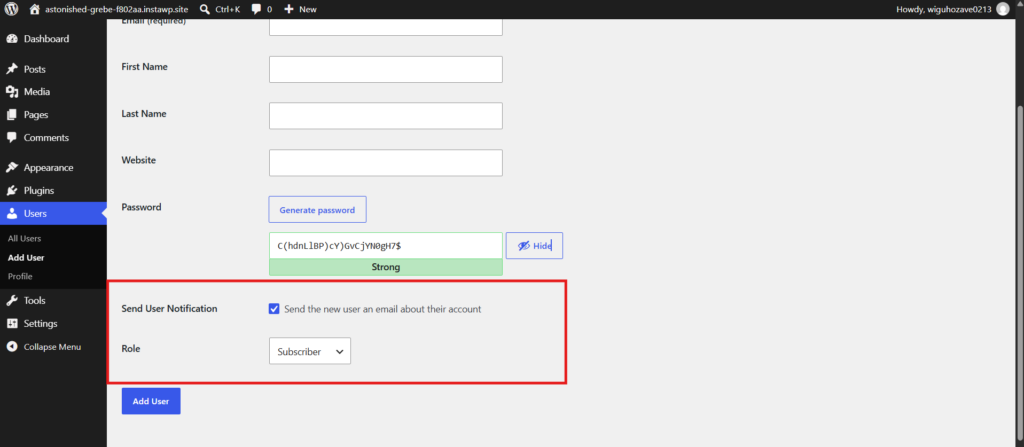
To create a new user with a role: go to Users > Add New, fill in the username, email and password, then choose a role from the dropdown before saving.

To change an existing user’s role: go to Users > All Users, click the user’s name to open their profile, scroll to the Role field, and select the new role.
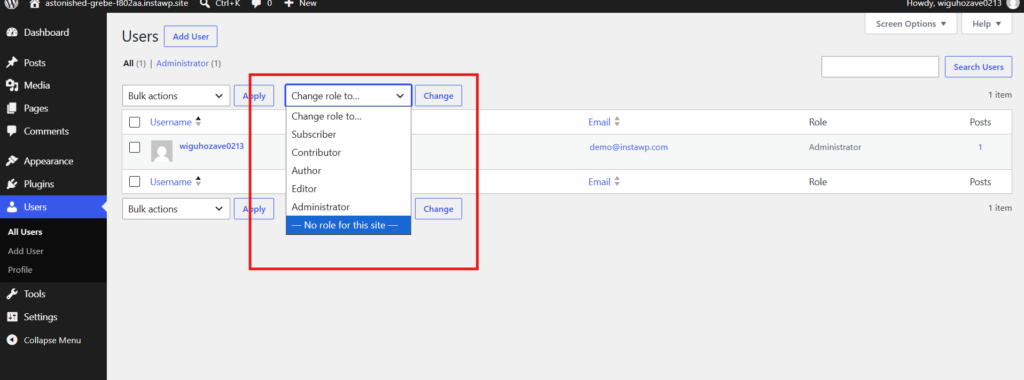
To change roles in bulk: select multiple users from the Users list using the checkboxes, open the Change role to… dropdown above the table, select the target role, and click Change.

One thing WordPress will not let you do is remove your own Administrator role while you are the only Administrator on the site. That guard exists to stop you locking yourself out.
How to Remove a WordPress Role or Capability
Removing access is just as important as granting it, and it is the step most teams skip. Here is how to do each version cleanly.
Remove a Capability From a Role
Use remove_cap() to strip a single permission while leaving the role intact. This is the right tool when a role is almost correct. For example, removing delete_posts from Author means your writers can publish and edit but never delete.
Remove a Role Entirely
Use remove_role(). Before you do, reassign anyone currently holding that role. Users left on a deleted role keep the role name in their user meta but lose every capability attached to it, which produces the classic “I can log in but the dashboard is empty” symptom.
Check who holds a role first by filtering Users > All Users by that role name. The count next to each role tells you immediately whether the role is safe to delete.
Remove a User’s Access Without Deleting Their Account
When a contractor finishes or a team member leaves, you have two options. Deleting the account forces you to reattribute their content. Demoting them to Subscriber revokes every meaningful capability while keeping authorship intact.
For most agencies, demote first and delete later. It is reversible, it preserves your post attribution, and it takes one click.
Custom Roles Added by Plugins
Your site probably has more than six roles already. Many popular plugins register their own the moment you activate them, which is why the role dropdown on an established site can be surprisingly long.
| Plugin type | Roles it typically adds | What they are for |
|---|---|---|
| WooCommerce | customer shop_manager | Customers manage their own orders and account details. Shop Managers can run the store, including products, orders, and reports, without receiving full Administrator access. |
| Membership plugins | Member tiers Subscriber levels | Used to gate content and features based on a member’s subscription or access level. |
| LMS plugins | Instructor Student Group Leader | Separates course creation and management from course participation and learning. |
| Forum plugins | Participant Moderator Keymaster | Creates different levels of access for participating in, moderating, and managing online communities. |
| Form and CRM plugins | Form manager Agent roles | Lets staff review form submissions, leads, or customer records without giving them unrestricted WordPress dashboard access. |
WooCommerce Shop Manager is the one worth knowing well. It is effectively “Editor for your store”: full control over products, orders, coupons and reports, plus the ability to edit customer accounts, but no access to plugins, themes or site settings. If a client runs an online store and asks for admin access, Shop Manager is almost always the correct answer instead. WooCommerce documents the exact capability list in its roles and capabilities reference.
Two practical cautions. First, plugin roles persist after you deactivate the plugin, because roles live in the database. You may need to remove them manually. Second, a plugin role can grant capabilities you did not expect, so it is worth opening any new role in a role editor and reading what it actually contains before you assign it to a client.
How to Create an SEO Editor Role in WordPress
A common WordPress access problem is giving an SEO specialist enough control to optimize the site without giving them full Administrator permissions.
An SEO freelancer or agency typically needs to edit posts and pages, update titles and meta descriptions, upload media, manage categories, and work with the SEO plugin. They usually do not need access to plugins, themes, site-wide settings, or user management.
The safest approach is to start with the Editor role and create a custom role from it.
- Clone the Editor role and name the new role
seo_editor, with the display name “SEO Editor.” - Keep the capabilities needed for content and on-page SEO work, such as
edit_posts,edit_others_posts,edit_published_posts,edit_pages,edit_others_pages,publish_posts,upload_files, andmanage_categories. - Add any capabilities required by your SEO plugin. Plugins such as Yoast SEO, Rank Math, or All in One SEO can register their own capabilities, so check the full capability list after the plugin is active instead of assuming the default Editor permissions are enough.
- Remove capabilities that are unrelated to SEO work, especially
manage_options,edit_theme_options,activate_plugins,install_plugins,export, and user-management permissions.
The result is a role that can optimize content across the site without being able to install plugins, change the theme, modify critical settings, or manage other users.
Before assigning that role on a production site, test it on a staging copy first. With InstaWP, you can create a staging site or temporary WordPress sandbox, add the custom role there, and log in as a test SEO Editor to confirm exactly what they can and cannot access. Check the post editor, SEO plugin panels, Media Library, categories, and any SEO settings they are expected to manage.
This is especially useful for agencies managing client sites. You can validate the permissions once in a safe environment before applying the same setup to production, instead of discovering an overly permissive or overly restrictive role after the contractor starts working.
If the SEO specialist also needs Google Analytics or Search Console access, grant that from those platforms directly. Increasing their WordPress role just to expose external analytics data gives them broader site permissions than the job actually requires.
Why Getting User Roles Right Matters
The security case for proper role management is straightforward. Every user with Administrator access is a potential entry point. If that account gets compromised, whether through a weak password, phishing, or a session hijack, an attacker inherits every capability that account has, including the ability to install a plugin. On a WordPress site, plugin installation is code execution.
Keeping Administrator accounts to a minimum and giving everyone else the lowest role that lets them do their job reduces your exposure significantly. It is the single cheapest security control available to you, and it costs nothing but attention.
The workflow case is equally practical. When an Editor cannot accidentally install a plugin, your site stays stable. When a Contributor’s posts require approval before publishing, your content quality stays consistent. When a client has the right role, your post-launch support calls get shorter.
Roles Are One Layer, Not the Whole Defence
Role hygiene controls what a legitimate account can do once it is inside. It does nothing about the traffic trying to get in, and nothing about a vulnerability in a plugin that a perfectly well-behaved Editor installed months ago.
That second half is your host’s job. A properly managed WordPress hosting platform handles the layers that sit underneath your role configuration:
- A web application firewall and DDoS protection that filter malicious requests before they ever reach a login form.
- Brute-force and bot mitigation at the edge, so a leaked Administrator password is not immediately a leaked site.
- Automatic backups with one-click restore, which is what turns a bad role change or a compromised account into an inconvenience rather than an incident.
- Vulnerability and malware scanning that tells you when an installed plugin becomes a liability.
- Free SSL and enforced HTTPS, so credentials are never sent in the clear.
InstaWP builds these in rather than selling them as add-ons. InstaWP Shield covers the firewall, bot protection and edge layer, and backups and restore are part of the platform. The practical outcome is that least-privilege roles and a hardened host reinforce each other: tight roles limit the blast radius of a compromised account, and the host reduces how often one happens in the first place.
For the wider picture, our practical WordPress performance and security guide walks through the rest of the stack, and securing WordPress when legitimate plugins turn into malware covers the supply-chain case specifically. WordPress.org’s Hardening WordPress guide is the canonical checklist for everything else.
Testing WordPress Custom User Roles Before Going Live
Before you deploy any custom role configuration to a production site, test it. Log in as a user with the new role and verify every permission behaves the way you expect. Check what appears in the dashboard, what is accessible in the admin menu, and what happens when that user tries to access something restricted.
The safest way to do this is on a WordPress staging site that mirrors your live environment. Set up the roles, assign them to test users, verify the behaviour, and only then push the configuration live. This is especially important if you are removing capabilities from an existing role, because some plugins hook into capabilities in ways that can break functionality unexpectedly.
InstaWP makes this fast. You can create a full clone of any live site in a few clicks, test your role setup, and push changes to production once everything checks out. It also supports 2-way sync, so you can apply only the changes you want without overwriting new content that was added while you were testing.

To create a staging site, install and activate InstaWP Connect on your live site.
Go to Tools > InstaWP and connect your WordPress site to your InstaWP dashboard. Then click Create Staging Site.

Select your preferred type of staging, and click Next Step.

Continue with the process, confirm your settings, and click Create Staging.

Once created, you can use the Magic Login button to log straight into the staging site.

You can then work through your user role and capability configuration and test access and permissions to be sure everything works before pushing to live. If you want the full walkthrough, see how to create staging sites on InstaWP and our guide to moving WordPress staging to production.
Pro Tip
Test the role by living in it, not by reading the checkbox list. Install User Switching, switch into the test account, and try to do the things the role should block. A capability list that looks right and a dashboard that behaves right are not always the same thing.
Managing User Roles Across Multiple Sites
Managing roles on one site is a five-minute job. Managing them across thirty client sites is a different problem entirely, and it is where most agencies lose time. Onboarding a new team member means repeating the same role assignment thirty times. Offboarding a contractor means remembering every site they ever touched.
Sites hosted on InstaWP Managed Hosting get built-in Site Management, including user and role management. That means you can add users, change roles, and manage access directly from the InstaWP dashboard without jumping into wp-admin for every site.
You can also manage multiple WordPress sites from the same dashboard, including sites hosted elsewhere once they are connected to InstaWP. So if you manage 24 client sites, you can handle user access from one place instead of logging into 24 separate dashboards.
The same centralized workflow applies to other site management tasks too. For a broader look at managing sites at scale, see how to manage multiple WordPress websites like an expert.
To add a new user to a connected site, click the site and go to Settings > Manage > User > +Add User.

You can assign user roles from the InstaWP dashboard, including any existing custom user roles the site has registered.
This sits alongside the rest of the platform: InstaManage for updates, uptime monitoring and client-ready reports, and managed WordPress hosting on a pay-as-you-go model if you want the sites themselves on InstaWP. For teams weighing up where client sites should live, our comparison of WordPress managed hosting vs cloud hosting is a useful starting point.
Troubleshooting WordPress User Role Issues
Role problems tend to show up at the worst moment, usually right after a handoff. These are the four that come up most.
A User Says the Dashboard Is Empty or Options Vanished
Almost always a missing capability rather than a broken site. Log in as that user with User Switching and compare against the role’s capability list. The usual culprits are read being unchecked (which blocks the dashboard entirely) or a role that was deleted while users were still assigned to it.
A Plugin Overwrote Your Custom Role
Some plugins call add_role() or modify capabilities on activation and on update. If a custom role changed behaviour right after a plugin update, that is your suspect.
- Deactivate plugins one at a time and re-test the role after each, starting with anything membership, LMS, ecommerce or security related.
- Check the plugin’s own settings, since many ship a role or capability configuration screen of their own.
- Re-apply your capabilities with
add_cap()on theinithook so your configuration reasserts itself after the plugin runs. - Test the fix on a staging or sandbox site before repeating it in production.
Restoring Default Roles and Capabilities
If roles have drifted far enough that you want a clean slate, WordPress can rebuild them. The core function populate_roles() restores the six default roles and their standard capabilities.
Treat this as a last resort and take a backup first, because it will overwrite capability changes you made deliberately, and it does not remove custom roles you added. Restoring from a recent backup is usually the safer path.
Locked Out of Your Administrator Account
If the last Administrator account loses its role or access, you cannot fix it from the dashboard. You need database or command line access. With WP-CLI, one command restores it:
wp user set-role <user> administrator
This is one of several reasons WP-CLI access matters on a production site. Our guide on using WP-CLI for WordPress maintenance covers the basics, and every InstaWP site includes WP-CLI and SSH access so recovery does not depend on a support ticket.
If you are instead being blocked at the login screen rather than after it, that is a different problem. See our fix for the “Too Many Login Attempts” error in WordPress.
WordPress User Role Best Practices
Nine habits that prevent almost every role-related problem covered in this guide.
- Apply least privilege by default. Give the lowest role that lets the person finish their work. Promote later if they genuinely need more.
- Cap your Administrators. On most sites, two is enough. Every extra one widens your attack surface with no workflow benefit.
- Never hand a client Administrator by default. Start at Editor, then build a custom role if Editor is too much or too little.
- Audit roles quarterly. Open Users > All Users, read the role counts, and demote anyone who no longer needs their access.
- Offboard the same day. When a contractor finishes, demote to Subscriber immediately. Deal with deletion and attribution later.
- Require two-factor authentication on Administrator and Editor accounts. These are the roles worth the extra friction.
- Create custom roles instead of over-granting. If you are about to promote someone one level too high just to unlock one feature, build a role instead.
- Document who has what, and why. A short note per client site saves an hour of archaeology in six months.
- Test every role change on staging first. Especially when removing capabilities, where plugin side effects are hardest to predict.
Manage WordPress User Roles Without the Headaches
Whether you are configuring roles for a multi-author blog, building a client-ready handoff workflow, or testing a custom permissions setup, InstaWP gives you a clean environment to do it right. Spin up a sandbox to test a role in seconds, manage users across every connected site from one dashboard, and run the sites themselves on managed WordPress hosting with the firewall, backups and SSL already handled.
Add a card to get $25 in free credits and spin up your first WordPress environment in seconds.
Frequently Asked Questions
What is the difference between a WordPress user role and a capability?
A role is a named group of capabilities; it’s the label you assign to a user. A capability is a single permission, like publish_posts or install_plugins. WordPress groups capabilities into roles so you manage access by role rather than setting individual permissions for every user.
Can I create a custom WordPress user role without a plugin?
Yes. WordPress provides the add_role() function to create custom roles with any combination of capabilities. You can also use add_cap() and remove_cap() to modify existing roles. Add this code to your theme’s functions.php file or a custom plugin.
What WordPress role should I give a client?
It depends on what the client needs to do. If they only need to write and update content, the Editor role usually works. If you want tighter control, create a custom “Client Editor” role that removes access to plugins, themes, and user management. Never give a client the Administrator role unless they specifically need it and understand the risks.
How do I give a developer temporary access to my WordPress site?
Create a new user with the Administrator role, give them temporary login credentials, and delete or demote the account once the work is done. InstaWP also offers magic login links, which let you share secure, single-click access to a staging environment without exposing passwords.
What is Super Admin in WordPress and when does it apply?
Super Admin is a role exclusive to WordPress Multisite networks. It gives one user control over every site in the network, including the ability to install plugins and themes for all sites. On a standard single-site WordPress installation, Super Admin does not exist as a separate role.
How do I safely test a new user role configuration?
Create a staging or sandbox version of your site, add the new role, assign it to a test user, and log in as that user to verify every permission. Only push the changes to production once you’ve confirmed everything works as expected. Tools like InstaWP let you create a WordPress sandbox in seconds for exactly this kind of testing.
What are the 6 WordPress user roles?
The six default WordPress user roles are Administrator, Editor, Author, Contributor, Subscriber, and Super Admin. Administrator has full control of a single site. Editor manages all content but no settings. Author publishes only their own posts. Contributor writes drafts but cannot publish or upload media. Subscriber can only read and manage their own profile. Super Admin exists only on a WordPress Multisite network and controls every site in it.
What is the default user role in WordPress?
Subscriber is the default role assigned to newly registered users. You can change it under Settings > General > New User Default Role, but leaving it on Subscriber is the safest choice, especially on sites with open registration. The first account created during installation is an Administrator.
What is the difference between Administrator and Editor in WordPress?
An Editor can publish, edit and delete any post or page on the site, moderate comments and manage categories. An Administrator can do all of that plus install plugins, switch themes, change site settings, manage user accounts and update WordPress core. In short, an Editor controls your content and an Administrator controls your site.
Can a WordPress user have more than one role?
Not through the standard WordPress dashboard, which assigns one role per user. Role editor plugins such as User Role Editor and Melapress Role Editor can assign multiple roles, in which case the user receives the combined capabilities of all roles assigned to them.
How many Administrators should a WordPress site have?
As few as possible, and usually two. One is a single point of failure if that account is lost, and more than two rarely adds workflow value while widening your attack surface. Everyone else should hold the lowest role that lets them do their job.
How do I restrict a client from installing plugins?
Assign them the Editor role rather than Administrator, since Editor does not include install_plugins or activate_plugins. If the client needs capabilities Editor lacks, clone Editor into a custom role and add only what they need, keeping plugin, theme, settings and user capabilities switched off.