Everything starts with an idea. If you can think about it, you can materialize it. However, more is needed to have ideas; what’s important is making ideas happen. A single idea, when executed, can build cities, change lives, or rewrite the rules and transform the World.
Ideas are also applicable and game-changing in the digital World. Indelible logos are made from ideas. Complex eCommerce infrastructures started from ideas. All types and niches of websites find their roots in ideas.
Developers and agencies’ jobs in WordPress development are to nurture and transform their customers’ ideas into beautiful WordPress sites.
In this post, we will reveal a fantastic way to build WordPress sites according to your customers’ ideas in development before they go live on WordPress web hosting. We will also reveal the best WordPress hosting for agencies.
InstaWP – One Platform for Everything WordPress
InstaWP is an all-in-one development tool for everything WordPress.
InstaWP was created to help developers and agencies conduct their business online by facilitating most WordPress site operations, from creating product demos, staging sites for testing changes, migrating and hosting sites to remotely managing multiple sites to reach more customers, increase engagement and conversions, and make more revenue in increased sales.
What Can You Do With InstaWP?
Here’s an overview of the things you can do with InstaWP.
Experiments in Fresh Staging
InstaWP has a staging sandbox environment that allows you to build WordPress sites from scratch and experiment with them without paying for hosting or domain.
Plugin and Theme Testing
You can quickly test plugins and themes’ functionality in a safe WordPress environment and ensure they integrate seamlessly without any compatibility issues before making them available for public use.
Plugin/Theme Comparison
InstaWP lets you compare two or more plugins with the same functionality away from your live site and pick the one that best suits your site needs, ensuring zero mess in your database.
Migration
The InstaWP migration tool allows you to migrate to either InstaWP hosting web hosting or any external hosting provider via URL.
Hosting
InstaWP hosting managed WordPress web hosting is a unique cloud-based WordPress hosting service for agencies that want to deliver a quality user experience and superb site performance.
Staging a Live Site
The InstaWP Connect WordPress plugin allows you to create a replica of a live WordPress site to safely test changes and modifications and minimize the risk of bugs and downtime.
Testing
You can use InstaWP to test new features, configurations, or plugins before deploying them live to avoid conflicts with pre-existing ones that can break the site.
WaaS
WaaS (website as a service) lets you bundle pre-made templates and hosting so that your clients can ‘buy sites’ while you offer development, design, management, maintenance and support services more hassle-freely to them.
Remote Site Management
InstaWP Connect plugin allows you to remotely manage one or more WordPress sites simultaneously through connect features such as 2-way sync, remote management, and bulk editing.
From Idea to Hosting – Using InstaWP as a WordPress Developer’s Toolset
InstaWP is undeniably a magical, all-in-one WordPress development toolset that allows you to build excellent WordPress sites faster, from ideas to web hosting.
In this part of this guide, we will explore how you can use InstaWP to build your customer dream project from an ordinary idea to a fully functional site and deliver it with the InstaWP hosting managed WordPress web hosting for agencies.
We will also see how to test changes using WordPress staging and remotely bulk manage multiple connected sites.
Experiments in Fresh Staging
You need a sandbox WordPress site to perform experiments. You can create a sandbox WordPress site for free with an InstaWP staging environment.
To begin, create a free account with InstaWP.
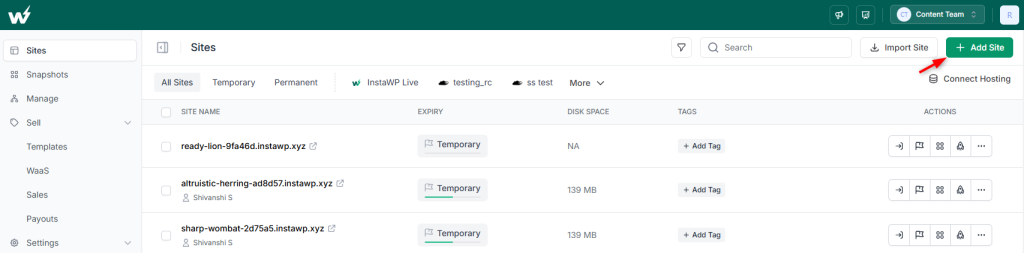
Then, log into your dashboard and navigate to Staging > Add New +
From the popup, select From Scratch.
Then, modify the WordPress configuration and tick the plugins you want to experiment with in the sandbox site, such as the Depicter slider plugin.
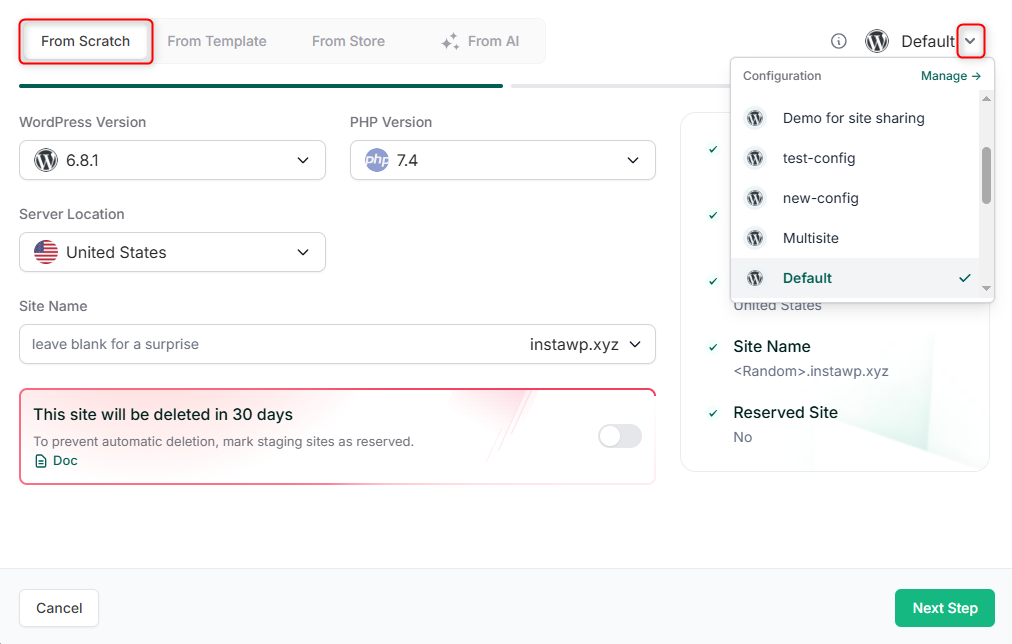
When you’re done, click the Create Site button and wait for the tool to create your staging site with your configuration and selected plugins. This should take a few seconds.
You will see your newly created WordPress staging site login credentials and a Magic Login button to log into the site’s WordPress Admin panel automatically.
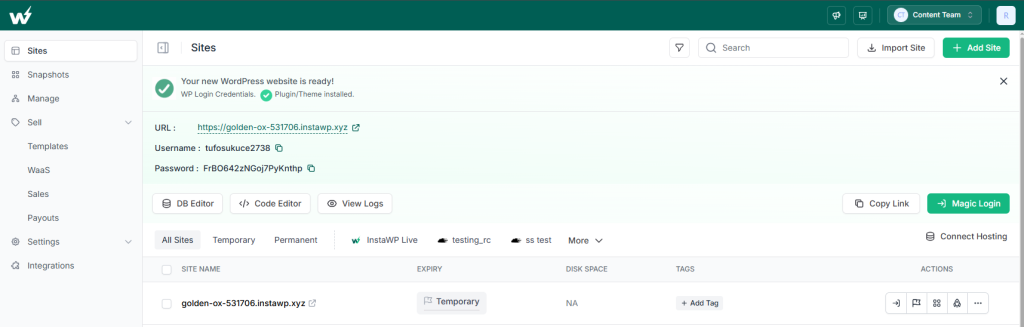
Click here to learn more about experimenting with fresh staging.
Plugin and Theme Testing
When you log into the new WordPress staging site, you will notice that the plugins you selected were automatically installed.
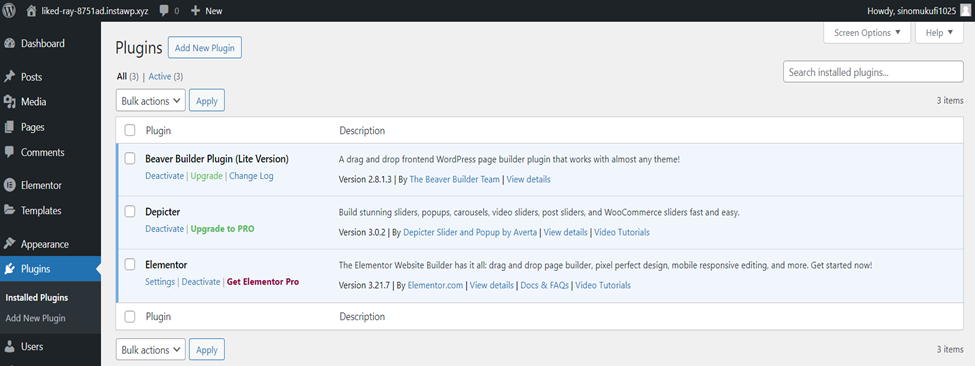
You can test them by customizing their settings, editing their codes, checking for bugs, and previewing the changes.
To configure plugin settings, click on a plugin from the side menu and make your adjustments.
Remember to save and preview your changes after making the adjustments.
You can use InstaWP Code Editor to edit your website’s WordPress themes and plugin source code files and the DB Editor to use the “Adminer” SQL management tool to quickly and easily edit your site database. You can also see logs of your edits.
To use the DB or Code Editor, navigate to Staging > Select the three dots more icon next to the staging site > Tools.
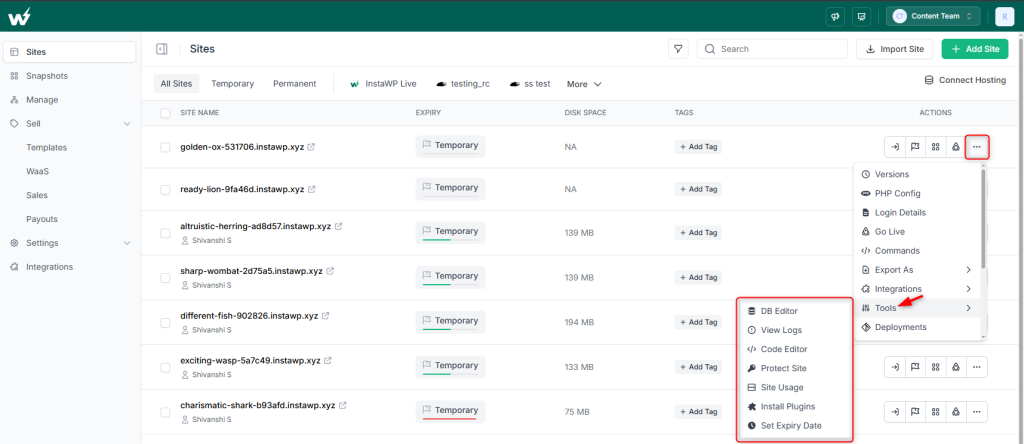
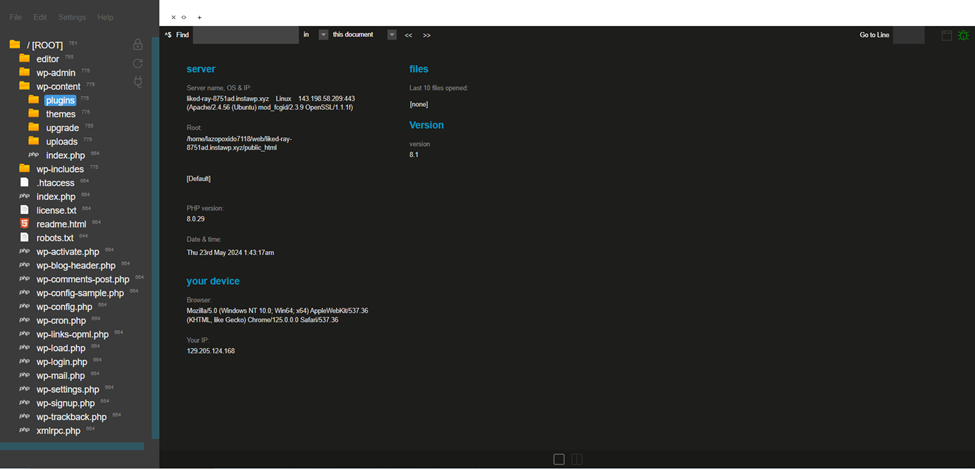
Click Here to learn more about plugin and theme testing.
Plugin/Theme Comparison
The InstaWP toolset allows you to compare multiple themes or plugins, test their functionality, and decide which one to use on your live site.
Suppose you want to build with page builders in WordPress and are considering plugins like Elementor and Beaver Builder. In that case, choosing only one is essential to avoid conflicts and potential performance issues.
To keep your database and hosting storage clean, use the InstaWP staging environment to compare these plugins before making a final decision. Select the plugins you want to test when creating a new staging site.
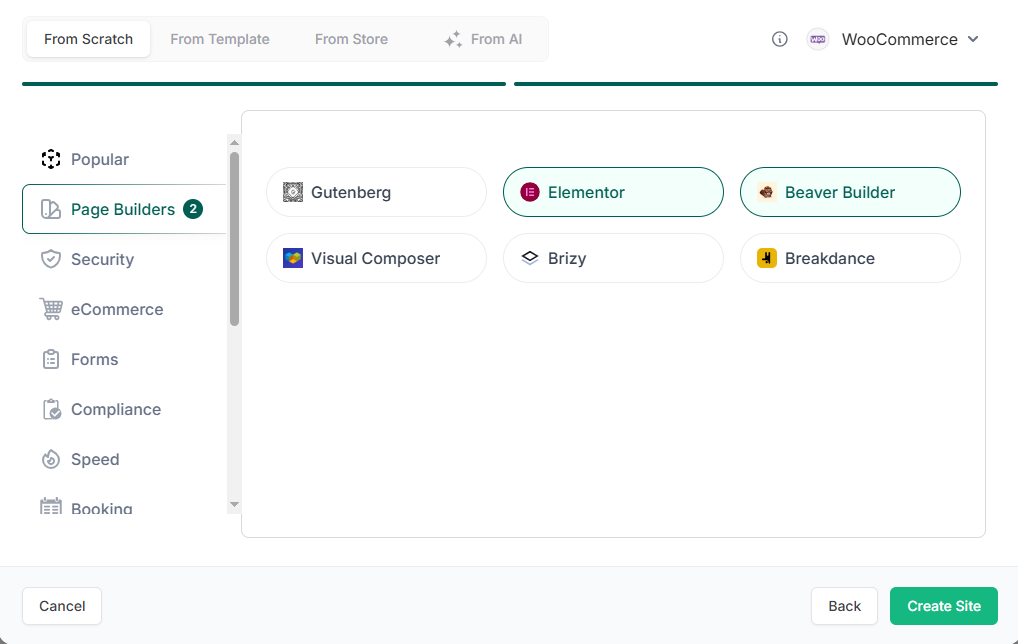
Alternatively, if you already created the WordPress staging site without the plugins you wish to compare, you can add the plugins from the WordPress repository.
For plugins, navigate to Plugins > Add New Plugin.
Search for the plugins you want to use, install, activate, and compare.
For themes, navigate to Appearance > Themes > Add New Theme.
Search for the themes you want to use, install, activate, and compare.
You can use the winning theme or plugin on your live site when you are done.
Click here to learn more about comparing plugins or themes.
Migration
Do you intend to host your staging site on an external hosting provider? The IntaWP migration tool makes it easy to migrate your staging site to another hosting provider by URL.
To migrate, first, install a blank WordPress site on the external hosting server. Ensure the domain name is already pointed to the hosting servers.
Then, open the IntaWP migration tool. Copy the staging site URL and paste it in the field labelled Enter the URL of the website to transfer, and click Connect.
You will be redirected to the staging site to grant authorization to connect to InstaWP. After that, you will be redirected back to the migration tool.
Then, enter your domain URL to the blank WordPress site in the Destination Website field, and click Connect.
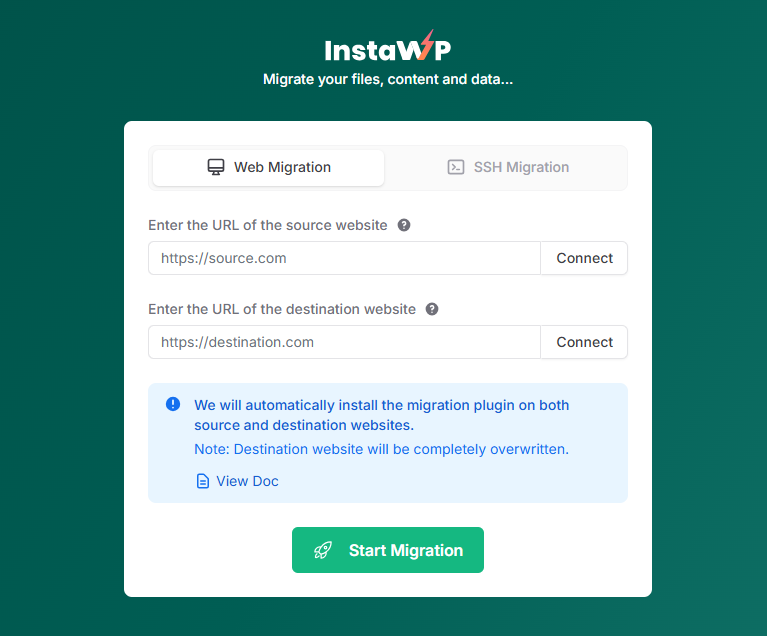
After connecting both sites, click the Start Migration button to begin the site migration.
Click here to learn more about site migration.
Hosting
InstaWP hosting is managed WordPress web hosting with built-in CDN, Security (WAF), and Backups, making it the best WordPress hosting for agencies.
To host with InstaWP hosting managed WordPress web hosting, navigate to Hosting > + New Site.
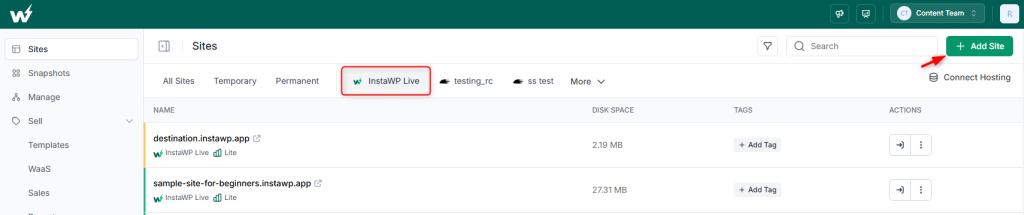
Select the InstaWP hosting option from the popup and click the Next Step button.
From the Choose Pricing Plan popup, proceed to Add your card details and return to select the hosting plan you want to buy. Continue the process until payment is successfully made.
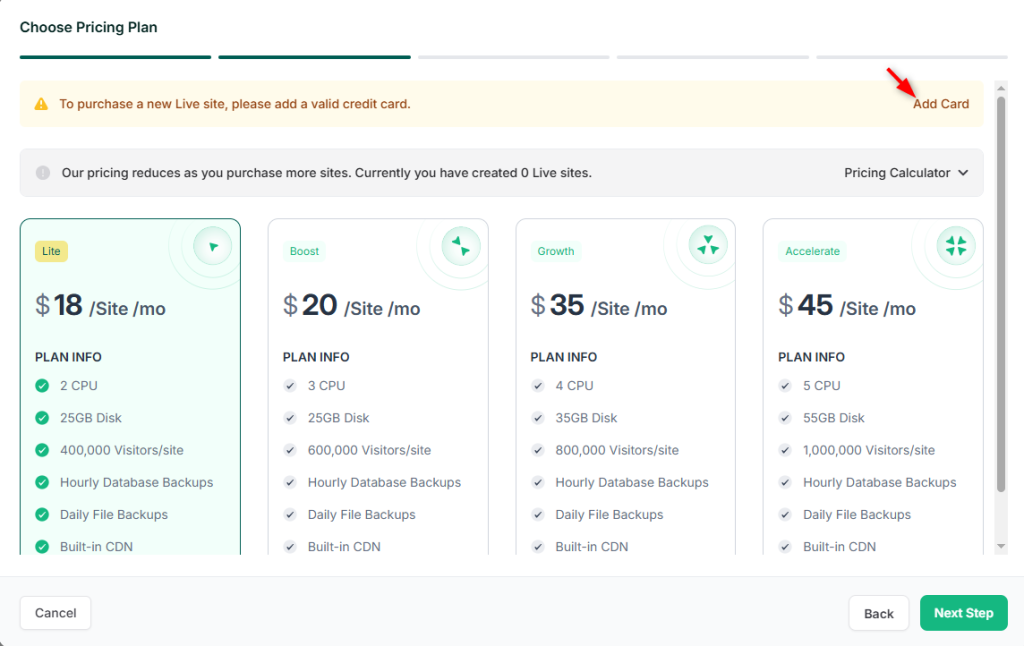
Then, returning to your InstaWP dashboard, navigate to Hosting > select the dropdown > Map Domain.
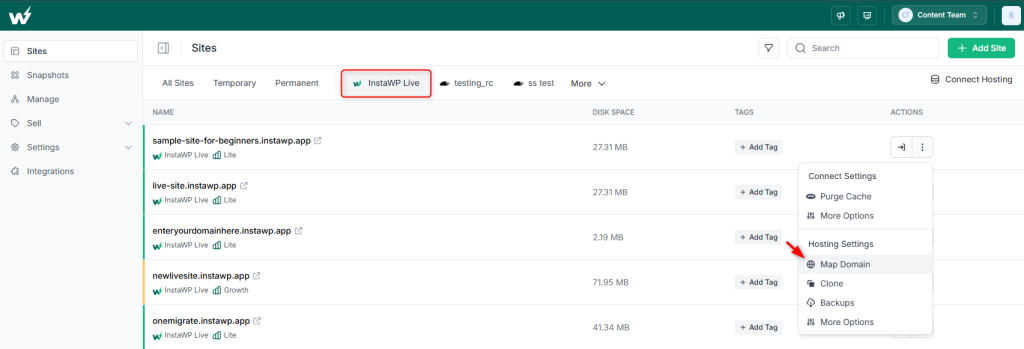
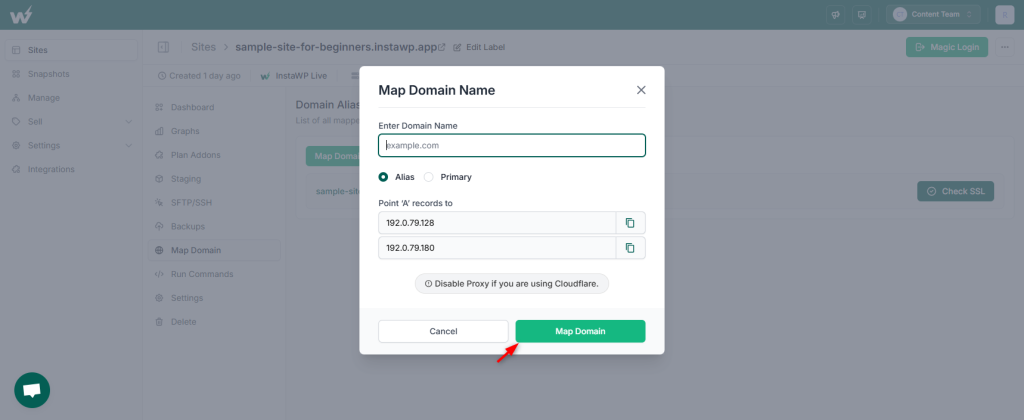
Enter your domain name, copy the A records, and add them to your domain settings on the domain registrar panel, such as Cloudflare or Namecheap.
Then, click on Map Domain. You can now access your WordPress site via the domain URL.
Click here to learn more about hosting with InstaWP.
Staging a Live Site
Regular updates are necessary after the site goes live. However, it’s common for updates to break WordPress sites inadvertently. Testing any WordPress changes and updates in a staging environment is best to minimize this risk.
The InstaWP Connect WordPress staging plugin is the best WordPress staging plugin. It effortlessly transforms live sites from any WordPress web hosting server into an InstaWP staging environment.
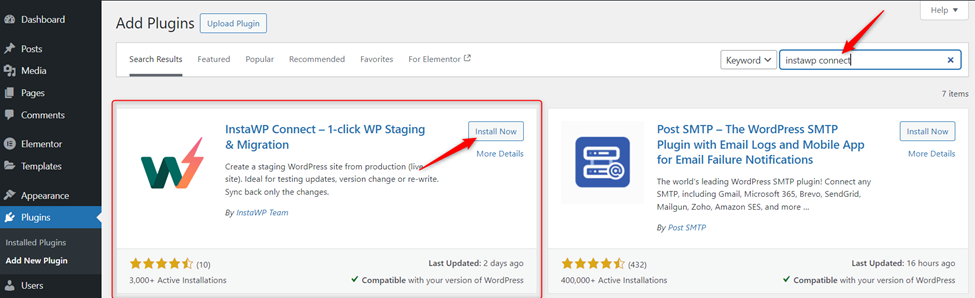
On the live site, navigate to Plugin > Add New Plugin.
Search for InstaWP Connect.
Install and activate the plugin.
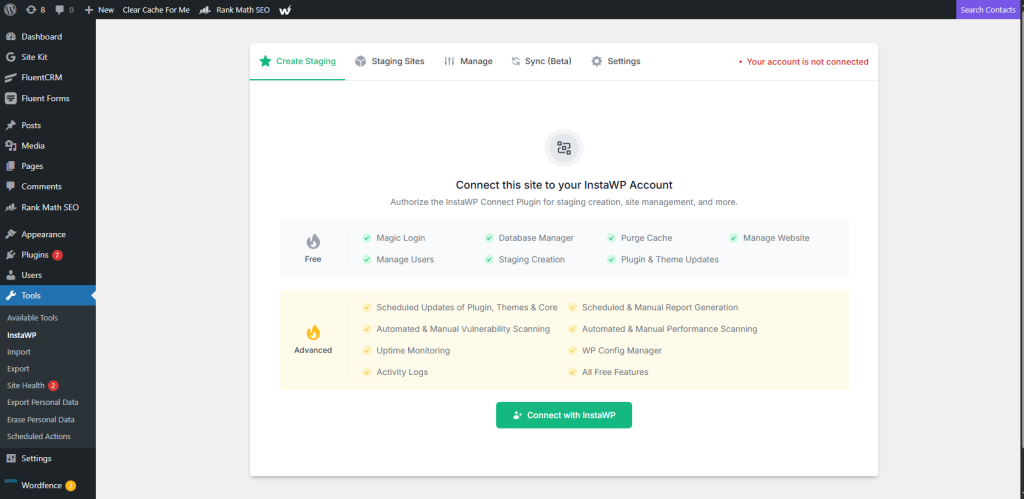
Then, navigate to Tools > InstaWP > Create Staging.
Click Connect with InstaWP to link your live site to InstaWP.
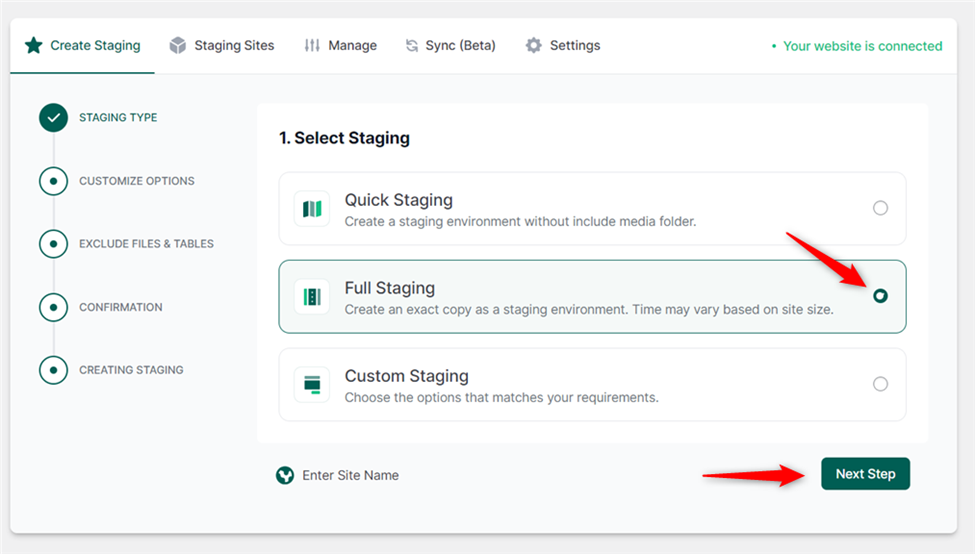
Once connected, click on + Create Staging Site.
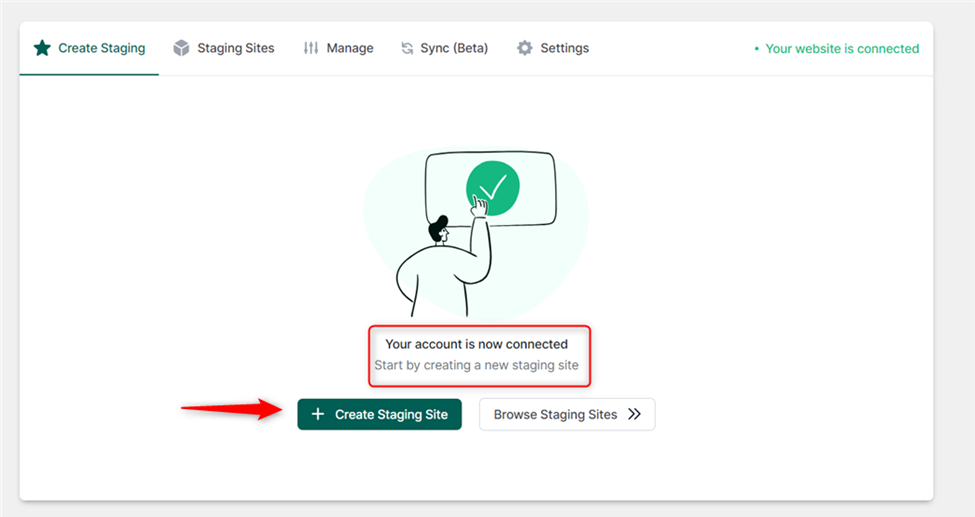
When staging a live WordPress site, you have three (3) options:
- Quick staging: This option will create staging without the media folder.
- Full Staging: This option will create a full replica of the site, and everything from your live site will be added to the staging site
- Custom Staging: This option allows you to choose what should be included and excluded from the staging WordPress site. You can skip plugins, themes, media, or specific files or folders.
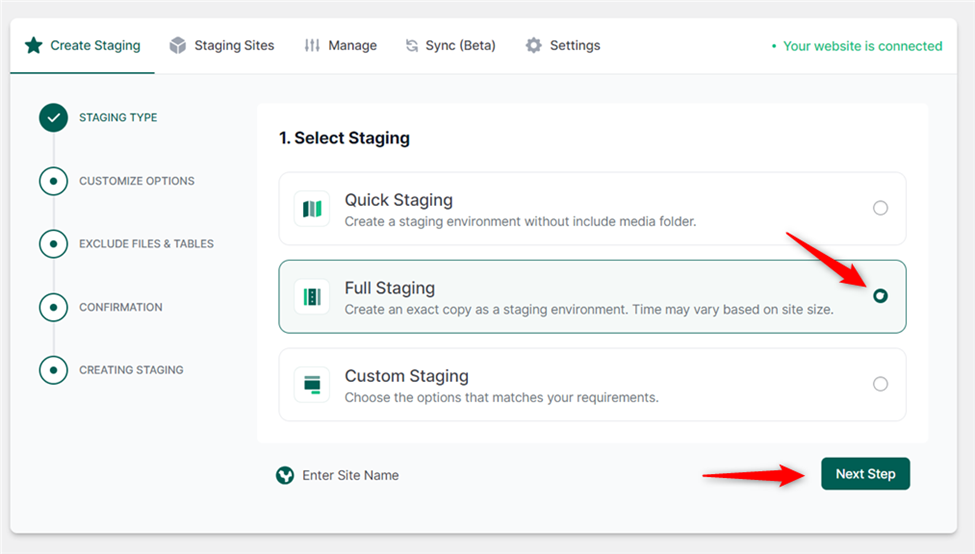
Select the type of staging you wish to perform and follow each step carefully. You can then successfully create a staging replica of your live WordPress site.
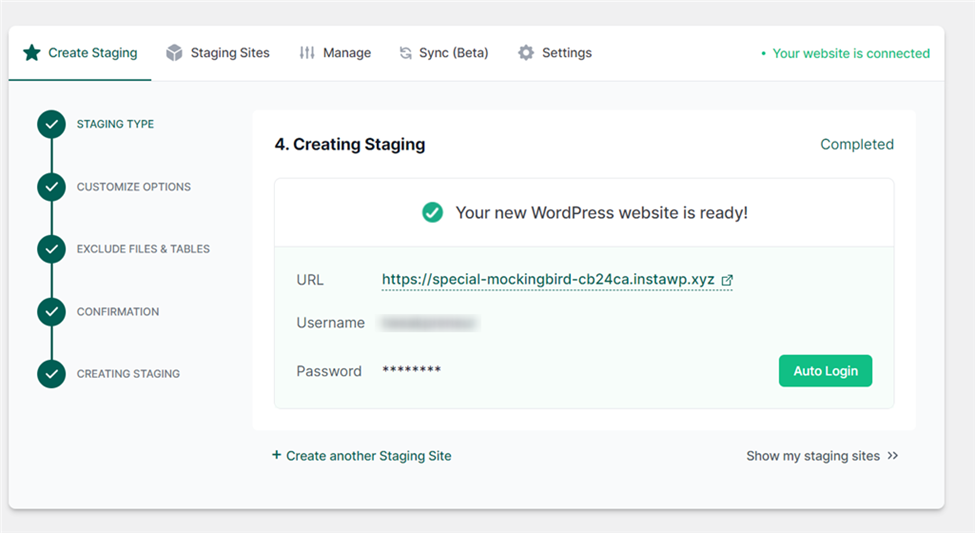
Click here to learn more about staging a live site.
Testing
When you want to update an existing plugin or theme, upload new content, or install a new one, you should first test the update or change on your WordPress staging environment to catch bugs and issues.
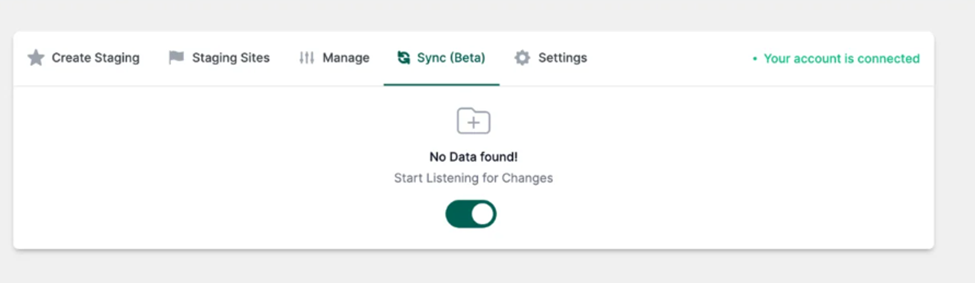
Before making any change, first enable the 2-way sync listening option.
Navigate to Tools > InstaWP > Sync (Beta) and enable listening for changes.
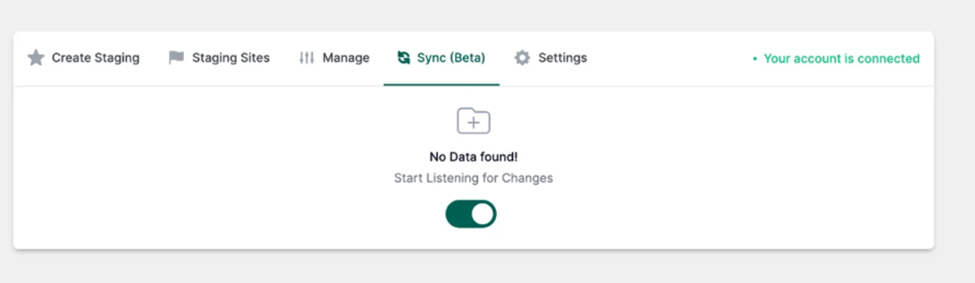
Enabling 2-way synchronization allows you to track each change you make and push changes from staging to live and vice versa with one click.
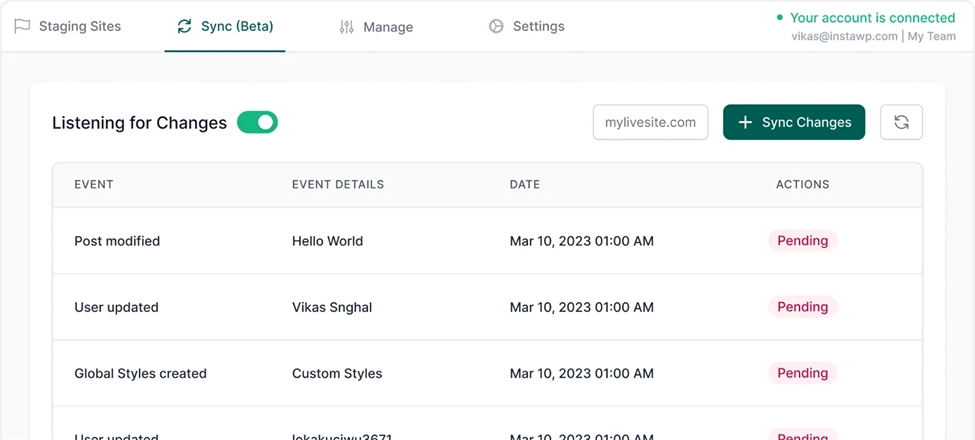
Click here to learn more about testing site updates and changes with 2-way sync.
WaaS
Delving into the WaaS (website as a service) business can help your agency make more money.
With WaaS, you can resell your WordPress site designs to others and make recurring income from customized hosting and management plans.
You must first convert the staging site to a monetized template.
Next, navigate to WaaS > Add New +.
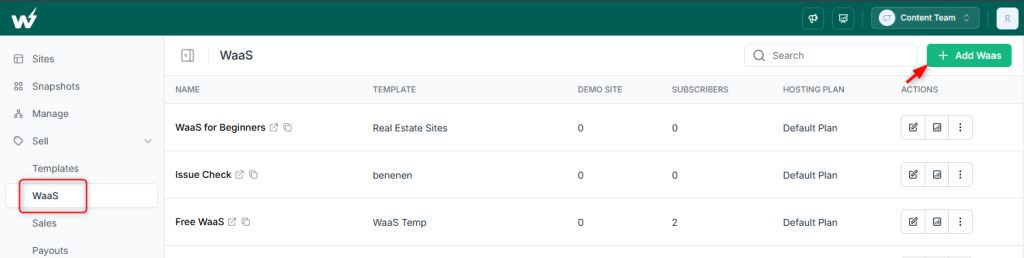
Enter the WaaS name, select the template, and proceed to the next step.
An Options dialogue will appear, asking you to turn the following options on/off:
- Skip InstaWP demo site creation
- Ask for payment at the beginning
- Skip steps for choosing a template or hosting
- Language
Turn on/off based on your preferences and click the Next button.
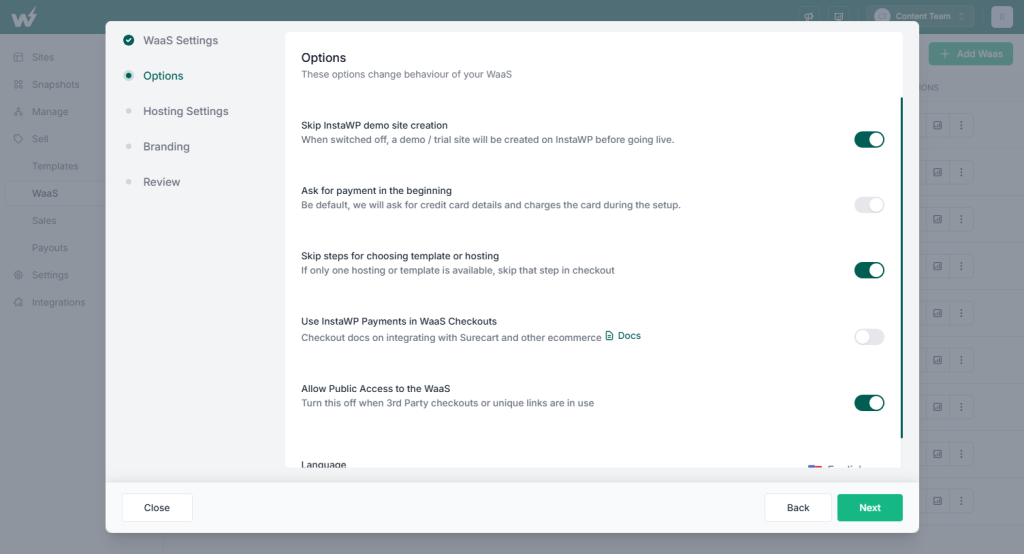
Enter the necessary information required in the Hosting Settings and Branding Dialogue sections.
Then, review your WaaS information and complete the process.
InstaWP will provide you with a link to your WaaS landing page. Customers can create their site using the WaaS link, which offers ready-made templates and a hosting service.
After creating a WaaS, you can manage it by modifying its settings, hosting settings, or branding and checking statistics of active sites made by customers.
Click here to learn more about WaaS.
Remote Site Management
Using the InstaWP Connect WordPress plugin, you can connect multiple sites to your InstaWP account.
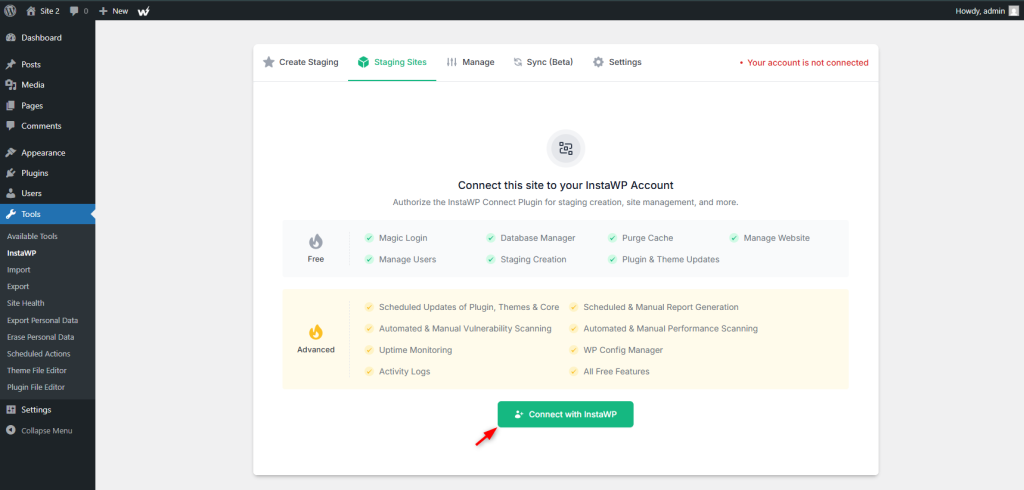
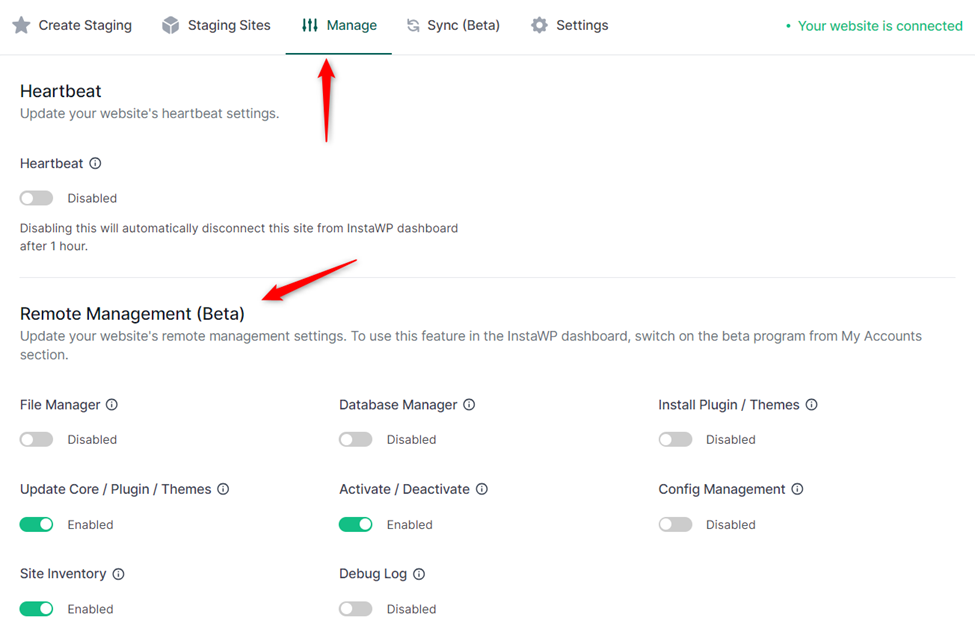
Once connected, InstaWP will start receiving heartbeats from your live site. Depending on your needs, you can enable more management options.
To enable more management options, log into your live WordPress site Admin panel and navigate to Tools > InstaWP > Manage.
From the Remote Management (Beta) section, enable the remote management options you want.
You can then create multiple staging sites to test changes and updates.
After creating the staging site, enable 2-way sync to track and push the changes and updates from staging to live and vice versa.
Navigate to Tools > InstaWP > Sync (Beta) and enable listening for changes.
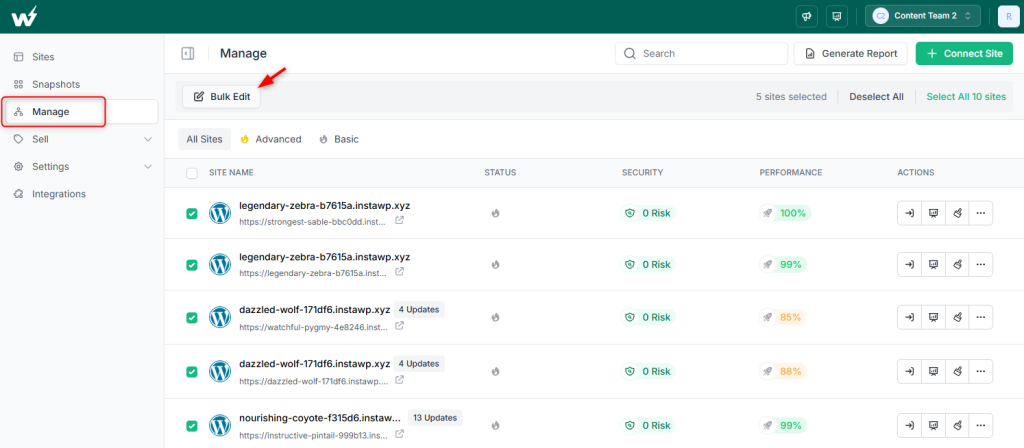
You can select multiple sites to perform scans for vulnerabilities, performance issues, and bulk editing.
Go to your InstaWP dashboard to bulk edit sites and navigate to Connects.
It will show you a list of connected live sites.
Select the sites you want to edit and click the Bulk Edit button.
Remote site management removes the burden and complications of local development and the limitations of your hosting provider’s staging functionality.
Click here to learn more about remote site management.
Get Started with InstaWP
Now that you have seen how to build excellent WordPress sites, from ideas to faster hosting, why not try the InstaWP toolset today and experience site development on another level?
FAQs
What kind of web hosting do I need for WordPress?
You need managed WordPress web hosting for your WordPress site, preferably one that is cloud-based, performance-optimized, and has 99% uptime. This way, your site will be readily accessible and blazing fast.
Should I host my own WordPress server or buy one?
Hosting on your WordPress server can cause many issues, such as security breaches, vulnerability attacks, and downtime. Instead, you should buy managed WordPress hosting plans optimized for WordPress sites.
Which is the best web hosting for WordPress agencies?
WordPress agencies need a reliable web hosting partner. The best web hosting for WordPress agencies is InstaWP hosting. InstaWP hosting is cloud-based hosting with 99% guaranteed uptime, a user-friendly control panel, reliable security and regular automated backups, speed and performance optimization tools, positive reviews, and expert customer support.
Can I move a locally developed WordPress site to the IntaWP server?
Absolutely! You can use the InstaWP Connect plugin to push the entire locally developed WordPress site to InstaWP with just a few simple clicks. The platform supports all versions of LocalWP, XAMPP, MAMP, or WAMP.
Can I design a WordPress site before hosting?
Yes, it’s possible to develop a WordPress website online without buying hosting and domain in advance. You can do this by using InstaWP’s cloud-based sandbox/staging environment.
With InstaWP, you can create a WordPress site from scratch and build it up to a fully functional WordPress site that is accessible from anywhere with an internet connection. When it’s ready to go live, you can migrate it to InstaWP hosting or any other hosting provider.