If you build or manage WordPress sites for a living, WordPress 6.9 is the release that will shape how you work in 2026 and beyond, not just how your dashboard looks this week.
It is the second and final major WordPress release of 2025, and it is the first version where the long promised Gutenberg Phase 3 collaboration work really lands in core. You get block level notes for proper editorial feedback, better tools for structuring content, and a more machine friendly core that is easier for AI tools and automations to understand.
This WordPress 6.9 features guide is written for people who actually ship things with WordPress: agencies, freelancers, in-house teams, and developers. Instead of only listing features, we will focus on the real-world impact.
Table of Contents
What Is WordPress 6.9 In Simple Terms
WordPress 6.9 is a major update to WordPress that focuses on three things:
- Collaboration inside the editor: Block-level Notes so teams can comment, review, and resolve feedback directly on blocks, similar to Google Docs.
- More capable core blocks and smoother editing: New blocks like Accordion, Math, Time to Read, Word Count, plus block visibility controls and stretchy text make it easier to build modern layouts without stacking small plugins.
- Developer features that prepare WordPress for AI and complex apps: The new Abilities API, improvements to the Interactivity API, and script loading changes make WordPress more discoverable and controllable for tools, APIs, and AI agents.
If someone asks you “What is WordPress 6.9” you can safely answer:
“It is the 2025 end-of-year release that turns the editor into a more collaborative workspace and gives developers an AI-ready WordPress core.“
We have also created a detailed video on the WordPress 6.9 release. Check it out.
WordPress 6.9 Release Date And Timeline
The scheduled final release date for WordPress 6.9 is 2 December 2025.
That date is confirmed in the official WordPress.org release posts and repeated in multiple ecosystem overviews.

For agencies and in house teams, this timing matters. It usually sits after key sales periods, which makes it a natural time to:
- Upgrade client sites in batches
- Test custom plugins and themes against the new APIs
- Roll out new editorial workflows using Notes and the updated blocks
Who Gets The Most Value From WordPress 6.9
Different roles feel this release in different ways. Here is a quick overview.
| Role | Before WordPress 6.9 | With WordPress 6.9 |
|---|---|---|
| Content editors | Feedback via email or chat, lots of context switching | Block level Notes inside the editor, Time to Read and Word Count blocks that help shape content directly |
| Site builders and agencies | Many small plugins for accordions, math, reading time, block visibility | Native Accordion, Math, visibility toggles, Terms Query and stretchy text for more control with fewer plugins |
| Developers and product teams | Custom code to express capabilities and interactions | Abilities API, Interactivity API improvements, better script handling and AI friendly capabilities registry |
| Ops and performance teams | Manual checks for compatibility and performance | Field guide updates, PHP 8.x support improvements, more efficient script loading and block assets. |
In practical terms:
- If you primarily write or review content, 6.9 makes collaboration less painful.
- If you design and assemble sites, you can now do more with core blocks and fewer third party dependencies.
- If you build plugins, themes or internal tools, the platform is more structured, more discoverable, and more future ready for AI and automation.
New Collaboration And Editing Features In WordPress 6.9
Let’s learn more about WordPress 6.9 features around editing and collboration.
#1: Notes: Google Docs Style Comments Inside The Block Editor
Let’s start with the star of WordPress 6.9 for editors and agencies. Notes.
If you have ever used comments in Google Docs, this will feel very familiar. You can now attach a note directly to a specific block inside the editor. That means feedback finally lives where the content lives.
How Notes work in WordPress 6.9?
Here is the basic flow from the video:
- Select a block in the editor, for example a paragraph.
- Click the three dot menu in the block toolbar or List View.
- Choose “Add note”.
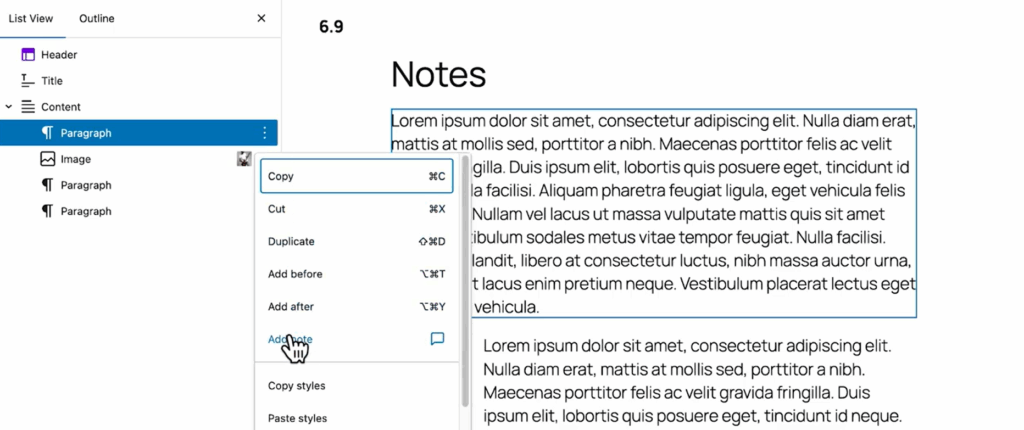
As you click on the dialogue box next to Add Notes, a new panel shows up on the right-hand side. Type your comment and save the note.
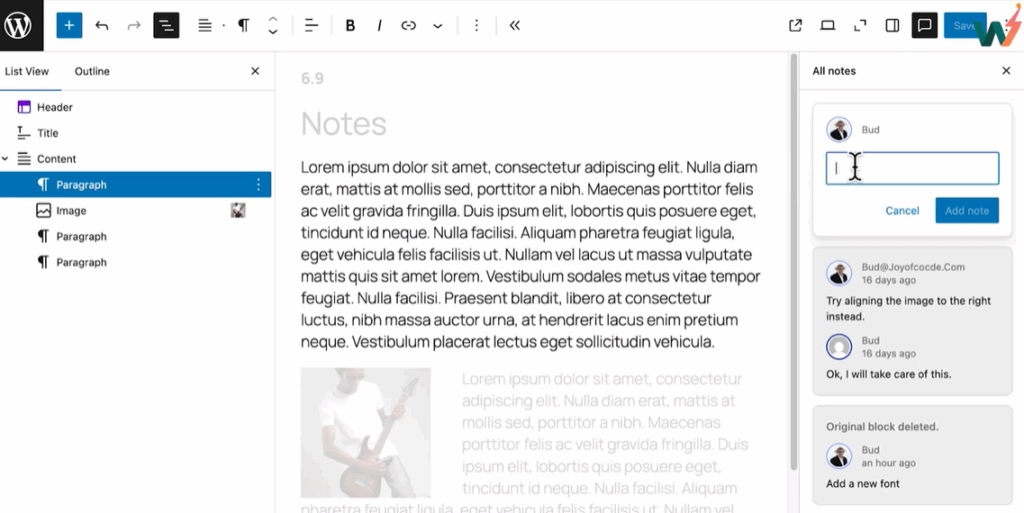
When you do that:
- The rest of the content fades out so you can focus on that one block.
- The block gets a small avatar icon in its toolbar.
- Admins and editors receive an email that a new note is waiting on that page or post.
Click the avatar again and you see the Notes sidebar with all comments related to that block. You can edit, resolve, or delete notes from the three dot menu next to each one.
Why this matters for teams?
Instead of “Can you make the first paragraph bigger” in Slack, you are now leaving that comment right on the first paragraph block.
For agencies and product teams:
- Review rounds stay inside WordPress.
- Clients can leave feedback without touching design or layout.
- You keep a history of what changed and why, block by block.
This is the first real taste of Gutenberg’s collaboration phase. It does not replace full project management, but it cuts a lot of friction from daily content review.
#2: Hide Or Show Blocks Without CSS
The next feature feels small until you use it a few times. WordPress 6.9 lets you hide any block from the front end directly from the editor.
You can toggle visibility in two places:
- In the block toolbar for that block
- In List View for that block
Click the three dots, choose Hide, and the block disappears from the public page. Click again to Show and it returns.
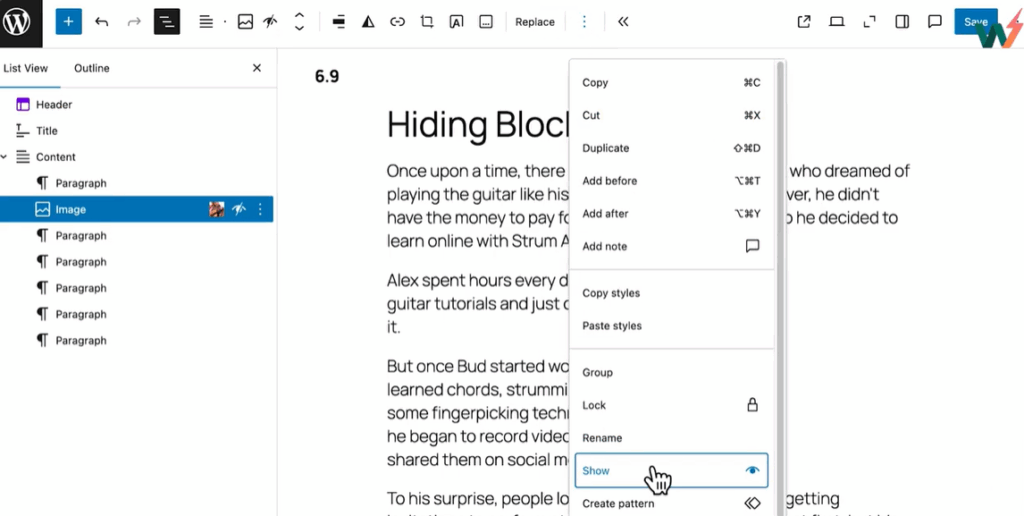
Important details from the demo:
- A hidden image does not leave an empty space on the front end. The layout closes up neatly.
- Once a block has been hidden, the toolbar gives you a simple toggle so you can flip between visible and hidden states quickly
This new WordPress 6.9 feature is perfect when you:
- Want to temporarily remove a section for a campaign without deleting it
- Need to keep a block in draft for internal review
- Run A/B style experiments manually on small sites
It is not yet a full conditional logic system like some “visibility” plugins. The video hints that more advanced conditions such as date, time, or user type may arrive in future releases. For now, think of this as a clean on and off switch for blocks.
#3: New Core Blocks That Replace Utility Plugins
WordPress 6.9 ships with several new blocks that many sites previously solved with one off plugins.
Here is a quick mapping.
| Block | What it does | Why readers care |
|---|---|---|
| Time to Read | Shows estimated reading time for the content | Sets expectations and reduces bounce |
| Word Count | Outputs the word count of the current page | Helps writers and readers gauge depth |
| Terms Query | Lists posts by category, tag, or taxonomy | Builds smarter archives without custom code |
| Math | Renders mathematical formulas cleanly | Makes technical content readable and professional |
| Accordion | Creates collapsible sections that hold blocks | Lets readers expand only the parts they care about |
Let’s look at how some of these feel in practice.
Time To Read And Word Count Blocks
These two blocks answer the questions visitors ask silently.
“How long will this take”
“How in depth is this page”
You can drop a Time to Read block near the top of a blog post or documentation page. Combine it with Word Count for internal guidelines, such as keeping certain content types within a range.
Benefits for teams:
- Editors can check scope while writing.
- Readers feel more in control and are more likely to commit to the article.
Terms Query Block
The Terms Query block lets you build archives around categories, tags or custom taxonomies directly from the editor.
Example uses:
- “More posts in SEO” section that pulls from an SEO category.
- Product lists grouped by tag like “On sale” or “New arrivals”.
- Custom taxonomies such as “Course Level” for LMS sites.
You get dynamic lists without custom queries or template overrides, which is a big win for site builders who live in the editor.
Math Block
The Math block removes the need for formula screenshots.
You can add mathematical expressions and let WordPress render them properly. This is especially valuable for:
- Educational blogs
- Finance and analytics content
- Technical product documentation
Readers get crisp, accessible formulas instead of blurry images.
Accordion Block
The Accordion block finally lands in core after a long wait, and it is more flexible than a simple question and answer pattern. The Accordion block in WordPress 6.9 is not just a simple Q&A toggle. It is a full container block that can hold rich layouts inside each panel.
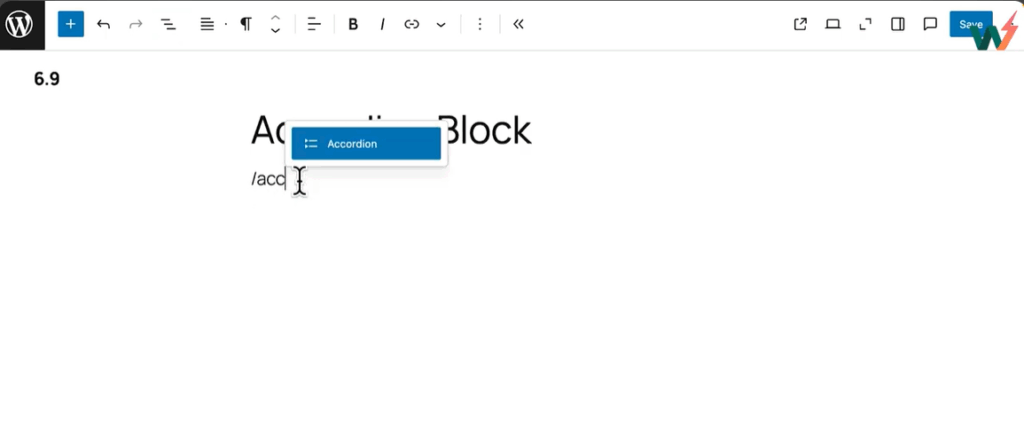
Here are a few things to learn about the Accordion block:
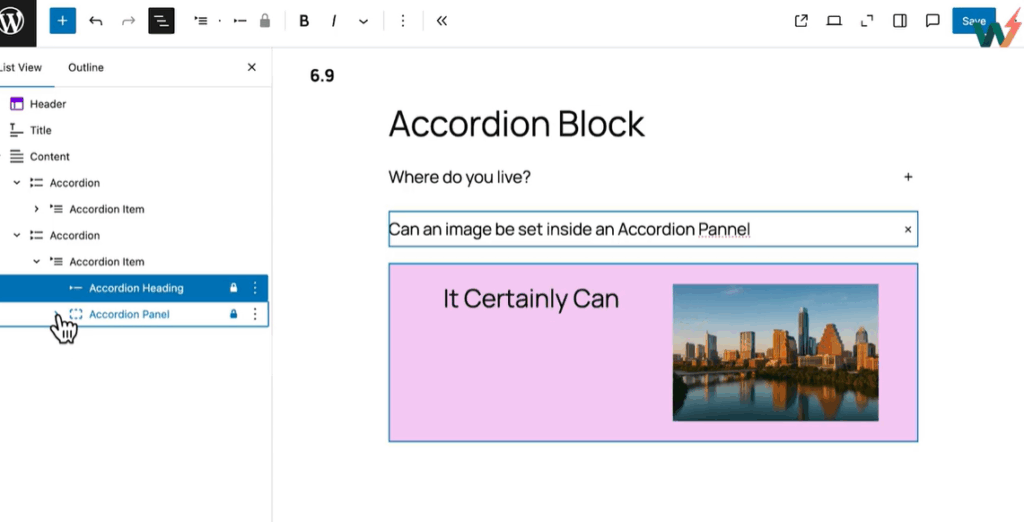
- Each accordion item has a title and a panel area.
- The panel can hold any blocks. In the video, a panel contains a two column layout with text on the left and an image on the right.
- You can control whether accordions start open or closed and where the arrow icon appears.
Real world uses:
- FAQ sections
- Feature details on product pages
- “More info” sections that would otherwise create long scrolls
Because it is a core block, you get consistent behaviour with themes and better accessibility than many custom solutions. You can also use an accordion with the Hide block feature.
This matters for real sites because:
- You can keep experimental accordion sections in the editor but hide them on the front end until they are ready.
- You can turn seasonal FAQ sections or promo content on/off without deleting the whole accordion.
So accordions become another thing you can safely “park” in the layout: ready to use later without cluttering your live page.
Stretchy Paragraphs And Stretchy Headings
The Stretchy Paragraph and Stretchy Heading blocks solve a common visual problem.
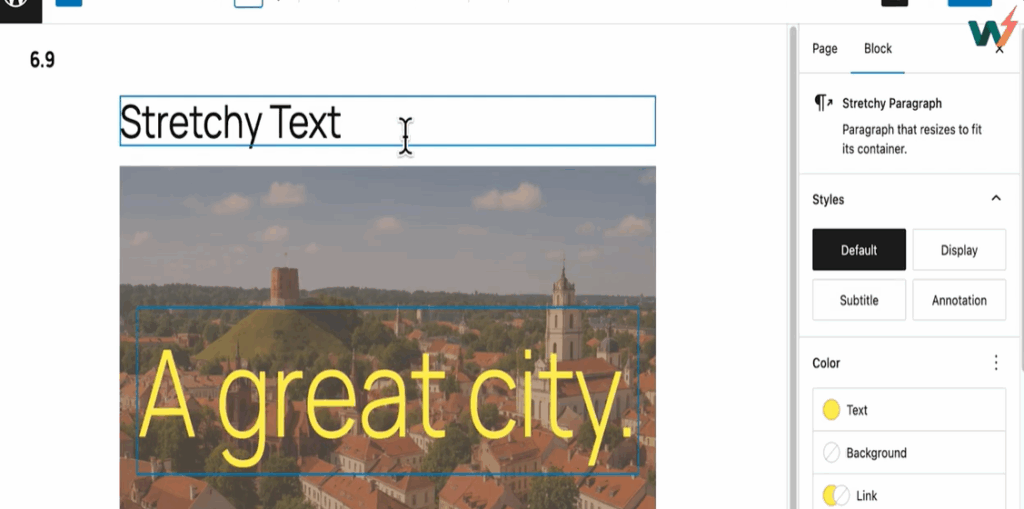
When the block is transformed to Stretchy Paragraph:
- You lose manual font size controls.
- WordPress automatically scales the text to fit the available space.
On the front end, as you resize the container, the text scales along with it. The same applies to Stretchy Heading.
Where this helps:
- Hero sections that need bold headlines without media query gymnastics
- Callouts that sit inside responsive layouts
- Landing pages where you want consistent “big headline” energy on all devices
You trade manual control for reliable, fluid typography that respects the container.
Navigation Block Upgrade: Create Pages From The Menu
Finally, there is a small but very practical improvement to the Navigation block.
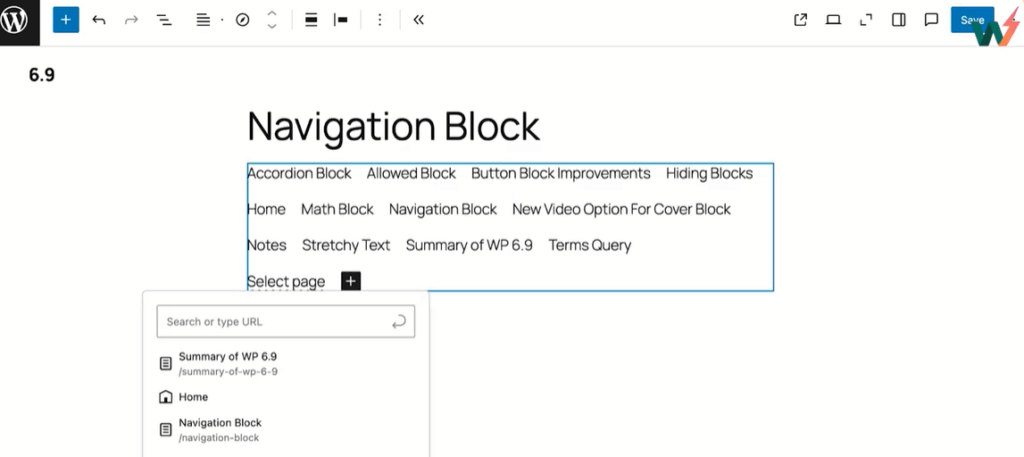
While editing a menu, you often realise “I need a new page here”. Previously you had to leave the menu, create the page, then return to the navigation editor and add it.
WordPress 6.9 adds a Create page option right inside the Navigation block:
- Open your navigation in the editor.
- Add a new menu item and choose Create page.
- Give it a title such as “New page”.
- Save it as a draft, not a published empty page.
In the video, the new item appears in the menu as a draft link. Site visitors do not see it yet. Once you add content and publish that page, the navigation automatically starts showing the link on the front end.
Result:
- Fewer context switches while building site structure.
- Cleaner workflow for agencies assembling menus with many sections.
Allowed Blocks: Safer Patterns And Controlled Layouts
The last feature in this section is ideal for teams that ship reusable layouts. Allowed Blocks lets you control which blocks can be used inside a container block, such as Group, Cover, or Columns.
You configure it in the Advanced settings of the container:
- Select the Group or other container block.
- Open the sidebar and scroll to Advanced.
- Find the Allowed blocks option.
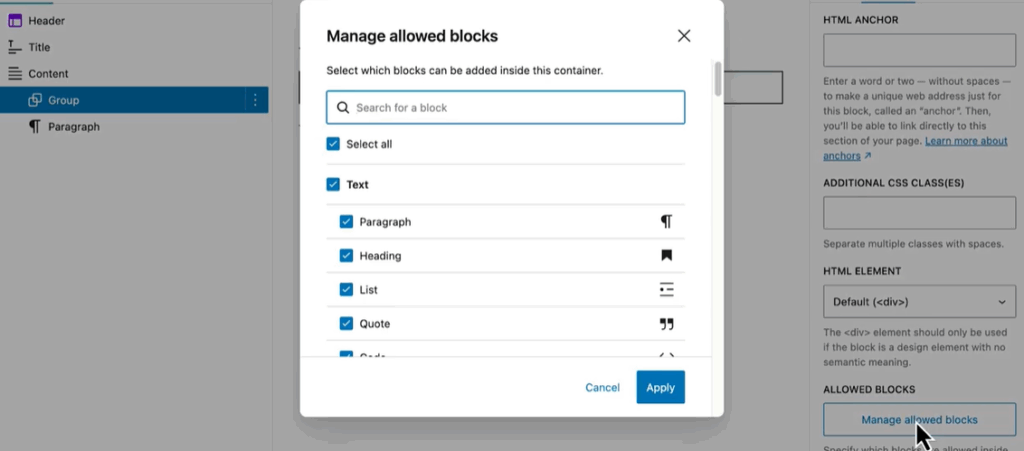
- Open the manager and uncheck blocks you do not want inside this container.
By default, every block is allowed. You are essentially disallowing blocks to keep a pattern clean.
Real examples:
- Lock a pricing section so teammates can only add headings, paragraphs, buttons and images, not random embeds.
- Restrict a hero section to a heading, subheading, paragraph and one call to action button.
This keeps your design system consistent, especially in bigger teams where many people edit the same patterns.
Developer Features, Performance Gains And AI Readiness In WordPress 6.9
So far we have stayed in the editor. Now, let us look under the hood. WordPress 6.9 is quietly important for developers because it:
- Introduces the Abilities API
- Improves the Interactivity API and Block Bindings
- Refines script and style loading for better performance
- Expands the Command Palette across the whole dashboard
Together, these changes make WordPress more structured, more performant, and much friendlier for AI tools and automation.
Abilities API: A Registry For Capabilities That AI Can Understand
The most important developer change in 6.9 is the Abilities API.
At a high level, it gives core, plugins and themes a central registry where they can describe what they can do in a consistent, machine readable format.
Instead of every plugin inventing its own way to express “send newsletter” or “create product,” these actions can be registered as abilities with:
- A name
- A description
- Expected inputs
- Expected outputs
Recent deep dives make it clear that this is part of a broader “AI building blocks for WordPress” initiative and is explicitly designed to support AI agents and external automation tools.
From a practical point of view, this means:
- Plugin authors can expose abilities in a predictable way
- AI assistants, MCP style clients, and remote tools can discover what a site can do without guesswork
- Site owners keep tighter control because abilities are registered, validated and executed through a shared layer
You can think of it as an API level menu of what your WordPress site can actually do, ready for human users, REST clients and AI agents.
For now this is foundational work. The early versions ship with 6.9, while richer integrations are expected to land around WordPress 7.0.
Interactivity API, Block Bindings And Script Handling
The Interactivity API continues to evolve in 6.9. The goal is simple: let you build dynamic, app like front ends without dragging in a heavy JavaScript framework.
Key themes from the latest dev notes:
- Cleaner directives so multiple plugins can attach behaviors to the same element without conflicts
- New TypeScript helper types for asynchronous actions to make interactive code safer to write
- Better client navigation patterns that feel smoother on the front end
On the performance side, several changes land together:
- Script modules that power interactivity can use
fetchpriority="low", which means browsers and search engines treat them as lower priority than your main content. - More styles are loaded on demand, and theme CSS is tightened to avoid bloat.
This might sound abstract, but the effect is concrete:
- Largest Contentful Paint (LCP) often improves because interactive scripts no longer compete with hero images and main content.
- There is less chance that one plugin’s interactivity clashes with another’s.
- Classic themes benefit from smarter block style loading instead of a big block of CSS.
You get more interesting behavior on the front end without paying a big performance penalty.
Command Palette Everywhere In The Dashboard
Earlier versions of WordPress introduced a Command Palette in the site editor. WordPress 6.9 pushes this idea across almost the entire admin.
You open it with:
Command + Kon MacControl + Kon Windows
Then you start typing. For example:
- “Reading” to jump straight to the Reading settings screen
- “Add plugin” to go to the plugin install screen
- “Pages” to list all pages
In practice this changes how power users work:
- Less clicking through nested menus
- Faster context switches when you are managing many sites
- A shared surface that future plugins can hook into, possibly via Abilities in later versions
If you manage client sites all day, the time saved here adds up quickly. WordPress starts to feel closer to a modern IDE or design tool where the keyboard is the default.
Performance, Reliability And PHP Versions
Beyond interactivity, WordPress 6.9 adds a series of performance and stability improvements:
- Frontend performance: The performance field guide for 6.9 highlights refined script and style handling, better query behavior and more predictable output buffering.
- More consistent caching and output: Standardised output buffering helps plugins and hosts apply caching layers more safely, which reduces the chances of “white screen” incidents caused by output at the wrong time.
- Modern PHP support: The 6.9 cycle continues the trend of optimising for PHP 8.x, with guidance that sites should be running at least 8.1, and preferably newer, for best performance and compatibility.
For non technical readers, the summary is easy:
WordPress 6.9 should feel slightly faster, safer and more predictable once your host and plugins are up to date.
How To Safely Test WordPress 6.9 Before Updating Live Sites
Major releases are not the time to “test in production.” If you already use InstaWP, you can turn the WordPress 6.9 rollout into a controlled upgrade cycle instead of a gamble.
InstaWP is an all in one cloud platform for WordPress where you can spin up fresh 6.9 sandboxes in seconds, clone a live site into a staging copy without touching your host, and run every experiment safely in the browser.
Instead of juggling local installs, ad hoc staging on different servers, and manual backup restores, you keep everything in one place: disposable WP staging sites for quick checks, long-lived staging sites that mirror client environments, and shared access so your team or clients can review changes, leave feedback, and sign off before anything hits production.
1. Create a real WordPress 6.9 staging site in InstaWP
Start by spinning up a fresh environment that matches what you want to upgrade to. In InstaWP, you:
- Create a new site using a WordPress 6.9 configuration or template
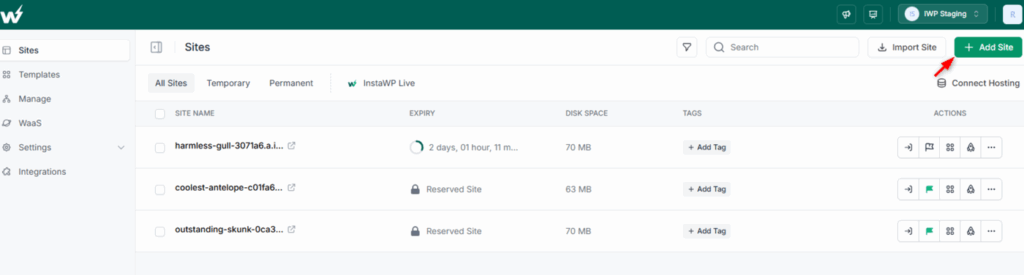
- Name it after the client or project so your team can recognise it later
You now have a clean WordPress 6.9 site running on fast cloud hosting, completely isolated from your live environment. No manual server setup, no waiting for your host to provision a WordPress staging site.
Must Read: Create Site | InstaWP Docs
2. Clone your production site into the sandbox
Next, move your real site into this 6.9 sandbox. You can:
- Restore an existing backup into the InstaWP site, or
- Use migration helpers, SFTP or SSH based migration for larger installs
The goal is simple. Your InstaWP WP sandbox should look and behave like production, only with zero risk. This is the place where you break things on purpose.
3. Test workflows, not just “Does the homepage load”
Once the copy is ready, test the parts of the site that actually matter.
Focus on:
- Content workflows that use Notes, block visibility, Accordion and the new blocks
- Templates that rely on patterns, Groups, Covers or Allowed Blocks
- Business critical flows like checkout, lead forms and logins
The advantage of InstaWP here is psychological as much as technical. You know this environment can be thrown away and recreated in seconds, so you are more willing to click around aggressively and try edge cases.
4. Use InstaWP site tools to catch hidden issues
After the basic smoke tests, use InstaWP’s site tools to look for problems that do not show up at first glance.
For example, you can:
- Run performance scans on key pages and see how WordPress 6.9 affects speed
- Check logs and activity to catch deprecations or plugin warnings under 6.9
- Tag sites as “6.9 tested” so your team has a clear view of upgrade status
This turns your upgrade process from “it seems fine” into something you can actually audit.
5. Push the change live when you are confident
Once everything looks stable in InstaWP, schedule the real upgrade. Update the production site to WordPress 6.9 during a quiet period. If you use connected workflows or sync, you can push changes from the sandbox back to live, or keep both environments aligned for a while.
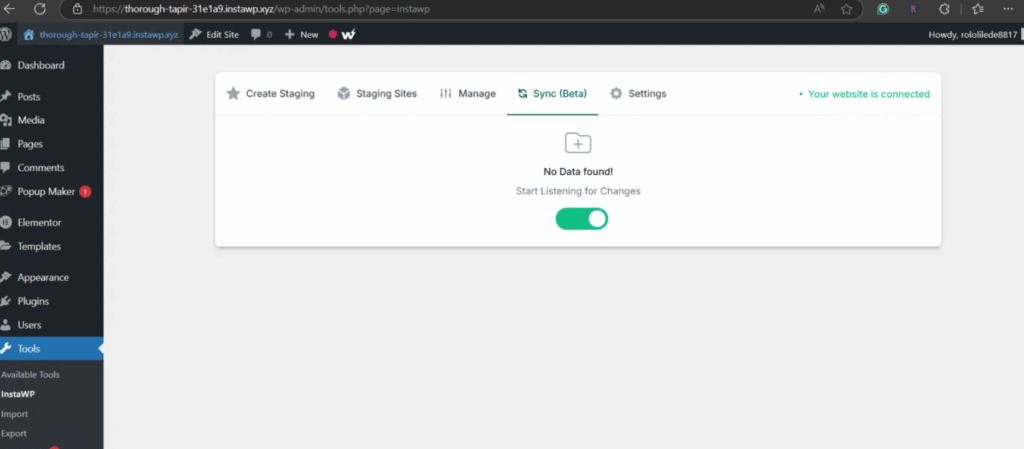
For agencies managing dozens of WordPress sites, this becomes a repeatable pattern. One InstaWP sandbox per client, one clear checklist, and no surprises when WordPress 6.9 finally lands on production.
Final Thoughts: What WordPress 6.9 Signals About The Future
WordPress 6.9 is not a flashy redesign. It is something more important: a foundation release.
Across the three parts of this guide, a clear pattern emerges:
- Editors and teams get Notes, block visibility and smarter core blocks.
- Site builders get stretchy text, native Accordion, Terms Query and safer patterns.
- Developers get the Abilities API, better Interactivity API support and more control over scripts and styles.
Put simply:
- Collaboration is moving into the editor.
- Common UI patterns are moving into core blocks.
- AI and automation are moving closer to the center of WordPress.
If you build or maintain WordPress sites, 6.9 is worth testing early. The sooner your workflows, plugins and patterns align with this direction, the easier it will be to ride what comes next in WordPress 7.0 and beyond.
FAQs about WordPress 6.9
1. What is WordPress 6.9?
WordPress 6.9 is the second and final major WordPress release of 2025. It focuses on three things: smoother editing, built-in collaboration with Notes, and new developer tooling such as the Abilities API and Interactivity API improvements that prepare WordPress for AI driven workflows.
2. When is the WordPress 6.9 release date?
The final release date for WordPress 6.9 is scheduled for 2 December 2025, following multiple beta and release candidate builds.
3. What are the main new features in WordPress 6.9?
Headline features in WordPress 6.9 include block-level Notes for collaboration, the new Accordion, Math, Terms Query, and Time to Read / Word Count blocks, plus better drag and drop and template management in the Site Editor. On the developer side, you get the new Abilities API, upgrades to the Interactivity API, improvements to the Block Bindings API, DataViews updates, and a range of frontend performance tweaks.
4. What is the Notes feature in WordPress 6.9?
Notes let editors and admins leave comments directly on individual blocks inside the editor, similar to how comments work in Google Docs. You can add, reply to, resolve, and delete notes in a dedicated Notes sidebar, and WordPress can send email notifications so teams can review and approve content without switching tools.
5. What is the Abilities API in WordPress 6.9?
The Abilities API is a new system that lets core, themes, and plugins register what they can do in a standard, machine-readable registry. It is designed so that UI features, external apps, and AI agents can discover and safely invoke abilities like “publish a post” or “create a product” without custom glue code for every plugin. WordPress 6.9 ships the first version of this API as part of the broader “AI building blocks for WordPress” initiative.
6. Does WordPress 6.9 support PHP 8.5?
Yes. WordPress 6.9 adds beta support for PHP 8.5 and 8.4, which means all known core compatibility issues are fixed, although usage in the ecosystem is still ramping up. PHP 8.3 to 7.2 remain fully supported, so you can upgrade PHP in stages as your themes and plugins catch up.
7. Does WordPress 6.9 include a new default theme?
No. WordPress 6.9 does not ship with a new default theme. Instead, this release concentrates on improving the Site Editor, collaboration tools, APIs, and performance while continuing to use the existing default theme.
8. Do I need a block theme to benefit from WordPress 6.9?
You get the most from WordPress 6.9 with a modern block theme, especially for template management and pattern-based workflows. That said, classic themes still benefit from improvements such as Notes in the post editor, new blocks, and frontend performance gains like on-demand block styles and better script prioritisation.
9. Is WordPress 6.9 an AI-focused release?
WordPress 6.9 lays the foundation for AI rather than surface-level AI features. The Abilities API, Interactivity API updates, and related dev tools are explicitly built to let AI assistants and automation platforms understand and perform actions on WordPress sites in a consistent way, with deeper integrations expected around WordPress 7.0.
10. How should I test WordPress 6.9 before updating a live site?
The safest path is to clone your live site into a staging or sandbox environment, update that copy to WordPress 6.9, then test critical flows such as checkout, forms, login, and custom templates before touching production. You can use the WordPress Beta Tester plugin, WP-CLI, or a host-provided staging tool to run these tests, and the official 6.9 Field Guide is a good checklist for areas that changed.